 Even though up till now all my pictures have been stored in iPhoto, I’ve gotten to a point where I can’t stand working with the application anymore. I find it too slow and too limited in terms of editing. I’m also not satisfied with the way you can organize and store your photos. The easiest solution would simply be to switch to Adobe Lightroom or Apple Aperture, but I’m waiting for a new Mac to do that. This is why I’ve gotten around to using Adobe Bridge, until I choose a more advanced solution. Now Adobe Bridge is never meant to replace any of the previously mentioned photo management apps. It doesn’t store pictures, but only displays them in multiple ways. As the name mentions, it also works as a bridge with all other Adobe applications, and you can quickly access specific functions in them, like merging to HDR in Adobe Photoshop.
I’m not ready to export all my pictures from iPhoto and save them in new folders in the Pictures folder of my Mac, so is there a way for Adobe Bridge and iPhoto to coexist? You can try but it is a little risky. The iPhoto library is a little complex and you can easily get lost in it. To access pictures stored in iPhoto, go to Library>Pictures>iPhoto Library and choose the folder with the date the pictures were taken at. If that doesn’t work you can also try this way. One thing to get right though is to select the correct pictures to edit.
 As this forum discussion does well to explain, iPhoto saves photos in three folders: Originals, Modified and Data. Originals stores all the pictures imported from your camera, Modified has the pictures with your edits done in iPhoto, such as cropping or rotating, and Data contains thumbnails. Depending on how you work, you’ll choose to work with either the originals or modified, but try to stay consistent, or you’ll end up not knowing which ones are which. I prefer only working on the modified photos, that way I always keep the originals (for backup reasons), and they also already include any changes done in iPhoto. One really important thing to keep in mind though is to never, ever, move or delete pictures from your iPhoto libraries. You’ll risk messing up the iPhoto library structure and losing pictures.
Ultimately though, to the question, can you work with both iPhoto and Adobe Bridge, I’d say no. As said before the iPhoto library structure is complex and you’ll end up corrupting it. If you’ve gotten to this point, you’re simply better off switching to Adobe Lightroom or Apple Aperture in the long run. If like me you can’t do that for now, you’re safer choosing between iPhoto or Adobe Bridge. I’m choosing Bridge. In the future, we’ll compare how to import pictures from iPhoto to Lightroom and Aperture and choose which one is easier.
 I use middle click a lot in Firefox: to open links in the background, to close tabs, to open new ones… This means that more often not I accidentally middle click on a blank area of the webpage, meaning I enable the browser’s automatic scroll feature and start moving up and down the page.
 Bought a new Mac and still getting to grips with Leopard? The best thing to do is play around with your new system, open up applications, try things out and look into the settings. The next best place to turn to is the
  If you’re a movie buff, then you’ve probably got a ton of films on DVD and DivX but no real way of keeping track of them. Organising your collection can bring many benefits such as helping you rediscover old films you’d forgotten, classify your films by theme or genre and more easily share your collection with friends and family.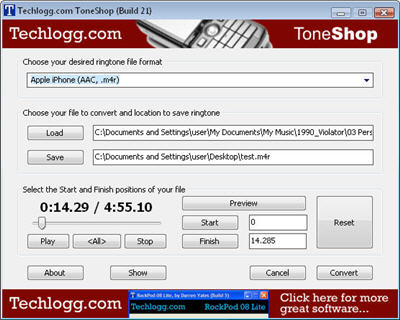
 In terms of its features and functionality,
 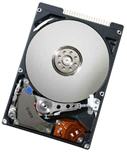 If you don’t perform regular backups, then it’s a good idea to run a hard drive monitor to warn of impending failure. Hard drive monitors check the read/write speed, temperature and other technical data of your hard drive in real-time to look for activity that’s out of the ordinary. This can save your bacon if you’ve got large amounts of important data saved on your hard drive with no backups.


 I can count on one hand the number of times I’ve used the multimedia keys that adorn the top of my keyboard. There’s everything there from an internet browser launcher key to volume controls and e-mail client opener. The thing is, I never use them because most of these actions I execute with the mouse which means that they’re a complete waste of space. However, one way I’ve found to get greater use out of them is to turn them into hotkeys. By doing this, you can launch the kind of things that you want to launch from your multimedia keys instead of those that you don’t need. This can mean anything from launching programs to deactivating external devices or shutting down your PC. Here are 5 top tools for converting your multimedia keys into something more productive: