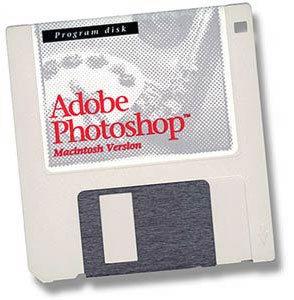
Photoshop turns 20

When it comes to photo editing and manipulation, Photoshop is undoubtedly the best software you can find for the job. Though it started back in 1987 as a basic graphic app developed by Thomas Knoll, the first version of Photoshop was officially launched at the beginning of 1990 – exactly twenty years ago.

20 years of Photoshop

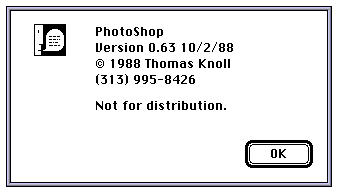
I’m a big fan of this great program (as you can tell by the loads of posts I’ve written about it) so I thought it would be a nice idea to write this post as a celebration of Photoshop’s 20th birthday. I’m sure you’ll be shocked to see how different the first Photoshop looks from the one you have on your computer!

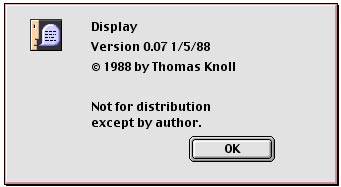
Like I said before, Photoshop started off in 1987 as a very basic graphic app for Mac called Display, created by Thomas Knoll, which could only display images in black and white.

20 years of Photoshop

Thomas’s brother, John, was working for Industrial Light and Magic and asked Thomas to work on a enhanced version of this program that could help him process digital images. The idea seemed to work, and in 1988 the two brothers decided to create a commercial photo editing tool based on Display, but using a new name: Photoshop.

20 years of Photoshop

Thomas wrote all the code, while John focused on plug-ins. They also managed to reach a deal with Adobe in September 1988, and early in 1990, the first version of Photoshop was launched. Continue reading “Photoshop turns 20”

Rumor round-up: What’s new in Windows Mobile 7

Windows Mobile 7Next week, Microsoft will unveil its latest mobile operating system at the Mobile World Congress. Windows Mobile 7 presents the company with a chance to gain ground on iPhone and Android. On the other hand, if it’s poorly received it could seal the fate of Windows Mobile, an operating system which has sunk to just 9 percent of the total market share. Of course, most mobile blogs have come up with their own theories about what we can expect from Windows Mobile 7. Some are seemingly credible, while others are quite incredible. I’ve picked out the gossip that I think has the most substance to keep you going until Microsoft reveals all next week.

PPCGeeks has published a comprehensive round-up of the new features of Windows Mobile 7. It stresses that the information is not official, but the “closest information we have heard on actually being real”. Whatever that means. According to this information, there’s good news and bad news. The bad news is there will be no multi-tasking, although it says that apps will pause in the background, which is at least a little better than the iPhone can manage. PPC Geeks also reckons that WM7 will not support Flash or Silverlight within the browser, although it claims Silverlight will be supported out of the browser.

All the rumor sites seem to suggest that the new OS will be very focused on media and gaming. PPC Geeks is predicting full integration with Xbox Live, including the ability to purchase games.  Apparently Windows Mobile 7 will use the Zune software to handle music, videos, and photo syncing, which could be a positive step towards challenging the iPhone’s supremacy as the leading MP3 and video phone. With talk of push notifications and support for social networking in the new OS, WM7 could be a great platform for keeping in touch.

Elsewhere, WMExperts has thrown its theories into the mix. It claims that there will be two versions of the platform: a Business Edition and a Media Edition, the latter of which will include support for HD video, a Zune-esque music player, and potentially even streaming TV. The Business Edition will apparently be big on syncing, allowing users to share data across multiple devices through the cloud.

Gizmodo is always keen to throw tidbits onto the rumor mill. It says the SDK will be available in early June, and slates September as a potential release date for the operating system. The post also talks of a new gesture-based input system, which would allow users luxuries such as pinch-zoom, rotation and twisting that aren’t currently possible with Windows Mobile 6.x. Speaking of the previous incarnation of the OS, Gizmodo reckons that WM7 will support apps designed for version 6, although Russian mobile phone guru Eldar Murtazin claims that it won’t.

We’ll be at the Mobile World Congress next week, so we’ll be able to confirm or deny all of these rumors as soon as we see Windows Mobile 7 in action. In the meantime, if you have any ideas about what you think will be in the new version, or what you’d like to see, please let us know.

5 steps to clean up your Windows computer

As Jon already pointed out, today is Clean Out Your Computer Day, which makes it the perfect time to review some useful applications and routines for spring cleaning your Windows computer. That said, I hope you don’t limit these routines to one single day every year; all computers can benefit largely from frequent cleaning sessions, in terms of drive space, speed and performance. Here we go!

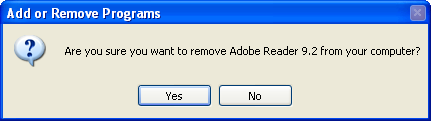
1. If you install new software apps quite often, you should probably check the list of installed programs on your system and start cleaning there. Ask yourself whether you still need that 500 MB program you haven’t used lately, and don’t be afraid to uninstall anything you don’t need anymore.

5 steps to clean up your Windows computer

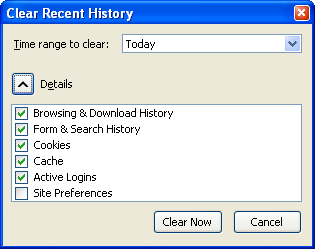
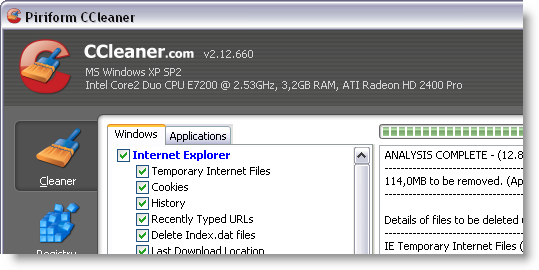
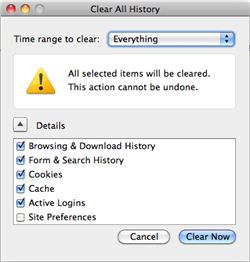
2. After months browsing the web, your browser history files and cache memory will have surely reached a huge size. Trim those down the easy way by using the browser’s own history manager (Tools > Clear Recent History in Firefox) or using a third-party app such as Free Windows Sweeper.

5 steps to clean up your Windows computer

3. Check the folder where you save all the files you download from the web, and make sure you clean them up. Keeping a program’s executable file after it’s been installed is just a waste of space!

4. Use disk analysis tools like SpaceSniffer to locate the largest files and folders on your system, and decide whether you need to keep them or not. Maybe it would be a good idea to store those gigabytes of old photos somewhere else…

5. Last but not least, use your favorite cleaning tool to get rid of any other additional junk data your computer has been storing in the background, such as Windows temporary files, recent document lists, log files and more.

5 steps to clean up your Windows computer

These are by no means the only tips we’ve we’ve got about computer spring cleaning. If all this isn’t enough for you, check our previous posts about how to recover hard drive space, five tools to clean up your computer, cleaning tips for a faster PC, how to free up disk space with Scanner, how to use a USB memory device to clean your PC and how to configure advanced options in CCleaner.

What about you? Do you have any other personal routines for computer maintenance?

Dos and don’ts: Cleaning up your Mac

Because they’re amazing, you might think you never have to think about spring cleaning your Mac, but it’s still a good idea to keep things in order. The second Tuesday of February is Clean Out Your Computer Day, so today’s a good day to start!

There are some myths about optimizing your system, and perhaps the most damaging is that of cache cleaning. Tools like Cache Out X will find and ‘clean’ your various caches, some of which may look pretty big. While that may save you disk space for a few moments, it’s a bad idea. Cache files in OSX are created precisely to speed up performance, so if you delete them, the system will have to recreate them, actually slowing you down!

That’s not to say there aren’t things you can do, so here’s some good advice:

1: If your browser is slow, perhaps it’s time to delete its history, cache and cookies? A year’s worth of browsing with a saved history and cache will seriously decrease efficiency. Instead of relying on the history, bookmark your favorite sites, then hit clean (File>Delete Cache in Safari, Tools>Clear Recent History in Firefox).

2: If you’re running any OSX up to 10.5 (Leopard), and you turn off your Mac at night, there are some scripts that perform clean up tasks automatically in the early hour of the morning – they clear up any unnecessary log files and system cache. Left in sleep mode, they’ll run when you wake up the computer but if you turn off your Mac they won’t. You can’t do any harm by running these scripts anyway, and doing so is really simple:

Open Terminal (look in Applications>Utilities) and enter the following text exactly: sudo periodic daily weekly monthly. You’ll then be asked for your system password – enter it, and hit return. You won’t see anything happening, but it will finish when the blinking prompt reappears.

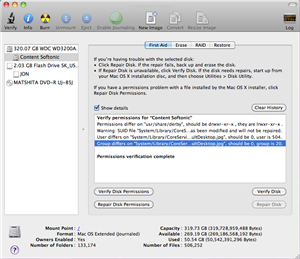
3: Run Disk Utility. Found in Applications>Utilities again, this will just make sure your directories are in order, and keep things running smoothly. It’s easy to use – click on your Hard drive in the Disk Utility window, then click Verify Disk, wait for the process to finish the click Repair. Repeat for Verify Disk Permissions. It may not speed your system up, but it won’t do any harm.

4: Clean out your folders. Over time it’s easy to let your pictures, documents and downloads folders get messy. Take time every month to clear them out. It makes finding things easier, and will free up some hard drive space. Go through your applications folder and delete apps you never use – they’re a waste of space!

Do you have any other cleaning routines?

Three ways to benchmark web browsers

I was surprised to learn that the new version of Firefox is 15% faster than the previous version. When I say surprised I actually mean I didn’t believe a word of it. I decided to challenge this figure by putting Firefox 3.5 and Firefox 3.6 up against each other in a series of three benchmarking tests. I also included comparisons with the latest versions of Chrome, Opera and Internet Explorer. In the name of transparency, I’ve decided to explain the benchmarking process for each of the three tests I applied. Why not try it for yourself and see which of your web browsers runs the best?

Test One:  Peacekeeper Browser Benchmark

Peacekeeper is a free service that puts your browser through its paces in a series of thorough tests. It checks performance in the following areas: rendering, social networking, complex graphics, data, Document Object Model operations, and text parsing. Each test takes about five minutes and simple involves hitting a button on the Peacekeeper site in the browser you want to test. To make a fair test you should ensure that you just have one tab or window open, and disable or uninstall any extensions you have running.

Peacemaker gives each browser an overall performance score, and you can view a more detailed breakdown of how that score was arrived at by clicking the ‘Details’ link on the graph. Here’s the graph generated by the browser tests I performed:
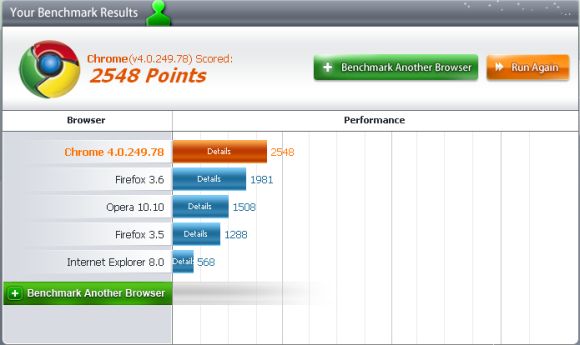
Peacemaker results

Test Two: SunSpider JavaScript Benchmark

The second test I performed was the same one run by Computerworld in its tests on Firefox 3.5 and 3.6. The SunSpider JavaScript benchmark is a utility that tests the speed of a browser by running a series of JavaScripts and measuring the speed at which the software process them. It breaks the results down into a series of different categories based on the scripts it ran. These results are a little harder to interpret than the Peacekeeper test, but you can look at the total time and use this as your benchmark for comparing the browsers. Here are the overall times (fastest first) for the browsers I tested:

  • Chrome 4.0 – 649.4ms

  • Firefox 3.6 – 1415ms

  • Firefox 3.5 – 1700ms

  • Opera 10.10 – 3051ms

  • Internet Explorer 8 – 6346.2ms

Test Three: The Acid 3 Test

The third and final test is much quicker and simpler than the previous two. The Acid 3 Test is used to measure a browser’s compliance with web standards, particularly relating to the Document Object Model and JavaScript. To pass the test a browser needs to attain a score of 100/100 and the final image it displays must match the reference image.
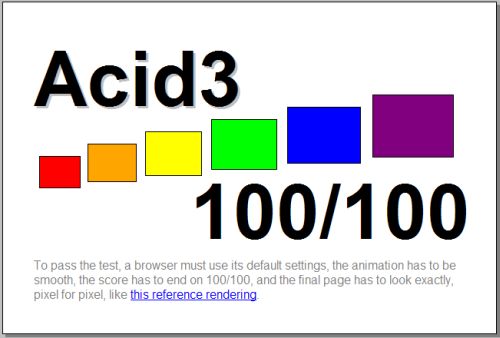
Acid 3

Of the five browsers we tested, only Google Chrome and Opera attained the maximum 100 out of 100. Firefox 3.6 (94) and Firefox 3.5 (93) both almost made the grade. Microsoft should hang its head in shame though, because IE8 only scored a measely 20 out of 100, meaning it falls way short of standards compliance.

Analyzing the results

Our benchmarking supports Computerworld’s claim that Firefox 3.6 is much faster than version 3.5. In fact, according to the SunSpider test we ran, the newer release comes out 17% quicker than the previous version. It’s still not as speedy as Chrome though, which was more than twice as fast as Firefox, and way ahead of Opera and IE.

What’s more, the Mozilla browser performs very well against its competitors in the Peacekeeper benchmark. Again, it’s only Chrome that pips the latest version of Firefox. And again, Internet Explorer is left floundering in final place, this time in a test than examines the overall capabilities of the browser.

So, my advice based on these results is to upgrade to Firefox 3.6 if you haven’t already done so. Better still, install Chrome and use that to browse the web instead. Having said this, ut’s definitely worth running the benchmark tests on your own browsers because the results can vary considerably depending on your setup, the amount of extensions that you have installed, the OS you’re using, etc.
Make Gmail more powerful with advanced search

Last night I was reviewing messages in my Gmail account, trying to get them all sorted out and reach the much-coveted inbox zero. I needed Gmail to display only my unread emails so that I could process them one by one, when I realized Gmail didn’t have that option anywhere. Sure you can select all unread messages, but that’s of little use if they’re all scattered over a dozen pages. So I started searching for a solution, and only a few minutes after I found Gmail Advanced Search.

Gmail Advanced Search

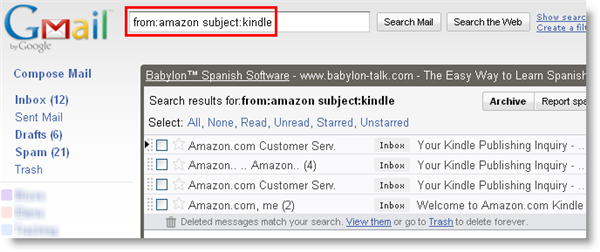
The advanced search options in Gmail let you use special words or symbols – called operators – to filter the messages displayed on your web browsers. It’s a quicker, more accurate way to find certain messages. You can filter you inbox to display only unread emails, only starred emails or only emails that came from a specific sender. What’s more, you can combine different operators and create super-refined filters like “messages from Peter with the word ‘dinner’ in the subject”.

These are some of the most useful operators you can use in Gmail:

  • from: – displays messages received from a certain sender: from:peter
  • to: – displays messages sent to a specific recipient: to:john 
  • subject: – displays messages with certain words in the subject: subject:bbq
  • label: – displays messages filed under specific labels: label:work
  • in:(inbox, trash, spam) – displays all messages stored in any of those locations: in:trash
  • is:(starred, unread) – displays messages you’ve starred or haven’t read yet: is:unread
  • filename: – displays messages with a specific attachment: filename:softonic.pdf

Friday Timewaster: I Hate Ice Levels

I guess it was Nintendo who invented ice levels in platformers, and since then it’s become a video game standard. Whatever you’re playing, you can bet at some point you’ll be asked to continue what you have been doing for the last few hours, but on slippery surfaces. I’m not a fan, possibly with the exception of the snowy levels in Mario 64.

I Hate Ice Levels is an ode to everything we dislike about these staple levels. It’s unbelievably tricky – I got cramps in my fingers after ten minutes playing! It’s meant to be a satire of ice levels, and as such it works well. It’s also a tough challenge for anyone who thinks they’ve got skills when it comes to platforming. Play it here – requires Flash.

The best Twitter clients for Windows

We’re big fans of Twitter here at Softonic, so I was surprised when I realized that we haven’t actually written a post about the best clients for PC. Well, fret no more, because I’m about to remedy the situation. Read on…

Echofon is a great option for serious tweeters. Although it seems to get uglier with every release, it’s still the OnSoftware team’s first choice. It integrates into Firefox, doesn’t take up much room, and makes it easy to post and switch between Twitter accounts. Try it!

Saezuri is equally light and flexible, but this app operates from your desktop, not the browser. It has pretty much the same features as Echofon, so if you like the sound of the add-on but don’t use Firefox, this is the client for you.


0t_tweetdeck_128.png0t_yoothumb.pngechofon.png


DestroyTwitter is guaranteed to make an impact. Scary name aside, it’s also a powerful Twitter client. A member of the AIR family, this sleek black app uses tabs to keep your tweets, contacts and messages under control.

Twhirl is the perfect solution if you want something even lighter. Fast, easy to use, but fully-featured, this AIR application is a great option. It also allows you to customize the interface and update frequency, as well as having support for various accounts.


0t_saezuki-thjpg.png0t_twhirl-th.png0t_destroytwitter-th.png


TweetDeck is probably the most popular Twitter app on Softonic. It’s quite a looker and has lots of features, making it almost as good as using Twitter directly. It also integrates into Facebook and MySpace, but it isn’t weighed down by the extra functionality.

Seesmic Desktop is a tool you often see on Twitter rankings, but it doesn’t make my top ten. Although it is a perfectly useful Twitter client, it also has a lot of additional non-Twitter related features. If you do want one app for all your social media needs, check out Sobees, AlertThingy or Yoono Desktop. They all do a similar job, but are more streamlined and nicer to use.

Vampires vs Werewolves Battlefield Heroes givaway!

Update: Sorry, there aren’t any codes left. Thanks to all who entered!

We love Battlefield Heroes, the free to play online shooter. It’s unusual in that it’s not serious, with its cartoony style, and the fact you can buy upgrades for your avatar: Costumes, experience upgrades special moves and even gestures (in game emoticons).

The  latest addition to Battlefield Heroes is the Vampire vs Werewolves pack, which for about $10 gets you a new outfit, special moves and more.

Electronic Arts have given OnSoftware 15 Nicolai Vampire packs and 15 Grims Varg Werewolf packs to pass on to our readers. So if you’re a fan of Battlefield Heroes and want to get one of these hellish upgrades for the game, leave a comment including your email address in the ’email’ field below, telling us which pack you’d prefer. It’s first come first served so be quick!

How to configure a Cisco VPN client in Snow Leopard

One of the great things about Snow Leopard is that you no longer need Cisco’s VPN Client to connect over a private network. Snow Leopard has its own Cisco VPN network configuration tool that works within OS X 10.6. Cisco’s VPN client doesn’t even work with Snow Leopard so if you’ve still got it on your system, you can dump it in the Trash. However, setting up a Cisco VPN network might be a little tricky for those doing it for the first time so here is a simple guide.

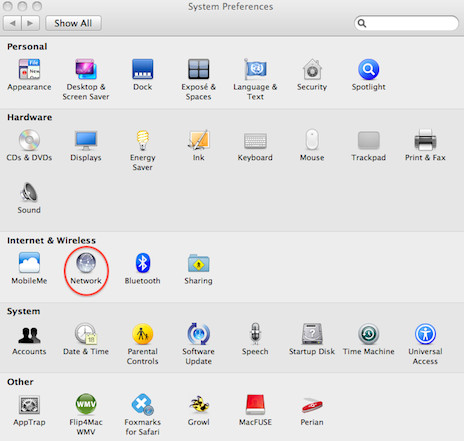
Go to System Preferences and select Network:

system-pref2.png

Use the “+” symbol at the bottom of the list of network connections on the left-hand side to add a new network. Continue reading “How to configure a Cisco VPN client in Snow Leopard”