Experts and researchers at OpenAI have developed a neural network that is capable of playing Minecraft just as well as most humans. This sounds like a story that doesn’t have much of an impact on the real world, but it actually does. You see, the importance of this development doesn’t lie in the fact that AI can now play video games too, but rather in how it learned to play Minecraft.
Training the neural network to play the popular block-based sandbox game involved 70,000 hours of in-game footage, in addition to a limited database of specially curated videos depicting certain in-game tasks being performed.
Minecraft: Java Edition (PC) Official Website Key GLOBALBuy Now
The stroke of genius here is that the Minecraft AI Education Edition package that the neural network was presented with didn’t just contain videos of Minecraft gameplay – it also contained a log of keystrokes and mouse movements that create a roadmap of the actions necessary to perform certain tasks. This process is known as Video PreTraining (VPT).
For the longest time, we’ve been willing and able to show AI what we want it to do, but we’ve been far less forthcoming with how it was supposed to achieve that objective. It’s impressive when AI figures these problems out for itself, and it has, in the past, actually informed human research teams on how better to tackle certain problems. However, we can’t expect AI to behave in a manner we expect and understand if we don’t teach it to behave as we do.
After a brief period of fine-tuning, the neural network was able to play Minecraft just as well as most human players – and better than some. In addition to simple tasks such as punching trees to harvest wood, the AI demonstrated that it could successfully hunt animals and consume their meat. One of the most impressive discoveries was that the AI had mastered the pillar jump – a move that requires a player to place a block below themselves while jumping to elevate themselves without having to build a staircase.
This experiment, while conducted in Minecraft, has massive implications for the future of robotics and artificial intelligence. As it turns out, the key to creating AI that can perform more complicated tasks doesn’t just lie in instructing it to perform them, but rather showing it keystroke for keystroke how the objective is achieved.
I bet you didn’t know beforehand that AI could play Minecraft. In the spirit of things you may have not known about the game, here’s 15 cool things you might not know you can do in Minecraft!
While IG is extremely popular for mobile devices, the browser version doesn’t work so well on Chrome. There are some features missing, and posting isn’t as easy or enjoyable. Fortunately, there are several Chrome extensions for Instagram that add more functionality to save you time and make you feel more productive.
We’ve created a list of the top Instagram extensions for Chrome you may find beneficial. Whether it’s for downloading, uploading, direct messages, or stalking videos anonymously, you’ll find them here.
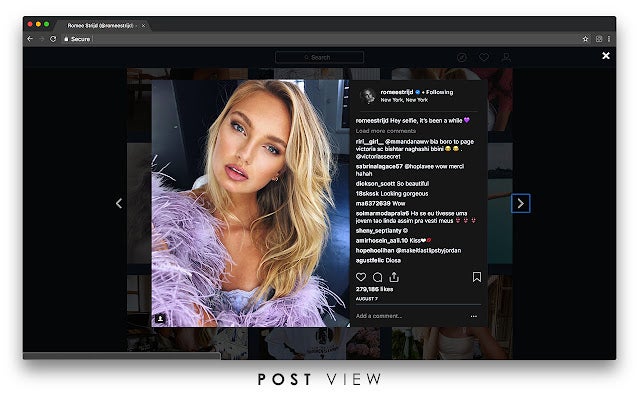
While using the official desktop Instagram app works well, it doesn’t have the full functionality of the mobile version. Even the browser version has some limitations. The Desktop for Instagram extension for Chrome presents a mobile layout on your screen with most of the same features.
One of the missing features is being able to send direct messages. Still, you’ll be able to browse posts, stories, and videos in the same format as your phone, in portrait instead of landscape.
If you’re into saving posts or downloading images and videos, you should try IG Downloader for Chrome. The extension adds a download icon by an image on a profile, while you’ll see a save button by posts and videos. There’s also a Download All button next to the Follow icon on the profile.
The issue is that Instagram will block you for about five minutes if you download too much content within a short span of time. So choose your images carefully, and leave some space between downloading. Those pictures will still be there when you return later.
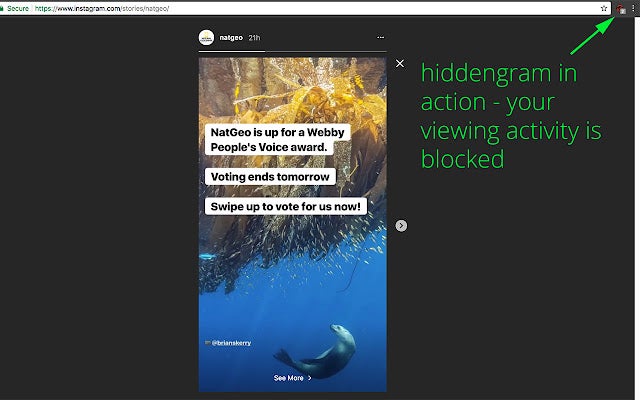
When you view someone’s Instagram story on Chrome, two things happen. The circle around the profile’s story icon vanishes, and the person can see you viewed it. We all have our reasons for not wanting someone to know we saw it (don’t lie, we know you do). Hiddengram – view insta stories anonymously quickly removes your name from the viewers list.
Also, you’ll notice that the red circle returns to the story icon. It’s like heading to an email you read, and marking it as unread. The difference here is that the other person is unaware you’ve been spying on, I mean, watching them.
Would you like to protect your eyes from the massive amount of white colors in the Instagram background when you’re browsing on Chrome? Yes, the browser has a dark mode, but Night Mode for Instagram will only change your IG page to dark mode. The surroundings go darker and the text becomes white.
So, if you find that reading IG on Chrome becomes difficult and hurts your eyes, you only need to click on the Night Mode for Instagram icon once you install the extension on Chrome. Disabling it is just as easy.
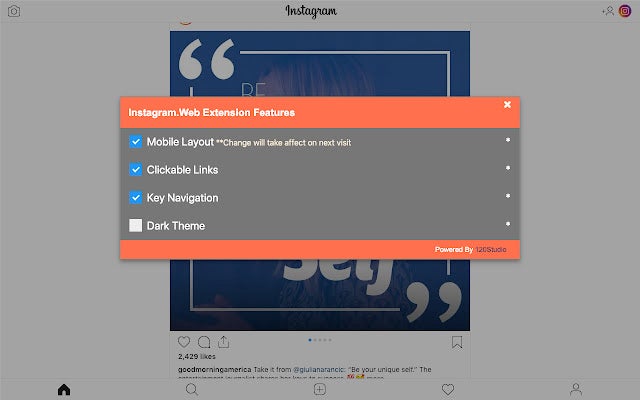
This add-on for Chrome might as well have been called the Ultimate Extension for Instagram, as it adds so many features to the browser version. You can download and upload directly from and to your feed. There’s even keyboard navigation if you prefer that over your mouse.
For videos, you’ll have a mini video player with a few settings to enjoy. It even lets you open images in a new Chrome tab. The best part is that you can insert clickable links in the comment or post description. It’s a feature Instagram desperately needs.
Here’s another Chrome extension designed for saving images on your PC. Image Downloader for IW adds a small arrow icon to all images on a profile or your feed. When you click on it, the add-on will download the picture to your computer.
You need to note that the extension saves it to your PC’s default folder for downloading from the internet. Make sure you have enough storage on that drive before you start saving. Alternatively, you can change the default download folder on Windows.
The developer of this Chrome extension obviously created Direct Message for Instagram before the IG browser version added the ability to send direct messages. Even though we can now send DMs, this add-on is still handy to have installed. It improves the DM experience and alerts you to new messages.
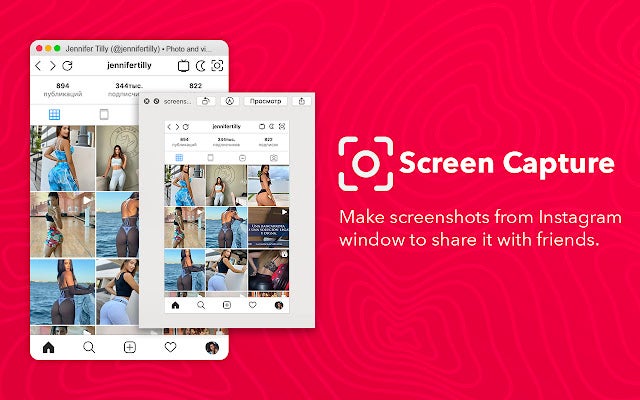
It has a few other features, too. You can take screenshot captures more easily, upload images directly to IG, and add stories from your PC. However, some of the tools it offers are now obsolete, such as IGTV.
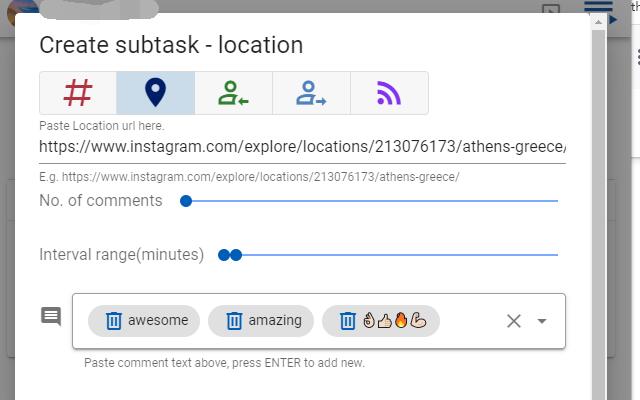
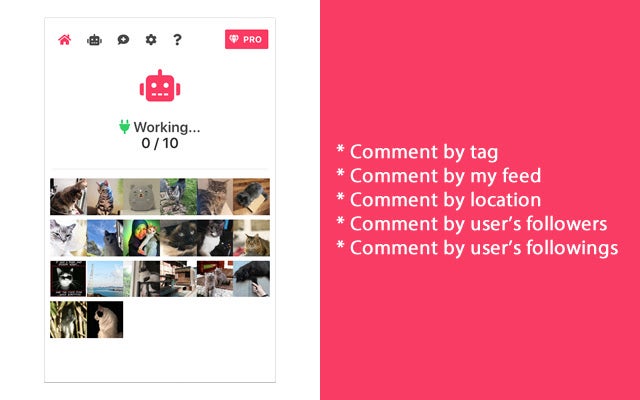
Businesses may find the Comment bot for IG extension for Chrome beneficial. Once installed, it lets you search for a hashtag term and adds your comment to all posts related to it. It also works by location, feed, or someone’s followers.
When you select the icon, a window will appear to ask you what task you’d like to assign. Each selection has different criteria you need to complete. Keep in mind that Instagram may have restrictions on how many comments you can send in a specific time.
If the above Chrome extension isn’t working as well as you’d like, you can try IG Commenter – Comment Bot for Instagram. You’ll receive a window asking you how you’d like to comment, via feed, tags, location, or followers. An adorable bot image will appear showing you that it’s at work.
You can close Instagram if you need to leave, and the extension will continue to perform the task. Even if you close Chrome, it works on the cloud to send the comments to the required posts.
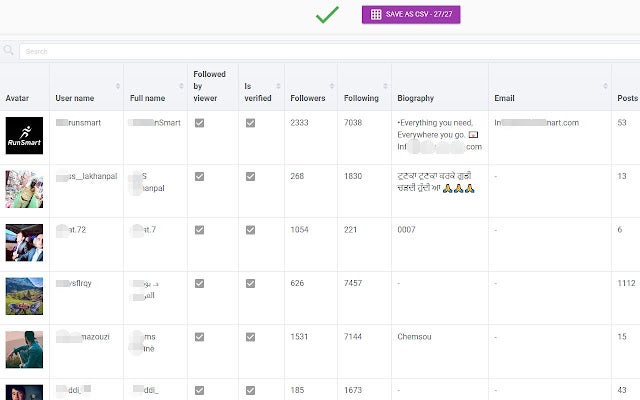
Do you need to see a profile’s followers and related details for marketing purposes? The IG Follower Export tool for Chrome pulls all the data through and supplies it on a CSV file. You can see the profile name, how many followers they have, how many people they are following, and bio information. It even draws the public email.
The only issue with using this valuable tool is that Instagram may detect the activity if you do it too often. If it does, your account may be blocked, so use moderation.
This basic Chrome extension does nothing more than adding a download icon to images so you can download them. You’ll also be able to download videos to your PC, which you can repurpose if you wish to reuse it. A word of caution: don’t reuse or repost images that are under copyright.
Once again, you’ll need to limit how many images you download using this Instagram extension for Chrome. It’s a helpful tool if you need pictures for your academic assignments or work projects.
There’s an IG function I like to use where I save posts in bookmarks so I can view them later again. It’s usually related to gaming, bonsai, or fishing posts. If you do the same, Unsaver for Instagram lets you quickly unsave any posts without needing to do so for each and every one yourself.
It saves you so much time, especially if you have old posts in your bookmarks you no longer want to see. However, the developer has warned that IG is known for blocking accounts that use it too regularly.
The App for Instagram extension for Chrome is another add-on that seems to have it all. You can download and upload media, change to the mobile layout, and switch to IG dark mode. There’s also a screen-capture mode that sends images to your clipboard.
You’ll also find some outdated features that aren’t as useful as they may have been in the past, such as IGTV and direct messaging. It’s useful, though, if you want to add some mobile functions to the Chrome browser version.
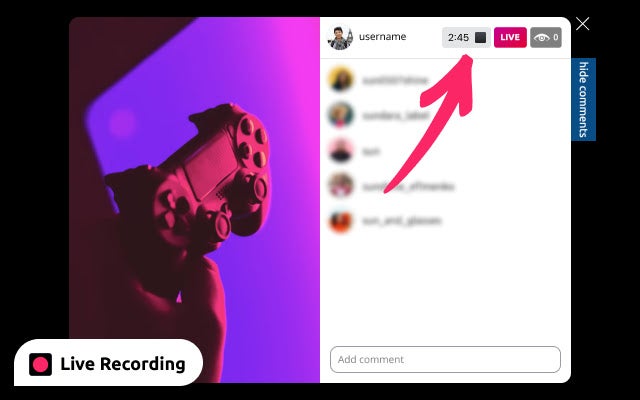
As the name suggests, you can view an IG Story without the person knowing you’re there. While you may find this useful, there are other features I enjoy more on Anonymous View for Instagram Stories. For instance, you can record a live IG video to watch offline later.
It’s helpful when you’re busy working and don’t have time to watch the video at that moment. While the developer claims it’s the only Chrome extension that lets you upload videos and images to Stories, we already have some on this list that do that too.
Are you tired of simply pausing and playing IG videos? Controls for Instagram Videos adds more functions to your Chrome browser for videos. When you activate it, you’ll see new buttons at the bottom of the media. If you don’t see it, you’ll need to refresh your page.
When Instagram updated the Chrome version, some of the extension’s features stopped working. The developer has been hard at work fixing those bugs. Still, you should expect some issues when IG updates again.
Are you struggling with the volume of various tabs on your PC? Maybe you’re trying to watch a YouTube video, but the sound quality is too low, making it difficult to hear. There is a way to give you more control over the volume on your browser – a free Volume Control for Chrome extension. So how does it work?
This article will look at how to use the Volume Control for Google Chrome extension. You shouldn’t have any more sound issues after installing this add-on.
Fluctuating volume – why does it happen?
There are a few reasons why the volume in your Chrome browser, or even specific videos or audio files, fluctuates. While the central issue of fluctuatingsound is usually improper sound settings, other factors could influence the sound from videos and audio played on Chrome. Another reason the volume may fluctuate is how the creator recorded and uploaded the audio or music.
Have you ever been on YouTube, and in one video, the volume is perfect, but the next one is much too soft or loud? This can be an example of how the creator’s process can affect the volume when users listen to it. While many platforms like YouTube try to give creators an indication of the ideal volume of their video, this is not a requirement to post a video – meaning that some with very low or high volume can sneak in.
Steps to use the Volume Control for Chrome extension
Download and install Volume Control for Google Chrome
First, you’ll need to download and install the extension on your Chrome browser. You can use the link in our article for the best volume boosters for Chrome. To install, simply press “Add to Chrome”
Pin the extension to the toolbar
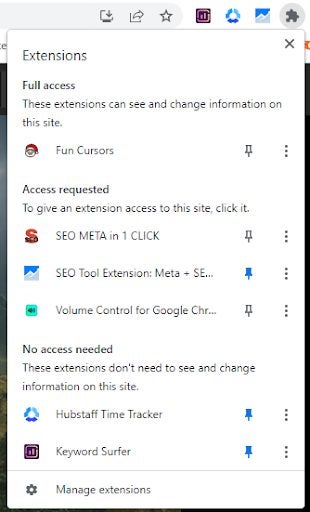
Next, you’ll want to pin the extension to your toolbar so that you can access it easily. To do this, click on the puzzle piece icon in the top right of the screen. This will open a list of all your extensions. Click on the pin icon next to Volume Control for Google Chrome to add it to your toolbar.
Click on the extension to adjust the volume for the current screen
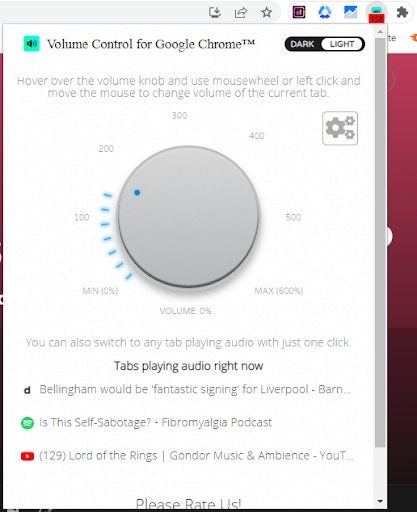
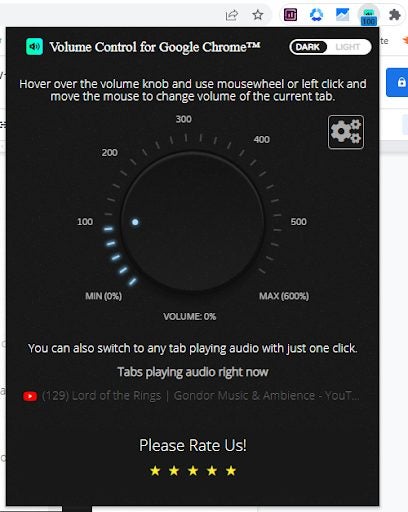
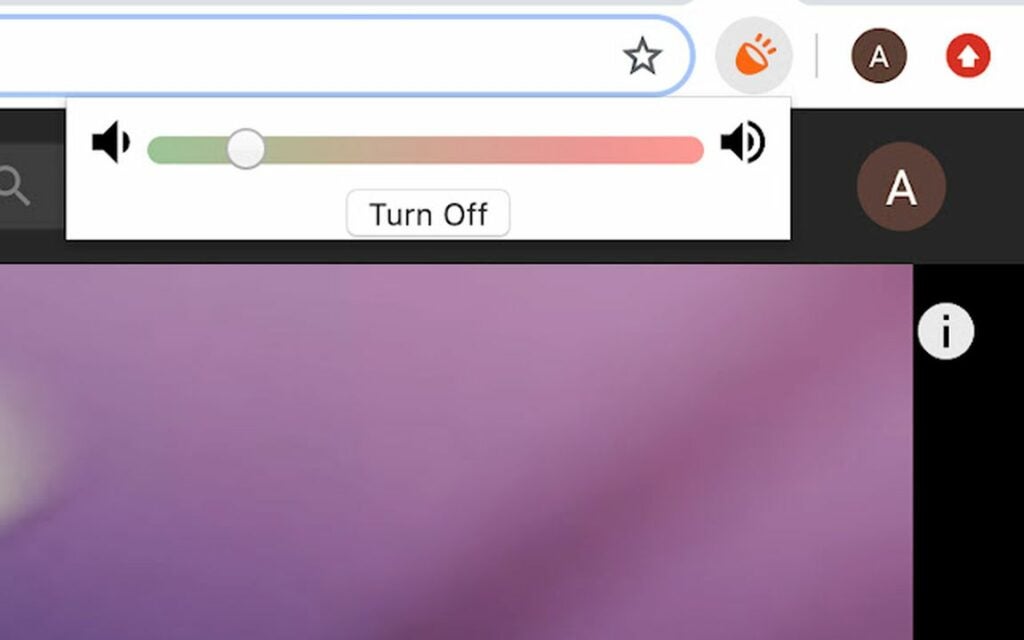
To adjust the volume of your current tab, click on the extension icon in your toolbar. When the window opens, turn the dial to the appropriate volume. You can adjust the volume independently for different tabs, i.e. having Skype’s volume louder with YouTube music softly in the background.
Adjust between dark and light mode
This extension features a dark and light mode. This makes it convenient to adjust the light during the day and night, so you don’t strain your eye. Click on the extension, and in the window’s top corner, you can toggle between these two settings.
Fortnite has become somewhat synonymous with collabs. Be it with brands, media personalities, as was the case with the Marshmallow collaboration, or movies and series, there doesn’t seem to be anything the Fortnite loves more than IP crossovers. In fact, there has already been a collaboration between the massively popular battle royale title and the hit Netflix series Stranger Things. But I’d be remiss to point out how lackluster that collab back in 2019 was.
However, according to a deep dive of the game’s V2.10 update that recently went live, Epic Games might be hitting reset on the 2019 collab and giving us the Stranger Things crossover we deserve.
On the surface, the V2.10 update featured the introduction of Fortnite’s second collaboration with Naruto and brought in a little more of that dark side goodness with a Darth Vader NPC whose only goal in life is to hunt you down and end your battle royale career. However, as with most releases these days, there’s a little more to the update than meets the eye. As it turns out, FNBRintel spotted a singular clue in the updated game’s code. As told by their recent Twitter post:
‘There’s currently an encrypted set called “WaffleWarrior” and in the series, the character “Eleven” only eats waffles. Could be a stretch but if it is a Stranger Things collab we will see the skins on July 1st with S4 VOL 2!’
Theory: Stranger Things Collab No. 2 ?
There's currently an encrypted set called "WaffleWarrior" and in the series the character "Eleven" only eats waffles. Could be a stretch but if it is a Stranger Things collab we will see the skins on July 1st with S4 VOL 2! #Fortnitepic.twitter.com/KZKf1z5SCE
As they added, this could be a little bit of a stretch, however, they are completely correct when they highlight waffles as Eleven’s favorite food. This is a character trait that even the show has highlighted by having it be one of the character’s quirks since season 1. On the other hand, there’s already a character in Fortnite named Mancake whose entire face is made of pancakes. It could stand to reason then that WaffleWarrior may be a clever reference to either him or a new character based on him.
As we previously mentioned, the 2019 Fortnite X Stranger Things collaboration didn’t live up to expectations or the hype generated by one of the most popular games on every platform teaming up with one of the most popular shows on Netflix. Epic added only two skins – a Demogorgon and a strange-looking Hopper. Therefore, there’s definitely a demand for a proper collaboration.
None of this is set in stone though. We’ll have to wait and see if any other clues drop in the coming updates, media releases, or in-game assets. It would be cool to have a collab like that drop soon though, given that Stranger Things season four is dropping this Friday. In the meantime, there’s a rumor that Fortnite is teaming up with Dead by Daylight!
Fortnite and Dead by Daylight collaborationREAD MORE
Considering the widespread popularity of Google Chrome, it is no surprise that the browser integrates with dozens of audio and music extensions. Sound-based Chrome extensions work great for the consummate music and podcast streamer, but they also serve as valuable audio production and mixing tools.
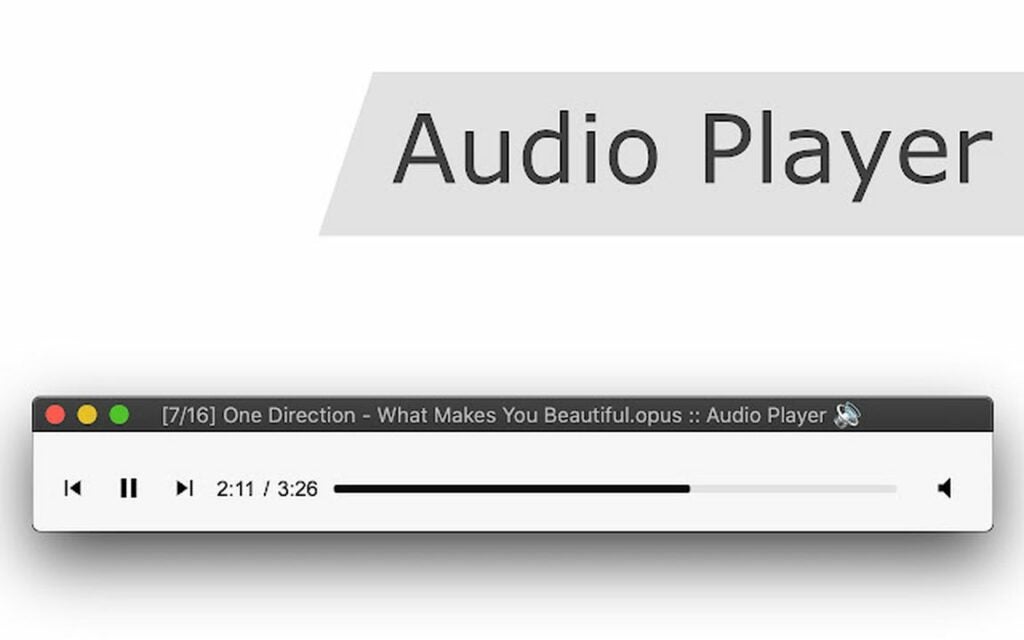
The Audio Player Chrome extension supports multiple audio codecs and functions as a standalone player for each. To use the extension, simply drag and drop the audio files into the interface. The player streams sound from video containers. Audio Player uses the popular FFMPEG library to decode audio information.
Use the AudioVisualizer Chrome extension for online streaming. Software engineers created the application to enhance the online listening experience for Chrome users by adding visual effects to audio streaming sites accessed within the browser. The extension generates a bar and line visual for any audio you have playing in your current tab.
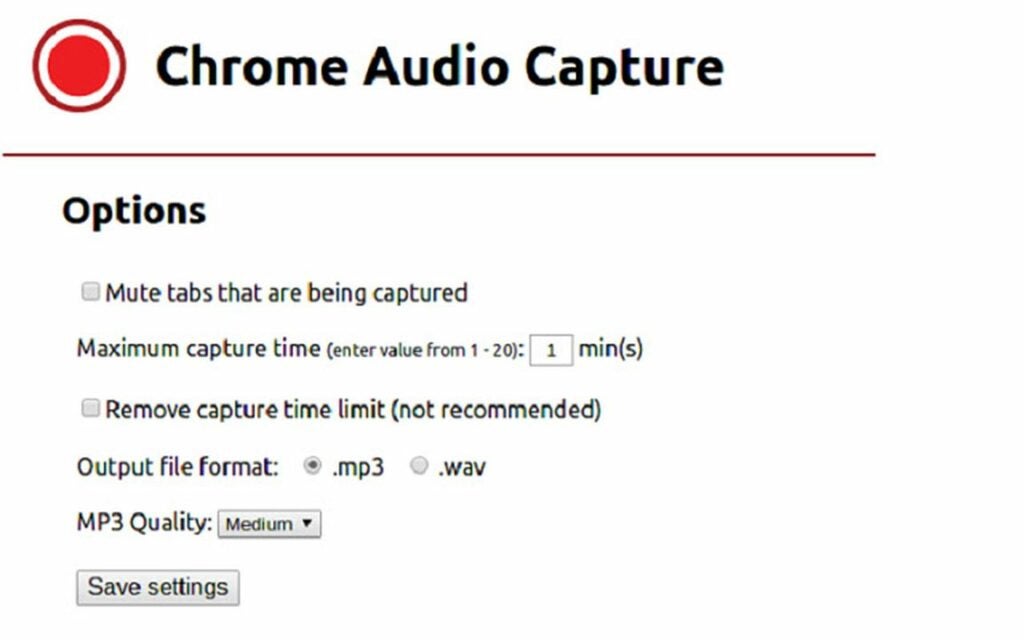
This unique Chrome extension captures streaming audio from an open tab before saving it as a playable file on your device. Chrome Audio Capture lets you record any audio from an open browser tab, and you can even capture sound from multiple tabs simultaneously. A mute feature allows you to silence audio from the tabs you’re currently recording. The extension provides convenient hot keys to control various application features.
While still in the experimental phase, the Beautiful Audio Editor is a unique extension for Chrome. It allows you to change the speed and pitch of selected clips, record and edit external sound, apply audio effects, and more. This app runs in both Firefox and Chrome, but its developers have remarked that Chrome may not provide sufficient memory to store the necessary audio data.
For those who like to listen to audio streams only on YouTube, the Audio Only Youtube Chrome extension comes in handy. This application lets you disable video whenever you stream YouTube on Google Chrome, saving more than half of your typical data consumption as you listen to your favorite podcasts and songs.
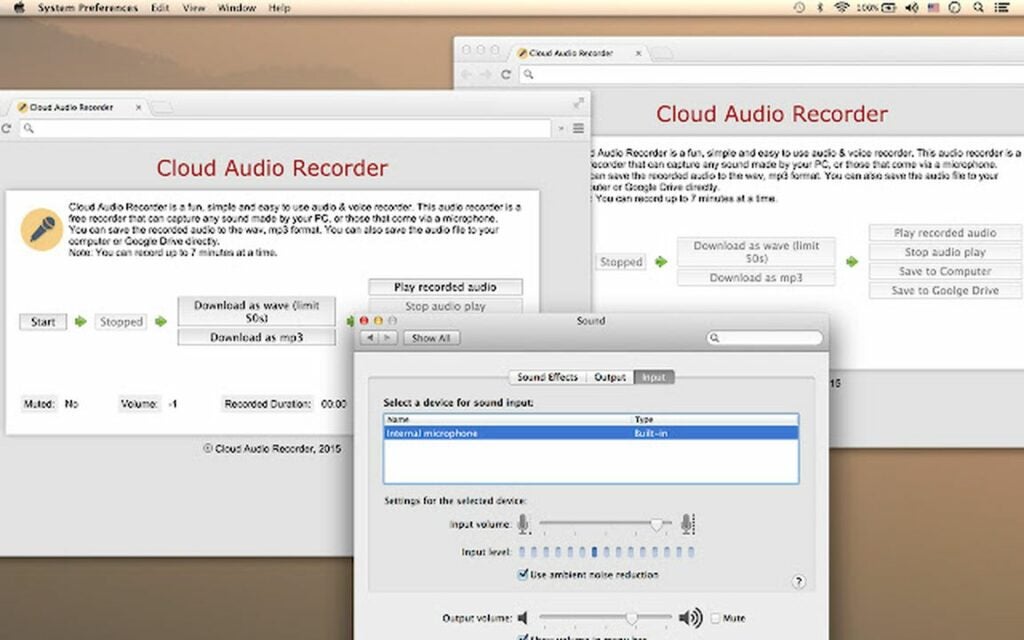
If you’re looking for a simple audio and voice recorder that’s easy to use and allows you to save audio files directly to your device or Google Drive, consider the Cloud Audio Recorder. This free resource captures any sound and voice content your computer’s microphone can record. Enjoy no time-recording limit as you capture audio files to either MP3 or WAV formats.
True audiophiles love to customize their audio output, and the Audio Equalizer – EQ extension from Chrome is a reliable tool for accomplishing this. Ten bands and equalizer presets tailored to select genres let you adjust your sound in countless ways. Toggle the balance or boost your base for optimal control and quality sound with this browser extension.
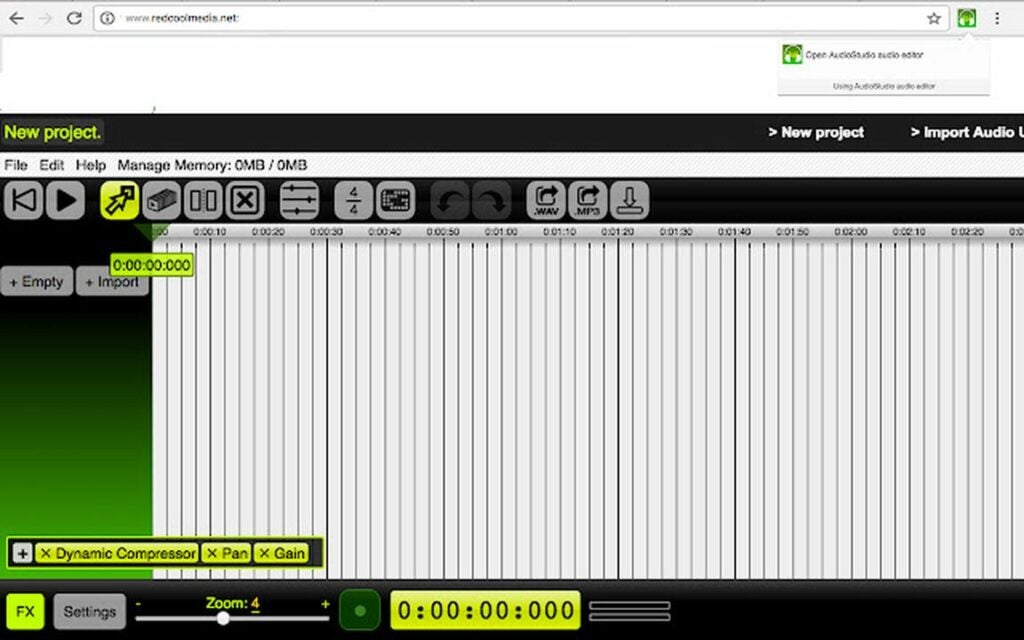
The Audio editor & music editor AudioStudio extension offers a basic sound production tool to record and modify audio files. This app integrates with the Beautify Audio Editor with the RedcoolMedia platform to produce several new features like cloud sharing along with the ability to WAV and MP3 URL links. Make edits and add effects with a range of buttons that unlock all the features and functions of this audio editor from RedcoolMedia.
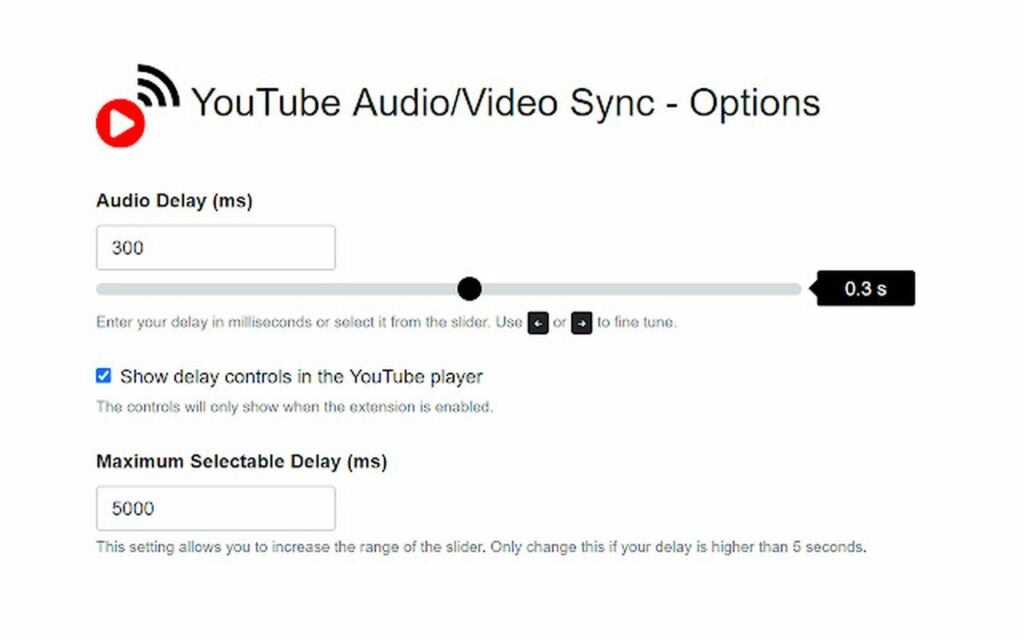
Wireless audio/video streaming is prone to lag, and the YT Audio/Video Sync resolves this issue by synchronizing delayed audio sound with wirelessly streaming video clips. The extension provides a reliable means of adjusting positive and negative delays to adjust any YouTube audio that has fallen out of sync.
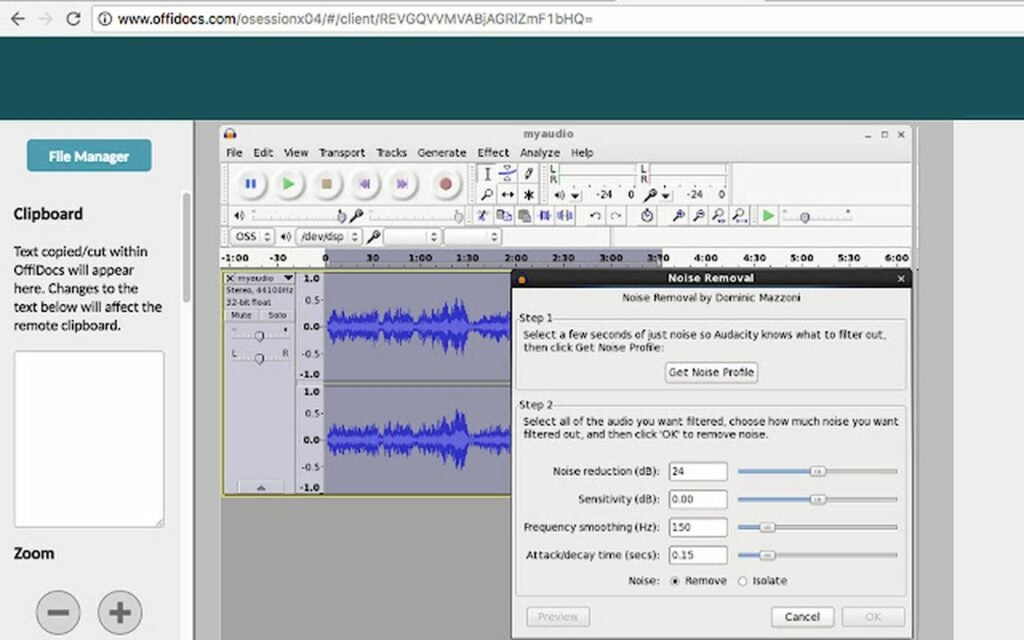
Audio editor online Audacity extension for Chrome is a sound editing application that lets you import your own files into the interface. Arrange and combine audio clips, remove noise, apply effects, and more with the Audio Editor Online Audacity extension.
If you’ve identified a series of domains that you want to silence indefinitely, the ShutUp!Tab allows you to create a list of URLs that ban these sites from producing sound entirely. This app permits you to mute the active tab or automatically mute the tabs on your blacklist.
Do you need to enable Twitch radio mode in your Chrome Browser? The Twitch Radio Mode extension allows you to run this mode from Twitch in Google Chrome. It helps you save bandwidth, RAM, and other computing resources. In “radio mode,” Twitch lets users play only the sound from selected streams to reduce data consumption.
Your device likely provides multiple options for audio output. The AudioPick extension works with HTML5 audio and video elements delivered via HTTP(S) while allowing you to pick a default audio output device. Use this extension whenever Chrome plays HTML5 sound over HTTP(S).
If you’re dissatisfied with the audio output levels from your device, the Volume Booster extension helps to amplify the sound. This extension works with your internal speakers or headphones for both Mac and Windows operating systems to turn your computer into an impressive portable stereo. Use this application with care to avoid overextending the volume capacity of your speakers and headphones.
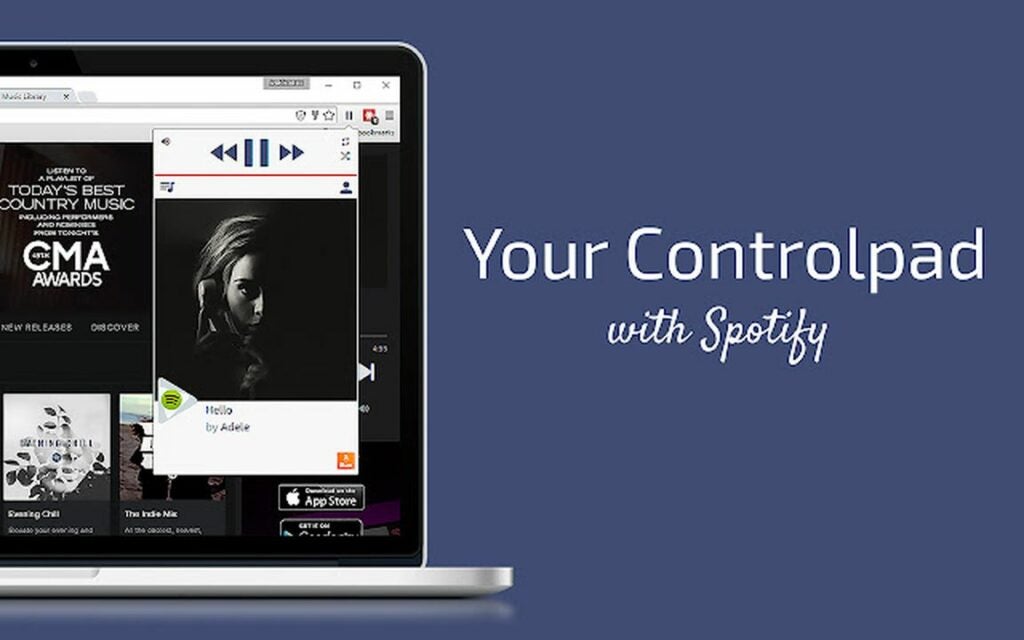
The SndControl: Your Audio ControlPad Chrome extension draws from the various web players you already use to aggregate all your favorite digital audio sources under a single umbrella. Stream audio all day without jumping back and forth from various tabs, audio players, and streaming platforms with the SndControl: Your Audio ControlPad app.
When you need to contact an organization or person who does not list a lot of information online, there are several third-party contact information extractor apps you can turn to. In fact, there are several convenient Google Chrome extensions that integrate the feature right into your browser. With just a few clicks, you can share your voice with the people who need to hear it.
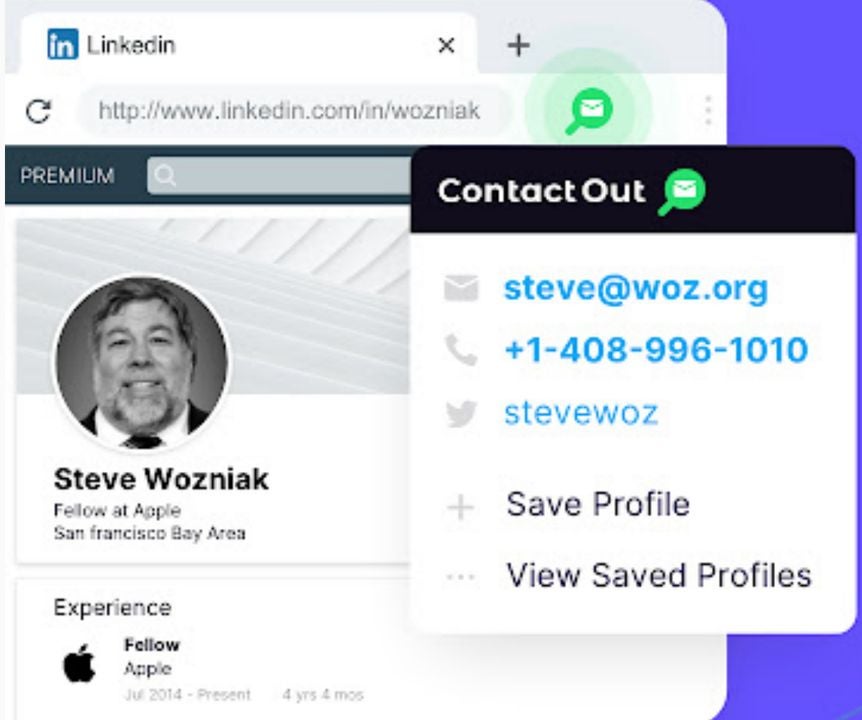
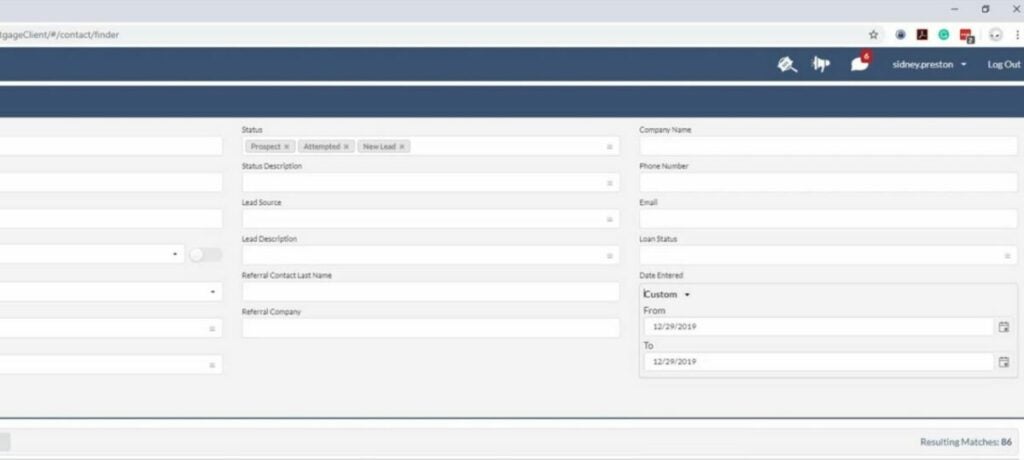
Contact Out is an excellent extension for recruiters and other heavy users of LinkedIn. It allows you to view a person’s email, phone number, and links to their other social media accounts. The comprehensive guide can be pulled up just by going over a user’s profile.
As the name implies, this extension allows you to share your Gmail contacts with other users. This is perfect for collaborative projects or for transferring data between two personal email addresses. You can manage which groups see which emails and alter permissions at any time.
Share Google Contacts with Shared Contacts®DOWNLOAD
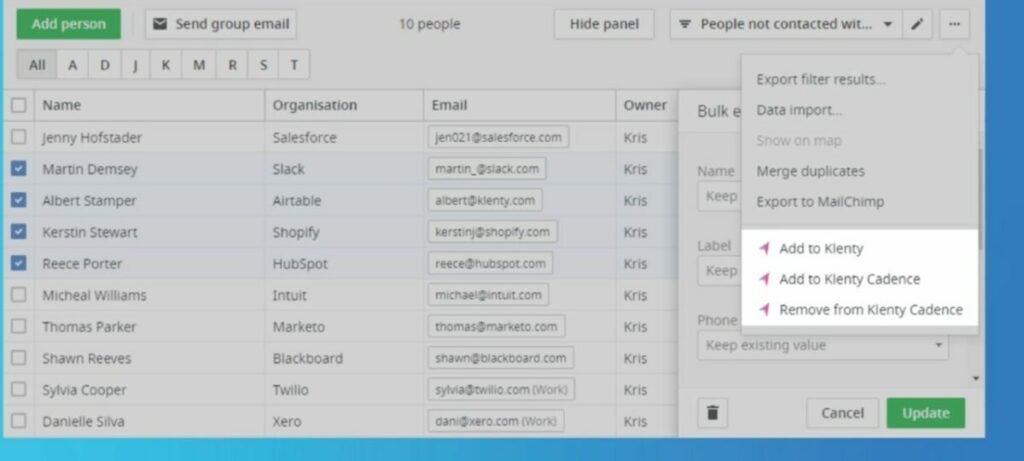
Klenty is a powerful tool for sending personalized emails. By splicing in some personal information about a client, emails become far more effective. Sales funnels can easily be formed with the proper mailing setup. Klenty automates most of this, so you can reach clients that much faster.
Klenty: Email Outreach & Tracking from GmailDOWNLOAD
Using natural language processing, this app organically pulls contact information from various websites you visit. You can create your own email lists just by browsing sites with plentiful public profiles. From there, you can extract your email list to the marketing manager of your choice. With contacts finder, lead generation becomes too easy.
This powerful extension puts a substantial amount of information at your fingertips. By clicking on any email thread, you can pull up an information readout on the sender. The report includes a photo, name, address, place of employment, and phone number when applicable.
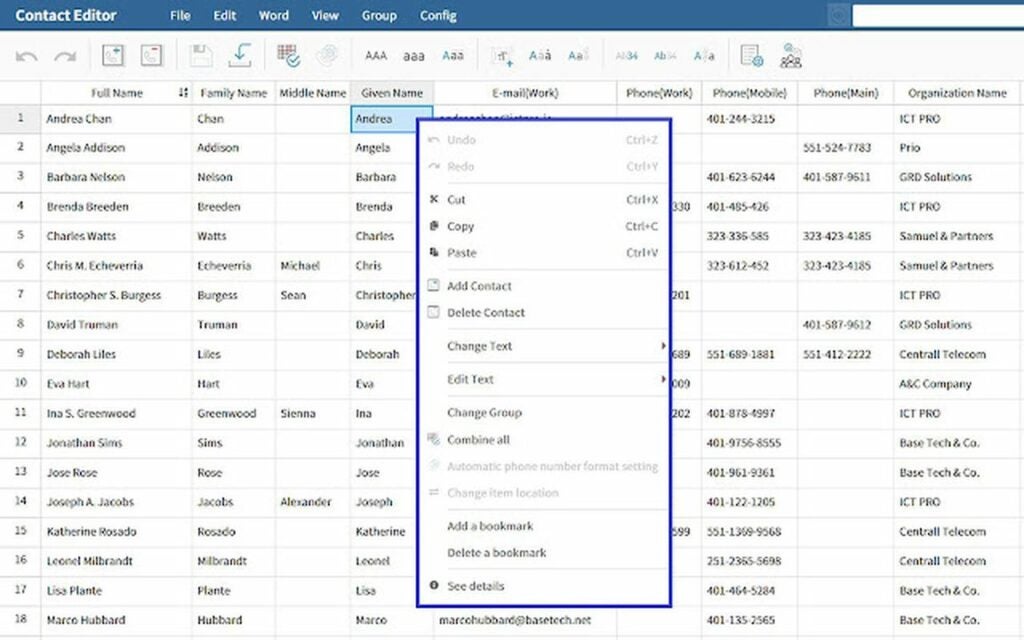
Spreadsheets are one of the most effective ways of organizing long lists of information. That is why they are the perfect solution to a lengthy list of Gmail contacts that you wish to edit. With just a few clicks, you can manage your whole list and make the adjustments you need to your roster of contacts.
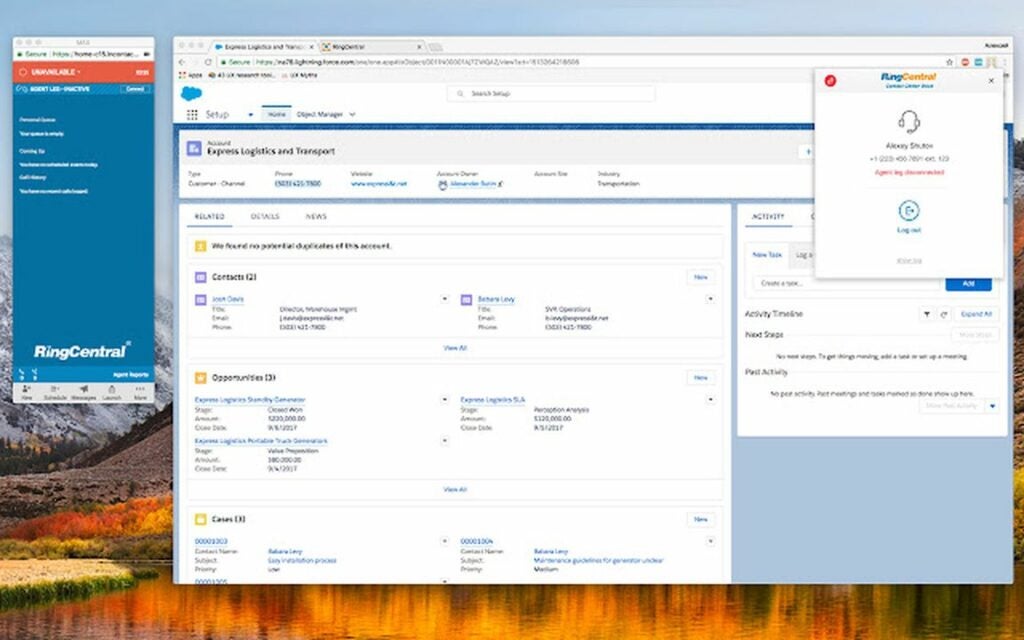
With the phone numbers you have obtained with the other apps on this list, wouldn’t it be great to call those new contacts directly from your browser? RingCentral Contact Center Voice sets up virtual phone calls using an internet connection instead of the usual cellular signals. When written text will not do, call the client instead.
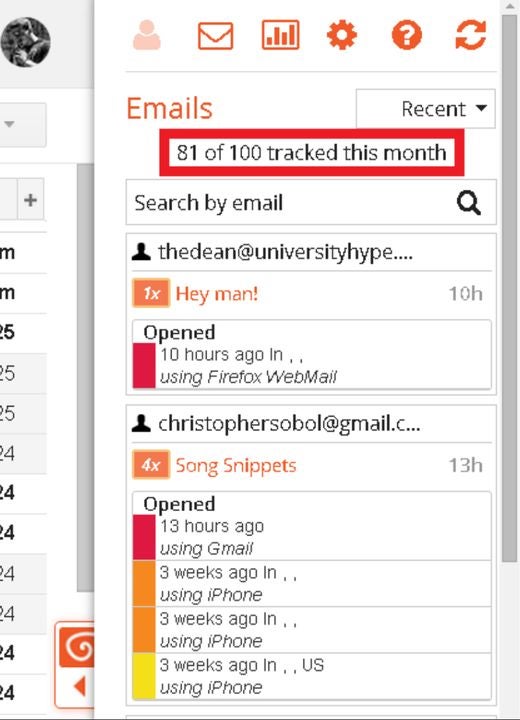
HTML email templates are an effective marketing tool in every situation. With this extension, you can give your messages a professional look and feel before sending them out. It also helps track your email list’s responses to your recent communications. The helpful metrics allow you to make informed decisions that improve your advertising efforts.
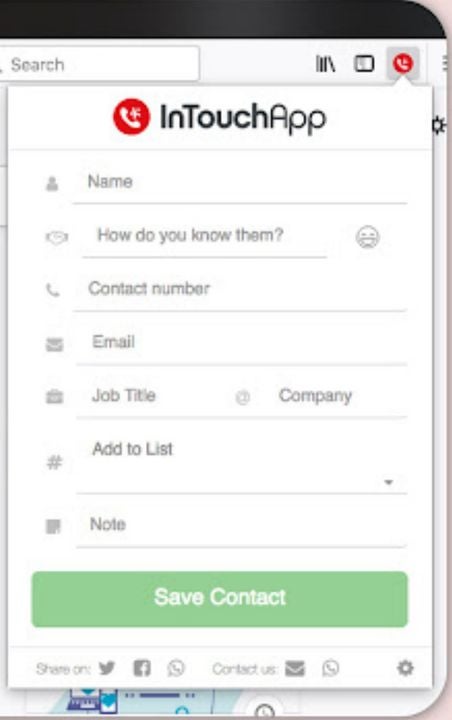
When you see a phone number you need online, your first instinct is to call it directly. Now you can do just that without manually typing the number into your phone. InTouchApp connects your phone and computer so you can add new contacts and call phone numbers you see online.
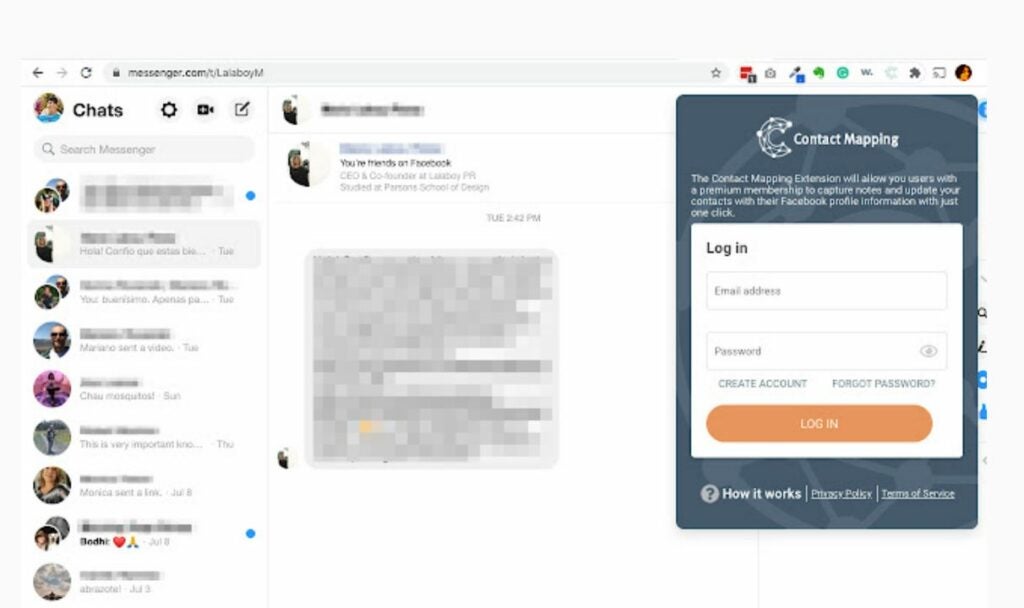
Your Facebook Messenger inbox can fill up incredibly fast as your contacts list grows. You can keep track of all the key details and appointments with the Contact Mapping Extension. The app allows you to set message reminders, alter notifications, and add detailed information about upcoming dates. With Contact Mapping Extension, you’ll never have to worry about missing an appointment or an important alert again.
Microsoft’s Windows 11 operating system supports automated recovery, but it may fail. A recovery drive, which can be created using any USB device that has at least 16 Gigabytes of storage, gives users access to recovery options.
Windows 11 is a stable operating system most of the time, but there is a chance that you experience a catastrophic failure. The failure comes in different forms, e.g., when a Windows update goes wrong, after a power outage, when malware strikes, or when hardware components fail.
Windows 11 may refuse to boot after such a failure. The automatic recovery functionality kicks in at this stage. Sometimes, it may fail to load or fail to restore the system.
This is the point at which many users start from scratch. Without backups or a recovery drive, reinstallation may be the only option.
Reinstallation of the operating system is a lengthy process. You may lose access to data. A recovery drive may restore access to the system in that event.
How to create a recovery disk for Windows 11
You may create a recovery disk at any time in Windows 11, provided that you still have access to the system. Windows 11 includes a built-in tool to create a recovery drive.
The only requirement is a USB drive or stick with a storage capacity of at least 16 Gigabytesaccording to Microsoft. The USB drive does not need to be empty, but all of its data will be erased in the process. A faster drive may speed up the copying significantly.
It is important to note that personal files and software installations are not copied to the recovery drive. A suitable backup solution, such as Backup & Recovery 14 Free Edition or Macrium Reflect, should be used for that purpose.
Creating the recovery drive
Close all open programs before you start the process. You may want to install Windows updates as well.
Launch the Create a Recovery Drive Program
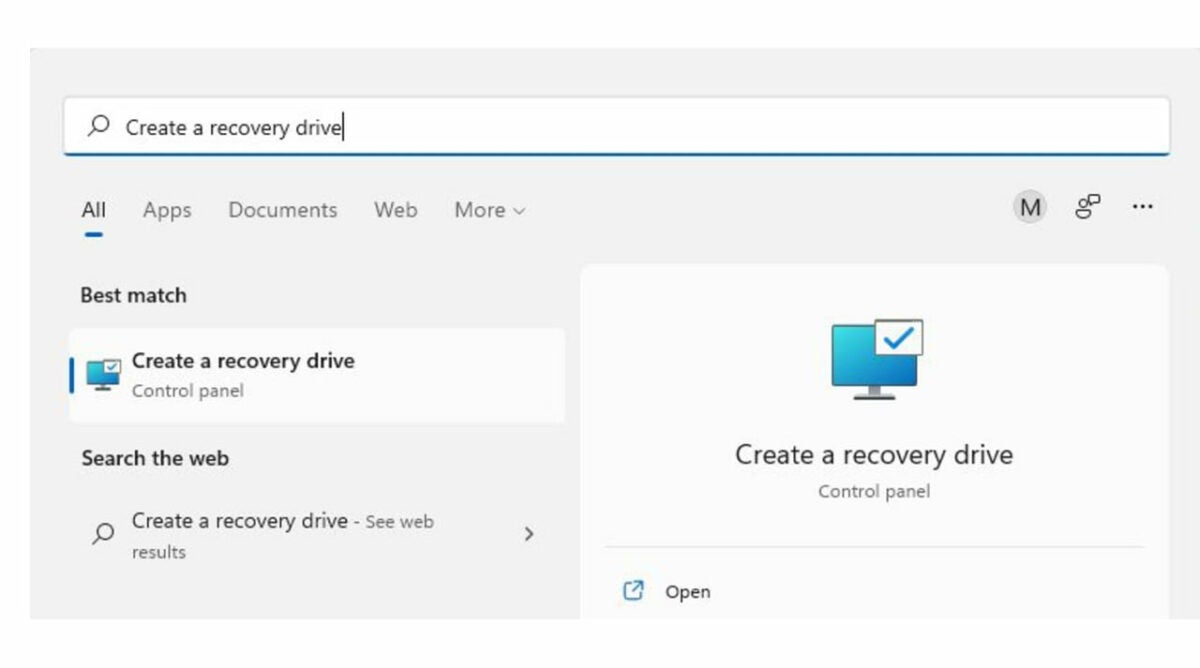
Open the Start Menu, type “Create a recovery drive”, and select it to start the process. Confirm the UAC prompt that is displayed by selecting “yes”.
Configuration and connection of the USB device
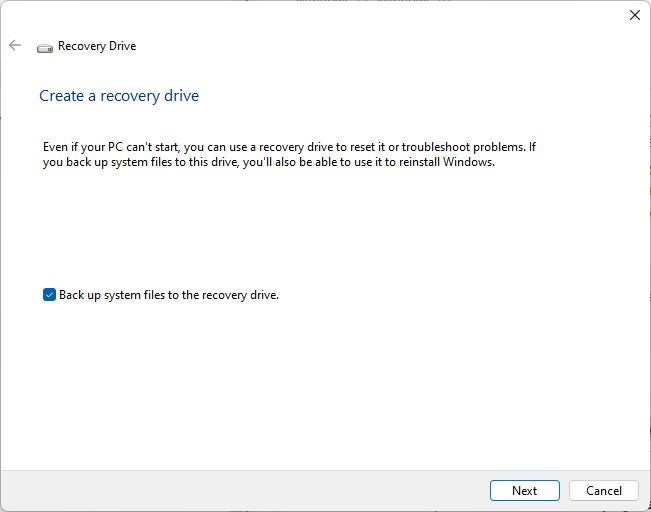
Connect the USB device to the PC. Select the “Next” button when the Recovery Drive program window opens. Keep the default option to back up system files to the recovery drive enabled. The backup enables you to reinstall Windows 11 in the event of a catastrophic failure.
Select the right USB device
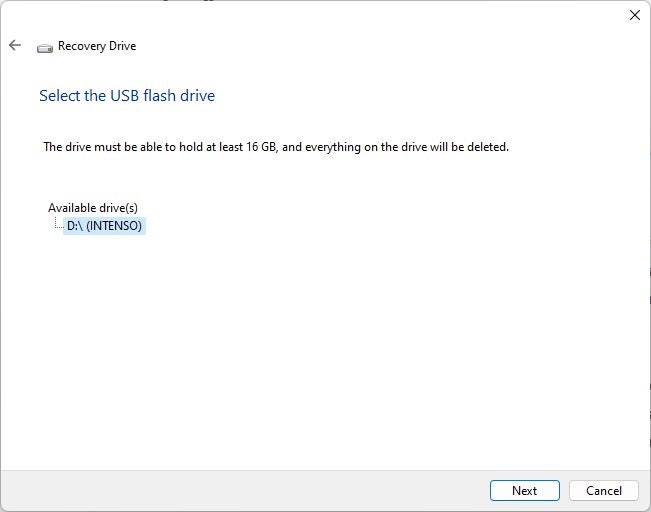
Windows scans the system at this point, which may take a moment to complete. The operating system displays all available drives for the creation of the recovery drive after the scan. Select the drive and then next to proceed. Only removable USB devices are displayed.
Confirmation
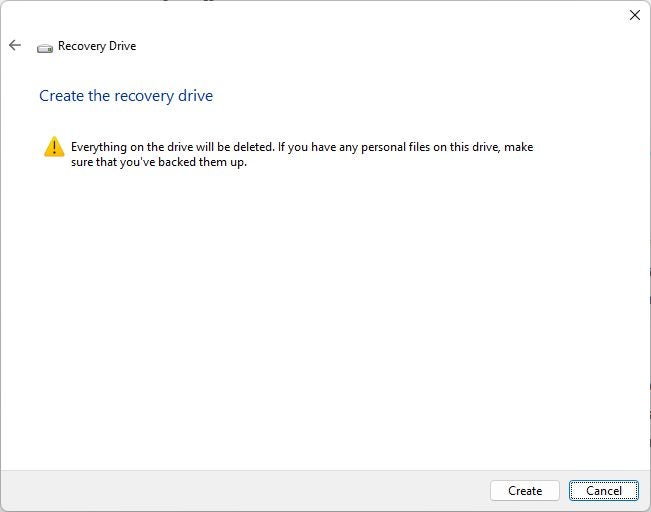
The process deletes all data on the drive. Select the “create” button on the warning screen to proceed with the creation of the recovery disk.
Creation of the recovery disk
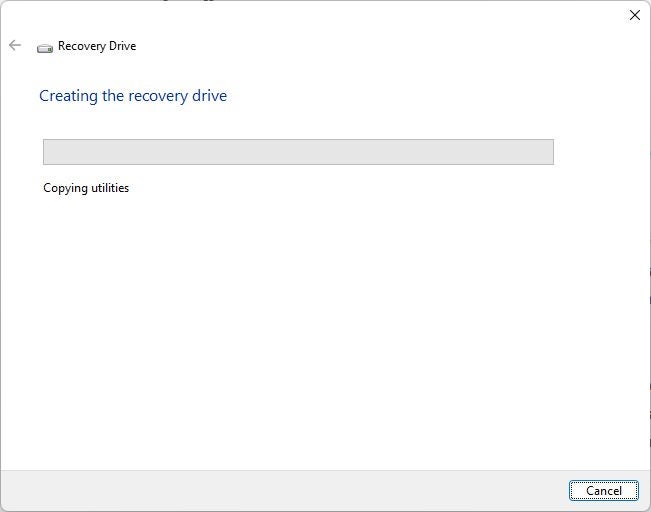
Windows 11 creates the recovery disk at this point. The process takes a moment to complete, and includes formatting of the drive and the copying of data to it.
It may take an hour or more to create the disk.
The final step
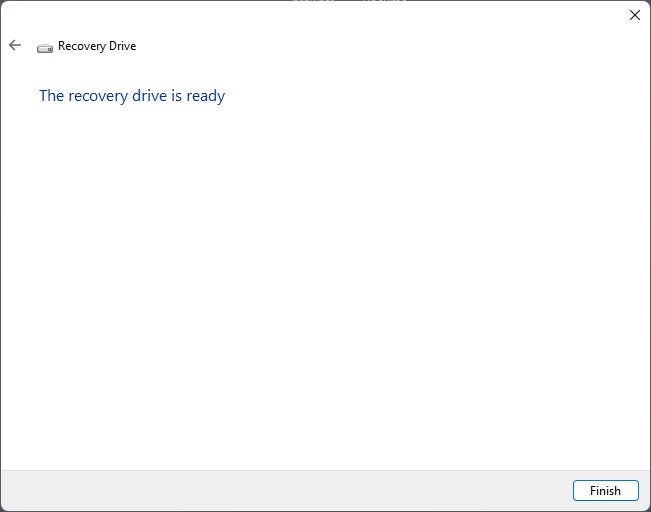
A “Recovery Drive is ready” completes the data transfer. Select the finish button to complete the process. Store the recovery drive in a safe location.
Using the Recovery Drive in the event of failure
Connect the recovery drive to the PC whenever you need to use it. The drive boots into advanced recovery options during system start; this gives you access to several recovery tools and options:
Start-up Repair: Fix problems that keep Windows from loading.
Uninstall Updates: Remove recently installed updates, which may be the cause of the issue.
System Restore: Use a System Restore point to restore Windows.
Command Prompt: Run recovery and troubleshooting commands from the command line.
Start-Up Settings: Change the Windows startup behavior.
Other things to consider
Microsoft recommends creating recovery drives annually to include Windows updates and new feature updates. A good time for the creation of a recovery disk is after the installation of a new Windows 11 feature update, as it includes the latest changes in that case. The best time for the initial creation is right after the first start of the system.
Recovery drives add a new tool to the arsenal of a Windows 11 administrator. Some users prefer backups instead, which is a sound strategy. System backups include all data, which means that personal files are restored as well. However, it is necessary to run backup jobs regularly to include the latest changes. Most backup solutions support the scheduling of jobs.
On the other hand, files may be backed up using other means, for instance, by using file synchronization services such as Microsoft OneDrive.
June is Pride month and as well as being the month when faceless corporations proudly display their LGBTQ+ credentials, it is also a time to think about the challenges that marginalized communities face. It is important to try and put yourself in other people’s shoes so that you can better understand the challenges they face and how they could influence the challenges they make. Fortunately, in the true spirit of Pride month, Google has launched an update for Google Maps that offers us the chance to learn more about the LGBTQ+ community. Let’s take a look.
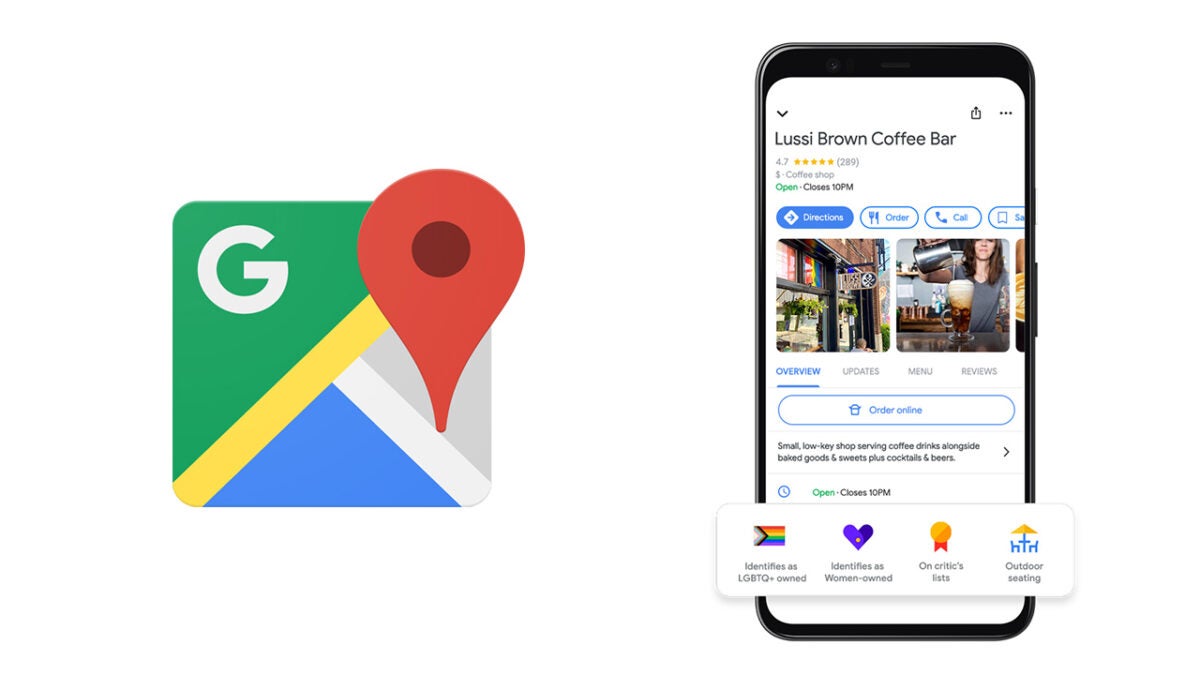
Google is introducing a new feature to Google Maps that will allow merchants with verified business profiles to add an LGBTQ+-owned attribute to their profiles. This builds on Google’s inclusivity offering which already allows businesses to add Black-owned, Latino-owned, veteran-owned, and women-owned attributes to their Google business profiles.
Feeling to be part of a community is more important than ever these days and life serves up more and more challenges to the average person every day. Being able to identify businesses that proudly proclaim who they are owned by allows people to identify and find entry points into the communities that will offer them support and friendship.
In fact, with the LGBTQ+ community representing almost 8% of the total adult population in America, this move from Google goes beyond offering business owners badges for their Google Maps profiles. In the post announcing the move Google said:
“… there are 1.4 million LGBTQ-run companies in the U.S. Over the past decade, Google has partnered with the National LGBT Chamber of Commerce (NGLCC) and 30 local affiliate chambers to support and grow LGBTQ+ owned businesses and organizations.”
If this feature sounds like something that you would like to use, don’t worry as it couldn’t be easier to find the new LGBTQ+-owned badge when you are searching for businesses on Google Maps. All you have to do is select a business on the map and then look towards the bottom of the screen to see if the badge is there. If the business owner has registered with Google correctly, the LGBTQ+-owned badge or any of the badges outlined above will be displayed there.
Even though iPhones and iPads come with Apple’s Safari web browser pre-loaded, most users still turn to Google Chrome. The Google offering is by far the most popular web browser available across devices. Today we have news for all Chrome on iOS users of new updated features coming to your browser. Let’s check them out.
Google has released information on new features coming to Google Chrome on iOS via its Keyword blog. Some of these are very interesting and even go beyond the Chrome browser itself.
The first updated feature is something Google calls Enhanced Safe Browsing. This brings with it more advanced anti-phishing, malware and web-based threat protection. According to Google:
“If you turn on Enhanced Safe Browsing on your iPhone or iPad, Chrome predicts and warns you proactively if web pages are dangerous by sending information about them to Google Safe Browsing to be checked. When you type your credentials into a website, Chrome can warn you if your username and password have been compromised in a third-party data breach. Chrome will then suggest you change them everywhere.”
The second major updated feature coming to Chrome on iOS is the improved Google Password Manager. This fully functioning password manager tool will even work outside of Google Chrome, meaning you can now reliably and securely store all of your passwords in one place, no matter where or on what app you want to use them.
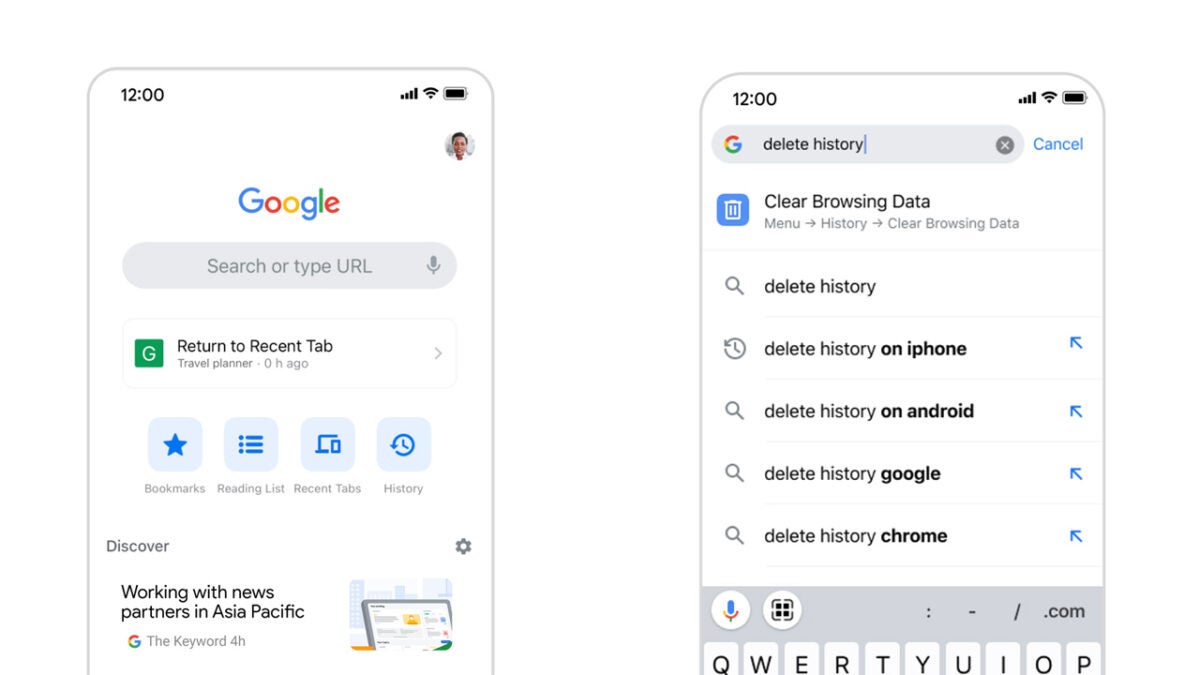
Google is also improving the chrome homepage to offer you a more involved experience. This includes offering Google search as well as quick access to recently used tabs, bookmarks, your reading list, and your history. Google is also adding Discover, which is its learning search functionality that tries to pre-emptively show you search results for web items it thinks you might be interested in.
The other two big updates include an improved language translation model to help you understand more of the web and the introduction of Chrome Actions, which allow you to type instructions like Clear Browsing Data or Open Incognito Tab directly into the address bar.
This raft of updates to Google Chrome on iOS follows recent news of a Chrome update that helps it block irrelevant and annoying push notification pop-ups.
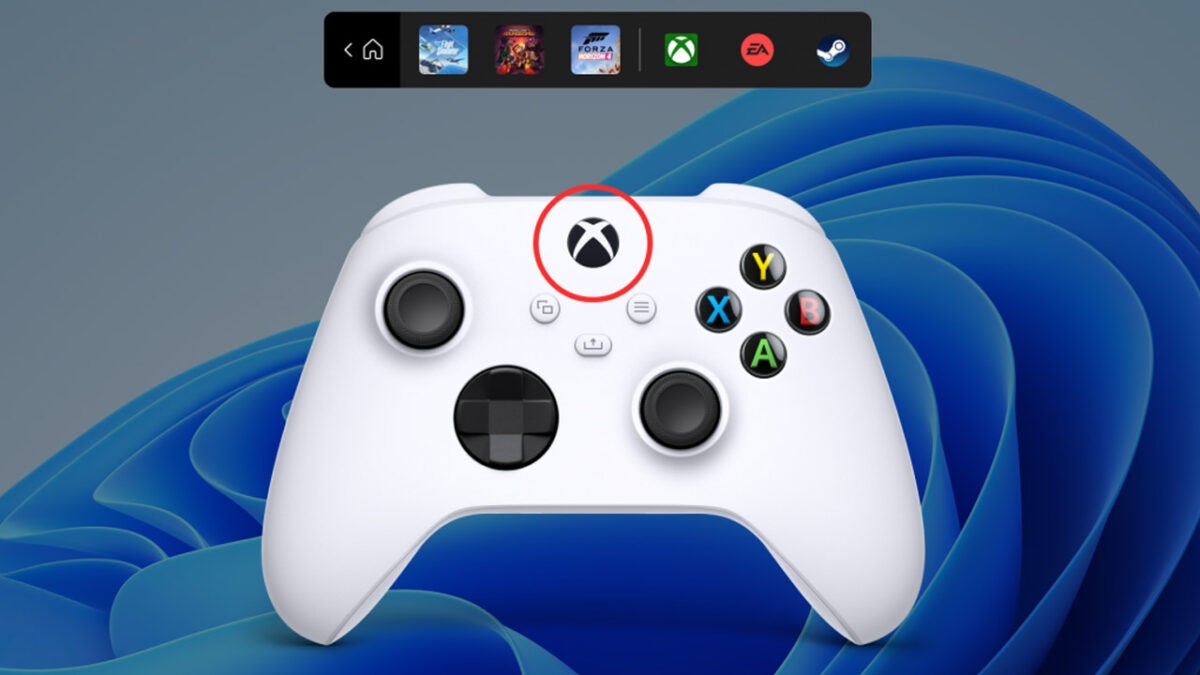
Microsoft has been working hard to bolster what Windows 10 and 11 can offer gamers. There have been a host of gaming features introduced and then key features like the Xbox game bar have also been updated. Unfortunately, however, like several aspects of Windows 11 there have been a number of problems that have been affecting the usability of certain gaming aspects. Now, Microsoft has released a Windows 11 patch that all gamers should install. Let’s dive in a little further.
The problem in question relates to an annoying issue that would pop up for users who use certain types of audio drivers and software to play sound effects. Basically, these would sometimes cause the games to crash causing huge frustration for the gamers. The update, which is known as cumulative update KB5014668 fixes this issue.
Microsoft explained in the release notes for the update that it, “addresses an issue that causes certain games to stop working if they use the XAudio API to play sound effects.” This means that if you are a gamer and your games have been inexplicably crashing recently you should definitely be looking to download this update as soon as possible.
As this is a non-security preview update, it is entirely optional for users to install, and Windows will not install it automatically. This means that you will have to go and find it and install it yourself. Don’t worry, though, as we will tell you exactly what you need to do.
To install the update, you need to go to Settings and then select Windows Update. From there you hit the Check for updates button. Windows should show you a list of available updates, which you then activate to install by hitting Download now.
This might just be a niche update for certain users, but it is heartening to know that Microsoft is aware of issues and is looking to fix them, even if you are unaware of the problem. If you are a keen Windows 11 user and want to stay up to date with all the latest stories and breaking reports, stick with us for all the latest Windows 11 news.