12 Best reading Chrome extensions

Most of us spend our time reading articles or words on our screens, especially if we work or study from home. We’re sure you’d love a tool that helps you read faster or better. A reading extension for Chrome helps with productivity when you have lots of pages to get through for research or upcoming meetings.

Google Chrome DOWNLOAD

We have a list of the best reading Chrome extensions for you to feast your eyes on. As a matter of fact, you can use one of them to speed read through this very article or have your browser read it to you. 

Top Chrome extensions for reading

Reading List

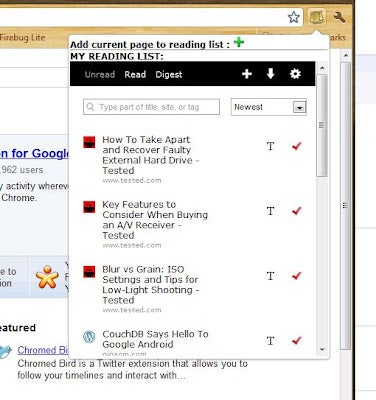
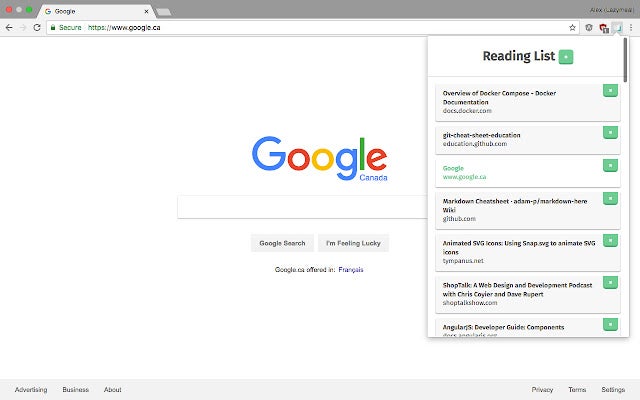
This Chrome extension serves as a to-do list for your reading experience. You may come across a page that really interests you, but you don’t have the time to check it out at that moment. Reading List by alexpdraper lets you quickly save the pages into a small pane, keeping the articles together for when you’re ready.

To use the extension, click on the + icon when you’re on a page you want to save. You can open the Reading List when you have more time, selecting one of the shortcuts in the list. When done, you simply click on the x icon to remove it from the collection.

Reading List DOWNLOAD
Best reading Chrome extensions

SwiftRead – read faster, learn more

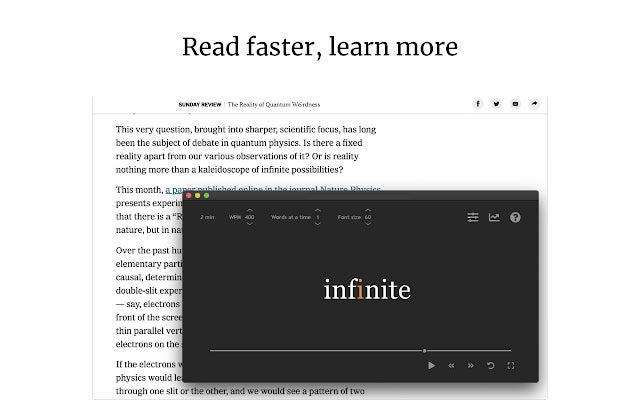
Some people spend so much time sounding out words in their heads while reading that they tend to read slower. There’s a method known as Rapid Serial Visual Presentation that can help you read faster.  “SwiftRead – read faster, learn more” uses that technique by highlighting specific parts of phrases.

It helps you identify words quicker while reading, cutting down time while reading. It’s beneficial when you need to quickly read through reports, documents, or academic papers for work or school exams.

SwiftRead - read faster, learn more DOWNLOAD
Best reading Chrome extensions

Reading Ruler

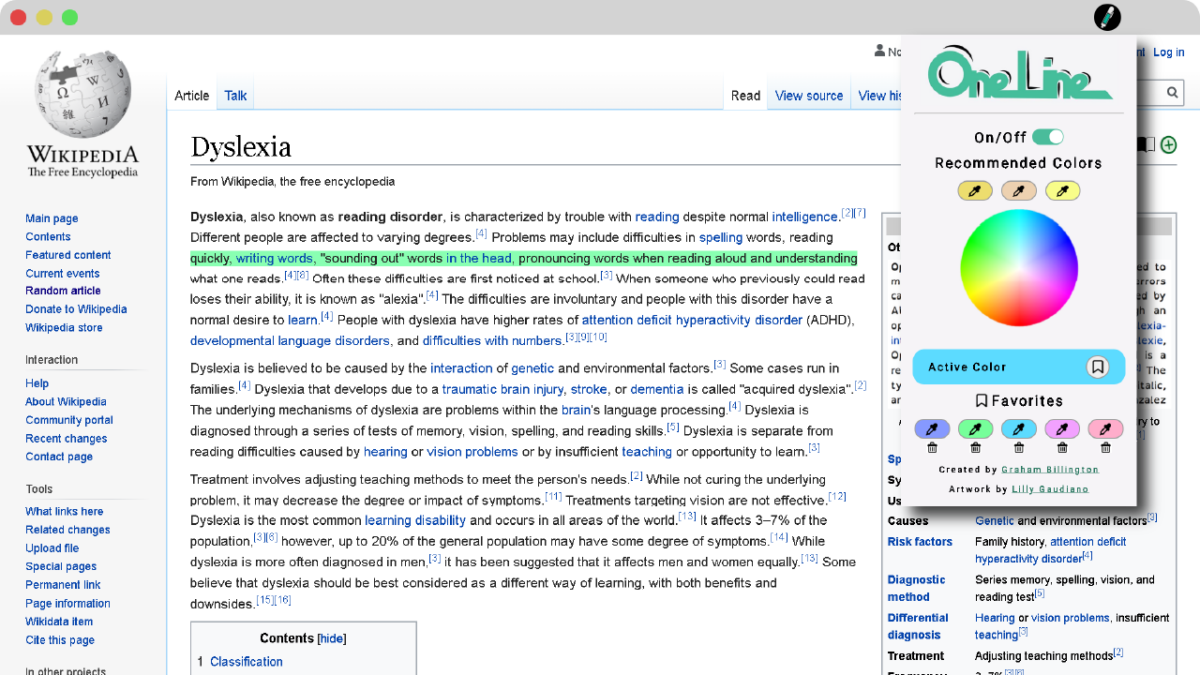
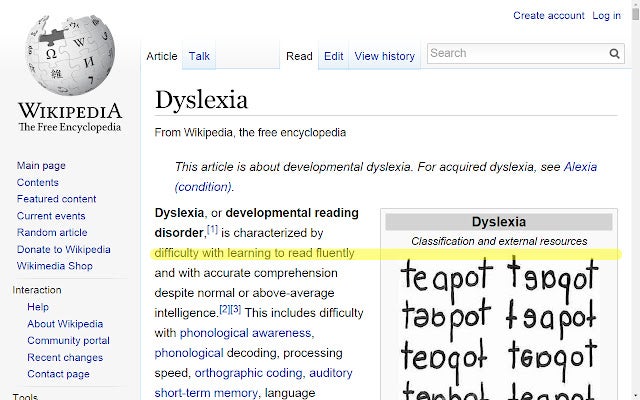
While this Chrome extension states it focuses on people with dyslexia, it’s helpful for anyone who often loses their place on a page while reading. It can happen if you’re distracted at home or work. Reading Ruler highlights entire lines that you can control as you progress down the page.

You’ll use up and down arrows to move between the lines, and there’s a shortcut to go to the next page. When you’re done using it, you press the Esc key. It even works on pages with loads of images where there are captions presented below them.

Reading Ruler DOWNLOAD
Best reading Chrome extensions

Read Time Estimator

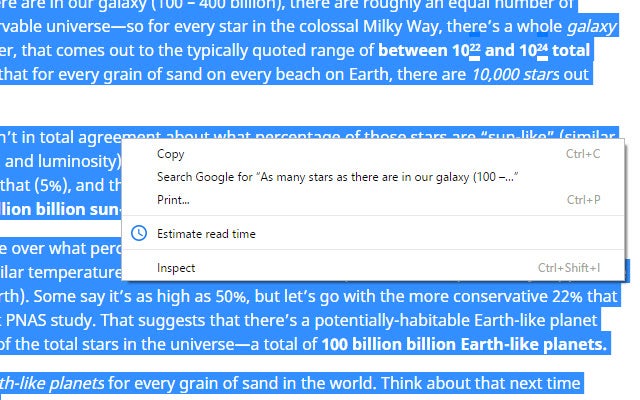
Have you ever been on a site where it tells you the estimated time to read an article? It’s usually based on the average reading speed, which may not suit you. Read Time Estimator for Chrome lets you insert your reading speed in words per minute (WPM).

It’s as easy as right-clicking on a page, placing your WPM, and then receiving the actual estimated reading time. You’ll have an idea if you have enough time in your lunch break or to prepare for a meeting to mentally consume all the information.

Read Time Estimator DOWNLOAD
Best reading Chrome extensions

My Reading List

Here’s another extension for Chrome that creates a small library of articles for you to read later. My Reading List asks you to register a free account the first time you use it, storing the information online. In that way, you can access your reading list from any device.

When you’re on a website’s page, open the extension and click on the + button. As soon as you’re done reading the contents, you can click on the tick to remove it from your reading list. 

My Reading List DOWNLOAD
Best reading Chrome extensions

Testing Reading Speed

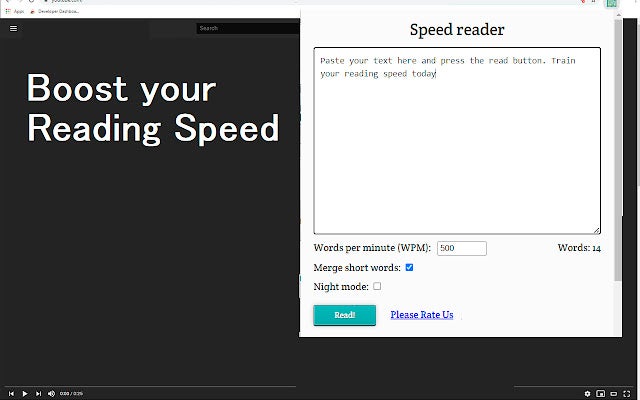
Would you like to know how quickly you read text on a page? Testing Reading Speed does that for you with a click of a button. You’ll select the “Read!” option and start reading, the words flashing on the page for you. When you’re done, you’ll click the button again.

The Chrome extension will inform you how many WPM you read in that time. If you practice every day, you’ll start to see an improvement in your reading speed. It will help you be more productive in school or the office.

Testing Reading Speed DOWNLOAD
Best reading Chrome extensions

Antisuppression Reading Bars

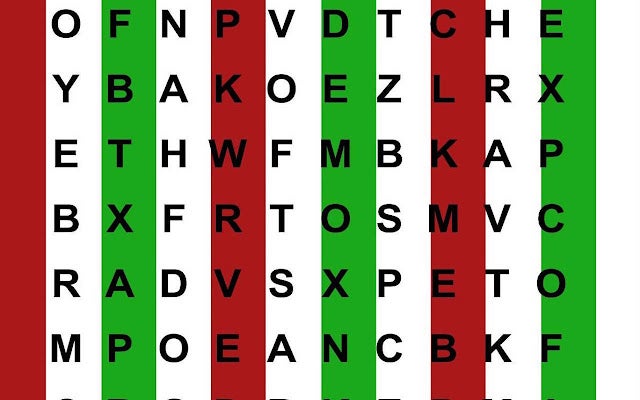
Lazy eye, or amblyopia, sometimes has a detrimental effect on reading, as one eye doesn’t function as well as the other. Antisuppression therapy is a binocular treatment that can assist. If you have medical-grade bichrome glasses to help you read, then Antisuppression Reading Bars might just be the Chrome extension for you.

It adds red and green bars on your screen that run down the page in lines. You’ll need to use the instructions provided for the antisuppression therapy when reading each line. To use it, you’ll click on the extension icon in your Chrome tray.

Antisuppression Reading Bars DOWNLOAD
Best reading Chrome extensions

Pacer speed reading

Still not happy with your reading speed? Then try Pacer speed reading for Chrome. You set the pace of the highlight bar that moves across words or lines on a page, which you can increase or decrease. It will slowly help you improve your speed so you can read reports faster.

The extension menu also lets you change the highlight color. That means you won’t be stuck with a default gray that’s unappealing to the eyes. You’ll also be able to choose how you want to increase your reading speed, per word or per line. The latter feature is in experimental mode, though.

Pacer speed reading DOWNLOAD

Reading list

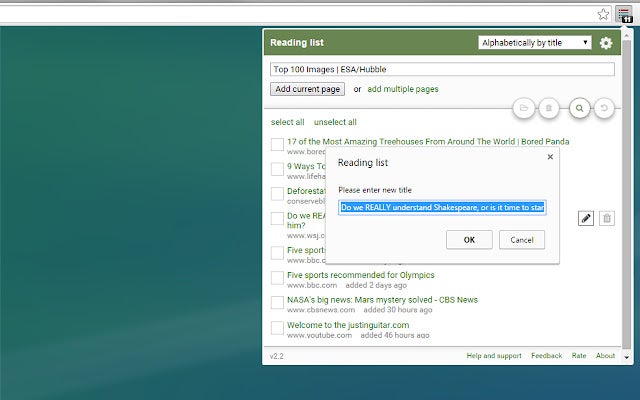
While the Reading List extension for Chrome sounds like just another reading list, it has several other features you may like. Instead of simply saving the page to your library, it also supplies other details. You’ll see what day you added them and what the domain link is, and you can also change the title of the page on your list.

The best part is that you can add several web pages at once to your reading list. It’s handy for when you have many tabs open, and you suddenly need to run to a meeting. There’s also a “select all” button if you want to clear all the articles from your list in one go.

My Reading List DOWNLOAD
Best reading Chrome extensions

Chrome Reading List 2 ❤

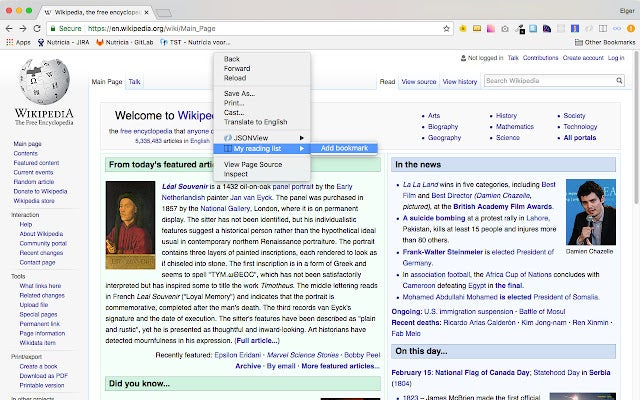
Chrome Reading List 2 ❤ is an extension that works hand-in-hand with your browser’s tools. When you save a page to your library, it adds it to a specific bookmark folder for the occasion. You’ll need to be signed in to your Google account, which means you can open your reading list anywhere.

There’s a filter option if you’re looking for specific pages related to a topic. On the other hand, you can select the randomize feature for the extension to pick a random page for you.
Chrome Reading List 2 DOWNLOAD
Best reading Chrome extensions

Reading Pointer

Would you like a combination of casual reading and speed reading in your Chrome extension? Reader Pointer lets you choose which option you’d like when reading a page. For casual reading, it will highlight words for you to read at your own pace. 

If you want to increase your reading speed, a pointer appears on the screen and moves at a slow speed across the words. You can increase the speed if you want to read faster or slow it down if it’s too fast.

Reading Pointer DOWNLOAD

Speak Any Text

You may reach a point where you’re eyes become tired from working all day on the PC. To save your eyes, you can try Speak Any Text. After you select the words, the Chrome extension will read the words to you. 

Not only will it save your sight, but it’s helpful when editing a document. You can hear if the words sound natural and correct with the right flow.


Speak Any Text DOWNLOAD
Best reading Chrome extensions

Developer Niantic says it’s taking on cheaters in Pokémon Go

Cheating in games has risen over the years with gamers finding new ways to obtain loot items and shortcuts for beating other players. Since 2010, Pokémon Go developer Niantic has been observing the behavior of cheaters and developing a system to deal with them. It says it now has the capacity and technology it needs for ramping up enforcement.

Pokémon GO DOWNLOAD

The initial action was a reaction to gamers’ feedback stating they’re fed up with cheaters. Niantic responded at the time that it would do what it could to put cheaters in their place. In the company’s latest blog, it seems it’s now in a place where it can take action based on player behavior.

The new system focused on a broad overview over the past year to assess the player’s behavior, especially where cheating was suspected. Thanks to this evaluation, Niantic is able to detect cheating within moments of the activity taking place. It says the detection will happen faster in time to come.

I’m not surprised to see the sudden statement appear. We first reported that Call of Duty cheaters would see their weapons confiscated. Not long thereafter, we noted that Bungie won a Destiny 2 lawsuit against a cheat distributor. It looks like everyone is finally cracking down on this behavior.

Niantic isn’t waiting to take action against cheaters. Any accounts it finds in violation of the Pokémon Go rules are in danger of this new enforcement system with immediate effect. It will be interesting to see how this will apply to the new Pokémon Go in-person raids the developer is implementing once again.

Pokemon GO announces in-person raids READ MORE

Will Fortnite and Dead by Daylight be teaming up for a collaboration?

When it comes to game developers that love to collaborate with well-known brands, Epic Games’ Fortnite and Dead by Daylight are on the top of the list. Both have introduced characters and themes from other games in the past. It seems like the two may be joining forces and crossing over into each other’s universes.

Fortnite DOWNLOAD

One of the more recent collaborations in Fortnite was the Uncharted release, which saw characters from the movies and the games. Pacman added some bling to our packs, and we also saw Dwayne Johnson appear in Fortnite as The Foundation in Chapter 3. There have also been loads of Marvel content over the last three seasons.

Pac-Man set to come to Fortnite READ MORE

With the horror survival game, one of my favorite collaborations was the Dead by Daylight: Silent Hill pack. Of course, there have been a few others, such as Nightmare on Elm Street and HALLOWEEN. We even saw a Stranger Things Edition.

Fortnite Skins and V-Bucks Buy now

This time around, Fortnite and Dead by Daylight will be doing a crossover collaboration. With an Epic Games survey that went around, it seems like most fans wanted to see DbD characters appear. Popular Fornite leaker @ShiinaBR went to Twitter, mentioning she saw details on Meg Thomas coming to the battle royale game as a skin.

On the Dead by Daylight side of things, there’s mention of a Loot Llama being available as a charm. Now, Fortnite gamers will recognize the Llama as the bouncing creature you can destroy to unlock several weapons and items. There’s mention of a contract, so you’ll probably need to complete a specific mission to obtain it. 

With Chapter 3 Season 3 underway and looking like Fortnite might receive a first-person mode, it’s outstanding that we may get some Dead by Daylight content. I have yet to jump into the horror survival game myself, but I may do so soon, especially with the collaboration underway. I’m also pretty excited to try Silent Hill in a whole new realm.

Enjoy browsing with Fun Cursors Chrome extension in 3 steps

People are all different, so why should our browsing experience be the same? Why not personalize your browsing experience using a unique mouse pointer matching your personality and individuality? You may be wondering how to do that, and we have a simple answer – Fun Cursors Chrome extension.

Fun Cursors DOWNLOAD

For your enjoyment, we’ll look at how to use the Fun Cursors Chrome extension so that you can personalize your mouse pointer or trackpad pointer.

Improve your browsing experience by personalizing it

Since we’re all unique, it makes sense that we don’t share the same experiences when browsing the internet. With all the advancements in technology comes new features to start personalizing how you browse the internet. You can set your backgrounds, tabs, reminders, personalized motivational quotes, and your mouse pointer.

Personalization is becoming more critical than ever, and more users are starting to want customization options that allow them to show their personality when browsing—feeling comfortable, happy, and at peace with expressing your personality while browsing will make the entire process more enjoyable.

Steps to use the Fun Cursors extension for Chrome

  1. Install Fun Cursors extension

    Fun Cursors Chrome extension

    First, you need to download and install Fun Cursors. You can also find it in our best fun Chrome extensions list.

  2. Click on the extension

    Fun Cursors Chrome extension

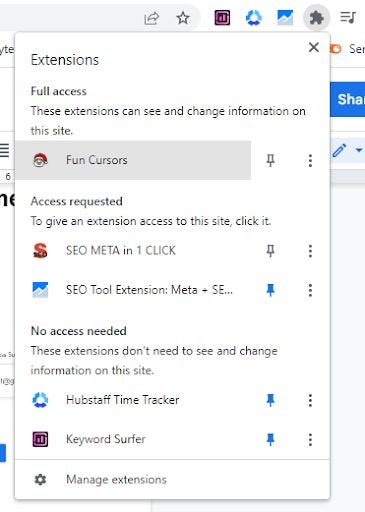
    To select a new cursor, click on the extension in your toolbar. If it’s not immediately visible (which sometimes happens when you already have a few extensions), click on the puzzle piece icon in the top right of your screen. A list will appear showing all your installed extensions. Here you can click on the Fun Cursor add-on or click on the pin next to it to add it to your toolbar for easy access.

  3. Choose your custom mouse pointer

    Fun Cursors Chrome extension

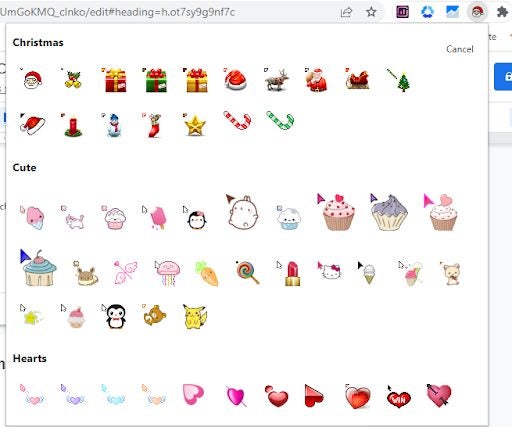
    A small window will open, showing all the available cursors. Click on the cursor that you want to use. Once you’ve clicked on the new mouse pointer, you’ll start using it when browsing the internet. However, please be aware that the new mouse pointer won’t work on the Chrome Web Store and will revert to the traditional cursor.

Stay secure online with Search Privately Chrome extension in 5 steps

Online privacy is a significant concern for many individuals. As we use the internet more often, some individuals can benefit from looking at their search history. This can give them an insight into your life which can be used for various reasons, from tailored ads to ransomware attacks. It’s best to protect your data with a Chrome extension like Search Privately.

Search Privately DOWNLOAD

So how can you conveniently clear your history? We’ll look at how to use the Search Privately Chrome extension to clear your search history quickly, easily, and automatically to improve your online privacy.

Increase your privacy by clearing your search history

Unfortunately, the internet is not a private place. Many of our lives take place online these days, but that opens us up to severe privacy breaches. Many individuals do not realize just how important it is to clear your search history. Many individuals can see your browsing history with minimal effort on their part.

These individuals include ISPs, network administrators, websites, apps, and hackers. Once they can see your browsing history, they can put together a profile about you, your preferences, browsing habits, and more. 

Clearing your search history frequently is one way that you can start to protect your online anonymity. Along with clearing your search history, there are other measures you can take to further protect your privacy. Some of the measures you can take include:

  • Clearing the browser’s cache
  • Removing all cookies
  • Using a private browser like TOR
  • Using a VPN or Proxy
  • Using privacy-enhancing extensions

Steps to use the Search Privately extension for Chrome

  1. Install Search Privately extension

    Search Privately Chrome extension

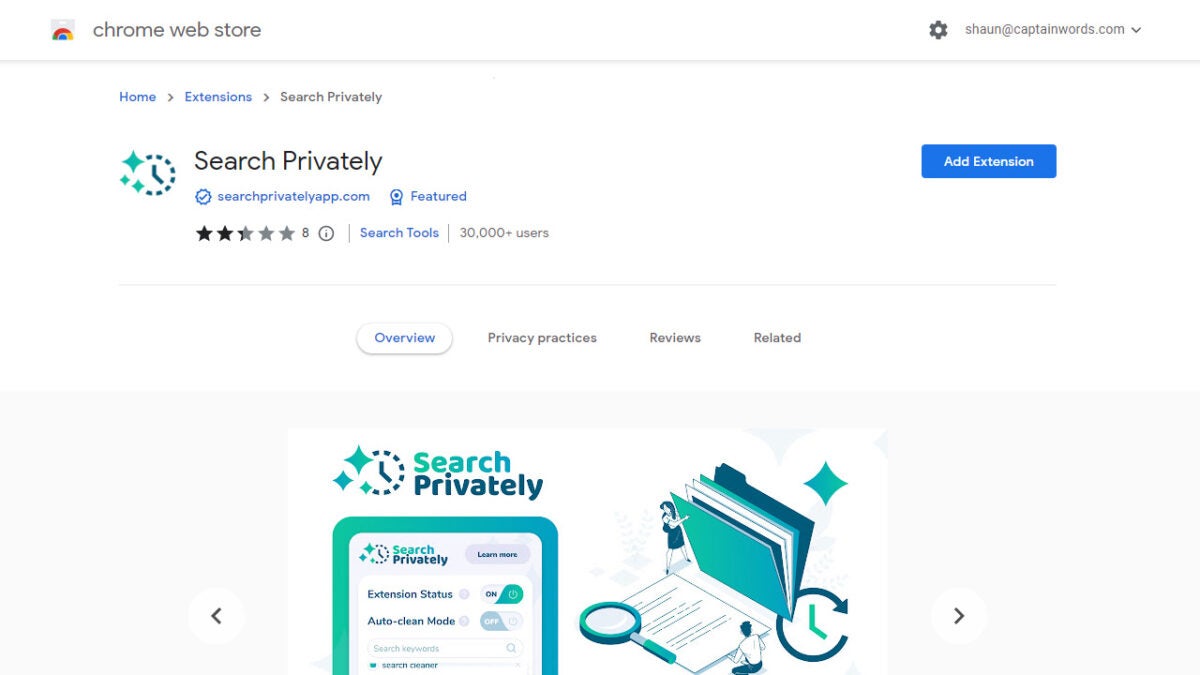
    First, you’ll need to download Search Privately. Go directly to the extension page for the installation. Click on ‘Add to Chrome.’

  2. Pin the extension to the toolbar

    Search Privately Chrome extension

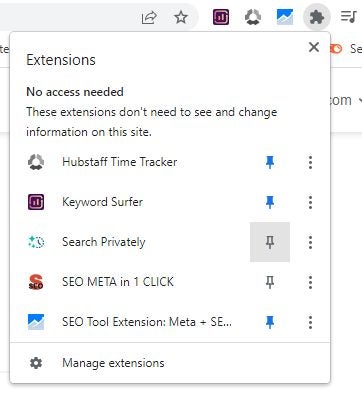
    For easy access, we recommend pinning the extension to your toolbar. Do this by clicking on the puzzle icon in the top right of the screen. A list will appear showing your extensions. Click on the pin icon next to Search Privately.

  3. Allow access to your search history

    Search Privately Chrome extension

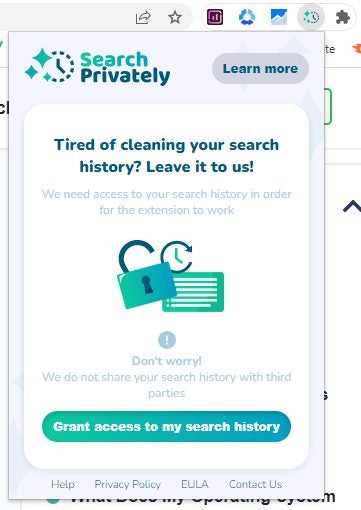
    The first time you click on the extension, you’ll be asked to grant the extension permission to access your search history. You have to give this permission to use the extension.

  4. Click the extension to clear your search history manually

    Search Privately Chrome extension

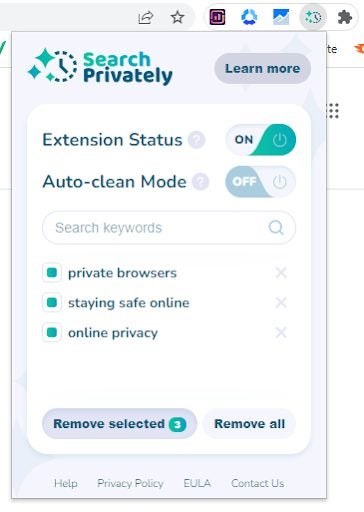
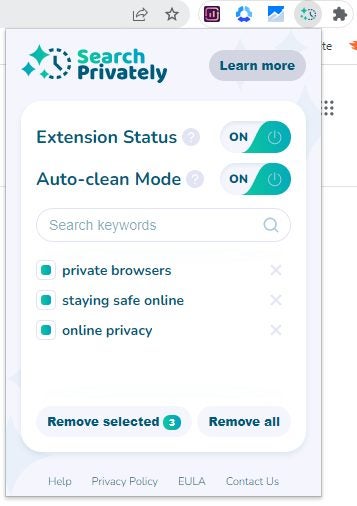
    Click on the extension when you want to clear your search history. You’ll see a list of all your searches in the extension menu that opens. You can select individual ones to only remove those or choose to remove all the searches.

  5. Set the auto-clean mode

    Search Privately Chrome extension

    You can also enable the auto-clean mode, which will automatically remove your search history, so you no longer have to do it manually.

Increase the pace with Video Speed Controller Chrome extension in 4 steps

Have you ever watched a video, but the host is talking so slowly that it feels like it’s dragging on forever? This can happen quite often, especially if you’re watching videos where you want to learn something. Some platforms offer very limited, if any, speed controls for videos. With the Video Speed Controller Chrome extension, you can change this terrible situation.

Video Speed Controller DOWNLOAD

In this article, we’ll look at how to use the Video Speed Controller Chrome extension to control the speed of videos easily.

Controlling video speed and why you’d want to?

There may be certain situations where you’re watching a video on Facebook or YouTube, but the person is speaking too fast or too slow. The truth is that our brains can process what we hear faster than it takes us to speak. And while we don’t want content creators to rush through their information, it can be worthwhile to speed up or slow down certain videos.

By increasing the video speed where the presenter talks too slowly, you can not only get through the video quicker, but you’ll also stay more engaged. By using video speed controllers effectively, you can adjust the speed of the video according to your preference so that you can get as much value as possible from the information presented.

Steps to using the Video Speed Controller extension for Chrome

  1. Install Video Speed Controller extension

    Video Speed Controller Chrome

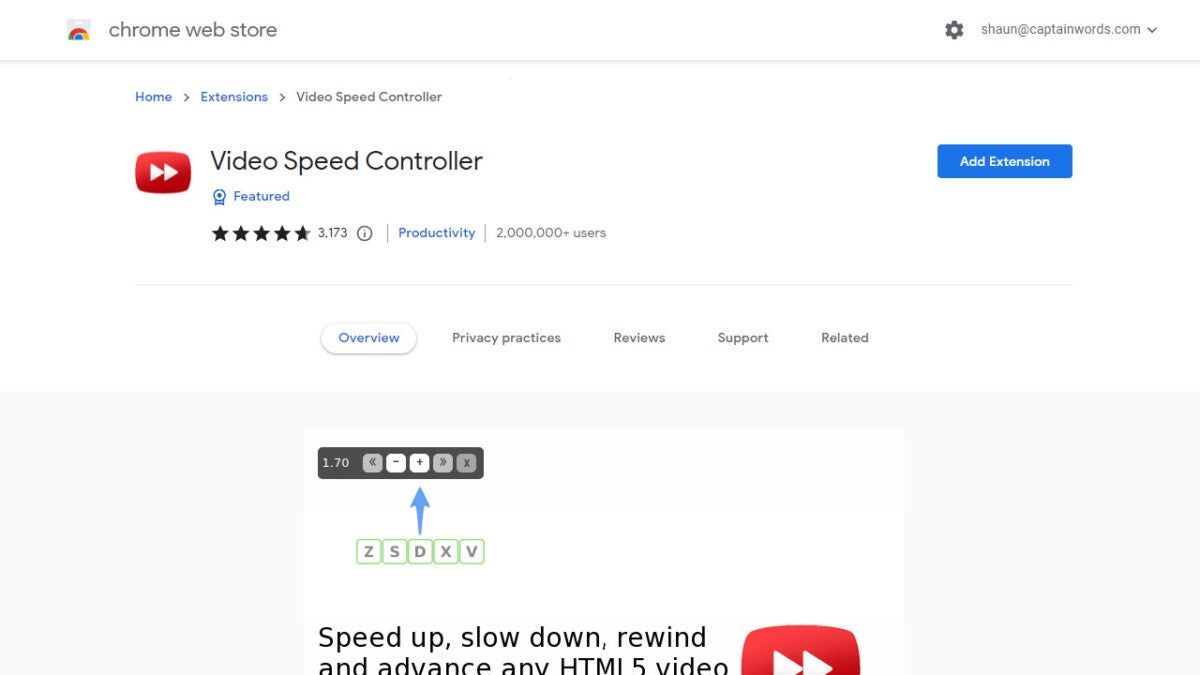
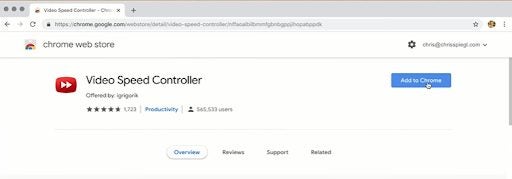
    First, you’ll need to download and install Video Speed Controller in your Chrome browser. You can also read our article and find the link on the best video Chrome extensions.

  2. Pin extension to the toolbar and adjust settings

    Video Speed Controller Chrome

    Next, you may want to pin the extension to your toolbar. This will give you much quicker access to the speed control features. Click on the puzzle icon found in the top right of your browser. A list will appear showing all your installed extensions. Click on the pin icon next to Video Speed Controller to add it to your toolbar.

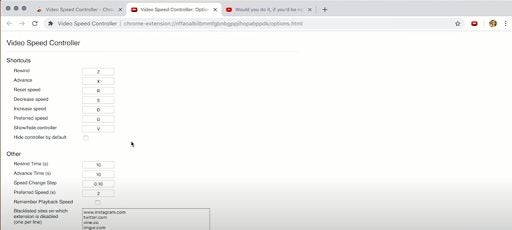
    Then click on the extension to open up the settings. Here you’ll see the keyboard shortcut keys (and you can adjust them) along with other features such as making the controls permanently visible or excluding certain platforms from this tool.

  3. Play video

    Video Speed Controller Chrome

    Open the platform and video you want to watch. This extension works on any platform as long as the video is HTML5, which most videos these days are. You can use this tool on YouTube for added speed control functions on Facebook or Instagram that lack these features.

  4. Click on the speed controller or use preset keyboard shortcuts

    Video Speed Controller Chrome

    If you’ve selected to have the controller visible in settings, you should see it visibly on your video in the top-left corner. Click on these controls to speed up or slow down the video in 0.10 increments by default (can be changed in settings). Alternatively, you can use the keyboard shortcuts; ‘Z’ to rewind and ‘X’ to speed up.

How to use the Co:Writer extension for Chrome in 5 steps

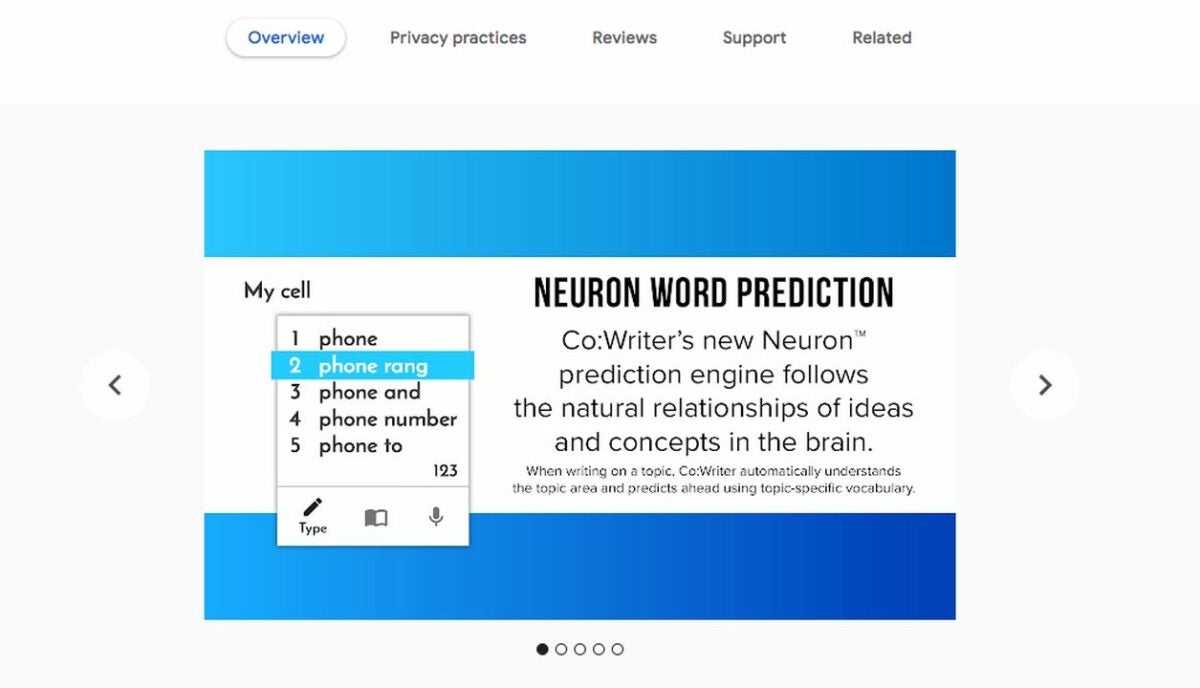
The Co:Writer Chrome extension is one of several text prediction applications that uses natural language processing to anticipate what users intend to write before they type the sentences out completely. Predictive writing apps like Co:Writer adapt to your writing style to accurately forecast your words to save you time and effort. Experts say that predictive writing software is an effective way to increase writing accuracy and efficiency.

Co:Writer DOWNLOAD

Let’s explore how to use the Co:Writer Chrome extension in five simple steps.

  1. Download the Co:Writer extension

    Download the CoWriter extension from the Google Web Store

    The application works with Chromebooks, Windows, macOS, iOS (iPads and iPhones), and Microsoft Edge. Ensure that you enable the correct Co:Writer Chrome extension for your device.

  2. Click on the Co:Writer extension

    Sign up for CoWriter and access the tool at the top right of your Chrome browser

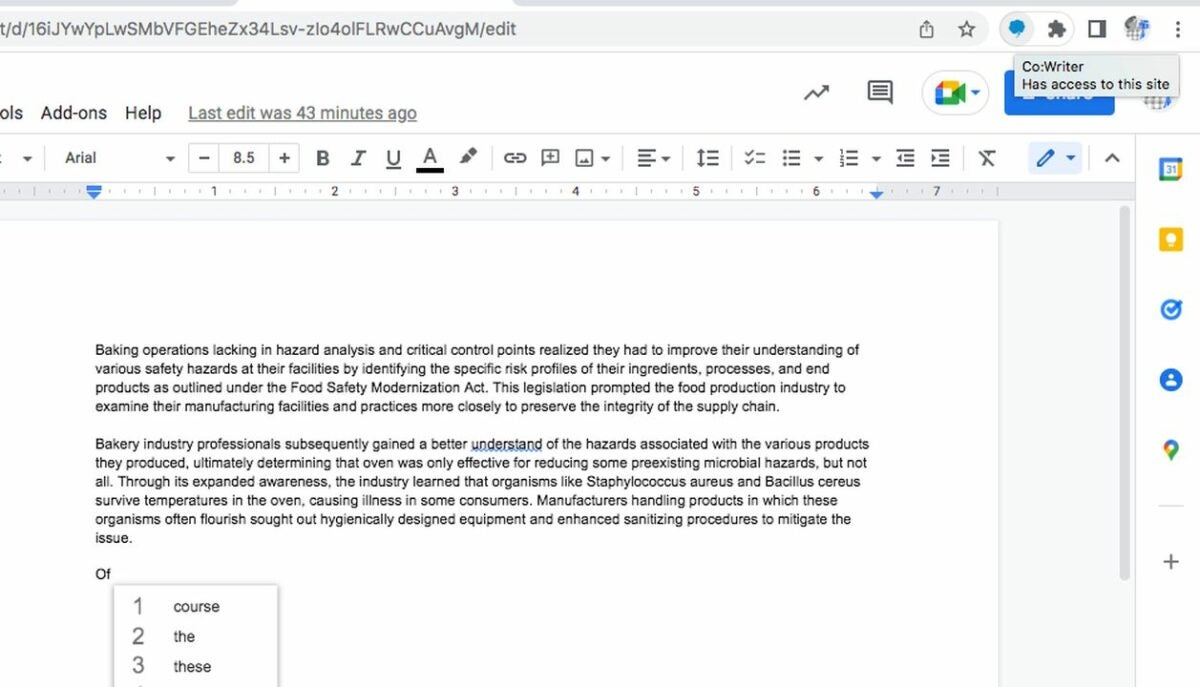
    Find the Co:Writer extension at the top right of your Google Chrome browser. The Co:Writer icon presents as a gray thought bubble next to the search engine bar.

  3. Enable the Co:Writer Chrome extension

    Turn on the CoWriter Chrome extension

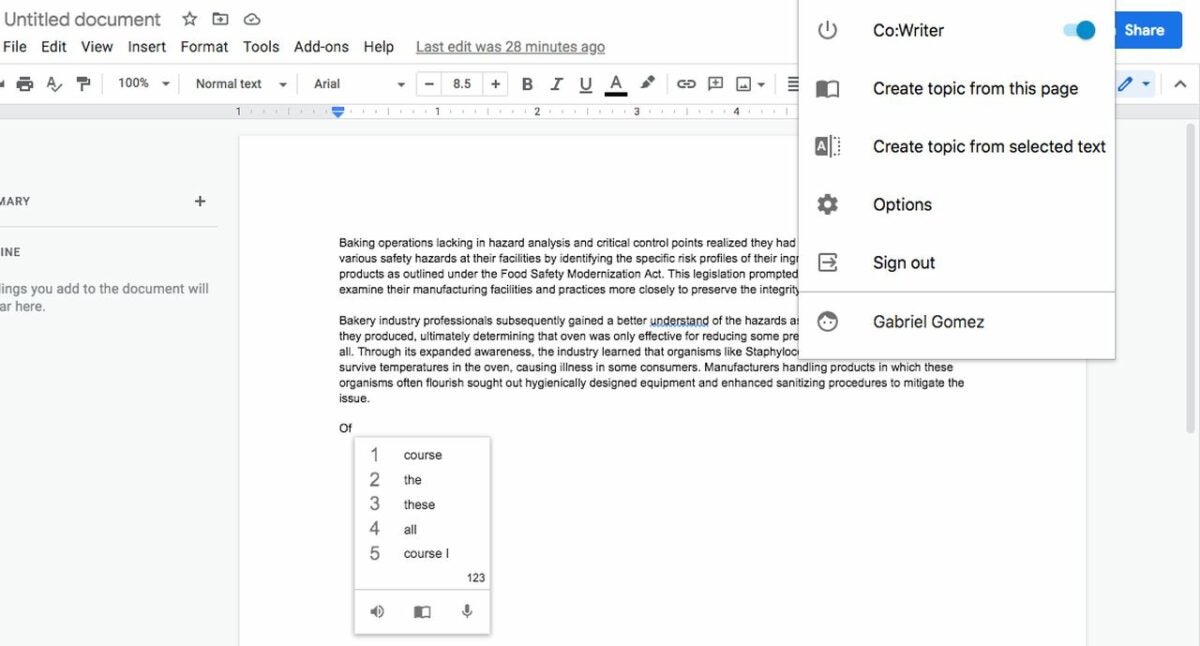
    As you click on the bubble, you will encounter a dropdown menu. Activate the switch to the right of the Co:Writer option, the first selection in the menu. This turns on the application. Confirm the extension’s active status when the toggle switch and Co:Writer icon turn blue.

  4. Create a text document in Google Docs

    Create a new text document in Google Drive

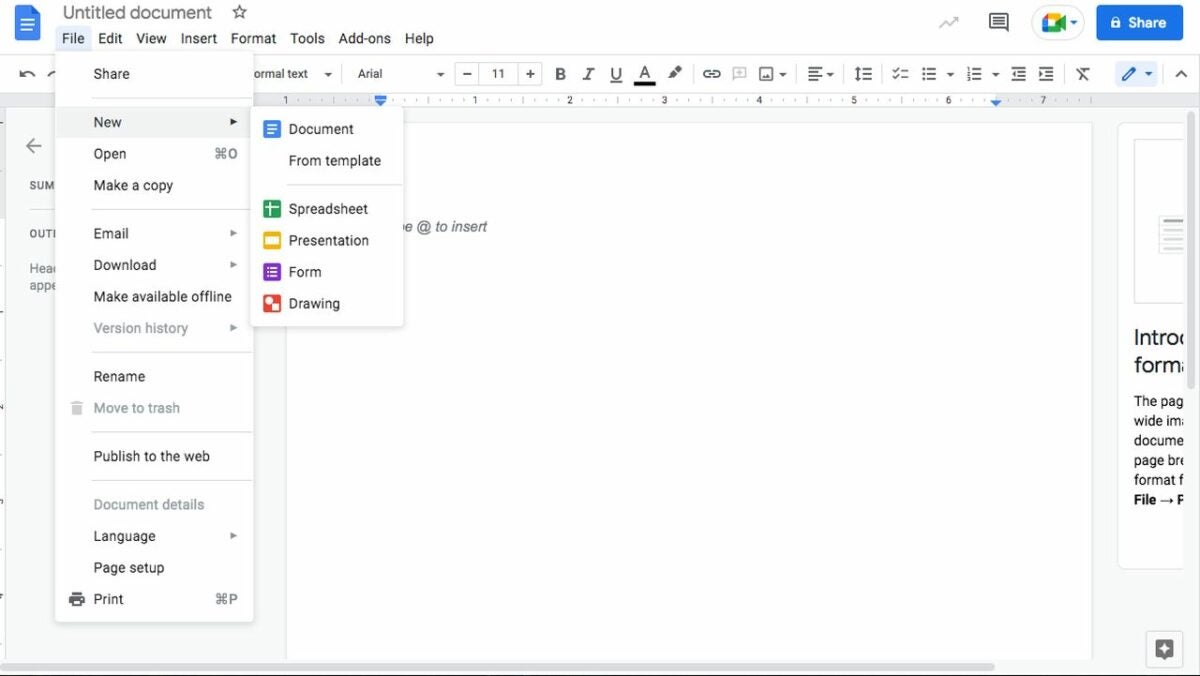
    Once you’re in the Google Drive, to create a new file navigate to the New button, and start typing the text you want to create. You can also convert a Word doc into a Google doc by clicking New and selecting File upload. Locate the document you want to upload and choose Open. After the file uploads, double-click on it, and select Open with. Now, choose Google docs.

  5. Start using the Co:Writer word prediction tool

    Test CoWriter extension and adjust the settings as desired

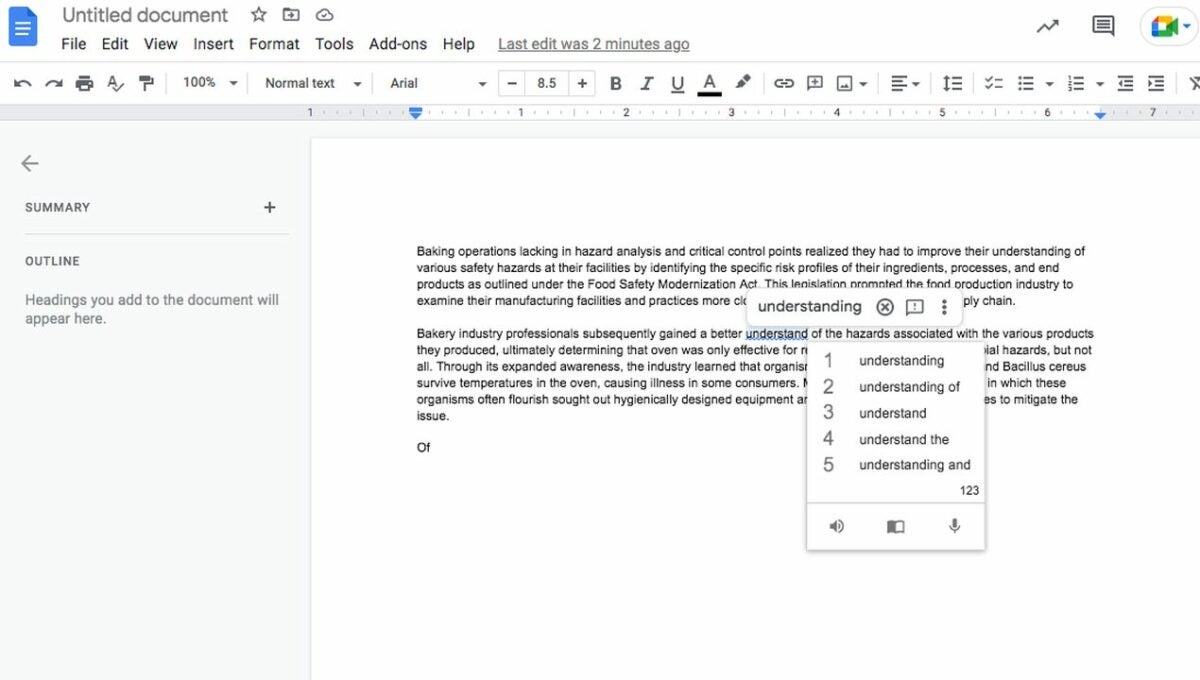
    In Google Docs, test the Co:Writer Chrome extension by typing out a new sentence. As you start composing, a purple menu option displays up to five suggested words to autocomplete the one you just began typing. You can either click on the recommended word or select the associated number.

    Change Co:Writer’s predictive text functions and what the app reads back to you by choosing the Co:Writer icon and finding Options. The Options menu lets you choose which information you want the software to predict and read back. For instance, the application anticipates letters and complete words or reads selected words and phrases back to you aloud. This ability to listen to your text spoken makes editing go more smoothly, helping you revise for clarity and accuracy at a more efficient pace.

    To select which sentences you would like to hear, simply highlight the text and right-click. Navigate to the right, and select the Speak option. The Co:Writer extension will repeat those lines back to you. Selecting Stop speak allows you to cancel the process.

How to use Read&Write for Google Chrome in 3 steps

Google Read&Write is a free Chrome extension to power up your writing skills. This add-on allows you to correct your grammar and spelling for formal essays and blog posts.

Read&Write DOWNLOAD

Here’s how to set up and use Google Read&Write to help you improve as a student, teacher, or lifelong learner.

  1. How to download Read&Write for Google Chrome

    A sample document

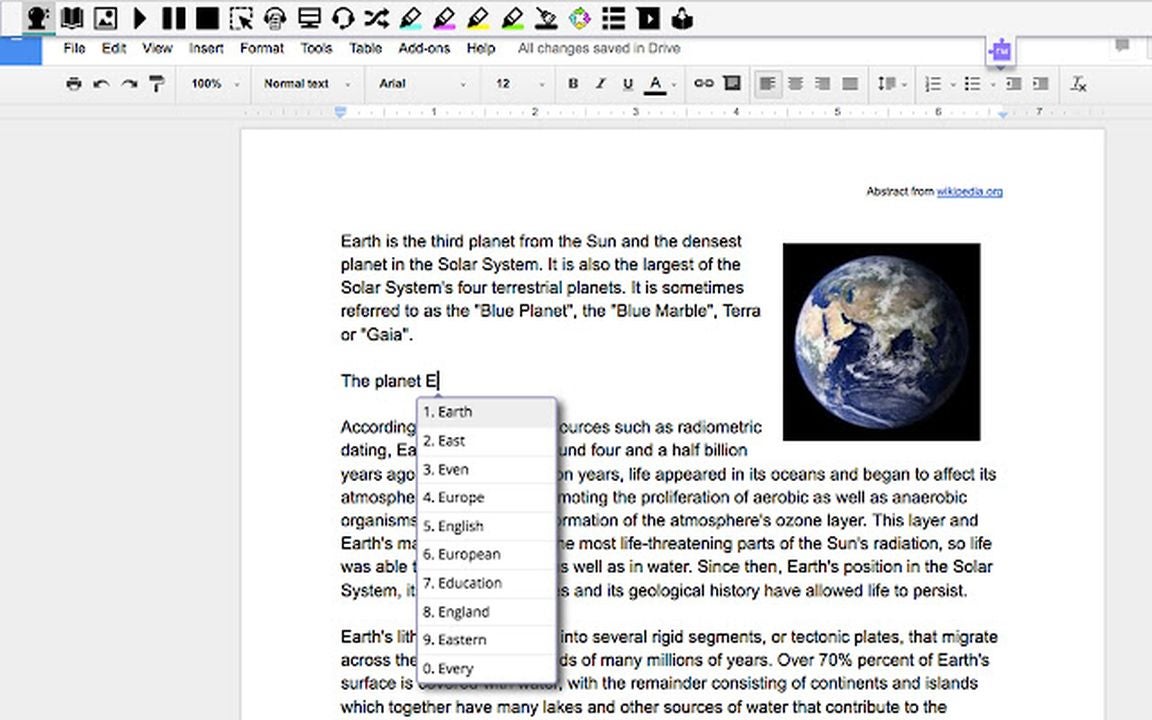
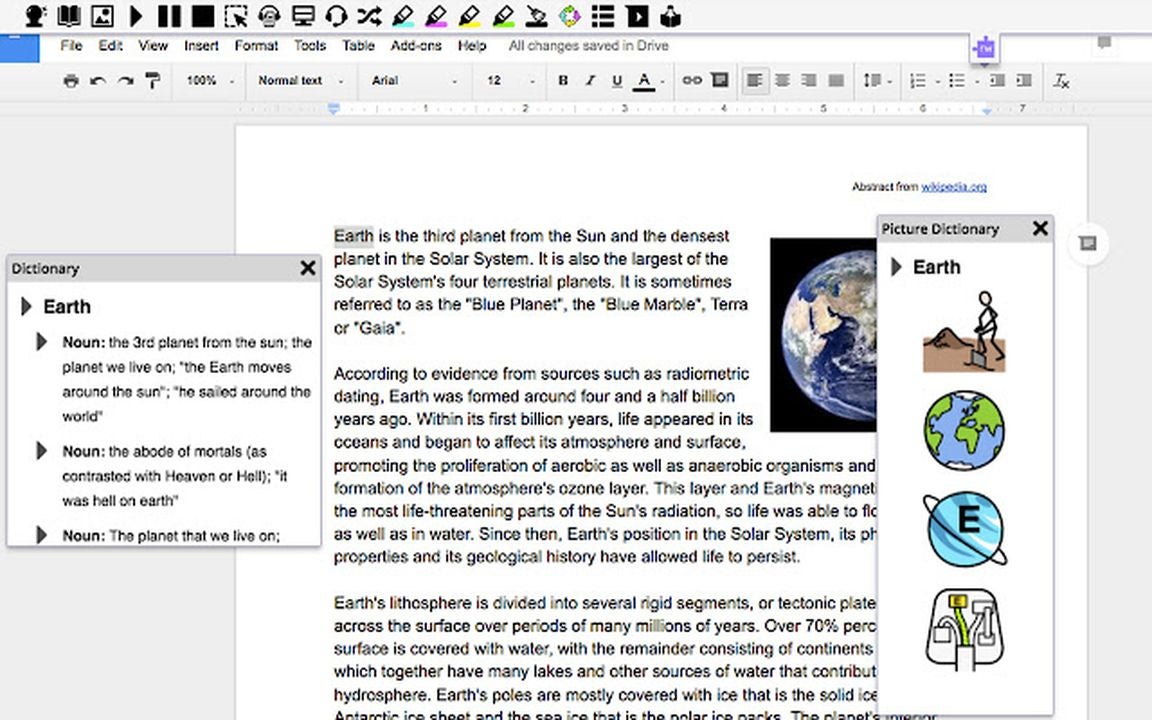
    Download Read&Write for Google Chrome. You will may have to sign into your Google account again. Once the program is opened, you can start typing on Google Docs and use the plug-in dictionary and thesaurus to expand your vocabulary and even use the tool for advertising and marketing on special e-commerce sites.

  2. Enhance your skills with Read&Write tools

    Use the dictionary tool in Google Read&Write

    Read&Write for Chrome has handy features for editing, including the Check In widget that reads your writing out loud and points out hidden errors. Another similar feature is the Dictionary tool that allows you to look up the definition of a word in your research if you’re unsure of the meaning.

    There is also image features including Screenshots to grab a picture from a website while cropping it to your desired size. The Dictionary tool additionally has an image feature for specific words to add into your work.

  3. Read&Write for Chrome is helpful for students and teachers

    Read&Write is useful for students

    Read&Write for Google Chrome allows students of all ages and their teachers to write and edit their assignments. Web page summaries help narrow down specific parts to study without being distracted by filler. Teachers can use the Voice Note feature with highlights for a report or important project.

    Speech to text and text to speech features are accessible for those who have trouble studying and completing their work. Read&Write for Google Chrome is an engaging tool for the classroom, workplace, or personal research and writing.

We’ve tested different phrases with Dall-E Mini and these are the results

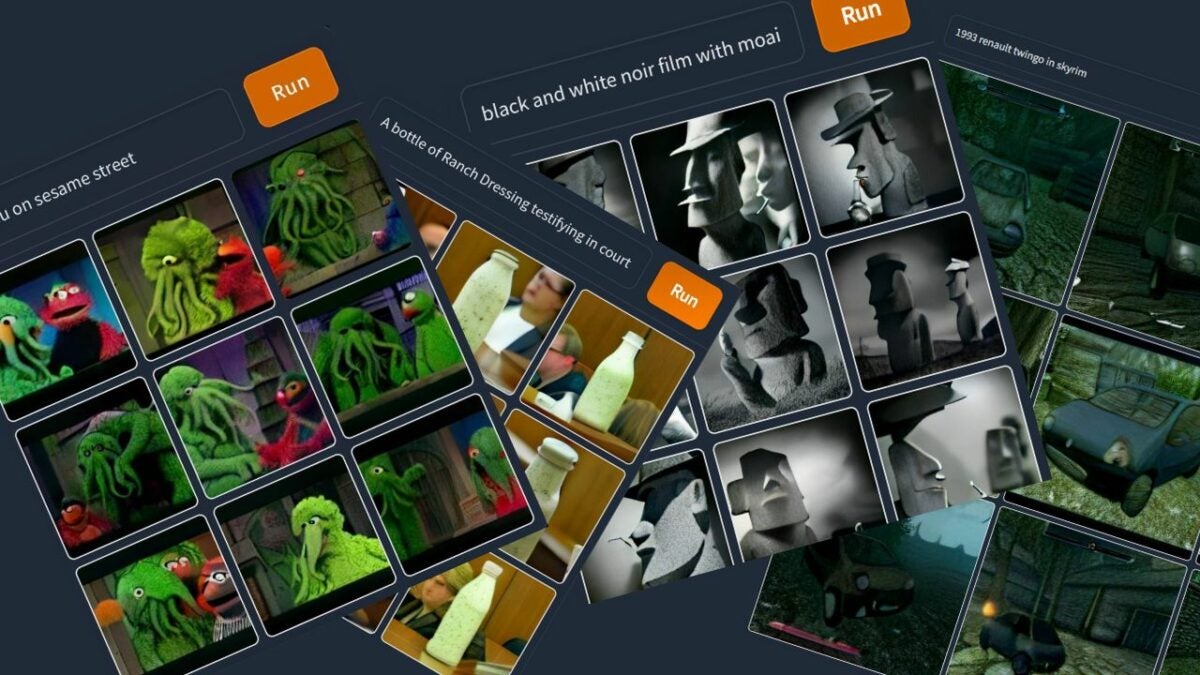
The idea is simple: Feed the most iconic lines of dialogue in video game history into Dall-E Mini, an AI-powered image generator, and see what weird and whacky results we get. Expect to see a lot of images that might not make sense but somehow encompass the feeling and emotion you feel when you hear the quotes we’ve selected. At least, that’s what we expect and cautiously hope for.

DALL·E mini DOWNLOAD

Software like this leaves a lot of room for interpretation because of how the images are generated, but hopefully, we get some deeply symbolic results. Who are we kidding? Let’s see how weird Dall-E Mini gets. Warning: Some images are really graphical and may disturb sensitive readers.

Game quotes used in Dall-E Mini and results

“War is where the young and stupid are tricked by the old and bitter into killing each other.”– Grand Theft Auto IV

We start off in Dall-E Mini with a phrase so iconic, relevant and poetically poignant that it would be a top contender for the slogan of the decade if there were such a thing. This heartbreaking utterance slipped from the mouth of Niko Bellic in Grand Theft Auto IV. Niko dropped this philosophical truth bomb while discussing the ways of war and conflict. 

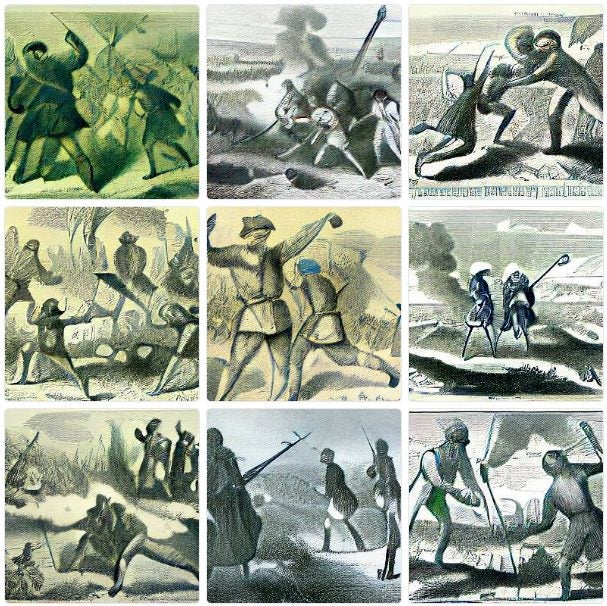
It took Dall-E Mini 28.5 seconds to generate these 9 images. From a literal perspective, you can clearly see the conflict in every one of these images. I love that the software generates images in similar styles for each quote. These could quite easily be blown up and hung on a wall, accompanying the iconic quote. If you look really closely at each image, there are stark differences in the conflicts they portray. None of these AI-generated conflicts seem to be inspired by GTA IV though.

The second image is the most compelling in terms of the wording of the quote, in my opinion. It seems to portray young soldiers headed to battle, overshadowed by what looks like the ghostly form of an older general. You could also interpret this ghostly form as the expectations and pressures of the ‘old and bitter’ who Niko references in the quote. 

We’ve tested different phrases with Dall-E Mini

“Hope is what makes us strong. It is why we are here. It is what we fight with when all else is lost.” – God of War 3

This was said by Pandora, yes, that Pandora. The one who opened that ancient box and unleashed all those terrifying goodies upon humanity. Hope is an incredibly powerful theme within the God of War franchise, with Athena even calling it ‘the most powerful weapon in the world.’ Athena continues by stating that Hope is powerful enough to kill any god, even Zeus himself.

She is the original custodian of Hope, which she placed into Pandora’s box in order to counteract the many evils already within it. Later, Hope landed up in Kratos’ possession, before being released to humanity due to his selfless sacrifice. 

This Dall-E Mini grid took a lot longer to generate. At 39 seconds, we can safely say that this is one of the more difficult quotes to put into an image. That said, from an artist’s perspective, these are absolutely stunning images. Although canonically Hope appears to be blue within the God of War franchise, yellow is an apt-enough color given that it represents the sun and we often liken hope to the idea of a new day and a fresh start.

These Dall-E Mini images look like the kind you’d find on Pinterest after typing ‘hope’ into the search box, but that may be intentional. Looking closer at each of the images, they all seem to have a disturbing subject, whether it’s the contorted hand in image 5, or the spider-like creature in image 6.

However, this could speak to the transcendental nature of hope. It exists in all organisms, no matter their appearance, physical stature or origin. 

We’ve tested different phrases with Dall-E Mini

“Men are but flesh and blood. They know their doom, but not the hour.”– The Elder Scrolls: Oblivion

I wouldn’t class Elder Scrolls Online as the most feel-good, happy, or peaceful game, and these images certainly speak to that opinion. However, they are incredibly on-brand and compelling. This quote was uttered by Emperor Uriel Septim VII. The quote feels fairly innocuous at first, with Uriel simply pointing out that men can’t see when they’re going to die, they only know death to be an inescapable certainty.

As the rest of the scene unfolds, however, (Spoiler alert) it turns out that Uriel is about to be assassinated. He continues by saying: ‘In this I am blessed to see the hour of my death, to see my apportioned fate, then fall.’ 

As far as the context of the quote, the Dall-E Mini images seem to represent it perfectly well. Death is ever-present in every image, but while some seem to portray the actual assassination, others speak to the regal and authoritarian nature of the Emperor. Image number 8 stands out to me though. In this image, I can see the quiet resignation in the Emperor’s facial expression as he is relegated to death.

Since we’re on the topic, don’t forget to check out the new High Isles chapter in Elder Scrolls Online. 

We’ve tested different phrases with Dall-E Mini

“No matter how dark the night, the morning always comes.” – Final Fantasy X

This is a quote by Lulu in Final Fantasy X. Lulu continues with ‘and our journey begins anew,’ but this first piece of the statement has become one of the most quoted lines from the Final Fantasy franchise. This quote has an intrinsic Instagrammablilty. By this I mean it, and the images that the AI generated from it look like the type to be plastered all over those motivational Instagram pages; for a good reason though.

FINAL FANTASY X/X-2 HD Remaster DOWNLOAD

Is there anything more motivational than the assertion that anything you may have experienced on a particular day doesn’t define your character. Instead, every day is a new chance to treat yourself and others better, be more productive, and contribute more to the general well-being of society. 

Even though only one of the Dall-E Mini images seems to show a hint of a sunrise, these are still incredibly apt AI-generated pictures that would look right at home captioned by the quote in question. 

We’ve tested different phrases with Dall-E Mini

“A hero need not speak. When he is gone, the world will speak for him” – Halo

This is a quote made in reference to Master Chief. It’s relatively short, as far as video game quotes go, but it speaks volumes. The presence of such uplifting imagery and messaging in a video game primarily designed as a means for people to relieve stress by shooting at virtual targets is proof of how essential video games are in the grander scheme of things. We need more people to believe that you don’t need to be vocal about your goodness for it to be noticed by others. 

Master Chief, also known as Master Chief Petty Officer John-117 in Halo Reach, is the mascot of the Halo brand and a man of few words. Thought to be based in part on Clint Eastwood and the characters he played, Master Chief isn’t boastful about the good he does. He simply sees it as his duty to leave the world a little safer than he found it. As you can see by the Dall-E Mini images, the generator did a good job of highlighting this hero.

We’ve tested different phrases with Dall-E Mini

“What is a man? A Miserable little pile of secrets!”– Castlevania: Symphony of the Night

Castlevania is a gaming franchise that has gone down in history as having some of the funniest lines and best examples of goofy translations. The quote in question is a perfect snapshot of this. Even though this quote makes decent enough sense, it’s still a bit of a whacky thing to say. This line comes from a conversation between Richter and Dracula at the beginning of Symphony of the Night. 

Castlevania: Lords of Shadow 2 DOWNLOAD

Most of the hilarity comes from the English text in the game being poorly translated from the original Japanese in which the game was written. This is true for phrases such as: ‘It was not by my hand that I am once again given flesh. I was called here by humans who wish to pay me tribute.’ The original Japanese text, properly translated, reads: ‘It is not by MY power that I am revived. It is because of the greedy humans that I live once more.’

However, in the case of our quote, the original Japanese wording is so far from what appears in the English game. Translated properly into English, the quote should have been: ‘Foolish drivel. I will prove to you which of us is right… with death!’ This is quite a deviation from the original script. 

The Dall-E Mini software seems to have taken the words ‘man’, ‘miserable’, and ‘secrets’ and run with it. I don’t know if we’ve got a home run with this one. It doesn’t scream Castlevania, and it certainly doesn’t make me laugh like the text and the voiceovers in the game did. It looks more like someone attempting a live-action remake of the famous ‘The Thinker’ statue. 

We’ve tested different phrases with Dall-E Mini

“FINISH HIM!” – Mortal Kombat

This is the phrase that either precedes elation or a relatively lengthy sulk while playing Mortal Kombat. I don’t think there’s even an in-between. You’re either the one who gloats or the one who sulks. 

I don’t know what I was expecting for the Mortal Kombat-inspired AI-generated images, but it wasn’t this. Dall-E Mini seems to have gone in a different direction, likely taking the word ‘finish’ as a reference to marathons. Although, there are a few images that could be somehow inspired by Mortal Kombat. But overall, I see marathon runners and wrestlers at best. I suppose there’s a lot less specificity when the quote is only two words long. 

We’ve tested different phrases with Dall-E Mini

“Sul sul!” – The Sims

This list would not be complete without the only quote from The Sims franchise to take on a meaning of its own. Apart from an in-game greeting that your Sims will use on occasion when greeting an NPC, Sul sul has become a greeting that Simmers and fans of the game use as well. The phrase doesn’t have much of a meaning outside of the popular life simulator gaming franchise, but it’s still a super fun thing to say!

The Sims 4 DOWNLOAD

I was expecting at least one truly odd set of images from the Dall-E Mini software, and it looks like Sul sul has not disappointed in the least. Not only do these images not seem to resemble anything from the Sims franchise, they don’t even resemble each other. I think we’ve found a way to thoroughly confuse this software to a point of little to no recognition; use made-up words from a video game that have little to no realistic linguistic relevance. 

We’ve tested different phrases with Dall-E Mini

“Wasted” – Grand Theft Auto 

This is not exactly a quote, but it is something that Grand Theft Auto players have seen so many times that it’s essentially become an honorary quote. This phrase makes me chuckle because my mind instantly goes to all the stupid ways in which I’ve died in Grand Theft Auto V.

I think every GTA player, no matter which game you play or which title is your favorite, has a reel in their mind of their favorite stupid deaths. Then, there are the most annoying deaths that spring to mind. Mine has to be constantly getting shot to death trying to find the control box at the docks with Ryder in GTA: San Andreas

The images generated on Dall-E Mini from this prompt seem to represent the greatest hits of Grand Theft Auto but are skewed in the favor of San Andreas. They’re a massive hit of nostalgia though. From what looks like the parking lot under the Mulholland intersection in image 3, to the green Sabre in image 7, this grid really takes me back to the good old days

We’ve tested different phrases with Dall-E Mini

“Waka Waka Waka” – Pacman

We end off with an interpretation of what it sounds like when Pacman chomps up those seemingly delicious ghosties. If you listen carefully to the world’s favorite yellow puck as he gobbles up the ghosties, you can almost hear him utter the words. 

I had a slightly different expectation in mind when testing this phrase. Although, given that this is not a direct quote or canon interpretation of what Pacman sounds like, I can’t be too harsh. I will say that this last grid looks more like a Captcha image grid in which you need to select the image containing a boat. Except that all of them contain an interpretation of a primitive boat. 
This does however give us a chance to address the sheer power of the Dall-E Mini software.

None of these images exist, they are purely composites, which is why if you look closely, they look like paintings. However, if you take a quick glance at them, they look like real boats. Dall-E Mini is an incredible example of how advanced technology has become over the last few years. And I’m so glad that I get to write about it.

We’ve tested different phrases with Dall-E Mini

Google reaches agreement with Wikipedia to pay for content to go in new “Knowledge Panels”

Wikipedia is one of, if not the most useful and impressive free online tools that has ever existed. Open-source knowledge that is free to access makes us all smarter. Moderating all that content, however, and keeping the site going costs money and, just like with any service that is offered for free, the Wikimedia Foundation that is responsible for running Wikipedia needs to make money. That is why a partnership deal between Google and Wikimedia is good news.

Wikipedia Download Now

The announcement centers around Wikimedia Enterprise, which is a recently launched commercial product from Wikipedia that offers commercial services to companies who use Wikipedia and Wikimedia projects on a large scale. Google has agreed to pay for the privilege of using Wikipedia content in new search “Knowledge Panels”.

Wikipedia announced news of the deal in a Wikimedia blog post. The post didn’t mention the terms of the deal but it is clear that this isn’t a charitable donation by the search giant. As Google adds more and more widgets to its search results that pull more and richer data and information from websites, fewer and fewer users will actually click on links and go to the webpages that come up in search results. This, in turn, harms those websites that then see less traffic.

Of the deal, Lane Becker, Senior Director of Earned Revenue at the Wikimedia Foundation said:

“Wikimedia Enterprise is designed to meet a variety of content reuse and sourcing needs, and our first two customers are a key example of this. Google […] leverages Wikimedia content in very distinct ways, whether it’s to help power a portion of knowledge panel results or preserve citations on Wikipedia… We’re thrilled to be working with them both as our longtime partners, and their insights have been critical to build a compelling product that will be useful for many different kinds of organizations.”

The blog post also contained details of another commercial partnership between the Wikimedia Foundation and the Internet Archive, which runs The Wayback Machine, a website that saves snapshots of websites so people can go back and see what the internet was like at certain times during history. This one, however, is not a financial partnership as both websites are a part of the broader free knowledge movement and support each other’s objectives.

This is great news for Wikimedia and internet users everywhere. It follows and goes beyond making up for recent news that Wikipedia has stopped accepting cryptocurrency donations.