Did Instagram just become Google Maps?

If you ever need to go anywhere, chances are you will open up Google Maps to help you figure out how to get there. There are other good apps for planning journeys, trips, and vacations such as City Mapper, but most of us just use Google Maps. But there may soon be another pretender to Google Maps’ throne and this one might just be able to take a fair amount of Google Maps users. Step forward Instagram.

Instagram Download Now

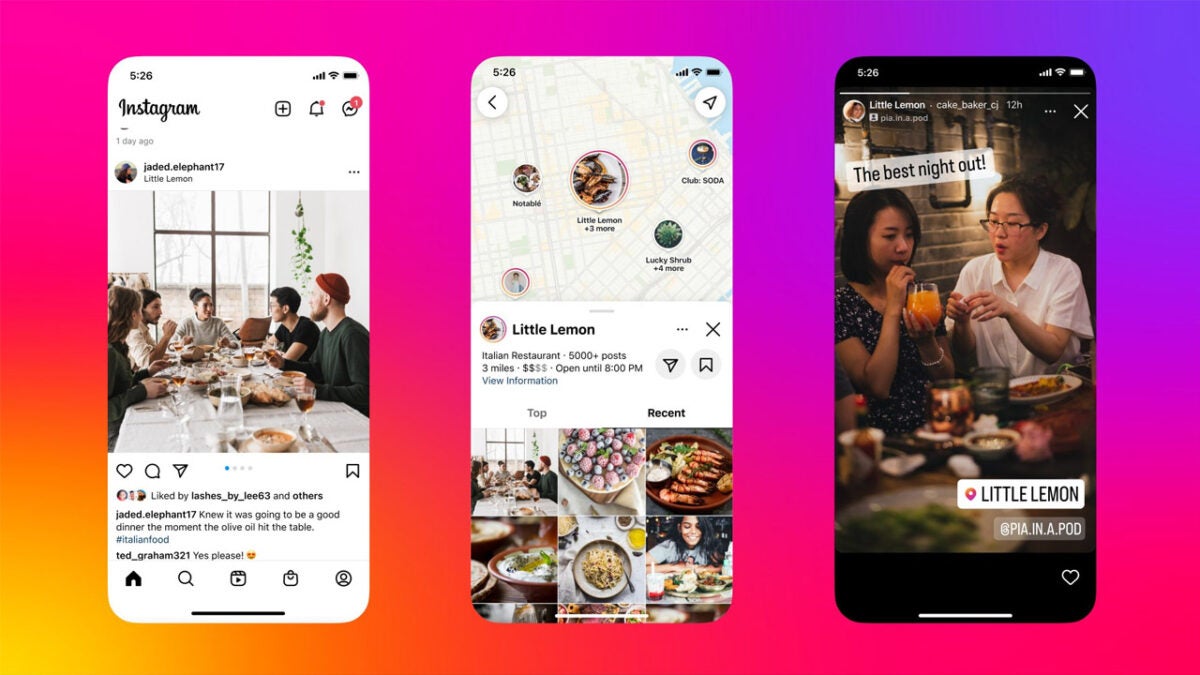
In an Instagram Story, Mark Zuckerberg announced that Instagram is soon to have a dynamic map tool that users will be able to use to search for and tag locations. This is big news as Instagram is already a very good tool for finding great new places to go to so adding a map to an already good discovery tool is big news.

The kicker here is that users will be able to tag locations with specific categories such as bars, restaurants, cafes, etc., which means other users will be able to simply and effectively find whatever it is they are looking for.

The new map search feature will allow users to get a visual sense of a location as well as see lots of user-generated content too. In the post talking about the new post, Instagram said:

“The dynamic, searchable map allows users to have a more personalized and immersive experience when discovering popular locations and businesses and to see what’s nearby, via tagged posts, stories, and guides shared by the Instagram community. Users can also find relevant locations on the map when searching certain hashtags.”

This update for Instagram really could start taking some of the users that Google Maps has been able to count on for years.

According to Meta, the feature is already available and rolling out to users now. If you can’t see it on your phone just yet, don’t worry, it can take a while to roll out new features to over 1.2 billion users.

In other Instagram news, the social network has recently started looking into NFT integration on the app.


DALL-E will soon be available to another 1 million users

If you’ve done pretty much anything on the internet recently or been on any social network, you will no doubt have seen a fair few DALL-e creations. The AI-powered text-to-image generator has been a hit with internet folk and has already secured itself a place in the internet meme culture hall of fame. Access to the tool has been limited, however, but now it looks like 1 million more people are going to be able to use the tool. Let’s take a look at what is happening.

DALL-E Download Now

The company behind DALL-E, OpenAI, calls itself an AI research and deployment company that is on a mission to ensure that artificial intelligence benefits all humanity. To back this mission up, OpenAI has put out a blog post announcing that the company is going to invite 1 million users from the DALL-E waitlist and give them free credits that will refill every month.

All DALL-E users will get 50 free credits in the first month and will then get 15 free credits every month after that. What is cool is that DALL-E users will own all the commercial rights for the images they create using the tool. If you’re not familiar with the tool, OpenAI describes it like this:

“DALL·E allows users to create quickly and easily, and artists and creative professionals are using DALL·E to inspire and accelerate their creative processes. We’ve already seen people use DALL·E to make music videos for young cancer patients, create magazine covers, and bring novel concepts to life.”

The company’s claims are true as well because, as we have already mentioned, people have really been going to town coming up with interesting image prompts to feed into DALL-e and its less powerful little sibling, DALL-E Mini. You can see some of the great examples in the video below:

The real significance of this move is that it means the tool DALD-2 is moving into the beta testing phase, which means it moving along its development path towards a full general rollout.

If all this sounds like something, you are interested in then you should add your name to the waiting list now. Once you’ve done so you might want to check out some of the compelling images we created when we got our hands on the DALL- Mini tool.

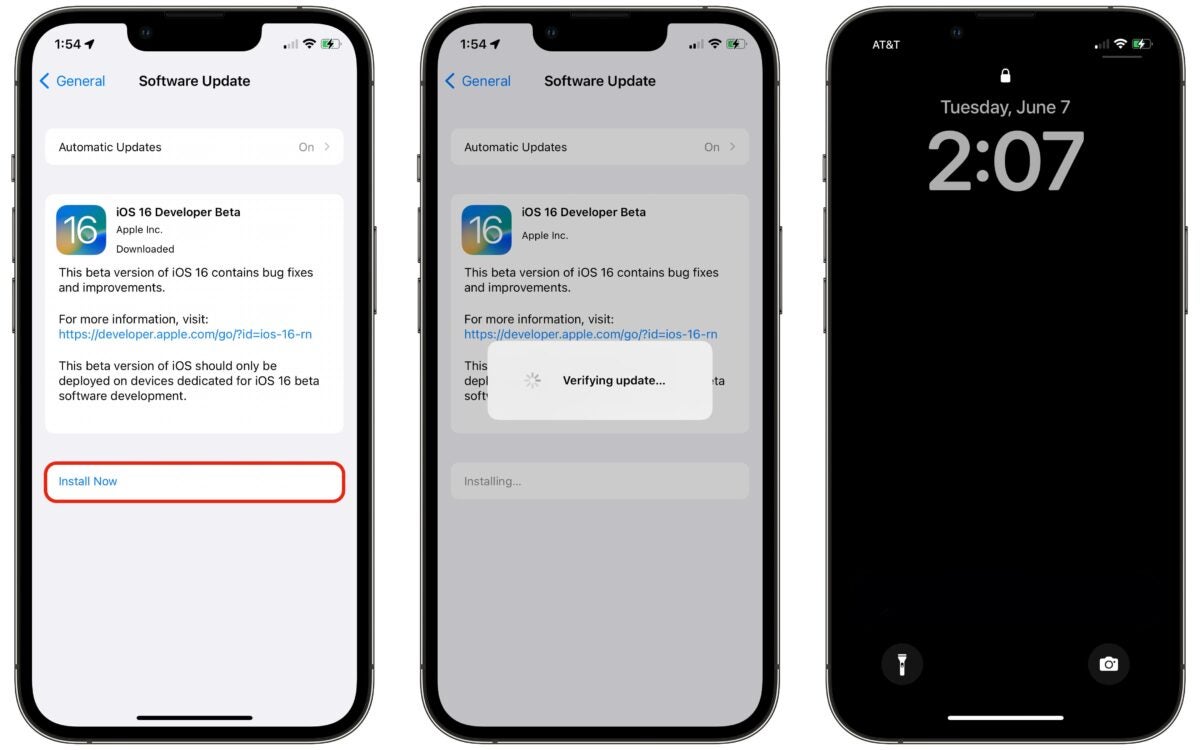
How to download and install iOS 16 public beta

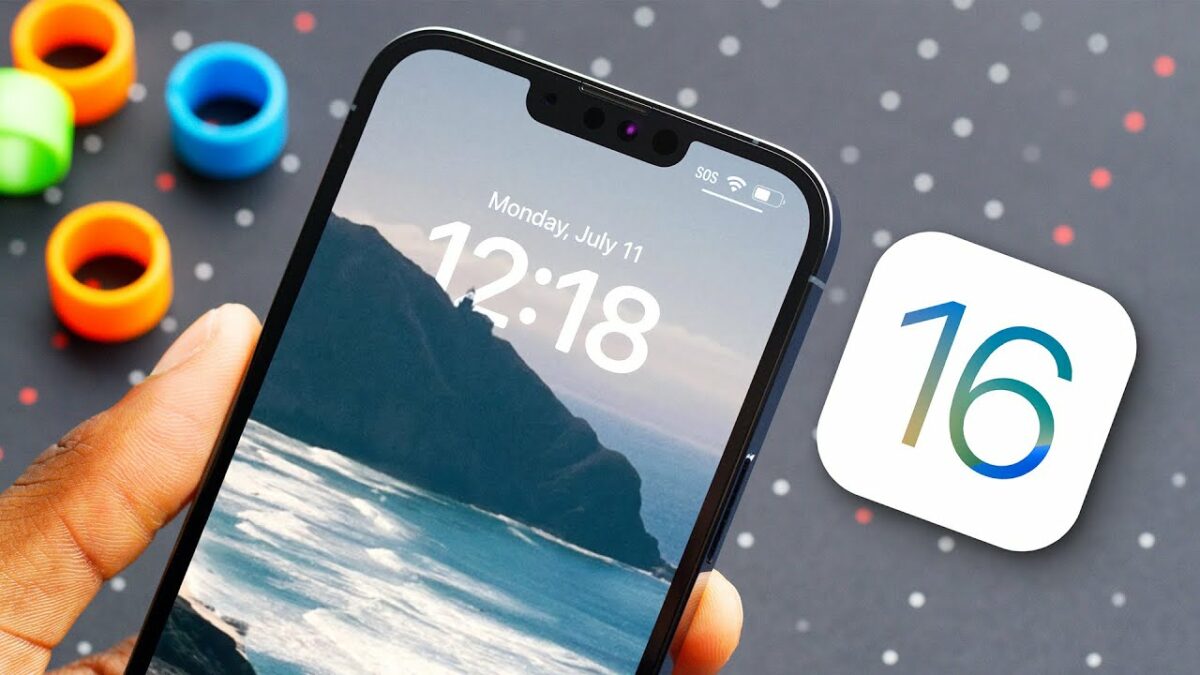
iOS 16 is the latest software to hit the iPhone this fall. Apple is still working on this software update and will release it as soon as it is done. Apple has kept the tradition alive and released a software update near June. iOS 16 was previewed in June 2022 at the Worldwide Developers Conference.

iOS 16 DOWNLOAD

The new software looks promising and brings exciting updates, such as a custom lock screen. Many users, however, are not keen on waiting for the software’s official release. They would need the beta version. If you’re among them, this article is for you. We’ll walk you through the various steps on how to install the iOS 16 beta version on your iPhone.

Supported devices

iOS 15 could run on various devices; however, the device list for iOS 16 is short. Only iPhone 8 and above can upgrade to the latest iOS 16. This means older and popular versions such as the iPhone SE, iPhone 6s, and 7 Plus cannot run the new software. When it comes to the iPod, 7th generation devices cannot run on the latest software.

Steps to download and install iOS 16 beta version

If your device can accept iOS 16, continue reading to know how to get the beta version of the software. Before you begin anything, take a quick backup of your device. A backup helps you revert to the old operating system if the beta version doesn’t work as expected.

While there are various methods of backing up your device, downloading everything to a computer or laptop is usually advisable. Now let’s look at the steps.

  1. Signing up for iOS 16 Beta

    download and install iOS 16 public beta

    You first need to sign up for Apple’s beta program. You can do this by visiting Apple’s beta program page. You can sign up on any browser.

    Once signed up, you will receive instructions on how to download iOS 16. If you had already signed up with the Apple beta program, you would need to enter your Apple ID and continue with the instructions on the page.

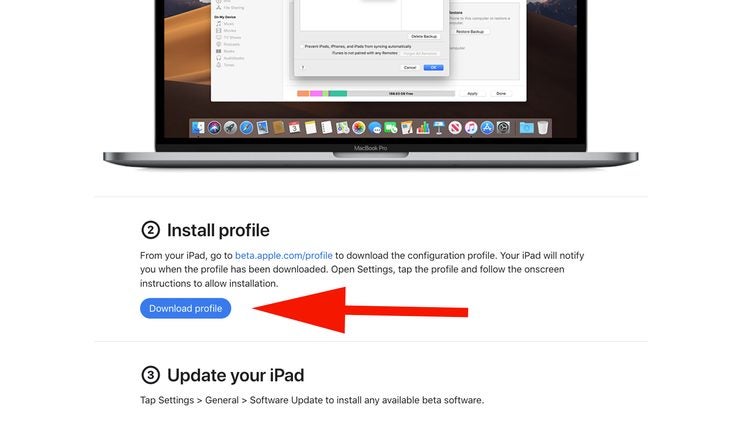
    When you complete signing up, you will enter the iOS 16 section. Upon scrolling down, you’ll see the ‘Download profile’ button. Whenever you’re ready, tap on download and install a configuration profile on your device.

  2. Access settings

    download and install iOS 16 public beta

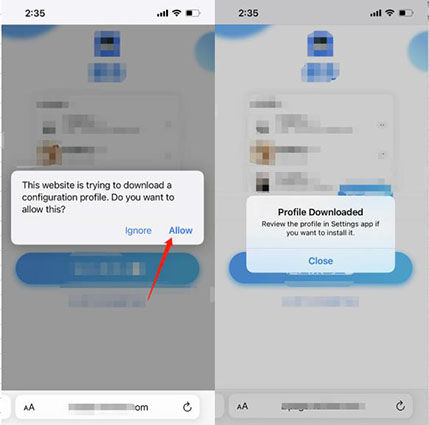
    After you’ve completed downloading the profile, you need to head to your phone’s settings.

    On the settings page, you will see that a new profile has been downloaded.

    Upon tapping the profile, you’ll see what is included in the update. At the top right corner, you’ll also see an ‘Install’ button. Tap it. You’ll be asked for your passcode.

  3. Install and restart

    download and install iOS 16 public beta

    The next page will provide legal information (as with any new installation). Read through and accept it by tapping on ‘Install’ in the top right corner again.

    After tapping install, you’ll again be asked if you want to install the software. Click on install again to complete the installation process.

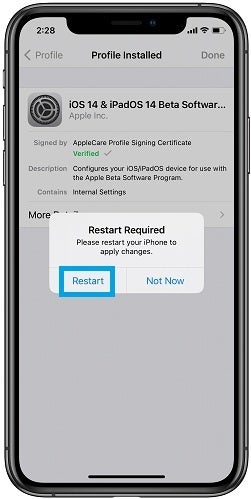
    Before completing the installation process, you’ll receive a prompt asking you to restart your device to start the process.

  4. Update software

    download and install iOS 16 public beta

    Once the restart has been completed, go back to your settings and tap on the ‘General’ option.

    Once inside, tap on ‘Software Update’ once again. You’ll then see the iOS 16 beta version ready for installation. Tap on ‘Download and install’ whenever you’re ready. 

    The installation process will begin. Your phone may restart a couple of times, and the update will be complete when the phone switches on again. Always remember that any future iOS 16 software updates will also happen through this process. Since this is a beta version, various versions will be available. Make sure you keep upgrading each version, so you enjoy the latest features of iOS 16.

What to expect from iOS 16?

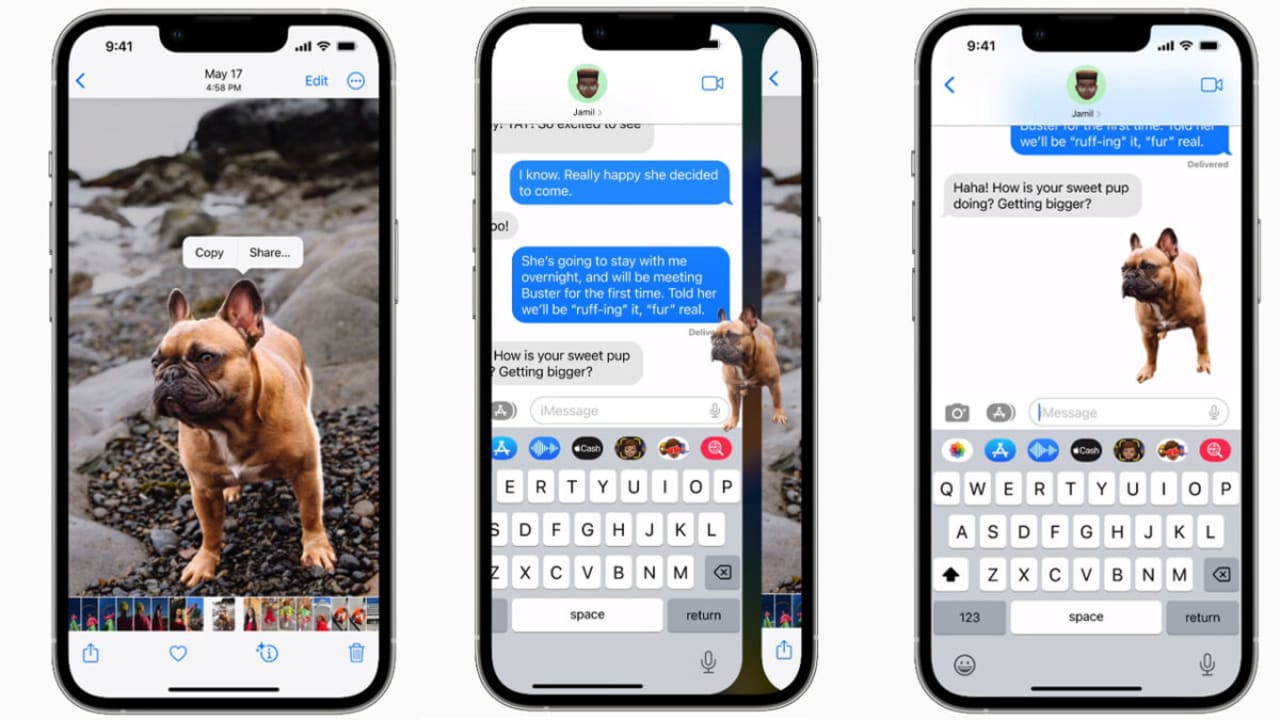
The latest iOS version promises exciting updates like a custom lock screen. You can also edit texts within the messaging app. New mobile payment features have also been added. Other updates include better maps, photo-editing tools, and notes. The latest version also adds a Lockdown mode.

iPhones free Photoshop-like upgrade READ MORE

This is an advanced security feature. The lockdown mode comes in handy in case of lost or hacked devices. We also heard that iOS 16 may let you bypass CAPTHA verifications. A new screenshot font is also available in the latest version.

If you managed to successfully install the updated operating system, check our guide on how to use the iOS 16 improved Home app.
You can finally silence those weird Google Docs notifications

It has to be said that Google Docs has some fantastic collaboration features that make it very easy to work together with colleagues and teammates on the very same document. One of those bothersome little idiosyncrasies, however, is that the word processor will send you a notification every time somebody makes a change on the document. This means things can then get out of hand quickly and you are bombarded with useless emails. Well, finally, Google has announced a change to address this situation.

Google Docs Download Now

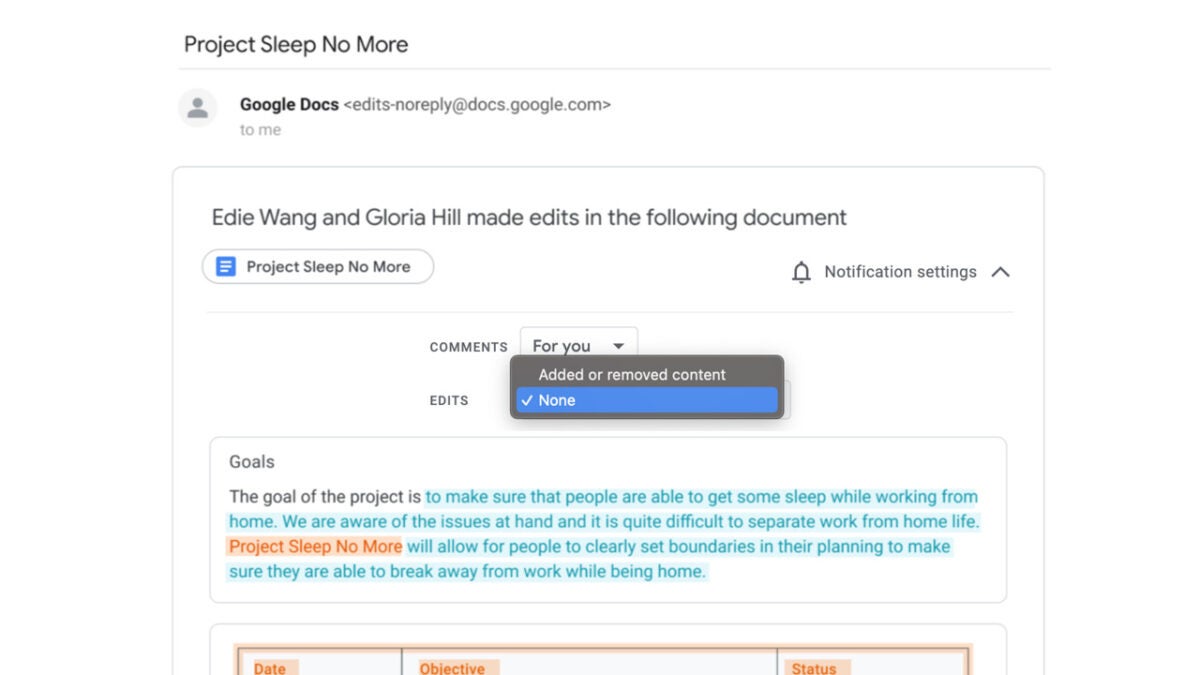
In a Google Workspace blog post, the search giant has announced that it is giving users the ability to set the level of email notifications they will receive on a per-file basis. Rather sensibly, the new feature will collect all the changes made, including when and by who they were made into a single message.

To help you more quickly identify who has made the changes, they will be color-coded, which again is a very sensible setting to add to the update. On why this update will be useful for you, Google said:

“Staying on top of relevant changes and comments across multiple documents can be difficult. By giving you the option to specify which comments and changes to be notified about, you can more easily stay on top of what needs your attention most and keep track of collaboration.”

The feature is rolling out right now so within a few weeks it should be available for all users to take advantage of.

The edit notifications feature will be off by default, but you will be able to set it differently for every document you work on. To do so, click the Notification Settings dropdown menu, which has a bell icon, and then make your adjustments as needed.

This update will help you keep your email inbox less cluttered, which will be great news for your productivity. Google has been working on quite a few features in this regard recently, including this impressive AI-powered productivity-boosting feature.

WhatsApp is building its own version of Memojis

When Apple launched Memojis on iOS they caused quite the stir and became popular really quickly. With the metaverse knocking on our door simple yet expressive virtual avatars are becoming an increasingly important part of our digital lives. Memojis aren’t the only option either, with Bitmojis offering an OS-independent version and Facebook even coming up with their own variant too. Now it looks like WhatsApp is going to launch its own version of personal avatars too. Let’s take a look.

WhatsApp Download Now

We have previously reported on WhatsApp working internally on their own version of Memoji avatars. Now, however, we have confirmation of the feature being tested in a beta version of the app for Android.

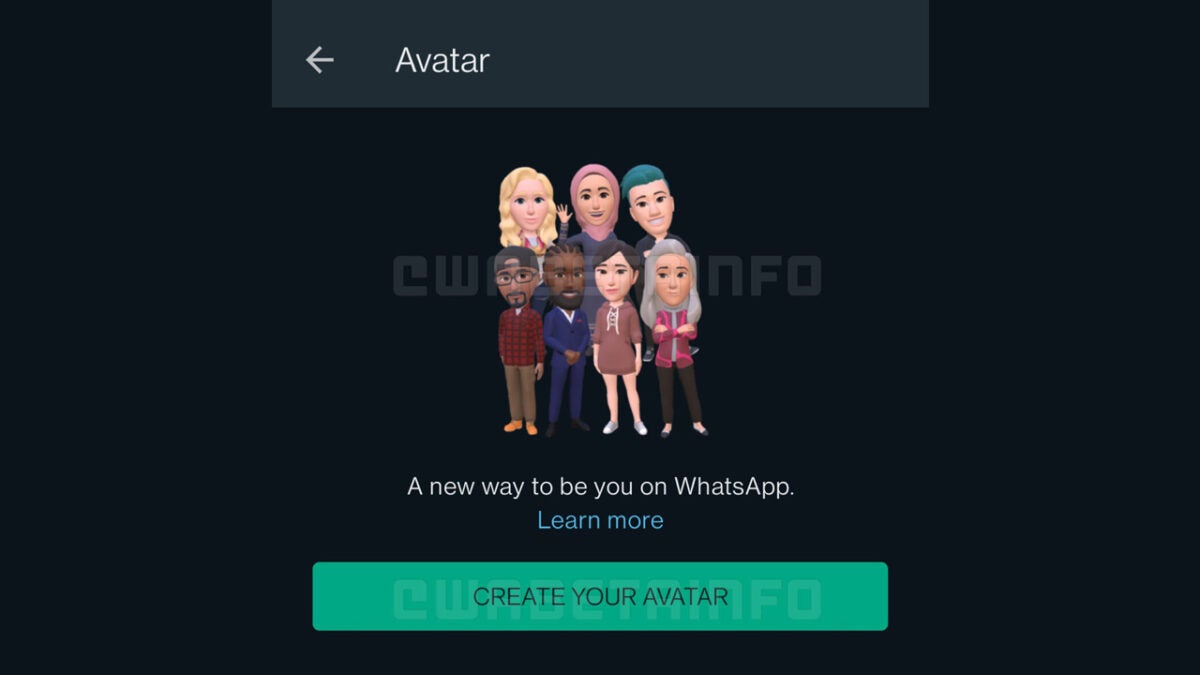
The ever-impressive WhatsApp beta testing community has spotted a create your own Avatar tool in WhatsApp beta for Android 2.22.16.11. In the screenshot posted online, it looks very much like the WhatsApp avatars will be the same as Facebook avatars.

This means you will be able to completely customize your own avatar, which you will then be able to send as emoji-like stickers to your friends and family. As we mentioned in our last report on WhatsApp avatars, WhatsApp seems to be working on allowing you to use your avatar during video calls too. This rather innovative idea will likely take a long time to roll out to all users, however. It is rather funny, however, to think of video calls taking place between two virtual avatars.

There is still no word on a release date for WhatsApp avatars, all we know is that is in development and has reached the beta testing stage. We will be sure to update you as soon as we hear any news on this update or any other feature update. To make sure you don’t miss out, bookmark our WhatsApp news page, and subscribe to push notifications.

Image via: WABetaInfo

Microsoft Teams now has Facebook, but not like you think

About 10 years ago, have you got Facebook used to be what you’d say whenever made a passing acquaintance with any and every random person you met. You were simply letting them know that you wanted to connect over Facebook. Fast Forward to today and it looks like Microsoft Teams has taken that question of whether you’ve got Facebook to a whole other level. Let’s take a look.

Microsoft Teams Download Now

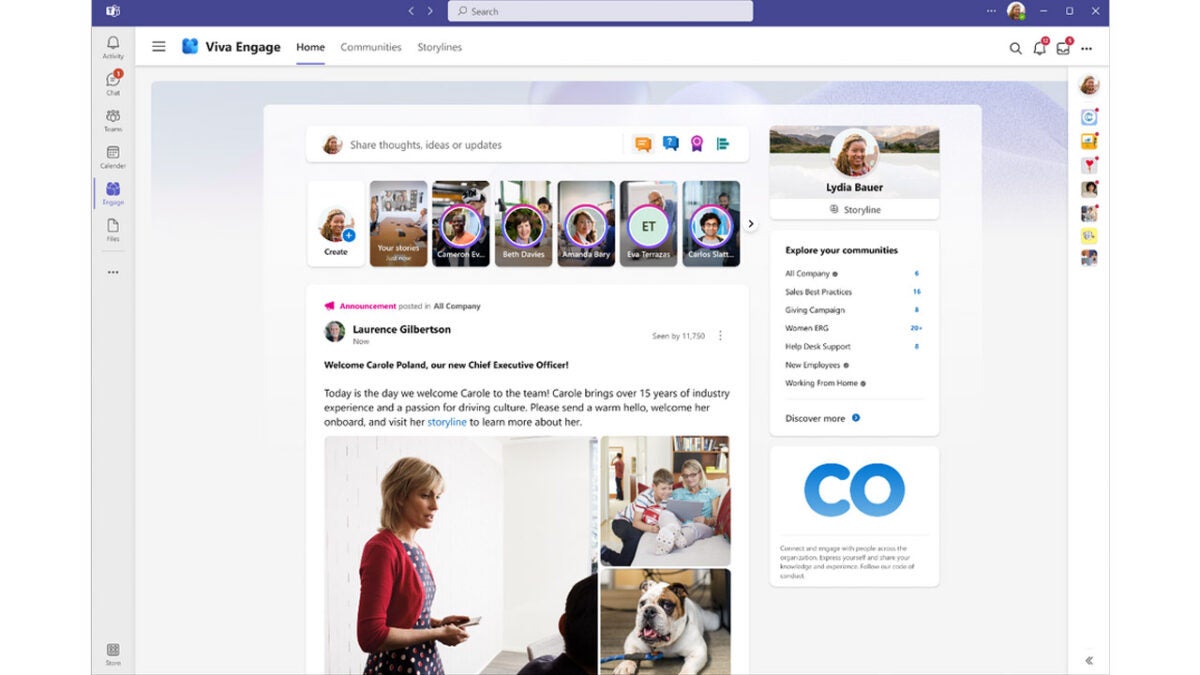
Microsoft CEO Satya Nadella has announced Microsoft Viva Engage, which is a new app built inside Microsoft Teams that is designed to “help organizations build community, spark engagement with leadership, harness knowledge and answers, and build personal networks.” That last one is interesting, Viva Engage looks like a new social network. In fact, it looks exactly like Facebook.

The problem Microsoft is trying to solve here relates to the new remote and hybrid working context we find ourselves living in. Microsoft claims that is now harder to make lasting and meaningful connections with colleagues and teammates, which is where Viva Engage comes in. Microsoft says:

“In a world of hybrid work, Viva Engage gives leaders new tools to shape culture and align their workforce by unlocking communication and engagement opportunities for everyone. And for employees, it provides new ways to build a sense of community, strengthen relationships with coworkers, share their work and perspective, and find answers to their questions.”

Viva Engage has been designed to help companies build a sense of purpose and belonging in their employees and works like an office Facebook. As you can see above too, the visual similarities between Viva Engage and Facebook are striking.

Microsoft says that come late August the Communities tab in Teams will change to Viva Engage. This means you could start seeing it pop up on Microsoft Teams in your work as early as this Autumn.

While you are waiting for the rollout of Viva Engage be sure to stay vigilant whenever you are opening files you have received from unknown sources as fake Microsoft Word documents that are filled with malware have been doing the rounds.

Image via: Microsoft

New No Man’s Sky update ‘Endurance’ keeps the Starfleet dream alive

No Man’s Sky is receiving its 20th major free update. The new update, titled Endurance, will focus on a massive overhaul of frigates, freighters, and fleets. 

No Man's Sky DOWNLOAD

Freighters were added into the science fiction fantasy game in its very first free update in 2016, Foundation. Endurance seeks to build on the, excuse the pun, Foundation of the first free update by adding more functionality and fleshing out the entire experience in preparation for the game’s 6th anniversary.

As written by game creator Sean Murray, ‘We introduced the ability to own and captain freighters in our very first update, and it’s something we’ve been excited to take the opportunity to completely reinvent. Captaining a fleet to explore the unknown has always been core to that fantasy of science fiction, from Battlestar to Starfleet, and it’s a huge fan favorite.’ 

If you’re looking for the update’s full patch notes, you’ll find them on No Man’s Sky’s official website. For the most part, Endurance adds more features and content centered around the fantasy of owning and commanding your own mega-fleet and massive ships.

The update improves freighter bridges to allow for instant teleportation and warp access, and freighter bases can also now be built to a much larger scale. Furthermore, exterior structures and sections can now be built directly onto the freighters themselves, in addition to windows and portholes through which you can view space. 

You’ll also now be able to grow and manufacture food inside freighters. You’ll also now be able to analyze planets from space without touching down on their surfaces, with the help of freighter upgrades. Aside from the freighter updates, Endurance also updates the deep space in No Man’s Sky with nebulae, black holes, larger asteroid fields, and much better atmospheric effects

This new update supports the notion that Hello Games is far from finished with the development of No Man’s Sky, even though it has in the meantime commenced development on an incredibly ambitious new project. We’re excited to see what all else the Endurance update has to offer.

In the meantime, we’re waiting to see what the Bethesda competitor has to offer when Starfield launches.

Starfield will have dogfighting and more! READ MORE

Mojang Bans NFTs from Minecraft

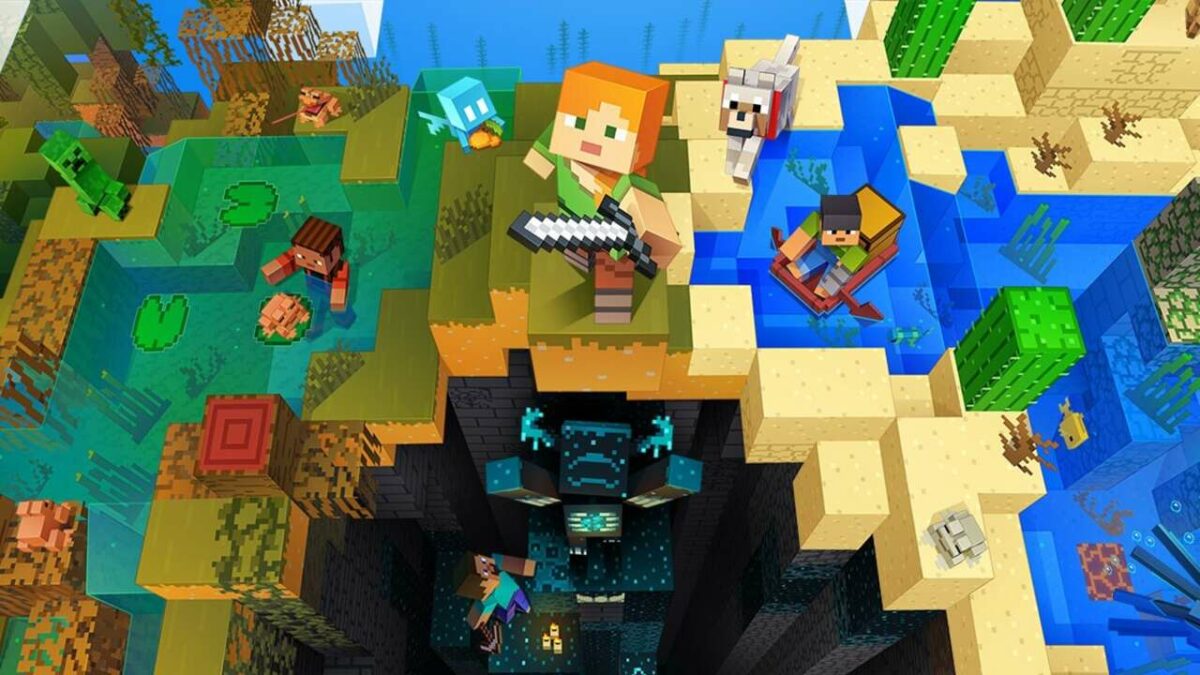
In a not altogether surprising move, Mojang has banned NFTs from being used in any way in Minecraft. According to Mojang, the dream for Minecraft has always been a ‘safe and inclusive experience’ and that NFTs go against the ‘spirit of Minecraft.’

Minecraft DOWNLOAD

Mojang explains its reasoning at length in a blog post published on the official Minecraft website. In short, Mojang recognizes the phenomenon of artificial scarcity that NFTs perpetuate and believes that the core mechanics behind NFTs don’t uphold the game’s guidelines and, with improper use, could undermine the ‘spirit of Minecraft.’

Mojang explains further that it doesn’t want to support an ecosystem wherein Minecraft’s players could get scammed by third-party NFTs that could find their way into the countless custom servers. 

For a similar reason, Mojang has also banned blockchain technology. Here, it elaborates that blockchain technology could motivate players to create ‘scarce digital assets’ if they were to be integrated with the game or its servers. Therefore, NFTs and the use of blockchain technology will no longer be tolerated within the Minecraft experience.

This includes the generation or trading of any NFTs based on in-game items ‘including worlds, skins, persona items, or other mods.’ These are, however, the only reasons that Mojang gives. Interestingly enough, the company has avoided any comment on the environmental impact that NFTs and blockchain technology have, despite being a relatively fierce advocate for conservation.

Mojang Bans NFTs from Minecraft

We all remember the astoundingly adorable Axolotl making its way into the game not too long ago in an effort to draw attention to an endangered South American species. Developers even introduced an admirable mechanic whereby the Axolotl doesn’t drop any resources if killed, thereby discouraging players to harm the lovable little lush cave natives. 

We’ve seen many game developers and publishers jump aboard the NFT train, which has become a bit of an eye-roll-inducing move now that we understand the implications of the complex machinations behind the movement.

Even independent developers like the creators of Poppy Playtime launched a collection of NFTs behind which they hid critical aspects of the game’s lore. Luckily, this trend in the gaming community seems to be stagnating and turning around as many developers turn their backs on the idea of NFTs. 

In lighter news, OpenAI recently taught artificial intelligence to play Minecraft. Spoiler: Apparently AI can play better than some humans.

OpenAI teaches AI to play Minecraft READ MORE

Enhance your skills with SPSS for Mac

Mac tends to get a little bit of a raw deal in the eyes of Windows users like myself. But the more you use either a Macbook or iMac, the easier and more intuitive the system starts to feel. Many users feel exactly the same about the SPSS app by IBM. Even though the app looks a lot like Microsoft Excel or Google Sheets, there’s a lot more going on behind the scenes of the generic table interface you first see. 

SPSS DOWNLOAD

This is an incredibly powerful and intuitive app, and it’s the perfect solution for all your frequency table, statistics, and analysis needs. Below, we’ll give you a simple step-by-step guide for using the SPSS app on Mac.

  1. Create a new data set

    How to use SPSS for Mac

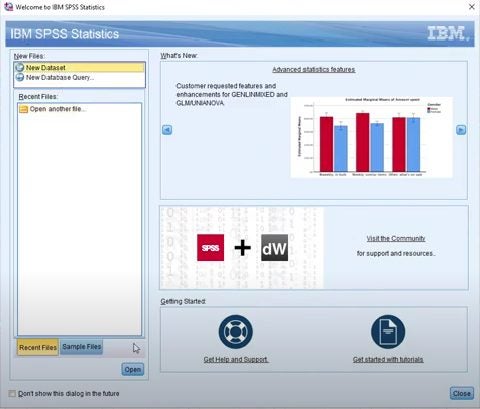
    Once you’ve downloaded the SPSS app, you’re going to want open it up. The SPSS app’s interface is fairly easy to navigate, and to start off, you’ll need to head up to where you see the heading New Files. From here, click on New Dataset. 

    Top tip: If you navigate to the bottom of the SPSS app interface, you’ll see a section with the heading Getting Started. There are two options under this heading; Get Help and Support, and Getting Started with Tutorials. With any new software, it’s always recommended to take a tour around the software with a guided tutorial.

  2. Enter your data

    How to use SPSS for Mac

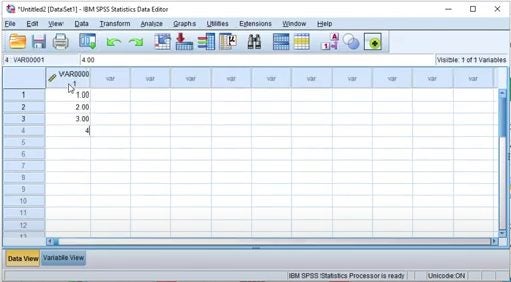
    When you click on New Dataset, you should see a table interface open up. This looks a lot like Microsoft Excel, but has a slightly different operation setup. The next thing you’re going to want to do is enter data into your table. If you look at the tabs at the bottom of the window, you’ll see Data View and Variable View.

    You’ll want to ensure that you’re in Data View when you’re entering data into the table. For the purpose of the tutorial, we haven’t entered any significant data into the sheet; these are all just random numbers.

  3. Change the title of your dataset

    How to use SPSS for Mac

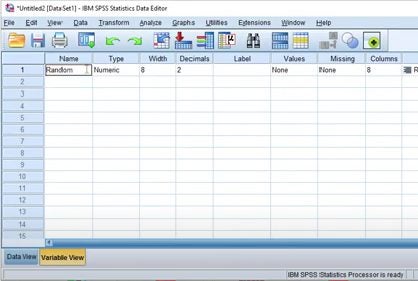
    Above, we ascertained that there are two tabs into which you can enter values. To change the title of your dataset, you’ll want to switch to Variable View. It’s pertinent to note that your title cannot contain spaces or special characters.

    Therefore, if you want your title to be, for instance, Random Test, you’d have to enter it as RandomTest. If you navigate back to Data View, you’ll see that your dataset’s title has changed.

  4. Analyze your dataset

    How to use SPSS for Mac

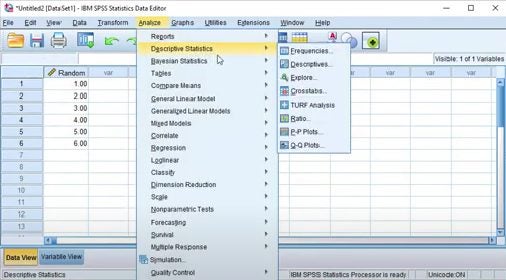
    This is, again, a relatively easy process. All you need to do, should you want to analyze the values in your dataset, is head up to the topmost banner and hit Analyze. This will open up a drop-down menu with numerous options.

    Head to Descriptive Statistics, and hover over it. You should see a smaller menu expand from Descriptive Statistics on the right. From here, you’ll want to click on Frequencies, and you should see a new interface open up over your dataset. 

    You’ll see that there are two small boxes in this new interface; one has your dataset title highlighted in yellow, the other has the heading Variable(s). You’ll also see a small arrow between the boxes that looks a little like an enter key. Click on the arrow to move your dataset title to the Variable(s) box. This will ensure that your frequencies display as a table.

  5. Frequencies statistics

    How to use SPSS for Mac

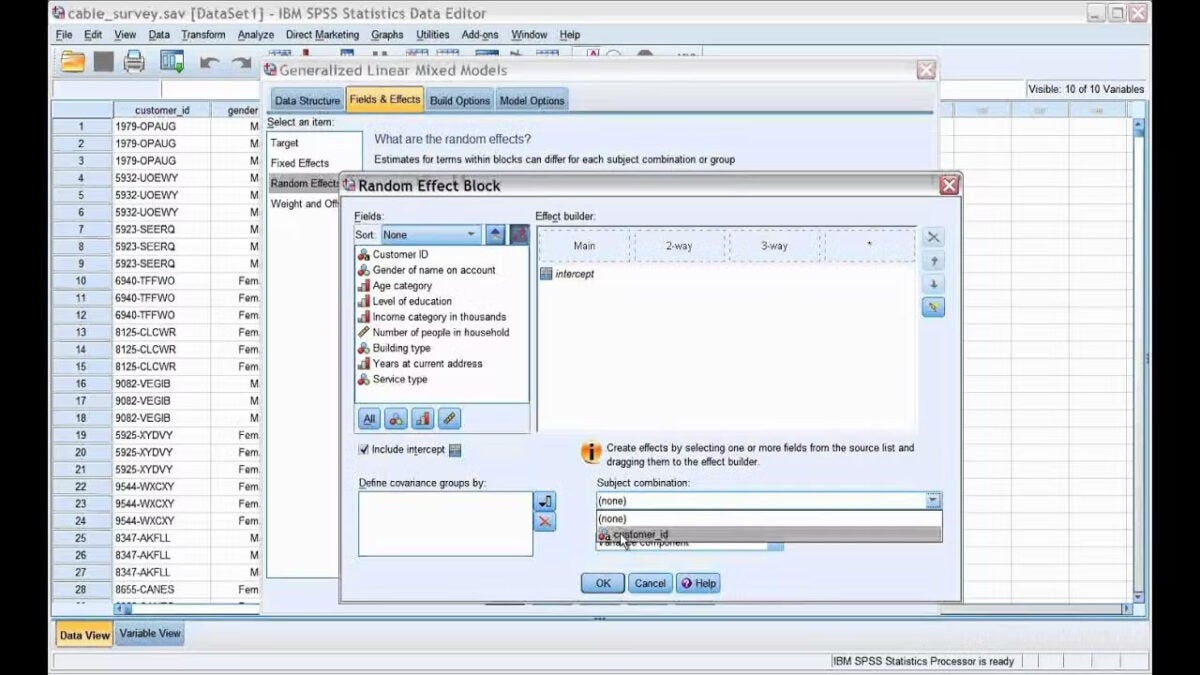
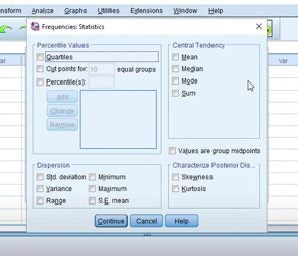
    Next, you’ll want to hit Statistics from the buttons on the right-hand side of the two boxes. This will open up a new interface where you’ll be able to customize the statistics that you want to see for your dataset. This obviously depends on what you want to analyze, but we’d suggest ticking the boxes next to mean, median, mode, and sum.

    These boxes are under the heading Central Frequency, on the left of the new small interface. You’ll also want to head down to the heading Dispersion and tick the boxes next to standard deviation, variance, and range. Now you can click Continue.

    The last thing you’ll want to do on the next interface is ensure that you tick the box next to Display Frequency Table. Now you can click OK. You should now see all of your tables and the relevant frequencies and analyses thereof.

  6. Saving your analyses

    How to use SPSS for Mac

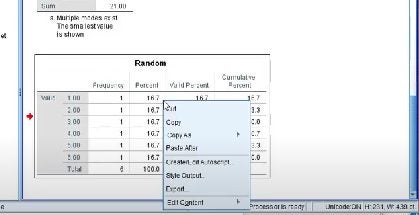
    This part is where most people get tripped up, but we’ve found an easy way to save your statistics. Simply open up a new tab in your go-to word processing document. For the purpose of the tutorial, we used Microsoft Word on Mac, but you could also use Google Docs, or any of the numerous other free word processors out there.

    All you need to do is head back to where your frequencies are displayed and right-click on each of the relevant tables. Then you just need to copy and paste them into your blank document, and you’re done!

    The SPSS app looks rather intimidating at first glance. For someone who primarily works with words, like me, anything to do with numbers is usually a little difficult to grasp. However, once you break down all of the interfaces and their associated uses, the app becomes a lot easier to navigate.

Share your photo-editing skills with Snapseed on Android

Today, most people are busy turning their passion into their professions. One such passion is photography. If you’ve ever tried your hand at photography, you would’ve used Snapseed. It makes it so much easier to edit photos on your phone.

Snapseed DOWNLOAD

You should check out this amazing image editing app if you haven’t. Today, we’ll look at using the Snapseed app effectively on your Android device.

  1. Using the Main Menu

    using Snapseed on Android

    The initial Snapseed app didn’t have the best interface. However, the app has now transformed and delivers a very user-friendly interface. The minimalist menu is ideal for beginners.

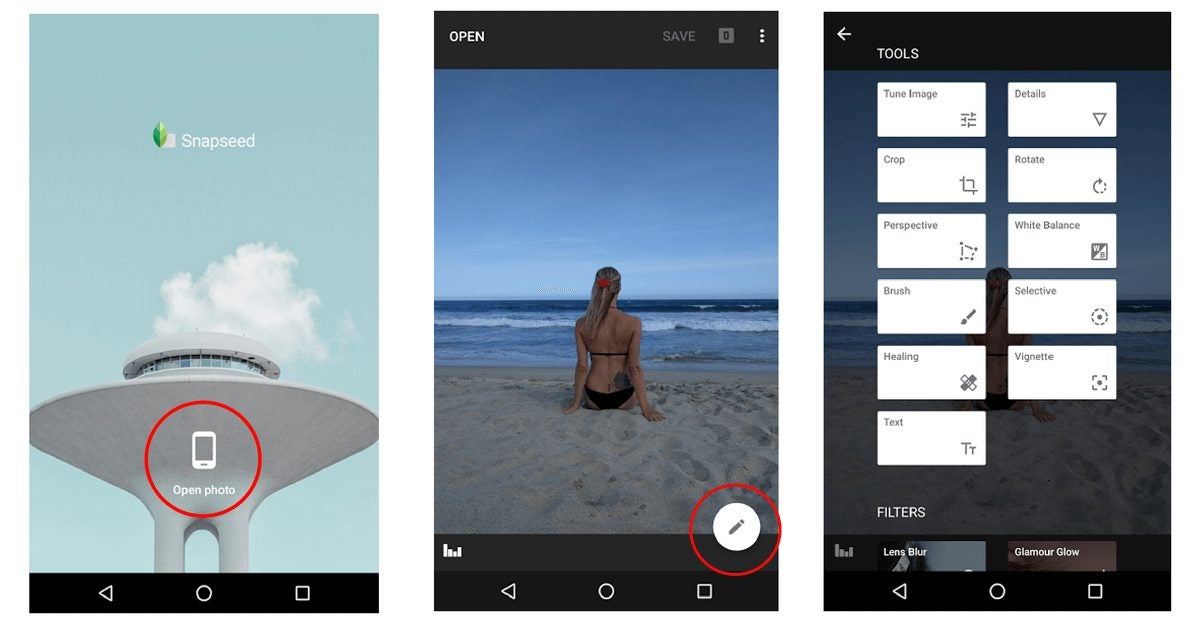
    Upon opening the app, you must tap the plus icon in the middle of the screen. This will load any image you want. You can also add an image by tapping the OPEN button on the top left of the screen.

  2. Image Tools

    using Snapseed on Android

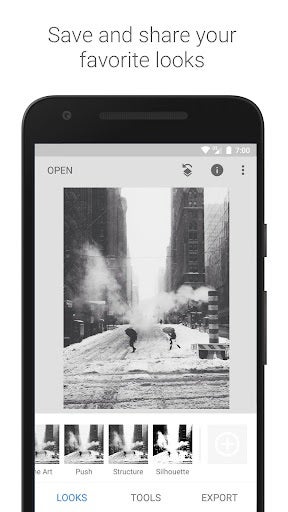
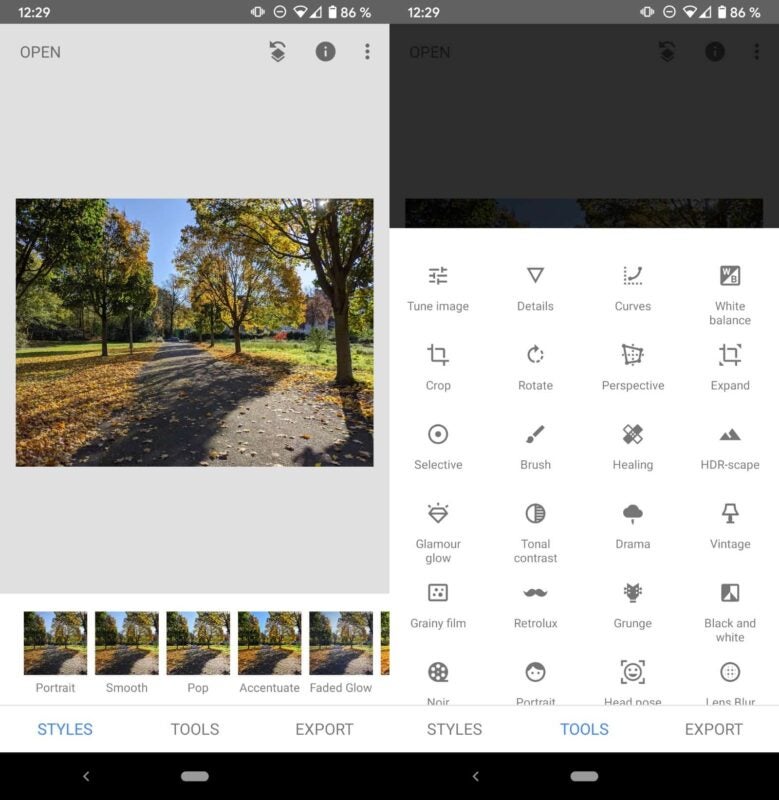
    After loading an image, you’ll see three buttons below it – Styles, Tools, and Export.

    Styles

    Styles is a collection of filters that can change the look of your image. There are various presets available in black & white and color.

    Tools

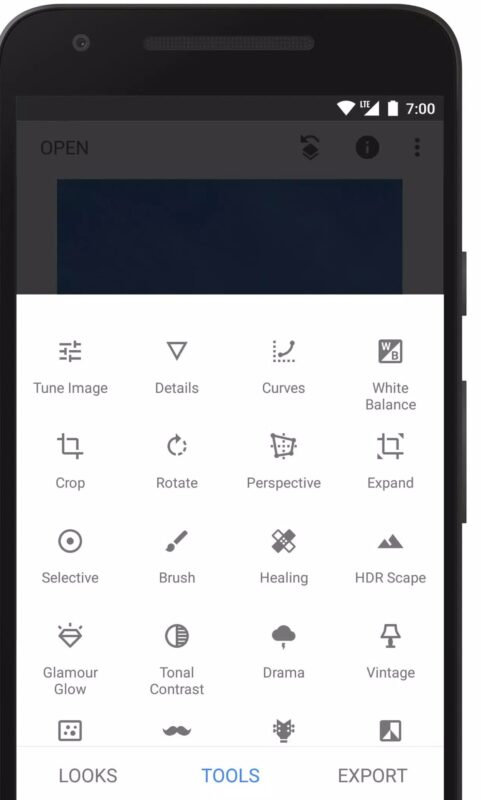
    Tapping on tools will give you access to various image editing tools. Apart from the standard crop and rotate tools, you can also find tools such as Portrait, Healing, Expand, and Vintage. There are a total of 28 tools at your disposal.

    Export

    Tapping on export allows you to share your edited image from Snapseed or save it on your phone. You can export to a folder, save a copy of the image, or share it using any other app (WhatsApp, Facebook, etc.).

  3. Learning to Edit Your Image

    using Snapseed on Android

    Now that you know the basics of Snapseed, let’s look at how you can use various tools to edit the image.

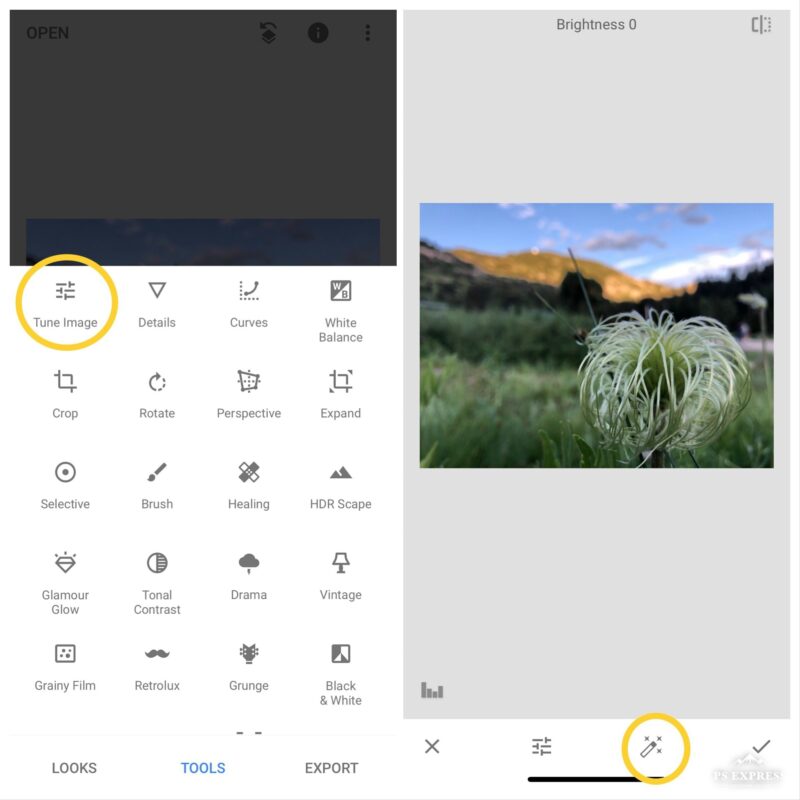
    Tune Image

    Tapping on the tune image allows you to change the basic aspects of the image. This includes brightness, contrast, ambiance, and so on. You can also tap on the magic wand next to the settings icon, and the image will auto-adjust. 

    Details

    Details allows you to change the structure and sharpness of the image. You must use the slider at the top of the screen and adjust the image accordingly.

    Curves

    The Curves setting allows you to change the image colors. All you need to do is move the S-curve and adjust the image colors per your liking.

    White Balance

    White balance allows you to change the colors in the image to match reality. You can adjust the temperature and tint of the image. You can adjust the settings using the slider at the top of the screen. 

    Rotate

    The rotate setting allows you to rotate the image using your fingers. You can use the angle at the top of the screen as a guide.

  4. Setting The Mood

    using Snapseed on Android

    Now that you’ve learned how to adjust and edit your image, let’s look at the Snapseed tools that allow you to set the right mood. These are preset and help set the image mood right.

    The most popular tools are:

    Drama: Provides several filter options and helps you set a bright or dark look for the image.

    Vintage: This tool contains vintage-inspired gradients that help you achieve a classic look.

    Grainy Film: This tool allows you to add different film grain sizes to your image.

    Retrolux: This tool can add smears and dust to your image. It gives your image an old/aged appearance.

    Grunge: Using this filter allows you to add saturated filters and overlays of random smears and patterns.

    Black & White: This option contains different black & white presets ranging from bright and dark to high contrast.

    Noir: Noir is also a variation of the black & white look; however, it adds a cinematic look.

    Each option comes with an overhead slider allowing you to adjust accordingly.

  5. Fine-Tuning Your Images

    using Snapseed on Android

    Apart from editing your image, Snapseed also provides tools to beautify your image. Some of the most popular tools include:

    Selective: You can select specific points in the image and adjust the brightness in those areas.

    Brush: You can add smears to your image using this tool. You can change the temperature, exposure, and saturation using this tool.

    Expand: As the name suggests, you can enlarge your image by pinching it out. Alternatively, you can pinch inward to minimize the image.

    Healing: Use this tool to cover the blemishes in the image.

    HDR Scape: This tool allows you to change the image color by choosing strong or fine, located at the bottom.

    Tonal Contrast: You can adjust the image tone using the slider at the top of the screen. You can pick from high, medium, and low tones.