Google Chrome, the most widely used browser today, continues to take steps in providing assistance and accessibility features to users. That’s why if you notice your Android or iOS mobile device making corrections while using the browser, it’s because Google has started enabling word suggestions if, for some reason, you made a mistake while typing your search.
Google, one of the most powerful companies today, continues to dedicate a significant amount of time and resources to advance socially. Often, disabilities create digital barriers, and Google’s current goal is to break down these obstacles that people might encounter when using their services.
As Google explains in its official blog, accessibility has become one of the company’s top priorities. That’s why these suggestions, which already existed in the desktop version of Google Chrome, will now also be available on mobile phones, a device widely used by users worldwide. It’s a helpful feature for the average user, but it’s even more valuable for disabled users.
But that’s not all; Google has introduceda range of accessibility improvements that will provide various forms of assistance to users. Additionally, Google has released this striking commercial to emphasize its commitment to enhancing accessibility for users facing greater challenges.
The post-launch hangover after the new Pixel devices
Although these advancements hold great value because accessibility should be a challenge for all technology companies today, Google’s most anticipated moment this October was the unveiling of its new line of smartphones. The new Pixel 8, revealed to the public on October 4th, was presented as a device filled with assistance and support from its software and Artificial Intelligence.
Looking at the company’s trajectory, it is evident that, whether through its mobile device software or the services it provides through its browser and other tools, Google aims to continue simplifying the lives of people who regularly use its applications or devices. What will be the next innovations in terms of quality of life or accessibility? Google will provide.
The American giant says it has the necessary technology to make our next flight buy at the cheapest time of the day. Do you believe it?
We always say that any time in the past seems better to us. But the reality is that the present is full of advantages. For instance, flying is cheaper than ever. And if you don’t believe it, just ask Google Flights.
Google Flights is a well-established service, launched over a decade ago, that enables customers to book flights to various destinations around the world through external providers.
It boasts a plethora of features, such as the ability to filter based on budget, destination, carbon emissions, etc., to find the best flight in terms of cost-effectiveness. Now, the company is further enhancing this service with three new functions and several existing ones.
Google’s tool at our service
Google Flights already shows you whether the current airfare to a destination is higher or lower than other months, but Google takes it a step further by now recommending the best time to book a flight.
For instance, based on your trends and data analysis, the company can suggest that you either delay or expedite the flight booking process based on departure dates and prices in the upcoming days, weeks, and months.
Next, there’s the price tracking, which works in tandem with the feature described earlier. It will automatically notify you if the flight cost drops “significantly” after you select a date range for departure to a destination.
However, Google has emphasized that you’ll need to log in to your Google account to take advantage of this functionality, which makes sense given that these are specific automatic notifications.
Lastly, to make this process even smoother, Google also displays a price guarantee badge. This indicates that the flight price won’t drop below the indicated amount, so you should go ahead and book it.
These badges are available for specific flight itineraries departing from the United States as part of the Book on Google pilot program. Interestingly, if the price ends up being lower than the guaranteed amount, Google will refund the difference through Google Pay.
Google knows it has changed the world of Internet search over more than two decades. It’s been 25 years since we left behind the days of “10 blue links,” when you searched Google by typing in a box and getting links in return.
Even now you can search Chrome by asking questions out loud or pulling up a photo of your surroundings, and you can get everything from images to podcasts to TikToks.
Many searches are already well served by these results. If you go into Google and search for “Facebook” and come up with facebook.com or want to know the height of the Empire State Building, you’re all set.
Questions like “Where should I go in Paris next week?” or “What’s the best restaurant in Barcelona?”. These are difficult questions to answer because they’re not really one question, they’re many.
What is your budget? What days are all the museums in Paris open? How long are you willing to wait? Are there children coming? And so on and so forth.
“The bottleneck turns out to be what I call ‘orchestration of the structure,'” says Prabhakar Raghavan, a Google senior vice president who oversees Search.
With new generative AI capabilities in Google Search, we’re now taking more of the work out of searching, so you’ll be able to understand a topic faster, uncover new viewpoints and insights, and get things done more easily. Learn more and how to sign-up for our Search Generative… pic.twitter.com/V3OK1KHYEn
— Google SearchLiaison (@searchliaison) May 10, 2023
A lot of that data exists somewhere on the Internet or even within Google-museums post hours on Google Maps, people leave reviews about wait times at restaurants-but putting it all together into something resembling a coherent answer is really hard.
“People want to say ‘plan me a seven-day vacation'”, says Raghavan, “ and they believe that if the linguistic model gets results, it must be right.”
One way to think of this is, simply, as questions with no correct answer. A large percentage of people who go to Google are not looking for information that exists somewhere.
They are looking for ideas, they want to explore. And since there probably isn’t a page on the Internet entitled: “The best vacation in Paris for a family with two children, one of whom is lactose-allergic and the other loves tennis,” podcasts and TikToks aren’t going to be much help either.
Artificial intelligence will be responsible for better response
Large linguistic models, being trained on a huge corpus of data from across the Internet, can help answer those questions by performing many different searches at once and combining that information into a few sentences and a few links.
“A lot of times you have to break a single question into 15” to get useful information from the search, Reid says. “Is it possible to do just one – how do we change the organization of the information?”
That’s the idea, but Raghavan and Reid are quick to point out that SGE can’t do these completely creative acts very well yet. At the moment, it’s going to be much more useful for synthesizing all the search data behind questions like “which speaker do I buy to take to the pool”.
It will also do well with “what were the best movies of 2022,” because it has some Rotten Tomatoes-style objective data to pull from along with the Internet’s many ratings and blog posts on the subject.
AI seems to make Google a better information-seeking machine, even if it’s not ready to become your travel agent. Google I/O has delivered.
Downloading videos from Facebook, YouTube, Instagram or any web page is a piece of cake with these free extensions. What are you waiting for to try them?
Downloading videos from the Internet is not always as easy as it seems. Some sites, especially social networks like Facebook, Instagram, TikTok or YouTube, insist on making it difficult. But although at first glance streaming websites seem download-proof, if you’re a bit savvy it won’t take you a second to have that video or audio track saved on your PC. How? Very simple, thanks to Google Chrome extensions.
In today’s article we are going to offer you a selection of the best Chrome extensions for downloading videos. These will allow you, with just a couple of clicks, to save any video from the Internet without any effort. Do you want to try them?
What are Chrome extensions and what are they for?
Chrome extensions are applications and tools that can be added to the Google browser and with which you can perform all kinds of functions with the click of a button. There are all kinds, from extensions to block ads and translate pages to perform SEO analysis or download streaming videos embedded on the web. They are, therefore, an essential resource to get the most out of Google Chrome.
How to add an extension to Chrome
Before starting our list, we believe it is convenient to make a small review on how to add an extension to Chrome. The process is really simple, just follow these steps.
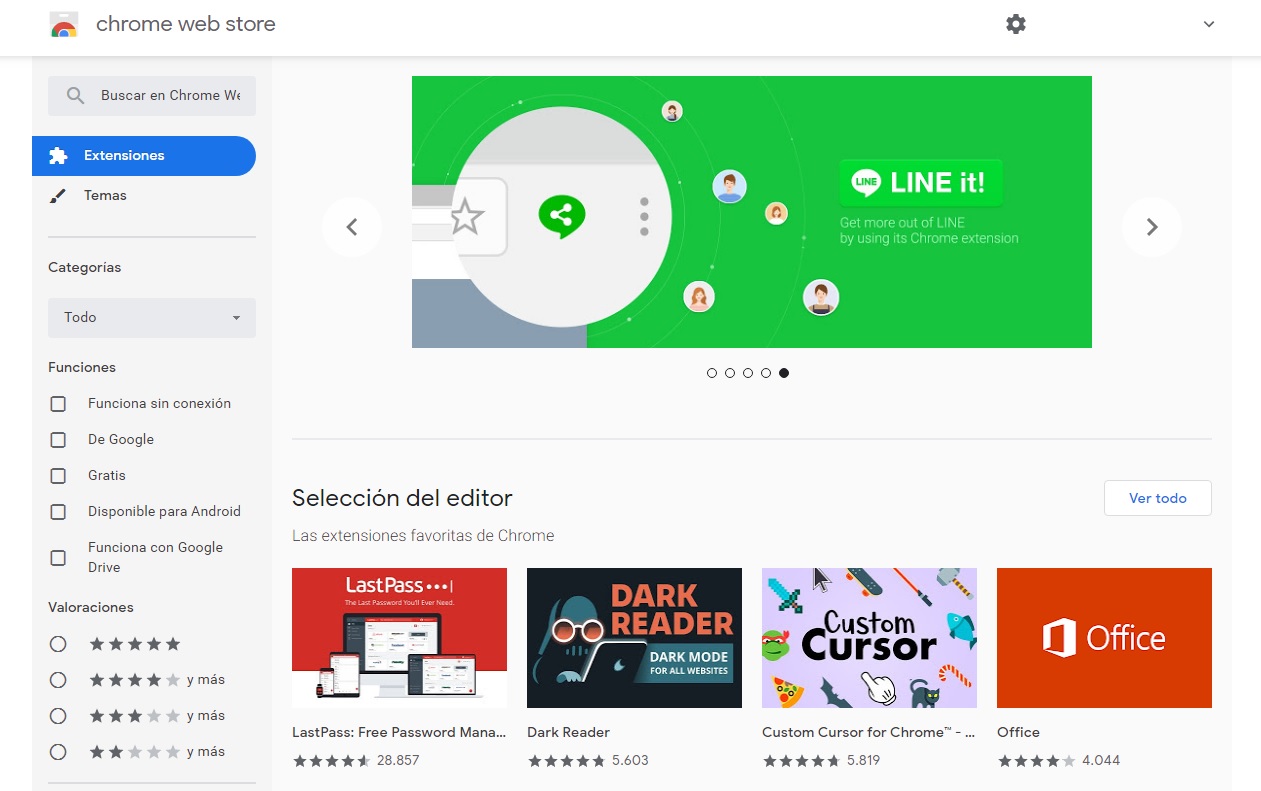
Step 1. Enter the Chrome Web Store
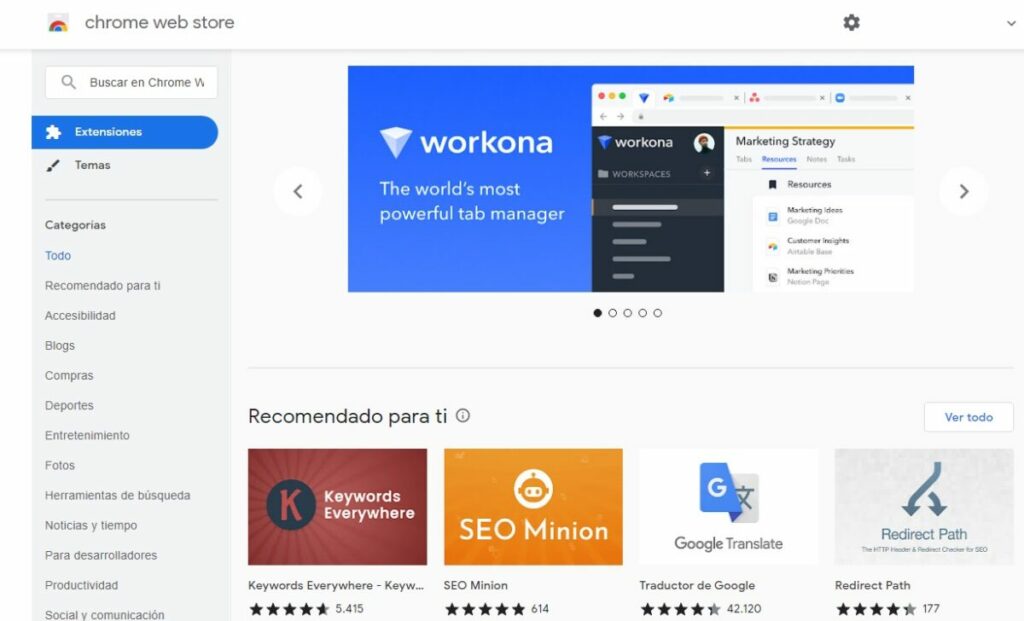
The first step to follow is to access the Chrome extensions store. This has a catalog of all the extensions you can install on your browser. For your safety, it is important that you always download all your extensions from the Chrome Web Store, otherwise you could add malware to your computer.
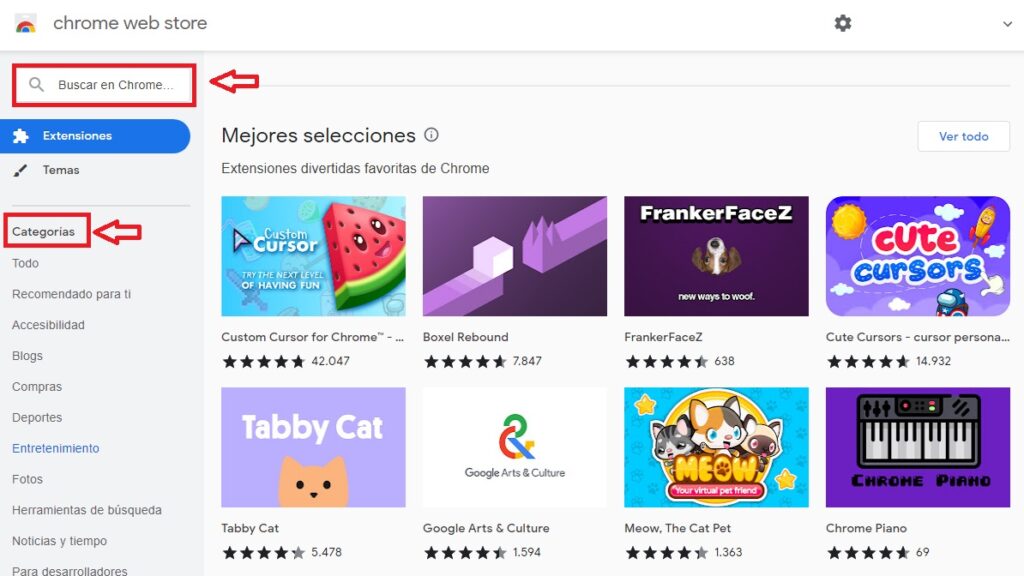
Next, search for the extension you want to add to Chrome either using the store categories or, if you prefer, using the Chrome Web Store’s internal search engine. Once you find the extension you were looking for, click on it.
Step 3. Add the extension to Chrome
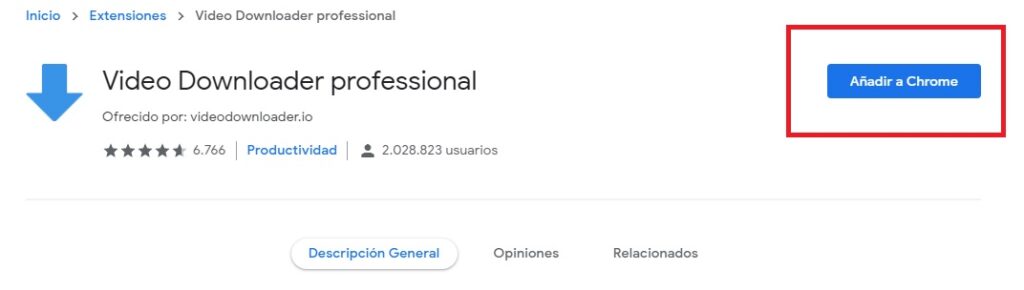
Once on the extension page, simply click on the blue “Add to Chrome” button. The browser will then ask to restart in order to start using the extension.
We start our selection of the best extensions to download videos with Video Downloader Professional. With more than 3 million users and an almost perfect score (4 stars and a half out of 5), this is one of the most reliable video downloader extensions in the Chrome Web Store. Would you like to know why?
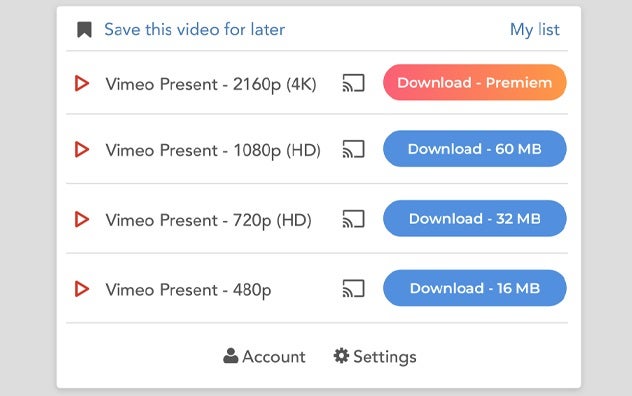
Video Downloader Professional is a very easy-to-use Chrome add-on. After installing it, a small green arrow will appear in the browser toolbar. Once you visit the page of the video you want to download, click on the extension button and select the resolution in which you want to download the file. It’s that quick, easy and simple.
Besides being able to download files, Video Downloader Professional is able to send any video from the Internet to your Chromecast. This way you can enjoy it on any screen in your home compatible with the Google device. Finally, it is also interesting to add that Video Downloader Professional is able to create playlists of videos. This way you will always be able to play your favorite movies or clips without having to visit its website.
Video Downloader Plus is a Chrome extension with which you can easily download videos from the main social networks (Facebook, Twitter, Instagram, Vimero, Dailymotion, etc.). Its operation is very similar to Video Downloader Professional, allowing you to download any video by previously selecting its resolution (SD, HD and 4K).
One of the strong points of Video Downloader Plus is its simplicity of use and the speed of its downloads. All this for free and without annoying ads. The add-on is compatible with the main video formats (MP4, MOV, FLV, AVI, WEBM, ASF, MPG, etc.) and lets you create playlists to enjoy them at any time.
As a final point, it should be noted that due to Web Store restrictions, it is not possible to download YouTube videos from this extension. To do so, we recommend using applications such as TubeMate or one of its alternatives.
Video DownloadHelper is part of the popular Firefox extension with the same name. Like many other applications on this list, Video DownloadHelper allows you to download not only videos from Facebook, but also from many other Internet sources such as Vimeo or Dailymotion.
The extension also offers numerous types of download options. Thus, you can save your files in popular formats such as MP4, 3GPP, WEBM, as well as choose between several types of quality (standard definition, high definition, among others).
Another interesting point of Video DownloadHelper is its ability to create blacklists of domains and hide ads, so you can increase the security of your device and avoid possible scares caused by malware. In addition, the add-on lets you download simultaneously and convert videos to work on Windows, Mac or Linux.
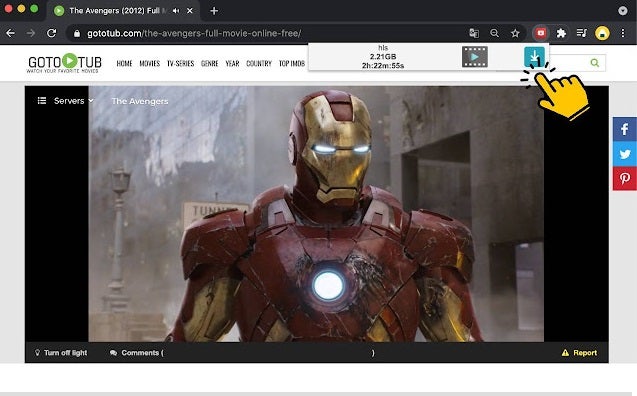
Its name says it all. Free Video Downloader is a completely free Chrome add-on that allows you to easily download any video from the Internet. It supports most popular formats (MP4, WEBM, MPEG, OGG, AVI, etc.) and also offers the possibility of downloading videos in HTTP Live Streaming (HLS).
Free Video Downloader stands out for being a very easy to use extension. Simply visit the page of the video you want to save to your computer, press play and then click on the blue button of the add-on. After that, select the video you want to download and in a few seconds you will have it on your PC.
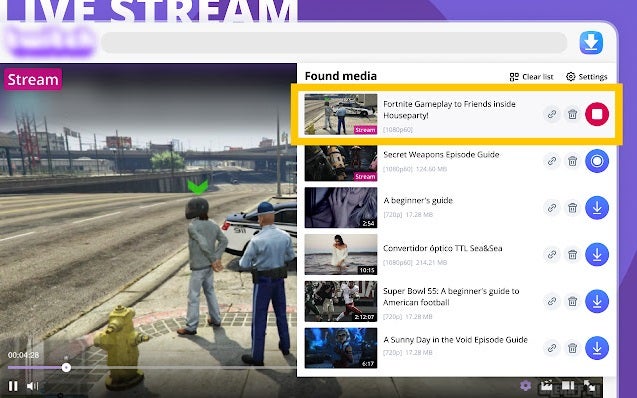
Universal Video Downloader is a really useful complement to be able to save videos you find on social networks such as Tik Tok. It is also an excellent option if you want to download content from video platforms such as Dailymotion or live streaming such as Twitch.
The add-on allows you to download in the main video formats (MP4, WEBM, SWF, FLV, etc.) and is very easy to use. All you have to do is visit the page with the video you want to save and, once we start playing it, you will see how the Universal Video Downloader button will change color. Then click on its icon and the video will be stored on your hard drive. It’s that easy!
Another interesting option is FetchV, a universal downloader capable of recognizing most online video formats (MP4, HLS, M3U8, BLOB, WEBM, etc.). It is therefore the perfect complement if you are looking to save any type of streaming broadcast on your PC. Besides being really simple and intuitive, FetchV does not include in-app purchases, making it perfect if you want to download videos without having to go through the cash register.
The operation of FetchV: Video Downloader is very similar to the rest of the extensions on the list. We just have to visit the web page of the video we want to download and then click on the add-on button. Once this is done we will have the option to choose the resolution of the resulting video. In addition, FetchV allows you to download in batches, which is perfect if you want to save several videos at the same time.
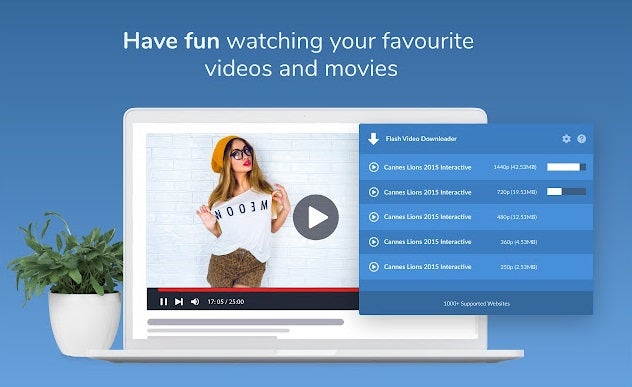
Flash Video Downloader is a popular Chrome extension with which you will be able to download 99% of the content on the Internet in a simple way. This one is completely free so say goodbye to annoying additional charges to download depending on what type of file. In addition, it is compatible with most video formats.
Flash Video Downloader automatically detects any type of video embedded in a web page. Simply visit the page in question, click on its icon and choose the output format that best suits your needs. After that, you just have to wait a few seconds to have the video on your computer. It’s that simple!
Although Chrome extensions are really useful for downloading videos, you may prefer to use some program or resource from the Internet instead of adding a plugin to the browser. If this is the case, don’t worry because we have a small extra selection that we have prepared especially for these cases.
aTube Catcher
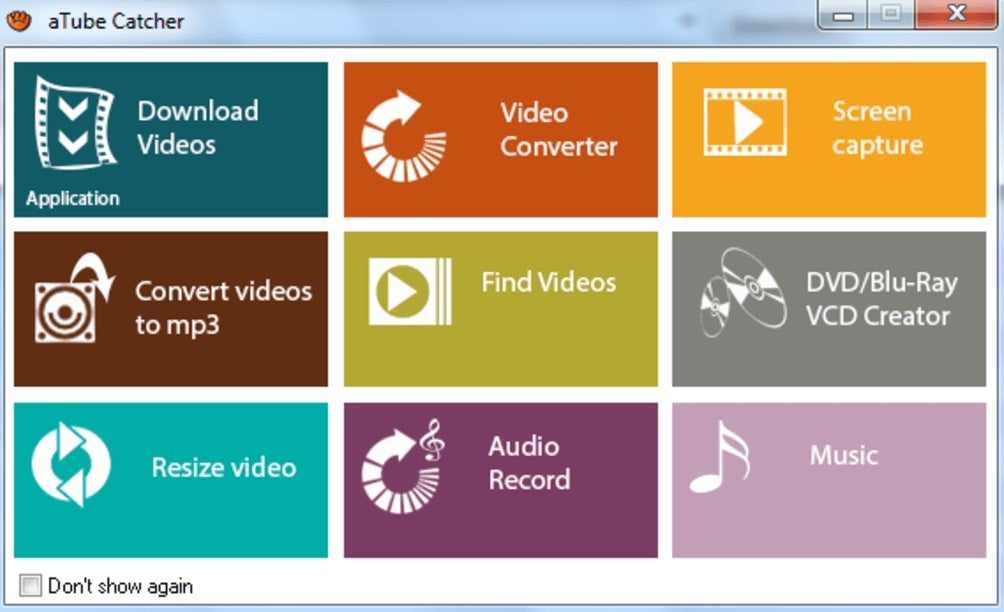
aTube Catcher is one of the most popular tools to download videos from any of the Internet streaming services. From it you will be able to view and save files from pages such as YouTube, DailyMotion, Vimeo, etc. on your computer with almost no effort.
Apart from being a really effective tool, aTube Catcher includes many other interesting options. Among them is the possibility to convert your videos or audio files to different formats and even burn DVDs and Blu-Rays from the same program. If you are looking for an efficient program that gives good results when saving videos, choose aTube Catcher. You won’t regret it.
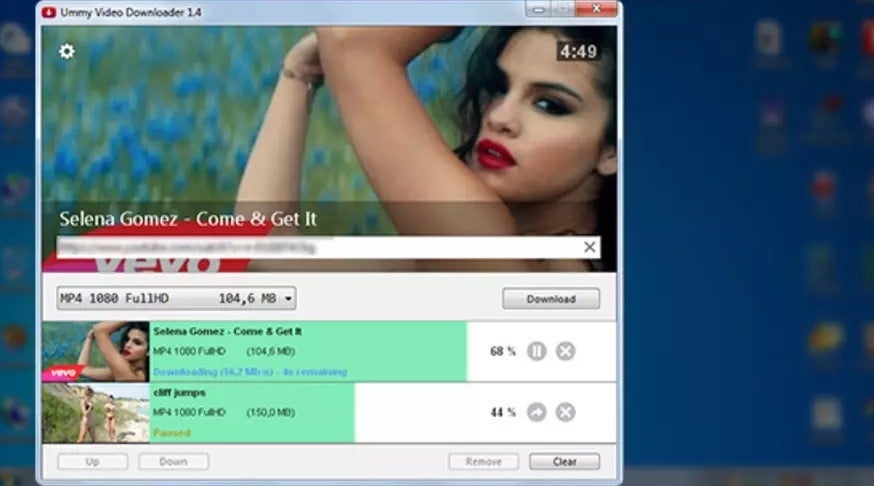
Ummy Video Downloader is a completely free program that even though it has been around for many years, it still works as well as the first day. From this program you will be able to download videos without even noticing it from the main streaming sites on the Internet.
Using Ummy Video Downloader is very simple. To do so, simply copy the URL of the web page where the video to be downloaded is stored, paste it into the program and select the quality of the resulting file. Then Ummy Video Downloader will generate the file so you can download it to your computer. As usual in this type of cases, the program allows not only to save video files but also audio files. This makes it an indispensable tool for lovers of multimedia files in general.
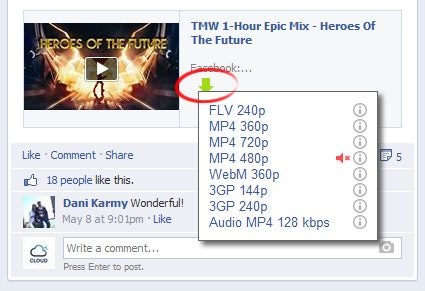
SaveFrom.net is another application capable of downloading web videos online. It is very interesting because it creates a link or a button within the site itself, making the action even simpler and easier.
On Facebook, for example, you see a small green arrow button next to the video. When you click on it, you can choose the download quality and format: FLV, MP4, WEBM, 3GP and MP3 audio.
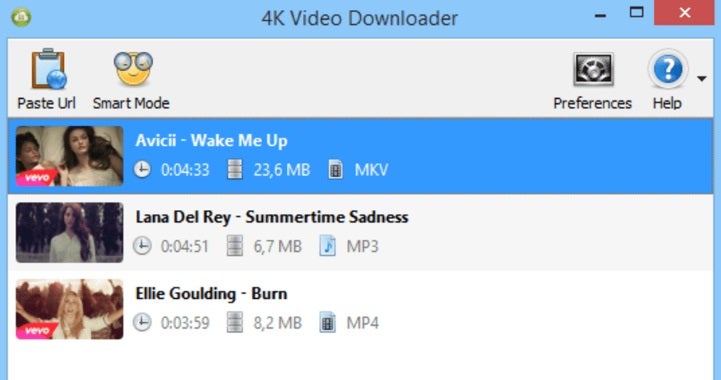
Want to download all kinds of videos from the Internet effortlessly? You will love 4K Video Downloader. This free program is compatible with most portals, websites and social networks of the moment, allowing you to download videos from pages such as YouTube, Facebook, TikTok, Vimeo, DailyMotion, Instagram, among many others.
As its name suggests, one of the great advantages of 4K Video Downloader is that the program supports downloading videos in 4K. Besides that, its operation is really simple. Open the program, copy the video URL from the browser and paste it in the download section. After choosing the quality of the resulting video we can store it without any problem on our PC.
We hope our selection of extensions to download videos in Chrome has helped you. And remember, if you liked what you read, don’t forget to share it with your friends on social networks.
Multiple reports indicate that Google Chrome is encountering difficulties saving files directly to network attached storage (NAS) drives and cloud backups. In January 2023, a bug report showed that the 32-bit Windows version of Chrome 109 was encountering a “can’t open this file” error when trying to save files with a universal naming convention (UNC) path. The error stated that the problem was that the save destination folder contained system files.
Another report confirmed the issue while trying to open a Dropbox file on the Arm64 version of Chrome 109 on macOS. Testing bug demo code revealed that the problem persisted. The Register also noticed that other browsers, such as Mozilla Firefox and Microsoft Edge, which are based on Chromium technology, were able to save files to network locations without any issues.
The root cause of the problem lies in the showOpenFilePicker() method in Google’s File System Access API. This API, introduced in 2019 as part of Project Fugu, aims to give web apps access to local files and directories. The project intends to grant web apps similar permissions as native platform apps, following Apple’s tendency to limit its Webkit-based Safari browser due to security concerns.
However, you’re not stuck with Safari. Alternative privacy-focused browsers have been accessible on Apple devices for a while. With the release of iOS 14 in September 2020, users have had the ability to set a different default browser than Safari. Therefore, Project Fugu appears to be a way for users to bypass Apple’s strict control over the apps they allow on their devices, despite pushback from the European Union.
According to The Register, Google has prioritized fixing the issue with the release of the stable version of Chrome 110 on January 31, 2023. An engineer from the company was quoted as saying that “blocking UNC paths broke a number of legitimate use cases.”
How many of you know that the websites you visit save small files on your device called cookies? These cookies enable faster page loading when you visit the site again.
If you’re like us, you’d prefer not to let these files remain on your device, specifically if storage is low or there are issues with accessing site content. Here are a few tips on how to clear and manage cookies in Chrome.
How to manage cookies on Android
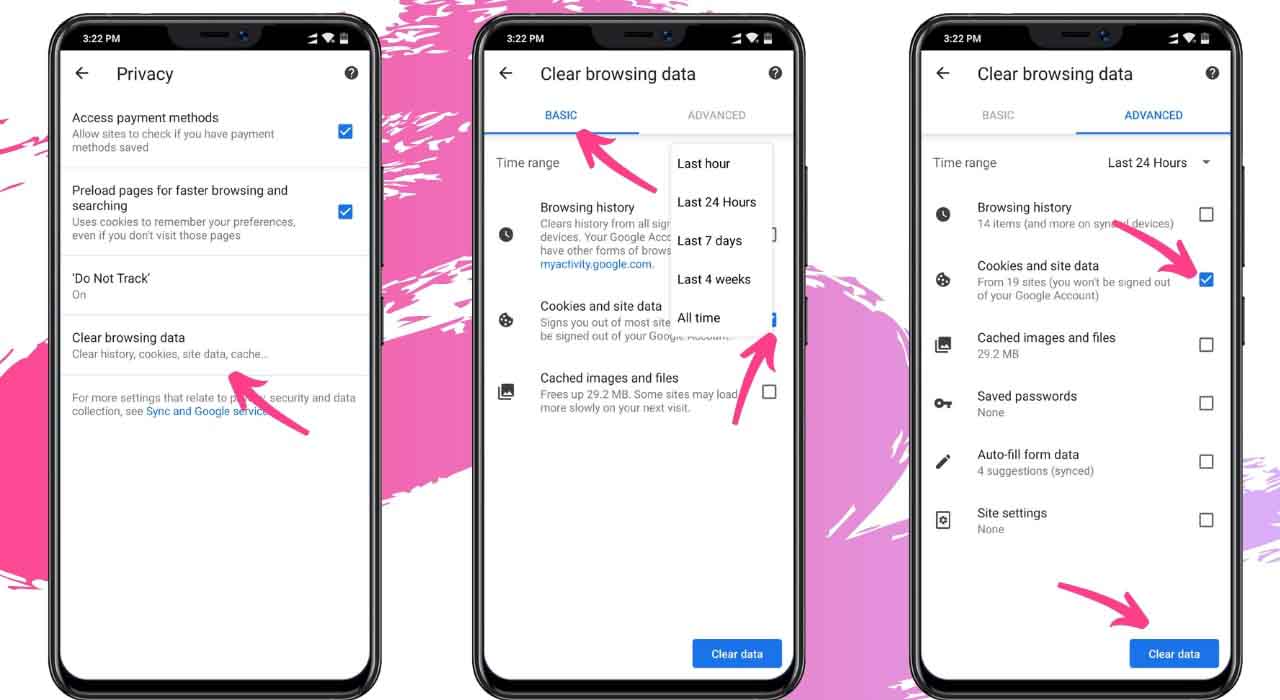
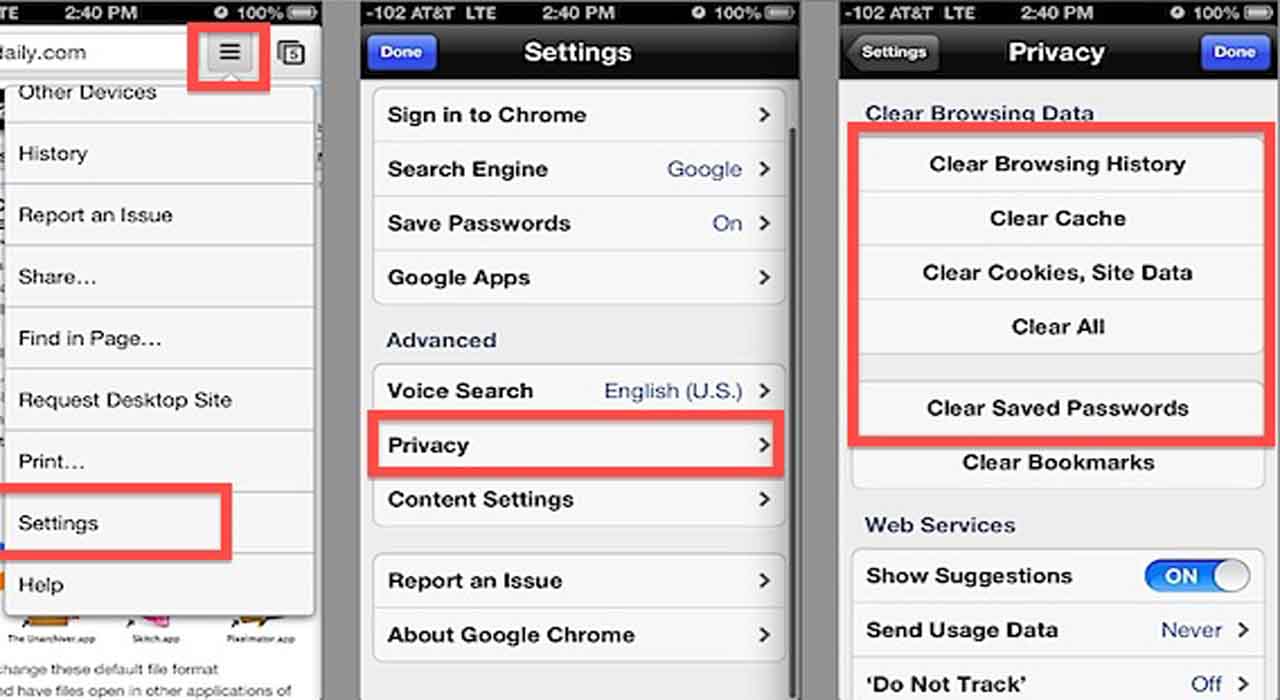
Here are the detailed steps for clearing your browsing data for Google Chrome on Android devices:
Open the Chrome application;
Next to the URL bar, tap ‘More’, ‘More’, and then select ‘Settings’;
Tap on ‘Privacy’, followed by ‘Clear browsing data’;
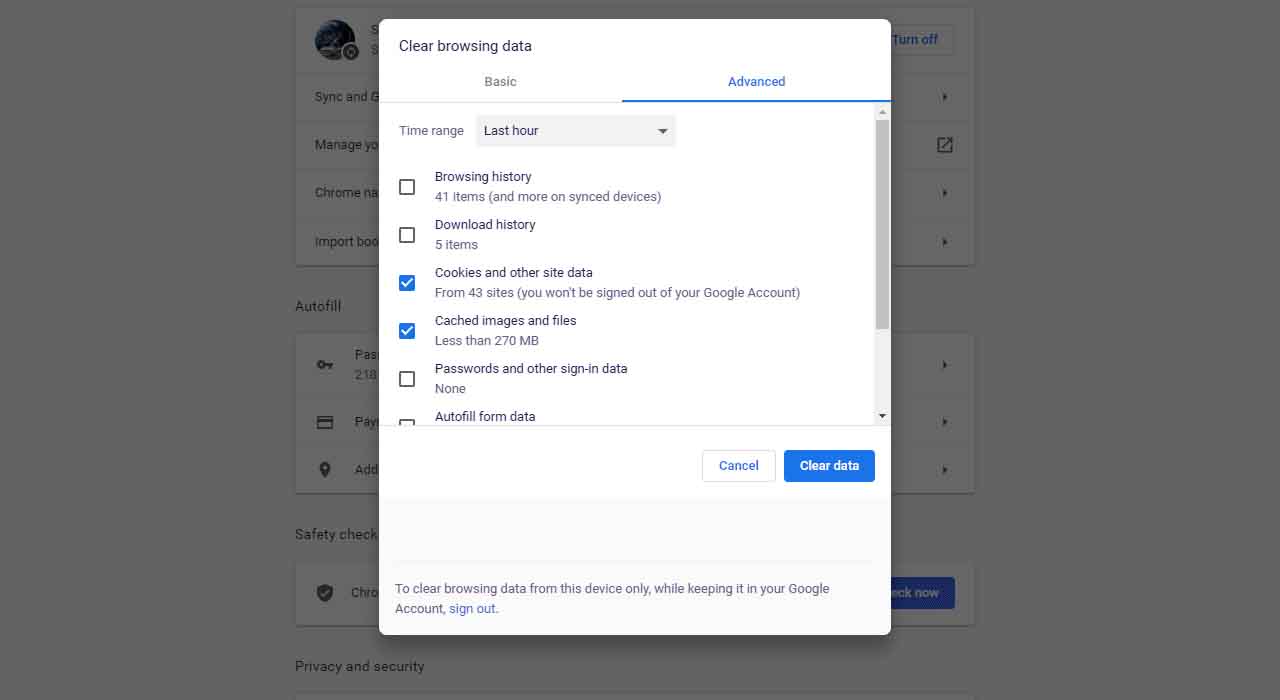
Pick one of the time ranges, such as ‘All’ or ‘Last Hour’;
Select ‘Cookies, media licenses and site data’;
Ensure that all other options are deselected;
Choose ‘Clear data’ and then press ‘Clear’.
Of course, you may also want to decide whether to allow or block cookies. You’ll need to head into the settings again, select ‘Site Settings’, ‘Cookies’ and then turn the feature on or off.
How to manage cookies on iPhone/iPad
If you Chrome on iPhone or iPad, the process is pretty similar. You’ll follow the same first three steps like Android, but the procedure changes after selecting ‘Clear browsing data’:
Select ‘Cookies’, followed by ‘Site Data’;
Pick ‘Clear browsing data’ in the new menu;
Choose ‘Clear browsing data’ again;
Press ‘Done’.
How to manage cookies on Windows and Mac
Whether you have Google Chrome on Windows or Mac, the web browser handles the same for both. The steps are slightly different, so let’s take a quick look at the process:
On your Mac or Windows computer, open the Chrome app;
On the top right section, select ‘More tools’, and then choose ‘Clear browsing data’;
Pick ‘Advanced,’ and select ‘Cookies and other site data’;
Confirm this selection by selecting ‘Clear all’.
Manage your cache and cookies well
If you’re running other browsers like Safari, Firefox, or Opera, you should know that they also store browser data in the same way. Ensure that you also clear the cache and cookies on these apps from time to time.
While there may be plenty of popular browser extensions on the market, such as Firefox and Opera, Chrome is the app that both PC and Mac users lean towards the most. If you’re like us, you probably have it installed on your mobile devices, too.
A handy feature in its arsenal is the Bookmarks Manager. Chrome also has a Bookmarks Bar for easy access to your favorites. While we’re sure you’re aware of all this already, do you know how to export them to a new device? Let us show you how.
Export Chrome bookmarks to another PC or Mac device
Whether you’re using Chrome on PC or Mac, the process remains the same. There are two different methods you can use, so we’ll take you through them both. You can thank us later.
The first method involves exporting bookmarks to a different device. Here are the steps you need to follow:
Launch Chrome on the source device (PC or Mac);
Select the menu icon to the right of the URL bar;
Choose Bookmarks, Bookmarks Manager;
Click on the new menu icon, and select Export Bookmarks;
Export Chrome bookmarks to another web browser on PC and Mac
Another method is to export your bookmarks to a different browser. You can follow the same steps 1 – 5 for Chrome as above, but you’ll change the tasks on your preferred web application.
For instance, here are the steps for exporting bookmarks to Firefox:
After saving your Chrome bookmarks, open Firefox;
Select the Library icon to the right of the URL bar;
Choose Bookmarks, then Bookmarks Manager;
Click on Import and Backup, followed by Import Data from Another Browser;
Ensure that Google Chrome is closed, and select Chrome;
Pick all the options you want to import and then finish the process.
Take your bookmarks with you anywhere
We know how annoying it can be spending years saving bookmarks and then making the heartbreaking decision to move to a new device or web browser. We hope that the above steps will help you restore all your favorite sites and pages. If you use a different method, feel free to let us know.
In recent years, the internet has become an essential tool in our daily lives. We use it to search for information, make purchases, work remotely, and stay in constant contact with our family and friends. Just about anyone would have a hard time getting through a full day without connecting to the internet, but few of us are aware of the importance of a fundamental tool we need to do so: our browser. Without it, we wouldn’t be able to access the web or spend long hours surfing its endless sea of information.
Browsers are the gateway to the internet, and although we all have our favorites (Chrome, Firefox, Edge, etc.), sometimes we wish they had extra features. Just like you need a comfortable pair of shoes to enjoy a long walk, having a good browser is essential to enjoy everything the internet has to offer. So, what features should the ideal browser have?
In today’s article, we’re going to use our imaginations and write a wish list of all the features and characteristics we would like to see in the “perfect browser.” So, without further ado…
It should be fast when searching for and loading websites
One of the main features a good browser needs is the ability to quickly take you to the websites you want to visit. This is important not only when using the internet during your precious free time, but also when you’re trying to perform your best at work.
Right now there are some really fast browsers, such as Chrome and Firefox. While Chrome itself is already quite speedy, it lets you add extensions that will make all your searches exponentially faster. If you’re interested, click here for a roundup of the best extensions to speed up your browser. Firefox is not far behind Chrome in this respect. This browser has always stood out for its speed, and it even includes a native feature that makes it quicker. Want to know how to enable it? Click here to find out.
In short, the perfect browser should be fast and take you to the pages you want to visit without delay. Because, as the saying goes, “time is money”!
It shouldn’t slow down your computer
One of the biggest problems with browsers is that they often end up using a lot of system resources. This leads to your computer slowing down significantly, which can be frustrating for the user. A good browser should not only display search results quickly, but also ensure the PC or mobile devices it’s running on are not affected by its use.
In terms of performance, the browsers that we like the most are the Chromium-based ones. Among them we obviously find Google Chrome and the most recent Brave. Both run seamlessly and barely use any resources from your operating system.
If your browser has been slow lately or seems to be consuming a lot of system resources, there is probably a problem. To solve it, we recommend clearing your history and cache and following some of the tips in the article below.
7 tricks to increase the speed of Chrome you should use right now
The internet is a wonderful place for finding information, shopping, and connecting with your friends. However, the sheer amount of personal data you share online is greater than you could ever imagine. The perfect browser needs to be extremely secure to keep the information you share online out of the hands of hackers and cybercriminals.
With the massive use of the internet, countless threats have arisen, so it’s important to tread carefully. There are types of malicious content that, after contacting your browser, can detect anything you write (including your banking details). Others are even capable of hijacking your browser and redirecting your searches to pages with highly dangerous content for your computer. Your browser must be able to both detect and block these threats.
A browser that excels in this regard is undoubtedly Mozilla Firefox. Over the last few years, Firefox has emerged as one of the safest options on the market, making it possible to navigate the web with total peace of mind.
It should block annoying ads
There are few things more annoying during an internet session than constantly seeing pop-ups and banners on your screen. Although there are extensions that block these irritating ads, wouldn’t it be wonderful if your browser had an integrated ad blocker in its code?
Currently a good option to get rid of ads is Brave, a browser that includes a completely free ad blocker as standard. That way navigating the internet is a far more pleasant experience.
It should have a safe extension store
One of the best things about today’s browsers is the fact that they use extensions to add new features to your internet sessions. Browsers such as Google Chrome or Firefox are favorites not only because they’re ultra fast and secure, but also because they let users customize their features in just a few clicks. And this is all possible thanks to extension stores.
For this reason, the perfect browser must guarantee that all the extensions in its store are 100% secure. As useful as they might be, these new downloadable features can be dangerous. Bear in mind that unless they have been previously verified, extensions can put your data and computer at risk. The perfect browser therefore must have an extension store whose extensions have all been vetted by a team of experts.
If you want to find out how to identify a safe extension, we recommend reading the article below.
This Google Chrome extension helps you block out internet trolls
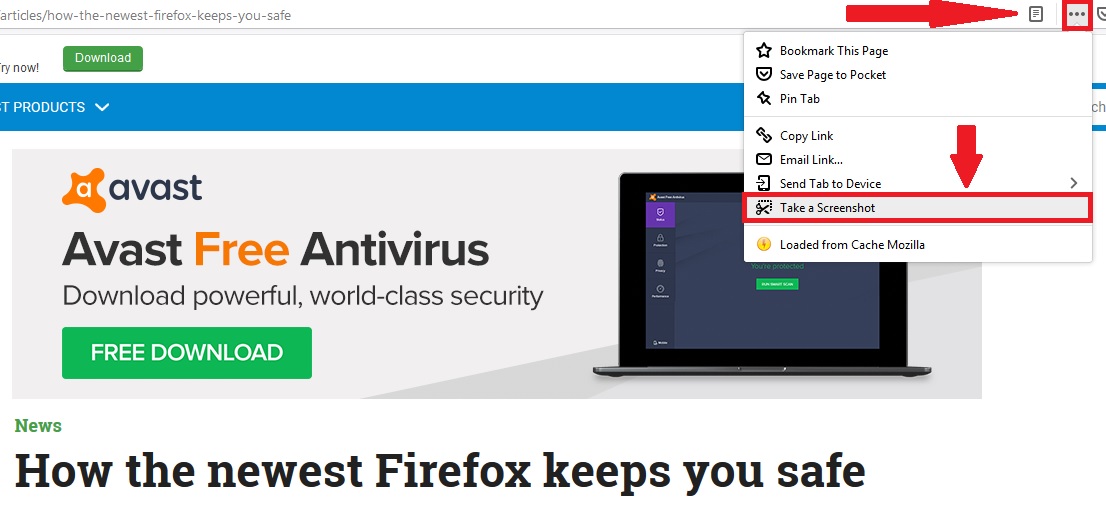
One of the most convenient features when working online is the ability to take screenshots. Although this can be done easily using the “Print Screen” key or the Windows 10 screenshot keyboard shortcut, our perfect browser would have its own embedded screenshot button.
Currently browsers like Mozilla Firefox include this option natively, without the need to install any extension. To find out how to enable it, just look at this.
It should be capable of syncing data across your devices
A truly interesting feature of the latest browsers, such as Firefox, Edge and Chrome, is their ability to sync data. In the case of Chrome, this is especially useful for Android users, as it allows immediate access to all Google services (Gmail, Drive, etc.) and syncs your data and bookmarks from your phone or tablet. In the case of Firefox, syncing lets you export and import all your bookmarks quickly and easily between different devices. Edge, on the other hand, can integrate seamlessly with Windows 10, import and export your bookmarks as well as sync with your Microsoft account. Our perfect browser should be able to do the same thing with any account.
It should have a good password manager with a master password
Over the years, there has been a dramatic increase in the number of subscription-based online services. All of them require a username and password, so ultimately you have to remember hundreds of passwords if you want to continue using them.
A good browser needs an efficient, natively integrated password manager that can remember your login details and enter them automatically whenever you want to access one of these services. However, it’s also important for your browser to have a master password system. This means you’ll need to enter a master password before your browser can autocomplete the login details for any online service you want to access. That way you’ll be sure that even if someone else gets ahold of your computer, they can’t access your passwords.
Among the main browsers on the market, we recommend Mozilla Firefox, which has a good password manager and gives you the option of setting a master password.
The perfect browser doesn’t exist, but here are the best ones
Although there is no perfect browser just yet, there are options that come very close. Among them are Microsoft Edge, Mozilla Firefox, Brave, Opera, and of course, the all-important Google Chrome. All of them have interesting features and are truly secure, so your data will be protected at all times. You can download the latest versions of them below.
We hope you liked our article about the perfect browser. Which features would you like to see on your browser? Tell us about them in the comments section!
With more than one billion active users every month, Google Chrome is inarguably the ultimate browser in the market today. While there are other critically acclaimed options such as Mozilla Firefox, Microsoft Edge, and the recent Brave, Chrome is still the default browser for most people who spend long hours on the internet. The reasons for its success are simple: it’s fast, it uses few resources, it allows easy synchronization with your Gmail account while obviously giving you the peace of mind that comes with using a Google product.
While many of us use Google Chrome on a daily basis, not everyone is thoroughly familiar with all of its features. In addition to being a truly efficient browser, Chrome comes with many tricks you can use to boost performance and make your hours in front of your PC far more productive. And not to mention all the improvements that come with its updates! Want to learn more about them?
In today’s article, we are going to review the new features on Google Chrome and some tricks to help you take full advantage of your browser. We hope you find them helpful!
First, make sure to update your browser
Before we dive into the best tricks and new features on Chrome, it’s important to make sure your browser is updated to the latest version. We recommend installing the Chrome Beta or Chrome Canary versions of Chrome, because most of the new features are only available on these versions for now.
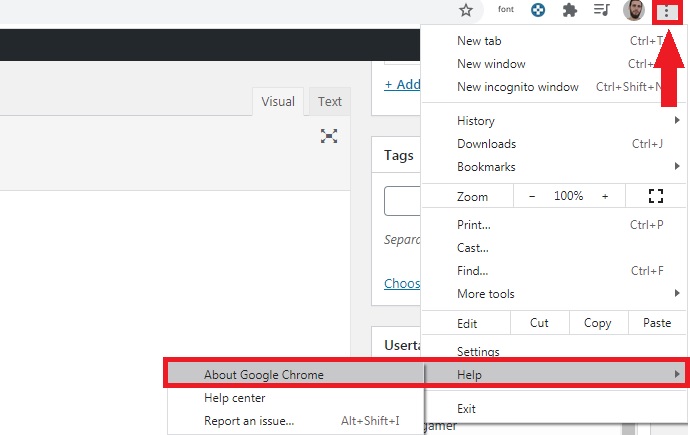
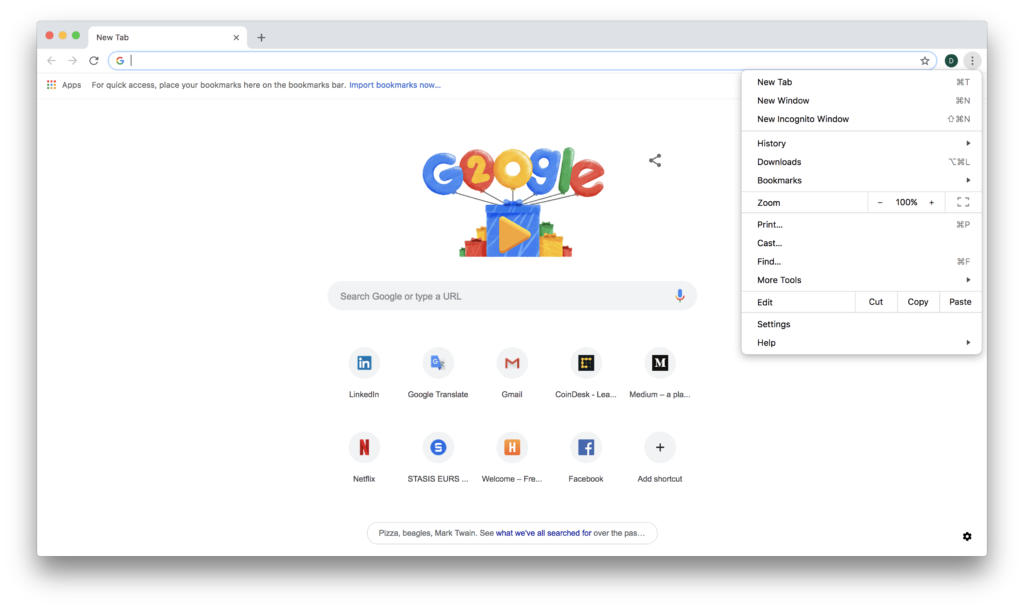
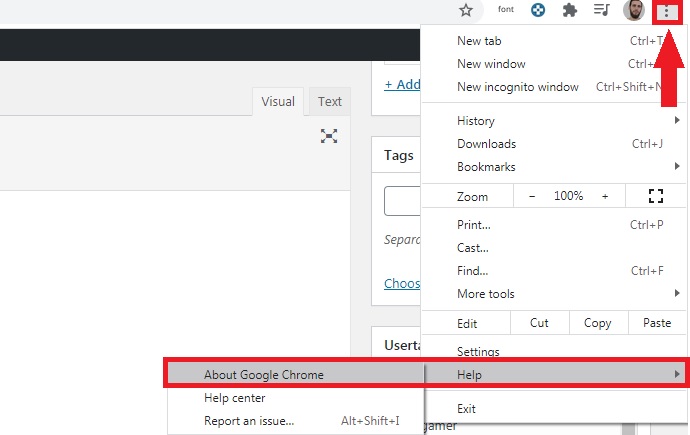
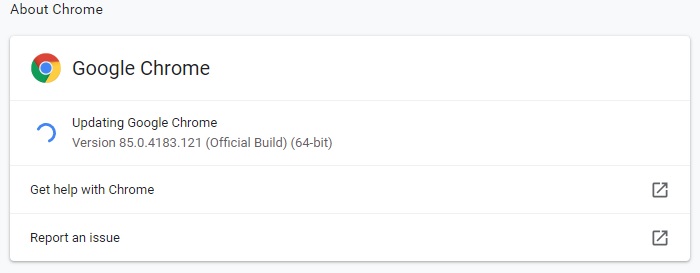
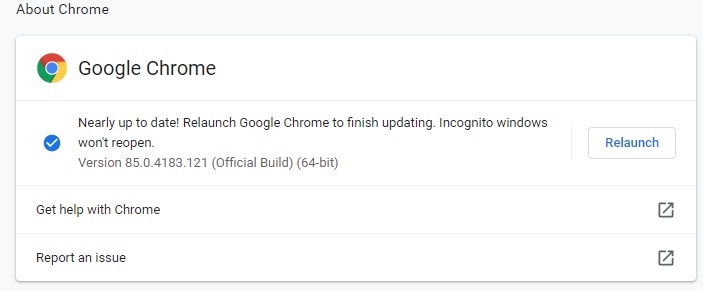
Updating Google Chrome is simple, just complete the following steps. First, click on the “Customize and control Google Chrome” button, which you can find in the upper right corner of the screen (three vertical dots). Once the drop-down menu appears, click on the “Help” option followed by “About Google Chrome.”
After that, a new window will open, and your version of Chrome will be analyzed. If a newer one exists, it will be downloaded and installed automatically.
If you wish, you can also choose to download and install the latest version of Chrome, Chrome Beta or Canary manually. Download it to your computer quickly and safely by using the links below.
Chrome constantly adds experimental features to both its Canary version and its official build. As they are tested, Google adds them to its build definitely so they can be used easily by all browser users.
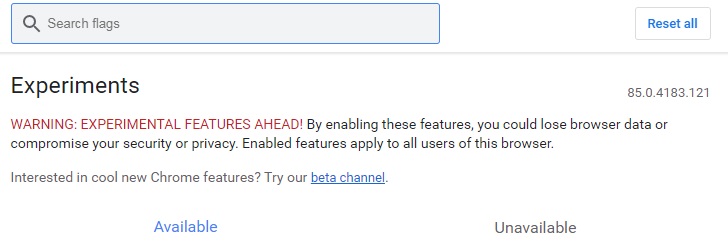
To use some of the features we’ll mention in this article, you’ll first have to enable them through the experimental features menu. Want to know how to access it? It’s easy, just type “chrome://flags/” in your browser’s address bar and hit the Enter key.
From the experimental features window, you can view a list of all the new features being tested in Chrome, which are disabled by default. To enable them, simply click the drop-down menu and select the “Enable” option. After that, you must restart Chrome for the changes to take effect. It’s that easy!
New features and tricks on Google Chrome
Now, without further ado, the following are some of the useful features on Google Chrome that you may be unaware of and that will exponentially improve your online browsing experience. Let’s have a look!
Tab groups
To access this feature, you have to first enable it in Chrome’s experimental window. You can find it under the name “Tab Groups.” This new feature lets you organize as many tabs as you want under a single tab, which you can give a name and a color. That way, you’ll always have your tabs handy at the click of a button on Chrome, whether or not you close the browser. This feature is especially useful for separating all the tabs you use every day at work; that way you won’t have to waste time searching for them among your favorites.
Quickly open any file
To quickly open any image, music or video file, you don’t need to open a player. Simply drag the file onto a Chrome page and the browser will take care of playing it.
Incognito mode
Browsers save by default a history of your searches and activities while you browse the internet. In theory, this gives you much faster access to pages you have already seen and also lets Google offer you personalized content tailored to your interests. However, not everyone likes having their browser constantly spying on them, and for this type of situation there is the so-called “incognito mode.”
Accessing incognito mode in Google Chrome is easy. Just click the “Customize and control Google Chrome” button (the three vertical dots in the upper right corner of the browser) and then select “New incognito window.” Alternatively you can use the keyboard shortcut Ctrl + Shift + N. Now your browser will stop collecting information about what you do online.
Task manager
Just like your operating system has a task manager to check which programs are using your computer’s resources, Chrome has its own. To access it, click on the “Customize and control Google Chrome” button (the icon with the three vertical dots in the upper right corner of the screen) and click the “More tools” option. After that, a drop-down menu will appear where you must click the “Task manager” option. Or you can use the keyboard shortcut Shift + Esc.
Guest mode
Google Chrome is designed to synchronize with your Google account with all that this entails (access to your email, passwords, searches, use of YouTube, etc.). This is really useful if you are the only user of your computer, but it can be dangerous if you share it with other people.
If someone asks you to use Chrome for a few minutes and you don’t want them to have access to all your private data, you can use guest mode. To do this, click the icon with your avatar in the upper right corner of the screen and, once the drop-down menu opens, click the “Guest” option. This will allow the person to whom you lend your computer to freely use the internet without snooping on your accounts.
Cast your screen to other devices via Chromecast
At one time or another, we have all wanted to send our computer screen to another device (whether it’s another PC or a smart TV) without much fuss. This is possible on Chrome thanks to the “Cast” option and its compatibility with Chromecast.
To use it, simply click “Customize and control Google Chrome” (the icon with the three vertical dots in the upper right corner of the screen) and select the “Cast…” option. Chrome will search for all Chromecast devices near your computer. Just select the one you want and your screen will magically appear on the other device.
Never heard of Chromecast? Don’t worry, we have an in-depth article about Google’s USB device. Just click the link below to read it.
Google Chrome lets you control YouTube from any tab you have open. To do so, you only need to have a YouTube video open in one tab. In the upper right corner, you’ll see bubble-shaped icon appear with a musical note inside. If you click this button, you can play the video or go to the next track.
This feature is especially interesting if you frequently use YouTube to listen to playlists while you work. You’ll no longer have to keep clicking on the tab with the video open; now you can pause the music or select a new track directly from the new button on your browser.
Search with your mouse
While browsing the internet, it’s likely that you’ll come across a word or a topic that you want to learn more about. Many of us go back to the Google page and type in the word, but there is a much easier way to do it in Chrome. Simply underline the search term with your mouse and right-click on it. When the drop-down menu appears, click on the “Search Google for X” option, where X is the underlined term. It’s simple as that.
Recover closed tabs
When you work on your computer, it’s normal to have many browser tabs open, whether you’re writing reports or searching for information. It also happens very often that you inadvertently close the tab that you needed the most, and you don’t know how to get back to it. Instead of tracking your entire history, you can recover a tab you just closed in a few clicks. Do you find that hard to believe?
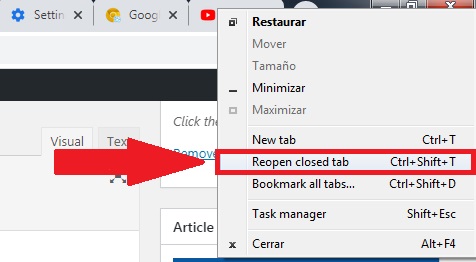
Right-click on the tab section of the browser and, once the drop-down menu opens, click the “Reopen closed tabs” option. Alternatively, you can also use the keyboard shortcut Ctrl + Shift + T.
Pin a tab
Continuing with tab-related features, if you usually work with many tabs open, you know that it can be a real hassle to find the one you need. To keep track of your most important tabs, you can pin them to your browser. This will make it easy for you to view them, and they will appear whenever you open the browser.
To pin a tab, simply place your mouse cursor over it and right-click. When the drop-down menu appears, select the “Pin” option. Now your tab will become an icon at the top left of your browser. When you want to get rid of it, follow the same steps as above but select “Unpin“.
Clean up your browser
Chrome is one of the fastest browsers on the market, so if yours starts to go slow, it’s a good idea to make use of its internal cleaner. To do this, click on “Customize and control Google Chrome” (the icon with the three dots in the upper right corner of the screen) and, once the drop-down menu opens, click the “Settings” option.
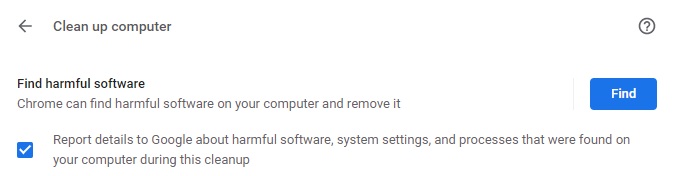
In the Settings window, go to “Advanced” and click on the “Clean up computer” option. Then Chrome will analyze your browser to search for harmful software that might be affecting its performance or jeopardizing your security and that of your data.
Create a desktop shortcut
In addition to being able to store websites in your favorites and pin them under tabs, Google Chrome allows users to create desktop shortcuts. To do so, just open the website you want to link to and click on “Customize and control Google Chrome” (the icon with the three vertical dots). Once the drop-down menu opens, select the option “More tools” followed by “Create shortcut.”
When you go to your desktop, you’ll see a new icon with the name of the website. Double-clicking on it will open Google Chrome directly to the page you want to visit.
We hope our selection of Chrome tricks and features has helped you. Don’t forget you can find many more features on Chrome’s “Experimental” menu. Remember they are still in the beta phase, and Google does not guarantee that they won’t cause glitches in your browser’s performance.
Do you know of any other hidden Google Chrome tricks or features that didn’t appear on our list? Tell us about them in the comments section!
Nowadays we spend a large part of our workday and even our free time navigating the internet. That’s why, more often than not, our browsers end up cluttered with bookmarks, whether it’s for that website you’re using to write your next report or the one you always visit for a few laughs. This isn’t a problem when your browser is clean and newly installed, but sooner or later you’ll have so many bookmarks that it frankly gets hard to find the one you’re looking for.
One of the best options for tidying up the bookmark chaos in your browser is to create folders. However, in the long run it becomes as chaotic leaving them on the taskbar. Is there no way to manage bookmarks that doesn’t involve spending several minutes hunting for the one you need?
In today’s article, we’re going to share our roundup of apps and tools that make it easy to organize your bookmarks. Time to tidy up that virtual “junk drawer” in your browser! We hope you find them helpful.
First, make sure your browser is up to date
Before we get started with our selection of apps, we highly recommend checking to make sure your browser is up to date. That’s the only way you can be certain the app you’re using works correctly and at the same time, that all your browsing data is safe from hackers.
Updating your browser is easy. All of them use a similar system: just go into the options menu and select “About” or “Information about browser.” Then it will check to see if you have the latest version installed and give you the option of downloading it.
Alternatively, you can manually download the latest version of your favorite browser. Just click below to download them quickly and safely:
Dewey Bookmarks is a complete extension for Google Chrome that will change the way you see your browser bookmarks. It lets you view each and every one of your bookmarks as cards, so it’s much easier to find them at a glance. What’s more, Dewey Bookmarks lets you manage your bookmarks by adding tags, so you can search for them quickly, and they’re always just a click away.
One of the strengths of Dewey Bookmarks is this extension’s internal search engine. Find any bookmark by typing its name, tag or even part of its URL. In addition, you can import bookmarks directly from other Chrome browsers and edit any of them in just a few clicks.
You can download the Dewey Bookmarks extension here.
Pocket
Pocket is an incredible service you can use to save all kinds of articles, videos and stories from any website or even app. It’s the best app by far for managing browser bookmarks, since it’s a multiplatform service you can use to save and easily access anything.
In fact, Pocket’s greatest asset is that it saves bookmarks across your devices, on your PC, phone and tablet, so you’ll never have to search for compatible programs. So, how does it work? Pocket is really easy to use: just click a convenient button on your browser to save anything that interests you in one place. What’s more, its useful tagging system makes it so easy to find your bookmarks. Don’t miss your chance to try it!
Neater Bookmarks is an interesting extension for Chrome that displays all your saved websites in a cleaner, more attractive format. Although at first glance it doesn’t seem particularly innovative, it’s a really useful extension for anyone who uses the Google browser on a daily basis.
Now it will be much easier for you to find your bookmarks thanks to its powerful internal search engine. In addition, Neater Bookmarks remembers the last bookmark you used and shows it first. That way, you’ll always have your most visited pages just a few clicks away.
You can download the Neater Bookmarks extension here.
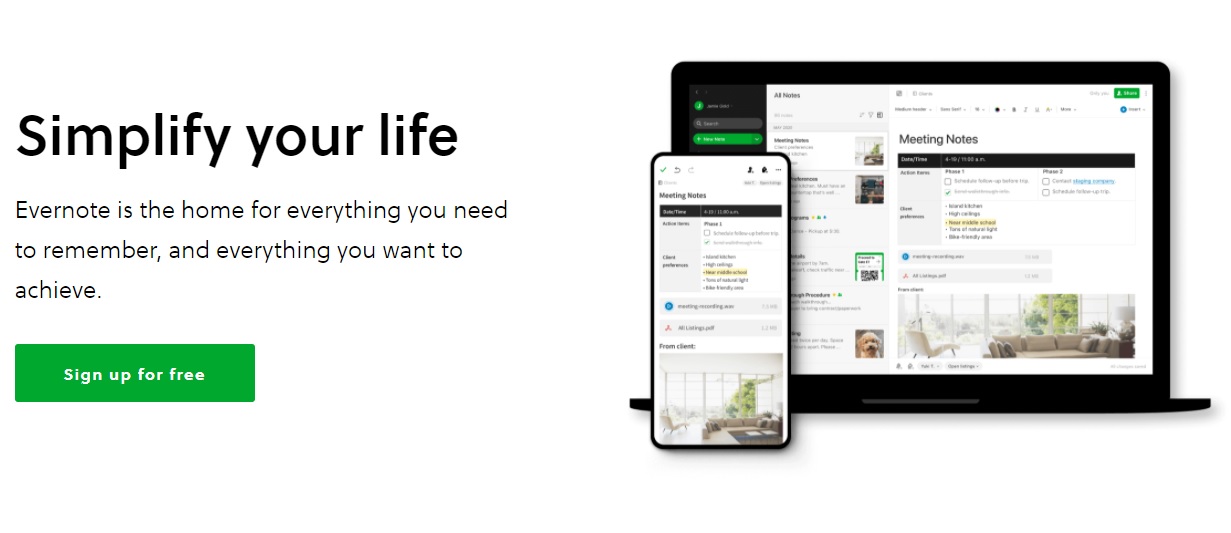
Evernote
If you’re one of those people who loves to plan your day down to the last detail, you’re probably more than familiar with Evernote, but… did you know this app can also manage your bookmarks? In fact, it’s one of the most comprehensive, complex bookmark managers you can find online.
Evernote is an especially useful application to store all the bookmarks you use, for example, throughout the workday. This is because although it’s a powerful application, it’s not directly integrated into your browser, so you have to open the program to access your bookmarks. Fortunately, this little problem can be solved thanks to convenient extensions.
Another strong point of Evernote is that, since you can use it on your phone, you can save all the bookmarks you want, whether you’re on your way to work or on vacation. You’ll never have to use your PC. What’s more, there are different subscription plans (one is completely free), with new tools to better organize and manage your bookmarks.
You can download Evernote quickly and safely below.
Bookmark Manager is an excellent tool for managing your Google Chrome bookmarks. As it’s an extension for your browser, installing it is as easy as visiting the Chrome Web Store and downloading it to your device. Unlike similar extensions, Bookmark Manager can not only add and organize new bookmarks, but also identify the ones you already have in your browser and put them in perfect order.
Among its most outstanding features, Bookmark Manager provides a much more visible and intuitive interface for your bookmarks. When you have it installed, it lets you restore old browser sessions and eliminate duplicate bookmarks. Using its internal search engine, it becomes much easier to find that website you were looking for.
In terms of usability, Bookmark Manager is very intuitive, so there’s no learning curve for casual internet users. In short, it’s a sure bet for anyone who uses Chrome users and wants a simple, useful bookmark manager for their browser.
You can download Bookmark Manager from the Chrome Web Store here.
Diigo Web Collector
Diigo Web Collector is a browser bookmark manager designed for users who are looking to do far more than just organize their saved websites. Although it’s not one of the most visually stunning apps on our list, it couldn’t be more useful.
Diigo is widely considered to be the benchmark app for annotating and archiving bookmarks. Use it to save websites and visit them whenever you want, and even add notes and even reminders to them. This is especially useful if you use the internet to work or write reports for work.
One really interesting aspect of Diigo Web Collector is that, besides using the service on its website, there is an extension for most browsers (Google Chrome, Mozilla Firefox, Internet Explorer and even Safari). What’s more, Diigo has an app for both Android and iOS devices. That way you can work and organize all your bookmarks whether you are using your PC, tablet or phone.
You can visit the Diigo website here. You can download its extension for Google Chrome and its Android and iOS apps quickly and safely below.
Our final pick is the “crown jewel” of our list. Raindrop.io is a fantastic bookmark manager that stands out for its visually stunning interface. It offers a card-like thumbnail of all your bookmarks, making it incredibly easy to find websites and tell them apart. If you have lots of bookmarks or simply prefer a more minimalist option, Raindrop.io can also display your organized websites in the quick, classic list view.
Here’s how it works: Raindrop.io lets you organize all your bookmarks in collections or folders within the program. You also have the option of tagging your bookmarks to make it much easier to find them. Finally, Raindrop.io is able to analyze all the bookmarks you have stored in your browser and eliminate any duplicated ones, or bookmarks whose URLs no longer work.
You can access Raindrop.io on its website, and this manager is compatible with today’s most popular browsers (Chrome, Firefox, Safari and Opera) and also has apps for Mac, iOS and Android. So, what are you waiting for? Download it today!
We hope our selection of tools for organizing your bookmarks has been helpful to you. Do you use any that don’t appear on our list? Tell us about them in the comments section!


























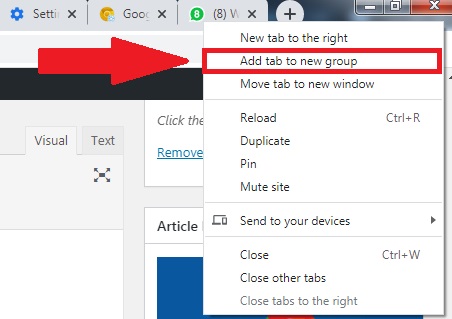 To access this feature, you have to first enable it in Chrome’s experimental window. You can find it under the name “Tab Groups.” This new feature lets you organize as many tabs as you want under a single tab, which you can give a name and a color. That way, you’ll always have your tabs handy at the click of a button on Chrome, whether or not you close the browser. This feature is especially useful for separating all the tabs you use every day at work; that way you won’t have to waste time searching for them among your favorites.
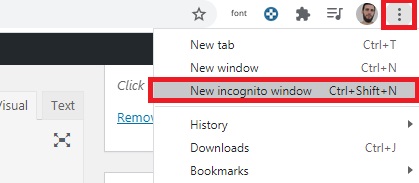 Accessing incognito mode in Google Chrome is easy. Just click the “Customize and control Google Chrome” button (the three vertical dots in the upper right corner of the browser) and then select “New incognito window.” Alternatively you can use the keyboard shortcut Ctrl + Shift + N. Now your browser will stop collecting information about what you do online.
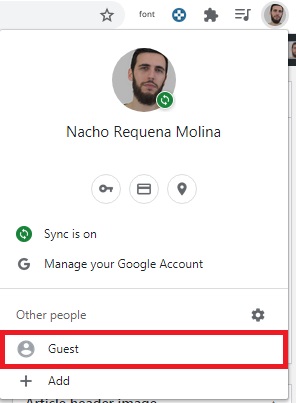 If someone asks you to use Chrome for a few minutes and you don’t want them to have access to all your private data, you can use guest mode. To do this, click the icon with your avatar in the upper right corner of the screen and, once the drop-down menu opens, click the “Guest” option. This will allow the person to whom you lend your computer to freely use the internet without snooping on your accounts.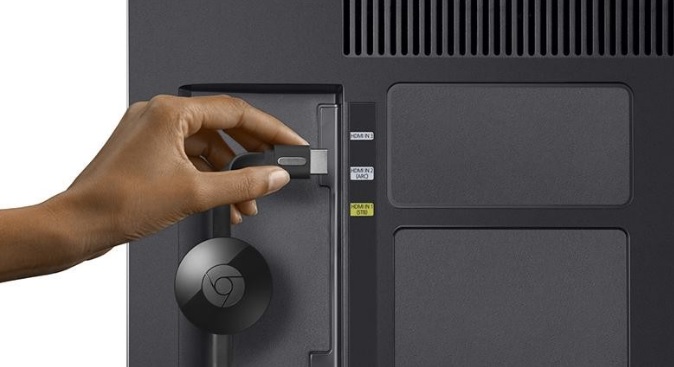
 This feature is especially interesting if you frequently use YouTube to listen to playlists while you work. You’ll no longer have to keep clicking on the tab with the video open; now you can pause the music or select a new track directly from the new button on your browser.