With the new Clean Up tool in iOS 18.1, photo editing from our iPhone is greatly simplified, as we can now easily remove unwanted elements from our images. A photo of a landscape with a power pole? A sign in the middle of a shot? They are a thing of the past. With Clean Up, we can eliminate these distractions in seconds, without the need for editing programs, all from the Photos app. How to use Clean Up in iOS 18.1 The Clean Up tool uses Apple Intelligence to analyze our photos and detect objects that might not be part of […]
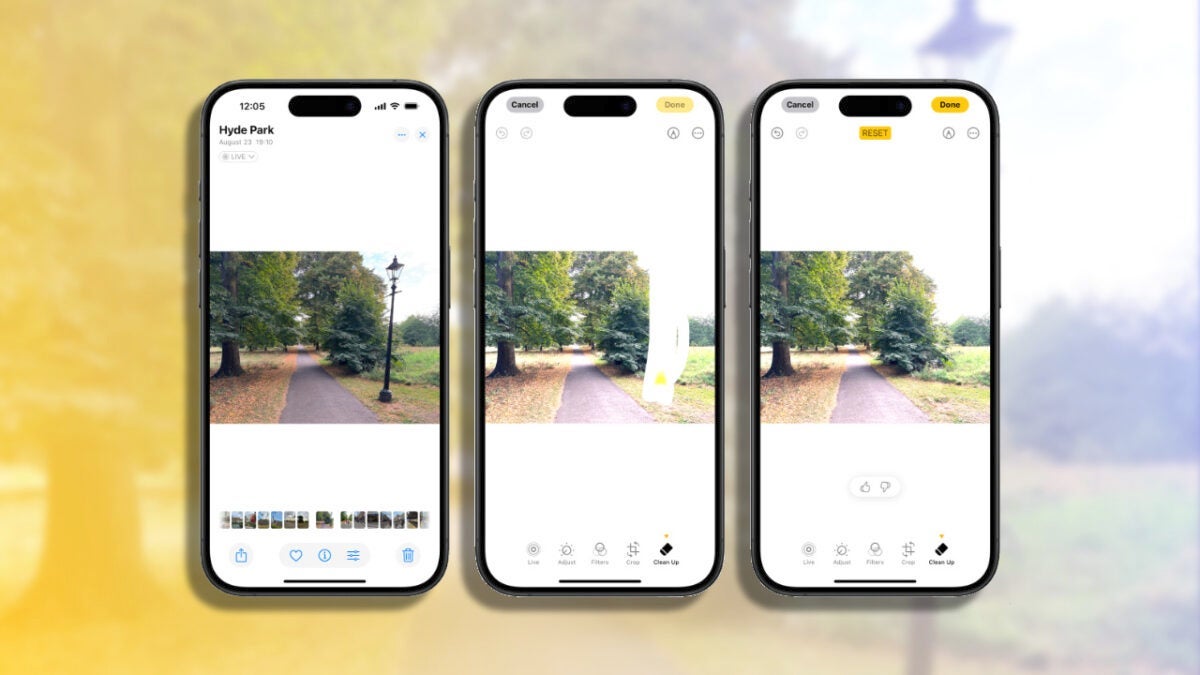
With the new Clean Up tool in iOS 18.1, photo editing from our iPhone is greatly simplified, as we can now easily remove unwanted elements from our images. A photo of a landscape with a power pole? A sign in the middle of a shot? They are a thing of the past. With Clean Up, we can eliminate these distractions in seconds, without the need for editing programs, all from the Photos app.
How to Use Clean Up in iOS 18.1
The Clean Up tool uses Apple Intelligence to analyze our photos and detect objects that might not be part of the ideal composition. From here, a simple tap on those objects makes them disappear.
And the best part is that we can do it directly from our iPhone, iPad, or Mac. How? By following these steps:
- We open the Photos app and select the image we want to enhance.
- We tap on the Edit button (the three horizontal bars).
- We select the Clean Up option (which may require a short download the first time).
- If Clean Up identifies an object we might want to remove, it highlights it with a special glow; we just need to tap it to remove it. If the system doesn’t suggest any selection, we can draw a circle around the object or paint over it to select it. As always, we can zoom in to adjust the selection if necessary.
- Once the object has disappeared, we tap on Done to save the changes.
The Clean Up tool is most effective for small objects and simple backgrounds, such as removing signs or some people from the background. The results, of course, will vary greatly depending on the content of the photo and the complexity of the background, but they are sure to surprise us.
Although removing the content of a photo disables its Live component, we are looking at a way to improve our shots significantly and easily. Similar to creating memories with just a description, it allows us to make any photo much better with just a tap.

Author: David Bernal Raspall
{
"de-DE": "Architekt | Gründer von hanaringo.com | Trainer für Apple-Technologien | Autor bei Softonic und iDoo_tech, zuvor bei Applesfera",
"en-US": "Architect | Founder of hanaringo.com | Apple Technologies Trainer | Writer at Softonic and iDoo_tech, formerly at Applesfera",
"es-ES": "Arquitecto | Creador de hanaringo.com | Formador en tecnologías Apple | Redactor en Softonic y iDoo_tech y anteriormente en Applesfera",
"fr-FR": "Architecte | Créateur de hanaringo.com | Formateur en technologies Apple | Rédacteur chez Softonic et iDoo_tech, précédemment chez Applesfera",
"it-IT": "Architetto | Fondatore di hanaringo.com | Formatore in tecnologie Apple | Scrittore per Softonic e iDoo_tech, precedentemente su Applesfera",
"ja-JP": "建築家 | hanaringo.comの創設者 | アップル技術のトレーナー | SoftonicおよびiDoo_techのライター、以前はApplesferaで",
"nl-NL": "Architect | Oprichter van hanaringo.com | Trainer in Apple-technologieën | Schrijver bij Softonic en iDoo_tech, voorheen bij Applesfera",
"pl-PL": "Architekt | Założyciel hanaringo.com | Trener technologii Apple | Pisarz w Softonic i iDoo_tech, wcześniej w Applesfera",
"pt-BR": "Arquiteto | Fundador do hanaringo.com | Instrutor em tecnologias Apple | Escritor na Softonic e iDoo_tech, anteriormente na Applesfera",
"social": {
"email": "races_provost0x@icloud.com",
"facebook": "",
"twitter": "https://twitter.com/david_br8",
"linkedin": "https://www.linkedin.com/in/davidbernalraspall/"
}
}
View all posts by David Bernal Raspall