Hands on preview: Hotmail.com turns into Outlook.com

outlook metro iconMicrosoft unveiled a dramatic overhaul of its Hotmail email service. The Hotmail name is dead and will instead be replaced by Outlook. Current Hotmail.com users will have the ability for their @hotmail.com email address to be automatically migrated to a @outlook.com address. While this sudden change may be jarring to some users, it is actually a solid and necessary change to Microsoft’s email service.

The biggest change users will notice right off the bat is the complete Metro style overhaul of the web interface. The entire website (for the most part) works just like you would expect a Windows 8 Metro app to work. With tight SkyDrive integration, integrated messaging, and video calling, Microsoft is aiming squarely at Gmail.

Let’s take a deeper look and get our hands dirty with the new Outlook.com. Continue reading “Hands on preview: Hotmail.com turns into Outlook.com”

How to take screenshots with Android 4.0 and higher

Before Android 4.0 Ice Cream Sandwich, it wasn’t possible to take screenshots directly from an Android device unless it was rooted. There weren’t any shortcuts to take screenshots, and even apps that circumvented rooting were very unstable. Android finally allowed screenshots without rooting or additional apps when Google released Android 4.0.

It was strange a feature that so many people use wasn’t included initially, but now it’s available for anyone who has a device running stock Android 4.0 or higher. Some Android 3.0 tablets like the Samsung Galaxy Tab 10.1 added a screenshot function in the menu bar, but Android 2.3 Gingerbread users may not have the feature.

Here’s how to take screenshots with an Android device running 4.0 and higher.

Taking screenshots

It’s very easy to take screenshots in Android 4.0. For the majority of devices, all you have to do is hold the power and volume down button simultaneously. This works for all Nexus family devices like the Samsung Galaxy Nexus and Nexus 7.

Third party devices like the Samsung Galaxy S3 require you to hold the power button and the physical home button.

You’ll know that a screenshot has been taken by the phone sounding a notification or an icon appearing in the notification bar.

Wrap-up

I’ve found that with devices running CyanogenMod 9, you can also take screenshots with the same button combination.

Taking screenshots is really that easy and is also a great way to snapshot something on your device quickly.

Windows 8 Guide: How to control Windows 8 with a mouse and keyboard

windows 8 logoWindows 8 is the first operating system from Microsoft that combines touch control with traditional mouse and keyboard input. While it’s great to see Microsoft putting innovative controls in their operating system, they also do nothing to teach users these new gestures and inputs, especially for those using Windows 8 on a desktop. It took me weeks to finally get find and understand all the different controls. I’ve been using Windows my entire life and had trouble figuring this out so I can only imagine the frustration that you might face.

Not to worry though!

In this article, I will cover how to control Windows 8 with a mouse and keyboard. Continue reading “Windows 8 Guide: How to control Windows 8 with a mouse and keyboard”

Follow the Olympics on your phone

In case you hadn’t noticed the 2012 Olympics is now upon us. If you’re keen to know what’s going on at the Games or if you just want a bit of sports-related fun, then it’s well worth checking out the official Olympic apps that have been released to coincide with the London Games.

There are three official apps available for both Android and iOS – the London 2012 Results App, the London 2012 Join In App, and the London 2012 Official Game. The London 2012 Results app is also available for Windows Phone devices. Both of the apps are free, and there are free and paid versions of the game.

Here’s the lowdown on the apps and games:

Continue reading “Follow the Olympics on your phone”

How to disable Gatekeeper in Mountain Lion

If you want complete freedom to install apps that you’ve downloaded in Mountain Lion, you need to disable Gatekeeper.

Gatekeeper is Mountain Lion’s new security feature that ensures that only apps that have been downloaded from the Mac App Store or from Apple approved developers will install on your Mac.

Continue reading “How to disable Gatekeeper in Mountain Lion”

Why Google Play Music needs a desktop client

Google Play Music is my go-to music player. Its web-based service is the most easy to use music player I’ve tried. The ability to upload 20,000 tracks, access my library anywhere, and stream and download for offline listening on mobile is great. I quit iTunes in favor of Google Play Music because of connectivity problems that required me to uninstall and reinstall iTunes at least once a month, just to locally sync my apps.

Using Google Play Music is simple and doesn’t require a large learning curve. What happens when you don’t have Internet access though? You are essentially cut off from your library. Since Google Play Music is centered around a web interface, the service needs to expand Music Manager and create a music player client that can both access online and offline tracks, while still keeping the utility of Music Manager.

Here’s why Google Play Music needs a desktop client.

Continue reading “Why Google Play Music needs a desktop client”

Control your Android device from your computer with AirDroid

AirDroid iconAirDroid for Android is one of the most creative apps I’ve seen in a while. Wireless file transfer applications are nothing new but AirDroid is much more than that. The Android app is only half of the equation as users will need a web browser to control their phones wirelessly. Once you navigate to the web interface, you’ll be shocked as to how fleshed out the interface is. It looks like a full fledged operating system for your Android device, all running within your browser.

There are windows to manage files, widgets that tell you the status of your device, and even virtual desktops to multitask. On the bottom you’ll see a task bar with your wireless connection information, battery charge, and which windows you have open. This is just barely scratching the surface of what AirDroid can do. Let’s take a look at some of its more impressive features.

Remember, this article is part of our awesome series for Android users, Basic Tips for Android. Continue reading “Control your Android device from your computer with AirDroid”

Mountain Lion released – 5 features not to miss

As expected, Apple has today released OS X 10.8 Mountain Lion. Mountain Lion costs just $19.99 to upgrade and brings OS X one step closer to the iOS experience found on the iPhone, iPad and iPod Touch.
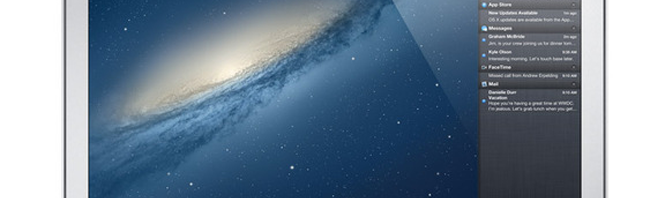
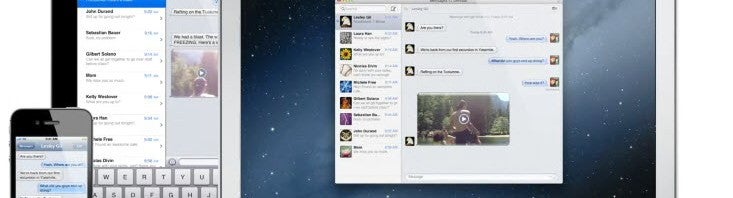
Mountain Lion introduces a number of new features familiar to iPhone and iPad users, such as Messages (iMessage for Mac), iCloud, Facebook and Twitter integration, Notification Center, Dictation, Game Center, Gatekeeper, AirPlay Mirroring via Apple TV, and an enhanced Safari browser.

Continue reading “Mountain Lion released – 5 features not to miss”

Windows 8 Guide: How to configure your Windows Live account

Welcome to the first in our ten part guide to Windows 8. Windows 8’s radically different Modern UI interface can be a shock to those used to previous versions of Windows. In this guide we’ll show you how to get the most out of it by creating and configuring a Windows Live account.

You can download the release preview of Windows 8 here.

Continue reading “Windows 8 Guide: How to configure your Windows Live account”

Don’t upgrade to Mountain Lion until you’ve read this

The recent release of the Golden Master version of Mountain Lion to developers means Mountain Lion OS X 10.8 will be officially released very soon. Before rushing into upgrading though, take a deep breath and consider some of the following to ensure you have no nasty surprises:

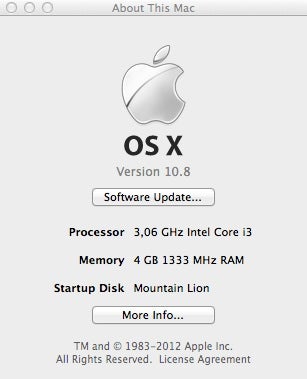
Mountain Lion will only upgrade if you’re running Lion OS X 10.7.x or the latest version of Snow Leopard OS X 10.6.8, and you must have at least 2GB of RAM

If you’re unsure about these 2 basic requirements, click on the Apple logo in the top left of your screen and select About This Mac:

If all of the above are correct then consider the following:

  • If you have an older Mac, you may not be able to install Mountain Lion. Apple lists the following models as compatible with it. Anything older will not work:

iMac (Mid 2007 or newer) MacBook (Late 2008 Aluminum, or Early 2009 or newer) MacBook Pro (Mid/Late 2007 or newer) MacBook Air (Late 2008 or newer) Mac mini (Early 2009 or newer) Mac Pro (Early 2008 or newer) Xserve (Early 2009)

  • You’ll need to obtain an Apple ID. If you’re an iTunes user, you’ll already have one but if you bought your Mac with Lion already installed, you’ll have to create one because Apple release new operating systems via the The Mac App Store.
  • Have a credit card ready. Mountain Lion is the cheapest OS X upgrade yet at just $19.99 ($10 cheaper than Lion). If you don’t have a credit card, you can use an iTunes gift voucher. Note that Apple Gift cards will not work in The Mac App Store.
  • Make sure you have at least 8GB of free hard drive space. If you’re need to clean some space but can’t quite identify which files are taking-up so much room, try DaisyDisk or OmniDiskSweeper.
  • Back up your hard drive. If something should go wrong with the installation of Mountain Lion, it’s essential that you have a backup of your data. Time Machine comes free with OS X and is ideal for this or alternatively, Super Duper! is another excellent backup tool.
  • Note that if you’re still on Snow Leopard, Mountain Lion doesn’t support PPC Macs so Rosetta Apps won’t work with it. If you’re running older versions (usually 6 years or more old) of any of the following and can’t afford to upgrade them to an Intel version, don’t install Mountain Lion as they either won’t work or you will experience problems with them: Creative Suite, Quicken 2007, Microsoft Office 2008, Rosetta Stone Language Software, Freehand and Appleworks. For a breakdown of which major apps are and aren’t compatible with Mountain Lion, check here.
  • Have some updated Printer Drivers handy. Since some older printer drivers require Rosetta to work, you may find that your printer doesn’t work with Mountain Lion. You should be able to find updated drivers on the developer website although if the printer is really old, you’ll be out of luck.
  • Be extra cautious if you use Apple Mail or Aperture. Both applications are particularly sensitive to OS changes as was illustrated with Mail when Snow Leopard arrived. It may be worth waiting at least a few weeks before upgrading to Mountain Lion if you rely on either or both and can’t afford to waste time re-configuring them.
  • Throw away your Magic Mouse and buy a Magic Trackpad (about $69). Well, you don’t have to throw away your Magic Mouse but you’ll probably feel like it if you’ve ever used a Magic Trackpad. Lion has been optimized to be more like using an iPhone so you’ll miss out on many gesture features if you don’t have a Magic Trackpad although it’s not essential.

If you are concerned about teething issues when upgrading, the best single piece of advice is simply wait! Most of the problems with Lion were ironed out within a month or so of the release and so if you’re not desperate to have Mountain Lion on your Mac immediately, take it easy.

There are bound to be issues that arise after upgrading, so if you discover any when Mountain Lion is released, let us know in the comments below.

In the meantime, don’t forgot to check out our lowdown on everything that’s new in Mountain Lion.