Reckless Racing 2 review: the best iOS racing game yet?

Reckless Racing 2 is released Thursday 2nd February for for iPhone, iPad and Android devices. The highly-anticipated sequel to one of the most popular mobile racing games cranks the action up a gear in what is a deeper and more ‘grown up’ experience.

This week we’ve been testing a preview release of Reckless Racing 2, and have loved every second of it. It boasts the same top-down Micro Machines-style gameplay as the original, only with lots more game modes, improved multiplayer and lots of upgradeable items.

Reckless Racing 2 tones down the hillbilly theme of the original, and the presentation is much more polished. In fact, it feels like developer Polarbit has spent a lot of time playing Gran Turismo during development of Reckless Racing 2!

Continue reading “Reckless Racing 2 review: the best iOS racing game yet?”
How to: Watch multiple videos at once in KMPlayer

KMPlayer is one of the most powerful video players for Windows. The multimedia application has a huge range of settings that help you customize your entertainment experience.

One neat trick with KMPlayer is to watch multiple videos at the same time with picture-in-picture viewing. Rather than just having different player windows open, this feature embeds smaller videos over the top of a large one.

So if you don’t have time to watch four movies in one night, just watch them all at the same time using KMPlayer!

Watch the video tutorial or follow the steps below to enable picture-in-picture viewing in KMPlayer.

1. Download KMPlayer from Softonic and install it on your PC. Open the player and right click on the main window. Choose Options, then Preferences.

2. In the General Settings section of the Preferences menus, deselect Disallow Multiple Instances.

3. Load up your first video. This will become the one that appears in the background.

4. Pause the movie and right click on it. Go the Screen Controls option, choose On Top, then Never.

5. Open another video in a new window. Right click on this one and go to Screen Controls. Choose On Top, then Always.

6. Right-click on the video window and choose Skins, then Default Control (Auto Hide).

7. Repeat steps 5 and 6 for all of the videos you want to load.

8. Now maximize the first video to full screen and position all the other videos in front of it, resizing the windows as necessary.

9. You’re now ready to start enjoying the benefits of picture-in-picture viewing with KMPlayer!

10 cool Google Chrome extensions and apps

There are now thousands of apps and extensions for Google Chrome. I’ve selected ten of the most interesting and useful to get you started. As you’ll see, browser customization is no longer a Firefox-only affair, and Chrome makes installing apps and extensions incredibly easy, so try them out!

Evernote Web Clipper

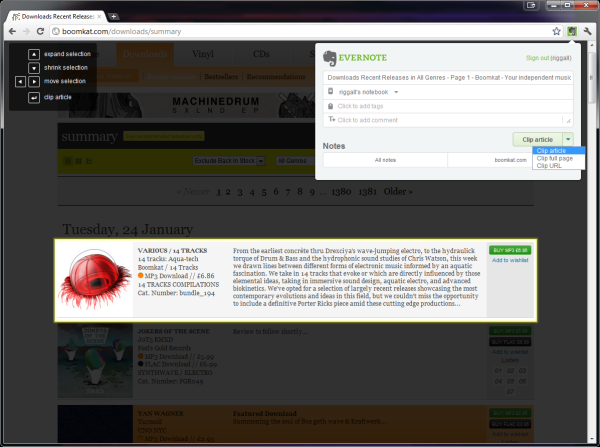
Much easier than searching your history, and much more flexible, Evernote is an excellent way of keeping pages, links and articles you like. Evernote is like a well-organized web scrapbook, and can quickly become something you rely on. Download here.

M86 Security Secure Browsing

Have you or any of your friends ever been caught out by clicking a scam link on Facebook or elsewhere? This extension checks links on a page and tells you what is genuine and safe. Download here.

Awesome Screenshot

There are many reasons you might want to take a screenshot of a webpage, and Awesome Screenshot makes it really easy. It also features an annotate and edit function, so you can highlight or point to the important areas of the page. Download here.
Continue reading “10 cool Google Chrome extensions and apps”

How to stop Google tracking you across services

Google has announced an update to its terms and conditions that means from 1st March, it will now track and collate user activity across all Google products including YouTube, Gmail and Google+. According to the company, the aim of this is to unify the privacy policies for different products as well as provide a more personalized service. Google said in its announcement:

We may combine information you’ve provided from one service with information from other services. In short, we’ll treat you as a single user across all our products, which will mean a simpler, more intuitive Google experience.

Specific benefits of this mean Google can deliver personalized results when you do a Google search, more relevant ads to your interests and even set reminders based on your activity.

However, if you’d rather Google didn’t collate or track all your activities across the various Google products that you use, there are a few simple measures you can take to stop it.

  • Sign-out of your Google account. This only works when using certain Google products. For some, such as YouTube, you can use the service without being signed-in. Obviously, this method isn’t much good if you want to check your Gmail. If you want to see whether you are signed-in or not, check the top-right of your screen.
  • Create multiple Google accounts. You could create one for each product that you use so that your activities or data are limited to one account at a time. You can then sign-in with multiple accounts in one browser although for some services, you can only sign-in to one Google account per browser at any one time which could become a bit messy and annoying.
  • Customize your Google privacy settings. Google does offer a privacy customization page where you can tweak your settings for various apps. However, it isn’t clear whether these will still work once the new privacy policy takes effect on March 1st.

It’s worth adding that if you’re not happy with the new privacy changes, you can close your Google account and take your data with you in accordance with Google’s data liberation policy. To check the data that Google currently holds on you across different services, check the Google Dashboard.

How to: Rotate a video with VLC

So you’ve been making masterpieces on your camera phone…but when you get your hands on the video, everything’s upside down! If you’re using super-app VLC media player, you’ll be really pleased to hear that rotating it back so you can watch it comfortably is really easy. Even better, VLC lets you rotate freely, so even if your video is at a funny angle, you’re guaranteed to be able to watch it perfectly straight.

Rotating video in VLC;

  1. Open your video in VLC and pause it so you can fix it without missing anything
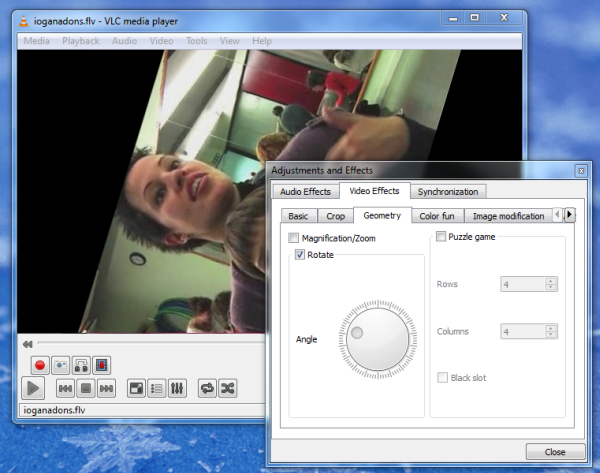
  2. In the menu, go to Effects and Filters > Geometry and enable the Rotate checkbox
  3. You’ll then be able to rotate your video in real time, so you’ll be able to spot exactly when you’ve managed to turn it back to where it’s supposed to be!

Bear in mind that this is a temporary solution. If you want to rotate your video and save it with the correct orientation, your best bet is to use a video editor like VirtualDub or Avidemux. If you’d like a tutorial on this, let us know in the comments!

Desktop backup alternatives to Megaupload

The recent closure of Megaupload highlights the risks of using a cloud based service to backup and store data. Of course, backing-up your data to an external hard drive isn’t without risks but there is one that’s significantly reduced – the threat of losing access to your data due to sites being shutdown.

We’ve already compiled and compared a list of other cloud backup solutions so here are five of the best desktop backup alternatives for Windows and Mac:

TimeMachine

(Mac):

Apple’s easy to use discreet backup solution. Constantly backsup your data without slowing down your Mac so that you can effectively “go back in time” and restore files and data. Note however that some people have found it unreliable at times – it may start-off well but may become erratic over time.

SuperDuper!

(Mac):

SuperDuper! creates exact clones of your Mac’s hard drive so you have a full backup of all your data, including permissions, user profiles and private settings. Simply select the target and destination drives and start backing up. You can specify exactly which files you want to transfer and which you’d like to omit.

Carbon Copy Cloner (CCC)

(Mac):

Carbon Copy Cloner is free, simple to use and backsup only those files and folders that you want it to. Just connect your external hard drive to your Mac, CCC will automatically detect it and off you go. You can also schedule automatic backups at specific times and create disk images with it.

Norton Ghost

(PC)

Norton’s Anti-Virus is a nightmare but its backup solution is a much better package. Norton Ghost is probably the closest thing to Time Machine on a PC and backs-up your entire hard drive – or just selected folders – to another partition, networked drive or an external storage device. Norton Ghost can also create an exact copy of your hard drive with all the existing files, programs and settings and provides restoration points.

USB Image Tool

(PC)

USB Image Tool is one of the simplest PC backup solutions you’ll find. It’s free, straightforward and automatically detects USB devices connected to your computer and scans them before asking you whether you’d like to create an image backup or restore a previously backed-up image. USB Image Tool can create images of USB memory sticks and MP3 players that are mounted as USB drives.

[Image courtesy of OnSoftware ES]

How to take video screenshots using UMPlayer

Need to take a screenshot of a video? One of the simplest ways to do it is with UMPlayer, an excellent media player that’s a worthy alternative to the popular VLC Player.

Whether you have a movie review web site and want to take some stills of a new film, or you just want a shot of your favorite movie to set as your desktop background, UMPlayer makes it dead simple.

Install UMPlayer

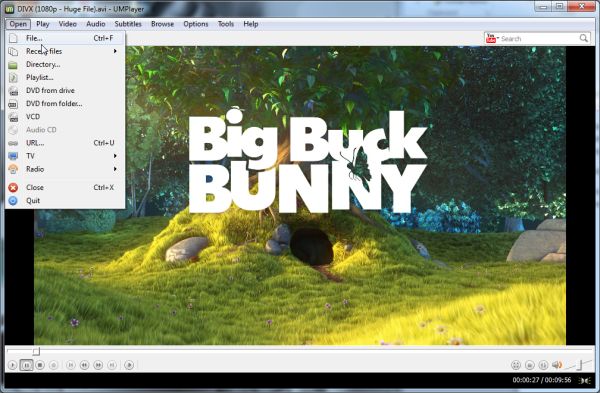
First, download UMPlayer from Softonic and install it on your PC. Launch the application and load a movie by dragging the file into the main interface or choose File from the Open menu.

Capture a screenshot

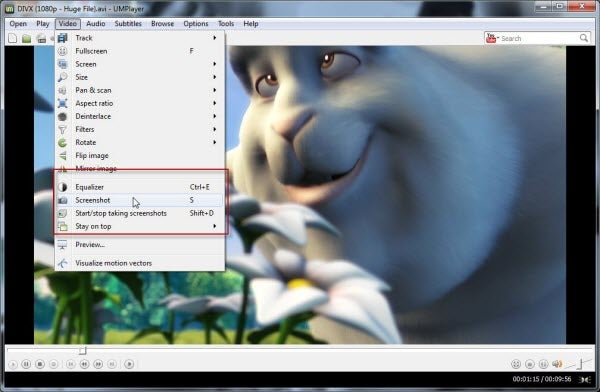
Go to the point of the movie you want to capture and press pause to freeze it. Now go to the Video menu, and you’ll find two screenshot options here. Select Screenshot to take a grab of what’s currently on screen, or choose Start/stop taking screenshots and UMPlayer will keep taking shots of the screen as the movie plays. Then choose this option again (or hit Shift + D) to stop the capture process.

Change output options

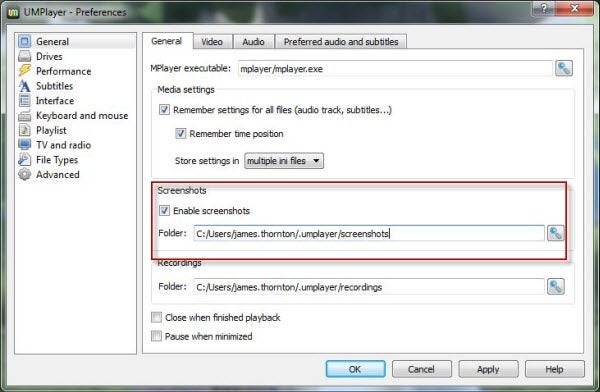
To find out where your screenshots have been saved go to the Options menu and select Preferences. On the General tab of the General options (which should load as the default menu) you’ll see a section called Screenshots. Here, you can change the destination folder of the saved screenshots, and enable/disable UMPlayer’s screenshot functionality.

How to use UltraSurf with Firefox

Hiding your IP address while you’re browsing the internet is a good move for anyone wanting an additional level of privacy online.

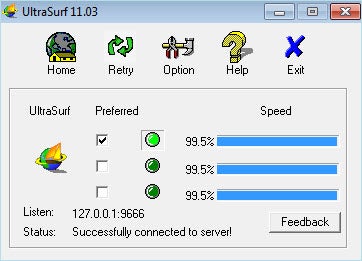
UltraSurf is a simple tool that’s perfect for doing this when you’re using Internet Explorer. It will help ensure security while you’re shopping or banking by encrypting your personal information – your IP address gives information about you to third parties. UltraSurf is a great portable tool for people who don’t want third parties to be able to view this information, as well as those who want to access websites that are blocked in their locale.

If you prefer Firefox to Internet Explorer, though, there’s an add-on just for you. It’s called UltraSurf Firefox Tool.

All you have to do to use UltraSurf on Firefox is download both UltraSurf and the add-on for Firefox. If you’re currently running Firefox, you may need to restart befure UltraSurf will work.

Besides being able to hide your IP from third parties, UltraSurf can also automatically delete cookies and browser history every time you close it, an extra level of security that users are sure to appreciate.

iBooks Author review

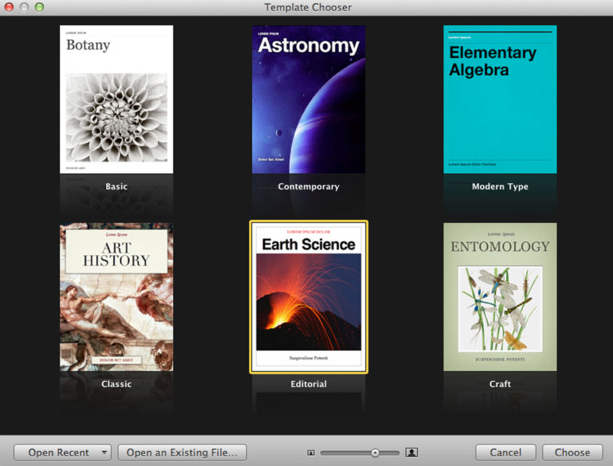
Yesterday’s big announcement by Apple was the release of iBooks Author and iBooks 2. iBooks Author is a Mac application and Apple’s attempt at revolutionizing educational books whether they be textbooks, cookbooks, history books, picture books and more for iPad. With it, you can create all of the above and more via a classically easy to use Apple interface. iBooks 2 is the application you need to view publications created in iBooks Author.

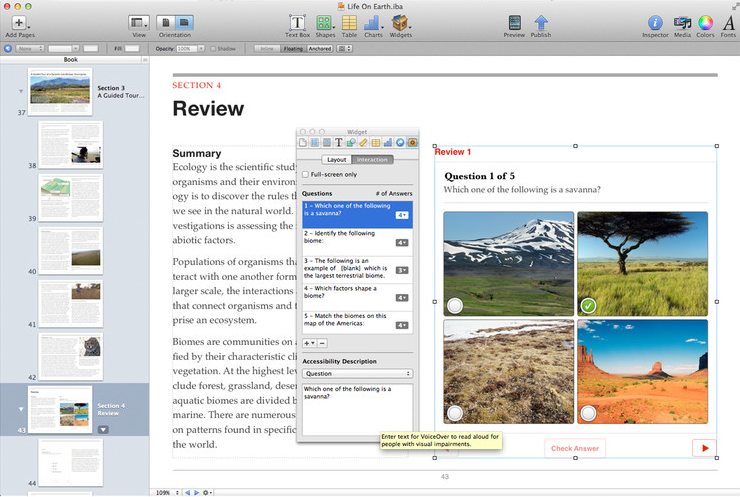
To get you started quickly, there are lots of Apple-designed templates that merely require you to add your own text and drag and drop images.

To add interactive photo galleries, movies, Keynote presentations, 3D objects and more, there are simple widgets which make things very easy indeed. The widgets are one of the outstanding features of iBooks Author. They enable you to add everything from a photo gallery to a Keynote (Keynote ’09 v5.1.1 or later) presentation and can be easily identified in your Table of Contents. You can also add a voice-over to make it easier for sight-impaired readers to read your books. Continue reading “iBooks Author review”

Copy music from an iOS device without iTunes

iTunes is the main app for controlling iOS devices on your computer.  But when you’re not near the computer that contains all your music and need to copy music from that device, iTunes can’t help. Even manually managing an iOS device on another computer doesn’t allow for exporting files.

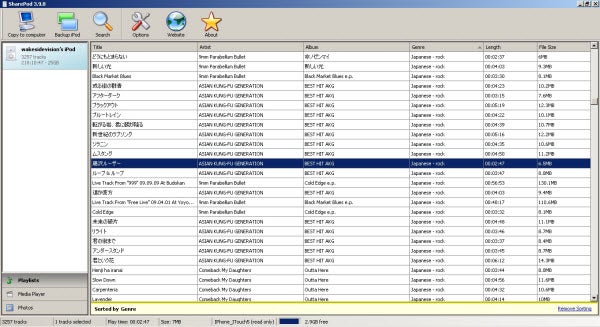
The solution is very simple – use Sharepod: a free program that can access any iOS device. I recently replaced my iPod 3 Gen and used Sharepod to export my entire library off my old iPod to reload through a new computer. Here’s a step by step guide:

1. Connect the device to your computer with the USB cable. Sharepod will load the device.

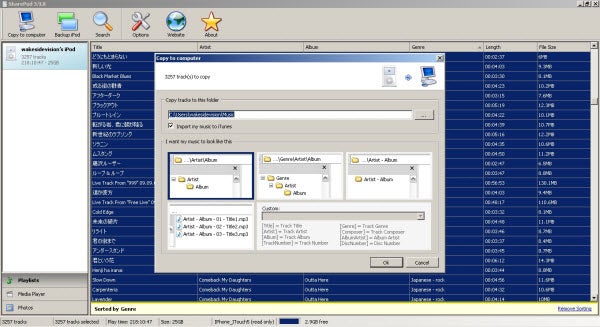
2.Select the files you want to export and click “Copy to computer.”

Sharepod gives you options of where to save and the formatting of the folders for music.

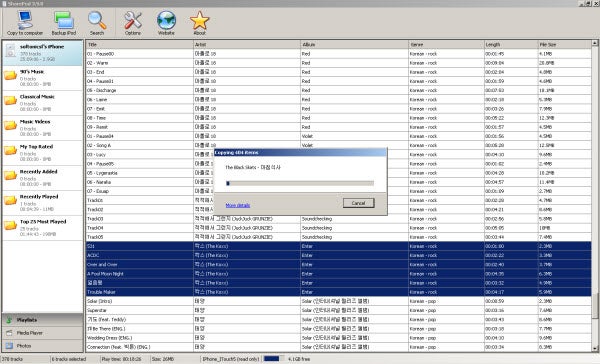
3. After completing your options, click “Ok” and Sharepod will begin exporting the files. Export times vary on the size of the library, but with patience you will have your entire library available on your computer.

Sharepod is a great free tool for music and video backups and much simpler than iTunes! I tested it with my iPod Touch 3rd Generation, iPad 1, iPad 2, and iPhone 4S and after the computer installs the initial driver, music and video files are accessible.  Sharepod can’t export apps, but it can export a selection of files or backup entire music libraries.