
Today’s downloads for Windows, Mac and Mobile

Download Bee WallpapersWindows: Tired of having the same wallpaper day after day? Enjoy a fresh new desktop background every time you turn on your PC with Bee Wallpapers. This wallpaper manager lets you organize your wallpapers by categories, set a schedule to change them automatically and download new wallpapers for free.

Try Crazy Daisy todaySmartphone: Summer is the perfect time for making Daisy chains, but if there isn’t a field near you then don’t worry because you can still play with flowers on your mobile phone. Crazy Daisy is a cool Windows Mobile game where you must spin the flowers to join up matching-coloured petals. Join up enough and you’ll rack up lots of points!

ScreenflickMac: It’s never been so easy to record your screen activity. Whether you just want an image or a video recording, Screenflick lets you easily capture everything happening on your screen. You can resize the recording space whenever you want, set the frame rate and decide whether or not to follow the mouse cursor.  Screenflick is great for beginners who want to try their hand at screencasting.
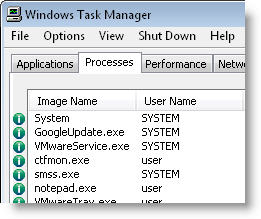
Learn more about active processes on your system

ProcessQuickLink2Advanced users don’t have problems in dealing with the Windows Task Manager. When the computer is on the verge of crashing, they simply press Ctrl+Alt+Del and remove the one process that is compromising the system’s stability. No big deal!

Casual users are a different thing. The Windows Task Manager is a nonsensical gibberish of names and percentages that doesn’t make any sense to them, let alone encourages them to take action. How are they supposed to know what to do if they can hardy identify the different active processes?

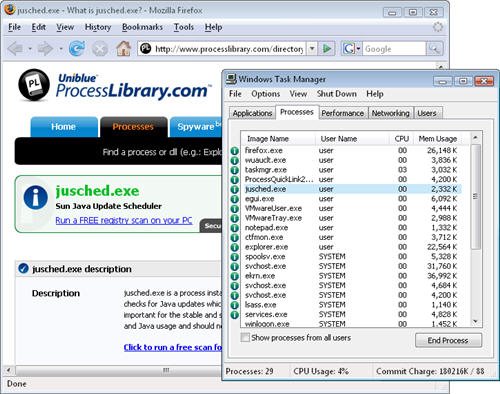
For all those who don’t feel comfortable yet when messing up with the Task Manager (we’ve all gone through that stage at some point during our lives as computer users), ProcessQuickLink2 can make things a bit easier. This simple tool is loaded on your system and remains running in the background without apparently changing anything. But if you press Ctrl+Alt+Del to open the Windows Task Manager you’ll notice a small green icon to the left of each running process. Clicking on this icon will open a web browser with more information on the selected active process.

ProcessQuickLink2

So next time you’re not sure whether you should end a given process or not, or if you simply want to learn more about what’s cooking on your system, give this a try.

Adobe Photoshop Lightroom 2 released

LightroomAdobe has silently rollled out version 2 of their successful photo editing program, Adobe Photoshop Lightroom. With updates not being too frequent for Lightroom (version 2 was in Beta for a while) the list of improvements is pretty big and comprised of significant new features.

You can now process a specific selection of your image and not just the whole of it. This is great for editing different parts of your picture and paritcularly useful if there are many details to work with. Lightroom also now comes with ‘Suggested Keywords’. If you want your picture to be easy to find in your photo library or on photo sharing sites like Flickr you need to associate tags to them. Lightroom now suggests new keywords based on the ones you have already entered.

A number of tools like printing, healing brush, angling, cropping and photo sharpening have been enhanced and are much more powerful to work with. One feature which surprisingly wasn’t available in the previous version is Smart Collections. Lightroom now includes this so you can organize photos according to specific filters. You can also set a Target Collection to quickly store pictures.

Any serious photographer knows the importance of taking care of metadata for all their photos. In an interesting experiment, Lightroom 2 opens up its metadata SDK to developers. We’ll soon see what they manage to make out of it.

Not to forget, the Lightroom community itself. Adobe’s  photo editing software enjoys a strong following, which has already started on releasing additional resources complementing Lightroom 2. John Nack of Adobe lists out a few of them, like the Lightroom 2 Learning Center, and a number of in depth reviews of the new version. So what are you waiting for? Update your Lightroom and try out the new features!

5 easy ways to enhance Gmail

GmailIn comparison to my frustrations with Windows Live Hotmail, using Gmail couldn’t be a more different and pleasurable experience. From the day I received an invite to use Google’s e-mail client, I’ve never looked back. Threaded conversations are surely one of the greatest innovations in e-mailing making it insanely easy to follow discussions. That’s not to mention Gmail’s brilliant search tool – what else would you expect from the world’s number one search engine. However, as good as Gmail is, there are also several very easy ways that you make it even better with a few add-ons and extensions. If you use Gmail regularly, you’ll get even more out of it by using one these.

Better Gmail 2 – Designed by the editor of Lifehacker, this fantastic script adds a host of useful new features to Gmail such as the ability to see how many unread messages you have in a tab, labels to categorise and file-away important e-mails and an array of keyboard commands to cut down on mouse time.

Gmail Drive – Gmail gives you an awesome amount of storage space to work with and it’s increasing all the time – approximately 1MB every 11.8 minutes in fact. It’s a travesty not to take advantage of this and use it for something more than simply storing a few e-mails which is what Gmail Drive does by adding a virtual drive to your desktop which allows you to save and retrieve files from your Gmail account as if it were a physical drive.

Gmail and Google Calendar – Along with Gmail, Google Calendar is probably one of my most used Google products and this superb script allows you to integrate Gmail with your Calendar. It embeds Google Calendar into Gmail by adding a hyperlink making it much easy to transfer important dates discussed in your e-mails to your calendar.

GSpace – This is similar to Gmail Drive in that it allows you to save and store files to your Gmail account but it also allows you to stream music and video from your account. It features four different modes – File Mode, Photo Mode, Player Mode and Gmail Drive depending on what you need to do. You can also access it from anywhere without logging into Gmail.

GmailClipseClient – Sometimes you might not be able to access your Gmail for some reason but that’s no reason to be without it. GmailClipseClient allows you to access your Gmail account if you don’t have access to POP3 or SMTP servers in an office (if you’re not allowed to access them for some reason).

Show a custom message beside the Windows clock

Show a custom message beside the Windows clockI like customizing my computer to a certain extent – wallpapers, fonts, a few colors and that’s it – but some people seem to be addicted to customization. They change almost every element on the PC, from a complete visual theme to the icons used for every single app. Thinking about these customization addicts, I’ve come up with a simple trick that lets you put any text on the system tray, beside the Windows clock. Want to know how?
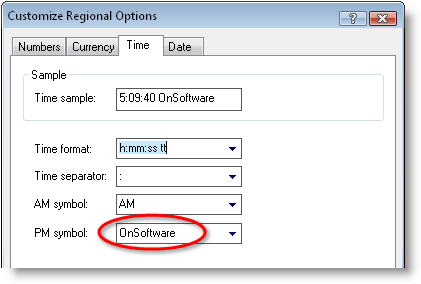

All you have to do is open the Control Panel and click on the Regional and Language Options icon. Then click on the Customize button on the window that’s just opened and select the Time tab.

Show a custom message beside the Windows clock

This is the Windows time settings menu, but we’re going to use it in a slightly different way: simply use the “AM” and “PM” fields to enter whatever text you want to show up on the system tray. You can type in anything up to 12 characters.

When you’re done, click on the OK button and the text will immediately appear beside the Windows clock. Besides being an ultimate customization tip, you can also use this trick to play a joke on someone.

Try Google’s Android mobile OS on your PC

Give Android a tryWith all the hype surrounding the iPhone and the fact that its AppStore seems to be doing so well, it’s easy to forget that there’s another new mobile Operating System in town. Android is Google’s version of a next generation mobile OS, and while it’s not actually available on any mobile handsets at the moment, you can still try it out yourself for free.



The Android emulator allows you to do almost everything you would do on a real device running the OS. You can have a peek at the operating system environment, test out the default applications and install new ones, simulate phone calls and access the Web. Here is a guide to running and installing the Android emulator, courtesy of our friends at OnSoftware Spain.

1. Download the SDK

The first step is to download the emulator, which is included as part of the Android SDK. You can download it from Softonic, or from the official development page on Google.

2. Unpack the Archive

Once downloaded, unpack the Zip file into a folder somewhere on your hard drive, such as: “C:\Program Files\Android SDK”.  Open the folder and you’ll see that it contains a whole bunch of files and folders. What we’re interested in at the moment is the file “emulator.exe”, which you’ll find in the “Tools” folder. Open this by double-clicking on it.

3. Running the emulator

After opening the emulator you’ll be able to play around with its various built-in features. You can surf the Web using the Browser, try out the phone functionality using the Dialer, or check out the cool Maps feature. There are a few other applications installed on there by default, so have a play around with them yourself.

4. Installing software

Unfortunately, installing applications on the Android emulator is quite a long-winded affair. It’s not that difficult, but it does involve tweaking a Windows system setting and working with the Windows terminal. Continue reading “Try Google’s Android mobile OS on your PC”

Today’s downloads for Windows, Mac and Mobile

Download Activity MonitorWindows: If you ever need to control someone’s activities on the computer, Activity Monitor is the app you need. This full featured monitoring tool will keep an eye on any remote PC, watching and recording keystrokes, active apps, opened webpages and more, while silently running in the background.

Camfrog Video ChatMac: Looking to make new friends and use the camera on your Mac? Camfrog Video Chat lets you join live streaming video chat rooms and interact with other users. The video quality is generally very good, although it will depend on your connection and the quality of your webcam. Camfrog Video Chat gives you access to a wide range of chat rooms where you’ll be able to make plenty of friends.

Connect to the Internet on your mobilePocket PC: If you want wireless but don’t fancy buying a wireless router, or if you’re trying to establish a connection away from home then get a load of WMWifiRouter. As the name suggests, the program transforms your Pocket PC into a mobile router for wireless Internet access. The free software utilises the UMTS or EDGE protocols to connect to other mobiles.

Mac tip – Shut down Spotlight

SpotlightI’ve always said that Spotlight is a brilliant tool and something I simply can’t live without. Whether launching an application, looking for a file or just checking through my mail, I just need to use Spotlight. Remembering the times when the Apple search function wasn’t around, doing all these tasks was just a little bit more tedious and inexorably involved having to search through files. I’ve already written previously on Spotlight, giving you a tip on how to use it with Cover Flow, how to repair it or giving you a list of alternative launchers.

As effective as Spotlight is, it isn’t error proof, especially when you consider that it’s literally on all the time, analyzing and indexing files. As said before, I’ve already covered how to repair Spotlight if something goes wrong with it. But what if it’s still not functioning properly and giving you a hard time? Your last resort is to shut it down completely.

Look for the two following files and move them to a safe place, from where they can easily be recovered. Do not erase them!

/System/Library/LaunchAgents/com.apple.Spotlight.plist
/System/Library/LaunchDaemons/com.apple.metadata.mds.plist

Then reboot your system so that launchd does not try to start them. Normally since the files are not there anymore Spotlight will not be able to perform its indexing tasks. Take a look every now and then to make sure your system hasn’t recreated the files. If so, make sure to move them to another safe place. Once you think it’s time to relaunch Spotlight, simple put the files back in their destination.

[Via: Macosxhints]

How to speed up and optimize OpenOffice

open-office-logo.jpgIf there’s one thing that’s really annoying about OpenOffice, it’s the fact that it’s so darn slow at starting and occasionally just simply freezes due to the large amount of system memory its Java code requires. If this single issue could be fixed, I’d definitely use it a lot more although there still remains plenty of work to do on the usability side of things too. The good news however is that it’s not hard to tweak and optimize OpenOffice to achieve some significantly better performance results. Here’s three simple steps for starters:
1. Disable Java and Increase Memory Use – If you’ve got more than at least 1GB of RAM, then this is the simplest and easiest way to ensure OpenOffice opens and operates quicker. Simply go to “Tools” and then “Options”. In the “Java” tab make sure that you’ve disabled the Java Runtime Environment option. Then in the “Memory” tab change the values to “Number of steps: 20, Use for OpenOffice: 128, Memory per Object 20, Number of Objects 20”.

2. Use the OOo2 Optimiser – This simple script compresses the XML code in OpenOffice for much quicker start-up times. If you’re having any problems installing the script, check out the Zenwalk forum

3. Enable QuickStarter – On Windows, you have to double click on the quickstarter.exe file in the OpenOffice program folder. On all other platforms, just go to “Tools” and then “Options” and “Enable systray Quickstarter”. Quickstarter loads OpenOffice.org code and data into memory ahead of time, so that when you are ready to open a document, some of the work is already done.

Other than these steps, there’s not much more you can do but you should experience noticeably better startup times. Hopefully the OpenOffice developers will one day recognize that this is a major issue for most users and implement these tweaks by default.

Encrypt files and folders the easy way

Encrypt files and folders the easy wayEncryption basically consists of converting plain text into something unreadable by means of an encrypting algorithm, being a specific key (i.e. a password) which is also the only way to convert that gibberish back into normal text.

Likewise, encrypting documents is probably the safest way to protect confidential data on your computer or online communications. But if all this encryption thing sounds too complicated for you, don’t worry: now you can encrypt files and folders in just a couple of clicks.

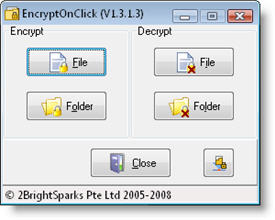
The trick is using EncryptOnClick, an easy-to-use encrypting tool with which to protect your files and folders without fuss. Once installed, simply run the program and select the file or folder you want to protect, enter a password for it and that’s all: the encrypted file or folder won’t be accessible unless have the password. You can also decrypt those same files and folders from EncryptOnClick; just make sure you’ll remember your password because there’s no way to recover it in case you lose it.