How to play Poppy Playtime with some tips!

When it comes to horror adventure games, Poppy Playtime seeks to send chills up your spine. With so many toys to avoid and puzzles to solve, it can become nerve-wracking trying to win. The first chapter is free, but you’ll need to pay to unlock the others.

Don’t worry! We’ll show you how to play Poppy Playtime with some tips on how to survive and escape the mayhem.

how to play poppy playtime

What is Poppy Playtime about?

Once upon a time, there was a toy manufacturing company called Playtime Co. that was all the rage among children and adults alike. One day, the employees simply vanished, leaving the building abandoned. You investigate the facility years later with the objective of discovering what happened.

As you venture further into the silent building, you find toys that have come to life, eager to take vengeance on anyone that enters. You’re faced with clues and puzzles you need to solve if you want to escape the horror they set upon you. Along the way, you may even make some friends.

How to play Poppy Playtime

Are you intrigued yet? If you’re excited to get started, we suggest you learn how to play Poppy Playtime first. It will prepare you for the thrills and scares that are to come, which is the perfect setting for Halloween.

Getting Started

To begin the harrowing adventure, you need to download Poppy Playtime first. You can try the first chapter for free just to feel what it’s like, but you’ll pay per episode after that. 

To install the game on your PC, you’ll need Windows 10 or 11 and at least 10 GB storage. Since the graphics are so detailed, you’ll need an Nvidia GeForce GTX 1060 or Radeon RX 580 graphics card. There also needs to be at least 8MB RAM.

Searching the abandoned building

Now that you’ve acquired the game, it’s time to see how to play Poppy Playtime. With realistic 3D graphics, you’ll make your way through the empty toy factory. There are many rooms to investigate, while the chapters focus on specific scenes.

It’s hard to get lost in the horror game, as the clues and puzzles give you direction on where you need to go. The first areas will give you an idea of how to play, but you’ll still need to work out how to solve the mysteries. Of course, you’ll need to avoid the scary toys trying to stop, or befriend, you.

Solving Puzzles

The heart of Poppy Playtime is the library of puzzles. In essence, the entire chapter is one massive puzzle you need to solve. Everywhere you go, you’ll find objects lying around that appear to serve no purpose. However, further investigation into the toy factory will help you realize how significant they are.

Handy Tools

To accomplish your tasks, you’ll have what’s called a Grabpack. It’s a backpack with two hands connected with steel wires. With these tools at hand, you can move heavy objects across distances, manipulate items, and conduct electricity. The secret is learning how to use them efficiently to complete tasks correctly.

how to play poppy playtime

Poppy Playtime: Guides and Tips

Now that you understand how to play Poppy Playtime, we want to share some tips with you. There are some spoilers ahead, so if you’d prefer not knowing, then skip this section.

Solving the security door code in Poppy Playtime

The first chapter is called “A Tight Squeeze” and sees you face off against a popular toy known as Huggy Wuggy. One of the first challenges is getting into the factory. When you approach the entrance, you’ll see a blue scanner. 

The item is behind the front desk, so you won’t be able to reach it. The only way you can obtain the object is with the Grabpack, but that’s locked in the security room. You’ll see a pad with various buttons, and you’ll need to press them in the correct sequence to open the door.

Head to the gift shop. Look for boxes that have been knocked over and stare up until you find a working model train. You’ll notice that the carriages are in various colors. Well done, you’ve just solved your first clue. Write down the order of the colors and use that on the security room pad.

When you’re inside, you need to watch a tape on how the Grabpack works before you receive a blue hand. You can use this item to open the entrance to the factory. Now, you’ll need the red hand.

Finding the red Grabpack Hand

As soon as you enter the factory in Poppy Playtime, you’ll meet Huggy Wuggy. He’s standing still and doesn’t pose any threat at this point. You can explore the areas around him, but you’ll need that red Grabpack hand to unlock the full functionality of your backpack.

There are two doors with scanners. One needs both hands, but the other only needs the blue hand. When you attempt to open it, the power will go off, leaving you in the dark. Huggy Wuggy has a key in his hand that will open the Power Room, where you can return the electricity. When you head back, the ominous toy will be gone.

Head down the hall and look for a door labelled “05”. Go up the stairs and look for a crane and control panel. The latter will have four switches in different colors. The fuses are missing, so you’ll need to find them. 

Here’s a quick overview of where they are:

  • Blue: left of control panel
  • Red: shelf on right of conveyor belt, slightly lower down
  • Yellow and Green: opposite side of room on left of conveyor, near room with scanners by the boxes

When you return the fuses, the crane will collect a glass box and place it on the belt. Within it is the red Grabpack hand.

how to play poppy playtime

A stunning horror experience

We’ll leave the rest for you to solve. We hope you’ve had fun seeing how to play Poppy Playtime, but now it’s your turn. If you managed to complete the first chapter, feel free to let us know. You can check back on our site for future guides on the upcoming chapters.


How to play ZELDA With Tips!

Nintendo’s The Legend of Zelda is a classic fantasy action-adventure video game that helped define a generation of games from the late 80s and early 90s. It’s the first installment in a famous series. A boy named Link is the main character. The Japanese version of the game is called The Hyrule Fantasy: The Legend of Zelda (who is the beloved princess of Hyrule).

There are plenty of versions and games in the series, which we’ll discuss while showing you how to play Zelda.

How to play Zelda games

There’s a library of Zelda games you can enjoy, each with different storylines and themes. We’ll give you a short intro for each of them as well as some info on how to play them.

Zelda Classic

Zelda Classic is a modern tribute to The Legend of Zelda, still considered one of the best video games ever. Zelda Classic has been developed into a replica of the NES version. But Zelda Classic allows new quests that can use traditional or enhanced graphics and introduce new challenges and enemies.

Before you play Zelda Classic, why not play games in the original series so that you understand the background?

how to play Zelda 2

How to play the Legend of Zelda

Even though The Legend of Zelda came out decades ago, it’s a quality game that works on all the major modern web browsers today. It’s part of the Arcade, Adventure, Emulator, and NES gaming categories. It’s the way to enter the world of the Zelda series and meet the main character, Link.

To play, you must defeat many enemies while you search for the hidden pieces of the Triforce. When all eight pieces are reassembled, you will be able to enter the evil Gannon’s lair, defeat him, and in so doing, save Zelda.

how to play Zelda 2

Other games in the series

There are many other games in the series for you to play if you enjoy the first installment. They include The Legend of Zelda: Ocarina of Time and The Legend of Zelda: Majora’s Mask. Other well-known series games include The Legend of Zelda: Breath of the Wild, The Legend of Zelda: Link’s Awakening, The Legend of Zelda: Mystery of Solarus, The Legend of Zelda: Skyward Sword.

Zelda Tips and Tricks

For more than 25 years, the Legend of Zelda has enchanted players of all ages with its delightful worlds, rich histories, and lovely music. There’s magic in all of them, from the earliest to the latest. But the earlier games can be challenging, so here are some ideas to make them a bit easier. 

Open a dungeon door without a key

Just enter the first dungeon, exit, and then go back in. One of the northern doors will unlock.

The secret save screen

Usually in Zelda, you have to die before you can save your game. But you can use the up and “A” combo on the second controller to save whenever you please. This will save time and unnecessary deaths! 

Influencing gossip stones

There are gossip stones in Ocarina of Time and Majora’s Mask that mostly tell the time. But if you have the Mask of Truth, each one will tell you something like a gameplay secret. 

Skip to the second quest

Once you’ve conquered Ganon in the first Zelda, you’re allowed to start the Second Quest, But if you type Zelda as your name, you’ll go straight to the second quest. But be warned, it’s more difficult than the first.

Weaponize the sun’s song

If you play the Sun’s Song’s delightful melody to a lot of Gibdos or ReDeads, you’ll freeze them in place! 

Make bomb arrows

In Link’s Awakening, you can combine your bow with your bombs to create bomb arrows to increase the power of your attacks.

Reduce the number of enemies

In the original Legend of Zelda, if you eliminate all the enemies except one on a screen, there will still only be one left the next time you go into that screen. 

A fast travel trick

In A Link To The Past, you can go to Kakariko Village and play your flute in front of the weathercock, which will come to life and take you to eight places you want to visit.

A secret supply room

Behind a fake wall on the main floor in Ganon’s Castle (which you’ll need the Lens of Truth to see), there’s a chamber with fairies and business scrubs ready to help you replenish your strength. 

Steal The Bow

You need an expensive bow to beat the game in Link’s Awakening. But instead of spending a fortune to buy it, just steal it from the shop! But then everyone will call you ‘thief’ for the rest of the game.

how to play Zelda 2

Become the legend

Games in the Legend of Zelda series are still great fun to get to know and play, even if they’ve been around for decades. Start with the first one and then play them in any order after that. You’ll love some of them, and others might not fascinate you as much, but they’re classic video games that are well worth a try.

For further reading, check out our article on “Legend of Zelda love interests, ranked from worst to best.”

How to play FORTNITE

Fortnite is a hugely popular online battle game. Developed by Epic Games and launched in 2017, it’s the most successful game of its kind worldwide.

However, you’ll need to learn how to play Fortnite and master every element of the game if you want to beat your opponents.

Start by downloading the game

You can download and install Fortnite on Windows, macOS, mobile devices like iOS and Android, and of course on Xbox One, Nintendo Switch, Nintendo, Playstation for free.

If you come across a paid version of Fortnite, it isn’t Battle Royale. After you have set up an account, you can open the game by clicking Play.

How to play FORTNITE

Playing Fortnite

There are three game modes to play in. In the paid Save the World mode, teams of up to four players fight zombies. Creative mode is a free game in which players create their own worlds and battlefields. The most popular mode is Battle Royale, which is a phenomenon around the world with over 350 million players. You have to use your fighting skills against up to 99 other players to be the last one left standing.
You start playing by selecting a game option. You choose which Fortnight Battle Royale Mode is best for you:

  • Solo — You’re one of 100 players who fight each other.
  • Duo — You plus a teammate fight against 49 other teams.
  • Squads — You, with three teammates, fight 24 other teams.
  • Soaring 50’s — You plus 49 other players battle against 50 other players. 
Then you click PLAY at the bottom of the page and wait for the game to load. 

After this, you’ll be placed in a lobby where you’ll wait with other players until it fills up. When it does, you’ll all be added to the game. 

You can check out this guide to see how to play Fortnite with your friends on various platforms.

How to play FORTNITE

Understanding Fortnite

The game works by elimination. The winner is the last person, duo, or squad left after everyone else has been defeated. The players who do best are careful and aware of how the situation is unfolding. Surviving is more important to winning Fortnite than killing opponents, and you need to learn how to avoid dying in Fortnite at all costs.

There are ‘seasons’ in Battle Royale that introduce a new chapter with its own theme. You also get new content, including outfits or ‘skins’, such as the Prisoner Skins that came out during one of the seasons.. Each new chapter will test your skills with different locations and obstacles. New players find Battle Royale fast-paced and fun, involving a steep learning curve.

There are plenty of guides for past and present seasons you can check out:

Fortnite basics

You need to know some basic terms before playing Fortnite:

  • Entry — All players start the game in a flying bus. They must jump out and land on an island below them.
  • Pickaxe — Players all have a pickaxe when they start. You can use it as a weapon or to collect useful objects.  
  • Resources — You can collect resources like wood by using the pickaxe on trees or other objects. You can then use the resources to build structures.
  • Storm — The storm expands at specific points on the map to make them unplayable. If you get caught in the storm, you will die slowly.

Fortnite strategy

Staying alive until everyone else is dead is the key to winning Fortnite. It’s not easy, but you could do well if you play carefully until you’re an expert. Avoiding unnecessary risks and encounters can keep you alive. More experienced players can afford to be aggressive, but trying that when you’re a beginner probably won’t pay off.

How to play FORTNITE

Tips and Tricks

When to jump out of the bus

Jumping out of the flying bus to start the game is critical. Many players jump almost immediately or when they see a large town or settlement below. Try instead to jump as late as you can, aiming for a house or small village instead. The downside is that you’ll be on the outskirts and will have to move quickly to avoid the storm later

Arm yourself as soon as you can

You can use your pickaxe to fight with if you have to, but shotguns and rifles tend to win battles on Fortnite. But any weapon is better than nothing. A pistol or revolver can be handy, and you can always find something heavier later in the game.

Here are some guides on weapons you can read:

Build a shelter to take cover

You can use your pickaxe to find resources to build walls and barricades if you need to hide when an enemy player has found out where you are. You can also find existing shelters to hide in, like barns or houses or hide in vegetation.

Check out this guide to learn how to master building in Fortnite.

Evaluate enemies before fighting 

Check what kind of weapon your enemy has. Don’t go against an opponent who has an assault rifle if you only have a pistol. It might be better to hide somewhere instead. That’s when a shelter comes in handy, whether you’ve built it or found it! 

Keep on playing

The only way to get better at playing Fortnite is to play the game. Once you have some playing experience, you’ll know your way around, and it will become easier to end up as the last player standing.

How to play FORTNITE

Summary

Fortnite is a virtual battle to the death and essentially violent. But the violence is cartoonish and not gory. Still, many parents don’t let their children play with chat enabled so that they won’t be exposed to swearing or insults. It takes dedication to become an expert at playing Fortnite Battle Royale. Newbies might find it challenging, but experienced players will continue to love the game.

Here are a few other articles you can read about Fortnite:

What Is OnlyFans and How it Works

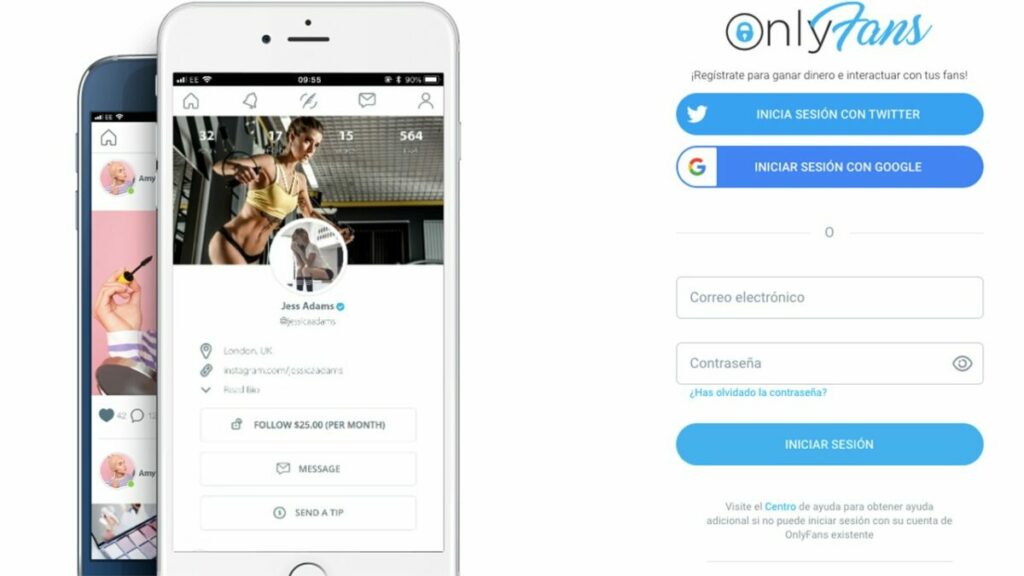
OnlyFans gained popularity during the covid pandemic and provided a means for many to create a source of income by sharing photos, videos, and other forms of content. Although it does have a reputation for adult content, this is not the only content you will find on OnlyFans.

Today, we’ll look at what OnlyFans is exactly, how it works, and the various functions you can use with your and others’ content.

What Is OnlyFans?

OnlyFans is a social media platform where content creators can share various forms of content. Their subscribers or fans then pay a monthly subscription to get access to their content. Fans cannot see any content unless they’ve paid the subscription to that content creator. Aside from the subscription fee, creators can also sell other items through the platform. This can include paid tips and private messages.

OnlyFans provides a safe platform where these creatives can connect with their fans. OnlyFans has also reported a 75% signup increase since March 2020, and although this is mainly due to the pandemic, the platform hasn’t shown signs of slowing down yet.

How Does OnlyFans Work?

To start using OnlyFans, you will need to be older than 18, and you’ll have to submit a copy of your identification to prove your age. You will also need to pay a monthly subscription ranging between $4.99 – $49.99 to whichever channel (known as OnlyFans) you decide to follow. 

There are five main pages on OnlyFans. Let’s have a look to see how each one works.

Home

This is your main feed on the OnlyFans platform. Here you will see a stream of content from the influencers you follow and are subscribed to. If you are not subscribed to a content creator, you will not see their content. At the top of the home page, you will find a search bar. You can use the search bar to find more influencers to start following.

Notifications

This is where you will see all of your notifications from the OnlyFans community. This includes any past interactions, posts you liked, creators you followed, any tips you left, and more. 

Create

If you want to be an influencer on OnlyFans, this is where you will upload and create the content you will be sharing with your fans. From here, you can add various forms of media or polls to your posts and start sharing them with your followers. Remember that you will have to add bank details before charging a subscription for any content you post.

Chats

This is where you can start direct messages with your contacts and fans. Take note, however, that certain content creators charge for the opportunity to connect via direct message. 

Menu

The menu slides out from the right of the screen. Here you will see your account details and the number of fans and followers you may have. You will also be able to see bookmarks, lists, settings, linked cards, banking details, and more from this menu.

What Is OnlyFans and How it Works

Who Uses OnlyFans?

OnlyFans can be used by anyone who has content such as photos, videos, or voice recordings to share with their fans, and it is a great platform to interact with your fans. Currently, the platform is used to share the following types of content:

  • Adult content
  • Makeup artists
  • Food influencers
  • Fitness instructors
  • Comedians
  • Live Vloggers
  • Musicians
  • Artists
  • More

A few celebrities also use OnlyFans to share teasers of upcoming events and connect with their fans. Some of the stars with OnlyFans accounts include:

  • Cardi B
  • Tana Mongeau
  • Bella Thorne
  • Farrah Abraham
  • Blac Chyna
  • Dorinda Medley
  • Larsa Pippen
  • Bhad Bhabie
  • Aaron Carter
  • Tyga
  • Amber Rose
  • Jordyn Woods

How to Join OnlyFans?

Registering with OnlyFans is just as easy as signing up with any other social media platform. The only difference is that you have to be over 18 years of age, and you will have to link a bank account or card details, depending on if you want to use your account to share content and make money or support influencers by paying subscriptions.

For Creators

Influencers on OnlyFan can create their accounts for free. You can choose to create an account with Twitter or by using your email address and password. Once on the platform, you can customize it by adding a background and profile photo. You can also describe what your OnlyFans is about.

To set your subscription fee, you must add your bank details and confirm that you are over 18. Once this information is verified, you can set your subscription fee and start uploading content.

For Fans

For those who only want to stay fans and support influencers by subscribing, you can register an account for free by using either Twitter or an email address and password combo. Once you’ve verified your email address, you can log in to the OnlyFans platform.

Before you can start subscribing, you will need to link a bank card to your profile that will be used to pay the subscriptions. Since this platform also contains adult content, you will have to confirm that you’re over 18 years old before being able to use the app.

What Is OnlyFans and How it Works

Bottomline

OnlyFans is a social platform where content creators and influencers can connect with their fans and share exclusive and private content. To see the content, users will have to sign up for a monthly subscription. Despite some negative connotations, the platform is growing in popularity and is being used by a wide range of content creators from various industries.

How to play MINECRAFT

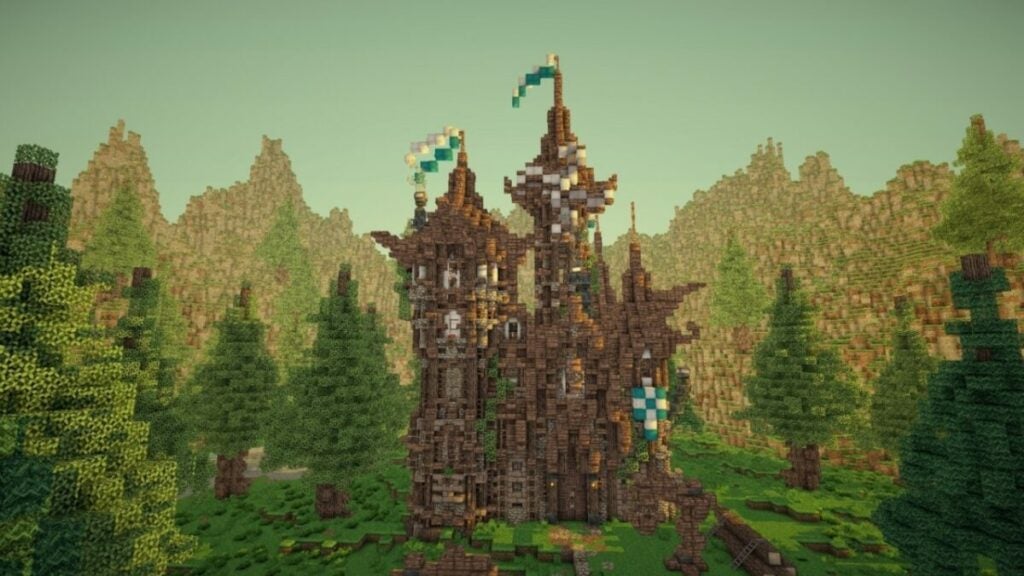
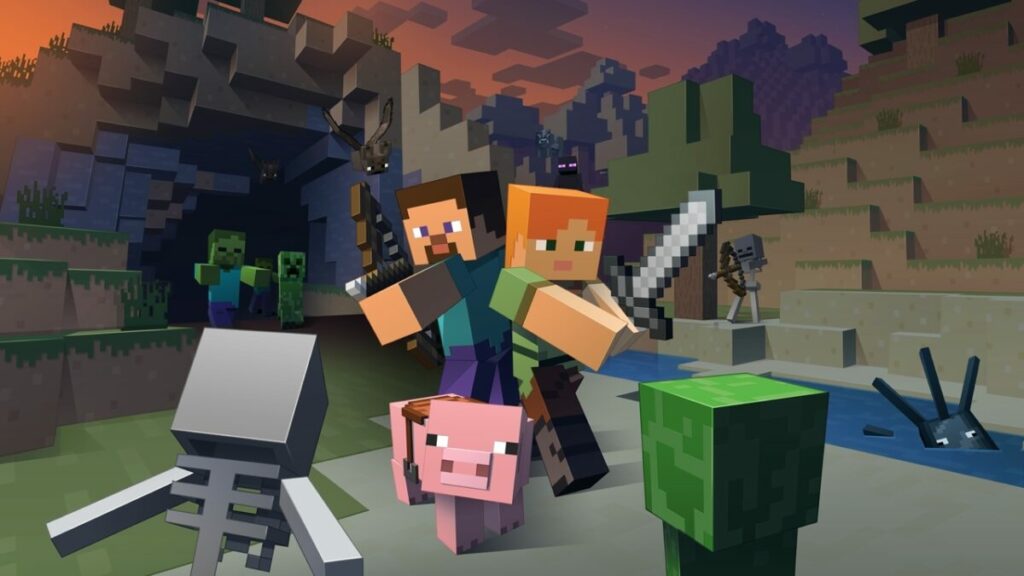
When it comes to casual sandbox games that let you craft for months with no real end in sight, Minecraft is certainly at the top of our list. With monsters to fight, animals to tame, and castles to build, just one look at it will make you wonder just what Minecraft is and how it works.

Well, you have the best seat in the house, as we’re about to go into detail on how to play Minecraft. We’ll show you how to get started, which aspects you should focus on as you progress, and how you can power up for the more advanced mobs. You’ll also find lists of the various versions available.

Minecraft DOWNLOAD IT
9
How to play MINECRAFT

How to play Minecraft Offline as a Single Player

We recommend you start playing Minecraft in single-player mode before you attempt trying it with other gamers. You can spend as much time as you need learning how the tools, mobs, and crafting work, giving the experience you need before you head out into the online world. 

Getting Started

The first step is purchasing Minecraft on a platform of your choice. We’ll cover these in more detail later. Suffice it to say that it’s available on computer systems in various versions, PlayStation, Xbox, Nintendo Switch, Android, and iOS. You can also get Minecraft free on the Xbox Games Pass for Windows 10 and 11.

The Main Menu

When you have the game and you’re ready to start, you’ll see the launcher on the screen. To play Minecraft offline, you’ll need to select Single Player. You’ll have several modes available from which you can choose, which we’ll get to in a second. 

For now, all you need to know is that you can create a new world with various settings. You can toggle different configurations, such as which biomes to include and how large the map is. There are some options that will deactivate trophies or achievements, which you can read about in the description pane.

Minecraft Creative Mode vs. Minecraft Survival Mode

The two most significant modes for playing Minecraft offline are Creative and Survival. For the former, you can select any blocks, mobs, or items you want to spawn immediately. Create freely as you wish, letting your imagination run wild. You can even fly around at will without any wings, and you can’t die.

When it comes to Minecraft Survival Mode, the rules are strict. You’ll need to survive each day while searching for the resources needed to build items. If you select easy mode, you won’t lose health or become hungry, and no enemies will spawn. Should you opt for harder settings, you’ll need to eat to keep your health full, and the creatures will appear at night to attack you on sight.

Other Modes

If you have a taste for the dangers, you can try Minecraft Hardcore mode. It’s the same as Survival, but you won’t respawn when you die, and mobs are harder to kill. 

Minecraft Adventure mode is more of a cheat system than part of the standard package and is reserved for online play. You can visit other players’ maps and embark on quests they set for you.

Finally, you have Minecraft Spectator mode, which just lets you visit other maps and float through objects. However, you won’t be able to interact with anything, and it’s mostly used for inspiration and YouTube videos.

How to play MINECRAFT

Your First Day in Single Player Mode

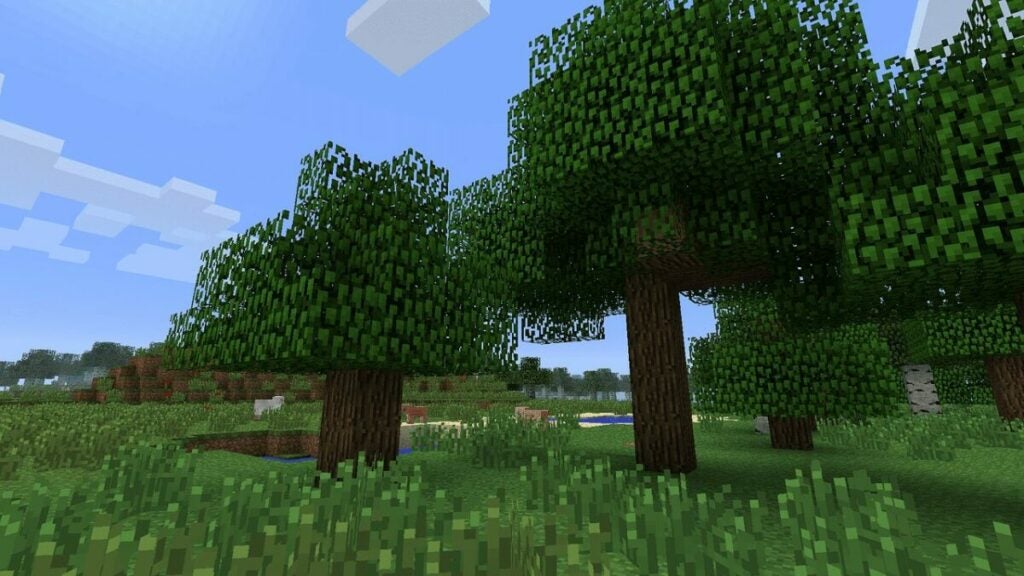
So, you’ve set up your Minecraft world, and you’re ready to explore. If this is your first time, you can access the tutorial that will show you the basics. It consists of hitting trees to collect wood so you can make a wooden ax. With this tool in hand, chopping trees is easier, and you can start crafting some essential objects.

Once you have the hang of wooden items, you’ll learn how to collect stone and make tools and weapons with that material. You’ll primarily work from a crafting table, but there are a few essential items you can create directly from your inventory menu. It always helps to carry a space crafting table with you wherever you go.

With the fundamentals out of the way, your first mission is to create a home to protect you from the monsters that will appear at night. You can start small, as you won’t have much time. Also, make sure you kill some sheep for their wool and meat, so you can build a bed to sleep in and eat to keep your health up.

If you’re playing Survival mode with the settings not on easy, you’ll notice your hunger going down. When you lose health, you’ll need your stomach full to regain hearts. Just cook some food in the furnace. At a more advanced stage, you can upgrade it to a smoker

Watch out for the Dark

As soon as the night sets, the monsters will appear. They’re afraid of the sun, but when there are clouds or rain, they’re more likely to remain when the dawn arrives. However, full sunlight will burn them unless they’re in the water or under shade. Should they die, you can run and collect the loot they drop.

Of course, you’ll reach a stage where you have armor and weapons. You can use these to kill the mobs at night, which gives you rare resources. You’ll also gain experience, which you can use to enchant objects with magical properties at a later time.

If you want to skip the night, you’ll need your bed to sleep in. Should there be any monsters nearby, you’ll be unable to rest. Another benefit of the bed is that you can spawn in your home when you die.

Gathering Resources

Now that you know the basics of how to play Minecraft offline, it’s time for you to set out on your own and conquer the world you created. As you collect more advanced resources, it lets you obtain items with higher levels of durability and value. For instance, an iron pickax enables you to gain gold and Redstone ore, while a diamond pickax gives you access to obsidian.

Here’s a detailed crafting guide for Minecraft, while you can also check out the following articles:

Farming and Taming Creatures

Two other essential elements in how to play Minecraft includes farming and taming. You can check out our Minecraft Farming Guide but, in essence, it helps you grow crops at home so you don’t need to spend daylight hours hunting for them. You can even create some Jack O’Lanterns for Halloween if that’s your thing.

Taming creatures helps you breed them to expand your cattle and stock, which gives you access to more resources like wool, leather, and milk. When you place fences around them, they won’t wander too far, and you won’t have to worry about mobs spawning in that space. 

Here are some more Minecraft guides for farming and taming:

Elements to Work Towards

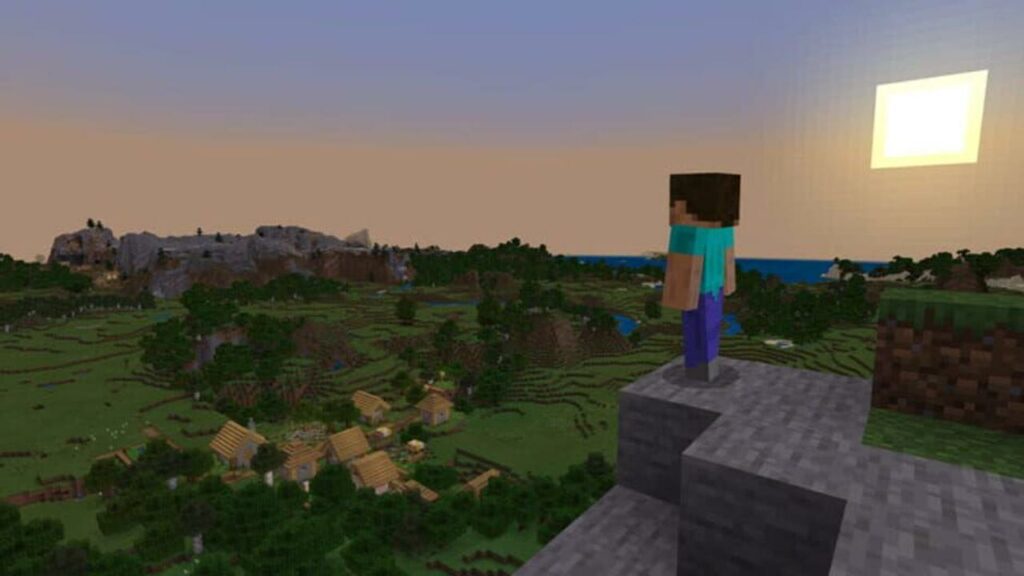
Minecraft isn’t merely about playing casually with absolutely no meaning at all. Besides the educational factors, there are some goals you can aim towards. For instance, you can build portals to other dimensions, such as the Netherworld and The End. You can also use these portals to teleport to different locations on the map.

When you kill the final dragon, in The End, the credits will roll as if you’ve completed the game. However, you can return to Overworld (the normal Minecraft world) and continue crafting and fighting as usual.

how to play MINECRAFT 6

How to play Minecraft Online in Multiplayer

While playing offline can be fun for several months, you’ll want to start playing Minecraft online with friends or other players. It works differently for PC and console, which we’ll cover here quickly. 

Playing Minecraft Online on Console

There are some funs modes available for console when you learn how to play Minecraft on PlayStation, Xbox, and Nintendo Switch. You won’t really need to fiddle with as many settings as with PC. All you do is connect your console to the internet, configure the basic options, and enter one of the lobbies.

You can play the Creative and Survival Minecraft modes with your friends locally or online. There are also mini-games that provide intense competitive fun.

Playing Minecraft Online on PC

When it comes to multiplayer on PC, you’ll need to create or join a Minecraft server. It’s not as simple as console, and there are various settings you need to customize. You might also need to use a virtual private network in some instances.

Here are some guides you can look at:

How to play MINECRAFT

Various Versions of Minecraft

There are plenty of Minecraft versions available, depending on which platform you use. This section lists them under different categories based on the type.

Platform and Story Editions

These Minecraft games are versions of the original title. While most of these are self-explanatory, we’ll add some notes for those that need some more information.

  • Minecraft Classic: the original, vanilla edition without all the add-ons and frills.
  • Minecraft Bedrock Edition: the latest version that’s compatible with Windows 10, 11, and consoles.
  • Minecraft PC
  • Minecraft Xbox One / 360
  • Minecraft PS5 / PS4 / PS3
  • Minecraft Nintendo Switch
  • Minecraft Pocket Edition: made for mobile devices
  • Java Minecraft: supports cross-platform play between Linux, Windows, and macOS

Special Editions

There are also special editions of Minecraft not made by the original developers or have a unique twist to them. 

  • Minecraft Dungeons: dungeon crawler, hack-n-slash version of Minecraft with no open-world setting
  • Minecraft Story Mode: a detailed story mode over several parts where you only get to make choices on how the story unfolds
  • Minecraft Earth: augmented version started in May 2019 and closed in June 2021
  • Lego Minecraft: Lego kits with blocks that you can build in the real world
  • Educational Minecraft: The Minecraft Education Edition servers to aid schools in using the same crafting systems to teach children some fundamental lessons.

Communities, Mods, and Skins

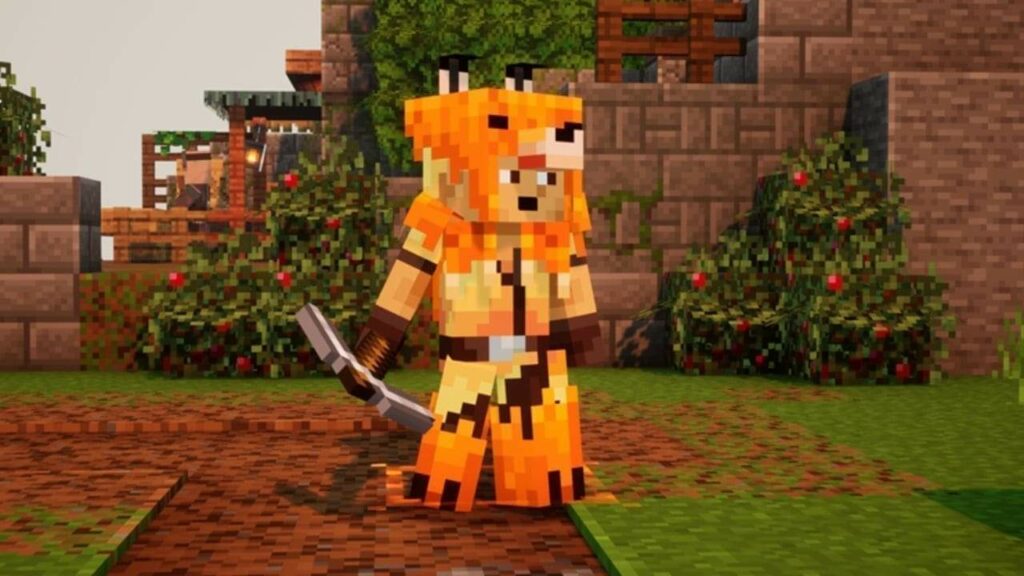
Finally, there are plenty of mods and skins you can add to Minecraft for a more enjoyable experience. These primarily work on PC versions, but you can buy modded packs for consoles that are easy to add. We’ll provide a few of the top examples, but there are plenty more you can look at.

  • Planet Minecraft:  a community of Minecraft gamers that provides skins and items
  • Minecraft Pokemon 
  • Minecraft Jurassic World
  • Minecraft Hunger Games
  • Minecraft Super Smash Bros Ultimate
  • Minecraft Jenny Mod
  • Minecraft Factions
  • Skindex Minecraft
  • Minecraft Optifine

Be sure to check out our guides for how to install Minecraft mods and install skins in the game.

How to play MINECRAFT 5

Other Minecraft Guides

Before you leave, there are some other guides you should look at to enhance your Minecraft experience. They may assist you if you find that you’ve played an outdated version, or you want to change your character details.

An enjoyable crafting experience

As you can see, there’s a whole universe out there when it comes to playing Minecraft. You can either stick to the single-player experience or take it online with friends and family. Either way, you’ll love all that the various games have to offer.

What Is Excel and How it Works

Microsoft Excel is a strong spreadsheet program that helps you analyze and understand your data. Excel forms part of the Microsoft 365 suite (previously called Office 365) and remains one of the most popular spreadsheets to use.

Sometimes it seems that there is nothing Excel can’t do with your data. If you need to merge two sheets with similar data, Excel can do it. If you need to work out complex budgets and financial plans for your business, Excel can do it. If you have to do a simple calculation, Excel can do it. 

What Is Excel?

Excel is a powerful software used to analyze data and documentation. It is a spreadsheet program that consists of several columns and rows. So, what is a cell in Excel? The block formed by each intersection is known as a cell. In basic principle, each cell contains one piece of data or information. Arranging information in this way makes it easier to find specific data and manipulate or analyze it using functions and formulas.

Microsoft Excel DOWNLOAD IT NOW
9

Your Windows PC will require 4GB RAM and 4GB available disk space to run Excel efficiently. On Mac, you would need 4GB RAM and 10GB of open disk space. You will also have to buy the Microsoft 365 bundle, which includes a few other Microsoft products. You can use the web version of Excel Online for free via their website, but it is more limited than the full version and requires a stable internet connection.

Excel’s Main Features

Let’s have a look at a few of Excel’s main features.

Spreadsheet Cells and Cell References

When you look at the spreadsheet, you will see a grid. This grid consists of a number of columns and rows. Cells are the intersection where the columns and rows meet. The horizontal rows are identified by numbers, whereas the vertical columns are identified by letters of the alphabet. This makes identifying the cell with your information easier as it will be located on the column and row intersection, ie. B7 or E12. This is known as the cell reference and points to the information found within the cell at the intersection of that row and column.

Data Type, Formulas, and Functions

Cells can contain the following types of data:

  • Numbers
  • Text
  • Dates
  • Times
  • Boolean Values
  • Formulas

Formulas are used for calculations and usually use values from other cells or even other workbooks or spreadsheets. There’s a multitude of formulas that can be used in Excel. From simple addition calculations (SUM) or more complex IF-functions. They all have their part in analyzing the information in spreadsheets.

To start a formula, you must type the equal sign (=) into the cell where you need the answer displayed. This indicates to the program that you will be entering a formula. You can include cell references in these formulas if you need the program to take the information from that cell.

Functions and formulas in Excel have a specific format, and these are built into the program. There is a wizard to help guide you in using these formulas. By using them, you will unlock a whole new world of data interpretation. 

Sorting and Filling

Excel also makes it easy to sort and fill large amounts of data. Once you’ve entered all your data, you can choose to sort it to make it easier to find the information you are looking for. How you sort data in Excel depends on what you need to use the data for. For example, suppose you are working with staff. In that case, you may choose to sort the information alphabetically according to staff members’ names, or you might prefer sorting it according to when the employees started at the company. To sort your data in Excel, you right-click on the column you want to be sorted and choose how to sort the information.

Autofill is also easy enough to do, and Excel recognizes patterns which makes it very convenient. Say you want to allocate a number to each entry. You can type the number into the appropriate cell. Then click on the cell and hover in the bottom right corner with your mouse pointer. You will see a handle appear. Now click and drag across the columns you want to fill, and the program will automatically fill them. 

Graphs and Charts

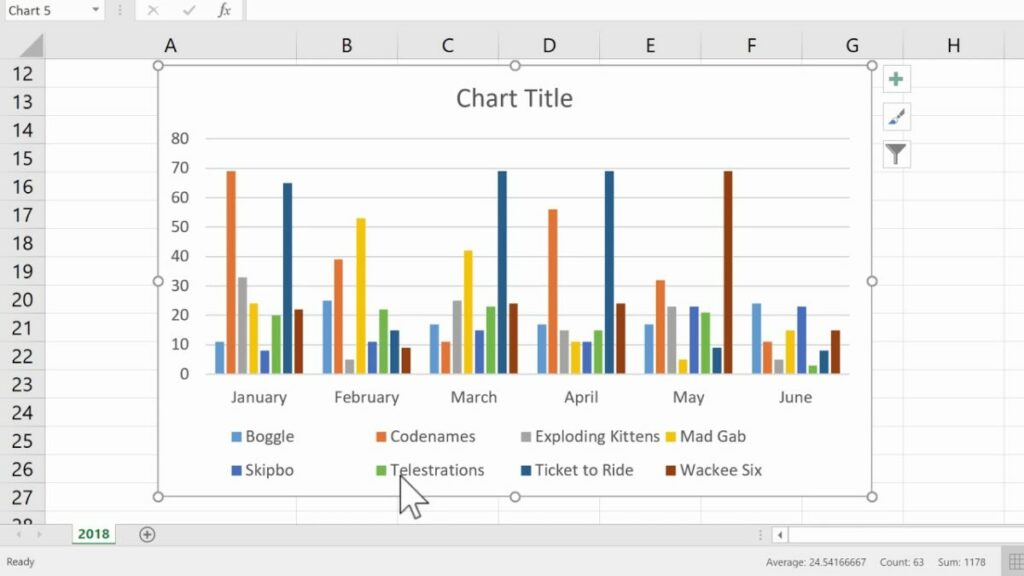
Microsoft Excel also lets you add charts and graphs to your spreadsheets. This is a great way to present the data in a visual manner that is easier to understand. You can use the information collected in your spreadsheet and incorporate them into your chart or graph. There are many different types of charts and graphs, ranging from super simple bar graphs to more complex comparative 3D graphs.

What Is Excel and how it works

What Is Excel Used For?

Excel is used to store, organize and analyze data. It can be used across all business functions in companies ranging in size. Here are some of the primary uses of Excel:

  • Data entry and storage
  • Data management
  • Accounting and financial analysis
  • Charting and graphing
  • Programming
  • Time and task management
  • Financial modeling
  • Customer relationship management
  • More

Excel and Financial Data

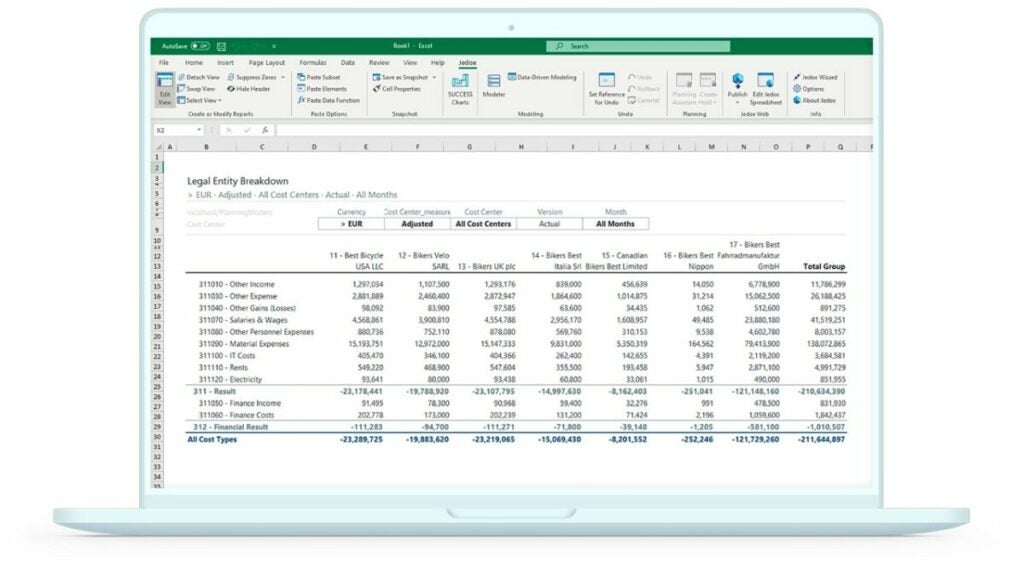
One of the most popular uses of Excel is working with financial data. Whether that means accounting, financial analysis, or financial modeling, Excel is a handy tool. A spreadsheet can be used to calculate profits and losses or repayment plans for loans and mortgages. This program can also be used to find statistical values in a range of data; this can be averages, maximums, or minimums.

Other Uses of Excel

Here are a few other uses for Excel that you might not have thought of:

  • Graphs and charts can be used to identify trends.
  • You can format data to make sure the important information becomes apparent.
  • Spreadsheets can be used in reports and presentations.
  • You can sort and filter data to find the information you are looking for.
  • You can link worksheets and data between programs such as Excel and Word.
  • You can import data from other sources for analysis.
What Is Excel and how it works

Guides, Tutorials, and Tips to Get the Most Out of Microsoft Excel

Now that we’ve explained what Microsoft Excel is and what it can be used for, we’d like to share some tips and tricks on using Excel.

Excel is a very powerful tool when it comes to collecting, storing, and analyzing data. It has many uses, from calculating complex mortgage repayments to setting up a personal budget and even creating charts for business presentations. 

What is your favorite use of Excel? Let us know in the comments if you have a favorite use of Excel.

What Is WhatsApp and How it Works

WhatsApp is a free, multi-platform messaging app that lets users send messages, voice recordings, and voice or video calls. WhatsApp has gotten so popular and is currently one of the largest chatting app globally because it was one of the first services that offered free internet-based messaging. This means you don’t have to rely on text messages that may charge you for cellular data usage.

To use WhatsApp, you only need to have a smartphone, an active sim card, the WhatsApp application, and an internet connection. You can download WhatsApp on most mobile devices such as Android and iOS. It is also available in your web browser and as a desktop version.

What Is WhatsApp and How it Works

What is WhatsApp?

WhatsApp is a free messaging app that uses the internet to send text messages, images, audio, and calls (voice and video) that is owned by Facebook. Not only is the messaging app free to use, there are also many other features available that are lacking in the native messaging services.

WhatsApp Features

Free International Calls

WhatsApp can put you in contact with loved ones from all over the world via the internet. This means you can connect with those living near and far simply and easily without having to fear a huge telephone bill.

Easy Way to Chat and Call Over Most Platforms

WhatsApp is not device-specific and is available across all operating systems. This makes it easy to connect with other users who have a different operating system such as Android, iOS, or others. 

Security and Privacy Protection

WhatsApp has many security and privacy features to keep your data secure. One of these features is end-to-end encryption. This encryption means that only the sender and recipient can see the information being sent. Not even WhatsApp has access to your messages.

Customization

WhatsApp offers users many different ways to customize the app. You can set individual backgrounds, notification tones, custom avatars, and ringtones. You can create groups where everyone can text together. You can also host group video calls with up to eight people. WhatsApp also released a business version, WhatsApp Business, which lets you add a catalog with product prices and more.

Desktop and Web Version

WhatsApp has a desktop and web version. The desktop version can be downloaded and installed on your computer and linked to your mobile devices with your WhatsApp account. Similarly, the web version also connects with your mobile device but works from within your browser.

Disappearing Messages

This is one of the newer features available. What are disappearing messages on WhatsApp? Just what the name suggests, these are messages that disappear after the recipient opens them. This is a great way to send sensitive or confidential information.

What Is WhatsApp and How it Works

How Does WhatsApp Work?

To get started, you will have to download WhatsApp to your mobile device. You will then have to create an account with your name and phone number. Your phone number will be used as a username, and your account will be linked to your mobile number. So if you’ve ever wondered what is my WhatsApp number? It is the same as your cell phone number. If you don’t want to use your personal number, there are options to register the account without a phone number.

How Does WhatsApp Work on Your Phone?

Once you’ve created your account, you can use it by tapping on the app icon or a notification in your notifications window. From within the app, you will see all your contacts available on WhatsApp, your conversations, your groups, and more.

How Does WhatsApp Work on Your Desktop?

You can either download and install the desktop version or use WhatsApp Web. You will have to link your accounts by scanning the QR code on the desktop with WhatsApp on your phone (found under settings, then ‘Linked Devices’ and the ‘Link a Device). Now you will see all of your WhatsApp messages, conversations, and groups on Desktop.

What Is WhatsApp and How it Works

The Basics of Using WhatsApp

Let’s take a look at some of the basics of using WhatsApp.

How to Send Messages in WhatsApp?

Sending messages in WhatsApp works very similarly to any other messaging platform. You will need to open the app on your device. Then scroll down to the person you want to message. If this is the first time you are contacting them, you will need to start a new chat by tapping on the green and white message icon at the bottom right of the screen. This will give you the option to start a group, add a new contact or choose the person you wish to message. Next, you type your message and tap on the green arrow to send the message.

How to Send Voice Recordings in WhatsApp?

To send a voice recording works very similarly, except that you press and hold down the mic icon instead of typing your message. While holding down the icon, you record your message, and when you let go, the voice note will be sent. If you’re unhappy with the recording or mess up, you can just swipe your finger right to delete it.

How to Make Calls on WhatsApp?

You can make both voice and video calls on WhatsApp. To make calls, you tap on the person or group you want to call. Once in the conversation at the top of the screen where the person’s name or group name is displayed, there will be a video camera and telephone icon. By tapping on the video camera, you will start a video call. Video calls are limited to eight participants at a time. If you tap on the telephone icon, you will make a voice call. Voice and video calls can only be made from mobile devices and not WhatsApp’s web or desktop versions.

What Does the Double Grey or Blue Ticks Mean in WhatsApp?

The ticks in WhatsApp represent the status of the message. 

✓ – Message sent

✓✓ – Message received in recipients inbox

✓✓ – Message opened by the recipient

When you send a message, you will see one grey tick appear to show that the message has been sent from your side; another grey tick will appear when it lands in the recipient’s inbox. The ticks will turn blue once the recipient has opened the message. It is possible to deactivate this setting. In that case, the blue ticks that show someone reading/opening the message will not appear, and you will continue to only see the two grey ticks.

How to Backup WhatsApp?

WhatsApp has a useful backup feature so that you can save your conversations and restore them in case of an issue. This is also useful when changing devices as you can restore your WhatsApp from the backup. You can access your backup settings from the setting menu. Here you can manually backup or choose how often WhatsApp should automatically backup all chats.

How to Download and Transfer WhatsApp Data?

Your WhatsApp is linked to your cell phone number, this means that downloading and transferring data between an old and new phone (with the same operating system) is very simple. You just backup your WhatsApp chats on your old device. Now switch the sim card to your new phone. Download and install WhatsApp to your new device. When you open the app it will verify your number and ask if you want to restore your backup. Tap on this option and wait for the process to finish. Once done you will see all your messages on your new device.

Unfortunately, if you want to transfer WhatsApp data from an Android device to an iPhone, it is much more difficult as the cloud storage format of the backup files is different. In order to do this you will need to use third party software. 

How to Block Someone on WhatsApp?

Sometimes you get to a point where you no longer wish to communicate with a specific contact. In certain cases, it might even be necessary to block that person completely. WhatsApp has an easy to use blocking feature

All you need to do is go into the conversation with the person you want to block. Then tap on the three vertical dots to access the menu. At the bottom of the menu, tap on ‘More. Now you’ll see a new menu where you can tap on ‘block’. Once you’ve done this, you will receive no new messages or notifications from this contact. However, if you are still included in any groups with this contact, their messages will still show in that group chat.

Protecting Your Privacy on WhatsApp

If WhatsApp is used responsibly it is just as safe, if not more secure, as other messaging platforms. Since it has end-to-end encryption you can rest assured that no-one else will see the messages you send, except for the person you’re sending them to. Not even WhatsApp or their owners, Facebook, can read you messages. Despite this, there is certain personal information that is visible to everyone. This includes users seeing when last you were on WhatsApp, your profile photo and your ‘About Me’ information. 

The only way to stay 100% safe is to be offline. While this is not always an option, there are other things you can do to protect your privacy. You can see and change the privacy settings from within the app. Simply go to ‘Settings’, and then navigate to ‘Account’. Now you can tap on ‘Privacy’ and see what the settings are. By default your ‘Last Seen’, ‘Profile Photo’, ‘About’, ‘Groups’ and ‘Status’ is visible to everyone. You can change these settings to increase your privacy on WhatsApp.

You can check out our tricks for staying offline on Whatsapp.

What Is the Difference Between WhatsApp and Regular Texting?

The biggest difference between WhatsApp and regular texting is that you need a mobile telephone account to use texting and will be charged for each text sent. WhatsApp uses the internet, so you won’t be charged as long as you have access to Wi-Fi. 

Another difference and disadvantage of using WhatsApp are that regular texts can be sent to any device regardless of their messaging system. In contrast, you can only send WhatsApp messages to others who have the app installed.

Guides, Tutorials, and Tips to Get the Most Out of WhatsApp

Now that we’ve covered some of the basics, here are some of the top tips and tricks to help get you using WhatsApp and making the most of this popular chatting platform.

WhatsApp is a very convenient and user-friendly chatting app that is free to use as long as there is a Wi-Fi connection. We hope this guide to WhatsApp has helped you learn the basics of using this popular chatting app. Do you know of any other WhatsApp tips that we should add to the list? Leave us a comment and let us know.

What Is Gmail and How it Works

Gmail is a free email client provided by Google. It works similarly to any other email client. You can send an email, receive and respond to email, block spam and potential threats, create an address book and perform other email tasks. However, Gmail also offers quite a few other features that make it one of the most popular email clients around. 

Gmail works from within your browser. You can log in to your Gmail account from most devices and browsers without needing specific requirements. However, users have reported better results in Chrome, Firefox, Windows Edge, and Safari browsers. 

In this guide, we will be covering what Gmail is, how it works, and the features that make it such an excellent free email service.

What Is Google Gmail?

Gmail is used to send, receive and respond to emails. As such, it is an email client that not only offers basic email tasks, but also many innovations to make sending and receiving emails easier. You can also personalize your Gmail account for a nice touch.

Gmail’s Features

Here’s a list of the top Gmail features you can use.

Gmail Notifier

Gmail Notifier is a handy little app that you can download on your PC. Once enabled, it will check for new emails every two minutes and notify you without accessing your browser.

Mail Fetcher

This feature allows you to fetch emails from up to five other accounts and download them to your central Gmail account. This makes it easy to stay on top of your emails if you have multiple accounts. 

Contact Groups

What is Google Contacts? This is your address book in Gmail. Gmail has a handy feature that allows you to group contacts to send emails to the entire group.

Security and Spam

Gmail is very security conscious. Every email is run through a virus scan as it enters your inbox. Attachments are scanned twice. Suspicious emails are automatically sent to your spam folder. You may be wondering what is spam in Gmail? Spam is any unwanted sales, promotional, or potentially harmful phishing emails that you don’t want.

Parental Controls

Children under the age of 13 need parental consent to create a Gmail account. Parents can also set filters to block unwanted or inappropriate emails from reaching your child. 

Other innovative Gmail features include:

What Is Gmail and How it Works

How Does Gmail Work?

Gmail is used for receiving and sending emails via POP (Post Office Protocol) and IMAP (Internet Message Access Protocol). To start using Gmail, you will have to create a Google Account. This Google Account links you to all of Google’s services such as Drive, Google Docs, and YouTube. Signing up for a Google Account is free, and during the process, you will also create your Gmail email address.

The Basics

Sending an Email

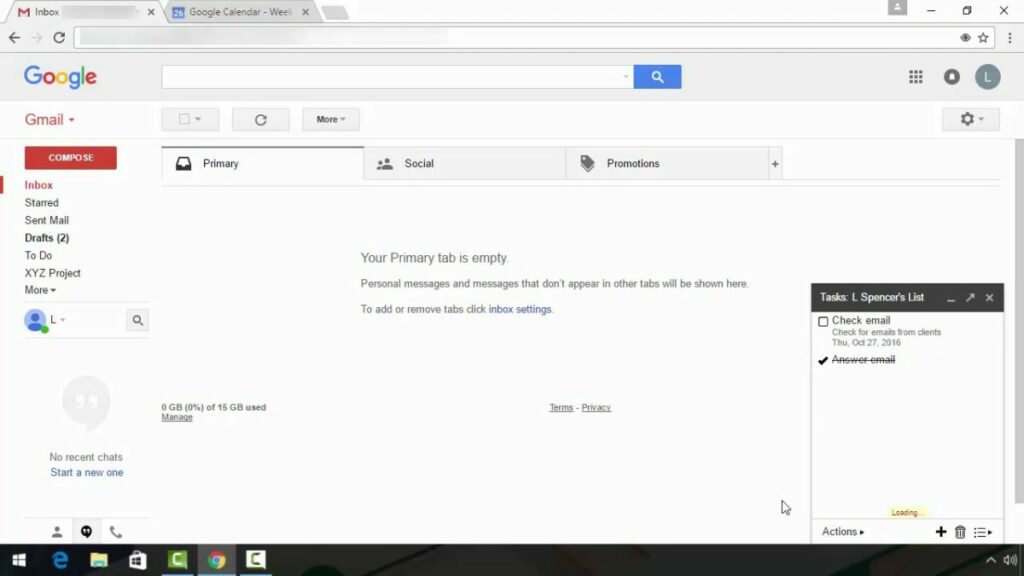
Click on the ‘+ Compose’ button on the left side menu to send an email. A new email tab will open where you can start writing your email. Add the recipient’s email address and any other addresses you want to ‘cc’ (carbon copy) in the email.

You can also use ‘bcc’ (blind carbon copy) to include someone in the email but not have them visible to other recipients. There’s also an option to schedule an email in Gmail if you don’t want to send it immediately.

Receiving and Responding to an Email

New emails will come into your inbox and usually lie right at the top. To read a new email, you just click on that email thread to open it. At the bottom of the email, you will have the option to reply to the email or forward it to someone else.  If you’re looking for a specific email, you can use search parameters to find it.

Using Attachments in Gmail

Attachments can be in the form of extra documents, photos, images, or other files. The attachment will usually show at the bottom of the email and can be clicked upon or downloaded.

To add an attachment, you click on the paperclip icon when composing your email. You can add up to 25MB attachments in Gmail, files larger than that can be sent as a Google Drive link. We have a trick for how to find attachments in Gmail.

Archiving in Gmail

What is an archive in Gmail? This is a way of moving emails you’ve tended to out of your inbox without deleting them. This way, they don’t clutter your inbox, but you can still access them when you need to. There are plenty of ways you can clean your Gmail inbox, and this is one of them.

What Is Gmail and How it Works

More Gmail Guides

Now that you have a basic idea of what Gmail is and how it works, take some time to read some of our other guides:

What Is the Difference Between Email and Gmail?

Many people wonder what the difference is between email and Gmail. Email stands for electronic mail, whereas Gmail stands for Google mail. So basically, email is a form of electronic mail, and Gmail is an email client used to exchange these emails.

Emails are sent through email clients such as Webmail, Yahoo, and Gmail. Since its founding in 2004, Gmail remains one of the most popular free web-based email clients available. Just remember to keep it updated to take advantage of new features.

What is HANGOUTS / GOOGLE CHAT and how it works

Google Hangouts is an easy way to stay in touch with all the people synced to your account. It’s a free social service that lets you communicate by sending text messages, pictures, videos, and emojis. You can send messages to people whether they’re online or not and host free group video calls for up to 10 people at a time. 

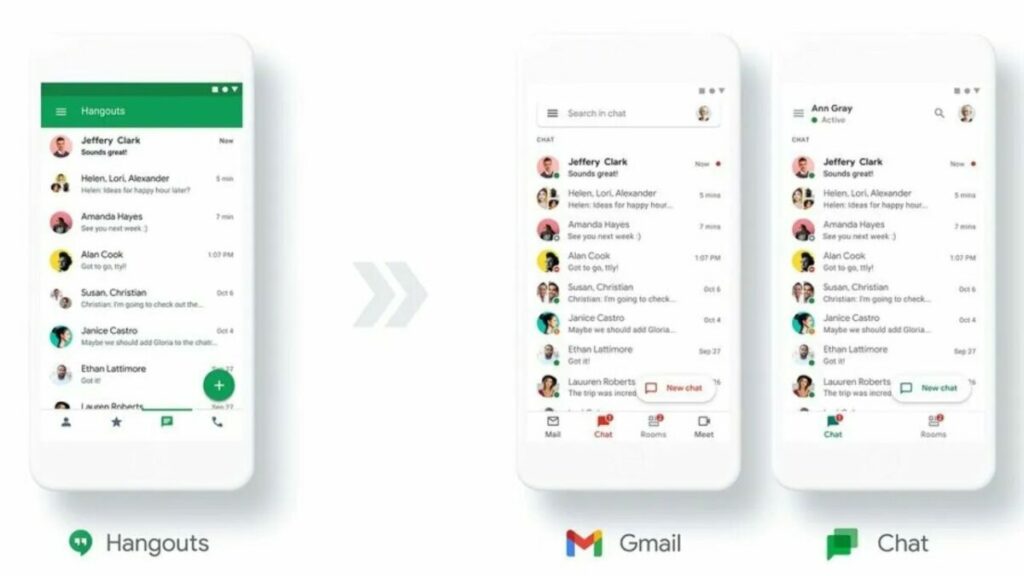
Hangouts is a simpler free version of Google Chat and Google Meet designed for individuals rather than businesses. You have to pay a monthly fee to use Google Chat and Google Meet, but Google Hangouts is free. 

What’s Google Hangouts used for?

Hangouts is a social and communication service you can access on any of your devices as an app. You can also use it on your computer using the Chrome extension. Hangouts is part of Google’s suite of online apps that include Signal and WhatsApp. Google Hangouts is an all-in-one communication tool that you can use at home or when you’re out on various devices. If you have an account on any other Google service like YouTube or Gmail, you’re set to use Hangouts.

What is HANGOUTS  GOOGLE CHAT and how it works 2

How Google Hangouts works

When you open a new message, Google Hangouts shows you a list of everyone online and therefore available for a call or chat. The Google Duo icon also allows live feeds from the user’s camera. Chats are an easy way to communicate with friends.

If you want to chat with a friend, all you have to do is type their email address or name in the search bar and send them an invitation. You can add people to your chat by clicking on the plus icon at the top of the chatbox. To send a photo to everyone in your group, click the image icon. 

To make a video call, click the video call button, and a window will pop up. You can use in-call messaging to share notes, photos, and links. 

This app will sync your chats and update your messages to all your devices. 

Useful features 

You can send messages to people even when they’re offline. You can tap on their name, write something in the text box, and hit ‘Send’ without worrying if they’re busy with other things. You can snooze your notifications. This prevents distractions while you’re busy.

You can also make phone calls using Google Voice, send text messages or check your voicemail. Google has added a new feature to let users see the history of your conversations. Called Hangout History, it saves all your conversations on Google Drive for easy access.

What is HANGOUTS  GOOGLE CHAT and how it works 2

Using the Chrome extension 

The Hangouts Chrome Extension on browsers like Firefox or Safari gives you access to everything available in an instant messenger. This includes screen sharing, voice chat, and video calls. 

If you want to install Hangouts on your computer, you’ll have to download the Hangouts Chrome extension. If you click on ‘Add to Chrome’, the extension will open automatically.

The history of Google Hangouts

Google Hangouts was launched in 2013 to replace Google+ Messenger and Google Talk and combine all its calling and messaging services. Google Hangouts now competes with other popular apps like WhatsApp and Facebook.

Is Google Hangouts safe?

Google Hangouts is safe to use. Messages sent and received and calls are encrypted, so your privacy is protected. To protect your own safety, only answer messages and calls from people you trust.

What is HANGOUTS  GOOGLE CHAT and how it works 2

The best and worst of Google Hangouts

Pros

  • The interface is easy to use
  • You can sync chats and contacts across many devices
  • You can integrate Google Voice
  • Excellent default security settings 


Cons

  • Connections are sometimes unclear
  • Video quality can vary

Summary

Google Hangouts is perfect for people who want an easy way to chat with family and friends. It’s easy to understand and use. It has everything you might need for communication without lots of extras that would make it too complicated. 

Google Hangouts is completely free. All you need to use the app on any of your devices is a Google account. Just remember that it’s designed for personal use. There’s a monthly charge for other business-orientated communication apps like Google Chat and Google Meet.

What is Savefrom.Net Helper, and how does it work?

There are many video downloaders available online these days, and many of them are sketchy and can’t be trusted. One web solution that also serves as an extension on Google Chrome is Savefrom.Net Helper, which also works with links that you can use on your PC or mobile device.

We’ll quickly show you its main features and how you can use them.

What is Savefrom.Net Helper?

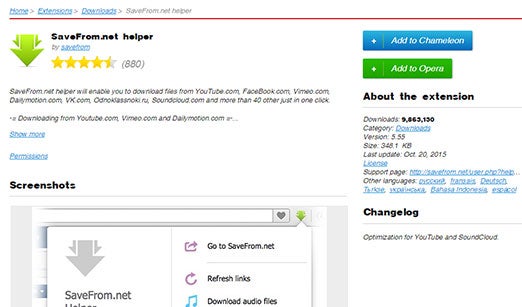
Savefrom.Net Helper is a free, open-source web tool that lets you download videos from various sources, such as YouTube, Facebook, Vimeo, VeoJam, TikTok, and other sources. It has an easy-to-use interface where you can paste a link to access the video, or you can install the extension on your browser to quickly download it.

There are various formats it supports in standard and high definitions. The most popular one you’ll save it as is MP4, but you can select the quality you’d like. For instance, you can save it as 2K, 4K, or any lower quality videos. However, it depends on the source file you’re downloading.

How does Savefrom.Net Helper work?

There are a few steps you need to follow to use Savefrom.Net Helper effectively from the website. Here’s how it works:

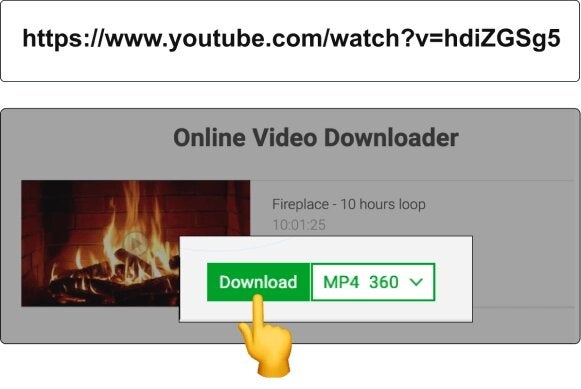
  1. Find the video you want to download on your PC or mobile device
  2. Copy the URL of the video, or the page if the first option isn’t available
  3. Paste the video URL in the input field on the Savefrom.Net Helper site
  4. Select the video quality you’d like, and click on Download
  5. Save your file in an appropriate folder so you can find it again

Another option is placing “sfrom.net/” or “savefrom.net/” before the video’s URL in your search engine, and Savefrom.Net Helper will provide you with the download link for the file. We prefer using the steps above, though, as we feel it has better functionality.

What is Savefrom.Net Helper, and how does it work?

How to use Savefrom.Net in Chrome

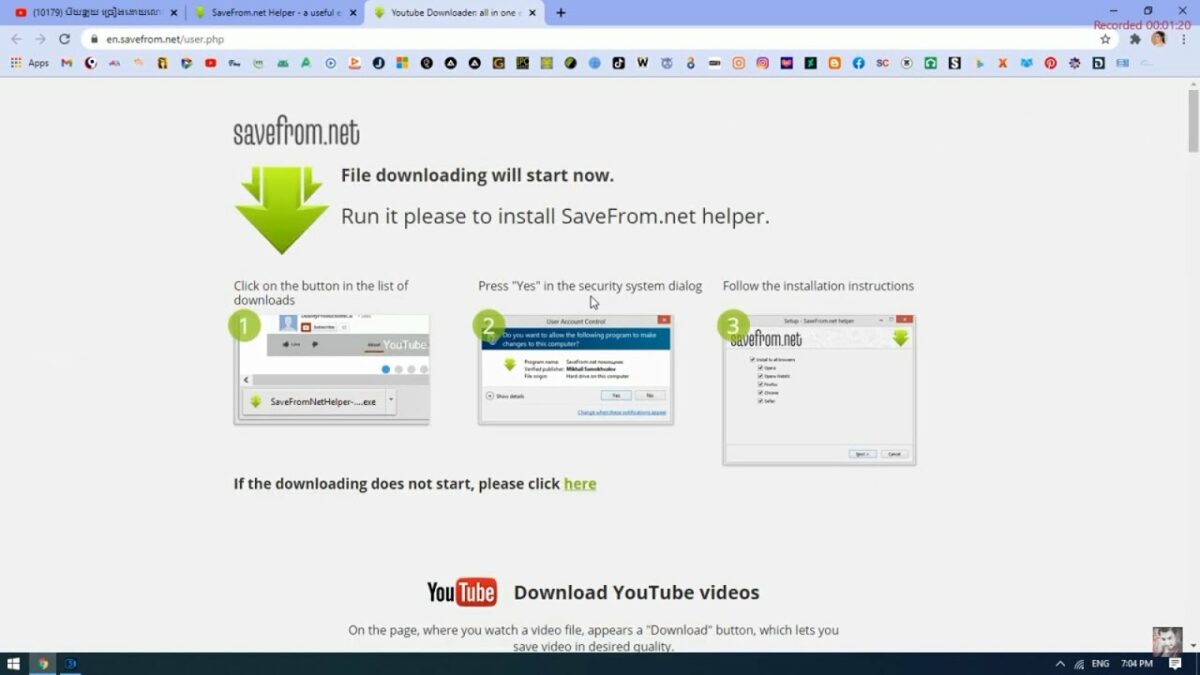
If you’d prefer a quicker version, you can use Savefrom.Net Helper as an extension on your browser. The ones it works with include Google Chrome, Safari, Opera, Mozilla Firefox, and all Chromium-based browsers. 

Once installed, you’ll see a download button under any compatible videos you come across on the internet. When you click on it, you can select the quality you want, and then it works the same way as the Savefrom.Net Helper site.

What is Savefrom.Net Helper, and how does it work?

Is Savefrom.Net safe to use?

At first glance, Savefrom.Net Helper doesn’t appear to have any harmful viruses or malware. If you’re using an antivirus solution like NordVPN or Avast as examples, it may pick up the site or links as adware. While they shouldn’t do any harm to your computer, we still recommend practicing caution.

Another factor we should mention is that it aggressively uses adverts due to its free nature. It’s these ads you should be cautious of, as it’s hard to tell if Savefrom.Net Helper uses any security mechanisms to ensure that they’re safe.

Download videos with ease

Now that you know what Savefrom.Net Helper is and how it works, you can go ahead and give it a try. Choose a video as a tester first and see if you manage to obtain the file safely without any harm to your PC. From there, the online video world is your oyster!