App of the Week – DiRT Rally

Softonic’s App of the Week highlights some of the coolest, most unique, and popular apps that have been released for Android, iOS, Windows, and Mac. This week’s we are looking at developer Codemasters’s latest installment of its off-road racing series DiRT Rally.

The release of this game on to Steam’s Early Access caught everyone by surprise, dropping completely unannounced onto the store. As an Early Access title, the game isn’t technically finished, and purchasing it now at a reduced price ensures you get the final version and regular updates along the course of its development.

Even though there is still more to come, that hasn’t stopped Codemasters squeezing a decent amount of content into this initial release. There are 17 cars on offer, and 36 stages across three locations – more than enough of a taste to keep you hooked until the next update.

Oh, and it looks stunning. For more on DiRT Rally, check out why this is the rally game we’ve been waiting for.

Download DiRT Rally

Related Stories

DiRT Rally is the rally game we’ve been waiting for

DiRT Rally preview

App of the Week: Grand Theft Auto V

Follow me on Twitter: @DoFuss

The best free photo editing apps

Not everyone has the technical capacity or the money for Adobe Photoshop. Although it is still the industry standard image editor on the market, there are actually a ton of free alternatives that may not be as technically advanced, but are pretty comparable and great for everyday use.

Below are some of the best free photo editors for Windows and Mac OS X that will help you make the most of your photos, whatever your abilities.

GIMP: the free photo editor for pros

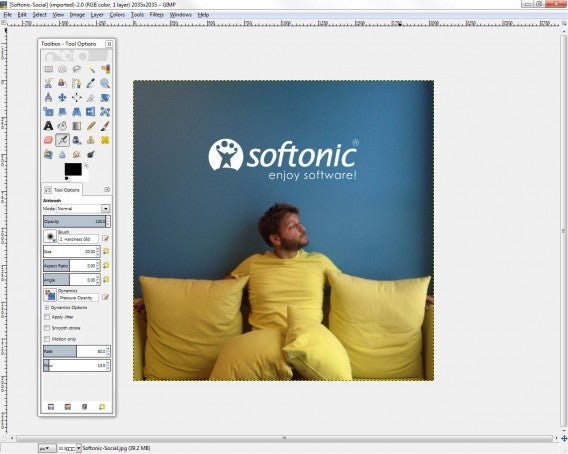
GIMP is the most comparable free alternative to Photoshop, because of its extensive and advanced editing options. From basic fixes like cropping and airbrushing, to more advanced things like creating gradients and nested layers, GIMP has almost anything you’d want in a photo editor.

When you open a photo, it’ll pop up in a single window with the GIMP toolbar and all its options in a separate window. This toolbar gives you all the most basic image editing options for easy access, and more options are accessible in the top drop down menus. Each image you open will pop up its own individual window, although there’s also a single-window mode, which makes managing all the floating windows a bit easier. The interface is now fairly simple, something which has drawn criticism in the past. For a twenty year old open-source program, it makes for a pretty straightforward user experience (as long as you know what you’re doing).

GIMP

Beginners might have a hard time maneuvering themselves around all the editing options, but if you are looking to learn a bit more about photo editing without dipping your toes (and wallet) into Photoshop, GIMP is your best bet.

Download GIMP for Windows | Mac

Paint.NET: if you just need the essential Photoshop tools

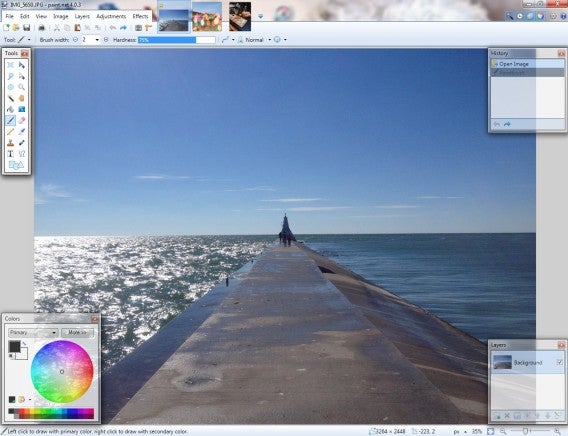
Starting life as an alternative to Microsoft Paint, Paint.NET now has so many features and functionality it’s pretty much like a lightweight Photoshop. While it’s features aren’t as extensive as those in GIMP, Paint.NET still has all the essential photo editing tools you’d need for photo editing and optimization, like color correction, contrast, sharpen, and blur. It’s also got a few extras, like special filters that make your photos look like pencil drawings or oil paintings, for example.

PaintNET

One of it’s biggest advantages is that you can work on multiple images at a time, with a preview tab feature that lets you easily swap back and forth between photos. It’s also layer-friendly, so you can easily manipulate sections of images.

Similar to GIMP, it’s got a really simple interface, but its layout with toolbars and boxes for layers makes it easy to dive right into editing.

Download Paint.NET for Windows.

Photoscape: a great set of editing tools for beginners

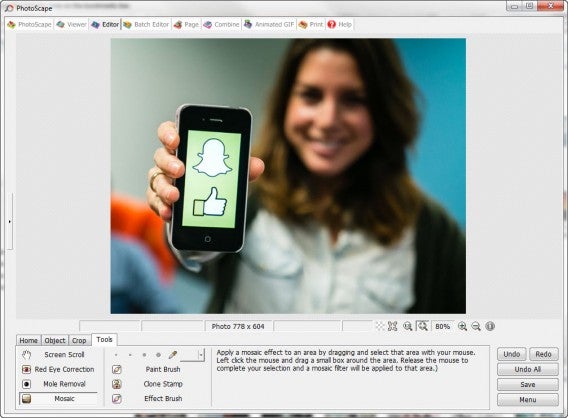
Photoscape may not be the most comprehensive software on the list in terms of editing tools, but it serves as more than just a photo editor. You can also use Photoscape to manage your photos, convert images, and create animated GIFs, all accessible through an easy to navigate tabbed menu at the top of the screen.

Editing tools aren’t displayed in the classic side-bar you’d probably expect, making it a bit harder to get the hang of. Once you’ve figured out that images can be manipulated through the menus at the bottom of the screen, it’s fairly easy to make quick edits like adding objects (clipart or shapes), text, cropping photos, and working with tools like brushes and cloning images. The nice thing about Photoscape is that it’ll give you instructions in a box on the right on how to use a tool when you click on it, making it really nice for beginners.

Paint.NET

Photoscape’s abilities don’t extend to layers, but if you’re looking for quick fixes with some additional functionality beyond photo editing, Photoscape is a good choice.

Download Photoscape for Windows |Mac

Picasa: simple and easy to use, with integrated sharing options

Much like PhotoScape, Google-owned Picasa doubles as a photo manager and editor. It’s best for quick adjustments and filters, much like you’d find in popular mobile editing apps Instagram or VSCOcam.

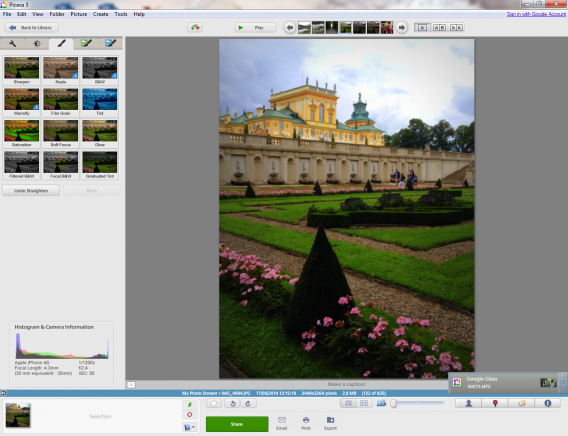
Compared to the other programs on this list, its tool set is limited, but it’s definitely the easiest to use. If you choose to use Picasa as your default photo manager, you’ll have a library that provides easy access to edit any of your photos, which will automatically sync from all your folders. Any editing you do is automatically saved as a copy – Picasa won’t let you lose your original images.

Double-clicking on a file from the library automatically takes you to a full screen view of the photo, where you can start editing immediately. You can even scroll through your library while in edit mode so that you don’t have to keep going back to find a photo.

Picasa

It’s got classic filters like Lomo and Sepia, basic editing tools like straighten and crop, and things like color and tone adjustments.

Because it’s owned by Google, you can log into your Google account via Picasa and sync all your photos to Google+, making it easier to share files or photo albums. You can also easily email any photos you select.

Download Picasa for Windows | Mac

Autodesk Pixlr: the best choice if you want to add filters

Appearing first as a web app and then a mobile app, the desktop version of Pixlr has finally arrived from Autodesk.

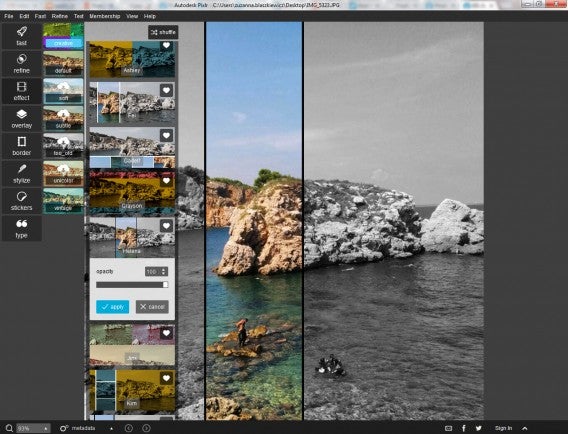
Pixlr’s got one of the simplest, most streamlined and modern interfaces, with a basic sidebar menu that contains almost every editing option offered within the app. Autodesk Pixlr is probably best for its multitude of photo filters and effects, ranging from creative additions and Warhol-like effects, to borders and stickers, to overlays like fireworks and flames. All effects are stored in the cloud and will be downloaded the first time you use them, so initial loading will be slower than usual.

Pixlr

Autodesk Pixlr is best if you want to play around a bit with your photos, and because it’s so easy to use, you can really have some fun testing out all the different options. The essential editing options are there too, nestled under fast.

A couple words of warning though. Pixlr will ask you for permission to gather analytics about your use of the software, and while the app is free, some features require you to register for a free account or purchase the Pro version, which runs you roughly $14.99 a year.

Download Autodesk Pixlr for Windows | Mac

Photo Pos Pro: lots of tools in an old fashioned interface

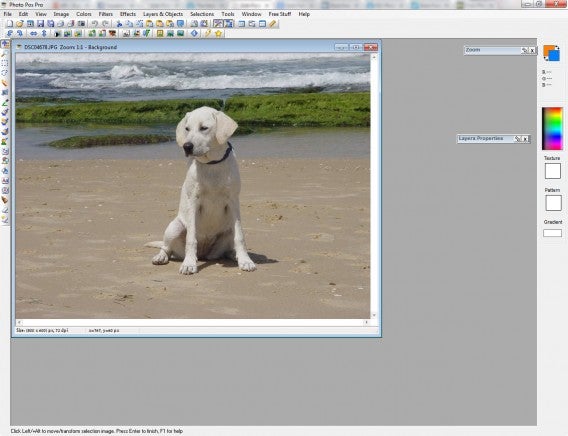
Photo Pos Pro might not have the best interface of the bunch, but it’s another solid option when it comes to free photo editors. True, the interface is a bit cluttered (and outdated) with icons and buttons, but the number of tools on offer makes up for it. You can edit using these wide range of tools, or make auto adjustments, like color correction.

Photo Pos Pro works with layers, masks, gradients, and textures, compatible with the most popular graphic formats. You can edit multiple documents at the same time and undo/redo edits as many times as necessary.

Along with editing images, you can also create graphics from scratch and use Photo Pos Pro to design logos, banners, or websites.

Download Photo Pos Pro for Windows

Photos for Mac: Apple’s free editing and library app that’s great for most people

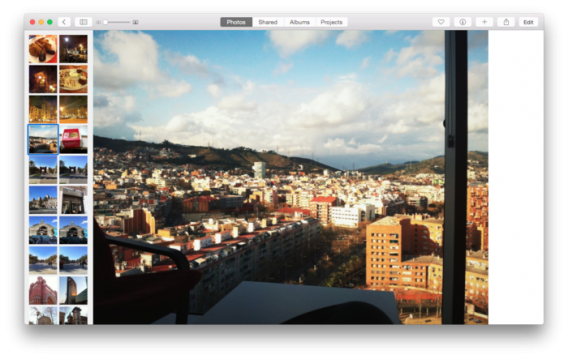
Photos for Mac is the replacement for iPhoto, which wasn’t a great program. Photos for Mac, however, is excellent. It’s got a really intuitive interface, showing you the most important and commonly used tools, while keeping more advanced settings out of the way but still accessible. If you have an iCloud account, it gives you cross device sync of all your photos, making it an excellent photo library.

There’s an auto-enhance tool that fixes the exposure and saturation, etc, and an auto-crop tool that recognizes horizons and straightens up your pictures. You can get manual control of your photos too, with sliders for changing lighting, exposure, highlights contrast and more. Photos for Mac also has facial recognition so you can tag people in your images, and the app lets you browse your library by location as well as date.

Photos for Mac is part of OS X Yosemite, read our full review here.

Photo editors for everyone

You can use apps to make your photos look great without Photoshop. At the very least, each of these apps offers the most basic editing tools you’ll need to make simple corrections to photos. Pixlr is perfect for fun and easy filters, Picasa ideal for photo management, and GIMP perfect for advanced editing. Whether you’re looking for an advanced program that’ll give you a ton of editing options, or something to simply spice up your photos, you’ll definitely find it in one of these free photo-editing apps.

Related articles

The best camera app for Android

Photo Editing: 5 mobile apps are put to the test

Instagram, the complete guide

Follow me on Twitter @jonathanriggall

DiRT Rally is the rally game we’ve been waiting for

Iconic cars, incredible handling, brutal yet beautiful courses. If you need more than that in a racing game, DiRT Rally is not for you.

DiRT Rally is a game about realistic rally driving, and nothing else. There’s no glamor, no in-your-face EDM or punk music, no showcase events, no Ken Block or Gymkhanas. DiRT Rally puts you in a car with a copilot, and throws you down point to point tracks against the clock. It’s rallying at its most basic, and it’s great.

It’s an Early Access Game on Steam. This means it’s playable but unfinished, so there’s plenty of time for developer Codemasters to add to the game, but DiRT Rally is already excellent.

DiRT Rally has simple, functional menus. There are none of the flashy, brash menus of earlier DiRT games. This minimal approach is carried on throughout the game – everything seems designed to get you in a car and hurtling down a narrow track as soon as possible. There isn’t even a flashy garage where you can admire your cars from any angle. The only thing you’re allowed to admire is the replay of your last stage.

There’s a new physics model for DiRT Rally, and it shows. Road surfaces really affect your car: you can feel your tires eating into gravel, or struggling to find grip on icy tarmac. Every surface requires a genuine change in your driving style. You can hear your car creaking, groaning and rattling as you try to guide it to the finish line. The game screams simulation – even if you engage all the driving aids on offer, it’s still really tough and uncompromising. But it’s completely exhilarating.

The cars, which number 17 at the moment, are similarly realistic. There are front- and rear-wheeled drive cars, and four wheel drives too. Despite the relatively small number, each is a classic. When I graduated to the 1970s class, the three cars on offer presented me with an almost impossible choice. Fiat 131 Abarth, Ford Escort MK II, or Lancia Stratos? Choosing one seemed unfair to the others.

Obviously I chose the Stratos: my inner seven-year-old won out. Driving it is just as exciting as my inner seven-year-old always imagined, too. In the 1980s class, the MG Metro 6R4 feels, quite correctly, like a death trap. The cars are all totally distinct from each other. Each one has to be learned, and means finding new lines through the dangerous and narrow courses. The difference between forward, rear and four wheel drive is huge. It’s impressive how real Codemasters have made these cars feel, and how honest the game is. There’s no hand-holding, no making you feel you’re a better driver than you really are.

DiRT Rally gives you a wonderful sense of flow when everything’s going right. You feel in tune with the road and your machine, but are constantly a hair’s breadth from total wipe out. This makes DiRT Rally thrilling in ways most modern racing games aren’t anymore. If you can rewind and correct your errors, there’s not the same tension or excitement. DiRT Rally demands your complete attention. Helping this, there’s no in-game music. The soundtrack is your co-pilot, your car and the road. Listening to all three is essential. The Go! Team would not improve the experience.

I haven’t played a racing game that made me feel so bad about crashing for years. With no ‘rewind’ function, and limited time to repair between stages, you need to take care of your car as you race. Making a tiny error on one corner can put your car off-line for the next few, and easily result in you flying off a mountain road or wrapping your car around a tree. Crashes, rightly, feel major. The current locations, Monaco, Greece, and Wales, are also markedly different. They look and feel right, and affect how you need to drive just as much as your choice of car does.

The DiRT games were originally a loud and brash development of the Colin McRae Rally series. Featuring pretty much every off-road driving discipline around, they catered for everyone. But that broadness also made the games a little shallow – you barely got used to one class of vehicles before being asked to jump into another. DiRT Rally is so different, it’s surprising to see it use the DiRT brand at all. Everything about the game is unassuming and quiet, until you start your engines, and it becomes explosive.

Finally, we have a rally game that’s just a great driving experience.

Related Articles

Why video games are good for kids (and you too!)

Should my kids be playing this? Parents’ guide to games in 2015

App of the Week: Call of Duty Advanced Warfare

Follow me on Twitter: @jonathanriggall

Greenlight Spotlight: Will Fight for Food

The beautiful thing about Steam’s Greenlight is how odd some of the things that come out of it are, and Will Fight for Food: Super Actual Sellout: Game of the Hour is certainly one such curio. It isn’t that any of its individual parts are that bizarre – RPG conversation systems, classic arcade brawler action, comedy, wrestling – but it is how it puts these component parts together that is fascinating

It’s disposable set up establishes a weird world where wrestling is a way of life, and that shows the hero Jerad is both a talker and a fighter. Now, returning to his hometown after years in disgrace, the first thing he does is run into his rival the Marine, abruptly ending the revenge plot that I had assumed would be the game’s driving force.

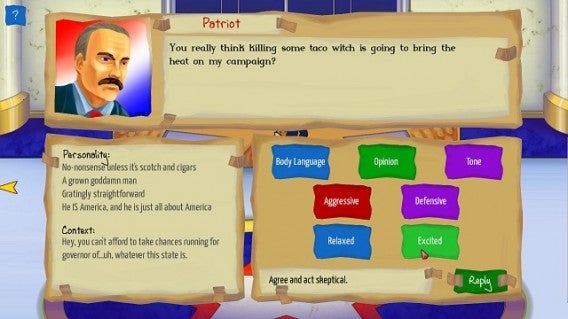
Jerad’s early interaction with the Marine lets you get to grips with all the mechanics WFF is about to throw at you. It lets you make use of the branching dialogue options that let you discover more about the situation, and engage in conversational mini-games that have you selecting Jerad’s body-language, opinion, and tone to persuade your target.

During these mini-games you can use character’s descriptions to work out the best way to influence them. Are they scared of you, bubbly, or patriotic? All of these clues to help manipulate their actions. A simple click through interface makes this incredibly simple to execute – but cracking the code is, frankly, fiendish as I can’t see why “sincere” isn’t always the right options.

Conversation options

It is a system filled with depth that allows you to dive into the numerous side-quests that make up the game. The effort that went into constructing all of the branching options through each dialogue must have been significant, so it’s confusing that it’s always possible to resolve a situation by just beating snot out of the other person. Here is where the weirdness of WFF starts to shine. Most RPGs limit you to just conversations in towns, but Jerad is a wrestler and – as any WWE fan will tell you – that means your right and left fists are the best conflict resolution tools at your disposal.

But, while this is admittedly entertaining for a while, it eventually gets tiresome. True, the game’s 2D art style (which is reminiscent of classic arcade fighting games like Double Dragon) suits the fighting dynamic, but the mechanics are far more robotic and robotic with far fewer combos or variety to combat. Put simply, punching people is only fun when you remember it’s an option when a character is annoying you – rather than the games focus.

Conflict resolution

Here in lies the conflict of Will Fight for Food because, while it is a solid (if short) RPG, it has placed its comedy fighting system at the forefront of its advertising because it’s funny and accessible. If all you do is fight, however, you will quickly tire of it as the novelty wears off. It is up to you to show restraint if you want to get the most out of the game, and if you do choose to steamroll through the whole town on your first attempt, at least go back and try and play it “properly” – because this is one story where the pen is stronger than the steel chair.

Related Stories

Greenlight Spotlight: Tormentum – Dark Sorrow

Will Fight for Food review

Hero Generations review

Follow me on Twitter: @DoFuss

Best Android browser comparison 2015

What is the best browser for Android ? We compared the most popular to see which of them is best suited to your needs.

The browser is perhaps the most interesting app on our mobile device. We use it to read news, find information, play games, and download files. Along with messages, calls, and maps, we spend most of our time on our mobile devices using a browser. As a slow or inefficient browser negatively affects our experience, it’s important to choose one that boasts high performance and best meets our needs. But this is not an easy task.

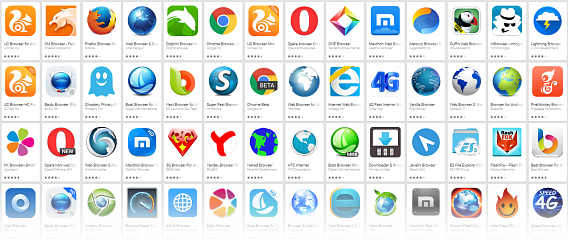
There are hundreds of browsers for Android. Which is the best?

There are more Android browsers than ever before. All the big names have a browser on Google Play – all except for Microsoft’s Internet Explorer. And while some have more than a 30% share of the market, others have been downloaded less than one million times. Through this comparison, we want to help you choose the browser that suits you. To do this, we applied the same philosophy as in our browser comparative for Windows, with tests focused on everyday use cases.

Nine browsers, nine different styles

For this test, we chose the most popular browsers on Google Play. Aside from the big names (Chrome, Firefox, Opera, and Opera Mini), we also included some notable independent browsers: UC Browser, Dolphin, Puffin, CM, and Javelin, all of which use existing technology, but offer various different features and enhancements.
Chrome Browser: the one to beat

While Chrome may be Google’s official browser, it’s not always offered as the default on an Android device. Chrome’s popularity is undeniable: it is in installed on almost all mobile phones and tablets, but only if you use Android 4.0 or higher. The highlight is the data synchronization between different devices running Chrome (if you are signed in).
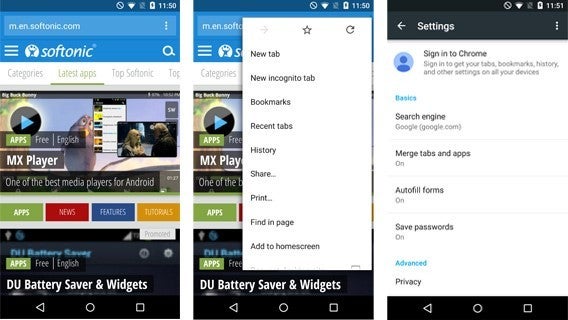
Chrome has the (unfair?) advantage of being a Google product

Version analyzed: 41.0.2272

Compatible with: Android 4.0 or higher

Space occupied: 73 megabytes

Number of downloads on Google Play: 500.000.000 – 1.000.000.000

Opera and Opera Mini: the veteran contenders

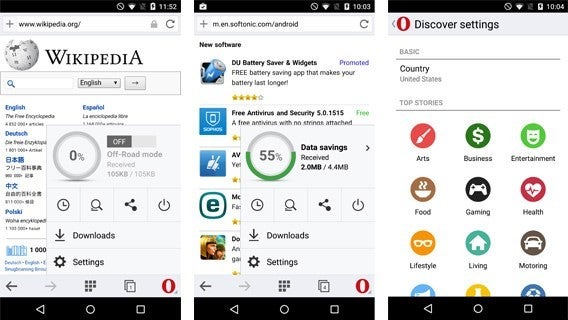
Opera was one of the first browsers to appear on mobile devices, and this experience is demonstrated in the quality of its features. There are different versions for Android, but the latest is the redesigned Opera Mini. In this comparative, we analyze both the regular version and Mini, because they meet different needs.

After the latest update, Opera and Opera Mini look practically identical

Version analyzed: 28.0.1764 (normal) and 8.0.1807 (mini)

Compatible with: Android 4.0 or higher (normal) and Android 2.3 or higher (mini)

Space occupied: 24,9 megabytes (normal) and 12,8 megabytes (mini)

Number of downloads on Google Play: 50.000.000 – 100.000.000

Firefox Browser: the truly free choice

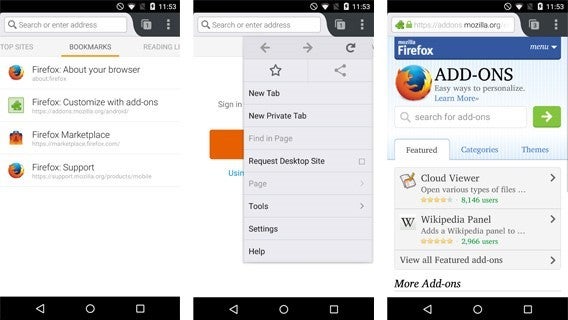
While the Mozilla browser may have only recently arrived on Android devices, it already has a lot of fans. It uses a different technology base to other browsers (for better or for worse). With its extensions and tools, Firefox has all the necessary components to compete with Chrome and Opera.

If there is a browser that can compete against Chrome then it is Firefox

Version analyzed: 37.0.1

Compatible with: Android 2.3 or higher

Space occupied: 44,7 megabytes

Number of downloads on Google Play: 100.000.000 – 500.000.000

UC Browser: the most famous independent option

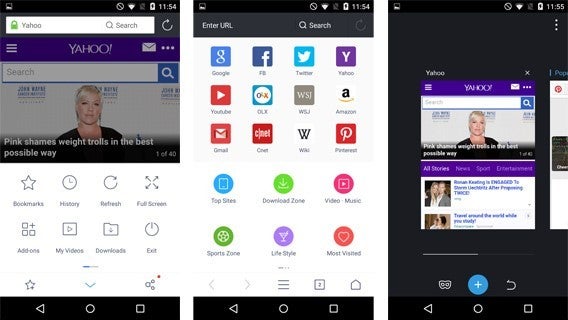
Outside the big names, the most downloaded browser for Android is UC Browser, which is available in different versions. Here we analyzed the standard version, which comes with unique features, such as a night reading mode and themes. It is one of the only browsers that supports Flash.

UC Browser is well designed and includes lots of tools

Version analyzed: 10.3.0

Compatible with: Android 2.2 or higher

Space occupied: 47,4 megabytes

Number of downloads on Google Play: 100.000.000 – 500.000.000

Dolphin Browser: what Chrome could have been (but isn’t)

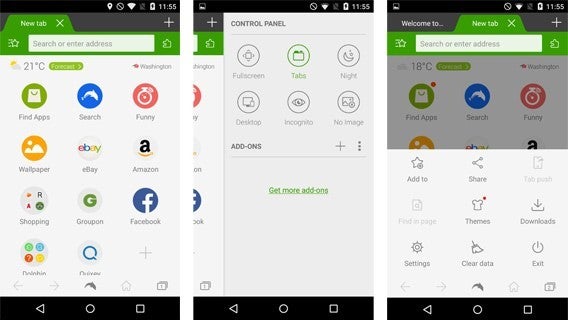
Dolphin Classic, one of the first alternative browsers for Android, it is stable, attractive, and has a variety of plug-ins and customizable themes. If you install Dolphin Jetpack – which is entirely optional – you can enjoy playing games on the web in the highest quality possible.

Extensions, data synchronization, support for Flash… Dolphin has it all

Version analyzed: 11.4.4

Compatible with: Android 4.0 or higher

Space occupied: 43,6 megabytes

Number of downloads on Google Play: 50.000.000 – 100.000.000

Puffin Web Browser: for those addicted to Adobe Flash

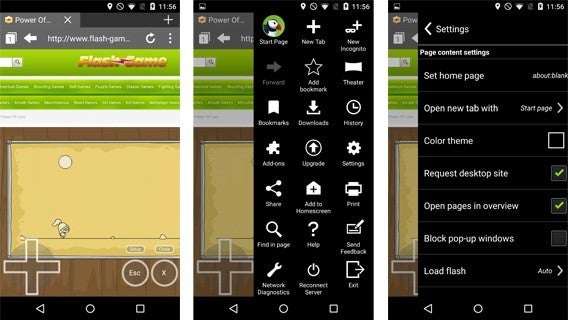
Better known on iOS, where it is used as a method of running Flash, Puffin is a fast browser which has been optimized for open source web games. It even gives you the option to activate a virtual trackpad, as if you were using a laptop. The free version has ads that appear from time to time, but you can still use it with few limitations.

Puffin opens web pages in the same way as on a PC, including flash animations

Version analyzed: 4.1.4

Compatible with: Android 2.3 or higher

Space occupied: 24 megabytes

Number of downloads on Google Play: 5.000.000 – 10.000.000

CM Browser: the most secure Android browser

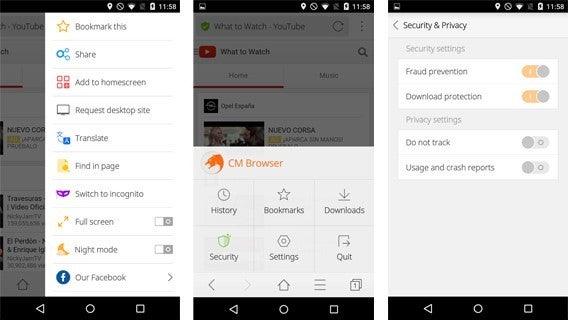
The developers of Clean Master have release their own browser, or rather their own version of Chrome, as the technology behind both is the same. CM Browser emphasizes safety and privacy when browsing: it scans downloads with its excellent integrated antivirus program, as well as blocking dangerous sites.

CM Browser’s strength is its security, with its integrated antivirus program being one of the best around

Version analyzed: 5.1.80

Compatible with: Android 4.0 or higher

Space occupied: 7,2 megabytes

Number of downloads on Google Play: 50.000.000 – 100.000.000

Javelin Browser: the most promising and original

Javelin is a browser unlike any other. Softonic editor Sam chose it as his web browser of 2014 for its unconventional design and reading mode, something found in very few of its competitors. Using this browser is like entering a parallel universe.

Javelin is not like any other browser we tested

Version analyzed: 4.1.10

Compatible with: : Android 4.0 or higher

Space occupied: 16,5 megabytes

Number of downloads on Google Play: 100.000 – 500.000

Performance and memory consumption

How lightweight and powerful are the nine browsers in this comparison? We tested browsers on a Nexus 5 with Android 5.1 installed. Before starting the test, we restored the Nexus to its factory settings. We used versions from April 14 2015.

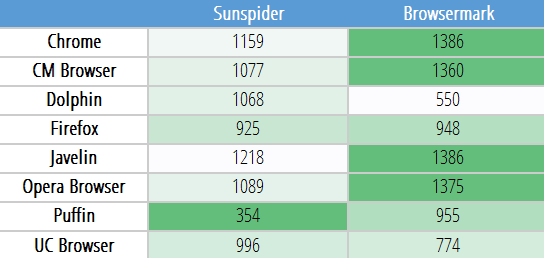
For the tests measuring memory consumption, we used the Android Apps Settings panel. The five tabs loaded as part of the test were Google.com, Yahoo! Weather, eBay, Reddit, and Softonic. The SunSpider and Browsermark benchmarks were carried out after deleting the browsing history, with the Nexus plugged in.
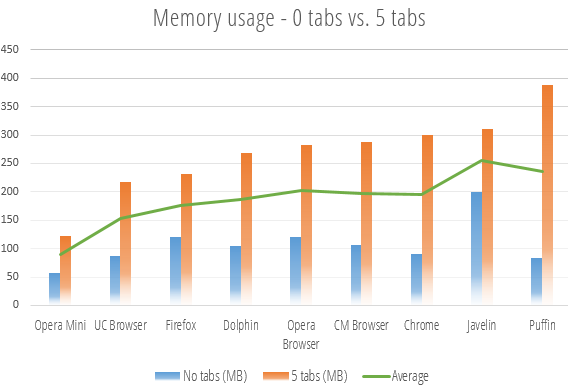
The best browser in terms of memory consumption is Opera Mini. The new version barely went above 100 MB, even with five tabs open. This was followed by UC and Firefox. Brining up the rear was Puffin, which by default opens the pages in PC version. The memory consumption of the browsers powered by the WebKit software engine(Chrome, Opera, Dolphin, and CM) is pretty similar.

The benchmark, on the other hand, yielded conflicting results, and some tests had to be repeated several times due to unexpected crashes (that was the case with both Dolphin and Puffin). We were unable to test Opera due to its compression technology, which prevented us carrying out the load tests.

The highest scorers are marked in dark Green (for Sunspider, lower is better. For Browsermark, higher is better)

As you can see in the table, browsers that use the WebKit engine, led by Chrome, took first place in the Browsermark benchmark. In the SunSpider test, Puffin took first place, followed by Firefox. When considering the four tests, the browsers with best performance and memory consumption were UC Browser, Firefox, and Opera.

What can they do?

How well each feature works is really important in a mobile browser. Do you read a lot? Then a reading mode (night or not) will come in handy. Do you visit pages using Flash? Not all browsers load this content. Each browser has its specialties, and some try to cover everything.
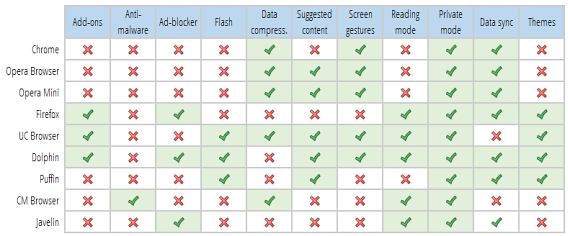
Dolphin Browser and UC are the two most comprehensive browsers in terms of features. Dolphin, in particular, provides everything you can find in a browser for Windows. They are followed by Firefox, the only major browser with support for extensions and themes. Chrome pales in comparison, with relatively limited features.

And the winners are …

We had a long discussion about which browsers to choose as the winners of this comparison. In the end, we decided to reward the most complete and lightweight browsers. The overall winner is the one that had a good balance between the two. Thus, if your priority is a lightweight browser over a powerful one – or vice versa – then we have the perfect options for you.

The most complete: Dolphin Browser

Dolphin not only has everything you could ask for, but also offers elegant integration no matter what device you are using. As well as support for Flash, it also has impeccable data synchronization, lots of add ons, and a Web App Store. True, it doesn’t have the best performance, but it’s the best browser for powerful tablets (and games look great with the Jetpack mode).

Dophin Browser’s HD version is ideal for next-gen tablets

The most lightweight: Opera Mini

Hundreds of millions of people surf the web with slow connections and under-powered mobile devices. Opera is the only company that has taken this into account. Opera Mini 8 has modern features, but is more lightweight and efficient when consuming data. Even if you don’t have access to high-speed internet, this browser is still impeccable.

The new Opera Mini 8 looks similar to its big brother, Opera Browser

The best of 2015: Firefox

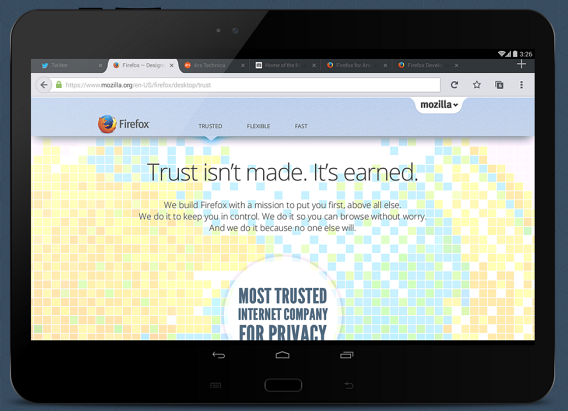
We think Firefox is the best browser for Android at the moment for several reasons. Firstly, its integration with Firefox for desktop is excellent. And don’t forget that Firefox for desktop won the Windows browser comparison.

Of all the browsers we analyzed, Firefox had the best design with its clean interface familiar to those who use the browser for PC and Mac. It doesn’t overdo it, nor does the design get too abstract.
As for performance, while Firefox does not stand out in the Browsermark test, it does in the Sunspider one. Firefox also has the third best memory consumption, second only to UC and Opera Mini.

Finally, Firefox is open source and, thus, independent. It is independent of large corporations (such as Google, Microsoft, and Apple) and it doesn’t have any corporate sponsors (which is common in alternative browsers).

In short, if you want a solid and elegant alternative to Chrome, choose Firefox. Although don’t forget about Opera Mini and Dolphin, which both meet specific needs.

What browser for Android do you recommend?

Related Articles

Softonic’s Browser Comparison 2014

The best web browser for Android – Sam’s choice

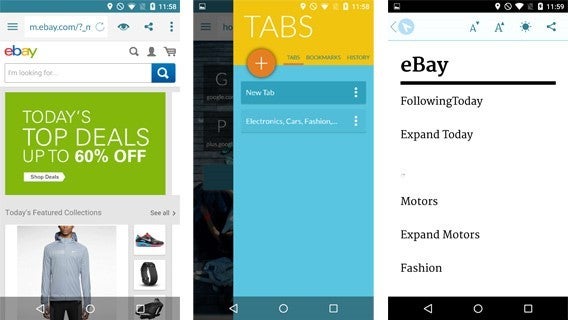
Top 25 apps for your Android tablet

Follow me on Twitter: @remoquete

Windows 10 looks awesome at Build 2015

Microsoft revealed more details about Windows 10 at its Build developer conference. Karen went into detail about what to expect from Windows 10, and now a lot of the rumors have become reality.

Here’s the biggest news from the keynote that highlight the newly announced features of Microsoft’s overhaul of its operating system.

Windows 10

The biggest reveals from Build were key features of Windows 10. Early builds of the Technical Preview contained some of these features, but Microsoft showed off a new build during the keynote.

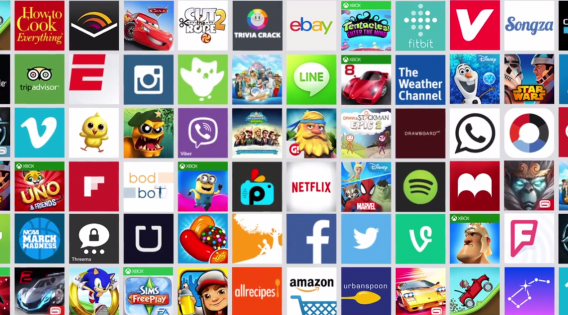
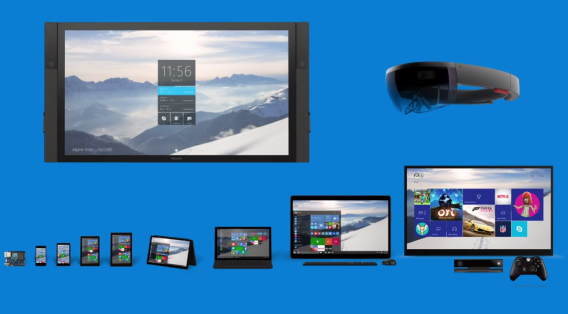
Microsoft pushed the idea of universal apps. This means you only need to install one app and it will work across all your devices. Since Windows 10 is meant to unify the computer, smartphone, and tablet, requiring just a single app makes it easier to pick up where you left off.

Apps will resize depending on the device and will support touch controls. You can use an app on Windows 10 and then jump to Surface or Windows 10 Phone seamlessly. Universal apps also flow into other spaces as well. Microsoft showed off add-ons in Microsoft Office 2016 that you would actually use, like Uber. These add-ons are also natively cross-platform so you only need to install one version for all devices.

This leads into a redesigned and unified Windows Store that will expand support for the types of apps it offers. Windows desktop apps will be offered in the Windows Store, but will run in a sandbox mode so they can’t cause long term issues with the OS. Websites can also be offered as apps and support in-app purchases for things like subscriptions. Payments are getting better with phone carrier billing so you don’t have to use a credit card to purchase apps.

Cortana will play a huge part in Windows 10, acting as a virtual assistant and supporting voice commands like calling from Skype.

Microsoft Edge

Project Spartan was given its official name: Microsoft Edge. Microsoft’s new browser is a total rethinking of Internet Explorer. At Build 2015, Edge showed off extension support similar to Chrome. Microsoft was quick to mention that it was easy to bring Chrome extensions into Edge with little development.

Edge is focused on creating a personal connection with you by better integrating your personal accounts and not simply being a web browser.

Continuum for Phones

Microsoft showed off Continuum for Phones giving people the ability to connect your phone to a monitor, mouse, and keyboard to get a desktop experience. This lets you use your phone like a PC without needing any extra tools. You will also be able to use a dual screen mode (phone and monitor), but exact details weren’t revealed.

The one thing Microsoft mentioned is using Continuum for Phones will require new devices with stronger hardware. Windows 10 Phones compatible with Continuum will ship after the release of Windows 10 this summer.

Android and iOS apps in Windows 10

windows 10 apps
A big surprise is that Windows 10 will support Android and iOS apps. While it’s not as easy as simply installing these apps through an emulator, Microsoft is offering developers tools to import existing mobile apps, debug them, and make them available for Windows 10. Developers will have the option of adding Windows 10 support features in apps, but it’s not required.

This plan is similar to Microsoft’s change to push the MS ecosystem on different platforms rather than trying to force people to only use Microsoft devices. Microsoft Office and Outlook apps are a perfect example, as they were available on both iPad and Android before Windows Phone.

HoloLens

windows 10 devices
Microsoft previewed HoloLens before, but Build displayed the augmented reality headset live. The big news is that all HoloLens apps are universal Windows 10 apps. This means they are not specifically designed just for HoloLens. The experience is called Windows Holographic.

There is a holographic Start Menu you can open to use apps. You can stick apps to surfaces and the demo at Build showed a view within Windows Holographic.

HoloLens doesn’t require any cables, connected camera or phone, or even a computer. It’s an independent device that likely streams using a data connection, but exact details weren’t announced. Price and release date weren’t announced, but the live demo did show a lot of potential.

Get excited for Windows 10

Microsoft is promising a lot of changes in Windows 10 and it is making those changes a reality. Windows 10 is a relaunch of the operating system and one that people will want to join. Each improvement Microsoft reveals is impressive, from Microsoft Edge to universal apps across all devices.

Even HoloLens, which seemed like a joke, actually looks interesting. Microsoft’s change in strategy is making the company move much quicker and Windows 10 is the result of that. Microsoft is tired of being third place and Windows 10 may help it win over new users.

Related Articles

What to expect in Windows 10

Microsoft’s mobile strategy: build it better

What’s new in Office 2016 for Windows

Follow me on Twitter: @chrislikesrobot

Apple Watch: everything you need to know

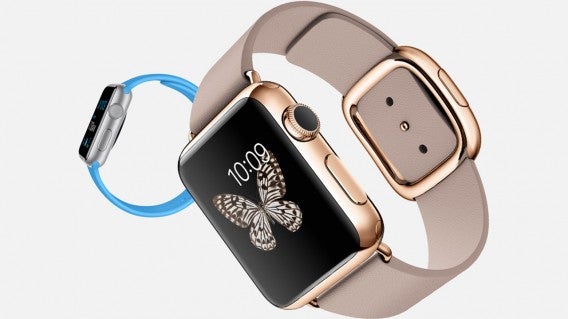
Apple’s smartwatch is finally here and there’s a lot of hype surrounding it. The watch ranges from relatively affordable with a starting price of $350 to an insane $17,000 solid gold version with all the bells and whistles. You’ll also get a choice between 38mm and 42mm tall sizes, which is nice for smaller wrists. You can try out the different watches to see which fits best at the Apple Store or by using Store App.

But is it any good? Who needs a smartwatch? You can find the answers to these questions and more in our guide to everything you need to know about the Apple Watch.

Apple Watch: Using Watch OS and its apps

Apple Watch apps

The Apple Watch is finally here (if you ordered one in time) and there’s already a surprising amount of apps available. Apple did a great job of giving developers tools to create apps for the Watch before it launched.

Even if you don’t download any apps to your Apple Watch, the device can still do a lot. Let’s take a look at what you can do with Apple Watch out of the box and with some third-party apps installed.

Continue reading…

Android Wear vs Apple Watch

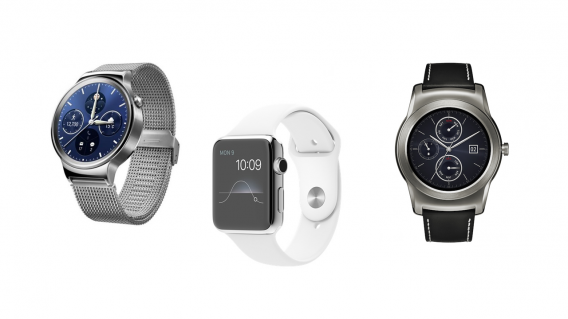
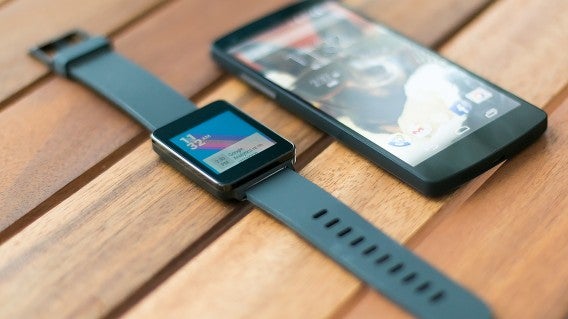
Google announced Android Wear in June 2014 with the LG G Watch and Samsung Gear Live as the first available Android smartwatches. Later that year, the Motorola 360 introduced the first Android Wear watch with a round bezel. Now there are six watches in both square and round styles with varying prices.

The Apple Watch opened pre-orders at midnight April 10 and will be released April 24, 2015. There are three versions in two different sizes, 38mm and 42mm. Now both platforms finally go head to head.

Continue reading…

How to conserve the Apple Watch battery

Excited to get your Apple Watch? You’ll be able to see if the smartwatch lives up to the hype soon. But like your iPhone, you’ll keep an eye on the battery to make sure it doesn’t die in the middle of the day. I mean, how awesome is the Apple Watch if it only tells the time?

Continue reading…

Best apps for the Apple Watch (so far)

Apple Watch hero

The Apple Watch is coming April 24th. The watch starts at $350 for the lowest price Sport model and over $10,000 for the absurd, limited Watch Edition.

Although Apple worked hard selling the design and materials for the Apple Watch, the device would be useless without apps. We already saw some of the first-party apps created by Apple during its event in September.

Continue reading…

Is the Apple Watch right for you?

Apple Watch couple

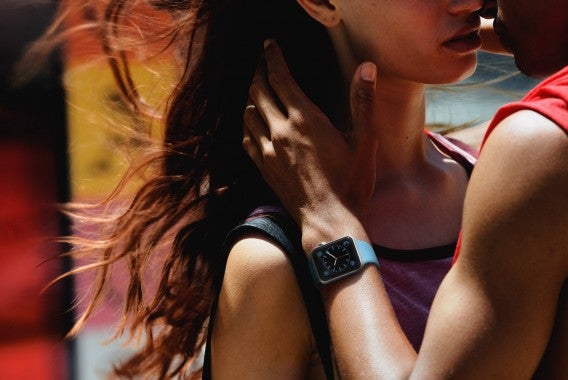
The Apple Watch is available for pre-order but should you get one? We’ve already covered reasons why you would want a smartwatch and why you don’t need one.. If you’re thinking of getting the Apple Watch, you want to know if it’ll truly be useful. To help you decide, these are the types of people that would benefit the most from getting the Apple Watch.

Continue reading…

Here are the coolest things Apple Watch can do

Today Apple announced its own take on the smartwatch, the Apple Watch. While we’ve already seen Google’s offering in the form of Android Wear, Apple Watch provides a significant departure from Google’s smartwatch.

Apple Watch will track your fitness, let you message your friends, let you pay for things and, of course, tell the time. But the Apple Watch does so much more. So much in fact that Apple CEO Tim Cook’s presentation had to be cut short as there were just too many features to cover.

While some features are more minor there are a handful of truly interesting features. Here are the coolest things the Apple Watch can do right out of the box.

Continue reading…

11 reasons you will be wearing a smartwatch this year

Smartwatches

Love it or hate it, Apple is great at convincing us we need something when perhaps we don’t. With Apple Watch just around the corner, a smartwatch just got that much harder to resist. Not many of us had smartphones or tablets before Apple showed us why we “needed” them, don’t bet against it doing it again.

Continue reading…

5 reasons I won’t get a smartwatch… yet

Android-Wear

After the Apple Event, and Barcelona’s Mobile World Congress, we’ve seen a lot of wearable technology, and it’s mostly watches. And I won’t be getting one. Here’s why.

Continue reading…

Apple Watch: Using Watch OS and its apps

The Apple Watch is finally here (if you ordered one in time) and there’s already a surprising amount of apps available. Apple did a great job of giving developers tools to create apps for the Watch before it launched.

Even if you don’t download any apps to your Apple Watch, the device can still do a lot. Let’s take a look at what you can do with Apple Watch out of the box and with some third-party apps installed.

Out of the box

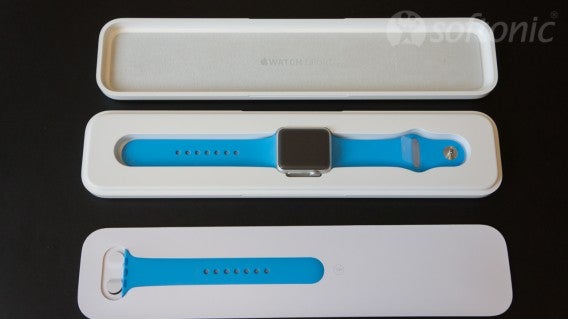
Apple wanted to make receiving Apple Watch an experience. For our Sport model, the packaging is extremely robust and quite large for such a small device. The watch comes in a glossy white box that reminds me of the original MacBook. Inside, you’ll find the watch, a charger, a very long (looks like 10ft) charging cable, and some instructions.

Apple Watch unboxing

While the device does come with some juice, you’ll want to charge it all the way before you start using it. Booting it up for the first time takes a while. Once Apple Watch is done booting, you’ll have to pair it with an iPhone 5, 5c, 5s, 6, or 6 Plus. Make sure you’re running the latest version of iOS to see the Apple Watch app before proceeding.

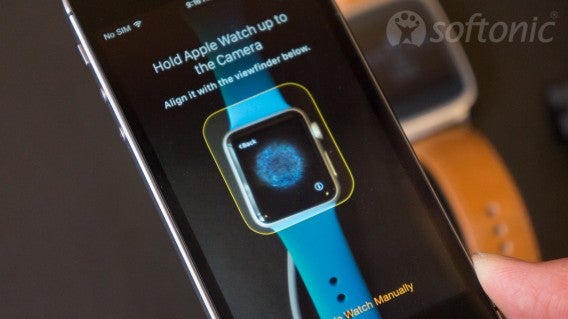
Apple has made pairing the watch with your phone extremely easy. The watch displays a unique sphere that you scan with your iPhone’s camera. The two devices pair immediately and you can start using the watch’s built-in apps.

Apple Watch pairing

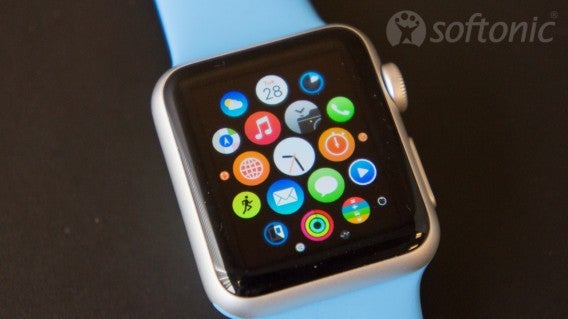
App icons are arranged in a random honeycomb pattern with the Time app at the center. This layout can become frustrating if you have a lot of apps, since it’s hard to remember where each app is. You can arrange the app icons in the Apple Watch iPhone app, but no one wants to do that. Luckily, Siri can launch apps by voice instead.

Press the digital crown to go back and to access all your apps from the watch face. Scrolling is controlled by swiping the screen or using the digital crown and it works very well. Scrolling is smooth and the crown feel great. The side button below the digital crown gives you quick access to your favorite contacts for quick communication.

Apple Watch apps

Apple has also introduced the “force press” with the Apple Watch, allowing different actions by pressing harder on the screen. This is how you’ll activate watch face customizations. The watch face is also where you’ll find your “glances,” which are info cards for apps you choose. You can select which apps have “glances” from the Apple Watch app on your iPhone.

The watch is a bit confusing to use at first but once you know all the controls, it works well. Generally, performance is snappy, except the slow first time loading for the weather and maps apps.

Even without downloading any apps, you can do a lot with the Apple Watch. Here’s what you can do out of the box.

Phone

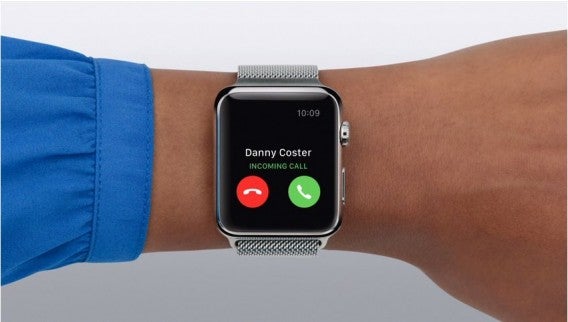
Apple Watch phone call

Out of the box, you’ll receive notifications when someone calls you. You can choose to pick up, hang up, or mute the call by placing your palm on the watch face.

There’s a built-in-speaker and mic on the watch so you can have a conversation right on you wrist. This is useful when you’re alone, but you probably don’t want to hold a conversation on the bus.

Messages

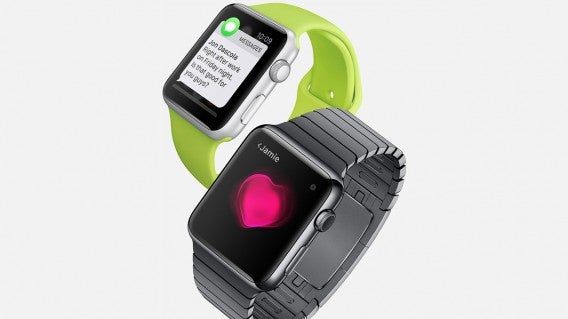
Apple Watch Messages

When you get a text or iMessage, your Apple Watch will “tap” you with small vibrations. You can read the full message and reply with canned responses. If none of the pre-written messages work, you can dictate the message to turn it into text or just send the audio recording. You can even send animated emojis if that’s your thing.

Mail
If you use the Mail app on your iPhone, you’ll receive notifications for all your emails on your wrist. You have options to read, flag, mark as read or unread, or delete an email. You can’t respond on your wrist but you can open up the message on your iPhone to respond.
Calendar

All your calendar events are synced to your Apple Watch. I found this to be the best productivity app out of the box as it tells you when your next meeting is. You can also accept or decline calendar invites.

Activity

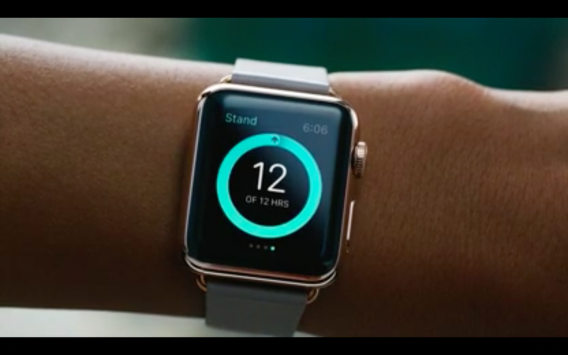
Apple Watch Stand fitness tracking

Apple wants you to live a healthier life (so you can buy more of its products in the future). The company’s Activity app aims to keep users healthy by reminding them to move, exercise, and stand. Each activity is represented by a ring that fills up as you do more of that activity.

If you’re like me, it’ll serve as a constant reminder of how big of a couch potato you are.

Workout

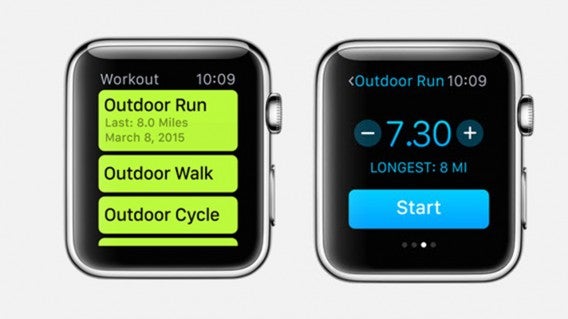
Apple Watch Workout

Workout lets you choose popular workouts and provides guidance for each. You can select running, walking, cycling, and more. It’s like a basic personal trainer on your wrist. The app provides real-time stats for distance covered, calories burned, pace, and speed.

Maps

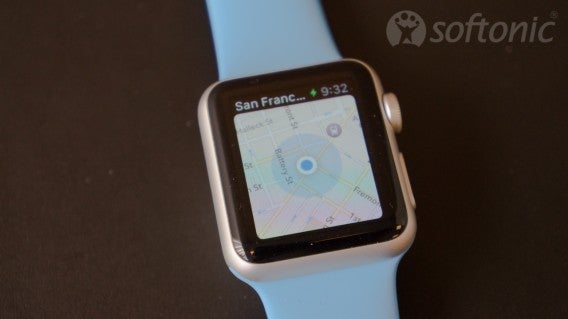
There’s no Google Maps for Apple Watch yet so you’re stuck using Apple Maps. It works but is very slow to load maps the first time. Zooming in and out using the crown refreshes Maps, which is a frustratingly slow experience.

Apple Watch Maps

However, once your maps are cached, it just works. Maps shows your current location and offers turn-by-turn navigation on your wrist. This is great if you’re exploring a new city and don’t want to bury your nose in your phone. Maps also works with Siri to help you find points of interest.

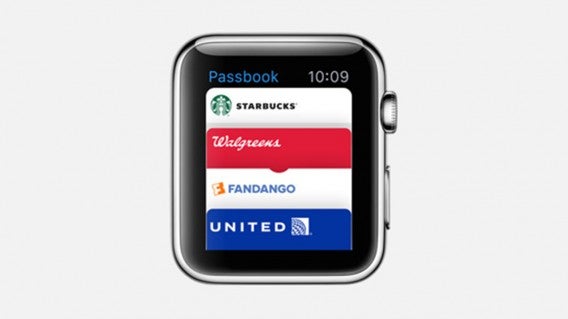
Passbook

Apple Watch Passbook

Keep your boarding passes, tickets, and loyalty cards right on your wrist. Now you don’t even need to take out your iPhone to board your plane. Passbook also lets you choose which credit card you want to use with Apple Pay. There’s no app for Apple Pay; you just tap your Apple Watch on a terminal and your transaction will go through.

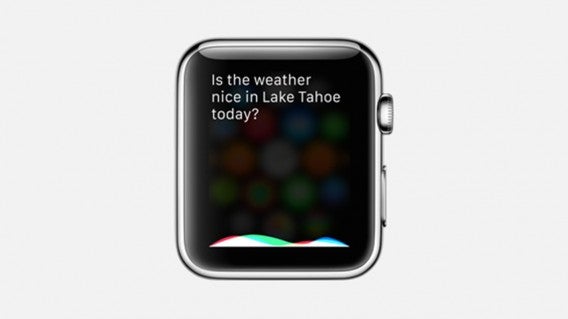
Siri

Apple Watch Siri

Siri is built into Watch OS and she can be reached by holding the crown down for a second. Alternatively, you can raise your wrist to activate the screen and then say “Hey, Siri.”
Music

If you want to leave your iPhone at home when you’re out for a run, you can sync over a playlist to the Apple Watch itself. There’s 2GB of available storage (out of a total 6GB) for music, just enough for a workout playlist. You can use a pair of Bluetooth headphones with the Apple Watch. The app lets you control playback if your headphones don’t have controls.

Remote

Control your Apple TV on your wrist. Remote also lets you control your iTunes library and iTunes Radio on your Mac or PC.

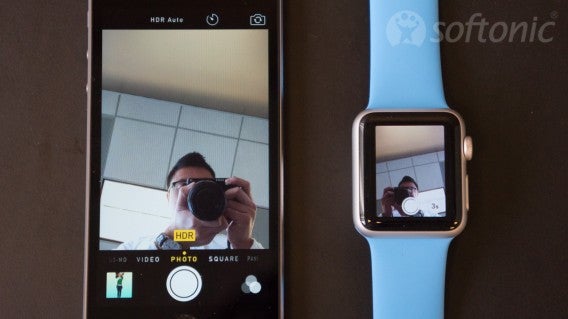
Camera Remote

Apple Watch camera remote

If you have a tripod for your iPhone, you can use your Apple Watch as a remote control to take a photo. You can set a self-timer so you can position your hands before the photo is taken. Your watch also gives a live preview of your photo so you know how your photos will turn out.

Weather

Get the weather right on your wrist. Certain watch faces allow you to show weather information so you don’t need to jump into the app to see the current temperature. However, jumping into the app gives you detailed forecasts for the week as well as current conditions.

Stocks

Keep track of your stocks with the Stocks app. You can see current prices, percentage changes, and market cap. Tapping on a stock reveals a performance graph.

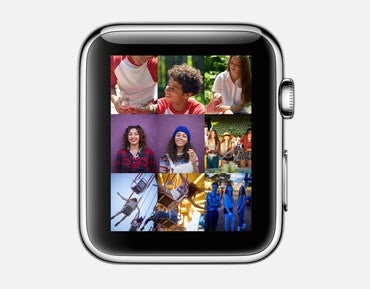
Photos

Apple Watch Photos

Even though the Apple Watch’s screen is small, you can view photos. You get photos to your watch by opening the Apple Watch app and selecting an album to sync. You get small preview images of your photos and can zoom in and out using the digital crown.

Alarm/Stopwatch/Timer

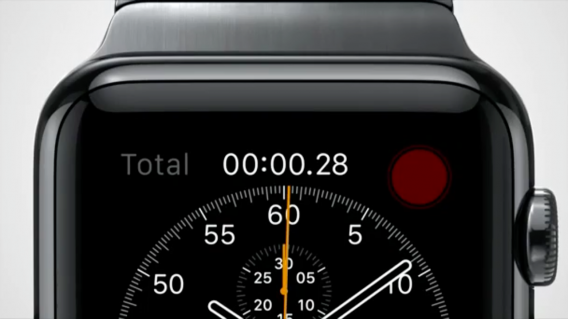
Set multiple alarms, track your time, and precisely time events using these included apps.

Best third-party apps (so far)

Apple Watch app store

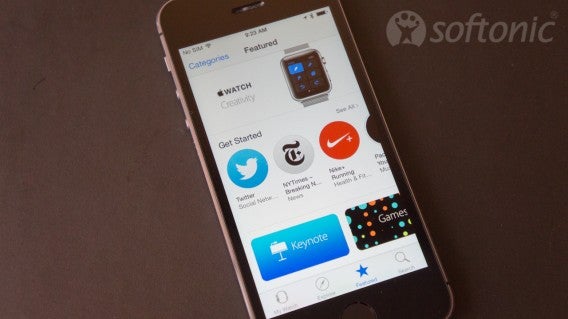
If you have apps on your iPhone that support Apple Watch, those apps will be automatically added to your watch home screen. The store is designed like the App Store for your iPhone but specifically for Apple Watch apps. To help you browse all the apps, you can tap on the category button at the top left. If you have something specific in mind, you can use the search feature at the bottom right.

Tapping on an app in the Apple Watch store gives you details, screenshots, reviews, and related apps, just like for iOS apps.

I already highlighted some of the best Apple Watch apps here but these are currently my favorite.

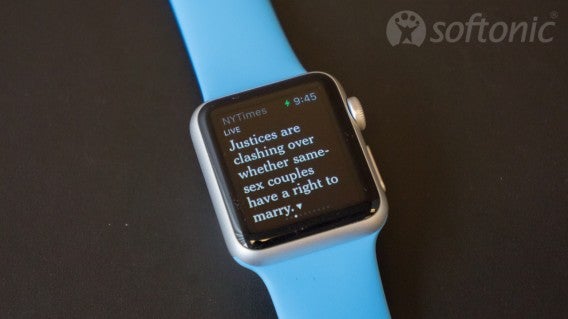
NYTimes

Apple Watch NYTimes

The New York Times did a great job creating an app without even seeing the Apple Watch. It gives you quick headlines and a one sentence summary of the article. Some articles pull in a photo and you can save an article to read for later.

NYTimes is a great app for staying on top of the news but don’t expect to read articles on your wrist. Find all your saved articles in the NYTimes app on your iPhone instead.

Download NYTimes

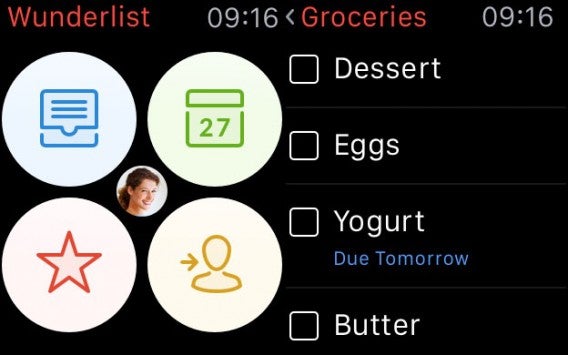
Wunderlist

Wunderlist

I love Wunderlist for its simple approach for to-dos. The app is pretty basic, allowing you to view your tasks and to check them off. Unfortunately there’s no way to create tasks or reminders yet. Get on that, Wunderlist.

However, Siri can help you make reminders using Apple’s Reminders app on your iPhone.

Download Wunderlist

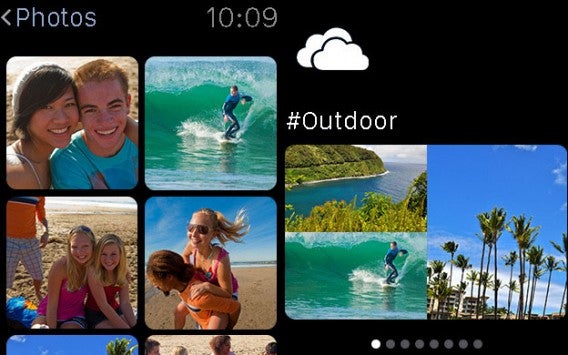
OneDrive

OneDrive Apple Watch

If you’re a Microsoft user, you can access your OneDrive photos on the Apple Watch. It doesn’t do much else but it’s nice to see your most recent photos.

Download OneDrive

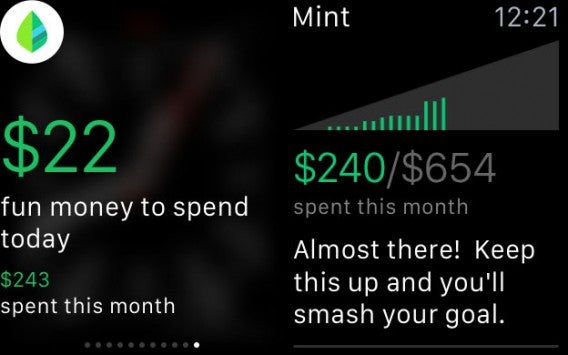
Mint

Mint for Apple Watch

Mint monitors your day-to-day spending and offers suggestions for spending goals. If you’re trying to train yourself to stick to a budget, Mint is a great app.

Download Mint

Kitchen Stories

Kitchen Stories for  Apple Watch

Look up recipes and use the instructions on your wrist. Kitchen Stories is a great companion in the kitchen, as long as you don’t mind dirtying up your watch with your messy hands.

Download Kitchen Stories

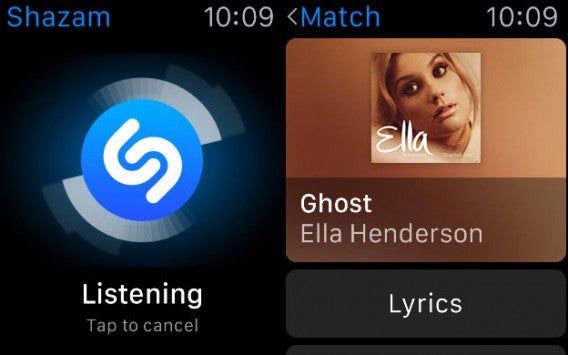
Shazam

Shazam for Apple Watch

Want to quickly look up a song that’s playing, but don’t want to pull out your phone? Shazam IDs the song it hears and gives you options to view lyrics and to buy the song on iTunes. Strangely, the app activates Shazam on your phone to use your phone’s mic instead of the watch’s. Still, this is probably the quickest way to tag a song.

Download Shazam

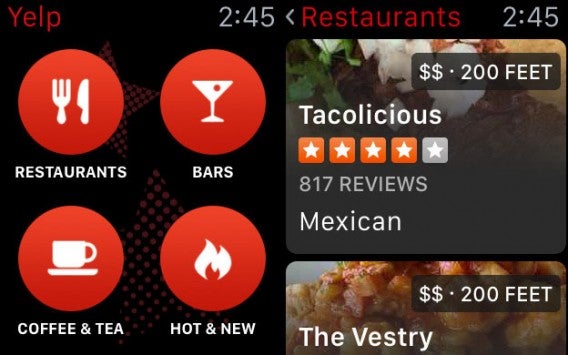
Yelp

Yelp  for Apple Watch

I’m pleasantly surprised at how well thought out Yelp for Apple Watch is. You can browse for places to eat, drink, or trending venues. You can even read full reviews on your wrist, something most Apple Watch apps don’t let you do.

Yelp for Apple Watch integrates with Apple Maps so tapping on a location will bring up directions for you. You can choose between walking and driving directions. Yelp is a great app for quickly looking for a place to go without taking out your iPhone.

Download Yelp

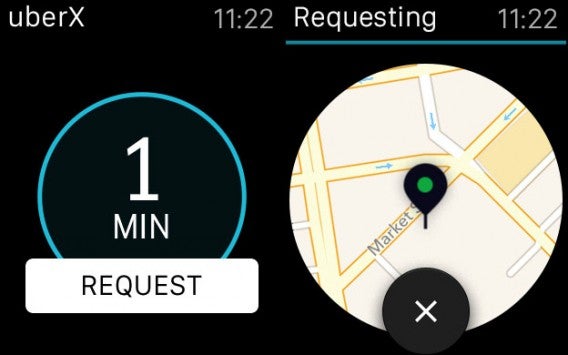
Uber

Uber for Apple Watch

Uber for Apple Watch does one thing: call an Uber for you. The app gives you an estimated time for an Uber to get to you. Tap on it to call for an Uber and you’ll get a ping when your ride is ready.

Download  Uber

Twitter

Twitter Apple Watch

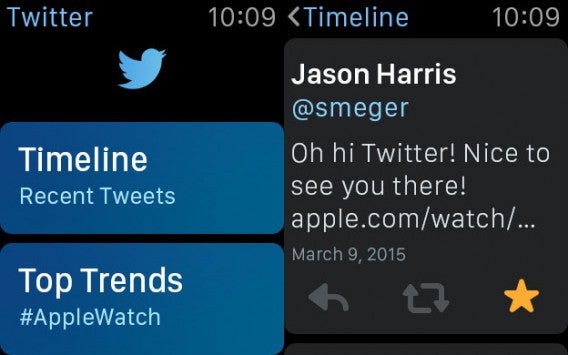
Get your Twitter timeline and trending topics. I wouldn’t spend a lot of time reading Twitter on your wrist since you’ll be squinting to see anything. But for catching up quickly on Twitter, it’s pretty great. You can Tweet by force touching and can dictate your message. In your timeline, you can reply, retweet, and favorite specific tweets.

Download Twitter

Citymapper

Citymapper for Apple Watch

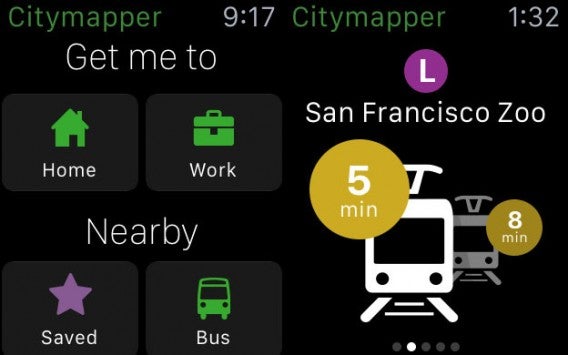
If you live in one of the select cities that Citymapper supports, you should download the app now. It’s extremely useful for pulling up directions using public transport and quickly looking up departure times. Citymapper is especially useful since Apple Maps doesn’t support public transit yet.

You can even set your home and work locations to get one tap directions to each location. Citymapper did a great job of bringing the best parts of its iPhone app to your wrist.

The app crashed a lot on me but I can forgive it since the platform is so new. Hopefully Citymapper can sort out this issue soon.

Download Citymapper

Wrap-up

Apple Watch new and old

I am very impressed by the selection of Apple Watch apps. It’s only been a few days since the watch was released but there’s already a ton of apps out there, bringing more value to the watch than the built-in apps alone can give.

I expected Watch OS to be similar to Android Wear but they couldn’t be more different. While Android Wear is more like a notification center for quickly acting on your notifications, Watch OS feels more like a complete operating system. Sure, 99% of the apps still require an iPhone but using specific apps on Apple Watch makes it seem more useful. How useful reading Twitter on your wrist is, is still up for debate. While Android Wear is designed to get out of your way, Watch OS beckons you to use its apps.

Stay tuned for more on the Apple Watch.

Related Stories

Apple Watch: everything you need to know

Android Wear vs Apple Watch

Is the Apple Watch right for you?

The way we pay: are mobile wallets the future?

Follow me on Twitter: @lewisleong

Facebook Messenger gets video calling

Facebook is taking Messenger very seriously. Recently, the company reinvented Messenger as a platform for app developers, allowing apps to work inside the app (insert Xhibit meme here). Last week, the company released a stand-alone web app for chatting on your computer. Today, the social network updated Messenger with video calling support.

Facebook already supports voice calling between Facebook Messenger users. It released an Android dialer replacement last week called Hello, which isn’t really a dialer but an app to keep you using Messenger.

Although Facebook is late to the video chat game, it has a good chance at success. The company has a huge audience and its app allows calling between iOS and Android. FaceTime is ubiquitous with iOS users but is limited to Apple’s own products. Messenger can fill the need for a cross-platform video chat app since so many users already use Facebook.

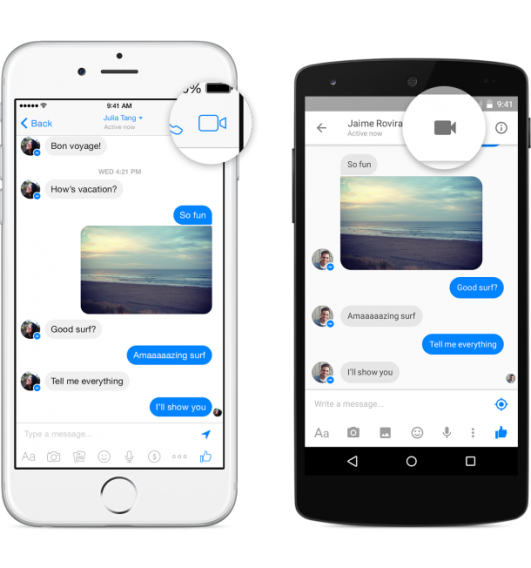
The video calling feature in Messenger is designed for speed. Users can start a video chat from a message by tapping on the video icon at the top. There’s no need to launch another app and to check if your buddy is using the same app. If you both have Messenger installed, you can start video chatting right away.

Facebook Messenger video call button

Facebook is up against strong competition for video calling from Snapchat (Android | iOS), Google Hangouts (Android | iOS), Skype (Android | iOS), and other messaging apps.

The update is being pushed out to users in Belgium, Canada, Croatia, Denmark, France, Greece, Ireland, Laos, Lithuania, Mexico, Nigeria, Norway, Oman, Poland, Portugal, the UK, the US and Uruguay. There’s no need to download an update; the feature will appear in the app by itself. If you don’t have the app already, you can download it below.

Download Facebook Messenger: Android | iOS

Related Stories

Best Facebook Messenger apps

Facebook Messenger gets its own web client

WhatsApp free voice calls rolling out to Android now, other platforms coming soon

Facebook Messenger now supports apps. Here’s why it matters.

Don’t fall for WhatsApp voice call scam sites

Follow me on Twitter: @lewisleong

Call of Duty: Black Ops III first details announced

Developer Treyarch is back in the driving seat for this year’s installment of Activision’s huge franchise. Call of Duty: Black Ops III will arrive on PC, Xbox 360 and Playstation 4 on November 6th 2015. You can watch the reveal trailer and read the PC specifications below.

Set in 2065, and continuing the story of Black Ops II, Call of Duty: Black Ops III looks to gently evolve the series in a few ways.

Firstly, the campaign mode will support four player co-op. Of course, you’ll be able to play solo too, but co-op promises new ways to experience the game, with each soldier taking a different role in the various scenarios. As well as playing through the story normally, you’ll be able to play any level in any order with friends. This co-op emphasis means Call of Duty: Black Ops III environments will be more spacious and open, so there should be less of the corridor-style gameplay of earlier games.

It’s good to see a Call of Duty title putting more emphasis on the campaign mode, which has sometimes just felt like a controversy-filled add-on to the multiplayer part of the series that keeps players coming back.

The futuristic setting allows Treyarch to introduce even more technology to the battlefield. Soldiers are augmented with a variety of technological upgrades, turning them into superhuman fighters. You’ll be able to double jump, wall run and thrust slide, thanks to new cybernetic limbs. This may bring Titanfall to mind, but that game wasn’t the first to introduce technologically improved super soldiers to FPS gaming either, and last year’s CoD Advanced also featured robotically-enhanced soldiers.

As you can see in the reveal trailer, soldiers will have more than super powerful limbs. Weapons will be highly technological too, and there will even be underwater combat sections. Just like we’re used to in multiplayer today, you will also be able to customize and upgrade your campaign character as you play through the story.

So far we know that the multiplayer will feature ‘Hardpoint, Domination and Team Deathmatch‘ modes, but more have yet to be announced. Zombie mode will also return.

If you pre-order, you’ll be able to take part in a multiplayer open beta for the game later this year.

These are the minimum PC requirements for Call of Duty: Black Ops III.

Operating System: Windows 7 64-Bit / Windows 8 64-Bit / Windows 8.1 64-Bit

Processor: Intel® Core™ i3-530 @ 2.93 GHz / AMD Phenom™ II X4 810 @ 2.60 GHz

Memory: 6 GB RAM

Graphics: NVIDIA® GeForce® GTX 470 @ 1GB / ATI® Radeon™ HD 6970 @ 1GB

DirectX: Version 11

Network: Broadband Internet connection

Sound Card: DirectX Compatible

Stay tuned for more features on Call of Duty: Black Ops III this year.

Related Articles

Why video games are good for kids (and you too!)

Should my kids be playing this? Parents’ guide to games in 2015

App of the Week: Call of Duty Advanced Warfare

Follow me on Twitter: @jonathanriggall