WhatsApp continues to be the most popular messaging app on the planet with over 2 billion monthly active users. However, the app has long suffered from an inability to properly monetize its popularity. We recently reported on the development of an optional subscription plan for WhatsApp Business accounts, which represents one way that WhatsApp is attempting to address this problem. Today we can report that WhatsApp is further looking to develop WhatsApp Business features in a bid to capitalize on this further.
We have mentioned previously that for a lot of WhatsApp features there are different development schedules for each of the different versions of the app: iOS, Android, and Desktop. This new feature follows this pattern as WhatsApp has been testing it on the beta iOS version for over two months already.
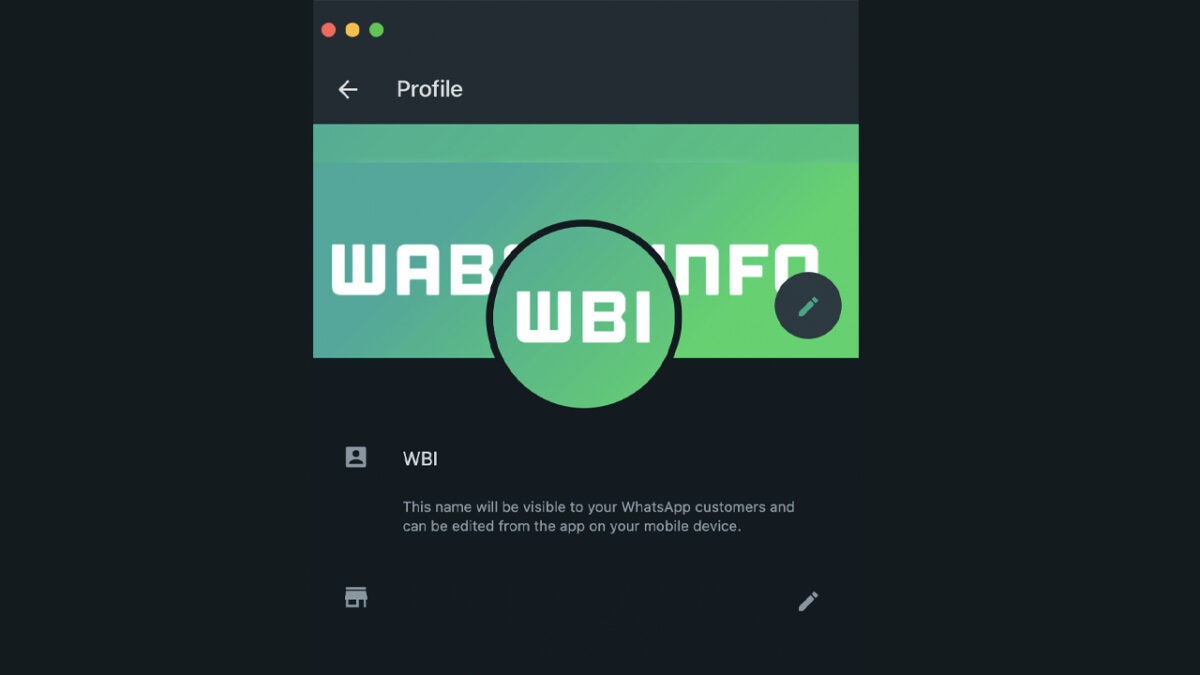
The feature in question is cover photos for WhatsApp Business accounts, cover photos are now also available to WhatsApp beta testers on the desktop version of the app as well as the iOS version. The feature is still under development for the Android version of WhatsApp and so, as yet, is unavailable on the WhatsApp beta for Android.
The feature allows WhatsApp Business users on Desktop to go to their account settings page and select a cover photo for the business. Once this is set up, potential and existing customers and clients will be able to view it whenever they select the WhatsApp Business account.
The update will give WhatsApp Business users an extra way to communicate with their clients. Cover photos are often used to express a brand’s identity or to advertise important information such as contact details or special offers. Offering business users the ability to add cover photos to their accounts gives them another point of reference for clients.
If you like the sound of this feature and are disappointed that it is only coming to WhatsApp Business users and not to regular users, you may be interested to learn that sometimes, WhatsApp likes to bring Business features to all users.
WhatsApp is one of our favorite apps and we love tracking all the WhatsApp developments and keeping you up to date on how it is evolving. We recently reported on how WhatsApp was improving the Status feature by adding rich information to any links shared via the WhatsApp Status feature. Today we can tell you that WhatsApp is further developing the feature to make it easier to organize any responses you get when you post WhatsApp Status updates.
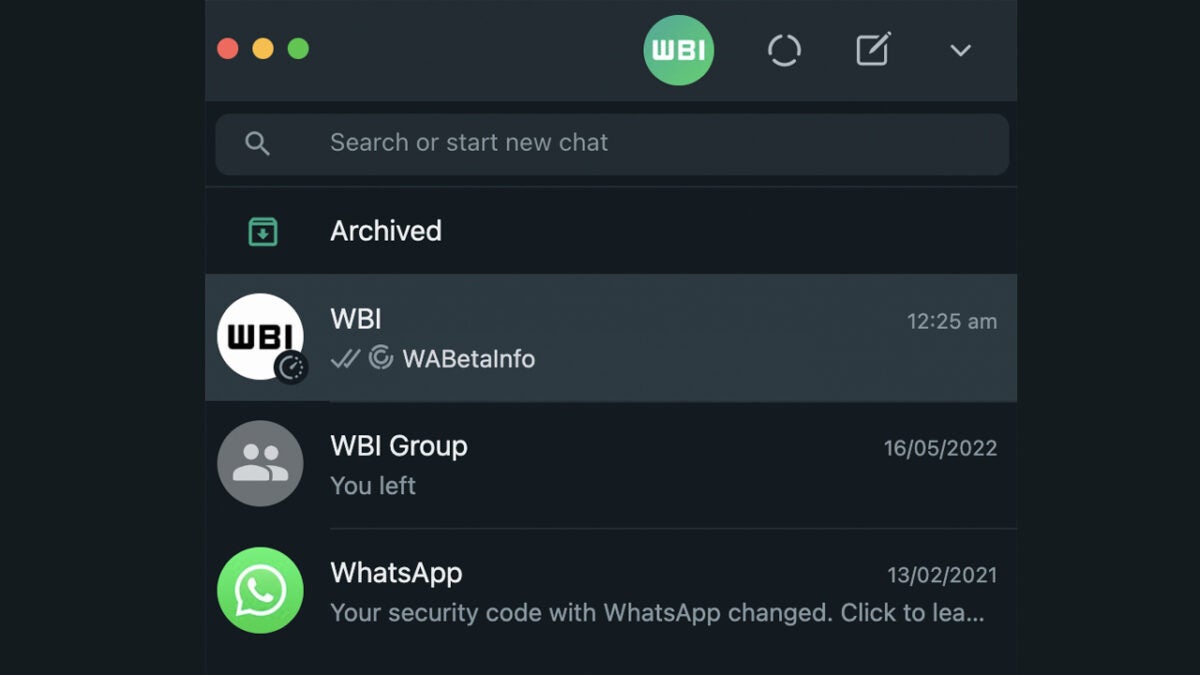
In the latest beta version of WhatsApp, a small update has been spotted, which will make it easier to spot when somebody has responded to one of your Status updates.
At the moment, when you post a Status update on WhatsApp, people can respond to it as a message in a chat. When you open the chat, you will see that the message you have received is a response to the update, but that will be the first time you know it. This new update will add a small Status icon in the list of chats so that when you see you have received messages in your inbox, all of them that are responding to your Status update will have the new icon, which you can see above.
This is only a small update, but it just marks another step forward in WhatsApp’s constant state of evolution. There is no news yet about when this new feature will drop on all versions of WhatsApp, and there is no guarantee it will drop at all. All we know now is that WhatsApp has developed the feature and is already beta testing it. It is also clear that WhatsApp is currently testing on both Android and iOS versions of the app and for WhatsApp Desktop too.
If you like the sound of this update and consider yourself to be a big WhatsApp fan, you might want to check out our WhatsApp productivity guide.
Working across multiple devices is something that we mostly take for granted these days. We all have smartphones and most of us have at least one PC or Mac as well and maybe even a tablet too. That’s why we are using accounts more and more often leaning heavily on the cloud. We want what we do to be available wherever we want to do it. It is in this vein that Microsoft is working on an interesting productivity tool for its Edge browser. Let’s dive in a little deeper…
In the Microsoft Edge Canary channel, where the software giant discusses all new features that are being tested, a new feature called “Drop” has surfaced. It looks like Drop is trying to solve one of the trickier multi-device workflow problems, how to take files or just bits of text with you from one device to the next without having to go through the trouble of uploading them to your cloud storage account and then downloading them again on the other device.
The idea behind the Drop feature is that you can simply drag and drop any files you want to take with you onto Edge and then they’ll be waiting for you there when you get back to work on the other device.
In the current test version on the Canary channel, Drop works via a dedicated side panel, which is a little similar to History, for example. You select the Drop icon and then the panel opens up and you can drop your files onto it. The feature also works for text notes, meaning, theoretically at least, you can copy text from one device over to the other using the feature. Another thing to note is that it looks like the feature is linked to your OneDrive account, meaning you will need available space in your OneDrive to make it work.
As this feature is still under development, we can’t give you an idea about when it will roll out to all users, but we can promise to keep you updated as soon as we learn more. In the meantime, if this sounds like an interesting feature you may be interested to hear that Telegram’s Saved Messages Feature works in a similar way and is already available on the app.
Epic has just announced Fortnite’s return to in-person competition in the form of the FNCS Invitational 2022. The last time Fortnite players were able to compete in person was at the 2019 Fortnite World Cup. While this new event doesn’t carry the World Cup title, many believe this to be the relaunch of the highly-publicized and anticipated global Fortnite competition.
The FNCS Invitational 2022 will take place on the 12th and 13th of November at North Carolina’s prestigious Raleigh Convention Center. In a recent blog post on behalf of the Fortnite team, Epic expanded on the details of the event. ‘We will be inviting a selection of top FNCS Duos from around the world who will have the opportunity to compete in a single lobby for a share of a $1,000,000 prize pool.’
Tensions are, however, still high where in-person public events are concerned as the world has not yet broken free of the Covid-19 Pandemic. The blog post addressed these ever-present public health concerns, stating that the safety and health of the player involved are ‘the number one priority for holding any in-person event.’
The organizers also stressed the fact that laws concerning public health are their top priority too, stating that the event may have to be rescheduled should ‘public health trends change or regional laws or recommendations shift at any point this year.’
The current public health crisis is also the reason that we haven’t seen any subsequent Fortnite World Cups and why 2019’s was the last. The 2019 Fortnite World Cup turned ended up being a massive three-day spectacle of hardcore gaming and entertainment, and Epic had every intention of bringing the extravaganza back in 2021. However, rising concerns surrounding the Covid-19 pandemic thwarted their plans. Epic concluded at the end of 2020 that there would be no 2021 World Cup.
This latest announcement concerning the 2022 Invitational, however, sparks a glimmer of hope that we may see yet another in-person event in the near future, possibly a 2023 Fortnite World Cup.
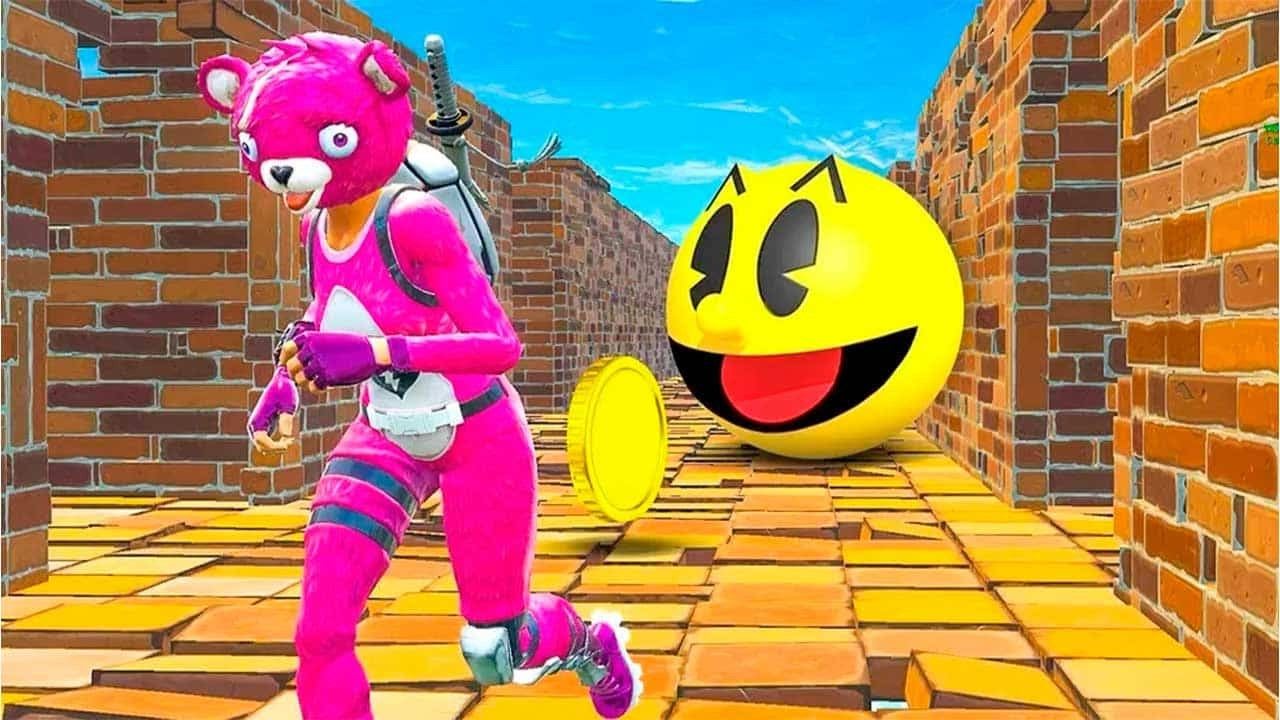
Fortnite is edging closer to the conclusion of its current season, and Epic has big plans for the game going forward. One of the newest additions to hit the massively online multiplayer sensation is none other than everyone’s favorite yellow puck; Pac-Man’s coming to Fortnite! But his arrival might not be in the way that you think.
Creating a presentation consists of more than just adding content to slides. You want your presentation to be visually stimulating so that the information you share can be remembered. Google Slides is a wonderful free-to-use platform where you can create all manner of striking presentations, complete with transitions and animations to keep your audience engaged.
In this article, we’ll be taking a look at how you can add effects to your Google Slides presentation. Keep reading to discover how you can create visually striking presentations in Google Slides by using effects.
How to add effects in a Google Slides presentation
Adding Transitions
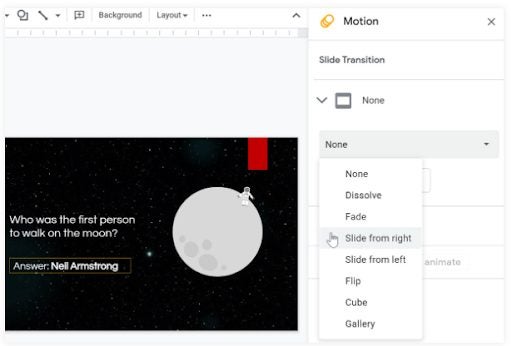
The first effect that you can add is slide transitions. A transition is how the current slide moves into the next one. Google slides have a few different transitions that you can use. These transitions are:
Dissolve
Fade
Slide from right
Slide from left
Flip
Cube
Gallery
Depending on the style of the presentation, you can choose the transition style that best suits the content. You can also set transitions for each individual slide or all the slides, depending on the look you’re going for.
Step 1: Create or Import your presentation
First, open or create the content of your presentation in Google Slides. Effects are always added last after the content has been added to the slides.
Step 2: Select the slide
Select the slide that you want to add a transition to. Click on ‘Transitions’ in the top toolbar with the slide open. The ‘Motion’ pane will appear to the right of your screen. Here you can see the current transitions and animations set for the slide.
Step 3: Choose the transition
Click on the drop-down list below transitions and select the transition you want to use. Once selected, you can click on the ‘Apply to All Slides’ button if you want to use this transition for all your slides. By not clicking on this button, the transition will only be added to the current slide.
Adding animations
Animations are another great way to add interest to a presentation. Animations are how specific objects move into the slide – these objects can be images, graphs and videos. Let’s take a look at how to add animations in Google Slides. Some of the available animations include:
Appear
Disappear
Fly in (different directions)
Fly out (different directions)
Zoom in
Zoom out
Spin
Step 1: Select an object to animate
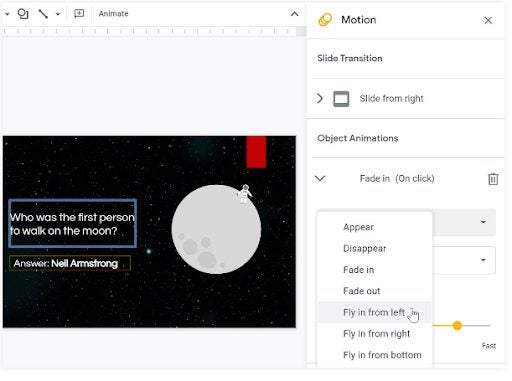
Click on the object you want to animate and right-click to open the drop-down list. In the drop-down list, click on ‘Animate’.
Step 2: Check the current animation
Once again, the ‘Motion’ panel will open to the right side of your screen. The bottom section, below ‘Transitions’, is where you’ll find the object animations.
Step 3: Choose the animation type
Click on the drop-down menu underneath ‘ Object Animations’ and choose the desired animation for the selected text or image.
Adding music or video elements
Music and video can also be great additions to a presentation when used appropriately.
Step 1: Select the slide where you want to add the audio or video element
Select the slide where you want to add the audio or video element.
Step 2: Click on ‘Insert’
Click on ‘Insert’ in the top toolbar and select either video or audio.
Step 3: Add your audio or video
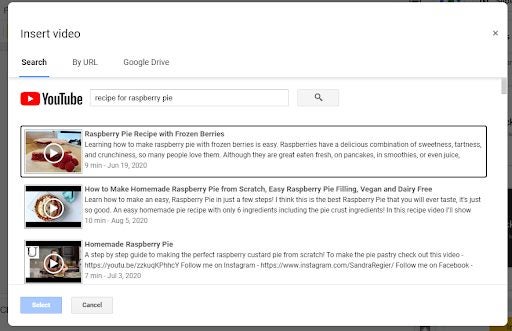
A window will open where you can choose which video or audio to add. If adding a video, you’ll also have the option to search YouTube for the relevant video.
Step 4: Adjust settings
Once selected, the video or audio will be placed on the slide. The audio will show with a speaker icon, whereas the video will be added as a resizable image that you can move around or adjust. You can change any settings on the right, such as what parts of the video or audio to play and when to start playing them. You can adjust these settings as needed to create the best effect.
Start creating eye-catching presentations
Presentations can be used in different ways, to deliver insights at a business meeting, to win over new clients, to present educational topics to students or even to celebrate special events such as birthdays and weddings. Adding special effects can make the presentation striking and memorable – which we all want.
However, be careful to not go overboard with the effects you use. If you want to maintain a clean, sophisticated presentation, then less is more. Now that you know how to add effects to Google Slides, start creating your next presentation now.
Be sure to check our guides on the top Google Slides templates and themes for 2022.
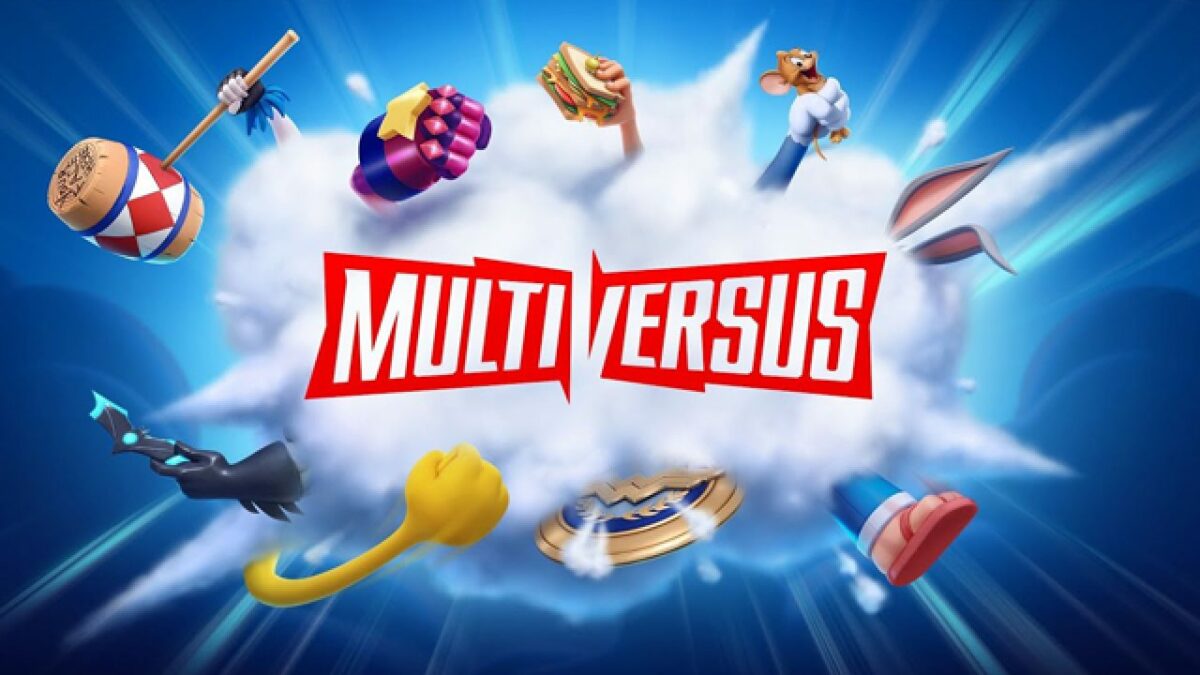
MultiVersus is a fighting game developed by Warner Bros Games and Player First Games. While the closed Alpha is currently underway, those who haven’t been able to test the game yet will have to wait for the official release. While we wait, a new leak has revealed some potential characters that we might see in the game.
MultiVersus is a 2v2 style fighting game, similar to titles like Super Smash Bros and Brawlhalla, but in this game, you can play with some of your favorite Warner Bros characters. From Batman to Bugs Bunny and even Arya Stark – the game is set to have an interesting range of characters you can choose from to battle it out.
While the website confirmed some of the characters available on launch, a recent leak on Reddit revealed a few more characters that are either being worked on or are in the plans to be included in the game.
Reddit user ‘u/hugeleakeractually’, who was responsible for the first leak about this new game, just released a few more characters he discovered through data mining. These characters are already mostly finished, meaning there’s a good chance that we’ll see them in the game once it releases officially. These characters included:
Joker – DC Villain
Raven – DC Hero
Gizmo – Gremlins
Marvin the Martian – Looney Tunes
Lebron James – Basketball (NBA)
Rick – Rick and Morty
Morty – Rick and Morty
Scooby-Doo – Scooby-Doo
Daenerys – Game of Thrones
The Hound – Game of Thrones
Wicked Witch – The Wizard of Oz
Godzilla – Godzilla
Aside from these characters that are already done, a few more were hinted at when the game was first announced, but according to the leaker, these characters are not done yet, so we’re unsure when we’ll see them. These include Johnny Bravo and Fred Flintstones. Max Max and Harry Potter are also still on hold.
While we’re hoping to receive an official release date for the game soon, it would be interesting to find out which of these characters make it to the launch or if they’ll be released later on.
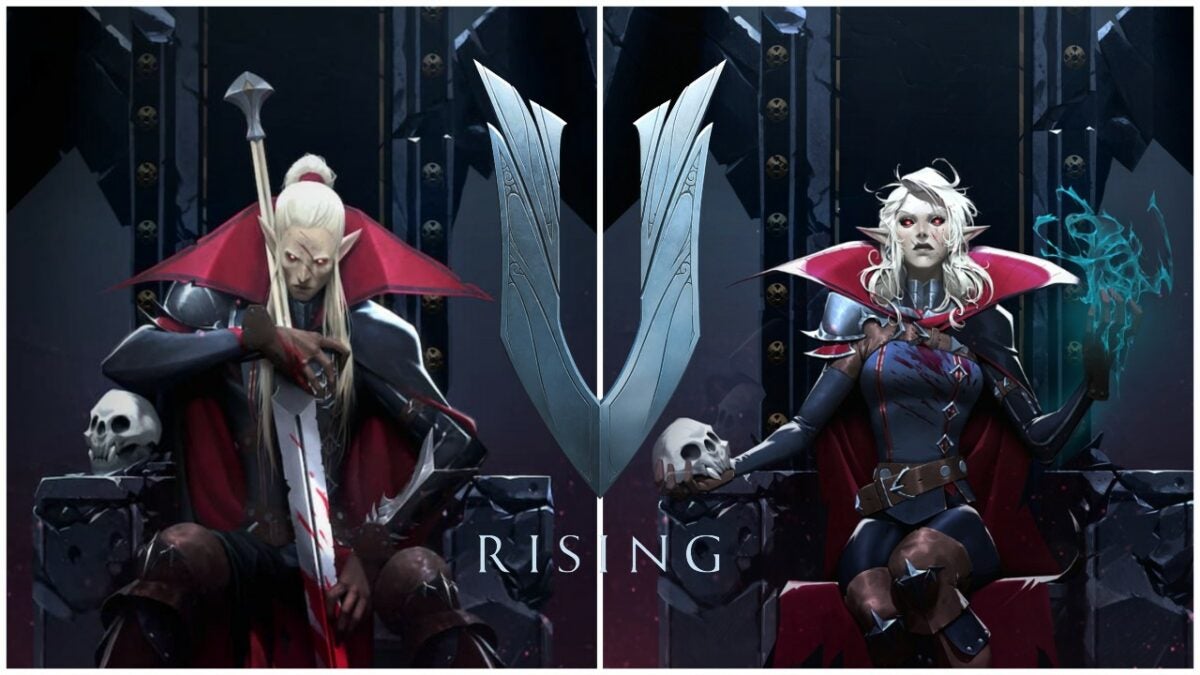
Saying something is “Diablo but better” is a tall, over-simplified order, but V Rising really does deliver on it. The vampire-centric game has elements of base building, combat, bounty hunting, survival games, and loads more. The camera movement, top-down orientation, and abilities even make the action RPG a bit MOBA-like. It has also been likened to recent indie darling Valheim-another indie game with base building.
As it has something for everyone, it may also not be successful in pleasing hardcore fans of one particular genre. So let’s break down V Rising for its story, mechanics, performance, and design to see how it stacks up to the excitement around the latest title from Stunlock Studios.
Stunlock Studios, the development company behind this game, doesn’t have too many games under its belt. Only founded in 2010, the Skövde based studio released their first game Bloodline Champions for Windows PC in 2011. Their subsequent titles, Battlerite and Battlerite Royale, were both MOBA-like in nature.
Chinese megacorporation Tencent took a controlling share in the company in 2021, but V Rising began to gain traction thanks, in part, to Early Access. To date, more than 1,000,000 players have logged into creating their castles and challenging daywalkers.
Setting & tone
“Awaken as a weakened Vampire after centuries of slumber in a world full of danger. Stripped from your unholy powers and starving for blood – you must hunt to regain your strength and fight for survival.” That’s what developer Stunlock Studios sets players up with for V Rising. But they also pose the question “will you become the next Dracula?”
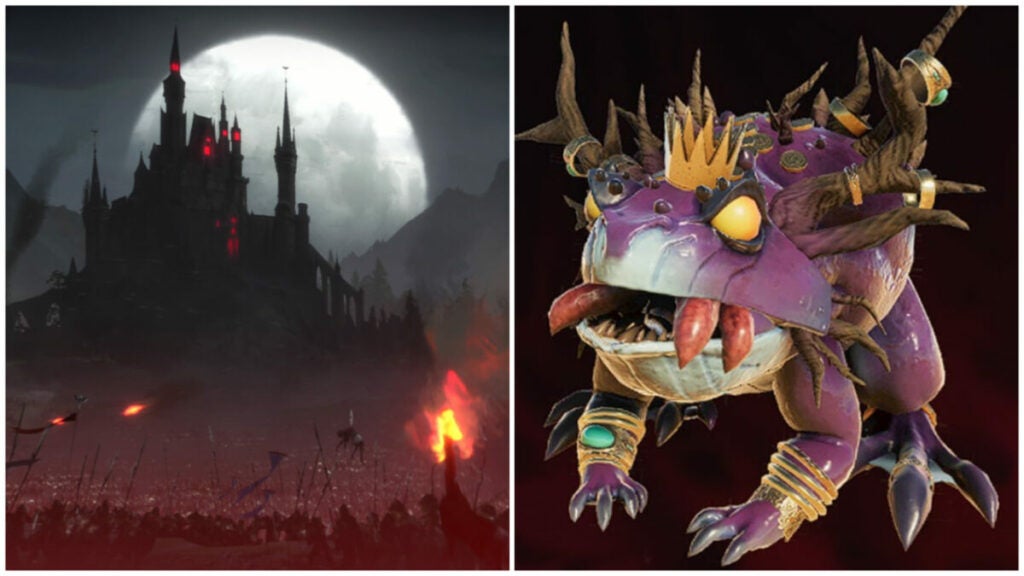
That said, the open world-game takes place in a gothic era countryside. Animated skeletons stalk the night along with bandits, treants, vampires, and all kinds of creatures. Vardoran, the name of the in-game world, doesn’t seem a very hospitable place for anyone.
V Rising story
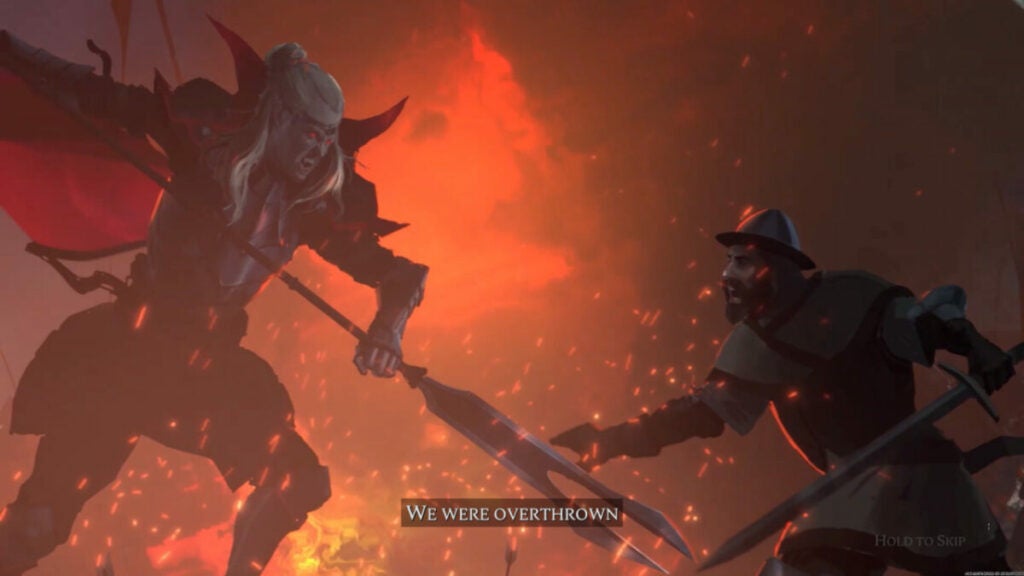
The basic setup of the story is a weakened vampire slowly regaining its power. However, Stunlock Studios gives players a decent amount of agency as they choose what path to follow. You can become a diplomat or a total, bloodthirsty count or countess. You can even simply convert humans to worship and serve you.
Beyond that, you’ll just have to play and see for yourself what unfolds based on your choices in the dangerous locales around Vardoran.
How long to beat V Rising
V Rising does not have a strictly linear story like in Sifu or Ghostwire: Tokyo. As such, the time it takes one player to “beat” V Rising may differ wildly from any other. Game producers said that the Early Access version of the game provided 40 – 60 hours of content.
In addition, some closed beta players said that they spent ~80 hours in the game. For now, expect to dump a decent chunk of time into this game — especially if you’re playing with friends.
V Rising performance
As with all new games from smaller studios, V Rising has had some hiccups in terms of performance. However, the relatively stable Unity engine keeps things moving fairly smoothly. The game also does not have platforming or jump mechanics outside of prompted “jumps” where your character flips down a small ledge.
With an impressively small footprint of just 6 GB, the game delivers much more than it costs in terms of monetary price and storage. That said, some players will encounter specific glitches. For instance, V Blood bounties will sometimes not spawn where they are meant to.
The “Unstuck” feature available to players in the “Esc” menu is one solution for this. Using this feature revives players at their coffin or a discovered waypoint with their equipment. Sadly, you do lose the rest of your inventory and will have to backtrack to fetch it if you use this feature.
V Rising gameplay & functions
Loot features heavily in the game but it serves more of a crafting purpose than anything else. For instance, players get their first unique set of armor very early in the game as part of the base tutorial. You have to upgrade your armor to unlock more features for your castle.
These integrated crafting tutorials may feel a bit unnecessary for seasoned players of RPGs, but it doesn’t hold your hand entirely. The freedom to travel wherever you want (sun damage pending) is very freeing. Pro-tip: spend any more than 3 – 5 seconds in the sun and you will rapidly begin to take tons of damage. You’ll likely be killed within mere moments, so keep to the shade of trees if you have to travel in the daytime hours.
By far, though, the biggest feature of the game is the V Blood system. Unique characters in the world are known as “V Blood” people from whom your vampire can attain new abilities. This can be as simple as learning to make leather to getting a fantastic new ability or animal form.
UI and interface
Fans of games like Diablo will find the overall UI setup familiar enough. Despite this, it can start to feel cluttered often. Let’s break down the basic elements of the UI:
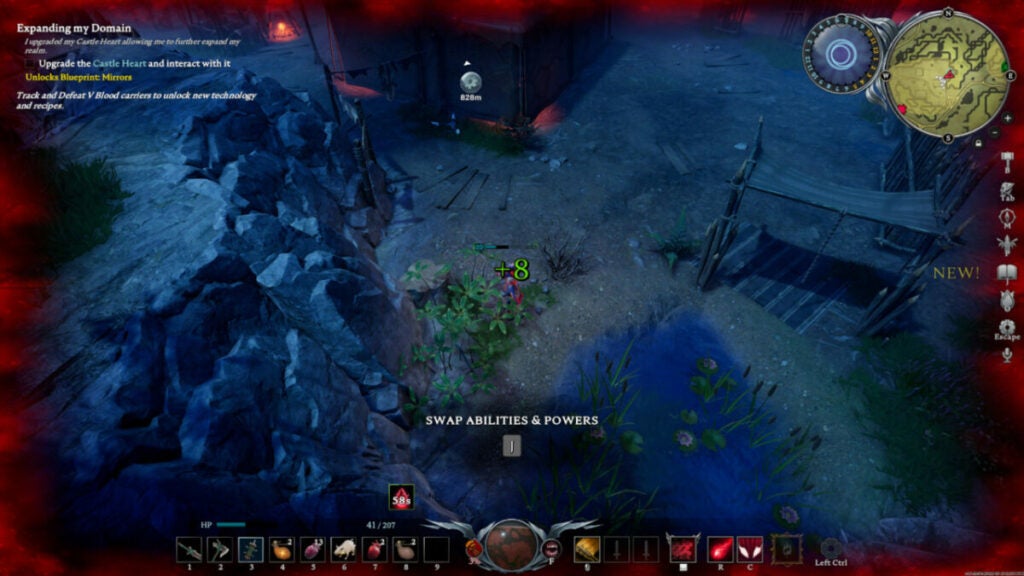
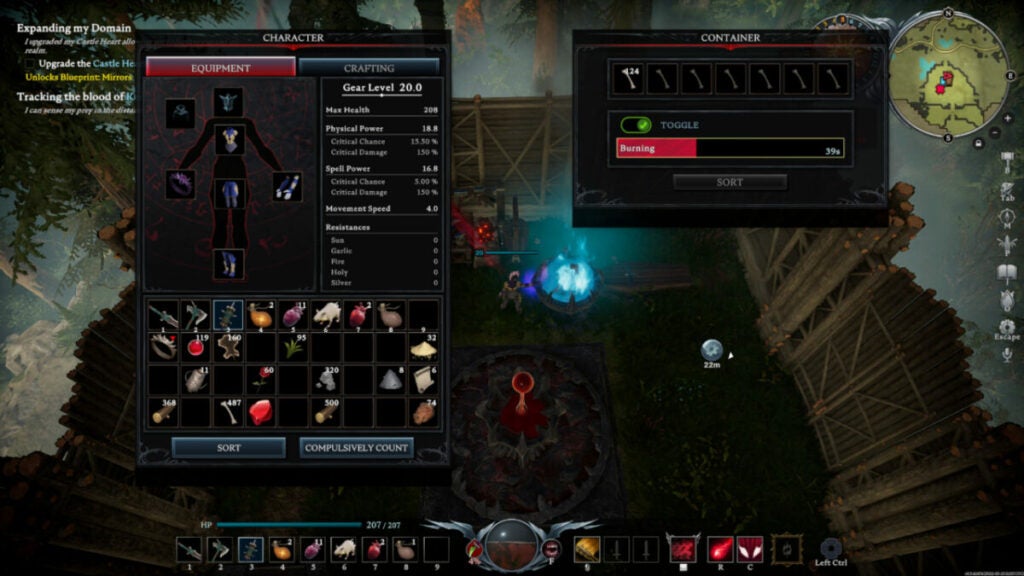
Blood gauge – in the center of the lower bar and displays how much blood you have and what your current blood type is along with what bonus it offers.
Inventory hot bar – located in the same lower bar, this 9-item hot bar lets you switch between weapons or items by pressing numbers 1 – 9 on your keyboard.
Special abilities – your abilities are on the lower bar on the right-hand side. As you grow in power and take down V Blood bounties, you’ll gain new abilities.
Mini-map – located in the upper right-hand corner, the mini-map is okay, but players will often need to refer to the full-sized map for better context and waypoint management.
Objectives – these are displayed in the upper left-hand corner of the screen.
Right-hand side hotkey bar – the greyed-out buttons on the right side of the screen have things like a Journal, Inventory, etc.
Inventory screen – this screen with your character equipment, inventory, and crafting options pops up on the left side of your screen when you press “Tab”.
Crafting or item window – this screen pops up on the right side of your screen when you use “F” to interact with an item such as a Furnace, Blood Altar, etc.
Control schema
Gamers familiar with top-down camera titles like Divinity: Original Sin 2or Grim Dawn will recall the top-down camera angle. While you use W, A, S, and D to move, the right mouse button moves your camera around in the default control schema. Of course, players can customize these to their preferred setups.
Key mechanics
The game features many different abilities, animal forms, and mechanics that can greatly impact how you experience the game world. For instance, when in your wolf form, other wildlife will not attack you.
In your humanoid form, many animals will instantly become aggressive toward you. Being in your wolf form also grants you increased movement speed. However, you will still take damage from the sun if you stay in it for too long.
That’s really the main mechanic outside of your general RPG combat and base building: staying out of the dang sun. As mentioned earlier, you will be burnt to a crisp within seconds if you don’t get into the shade of a tree during sunlight hours. Your castle can also utilize Mist Braziers to block out sunlight before you can build roofs.
Pro-tip: in-game night hours are from 7 PM to 9 AM while daylight hours are from 10 AM to 6 PM.
World, sound, & character design
World design: An open world where you can’t climb walls
Due to the simplicity of the map design, players cannot do things like slide down or climb rock faces. This isn’t a huge problem, but having to run around short rock facades that you could easily climb in real life does not feel rewarding.
Only after you gain new animal forms and abilities can you easily traverse the terrain. Of course, some players may enjoy this facet of the game as it presents just one more challenge in the journey toward becoming a full-fledged, powerful vampire again.
In terms of the foliage, stones, and water, the map feels organic. The forests flow from one area to the next with small streams or lakes dotted around. There are deserted cemeteries, small villages, bandit camps, mines, caves, and more.
Sound design: Solid and atmospheric
Like games such as Minecraft, music and sound effects can play an integral part in games with base building mechanics. Without any music, the crafting and resource gathering may become monotonous. Without sound effects, your character is liable to get ambushed often. Luckily, the V Rising developers considered both of these factors.
The soundtrack sets the tone well while also alerting players to specific scenarios with consistent musical motifs. Unique monsters such as Treantshave their own attack noises and combat music willplay and then fade as your player enters or exits combat.
Character design: Limited but fun
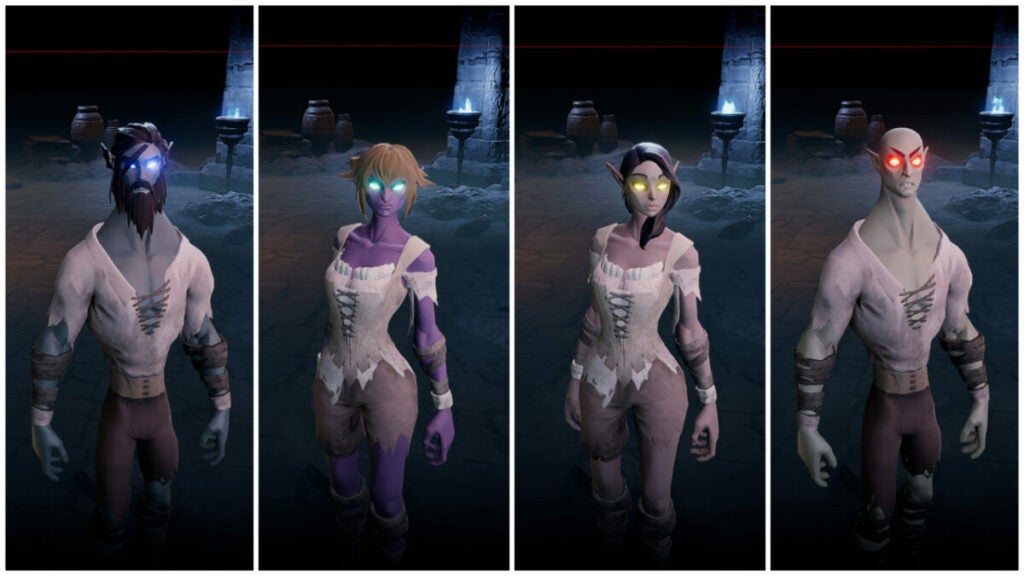
The depth of variation in V Rising when it comes to creating your base character isn’t very deep. You can’t adjust eye width and head size or select body types. However, you can still create a sinister-lookingmonster or a rather normal-looking nightstalker. Armor selections as the game progress can further help you customize your look.
Other character design for skeletons, creatures like wolves and bears, as well as bandits is fairly straightforward. However, the art style that falls somewhere between stylized cartoon and 3D cel-shaded strikes a perfect balance of quirky and easy to enjoy.
Verdict: Get this game!
V Rising is the perfect game for people who need something to disappear into for a while. If you’re in a bit of a gaming slump, pick this up. If you need a break from competitive gaming like League of Legends or Overwatch, pick this up. Need to forget about the real world for some time? This game is perfect for that.
The crafting and resource gathering can become a bit tedious or repetitive at times, but that doesn’t detract too much from the main gameplay loop. Gathering powers and challenging yourself with new V Blood victims never gets old.
Download V Risingtoday to start reclaiming your vampiric prowess.
PROS
Fun gothic aesthetic with classic vampire designs
Challenging boss fights and unique abilities for everyone
Satisfying castle building and upgrading
Loads of replay potential
Custom private servers are available
Developers quick to apply fixes
CONS
Resource gathering and crafting can get tedious
Sun mechanic may turn off some players
Inventory management is a bit cumbersome
Enemies can glitch such as V Blood bounties not spawning where they should
Presentations deliver content in a visual way so that the audience can better understand the data. It’s one thing to place all the relevant information on slides and read them out to everyone, making them fall asleep. Another approach is using one of the best Google Slides themes to make the colors and details pop, making them more interested in your products or services.
Here are our top choices for Google Slides themes and templates. It’s best to see which ones will work best for your presentation to prevent spending too much time making alterations. Also, you can mix and match some elements to make your own theme.
What’s the difference between Google Slides themes and templates?
We made a separate guide for the top Google Slide templates. If you’ve seen that article, you may be wondering what the difference is between templates and themes. When it comes to templates, they provide layouts that focus on the actual content and how you portray them to the audience.
Google Slides themes are primarily aesthetic, meaning they concentrate on colors, patterns, shapes, and anything else that makes the presentation stand out from normal, bland ones. There are also specific themes that cater to specific industries, such as panels for photographic displays.
Where can you obtain Google Slides themes?
While Google Slides provides free templates when you enter the app, it doesn’t generally supply themes. You may find Chrome extensions that assist in this regard, but not all of them are reliable. That means you’re actually only left with one way to obtain themes for your presentations.
That’s right; you’ll need to hunt online for them. While some content creators do it free of charge, others require you to subscribe monthly to access as many of them as you want. The good part is that, once you have the templates you need, you won’t need to stay subscribed. You’ll also find theme providers that ask for a once-off fee. We recommend you ask anyone in the community if they have free versions before you pay for anything.
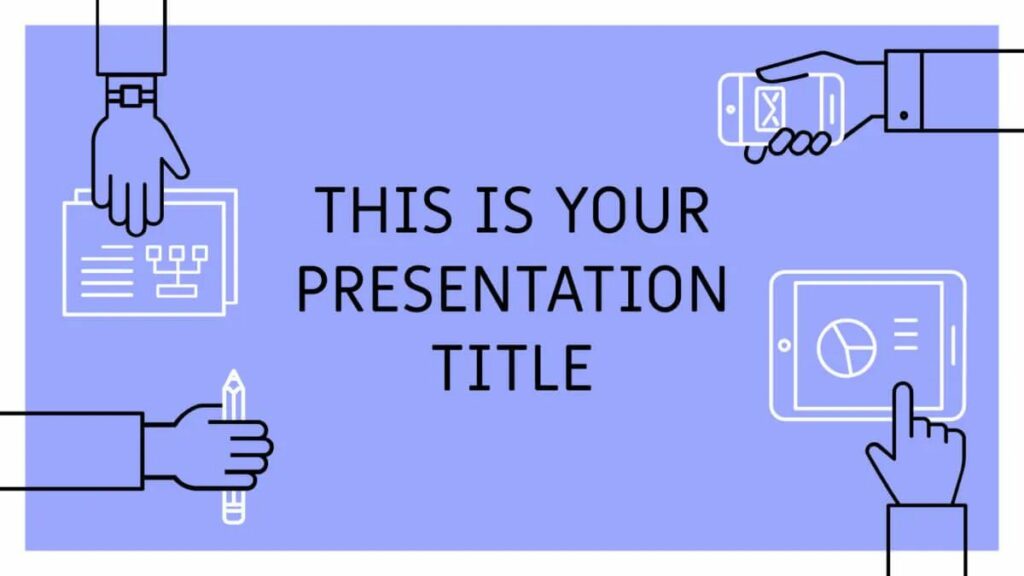
Do you need to present slides on your company’s team members for a proposal or business plan? The Teamwork Illustrations Google Slides theme is free, and you can copy it straight from the directory. It has several icons and images related to the workplace, and you’ll have interesting transitions between slides you can adjust.
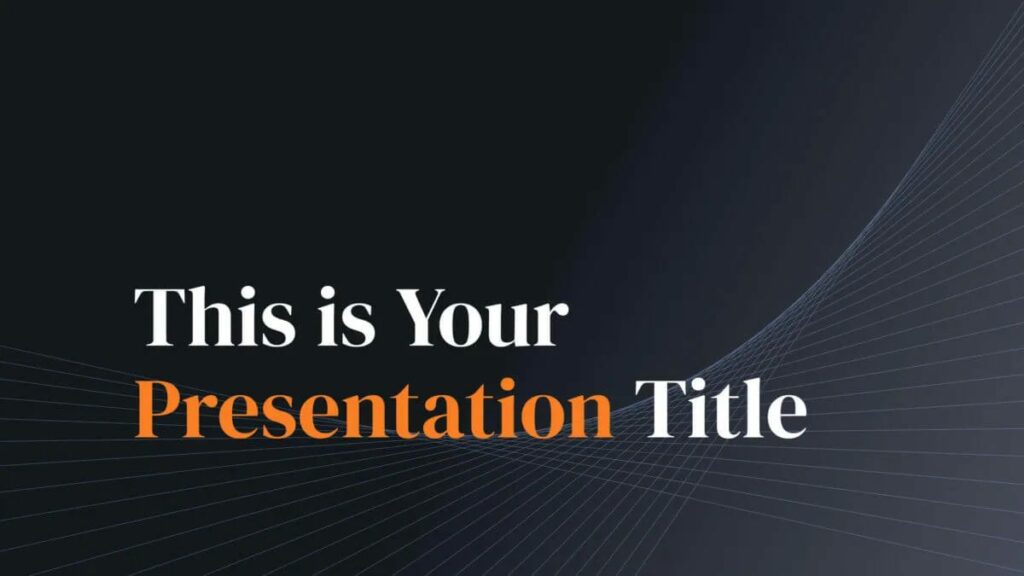
Working with reports, agendas, minutes, or financial data can be dull, especially for the presentation’s audience. The Dark Theme with Dynamic Lines theme for Google Slides adds darker tones with a minimalistic design. There are soft geometric shapes in the background that will help the viewers engage more with the content. You’ll also find large, bold text for items that need to stand out from the rest.
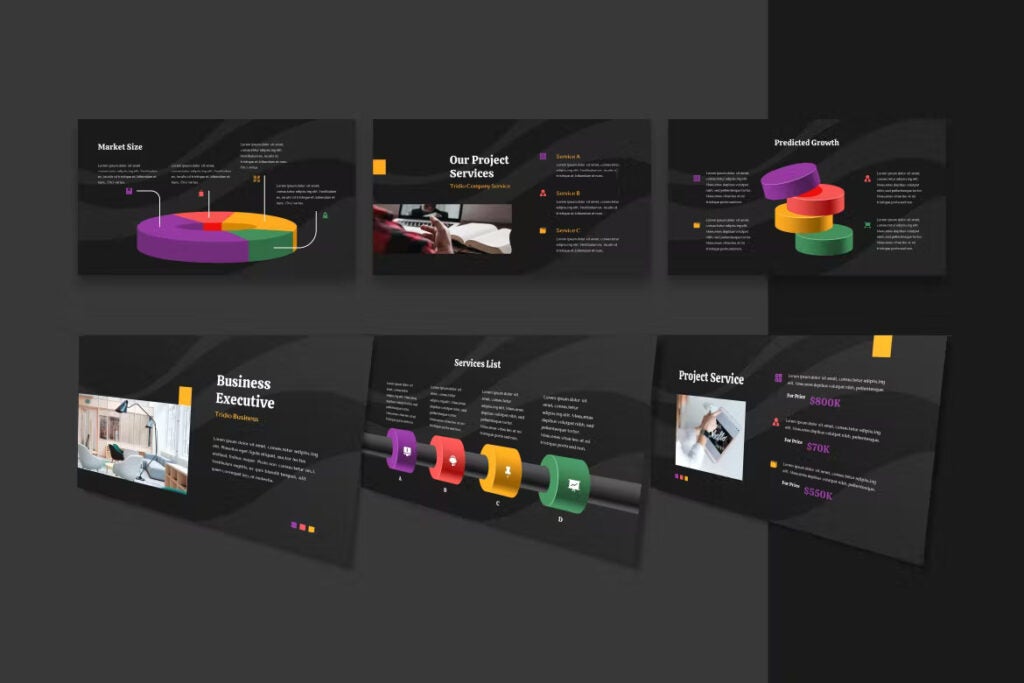
If you want to pitch an idea to management or another company, you’ll want the colors and layout to pop. This colorful, modern Google Slides template might start with a dark background, but you’ll find plenty of bright hues on the other slides. It also includes other design elements, such as tables, images, and maps.
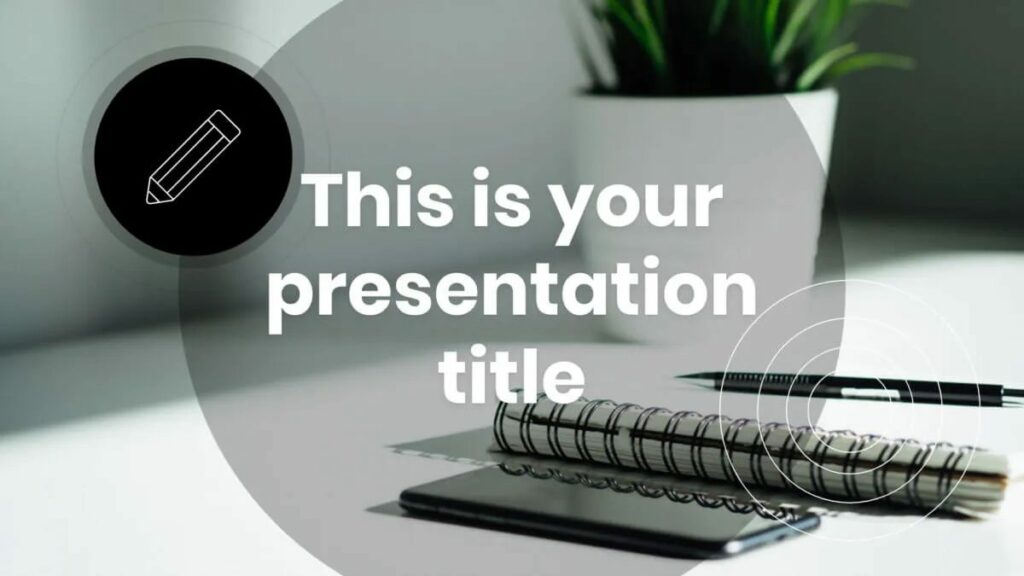
Perhaps you need to keep your presentation professional without all the splash colors or dark tones. This Google Slides template has circular lines with black and white shades for all the slides. The circles let you highlight important products or images, or you can separate one section of text from the others. Use your creative mind and go wild!
Not all presentations focus on text alone. You may need a visual gallery to bring your point across or for a pitch. If you’re working with facilities or construction projects, it’s helpful to add some photos of the actual sites or buildings, as an example. This Google Sheets theme lets you quickly add photographic backgrounds and foreground panels with text.
3D themes for Google Slides lets you completely alter the appearance of standard slides. You can add 3D objects for so many purposes, such as graphs, marketing strategies, financial bars, and more. There are many layouts available in this theme, and you can customize each one to meet your needs. Even if you copy over a piechart from Google Sheets, it’s easy to convert it to a 3D image.
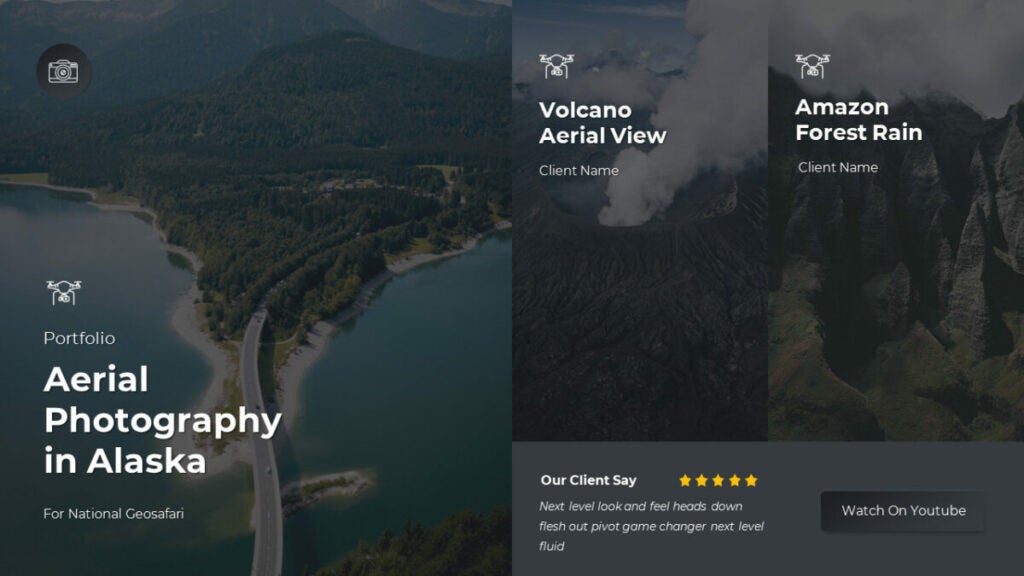
Anyone that works with photography will love this FotoGramly theme. You can choose from several photographic panel layouts for the images, while you can superimpose one over the other as foreground over background. You’ll receive both Light and Dark Mode versions so you don’t have to waste time converting them. It’s ideal for content creators who want to showcase their work or products.
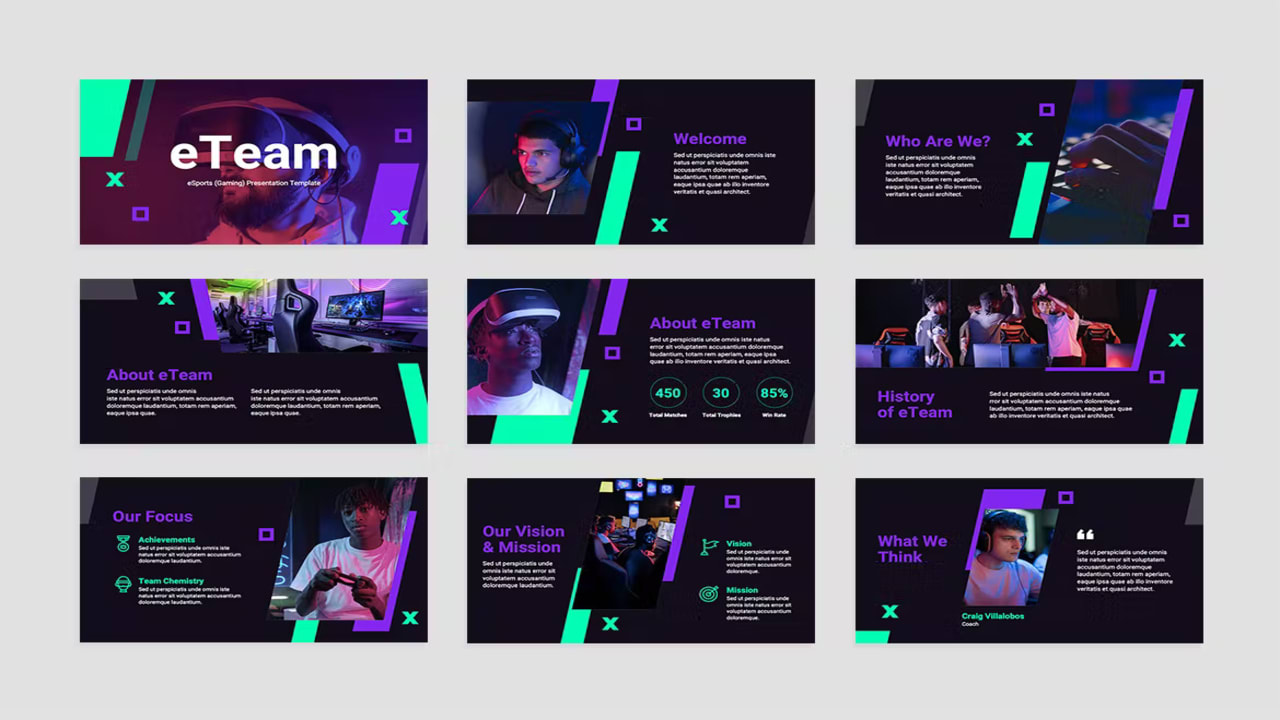
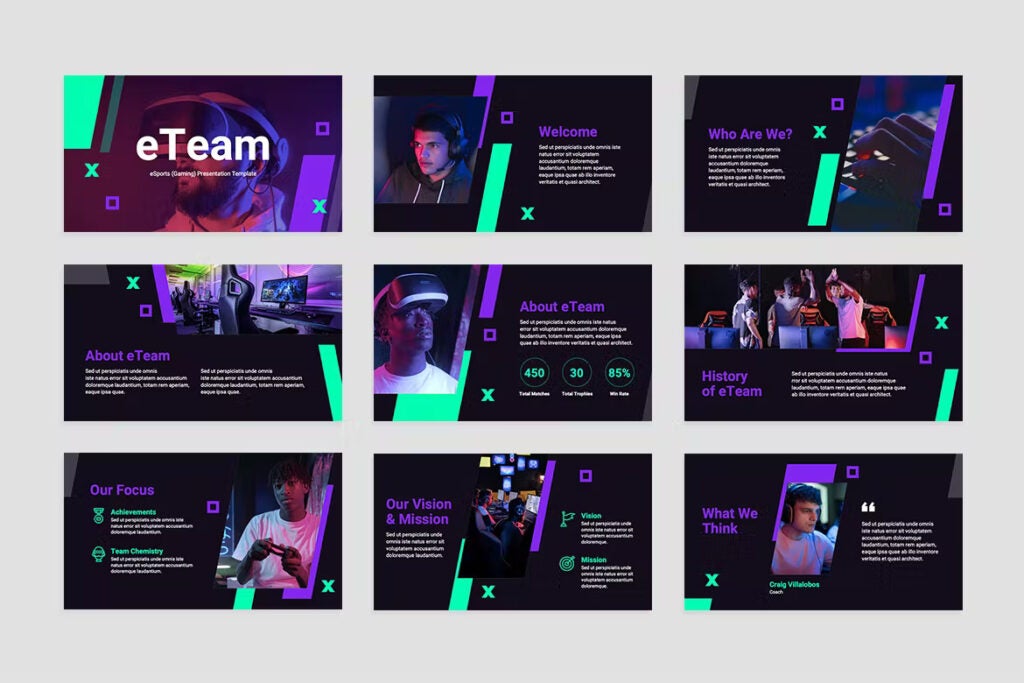
Are you an eSports team that wants to appeal to sponsors for funding? Perhaps you just want to increase your followers? This eSports Gaming Google Slides template adds lovely gaming colors that will draw your audience’s attention, with elegant headers and text panels. You can also include stats in geometric panels to impress the readers.
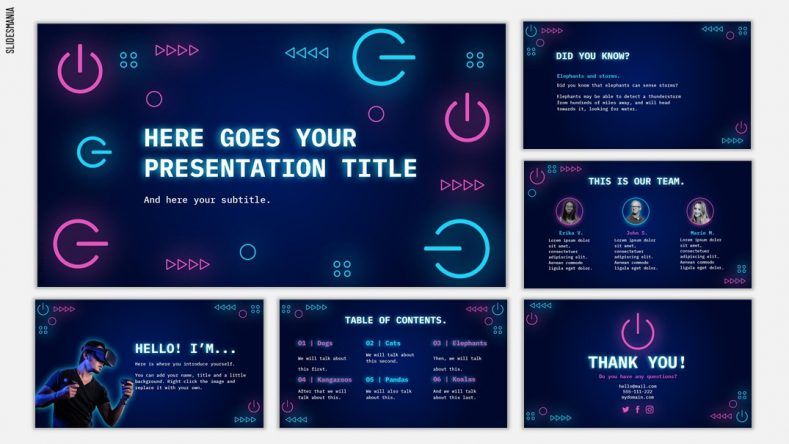
If you have a website about games or you’re a game streamer, you may want to check out the Twitch and Play Google Slides template. It has bright neon colors to catch everyone’s attention while also organizing your content in a professional way. Showcase your team members in a fun manner, and you can also place an elaborate table of contents.
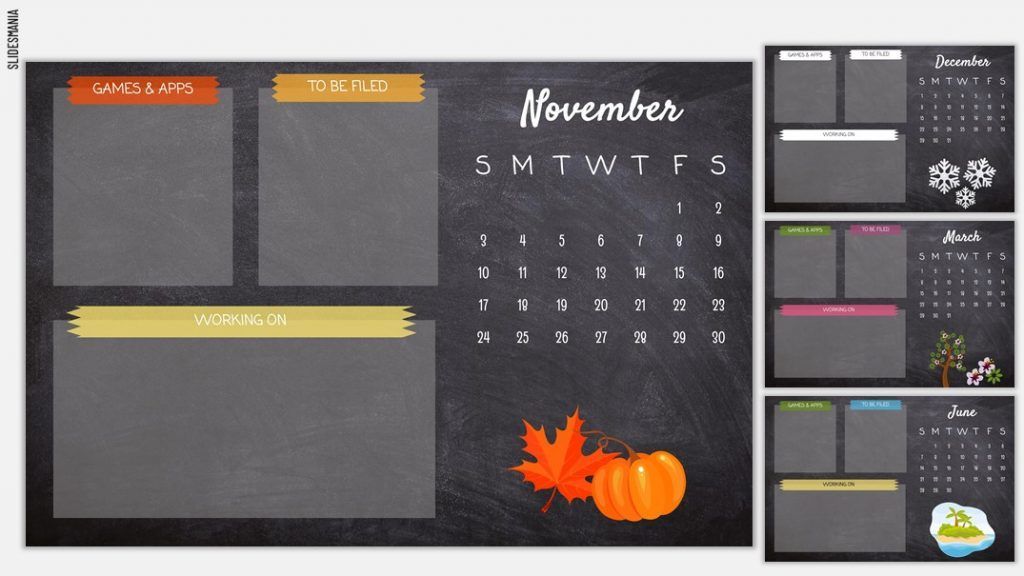
Our final Google Slides theme is for the educational sector or anyone else that needs to organize content and plans for the year. The Desktop Organizer Chalkboard presents charcoal backgrounds with text that looks like white chalk. Most of the panels have the monthly dates set out on one side, while there are panels for different categories.
Teachers can use these presentations to show students what they can expect for the month ahead. They can add topic discussions or assignments, and you can add fun images to the side that represents the season or subject matter.
When you need to create a spreadsheet fit for a specific purpose and don’t have the time to set it up, you can rely on templates for Google Sheets. They contain formulas and themes for different categories, which means you’ll be able to create sheets in less time and with less fuss.
Today we’re presenting 10 of the best free Google Sheets templates for any type of business or industry. We’ve covered several categories that are suitable for companies of any size, while freelancers will also find them useful. Save time so you can focus on your core work.
Why you should use Google Sheets templates
Besides the fact that many of them are free, there are many uses for Google Sheets templates. You can also collaborate with your team members or clients on the same documents, providing a more efficient and productive way of working. Most of the templates have everything you need for your task, but there’s an intuitive way to add more functions if needed.
The best benefit is that you’ll save data on the Google server, but you can also download sheets to your PC or company’s network storage. It keeps your data safe, as long as you save a master copy that no one else has access to.
Where to obtain templates for Google Sheets
There are three ways you can get free templates for Google Sheets. The first and most practical way is to open the app on your browser and look at the built-in templates. Secondly, you can install Chrome or Google Sheet add-ons that have templates included. Finally, there are many online service providers or content creators that provide them for free for different categories.
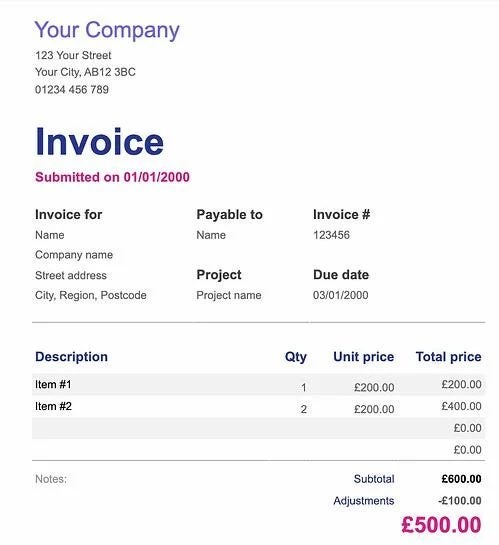
If you’re a small business or a freelance worker that needs to provide an invoice for payment, have a look at the free Invoices Google Sheets template. It presents the fields you’ll need for your customers, and you can change any of them to suit your needs. Feel free to alter the theme to match your brand to make it more authentic. It even includes formulas to make calculations easier.
Every company needs to create financial statements where income and expenses are part of the daily business. Instead of wasting hours, maybe days, creating one from scratch, you can use the Google Sheets template, Financial Statements. As you update the transactions, formulas will update the other tabs so you end up with detailed Profit & Loss and Balance statements. The template even offers guidance for improving the interactive process.
If you want to manage your finances more effectively, you’ll need to create a detailed Expense Report. This Google Sheets template is ideal for when the company regularly spends money on business transactions, but it’s challenging to keep track of them. You can make a tab for the company as a whole or per employee, depending on your requirements.
Moving on from financial Google Sheets templates, let’s look at a better way to analyze your website traffic. All that data can be confusing at times, especially when you need to organize them into charts and graphs. Website Traffic Dashboard has it all laid out already, and you can also synchronize it with the Supermetrics add-on for Google sheets. In this way, you can pull through all your PPC and other traffic data into a report you can customize.
Massive companies rely on expensive CRM platforms to help manage customers, sales, and leads more effectively. In some cases, they also use it to keep track of employee activities. Smaller companies don’t have the type of budget for these systems. That’s where this free CRM Google Sheets template comes in handy. It sets the foundation for entering basic detail, but you can customize it to suit your business.
As important as it is to measure expenses, so too will you need to check on your monthly sales and leads. The Sales Dashboard generates charts and graphs from your date, making sure you can effectively track and measure the company’s financial performance. If you’re a bit stuck on how to use it, there’s a detailed instructions tab with guidance on what to do.
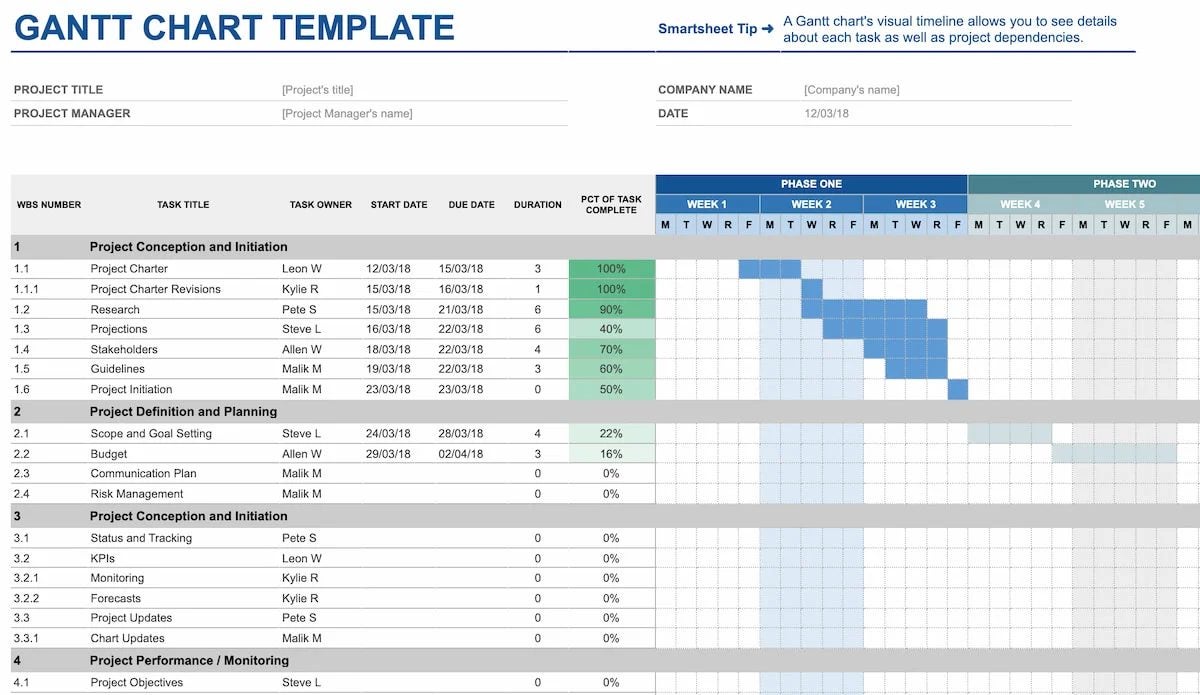
The best project management tools are not free. You’ll need to pay substantial amounts, sometimes as subscriptions, just to use them for your business. Project Timeline for Google Sheets is a free template that lets you set tasks and adjust the Gantt Chart on the side. You’ll need to modify many of the details yourself, and it’s not linked to other resource tabs. It’s excellent if you’re starting out and only need a simple project timeline, though.
If the above Google Sheets template doesn’t have enough elements for your massive project, try the Gantt Chart template. You’ll have more control over start and end times with duration included. You can also set who the task or project owners are that you’ve assigned per line. It’s a more detailed sheet that helps you deliver the tasks before the deadlines.
Beginners may think it’s easy managing an event campaign and setting up timelines and tasks until they actually begin to do so. There are so many factors involved, and you may waste precious time trying to create your own sheet. The Event Marketing Timeline template for Google Sheets has several rows and columns prepared for you. All you need to do is insert the event and PR details, but pay attention to the Smartsheet Tips at the top for advice.
We’ll end with an HR Google Sheet template for employees and subcontractors. Weekly Timesheet is useful when you want to monitor how much time someone spends on a project to ensure they’re being efficient and productive. When you’re paying for these services per hour, it helps to cut down costs where you see time wasted on specific projects.
Do you often find yourself needing to prepare a presentation, but you’re not sure where to start? Maybe this is your first time. While it can take hours or days to develop slides from scratch, an easier option is using free Google Slides templates that take most of the work from you.
We’ve pulled together a list of the 10 best free templates for Google Slides. You’ll see we focussed on different industries, but they apply to most businesses and freelancers. There are also a few you can try out for fun, and we’re eager to make our own Yearbook presentation for Softonic.
What is a Google Slides template, and how does it work?
To put it simply, a Google Slide template is a design and layout with most of the content already completed. Well, it’s default content, and you’ll still need to insert your own text and images. It saves you the time you would have wasted doing it all by yourself alone at your desk with no guidance.
A lot of research has gone into developing these Google Slides templates. Even if there are some slides missing from your project, you can quickly make them by duplicating and altering the content. It’s still an effective way to quickly make a presentation.
How to get and use Google Slides Templates
There are various ways you can get Google Slides templates and use them on your device for your presentations. When you head to your Google Drive and open a new Google Slide, you’ll see free built-in templates available on the side and bottom. Another option is downloading it from online sources, where you’ll have free and paid choices. Be sure to also look for Chrome extensions that provide free templates.
10 top free templates for Google Slides
You can head to the templates page for Google Slides to access any of their top outlines. Here’s our selection of the best templates you should try.
Consulting Proposal
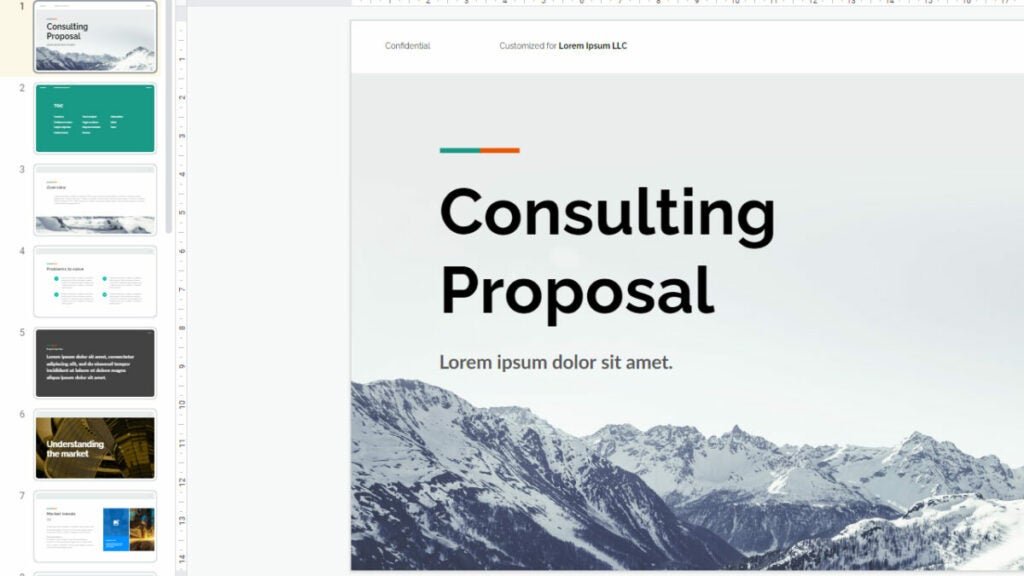
There are many businesses and freelancers with plenty of experience that provide advice on how to deal with specific situations. The free Consulting Proposal Google Slides template lets you set up the problem and solution across several slides in a professional manner. While showing sophistication with your research and methodologies, you can also display the expected deliverables and processes.
Case Study
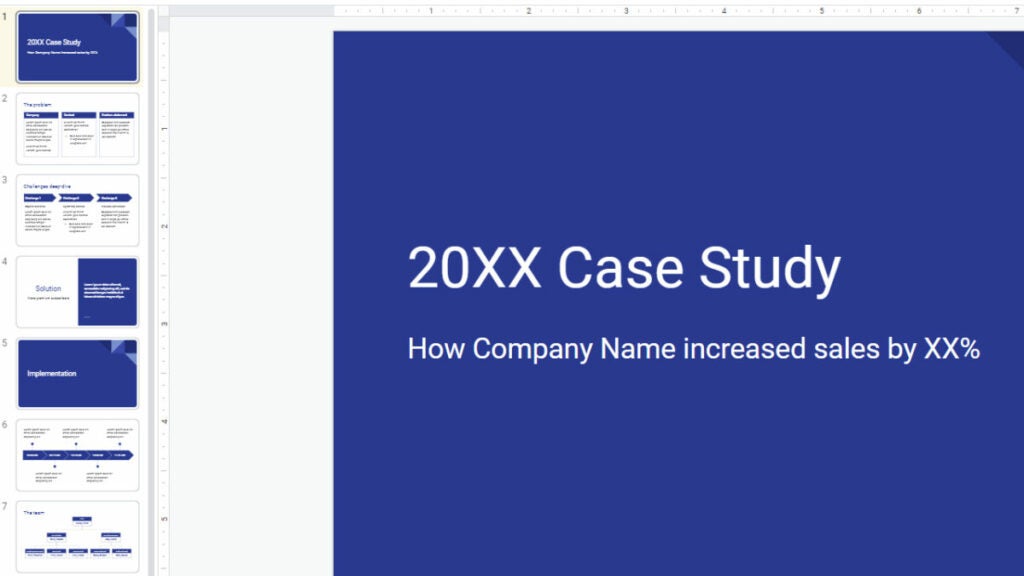
Sometimes the best way to tackle a problem your company’s facing is to look at case studies in the industry for the best solution. This Case Study template for Google Slides lets you set the problem and solution upfront before discussing the details of what needs to be implemented. There’s also a linear graph showing how to achieve the best results, and you can showcase the team members.
Status Report
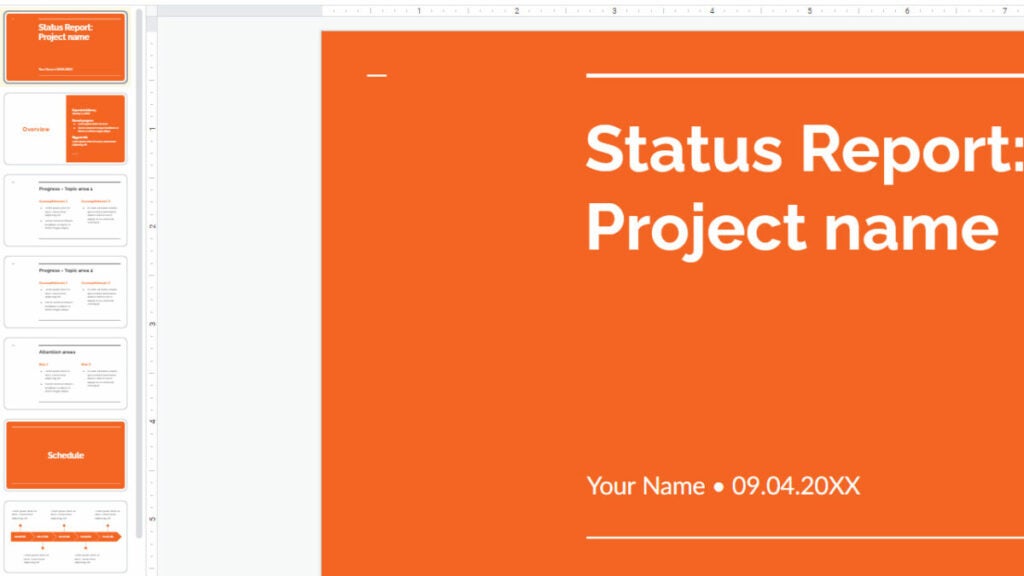
One aspect of managing projects and meeting timelines is sharing the status with various stakeholders, even company directors and managers. The Status Report template for Google Slides has several pages established where you can present where you are with each task. There are also sections for presenting what the expected schedule is and what the following tasks are in the process.
Project Wireframes
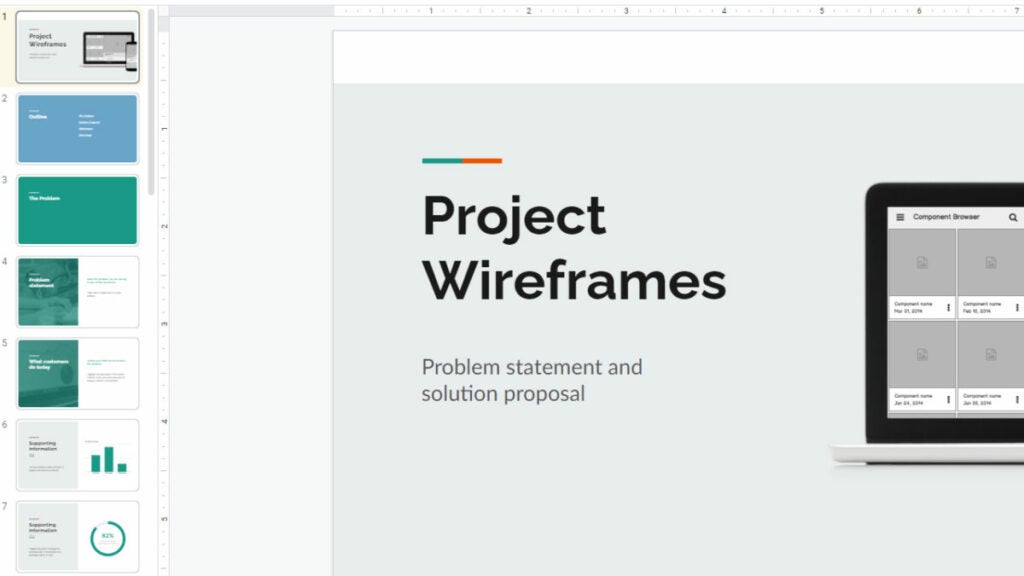
If your company is looking for a way to improve the website structure and design, then look into the free Google Slides template, Project Wireframes. It combines the features of problems, solutions, and user experience to present a way to improve the UX design. There are panels where you can show portions of the site, existing and proposed. It also helps when wanting to discuss buttons and menu features.
Professional Profile
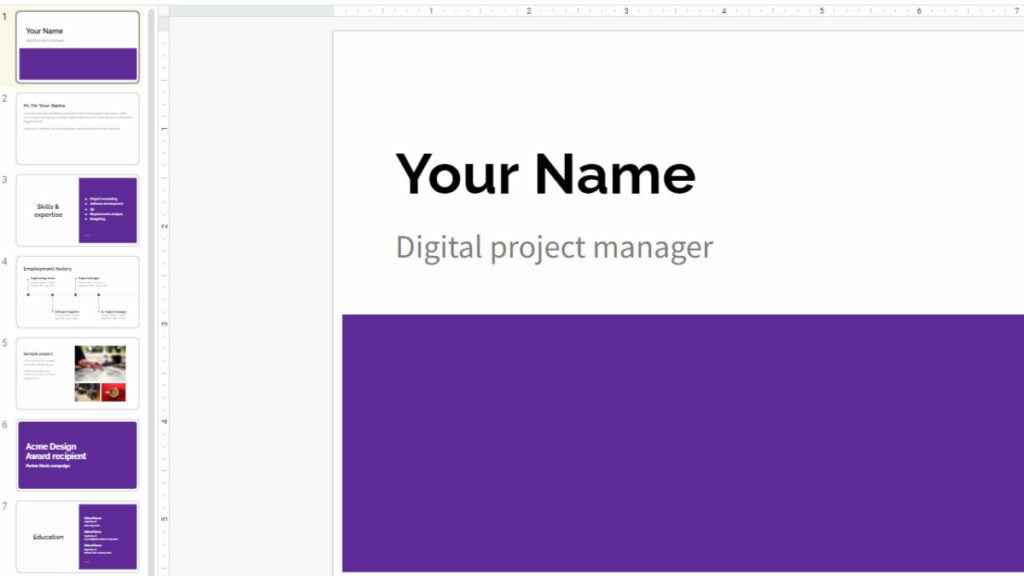
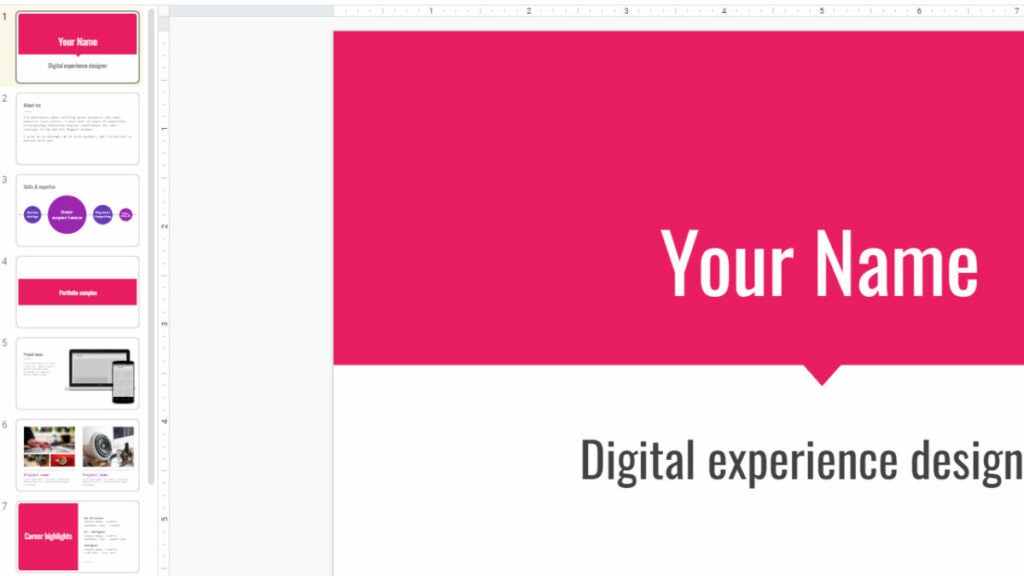
Writing a curriculum vitae on a document can be boring and bland. Even if you spice it up with themes and colors, it only holds the readers’ attention for so long. With Professional Profile, you can lay out your experience and portfolio in a way that stands out. There’s an employment timeline that is visually appealing, and you can present sample projects for the company to review.
Product Portfolio
The Product Portfolio Google Slides template is similar to Professional Profile. The main difference is that it lets you showcase your products over your experience. It’s useful when you need to show prospective clients the quality of your services, and you can apply it to so many fields. You’ll also find a skills line that reveals your top abilities related to the service.
Lesson Plan
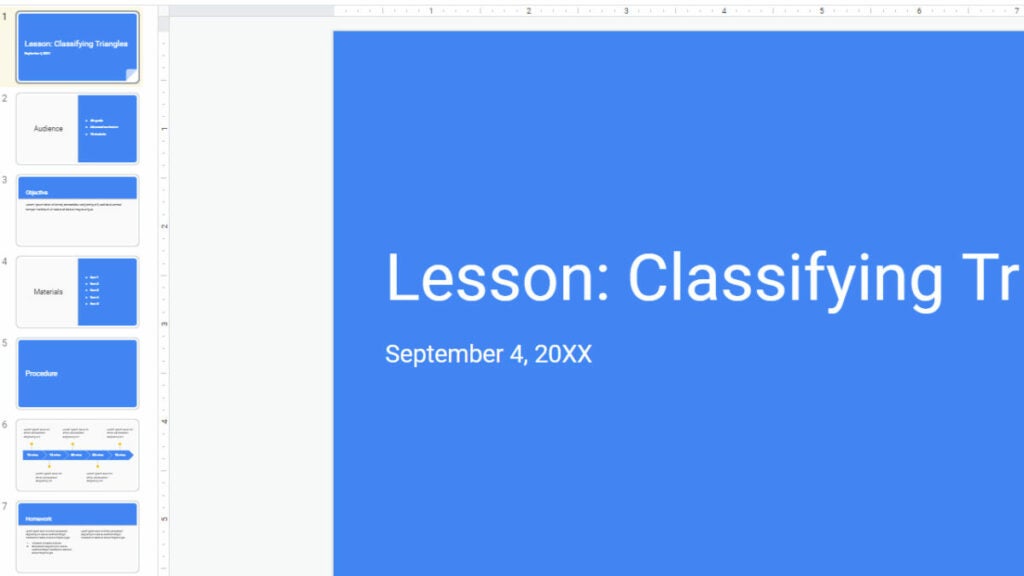
Here’s one for the teachers. Perhaps you want to establish a lesson plan for the year ahead, for yourself or the school management team. Lesson Plan for Google Slides sets out the main aspects to focus on, such as objectives, learning modules, materials, and the audience. It has a basic theme, but there’s a valuable timeline slide to prepare for different terms.
Field Trip
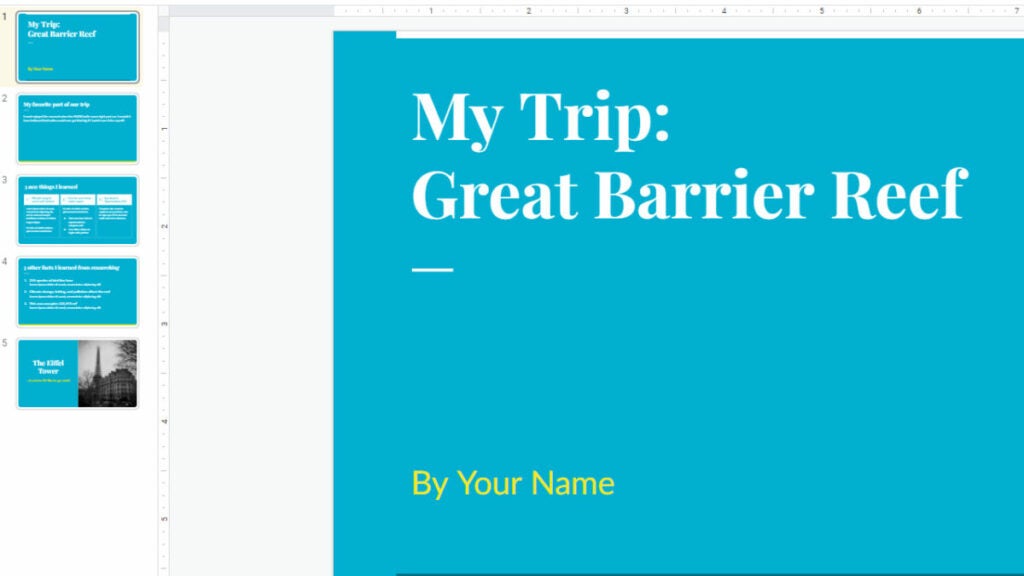
Sometimes, you may receive an assignment as a student to go on a field trip and present your findings. The Field Trip Google Slides template only has a few slides, but you can expand on any of them to meet the task requirements. The sections included are explaining your favorite part of the trip, what you learned on it, and other research you performed.
Recipe Book
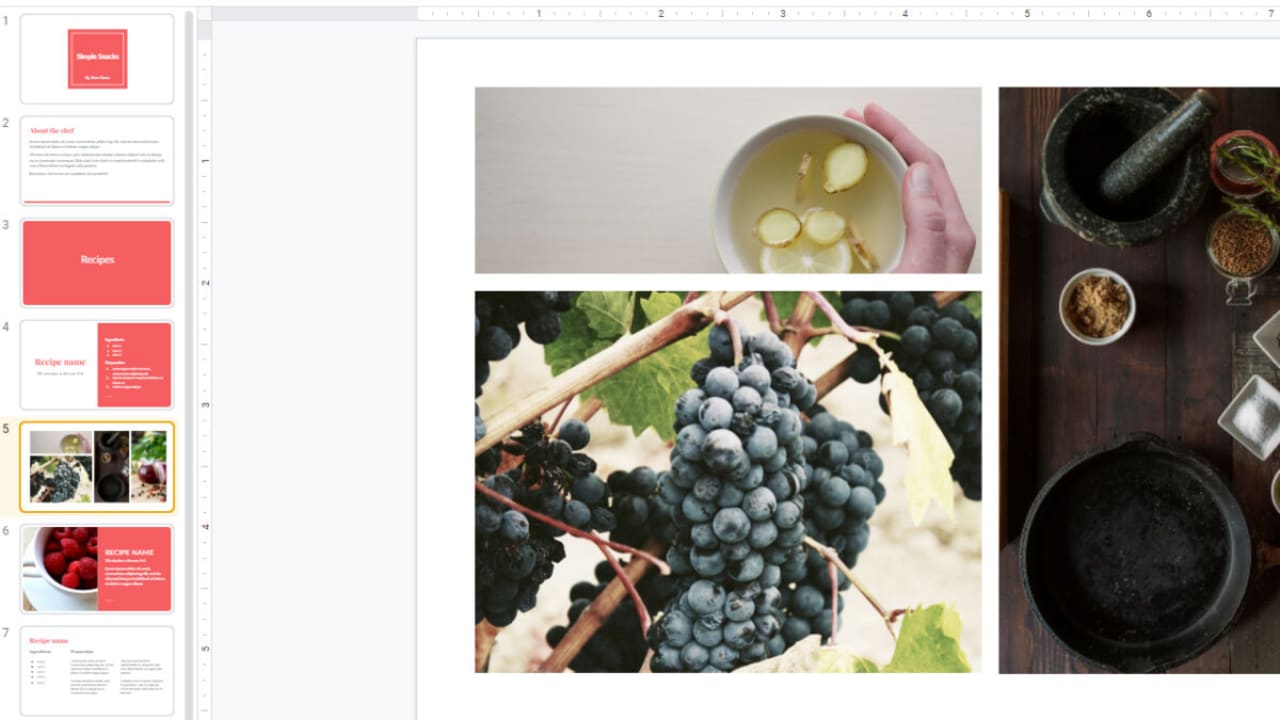
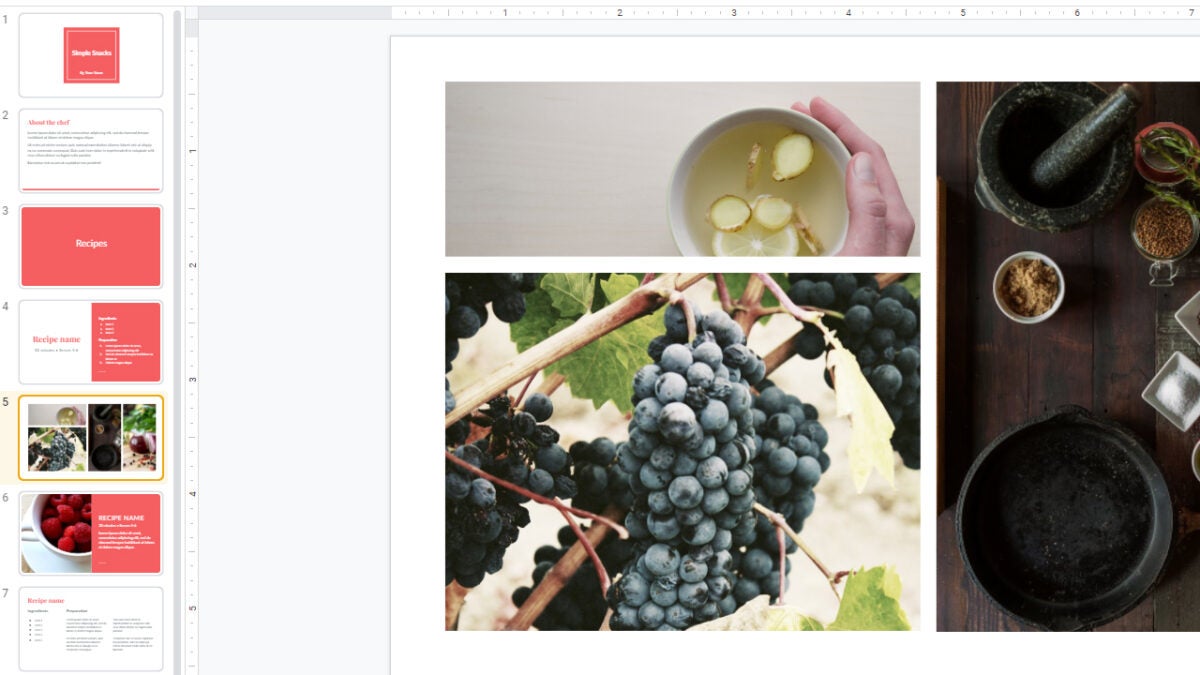
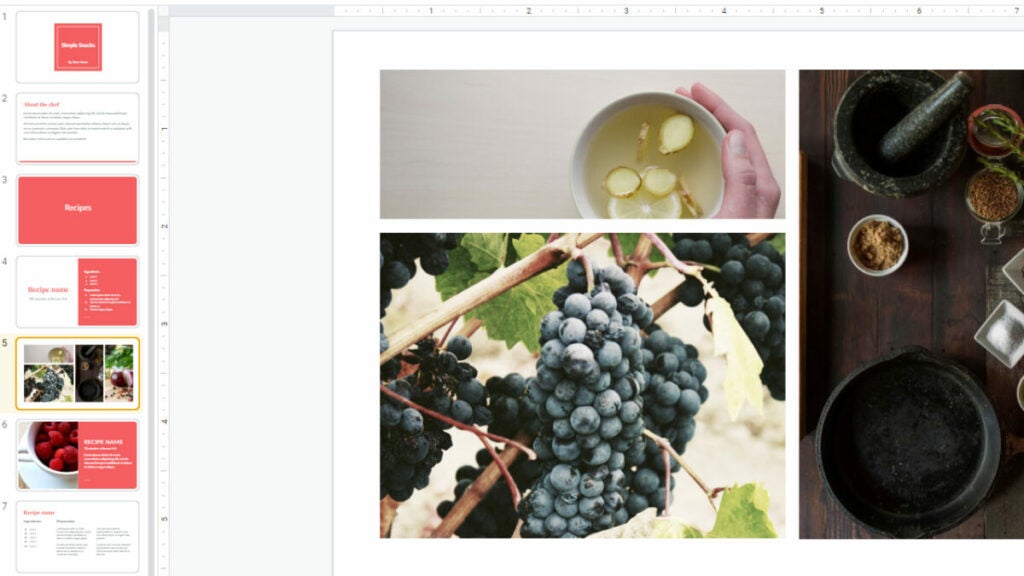
Presenting several recipes on a website doesn’t always read well. Also, you’ll want it to be visually appealing to wet the reader’s appetite. Recipe Book is an ideal free Google Slides template that lets you place images and text for the ingredients and methods side-by-side. It also sets out the process in a more interesting way. To show off your skills, there’s a section for the chef’s biography
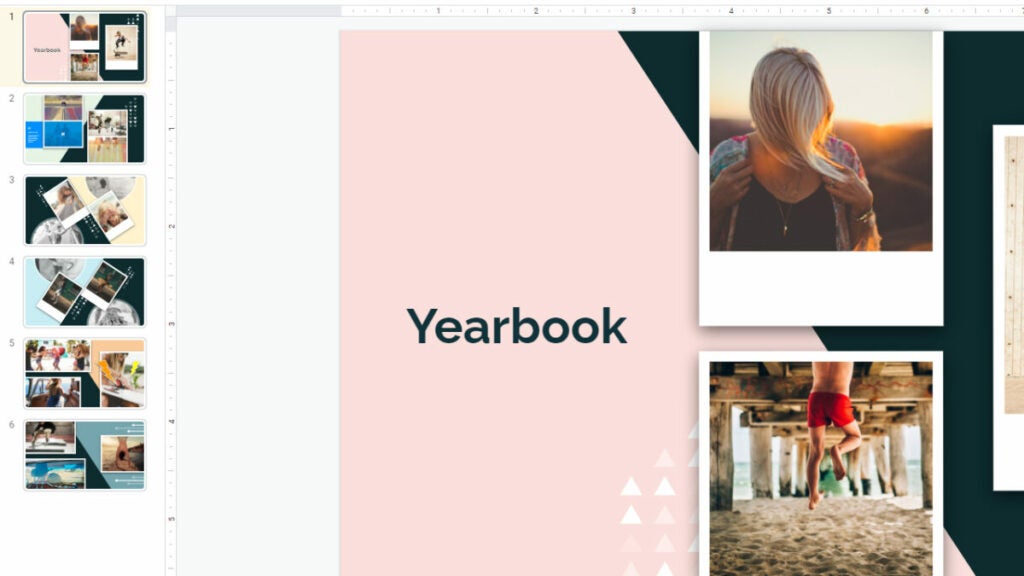
Yearbook for Google Slides
Creating a scrapbook is always fun, and it’s not only for children. Some companies develop a digital yearbook to celebrate the company’s achievements, while it can also present challenges that the teams solved. The best way to make one for your team at the end of the year is with a free Google Slides template.
Yearbook mostly has panels for images with sections for you to place descriptive text. You can duplicate panels you enjoy if you want to create more content. We recommend also adding some corporate branding as part of the themes as a unique touch.