How to update to Windows 10: the definitive guide

Windows 10 is currently Microsoft’s free operating system update, available before July 29th 2106, for all supported systems that hold a legitimate license for Windows 7, Windows 8 or Windows 8.1

In the video below, we explain how to upgrade to Windows 10 using two simple methods, however if you really want to get to grips with this new operating system and discover what it really has to offer, continue reading below.

You can find the link to download the Media Creation Tool here.

Download Windows 10 update

Windows 10

Windows 10 is an ambitious project from Microsoft which aims to encourage the vast majority of Windows users to update to a supposedly-safer and more-efficient system which has been modernized and adapted to the world where PCs aren’t the only device connected to our home networks.  Windows 10 thinks more about the growing number of tactile users who work from everywhere, and who are used to using various devices throughout the day.

Windows is due to receive its biggest update this summer (July, more likely) – exactly a year since the operating system was launched. The update has quite suitably been named the Anniversary Update. These changes (basically the future of Windows 10) are explained in this article and video.

Update

Microsoft has announced that there are currently more than 300 million active Windows 10 users. Despite being the fastest growing operating system in history (largely thanks to its insufferable insistence), pages such as netmarketshare.com have noted that Windows 10 has only reached a 17.43% of the market share, whereas Windows 7 is still dominating the market with a 48.57% share.
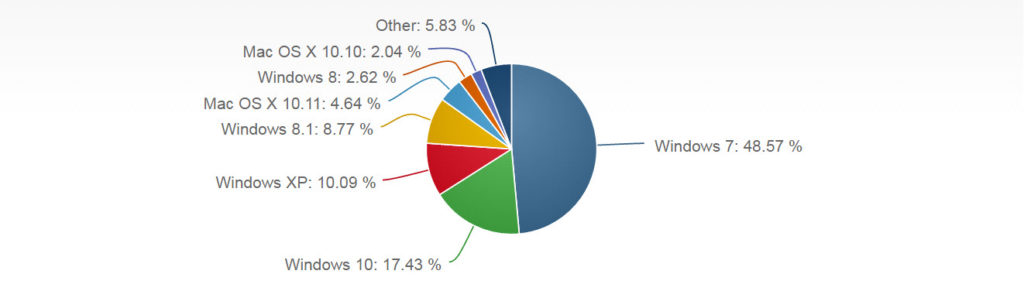
Operating System Market Share Windows


Windows 10 is currently available for free (until July 29th) for all users who meet the following requirements:

A compatible systems

The button “Get Windows 10” (which you can find in the system tray at the bottom of your screen), will tell you whether or not your PC (or the PC you wish to update) is compatible with this new operating system. You can also find the minimum specifications that your system requires to install Windows 10.

A legitimate license

All users who have a legitimate license for Windows 7, Windows 8 or Windows 8.1 can upgrade to Windows 10 for free before July 29th.

If you have recently bought a PC, you won’t have a problem, however if you are running an illegal version of the operating system, then you can quite simply forget about it!

If you are unsure as to whether of not the version you are using is legal, you can checkYou can check by going to Control Panel > System and Security > System, or by right-clicking My Computer and selecting Properties.
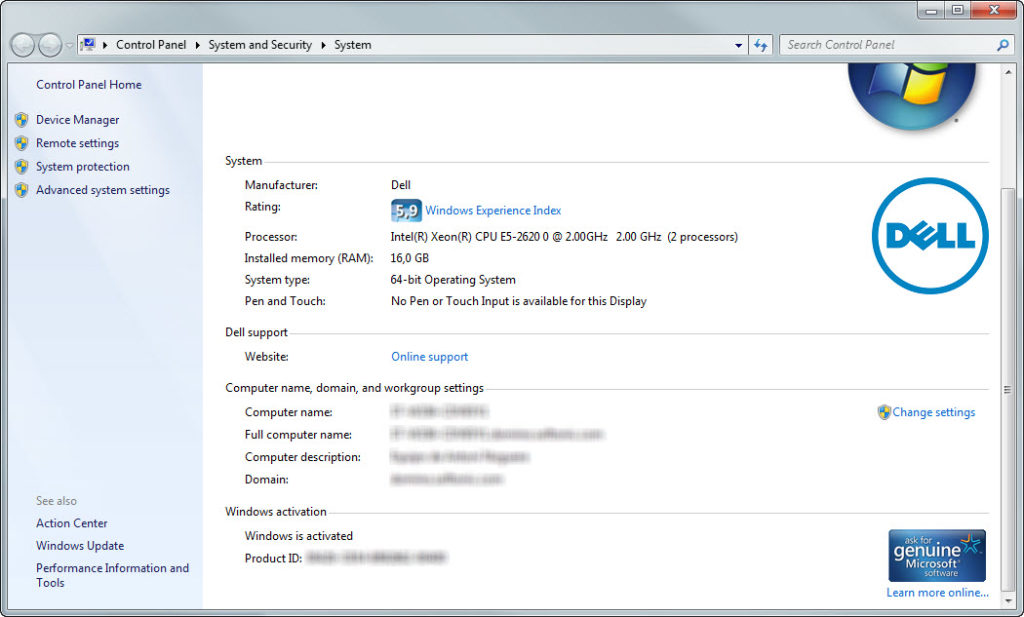
genuine windows

What happens after July 29th?

All users who reserve their version of Windows 10 before July 29th will be able to install it for free. It’s important to remember the word “reserve” in this case, because there is no need to install the update beforehand to have access to it – you simply just need to reserve your copy. If you don’t do this, you will need to pay the full license fee as of July 29th.

How to update to Windows 10 after July 29th

You’ll still be able to update your system to Windows 10 after July 29th, however if you choose to do it this way, you will be required to pay the $119.99 license fee.

After the end of July, users will need to purchase the license either online or from shops, and download the 3GB of Window’s OS to activate it manually, or opt for the usual booting CD or USB.

Discover how to install Windows 10 from a USB right here.

Related articles:

Three easy and incredibly useful tricks for Windows 10

The best 24 apps for Windows 10

How to get Windows 10 when the upgrade button is missing


5 quick ways to get Windows 10 working as fast as possible

Those of you who have succumbed to installing Windows 10 on your PCs may have noticed that it doesn’t always perform in a speedily manner.

Luckily, there are many ways that can help you to speed up your system’s performance. Here are five things you can do in order to make Windows 10 work that little bit faster for you.

Download Windows 10

1. Eliminate startup programs that are not needed

Now this is one of the oldest tricks in the book, and most of you will already be aware that having programs automatically startup when you turn on your computer can cause your system’s booting time to become agonizingly long.

If you want to find out which applications are automatically starting up when you turn on your computer, simply press Ctrl + Shift + Esc as your system is starting up. You can click Start to view which programs are currently initiating. Did you know all of these programs were running? If you feel like certain programs are starting up unnecessarily, simply right-click to deactivate them.

It may also be beneficial for you to start putting your computer in “Sleep” mode when not in use, as opposed to shutting down the system completely. We do recommend however restarting your computer at least twice a week just to ensure that your system is regularly updated and doesn’t miss anything important.

2. Delete junk applications

There are certain applications known as crapware or bloatware that can cause problems with the performance on various systems. Most of these applications come preinstalled onto the system by default, therefore many of you may be completely unaware of their existence. The main reason as to why these applications could be affecting your computer’s performance is that they consume many resources and are often not easy to uninstall (basically, because you have no idea if they exist). It might be a good idea for you to regularly maintain a close eye on which applications you have installed on your computer, and try to delete as many of the ones that you know for a fact you aren’t using.

To do this, simply go to Settings in the Start menu, select System, followed by Apps & features. Here, you can select which applications you don’t use and easily uninstall them. Be warned, there are a few that Windows will not allow you to remove.

3. Be on the look-out for viruses and malware

Although Windows 10 isn’t completely immune to viruses and malware, there is a great application that acts as both an antivirus and a malware detector. Windows Defender is one of the best features offered by Microsoft, and has the ability to analyze the system in real time. As the program is regularly updated, it manages to stay above the game with regards to the most recent threats. This is an in-house feature that doesn’t require you to install anything nor pay a subscription fee. As it’s developed by Microsoft, it’s well integrated into the system and its resource consumption is fairly minimal. If you want to start using Windows Defender, you simply just need to activate it by going to Tools (in the Start menu) > Options > Real-time protection and activate the Use real-time protection option.

4. Use the Windows troubleshooter

Not many people are aware of this useful tool, but it’s a great way of finding out if your system is having any performance problems and what you can do to solve them. To launch the program, simply type “Troubleshooting” into the search box and click the “Troubleshooting Control Panel” icon. You must then click “Run maintenance tasks” in System and Security. Once the screen displaying “Troubleshoot and help prevent computer problems” appears, click next.

This troubleshooter enables you to find the files and shortcuts you may not be using, and can identify whether or not there are any issues on your PC that is affecting its overall performance. It’s basically a great way for cleaning up your PC in a really fast and simple way.

5. Keep your system updated

There is nothing more boring in life than discovering that Windows has a new update available and in order to update it, you need to restart your system and wait for (what feels like) ages. The truth is, as boring as it may be waiting for your system to update, it will save you time in the long run.

If you get into the habit of postponing any new update, your system will only get slower and slower, therefore it’s definitely worth taking the time once in a while to restart and update your system properly in order to keep it running as smoothly as possible.

How to try new features on WhatsApp before anybody else

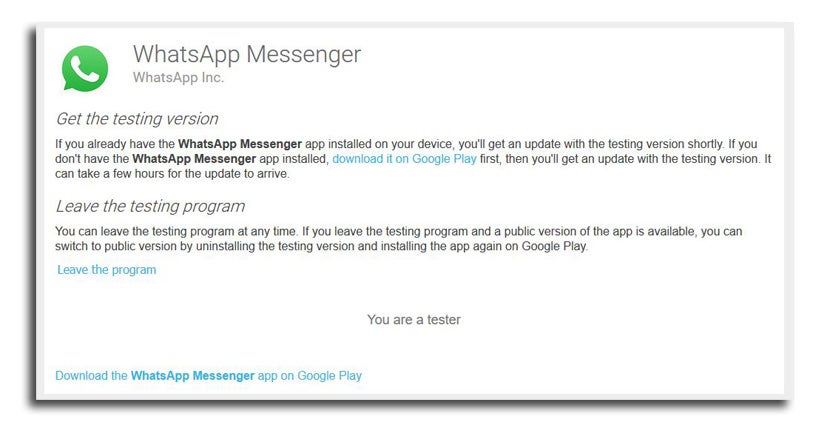
WhatsApp is now offering Android users its beta versions so they can try out new features before everyone else. In order to use this function before, we had to download the APK from outside Google Play, but finally, that’s all changed. Now we can sign up to be WhatsApp Testers straight from Google Play. Easy Peasy!

How to become a WhatsApp tester:

To become a WhatsApp tester, do the following:

1. Click on this link.

2. Click the “BECOME A TESTER” button.

3. WhatsApp will now automatically update your device with the most recent beta version.

You can remove the beta at any time. Simply go back to the first link above and click the “Leave the program” link.



The advantages of becoming a tester:

By testing newer versions of WhatsApp, you will get an insight into some of the new options that we can expect from the app in the future. These can be features such as video call updates or new emoticons etc. Of course, keep in mind that if you install the beta version, your mobile may freeze or restart itself at times (as mentioned in the terms and conditions). This is absolutely normal, and nothing to worry about, and is the price you pay for using a version that’s still in its testing phases.

This tiny disk will solve your memory problems on your PC forever

The successor to the flash drives we use could be this quartz minidisk in the picture above. But it’s not just the shape that makes this little thing special, it’s its amazing ability of storing up to 360TB (terabytes) of memory!

Just to put things into perspective, usually we’d be happy with 2TB of memory, but even that’s a lot to ask for these days. With this disk, you could store up to 130 times more photos, documents, videos, software and anything else you can think of.

This invention, which for the time being is just an experiment, was created by research scientists at the University of Southampton (UK). Besides having an almost unlimited capacity, due to the material composition of quartz, it can also last up to 14,000 years. This will be something that will outlive us all!

Below you can see a video (although it’s not the fastest video) that explains the manufacturing process of the disk. Enjoy!

Can’t see the video? Click here.

43 million Facebook Messenger users have failed this challenge. Can you beat it?

You might remember that back in March we told you about Facebook Messenger’s secret basketball game, that is accessible at any time from inside any chat box. A month later, the social media giant has revealed something that might surprise you: Less than 1% of those who have played the game have only managed to score 30 points or more.

In total, the game was played by around 43.7 million users within 693 million sessions – 300 million of which were played within a week after the game’s release.

The question is: Are you part of this 1%? And if not, do you accept the challenge?

Facebook Messenger has another surprise you’re going to love!

Over the last year, Facebook Messenger has introduced us to many new and exciting features hidden within the app itself.  This time, they’ve hit us with another surprise which no doubt, you won’t be able to stop playing. Nicely coinciding with the Eurocup, Facebook Messenger’s latest game is of course, football related.

How to activate Messenger’s new football game:

To start playing, you’ll first need to open the Messenger app on your mobile device. Simply send somebody (or even yourself) the football emoji, and click on the ball within the message to begin the game.

football game

The aim of the game is to tap the ball as many times as you can without letting it touch the floor. It might take a few goes to get used to it, but we promise, you’ll be hooked in no time!

If you love learning about secrets within Messenger, don’t miss 7 new tricks and secrets on Facebook Messenger that will amaze your friends!

Warning: Facebook will delete your most private photos if you don’t follow these instructions

It seems that Facebook is trying to encourage more and more of its users to download its various mobile apps. Remember when you could no longer send and receive private messages unless you installed the new Messenger app? Well it seems that the guys in Facebook HQ are at it again, only this time, they’re threatening your private photos.

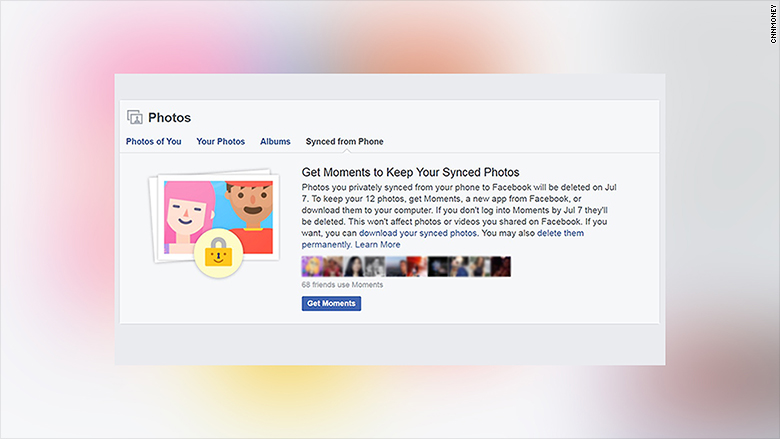
facebook secret photos screenshot

Facebook have recently issued notifications and emails to their users explaining that all the photos that have been privately synched between their mobile device and the social network will soon be deleted – and everyone is starting to panic.

 This is what the email said:

“We wanted to let you know that photos you privately synced from your phone to Facebook will be deleted soon. Earlier this year, they were moved to Moments, a new app from Facebook.

If you want to keep your (number of photos), download Moments and log in before Jul 7. If you don’t want Moments, you can also download these photos directly to your computer from your Facebook profile. Otherwise, they’ll be deleted. This won’t affect photos or videos you’ve shared on Facebook.

Moments lets you organize and privately share photos with friends. It’s free on iOS and Android.”

So, exactly which photos is Facebook referring to?

In 2012, Facebook introduced a photo syncing feature that automatically uploaded the photos stored on your phone into a private album on Facebook. The chances are you either don’t know it’s there, or you forgot you even agreed to use it.

What to do:

If you want to save these photos from destruction, you simply need to download the Moments app. You can read more about how Moments works here.

If you don’t want to install the app, yet still keep a hold of your private photos, find out here how to download all of your Facebook data in a matter of minutes.

If you do this, Facebook will stop showing you everything you hate

Facebook has the ability to constantly show you product adverts and pages that supposedly are of interest to you, however it can often get it so wrong – until now.

Good news! You can now decide what you do and don’t like with the all-new “Advert Preference” option.

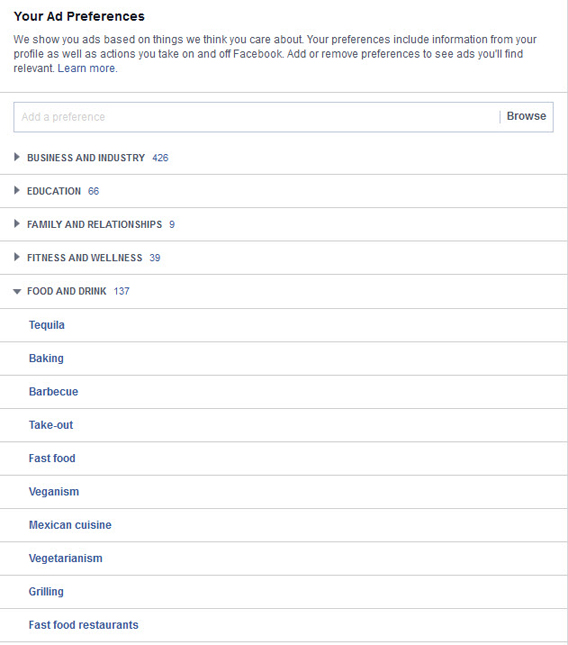
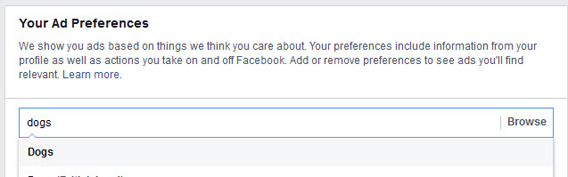
The Advert Preferences option is a feature within your Facebook settings, which shows your likes divided in categories. This is how it looks:

preferences

By hovering over the subcategory, a cross will appear on the right-hand side. Once clicked, that category will be deleted from your preference list and you will no longer receive ads for that category. This is a great option if you’re getting overwhelmed with inappropriate ads, such as fast-food delivery when you’re actually trying to diet.

remove

But, how about telling Facebook what you do like? Easy! You can add categories simply by searching in the search bar above:

add

Did you like this trick? Check out and alter your Advert Preferences now and see what surprise are in store!

Watch out! These 7 apps are killing your mobile battery

Ever find yourself thinking how it’s possible to completely drain your battery within a matter of hours, even after the device has been charging all night?

There are loads of different reasons as to why our batteries aren’t lasting. Whether it’s keeping our Wi-Fi activated while out of the house, or having the brightness of our screens on full tilt, we’ve all become aware of what the sources of the problem are. But, what about the apps you use?

Well, it may surprise you that many of the most popular apps on the market are to blame for your low battery life, but which ones are the worst?

We strongly recommend to follow as many of these instructions as you can, in order to start making the most of your battery. It may not be necessary for you to apply all of the changes listed, however if you find that your battery is still not lasting long enough after adjusting a few, you may want to think about applying all of them.

Here are 7 apps which are draining your battery:

1. Facebook

facebook-e1456895442200

It may not come as a surprise that Facebook is one of the worst apps for draining your battery. Facebook is constantly requesting information from your device, however it no longer automatically updates itself as it used to (this consumed A LOT of battery even when you weren’t using the app during the day).

First of all, make sure you have the most recent version of the app installed on your device. At the end of 2015, Facebook discovered an error in their apps that was consuming much more battery than was necessary. Facebook found a solution to this problem in October 2015, so double check to make sure you at least have that version.

Using Facebook on a daily basis? It’s normal, but make sure you close the app when you’re not using it, in order to prevent it from working in the background. To do this, you must go into the settings of your device and look for the section that allows apps to automatically update in the background. To do this on iPhone, go to Settings > General > Update Apps in the Background, and disable the Facebook option.

Many people are also finding that they are not just saving battery, but also their mobile data, simply by deleting the Facebook app completely and using the web version through their mobile’s internet browser.

2. Candy Crush Saga

This game might ring a few bells, as it’s the most downloaded mobile game in the world – ever. Many people believe that the aim of the game is to eliminate rows of candy, but actually, Candy Crush’s ulterior motive is apparently to wipe out your battery completely.

Like most mobile games from King, Candy Crush has the ability to drain your battery while it’s in the background, as the game has to connect to the server every now and then to establish how much time is left and how many lives you have remaining.

So how can you prevent Candy Crush from killing your battery? Well, it’s easy – you need to get into the habit of closing down the app completely while not using the game.

3. WhatsApp Messenger

whatsapp-app

Just like Facebook, WhatsApp is always running, and always waiting for someone to send you a message. The more social activity you have, the faster it’ll eat into your battery – it’s logical right?

So, how can you stop it from being so aggressive? Well, as with Facebook, simply by configuring its function to stop working in the background will save you a ton of data and battery. Why not start making use of WhatsApp’s PC/Mac version?

If you fancy a change, why not check out why many people are turning to WhatsApp’s biggest rival Telegram right here.

4. Twitter

7910370882_39d180fb66_z

How many times are you Tweeting per day? If it’s a lot, then yes, Twitter’s official app is not the best thing for your battery.

So what can you do? Well, luckily, there are many alternatives to the official app, such as Twidere, Plume and HootSuite, that don’t use as much data and battery as the Twitter app. One of the best, hassle-free options is to simply start using Twitter through your mobile internet browser.

If you’re not quite ready to give up the app, you can also prevent it from working in the background (in your device’s settings), and by also making sure the app is closed when not in use.

5. Skype

364082311_4f123942fc_z

There are some reports that indicate that the Skype app can actually use up to 30% of your mobile battery each day, simply because it always has to run in the background just in case anyone calls or sends you a message.

There are many guides on the internet that suggest that it’s best to remove the app completely, opting instead for the call features that Facebook and WhatsApp have to offer. Like the other apps, it’s also possible to stop Skype from working in the background, however this could mean that you’ll miss calls and messages, as you won’t be able to receive the notifications. As very few people rely on Skype for instant messaging nowadays, this is possibly a viable and easy option.

6. Google Maps

Any GPS application can cause your battery status to plummet in record time because the apps need to constantly connect to their servers in order to locate you on the go. This time, we need to use our common sense to save our batteries.

When looking for how to get from A to B, and you already know where you’re going before you set off, plan your route and take a screen shot of the directions or map if need be, before closing the application completely.

Another solution is to not allow the app to use location services. Yes, this may seem a bit contradictory, however if you’re trying to find directions for somewhere in your home city, you’ll at least have a rough idea of where you are, and where you’re going to. If you’re really lost, it takes a few seconds to activate the location services to quickly find your way.

7. Spotify

Spotify is the world’s most popular music-streaming service. “Streaming” is never good for any battery – and many of you will have already experienced drastic battery loss if using the app on a daily basis. There are two solutions that could rectify your battery usage while using Spotify, but to find out which one works best for you, you’ll have to experiment with both.

a) Choose to listen to your music using lower quality audio. Of course, the sound won’t be the same, but if you’ve got a long journey ahead, you’ll be glad of the extra time this will provide you.

b) Activate the Offline Mode option on your favourite playlists or albums. Yes, this will consume some of your device’s internal memory, however you will no longer be streaming the audio. You can also deactivate it easily when you’re done.

Apps don’t just affect our battery consumption – they can also eat into our mobile data allowance, meaning that many of us can’t make it to the end of the month without having to request or pay for more data from our mobile providers. Learn how to adjust the settings of various apps in order to save your mobile data right here!


Android vs iOS: Who’s got the best apps?

There are loads of characteristics we take into account when deciding on whether or not we want to go down the Android or iPhone route. Whether it’s the battery life, usability or aesthetics of the actual device, we’re swamped with decisions, however have any of us stopped to think about what apps we might be missing out on when we finally go one way?

Well, fear not, as Softonic is here to make your life just that little bit easier! We’ve come up with ten of the top apps that are exclusive to each device in the hope to make it clear which side you should be on: Android, or iOS?

Discover your preference right here!

android

ios