Battlefield 4: Tips and tricks for Siege of Shanghai multiplayer map

The Battlefield 4 Siege of Shanghai map was the showcase map for the game and the Frostbite 3 engine. Here are 7 tips to get the most out this specific map and be well prepared for general multiplayer strategy in other maps.

If you’ve played previous versions of Battlefield then some of these tips will definitely be familiar, but it never hurts to refresh your memory .

Get to know the skyscraper

The strategic point on the Siege of Shanghai map is a spectacular skyscraper in the center of the map and all players want to do some damage to it. But what’s the best way to enter it?

The front and rear entrances are constantly bombarded by tanks, so approach carefully.

The best thing to do is catch an elevator as soon as you can: where you end up will depend on which elevator is chosen. If you take the front elevator, it’ll take you to the penthouse level, whereas if you take the elevator at the rear of the building, you’ll get access to the roof.

On that point, look carefully at the roof – there are usually snipers there. Take them out quickly before advancing and the roof will be yours.

Battlefield 4 Siege of Shanghai multiplayer map

Don’t draw attention to yourself

Avoid detection at all times. One of the easiest ways to pass unnoticed is to turn off all possible lights and lasers on your weapons. If you see a red dot and take aim, thinking it’s an enemy, well, bear in mind that your opponents will think the same: keep this in mind and avoid pointless deaths.

Use the Spot button

This will help you achieve the points below: take advantage of the Spot button. With this, you can mark enemies who are close by, so your allies can visualize them in their HUDs.

Help out your teammates

Battlefield 4 rewards team play big time; very simple collaborative actions will get you a ton of points. For example:

  • Get 25 points every time an ally kills an enemy you have marked with Spot
  • Earn 10 points every time you get an ammo pack if you’re in the Support class or a medical kit if you’re in the Assault class and a teammate picks it up

Battlefield 4 Siege of Shanghai multiplayer map

Don’t be afraid to ask for help

If you’ve helped an ally don’t be shy about asking for help too. As you can see, it’s a win-win situation! To do so, use the spot button.

For example, if you need ammo, mark a Support soldier, and if you need to regenerate your health do the same with one from Assault. You can also seriously benefit from the Engineers: if you need to repair a tank, stay close to a soldier of this class.

By doing this you’ll not only receive help at the right time, but your team mate will receive additional points, as outlined above.

Take alternative routes

In key moments of the Siege of Shanghai, both sides tend to concentrate their fighting in the center of the map. How about surprising the enemy by popping up where they least expect it? Chances are that rivals are waiting near the main building or in nearby areas, so take them unaware and cross the map by the water. You can also dive for a few moments, so they won’t even detect you swimming on the surface.

This simple strategy can sometimes help you recover a lost point in Conquest mode or even get an unclaimed one.

Battlefield 4 Siege of Shanghai multiplayer map

Don’t abuse the tanks

The tanks are the easiest way to move around the map, and they’re a good way to gain points in Conquest mode. Having said that, they’re not useful for all strategies.

So, use them to destroy buildings and avoid enemies in narrow streets, but avoid for rapid-fire shooting at enemies. Doing so can injure teammates who happen to be near them and besides, you’re not using it optimally. If you want to shoot at your enemies, use the mounted machine gun.

Every player has their own strategy

The advice we’ve offered here is just a collection of suggestions based on typical player behavior. That’s why we recommend you keep them in mind but think of your own strategies too.

Another issue to consider is that while these tips refer to the Siege of Shanghai map they can certainly apply to other multiplayer maps for Battlefield 4.

Related Articles:

Cyber Monday Series: Mobile apps for online shopping

With Thanksgiving right around the corner and many people traveling cross country to visit family and friends, Cyber Monday may not be the ideal time to limit yourself to a PC or laptop for all of your online shopping needs. One thing we can be thankful for at such a time? Mobile apps.

Now that you know how to find the best deals on Black Friday and Cyber Monday, you can shop on your mobile using the great mobile apps offered by many of the largest US retailers. Here, I’ll take you through some of the best mobile apps from some of these retailers to help you shop wherever you may be on Cyber Monday (or any time of the year)!

Amazon Mobile

As the king of online shopping, Amazon has great apps for iPhone and iPad, Android, Windows Phone and Windows 8. What makes the apps great? They have full functionality for almost all of Amazon.com’s many features, letting you search products (by either typing the product name, scanning a barcode, or taking a picture), share products, compare prices, check availability, and most importantly, make purchases! The app is universal, letting you shop on Amazon.com, Amazon.ca, or any other international Amazon site.

Best Buy

Being one of the biggest electronics retailers in the US, the Best Buy App for iPhoneAndroid and Windows Phone lets you access the entire Best Buy catalog directly on your mobile device. Most important here is the deals section, which will give you information on all deals, what’s sure to be a lengthy section come Cyber Monday. It’s also integrated with Best Buy’s rewards system, so if you’re a frequent visitor to this retailer, you won’t miss out on any rewards by using the mobile app. If you’d prefer to shop in-store, the app also has a store locator that will show you the stores closest to you.
Walmart

The retail giant has a mobile app, and a successful one (Mobile Commerce Daily crowned it the Mobile Retailer of the Year in 2012) for Android, iPhone and iPad. It’s very integrated with in-store shopping, meaning that it has a store locator, ads for your local Walmart, store inventory and in-store prices, and even directions to Walmart stores in your area. Having said that, it also offers a great mobile shopping experience for thousands upon thousands of items, as well as exclusive in-app deals and info about the newest ‘rollback’ prices.

eBay

When you can’t find what you’re looking for directly from the source, you can always try eBay. Much like the Amazon mobile app, the eBay app has virtually the same, full functionality as the standard website, including posting, bidding on and buying items. It’s also available on multiple platforms including iPhone, iPad, Android, Windows Phone, Windows 8, and Blackberry devices. The homepage will show you items that you’ve recently searched so that you can go back to them easily. This app could come in handy for Cyber Monday when in-store shopping seems too daunting a task.

Target

Target always has great Black Friday deals, and its popularity means that heading into an actual store may be more of a challenge than you’re willing to accept. The Target app is a great option to get the best deals on Cyber Monday without having to deal with crowds. With apps for Android, iPhone, and iPad, you can buy virtually anything from Target using the mobile app. With the Weekly Ads section, you’re sure to get the best of Cyber Monday deals too! Similar to the Walmart app, the Target app is also good for locating Target stores and checking the stock of items in your area, ideal for post-Cyber Monday shopping. The iOS app was recently updated to even include floor plans so that you can easily find things in stores.

Macy’s

Macy’s Thanksgiving Day Parade may be the highlight of the holiday season, but let’s not forget about its great mobile app. Available on iPhone and Android, the Macys’ Mobile app includes all items available from the online store, as well as a section for exclusive deals and promotions for both online and in-store shopping, which are sure to be full of offers for Black Friday and Cyber Monday. A cool feature of this app is instant scan, which gives you standard product information, but also links to videos and reviews related to the product.
Mobile app stores

Don’t forget, intangible items can go on sale too! Apple’s App Store and Google Play always like to have sales around the holiday season, so if you’re using an iPhone, Android, Windows Phone or a Blackberry, make sure to check out their respective stores on Black Friday and Cyber Monday to snag some discounted or free apps. Also, make sure to check out my feature on how to track mobile app sales to stay on top of mobile app discounts this holiday season.

How to download, install and play Pou on PC

Pou is currently one of the most popular mobile games for Android, iPhone, and iPad. A game that puts you in charge of taking care of the little creature Pou, it’s the Tamagochi of the 21st century that’s captivated millions of players. As its popularity continues to grow, we’ve discovered a way for you to play the original Pou on your PC so that you’re not limited to the mobile platform. If you’re playing Pou on Android, follow the simple steps below and you’ll be playing Pou on your PC in no time!

1. Save the game on your mobile

If you play Pou on Android, iPhone or iPad, save your game so that you can pick up on your PC where you left of on your mobile device.

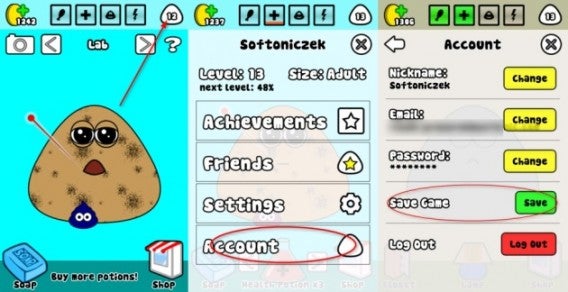
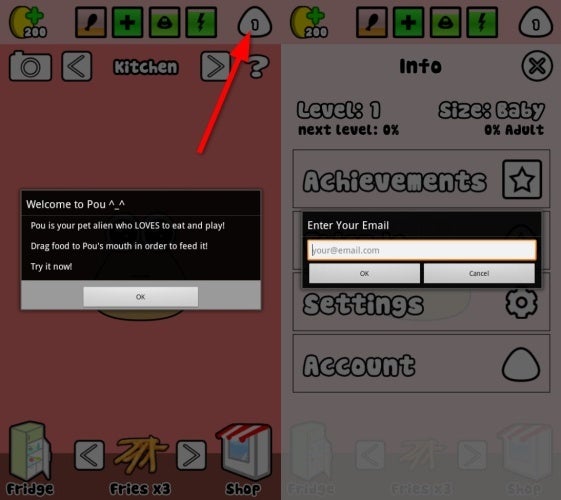
Save your current game of Pou

Open Pou and click on the icon that tells you which level you’re on, in the upper right hand corner of the screen. The configuration menu will pop up; add you email address to the “Account” section and create a password to protect your Pou game. Then, pick a name for your Pou – the default is Pou and a series of numbers, but you can choose whichever name you want. Once all this is done, save your game.

2. Download and install Bluestacks

Download and install Bluestacks on your PC. It’s an application that lets you run Android apps on your PC. Don’t worry if you’ve got an iOS device; as long as you have a Google Account, you’ll be able to use it too.

3. Find Pou


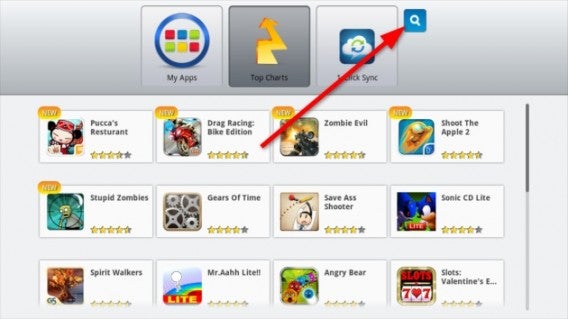
Look for Pou on Bluestacks

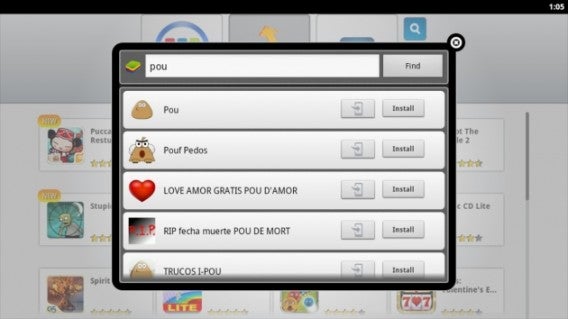
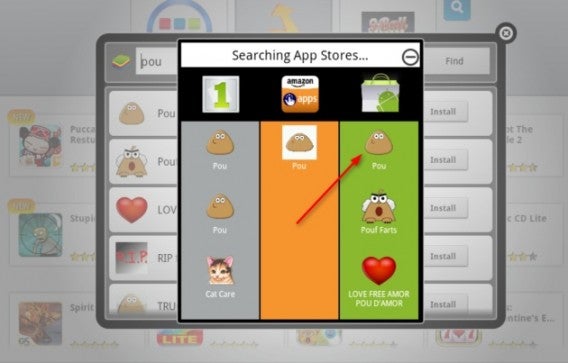
Open up Bluestacks, and search for Pou by clicking on the spyglass search icon. Click on the first result and hit Install.


Search for Pou

4. Configure Bluestacks

If Bluestacks isn’t syncing your game correctly, you might have to make a few tweaks.


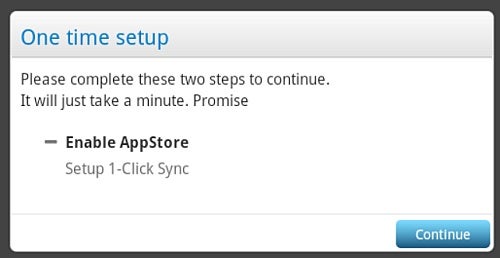
Add an appstore sync

First, add your Google Account. When you install Bluestacks, you’ll see a white box like the one above appear. Click Continue, and you’ll be redirected to a site where you can add an existing Google account (like your  Gmail or Google Play Store account) or create a new one. You should then be able to sync between your PC, Bluestacks and your mobile device.

5. Download Pou


Find Pou in the app store

Now when you search for and click the install button beside Pou, it will ask you to choose an app store. We recommend Google Play, as shown above.

6. Install Pou


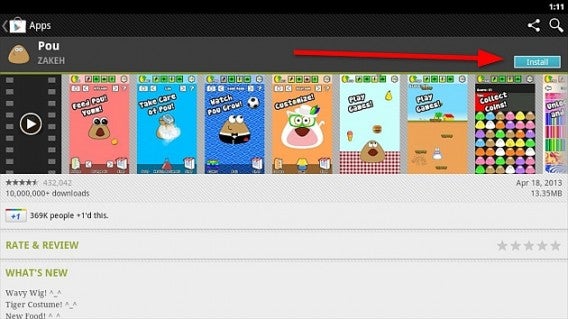
Install Pou from Google Play

Click on the install button.

7. Start a session and play Pou on your PC!


Retrieve your saved game

Click on the level icon again, enter the same session details as you did on your phone, and keep caring for little Pou!

Will you play Pou on your PC?

[Original article by Radek Grabarek published on SoftonicPL]

How to: store screenshots and iPhotos in Dropbox

Dropbox has added two new features to its service. You can now save screenshots directly in the cloud, and transfer photos from iPhoto to your remote folder in one click.

Cloud storage services come and go. New services are being developed all the time, but most are eventually forgotten. Others seem to offer features that already exist.

This isn’t the case with Dropbox. Since 2008, when Dropbox was first released, developers have innovated and expanded the service, and, most importantly, have made it easy to use with any device and on any platform.

The two most recent innovations are the ability to save screenshots and sync iPhoto with Dropbox, two additional steps toward the relocation of all user data to the cloud.

Your screenshots in the cloud

Saving snapshots of your screen to an online space with Dropbox is very simple. Once you’ve downloaded the latest version of the Dropbox client (for PC or for Mac), the screen displayed when launching is as follows:

Click on Save Screenshots to Dropbox. Now every time you use the Print Screen/SysRq key (or Print Screen, depending on the keyboard you use), the screenshot will automatically be added to your Dropbox folder and synced.

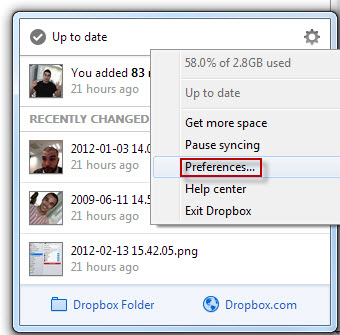
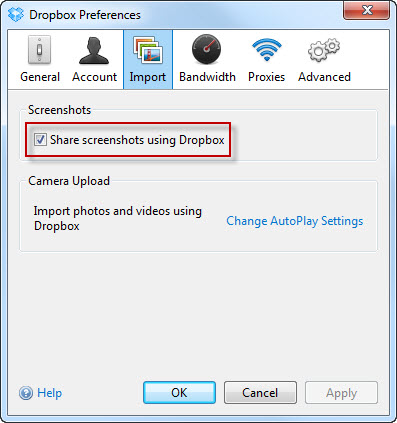
You can enable this function at any time in Preferences, located in the system tray.

Check the “Share screenshots box using Dropbox” on the Import tab.

There’s another new feature that makes the new version of Dropbox particularly useful. If you press the CTRL key along with the Print Screen key, the screenshot will be saved in Dropbox and copied to the clipboard. Then you’ll get a download link that you can paste into an email, Facebook, or other applications.

Sync with iPhoto

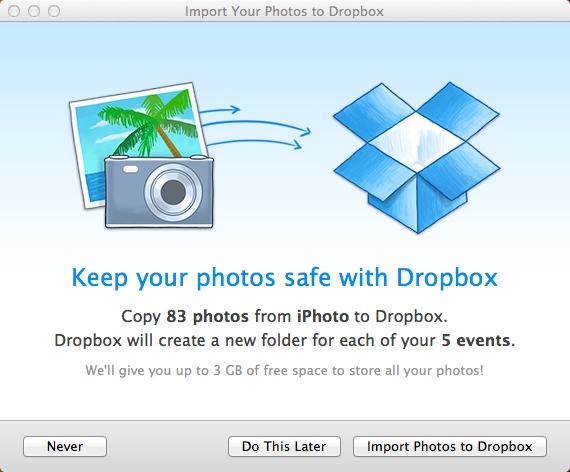
If you have iPhoto 7.0 or higher installed on your Mac, you can now save pictures in your library to Dropbox.

In Preferences > Import, click the ‘Import Photos from iPhoto’ button.

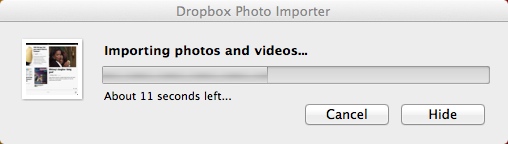
Follow the steps and wait for the upload to be completed.

The first import you do creates a folder in Dropbox called Photos from iPhoto, where your pictures will be stored as they are in iPhoto, as well as sorted by events.

The new features are easy to use and work well. The quality and continuous improvements offered by Dropbox make it a really popular program that’s quickly rounding up a loyal following.

It’s not easy to convince a user to give up the traditional way of storing files locally in favor of relying on the cloud. Users have to overcome a general distrust of such services that they aren’t familiar with and don’t fully understand.

Dropbox, however, has made sure that the management of remote file storage looks and feels like the classic local storage methods users are familiar with by using a similar folder interface and making access from many devices easy to use.

If you’re trying to navigate through the endless suppliers of online storage services and you want to choose one that’s right for you, check out our comparison of cloud storage services.

Original article written by Pier Francisco Piccolomini for Softonic IT.

The Softonic Minute: Facebook, Wikipedia, GTA: San Andreas and Candy Crush

Candy Crush Saga gets 45 new levels on Android, Facebook tests a new ‘save for later’ function, new app Xowa lets you download all of Wikipedia’s content, and GTA: San Andreas comes to iOS, Android and Windows Phone this December. Check out this week’s hottest software news on The Softonic Minute!

Default player


brightcove.createExperiences();

Candy Crush Saga updated with 45 new levels

The Facebook game of the year has expanded its Android version to add 45 new levels, bringing the game’s total up to 485. Candy Crush Saga recently reached the 500 million download mark. Now we’ve got even more sweet puzzles to play! Download Candy Crush Saga for Android.

Facebook testing a ‘save for later’ function

As more and more people get their news from social media, Facebook is experimenting with a ‘read later’ function. In the style of  Feedly, Instapaper or Pocket, the new feature will let you save any link you see on Facebook to read or watch at a later time.

Free app Xowa lets you download all of Wikipedia

A new free app called Xowa lets you download the entirety of Wikipedia on your computer. The world’s largest online encyclopedia occupies roughly 80GB of space, including text and images. Our advice would be to download Wikipedia to a pen drive so that you can take it with you and refer to it whenever needed. Download Xowa here.

GTA San Andreas coming to iOS, Android and Windows Phone this December

If you’ve already finished GTA 5 and are missing the city of Los Santos, relax; Rockstar has announced the release of the GTA classic San Andreas for iOS, Android and Windows Phone next month. It’s one of the most complete versions of GTA, full of activities and side missions.

Check out all of our past Softonic Minutes here.

Official FIFA app released on iOS and Android

Soccer’s international governing body FIFA has released a free app for iOS and Android that lets you follow your favorite teams and keep up to date with FIFA news and events.

The FIFA app offers results and news from 197 leagues worldwide, and you can personalize the app to keep track of any of your favorite teams. It will live stream the World Cup Brazil draw on December 6th, and will have all the match schedules following that.

The app also lets you explore ‘the world of FIFA’, and read about the projects they do worldwide. There are photo galleries from Getty Images, as well as videos from the FIFA TV Studio and FIFA archives.

The FIFA app requires Android 2.3 and above, or iOS 5.1 or later.

Download FIFA for iOS and Android.

RELATED STORIES

Winamp is dead, but does anyone really care?

Winamp is dead. The famous audio player from Nullsoft won’t be available after December 20, 2013, much to the dismay of people who love skins of questionable taste and psychedelic visualizations.

Personally, it’s been years since I’ve used Winamp, and its disappearance is almost a non-event for me. I’ll tell you how I buried the Nullsoft llama and why you might want to do the same.

Winamp for Mac…too little, too late

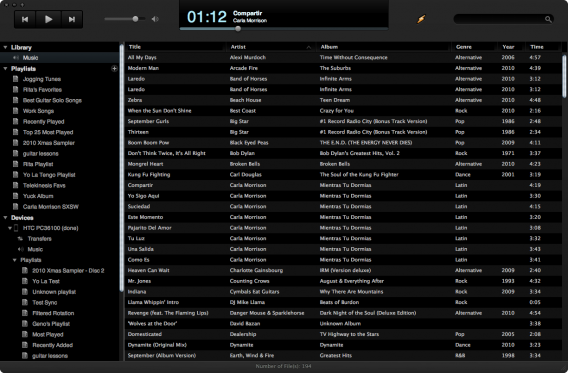
I’ve long been a defender of the hopeless Winamp. Early on, the ease of use of this audio player, its versatility and lightweight operation captivated  my pimply teenaged self. It was simple, and it worked smoothly on my entry-level computer, which was an accomplishment in itself!

Winamp classic

On-the-fly playlists were a major draw…

Winamp would also let me edit playlists on the fly via a simple drag and drop, while other plugins and skins gave the possibility to customize it to my liking. Both of those were major points in its favor.

But everything changed when I left my old PC for a Mac in the mid-2000s. Winamp hadn’t made ​​the leap and was only available on Windows. Such betrayal! Annoyed, I had to move over to the great Cog, a minimalist audio player of the same ilk that was available for Mac.

iTunes, the sworn enemy

One thing led to another, and I fell for the iPhone shortly after my move to Mac OS. At the time, these products couldn’t survive very long if they weren’t regularly connected to iTunes, Apple’s famous audio player.

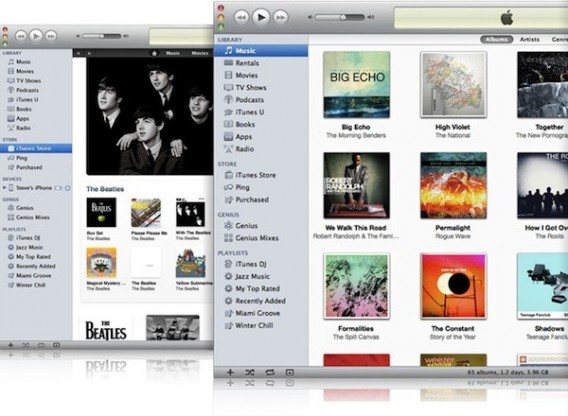
iTunes for Mac 2011

At first, I hated iTunes

At first, I couldn’t bear iTunes. Its complicated menus gave me a headache and its tendency to take control of my music didn’t impress me either. After a few months of forced use, I gradually learned to appreciate its management functions and integration with Mac OS. Probably Stockholm syndrome, right?

And so, the damage was done. I took a deep breath, turned the page and bid farewell to Winamp.  Then, Winamp landed on Mac in October 2011. As you can imagine, it came as a bit of a shock.

A revamp for Apple

When Winamp finally arrived on Mac, it was nothing like the lean, agile software I had known with Windows. Like most audio players of the time, Winamp became an iTunes clone, designed more for managing and synchronizing music libraries than listening to audio files. It was the last straw! I had to face the truth – it was the end of an era.

Winamp for Mac

Winamp becomes an iTunes clone

The end of an era

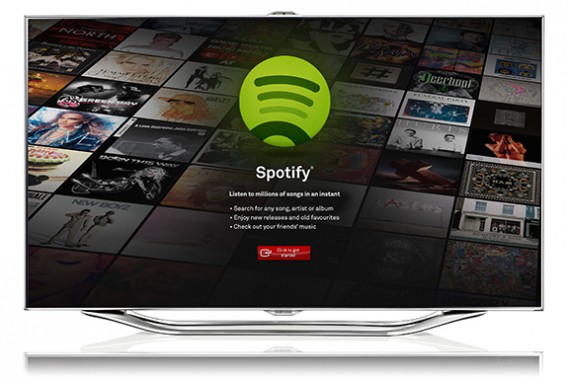
Today, I no longer use audio players at all. Music has changed completely and, most of the time, I listen to my music via streaming services like Spotify or SoundCloud.

Spotify Samsung TV App

These days, it’s all about the streaming

To me, Winamp is a relic of the golden age of illegal downloading that simply hasn’t been able to change with the times. It’s a fossil of a bygone era.

What about you? Do you miss Winamp already, or are you happy to bid the llama farewell?

RELATED ARTICLES:

Avira launches 2014 suite of security apps

Avira has launched its 2014 suite of security apps, and in addition to Avira Antivirus Suite and Avira Internet Security Suite, there are two new products: Family Protection Suite and Ultimate Protection Suite.

Flagship program Avira Free Antivirus has also got a fresh coat of paint, and also allows you to connect more easily to Avira’s Android antivirus app. Here are the essential features of Avira 2014:

  • AntiAd/AntiSpyware – block annoying advertisements and spyware.
  • Browser Tracking Blocker – this stops sites adn cookies recording your browsing habits.
  • Website Safety Adviser – a tool that tells gives sites safety ratings.
  • Network Drive Protection – this makes sure shared folders are free of viruses.
  • Advanced Real -Time Protection – cloud based malware detection technology.
  • Secure backup – 5GB of free cloud storage for backups.

Download Avira Free Antivirus 2014

Download Avira Antivirus Suite 2014

Social app World of Trucks updated

World of Trucks, a social app in alpha testing that’s based on Euro Truck Simulator 2, has been updated with some new features.

You can use World of Trucks if you own Euro Truck Simulator 2 using your product key, or through Steam if you have the game there. It’s still in very early alpha testing, but new features are being added all the time. It’s essentially ‘Facebook for Euro Truck Simulator’. This latest update adds the following:

  • User comments for images

You can upload and share images in World of Trucks, and you can now comment on them too.

  • Country selection

You can add your country to your profile

  • Search for users

Now it’s possible to search for other users, see their profiles and comment on their uploads

  • Use webcam to snap your profile image
  • Editor’s Pick history

This allows you to see all the content that the SCS team pick for the World of Trucks homepage.

Visit World of Trucks

RELATED STORIES

[Source: SCS Blog]

If you like Candy Crush Saga, you’ll love these games

The concept of Candy Crush Saga makes it an addictive game, but it’s really easy to get bored with how it looks, the limitation on lives, and all of those annoying Facebook notifications. This made me wonder: are there any games similar to Candy Crush Saga that could eliminate some of these issues? It turns out, there are quite a few.

Bejeweled…where it all started

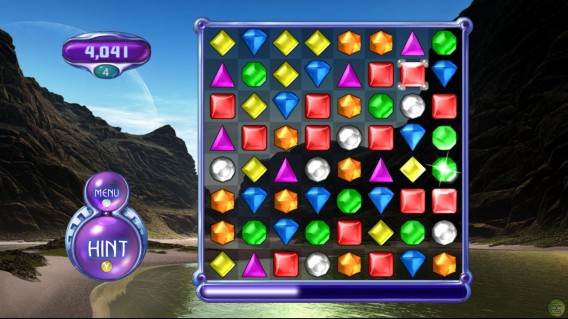
Candy Crush Saga’s mechanics are pretty much a carbon copy of Bejeweled (PopCap Games, 2001), a game that began in flash format and has, over the years, ended up with versions and sequels for all platforms.

If you want to play on your computer, we recommend the most recent installment, Bejeweled 3 for Windows or <Mac, as well as well as the original, theBlitz and the Twist versions. The gameplay is the same in all; the only things that differs are the game modes and the technical specs.

If you’d prefer to play on your mobile, there are versions for almost every device, from the original Bejeweled for Blackberry, to Bejeweled 3 for Symbian, as well as Blitz versions for iPhone and Android, or LIVE for your Windows Phone.

If you don’t want to download anything, stick with <Bejeweled 2 or Blitz for your browser, which is also available on Facebook.

The daddy of Candy Crush Saga has dozens of versions and spin-offs

The charm of “kawaii”

If there’s anyone who knows how to make pretty and colorful games, it’s the Japanese. LINE Pop (Android/iOS), for example, is a Bejeweled clone from Naver, the company responsible for the messaging service LINE.

LINE Pop (available on Android and iPhone) has the gameplay we’re familiar with, but it’s crammed full of charismatic characters we know from the LINE stickers; instead of candy or jewels, you have to line up Brown, Cony, Moon and Sally to make them disappear.

The downside of LINE Pop is that you have to install LINE to play, as well as staying connected to the internet. And yes, the “lives” system is alive and kicking.

LINE Pop…even more adorable than Candy Crush Saga?

Puzzles and more

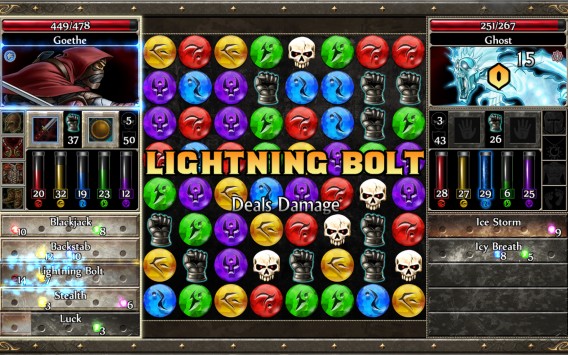
Some games use puzzles to give you an excuse to play more. This is the case with the Puzzle Quest series, where you collect pieces to defeat enemies.

Puzzle Quest, a mix of a puzzle and an RPG, has had two installments in the main series (download the first for Windows), as well as a spin-off with a galactic theme (also available on Windows).

Puzzle Quest has become another classic

Another very similar game that’s just made it across the pond is called Puzzle & Dragons (Android/iOS), a game whose potential success we’ve already speculated about.

Same, but different

There are also games out there which aren’t complete clones of Candy Crush Saga, meaning there’s more to the game than just joining three or more pieces of the same color to clear the board. These games have features in common that will keep you equally as occupied!

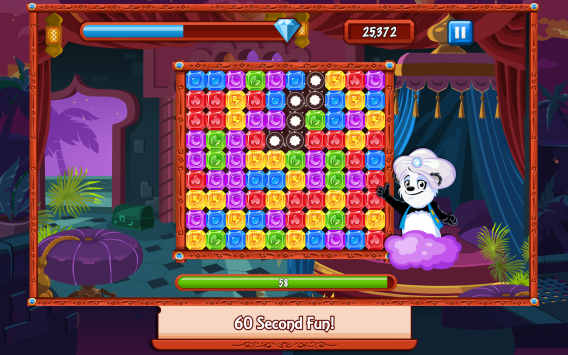
One type of similar game requires you to remove areas of the same color as quickly as possible. Although it’s not the first of its kind, the current favorite is Diamond Dash (you can play it on Facebook, iPhone and Android).

Diamond Dash: a game about pandas and gems!

There are also games where you match pieces of the same color that are adjacent to each other. The most famous of these games is Dots: A Game About Connecting (download it for iPhoneand Android), which bases its success on a more minimalist aesthetic – in fact, it really couldn’t be further from Candy Crush Saga’s sugary overdose.

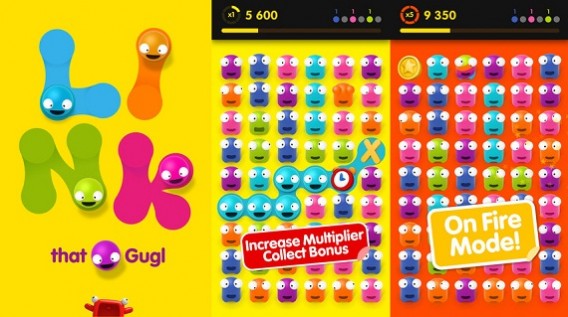
A similar game based on joining adjacent pieces is Link That Gugl (available on iPhone), which is much more colorful and has many more modes than Dots.

Link That Gugl: Dots’ party animal brother

A game genre that never gets old

It’s pretty obvious that Candy Crush Saga isn’t a ground breaking game; it’s simply been able to successfully combine classic gameplay with social elements and cross-play, a match made in candy-colored heaven.

A large part of its success has been a combination of hitting the market at the right time, along with some smart advertising – it looks like it’s offering something new (even though we’ve actually seen it before).

Do you know any more games like Candy Crush Saga?

RELATED ARTICLES: