Microsoft Street Slide, a new way to browse maps

Microsoft is currently working on a new way to present street views when browsing a certain area in Bing Maps. The so-called Street Slide View allows users to move along the street in a long, linear image composed by hundreds of static pictures, just as if you were looking at the street from a far away perspective.

According to Microsoft, the problem with street-level map browsing is that you jump from panorama to panorama – or, as they say, from bubble to bubble – which is perfect for panning and zooming on certain areas, but not so comfortable to walk along the street. Slide Street solves this problem, enabling you to zoom out your location, move along the whole street from end to end, and zoom in again into a specific panorama. You’ll probably get the idea better if you watch the video.

Microsoft Street Slide View is not available yet, but it would certainly be great to see it implemented soon in Bing Maps.
Make ALX files to install BlackBerry COD apps

Installing BlackBerry apps from your PC to your phone can be a bind. BlackBerry apps normally come in two flavors – JAR files or COD files. However, in order to install them via the BlackBerry Desktop Manager, they need to be accompanied by a separate loader file. For JAR files, this should be a JAD file, and for COD files, you’ll need an ALX file.

If you’re downloading a BlackBerry app and only the JAR or the COD is provided then you’ll need to perform a quick hack to obtain the appropriate loader file to install the app with Desktop Manager.

How to make a JAD file to install a JAR

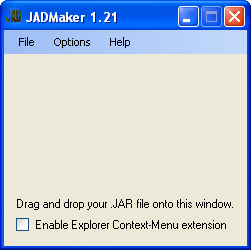
To create a JAD file from a JAR, you should download JADMaker. This free tool, which requires no installation, converts JAR to JAD in seconds. All you do is double-click on the program icon and drag the JAR file into the JADMaker window. The file will be converted and saved into the same directory as the JAR. It’s then ready to be transferred to your phone using BlackBerry Desktop Manager.

Make a JAD file

How to make an ALX file to install a COD

An ALX file is simply a text file that provides information about the COD to your phone. You can create these files very easily.

Open Notepad and create a new text file then copy the following lines of code into it. The only text you actually need to change is the name of the COD file, which you enter in between the <files></files> tags. The other data can be edited if you wish, but you don’t need to for the creation of the ALX file.

<loader version="2010.29.07.0120">
<application id="My program name" _blackberryVersion="[4.2.1,)">
<name>My program name</name>
<description></description>
<version>2010.29.07.0120</version>
<vendor>ACME software</vendor>
<copyright>Copyright (c) 2001-2010 ACME Software. All Rights Reserved.</copyright>
<fileset Java="1.0">
<files>
my_program_name.cod
</files>
</fileset>
</application>
</loader>

Exclusive Give Away: 2 licenses for Curio worth $149

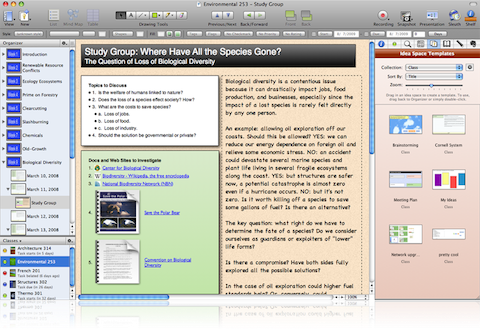
If you’ve tried any of my suggestions for Mac alternatives to Microsoft OneNote but still aren’t impressed, then I should add that Curio should definitely have made the list.

Curio is an incredibly detailed and rich brainstorming and note taking application that helps map-out your ideas in stunning detail. Curio’s features a free form interface and tool kit that allow you to place items anywhere you want including notes, pictures, audio and even video. The only limits are your imagination as you can place elements in any position which gives it a distinct advantage over similar programs that restrict you to text boxes or certain areas. You can even give your brainstorm plans or notes their own unique look thanks to a variety of backgrounds and styles such as note paper, graph paper style and linen paper texture for example.

curio.png

Even better, we’ve got 2 free licenses worth $149 for Curio Professional version to give away.

All you have to do is tell us in a few sentences why you need Curio to help you and how it would help you in your daily life. Take a look at our Decloner giveaway competition for an idea of what we’re looking for. Don’t forget to leave your e-mail address in the comment e-mail address field so that we can contact you.

Good luck!

‘Google Me’ might be Google’s new social network

Further rumors have appeared that seem to confirm beyond any doubt that Google is planning to launch a social network service to rival Facebook. In these latest stories, Google is reported to be in talks with various games developers, including Disney’s Playdom and Zynga (a company in which Google has recently invested a large amount of money).

google-me-1.png

This news follows previous claims that Google is definitely working on a social network service to be called Google Me. Google hasn’t exactly experienced huge success in the social realm thus far. It purchased Brazilian giant, Orkut in 2008 and has presided over a gentle slide in that network’s traffic (Orkut remains #1 in Brazil, but Facebook is making inroads). The Socialstream project never came to much. Buzz and Wave haven’t proven to be game changers and despite the company’s great successes in other areas, like mobile OS Android, you get the feeling that its social networking efforts have been almost entirely unfocused.

But put a few of Google’s more recent search tweaks may prove that the firm’s involved in some pretty serious research. Recently, Google Profiles started to show up more in search results. Sharing items and subscribing to users’ feeds has improved in Reader (after multiple tweaks) and last month Google even let users customize the classic front page of their search engine (a common criticism of Facebook is its lack of customization options).

Of course, this could all  just be pointing to Google launching something altogether easier and cheaper. A social games platform would fit that bill. But I reckon the clues point to a more unified alternative to Facebook that combines social games, Profiles, Buzz, Reader, Gmail, Wave, Docs and everything else into one central social hub.

‘Places’ feature added to Google Maps for Android

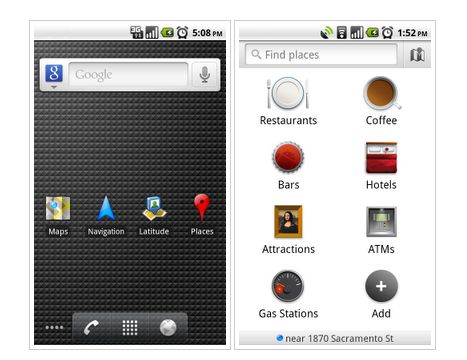
Google has today launched a neat update to its Google Maps Android app that makes it easier to find places of interest nearby. The new Places feature in version 4.4 of Google Maps allows you to quickly access information and reviews of places close to your current location.

Tapping the Places icon while in Google Maps and you can choose a category, such as gas stations, coffee shops, bars, restaurants, etc. Once selected you’ll see a list of closest matches, including their distance, compass bearing, description and even user reviews. You can customize your own location search categories, and even add the Places icon to your home screen.

This new update of Google Maps could be essential if you’re going on vacation soon. Thanks to Places you’ll be able to discover the best places to wine, dine and have fun with just a single tap of your phone. Click here from your Android phone to download the latest version of Google Maps from the Market.

Google Places

Is my system 32 or 64 bit?

64-bit systems started to be slowly rolled out in personal computers back in 2003, but it’s only recently that they’ve become a serious alternative for the average user. A 64-bit architecture implies more processing power and faster rendering times, but also requires a bit of adaptation – which includes updating your software with new versions adapted to the new system. But how do you know if your computer is a 32 or a 64-bit system? There’s an easy way to find out:

If you’re using Windows XP

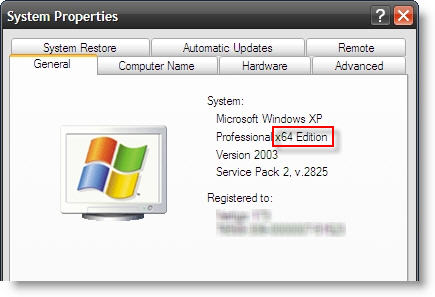
Right click the My Computer icon on your desktop and select Properties. If your system is 32-bit, you’ll see something in the lines of “Windows XP Professional Version [year]” under System. If your system is 64-bit, you’ll see something like this image:

Is my system 32 or 64 bits?

Continue reading “Is my system 32 or 64 bit?”

Timewaster: Asterisk


Asterisk is a really relaxing puzzle game, where you have to expand shapes so they collect all the stars on screen. Expand the wrong shapes and you won’t reach all the stars, and will have to try again, although once you’ve got a feel for it, finding Asterisk’s solutions are not too hard.

With smart, simple graphics and a chilled out soundtrack, Asterisk it a great way to zone out and collect your thoughts for a few minutes. There are 20 level, which is just about right for a game like this. Check it out at Kongregate, and remember you’ll need the Flash plug-in

Buzzbird – a free, open source Twitter client

We’ve rounded up the best Twitter clients for Windows before, but a new contender has recently come to our attention. Buzzbird has a lot going for it. Not only is the little app free, it’s also open source and that’s an attitude we like!

There seems to be a bit of a theme linking the main desktop Twitter clients – they’re either heavy on resources or AIR-based applications. Personally, I like AIR apps, but lots of people don’t. If you want something light, but AIR free, take a look at Buzzbird. It’s not much of a hottie in comparison to slicker cousins like TweetDeck, but it’s light as a feather and can do everything its rivals can.

image2.png

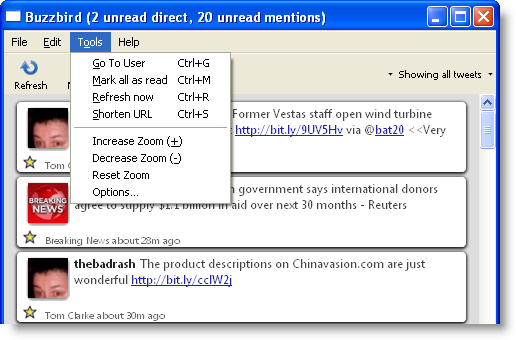
All the Buzzbird action happens in the main interface. You manage individual tweets by mousing over and you’ll see the options appear. Clicking the little triangle at the right of Showing all tweets will give you access to your direct messages and mentions. The options menu, under Tools, also hides some nice features – you can toggle the format you want for your retweets (RT@username or via @username) as well as deciding whether retweets are automatic or not. You can also specify if clicking a hashtag brings you hashtags.org or Twitter search, specify which URL shortener to use and even pick what appears in the title of the interface window.

Unfortunately – and this is a BIG unfortunately – this Twitter client can’t be minimized to the system tray. If the developer is listening, we’ll be stoked if version 0.8 does! Even so, Buzzbird still gets a thumbs up from us for users who want an AIR-free desktop client. Download it here.

Also available for Mac.

Cow Clicker – the Facebook App To End All Facebook Apps?

It was only a matter of time before someone reduced Zynga’s FarmVille to its gaming essence: Click, wait, and click again for a reward. Satirical Facebook app Cow Clicker does just that. You have a cow – click it, wait six hours, then click again!

Just like FarmVille, you can invite your friends, or just bug the hell out of them by publishing news stories about it. Don’t want to wait? Just buy in-game currency – mooney – with real money and you can get clicks quicker, and fancier cows too!

Cow Clicker is a great joke, and seems to be getting pretty popular already despite being a critique of the social click-a-thon games. Creator Ian Bogost has a really interesting post about how he came to make the game, and why he sees games like Mafia Wars as problematic.

As a pretty old school gamer, I can’t understand games that don’t have a skill element to them, and I agree with Bogost that they seem to be compulsive in very negative ways. Still, I think Cow Clicker’s pretty cool! I hope I don’t get sucked in…

[via Techcrunch]

How to: Import and export OPML files in Google Reader

If you want to export, backup or share your Google Reader feeds, there’s a very quick way to do it without the need to install any third-party software. All you have to do is open your Google Reader account and go to Reader Settings. Click on the Import/Export tab, and you’ll be able to export all your feeds to a standard format called OPML.

Import and export OPML files in Google Reader

Likewise, you can use this same tool to import an OPML file with the complete database from another RSS client – if you’re switching to Google Reader – or a bunch of feeds shared by a friend. Simply browse the hard drive for the OPML file and hit the Upload button.

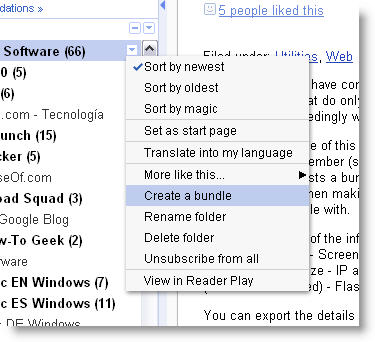
But what if you only want to share a specific folder, and not all of your feeds? Then what you need to do is click on the little blue arrow icon, on the right side of the folder you want to share, and select Create bundle in the drop-down menu.

Import and export OPML files in Google Reader

Once your bundle is created, you’ll see it listed together with a series of actions: email it to your friends, create a clip for your blog, add a link to your blog… and also a link to the OPML file. Simply send this link with your friend (or save it as an XML file to your hard drive) and you’ll be sharing just the contents of that folder.

Import and export OPML files in Google Reader