Google gets into Podcasts

Google has a brand new podcast app, but it is not like all the other podcast apps out there. In fact, it is only available for Android users and is built into the Google app. If you’re an Android user, you won’t need to download any new apps or software. You’ll just be able to start using Google to listen to your podcasts.

All you have to do to start using the new Google podcast “app” is to search for your chosen podcast using the Google app or Google Assistant. You’ll then find all of the info relating to the podcast, including a list of recent episodes that you can start playing right away by tapping the play button.

Google App Download Now
8

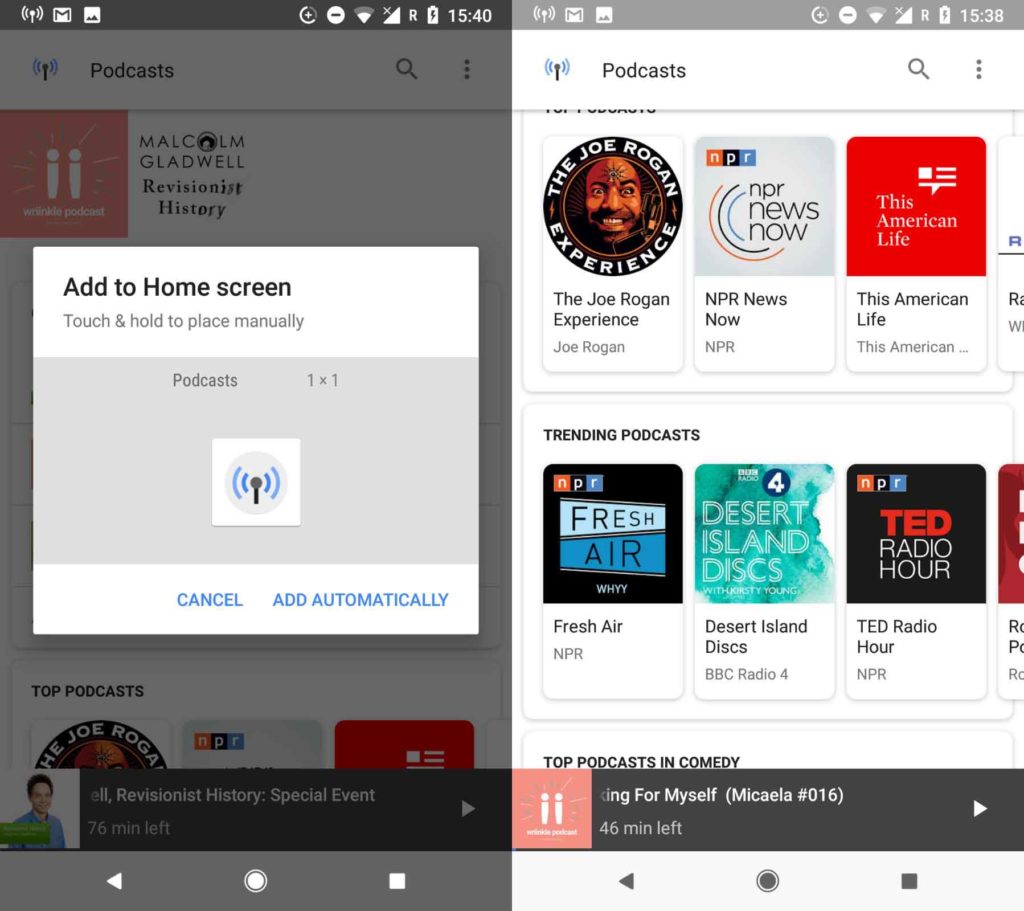
Once you click on the search result, you’ll be taken to the podcast’s page. Here, you can subscribe to the podcast and download episodes for offline listening. You’ll also find a podcast icon in the top left of the page, which will take you to the Google podcast “home page.”

This homepage resembles more established podcast apps. It allows you to search for podcasts, resume listening to the episodes you haven’t finished, view top and trending podcasts, search through different categories, and keep track of the podcasts you follow. Another cool option is that you can create a home screen icon for the new podcasts app and even create particular icons for individual podcasts.

When you’re playing your podcasts, you can skip forward and back in 10- and 30-second increments. The whole experience is pretty lightweight, but overall, it is straightforward to use and does a great job. If you’re an Android user and you listen to podcasts, it is definitely worth checking out. It’s already on your phone, so it should be easy enough. Even if you’ve never listened to a podcast before this new offering from Google gives a simple and intuitive way to get started.

So far, there has been no news from Google about whether or not this will be coming to iOS.

11 things you didn’t know Chrome could do

Google Chrome is the world’s most popular browser, and it’s easy to see why: With its slick interface, vast extension library, and snappy engine, Chrome is one of the most enjoyable ways to explore the internet.

But there’s much more to our favorite browser than meets the eye. From easter eggs to extensions, Chrome goes far beyond displaying web pages. So without further ado, let’s pop the hood and explore the tools, tricks, and features of Chrome you’ve probably never heard of…

11 things you didn’t know Chrome could do

1. Reopen accidentally closed tabs

If you’ve ever found yourself lost in a sea of open tabs, not sure which one is which or why you opened them in the first place, you’ll know how easy it is to close something you actually need.

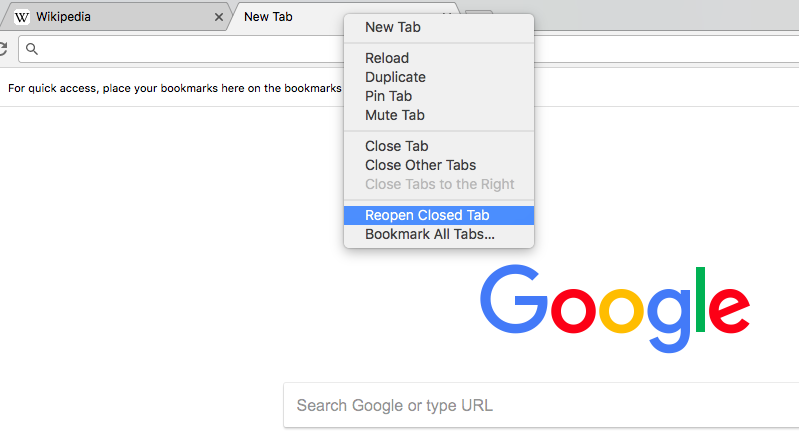
Thankfully, Chrome makes it really easy to reopen tabs after closing them. Simply right-click in the tab bar and select Reopen Closed Tab. The shortcut is Ctrl+Shift+T (Cmd+Shift+T for Mac users). If the page you’re looking for was one of several closed, just keep reopening tabs until you find the page you want.

2. Pull tabs into new windows for easier browsing

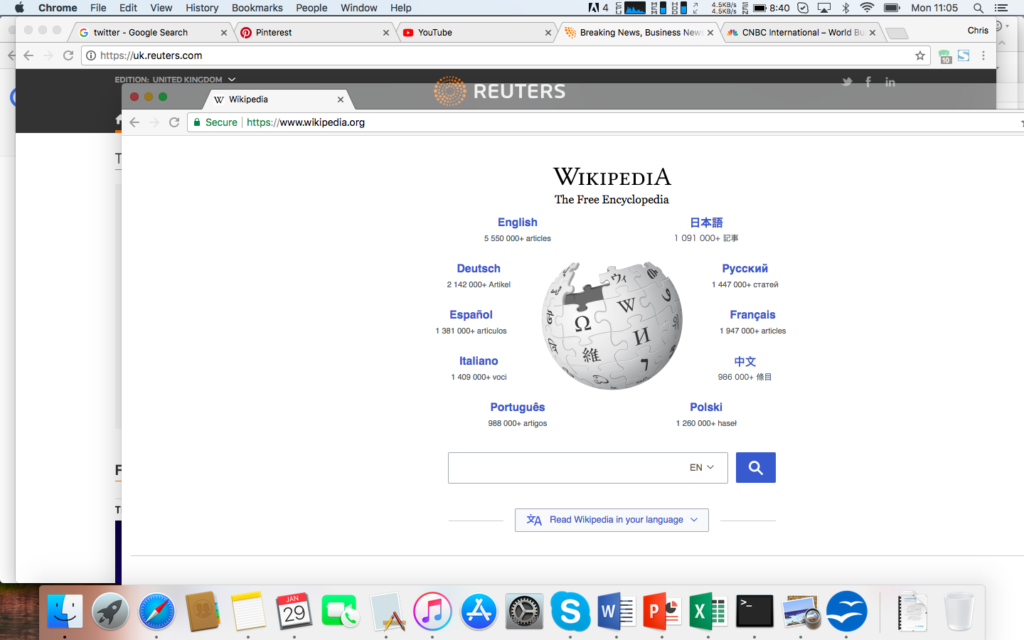
When you’re pulling together information from several web pages, it can be tricky navigating between them in one window. You might want have two or even three windows open so you can browse several sites at the same time, making cross-referencing a lot easier. Once you’ve got all the sites you want open, simply click on any tab and drag it away from the tab bar and Chrome will put it into a new window. (To put it back, drag the new window into your old tab bar.)

Pro tip: To move multiple tabs to a new window, hold down Shift and select the last tab in the group you want to move, highlighting all the tabs, and then drag away from the tab bar as normal.

3. Delete your entire browsing history with one shortcut

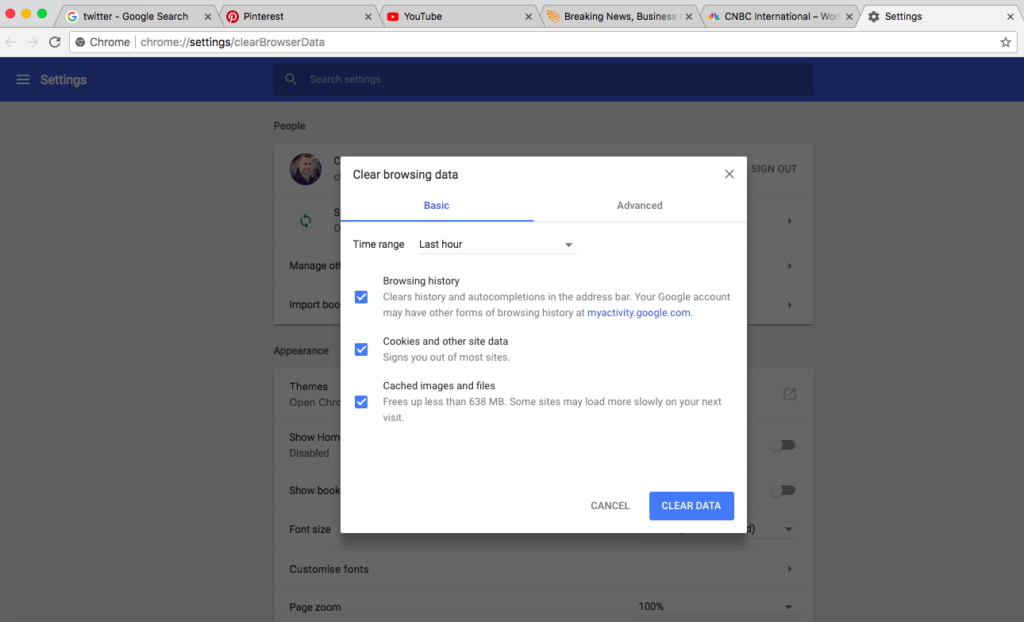
Whether you’re shopping for birthdays or planning a surprise trip, there are times when you’ll want to keep your browsing history secret. Chrome makes this very easy with a shortcut that takes you just one click away from deleting cookies, temporary internet files, images, and pages. Just hit Ctrl+Shift+Delete, choose what you want to remove (and from when), and you’re left with a clean slate.

4. Save data with this extension

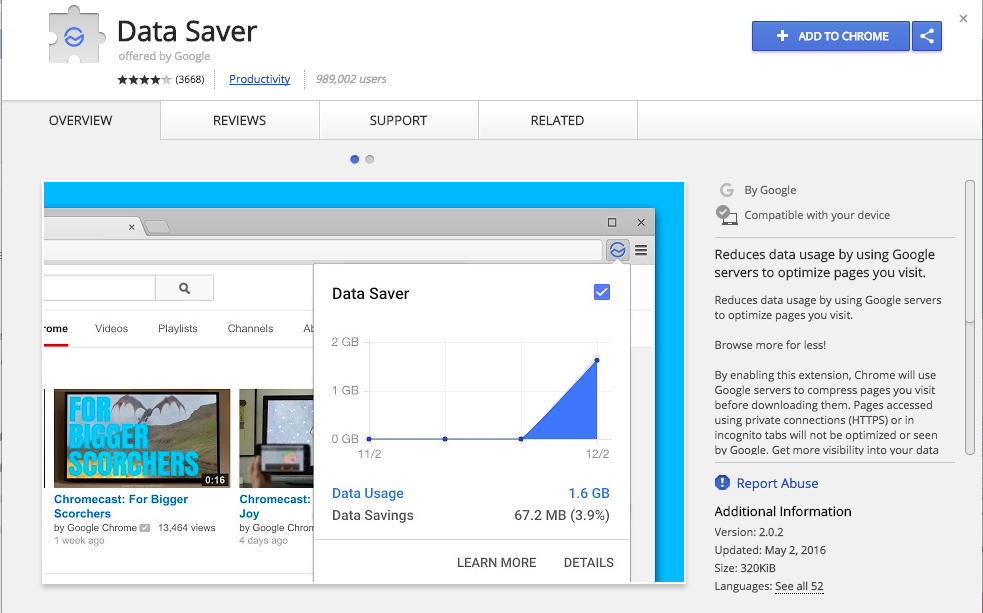
There are many great Chrome extensions out there, but Data Saver deserves special mention. By harnessing the power of Google’s server network, Data Saver compresses web pages so they load faster and use less data (hence the name). In this way, Google is acting as a kind of intermediary between you and the internet. For those of you on strict download caps or slow connections, Data Saver makes for better browsing.

5. Pin tabs you want to keep open

With so many productivity applications moving to the cloud, you could find yourself swamped with open tabs. Some for working, some for research, some for communicating with colleagues, some for social media, news, email… the list goes on.

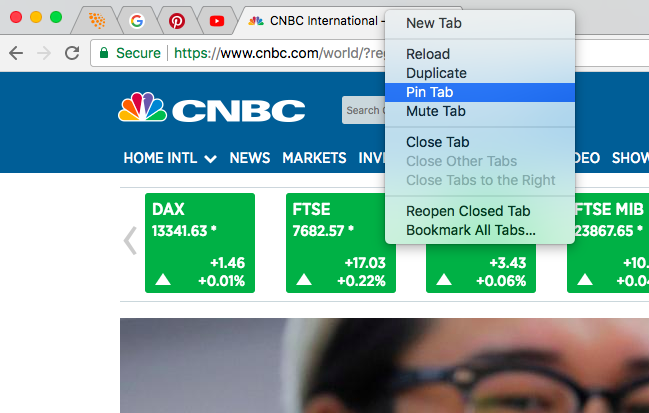
You need a robust organization policy if you want to avoid headaches, and thankfully Chrome makes it easy to manage open tabs through pins. If you know you’ll need access to a particular web page throughout the day, you can pin it to your browser window. Simply right-click on the tab and select Pin Tab. All pinned tabs are stored on the left of your browser window. They can’t be moved or closed down, so there’s no risk of losing them. To unpin a tab, right-click and select Unpin Tab.

6. Open your favorite web pages every time you start Chrome

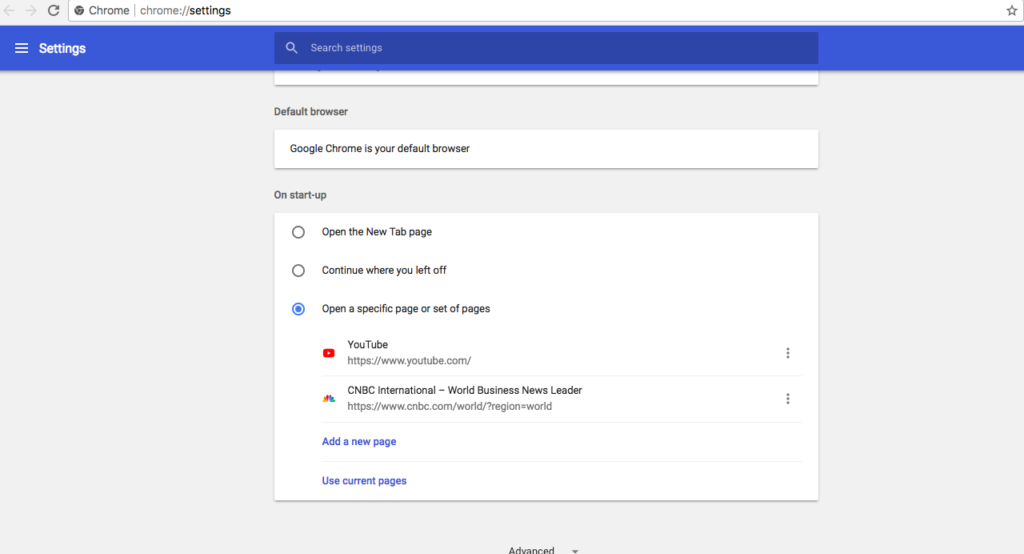
If you visit the same web pages every day, why not let Chrome open them for you? Instead of typing in URLs or searching for your favorite sites, you can set Chrome to open them automatically whenever you start your browser. Simply go to the settings menu, scroll down to On start-up, and add the URLs for the sites you use most often. If you already have the sites open, click Use current pages and Chrome will add those URLs automatically.

7. Do math right in the omnibox

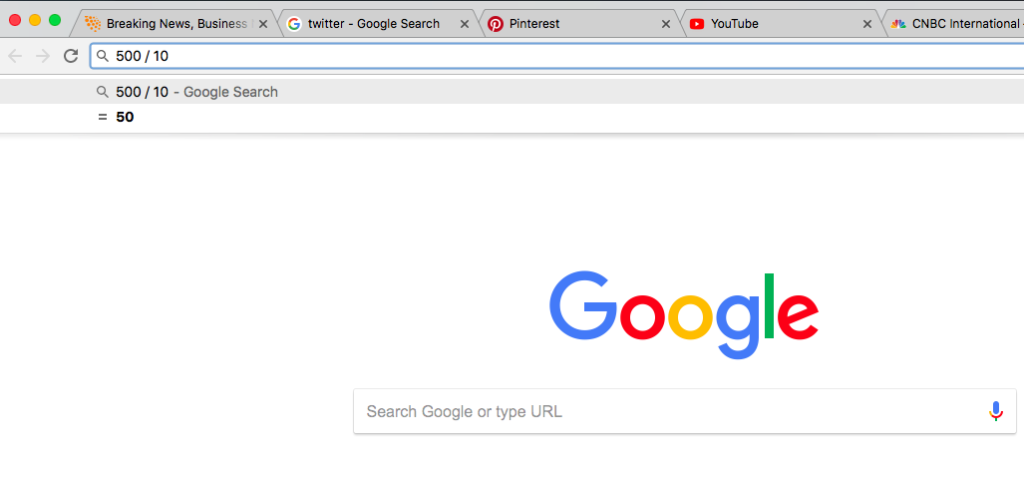
If you need a speedy answer to a math problem, type it into the URL bar (the “omnibox” as Google calls it), and the answer will appear in the suggestions box below. It’s not going to replace your calculator or solve differential equations, but as a ready reckoner it’s a handy tool.

8. Use themes to customize Chrome

Fancy a change from Chrome’s minimalist style? Themes let you update the browser interface to something a bit more snazzy. By going into settings and selecting Themes under the Appearance category, you can select from hundreds of different designs – some free, some paid for – to make Chrome a bit more personal. From space to flowers, abstract art to landmarks, you’re guaranteed to find the style you want.

9. Search faster by highlighting and dragging text into the omnibox

This little trick could save you considerable time doing online research. Instead of manually entering search words in the omnibox (URL bar), you can highlight portions of text, drag them to the omnibox, and Chrome will search Google for you. So next time you’re poring over an academic journal or news article and want to know a bit more about your subject, highlight phrases that interest you and continue learning across multiple sources.

10. Create a different user accounts for greater privacy

As we do more online, our privacy is at risk. And with emails, contacts, and social media accessible from your Google account, there’s more at stake than just your browsing history. So it makes sense not to let others piggyback on your account.

In Chrome, you can set up separate browsing accounts by clicking People in the Chrome menu at the top of your screen and adding a new user. This is useful for creating different profiles for your family, as well as others who might occasionally use your device.

Another way to protect your settings and history is to enable guest browsing. To do this, go to Settings > Manage other people, and select Browse as guest. Then you can hand over your laptop to whomever needs it without worrying about them discovering your passion for Nickelback b-sides.

11. Beat your friends’ high scores with the running dinosaur!

When you lose your internet connection, the last thing you expect is to help a dinosaur jump over cacti and pterodactyls through an endless scrolling desert. But this is Google. The dreaded “no internet connection” screen looks innocent until you notice the dinosaur’s blinking eyes. If you press spacebar your prehistoric friend will jump in the air and the page will open into a endless runner that’ll keep you entertained until the internet comes back to life. Or not. Who cares? You’ve got a high score to beat. Play now by typing chrome://dino into the omnibox.

Chrome is full of surprises, and it’s easy to see why it’s so popular. While most of us use just a fraction of its many features, I hope this list has empowered you to squeeze more fun out of your favorite browser.

Call of Duty: Black Ops 4 might come out without a Campaign Mode so it can compete with Fortnite and PUBG

Call of Duty: Black Ops 4, coming out in October 2018, could be a first for the franchise: it’s possible it will be the only CoD without a Campaign Mode. Why? Because it has to keep up with the times.

Several sources have assured that Black Ops 4 will forego Campaign Mode for a very trendy mode these days: Battle Royale. This mode is used by two of today’s most famous games: PlayersUnknown’s Battlegrounds and Fortnite.

Playerunknown's Battlegrounds Download Now
9
Fortnite: Battle Royale Download Now
10

In reality, Campaign Mode, the classic CoD mode, has been losing traction in recent editions: users finish the game quickly and mainly play using multiplayer and zombie modes.

Another rumor involves who will be in charge of the new Battle Royale mode for Call of Duty: Black Ops 4. The name being thrown around is Raven Software, which has been developing additional CoD games since 2010. They’re also responsible for a handful of franchise games such as Star Wars, X-Men, and Star Trek.

Though a Battle Royale mode for the Call of Duty franchise was only a matter of time, nobody expected it so soon.

What does Activision have to say about all this? Well, nothing for now. Maybe they’ll wait until May 17, the date chosen by the company to officially reveal the game and show off its first details.

Call of Duty WWII Download Now
8
Call of Duty: Black Ops III Download Now
7

Do you think CoD: Black Ops 4 will come with a Battle Royale mode? What other features should the new game come with? Let us know in the comments below.

Edit your way to the Oscars with VSDC Video Editor Pro

Imagine if every great director – from Coppola to Tarantino – released the full, unedited versions of their films. Would they still have won awards? I doubt it. Every masterpiece in the world has been changed in some way during its journey to stardom. Novelists draft, artists sketch, and filmmakers edit.

But despite the importance of editing, many budding filmmakers don’t give it the attention it deserves. Some believe it expensive, time-consuming, and difficult, and in some ways, they’re right: many editing tools are expensive and hostile to beginners, forcing you to climb a steep learning curve that can take months or even years to master.

Thankfully, there’s a simpler way. We’ve been testing a bunch of editing software to find the right balance between simplicity, features, and professional output. We believe we’ve found just the right editing suite in VSDC Video Editor Pro.

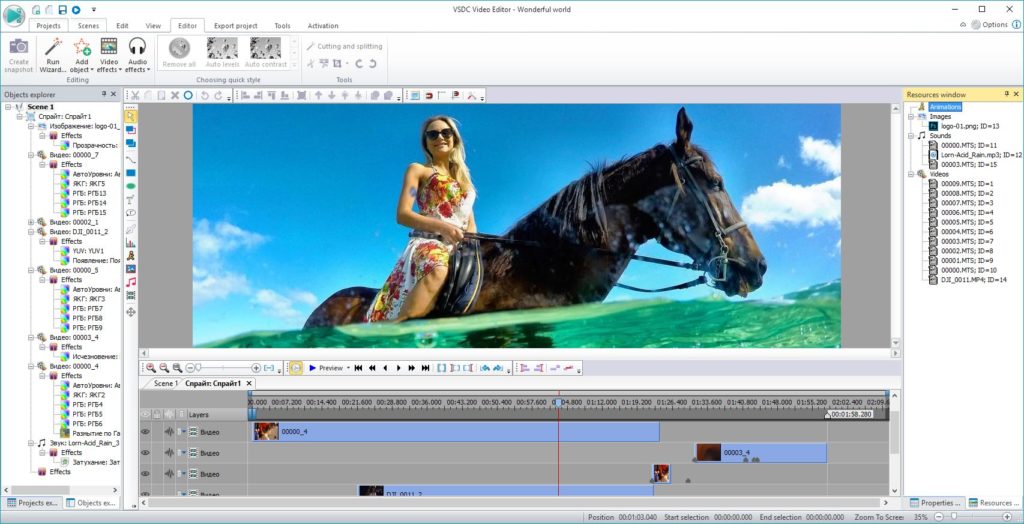
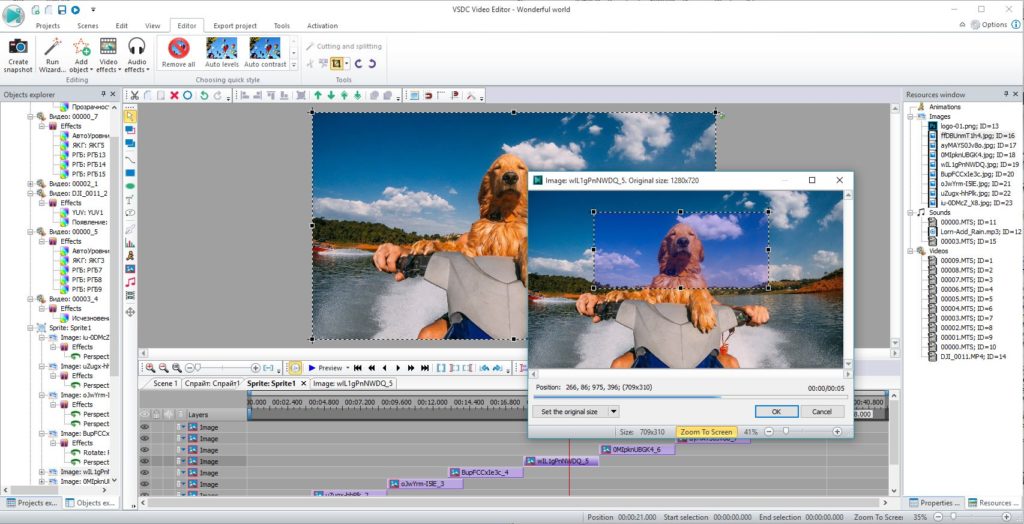
What makes VSDC Video Editor Pro so special? Well, let’s start with the basics. The usual trimming, splicing, and cropping features are all there, so you can stitch multiple movie clips together, break them apart, or zoom in on interesting detail. You can also adjust colour, exposure, and contrast, as well as add sounds, effects, and transitions to really make your movie stand out.

But it’s the professional tools that really shine. Take the sub-pixel editor, for example. Sometimes you need to adjust ultra-fine detail to get the look you want, and this allows you to do it with cinematic precision.

There are also ten video mask types to choose from. Video masking isolates individual objects in your video – a face or car, for example – so you can cut, highlight, or blur them for added realism, or combine them with other media to create something new. While these controls might take longer to master, they can transform your amateur videos into YouTube gold. 

You’ve probably heard of “green screening” where you film in front of a uniform background so you can remove and replace it with something more interesting later. Video Editor Pro’s multiple chroma key support lets you do this in different colours, not just green, so you can match and remove the background without harming the foreground of your shot.

Of course, if you’re pressed for time or don’t want the hassle of manual control, you can select from Video Editor’s extensive selection of preset functions and styles. With 4K support in almost every video file format, you won’t need to do any irritating file conversion before you start, leaving you more time to create the perfect movie.

We think Video Editor Pro is one of the best editing suites on the market. Whether you want to direct the next Revenant, or just add a little quirky style to your YouTube channel, the software is a steal at just $24.19.

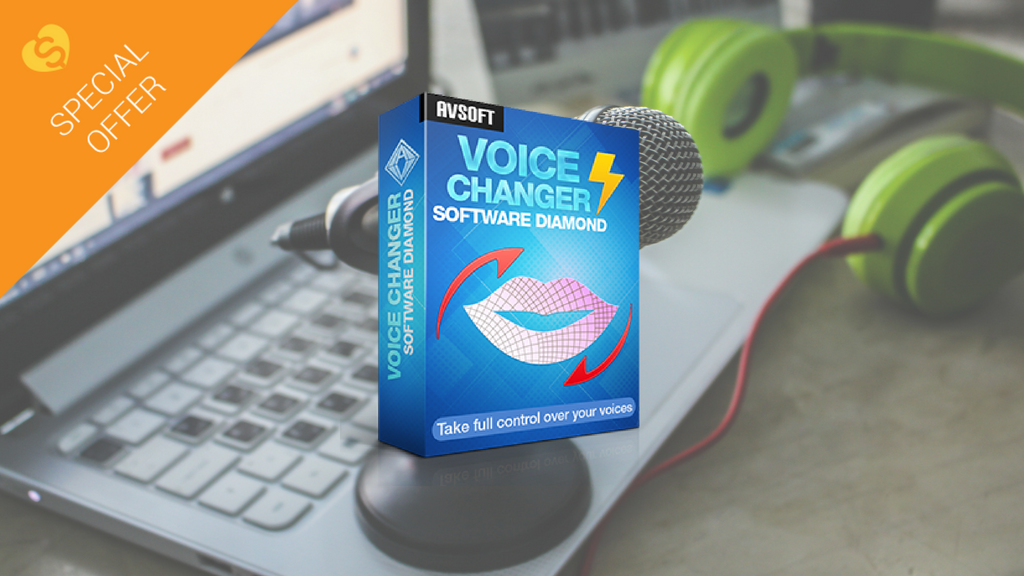
Heroes, grannies, and robots: get creative with Voice Changer Diamond 9.5

Faking voices is heaps of fun. Whether impersonating your boss, friend, or favourite TV character, the first thing you mimic is how they speak. Celebrity impressionists, for example, make us laugh over their exaggerated turns of phrase, while voice actors give life to shows like The Simpsons and Family Guy.

Changing the pitch and timbre of our voice is no easy task, however. Just ask the many actors whose foreign accents are often hilariously inconsistent. And while we might get a laugh or two from our impressions of Uncle John’s drunken ramblings, we don’t always nail Aunt Bea’s scathing retorts. So when we want to change our voice, we sometimes need a little help.

Voice changing software has been around for a while. Radio DJs use them all the time, and there are lots on the market. But none of the voice changers we’ve tested comes close to AVSOFT’s Voice Changer Diamond 9.5 for features, quality, or – most importantly – realism. 


Voice Changer Diamond 9.5 is the most natural sounding voice changer we’ve ever heard. Using sophisticated, market-leading algorithms, it modifies and optimises your voice while still sounding real. We found other voice too obvious, but after a few in-office prank calls, we were mightily impressed by how easily it was to fool our colleagues with Voice Changer Diamond.

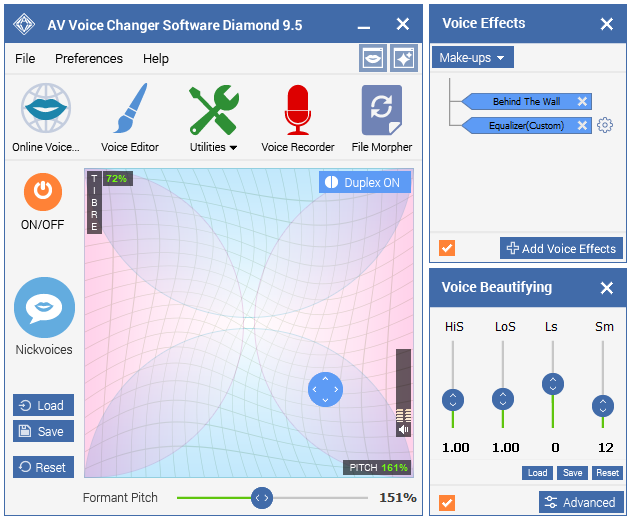
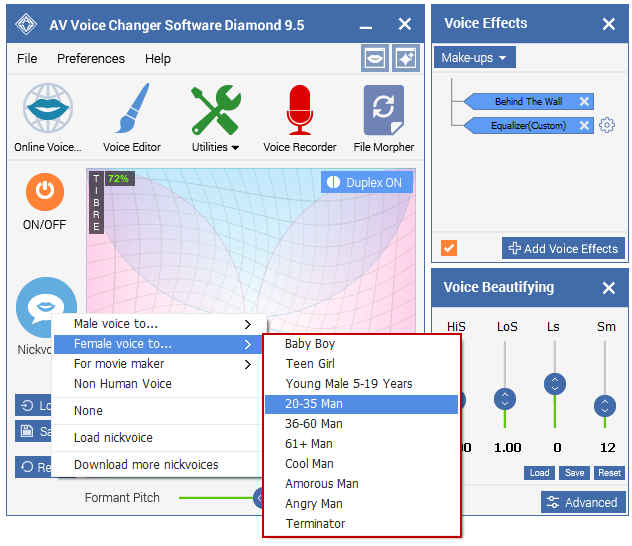
Even the preset “Nickvoices” sound great – turning you from robot to grandma in just a few clicks. But for ultimate realism, you’re better modifying your voice manually. You have full control of timbre and pitch with Voice Changer’s graphical controller, and you can add extra realism from a growing library of effects – anything from “breathy” to “trembling”. You can also save voices as named presets, giving you an army of alter egos with which to amuse your fans.

You can modify your voice on the fly, too, as Voice Changer Diamond integrates with chat services, VoIP applications (like Skype), and web-based applications like role-playing games. Now you can give  proper voice to your Level 37 Bloodhoof Tauren, frightening your World of Warcraft foes with your thunderous war cries.

For editing existing recordings, Voice Changer Diamond offers a host of tools to make your audio sound great, including a simultaneous voice morph and file converter for large jobs. You can also analyse your voice and compare it with others, learning your harmony, pitch, brightness, and score, and use the information to make you a better impersonator. It’s a vocal coach, audio editor, and voice changer in one!

We’re massive fans of Voice Changer Diamond, and to share the love we’ve managed to secure a 60% discount off the asking price. Just visit AVSOFT to buy for $48.38 (normally $99.95). We hope you enjoy creating your own characters, or even just adding a professional note to your own voice – let us know how it goes in the comments below.

Want better photos? Then you need this software

Photos are our mementos of times gone by. By capturing a moment in camera, you lock away a memory you might otherwise have forgotten – a holiday, a night out with friends, or your child’s first steps. We carry our cameras everywhere these days, so it’s easier than ever to snap those happy moments.

But if your photos fizzle instead of pop, you might need a little post-processing to liven things up. Whether it’s boosting colours to reproduce that blue sky or cropping out the photobomber ruining your selfies, photo editing software can really help you get more out of your photos.

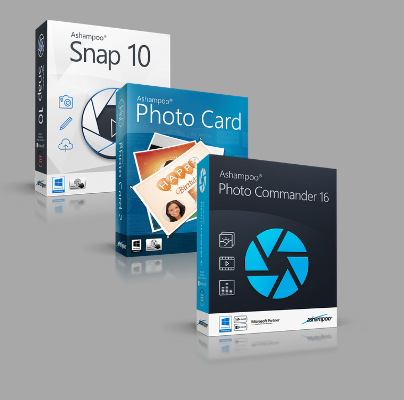
At Softonic, we do a lot of photo editing – even the best, top-of-the-line DSLRs don’t always compensate for our limited photography skills. Our favourite editing suite is the Ashampoo Photo Bundle which includes three powerful photo and video editing tools – and for a limited time only it’s available with an incredible 80% discount.  

  Here’s what’s you get inside the Ashampoo Photo Bundle.

1. Ashampoo Photo Commander 16

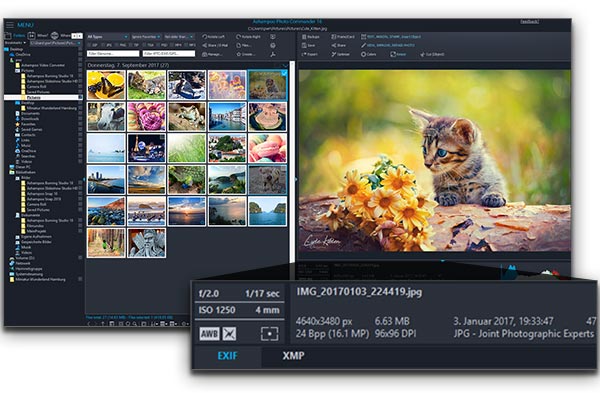
Photo Commander 16 helps you organise and edit your photos with ease. If you’re worried about fiddling with lots of knobs, dials, and sliders, fear not – nearly all corrections and enhancements can be done in one click, leaving you more time to enjoy, share, or print your favourites.

If you like to tinker and add a bit more creative flair, you can go full manual with control over exposure, highlights/shadows, saturation, and lots more. You can even add text or other images, and create slideshows, making this a great tool for family albums.

2. Ashampoo Snap 10

Snap 10 is the ideal for capturing and editing screenshots, screencasts, and videos. At Softonic, we love helping you understand the latest technology, and we create a lot of our videos and user guides using Snap 10.

Snap 10 lets you take snapshots of anything on screen, including pen notes, cursor movements, and full-screen 3D games, and then turn them into videos or single pictures. With 4K recording, and trim, join, and enhancement options on-the-fly, you can be as creative as you want, while still producing professional-grade images, GIFs, or videos.

3. Ashampoo Photo Card 2

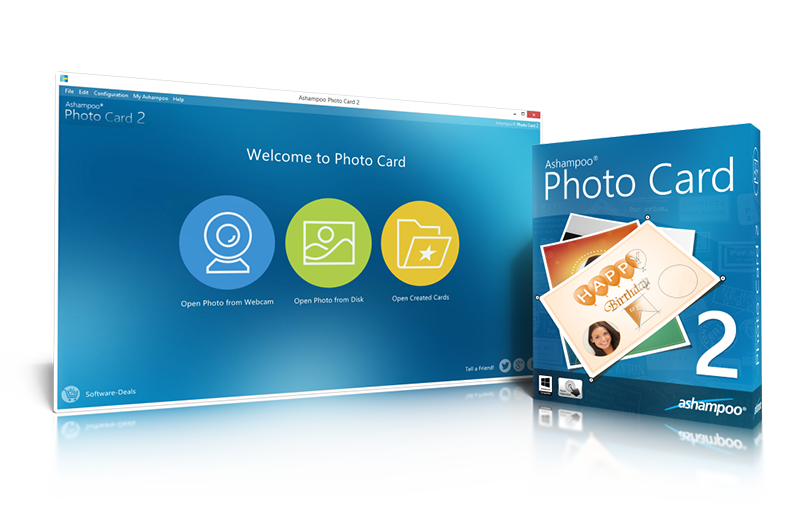
Have you ever forgotten someone’s birthday? It’s not always easy getting a card last minute, especially if your special person lives far away. An ecard is a good alternative: it’s sent instantly, saves trees, and won’t get thrown out or left to gather dust in the attic.

But companies like Hallmark charge a premium for their ecards and don’t always offer the exact sentiment or message you’re looking for. Photo Card 2 solves this problem by letting you create your own professional greetings card from any of your saved photos. You can create a card for any occasion, not just birthdays, with a host of image editing tools and templates to really make your card stand out.

We think Ashampoo’s Photo Bundle is incredible value for money. The whole package normally costs $109.97, but you can buy it now for just $19.99. So go on, treat yourself, and enjoy better photos for life.

Is your computer running slow? This software could help

Computers often run great the first time you buy one. Then after a year or two of use, they start to slow down. While a cynic might argue this helps manufacturers sell more machines, your software is often to blame. Either you don’t have the drivers to run it, the software was installed without your permission (by a virus, for example), or there are still a few traces of an uninstalled program clogging up your system.

These problems are easily solved with system utilities. There are hundreds of these programs on the market, all promising to speed up your machine, identify security risks, supply missing drivers, and remove all traces of software you don’t want or use. This keeps your computer clean and running smoothly, returning its fresh-out-the-box snappiness.

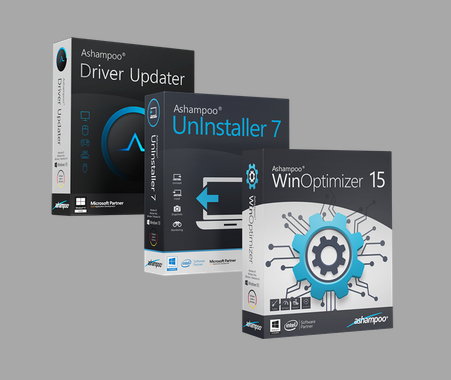
We’ve tested a number of system utilities and our favourite is Ashampoo System Utilities 15. Why? Because it includes everything you need to optimise your computer, as well as a clean uninstaller and driver updater.

At the moment, Ashampoo is offering the bundle with 80% off the retail price. We think that’s a bargain, so let’s take a look at what you get.

1. Ashampoo WinOptimizer 15

WinOptimizer is the ultimate computer clean-up and maintenance tool. It scans, analyses, and diagnoses junk files and errors, and then removes them with the click of a button – and up to ten times faster than the previous version.

Find and delete duplicate files and temporary internet files hogging up disk space. Or if you’ve deleted something in error, recover it with Undeleter. WinOptimizer also improves your privacy on Windows 10 by giving you control over what you share with Microsoft. You can even unlock extra power from your CPU in Game-Booster mode, shutting down unneeded services to increase performance until you exit the game.

2. Ashampoo Uninstaller 7

Nearly all software installations leave a trace of themselves behind when you remove them. Even if it’s just a registry entry. These small traces build up over time as you add and remove more programs, and the result is a slower, inefficient machine. Uninstaller 7 solves this problem by removing every last byte of unwanted data.

This doesn’t just apply to desktop software, but also to browser plug-ins, many of which are unintentional installations of nested or hidden programs. These range from the nefarious (malware that tracks your browsing) to the annoying (unwanted search bars), but with Uninstaller 7, you can identify exactly what’s on your PC and remove it with ease.

3. Ashampoo Driver Updater

Software bugs aren’t always the result of poor code. Often, it’s because your computer doesn’t have the right drivers to run software at its best. Drivers are updated frequently, usually without warning, so don’t be surprised to find out-of-date, corrupt, or missing drivers spoiling your system performance.

But with Driver Updater, you’ll always have the right drivers for your machine. Driver Updater searches a library of over 400,000 drivers to find and install the most relevant and effective ones for your system. An in-built scheduler ensures you don’t miss important updates, while automatic back-up means you’ll never lose an important driver again.   

Right now, you can buy Ashampoo System Utilities 15 for just $19.99 – a huge 80% off the retail price of $109.97. For consistently smooth performance, that’s a small price to pay.

Furious 5: Apps on the rise (Week ending April 27, 2018)

This week’s fastest-rising downloads are helping our users be more productive and more creative while blowing off steam. Looking for some new programs to try? Give thise a whirl.

Furious 5: Apps on the rise

1. GS Auto Clicker (+34%)

Ever find yourself having to click the same spot over and over and over again? Maybe you’re playing a game where you have to click in the same spot several times. That’s where GS Auto Clicker comes in. Don’t let your wrist get tired from all that boring clicking. Try GS Auto Clicker and let the program do all the clicking for you!

GS Auto Clicker Download Free
7

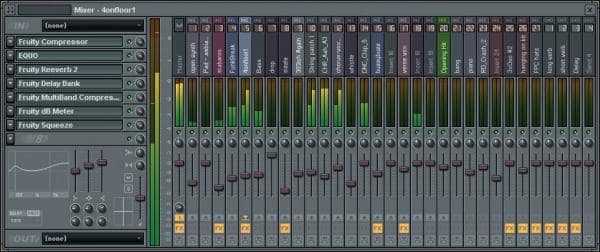
2. FL Studio (+27%)

FL Studio used to be known as Fruity Loops. If you want to launch your music career, this is a program you want on your radar. Use FL Studio to create sick beats. If Mozart were alive today, he’d be all over this program. Unleash your inner composer and see what iconic sounds you can create with FL Studio!

FL Studio Download Free
7

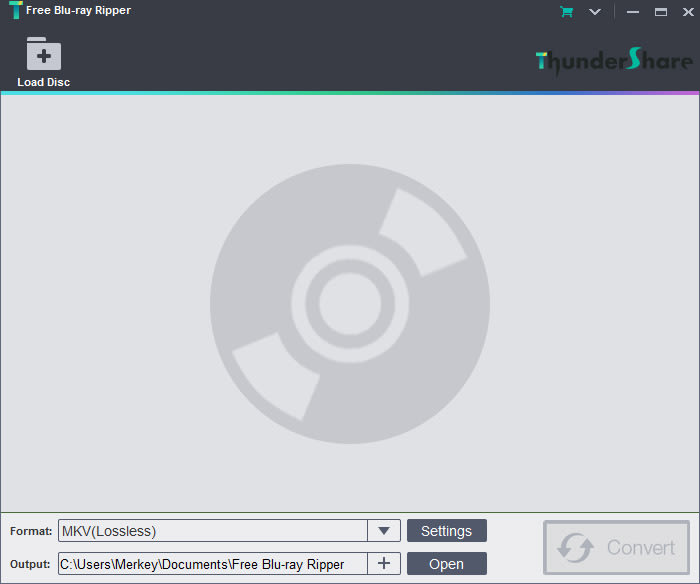
3. Free Blu-Ray Ripper (+25%)

Warning: Circumventing the anti-piracy protections of Blu-Rays is technically illegal. That said, pirates gonna pirate. If you need a copy of your Blu-Ray for legal reasons only, this is a tool to help you down the road. If you plan on embracing the dark side and thumbing your nose at the copyright gods, consult your lawyer, and consider if this program is right for you.

Free Blu-ray Ripper Download Free
7

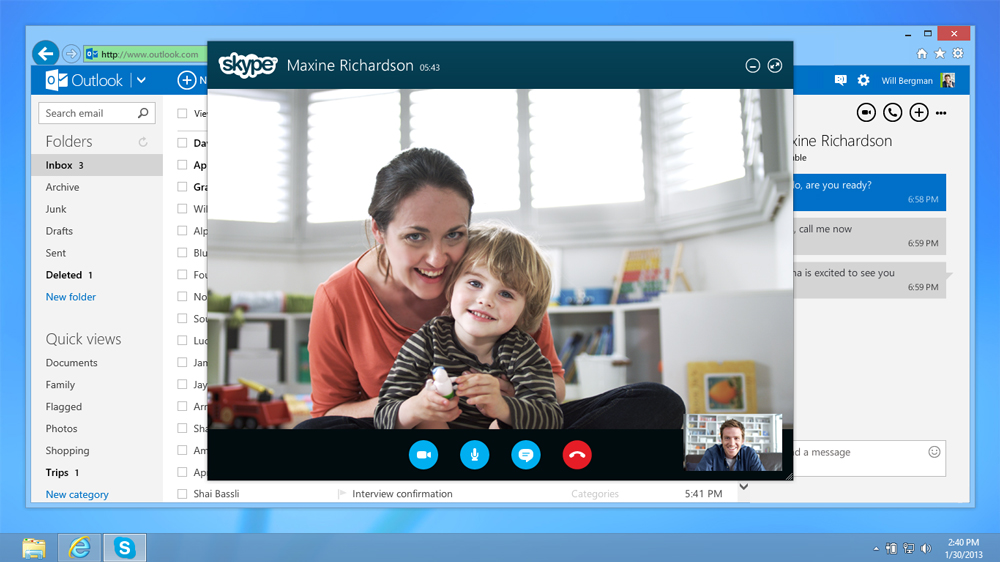
4. Skype (+23%)

What can’t Skype do? The versatile communication app allows video calls, texting, and regular old phone calls. Gather ’round, kids. Many, many years ago, your ancestors would dial a phone number and actually talk to a person on the other end. You had to give them your nearly undivided attention! You couldn’t save your replies for a lull in “Game of Thrones” because the person on the other end of the call was just sitting there, waiting for your reply. Skype lets you do that. But it also aces all kinds of other communication. If you haven’t tried it yet, what are you waiting for?

5. Ravenfield (+20%)

A first-person shooter with 16-bit graphics? Count us in! If you’re tired of getting demolished in Fortnite: Battle Royale, maybe you’ll be up for a little retro shoot-’em-up. Looking for a game that lets you blow off some steam in a simple, fun way? Ravenfield may be just what the doctor ordered.

Ravenfield Download Free
7

What will dominate our charts next week? Got an app you want us to spotlight? Let us know in the comments below!

A beginner’s guide to the Dark Web

Whether you’ve read about it on a news report or seen it in a modern day science fiction film, you’ve probably encountered the term Dark Web before. Of course, due to its shadowy name and reputation, it’s a part of the web that is rarely talked about and is relatively unknown.

In this guide, we’ll throw some light on the Dark Web and fill you in on everything you need to know about why it exists and how it works. We’ll also explain how you can gain access to the Dark Web for yourself.

A beginner’s guide to the Dark Web

What is the Dark Web?

The Dark Web is a part of the internet that can only be accessed by using a specialized browser called Tor. Made up of numerous layers known as Darknets, Tor works like a key that unlocks information contained in them.

Unlike the rest of the web, which is indexed and appears in search engines, the Dark Web belongs to a section known as the Deep Web. What this means is that you cannot access any pages or information stored there by browsing in the way that you would normally. Instead, you need to download and run specialized browsers such as Tor that can join encrypted networks that are otherwise inaccessible.

Why do people use the Dark Web?

The Dark Web gives its users greater anonymity than is possible on the regular internet. So it’s probably no surprise that it has naturally attracted users looking to participate in illegal activities. An excellent example of this is the Silk Road, a virtual black-market that once existed to allow Dark Web users to purchase drugs, weapons, and a number of illegal services via their Tor browser.

But it’s not all cloak and daggers. Indeed, the Dark Web has been used as a liberating tool for people living in parts of the world where their government severely restricts their access to the Internet.

By having the ability to browse the internet outside of the parameters enforced upon them, it’s possible for such people to learn more about the world and report on their situation in a useful way.


What Is the Silk Road?

Reportedly shut down in 2013, the Silk Road was a marketplace for users of the Dark Web. Trading with the famous cryptocurrency Bitcoin, people were able to exchange products and services anonymously.

This might sound like a perfectly logical idea until you consider that such an arrangement allowed people to sell and buy things like drugs and guns. Unsurprisingly, the authorities quickly caught onto the Silk Road and made sure they shut it down. Rumors persist that the Silk Road still exists, though nothing has been categorically proven.

Is The Dark Web illegal?

As with many things related to the internet, the legal status of the Dark Web is a complicated issue. In short, using the Tor browser and hiding your IP address is not illegal. However, using your anonymity to commit crimes is indeed against the law.

In other words, if your behavior would fall into the category of “illegal” on the regular web, then it remains so when it is committed through the use of the Tor browser. And using a Tor browser to commit crimes does not provide a criminal with an invisibility cloak, but something closer to a ski mask. It’s not foolproof.

How do I access the Dark Web?

Accessing the Dark Web is much easier than you may think. All you’ll need to do is download the Tor browser. Once you’ve downloaded the browser, you merely need to run it and begin browsing the content there.

A good place to help you navigate the Dark Web can be found at thehiddenwiki.org. Here, you’ll find a helpful list of the best places to visit as well as the best places to avoid during your time on the Dark Web.

And while this may sound like something out of a movie, it’s well worth covering up any webcams you have connected to your computer when you access the Dark Web. The reason for this is that your webcam is a little more vulnerable when accessing parts of the web that aren’t so closely regulated.

Can I get on the Dark Web using my smartphone?

Until recently, you could only access the Dark Web through a desktop or laptop. Now, thanks to the launch of compatible apps, you can browse on both iPhone and Android smartphones.

If you’re using an iPhone, the Onion Browser is available from Tor. Using it will give you all the same freedoms as using Tor on a laptop. For Android users, it’s a simple case of downloading Orbot. It is a browser similar to Tor but powered by another provider. In either case, it’s easy for mobile users to begin browsing remotely and anonymously while on the go.

Onion Browser Download for iPhone
7
Orbot: Proxy with Tor Download for Android
10

Will I get hacked if I use the Dark Web?

Due to its shadowy nature, you might think that being hacked is far more likely to happen on the Dark Web, but this isn’t the case. Indeed, it seems that modern-day hackers have spent more of their time designing software to infect computers browsing the regular internet. If you use the Tor browser with the NoScript addon, you’ll gain even greater protection against would-be hackers.

What can you do on the Dark Web?

You might be surprised to learn that many activities that take place on the Dark Web are totally innocent. For instance, there is a thriving community of book lovers who gather on various blogs to form virtual book clubs.  Some of these communities also take on more controversial types of fiction, the kind that might fail to gain an audience on the regular web.

The popular Strategic Intelligence Network is another resource found on the Dark Web. Sharing a large quantity of data, the network looks at how to survive major disasters. It might not make for uplifting reading, but it’s certainly something a little bit different than your average website!

If you want to participate in something truly relaxing, it’s also possible to play games of chess with other users of the Dark Web.

As you might expect, there is a significant social element to the Dark Web. Some users communicate with one another via an anonymous email service called AnonInbox.

How do I find my way around the Dark Web?

When it comes to surfing the regular internet, there’s no doubt that you’ll be used to using Google to find the stuff you want. For example, if you want to find out about tomorrow’s weather, or when your favorite TV show is returning, you just type these requests into Google.

When it comes to the Dark Web, however, there is no centralized search engine. Instead, you’ll need to refer to the Hidden Wiki, which serves as a directory of the most popular content available on the Dark Web.

You can take a look at this directory on the regular internet by heading to  http://www.thehiddenwiki.net/. It’s well worth spending some time doing some reading ahead of your Dark Web voyage, and it’ll certainly help you decide if there’s anything there you want to check out.

From here on out it’s up to you to decide what you spend your time looking at on the Dark Web. Equipped with all of the knowledge you’ve gained from this article, you’re sure to have an interesting and unique experience.

So, there you have it. The Dark Web really isn’t scary and mysterious after all!

Tops off on Twitch

Tops off on Twitch

Dele Alli has taken the Premier League by storm. Although the Tottenham team he plays for were recently knocked out of the FA Cup semifinals by Manchester United, they’re still regarded as one of the best teams in the UK. Alli himself is a highly rated midfielder and one of the first names on the team sheet when the England National side is being drawn up. He isn’t just a footballer though. He recently made his Twitch streaming debut playing Fortnite, and it didn’t take long before things heated up.

Source: Kotaku

Things got so hot in fact, that the Premier League star fell foul of Twitch’s dress code when he took his top off. Yep, for a minute or two at least, a Premier League Football star, who earlier this season scored twice against Real Madrid at Wembley, was playing the free to play Fortnite: Battle Royale with no top on.

As to why this elite sports star thought it was appropriate to take his top off during a live stream remains unknown. Maybe it is because live streamers like Ninja earn more money playing Fortnite than most Premier League footballers earn playing football.  Reportedly, Ninja earns close to $1,000,000 a month playing Fornite, which would put him in the top 20 best-paid footballers in the world.