Chrome extensions for a better Instagram experience on your PC

In the same league as Tik Tok, Instagram has become the most popular social media platform for teens and young adults today. As audiovisual takes precedence over text, it has managed to hook millions of people around the world. However, it continues to gain ground among an older audience, and here, a key variable comes into play: the Instagram version for desktop leaves a lot to be desired.

Although Facebook – the owner of Instagram – continues to add new features, it still can’t hold a candle to the smartphone version. So today, we’ve brought you a few Chrome extensions to improve your Instagram experience on your PC.

First of all, make sure you have updated Chrome. You can download it below for free.

Google Chrome Download
7

Real-time notifications

We’re going to start our article with a basic feature: real-time notifications from your account. If Instagram had a drawback, it would have to be the notification system. It doesn’t matter if it’s on Android, iPhone, iPad, PC, etc. In all cases, the service doesn’t work as well as other social media platforms.

On desktop, we can at least add a “patch” through a Google Chrome extension called WebClient for Instagram. This tool simply notifies us about comments, likes, new followers, and more from our profile. Just enable the extension on your Chrome browser and make sure you’re logged into your Instagram account (this applies to all the extensions going forward). You’ll start to receive real-time notifications about everything as it happens. How cool is that?

Download photos and videos

https://www.youtube.com/watch?v=NYYjp83aUH8&feature=emb_title

As you may have already noticed, Instagram won’t let you download images or videos from its platform. On your phone, you have no choice but to use a mobile app or your operating system’s tools, while on desktop, you can’t do the classic “Save image as.”

To make it happen, you need the Downloader for Instagram extension. As the name suggests, this tool lets you download any photo or video from the famous social media platform. You can save something with just a few clicks of your mouse.

Likewise, this extension lets you read and reply to direct messages from the Instagram website, something that wasn’t possible until recently (however, since the latest update a few weeks ago, you can check messages without a problem).

WhatsGreen Multi Messenger

This extension is for not only Instagram but all the social media platforms and messaging services you use on a daily basis. WhatsGreen Multi Messenger is a tool that lets you check all your linked apps with a few clicks of your mouse.

For example, imagine if you use WhatsApp, Telegram, Twitter, Instagram, Skype, etc., every day. Well, with this extension you can keep all the icons for these apps organized in the same folder. It’s like having a smartphone display right on your Google Chrome browser.

GrowBot Automator

The next extension isn’t our favorite if you want a clean, healthy Instagram account, but it could be convenient for a business account: GrowBot Automator.

This automated tool follows other accounts to flesh out your Following and Followers lists. You can program the “bot” to follow accounts with a minimum and maximum number of followers, with a minimum and maximum ratio of followers to following, with a minimum number of posts on their profiles, that are verified or unverified, that are private and much more. There are so many options that it could be overwhelming when you install it, but the idea is to automatically gain followers.

Improved Layout for Instagram

This extension is one of the most popular in Google’s online store for a reason: it enhances all of Instagram’s features to the point where the mobile version will seem too limited to you.

Improved Layout for Instagram is based on the following premise: “The default Instagram.com layout is not optimized for desktop.” That’s how blunt the developers are, and what they do is implement several functions: for example, you can view several posts simultaneously, since they appear in a horizontal format as opposed to vertical; controls are added to videos, such as fast-forward, rewind, pause, etc. (something the mobile version lacks and we miss), and there is full-screen mode and much more. You should definitely try it because the difference is amazing.

Night Mode

This extension is easy and straightforward: Night Mode for Instagram. As you may well know, this dark tone has become a favorite among users, and practically all the applications, programs, etc., on the market are including this feature.

Instagram Night Mode dims the entire page. And we mean that quite literally, as everything is displayed in this dark tone. Backgrounds, posts, stories… If anything ever appeared as white in the original version, it will be reversed with this extension. It’s an easy way to rest your eyes so the brightness doesn’t fry your pupils.

App for Instagram

Last but not least, we have an extension called App for Instagram. Its purpose is clear: to let you use Instagram on a PC just like you do on your phone. It’s that simple.

The developer of this extension, one of the most popular in the Chrome Web Store, wants to ensure the same experience on both systems: you can view (and respond to) Instagram stories just like you would do on a smartphone, display “Likes” the same way, at the bottom of the page instead of the top (as usual on the PC version), have an identical layout, etc.

In short, it aims to eliminate any visible differences between the mobile and desktop versions, so it’s the same app for everyone.

And those are the best Google Chrome extensions to make the most of Instagram. They’ll let you download photos and videos and even use the PC version just like the mobile one. Which one is your favorite?

How to create your own Google Chrome theme

Although new competitors are appearing all the time and the existing ones keep getting better, there’s no doubt that Google Chrome is at the top of its game. Beyond the well-known and much-discussed issues like its heavy use of RAM, Google’s browser hasn’t stopped advancing and gaining new features, which have improved everything around it. Today, we’re going to tell you how to take advantage of its latest big gain: how to create your own Google Chrome theme.

Your browser will never look the same, and after all, it’s nice to have something pleasant to look at!

A necessary update

Before we get down to business, there’s an important detail we need to discuss. In order to create your own theme, you need at least Google Chrome version 78 or later. In other words, it needs to be from August or later.

But in fact, the option in this version still has to be enabled through flags, so we recommend updating your browser by downloading the latest version on the market (this way, you’ll avoid the issue of flags, as it comes pre-installed as standard).

Google Chrome Download
7

How to create a Google Chrome theme

Now that we’ve covered this important aspect – after all, unless you update, you’re not getting anywhere – we can get started on how to create a custom Google Chrome theme (or your own themes, plural).

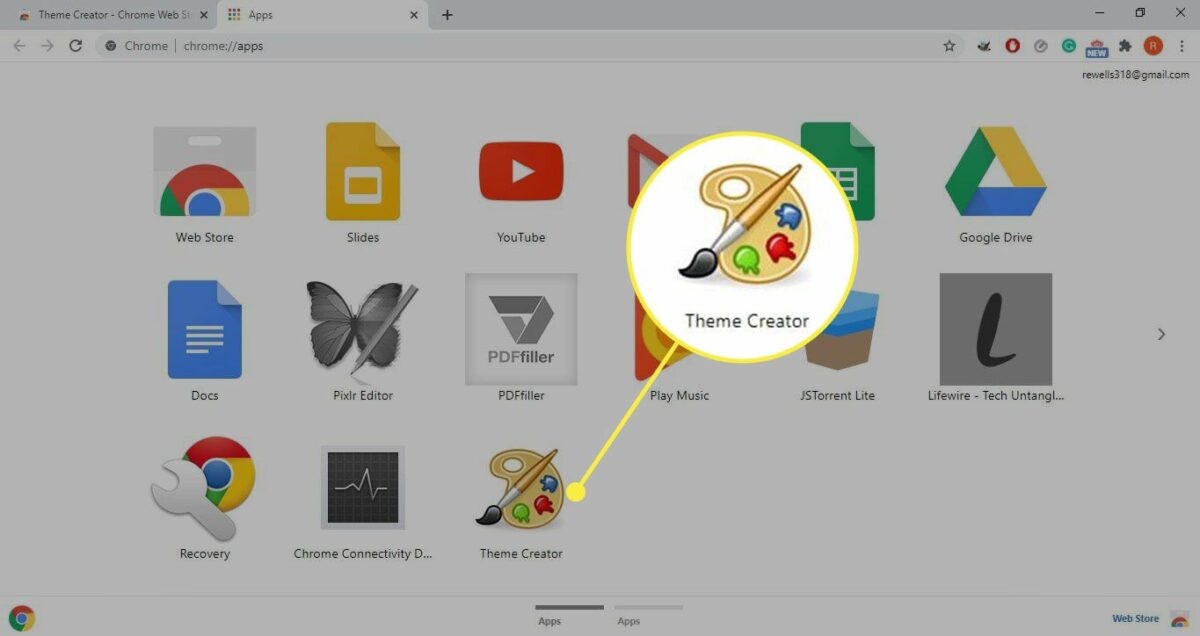
Although it may seem tricky, it’s actually quite easy. It’s just “hidden,” one of those pages we never seem to notice. Just open Google Chrome and click on a new tab. Right away, you’ll see the websites you have recently accessed as well as your most visited sites. Look for the button in the bottom right-hand corner that’s clearly marked “Customize.”

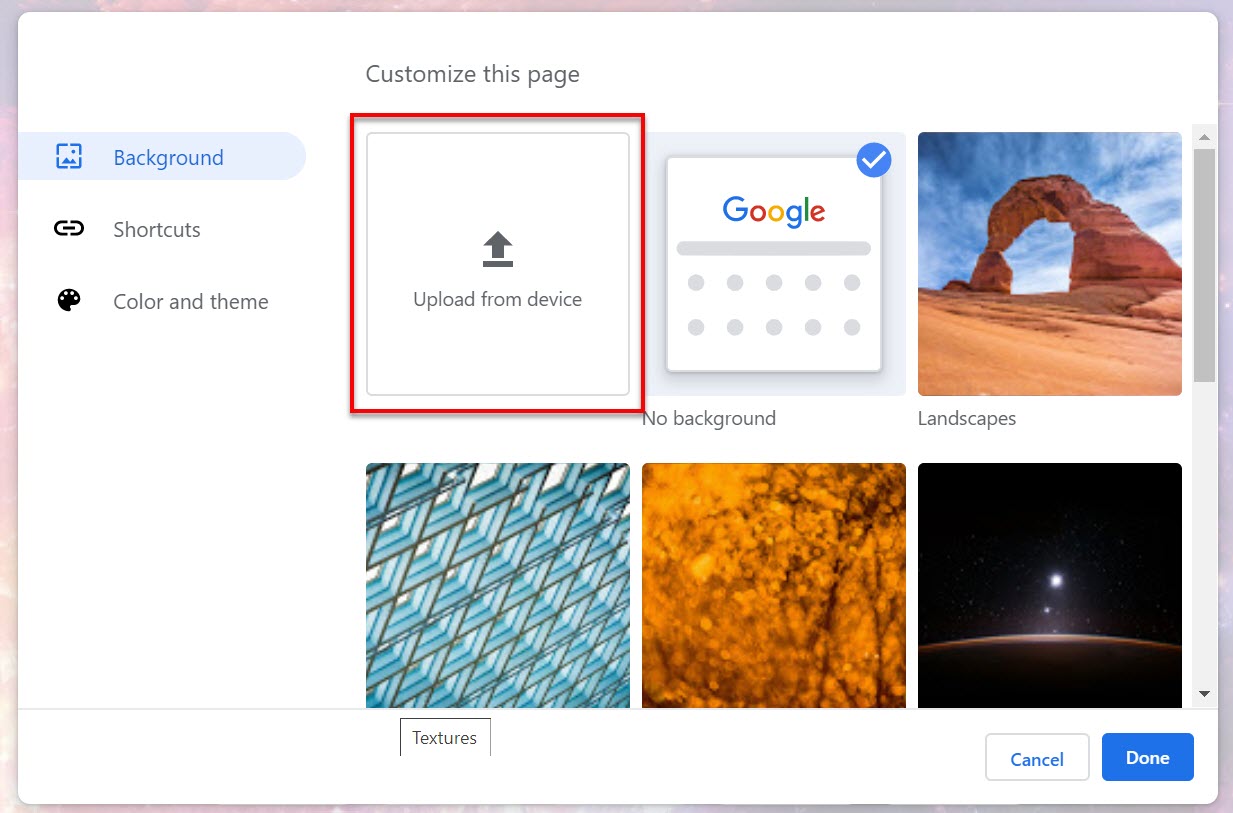
When you click there, Google Chrome will display three well-defined options. The first is called “Background,” and as the name suggests, it lets you choose a wallpaper or a background for your browser. These backgrounds have been pre-selected by Google, and you can choose one from its extensive collection.

However, there’s a box that you’re going to love, and it’s none other than “Upload from device.” Use it to upload an image from your PC. Whatever you want. It’s up to you. Our only recommendation is to try to maintain the proportions. That is, always use panoramic formats and maintain the resolutions (if you have your PC at 1920×1080, for example, the image you upload to Google Chrome should be identical). By the way: you can have Google Chrome refresh your background images automatically and display a different one every day. Just enable that option, which appears when you turn on a theme for your browser.

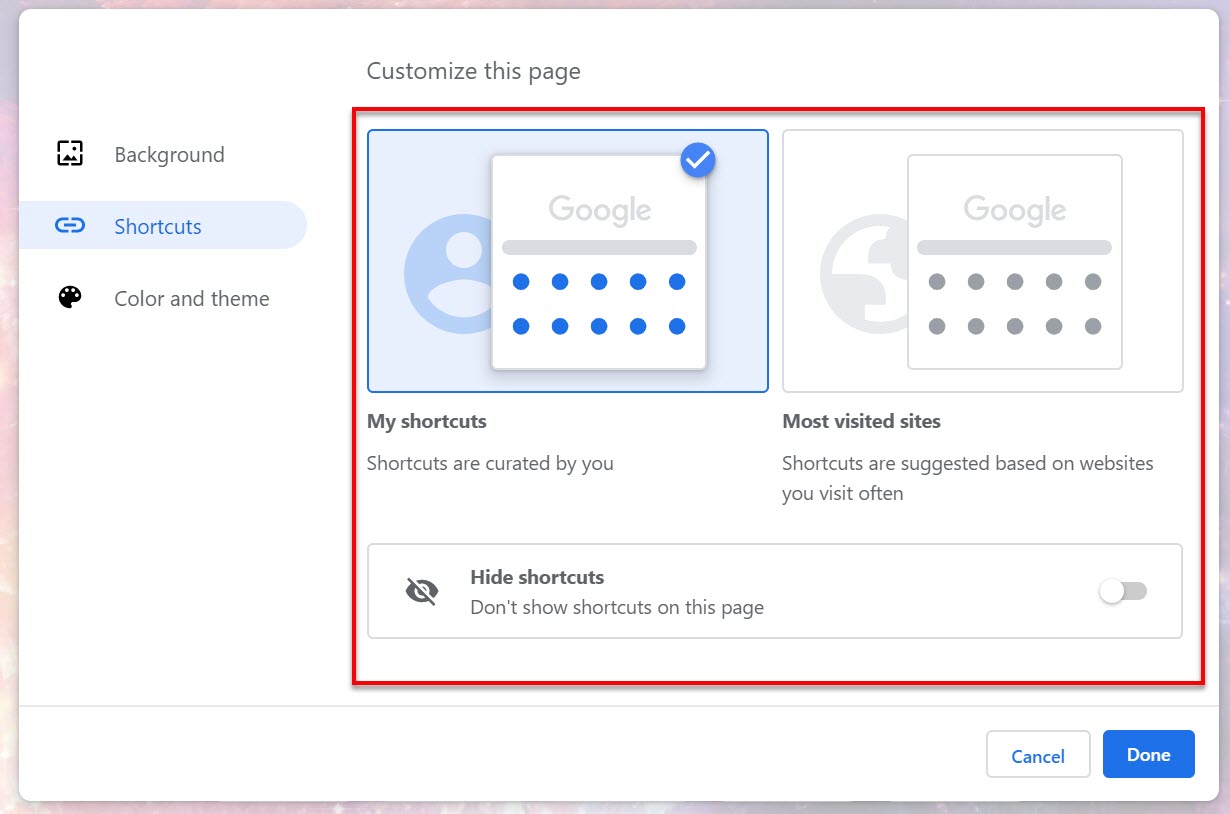
This is the first Google Chrome background option. The second one concerns “Shortcuts.” And you might be wondering (logically), what is that? In fact, it’s not a background as such, but the settings for the icons in your background. You can do one of three things: display your shortcuts (each one is curated and customized by you); display your most visited sites (shortcuts to the websites you visit often are suggested); and finally, hide shortcuts (which, obviously, makes shortcuts disappear from your homepage). It’s fast and easy.

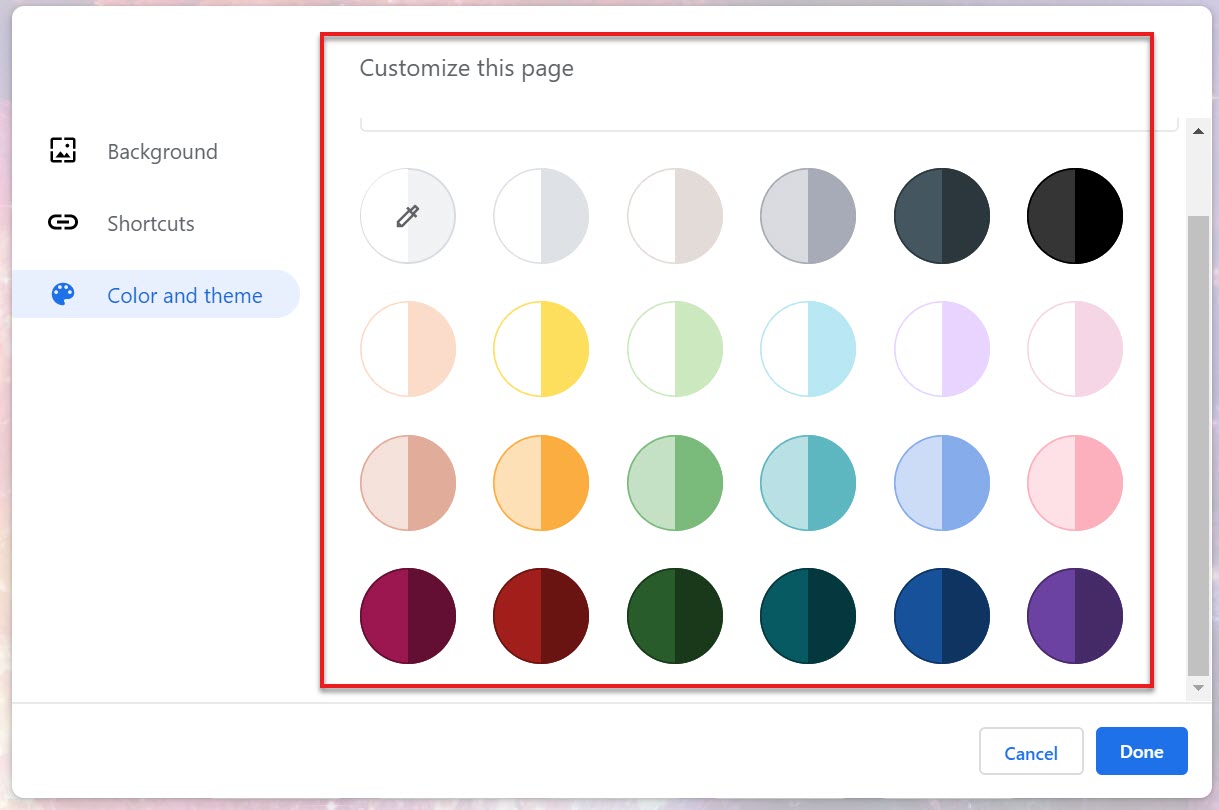
But the third and final option is what interests us the most, and it’s the reason for this article: customizing your Google Chrome theme. It’s called “Color and theme.” If you look closely, this option can be used to change your browser colors. Specifically, it always uses two different tones, one light, and one dark. The lighter tone appears in the more central areas, to reduce eye strain, and the darker one is applied to trims, such as the tool bar, tabs, and similar areas.

Google offers a vast range of choices, always based on the colors it considers the most suitable and fitting to beautify your browser. However, you can even customize and select your own colors by clicking the corresponding button. Keep in mind that all these colors can also be combined with backgrounds, that is, with option one (which is why we covered all of them because ultimately, all three are related and equally important).

Store themes

As if that were not enough, don’t forget that the Chrome Web Store, that is, Google’s virtual store for its many applications, has an extensive catalog of Chrome themes, so instead of coming up with a new theme, you can choose a premade one. Also, they are more varied and diverse than the default themes in the main menu of the Google Chrome browser, in case you’d like something special, such as starry skies, wild animals in their habitat or more minimalist themes. You can access them here and click on this article, which lists the best ones we’ve found.

And that’s our comprehensive tutorial on how to create a custom theme for the internet’s most famous browser. As you have seen, you can select the color combinations according to your style and taste, which you’ll appreciate if you’ve always had something creative in mind. That said, we recommend avoiding the extensions in Google’s digital bazaar, not because they don’t work, but because they may be obsolete and more suitable for previous Chrome versions than the latest one.

Raid: Shadow Legends for PC: 10 reasons to play this addictive online RPG

Surely you have heard of Raid: Shadow Legends, the popular RPG for mobile devices. Well, now you can officially play this game on your computer too through the Plarium Play platform. But is this version worth it? We can already tell you it is! Here are 10 reasons why you should download this incredible adventure now.

1. Better graphics on your PC

Want to play Raid on the big screen at home to enjoy its amazing graphics? You can play Raid: Shadow Legends on your PC without the need for rare or lagging emulators: the game is now officially available for PC and Mac through Plarium Play, a program from its developer. Plarium Play is completely free and can also be used to try other great games.

More good news: Raid for PC has had a graphic overhaul, gaining HD textures for both environments and characters, new animations, terrain effects, a higher frame rate… And all this is fully customizable, so you don’t have to worry about it using too much computer power.
2. Play it anywhere you want

Tired of the PC version and want to keep playing while lying in bed or on the sofa? No problem! Your Shadow Legends game is synced across all your devices. The game adapts to your pace and lifestyle.

3. High-quality role playing on your PC and mobile device

In case you’re unfamiliar with this game, here’s some background. Raid: Shadow Legends is an online RPG that was originally released for iPhone and Android. Since its inception, it has been right up there with the best console games. Spectacular graphics, fast-paced action, a complex plot full of twists and betrayals, a brainy, tactical combat system… and it’s all free!

4. Near-endless content

For starters, you have the campaign, which consists of four difficulty modes (Normal, Hard, Brutal, Nightmare) and 12 levels. In turn, each level consists of seven stages. It is here that you’ll enjoy Raid’s great storyline and begin to understand its combat system.

But finishing the campaign is just the beginning. Then you have to overcome 10 dungeons with tough final bosses that require a lot of tactics and strategy to be defeated. It doesn’t end here: check out the arena for player vs. player battles, faction wars, weekly challenges… Are you ready for this mega-challenge?

5. More than 300 Champions to fight for you

If you’re a collector, get ready, because Raid: Shadow Legends has more than 300 Champions spanning various factions and tribes. They are your fighters. They make up your army against the forces of evil. Without them, victory is impossible.
There are four types of Champions: Attack, Defense, Health Point and Support. Each name indicates the attribute that will be developed the fastest when you train your fighters. However, that doesn’t mean a Defense Champion necessarily has to play a defensive role in combat. Since Raid is flexible, you can personalize each Champion however you wish. There are more than one million potential configurations.

With so many possibilities, your job will be discovering how to best leverage your Champions’ abilities at every moment. Do you have what it takes?

6. An addictive and complex combat system

If Pokémon came to mind when reading the above section about collecting Champions, you’re on the right track! The battle system in Raid: Shadow Legends is based on the timeless concept of “rock-paper-scissors.”

Each Champion has an Affinity. And each Affinity is strong against another Affinity, and weak against a third Affinity. Let us explain:

  • Magic: Strong against Spirit but weak against Force.
  • Spirit: Strong against Force but weak against Magic.
  • Force: Strong against Magic but weak against Spirit
  • Void: No strengths or weaknesses

So your first mission is to memorize this rock-paper-scissors system and incorporate it into your strategies. It’s your key to victory.

But that’s not all! In Raid, it’s very important to understand the system of buffs and debuffs. You have to learn how to leverage the attacks, defensive maneuvers and speed of your Champions and how to weaken your enemies or alter their state with poison, for example.

Luckily, combat in Raid is turn-based, so you can take as much time as you need to decide your next attack.

7. Attack at your own pace

Like any good role-playing game, farming is the core of Raid. You’ll repeat dungeons or challenges to train your Champions, to acquire Shards… If you think your next farming battles will be incredibly easy, just turn on “auto” mode. Your Champions will attack on their own, without your help, and you can continue watching that Netflix series you’re hooked on, or go have lunch or something.

Is the next battle too difficult for your Champions’ AI? No problem, just go back to manual mode and start micromanaging them.

8. All kinds of resources for newbies

Feeling overwhelmed by so many new concepts? Not to worry. Raid: Shadow Legends provides tons of resources to help newbies to quickly learn its systems and feel at home.

For starters, the narrative tutorial not only introduces you to the world of Raid through a movie, but also teaches you little by little how to fight. Since collecting 300 Champions may seem daunting at first, at the end of the tutorial, Raid will invite you to choose just four: Athel and her cool Area of ​​Effect ability; the incredibly fast Galek; Kael the Dark Elf and his poisonous abilities; or Elhain and her critical attack skills. No matter who you select, your Champion will be good enough to get you out of trouble at the beginning.

Finally, Raid is constantly updated with additional help features for newbies: packs with Champions, with Shards, energy… you’ll feel completely supported!

9. Conquer evil without paying a penny

Although you always have the option of stopping by the virtual store, Raid will constantly reward you for your achievements, so you don’t have to worry about money. Finishing weekly challenges, completing campaign challenges, killing clan bosses, overcoming new levels… Almost everything you do will get you Champions, Shards to summon them, a squad… That said, you’ll have to invest a LOT of acumen to get to the top of the ranking.

10. Other adventures await you

Another reason to download Plarium Games on your PC is that the platform provides access to other free-to-play games of the same quality as Raid. For example, you can play the strategy game Stormfall: Age of War or the addictive Vikings.

Best Chrome extension alternatives to incognito mode

Incognito mode has saved our hides over the years, but are there better solutions.

Incognito mode

Some of us would rather crawl into a hole and die than have our friends and family see our browser history. Luckily, the incognito mode has had our backs.

Incognito mode is an incredibly useful tool for hiding your browser activity, but also for the security measures it provides. Many Google Chrome users use this function to protect themselves from a variety of online threats.

7

While incognito mode provides a great option for browsing, there are a few Google Chrome extensions you can use to provide the same or better privacy:

Ghostery

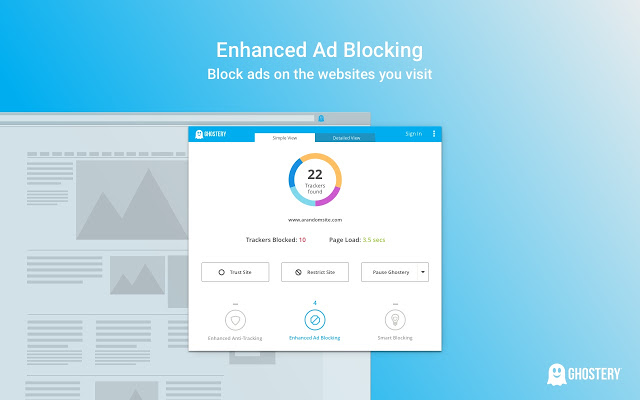
Ghostery is a free anti-tracking extension. It runs in the background to see if sites are tracking any of your information. When it finds a site that’s tracking you, it’ll block the information from being tracked and alert you.

It’ll also speed up your web browsing because each web page will spend less time trying to track your information.

Ghostery
7

HTTPS Everywhere

HTTPs Everywhere

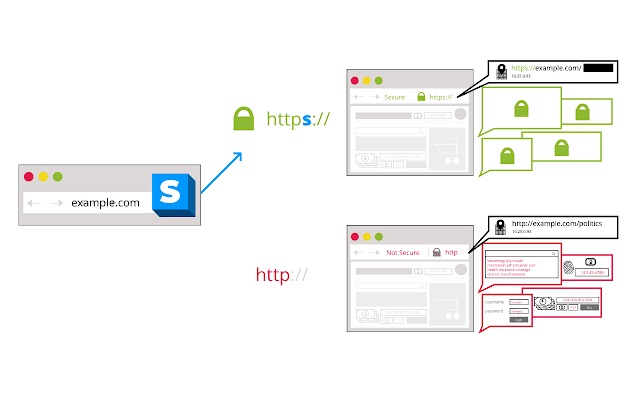
Most sites have an HTTP version to open them, but not all sites have an HTTPS version. Typically, your web browser will open the HTTP version (which is the unsecured version) by default.

HTTPS Everywhere makes your browser check for an HTTPS version of a site first. That way, if it’s available, you can have a secure connection to the site without needing to worry about any invasive malware.

HTTPS Everywhere Free Download ►
8

Vanilla Cookie Manager

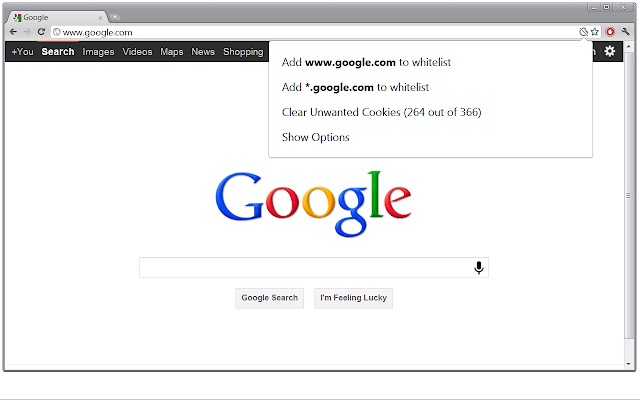
This extension can be used to speed up your computer, as well as protect yourself from potentially dangerous cookies. Since cookies are necessary to run certain sites, it lets you fully manage the cookies that each site is trying to place on your computer.

It will also tell you whether these cookies are tracking your information or not. You will have a good understanding of how they work before you decide whether you want to block them.

Vanilla Cookie Manager
Vanilla Cookie Manager Download now ►
7

DuckDuckGo Privacy

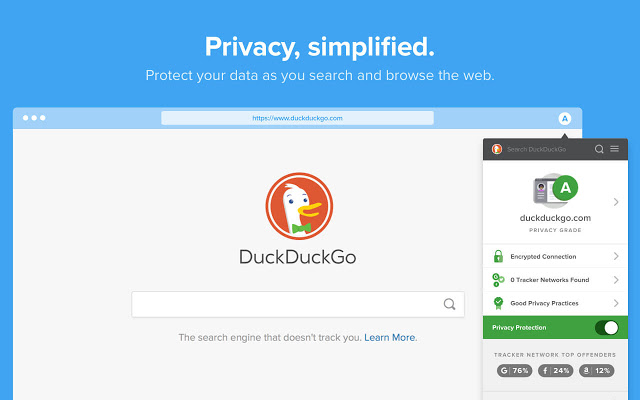
This extension provides an alternative search engine to Google. While Google records your search results and your information, DuckDuckGo will let you search completely as if you were in incognito mode.

It even gives you a privacy grade for each website you visit, letting you see how secure each one is. You can also use this extension to force open HTTPS versions of sites.

DuckDuckGo
DuckDuckGo Privacy Browser Free Download ►
7

Hide Incognito Mode

While this isn’t exactly an alternative to incognito mode, it will fix one of the main problems people have with it. Some sites are able to detect when you’re in an incognito window and will prevent you from viewing their site until you’ve switched. This extension lets you bypass these security measures so you can continue your incognito browsing.

Hide Incognito Mode
Hide Incognito Mode Download now ►
7

Another alternative

If you’re worried about privacy, you might consider switching browsers entirely. Chrome isn’t really your best bet for that. Firefox is a great alternative. You could also try Brave, which offers you everything you love about Chrome with much better privacy, built-in ad blockers, and more.

Wrapping up

These are just a few of the fantastic extensions you can use on Google Chrome. If you haven’t been using any until now, you may want to check out our list of the best Chrome extensions for Windows. Each of these privacy extensions can enhance your browsing experience, but so can dozens of other extensions as well.

The Best Chrome Extensions to help you focus and avoid distractions

These five Chrome extensions will help you concentrate more and avoid distractions.

Since the beginning of time, humans have been distracted from completing essential tasks, having a detrimental effect on their daily productivity.  In this modern world, progressing technologies play an increasing role in making us more efficient workers, but lots more distractions have appeared too.  With just one wrong click, your attention wanders away from a productive session, and precious minutes are wasted as you get lost in the endless web of mind-numbing links that is the internet.

As well as this being a massive problem in the traditional workplace, the most challenging place to keep tabs on your productivity is while remote working.  More and more people are making use of workspaces to get away from the physical distractions at home.  But the biggest distractions of all reside in the tools you use to meet the deadline set by your employers.

Smartphones and the internet have long been touted as the biggest distractions in our daily lives, and Google Chrome is one of the most popular browsers used in any life situation. So, let’s take a look at some of the best Chrome extensions out there to help you remain focused on the task and put an end to your procrastination.

7

Leechblock NG

One of the most common types of productivity apps in the Google Chrome store is site-blocking extensions. They allow you to pick out addictive sites that distract you from your daily goals and block you from accessing them when you are trying to focus on your work. This helps you to avoid temptation, boost your willpower, and make use of your time more effectively.

Leechblock is one such Chrome extension that will help you take back control of your attention span and get on with the task at hand.

Block Site – Website Blocker for Chrome

With over 25,000 reviews and a 4.5-star rating, this Chrome add-on seems to be popular with the most accomplished procrastinators.

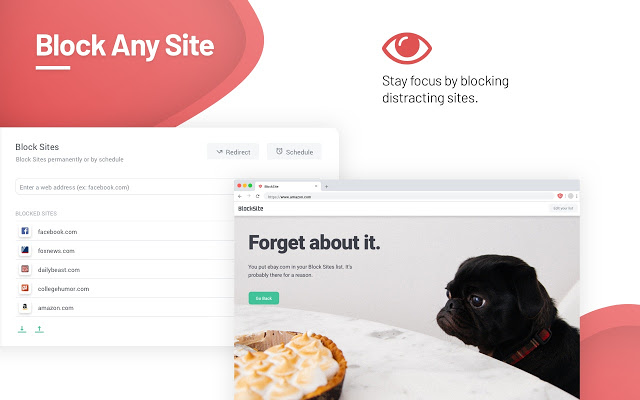
Block Site is another distraction-blocking Chrome extension, and with a few simple clicks, your productivity levels will be through the roof.  You will also be amused by the delightful images displayed when your concentration wanes, and you try to click on one of the sites in your blocked list.

Apart from the ease of blocking distracting sites, Block Site also has an abundance of other impressive features.  There is Work Mode, a Pomodoro technique timer to help you set blocking times, and a scheduling feature to help you manage your time effectively.  Other features include password protection, uninstall prevention, and an adult content blocker to boot.

A great download, but be careful, you may end up addicted to blocking sites that much that you will have no fun sites left.  Block Site is also available on Apple and Android devices and Mozilla Firefox.  It is a free app but does contain some in-app purchases

Rescue Time for Chrome

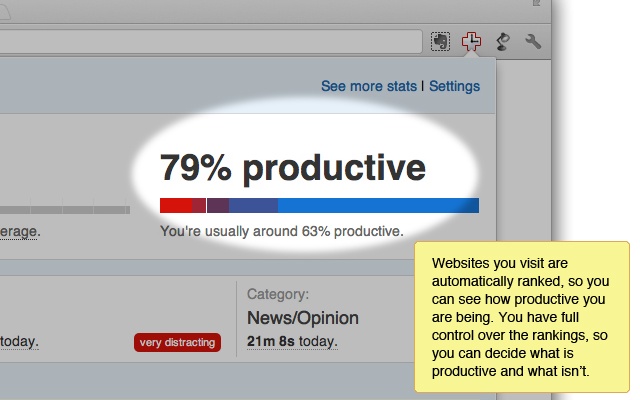
We have just covered an app that helps you block out sites that you think will negatively affect your productivity, but what if you are unaware of some other distracting sites that are interrupting your workflow. Well, this is where  Rescue Time comes in, another neat Chrome extension that tracks the websites you visit and presents them in an easy to understand graphical display.  To accomplish this, it automatically categorizes the sites you visit in your digital day and ranks them on a productivity scale to show you exactly which sites are distracting you the most.  It can also detect when you are away from your device and disable tracking to improve accuracy.  If you prefer not to have your browsing tracked, you can easily pause Rescue Time or delete it at any time.

Rescue Times allows you to quickly see exactly what you have been doing day to day and adjust your online habits to stay focused on the tasks at hand.

Rescue Time is available on Apple and Windows devices, as well as Android and iOS.  If you download the client onto other devices, it can track the apps you use and gain a more detailed picture of how you spend your priceless work time.  It is available as a free download for Google Chrome, but full functionality is $9 per month or $72 a year (4 free months), with a 14-day free trial.

News Feed Eradicator for Facebook

One of the most common distractors known to humanity has to be Facebook.  Since Facebook burst onto the scene in 2004, it has become the most prominent social media site in the world.  While Facebook is actively trying to reduce the amount of clickbait in its newsfeed, there are plenty of clickable items that will test your willpower.

The beauty of News Feed Eradicator for Facebook is that it replaces your news feed with an inspirational quote to keep your mind focused on work, instead of getting lost in a world of news feed nonsense.  Another fantastic feature of this extension is the ability to edit quotes and even add your own motivational phrases. Adding a few amusing jokes could also be a cheerful injection into your working day.

This extension is available free on Google Chrome and is also available on Mozilla Firefox.

Remove YouTube Recommended Videos and Comments

Another social media giant is ever-expanding YouTube.  Who hasn’t clicked on a link and got lost in the bottomless pit of recommended videos made readily available to you.

Maybe all you want to do is watch a short YouTube video as part of your research on a particular project, but with the plethora of distractions presented to you, you can’t muster the self-control and end up deviating from your plan.  Help is at hand with this Chrome extension as it will actively hide related videos, video suggestions, user comments, and other recommended distractions from the YouTube page.  This enables you to confidently navigate to YouTube without the worry of being sidetracked by useless media and messing up your tight schedule.

This is available as a free extension on Chrome and Firefox.

TrendMicro’s Antivirus for Mac goes way beyond malware

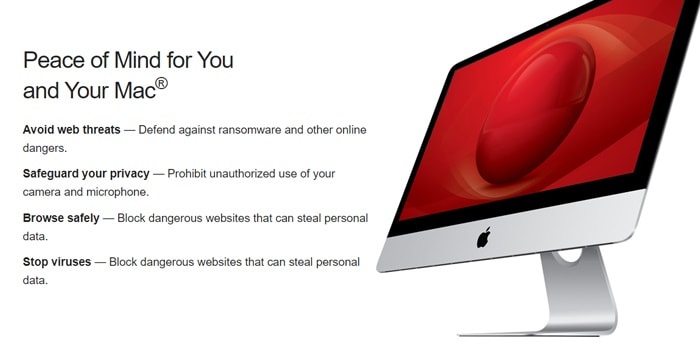
Even though Macs have a reputation for security, the number of malware attacks on Macs surpassed those on Windows machines for the first time in 2020, according to an article in Vox. So there goes the idea that if you have a Mac, you don’t have to worry about installing software to protect it. The fact is, hackers have gotten more devious in sidestepping the inbuilt protections in all our computers, so having an extra level of security – for Macs and PCs – is just plain smart.

AntiVirus for Mac from trusted software developer TrendMicro delivers this protection and much, much more.

Don’t be held hostage 

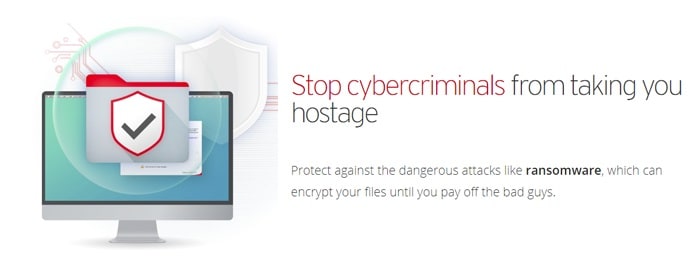
As with all antivirus software products out there, TrendMicro’s product will alert you when it finds malware on your Mac or when you attempt to download a potentially troublesome file. But Antivirus for Mac takes things a step further with enhanced ransomware protection. Called Folder Shield, this component of the program allows you to mark folders you want monitored so that if a hacker were to try to encrypt them and charge you money to un-encrypt them, he would be blocked and you would be notified.

Cruise the web with confidence

Antivirus for Mac also automatically plugs into your browsers when it is installed so that it can keep an eye out for suspicious websites and other online threats, which it identifies with an icon in search results. You are able to set your Web Threat Protection Level to low, medium or high, and you can also activate a website filter to block sites based on their themes/functions such as those that feature nudity, hate or racism, gambling, shopping, offer online chats, or provide streaming media. There are 31 filters in all, along with the ability to whitelist any site you’d like – a feature that comes in very handy if you have children surfing the internet.

Social distance

One of the standout features of Antivirus for Mac is the ability to have it examine your social media settings on Facebook, Twitter and LinkedIn for potential privacy concerns (although we couldn’t get this feature to work on Facebook in our tests). The scan will tell you what information you’re sharing with the public and recommend settings to help lock down your private information – including the information that’s shared with advertisers outside the social networks. 


Eye spy

Still another noteworthy feature of Antivirus for Mac is that you are able to set it to alert you whenever an application is trying to access your webcam or microphone to prevent unwanted spying. The setting is simple to activate during the installation process.

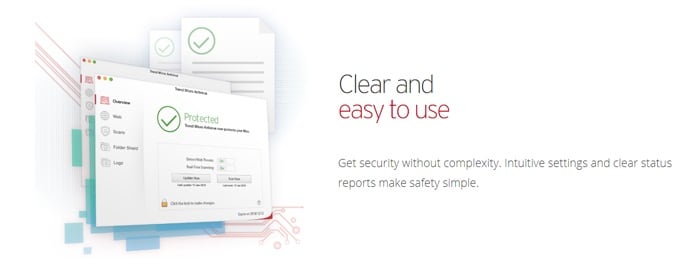
And speaking of simplicity, TrendMicro has made this program extremely easy to navigate. The main screen offers the various protection possibilities down the left and when you choose one, the window to the right is populated with the settings you can control. Things work with simple checkboxes and slidable switches, plus an icon in your Mac’s toolbar lets you quickly access key features including scans and updates.

Value time

TrendMicro’s antivirus, anti-malware, and anti-ransomware protections would be enough to make Antivirus for Mac a bargain on its own. Throw in all the features we’ve detailed, and it becomes clear that it’s hard to beat the value you get for your money. Right now the software is available for 25% off the normal rate of $39.95, so you’ll pay only $29.95 for a full year of protection. 

All about VirtualDJ: what it is and how to use it

VirtualDJ enables users to edit, create and manipulate audio files. This specialized program is available for both Windows and Mac computers. The software was developed by Atomix Productions and has more than 35 years of experience. VirtualDJ is among the favorites when it comes to mixing digital music, along with the likes of Serato, Traktor, and Ableton.

VirtualDJ DOWNLOAD

There is a free version of the program available to give you a good feel for how the software works, and with the free version, you get 10 minutes of using premium functions once a day. So, let’s see what VirtualDJ is and how it works.

What Is VirtualDJ?

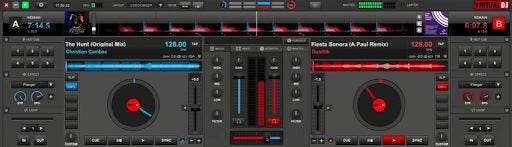
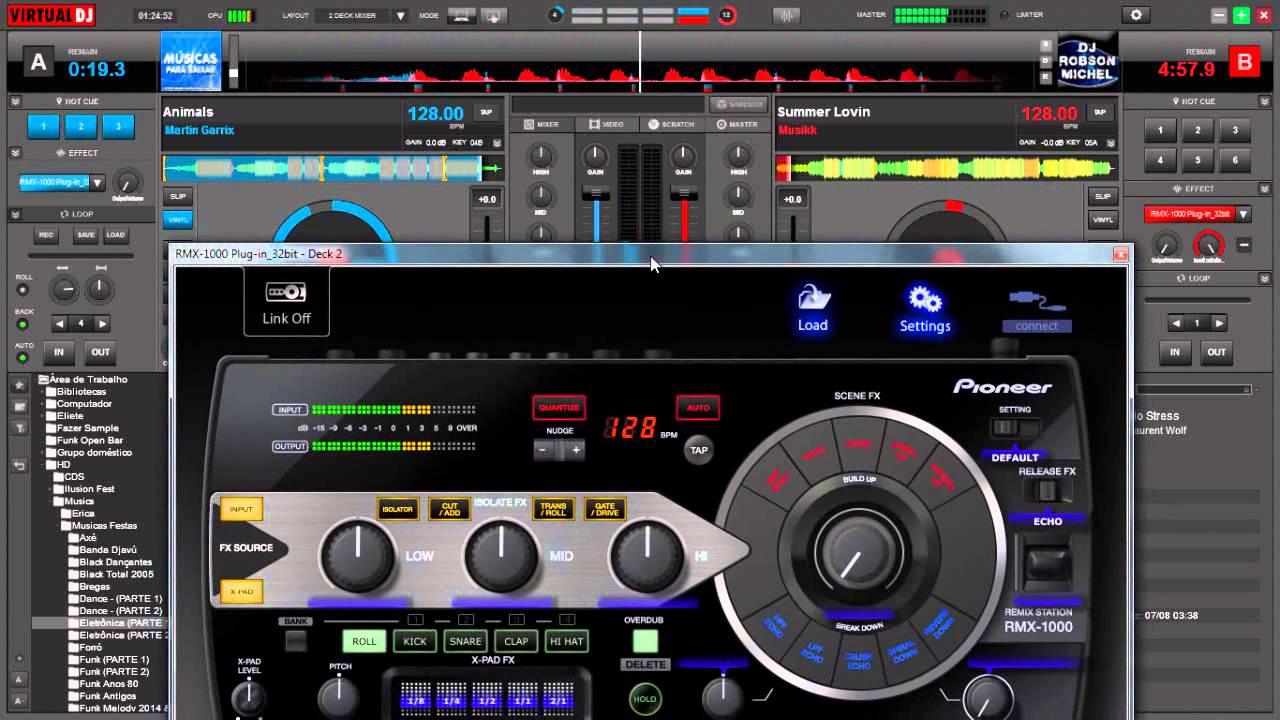
VirtualDJ is a Digital Audio Workstation (DAW) and virtual mixer for DJs to edit and manipulate digital audio files using virtual turntables. VirtualDJ first appeared in July 2003. Since its release, the program has undergone many changes in order to develop a fully-featured, virtual mixer that is easy to use and intuitive. The goal of VirtualDJ is to be a completely multideck standalone program that both beginners and experienced DJs can use.

With the highly versatile virtual mixers, it is possible to create music even while on the go. This editing software contains features such as ModernEQs. These can be accurately separated for smoother transitions. There are also Stem Pads available for real-time mixing. This allows you to separate different parts of the audio, which the DJ can then manipulate. For example, using Stem Pad, you can completely mute the drumline of a specific audio file or have the guitar line play solo without the other parts of the audio.

While VirtualDJ has a virtual deck available, users can also add their own DJ controllers to the platform. The software uses plug-and-play to detect any new controllers added to the program.

VirtualDJ to start mixing music 8

What is mixing?

Mixing songs together sits at the heart of the art of DJing. At its most simple you mix songs together in such a way that they sound harmonized as if they were a single song. It’s not as easy as it sounds though, as you’ll need to beat match both songs, slow or speed up the tracks so that the beat on them both is exactly the same, and then line up all the other musical elements so that the songs work with each other. The idea is that you guide your set from one song to the next without breaking the music.

This means that you need more than a simple media player to mix effectively. You’ll need a virtual crossfader to control whether the left deck or the right deck is playing, a virtual equalizer will help too, and a sampler will allow you to add other sound effects and elements on top of your mixes too. This is where Virtual DJ by Atomix Productions comes in, offering a robust package that covers all aspects of DJing. Once you’ve downloaded Virtual DJ and gone through today’s tutorial, you’ll be able to start mixing and take your DJ career to the next level.

VirtualDJ to start mixing music 8

VirtualDJ 2022

VirtualDJ 2022 is the latest release from Atomix Production. While most of the features remain the same, a few new features have been added to make the program even more powerful. There is one notable difference between VirtualDJ 2021 and previous versions. VirtualDJ 2022 has four different layouts (Starter, Pro, Essentials, and Performance).

These layouts can also be customized according to the users’ preferences. The layouts all work a little differently. For example, the Pro layout includes 4-decks instead of the standard two decks. Having multiple decks available makes it easier for DJs to manipulate multiple tracks to create a fresh new one.

Another new feature you can expect in VirtualDJ 2022 is the event scheduler. This handy feature allows you to set presets, playlists, and songs to play at a specific time. Another new feature is that VirtualDJ is now also compatible with Beatport, adding another music library for you.VirtualDJ was already compatible with SoundCloud and Deezer. By linking your Beatport account, you can easily access all your content in VirtualDJ.

How to Use VirtualDJ – the Definitive Tutorial

In this VirtualDJ beginners guide, we will share how to get started with the software. Once you’ve got the basics down, you can start experimenting with more features to create your own music. To begin using any mixing software, Like VirtualDJ, there are a few basics you need to understand. These concepts are how to import your music library, basic controls, prepare your tracks, and finally, mixing.

What you’ll need

As well as a PC or Mac or the Windows operating system, you’ll need hardware including a soundcard with two audio outputs and some headphones if you’re going to really get started. This will allow you to play different songs out of your speakers and headphones at the same time, which will allow you to line them up and beat match them both. It is possible to mix music without this basic setup but it will be next to impossible for beginners to do so. You can also add other DJing hardware to your Virtual DJ setup once you’ve mastered the basics.

Importing your Library

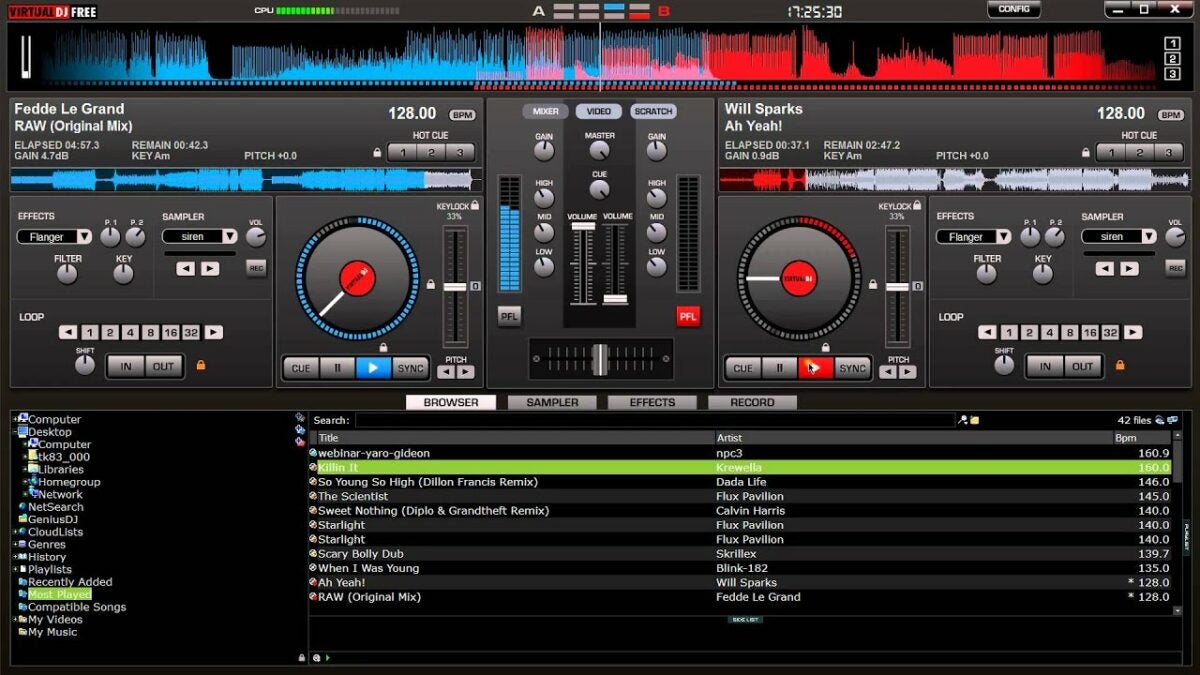
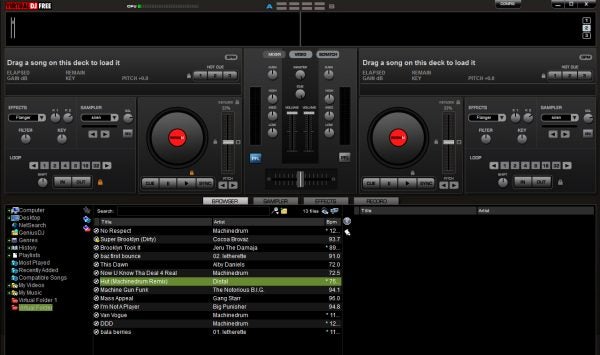
If you’re a new DJ, you’re going to need to organize all your tracks so that they’re easy to access when you want to play them. When you open Virtual DJ Free, start by finding your music library using the file tree on the left. Right-click and choose Virtual Folder, which will create a place you can keep all the tracks, remixes, and playlists you want in Virtual DJ.

Drag a few songs you like into this folder, and then one by one drag them into the decks. This will allow the app to analyze the beats per minute (BPM) of each song. We think it’s a good idea to put any song you play in the app into your Virtual Folder, as it’s more comfortable than the messy Windows file tree. You don’t want to be searching through iTunes while you’re juggling your next beat transition.

VirtualDJ to start mixing music 8

Basic controls

It’s easiest to use Virtual DJ combining some simple keyboard DJ mixing commands with the cursor keys. Here are the three essential DJ mixer keyboard commands you’ll need:

  • Tab – switch between A and B decks
  • C – mark a cue point and play from cue point
  • Space – play/pause.

Steps to use VirtualDJ to start mixing music

  1. Add your tracks to the decks

    VirtualDJ to start mixing music

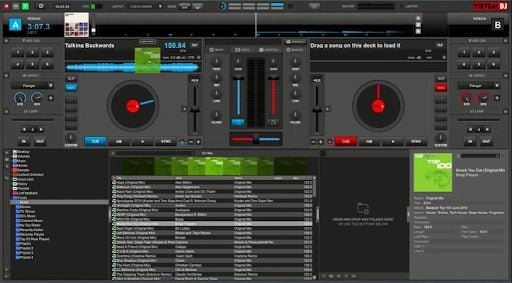
    Once your music has been added to your library, you can drag the track you want to use onto the deck. Since this is a basic tutorial, we’ll only be using two decks, thus dragging a different song onto each deck. For the best results, choose two songs with matching BPM, which is conveniently shown next to the song’s length.

  2. Set a cue point in track A

    VirtualDJ to start mixing music

    By pressing the spacebar, track A will start to play. You’ll see a waveform moving as the song plays. This waveform is a useful visual presentation of music flow and can help identify a cue point. A cue point is where you want the track to start playing for your remix. Decide where to set your cue point, and click on that area in the waveform. Use the spacebar to start and stop the music until you’re at the precise location. Then press ‘C’ on your keyboard to set the cue point.

  3. Set a cue point in track B

    VirtualDJ to start mixing music

    Now, you’ll want to repeat step 2 above, but on track B. To switch to track B, hit the Tab key on your keyboard. You’ll see that the second deck is highlighted and active.

  4. Use the crossfader to adjust which track is heard

    VirtualDJ to start mixing music

    Press the Tab key again to go back to deck A. In the center of the deck, you’ll see a crossfader. By sliding it out, you can let the song fade out. With the fader in the center, both tracks can be heard, but moving it towards one track will make that one stand out more. Adjust the fader until you’re happy with the results.

  5. Sync tracks

    VirtualDJ to start mixing music

    Press the Tab button to go to deck B. Once here, click on the ‘Sync’ button to automatically sync your songs. If it sounds slightly off, you can adjust the sync manually by pressing and holding ‘C’ and then using the pitch arrows to nudge the track forward or backward until it matches track A.

IObit Software Updater is even stronger with its third release

If you’ve never heard of IObit Software Updater, now’s a great time to download the helpful free software. And if you’ve been a regular user, you’ll want to redownload the program. The reason for both is the same: Version 3 has just been released and now it’s an even more powerful and comprehensive software management tool than it’s been before.

What is IObit Software Updater 3?

Before we tell you about what’s new, we thought you should know a little about the program’s capabilities. 

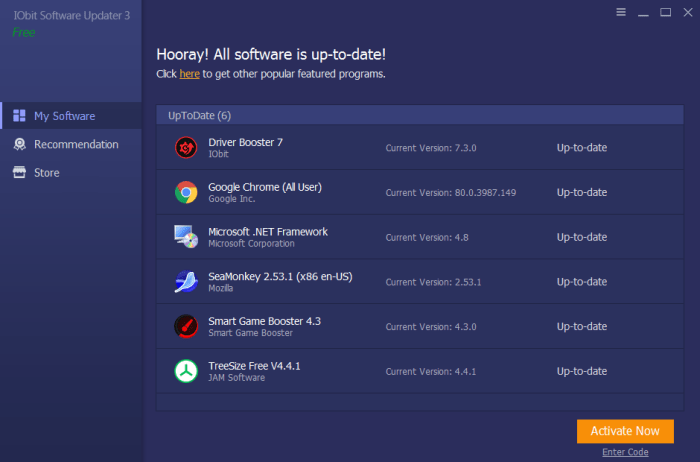
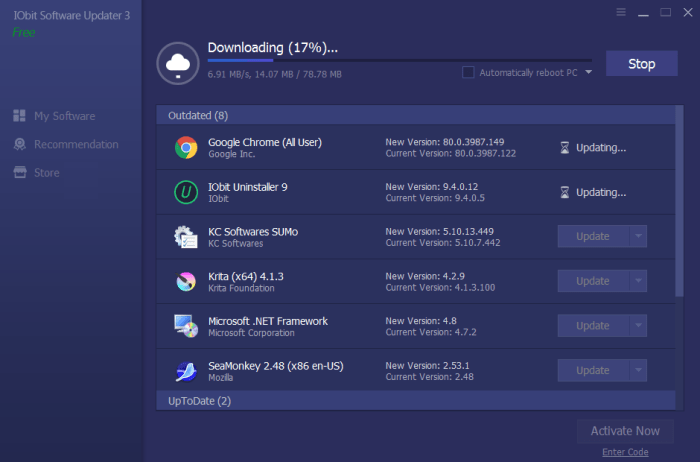
IObit Software Updater is a light yet effective program that can be installed on any computer running Windows (10, 8/8.1, XP or Vista). It operates in the background to automatically keep your applications up-to-date, so that you never miss a critical release that might bring more stability to your machine, or offer enhanced features. 

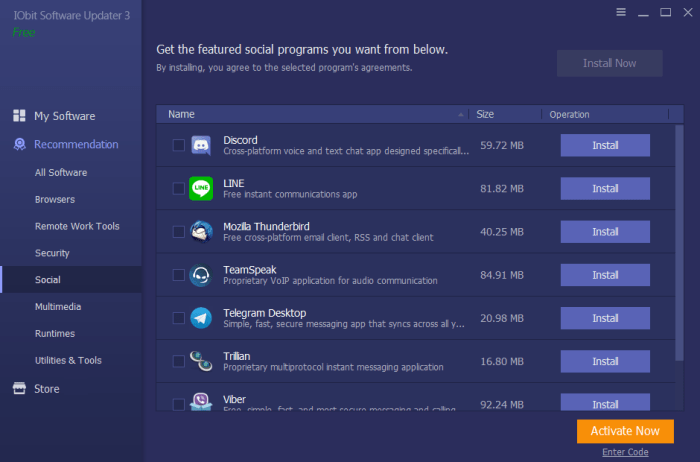
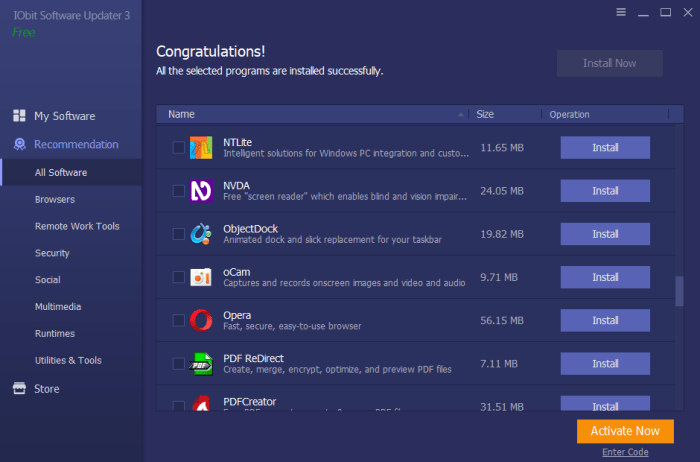
Software UpdaterIObit Software Updater also ensures that any new software you download is a correct and clean version for your operating system – and not a version that might be a scam or one filled with ads or bundleware. The program also helps you navigate the complicated world of software options by categorizing trusted downloads into distinct categories. So, instead of combing the web and reading dozens of reviews, you can simply pull up the category in IObit Software Updater (for example, for social, multimedia or remote work tools) and download the program that sounds best for your needs.

software updaterFinally, IObit Software Updater allows you full control over which programs are auto-updated and which aren’t. This allows you to keep a version of a program that might suit your needs better than a newer option, while choosing to have the very latest releases of other programs.

software updater

What’s new?

When IObit Software Updater was last updated to version 2, it included a 180% increase in the amount of software it could monitor, download and keep up to date. Now, with the release of IObit Software Updater 3, this database has been increased another 150% – meaning that the program’s capabilities have increased over 300% since its initial release. This is quite a commitment for a company to make in a free software tool.

Also improved in this version is the amount of time it takes to download new programs and updates. This too has been ramped up by 150% over version two.

Software Updater“IObit Software Updater 3 is a very light and simple tool for those who want to install or update software for their Windows computers”, said Bing Wang, Product Director at IObit. “Through the program, users can get the most popular software with a few clicks. IObit Software Updater 3 saves users’ time and effort and keeps their computer away from bundleware, infected installers, and annoying ads while installing or updating software.”

While IObit Software Updater 3 is quite robust as freeware, users can also upgrade to a paid option for a discounted price of $10.00. This allows users to schedule software updates, access 24/7 customer support, and it removes the ads that come with the free version. A smart strategy would be to start with the free version and upgrade if it turns out you need or want the expanded functionality – or if you find the ads too distracting.

Best mobile and desktop musical instrument apps

These apps and programs for mobile and desktop will give you access to all the virtual instruments you’ll need to start your very own virtual band.

Best virtual instruments

Today’s look into all the best apps and programs available to help you get into all things music is focusing on virtual musical instruments. After looking at DJ tutorials on YouTube and the best karaoke apps for iPhone and Android devices, we’re going to complete your musical line-up showing you how to source instruments for your musical project. After you’ve been through today’s guide, you’ll have everything you need to produce tracks that wouldn’t sound out of place at the top of the charts.

You’ll be surprised at how innovative app developers and musicians have been in coming up with virtual instruments. Thanks to touchscreens and other new control features, virtual instruments now have a new and improved tactile element to them that genuinely makes them feel a lot like playing actual instruments. Let’s go through some of the best virtual instruments for mobile and desktop devices.

Musical instrument apps

Check out our favorite musical instrument apps below. You’ll be able to use these to create a virtual band all on your own or to create music with your friends even while you’re all stuck in your homes.

GarageBand

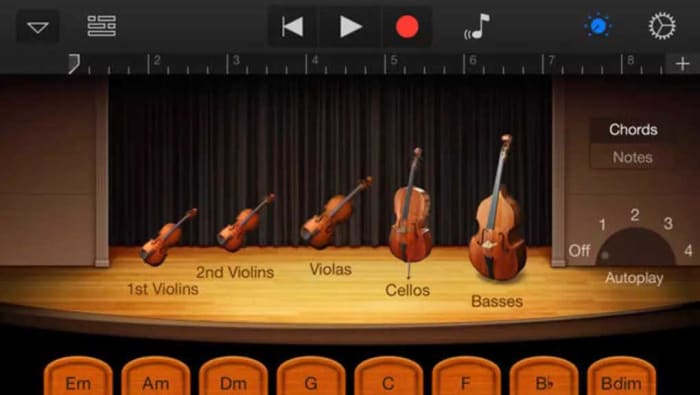
Apple’s GarageBand is the all-time classic virtual instrument program. The music production software gives you everything you need to start a band on your own by giving you access to many different virtual instruments including guitars, pianos, drums, and more. The program also works as a fantastic track producer for complete bands by giving you the ability to manage tracks from real instruments too.

Impressively, GarageBand works on MacBook but is also available for on iOS for iPhones and iPads too. If you know a thing or two about music and have the patience to stick with a project and go through tasks systematically, GarageBand will give you everything you need to create music of almost any genre.

GarageBand Download now
8

Virtuoso Piano Free 3

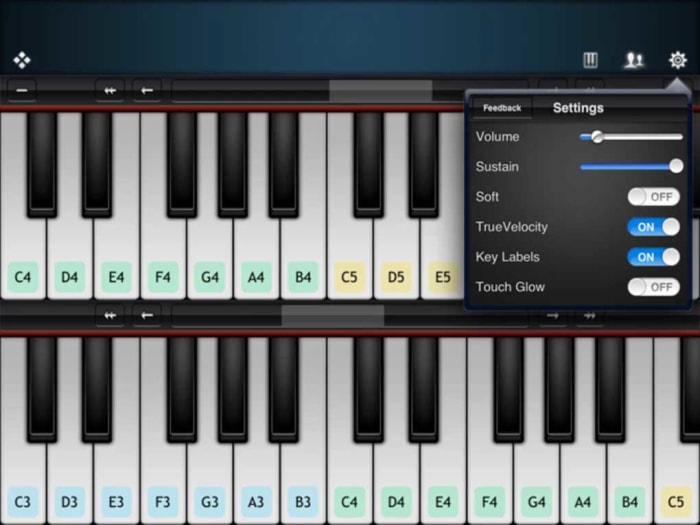
The Virtuoso Piano app is so innovative and well-made that you won’t be able to help yourself but be impressed, should you decide to download it. The app turns your phone’s touchscreen into a keyboard but being a screen, it also comes with a plethora of other neat features such as being able to label the keys with their subsequent notes.

The free version of the Virtuoso Piano app puts a complete piano to play although you’ll have to scroll through various sections of your piano to get through all the different octaves. Admittedly, this makes it challenging, if not impossible, to play any sort of complex composition yet the app is impressive, nonetheless. Another key consideration here is that the app works best when used with headphones as your phone’s speakers won’t do your playing justice on their own.

Virtuoso Piano 3 Download now
10

Real Guitar Free

Here we have another innovative and impressive app that makes the most of the touchscreen technology that comes standard with all modern Android smartphones. Not only does the app make it possible to practice playing guitar without actually having one it will also teach you how to play the guitar too, showing you all the common chords and also having comprehensive lessons for many popular songs.

The app works by showing guitar strings on your phone’s screen and allowing you to practice both strumming and fingering in order to produce the sounds you’re after. The reproduced sounds are of a very high standard and the app also comes loaded with different effects including acoustic guitars, electric guitars, classic variations and even a 12-string variation too. Real Guitar Free also comes loaded with practice modes, chord recital modes, and even music theory. There is an impressive depth of content here that deserves checking out.

Real Guitar Download now
9

Drums

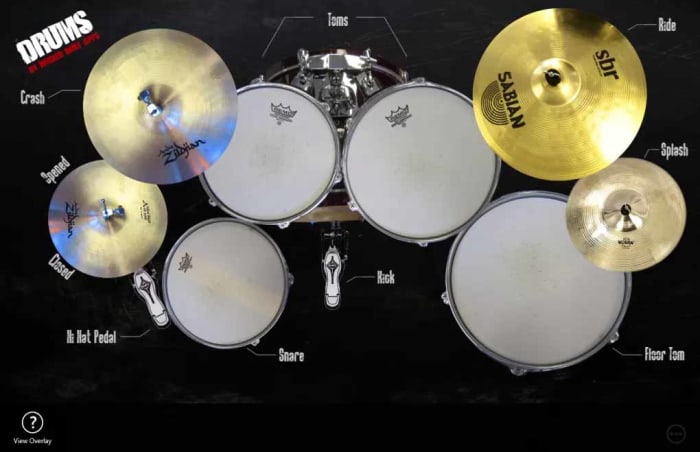
The Drums app for Windows 10 doesn’t over complicate things but does what does it does very well. If you have a touchscreen device this app basically gives you access to an epic, fully loaded drum kit complete Kick Pedals, Snares, Toms, Hi-Hats, and more. You can use this app on Windows 10 devices that don’t have touch support as the app works with a mouse, but in reality, you won’t be able to get anything more complicated than a simple beat out of this app if you’re using a mouse.

The way Drums works is to show you a bird’s eye view photo of a complete drum kit, with each drum having interactive elements built into the image. When you hit the picture of an individual drum it will play the corresponding sound. Et voila, you have a complete virtual drum kit that you can use to create the beats and set the pace for your virtual band’s songs and tracks. This app works really well too when used with touchscreen support and you’ll be surprised at just how well you’ll be able to create drum tracks for your tunes.

Drums Download now
8

Voice Training

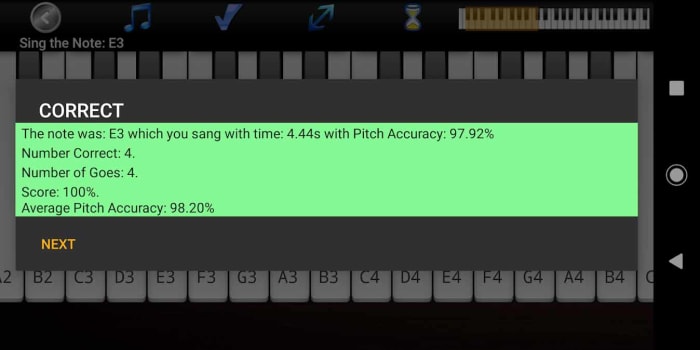
OK, so you’ve got your hands on all the virtual instruments your virtual band could ever need. There’s still something missing though, and that is a powerful, yet soulful lead singer who can connect with your audience and tug on their heartstrings. You’re going to need an emotional connection with your fans if you’re going to succeed and for that, you’re going to need to be able to sing. There’s no virtual instrument for this one though, but what we have got is a virtual voice coach that will help you develop your singing skills until you can hold a note with the best of them.

This app will help you simulate real-life singing lessons, track your progress, and also introduce interactive teaching elements such as singing games and vocal range examinations. If you’re looking to improve your singing, you need this app.

Voice Coach Download now
10

The Best Features in Virtual DJ Explained

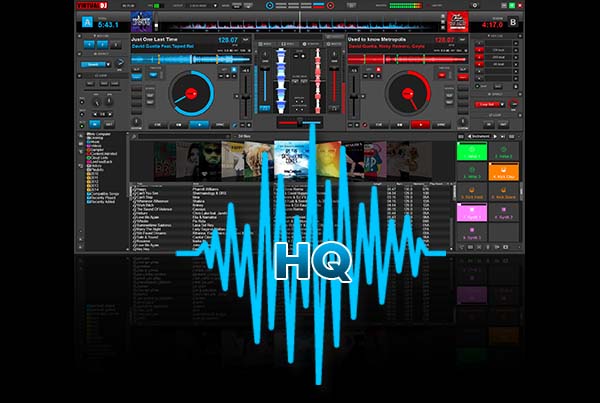
VirtualDJ is a powerful Pro DJ Software for Windows and Mac desktop and laptop computers. With the release of version 8, VirtualDJ adds great new features that make DJing so much easier, whether at a professional DJ gig using a DJ controller or virtual turntables or for fun at home. Sure, there are other media players and DJ mixing midi controllers such as Serato DJ and Traktor, but the Virtual DJ software from Atomix has been around for over 30 years and is well established as pro DJ favorite.

Virtual DJ has been around since 1996 but the last few years, beginning with the Virtual DJ 8 upgrade, have seen a full rewrite of the software code. As well as established plug-and-play features like the BPM detector, virtual crossfader, vdj video mixing features, hot cues and more, there’s now a lot more going on with Virtual DJ. Here is a look at the new main features.

Virtual DJ Download now
8

Timecode Vinyl

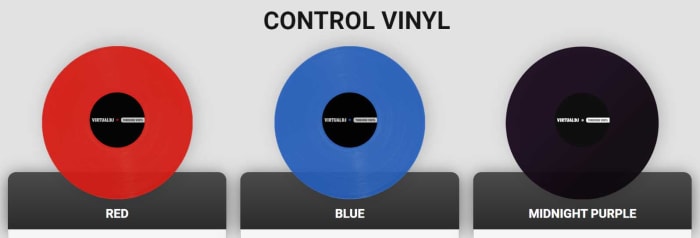
Virtual DJ now rivals Serato by offering digital DJs the chance to use real records when they’re mixing songs from their digital music library. Timecode vinyl now allows laptop DJs to incorporate their old Pioneer, Numark, or Technics decks into their routines. The vinyls transmit timecodes to the software so that Virtual DJ knows exactly what part of the song would be playing if it were coming from the vinyl itself. Not only does this bring an added flair to your mobile DJ live performances it also opens up scratching for your shows and mixes too.

Sandbox

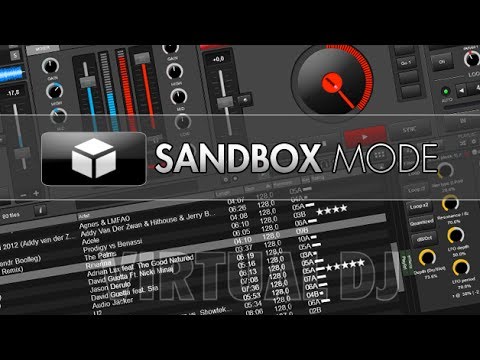
The sandbox concept helps you get ready for your next mix at the same time your audience is enjoying the current song. In the sandbox, you can move to the end of the playing track and mix in the next track.

sandboxmode

The mix is picked up only by your headphones. When you find the right transition points, disengage the sandbox feature and your mix will play effortlessly.

Sampler

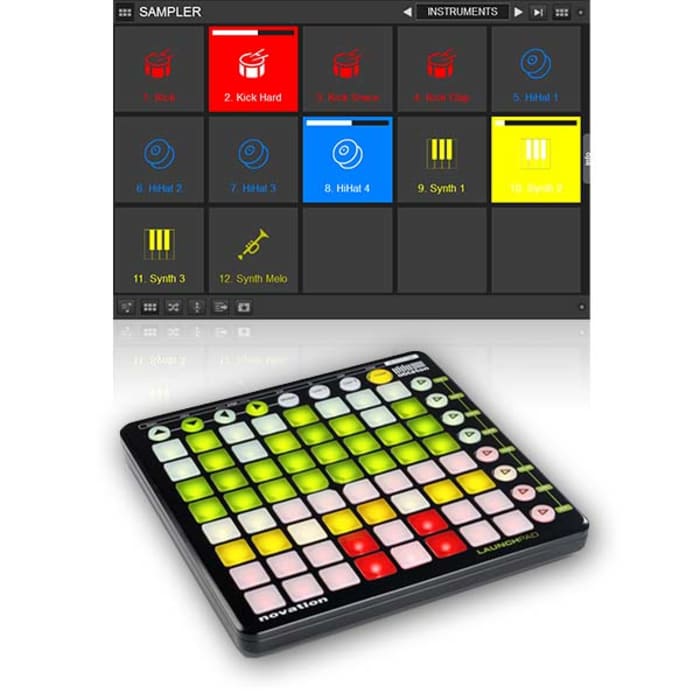
The version 8 sampler lets you play unlimited samples at the same time. The selected samples can be audio tracks, videos, or even still images. You can organize and group samples, triggering them like an instrument bank. Samples are like sound effects and elements that you can add to your mixes.

Sound Engine

Audio components such as an equalizer, filter, limiter or pitch-stretcher are all re-designed, leveraging the strength of modern computers. These features deliver crystal-clear sounds, and the re-worked engine delivers 32-bit audio, though the sample rate can be tweaked if preferred.

Browser

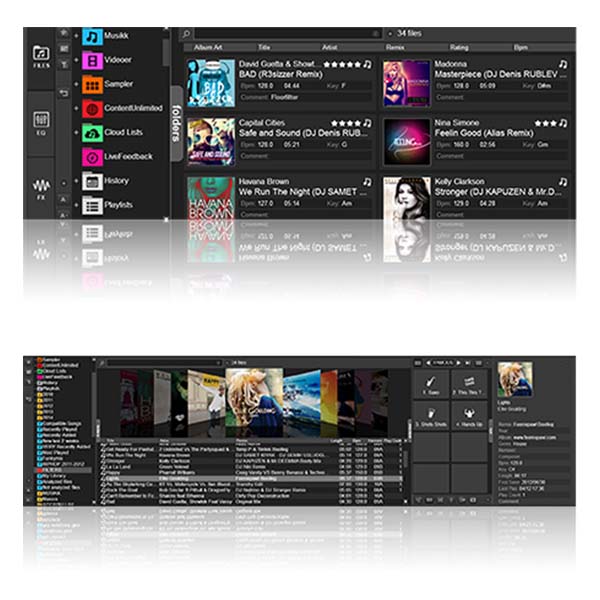
The latest browser has three components: folders, file view, and side view. Side view lets you show and switch between folders or lists, including automix, karaoke list, and side list.

Drag and drop folders into the side view, letting you park preferred tracks for easy access, and create your own shortcut buttons using this powerful tool.

A new folder organizational system also lets you organize track groupings in new ways and apply content from one folder into another. You can use folder filters such as “group by genre” to ease organization.

Effects

Effects windows can float and be moved around your computer screen now. You can un-pin the effects list to place it where you want. In this version, effects can be applied to one deck or as a master output function.

virttualdjeffects

Editors

This version includes a number of built-in editing functions, including:

Automix: Lets you pre-edit an automix sequence, fine-tune mix-out and mix-in marks, the transition type and, with videos, the video transition to use. The program remembers mix tuning, letting you use those settings when you use the same two songs next.

Track Cleaner: Make edits to your tracks by removing inappropriate lyrics, deleting unwanted intros, or looping sections.

Video: Add text effects or lyrics, or add new video tracks to audio-only tracks.

Sample: Adjust how you use audio, video, or image samples, including tweaking transparency on videos or cropping audio clips.

Point of Interest (POI): Manage your cues, including beat grid anchors, saved loops, and automix points.

If you like VirtualDJ, you’re sure to love DJ Mixer Express!