Sometimes even Microsoft needs to use Google Chrome

There were a few uncomfortable giggles and quite a bit of nervous shuffling in seats at a recent Microsoft presentation. While giving a presentation on the company’s cloud computing platform, Azure, a Microsoft employee was forced to pause and install Google Chrome because Microsoft’s own web browser, Edge, kept crashing.

6
The idea of Microsoft Edge is to be as fast, clean, and lightweight as possible to cope with the demands of different devices, whether it be a PC, tablet or phone.

To be fair to the employee, he handled it really well and kept his cool. He kept the audience on his side by jokingly avoiding giving his permission to make Google better and then just got on with the presentation of Azure. Even better, it was Microsoft who posted the video to YouTube — a stark contrast to the recent sacking of an Apple engineer for the video his daughter released of an iPhone X. You can check it out below:

Microsoft bundled Edge with Windows 10, and the browser has plenty of great features that could make it a worthy competitor to Google Chrome. Chrome, of course, is the undisputed king of web browsers, with a whopping 59.61% of market share due to its speed and reliability. At the moment, Edge only has about 6% of internet users, while Microsoft’s older and much less reliable browser, Internet Explorer, is still used by almost 15%.

7
Chrome is a young, fast browser that can browse any web page. It supports all major technologies and standards such as HTML5 and Flash.

Should this video affect which browser you choose? That is up to you. We looked at Microsoft Edge a while back, and we found that it has more than enough features to warrant your attention. Edge outshines Chrome in some respects and falls behind in others. In the end, we concluded that it is definitely worth having more than one browser installed on your machine, which is perhaps the most surprising thing about this video.

Follow me on Twitter: @PatrickDevaney_


Via: TNW

Your smartphone might be about to get you in trouble

There is trouble in paradise, and it is all because of a smartphone-fueled regression into stupidity. In a bid to try and prevent people from staring at their phones while crossing the road, the Hawaiian city of Honolulu has started fining people up to $99. First offenders will have to pony up $35, but second and third offenses shoot up to $75 and $99, respectively.

It isn’t just mobile phones in their crosshairs, either. As the bill states:

“No pedestrian shall cross a street or highway while viewing a mobile electronic device…text messaging device, paging device, personal digital assistant, laptop computer, video game, or digital photographic device.”

You can listen to music and you can even talk on your phone, but you must not look at any type of screen when you’re crossing the road. There are some exceptions, such as emergency workers checking on calls they’ve received; but Facebook is out of the question, and don’t even think about Twitter.

Our Softonic Solutions users are talking about the best bluetooth handsfree kits. Join the conversation now!

How would you feel if somebody fined you $35 for reading a text message? Let us know in the comments.

Questions to ask when switching from Windows to Mac

If you are thinking about switching from a Windows PC to a Mac, you might have a few questions. Here are some common questions people ask before making this big decision.

Why do some people prefer Macs to Windows?

Macs are popular for a number of reasons. For one thing, they are intuitive and easy to use. Mac users swear by Mac keyboard shortcuts and the increased efficiency the Mac interface offers. Other reasons include the high-end materials that go into building Macs; they last for years and hold their value really well. Add to that the decent photo and editing suites that ship with Macs, as well as the end of annoying driver updates, and you start to see why people feel so strongly about their Macs.

Of course, there’s a price to pay for this quality and stability: Macs are generally much more expensive than Windows-based machines.

Will I need antivirus protection on a Mac?

Macs use a Unix-based operating system, which offers a number of built-in security features. On top of this, Apple works hard to implement its own security protocols, so Macs are widely regarded as being much more secure than Windows PCs. Programs like Gatekeeper block all programs that haven’t been digitally approved by Apple from running on a Mac without prior approval from the machine’s administrator. Many Mac users don’t use antivirus, but the prudent users do, and there are a lot of great Antivirus programs available for Mac.

Will I be able to upgrade my Mac?

It is generally easier to upgrade a Windows PC or Laptop than it is a Mac or Macbook. The task is even harder on the latest generation of Macbooks. Apple’s decision to solder the RAM and solid-state hard drives into their newest machines makes it virtually impossible to upgrade your Macbook at home.

Our Softonic Solutions users are talking about the best tools for teamwork on OS X. Join the conversation now!

How do I transfer my files from my Windows PC to a Mac?

If your PC has Windows Vista Service Pack 2 or a later version of Windows installed, then the process is simple. All you have to do is download the iCloud Control Panel. Once you’ve logged into the iCloud control panel using the Apple ID you’ll be associating with your new Mac, you’ll be able to sync all your PC files with the iCloud service. These will then sync automatically with your new Mac. Users with older versions of Windows will have to use third party cloud services like Dropbox or Google Drive.

Can I right-click on a Mac?

With a distinct lack of buttons on Apple’s mouse and trackpads, you’d be forgiven for wondering about whether the extremely useful right-click is even possible on a Mac. In fact, there are a number of different ways to right-click on a Mac. The first is to hold down CTRL when you click. Another way is to go to System Preferences, then to Trackpad and select Secondary Click. You can now right-click by tapping with two fingers.

How can I recover the system if it crashes?

Ctrl-Alt-Delete is synonymous with rescuing your frozen Windows PC from a stalled application. The problem for Windows users moving to Macs is that the Mac keyboard doesn’t have a delete button. Many Mac users will say that the Ctrl-Alt-Delete function isn’t needed on a Mac because the system is so much more stable than Windows, but sometimes bad things happen on Macs, too. When they do, you need to press Command-Alt-Esc to reboot your machine and get yourself back on track.

Can I use Windows on a Mac?

Some things, like certain printer drivers, just won’t work on Mac OS. Windows 10 is the undisputed king of gaming, too. For these cases, you might be wondering whether you’ll be able to run Windows on your new Mac, and the answer is yes. In fact, some believe that Windows on a Mac is much more stable that it is on Windows PCs. To run Windows on a Mac, you’ll need a virtual machine like Virtual Box.

Are you thinking about changing from a Windows PC to a Mac? Do you have any other questions that you’d like answering before making the switch? Let us know in the comments.

7 mistakes that put your internet security at risk

Not a week goes by that we don’t report more online data theft. Hacking is an active threat. The good news is that by simply correcting some of our bad habits, it’s easy to protect ourselves against these attacks. Here we list the most common mistakes that put your security at risk and how to fix them.

Mistake 1: You don’t use strong enough passwords

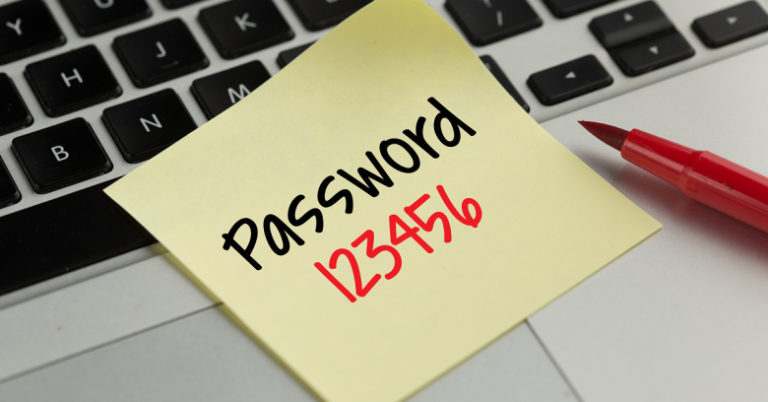
The most popular password in 2016 was the same as in 2015 and 2014: “123456.” Second and third place go to “123456789” and “qwerty,” respectively. Considering the circumstances, it’s not odd that so many security breaches happen.
5 Mistakes that put your Internet Security at Risk

As a case in point, a recent study from the cyber-security firm Preempt revealed that 35% of LinkedIn users have used weak passwords, thus increasing the chances of their accounts getting hacked.

What elements should a strong password have? Take note:

  • 12 characters minimum. The more, the better.
  • Must include numbers, symbols, uppercase and lowercase letters.
  • Must not be a dictionary word, or a combination of dictionary words.
  • Must not include an obvious substitution. For example: r0bber instead of robber.

Online you can find numerous tools to help you analyze and evaluate your password ideas. A good example is The Password Meter.

That said, it’s possible that creating hundreds of long passwords will cause you to mentally collapse. Don’t worry because you’ll find a solution for exactly that in the next point.

Mistake 2: You don’t use a password manager

Security experts recommend we use a different password for every account. This way, if one of these accounts is hacked, our other ones will stay safe.

However, nowadays, we may need to create between 20-50 different passwords. That’s too many! Luckily, this process can be simplified with password managers that not only memorize passwords for us, but also add another layer of security.

A password manager is a program that creates, stores and organizes all passwords on your devices, social networks and applications… All you have to do is remember the master password that activates the manager itself.

If you create a long and secure master password, as we mentioned in the previous point, you’ll guarantee that no one else can access any of your accounts.

There are a lot of available password managers, but one of the most secure and robust is Keeper Password Manager. It boasts of a military encryption system to protect your passwords, is compatible with all major devices and also has a self-destruct system that deletes all records if the master password is incorrectly entered five times in a row.

Mistake 3: You don’t use a two-step verification system

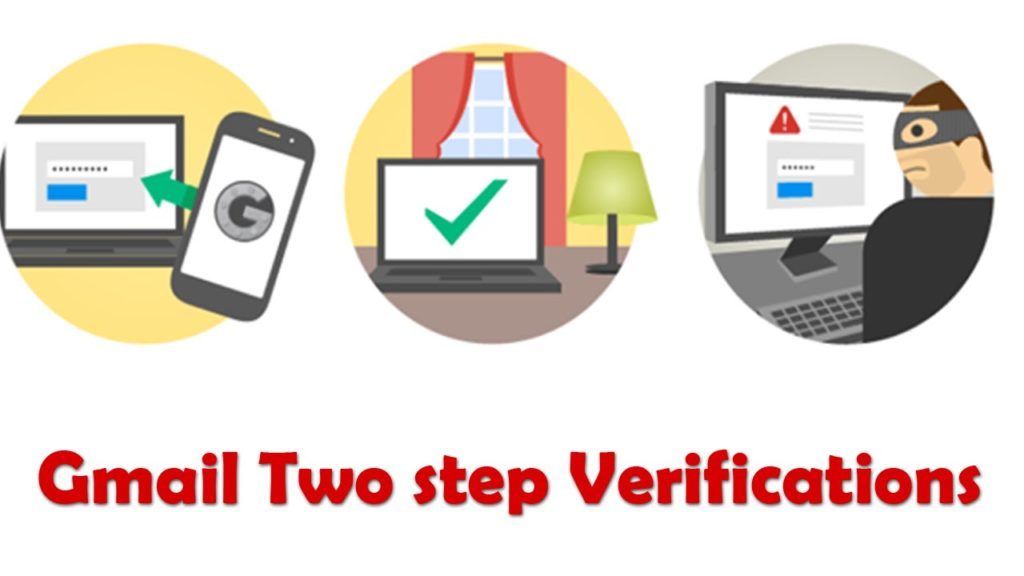
Two-step verification is an additional security layer that keeps your account safe, regardless of whether your password is as powerful as the freakish “8$&]$@I)9[P&4^s” or as foolish as “123456.”

This system is activated when you try to access your account from an unknown device. Since the system doesn’t know if it’s a hacker, or the account owner using a different device than usual, it “alerts” the owner by sending an SMS to his/her cell phone with a code. You need to enter that code within a short time period to access the account in question.
5 Mistakes that put your Internet Security at Risk

If the services you use, such as Google, Facebook… provide two-step verification, don’t hesitate and activate it. Ok, it’s a little annoying to activate. But it’s worth it.

Also, you’ve got apps that manage your two-step verifications, such as Authy. In the case of Authy, all the codes are in one place, streamlining the process even more.

Mistake 4: You’re careless with public Wi-Fi

Most public Wi-Fi is dangerous and insecure. Keep in mind that when you connect to Wi-Fi, you’re giving the owner access to your personal identity. You may get an unpleasant surprise if you connect to any Wi-Fi hotspot without thinking about who may go after you.

Does that mean you should be suspicious of all public Wi-Fi access? No. Luckily, there are exceptions. You can trust Wi-Fi access at airports, cafes, restaurants, hotels…

5 Mistakes that put your Internet Security at Risk

On the other hand, Norton launched a series of tips to reduce your risk when connecting to public Wi-Fi:

  • Before connecting, crank up the security settings on your device.
  • If you’re traveling, change your passwords before and after your trip.
  • Update your software and apps (which we’ll talk more about later).
  • Avoid logging into any online account that stores private information. So, don’t check your bank accounts over public Wi-Fi.
  • Be sure the URL you’re visiting starts with HTTPS. The S indicates that the data is encrypted.

Mistake 5: You don’t keep your software updated

Cybercriminals are very quick to find vulnerabilities in popular software such as Windows or Chrome. To counter this issue, developers launch updates at a rapid pace to fix these security breaches.

What happens to those who don’t update their software? They become the perfect cybercriminal targets. For example, the famous WannaCry malware is a direct consequence of companies neglecting to update.

It’s important to have all your software and Operating Systems updated. The good news is that sometimes this software updates on its own. But, sometimes, the software in question asks for your “permission” to update. This usually happens with Windows. We already know that you’re lazy about stopping whatever you’re doing on your computer to let it update, but this time it’s worth it!

Also, out-of-date software usually affects your computer’s performance. If your PC is running slowly, or your browser takes ages to load pages… you have yet another reason to update what you need to!

Mistake 6: You’re not careful when you’re on social media

We all know that social networks (Facebook, Twitter, Instagram …) are great places to share our thoughts, concerns, and whatever makes us happy. However, we are so used to them now that we often don’t think when we use them. We share too much information in a place that almost anyone can see.

So, take your time and review your account’s privacy settings, especially on Facebook. Many Facebook users are often surprised at what people who they don’t even know have learnt about them, and this is because of the privacy settings on their Facebook accounts. Click this link to check the security settings of your Facebook account.

Also, although we are not trying to censor you, don’t talk about certain issues on social networks. Many social networks are an open door to cyberbullies and data and identity thieves.

Watch the video below to see seven things that you should never share on Facebook:

What not to share on social networks?

Very personal information that could help a hacker guess your passwords.

Your location at all times, especially if you are away from your home for a long period of time.

Photos of your children or other minors (and if you do, make sure your privacy settings are set to maximum).

Very specific details about your job, could cause you problems.

Mistake 7: You don’t check the details in the emails you receive

Phishing is when somebody on the internet pretends to be somebody else or even a company so that they can steal your data or infect your PC. Emails are the perfect breeding ground for this type of scam, whether they be emails that are supposedly from our friends, family or even online stores or banks.
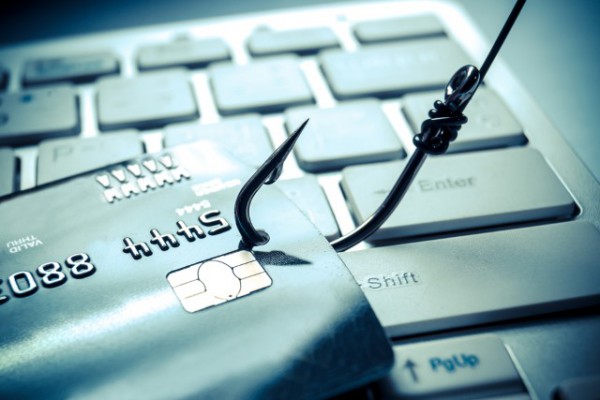
So, whenever you receive an email that asks you for data or comes with an attachment or a link, make sure the person or entity it should’ve been sent by has really sent it. Bad spelling or not very clear information are often synonymous with phishing.

Also, keep in mind that a serious company will never ask you by email to send them your login details, your password or your credit card number. Also, if you’re not expecting an attachment, don’t open any attachments.

Sources used: The Hacker News, Cnet, TechRepublic, Independent, HowToGeek, Wired, Norton
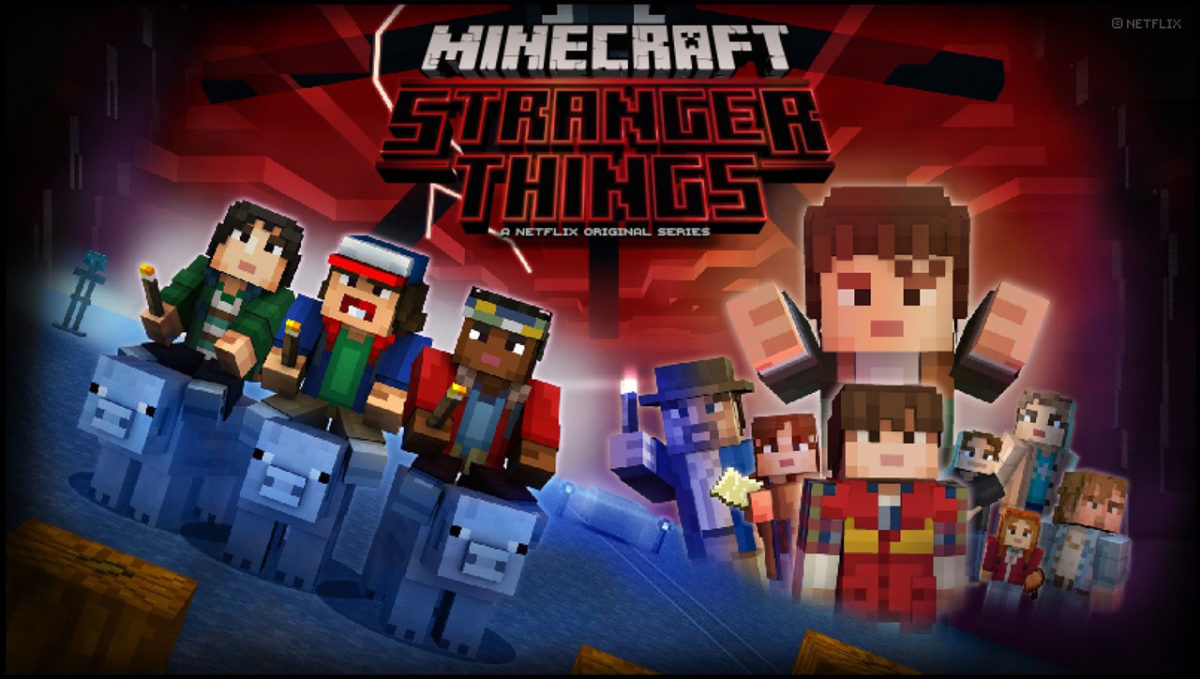
Go Upside Down with Stranger Things Skins in Minecraft

Are you a fan of the Netflix series, Stranger Things? This 1980s suspense and horror show has thrilled fans both young and old alike and quickly became one of the breakout hits on TV last summer.

Season 2 of the show has been released, and to help launch the new season, the creators teamed up with Minecraft to release a special Stranger Things skin pack in the Minecraft Store.

The skin pack is available for all users of the “Bedrock” version of Minecraft. Right now, that includes players on Windows 10, Xbox One, and mobile devices. The skin pack costs 490 coins, which is the equivalent of about $3.

Lucas, Mike, Eleven - Minecraft Stranger Things

Once you’ve acquired the new Stranger Things skin pack, you can easily equip any of the new skins. If you run into problems, be sure to check out our guide on how to change your Minecraft skin.

You’ll have plenty of options to re-create your favorite Stranger Things moments since this skin pack comes complete with a massive collection of 52 skins. You get a lot of characters from Season 1 and Season 2.

Spoiler Alert! Some of the skins reveal characters and scenes that appear in Season 2. Although you won’t be able to guess the plot lines, these skins do give you a peek into what to expect in the newest episodes.

Dustin from Stranger Things in Minecraft

Dustin from Stranger Things explores a festive Fall scene in Minecraft.

All of the skins from the Stranger Things Minecraft skin pack

There are 52 skins in all. That’s enough to keep you entertained in your Minecraft-fueled Upside Down world for days on end.

  1. Lucas
  2. Mike
  3. Eleven – Pink Dress
  4. Dustin
  5. Will
  6. Demogorgon – Face Closed
  7. Hopper
  8. Eleven – Lab Gown
  9. Joyce – Festive Lights
  10. Jonathan
  11. Nancy
  12. Steve
  13. Barb
  14. Hazmat
  15. Eleven – Tank Suit
  16. Dr. Brenner
  17. Mr. Clarke
  18. Terry Ives
  19. Eleven – Blonde Wig
  20. Demogorgon
  21. Barb – Upside Down
  22. Will – Upside Down
  23. Ghostbuster Will
  24. Ghostbuster Mike
  25. Ghostbuster Dustin
  26. Ghostbuster Lucas
  27. Max
  28. Billy
  29. Eleven – Runaway
  30. Hopper – Blue Jacket
  31. Joyce
  32. Jonathan
  33. Nancy
  34. Bob Newby
  35. Maury Bauman
  36. Dr. Sam Owens
  37. Hopper – Gown
  38. Kali
  39. Eleven – Punk
  40. Sunshine
  41. Axel
  42. Dottie
  43. Mick
  44. Max – Tunnel Bandit
  45. Mike – Tunnel Bandit
  46. Dustin – Tunnel Bandit
  47. Lucas – Tunnel Bandit
  48. Steve – Tunnel Bandit
  49. Eleven – Snow Ball
  50. Nancy – Snow Ball
  51. Mike – Snow Ball
  52. Dustin – Snow Ball


Do These Photoshopped Images Tell Us What the Founding Fathers Really Think of Trump?

Photo-editing technology these days is able to manipulate images so perfectly that you can’t say for sure whether they’ve even been edited in the first place. We’re assuming that the images that follow have been manipulated, but you can be the judge.

The Oval Office in the White House is a room of huge historical significance. It is where the President of the United States works day in day out in his capacity as leader of the USA. The current occupant, however, seems to be at constant loggerheads with the principles that have guided his predecessors.

From unconstitutional travel bans to border walls and verbal attacks on Gold Star families, it seems at times like Trump is on a mission to drag the office of the President through the dirt.

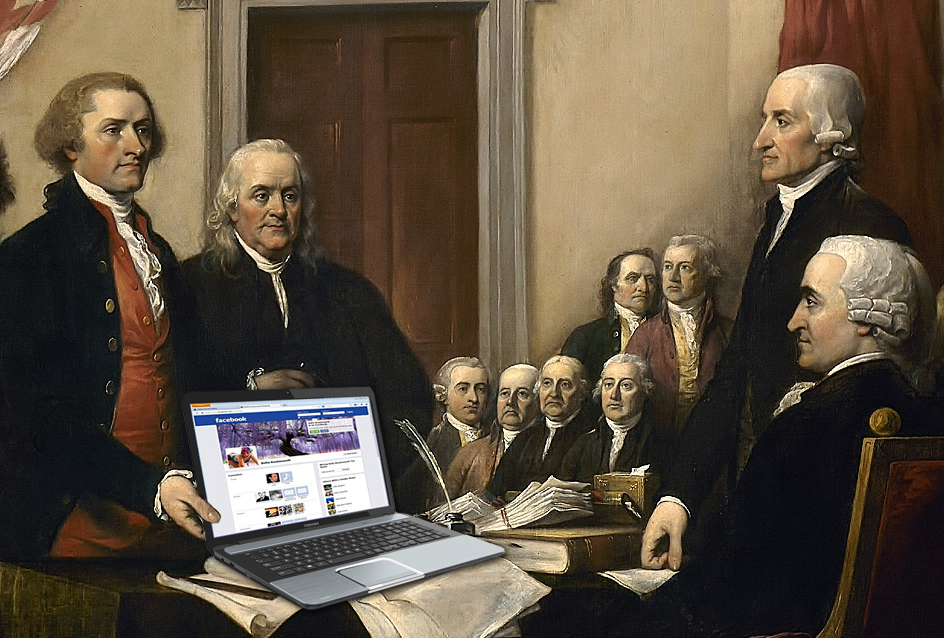
Well, the Presidents of yesteryear are not happy about it, and they’re prepared to break protocol to show their dissatisfaction. The paintings of them that hang in the Oval Office have started to change. At least this is what one skillful graphic designer is trying to show with these viral images.

What the Founding Fathers Think of Donald Trump

1. Flipping the Presidential Finger by George Washington

2. The Facepalm by Andrew Jackson

3. I Can’t Take any More by Thomas Jefferson

4. The Orange W@*#er by Alexander Hamilton

It would be great be if these paintings really had morphed themselves into showing their disdain for Trump’s antics, but we all know they haven’t. Fortunately, we have Photoshoppers on hand to provide us with the light relief we need to get through daily realities of the Trump presidency.

If you’re interested in trying your hand at photo editing but can’t afford to pay for Adobe’s expensive design suite you should check out these excellent free graphic design tools.

Exploring the Facebook Explore feed

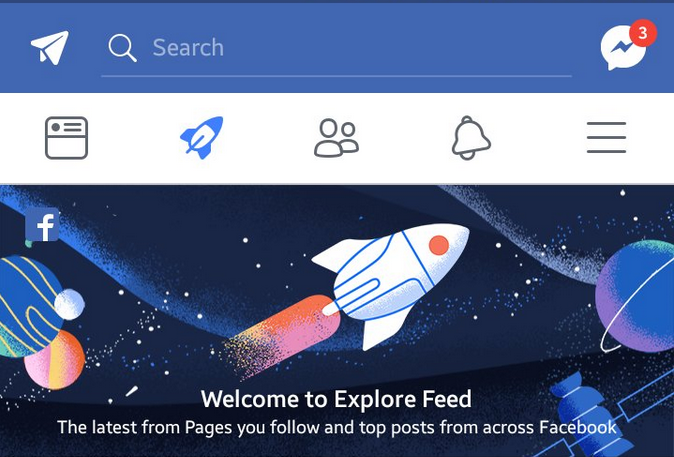
Last week Facebook surprised us with what seems to be a test feature in a select few countries, and we’ve now had a chance to see it in action. The name of this new feature is Explore Feed, and it appears to filter out all the good stuff for both users and publishers.

This new feature eliminates any post from pages you’ve liked on Facebook from your regular feed. To see those posts, you have to click on the Explore Feed tab. Facebook page owners, or publishers, have seen an 80% drop in organic reach (a measure of how many users can see a publisher’s post) during this test thanks to the Explore Feed. After testing the feature for a while, we’ve noticed that promoted (or paid) posts still show up in our regular feed, so this just might be a publisher’s worst nightmare.

It is no secret that content creators drive traffic to websites via their Facebook pages, and they have the right to do that, but it looks like Facebook now wants them to pay up if they want to reach their audience. Page owners who used Facebook for traffic boosting back in the day certainly remember easy it was to reach their Facebook fans with their posts. That was slashed by a staggering 80% when Facebook decided that they wanted publishers to start using their paid post-boosting option. A lot of them adapted, but a lot of them just gave up. Those who adapted are now facing the same scenario again.

Of course, Facebook has the right to change its policies and implement new features to earn money, but in addition to being bad for publishers, the Explore Feed isn’t very user-friendly. The icon is barely noticeable on the left-hand side of the screen. And if you are like me, and you’ve disabled automatic updates for your apps, you won’t be able to access the Explore Feed option at all. I didn’t even get a notification about this change on my phone, only on desktop, and the number of desktop users is rapidly plummeting. The general impression is that users aren’t well informed about the new feature, and those who are rarely use it.

If the Explore Feed rolls out as an official Facebook feature, content creators will be in big trouble. Some reports indicate that it will be an official feature, but there is no final confirmation yet. I personally hope that it doesn’t, because over the past ten days I haven’t clicked on it more than twice, and that was only for test purposes. As for page owners, it looks like you guys will either have to pay up or go home.

Try the brand new Gmail add-ons now

Gmail is one of those services that we use almost every day. Google hasn’t updated Gmail for a long time, but this week we got up with a big surprise: They’ve finally released some add-ons. Add-ons that you can install directly onto Gmail, and that aren’t merely browser extensions.

Here’s how to install these extensions on Gmail, and which ones you’ll find right now.

How to Install New Gmail Add-ons

1. Click on Settings >Settings > Add-ons > Get Add-ons

Go to the wheel button (upper right-hand side of the screen) and click on the Settings option. About halfway across the top menu, you’ll find the Add-ons button, and when you click in the top right you’ll find the Get Add-ons option.

2. Choose an add-on and install it

The Add-on store will open. Use the categories on the left or the search engine to find the add-on you want. Click it and then click the Install button.

The chosen plug-in will then be installed on your Gmail account (it installs in the cloud, not in the browser). Usually, the plugin will explain where it is located so that you can start using it, and it will tell you the steps to follow (for example, if you have to log in to a service, such as Trello or Asana).

Which Gmail add-ons are available?

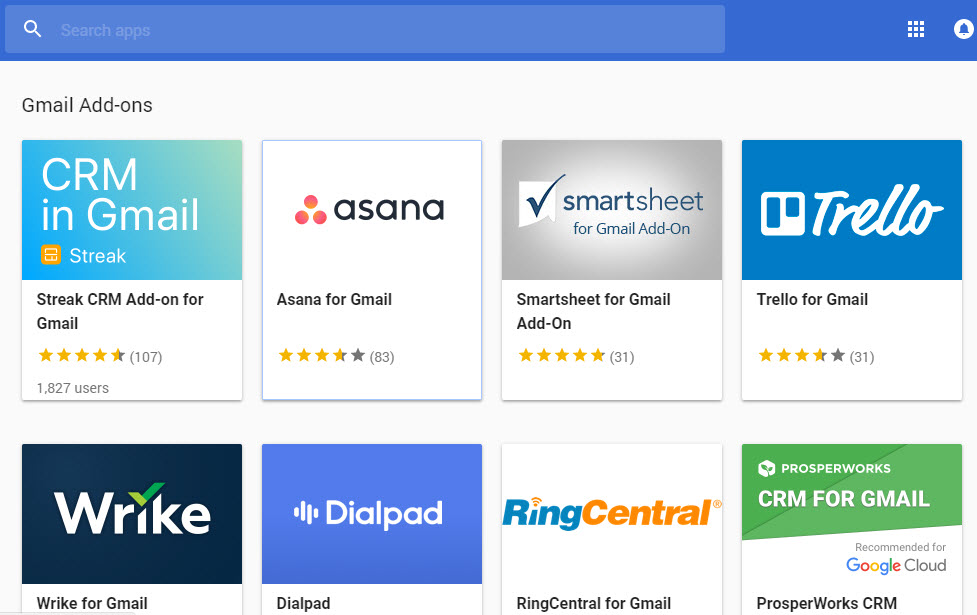
The Gmail Add-on store, for now, has 8 available add-ons: Asana, Dialpad, ProsperWorks, RingCentral, Smartsheet, Streak, Trello, and Wrike. These are mainly time management and project management tools, but we expect that other types of add-ons will be added soon.

What add-ons would you like Google to add to Gmail? Tell us in the comments!

The Tinder Swipe Comes to PC

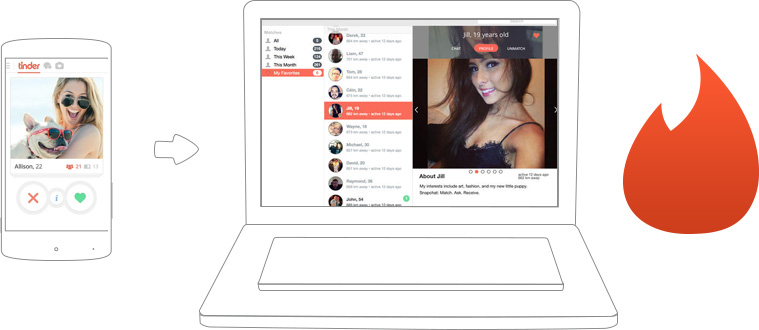
You can now use Tinder on your PC. That is, you no longer need to install the app on Android or iOS to search for a date; you now have direct access from the internet.

This marks a huge leap for Tinder, going from being an app to a much more complete service, which allows you to look for dates wherever you are and without having to have a smartphone.

Tinder desktop is a good adaptation of the famous mobile app, as everything from the mobile app is still there but the features have just been adapted for PC use. Thus, the absence of a touch screen to accept or reject suitors is not a problem: in addition to using the mouse cursor, you can use the keyboard to use the different functions.

With the arrow to the left you say “no” and with the arrow to the right you say “I like”. The up arrow opens the profile, the down arrow closes it, the intro key makes “super like”, and with the space bar you can see the next photo.

Our Softonic Solutions users have been talking about the greatest love stories of all time. Join the conversation now!

Do you like Tinder? What apps do you use to make connections? Let us know in the comments ?

WhatsApp Is Open for Business in Beta

WhatsApp Business, the WA app designed for business, will soon be available around the world. After a closed beta period, it is already available for testing in Indonesia, followed by Brazil and India and soon the rest of world.

Here’s a summary of everything we know so far about WhatsApp Business and how to download it as soon as it’s active in your country.

How does WhatsApp Business differ from WhatsApp?

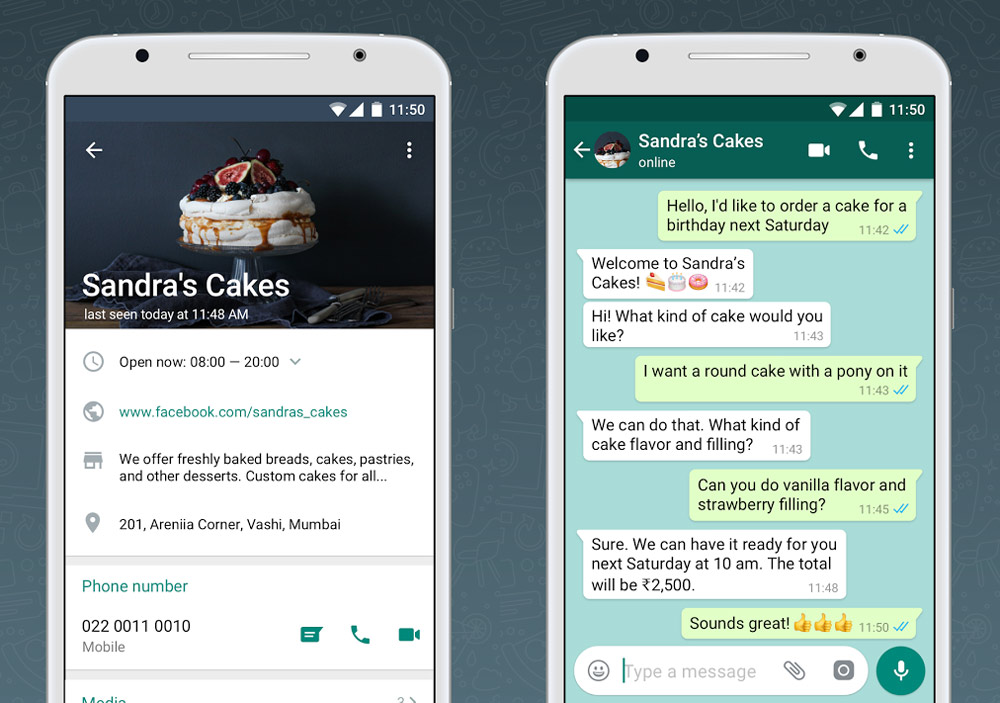
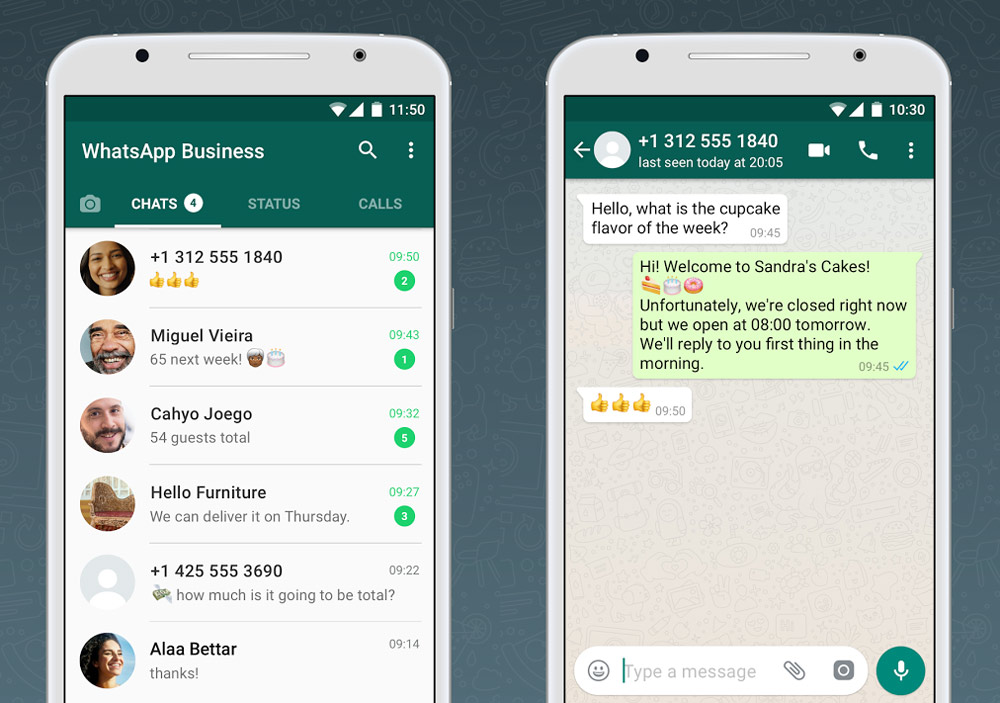
If you take a first look, WhatsApp Business looks like the traditional WhatsApp. It has the same design (except the logo of the app) and the usual sections like contacts and chats list … But things change if we go into greater detail.

For example, there are many more options for profile editing: we can put business information, website, location, contact information and much more.

In addition, it will not be necessary to associate WhatsApp Business with a mobile number: the business landline number can be assigned so that WhatsApp can be used on the same phone as the normal WhatsApp application.

Regarding contacts, WhatsApp Business will allow you to import contacts from the normal version of the app. This is because many companies today use the traditional WhatsApp to connect with their customers. You can’t import contacts the other way, however.

How to download WhatsApp Business

WhatsApp Business is now available for download from the Google Play Store, but it can’t be done directly. To download it, follow these steps:

1. Sign up for the WhatsApp Business beta from this link.

2. Download WhatsApp Business from the Google Play Store. If it does not let you because your phone is incompatible, download the APK here.

3. You can also answer the survey in this link. This shows WhatsApp you’re interested in the app and will make sure you get access quicker.

Keep in mind that, for now, it has been documented that the beta is only available in certain countries, so these instructions may not yet be valid in your country.