13 apps that every student should have

The days of pencils and papers are dwindling, with most students completing a majority of their work digitally. Even if you still take notes by hand, there are apps that can quickly collect and organize all your important information in one place that’s easily accessible.

Here are 13 apps that every student should have. While you may not need them all the time, if you’re a student, they could just become indispensable.
PushBullet: everything that happens on your mobile… in your PC

With PushBullet, you can transfer files and links from device to device without losing time writing emails, syncing files, or sending messages. Another really cool features is that you can push phone notifications to your computer, with the option to answer SMS messages directly from your PC.

Download PushBullet: Android | iOS
SimpleMind: improve your studying with mindmaps

Brainstorming tools are great if you want to summarize information visually. SimpleMind is an editor that works for both PCs and mobile phones. The full version can load maps made with other programs -such as FreeMind– and save them in DropBox, then exporting them as images that can be attached to presentations or Word documents.

Download SimpleMind: Android | iOS

Google Docs Suite: the Office you can take with you

You might have Office at home, but the easiest thing to use on your phone and online is the Google Docs Suite. You have access to cloud storage to store files securely, share, and export to other formats. Drive also has something unique: form creation. If you’re using the mobile apps, Google has released standalone versions of Docs, Sheets, and Slides. You will be able to view files within the Google Drive app, but you won’t be able to edit.

Download Google Drive: Android | iOS

Download Google Docs: Android | iOS

Download Google Sheets: Android | iOS

Download Google Slides: Android | iOS
Noom:  healthy mind in a healthy body

Studying is a sedentary activity, and spending too much time sitting down isn’t good for your health. Sometimes, an app can help do the trick. Noom is a personal trainer that motivates you to follow a healthier lifestyle. The paid version includes dietary advice and support groups that encourage others by sharing your progress.

Download Noom: Android | iOS

Telegram: teacher-proof messages

If you don’t trust WhatsApp because of security concerns, try Telegram, a messaging app that has self-destructing private messages. The app is ideal for gossiping without fear of being intercepted.

Download Telegram: Android | iOS

Smart Voice Recorder: record the lectures

Instead of taking notes, why don’t you record what the teacher says? You can pay more attention to explanations during the lecture, and when you get back home, you can transcribe them. Try Smart Voice Recorder, one of the best voice recorders for Android. Simply tap a button to create audio files with the quality you want.

Download Smart Voice Recorder: Android
Pocket:  save your links

Pocket is an app where you can save links you find while browsing the web. It’s very useful for preparing research projects, or simply to hoard articles you’ll read later. What’s clear is that with Pocket, you’ll never lose that very interesting link that you’ve found browsing, or that document that somebody sent you.

Download Pocket: Android | iOS

EasyBib: compiling bibliographies has never been easier

If you don’t have enough time to compile bibliographies, use EasyBib, which creates them automatically from the bar codes or names of the books. Once you have the list of references, you can send them via email or move them to EasyBib.com. The available formats are APA, Chicago, and MLA, which are widely used in universities.

Download EasyBib: Android | iOS
Evernote: an indispensable digital notebook

For the student, Evernote is an essential app. You can share documents with peers and teachers, but also save full copies of web sites with one click. Its search and organization functions are powerful, and notes can be taken and edited from any device. If you complement it with Penultimate, you can add drawings to your document collection.

Download Evernote: Android | iOS

Duolingo: learning a language can be a game

Whether you’re going to another country as an exchange student, or you want to improve your pronunciation, Duolingo is the app for you: thanks to its short exercises, learning another language is quick and fun. The app rewards your efforts with points and has a clever ‘lives’ system to penalize your mistakes.

Download Duolingo: Android | iOS

Examtime: your online study room

Preparing for an exam is not an easy process: you have to collect and summarize notes, practice, and organize study sessions. Examtime is a web app that helps you do all that and more. You can create mind maps, flashcards, and organize your own schedule. And, because its an online app, users can share their content with others.
Access Examtime

CamScanner: don’t copy notes, scan them with your phone’s camera

You can fit thousands of scanned pages on your mobile devices. One of the best scanners is CamScanner, which can save them in PDF, has character recognition (OCR), and options for collaboration.

Download CamScanner: Android | iOS
Alarmy (Sleep if U Can): the most effective alarm clock

Described by its developers as “the most annoying app in the world,” Alarmy is one of the most original and effective alarm clock apps I’ve seen. It’s very simple: when the alarm goes off, you have to take a picture of an object. If you choose the sink, for example, you have to get up and walk to the toilet. The strategy is a bit cruel, but it’s very effective.

Download Alarmy: Android | iOS
But in the end, it’s all up to you

Whenever someone asks me about apps to help them study, I always remind them that no matter how good these apps are, by making the effort, they will become useful. The apps make it less difficult to study, but they don’t provide the motivation you need to prepare for your exams or write flawless papers.

Image source: Google Play, TechRepublic

Related Articles

16 must-have apps for every teacher

Office Tip: use tabs in Word, Excel and PowerPoint

Google Docs can replace your word processor

Follow me on Twitter: @remoquete

How to lock apps and websites to avoid distraction

Whether its work, school, assignments, or simply an insatiable app addiction, sometimes plain old willpower isn’t enough to help you avoid getting distracted by your favorites apps, games, and websites.

A recent study shows, for example, that about 70% of students procrastinate by playing online or mobile games, or by browsing their favorite website– Facebook anyone?

Whether you need to get some work done, pay attention in class, or simply want to avoid being tempted by Candy Crush, try locking your apps using the guide below.

Download the “locks” for Windows and Android

There are tons out there, but the “locks” I used here are Focus Lock for Android, and FocalFilter for Windows.

You can download Focus Lock from Google Play, while FocalFilter is installed on your PC as a program. For Android, see below. Scroll through if you want to see how you can do it on Windows.

Set up Focus Lock on Android

Every time you open Focus Lock, it asks you to enter a code, which prevents others from adjusting locks without your permission. Before getting started, you must enter the default code, which is 0000. You can then change it from the options menu.

In the Installed tab, you can choose which apps you want to lock. Just hit the padlock icon. Once it turns green, the app is locked and appears in the Locked tab.

To set the duration of the lock, press the stopwatch icon. You can set the amount of time the apps are locked, as well as how long the break lasts, which indicates the amount of time you can access the app between locks (everyone needs a break every once in a while, right?). You can only adjust locks during a break.

Set up FocalFilter in Windows

Run FocalFilter. It shows a very simple window that displays a drop down menu to adjust the duration of the lock, along with two buttons, one to edit the list of websites, and the other to activate the lock.

Click on the first button, Edit My Site List, to add the web pages you want to block on all web browsers. Add just one web page per line. Entering http:// in the web address isn’t necessary.

Once the list is saved, click on Block My Site List. Then, restart the browser and the block will be applied. Blocked pages will be inaccessible until the block time runs out, or until you restart your PC.

Note that FocalFilter might not work if you have an antivirus that interferes. If you don’t get an alert, you’ll need to manually authorize FocalFilter for the block to be effective.

If your antivirus interferes, authorize the changes for FocalFilter manually.

How do I deactivate the lock?

For FocalFilter, all you have to do to deactivate the block is to simply restart your PC.

With Focus Lock, you have to wait for the pause notification to appear, then go to the app and deactivate the lock.

FocalFilter and Focus Lock can both be uninstalled. The purpose of these apps isn’t to completely block access to web sites and apps, rather, to make it a bit more difficult for you to give into impulses when you should be doing something else.

You still need a bit of self control

Consider these apps a helping hand. Sure, they’ll help you avoid distractions, but only up to a certain point. If you use them as intended, then it’ll be easier to get on with your work, but at the end of the day, it’ll still take a bit of willpower to avoid being distracted by your devices.

If you want to sync your Android apps with a PC, check out our tutorial on how you can do it.

Follow me on Twitter: @remoquete

The Simpson Springfield: 7 basic tips to grow your town faster

The Simpsons: Springfield (also known as The Simpsons: Tapped Out) is a game for Android and iOS that lets you rebuild Springfield, the city from the animated series. The game begins with Homer and the Simpson house, and then slowly shows all the iconic buildings of the series and its most famous characters.

As you play, you’ll unlock new characters and buildings. It can be time consuming to unlock them all but there are ways to unlock them quicker. Check out the 7 tips below to make Springfield grow faster than Homer’s waistline.

Choose tasks carefully

To earn money and experience points, you have to make your characters perform tasks. Each character has several available tasks, and the longer they last, the more money you’ll get. To make the most of this when you’re in the game, make your characters carry out tasks that last only few minutes. Then, when they’ve finished them and you’re about to close the game, make them carry out tasks that last several hours, however long you think it’ll take you to open the app again.

Add decorative objects

Decorative objects, like trees and other landscape elements, don’t give money, but enhance the experience. So, to gain experience quickly, fill your town with these elements, giving you greater rewards.

One of the objects that gives more rewards is the Springfield sign: use it as soon as you can, as it significantly improves all the items you get with buildings and characters.

Combine different buildings

Another way of making money in the game is with buildings. To optimize this, I recommend that you build different types of properties.

For example, commercial buildings like the Kwik-E-Mart supermarket or Krusty Burger give many points, but the time it takes to earn the reward is high. In contrast, private homes give less money, but you can do it many times in one day. In addition, these homes unlock tasks. For example, Lisa can babysit at Flander’s.

Think about the type of player you are (do you play many times a day or just once or twice?) to decide if you are going to build more homes or more commercial buildings.

Collect all rewards quickly

When you have a large city, you’ll see how you’ll get all the rewards at the same time. Collecting them one by one is exasperating, but there is a way to do it quickly: tap over them (for example, the dollar sign) to get all the money and XP, and then wait a few seconds: they will automatically be added to your inventory.

Keep the Conform-o-meter in mind

The Conform-o-meter is activated by touching the stars at the bottom left of the screen. Check it from time to time to see in what ways you can improve your city. In my case, I have very little Obedience, so I should build more public buildings.

Pleasing the citizens of Springfield is useful to make more money and get more experience; so always keep the Conform-o-meter in mind.

Play the Itchy and Scratchy lottery

In Kwik-E-Mart you can periodically buy an Itchy & Scratchy lottery ticket. It costs 250 bills, but it has a reward almost every time, so don’t hesitate to buy it every day, you can earn up to 10,000 bills easily.

Visit your friends

Choose the option of visiting the neighborhoods of your friends once a day (the button showing Bart and Milhouse). When you visit the games of your friends you get money and XP, and it makes you get points for a friendship meter that will get you rewards.

To add new friends, once you’re in the neighborhood view, tap the Bart and Milhouse button: this takes you to a menu where you can add your friends from Facebook and EA Origin. You can also add friends manually if you know their username.

Become the king of Springfield

These are just a few tips that will help turn your Springfield into a real empire. As you play you’ll unlock buildings, characters and special activities, so you earn more and more money and experience more easily. Plan out tasks for your characters to maximize efficiency and you’ll be rolling in digital currency in no time.

Download Los Simpson: Springfield for Android and iOS.

Related articles:

Bubble Witch Saga 2: 7 tips to level up

Subway Surfers: 7 tips to be number 1

Candy Crush Soda Saga: 5 tips to beat any level

MSN Messenger will cease to exist by the end of October

Microsoft’s popular MSN Messenger, aka Windows Live Messenger, will finally die a complete death on October 31st. The service has been discontinued for a majority of the world, but was kept alive in China due to its popularity. The fifteen year old messaging service will finally be gone forever in favor of Skype.

MSN Messenger was created in 1999 to fight against AOL’s massively popular AIM messaging service, which still exists. As the internet grew and mobile phones became the norm, the desktop focus of MSN Messenger failed to compete with apps like Facebook Messenger and Google Hangouts.

Many users loathed the transition to Skype because of the app’s focus on video calling. Microsoft has overhauled Skype over the last year to accommodate instant messaging users. The company recently fixed an annoying duplicate notification bug.

Source: TechNode

Via: The Verge

Related Stories

The gamer’s kit: improve the performance of your PC

Photo editor Pixlr for desktop launched

Apple event confirmed for September 9th, iOS 8 coming soon

Chrome experiments with user accounts and guest mode

Follow Lewis on Twitter: @lewisleong

Yaeger’s Dreadnought is all-out spaceship combat

Given the fact that developer Yaeger is currently working on Dead Island 2, finding out that a smaller team was working on Dreadnought was surprising. In the pre-alpha demo, I learned a of couple things. First, Dreadnought is an action-strategy game where you control spaceships. Dreadnought uses five different classes of customizable ships for intense five-versus-five multiplayer.

dreadnought

Second, is that Dreadnought will be free-to-play with a single campaign and multiplayer explained by Peter Holzapfel, Game Director for Dreadnought. They plan for the single player campaign to be episodic and teach you about the different classes of ships. Yaeger didn’t show any single player gameplay during the demo, instead focusing on the five-versus-five multiplayer combat.

Instead of space battles, Dreadnought focuses on planet level maps. There will be space maps, but Holzapfel said there needed to be a horizontal frame of reference for players to stop the game from being disorienting.

On land, you always have a reference for direction. The demo took place on a planet with canyons that could be used for cover. When I first started playing, I would spawn and head directly for the center of the battle, but when I used a smaller ship, I realized that using the environment is required for strategy.

Akula dreadnought

The five classes of ships are influenced by popular science fiction so that players can already get an idea of what kind of ships they’ll see. From the fast Corvette attack ship, the medium powered Destroyer, or the massive Dreadnought, each ship has different attributes that can alter the balance of combat. With five-versus-five multiplayer, knowing your individual role in a team is important. The support class that repairs other ships plays as big of a role as the Dreadnought who can support Corvettes as they fly in.

Dreadnought uses keyboard and mouse controls to navigate your ships from a third person perspective. By pressing the scroll wheel on the mouse, you can assign energy to different functions like engines or shields. You move with WASD and Shift, and the spacebar to control lift or descent. Aiming is done with the mouse, but your area of attack will differ depending on the ship. If you want a faster ship, your angle of attack will be much smaller than the 180 degrees of attack that bigger ships have.

dreadnought Orbital warfare concept

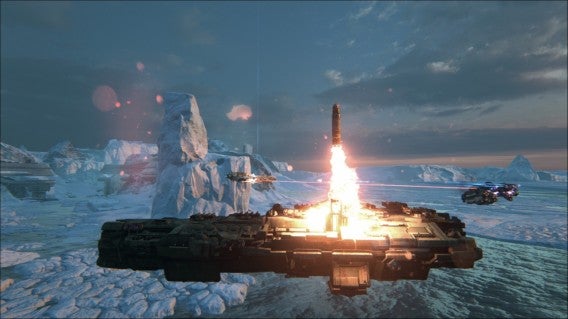
Each ship has four different abilities, like special offensive attacks or defensive maneuvers. The Corvette can quick warp to escape from attacks while also using a 180 degree turn to quickly reorient itself for another fly-by. The Dreadnought has one of the most spectacular attacks called the Broadside. You have to turn the ship so that either the port or starboard side is facing the enemy, and then unleash a massive barrage of lasers that cause huge amounts of damage.

The balance of these abilities works in tune with how well your team can play together. There are still some in-game balancing that has to be done, but the pre-alpha build was a lot of fun to play.

dreadnought Nuke launch

Ship customization will also be a big feature in Dreadnought, and Yaeger is still working on its implementation. This means you’ll be able to customize the look of your ships and add all sorts of visual mods, along with different weapons. Holzapfel showed off some different ships that the team had customized, and while ships were recognizable by their size, the visual customizations really make each ship unique.

Yager plans to have a closed beta in early 2015 for Dreadnought with a launch sometime in the middle of the year. The team behind Dreadnought wants to create a strong community to really help them develop the free-to-play game. I don’t normally play any type of space battle game, but I’m excited for Dreadnought.

Keep up with Dreadnought: Official Site | Facebook | Twitter

Related Articles

iObit’s free Game Assistant 2 beta launched

Watch 22 minutes of Metal Gear Solid 5: Phantom Pain

App of the Week: Twitch

Follow me on Twitter: @chrislikesrobot

The Softonic Minute: Hyperlapse, Windows XP, The Sims 4, and Google Chrome

Instagram releases a new app for time lapse videos, Windows XP gets an ‘unofficial’ update, The Sims 4 launch trailer is released, and Google Chrome gets a 64-bit version. Check out this week’s hottest software news in The Softonic Minute.

Default player


brightcove.createExperiences();

Hyperlapse from Instagram turns your shaky recordings into beautiful time-lapse videos

Instagram has a new video recording app out today called Hyperlapse. Although Instagram already records video, Hyperlapse is useful for turning your shaky smartphone video into an artistic time-lapse video. Keep reading…

Unofficial Windows XP ‘SP4’ in development

A Greek Windows XP fan and developer is working on his own ‘Service Pack’ (SP) for XP, in the hope of extending the aging operating system’s life. Continue reading…

The Sims 4 to be released Sept 2nd, watch the launch trailer now

The highly anticipated Sims 4 will be released for Windows on September 2nd, 2014 in the US. Ahead of its release, we’ve finally gotten the chance to see the full launch trailer. Watch it here.

Chrome update brings 64-bit for Windows, offers security and speed

We knew a 64-bit version of Google Chrome for Windows was coming, and now, it’s finally here. This version promises fewer crashes, better performance, and increased security. Continue reading…

Make sure to check out all of our past Softonic Minutes.

The gamer’s kit: improve the performance of your PC

Whether you’re playing Skyrim or Titanfall, or if you’re waiting for the release of GTA V for PC, you’ll want to make the most of your computer’s power. First though, you need to prepare it for the beating it’ll get from playing these resource heavy games.

Luckily, you don’t need to be a programming genius to do it. You only need a few programs that, almost automatically, will do all the dirty work for you. From updating drivers to stopping other computer activity while you play, check out these 7 apps that’ll help improve the performance of your PC when gaming.

The gamer’s control center

Game Assistant

Game Assistant is the control tower for your video games. It’s interface collects the games installed on your computer so that you can access them quicker. The IObit program also frees up RAM and controls the temperature of your CPU, GPU and motherboard, to avoid the risk of overheating and possibly even damaging the hardware.

Download Game Assistant 2

Razer Game Booster

Devoted to maximize the performance of your PC while you play, Razer Game Booster closes all the programs you don’t need while you’re playing so that you use all resources on the videogame.

In addition, it includes a game launcher, a tool for downloading drivers and defragmenting the hard disk, a service for saving games in the cloud, and a built-in feature to make videos and take screenshots.

Download Razer Game Booster

Updated drivers

GeForce Experience

Ge Force Experience is an essential tool for gamers with a Nvidia graphics card. While the main function of the program is to update the drivers for your video card, it also includes a very useful function to get the best performance from your PC for every game installed. In addition, it shows the computer’s configuration and has an integrated tool for screencasting your game.

Download GeForce Experience

AMD Gaming Evolved Client

If you have an AMD video card, the best program for you is AMD Gaming Evolved Client. Similar to GeForce Experience, it helps you keep the drivers updated and optimize your games based on your hardware configuration. In addition, it lets you connect with other players in-game.

Download AMD Gaming Evolved Client

Optimization tools

PC Decrapifier

This little program is ideal to get rid of all those useless programs pre-installed by the manufacturer of your computer, both to delete the ones you don’t want or the ones you don’t use. No installation is required, and it helps you make your PC faster and more powerful, especially while you play.

Download PC Decrapifier

Auslogics Disk Defrag

There are many utilities to defragment your hard disk, starting from the one offered by Windows, to the ones included in Razor Game Booster. A disk that’s in order improves the performance of your computer, which is why you should opt for one of the best and fastest, such as Auslogics Disk Defrag.

Download Auslogics Disk Defrag

Screencast your combo

Fraps

Game Assistant and Razor Game Booster include tools to screencast your game. But if you don’t want to install them or if you prefer to use independent software, try Fraps. It allows you to take screenshots, record video, and shows the graphics performance of your computer in real time.

Download Fraps

If the hardware is not enough, try with software

Every experienced gamer should have at least three or four of these programs installed on their computer, and if you’ve already played games with high requirements, you probably already have one installed.

All (or almost all) of them, however, can make your computer much more efficient or improve performance when you’re about to start playing, or if you’ve been sitting in front of the screen for six hours. And, if you don’t have a latest generation PC, they can help to at least partially compensate for the limitations of your hardware.

If you want to stream your games live, then check out one of our App of the Week entries, Twitch.

Ex Rockstar employee claims GTA V for PC has been cancelled, makes internet angry

Following rumors that GTA V for next-gen consoles and PC will be delayed until early 2015, an ex-employee of developer Rockstar claims that it could be cancelled on PC altogether. This sounds unlikely.

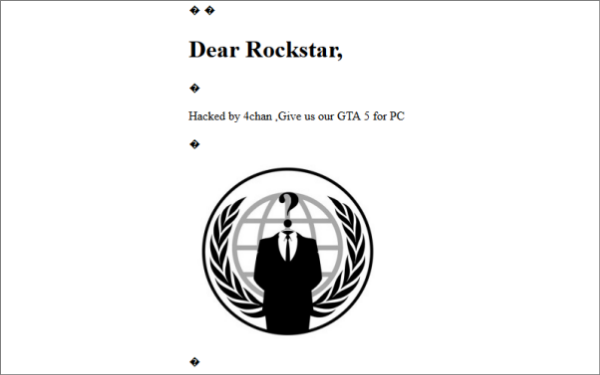
Now working for marketing firm Rantic, the source is only named as ‘Brad’ by Fox Weekly, which talked to the company. He claims that Rockstar only started PC development of GTA V after pressure from gamers, but it could now be cancelled due to ‘corporate problems’. Responding to the rumor, it appears that GTA V PC fans from 4chan have taken down the Rantic website, leaving a message in its place:


Is this cancellation likely? Rockstar announced GTA V for PC and nex-gen consoles at E3 in June, but the lack of further announcements at Gamescom has made some people nervous. Rockstar, however, tends to do things its own way. An absence of announcements by the company should not be taken to mean anything. Rockstar has the resources to make a PC version of the game, and the ‘corporate problems’ cited in the Fox Weekly story sounds bogus, as they aren’t explained at all.

It may be that GTA V for PC is delayed, but with no word at all from Rockstar, it’s best to take all rumors with a grain of salt. Until it says otherwise, perhaps it’s best to assume that GTA V for PC and next gen consoles will be released in fall 2014, as announced in June.

Source: Fox Weekly

Related Stories

GTA Online San Andreas Flight School Update available now

Resident Evil 7, GTA 5 for PC, Mass Effect 4: the games we can’t wait to see at E3

GTA Online: High Life update brings new vehicles and weapons

GTA V for PC, PS4 and Xbox One this fall

Follow Jonathan on Twitter: @jonathanriggall

Photo editor Pixlr for desktop launched

Autodesk, the developer of Pixlr, a popular mobile and browser based photo editor, has released a desktop version for Windows and Mac. The starter edition is free, but you get additional tools if you sign up for a free account, and there’s also a paid ‘Pro’ membership which gives you even more features.

Pixlr is an easy to use Photoshop alternative. You can add filters and effects to your images as well as masks and overlays. It’s not as powerful as Adobe’s Photoshop, but for most people, Pixlr’s tools will be more than enough. A Pro Membership costs $1.00 per month, or $14.99 per year, which gives you all features and automatice updates in the future.

Pixlr Express, the mobile version, is available for iOS and Android devices, as well as in your browser.
Download Pixlr for desktop for Windows or Mac here.

Related Stories

Alternatives to Adobe Photoshop Mix

Adobe Photoshop Express update adds blemish removal tool, RAW support

New Tips app makes iOS 8 less confusing for newbies

3 excellent, free online image editors

Follow Jonathan on Twitter: @jonathanriggall

Apple event confirmed for September 9th, iOS 8 coming soon

Apple has confirmed an event for September 9th, where we expect to see the iPhone 6 and a wearable device announced, as well as iOS 8, the next version of its mobile operating system.

iOS 8 will introduce the Health app, which will monitor your health and fitness, and is very likely to be closely integrated with the expected wearable device (iWatch?).

While iOS 7 was notable mainly for its radical design overhaul, iOS 8 is all about adding new features and integrating better with other Apple products. It will work closely with Mac OS X, meaning you’ll be able to answer calls from your Mac, if you have an iPhone with iOS 8. It will also launch Family Sharing, so up to six people can share iTunes, iBooks, App libraries and more.

Following previous years, we expect iOS 8 to be made available for everyone shortly after the Apple event. We already know that it will be compatible with iPhone 4S and later, iPod Touch 5th generation, and iPad 2 and later.

Related Stories

iOS 8 beta 5 preps for OS X Continuity feature

iOS 8 will include an iPhoto to Photos migration tool

New Tips app makes iOS 8 less confusing for newbies

Apple Maps in iOS 8 includes option to use other mapping apps

Follow Jonathan on Twitter: @jonathanriggall