See all Windows updates installed on your PC

Microsoft released Windows XP Service Pack 3 just yesterday, so now it’s time for all XP users to update their operating systems and have the latest security and performance fixes properly applied. But how do you know which patches have you installed so far? Is there a way to see all the Microsoft updates on your system?

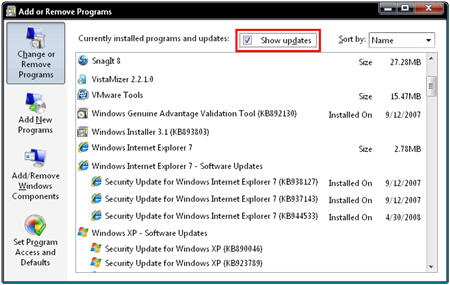
Yes, there is, and a very easy way indeed. Simply open the Start menu, go to the Control Panel and click on the Add or Remove programs icon. When the program list opens, check the “Show updates” option on top of the window and you’ll get all Microsoft fixes, patches and other update files included in the software list.

See all Windows updates installed on your PC

In this way you’ll be able to check the exact updates that have been installed so far and see if you miss any, both for the operating system in itself and for any native Microsoft application such as Internet Explorer.

Tools to help in the fight against corruption

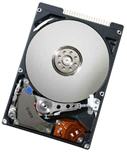
Corrupted hard drive imageCorruption is not just something isolated to politics. It’s also something that can affect your PC and ruin your hard drive or files for good. The scary thing about it is that it can happen at almost any moment. Particularly if you’ve got an old hard drive or you’ve suffered from a virus at some stage, there’s a good chance that files could corrupt meaning that you simply can’t open them anymore.

There are many tools out there however that can help you rescue corrupted files and drives, depending on the file type and how badly damaged they really are. One of the most powerful is Magic Recovery Professional which works on all NTFS drives which is so through, that it’s even used in criminal investigations to ascertain exactly what may have corrupted a drive and to repair it. It’s not only hard drives and files that corrupt however – your registry can also corrupt which can cause general problems with your PC such as slow performance, frequent crashes and program errors. If you think that some of your registry entries may be damaged, Registry Mechanic is widely recognised as one of the most powerful and effective registry scanners and repairers.

One of the most common types of file to corrupt are Microsoft Word files and there’s nothing worse than spending hours or even days on a document to find that you can no longer open it. Word Repair can’t guarantee to recover your corrupted Word Files – in fact it only works in around 50% of cases – but it’s definitely worth a shot if the worst has happened to you. Another frequent victim of corruption are PDF documents and if you’re receiving a message that your PDF file is unreadable or may be corrupt, then PDF Repair is your answer. Finally, if your precious photos that are seemingly corrupted and no longer readable, Digital Photo Recovery 3 is a free tool which can help you recover corrupted photos on both your hard drive and removable memory cards.

How to transform Windows XP into Windows Vista

transform Windows XP in Windows VistaIf you’d like to have the Vista look on your computer, there are two main options: either you buy Microsoft’s latest Windows version and go through the usual pain of migrating to a new operating system, or you use a Vista theme. The latter is probably the best choice for those who are not particularly interested in having Vista, but rather in taking advantage of its visually appealing interface.

After trying a few Vista themes, I came up with Vistamizer as my favorite one. It’s very easy to install and also fairly complete, meaning it includes not only graphic material but also a few software tools that resemble the most popular Vista functionalities, such as the sidebar, the Aero transparency effect or the toolbar thumbnails. In case you’ve decided to give it a go, here’s a basic how-to.

Download Vistamizer and launch the file. After a few windows (including the EULA among other stuff) you’ll be asked whether you want a “normal installation” or a “Vistamized Windows ISO”. Simply select the first option.

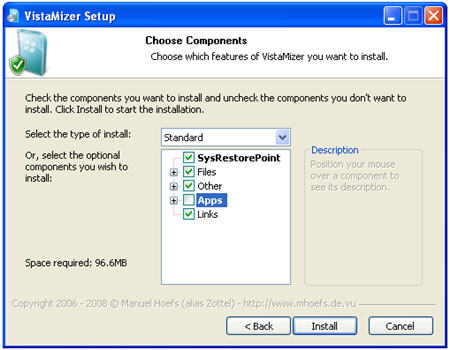
Now here comes the best part. It’s time for you to decide which elements you want to install and which not. The installer includes a short explanation about each item but unfortunately it’s in German, so I’ll try to shed some light on it:
transform Windows XP in Windows Vista

  1. SysRestorePoint: this option creates a system restoration point. It should be checked in all circumstances, just in case something goes terribly wrong.
  2. Files: Edits data from Windows native apps, games, Windows system files and also the login and logout screens.
  3. Other: This option dds all the graphical eyecandy, such as icons, cursors, fonts, screensaver, sounds and the likes.
  4. Apps: Lets you choose which apps you want to install to emulate some of Vista’s functionality. They’ll make your PC look really exactly like Vista, but be aware that they’ll also use up loads of system resources.
  5. Links: Adds Vista shortcuts.

Once you’ve made your selection, click on Next and Vistamizer will start its job. When the installation is finished you’ll be asked to reboot the system, only to find a beautiful Vista welcome screen when your computer runs again. Also, remember that if you ever grow tired of your visual them, you can easily uninstall it from the Control Panel. Thanks to the restoration point you’ll be back to your good ol’ Windows XP in no time.

Oh, and if you’re looking for more Vista themes, check out Nicks post about the top 5 Vista themes for XP.
Manage FLV videos with mooFlair

Adobe mooFlair screenshotNow that Adobe Air is starting to get itself established, there are some really exciting applications based on it coming out and one of them is mooFlair. As more and more applications become desktop based, mooFlair applies this principle to video downloading and viewing by helping you manage and watch both online and offline FLVs videos. But don’t mistake it for just another FLV player because its much more than that.

mooFlair allows you to build your own FLV library of FLV videos both on and offline and save your compilations in playlists. This includes FLV files such as h.264 encoded videos, those on RSS Feeds or those from content providers such as YouTube. If you don’t have time to watch them online, mooFlair can select several videos at once and download them for later viewing while you get on with more important things. Two things were rather annoying in the original release though – it used to hog your memory and you couldn’t watch videos in fullscreen mode but all that has been ironed out in the latest release. The design and feel of mooFlair is excellent too – this doesn’t feel like yet another YouTube downloader – it’s a solid looking application with lots of gloss and touches of class. Searching videos is still a little bit awkward though because the search option has been hidden away in the file menu and you still can’t search several video sites at once. Of course, one other big disadvantage is that you can’t view any of the comments attached to the videos you are watching which for me, is half the fun anyway.

However, as a one stop solution for viewing, storing and downloading FLV videos from a variety of sources, mooFlair is one of the best solutions yet and if this is an indication of what is to come from Adobe Air, the future looks very bright indeed for desktop apps. Note that mooFlair currently runs on Windows and Mac but a beta version for Linux is under development.

Play console games on your phone

Turn your phone into a NESWhile everyone’s ranting and raving about amazing next-generation games like the new Grand Theft Auto, let’s not forget that these creations wouldn’t be around were it not for the pioneers of the console market such as the NES and Sega Master System. I can’t wait to try out GTA IV but I still intend to stay true to my gaming roots by playing 8-bit console classics on my mobile phone.
There’s a lot of emulation software around that lets you play old-school console games on your mobile phone. One of the most popular is vNES, which emulates the original Nintendo machine on your Symbian phone. This little app supports thousands of roms, and allows you to customize the controls for each game. One of the great things about the program is that it uses very little system memory so you shouldn’t notice any major performance problems.

Back in the day, your choice of 8-bit console said a lot about you as a person, and I was strictly a Master System man (well, boy). The best emulator for the Sega platform is probably MasterGear, which is compatible with all Nokia Series 60 3rd edition phones. The program will run SEGA Master System, GameGear, and SG1000 cartridge files with .sms, .sms.gz, .gg, .gg.gz, .sg, and .sg.gz extensions. Place your files into E:\Others\MG directory and you’re away!

If 8-bit games are just a bit too retro for you then you may want to try out Snes9x. This mobile app lets you play Super Nintendo roms, and comes with a number of neat features. You can choose to auto-pause games when you get a phone call, define frameskips and configure the keys and the touchpad.

Create and publish Flash web sites for free with Wix

wix.png

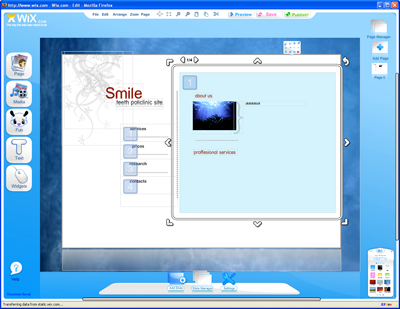
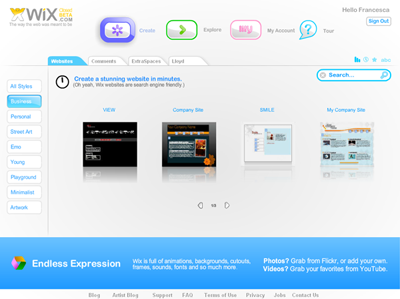
With Wix, you can build a graphically attractive website in few clicks. This web-based application allows you to create Flash websites for your personal page or small business. Although Flash websites are not the best solution for SEO and accessibility purposes, they can look very nice and thanks to services like Wix, they are also very easy to create, without having to worry about learning coding languages like HTML.

There are a lot of small businesses that pay for basic, rather ugly web sites; with this service at least you can choose from professional looking and more artistic layouts and all for free. Firstly, have a look at the nine sections with the collection of the style you can choose from: Business, Personal, Street Art, Emo, Young, Playground, Minimalist and Artwork. When you have found something that you like, press Edit and start changing the text, the pictures or add new pages to your web sites. The editing tool is not as fast as we would like, because it’s all web based, but generally speaking the design is really nice, and shouldn’t prove too daunting, even to less experienced end-users. Once you’re done, you can publish your fabulous new website at http://www.wix.com/your_account_name and make it accessible to search engines.

wix2.png

Although Wix is a closed beta, we’re pleased to let you know that OnSoftware readers can try the tool using this special invitation. Don’t miss it, and tell us what you think about it.

Top 5 XP widgets to make life easier

Widget logoWidgets have added a whole new dimension to Windows desktops allowing you to track and stay informed about your favourite sites and news sources more easily than ever before. If you’ve never tried one then widgets are basically downloadable tools that provide services such as showing you the latest news, the current weather, the time, a calendar, a map program, a calculator, a language translator among many other things. Windows Vista has incorporated widgets into its very make up automatically providing you with a calendar and clock widget as standard with options to add many more. Mac fans will be keen to point out that widgets have been a part of their world for a long time already as Cyril highlighted a while back. XP users however have had to wait until developers and software giants such as Yahoo have slowly released widgets that work on XP’s desktop but it’s been worth the wait.

Here are 5 XP widgets from Yahoo that you might not know about but should definitely check out:

Vista Sidebar XP – Get Vista’s widget sidebar on Windows XP for free

Picture Frame
– The quickest way to upload your favourite photos to Flickr

Yahoo! Widget Gallery – Get updated with the latest Yahoo widget releases

Rainlender – Fully customisable desktop calendar to make you better organised

Desktop X – Still haven’t found what you’re looking for? Then make your own widget with this

The complete GTA IV fan kit

Can’t wait to play GTA IVWe’ve been counting down the time for the GTA IV release since last month and now that it’s less than 24 hours left for us to wait, we’re really on tenterhooks now. It’s well known that thousands of gamers ahve already preordered their copy, but we’ve decided to go the bold way and get it in person from stores tomorrow April 29th.

With one of us (Tom) buying the PS3 version and another one (myself) the Xbox360 one, I guess there’s going to be a lot of interesting debate going along during the next weeks, comparing graphics, gameplay and performance. At least there’s one thing we can share: a complete GTA IV fan kit for your computer, so that we can all get into the GTA IV mood.

A pack of wallpapers is always a good start. You can select your favorite one in the game’s official site or simply download the special package Softonic has prepared for all GTA fans, containing a selection of six high-res background desktop images.

Another important element in this particular GTA IV customization is the screensaver. The official GTA IV Screensaver includes a bunch of screenshots from the game and is also constantly updated with more material from the Rockstar site.GTA IV complete fan kit

Don’t have enough with that? Right. Head over to the game’s site and you’ll find a wide variety of extra downloadable material, such as the Liberty CityRadio widget, a series of PDF-format posters, buddy icons, avatars and of course a huge number of screenshots. The site also features the complete collection of GTA IV trailers (one of which is also available on Softonic).

But if you’re looking for actual game footage, don’t miss the following video from Gametrailers: a 11-minute long GTA IV video review that’s only made my mouth water even more.

From iPhoto to Aperture or Lightroom

Apple iPhotoA month ago we talked about how to work with Adobe Bridge and iPhoto. As promised, today we will see how to transfer all your pictures from iPhoto to Aperture or Adobe Lightroom. This is not as easy as it could seem and the process can take a while, especially if you have been storing your pictures in iPhoto for a while. I believe the transition is worth it though if you are getting more serious about photography. Both Apple’s Aperture and Adobe’s Lightroom have more options for working with RAW files, and have much more advanced editing tools than iPhoto could ever serve up. The two applications can also handle much larger photo libraries.

Aperture, just like iPhoto, is an Apple product, so transfering photos from one app to the other is a cinch. In Aperture simply choose File>Import>iPhoto Library. All the pictures will be stored in an iPhoto Library folder in your Projects. Aperture saves rolls as different projects, however it will not recognize smart albums.

Transferring images from iPhoto to Adobe Lightroom is a little more tricky. If you try importing directly from the Apple software you risk ending up with a mess of original images, modified images and thumbnails. What’s more you will probably lose tags entered in iPhoto. What you need to do is get hold of a program called PictureSync. First open iPhoto, then PictureSync. Then select the pictures to import from iPhoto. In PictureSync press open, then File>Save Annotations. Drag your selection from iPhoto to Lightroom. Only the pictures you selected and their metadata will be taken into account.

So there you have it. Obviously importing pictures from iPhoto to Aperture is easier, but it isn’t too much of a hassle sending them to Lightroom either, except that you’ll need to use an extra application. I would recommend not switching to often between programs though, as you always risk losing some of your data. If you’ve found an application that you like working with, try to stick with it.

Top games for children

Top games for childrenParents are often worried about the games their children play on the computer. In my opinion this is due partly to ignorance and partly to the image that media creates of video-games, depicting them as elements of evil that only have negative effects on players.

But this is not the end of the story: games can be used for educational purposes and help kids develop their attention, improve their reflexes and learn the basics of controlling a computer which is a skill they’re definitely going to need in the future.

So do your children a favor and don’t ban them from playing videogames. Instead, take a look at this list of kids’ games and see how much they can learn. And believe me, anything they learn while playing a game and having fun won’t be easily forgotten.