Best Christmas game events of 2021

If you’re like us, you’re getting ready to settle in with your favorite games during your time off. It’s been a long year, and it’s probably been a while since you completed some missions. What we love about this time of the year is that some of the top game developers are providing special Christmas events during which you can earn unique rewards.

Here’s our list of the best Christmas games events in 2021 that are bound to give you bundles of joy. Please note that you need to own the titles on your PC or console to be able to access these events.

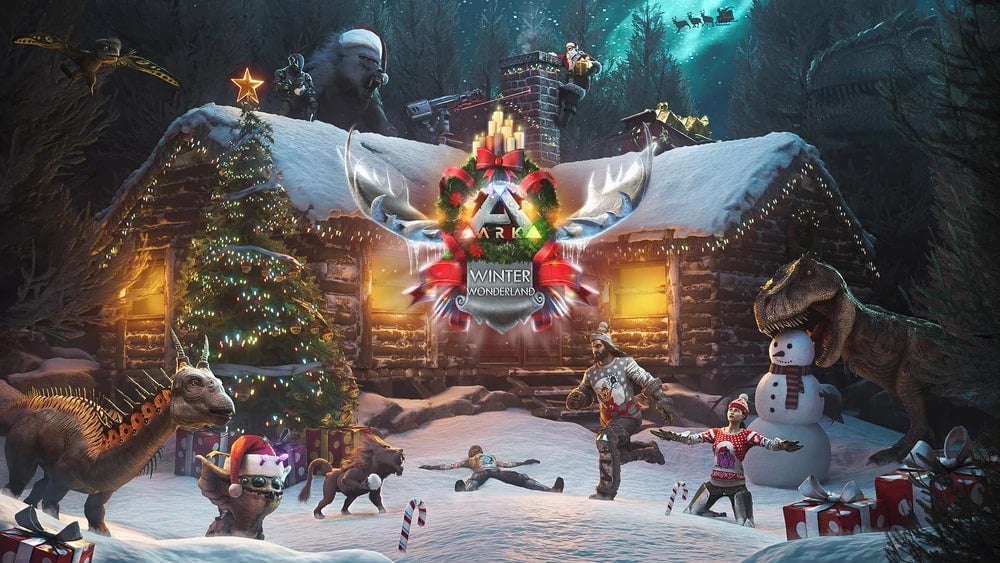
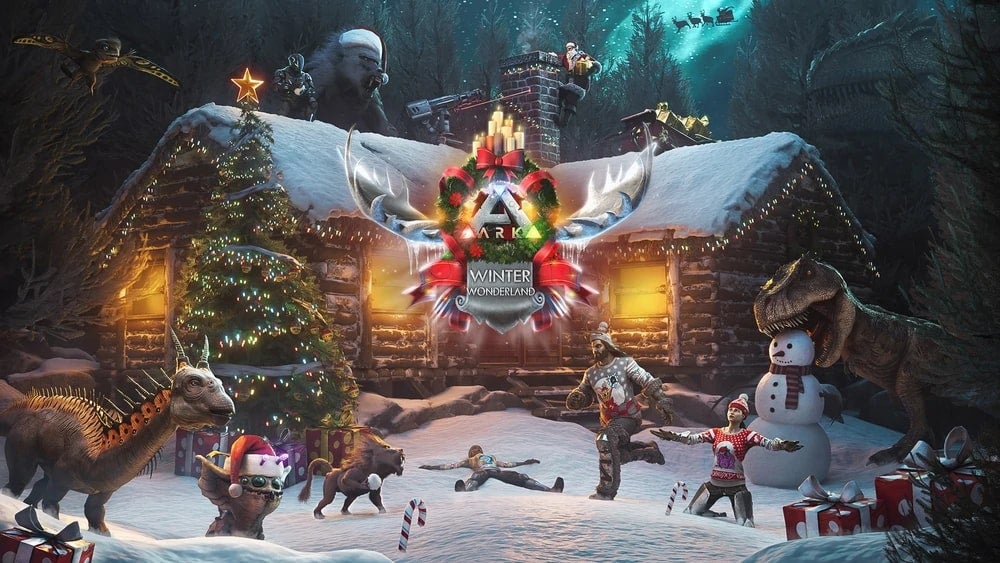
Ark Survival Evolved: Winter Wonderland 2021

What better way to spend these holidays than with your favorite dinosaurs in Ark Survival Evolved. For those that don’t know this game yet, it features you as a human survivor in a world filled with ancient creatures that you can kill or tame. You level up and earn abilities, unlocking new items along the way. There are various maps you can play for different experiences.

Every year, Ark Survival Evolved hosts a Winter Wonderland special, and 2021 sees the 6th release. It takes place between December 14, 2021, and January 6, 2022.

Here are some of the new items you can expect from this Christmas game event:

  • Raptor Claus makes a return, flying on its sled between midnight and 2 am while dropping Coal and Mistletoe
  • Gacha Claus is also back and will produce Gacha Crystals when you feed it Coal and Mistletoe
  • Some game elements have improved aspects, such as harvesting, breeding, and taming
  • New dye colors are available for the Christmas season, such as Jade, Dark Magenta, and Dino Light Red
  • You can place a Snowman, Christmas Tree, Holiday Stockings, and Lights
  • Some gift boxes are available to find with uniques skins for the season
  • New Chibi pets will be available
  • All items and skins from the previous Winter Wonderland will also be making a return
Best Christmas game events of 2021

Minecraft: Christmas skins and New Year celebrations

It’s been a busy year for the survival crafting game, Minecraft. We saw the launch of two massive packs, the Caves and Cliffs updates I and II. However, the fun won’t end there. There are three events you need to look out for over the course of the next few weeks.

The first concerns Minecraft Christmas skins and packs. The marketplace will be full of content creators offering new appearances and items for your characters and worlds. You should also keep an eye on Minecraft Realms, as there may be some Christmas events hosted by other players.

Secondly, the Minecraft New Year Celebration event is running from December 21, 2021, to January 4, 2022. There will be items on sale during this time, and you might also receive one of the free giveaways. Make sure you don’t miss any of the free creator maps and item drops in the marketplace.

Finally, the Minecraft YouTube Creator Skin Pack for Bedrock Edition is set to release within the next few weeks, which will be free for the first year. You’ll find various packs from at least 10 creators, adding diversity to your skin lineup.

Best Christmas game events of 2021

Euro Truck Simulator 2: Christmas deliveries

One game we probably spend way too much free time on is Euro Truck Simulator 2. We’ll definitely be starting up our truck engines again, as the Christmas Toys of Yesteryear Event 2021 is now live until January 16, 2022. Gamers worldwide will be taking to the streets to deliver as many gifts as possible across Europe.

Of course, it means working together as an online community. There are set milestones whereby you receive rewards for different tiers. As a personal reward, you’ll unlock unique items once you’ve delivered 15 presents. To access this Christmas game event, you need to apply for jobs in the World of Trucks external market that have the “Gifts” label on them.

Best Christmas game events of 2021

Roblox Christmas Games: Welcome to Bloxburg!

Roblox game developers are always keen to create titles that match the season. Christmas games are no exception. A few of the more notable ones for 2021 include Snowman Simulator, Ski Resort, The North Pole, and Saving Christmas 2021.

However, there’s a massive Christmas event held every year called Welcome to Bloxburg. Players that take part in games during this event will receive a special badge with gifts on the logo. You’ll also see a variety of new items and actions, such as sledding, photo-ops with Santa, ice skating, and snowmobiles. You can see the full developer log for the update here.

Best Christmas game events of 2021

Call of Duty Vanguard: Festive Fervor event

Another game franchise that’s always on top of holiday events is Call of Duty, with COD: Vanguard having the latest items. During Festive Fervor, you’ll have the chance to hunt Krampus, the demon that’s said to harass naughty children during Christmas. You can also take the fight to Elf Team Six for additional rewards.

The Festive Fervor event takes place between December 16, 2021, to January 5, 2022. It’s also available for Warzone Pacific and COD Mobile, with different rewards for each one. You’ll see special mission cards explaining what you need to do as well as a countdown timer for how long the event lasts.

Best Christmas game events of 2021

Fishing Planet: Merry Fishmas!

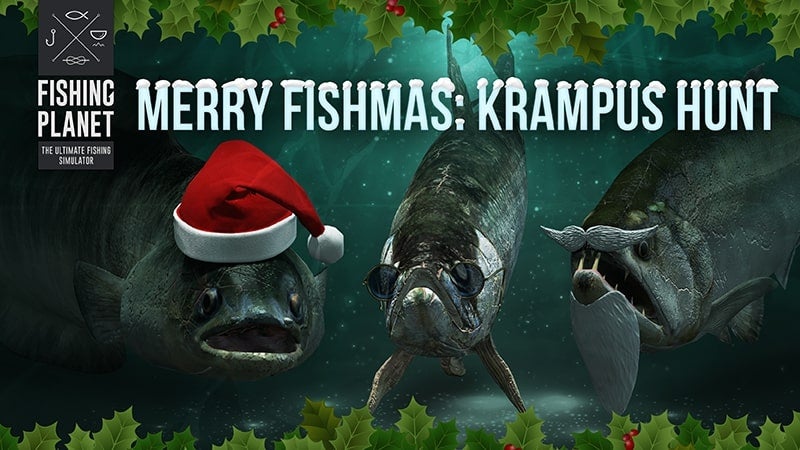
Continuing with the Krampus Christmas game trend is Fishing Planet’s Merry Fishmas event. There are some crazy fish to catch if you want to save the festive season. To do so, you’ll receive new fishing kits designed specifically for them.

You can participate in Merry Fishmas from December 17, 2021, to January 4, 2022. The main goal is to catch specific fish that have stolen some of Santa’s items, such as the beard, hat, and glasses. You’ll need tokens to activate the Jukebox that will attract them, and there’s some magic bait to assist you. For some extra fun, you can make snowballs or inspect Christmas stockings for in-game gifts.
Best Christmas game events of 2021

Fortnite Winterfest 2021

Back to the shooting action brings us to the Fortnite Winterfest for 2021. If you’ve been playing the battle royale’s Christmas game mode lately, you’ll notice that Spider-Man has joined the selection of skins from the No Way Home movie. Some unique quests are also available, which you can only participate in during this time.

The Winterfest for Fortnite is scheduled to last from December 16, 2021, to January 6, 2022. There’s a Winterfest Lodge you can access where you’ll receive a daily reward during the event. You’ll find plenty of new game modes, creator items, skins, and gameplay elements for you and your crew to unlock.

Best Christmas game events of 2021

Among Us: Holiday Cosmicubes

Among Us has seen a resurgence in players with the latest update that brought new impostor and crewmate roles. Also included in the list of new features was Cosmicubes, which you could unlock with Stars. These items held special skins and outfits that you could place on your character to set it apart from the others.

Innersloth added some Holiday Cosmicubes on December 17, 2021, and we suspect there may be more coming. The items so far include the Snowbean cube that delivers six skins, three visors, 11 hats, and three nameplates. Each one contains a specific element of Christmas that you’re bound to enjoy with each game you play.

Best Christmas game events of 2021

Fallout 76: Holiday Scorched Event 2021

Welcome to the Nuclear Winter! Taking place from December 21, 2021, until January 4, 2022, the Holiday Scorched event returns to Fallout 76 for a Christmas game filled with mayhem. You’ll find unique Scorched creatures running around in festive clothes, and it’s your job to take them down for special rewards.

Some of the items from previous years Holiday Scorched events make a return, while there are new ones to decorate your home. These include Holiday Junk, holiday currency, unique ammo for these Scorched monsters, and so much more. You can use the new currency at a trader’s shop to buy new materials or gift wraps to make presents. 

Best Christmas game events of 2021

Stardew Valley: Feast of the Winter Star 2021

Finally, we have the annual Feast of the Winter Star available on Stardew Valley. On the 18th day of winter, the Mayor will inform you of the event and tell you to whom you need to give a gift. The festival takes place on the 25th day of winter in Pelican Town, where you will receive your present from a random player, and yours will be given to your recipient.

There are two other features to take note of. The first is that the towns are updated with Christmas decorations to put you in a festive mood. Secondly, you can attend Pierre’s booth where you can buy unique items for your home. 

Best Christmas game events of 2021

Are you ready to update for Christmas?

As you can see, there are plenty of Christmas game updates to enjoy this holiday season. While we only shared our favorite ones, you can be sure there are many more out there. If there’s a specific title with an event that excites you, please feel free to share with us.

Here are a few other guides you can have a look at regarding Christmas games and apps:

The Best Christmas Arcade games for 2021

Everyone is getting for the festive season, preparing their favorite hobbies for what should be an enjoyable time. At the top of that list are games that feature Christmas themes, and you’ll find several of them in various genres. Some of the best AAA games even have Christmas updates for the next few weeks.

If you’re looking for some family Christmas game ideas, here’s our list of the best ones to look at for 2021.

Santa Claus in Trouble

Christmas won’t be the same without presents, which is why your help is needed in Santa Claus in Trouble. It seems the man in red has lost his gifts and needs to search through ten levels to find them. To do so, he travels over various platforms and overcomes a few obstacles.

The Christmas game mainly features jumping mechanics where a fall means you fail. There’s a scoreboard that reflects how many gifts you retrieved, so you’ll be aiming for the highest points possible. Compare it with your family’s level runs to see who can be the top player in the house.

The Best Christmas games for 2021

Chicken Invaders II: Christmas Edition

Do you remember the retro game Space Invaders that was so popular in the 80’s on the classic Atari console? Well, chickens have had enough of how they’ve been treated and are attacking earth. Such is the premise of Chicken Invaders II: Christmas Edition. It’s a DLC update to the original game, with the chickens dressed up in festive gear.

You’ll also spot some other lovable creatures, such as the snowman. There are massive eggs that offload massive rewards once destroyed, but you’ll need your wits about you when you reach the boss levels. So, which do you destroy first: the chicken or the egg?

The Best Christmas games for 2021

Snowboard Santa

What happens when Father Christmas takes a break in the North Pole? He goes snowboarding, of course. In Snowboard Santa, you have a side platform game where you attempt to do some jumps over snowy hills and rack up points. The graphics may be basic compared to other titles, but it’s still an exhilarating experience.

There are only a few levels, but you can challenge your children to see who can go the furthest with the most points. As you progress, you’ll find it more challenging to remain on your board. It’s an addictive game, but the fun only lasts for a few days.

The Best Christmas games for 2021

Christmas Crisis

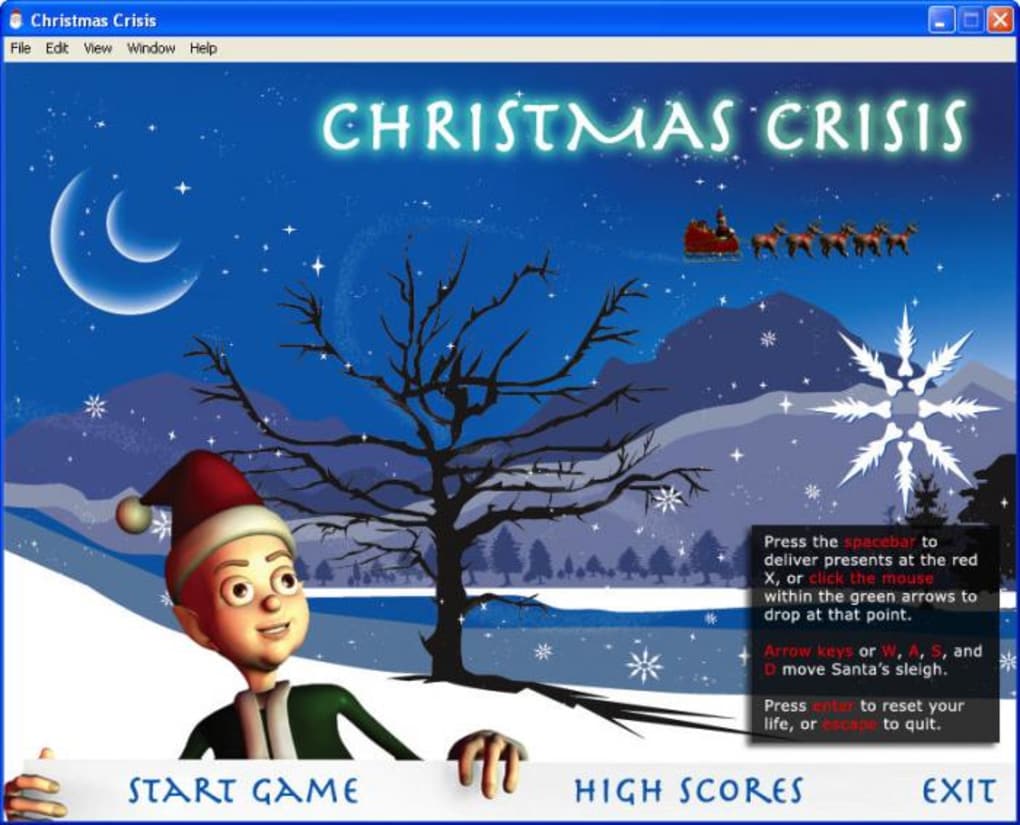
Here’s a fun Christmas eve game that’s set the night before the special day. Christmas Crisis sets the scene with an introduction as to why you need to help deliver gifts to various homes. It also has a side-scrolling gameplay mechanic, and you’ll drop the presents as you sleigh through the night sky.

As far as the actions go, there are only a few buttons to manage. You’ll control the direction of the flight and throw the gifts onto homes. Players that know the Paperboy game from 1985 might be familiar with this type of gameplay.  Make sure you don’t miss any for the ultimate score.

The Best Christmas games for 2021

Santa Ride

Here’s another family Christmas game idea if you’re keen on collecting lost presents. Santa Ride has 3D graphics and gameplay, and it feels slightly like a racing game. There are start and endpoints, and you have a specific amount of time to complete levels.

The challenge is not missing any gifts along the way. You won’t be able to turn around, as the sleigh will just continue forward. The more presents you collect, the higher your final score will be. You’ll also have different levels for a change of scenery.

The Best Christmas games for 2021

Christmas Eve Crisis

Not to be confused with the earlier-mentioned game with a similar name, Christmas Eve Crisis is another side-platform game where you help Santa collect lost gifts. However, the plot of this story is that he replaced his reindeer with a new motor, which fails and causes him to crash. With only your assistance, he needs to find all the presents before Christmas arrives.

The mechanics are basic and easy for your children to play. You’ll run through various levels, jumping and overcoming obstacles to collect all the loot you lost before. While Santa doesn’t have much expression or animation to his movement, we’re sure you’ll have fun completing the stages.

The Best Christmas games for 2021

Talking Santa

Have your children perhaps annoyed you all year long with Talking Tom and Talking Angela on your mobile phone? Well, Outfit7 has decided to add to the hilarity with Talking Santa. That’s right; you can now interact with him and see how he responds to your speaking and actions.

There are also a few other fun features. For instance, you can open gifts he has for you or send a few Christmas postcards that are bound to make you smile. If you want to share the excitement, there’s a recording tool to capture what you make Santa do, which you can then upload to social media channels.

The Best Christmas games for 2021

Christmas Super Frog

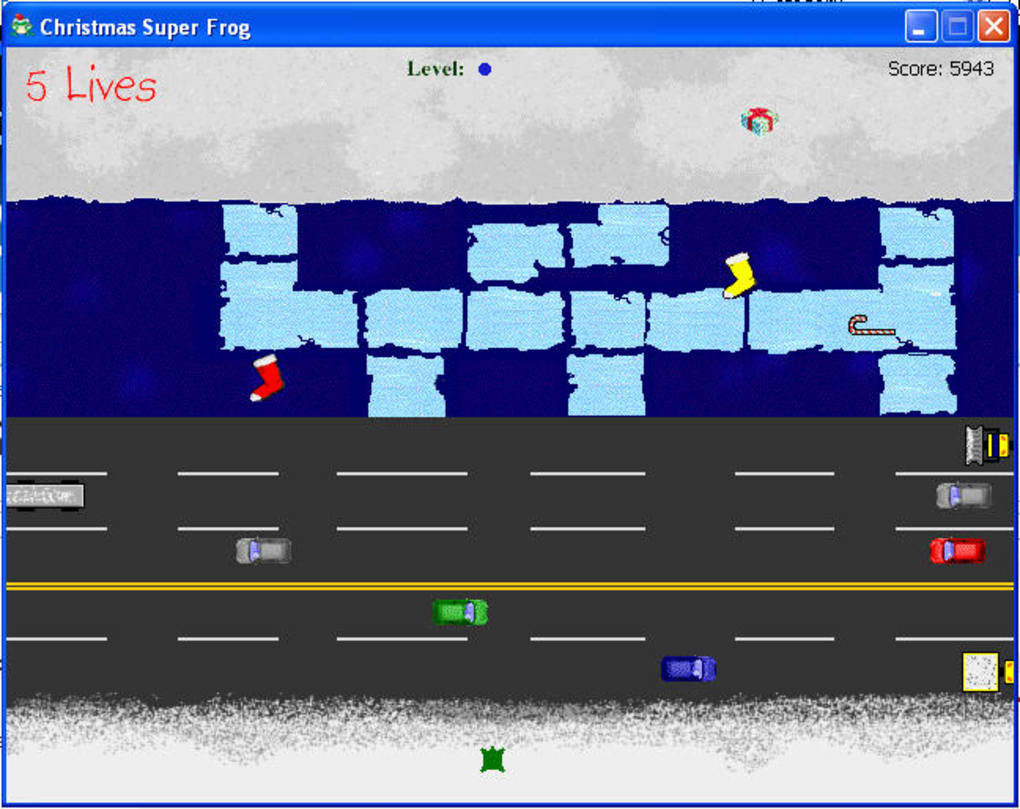
Why did the frog cross the road? To get the presents on the other side. Christmas Super Frog is a top-down arcade game where you guide the small amphibian across a busy road with cars, trucks, and even candy cane. When you do obtain the objective, there’s a gift waiting for you.

It may seem easy, but the levels become increasingly more challenging you progress. There’s more traffic and the vehicles fly past at lightning speed. If you have a lot of patience this festive season, you might as well give it a try.

The Best Christmas games for 2021

Santa Claus Save the Christmas

Here’s a Christmas game that plenty of retro gamers will enjoy, bringing back some NSES nostalgia. Santa Claus Save the Christmas lets you play as the man in red while jumping onto platforms and avoiding enemies. As you reach higher levels, you’ll find more rewards and hazards to overcome.

In total, there are 81 levels, which means you’ll be playing well beyond Christmas. You can also replay from the beginning if you want to beat your high score. There’s plenty of Christmas music and graphics to enjoy along the way.

The Best Christmas games for 2021

Loco Christmas Edition

Finally, Santa needs your help stocking trains so the presents can reach the children on time. Loco Christmas Edition has a shooter at the bottom of the screen, and you’ll need to place the correct color bags in the right train compartments. You’ll need to time it properly if you want to succeed.

Fortunately, the trains are slow when you begin so you can get the hang of it. However, they speed up with each level, which means you’ll need to have your focus on if you want to win. Loco Christmas Edition is an entertaining casual game for when you have nothing better to do. 

The Best Christmas games for 2021

Get your Christmas gaming on!

We hope you enjoy some of the titles on our list of the best Christmas games for 2021. We’re sure we’ll see more appear in the next few days, after which the focus will surely switch to New Year. If you’d like some action on your phone, check out our list of Christmas games for Android.

The Best Christmas apps for 2021

It’s that time of the year again where people worldwide are getting into the festive spirit. As such, you’re probably searching for the best Christmas list of apps to enjoy on your mobile phone or PC.

As a gift to you, here are the top applications we recommend for a jolly good time.

ElfYourself

If you’re looking for a fun Christmas elf app that lets you dance as one of Santa’s little helpers, try ElfYourself. It has an editing feature where you can place your head on an elf’s body. When you’re ready, you can select from the library of songs for your character to dance to. You’ll also be able to share the video with your family and friends on social media.

There are various ways you can add your face, such as choosing an image from your phone or social media or taking a new photo. You’ll also find pre-designed filters to assist with the video blending for a realistic experience. The entertainment of this app will probably only last until New Year, but we guarantee you’ll have a few laughs along the way.

The Best Christmas apps for 2021

Christmas Time Pro

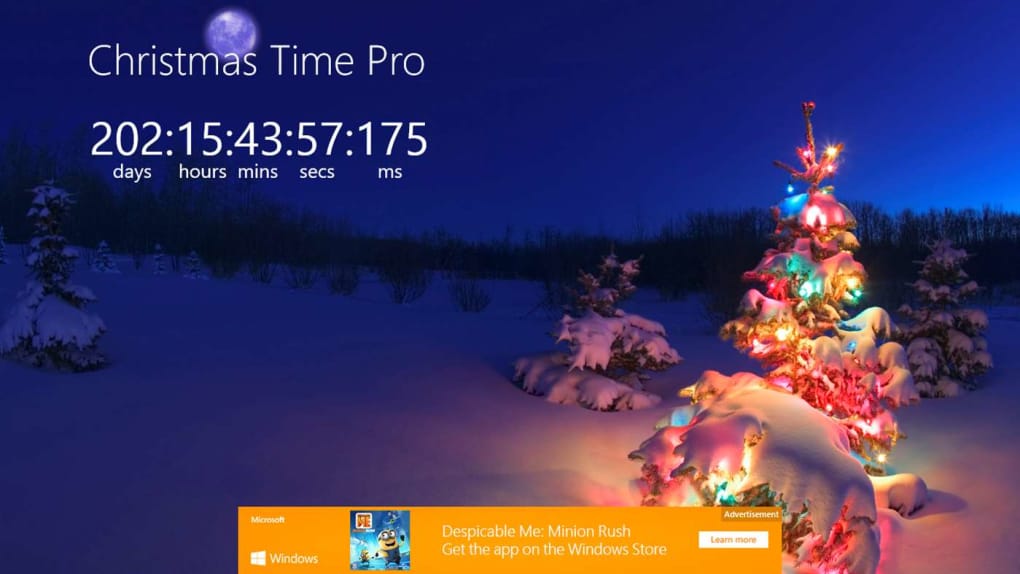
Are you eagerly awaiting Christmas and would like an app on your PC to remind you when it is? That’s the premise of Christmas Time Pro. You’ll see a timer appear on your desktop counting down to the exact second for the special occasion. After the festive season passes, you can disable it until the following year.

The only other feature is that you’ll receive a festive wallpaper to keep you excited for the special day. If anything, your children will enjoy looking at your PC to see how much time is left. It also helps if you have a lot on your plate and don’t have the time or energy to calculate it yourself.

The Best Christmas apps for 2021

Animated Christmas Lights

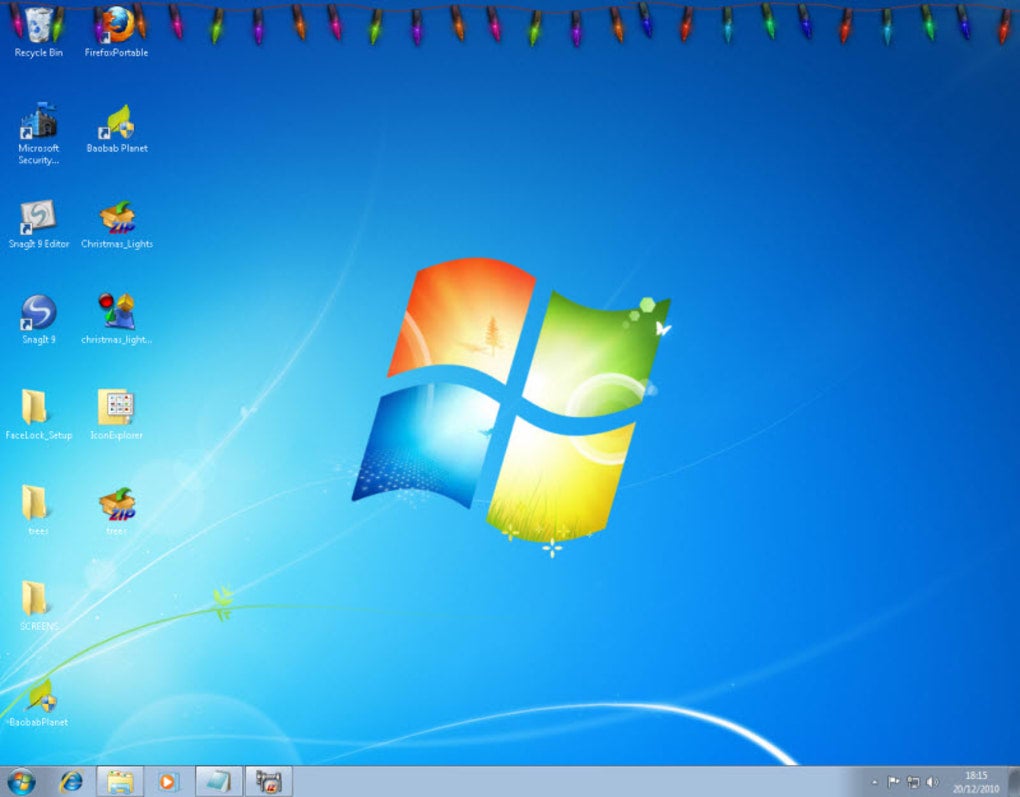
One of the top recommended app lights for Christmas is Animated Christmas Lights for Windows. As the title suggests, it places a widget on your desktop with lights that flicker, adding to the festive atmosphere. While you can’t rotate any of the items, it’s still enjoyable to see on your screen leading up to the special day.

There are only a few configurations you can use to make some adjustments. For instance, you can change the opacity to make the lights slightly more transparent or increase the shadows. You can even open more instances if you want to litter your screen with animated Christmas lights. If you don’t like the color arrangement, feel free to change it.

The Best Christmas apps for 2021

Holiday Lights Designer

Another light app for Christmas is Holiday Lights Designer. However, this application takes the effects a bit further. Instead of just placing lights on your screen, it helps you design your home so you can decide which is the best placement in any of your rooms. It’s especially beneficial if you have no idea where to put the lights this festive season.

How it works is that you take a photo of any part of your house, inside or outside. There are several light options you can choose from, while you can also have a look at the various layouts available. You can place an entire string of lights or work on one bulb at a time. The trick is being able to mimic the design in real life, so we hope you’re up to the challenge.

The Best Christmas apps for 2021

Merry Christmas Photo Frames

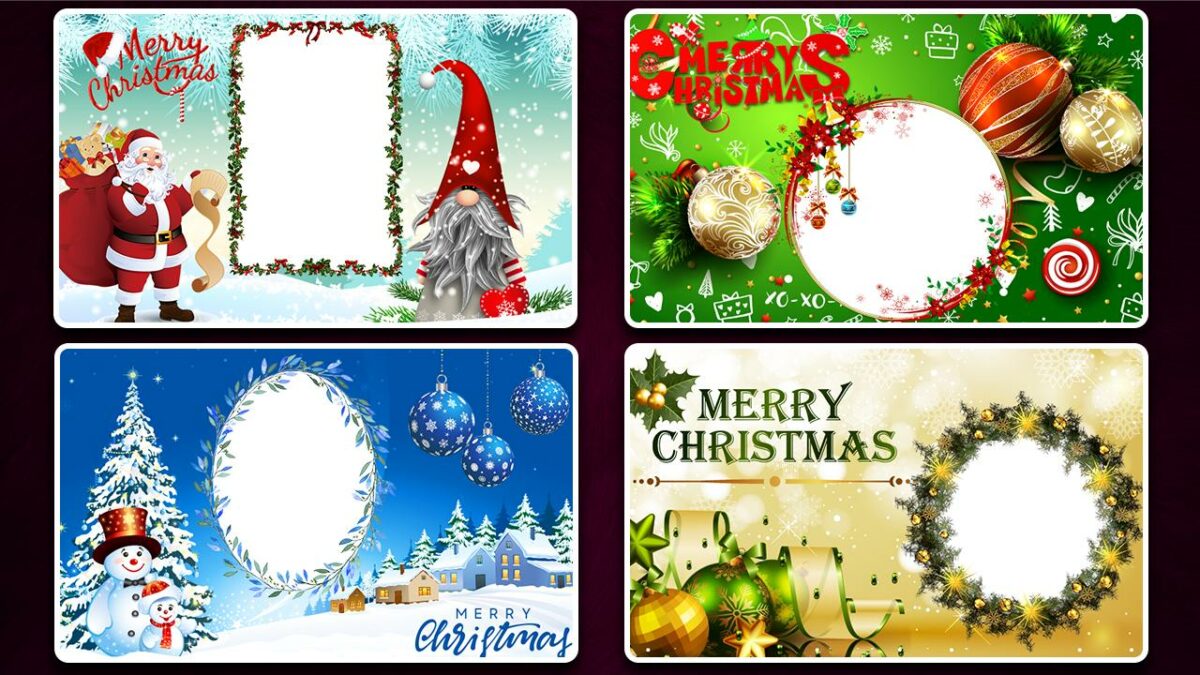
Would you like to design exotic festive frames with your photos for the holiday season? Merry Christmas Photo Frames has a wide selection you can choose from, making it as easy as placing your images inside the frames. It makes for a delightful surprise if you plan on making them for friends and family.

The beauty of this app is that you can also add other elements. You’ll find several stickers you can apply, which children will absolutely love, while there’s an option to add text to make it more personal. Even though the templates are standard for all users, you can still make them unique and stand out from the crowd.

The Best Christmas apps for 2021

Free Christmas Tree

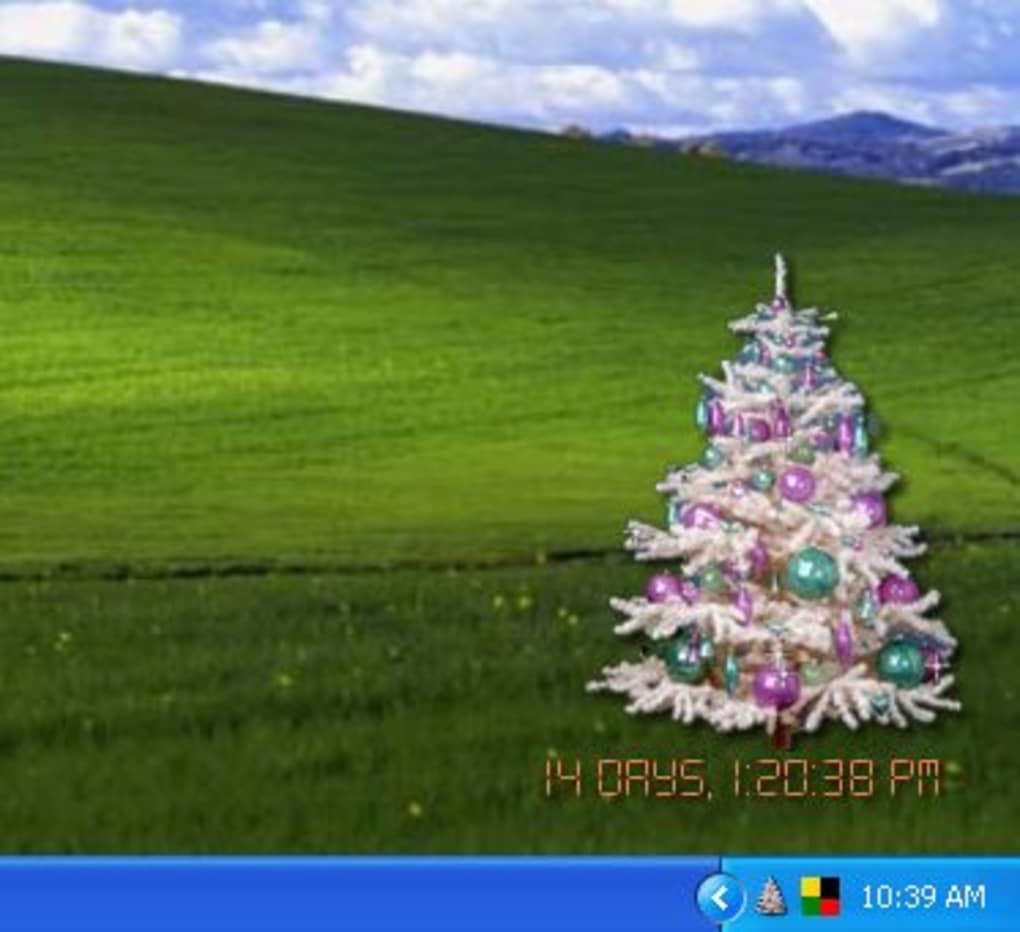
With most items becoming virtual these days, it’s no surprise to find this Free Christmas Tree as part of the selection. Even if you have a real tree set up in your home, it’s a nice companion for your desktop if you find yourself working over the festive season. The graphics look realistic, so at least you can say you made some effort this year.

Fortunately, there are some customizations options you can play with to make it more enjoyable. You’ll find various skins to change at any time, while you can alter the countdown clock’s font. As soon as Christmas is passed, you can continue the countdown to New Year if you wish.

The Best Christmas apps for 2021

Christmas Elf

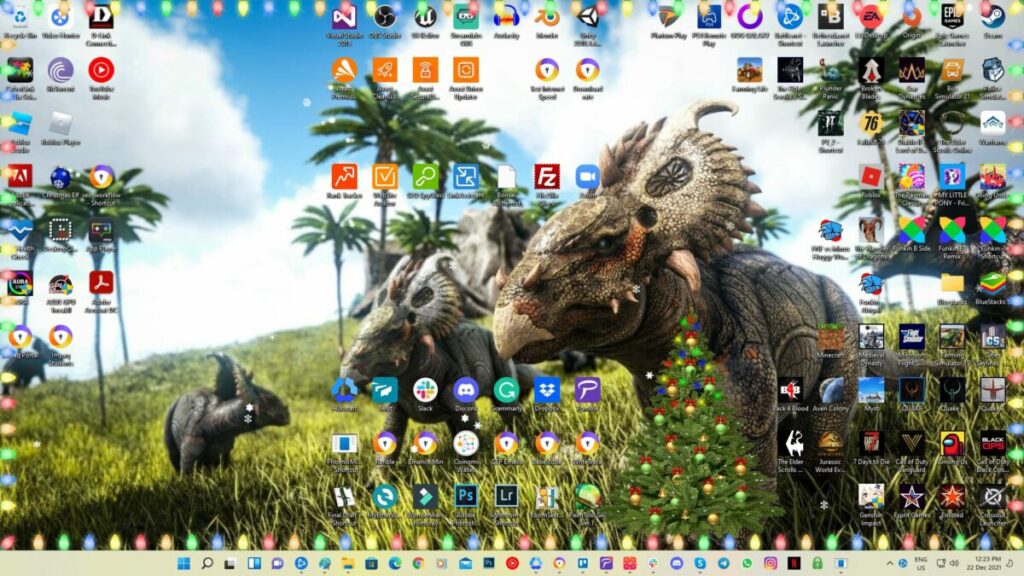
Here’s another Christmas Elf app you can add to your desktop, but it serves a different function. Instead of making you dance on your phone, this elf will aid you with decorating your screen. It works on any operating system from Windows XP and up, and we even tested it on Windows 11 and found that it works.

What makes this one of the best Christmas apps for 2021 is the number of configurations you have. You can change the colors of the lights around the border of the screen and set how they flicker. There are several festive songs you can play, while you also have different trees to place on your screen. If you live in a warm climate for the holidays, you’ll love the snow patterns that fall on your desktop.

The Best Christmas apps for 2021

Greeting Cards Software

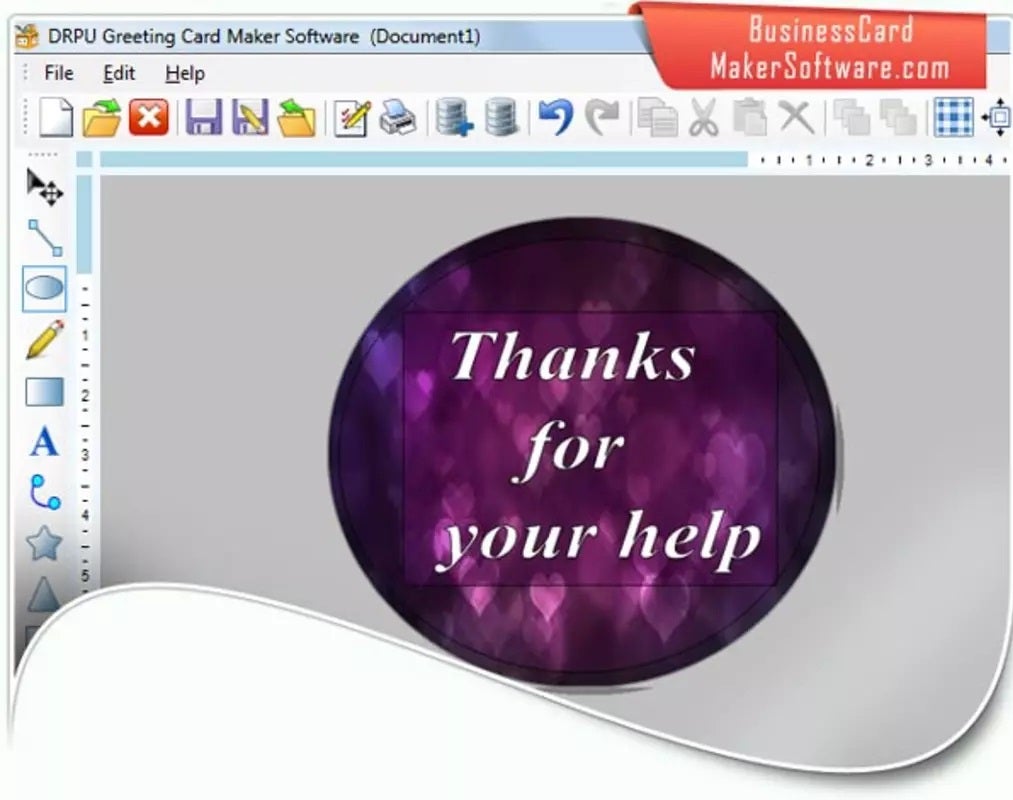
Are you struggling with designing cards and would like a Christmas card app to assist you? Greeting Cards Software has several templates and layouts you can use, as well as some editing features built-in. It’s not only reserved for Christmas, as you can also use it for other occasions, such as New Year, weddings, or birthdays.

The interface is easy to use, and you can quickly download any of the available card formats. There are also different sizes you can choose from, but you’ll need to ensure that it matches your printer’s settings. If you want to save paper, feel free to share the Christmas cards electronically or on social media.

The Best Christmas apps for 2021

Merry Christmas PNG Pack

When you’re looking for more than just lights, trees and borders, the Merry Christmas PNG Pack may just be perfect for you. These small images are ideal for changing the icons on your desktop to match your holiday spirit. Instead of standard images, you can change them to Santa’s hat or snowballs.

There are about 50 icons you can try. You’ll need to keep in mind where you save them so that you can quickly access them for your icons. They’ll help you set the mood for Christmas by adding items like snowmen, trees, balls, and more.

The Best Christmas apps for 2021

Google Santa Tracker

The last item you should add to your Christmas wish list for apps is the Google Santa Tracker. It’s a fun program for children who want to see where Santa Clause is during the special day. For a more entertaining experience, be ready to don that Santa suit when midnight arrives.

There are a few mini-games included in the Christmas app. You can help elves wrap presents or aid with other challenges. While there are some easy ones for the children, you’ll also find more difficult ones for adults so that the entire family can enjoy them.

The Best Christmas apps for 2021

We wish you a Happy Christmas

There you have it, our list of the best Christmas apps for 2021. We had fun making this list for you, setting the festive spirit for us in our remote offices at home. We hope you find some enjoyment with them, and feel free to share other applications you discovered online.

You can also check out our articles on the best online stores for our last minute Christmas shopping and how to create a Christmas card in Photoshop.

PUBG Mobile’s newest mode, React: Survival Mode

Ever since the TV series Squid Games hit Netflix, game developers have run rampant creating titles with the same features. Tencent Games is the latest to join this frenzy with their latest PUBG Mobile React: Survival Mode. It’s an additional feature added to the Arcade Mode.

If you’re not familiar with the premise, the Squid Games TV Show had an arena where unwilling players needed to run across to a red line. The challenge was that they had to stop when there was a red light, and sprint again for the green light. If the mechanical doll caught them moving during a red light, they were shot.

The PUBG Mobile React: Survival Mode has the same mechanic. You even have uniforms similar to the TV series. However, there’s a colossal pink bunny that turns to see who’s moving during the red light. The trick is to learn the patterns of the demonic rabbit if you want to make it to the other side.

There are also some other factors to consider. You only have a specific amount of time to accomplish your goal, which means patiently watching the bunny while timing your steps. The other players will do anything to make sure they win and you don’t, so keep an eye out for shunting or other bad behavior.

A few other goodies are coming your way from December 24, 2021. You’ll receive an Avalanche X-Suit, and you may want to look out for the Spawn Island easter eggs for other surprises. We’ll be keeping a close eye on YouTube and Twitch channels to see how players are doing with the new PUBG Mobile React: Survival Mode, and we may even try it ourselves.

How to use CCleaner to get your PC performing like new

Few things are more frustrating than a slow computer. While you may think it has something to do with your PC’s memory or storage space, it could actually be due to junk and temporary files clogging up the system. Instead of spending days trying to work out which ones are causing the problem, you can use a tool like CCleaner.

The optimizing tool has a free version that gives you access to several functions. There’s also a paid edition for more advanced features, while you can also make use of a driver updater. Here’s a quick look at what CCleaner is and what it can do to boost your PC’s performance.

CCleaner Professional Edition Test it with a 14-day trial
9

What CCleaner is and how it works

CCleaner is an award-winning utility for Windows and Mac devices that optimizes storage so that your computer can run faster. It’s for those times where you’ve spent the last few months downloading anything and everything you probably don’t need, and now your PC is slow. Don’t worry, we’ve all been there. Fortunately, this program scans all locations and drives and shows you what is and isn’t necessary.

The top CCleaner features

While it’s easy to say it optimizes your computer, there are a few features that make this possible. Here’s a quick look at what it does to improve speed and performance so that you can get back to working…and gaming, of course.

PC Health Check

First and foremost, CCleaner performs a quick scan to see which are the most significant issues. Many times, there may be broken files that cause the registry and storage-reading tools to slow down. You can let it correct these issues automatically or decide what actions to take.

Updating software and drivers

Another aspect that could be slowing your PC is an outdated driver. You’re excused if you have motherboard and hardware drivers you haven’t updated since 2014. Many people don’t realize that these utilities need new versions to run efficiently. To save you time researching which drivers you need to update, CCleaner has a one-click solution to do it for you.

Faster performance

When you download files and browse the internet, your system saves temporary files that you don’t need for more than a few weeks. What happens is that these remain in your registry or storage, taking up space, RAM, and performance and making everything lag. CCleaner ensures that all of these are cleaned up so your PC can run faster, reducing your frustration.

Safer browsing

Due to browser policies, adverts and sites use cookies to track your behavior so that they know which products you may be interested in buying. While this poses a security risk, it also takes up unnecessary space. CCleaner protects your identity and speeds up your PC by removing these cookies and cleaning up your cache.

Fewer crashes and issues

When your registry becomes cluttered with unnecessary files and outdated drivers, it leads to your PC crashing. CCleaner not only keeps your drivers updated, but it ensures that your registry remains as clean as possible. You won’t need to download an additional registry cleaner to sort it out. 

Improved startup

As a result of all of the above, you’ll notice that your PC will startup faster. The reason is that your BIOS and computer won’t need to work through hundreds of files and apps when you log in, making it easier for the device’s memory to manage.

Does CCleaner enhance security?

When you have cookies tracking your behavior and outdated drivers, it’s easier for hackers and malicious files to harm your device and steal your identity. CCleaner assists by ensuring there’s less chance of this occurring, hardening your PC from attacks. However, it isn’t a substitute for antivirus programs, and you should still install one for full protection.

Improving your computer’s performance with CCleaner

So, there you have it. If you’re sitting with a computer that once was fast but isn’t anymore, it’s not the manufacturer trying to force you to buy a new laptop or PC. It’s simply a case of a buildup of files and outdated drivers in the background slowing everything down. 

The Pro version gives you access to all of the above-mentioned features, while you can also upgrade to the bundle to include up to three devices. It also includes disk defragmentation, file recovery, and a hardware inventory. So don’t sit waiting for your PC to run properly. Try the free trial of CCleaner Pro and see the improvement instantly!

CCleaner Professional Edition Test it with a 14-day trial
9

Shopping Safely with Avast Secure Browser

With massive sales for the holiday season, more and more people are doing their holiday shopping online. Credit card information and account details float through the web from retailer to retailer, and sometimes, they don’t stay in secure hands. As the popularity of online shopping skyrockets, more and more people are slipping through these cracks in security, either by having their details slip into the wrong hands or in massive retailer data breaches.

In order to prevent your data from falling to unwanted places, some things you can try are:

  • Using a secure network
  • Using reputable websites that you know
  • Never using unofficial or alternative sites
  • Avoiding phishing scams
  • Using an adblocker
  • Comparing prices
  • Using a VPN service

While that might seem like a lot to remember, Avast’s cybersecurity experts and developers have put together a single service that can deliver all of this and more in a single package. Avast Secure Browser is packed with modern tools and elite built-in security services intended to make browsing the safest it can possibly be.

Avast Secure Browser Download
9
Test it with a 7 Day Trial

New Avast Secure Browser features for improved security

This browser, developed by the known and trusted developers from Avast, aims to be the go-to choice for safe, quick, and secure internet browsing. And it includes all the tools required for the job.

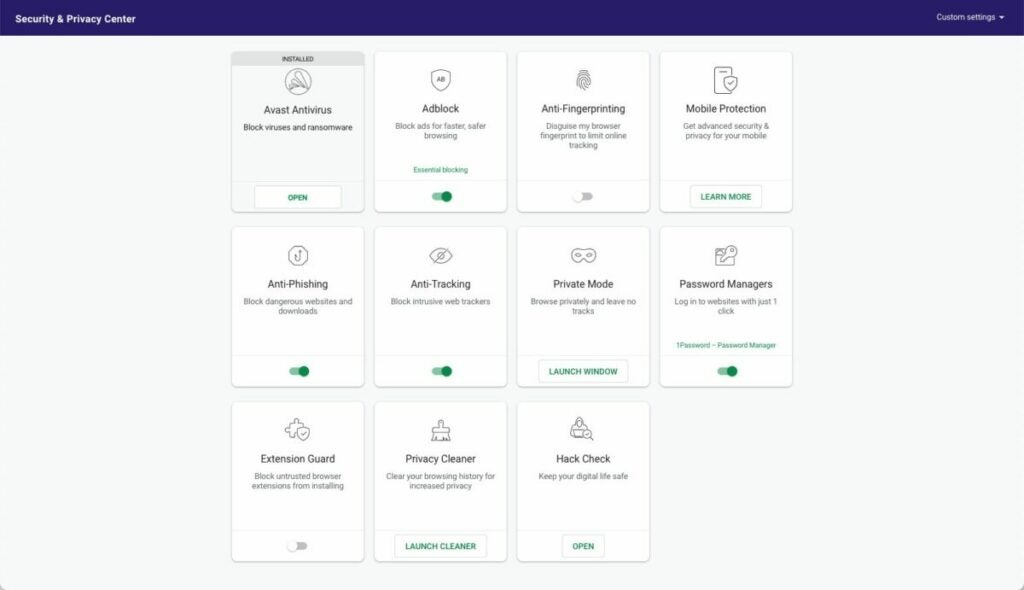
Adblocker

Avast Secure Browser comes loaded with a reliable adblocker. Adblockers are commonplace nowadays, and you can get one for any browser. However, the Avast adblocker doesn’t just block pop-ups; it prevents them from opening altogether.

This stops ads from being loaded on any page that you visit, period. This will improve browser speed significantly and should keep you from accidentally clicking on any hidden windows that will take you to new pages, more often than not exposing you to malicious sites.

Anti-Phishing

Aside from your own built-in adware shield, the browser also comes with anti-phishing software, blocking attempts from malicious sites to latch onto your connection and warning you before downloading any content from the web that could potentially be harmful.

Bank Mode

Avast Secure Browser also has a Bank Mode, which will create a virtual desktop that acts as a completely clean, fresh PC inside your real computer. This virtual desktop will create an entirely safe environment to browse and shop, free of any hidden scripts, keystroke loggers, or screenshot attempts from third-party software.

This feature is one of the most powerful anti-hacking tools for a browser to date, as scripts that can track and crack your account details are becoming more and more dangerous.

Built-in VPN

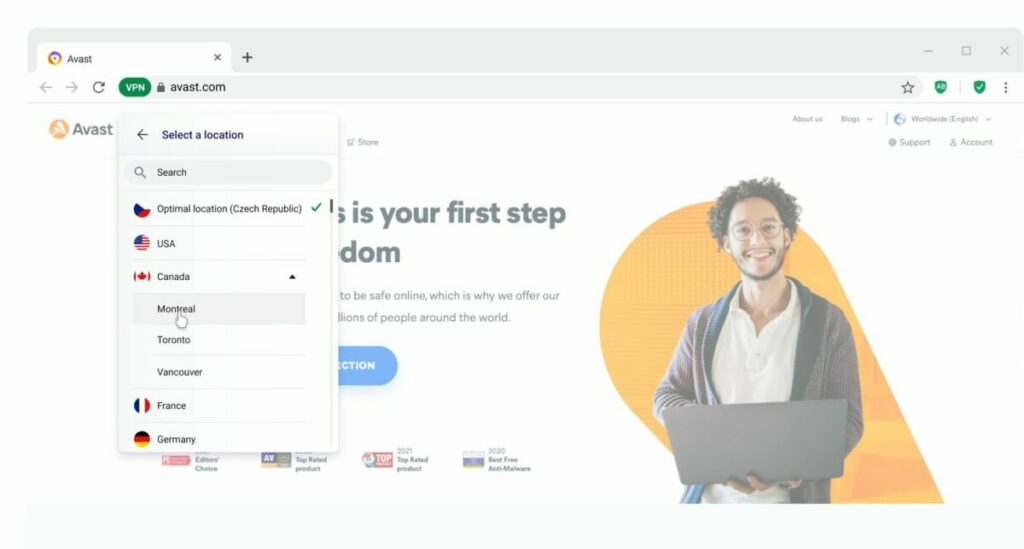
And, last but certainly not least is the built-in VPN with Avast Secure Browser PRO. Geographical barriers and regional blocks are a thing of the past with the high-speed, reliable VPN that Avast has included in the premium version of their browser. A VPN is possibly the single most important tool for maintaining your privacy online, and this browser delivers just that with excellent quality.

Avast Secure Browser

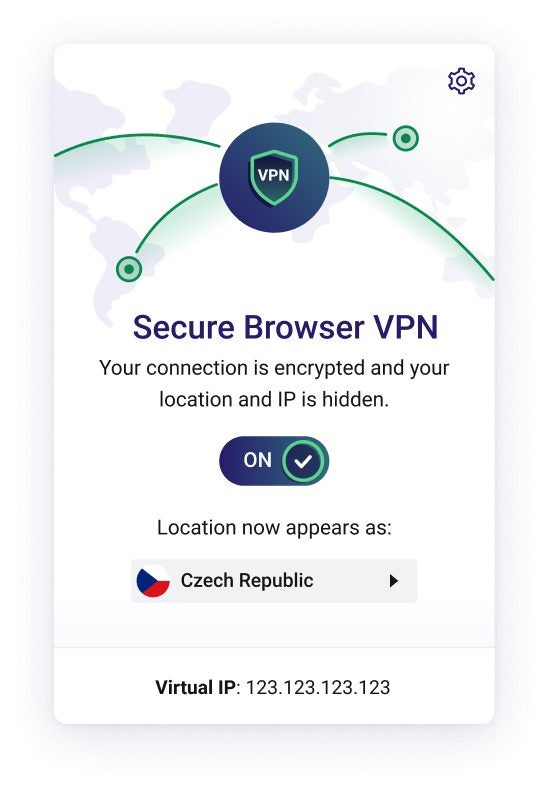
One of the advantages of using Avast’s VPN is that you can create a private internet connection that no one can trace, even if you’re using public wi-fi. Your IP address is hidden, and cookies won’t be able to track your behavior. It also protects your data from malicious attacks originating from unknown sources. Therefore, your device and files are protected no matter where you are, even when you’re working away from the office.

Another benefit is that you can use a VPN to access information only available in a specific country. You’ll connect to a server in that location, which then opens up sites usually unavailable in your region. It’s useful when you’re performing research on similar businesses with data and information you’d like to incorporate in your company.

Avast Secure Browser

Not only is it a smart investment for your security and safety, but also for your wallet. Regional prices can sometimes differ, such as for flights. The same flight might cost half as much if you buy it while connected to a network in France rather than one in the US. It’s a great way to stay secure and save money.

Special launch offer

Avast Secure Browser is launching with great offers backing it. It’s not just wise to get it for yourself now before the holiday shopping season. There are additional benefits as well. If you get Avast Secure Browser PRO now, you’ll get an extra -20% off of the annual and bi-annual plans.

Avast Secure Browser Download
9
Test it with a 7 Day Trial

While there are plenty of excellent browsers out there, such as Google Chrome and Opera, that offer a blend of security and speed, none manage to achieve the same level of thorough protection and state-of-the-art privacy measures that Avast Secure Browser delivers, both for its free and PRO version.

What Is a Facebook Video Downloader and How to Use It?

Have you ever created a video on Instagram and pushed it to your Facebook, only to find that doing this limits your sharing options to other platforms? Or perhaps you want to use a section of a Facebook video for your project? Or it might be as simple as wanting to share a video with family or friends who don’t use Facebook? As you might have realized, downloading Facebook videos can appear quite complicated. 

It is possible to save a video directly within Facebook, but doing this only saves it on your Facebook Watch Later tab and not offline on your device. Using a Facebook video downloader is a great way to download videos so that you can edit them, send them to other friends, or watch them offline.

What Is a Facebook Video Downloader?

A Facebook video downloader lets you download videos from social media sites like Facebook and Instagram. Saving videos offline is currently not possible on these platforms. This can make it difficult if you need to use a video for another project, if you want to edit one of your own videos, or even if you want to share videos with people who don’t currently use either of these platforms.

Facebook Video Downloader for Windows or Video Downloader for Facebook on Android works by accessing the provided Facebook link and downloading the relevant video to your device. Once downloaded, you can edit the videos, share them or watch them offline.

Most of these downloaders have a bulk download option that lets you save multiple videos simultaneously. This is a handy feature, especially if you’re preparing for a trip and know you’ll be spending a lot of time in the car, bus, train, or plane.

What Is the Difference Between a Facebook Video Downloader and Other Video Downloaders?

There are a lot of similarities between Facebook video downloaders and other video downloaders. The user interfaces work very similarly for both of these options. A regular video downloader might be sufficient to download video content from most social media and video sharing sites like YouTube, Vimeo, and DailyMotion.

Still, they may not work on stream-only sites like Facebook and Instagram. This is why Facebook Video Downloaders were developed. These programs have been designed to navigate around Facebook’s stream-only protocols and limited video options to download a copy of the video to your device. 

Another difference between the two is that video converters usually have more options for the file format and even the quality of the video. Users have more freedom in deciding what format they wish to download the video in and what quality they want. With Facebook downloaders, the options can sometimes be a little more limited.

Types of Facebook Video Downloaders

There are a wide variety of downloaders available, and depending on your preferences, you can choose between any of them. Most of them will download the video in MP4 format at the highest possible quality. Very few of them have the option to change or convert the file type when downloading a video.

Let’s look at some of the options available for Facebook video downloaders.

Online Downloaders

These Facebook Video Downloaders are websites based online and are usually free to use and quite convenient. Some of the free ones might have limitations to how many videos can be downloaded daily. With these types of downloaders, you usually copy the video URL from Facebook and then input it in the link field, and the program will download the video. Great examples of online Facebook video downloaders are fbdownloader, FBDOWN.net, and GetVid.

Browser Extensions

There is also a range of browser extensions and add-ons available that you can use to download Facebook videos. The benefit of using a browser extension is that you can save the videos directly from Facebook by playing the video and then clicking on the download button for your extension found in the toolbar.

This means you don’t have to bother with copying links and then navigating to another website to download the video. A few good browser extensions for downloading videos from Facebook include Facebook Video Downloader for Firefox, Social Video Downloader for Chrome, and FBDOWN.net Chrome extension.

Software/Apps

Finally, there are also apps that you can download which you can use to download videos from Facebook. These apps work similar to their online counterparts, except that they are installed directly on your device. This is more stable as online sites can sometimes be down or slow, whereas an app is not affected. Facebook Video Downloader for Windows and Video Downloader for Facebook on Android are both great examples of apps that you can install on your device to download Facebook videos.

How to Use Facebook Video Downloader?

If you want to start using a Facebook video downloader, here are the basic steps you’ll need to take.

For Apps and Online Websites

The below method is how to download Facebook videos using an app on your device or an online website.

Step 1: Find the Video on Facebook

On Facebook, find the video that you want to download.

What Is a Facebook Video Downloader and How to Use It

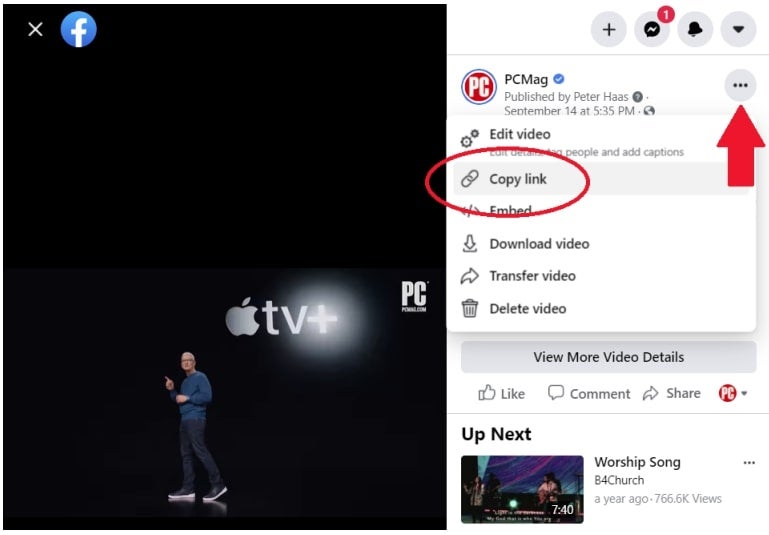
Step 2: Copy the Link

Click on the three horizontal dots to open more options on the video post. In the drop-down list, select ‘Copy Link.’

What Is a Facebook Video Downloader and How to Use It

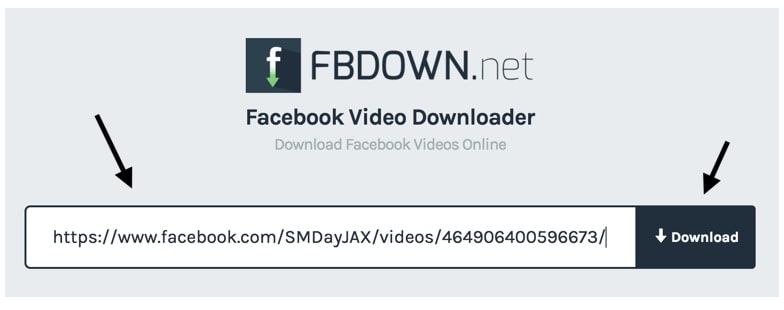
Step 3: Paste Link in Your Program/Website

Navigate to your chosen online website or open the relevant app on your device. Paste the link you copied in step two into the link field.

What Is a Facebook Video Downloader and How to Use It

Step 4: Download Video

Click on the ‘Start/Go/Download’ button to start the download.

For Extensions

Below are the steps for using a browser extension to download Facebook videos.

Step 1: Find the Video on Facebook

On Facebook, find the video that you want to download.

Step 2: Start Watching the Video

Start playing the video on Facebook.

Step 3: Click on Download

Click on the download button for your chosen browser extension in your toolbar. Note, if your browser extension is for Chrome, you won’t be able to use it from another browser.

Download your Facebook videos easily

With the above knowledge in hand, you can now easily download Facebook videos to keep or use in your projects. You should keep in mind that videos from other people may have copyright content on them, so use them carefully.

How to Delete Facebook Account

Facebook has long been one of the most popular social media sites. However, it’s not a platform for everyone. As such, you may wish to delete your Facebook account.

Whether you are concerned about your online privacy or are just tired of the toxicity in some of these platforms, it is a good idea to completely deactivate or delete your Facebook account rather than just leaving it online. By leaving your Facebook profile online, others can still see and find some of your data.

Deleting Vs. Deactivating a Facebook Account

If you’re tired of Facebook and decide you don’t want to use it anymore, you have two options. You can deactivate or delete your account. Let’s take a look at the differences between these two options.

How to Delete Facebook Account

Deactivating Facebook

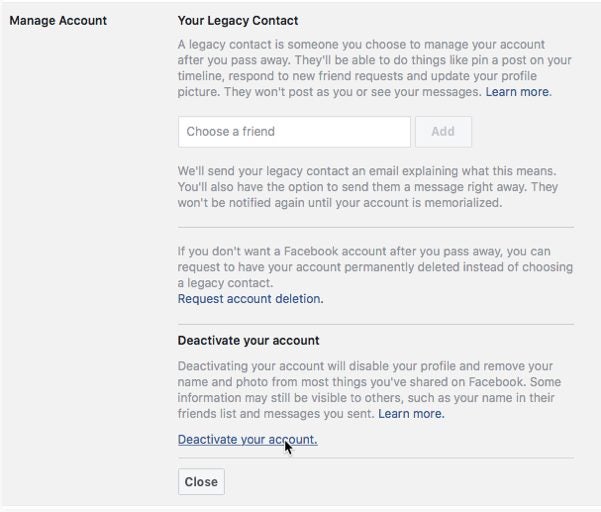
By deactivating your account, you are basically freezing it. This means your account will no longer be visible in searches, and friends will no longer be able to view your timeline. The benefit of deactivating your account is that the account still exists, and if you ever decide to get back on Facebook, you can reactivate your account and continue from there. 

By deactivating your account, you’ll also still have access to all your posts, photos, videos, and messages once you reactivate the account. If you deactivate your Facebook profile, you’ll still be able to use Messenger if you have the app installed. You will still be able to chat and connect with your friends through Messenger, and your profile picture in Messenger will be the same profile picture on your Facebook account at the time of deactivation.

How to Delete Facebook Account

Deleting Facebook

By deleting your Facebook account, the entire profile will be permanently deleted, including any photos, videos, and chats. If you choose to delete your account, you will have a grace period of 30 days, in which you can change your mind and reinstate your account. However, after the grace period, everything will be removed. You will also no longer be able to use Messenger as the two are linked. 

You will also no longer be able to use Facebook login to gain access to other apps. It is important to note that even by deleting your Facebook account, some messages sent to friends will still be visible in their profiles as a copy is saved to the recipient’s inbox. Also, it could take up to 90 days from deleting your account for every trace of your profile to be completely removed from Facebook.

How to Delete Facebook Account

How to Delete Facebook?

Now that we understand the different options available let’s look at how you can delete your Facebook account.

  1. Open the More Options Menu

    How to delete your Facebook Account step 1

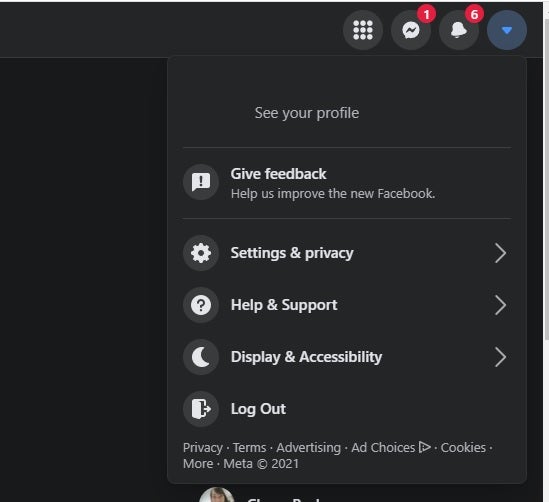
    Once logged in to your Facebook account, click on the downward-facing arrow in the top right section of the screen to open the ‘More Options’ menu.

  2. Navigate to Your Facebook Information

    How to delete your Facebook Account step 2

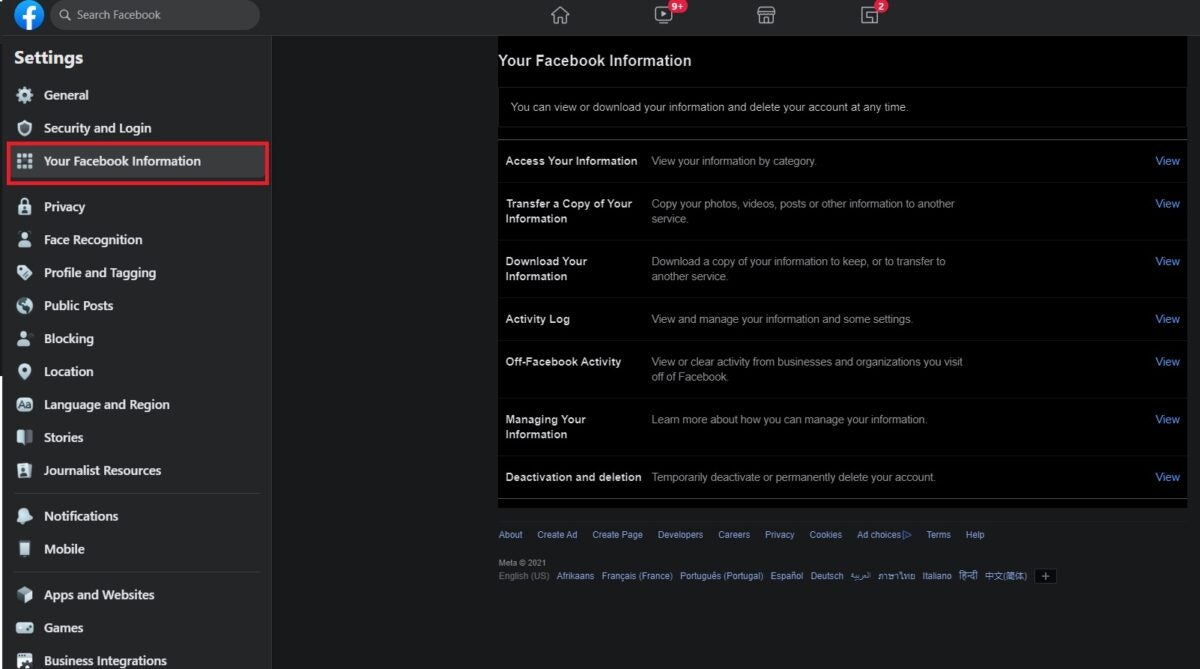
    Click on ‘Settings and Privacy‘ and then select ‘Settings’ in the list. In the left column that appears, you can click on ‘Your Facebook Information.’

  3. Delete Facebook Account

    How to delete your Facebook Account step 3

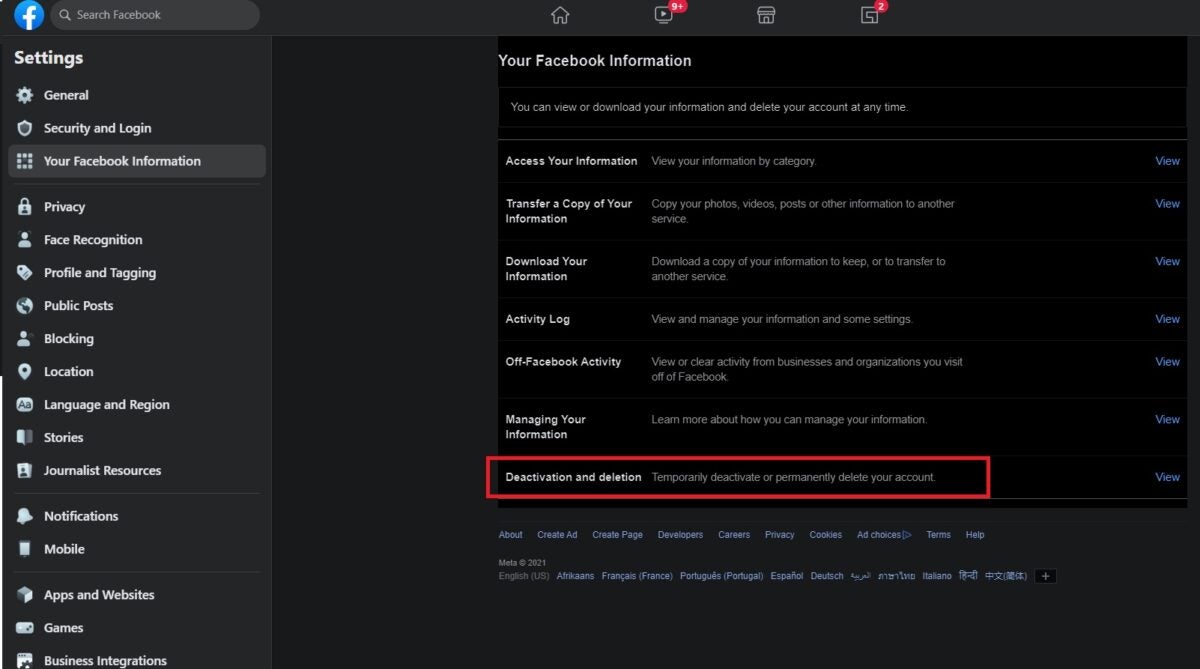
    Click on ‘ Deactivation and Deletion‘ in the new list of options available. This new window is where you can choose to either delete or deactivate your Facebook account.

    Choose ‘Delete Account’, and a message will pop-up asking if you want to continue to delete your Facebook account. By pressing on ‘Delete Account’, you confirm this action, and the platform will request your password before finally deleting your account.

How to Download Your Data from Facebook?

Before deleting your Facebook account, we recommend downloading a copy of your Facebook data. From the ‘Your Facebook Information’ page, which you find in your settings, you have the option to download your current Facebook information. You can also choose what information you want by entering dates and choosing to download photos, videos, and any other media.

Once you’ve chosen what you want to backup, you can submit the download request. Next, Facebook will compile everything for you, which may take several days. Once everything is compiled, you’ll get a notification informing you that you can download your data.

Alternatives to Facebook

If you consider deleting your Facebook account, you might also be looking for alternatives. There are many great social media sites that you can look at instead of Facebook. However, if you’re looking for something new, you can consider Diaspora, Path, or Ello.

The Complete Guide to Chrome Extensions

Browser extensions are useful tools that allow you to extend the features of your browser. These extensions can increase productivity, manage projects, reduce distractions, and source content more conveniently. None offer a larger variety than the Chrome browser of all the browsers available. There is a wide variety of Chrome browser extensions available that can assist you with many tasks. 

Do you need to check the weather? There’s a Chrome extension for that. Or perhaps you need to avoid distractions by prohibiting you from accessing social media or other distracting sites? There’s an extension for that as well. Or perhaps you need something to help ensure that your spelling and grammar in projects, emails, and important documents are correct? You guessed it; there is an extension for that too.

What Are Chrome Extensions?

Like other browser extensions, Chrome extensions are programs that have been built on web technologies such as HTML, CSS, or Javascript. These forms of software allow users to customize and personalize their online browsing experience while using Chrome. They are also often referred to as Add-Ons as they add more features to your base Chrome browser.

Browsers can be very useful as they can let you block ads, check your spelling and grammar, share news and statistics, monitor your productivity, and keep you motivated. The type of Chrome extension you need depends largely on your needs and what you’d like from your browser. 

The Complete Guide to Chrome Extensions

How to Use Chrome Extensions?

Now that you know what Chrome extensions are, we can look at how to add extensions, where to find them, and more.

How to Add Extensions to Chrome?

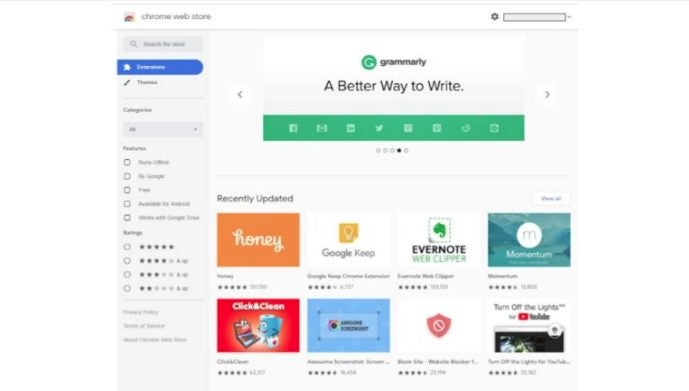
Before you can start using Chrome extensions, you’ll first need to add them to your browser. You can find chrome extensions on many reputable websites such as Softonic, or you can get them directly from the Chrome store. Using the Chrome Store, you can use the search bar to find the extension you’re looking for. 

Once you find it, you can click on the extension to be taken to its page. Here you can see more details about the extension as well as reviews. If you want the extension, click on ‘Add to Chrome.’ A pop-up window will appear confirming whether you want to add the extension to Chrome. By accepting it, the add-on will be installed on your browser.

The Complete Guide to Chrome Extensions

How to Access Chrome Extensions?

Once you’ve installed Chrome extensions, you will find an icon for that add-on in the top menu bar next to the browser settings icon. By clicking on the icon, you can access the extension. If you have more than one Chrome extension installed, this area may become a bit cluttered. By right-clicking on an icon, you can choose to move the icon to the extensions menu instead of the toolbar. This is useful for keeping only the extensions you frequently use on the toolbar.

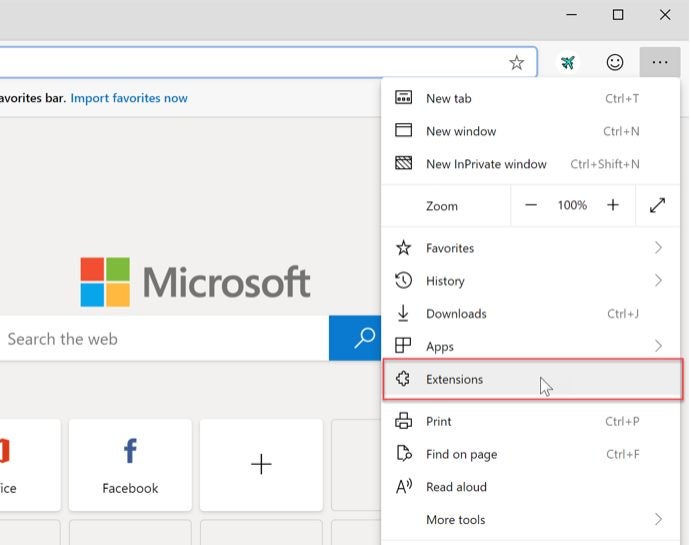
Alternatively, you can also access your Chrome extensions page to see the details of all your add-ons. To do this, open the options menu in your browser by clicking on the three vertical dots. Next, select ‘More Tools’ and then ‘Extension.’

The Complete Guide to Chrome Extensions

How to Remove Chrome Extensions?

To remove Chrome extensions, you need to enter the extensions page as shown above. Once you’ve found the extensions in your browser menu, you can scroll through all of your enabled extensions and see their details. From here, you can then choose to disable them until you need them again, or you can remove the extension completely.

Where Can I Find Chrome Extensions?

Are you looking for Chrome Extensions? Perhaps you need an add-on to make your browsing faster? Or maybe you want some cool extensions to improve your productivity and motivation? Or maybe you use multiple tabs and wish there was a way to organize them better? Or perhaps you use Instagram often and wish there was a better way to use it on your PC? 

Regardless of your reason, you need to know where you can find safe extensions. You may be able to find them at reputable third parties or directly from the Chrome store. Here you’ll also find quite a few useful extensions that are free to use, while others may have a monthly subscription or once-off payment to start using them.

Must-Have Chrome Extensions

Here are a few references to some of the best Chrome extensions that you can use:

Are Chrome Extensions Safe?

There are a lot of Chrome extensions that are perfectly safe to use. However, it is always wise to make sure that you double-check before installing anything on your computer and ensure that you are safe. If you are downloading extensions from a third-party site, make sure you do your due diligence to ensure that they are safe.

This is why we recommend only using reputable sites or the Chrome Store. Google has its own safety criteria when evaluating whether an extension is safe before allowing it to be added to the Chrome store. Add-ons that have been checked thoroughly will also have a trusted label from Google.

Complete Guide for How to Use Google Translate

Google Translate is one of the most efficient and effective translation apps and services available, and it has revolutionized how we see, understand, and interact with language. This incredible app makes it easier than ever before to communicate with people who don’t share your mother tongue. It also makes it easier than ever to pick up a new language or dialect.

Google Translate for Chrome DOWNLOAD

Below, we’ll give you the ultimate crash course on using this incredible utility. We’ll start with the basic features that everyone should know. We’ll also cover the more advanced features of the application so that you come away from this article with an all-encompassing depth of knowledge about how to use Google Translate.

What Is Google Translate?

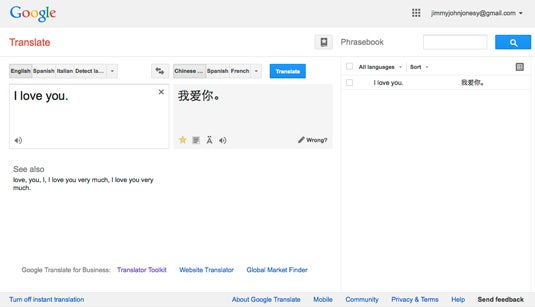
Google Translate is a powerful free translation app that supports translations of at least 100 different languages. The app can translate content through either text or voice. You can copy and paste content, type it, write it, enter the website URL, speak into your phone or you can take a photo of the text (such as a foreign menu) and have the app translate it to your preferred language.

Another great feature of the Google Translate app is that you can save phrases and words you come across often in your phrasebook with the app. The languages supported by the app include English, French, Italian, German, Spanish, Greek, Chinese, Japanese, Korean, Latin, Arabic, Russian, Hebrew, and Yiddish.

complete guide Google Translate

How Accurate Is Google Translate?

Google Translate is one of the most accurate and reliable translation programs available. The program uses machine learning, a form of AI, to continually improve their translations and add more languages. For casual use, Google Translate can be extremely effective and dependable. 

However, as it is a program, the translations are not always 100%. The program cannot distinguish between some of the finer nuances of language such as symbolism, metaphors, dialects, etc. It is not recommended to use Google Translate for business documents, contracts, legal or medical information. In these cases, you would be more successful with a translation service that uses specialized native speakers.

How to Use Google Translate?

Now that there is a better understanding of the translation app, we can start looking at how to use Google Translate.

  1. Built-in web interface

    complete guide Google Translate

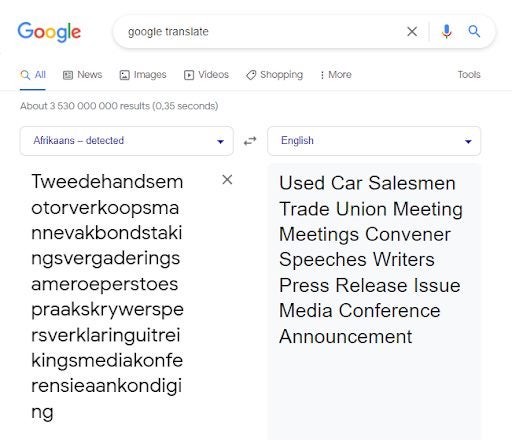
    If you Google the term ‘Google Translate’, you’ll notice that the utility has a built-in web interface on Chromium-based browsers. This makes it much more convenient than going to a dedicated page. In the built-in web interface, you’ll see four basic boxes.

    The two upper boxes are where you select both the input and output languages. Your input language is the tongue in which you type the word that you’re attempting to translate. The output language is the tongue to which Google Translate will translate your typed word or phrase. 

    If you know how to spell the word you want to translate but not which language it originates from, you can click on the source language drop-down menu and select ‘detect language.’ Google Translate will then use its vast resources to determine the language from which your word originates before it translates the word or phrase for you. 

    Another feature you’ll notice is the microphone icon at the bottom of the Google Translate interface. This integrates Google’s voice services, which we’ll elaborate on a little further down. There are two downsides to using the built-in interface; it only translates between 115 of the most widely-used languages, not the full Google Translate catalog.

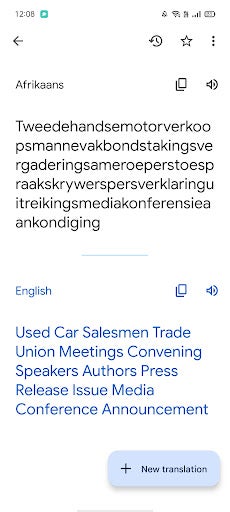
    Additionally, if you translate a complex word as I did above, you get a much more garbled result than on the Google Translate website. This is the longest word in the Afrikaans language; it contains 137 characters. And now you see there’s a reason for me hauling a monster of a word like that out for this article.

  2. Google Translate’s web utility

    complete guide Google Translate

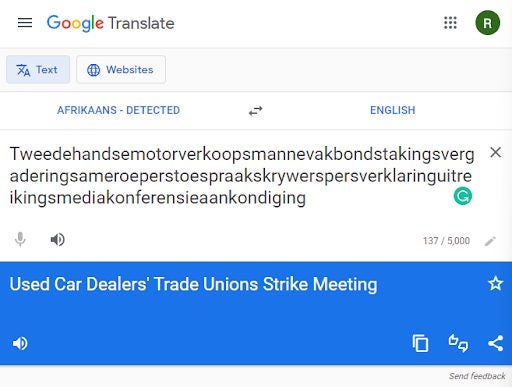
    If you click on the Google search result directly below the built-in utility, you’ll get to the Google Translate website. As you can see above, the interface looks relatively similar. You do have more interaction options on the website, though. You can give the translation a thumbs up or thumbs down and share the translation, in addition to options available on the browser utility, such as copying the translated text and listening to the translation if you’re not sure how it should be pronounced. This is incredibly handy if you’re learning a new language. 

    One glaringly obvious difference between the two utilities is that the website clearly uses a slightly different translation engine. You can see the difference between how the website translates a complex word, such as the longest word in the Afrikaans language.

    The translation from the website is much shorter, more concise, and more accurate, whereas the browser utility seems to have directly translated the words it identified within the one inexplicably long word and served those up as a translation, rather than taking the smaller words and creating a context-based translation of what they mean in English.

  3. The Google Translate app

    complete guide Google Translate

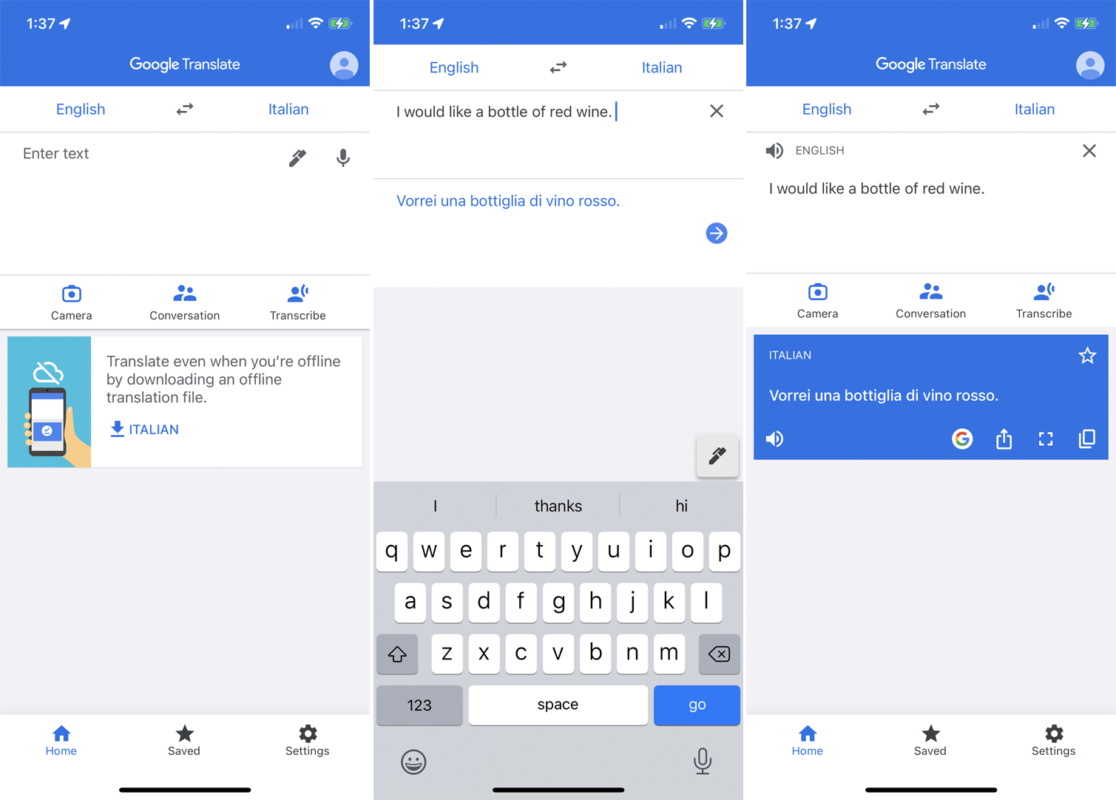
    Google Translate also has a handy application for Android and iOS mobile devices. This is by far the most convenient way to translate text and is the method that most users seem to prefer. The home interface of the app is a little different to the service’s web-based alternatives.

    Google has been smart and designed each interface around the platform on which it runs, instead of trying to get the exact same interface regardless of the differences in how each platform operates. The app is intuitive and almost feels like an extension of the Material You design layout featured on Google’s Pixel devices. 

    You’ll see that the input and output boxes don’t change much between platforms, which makes each utility as easy to use as the last. All you need to do is select your input and output languages, and then type your input phrase. The AI-driven language processor will then translate the text into your chosen output language. 

    Looking at the screenshot above, you can see that there is yet again a slight difference in how the word I chose has been translated. This proves that while useful for smaller, simpler phrases, the Google Translate app may not be the most accurate in all situations.

  4. How to Translate a Page on Google

    complete guide Google Translate

    Once in your Google search engine, you can type in Google Translate for the browser version of the app. Once you’re in the Google Translate window, you’ll have the option to type or copy text into the window to translate. Or you can click on the ‘Documents’ tab at the top of the window. This will allow you to upload a page in a variety of formats (pdf, Word, Excel, PowerPoint, etc.), and the platform will analyze and translate the content of your document.

  5. How to Google Translate a Website

    complete guide Google Translate

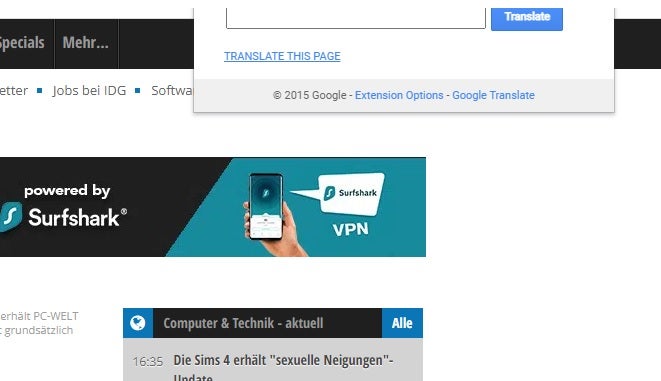
    To translate a website using Google Translate is just as simple as typing the text into the box. First, you’ll need to open Google Translate. Next, copy the URL of the website you wish to translate and copy it into the translation box. You will see a copy of the URL with a link on the translated side.

    Click on the link, and you’ll be taken to a new window showing the translated version of the website. At the top of the website, you’ll see the Google Translate header, which allows you to change the language if needed, as well as access to other settings.

    If you install the Google Translate extension on Firefox or Chrome, you can simply click on the icon to translate an entire page immediately. Alternately, WordPress site owners can install the GTranslate WP plugin to let viewers quickly view content in their native language.

  6. How to Translate a Page With Handwriting

    complete guide Google Translate

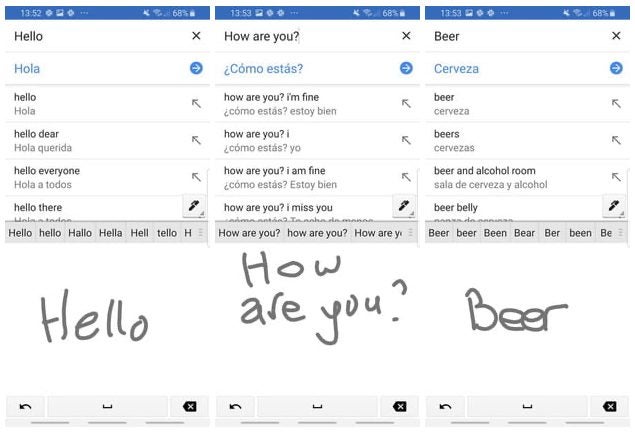
    You can also use your own handwriting to translate words or phrases. The results of analyzing handwriting can sometimes be less accurate, and a lot will depend on how neat and legible your handwriting is. To enable handwriting mode, click on the pencil icon in the first window. Now you can use your mouse, finger, or stylus to handwrite the words you need translating.

  7. How to Translate a Real-Time Conversation

    complete guide Google Translate

    Google Translate has a handy feature that lets you translate a bilingual conversation in real-time with the app. This feature is only available in the app and not the browser version. To get started, open the Google Translate app on your device. Then choose the languages you both speak.

    Now tap on the ‘Conversation’ icon, represented by the image of two people standing next to each other. Now you can start talking, and the translation will follow. You can even tap on the auto mic option so that it automatically records everything being said in either language.

  8. How to Build Your Phrasebook?

    complete guide Google Translate

    Google Translate has a handy phrasebook where you can save frequently used words and sentences. This makes it easy to find when you need it. To use this feature, you simply translate the phrase, and then to the right of the translation box, tap on the star icon to save it to your phrasebook. This can be very useful when preparing for a trip abroad as you can save some of the commonly used phrases to easily refer back to them when needed.

  9. How to share translations

    complete guide Google Translate

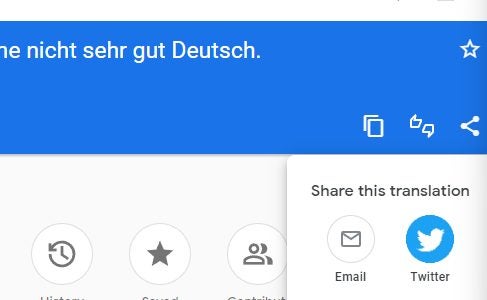
    As we touched on above, Google Translate lets you easily share translations to other apps and services. This is helpful if you need to translate something into another language during a conversation. For instance, instead of having to memorize the translation for ‘No, I do not speak German very well,’ you could simply share the resultant translation – Nein, ich spreche nicht sehr gut deutsch – directly with whichever communication app you happen to be using during your conversations. 

    There is but one step to sharing translations. All you need to do is hit the share icon once you’ve completed a translation. It’s that simple. 

    The platform you use doesn’t have much weight here, as all the associated supported platforms have a sharing feature. Although, it’s pertinent to mention that while the Android and iOS apps lists all of your installed communication apps when you select the option to share your translation, the web utility only has the option to share to email or Twitter.

  10. How to translate offline

    complete guide Google Translate

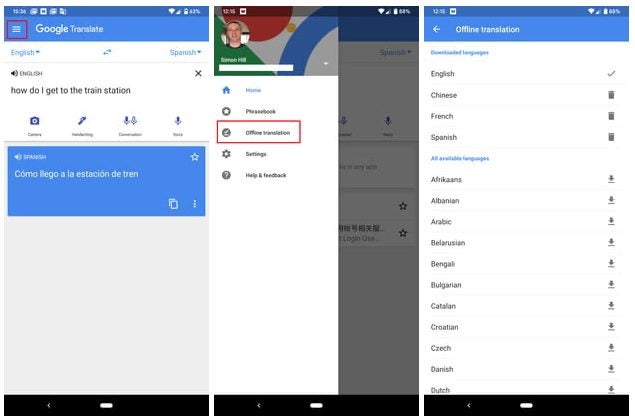
    Even though Google Translate is most efficient when connected to the internet, the mobile app can also translate offline. All you need to do to access this functionality is: 
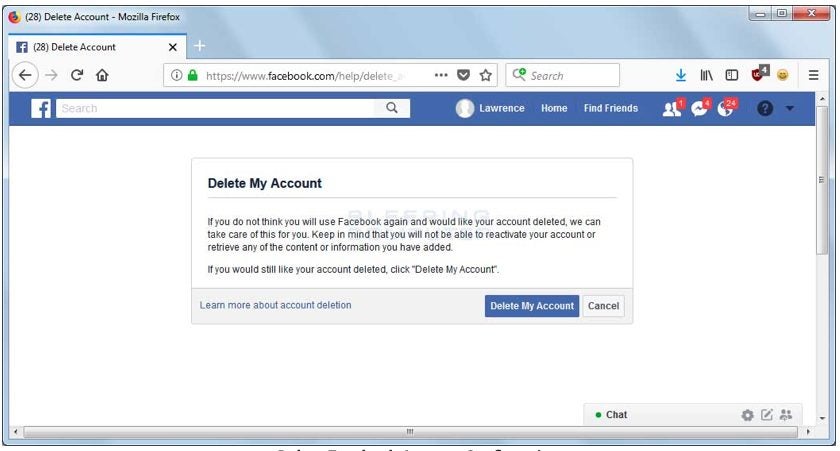
    • Head into your Google Translate app and hit your account avatar on the right-hand side of the interface.
    • Next, you’ll want to scroll down and click on Downloaded Languages. This is where you’ll see all of the languages you’ve downloaded for offline translations. 
    • Now, you can simply scroll through the list of languages and pick which ones you’d like to download for offline translations. 

    You can also manage your languages from this interface. Languages receive regular updates; this is where you’ll install the latest versions.

  11. How to translate photos

    complete guide Google Translate

    This is a really handy feature if you’re travelling and need to identify the text on street signs or information boards. I don’t have a foreign street signs handy so I shall use my copy of a German book that my mom gave me a while back. 

    • At the bottom of the app interface, you’ll see three buttons; conversation, camera, and then the central voice recorder button. Hit the camera button. 
    • Now, you simply need to point the camera at whatever you’d like to translate and the AI-powered camera will handle the translation. 

    If you want to translate an image that you have on your phone, instead of a live capture, you simply need to hit ‘Import’ at the bottom of the camera translation interface. You also have an option here to scan a still image of whatever you point your camera at. This way, if you need to send a translation of a street sign to someone else, you now can. 

    The image translation software that Google Translate uses is incredibly intuitive, and I noticed firsthand how the AI modifies the background of your translation so that it blends in with the background of the subject and looks as natural as possible.

  12. How to use conversation mode

    complete guide Google Translate

    This is the last input method we’ll discuss in this article and is by far the most useful if you’re out and about in a foreign region. Conversation mode essentially lets you speak into your phone in your native tongue. The app will then translate your speech into a chosen language for you to play back to whoever you want to converse with. This means two people with no common language or dialect knowledge can communicate seamlessly in person. 

    All you need to do is tap the ‘Conversation’ icon and choose the relevant languages for speech input and output. Then, tap the speech icon under your language and say what you need to say. The person you are conversing with can then tap the speech icon under their language and respond. Your statement will be delivered in their native tongue, and their response will be delivered in yours.

Who Should Use Google Translate?

Google Translate is a very useful tool for anyone that needs to translate things quickly. It can be used for individuals who are traveling or connecting with someone who speaks another language. Businesses can also use it to translate messages or comments to respond appropriately.

As mentioned, if your business has important information or documents that need translating, a translation service is best. It’s added more than 60 languages lately, and Google Translate has also taken over Gboard.

Google Translate adds 60 languages READ MORE