How to Play Friday Night Funkin’ – The VS Hex Mod in 3 Easy Steps

If you ever played Dance Dance Revolution, then you’ll be well versed in the intricacies of Friday Night Funkin’. One thing that serves to keep these kinds of games alive is mods, and Friday Night’s Funkin’ has a highly active modding community. This game has so many mods that add new levels and opponents, newly customized characters, and different skins for the characters. 

While most of the mods that add new opponents follow the same formula to create a proper antagonist who wants to destroy Boyfriend’s happiness, one mod that stands out from these is the VS Hex mod. This mod introduces Hex, a robotic opponent who offers a new week of battles, but Hex comes across as a friendly guy who just wants to drop some beats and make friends with the couple. This mod also adds new cutscenes and interactions, which helps to bring the characters to life. Overall, this mod is worth downloading because it adds so much new content to the game.

How to Play Friday Night Funkin’ – The VS Hex Mod

Step 1: Download the mod

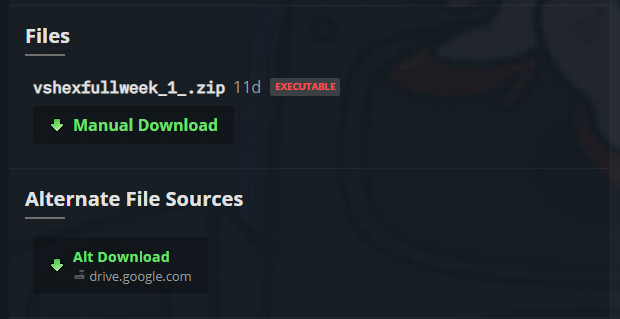
The first thing to do is download the mod.
Step 2: Extract files

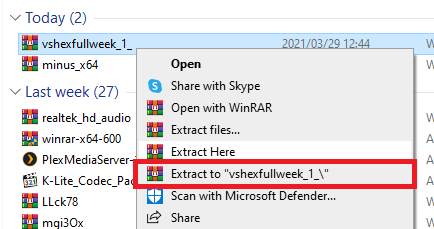
When the download is finished, you’ll need to extract the files; we advise that you use WinRAR for this.
Step 3: Launch game

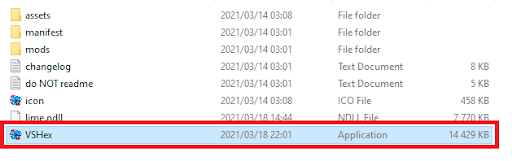
Now open the extracted folder and double click the VSHex file to launch the game. You’ll find the new Hex week in the Story Mode section labeled as Week X.
Arigato, Mr Roboto!

While it’s incredibly satisfying to beat someone who clearly hates you into the dust, it’s refreshing to meet someone who simply wants to be friends and share their love for music with you. You should also check out the Tricky mod where you battle a killer clown or the Whitty mod which adds some really good quality of life changes and a new challenger.

How to download movies and TV shows from Netflix

Netflix has forever changed the way we watch movies and TV shows. This popular streaming platform gives us access to an incredible catalog of films, series and exclusives, requiring only a subscription and stable Internet connection. While this is convenient for long sessions of binge-watching at home, online-only access can be a handicap if we want to enjoy our favourite series on the go. Fortunately, Netflix lets you download TV shows and movies to your laptop and mobile devices to be able to enjoy offline. Do you want to know how? Just keep reading.

How to download movies and series from Netflix

Step 1. Make sure your Netflix app is up to date

To be able to download movies and TV shows from Netflix you’ll need to have the latest version of its mobile or Windows app installed.  You can download them below:

  • Netflix for Windows
Netflix (Windows) DOWNLOAD
9
  • Netflix for Android
Netflix (Android) DOWNLOAD
9
  • Netflix for iOS
Netflix (iOS) DOWNLOAD
9

Netflix on a mobile phone

Step 2. Choose a video quality

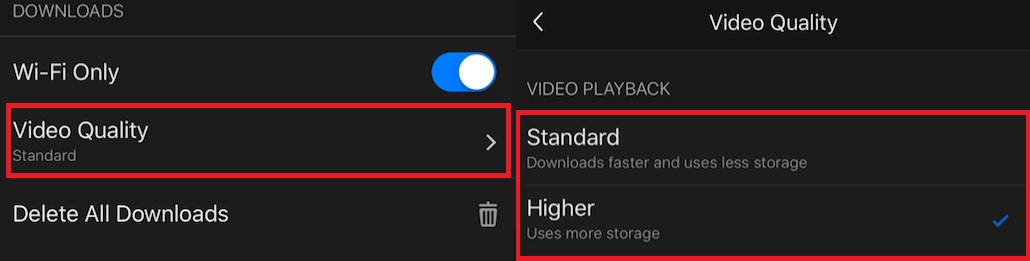
Now it’s time to choose a resolution for the movie or TV show you want to download. First of all, open the Netflix app and tap on your profile icon. Now simply press on the “Video Quality” button and select between Standard/720p or Higher/1080p. Keep in mind that the higher the quality, the more time it’ll take for you to download the movie or show.

Download quality on Netflix app

Step 3. Download your preferred movie or TV show

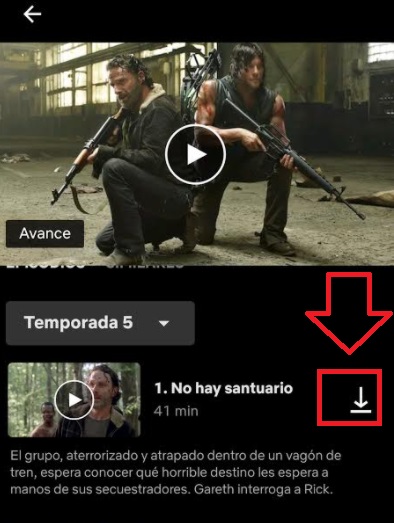
To begin downloading the title you want to enjoy offline, simply click on the “Download” button you’ll find next to the movie or episode. This button looks like an arrow pointing downwards onto a flat line, highlighted in the image below.

Once you’ve done this, the download will start and in few minutes you’ll have the video stored in the “Downloads” section of the app.

Download episodes on Netflix

Enjoy your favourite films and show offline

Downloading movies and series from Netflix is very easy, enabling you to enjoy your favourite titles even without an Internet connection. It only takes a few minutes and is a great way to make the most of your subscription on this amazing streaming platform.

How to View History on Safari in 4 Easy Steps

Safari is a fast and safe web browser that Apple created. Although Safari is the default browser on Mac, iPhone, and iPad, it is also available for Windows.

Sometimes you may want to access your browsing history. You can use the history to find a website you visited in the past. Or it could be used to keep track of your searches which can be beneficial on a family computer with younger children using the internet.

The process of viewing your search history and data varies a little between computer and mobile devices. Let’s look at the steps you need to take to view your browsing history on Safari for both options.

How to View History on Safari on Mac and Windows Computers

Below are the steps to view your browsing history on a computer.
Step 1: Launch Safari

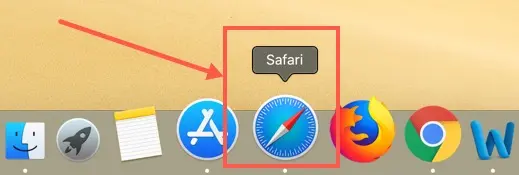
Launch Safari by clicking on the Safari icon in your dock on Mac or your desktop or taskbar if using Windows.

Step 2: Navigate to the Top Safari Menu

Navigate to the top of the screen and wait for the Safari menu to appear. 
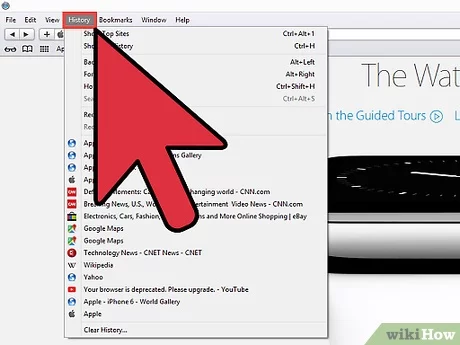
Step 3: Click on ‘History’

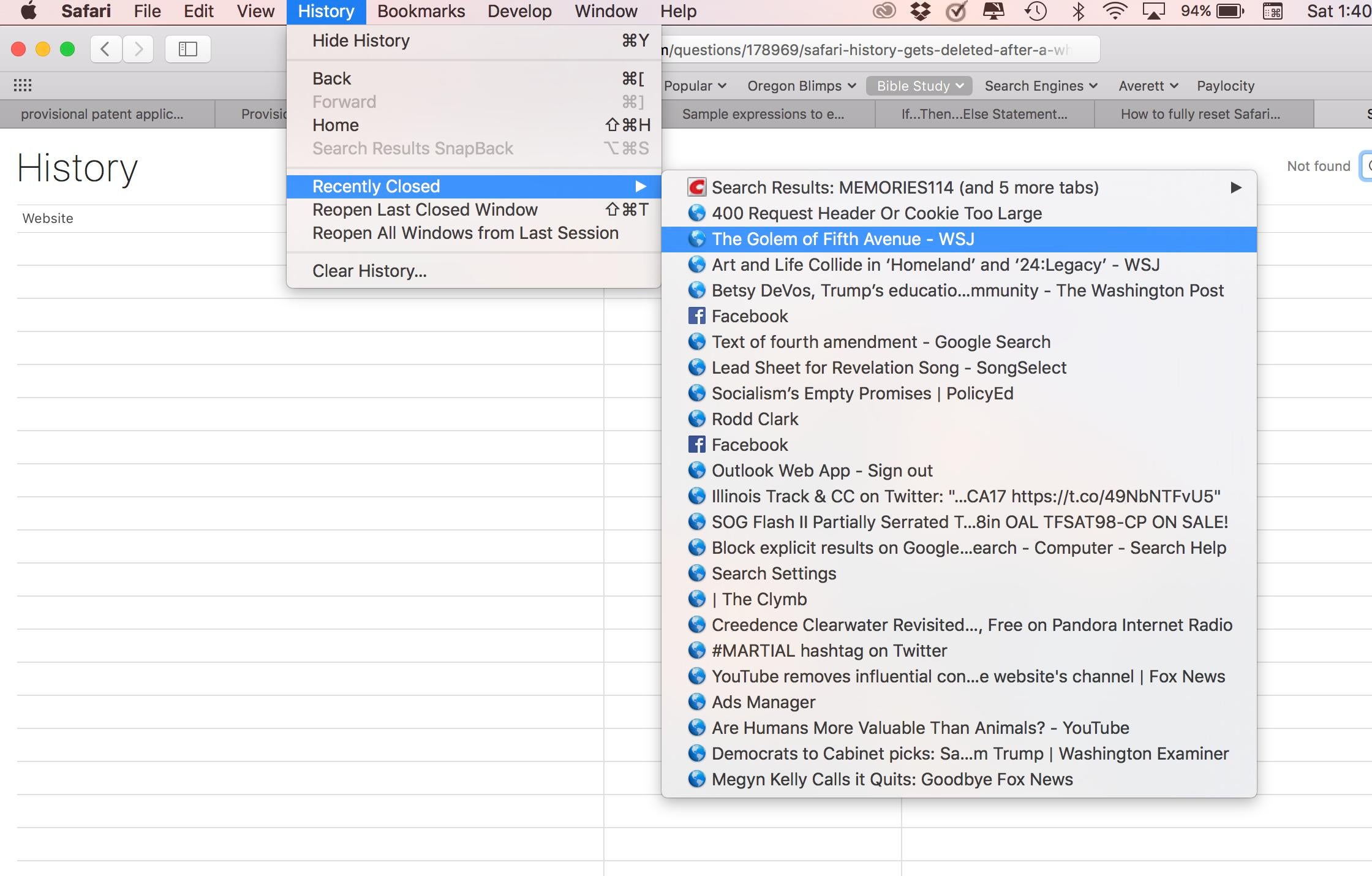
Now you can click on the ‘History’ tab.
Step 4: View Recent Site or Click on ‘Show All History’

You will see a list of the most recent websites opened on your Safari browser in the drop-down list. If you need to go further back, click on ‘Show All History’ at the top of the list.

How to View History on Safari on iPad or iPhone

Now we give the steps to follow to view your Safari browsing history on your iPhone or iPad.

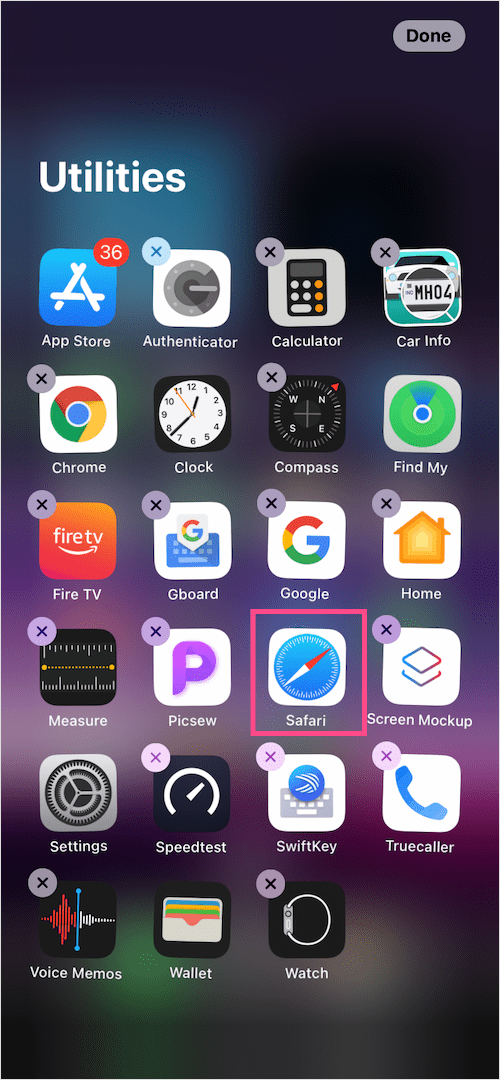
Step 1: Open the Safari App

Launch the Safari app from your iPad or iPhone.

Step 2: Tap the Book Icon

Tap on the book icon at the bottom right of your screen. This will bring up your search history.

*Note: Mac keeps a record of your browsing history and data for up to one year, whereas iPad and iPhone only store the history for one month. You can manually clear this history at any time.

Easily Keep Track of Your Search History

Now that you know how to view your search history in Safari, you can keep track of your favorite pages easily. This will make finding websites you visited before much easier.

If you are considering other browsers, you can also look at Google Chrome and Firefox.

How to Play Friday Night Funkin’ – The Minus Mod in 3 Fast Steps

Remember those old-school rhythm games that used to keep us busy for hours? Games like Dance Dance Revolution, Rockband, and Guitar Hero? Ever since they all faded into the mists of time, have you been looking for a game to scratch that itch? Well, then you should definitely try Friday Night Funkin’

The community for this game is massive, and they enjoy developing mods for the game, which will add anything from extra levels to new looks for the characters. The mod that we’ll focus on in this guide is the Minus Mod which adds more skins for the Boyfriend and changes the look of quite a few of the opponents. It also offers new names for the weeks and even makes the Mom battle more challenging. This is one of the most popular mods, and in this guide, we’ll show you how to install it.

How to Play Friday Night Funkin’ – The Minus Mod

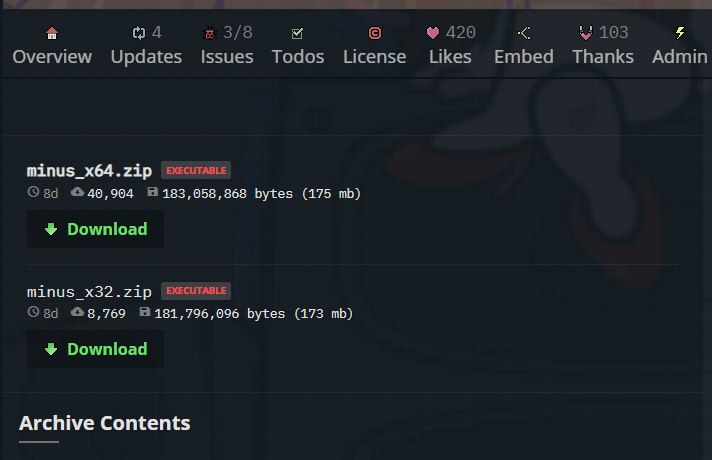
Step 1: Download the mod

First, you’ll need to download the Minus mod.

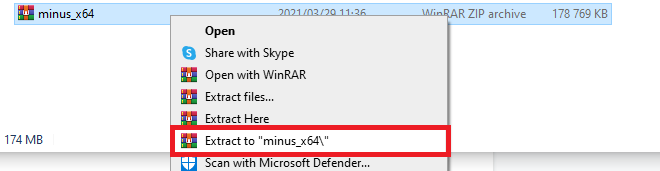
Step 2: Extract the files

When the download is finished, extract it to the location where you want to install your game; you can use WinRAR for this.

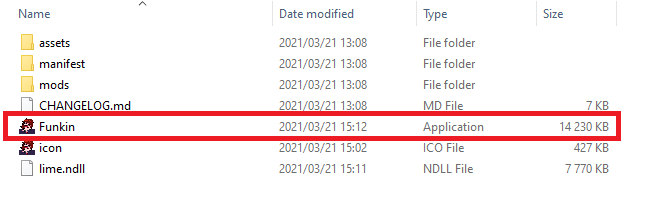
Step 3: Select the file

Then go into the extracted folder and start up the game by selecting the Funkin file. This will start up the game with the mod installed, and you can play with the customized opponents and select one of the three available boyfriend characters to play as.

Let’s Get Funky!

This game offers a ton of replayability, especially when you look at the plethora of mods available for it. If you want to battle a killer clown, then check out the Tricky mod, or have a look at the Whitty mod, which also adds a new challenger and also offers some massive quality of life improvements. 

How to Change Your Safari Homepage on Mac in 4 Easy Steps

Safari is the default browser used with Apple products. This includes Mac, iPad, and iPhone. The Safari browser is one of the fastest, safest, and most user-friendly browsers available.

The Safari browser developers are continually making new updates and functions for the browser to keep it current and popular. One of the more recent updates included an option to change your Safari browser’s background to an image or photo of your choice.

Let’s look at how you can set up a different homepage for your Safari browser on Mac.

How to Change Your Safari Homepage on Mac

  1. Launch Safari Browser

    Open your Safari browser by clicking its icon in the dock.

  2. Navigate to Webpage

    Go to the webpage that you want to set as your homepage. This can be any website that you want. For this example, we will set our homepage to Google.

  3. Select ‘Preferences’

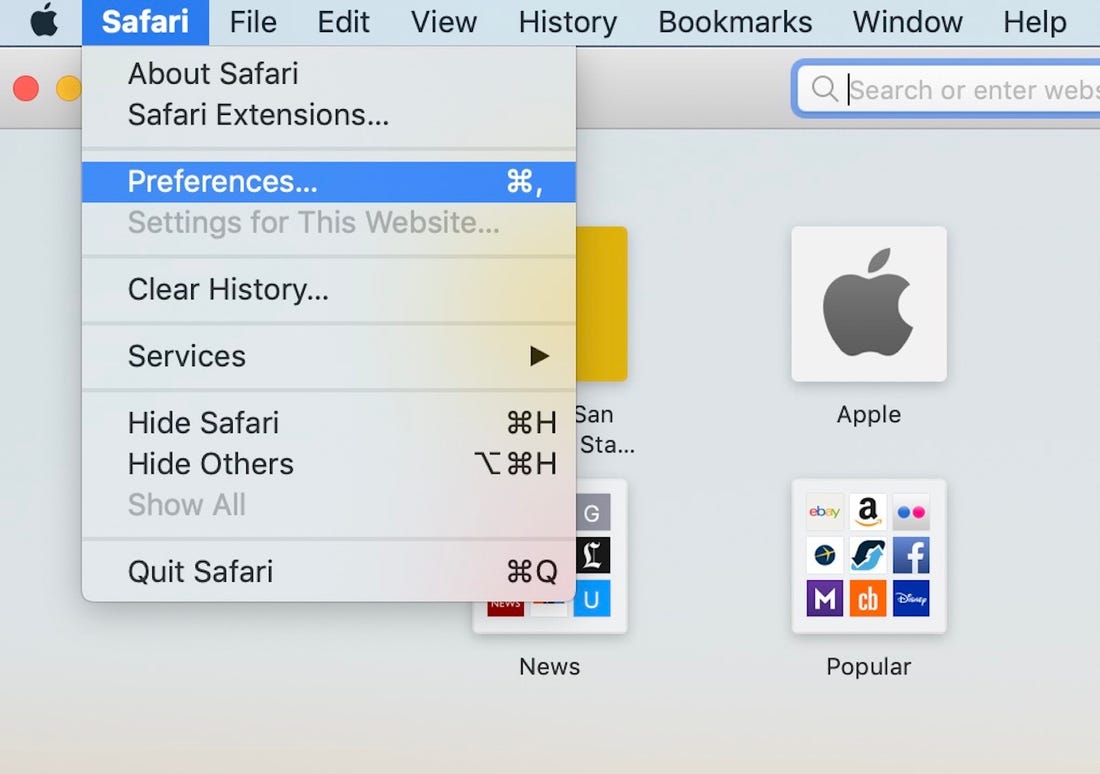
    Navigate to the Safari menu found at the top of your screen, and click on ‘Preferences’.

  4. Select ‘Set to Current Page’

    In the ‘Preferences’ section, go to the ‘General’ tab and click on the ‘Set to Current Page’ button. This will automatically set your homepage to the page you have opened in step 2. In our case, that would be Google.

    These steps are very similar to the steps above to set a homepage on your iPhone or iPad. The only difference is that instead of choosing the Safari Menu, you select the Sharing icon, which is represented by a square with an arrow pointing up. In this menu, you’ll get the option to set the current webpage as your homepage.

    If you can’t change your Safari homepage, make sure that your Safari is updated to the most recent version.

Set Your New Homepage

As you can see from the above steps, it is easy to set any webpage of your choice as your homepage. This can make your browser much more efficient to use and can get you going much quicker.

If you are looking for a different browser to try, you can look at Google Chrome and Firefox as alternatives.

How to Record Twitch Streams on a PC

Okay, so you’ve just made a new move on LOL and found walls thin enough for Riven and Nautilus to pass through. Or, you’ve found out how to recall and stealth back to base safely. It’s a secret you’d want to share with your teammates, right? 

Fortunately, you can record your Twitch Streams using various apps. You’ll never have to worry about remembering all your random discoveries again.

How to Record Twitch Streams on a PC

Recording your streams for Twitch doesn’t need to be as challenging as it seems. You can simply record your game directly only your PC and stream straight to Twitch:

  • Open Twitch on your PC and choose the stream that you want to record.
  •  Hover with your cursor over the ‘Add’ button and select ‘Window Capture’ 
  • Select the ‘Start Recording’ button.
  • The Twitch stream on your screen is now recorded.

Play on!

Most broadcasting software supports recording in a few easy steps. Whether it’s your game or a live chat with family abroad, you can now keep track of every stream that’s important to you.

How to Play Friday Night Funkin’ – The Tricky Mod in 4 Easy Steps

Friday Night Funkin’ is a rhythm-based game, following in the wake of rhythm pioneers such as Dance Dance Revolution and Guitar Hero. Recently, a mod was developed that allows you to battle against an alien clown named Tricky. This character comes from another flash player game called Madness Combat and shows up as a bonus week in the game. So how exactly do you install this mod to battle an evil clown with the power of rap? This is actually a very quick process, and we’ll walk you through it in this guide.

How to Play Friday Night Funkin’ – The Tricky Mod

This mod doesn’t require the base game’s files to run; the developers programmed it straight into the game to make the whole process easier on you, the user. So without further ado, let’s take the stage.

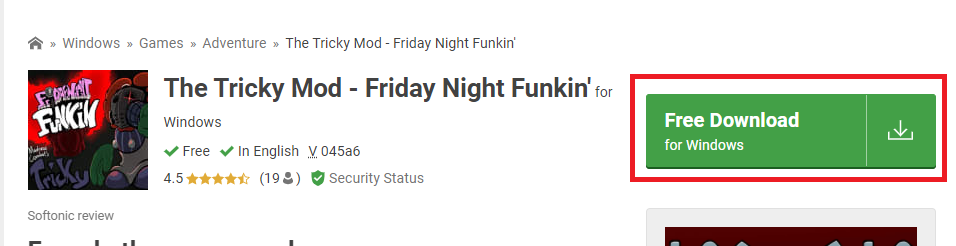
Step 1: Download the mod files

You’ll need to download the game files that include the mod, which you can do by following this link.

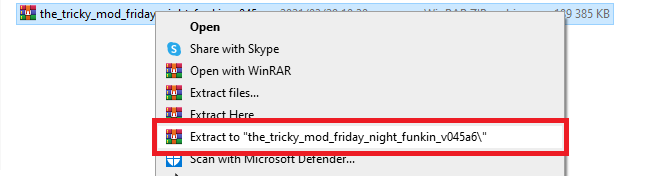
Step 2: Extract files

Once the download has finished, you’ll need to extract the files; you can do this by using WinRAR. Make sure to extract the files to the location where you want to install the game.

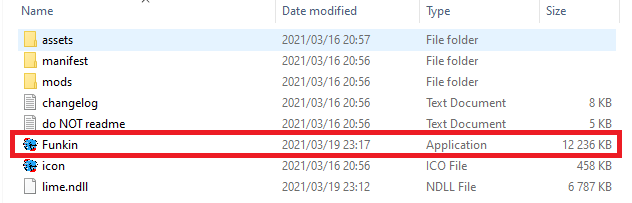
Step 3: Open the Funkin file

Now go into the extracted folder and start up the game by double-clicking the Funkin file.

Step 4: Start playing!

You’ll find the Tricky level at the bottom of the list in Story Mode. Just select it and start playing!

It’s Tricky to Rock a Rhyme!

This game is a brilliant combination of lunacy and fun that can easily keep you busy for hours at a time. While it lacks competitive game modes, it makes up for this by becoming increasingly challenging while still providing some good beats and fun opponents. After all, what could be more relaxing than battling a killer clown with the power of music?

If you’re looking for more mods, you can also try the latest vs. Whitty mod.

How to Enable Javascript in Safari in 5 Easy Steps

Safari is a popular browser as it’s very fast, secure, and user-friendly. Safari is also the default browser on Apple products such as Mac, iPad, and iPhone. However, it’s also available on Windows computers and android devices.

Enabling Javascript in Safari may not be necessary, however with Javascript not enabled, some websites you visit may look odd or even broken. This is because Javascript is one of the most popular programming languages across the internet. To enable javascript is a straightforward process and will improve your browsing experience.

How to Enable Javascript in Safari

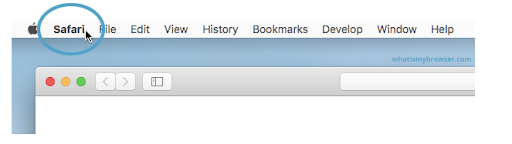
Step 1: Click on the ‘Safari’ Menu

Open your Safari browser on Mac and click on the Safari menu found on the top left side of your screen.

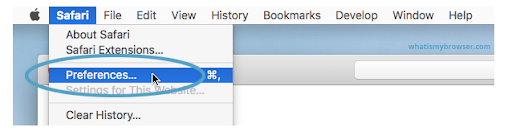
Step 2: Click on ‘Preferences’

In the drop-down list that appears, click on ‘Preferences.’

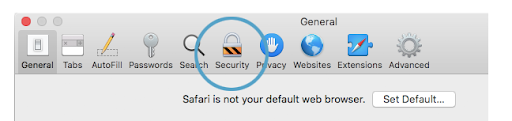
Step 3: Click on ‘Security’

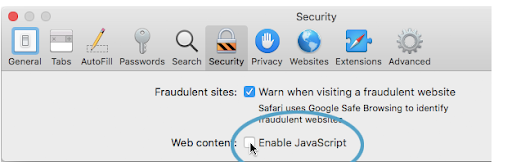
Click on the ‘Security’ tab that appears in the new window.

Step 4: Click on ‘Enable Javascript’ Checkbox

Next to the ‘Enable Javascript,’ there will be a checkbox. If it is already selected, then javascript is enabled. If not, check it to enable javascript.

Step 5: Close the Window and Continue Browsing

Now that you have successfully enabled javascript, you can close the window and enjoy browsing with your Safari browser.

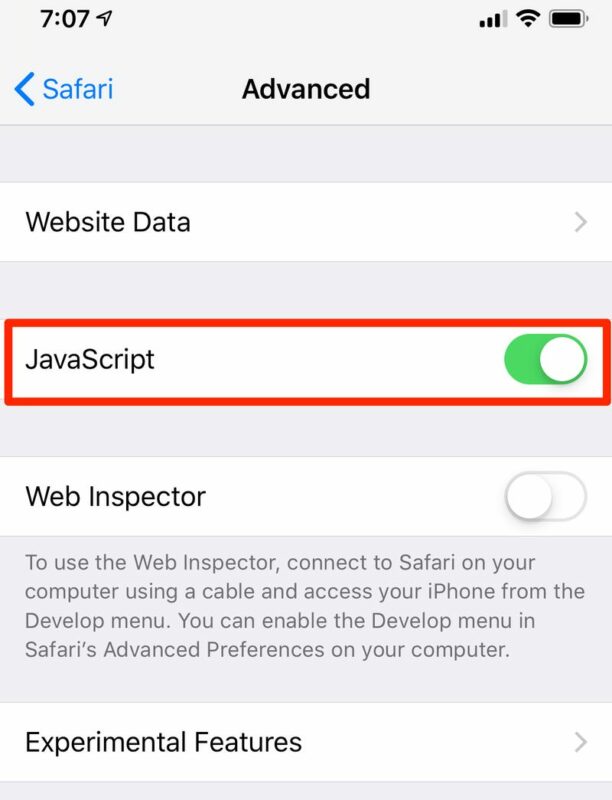
To enable javascript on your iPad or iPhone, you go to settings and then find Safari and click on it to open the Safari option page. Now you can enable Javascript from here on your iPad, iPhone or iPod. 

To enable javascript in Safari on a Windows computer is just as easy. In your Safari browser, click on the gear icon found in the top right of the screen. From here, you can select ‘Preferences’ and follow the same steps as you would on a Mac from step 2 above.

Continue Enjoying Seamless Browsing

Now that you have enabled javascript in Safari, you can continue to enjoy browsing the internet and viewing the different web pages as they were intended to be viewed.

How to Create a Brochure From a Template in Microsoft Word in 5 Easy Steps

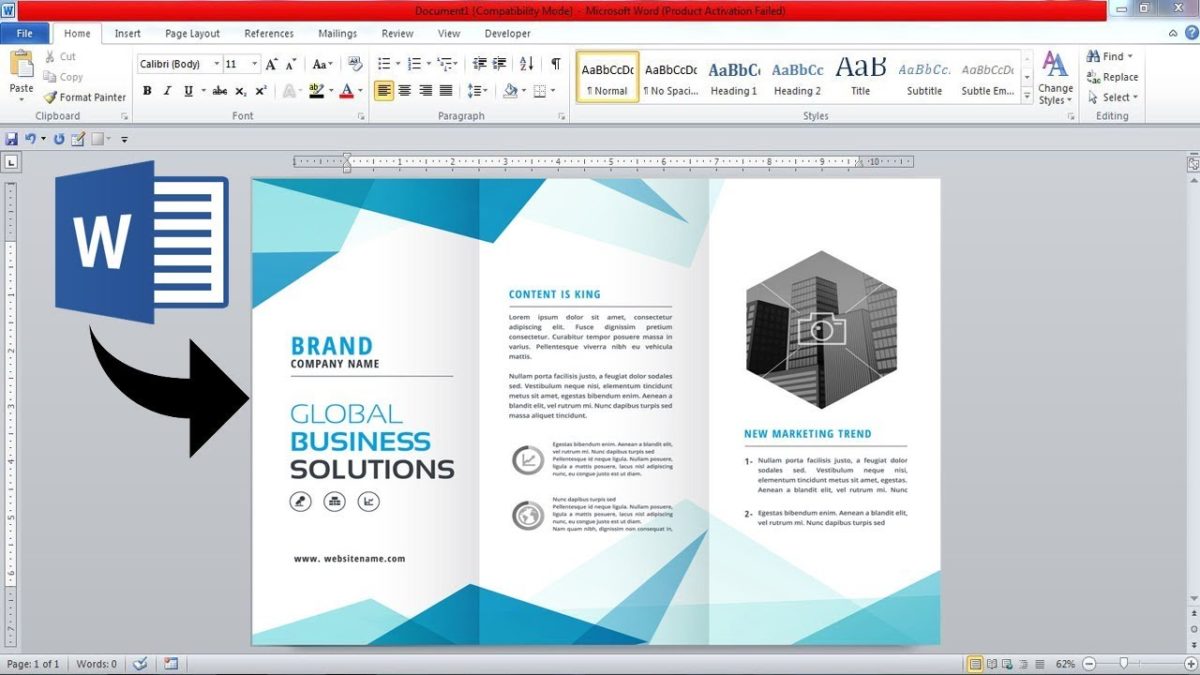
Microsoft Word is probably one of the most utilized programs on PC, Android, and iPhone. One of the many advantages to Word is that its online templates allow you to create documents that look highly professional without the costs of paying someone else to do it for you. It’s so easy to create a striking resumè or a colorful brochure for your business from the comfort of your own home or office. 

But, sometimes, these templates can look a bit overwhelming when you load them, and it’s easy to miss something that you were supposed to change or write. That’s why we’ll use this guide to show you how to create a brochure from a Word template.

How to Create a Brochure From a Template in Microsoft Word

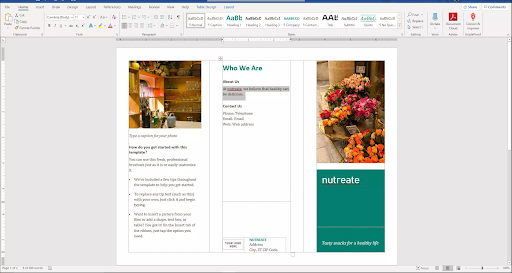
While you can also create your brochure from scratch, this is by far the easiest method as these templates come programmed with all the columns and placeholders needed for the brochure to fold correctly. Let’s take a look at how this works.

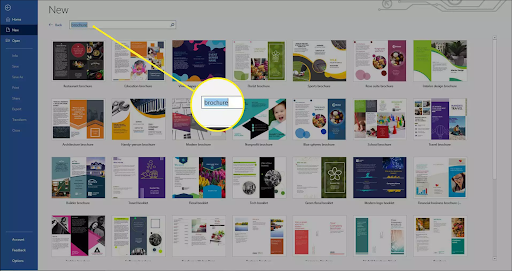
Step 1: Search for a template

First, start up your Word and select File → New. In the Search bar at the top of the screen, type in Brochure and press Enter. 

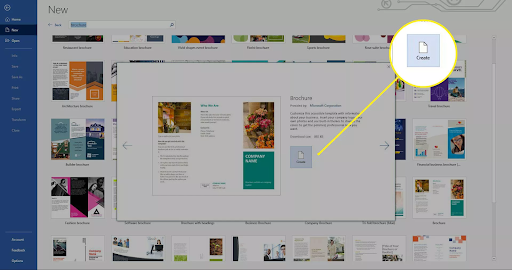
Step 2: Select a template

Once you’ve found a design that you like, click on it and then click on Create. This will open the template as a new document for you to edit.

Step 3: Replace the sample text

Let’s start with the sample text first, click on any text in the document and replace it with your text. You can also edit the font, text size, and color if you want to.

Step 4: Replace images

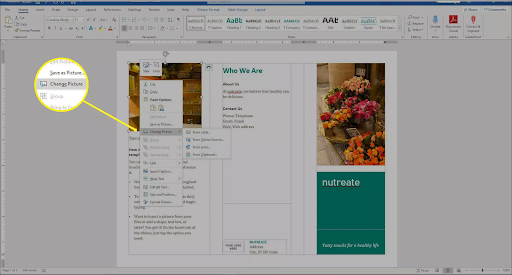
Now we’ll move onto the images. If you want to replace one (or all) of the existing images, then right-click on it, select Change Picture and browse to the location of the image you wish to add.

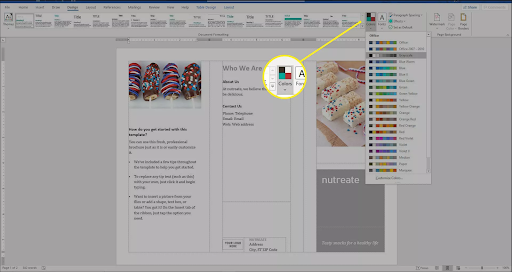
Step 5: Change colors

Finally, to change the color scheme of your brochure then click on the Design tab and select Colors. From here, you can select one of the existing color schemes or create your own.

Release Your Inner Graphic Designer

These templates’ beauty is that they form the perfect foundation for you to create and customize something truly unique. It can feel a little bit intimidating to sit in front of a blank document and not know where to start; fortunately, Microsoft has catered to this so that anyone can create beautiful and functional documents.

How to record Netflix in 3 easy steps

Netflix is one of the most popular streaming platforms to watch movies or TV shows on demand. Its humongous catalog offers an excellent selection of all-time classics, blockbusters, and exclusives. However, if you’re usually on the go, you’ll find it hard to access this content without an Internet connection to stream it. In today’s article, we’ll teach you how to record Netflix and keep these videos to enjoy wherever you are at.

Netflix DOWNLOAD
9

How to record Netflix on a PC

Step 1: Download a third-party screen recorder

Most PCs include recording tools however, these are usually very limited. If you want to record Netflix we recommend that you download a third-party recorder that supports 4K video such as Wondershare UniConverter.

Wondershare Uniconverter DOWNLOAD
9

Man using a PC

Step 2. Access Netflix

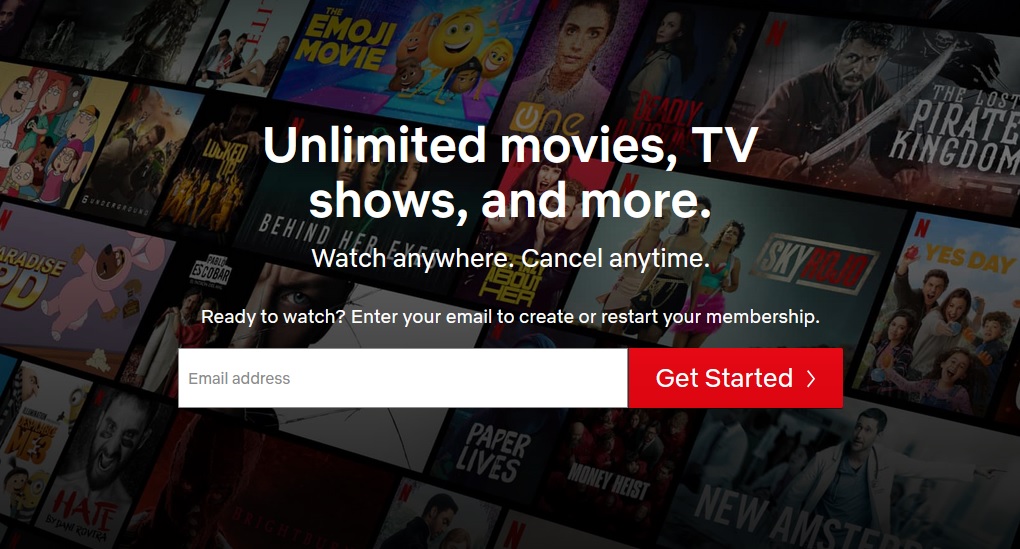
To record Netflix, visit the official site here and log into your account.

How to log in to Netflix

Step 3. Launch Wondershare Uniconverter

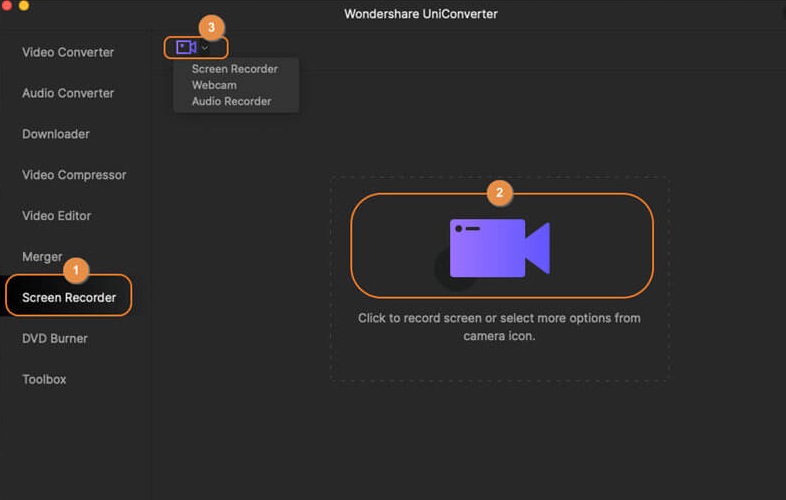
Now launch Wondershare Uniconverter and click on the “Screen Recorder” button.

Wondershare Unirecorder

Step 4. Record the movie or show you want

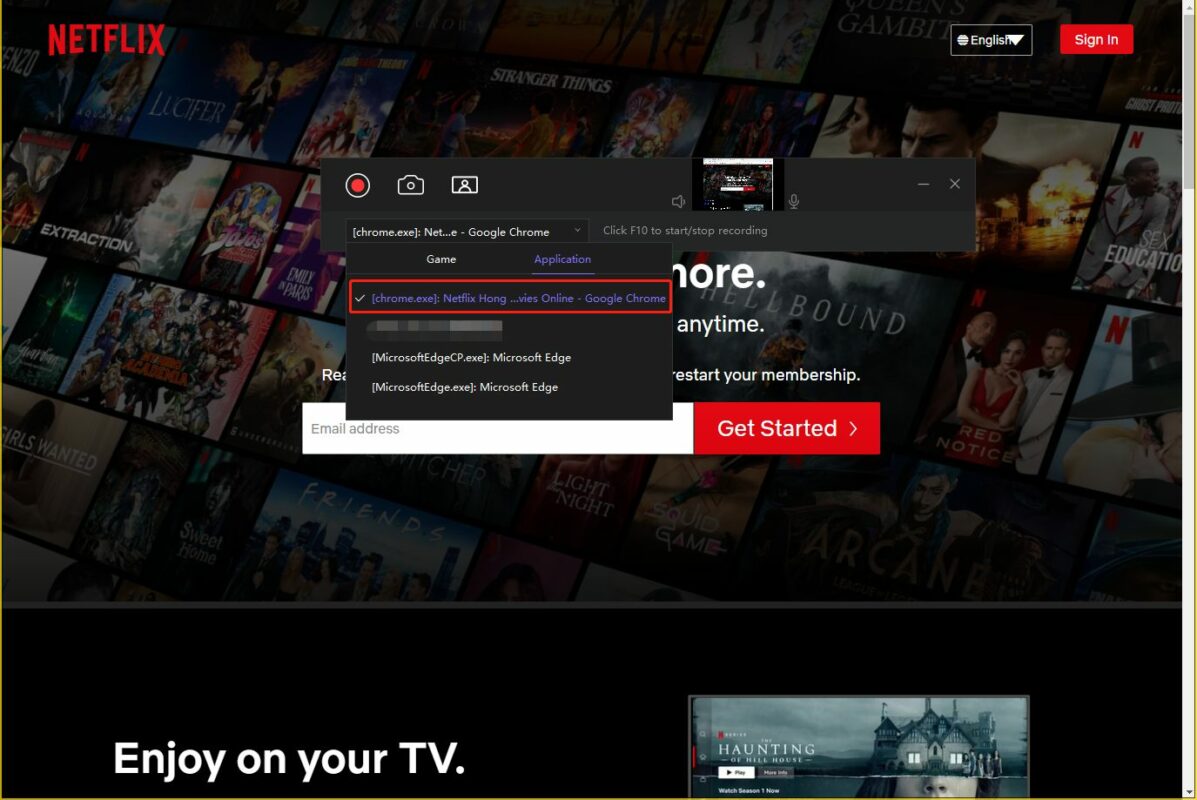
After enabling the screen recorder, you’ll see all its settings on screen. Make sure to set the height and width of the area you want to record and select the quality and frame rate of the video. When you’re done, click on the red button and play the show or movie you want to record.

How to record netflix

How to record Netflix on your mobile phone

Step 1. Download the Netflix app

To be able to record Netlfix from your mobile phone, you’ll first need to download and install the Netflix app.

  • Netflix for Android

Netflix (Android) DOWNLOAD
9

  • Netflix for iOS

Netflix (iOS) DOWNLOAD
9

Step 2. Launch your phone’s Screen Recorder

Open the notification drawer from your Android phone, or the control center from your iPhone, and select the Screen Recorder option.

Record on an iPhone

Step 3. Record Netflix

Open Netflix and go to the show you want to record. To start the recording, simply press the red button that you’ll see on the floating control panel of the Screen Recorder.

Netflix on Android

Record Netflix in three easy steps

Recording Netflix videos is a very easy process to keep your favourite movies, clips, and tv shows available for watching them later without an Internet connection.