Friday Timewaster: Gluey

This week’s timewaster is casual gaming at it’s best: simple, addictive and relaxing. Gluey is essentially Bejewelled, but with liquid blobs. Click any gluey blob with two or more eyes to make it disappear, and the blobs around it will roll and join together if they’re of the same color.

Start playing, and before you know it you’ll have lost an afternoon! The colorful graphics are well animated and the music suits the relaxed pace of the game perfectly – although eventually you might want to turn that off. Play Gluey from your browser, and install Flash if you don’t already have it!

Why you should use Tumblr

Bored of your blog? All tweeted out? This week I’ve been having a second look at Tumblr, which sits somewhere between those two. When I first played with it over a year ago I wasn’t very excited. I don’t know what’s exactly happened since then, but Tumblr looks great now!

You’re not limited to 140 characters, but like Twitter the social aspects are central and built into Tumblr. Posts are split by category – text, photo, quote, link, chat, audio and video – and sharing any of these things is a breeze. The site gives you a Dashboard, which shows you a news stream of posts by you and the people you follow, like Twitter, but as it supports rich media, your Tumblr dashboard will be full of audio, video and images.

Go to the website to set up your account with an email address, and then off you go. The site looks good and is very usable, but even simpler is the Firefox add-on Tumblr Post. If you want to share something, simply drag it to the little icon in the status bar, and it will post on your Tumbleblog automatically! Until computers achieve sentience, I’m not sure blogging could be easier!

When away from your computer, that’s no excuse as there are Android and iPhone apps that allow you to blog just as easily on the move. The free iPhone app Tumblr is especially well designed, allowing you to record audio, photos and video on your phone and upload them, as well as use all the other Tumblr features.

While I love Twitter for keeping up with news, Tumblr seems much more fun. It doesn’t have the huge user base of Twitter but I’m sure it will grow as more people try it, as it’s so easy to get into. Come on, join in: Facebook and Twitter are so last decade!

Restore lost desktop shortcuts in Windows XP

When you install Windows XP for the first time – or perform a clean reinstallation from scratch – you usually get a bunch of default icons on your desktop, namely My Computer, My Documents, My Network Places, Internet Explorer and the Recycle Bin. These are special system shortcuts, different from standard desktop shortcuts, and have their own tweaking options to hide them or bring them back in case they’re lost.

Restore lost desktop shortcuts in Windows XP

If you want to recover those lost system icons, right click anywhere on the desktop to open the Display Properties window, select the Desktop tab and click the Customize Desktop button. This will open the Desktop Items window, where you can see a box containing all these special system icons, and small checkboxes to enable or disable them. Now simply select which icons should be displayed and which ones should be kept hidden, or hit the Restore Default button to go back to the standard configuration.

Incidentally, the Desktop Items window also lets you change the icon in these special system shortcuts. It’s as easy as selecting the icon you want to customize, click Change Icon and select a new one.

Create and edit PDFs for free!

If you’re looking for PDF utilities, you’ve got plenty of choice if you want to open and view without paying a fortune. What’s not so easy is creating and editing them, a problem that leads lots of users to avoid this handy file format altogether.

Just remember: creating PDFs may not be as easy as creating other types of document, but there are still lots of tools that will help you get the job done!

factory.png

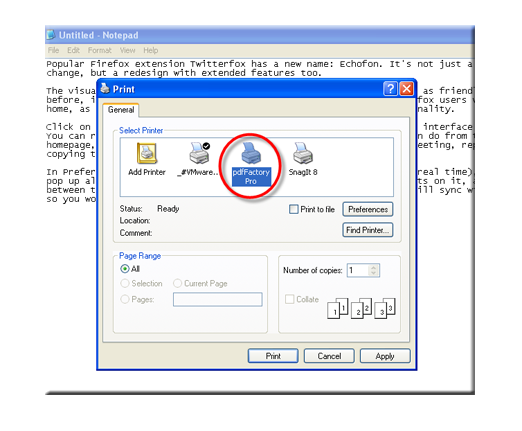
Creating PDFs is most easily achieved by using a PDF ‘printer’ like PDFCreator. Once installed, this program appears like another printer on your printer list. You create the document in your usual Windows application and once you are ready to turn it into a PDF, send it to the PDFCreator printer. This tool will convert your document into a portable, professional PDF, while PdfFactory Pro and Bullzip PDF Printer will do the same job.

What if you have a PDF that you’d like to edit or a form you need to fill in? This one’s a bit harder, as there are very few free apps that do the job well. Obviously there are master programs designed specifically for the purpose, but unless you have a spare $500, you can kiss that option goodbye.

odf.png

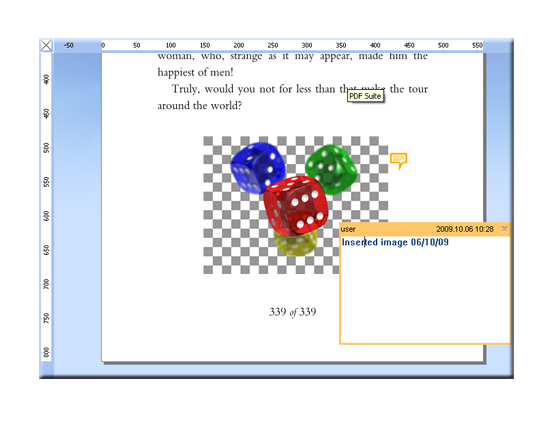
If you have just one document that you want to modify, the trial versions of programs like PDFill PDF Editor and PDF Suite will do the job. If you need a less limiting – and free – option, PDF-XChange Viewer will give you plenty of editing powers. Also bear in mind that some office suites, such as OpenOffice, have PDF functionality built in.

As a final option, you could give online editors like PDF Hammer and PDFescape a try. Just remember that these tools get mixed reviews and only offer basic editing tools, especially in the case of PDF Hammer.

Today’s downloads for Windows, Mac and Mobile

rock bandiPhone: Guitar Hero and Rock Band are two of the most innovative console games of the last ten years. Now you can enjoy the wonders of virtual instruments on the go, by installing Rock Band on your iPhone. The Lite version lets you choose from four different instruments – bass, guitar, drums, and vocals – and all of them are excellently presented. From the animations above the game board to the vibrant neon colors, the graphics are almost worthy of a console – and the sound is superb too.

Download Google ChromeWindows:  Chrome users worldwide, rejoice! The latest stable version of Google’s web browser is already here. Google Chrome 4.0.249.78 includes a bunch of new features, such as enhanced developer tools, support for HTML5, performance improvements, full Acid3 pas and above all, support for extensions and bookmark syncing.

Google Chrome PortableMac: Mac fans have been able to try Google Chrome for themselves for quite some time now but this is the first unofficial portable version available that you can take anywhere. However, since it is still a beta version, Google Chrome Portable may be prone to bugs and instability but it’s enough to give you a good idea as to what the finished product will look and feel like. Note, it only works on Intel Macs.

5 tools to clean up context menus in Windows

The context menu is usually a shorter and quicker way to access specific system tasks, like copying and pasting, deleting, renaming or checking the file’s properties. It’s also used by many programs to insert shortcuts to their main functions, and while this comes handy for most people, it may also end up turning Windows context menu into a real mess.

5 tools to clean up context menus in Windows

If your context menu is already so long that it takes you a few seconds to show it up, it’s time to jump into action. Here’s a list of apps that will help you clean messy context menus by removing obsolete entries, and also make them more useful with new functionality.

  • JDContextMenu – This app adds twelve handy new features to your context menu, and lets you freely arrange them to suit your needs.
  • Mmm Free – Easily get rid of all the options in the context menu you rarely or never use. It’ll make context menus faster to load and easier to use.
  • Context Magic – Adds new commands to the context menu in Windows that make file management more comfortable. Perfect for heavy mouse users!
  • Context Menu Editor – Remove all context menu entries you don’t need in just two clicks. Bear in mind you’re just deleting the menu entry, not the program it links to.
  • FileMenu Tools – Create a sub-list to the context menu with a bunch of handy utilities. You can remove the ones you don’t use, rearrange them and create submenus and separators to adapt the context menu to your neeeds.

Why I changed my mind about touchscreens

A year ago I was still pretty skeptical about touchscreens. I felt that total reliance on a touchscreens was a mistake, and that devices needed some physical controls, like d-pads, keyboards or keypads.

Having decided to get an iPhone regardless of these fears, and watching the development of apps over the last year, I have changed my mind. While I still can’t touch-text under tables like I used to, I can now tap out emails pretty quickly using the virtual keyboard. I think a physical keyboard is more natural to use, but I have been surprised how quickly I’ve got comfortable to life without one. The gains from touchscreens certainly outweigh the losses: Navigating around a device with a touchscreen is easier and faster – browsing is fantastic. A smartphone without a touchscreen would be a nightmare!

I own a Nintendo DS and a PSP, and never thought the iPhone could compete in game quality. There are areas where that’s still true – driving games on the iPhone are only ever surprisingly good considering they’re on an iPhone. They don’t stand up to systems with more controls – the accelerometer is too imprecise and sensitive (see Real Racing). But when games are developed especially for the touchscreen, they can be fantastic. Space Invaders Infinity Gene is perfect, while Beneath a Steel Sky and Broken Sword show that touchscreens are the best system for point and click adventures.

All in all, touchscreens are a great way to interact with computers – there is plenty of space for them in my life, although that doesn’t mean my joypads and laptop keyboards will be going anywhere soon. Is it a bad idea to say that on the eve of another Apple launch?

Exclusive: In-depth review of Voddler

Voddler logoIt’s taken us just over six months but we’ve finally got our hands on one of the hottest download tickets in town – an invite to test Voddler. In July we had an exclusive interview with Voddler co-founder Mathias Hjelmstedt and couldn’t wait to give it a go. Now, we’ve finally had the chance to try it for ourselves and can safely say, Voddler looks like a genuine contender for the future of movie distribution in the same way as Spotify is for music. From a huge selection of films and documentaries to an easy to use interface and stunning video/audio, Voddler is all I expected and more.

Unfortunately for most, at the moment its still only available in Sweden but we’ve been able to give it a proper test run for you.

If you’re lucky enough to receive an invite, you can install the beta client for Voddler on Windows or the Alpha client on Mac. I installed the Mac client but it works exactly the same on both platforms.

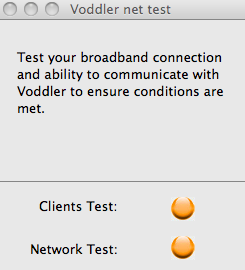
Voddler speed testWhen you install Voddler, it takes you through a quick setup wizard which checks the suitability of your connection. The test takes a few minutes but if you’ve got a 2.5Mbit connection or more, you’re good to go.

When Voddler launches for the first time, it goes straight into full-screen mode. I would prefer to have been prompted whether I wanted to open in windowed or full-screen mode but you can revert back to windowed mode (so that you can access the rest of your Mac normally) by pressing Command+F.

The first thing to note is that you can’t use your mouse when Voddler has started. Everything is controlled via the keyboard – mainly the Cursor, Enter and Esc keys – which is a bit disorientating and awkward at first. Alternatively, you can use an Apple remote instead which is a bit easier.

The reason for this is that in future, Voddler plan to launch a box that connects to your TV without a computer (known as a Voddler box) and presumably you’ll be able to use a virtual keyboard. However, I think it would still have made more sense at this stage to have allowed users on a computer to use a mouse.

Once you setup a profile and log-in:

Voddler login

You are presented with three options in front of a scrolling background displaying iconic movie stills. The options are Settings, Movies and Quit. Use the left and right arrow keys to scroll through them: Continue reading “Exclusive: In-depth review of Voddler”

Chrome support for extensions is official now

Though they were already included in a developer build a few weeks ago, it wasn’t until today that Google made it official: Chrome now supports extensions! Thanks to this long-awaited feature, Chrome users can now expand the capabilities of their browser with small plug-ins that add diverse functionality to the program.

Chrome supports extensions

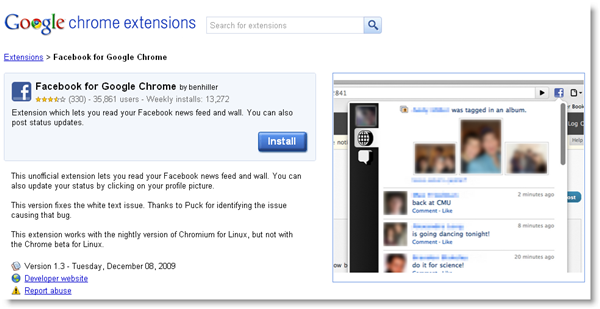
You can find and download Chrome extensions in a special online gallery that organizes them by popularity, date and rating. Right now there are about 1,800 extensions available, many of which are exact copies of Firefox’s popular add-ons – which undoubtedly helps a lot in browser switching. Every extension has its own page, featuring a description, some screenshots, user reviews and links to the developer’s site and the documentation, if any.

Installing a Chrome extension is really easy. Simply browse the gallery to find the extension you’re interested in, click the big blue Install button, accept the confirmation message and you’re done. Unlike Firefox, you don’t even need to restart the browser.

Chrome supports extensions

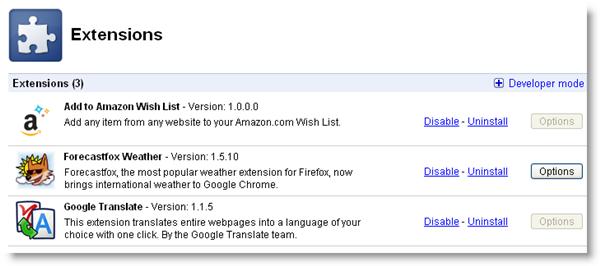
If you want to check your installed extensions, open Chrome’s configuration menu (the wrench icon) and select Extensions. The browser will open a new tab with the list of installed extensions, as well as links to disable and uninstall them, and direct access to the extension’s options – if available.

Chrome supports extensions

Finally, if you’re a developer and would like to publish a Chrome extension, you can do so from the gallery itself. Click the Publish your extensions link on the left side of the gallery interface and fill in all the details. The extension will be immediately be ready for download.

Apple Tablet rumor & prediction roundup

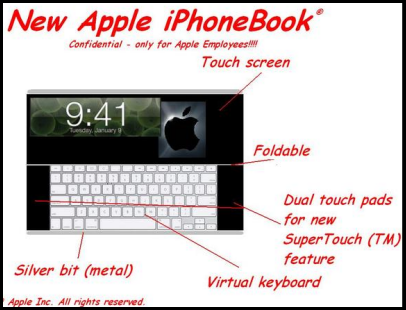
In case you hadn’t heard, rumor has it that Apple will release a new ‘tablet’ on Wednesday. Here at OnSoftware, we decided that rather than add to the echo chamber, we’d stay out of any debate on the putative features and software of this alleged device. We’ll be offering our thoughts when we know how the machine looks and feels, which version of OS X it runs and what software-enhancing goodies it has packed into its super-thin body.
ipad-1.png

At the same time, there is a lot of great analysis and gossip-mongering going on out there in the blogosphere. So with about 28 hours to go, here’s a round up of some of the best articles we’ve read about the mysterious “Jesus Tablet”.

TUAW has a rundown of their tablet coverage. They discussed the ramifications for software developers, ‘print’ publishers and how the tablet might connect with the world. They also think that Steve Jobs might be planning to revolutionize the education sector with this device.

Seth Weintraub at 9 to 5 Mac wrote a great post arguing that the tablet will be a breakthrough convergence device. In short: it’s going to do most of what you want it to, plus lots more.

Plenty commentators reckon that the Wall Street Journal is receiving lots of leaked information directly from Apple, which would explain why that newspaper is so packed with insightful, authoritative articles about a device ‘no one’ has seen. Like this one.

MacRumors has been, as usual, a great place to read up on the latest gossip. One of its most repeated topics is that the tablet might be called the iPad.  Personally, I prefer Canvas as a name, but a forum user has pointed out a good reason why that might not be so.

John Gruber’s Daring Fireball blog is always an excellent place to visit for news and analysis, and he’s been particularly good as the hype has built around the tablet. (That last link includes a link to a very entertaining and incisive article by Chicago Sun-Times writer Andy Ihnatko, which is among the best tablet-related pieces we’ve seen so far).

Leigh McMullen at Cult of Mac wrote a piece which really resonated with us. He doesn’t want to see a tablet that runs something like iPhone OS. Nor do we. A hybrid between Mac and iPhone makes more sense… but Apple might well ignore that.

The Guardian is also crowdsourcing a prediction on the possible specs of the new tablet. It’ll be interesting to see how close the results are to reality.

Finally, here’s Mosspuppet reviewing the tablet [via: 9 to 5 Mac]

[youtube]http://www.youtube.com/watch?v=M_Fi9V_ot4I[/youtube]