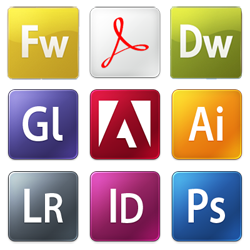
 Today September 23rd 2008 is the date chosen by Adobe to present their new Creative Suite 4. Though the actual applications won’t be available until late October, the Adobe guys have already updated their official website with all the juicy details concerning the new CS4 Suite you’re eager to learn about. Adobe Creative Suite 4 comes in several different editions: Design, Web (with two flavors for each: Premium or Standard), Production and Master Collection. Prices range from the $999 of the Web Standard edition to the $2,499 of the Master Collection, which includes pretty much everything.
Though some discordant voices claim that the new CS4 suite is not that revolutionary after all, the truth is that we’ve read about some exciting new characteristics for all the main CS apps. For example, Dreamweaver boasts a new user interface, a powerful Live View feature that lets you design in actual browser conditions while keeping direct access to source code, integration with Subversion and support for Adobe Air authoring. In fact Adobe Air is an important element in other apps, such as Fireworks, which provides you with the perfect working environment to create Air apps, plus integrated export to CSS and PDF.
Talking about PDF, Acrobat features the so called PDF Portfolios, a document package where you can assemble images, video, audio and more in a totally customizable layout. Plus Acrobat now supports embedded Flash content, allows you to compare different versions of the same document and includes a highly sophisticated form tool. However the most exciting feature for me is undoubtedly the promise to reduce Acrobat’s launching time to under three seconds!
As for Illustrator, the new version brings support for multiple artboards which you can work on at the same time, together with the possibility to edit appearance inside the panel itself and manage gradient transparencies more efficiently.
Finally, Photoshop – which you can tell it’s my favorite CS app by far – features an impressive pan and zoom image rotation tool that lets you smoothly move around the picture and zoom to the pixel if necessary, plus content-aware image scaling and improved RAW photo processing functionalities. I must say I’ve tested the Photoshop CS4 Beta version and I was truly impressed by these new features and also by its clean, sleek interface that makes work much more relaxing and enjoyable.
I don’t know about you, but I have quite high expectations about the upcoming Creative Suite 4. I think it’s going to be a qualitative step forward for the Adobe apps and I’m really looking forward to test all of them and check whether they’re all as promising as the Photoshop Beta. If you want to know more about CS4, take a look at the Adobe site or head over to the Adobe CS4 Launch event (live now!).
 Windows: If you’ve always wondered how to create panoramic photos, here’s the answer: Microsoft Image Composite Editor lets you create panoramas in a couple of clicks, with no artistic or technical skills required. Simply select the right photos and let the program do the rest. Take your camera out and start creating panoramas today!
 Symbian: If you want to be able to identify callers more easily then you may want to check out Skyecaller. The Symbian-based application allows you to identify both voice callers and senders of SMS messages, by a full-screen image of their face. So next time they call, you’ll know exactly who it is at a glance.
 Mac: The world’s best open-source multimedia player just got updated. VLC Media Player, now on version 0.9.3 is one of the most popular programs on Softonic and it’s not hard to see why. VLC is lightweight, compact, easy to use and will play just about any video you throw at it, from DVDs to broken WMV files. What’s more, it’s totally free and open source. All in all, one of the truly great little apps out there.
 There’s many things that annoy me about Windows Live Messenger but nothing more so than the advertisements that scroll the bottom bar. Invariably, they’re of no interest to me whatsoever, they make the program more bloated and if you click on them accidentally, you end up diverting your browser where you don’t want to.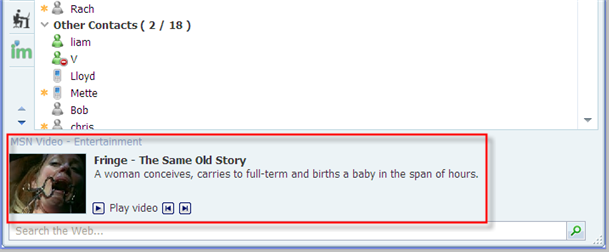
 Before showing you how to create a system restore point, I guess I should explain what a restore point is anyway. System restore is a Windows native service that enables you to recover your computer from any harmful situations, be it caused by a virus, an application or misuse of the system’s tools.
 First let me apologize for any strange things I might write in this article. I am currently in a state of hypnosis. Or at least I might be. I’ve always been intrigued by hypnotism and so I thought I’d try my hand at a bit of mind-alteration, using my PC. Believe it or not, there are loads of self-hypnosis applications and services available for download, ranging from titilating videos that make your eyes go funny to genuinely helpful software designed for motivation, fear conquering, or habit-breaking purposes.
 It’s not difficult to get me started about what I don’t like about Windows but the “yellow shield of death” surely has to be up there. When that yellow shield appears in the bottom left of my screen, with it’s stupid little exclamation mark in the middle of it, I want to sling my laptop across the room. It is of course, the dreaded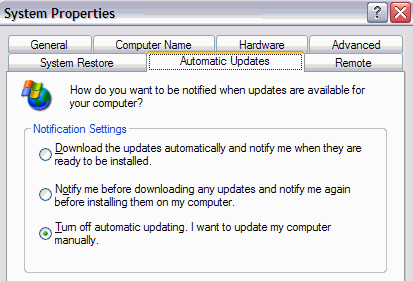
 One thing that most Windows users can’t do without is their right mouse button. As one user who switched to Mac once said, “Losing the right mouse button is like losing a limb”. No amount of shortcuts or launchers in the world can make up for that sweet right-click that facilitates everything from downloading to quick cutting and pasting. However, if you’re only using the default options that Windows offers when you right click then you’re not getting the most out of your mouse’s right click button. Here’s 5 top ways to quite literally, add more power to your elbow.
 It’s hardly been on the market a few weeks but already it seems people are customizing