Microsoft’s mobile strategy: build it better

Microsoft wants desperately to be taken seriously again. The company wants you to forget that Windows Phone is in a distant third place behind Android and iOS. It wants you to forget how confusing Windows 8 is or that Vista ever existed. This year, Microsoft is ready to step out of the shadows of Apple and Google.

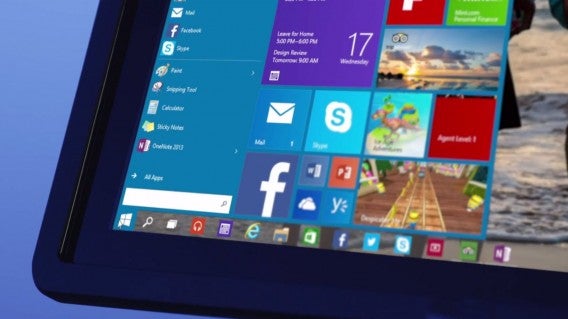
2015 is already shaping up to be a big year for Microsoft. The company showed off more details about its upcoming Windows 10 operating system, which will unite its products under one operating system. Phones, tablets and computers will all be running the same operating system, making it easy for developers to create one app that works on hundreds of devices. Windows 10 will also go a long way to fixing the blunders in Windows 8 like confusing touch-focused controls and an unfamiliar Start Menu. More importantly, Microsoft is finally ditching the confusing Windows Phone moniker, unifying its products under one brand.

Windows 10 up close

The reality of a ‘mobile-first, cloud-first’ company

Microsoft CEO Satya Nadella said that the company would become a “mobile-first, cloud-first” company and we’re seeing that vision come alive now. Windows 10 is going to be free for the first year for Windows 7 and Windows 8.1 users. Making Windows 10 free will entice users and developers to the platform. Windows is no longer Microsoft’s bread-and-butter product but a platform for its services.

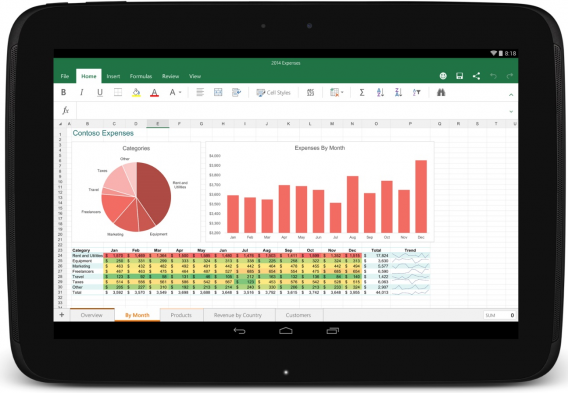
Microsoft is also attacking mobile in a big way. Yesterday, the company released stable versions of Word, PowerPoint and Excel for Android after much testing. Our editor Chris Park gave Microsoft grief for charging for editing capabilities in Office for iPad but Microsoft recognized this mistake by making full use of the apps free. With powerful free productivity suites like Google Docs, it’s difficult to convince a consumer to pay for Office.

Excel for Android tablets

Outlook bests Gmail on iOS

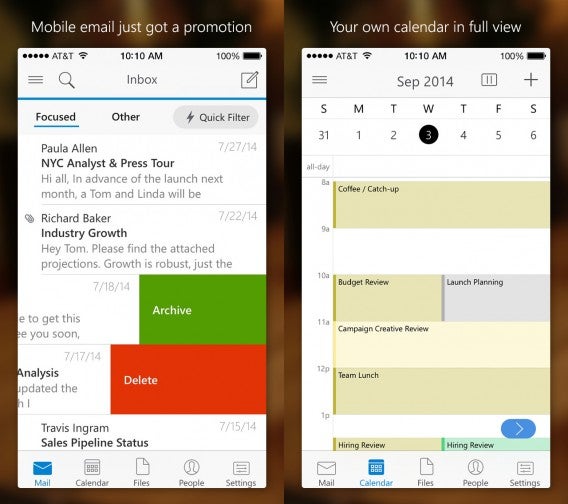
Embarrassingly for Google, Microsoft released its first version of Outlook for iOS yesterday and it’s miles ahead of Google’s Gmail for iOS. Gmail for iOS is slow, buggy and pales in comparison to its Android counterpart. Google has left Gmail for iOS to rot; the app hasn’t been updated since October 2014. Outlook for iOS blew me away with its mail, calendar and contacts integration that doesn’t feel overwhelming (which can’t be said for the Outlook desktop app).

Outlook for  iOS

Outlook for iOS has a unified inbox that separates your email into sections called Focused and Other. Mail in the Focused section automatically filters out crud like promotional emails and social media updates. It’s a lot less complicated than Google Inbox’s bundles and makes sure you see the most important emails first. You can also view your flagged and unread emails in the Quick Filters section. You can also browse for files to attach to emails from services like Box, Dropbox and OneDrive.

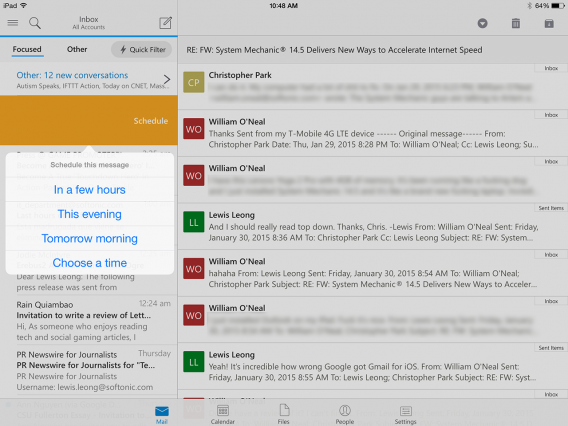
Outlook for iOS even lets you snooze your email to read later by swiping right on a message. You can choose from preset times or create a custom time. The only thing missing is a to-do feature, which already exists in the Outlook for the desktop.

While Outlook is mostly used for businesses that require Microsoft Exchange, Outlook for iOS supports Exchange, Outlook.com, Gmail, Yahoo, and iCloud. In the past, Microsoft wouldn’t have ever considered supporting all these competitor services in hopes that consumers would live inside their ecosystem. It seems Microsoft sees the error of its ways and has become less heavy-handed in trying to force users to use its services.

Outlook for iOS snooze email

An enemy of an enemy is a friend

Microsoft obviously sees Google as a threat so it’s taking the fight to where it’ll hurt Google the most: Android. A report from The Wall Street Journal revealed that Microsoft will be taking part in a $70 million investment round in Cyanogen, the company that created the CyanogenMod fork of Android. Although Cyanogen is based on Android, it only takes the open source parts of the operating system and removes Google from the equation. It’s like how Amazon forked Android to create its line of Kindle Fire tablets. For Microsoft, an enemey of an enemy is a friend.

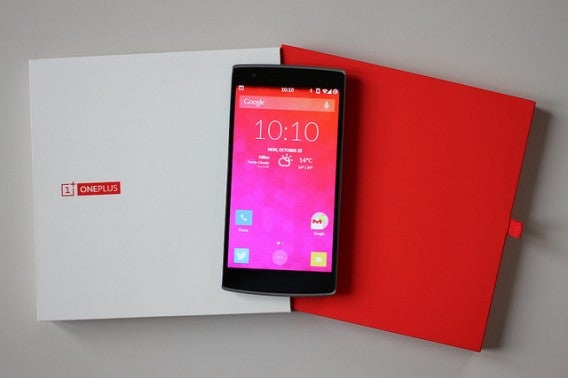
With Google implementing stricter control over the design and distribution of apps within its Google Play Store, Cyanogen could be a viable alternative for phone manufacturers who want to include their products and services instead of Google’s. Of course, any fork of Android can provide this platform, not just Cyanogen. However, Cyanogen has been gaining a lot of traction as the default operating system on the budget OnePlus One phone.

Cyanogenmod OnePlus One by Maurizio Pesce via Flickr

Photo credit: Maurizio Pesce via Flickr

Going on the offensive

Microsoft still has a lot of work to do to sway Android and iOS users. The company has to convince users why its ecosystem is better than Apple’s or Google’s. At the moment, Microsoft’s ecosystem is incomplete. Ironically, Windows 10 for phones will be the last of the big three mobile platforms to get native Office apps. Expect to see Office for Windows 10 for phones later this year. 2015 is just the beginning for Microsoft’s revival and it’ll be interesting to see if the company’s vision pays off.

Related Stories

App of the Week: Dubsmash

How to use WhatsApp in a web browser

Windows 10 will be free for Windows 7 and 8.1 users for one year

Follow me on Twitter: @lewisleong

App of the Week: Dubsmash

This week’s App of the Week is a messaging app with a twist. Dubsmash has one idea – send your friends videos of you lip-syncing to well known and funny quotes and soundbites. It’s available for iOS and Android.

We found it to be a bit buggy, but the results can be amusing anyway. It works by giving you a huge library of categories to browse, so you can find a clip that suits your mood. Then you video yourself lip synching over the clip, and send it to your friends. It might be a novelty messaging app, but it could be fun while it lasts. Check out more in our video below.

Default player


brightcove.createExperiences();

Download Dubsmash for iOS or Android

How to use Rhapsody

If you’re not already using Spotify as your music streaming service, you may be on another service like Rhapsody. The service was the first on-demand music subscription service and it’s still going strong today.

Those uninitiated with Rhapsody may find the app a bit confusing, especially coming from services like Google Play Music or Spotify. While the interface isn’t the most intuitive, it doesn’t take too long to get used to.

Below, I detail how to use every aspect of Rhapsody from managing your playlists to downloading music for offline listening.

Navigation

Finding music

Managing music

Download music to listen offline

Starting and creating radio stations

Adjusting sound using the equalizer

Adjusting sound quality

Sharing music

Playing music on your TV

Identify what’s playing

Set a sleep timer (Android Only)

Finding music

Rhapsody for Android

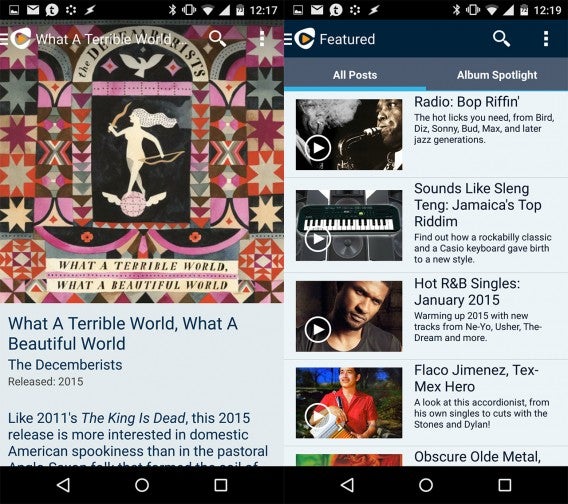
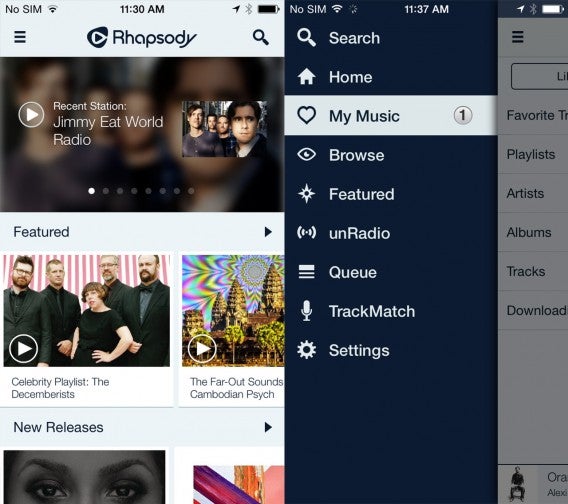
After signing up for Rhapsody, you’ll have access to its library of over 16 million songs. From the home screen, you’ll see sections for Featured, New Releases, Popular and Featured Playlists. This acts as a nice hub for catching up on what’s new in music, though most of the music will be mainstream pop or rap music.

To browse other genres, you’ll have to dig a bit more. Tap on the side menu button at the top left and you’ll see options to Browse. This lists all the genres for you to explore. Tapping on a genre will display popular artists and options to explore by artist, album, tracks, stations, and posts. Rhapsody does a good job of curating music so you shouldn’t have trouble finding something interesting to listen to.

Finding music in Rhapsody

If you want to listen to something specific, you can access search at the top. You can search by artist, album or track.

Jump to top

Managing music

Add to playlist

Although Rhapsody gives you access to over 16 million songs, that doesn’t mean you want to listen to them all. To help you manage your music, Rhapsody lets you add artists, albums or specific tracks to your own library. By adding music to your library, it makes it super easy to find music you want to listen to instead of constantly browsing.

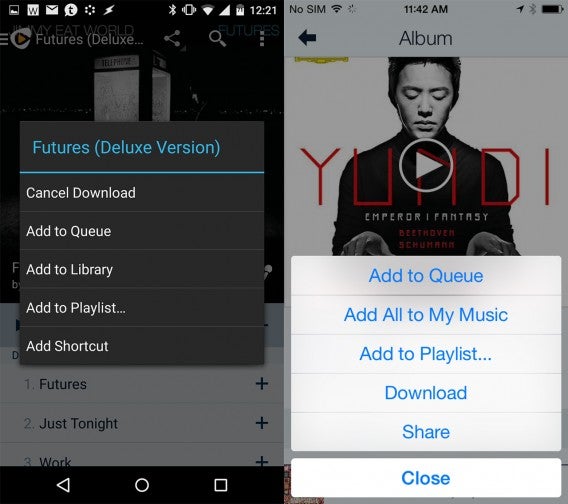
Rhapsody also lets you create playlists that sync across all your devices. To add a track to a playlist, browse for it and tap on the + button. This opens up a menu to add the track to a playlist. You can add the track to an existing playlist or you can create a new one. Alternatively, you can add tracks to your queue if you don’t want to deal with creating a playlist.

Deleting a playlist is a little unintuitive. To do this, navigate to your playlists under the My Music section in the side menu. Tap on the + icon to access options and you’ll see Remove Playlist at the bottom of the list.

Jump to top

Download music to listen offline

Rhapsody downloads

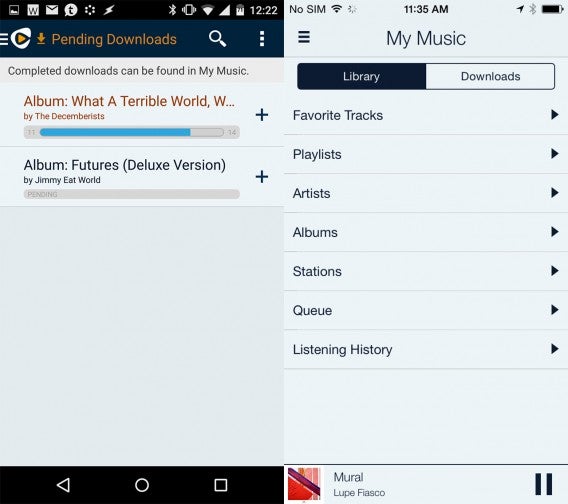
If you don’t want to suck up all your cellular data streaming music, you can download tracks to listen offline. To do this, tap on the + icon next to a track or album. You’ll see an option to download the songs onto your device.

To find your downloaded songs, open up the side menu and tap on My Music and then tap on the Downloads tab. Here you’ll see a queue of songs that need to be downloaded. You can cancel a download here too. If you’re running out of space on your phone, you can delete tracks and albums from here by tapping the + button.

Jump to top

Starting and creating radio stations

Rhapsody unRadio

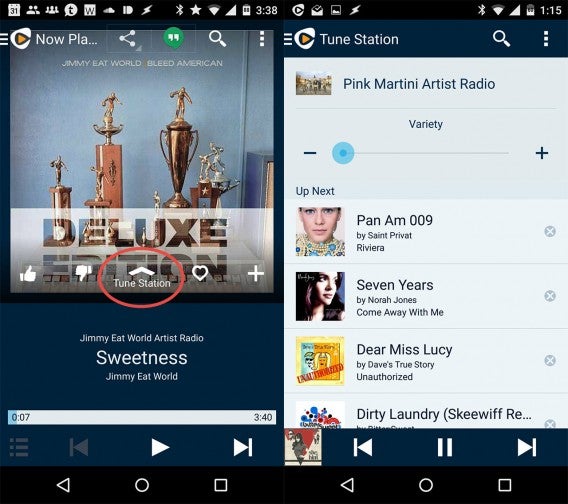
If you don’t know what you want to listen to and don’t want to browse, you can listen to the radio instead. Like Spotify, Rhapsody lets you create customized radio stations based on an artist, album, or track. It’ll take a little while for Rhapsody to learn your preferences by analyzing your skips, hearts, and thumbs up/down, just like Pandora. If you like a radio station, you can tap on the + button on the Now Playing screen to add it to your stations.

Rhapsody Android radio

Android users get an additional level of control not available on iOS. On an Android device, tap on the ^ icon that says Tune Station. This gives you a slider to adjust variety as well as a queue of five songs, letting you know what’s coming next. You can remove tracks that you don’t like instead of waiting to skip them when they start playing. Note: Tune Station only appears in playlists you created and not the curated playlists in the unRadio section.

Jump to top

Adjusting sound using the equalizer

Rhapsody for iPhone equalizer

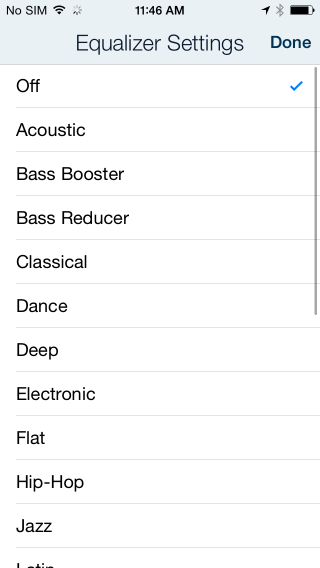
Rhapsody includes a preset equalizer so you can tune the sound to your liking. There’s no custom EQ adjustments but that helps to keep things simple. To access the EQ, tap on the EQ icon (looks like three sliders) and you’ll get a list of presets to choose from.

Jump to top

Adjusting audio quality

Rhapsody quality settings

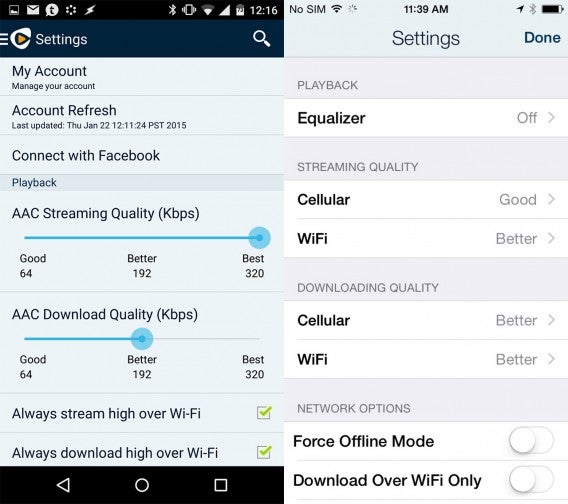
If you’re an audiophile and want to make your music sound better, you can set Rhapsody to stream and download tracks at a higher bitrate. By default, Rhapsody streams and downloads tracks at 64 kbps(!!!), which is extremely low. You have the option to bump the bitrate up to 192 kbps or all the way up to 320 kbps. I would recommend going with a minimum of 192 kbps.

Be aware that increasing the bitrate for songs will also take up more data. That means streaming in a higher bitrate will eat up your cellular data. If you don’t want to suck up all your data, you can check the boxes that say Always stream high over Wi-Fi and Always download high over Wi-Fi. This ensures high quality audio only gets downloaded when you’re on Wi-Fi.

Jump to top

Sharing music

Rhapsody sharing

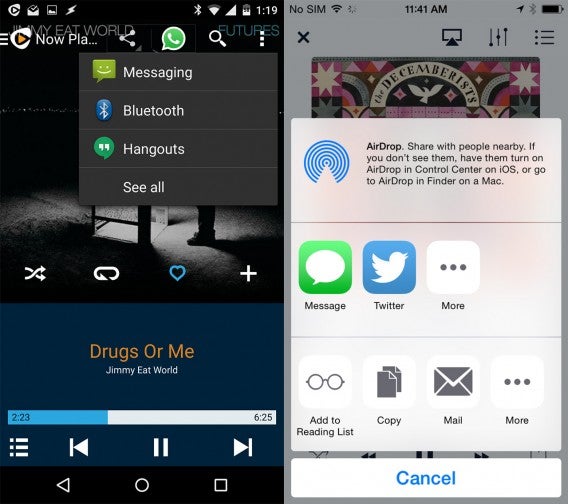
Rhapsody doesn’t have a social network built in like Spotify does so sharing music is limited. On Android, you’ll find the share button at the top of the Now Playing screen. You can share the track you’re listening to with any app on the share menu but you’ll only be providing a link to Rhapsody’s library.

On iOS, tap on the + button and tap on Share. You’ll see your options to share to the apps installed on your phone.

If you connect Rhapsody with Facebook, you can broadcast what you’re listening to. But please don’t.

Jump to top

Playing music on your TV

Rhapsody on your TV

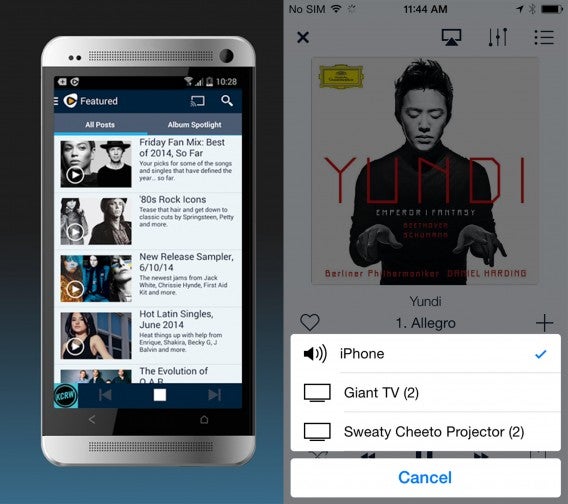
Both Android and iOS users can use Rhapsody to play music on a television. You’ll need additional hardware, either an Apple TV or Chromecast, to do this. If you have an Apple TV, you can tap on the AirPlay button at the top of the Now Playing Screen. If you have a Chromecast, you’ll see a button for casting instead.

Jump to top

Identify what’s playing

Rhapsody Track Match

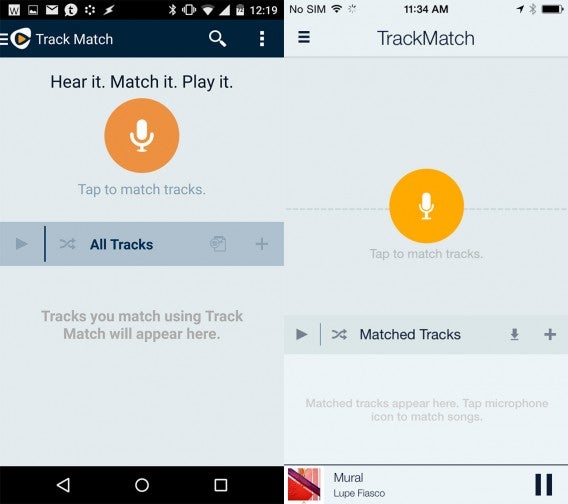
A bonus feature in Rhapsody is Track Match, which identifies what song is playing around you. This works exactly like Shazam or SoundHound, using your phone’s mic to listen to the track. The app will then pull up the track and artist information for you to listen to. It’s a good way to discover new music.

Jump to top

Set a sleep timer (Android only)

Rhapsody for Android sleep timer

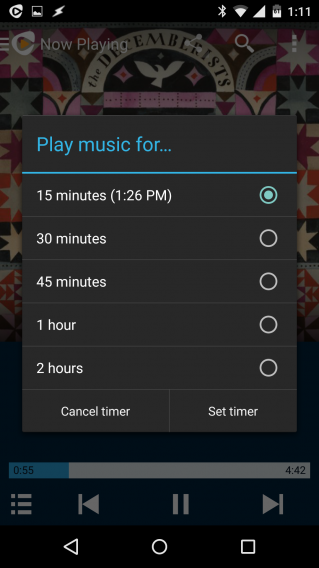
Last but not least, Android users can set a sleep timer for listening to in bed. To access the sleep timer, tap on the menu button (three dots) at the top right of the Now Playing screen. You’ll have preset times for 15, 30, 45 minutes and one or two hours.

Jump to top

Related Stories

Best free Android music players

Best Android Wear smartwatch apps

The best mobile games of 2014

Follow me on Twitter: @lewisleong

Twitter adds new video and group chat features

Last year Twitter announced that new features would be coming to the service, and it made good on that promise today, bringing new group chat and video functions to its service.

The new video feature means you can capture and edit, and share video from within the app. Twitter videos are non-looping, unlike six second Vines, and can last up to 30 seconds. Twitter owns Vine, but claims the new video feature is designed to sit alongside that app, not replace it. This feature is rolling out today, according to Twitter, and you should be able to use it soon. iOS users will be able to add video from their camera roll right away, whereas Android users will have to wait for a further update to do the same.

Group Chats are also coming to Direct Messages (DMs). Twitter’s direct message feature has felt underused for a long time, but the company finally looks to be making it more like a competitor to traditional messaging apps like WhatsApp or Facebook Messenger. Now you can create group chats within DMs, so you can have private conversations within Twitter. Group members do not have to follow each other, and you receive a notification if you are added to a group.

These new features come hot on the heels of ‘While you were away‘, which was added to give users highlights of what had happened on Twitter since the last time they checked.

Like most online services, new features and changes often provoke a lot of complaints. ‘While you were away’ was criticized for getting in the way of people’s normal feeds. Twitter would obviously like people to discuss tweets and topics within its service, as much as possible, but group chats could make it feel cluttered, as anyone who has been in a few WhatsApp groups will testify.

Source: Twitter

Related Stories

Twitter’s app graph checks what you have installed on your device

Facebook at Work: should the social network quit while it’s ahead?

Regin – the software that’s been spying on users since 2008

Follow Jonathan on Twitter: @jonathanriggall

Bitdefender Internet Security 2015: Fight malware like a Ninja

Malware has gotten a lot smarter in recent years, and they have evolved from harmless annoyances to malicious invaders that steal your data and identity. Being exposed to malware is as dangerous as letting a burglar loose in your backyard – a disaster waiting to happen. One moment you are browsing your favorite websites and the next, utter panic ensues. Your computer starts to malfunction, your data gets stolen, and your e-banking credentials get sold to pirates half the world away.

To protect you from these scary scenarios, security software have evolved with new detection tools, surrounding Windows with a variety of shields, countermeasures and roadblocks to defend your data when the bad guys strike. These complex security software have become heavy deadweights, dramatically slowing computer performance and consistently interrupting you with prompts, questions and alerts.

Not Bitdefender Internet Security 2015, the only anti-malware ninja that gives users absolute protection- stealthily and easily thanks to OneClick Security™. And you can it try it three months for free if you download the trial version from Softonic.

A stealthy and deadly anti-malware ninja

What is an antivirus these days? Clearly, it’s no longer a simple scanner. Antiviruses have become a complex set of tools that act in concert to provide security against an ever broadening circle of dangers, be it keyloggers, phishing websites or government rootkits. Orchestrating all these defenses into an easy-to-use package is an extremely challenging task.

Bitdefender Internet Security is exactly what a modern antivirus should be: Lightweight and Smart. Computer security should be simple, and Bitdefender has managed to offer the seemingly impossible ´one-click to total security´.

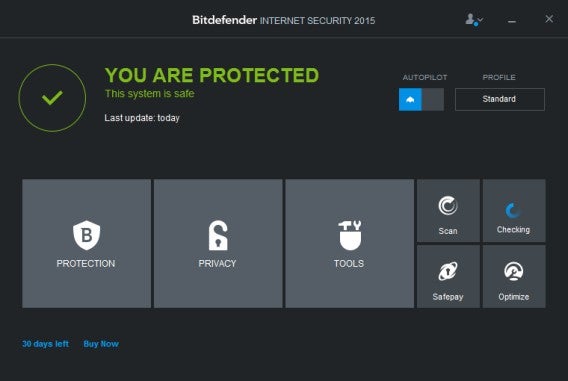
Bitdefender Internet Security never bugs you with unsolicited optimization requests or persistent upgrade offers. Working tirelessly in the background, the simple interface conveys a single message: ‘You are protected’.

But simple does not mean less effective. Bitdefender’s antivirus technology has consistently been awarded the best ratings in the AV-Test and AV-Comparative independent tests.

Not just function, it’s also about great design

Today´s virus protection is no longer a run-and-forget process. Antivirus software act like young children, bugging you with endless questions: “Should I do this”, “Could we do this?”. But because we are so busy browsing, working and playing, we barely have the time to answer all their questions. So instead of being a reassuring presence, Antiviruses often turn into the direct opposite: an enormous nuisance.

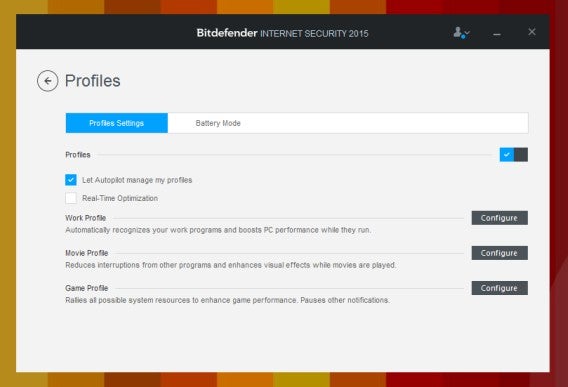
Bitdefender Internet Security never ever bothers you. In most situations, you won’t have to respond to any pop-ups or make any decisions. The Autopilot mode intelligently picks the best settings for each situation, and automatically adapts the amount of system resources it uses to ensure that the Antivirus does not get in the way of the computing experience.

User profiles let you pick specific scenarios. For example, ‘Movies’ turns off notifications and scheduled scans while you watch videos, and ‘Game’ take the stealth even further, so that nothing will distract you while you are immersed in a Starcraft match or dealing fatal blows to a dragon in Skyrim. Feeling lazy? Autopilot can even take care of the profile switching for you.

Stop worrying about data theft

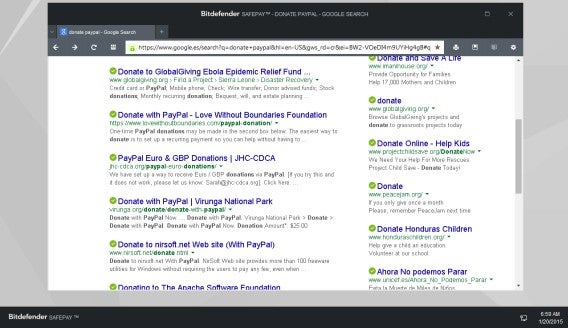
Another great feature of Bitdefender Internet Security is Safepay, a feature that provides a safe environment for you to carry out transactions of any kind, without the fear of having your data stolen. It’s like a special browser loaded in a protected sandbox, a memory zone that no other application can access without Bitdefender’s permission. Everything that happens in Safepay stays in Safepay.

Using Safepay is like enclosing yourself in a bank vault, you even get a virtual keyboard at your disposal to prevent any program from reading your keystrokes (a common malware tactic called keylogging).

Safepay integrates with Wallet, an encrypted data manager for Chrome, Firefox and Internet Explorer, that lets you store passwords, credentials and online banking numbers. Bitdefender guarantees that no virus will be able to break through the lock. Once you spend some time to set it up, your days of keeping critical records in an unprotected text file will finally be over.

Protect your children from cyber-threats

Bitdefender Internet Security comes with all the security extras you’d expect from a premier suite. The two-way firewall, coupled with Intrusion Detection, simplifies the control over your network, ensuring that no suspicious program sends out data without your consent. This is especially important when fighting against remote control malware (RAT).

Then there’s also the excellent vulnerability scanner that checks for outdated and vulnerable versions of the most commonly used software installed on your PC, such as Adobe Reader and Java, and provides links to the latest versions. Vulnerabilities are a popular gateway for malware to get into your computer, and having Bitdefender consistently checking for updates frees you from the important, yet tedious, chore.

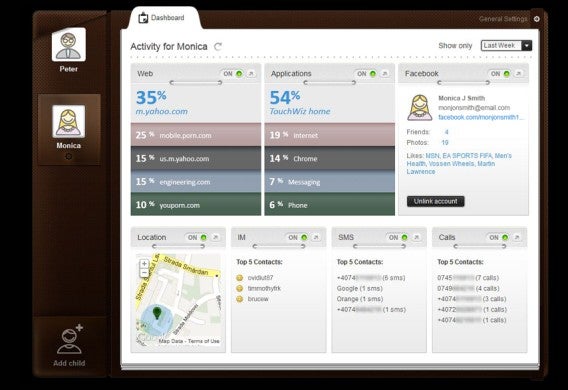
Last, but definitely not the least, Bitdefender Internet Security offers excellent parental controls and Facebook protection.  The theme of simplicity also extends here- Just enter your childs age and gender, and Bitdefender will restrict access to online games or web browsing during homework hours.

System optimization made simple –Finally!

System optimization is an important part of Bitdefender Internet Security. Bitdefender will never interrupt you with complex messages about the performance of your PC.

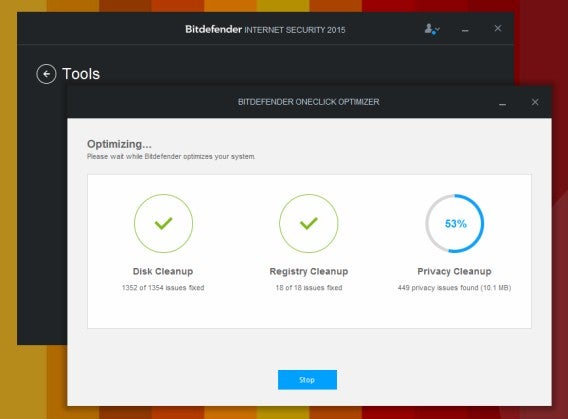
The OneClick Optimizer removes junk files and Registry errors in a single sweep. It’s fast and effective, and it only shows the most important figures. Like the rest of the suite, OneClick doesn’t need to impress you with fancy graphics or complex reports, it just does its job in the quietest, most effective way.

Another intelligent tool is the Startup Optimizer, which measures total boot time and shows the potential gains (in seconds) as you remove program from the startup list. The simplicity of this tool is a testament to the efforts that Bitdefender has put into its design.

The best user experience and the best security, all in one place

With Antivirus companies creating increasingly complex and resource hogging software, Bitdefender has managed to craft one of the best security suites of 2015. You will be impressed by its performance and range of features, but above all, you will be delighted to use an antivirus that takes the user experience so seriously.

App of the Week: Crossy Road

Softonic’s App of the Week highlights some of the coolest, most unique, and biggest app releases for Android, iOS, Windows, and Mac. This week, we’ve got a fun and addictive game for iOs and Android, Crossy Road.

Remember Frogger? Crossy Road takes that simple road-crossing formula, swaps out the frog for a chicken, and makes the whole thing into an ‘endless runner’ type game. This means you’re guiding a chicken across endless roads, rivers, and railway tracks. But these are full of things that will send your chicken on a journey to meet its maker, so you’ll need quick reflexes.

Crossy Road has a great 8-bit isometric style, tight controls and, while it’s difficult, when you die it never feels unfair. Find out more in our video below.

Default player


brightcove.createExperiences();

Download Crossy Road for iOS and Android.

Check out some of our past App of the Week features:

App of the Week: Modern Combat 5

App of the Week: NBA 2K15

App of the Week: FIFA 15 Ultimate Team

Windows 10 will be free for Windows 7 and 8.1 users for one year

Microsoft will be following in Apple’s footsteps by offering its upcoming operating system for free for one year after launch. OS X users received a free update to OS X Yosemite last year and Microsoft promises to give away Windows 10 when it launches later this year.

So why is Microsoft doing this? Windows is less of a product now than it is a platform. What that means is that Windows has evolved into an operating system that attracts users with its ecosystem and services, rather than just features.

As more and more of our computing moves to the cloud, our needs for specific operating system has been negated. We do 90% of our computing inside a browser, which means you can use Mac, Linux or even ChromeOS and be happy. Microsoft knows this and wants to attract more users and developers by making Windows free.

Windows 10 will also be free across platforms, meaning your tablets and phones will get the update too. The operating system will also fulfill Microsoft’s vision of having one operating system running across PCs, phones and tablets. This means apps created for Windows 10 will work across all other Windows 10 devices without problem.

Microsoft is expected to release Windows 10 in the middle of this year.

For more about Windows 10, check out our roundup of everything you need to know.

Source: TechCrunch

Related Stories

Here’s your first look at Spartan, the next version of Internet Explorer

Rumor: Next version of Internet Explorer will get Cortana, grouped tabs

Windows 10, Google, Instagram and WhatsApp for PC in the Softonic Minute

Follow me on Twitter: @lewisleong

Best free backup software

Even though our computers have moved to more reliable solid state drives, it doesn’t mean they’re infallible. Protecting your data shouldn’t happen after you’ve lost your files but well before. Still, many people choose not to backup their files because of intimidating or costly software and services.

However, there are a lot of great free backup apps for you to choose from. Best of all, you may already have backup software installed on your computer that you never knew about.

Let’s dive into to my picks for the best free backup software.

Windows File History / Backup and Restore
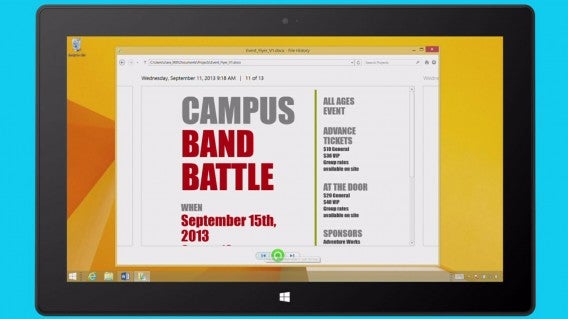
Windows 8 File History

Depending on the version of Windows you’re running, you probably already have backup software included on your computer. Microsoft builds in its own backup and recovery software from the factory and it’s pretty great. Other programs may be more powerful but for most users, what’s included with Windows is good enough.

If you have Windows 8 or 8.1, you’ll have access to a feature called Windows File History. Think of it as an equivalent for Apple’s Time Machine for your PC. File History lets you select a drive to back up onto, whether it’s connected directly to your computer or on a network. Once you designate a backup drive, File History will automatically backup all your files, but not your apps. This is to ensure the “Refresh” feature in Windows 8 and 8.1 can function properly. Follow this link to learn more about Refresh.
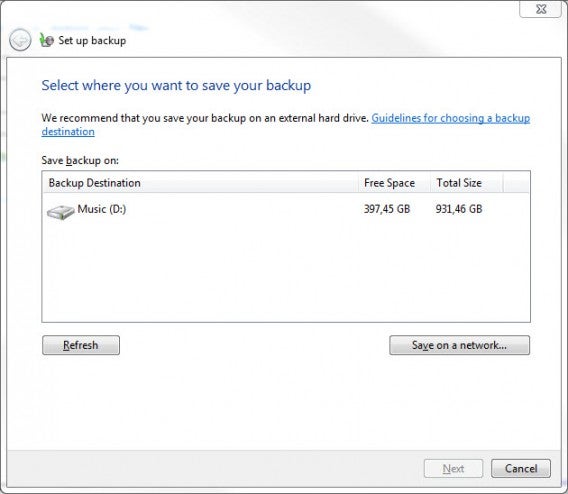
Windows 7 Backup and Restore

File History backs up files in your Libraries by default but you can specify what you want or don’t want backed up. This means all your Documents, Pictures, and Music are safe. The feature also includes versioning, which means it will save multiple versions of the same file so you can go back in time to restore the version you want. You can activate File History from within Windows Explorer or by launching the File History program.

For Windows 7 users, you’ll have a different tool called “Backup and Restore.” It’s not as powerful or easy to use as File History but it’ll keep your files safe. You still have versioning support but it’s a bit harder to get to. If you want to restore a previous version of a document or file, right click on it and select Properties. Then select Previous Versions and you’ll see a list of different versions you can restore.
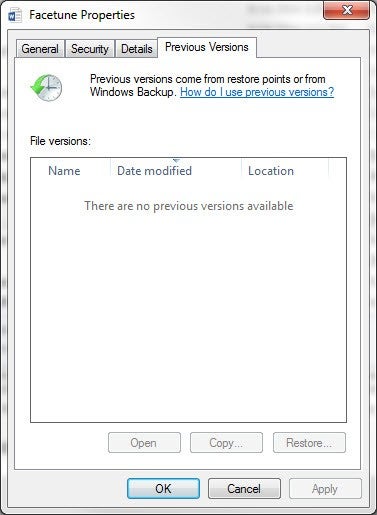
Windows 7 Previous Versions

Both File History and Backup and Restore can be scheduled to back up automatically or at an interval. They’ll both help you restore your computer in the event of a hard drive failure and can even roll you back to a system restore point if needed. Both are also limited by how big your backup drive is. Bigger backup drives will hold more versions before it starts deleting the oldest backups.

Use this if: You want a simple and reliable backup app.

Time Machine (Mac)
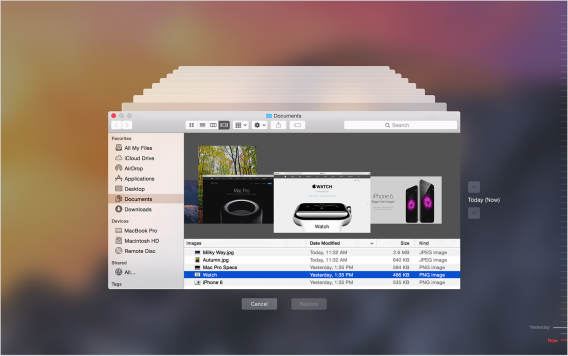
Time Machine timeline

Mac users also have a great built-in backup software called Time Machine. It’s super simple to set up and works well for the most part, though more powerful apps do exist. Out of the box, Time Machine backs up your system hourly. You can’t change the backup interval without a third-party app, which is quite annoying.

Unlike Windows File History, Time Machine backups everything, including your programs and settings. This is great, especially when you’re moving to a new Mac. During setup of a new Mac, OS X will ask you if you have a Time Machine drive you would like to restore from. Hook up your Time Machine drive and you can import all of your documents, music, files, and programs.
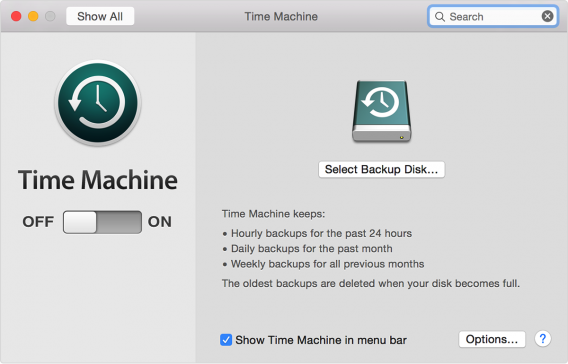
Time Machine main

Since Time Machine saves everything, it will take a long time to complete the first backup. You might want to let your computer back up overnight. Once the initial backup is complete, Time Machine will incrementally backup your files, meaning only changes will be saved so you have access to different versions. This makes backing up faster in the future.
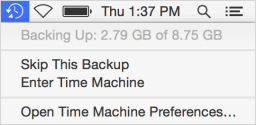
Time Machine menu barRestoring files is extremely simple with Time Machine. From the Time Machine icon in the menu bar, you can enter an interface that lets you “flip” through different versions of a file using Finder. You can preview a file to make sure it’s the right one using Apple’s Quick Look feature (space bar). There’s a timeline to the right that lets you jump quickly to a specific time. Once you find the file, you can just click Restore and the file will be copied from the backup drive to your computer.

Time Machine also secures your backup so you don’t have to worry about someone attaching your external drive and stealing your data. You will need to enter in a password to restore files.

When it works, Time Machine is great. When something goes wrong, it goes very wrong. I’ve lost some files to Time Machine for unknown reasons. It’s hard to diagnose the problem since Time Machine is meant to hide what it’s doing from you to keep things simple and easy to use. Even with its issues, Time Machine is the first backup program Mac users should try.

Use this if: You just want to backup your files to an external drive.

EaseUS Todo Backup Free
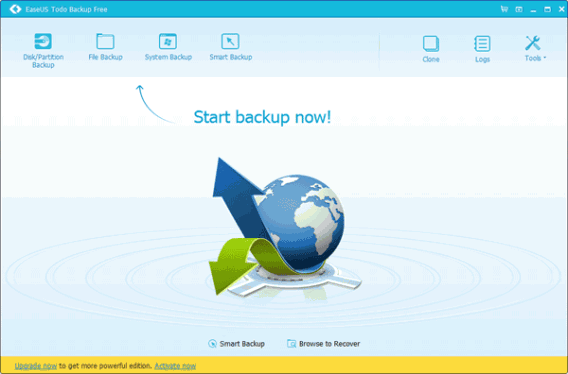
EaseUS Todo Backup Free

If you want more control over your backups than Windows File History provides, check out EaseUS Todo Backup Free. In addition to backing up your files, it can image your entire computer. You might want to image your drive if you’re upgrading to a larger capacity drive or if you want to migrate everything, bit for bit, to a new computer.

While EaseUS doesn’t have a fancy interface for restoring files like Windows File History, it does let you browse for your files using Windows Explorer, making it familiar for Windows users. You can also completely restore your files if you wish.
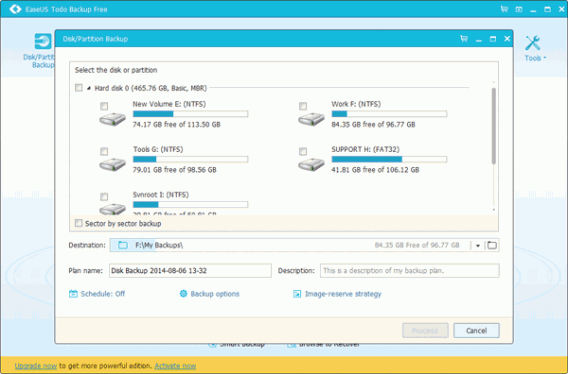
EasUS-disk-partition-backup

EaseUS includes all the features I expect from backup software like versioning, incremental backups, and scheduling. For more advanced users, EaseUS allows you to install a pre-boot environment onto your hard drive so you can use it to restore files without burning a CD or putting it on an external USB drive. This means you can recover your files or check on your drives easily without booting up Windows. If you do want to burn pre-boot software to a CD or USB drive, you still have that option.

For your security, EaseUS encrypts your backups with a password so no one can get to your sensitive files.

While the free version of EaseUS is great, you may want to step up to the $29 Home version if you need things like excluding files from backup, free technical support, and Outlook backup and recovery. For most users, the free version of EaseUS Todo Backup is more than enough. You’ll have to put up with the occasional ad but it’s not a dealbreaker.

Download if: You are a power user who wants to image your disks.

Download EaseUS Todo Backup Free (Windows only)

CrashPlan Free
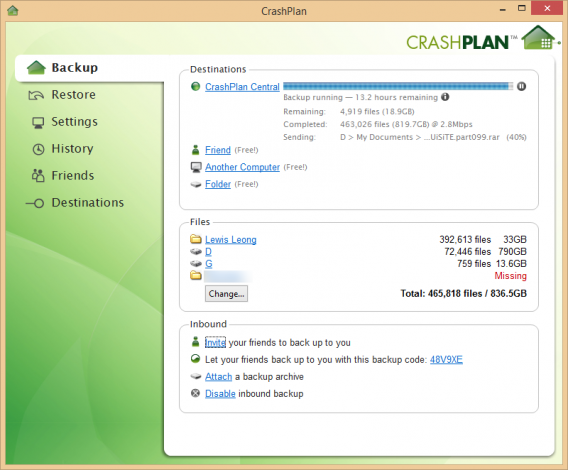
CrashPlan main

The free version of CrashPlan is a little different than the traditional backup solutions mentioned above. CrashPlan is known for its cloud backup service but its free software actually gives you some pretty powerful backup tools.

The main differentiator is that CrashPlan lets you backup your files to multiple, remote locations. The idea is that you and a friend will swap backup drives to keep your files safe even if your house gets flooded, burns down, or is burglarized. Offsite backup is smart and something the other programs in this list don’t do.

CrashPlan Free’s remote backup solution works by sending your data over the internet. The software keeps your data secure by utilizing the Blowfish and AES encryption standards. The one downside to this is that your friend’s computer must be online for you to back up your files.
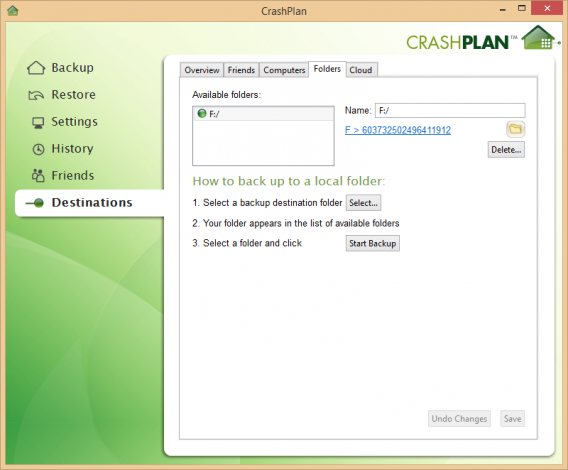
CrashPlan external backup

You can still do a traditional backup to an external drive using CrashPlan Free. In the Destinations section of the app, you can specify where to put your backups and CrashPlan will backup everything or individual files/folders to an external drive. CrashPlan Free even offers incremental and differential backup but not multiple backup sets (you’ll need a subscription for that).

CrashPlan Free is also limited to backing up once a day while the paid subscription versions will back up as soon as it detects any file changes.

I’ve been a CrashPlan subscriber for the past couple of years and it’s a great service. If you want to rest easy knowing your files are stored safely in the cloud and want access to your files on your mobile device, you should seriously consider the subscription.

Download if: You don’t want to pay for cloud backup but still want to protect your data offsite.

Download CrashPlan Free for: WindowsOS X and Linux

Paragon Backup and Recovery Free
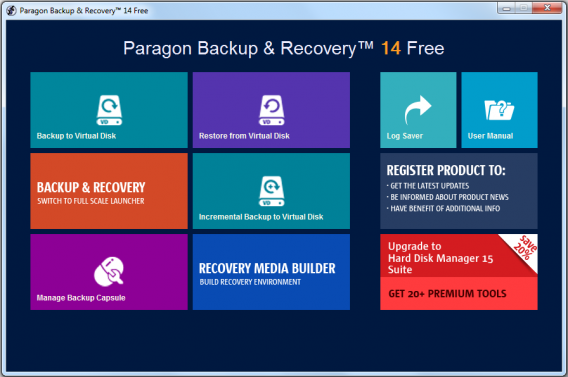
Paragon Backup and Recovery Main

If the options above still don’t appeal to you, give Paragon Backup & Recovery Free a try. I think it has the nicest interface for a third-party backup program since it has been designed to blend in with Windows. It features the ribbon interface that you’ll find in Windows Explorer and Office.

Paragon Backup & Recovery Free features everything you’d expect from a powerful backup program like versioning, scheduling, encryption, and data rescue software. It also has a built in disk checker and cleaner so it can test the integrity of your data and remove any junk files before backing up. This saves you time from backing up junk you don’t need.

While Paragon Backup & Recovery Free features a ton of powerful tools for more advanced users, it keeps the core app simple for novices. The advanced tools are there if you need them but are hidden away. Novices will also appreciate the included wizards that guide you through how to do things around the program.
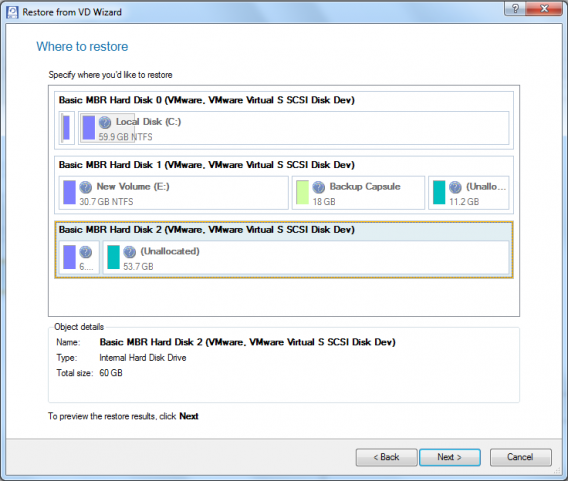
Paragon restore

One cool feature of Paragon is that it allows you to back up to a virtual disk to use with programs like VMware. This also means you can create a virtual drive on your existing machine to back up to, though I would recommend using an external drive in case your current drive fails. The advantage of creating virtual disk backups is that they can be portable and used with different machines. While most users probably won’t use this, it’s nice to have for users managing multiple machines.

Download if: You are a power user who manages multiple machines.

Download Paragon Backup & Recovery Free

COMODO BackUp Free
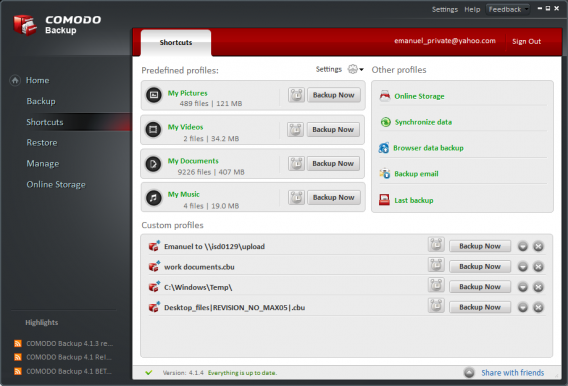
Comodo BackUp profiles

COMODO, the creators of the antivirus program, also has a free backup solution for its users. Called COMODO BackUp Free, the app looks like its antivirus cousin and features an easy to use interface.

COMODO BackUp includes features like incremental and selective backups, versioning, scheduling, and encryption. You can even back up your browser settings so you’ll have all your logins and bookmarks ready when you restore. It’s a neat feature but Chrome and Firefox already let you sync your settings, bookmarks, extensions and more with their own cloud.

The app even offers up 10GB of free online space to backup your files. While having 10GB of free online storage is nice, there are plenty of other cloud storage services like Dropbox and MEGA that offer much more space for your files.
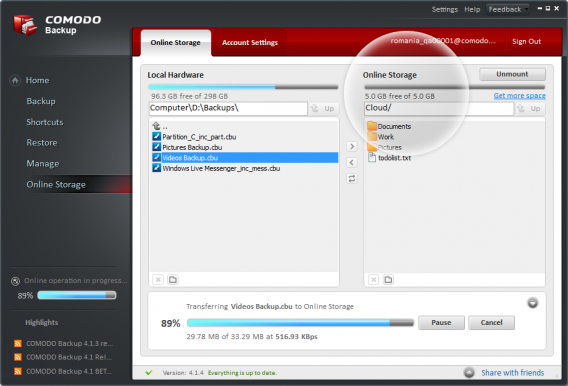
COMODO online backup

What separates COMODO Backup from the rest is its feature set that makes the program just a bit easier to use. There’s a profile feature that lets you backup your computer with specific settings. You can have different profiles to back up different types of data to different destinations, which you can activate with just a click.

If you want an easy to use backup solution with a ton of useful features, give COMODO Backup Free a try.

Download if: You want more advanced backup features with an easy to use interface.

Download COMODO Backup Free for Windows

AOMEI Backupper Standard
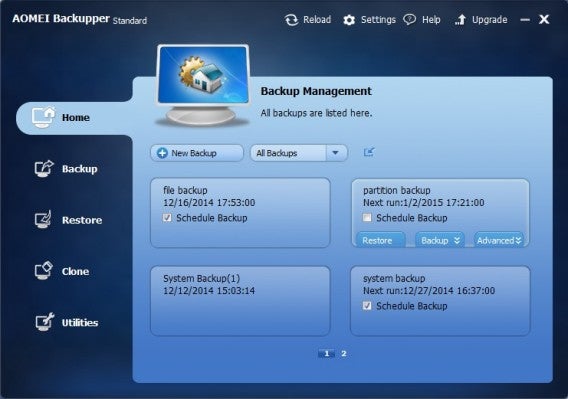
AOMEI Backupper Main

Another easy to use backup program is AOMEI Backupper Standard. The app is designed to walk you through every step of the way to back up your files the way you want. There are options to back up files, your entire system, imaging your disk or partitioning a drive. The interface is very intuitive but trades features for simplicity.

You’ll still get encrypted and compressed backups, scheduling and incremental backups but power users will probably want to use another app in this list. One nice feature of AOMEI Backupper Standard is the commenting system, which allows you to comment you specific backups so you know exactly what you’re looking for when you have to restore something.

Download if: You’ve never used a backup program before.

Download AOMEI Backupper Standard for Windows

FBackup
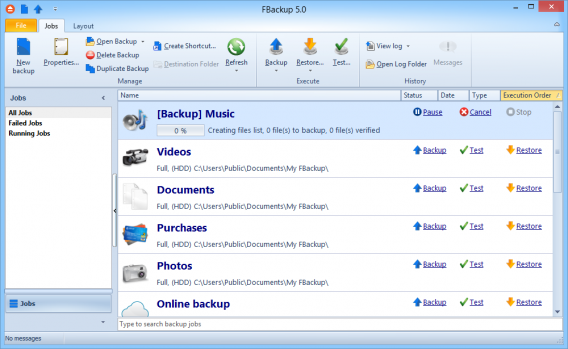
FBackup Job list

Keeping the simple theme going, FBackup is another easy to use backup app. The interface should look familiar to Windows users as it features the same ribbon interface as Windows Explorer and Microsoft Office.

FBackup makes it easy for novices to start backing up their data with wizards that guide them through every step of the process. All the best backup features are included in FBackup like creating a disc image, encrypted backups, scheduling and a disk checker. FBackup also lets you shutdown or sleep your computer after it’s done backing up.

The free version is great for beginners but advanced users will want to get the paid version. You’ll get things like AES encryption, FTP backup, and more. However, I would recommend checking out the other free options in this list before buying the paid version of FBackup.

Download if: You want a simple, reliable app to back up your files.

Download FBackup for Windows

Header image credit: Jamis Loveday via Flickr

Follow me on Twitter: @lewisleong

Here’s your first look at Spartan, the next version of Internet Explorer

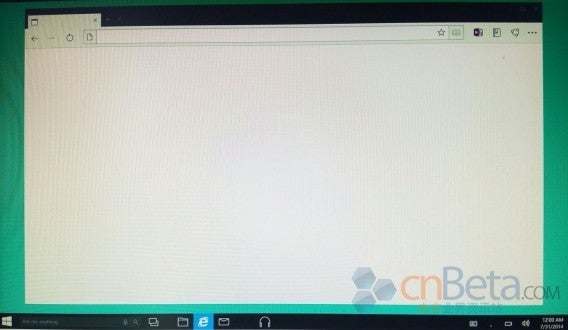
We detailed rumors of Microsoft’s upcoming version of Internet Explorer yesterday and today, we have screenshots of what it will look like. Chinese blog Cnbeta published screenshots of the upcoming browser, codenamed Spartan.

The screenshots don’t reveal much about Spartan but it looks completely different from the current version of Internet Explorer. Spartan will also feature flat design that finally matches the Windows “Modern UI” found in the Start Menu.

Internet Explorer Spartan via Cnbeta

The biggest news about Spartan is that you’ll be able to talk to the browser. Microsoft is bringing its Cortana digital voice assistant over to the browser to help you search the web and perform tasks like adding reminders. You can also look forward to grouped tabs which will make finding articles much easier.

Microsoft is expected to reveal more about Windows 10 and Spartain during its event on January 21st.

Source: Cnbeta

Follow me on Twitter: @lewisleong
Related articles

Best free office suite

Rumor: Next version of Internet Explorer will get Cortana, grouped tabs

Download a preview of Office for Android

Rumor: Next version of Internet Explorer will get Cortana, grouped tabs

Unnamed sources speaking with The Verge revealed Microsoft’s plans to overhaul the next version of Internet Explorer into a browser you’ll actually want to use. The browser will apparently have new features that aren’t available on any other browser like the ability to annotate web pages. The annotations are save in OneDrive to be shared easily.

Codenamed Spartan (like the soldiers in Halo), the browser will also feature Microsoft’s Cortana digital assistant (another Halo reference). We already know that Cortana is coming to Windows 10 so bringing Cortana to the browser seems redundant. However, it’s likely that Microsoft will bring Spartan to older versions of Windows so more people can use the feature.

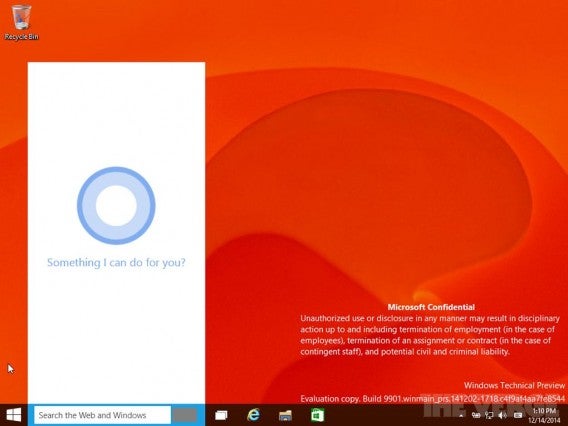
Cortana Windows 10 via The VergeCortana in Windows 10 Technical Preview

Chrome has Google Now integrated into the browser but it doesn’t do much at this point. It shows your typical weather, traffic and package tracking cards but it’s not really an assistant like Siri or Cortana is. Cortana will apparently “every instance of the existing Bing methods in Internet Explorer.”

Spartan will also get grouped tabs, something I wish Chrome and Firefox had. Sure there are extensions to achieve this but having it built in makes it easier. By grouping tabs, you’ll be able to view tabs by site instead of hunting around for them.

Microsoft plans to deploy Spartan on desktop, tablets and phones at the same time. While there won’t be a universal app that works on every device, Spartan will be available to download from the Windows Store. There will be a desktop version and one for tablets and phones. The advantage of this is to provide a consistent user experience across all of Microsoft’s platforms.

We should hear more about Microsoft’s plans for Internet Explorer on January 21st during the company’s Windows 10 event.

Microsoft has declined to comment on these rumors so take them with a grain of salt.

Source: The Verge

Follow me on Twitter: @lewisleong

Related articles

Download a preview of Office for Android

Best free office suite

Windows 10, Google, Instagram and WhatsApp for PC in the Softonic Minute