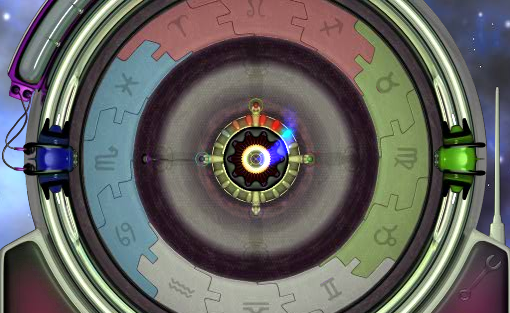
How are your reactions this friday? They’ll need to be razor sharp if you want to score highly on Zodiac Reactor. It’s a simple timing-reaction puzzle game, where you have to hit one of four keys at the right moment as a corresponding element approaches the Zodiac Reactor. It’s a simple idea, but if you panic for a split second and lose concentration, you are done for. It takes a minute to grasp, but the introductory tutorial is great. Check it out!
The Web is full of handy software applications that can contribute to make your life a bit easier. Whatever your need is, it’ll probably take you only a few minutes of Googling to find a suitable program for it. But if you look further, you’ll see there are other applications the aim of which is not precisely to be useful and efficient. In fact, there are a quite a few of these useless programs that seem to have been created for no reason at all – or at least, for no sane reason. Here are some examples I found on the Web, though I’m sure you’ll know many more.
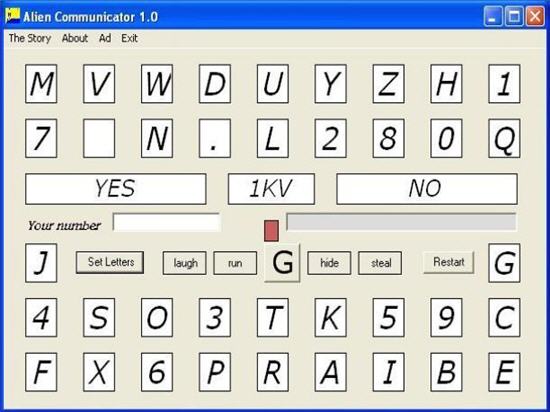
Alien Communicator – Believe or not, ‘the truth is out there’. And if you want to find it, you better start contacting aliens right now. When you run this tool, aliens will be able to communicate telepathically with you and leave messages by controlling the number generation capabilities of your PC.
Voice Lie Detector – If you think your partner or your kids are not completely sincere, you need a lie detector. This program uses an old algorithm to detect voice stress, an unmistakable signal that will enable you to discover if you’re being lied to.
Parrot Trainer – So you have a parrot, but can’t be bothered to train it by yourself? Let your PC do the hard work for you! This app repeats the same sound over and over again until your parrot learns them by heart. According to the developer, you can also use to nag your kids, husband, wife… What’s more, it comes with four sound samples recorded by the developer himself. Continue reading “10 mostly useless Windows apps”
President Obama seems to have a pretty low opinion of video games, and has mentioned them three times recently. He said it was important that children, ‘step away from the video games and spend more time playing outside.’ Maybe that’s a fair point, but the US government has never shown any adult understanding of video games, just kneejerk tabloid reactions.
Do games offer anything more than teaching kids violent or unsocial behaviour? I don’t believe they do either, so I asked around to see what other people thought they had learned from games…
Here’s some of what we came up with:
1: A repeated claim is that they have taught people patience! Not everyone plays patiently, but if, for example you ever played something like Ghosts ‘n’ Goblins, you’ll know that you really need it if you want to complete some games.
2: Reaction times and hand-eye coordination are obviously necessary for lots of games.
3: Problem analysis & creative thinking. Puzzle, adventure and strategy games often require a lot of thought. Have a go at Portal, and you’ll see how games can really challenge you to think differently.
4: One person cited Finances & resource management, as something they’d learnt from games. I can see how that’s possible, but have to admit they have never had that effect on me…
5: Computer literacy. Essential in today’s world, and I’m sure many people of my generation at least got started with computer skills through games. From messing around with Basic on the Commodore 64, to optimizing PCs in the early 90s, games were and are a motivation for learning about your computer in ways that Microsoft Excel never will be.
6: Driving. People had mixed things to say about driving, that they learnt about driving theory from games and also that games taught them they should never drive! I like driving games, because I could never drive like I do virtually on real roads.
Of course, another matter is whether this should be an issue at all. Paintings, movies and music aren’t required to be useful beyond being art. Video games are perhaps getting closer to being considered works of art, but until that happens the media is likely to continue their focus on worries about their negative effects, while ignoring any positive effects they might have.
Ubuntu is a Linux operating system built on the idea that software should be free. It includes thousands of software applications covering everything from word processing, email, programming languages, spreadsheet applications to games. There are three editions: Ubuntu Desktop for PCs, Ubuntu Server for the cloud and servers, and Ubuntu Core for embedded environments.
Canonical Ltd sponsors the Ubuntu Project. The company will not charge license fees for Ubuntu, now or in the future. Ubuntu is closely related to Debian, the framework for Linux Mint, Knoppix, Xandros, and Ubuntu. Debian is a volunteer project that develops and maintains a GNU/Linux operating system. It is completely committed to free software and has over 1,000 developers worldwide who help in their free time and many more contributors and volunteers.
Let’s take a closer look at what Ubuntu is and how to install and use it.
What is Ubuntu?
The ideas behind Linux Ubuntu are set out in the Ubuntu Manifesto. These include that it must be free, usable by people with disabilities and offered in local languages. It also says people should be able to customize their software whenever they want to. Ubuntu is committed to open-source software and its development. It encourages people to use it, improve it if they can, and share it. New releases are available every six months. There are long-term support releases every two years.
How to install Ubuntu on your PC
Your PC or laptop will need at least 25GB of storage space to download and install Ubuntu, as well as a flash drive with a minimum of 8GB of storage, although 12GB will be better.
Step 1: Download ISO
Write your downloaded ISO to a USB stick to create the installation media. This is different from copying the ISO, and you’ll have to use the software. BalenaEtcher works well as it can run on Windows, Linux and Mac.
Step 2: Use a USB stick
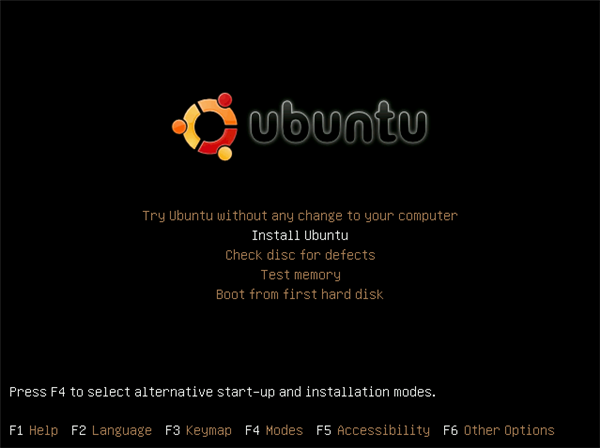
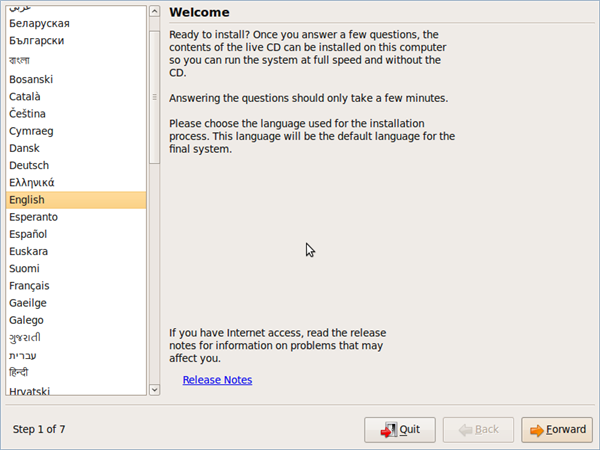
Insert the USB flash drive you want to use to install Ubuntu. Restart or boot your computer or laptop. It should recognize the installation media. If it doesn’t, hold F12 while starting up and choose the USB device from the boot menu. You can also use Escape, F2 and F10. You should see a welcome screen.
Step 3: Choose Installation
Choose between Normal installation and Minimal installation. You’ll be prompted to download third-party software and updates. You will be asked to connect to the internet if you’re not connected already.
Step 4: Encrypt device
If you want to encrypt your device for security, go to Advanced features > Use LVM with the new Ubuntu installation >
Step 5: Create login
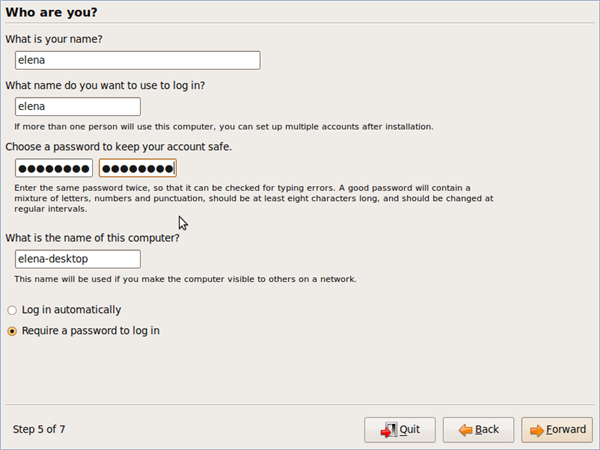
Now create your login details. Enter your name and that of your device as it will show on the network. Create a username and password.
Step 6: Watch slideshow
You’ll see a slideshow while Ubuntu installs. Afterwards, it’s a good idea to update your system. Ubuntu also notifies you when new updates are available.
How to use Ubuntu
Now that you know what Ubuntu is and how to install it, let’s take a look at some of the features and how to use it.
Step 1: Navigate the Ubuntu Desktop
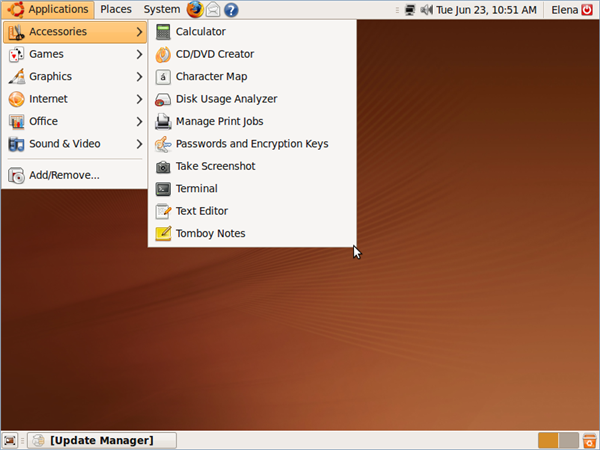
You’ll see a panel at the top of the screen as well as a quick launch bar on the left. Every icon on the launch bar will take you to places like the software center, web browser, file manager and the office suite. The Applications icon displays a list of installed apps. Select the one you want to open.
Step 2: Connect to the Internet
Clicking on the Network icon on the top panel displays a list of wireless networks. Select the one you want to use, then type in the security key. A router using an Ethernet cable will connect you automatically. The default browser with Ubuntu is Firefox. You can use any other browser if you’d prefer.
Step 3: Create documents, presentations, drawings and spreadsheets
Ubuntu’s default office suite is LibreOffice. You’ll find the icons in the quick launch bar for word processing (Libre Office Writer), drawings (Libre Office Draw), spreadsheets (Libre Office Calc) and presentations (Libre Impress).
Step 4: Manage Photos or View Images
Ubuntu has several apps for managing, viewing and editing images. Shotwell is a photo manager. Eye of Gnome is a basic image viewer that allows you to look at photos in a folder.
Step 5: Listen to music
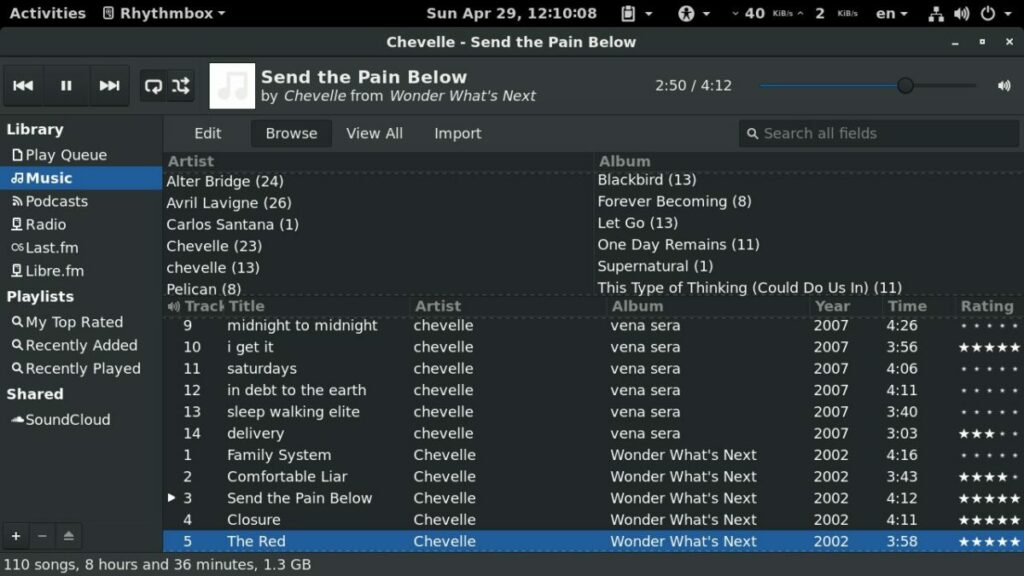
Ubuntu’s default audio package is Rhythmbox. It can import music from folders, connect to external media devices, create and edit playlists, and listen to online radio stations.
Step 6: Watch Videos
Ubuntu’s default video package is GNOME Videos, but you can also use other video players like VLC and Kodi on Ubuntu.
Step 7: Install Software
You use Ubuntu Software to install software. You can use it to install Synaptic, which provides a strong base for installing more software. Another way to install software is by using apt-get from the command line. You can also get Linux software from repositories that hold software you can install. Repositories are stored on servers called mirrors.
Step 8: Install NVIDIA drivers
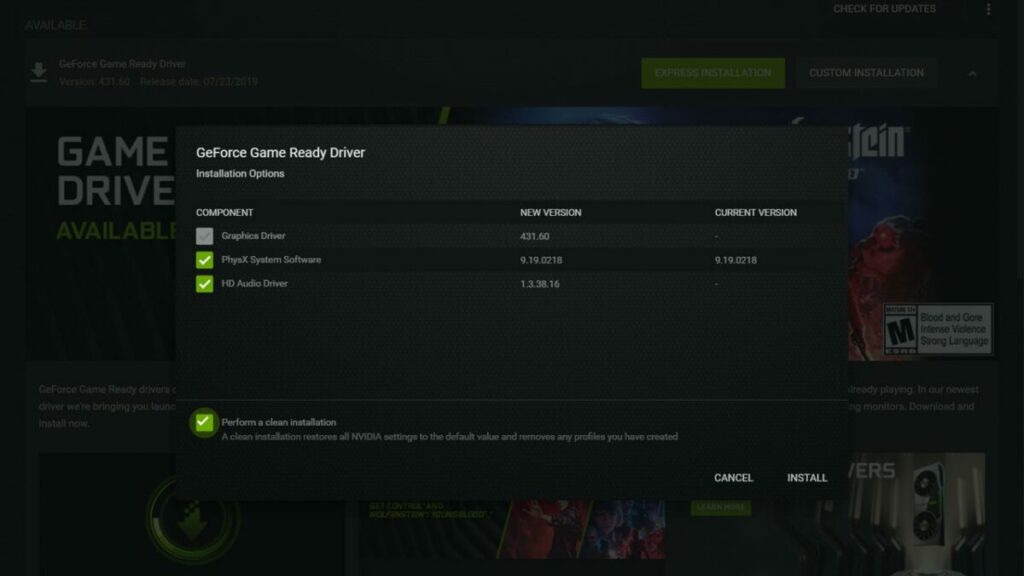
If you have a NVIDIA card, you’ll need the latest drivers for it to work on Ubuntu. There’s a great PPA repository to help get you what you need for your graphics card.
Step 9: Use popular packages
You might be surprised to learn that you can install many popular packages on Linux, including Skype, Dropbox, Spotify, Minecraft and many others, even if they’re from Microsoft.
Step 10: Customize Ubuntu
Ubuntu uses the GNOME desktop, which is not as easy to customize as other Linux desktops. However, you can do basic things such as change the wallpaper. But you can make your desktop your own by using GNOME extensions and themes.
Summary
Linux is becoming an increasingly popular operating system because people are attracted to its ethos of supporting free software. It’s also a very good platform that provides everything you need. It’s easy to use after you get to know your way around it.
Earlier this year I wrote about my enthusiasm for music app Spotify and today I’m pleased to read it’s going to get even better with CD quality streaming for premium users. A premium account currently costs around $10 per month and essentially means that your music doesn’t get interrupted by adverts. However, for the time being, only the most popular tracks will be streamed in CD quality with the rest being converted over the coming weeks.
To enable higher quality streaming, simply access Spotify’s service’s preference menu and tick the “enable high bitrate” box. The move will effectively double the quality of streaming on Spotify with the company claiming they now offer the highest quality music streaming site on the net. I may be tone deaf but as far as I can tell, the current 128kbs streaming quality is already pretty good so I’ll be very interested to hear what the new quality sounds like.
However, signs are that Spotify users are still opting to use the free service rather than upgrade to premium and this latest move is another tactic for Spotify to try and change this situation. They’ve already tried a few other methods to encourage people to convert such as releasing exclusive remixes to premium users, allowing them to enter compeititions and offering exclusive releases of new albums.
Free users haven’t been neglected though. A new mobile service is due to be rolled out shortly and will allow you to sync Spotify with your mobile device and will be available to all users. There have also been plenty of cool new features added to the free service since it was released which I’m going to cover shortly to help your get more out of Spotify.
You could waste quite a lot of friday with Barbarian Onslaught, a 19 level 2D hack and slash game. As a nameless barbarian, you must roam the lands searching for the secret of steel. You won’t be bored along the way, as there are hordes of mosters and undead-type folk hell bent on removing your head. Make sure to remove theirs first… It’s all really cartoony, and the variety of attacks and finishing moves makes this an enjoyably gruesome experience!
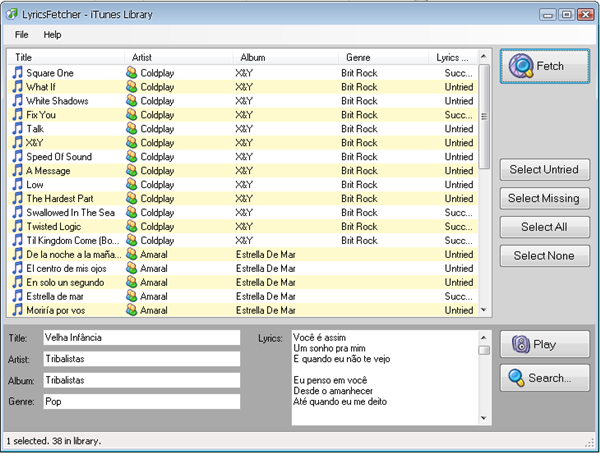
A while ago I wrote a post about how to find album covers on the Internet and import them to iTunes, so that when you browse your music library – either on the PC or on your iPod – you can enjoy colorful artwork instead of those boring gray music notes. Today, I’m focusing on something that will also contribute to make your music collection a bit better: searching the Web for the lyrics to your favorite songs and importing them directly into the files’ ID tags, all with a minimum of effort.
The trick is using LyricsFetcher, a handy free app that scans your iTunes or Windows Media Player library and searches the web for the lyrics of all the songs you have – or just the ones you select. The first time you launch it, LyricsFetcher may seem to be a bit slow but that’s just because it needs to load your whole music library before doing anything else. From that moment on, finding the lyrics to all your favorite songs will be a piece of cake. Continue reading “Find lyrics on the Web and import them to iTunes”
In case you don’t know, OnSoftware is on Twitter: so if you want to keep up with what’s going on here, follow us! Find us here at twitter/softonic_en.
If you don’t use Twitter, why not give it a go? It’s a surprisingly good way to stay up to date with whatever you’re interested in! And if you follow us, we’ll follow you back – meaning you can send us suggestions, tips and software questions that we’ll answer here on the blog.
Hunch.com is a recently launched ‘decision engine’, which has got quite a bit of attention due to one of the company being Flickr co-founder Caterina Fake.
Microsoft’s heavily covered Bing has been called a decision engine – by Microsoft – which I don’t understand as it’s just a search engine. I think it’s a good search engine, for what it’s worth, but not a decision engine. Hunch is what you’d expect a decision engine to be. You ask a question like,
It’s still growing, not all questions work, and it’s very much a US site – English people have to remember to say vacation, not holiday! I thought I’d put Hunch through it’s paces and see if I agreed with it. To my first question, above, Hunch said I was 99% in favour of an iPhone. I tried Xbox 360 versus Playstation 3, and was told I was 60% in favour of an Xbox. That’s lucky, as I’ve already got one.
These questions weren’t so hard, though. I could make my own mind up about purchases, so I moved on to more important life issues. First up, “What should I eat for lunch?”. I wasn’t too impressed with Hunch’s answers. It suggested Indian or Chines food, and Pasta. It might as well have suggested I wanted “food” for lunch. I want specifics!
Hunch asks you a series of questions to get to know you better, but it still doesn’t know me that well, so perhaps I should forgive it not being specific. However, my second important question was “Should I get married?” Personally, I don’t think so: I’m a 21st century citizen, and don’t need such arcane public institutions! However:
…apparently I’m wrong! Should I trust a decision engine more than my own brain? I think I’ll buy an iPhone, go and eat some ‘food’ and think about it.
If you’ve never performed a backup of your hard drive, then you’re risking potential disaster if it fails or that “on” switch simply doesn’t work one day for some reason. We all come-up with poor excuses for not doing so – our external drive is full, we don’t have time, we simply forgot etc. but CrashPlan is an application that definitely leaves no room for excuses. These are some of the ways you can backup with CrashPlan:
Online Encrypted and unlimited size hard drive backups online for a modest fee
PC/Mac Backup your hard drive to another PC or Mac and vice versa
External Drive Backups performed in real time to USB and Firewire drives
Friends You can even select a friend over the net to backup your files to
Best of all, not only does it work across platforms and is free but using CrashPlan couldn’t be simpler. I setup CrashPlan on a Mac and within a minute, a backup of my entire hard drive was being performed to my USB drive. Note that the program is only free for personal use (they’ve got a special CrashPlan Pro for companies) although it is supported by a few ads. Continue reading “Backup any way you want with CrashPlan”


 Earlier this year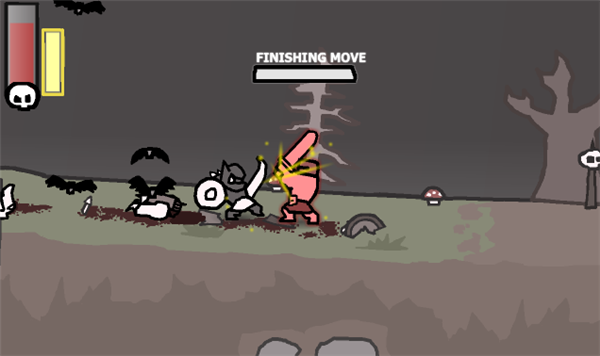
 In case you don’t know, OnSoftware is on Twitter: so if you want to keep up with what’s going on here, follow us! Find us here at
  Hunch.com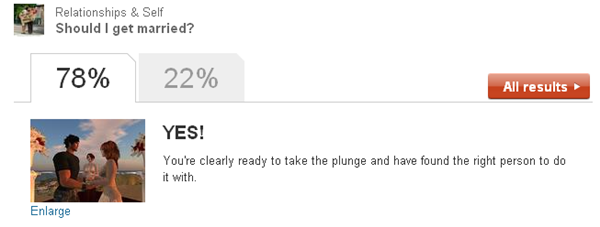
 If you’ve never performed a backup of your hard drive, then you’re risking potential disaster if it fails or that “on” switch simply doesn’t work one day for some reason. We all come-up with poor excuses for not doing so – our external drive is full, we don’t have time, we simply forgot etc. but