Until recently, noise in images, videos, and audio was a significant obstacle for content creators and editing professionals. However, thanks to the latest Adobe updates, noise is now a thing of the past and no longer an issue.
The most common type of noise that bothers us is in images. When images have low resolution or are taken at night, the grain that appears is often annoying. But now, the AI integrated into Lightroom automatically analyzes and adjusts the necessary parameters to reduce noise, leaving images sharp and clear in seconds.
On the other hand, video noise works similarly to image noise. Until now, recording night videos was a hassle due to the grain that accumulated, but this is changing with AI. The latest versions of Adobe Premiere include a tool called VR-Denoise. This function automatically removes grain and other visual imperfections from your recordings. What used to be a long and complicated process is now as simple as applying the adjustment and letting the AI work its magic. The result is a clean, professional video without the usual effort.
Lastly, audio noise is also a thing of the past. Recording with poor microphones or with mismatched settings always caused issues that reduced the quality of your productions, but now it can be quickly fixed with Adobe’s new application specifically developed for audio cleaning. It’s called Adobe Podcast, and if you have a recording with background noise, hums, or other auditory problems, it resolves everything quickly and efficiently.
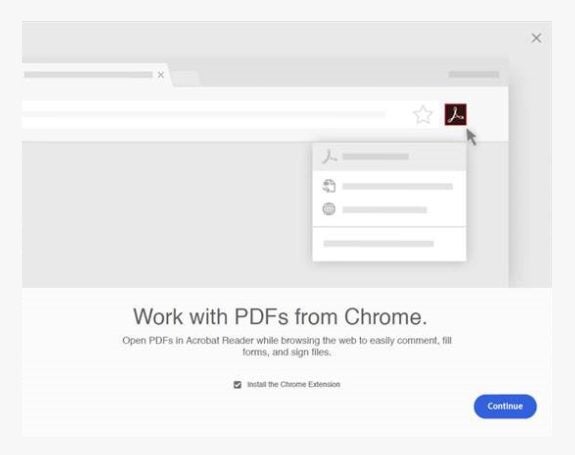
Adobe Acrobat remains a go-to solution for PDF management due to its robust features and user-friendly interface. With recent updates, the Adobe Acrobat extension for Google Chrome has become even more powerful, enhancing how users interact with PDFs directly in their browser. Here’s a comprehensive guide to installing and leveraging this extension’s full potential.
Seamless PDF Management with Adobe Acrobat Extension
Adobe’s Acrobat extension for Chrome allows you to manage PDFs directly in your browser, integrating features like viewing, editing, signing, and sharing documents. This extension streamlines workflows, making it easier to handle PDFs without switching between different applications.
Step-by-Step Installation Guide
Step 1: Install the Extension
Open Google Chrome and go to the Chrome Web Store.
Search for ‘Adobe Acrobat’ and press Enter.
Find the Adobe Acrobat extension and click ‘Add to Chrome.’
Confirm the installation by clicking ‘Add extension’ in the pop-up window.
Step 2: Enable the Extension
Restart Google Chrome if it was already open after installation.
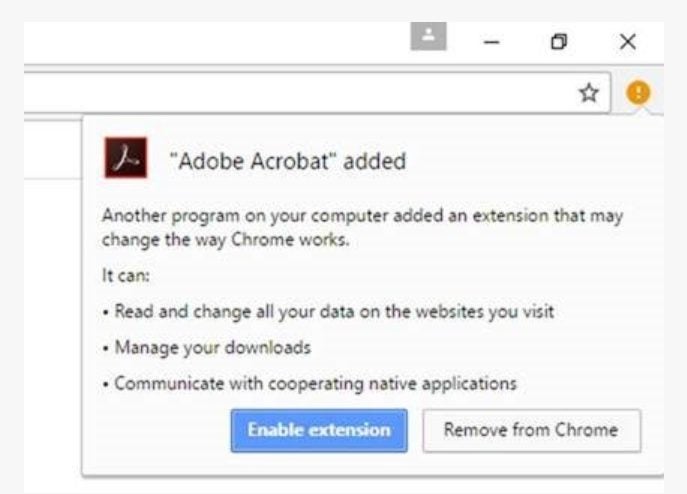
A notification will appear asking if you want to enable the extension. Click ‘Enable Extension.’
The extension is now active and ready to use.
Step 3: Utilize the Extension
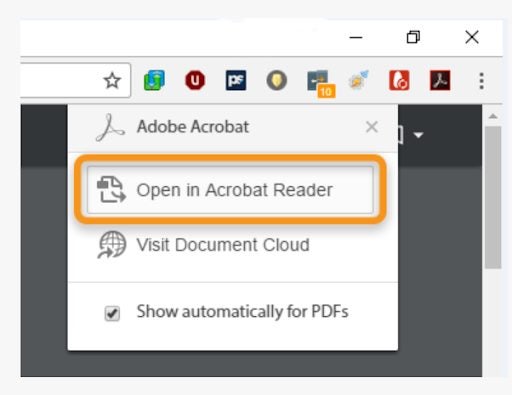
Open a PDF file in Chrome, and the Adobe Acrobat extension will offer its features, including in-browser PDF editing. You can add comments, fill forms, and sign documents directly without downloading them first.
Choose to view the PDF in Chrome or open it with Adobe Acrobat for more advanced functions. With cloud integration, you can access and store documents, making transitions between devices seamless.
Adjust your Chrome settings or Adobe Acrobat preferences to set it as the default PDF viewer if desired. The extension also allows for advanced conversion tools, enabling PDF conversions to formats like Microsoft Word, Excel, and JPEG directly from the browser.
Benefits of Using the Adobe Acrobat Extension
Using the Adobe Acrobat extension in Chrome not only simplifies managing PDF files but also boosts productivity by providing comprehensive tools within a single browser. Here are some additional benefits:
File Compression: Easily compress large PDF files to facilitate sharing and storage.
Enhanced Security: Protect sensitive documents by adding passwords and other security features.
Accessibility Improvements: The extension is optimized for better accessibility, ensuring all users can interact with PDF content effectively.
Enhance Your Creative Cloud Experience
To fully leverage the capabilities of Adobe Acrobat and other Adobe tools, consider exploring Adobe’s Creative Cloud services. With Creative Cloud, you gain access to a suite of powerful applications designed to streamline your workflow and enhance productivity. Whether you need advanced PDF editing, secure document storage, or comprehensive design tools, Creative Cloud has a solution for you.
Download and Explore Adobe Creative Cloud
Adobe Acrobat Pro Subscription: Unlock premium features including advanced PDF editing, e-signatures, and secure document management.
Adobe Cloud Services: Store, share, and access your documents from anywhere with Adobe’s cloud storage solutions.
The Adobe Acrobat extension for Chrome significantly enhances your PDF management capabilities by integrating robust features directly into your browser. From in-browser editing and secure document handling to seamless cloud integration and advanced conversion tools, this extension streamlines your workflow and boosts productivity. Install the extension today and explore the full potential of Adobe’s tools through Creative Cloud to further enhance your document management and creative projects.
Adobe Reader DC, a free tool, allows users to open, read, and print PDF documents on Windows and Mac. While basic functions such as document rotation are freely available, advanced features like extracting pages, merging documents, and password protection require Adobe Acrobat Pro, a premium version.
Whether you’re a student needing a specific chapter from a textbook, a professional preparing a focused report, or someone archiving relevant sections of documents, knowing how to extract individual pages can be incredibly beneficial. Here’s an updated guide to help you navigate this process using Adobe Reader and other methods.
Steps to Save One Page from a PDF Using Adobe Reader
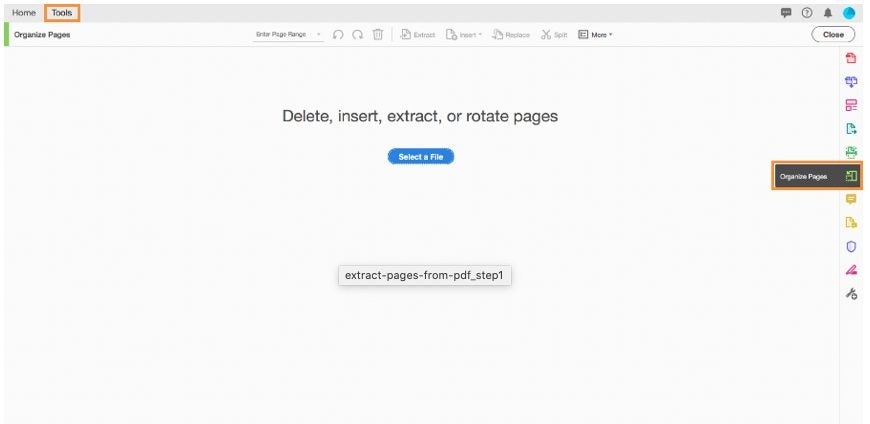
Step 1: Open the Organize Pages Tool
Launch Adobe Reader on your computer.
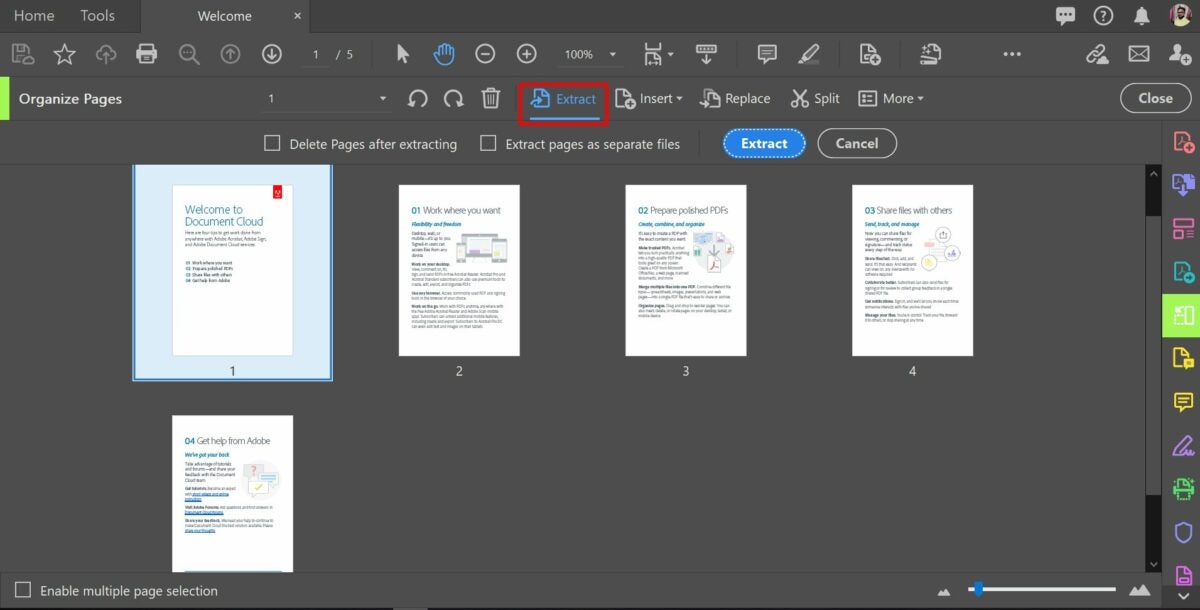
Access the ‘Organize Pages’ tool from the menu on the right side of the screen or by selecting the ‘Tools’ option from the top menu.
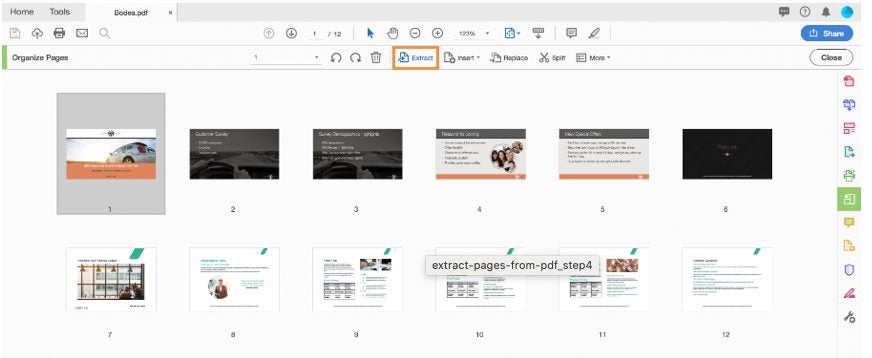
Step 2: Select the ‘Extract’ Option
Open the PDF from which you want to extract pages.
The document will display in a thumbnail view of all its pages.
Click on the ‘Extract’ option in the menu above the document.
Step 3: Choose the Pages to Be Extracted
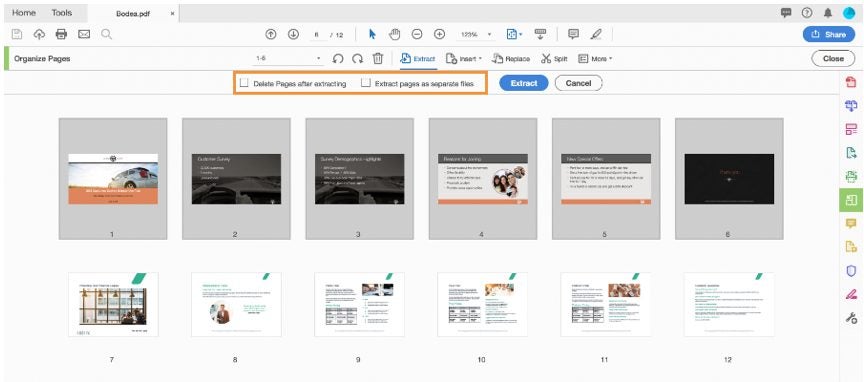
Select the page or pages you wish to extract.
For multiple pages, hold down the Ctrl (Windows) or Cmd (Mac) key while selecting.
The selected pages will be highlighted.
Step 4: Extract the Pages
Click the blue ‘Extract’ button located in the menu above the document.
Choose the destination and format for the saved pages.
Additional Methods to Save One Page from a PDF
Using Online Tools:
Adobe Acrobat Online Services: Use the online PDF splitter tool from Adobe. Upload your file, select the pages you want to extract, and save the new PDF file.
Smallpdf: Another simple online tool where you can upload your PDF, select the page to extract, and download the single-page PDF.
Using Built-in PDF Viewers:
macOS (Preview):
Open your PDF in Preview.
Navigate to File > Print.
Select the page number you want to save separately.
Change from PDF to Save as PDF and select the save location.
Windows (Microsoft Edge):
Open your PDF in Edge.
Navigate to File > Print and select “Microsoft Print to PDF.”
Select the page range and save the file.
Maximizing Adobe Reader’s Features
Adobe Reader DC offers a range of functionalities to simplify PDF management tasks. For more advanced needs, Adobe Acrobat Pro provides capabilities such as:
Page Extraction: Easily extract and save specific pages.
Document Merging: Combine multiple PDFs into one.
Password Protection: Secure your PDFs with encryption.
Upgrade Your PDF Management With Acrobat
Discover the full potential of Adobe Acrobat by upgrading from Adobe Reader to Adobe Acrobat Pro. Unlock advanced features that make managing your documents easier and more efficient.
With Adobe Reader DC, extracting single pages from a PDF is straightforward, enhancing productivity and flexibility. The tools and methods outlined above, from using the built-in Organize Pages feature to leveraging online tools like Adobe Acrobat Online Services, provide versatile solutions for any user need. Whether you’re working on a desktop or on the go, these techniques ensure you can quickly and efficiently manage your PDF documents.
Exploring advanced features in Adobe Acrobat Pro can further streamline your workflow, offering enhanced capabilities like document merging and password protection. By adopting these practices, you can make the most of Adobe Reader’s offerings, ensuring your document handling is both efficient and effective. Unlock the full potential of your PDF management by upgrading to Adobe Acrobat Pro, and experience the seamless integration of powerful tools designed to simplify your tasks.
Adobe After Effects remains a cornerstone for video editors, motion graphic designers, and VFX artists. Although the software offers extensive capabilities, its complexity can be daunting for newcomers. This guide will walk you through ten essential steps to get you started with After Effects, ensuring you have a solid foundation to build upon.
Starting your journey with Adobe After Effects begins with launching the software. On a Mac, open the Applications folder and find the Adobe After Effects icon. On Windows, go to the Start menu, find Adobe After Effects under Programs, and launch it from there.
Tips:
For quicker access, pin the After Effects icon to your dock (Mac) or taskbar (Windows).
Ensure your software is updated to the latest version to avoid compatibility issues.
2. Select a Project Template
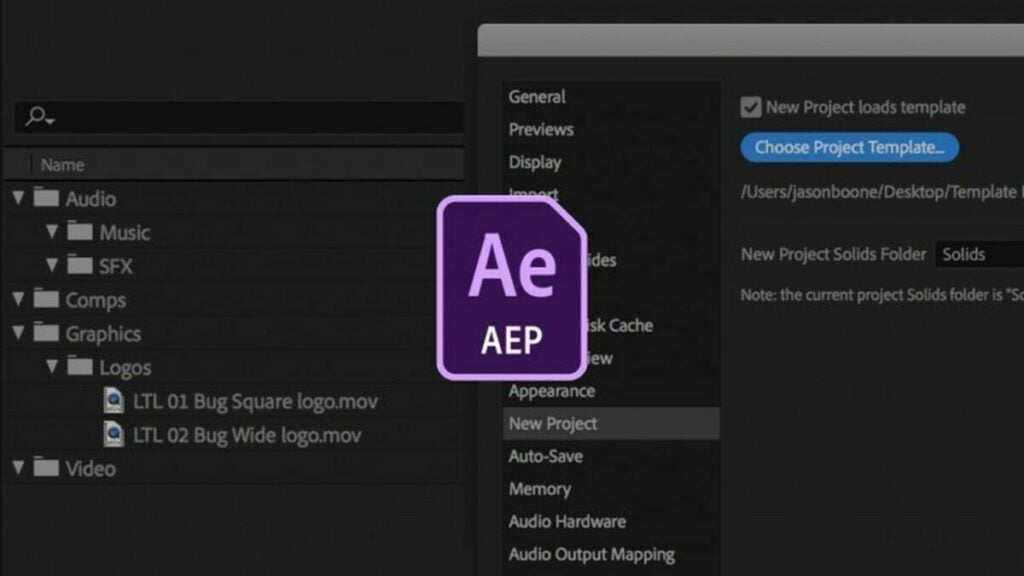
Upon launching After Effects, you’ll see a default project. You can choose from thousands of templates to match your project’s requirements. Templates come pre-configured with settings, compositions, effects, and animations, streamlining your workflow.
Benefits of Using Templates:
Save time with pre-set compositions.
Ensure professional-quality settings from the start.
Easily integrate with third-party software like Adobe Premiere Pro and Final Cut Pro X.
3. Import Video Footage and Graphics
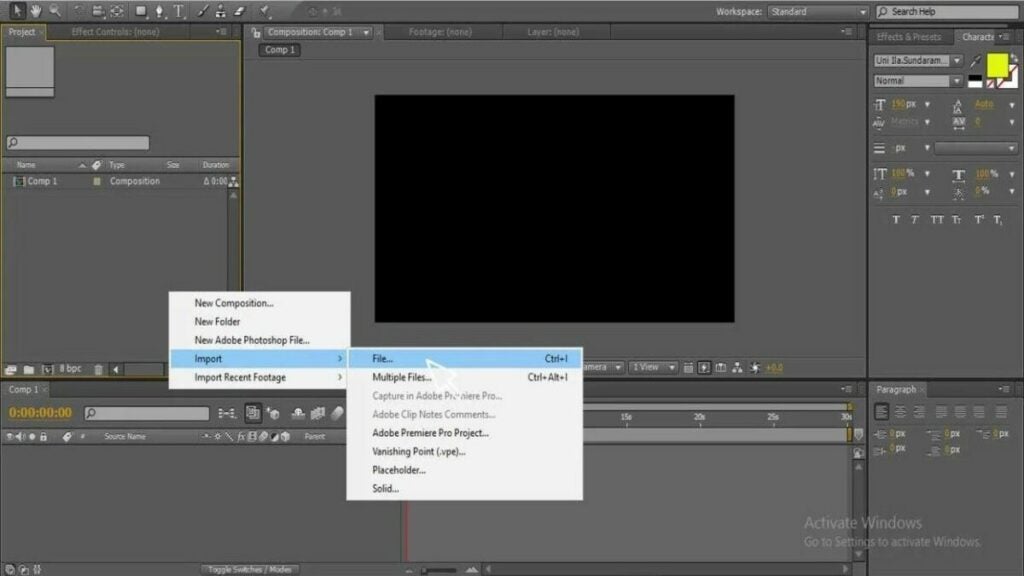
Importing your assets is straightforward. Go to File > Import > File, and select your video footage and graphics. These files will appear in the Project Panel, ready to be dragged into the Timeline.
Pro Tips:
Organize your assets into folders within the Project Panel for easier navigation.
Use high-resolution graphics and footage for better output quality.
4. Create a Composition
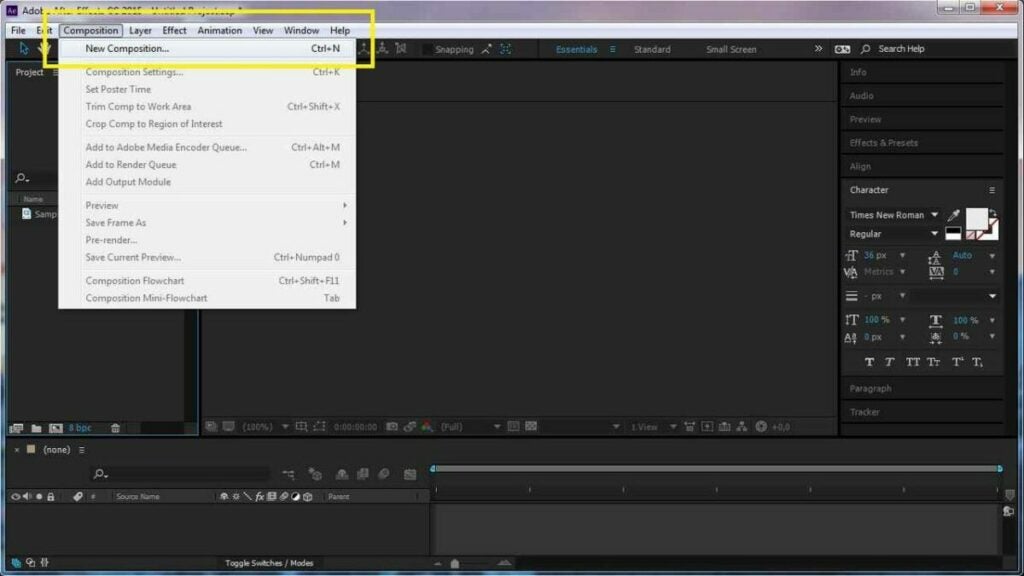
A composition is the heart of your project, containing all the layers and assets. To create a new composition, right-click in the Project Panel and select New Composition (or use Ctrl+N / Cmd+N). Set your resolution, frame rate, and duration according to your project needs.
Important Settings:
Resolution: Commonly 1920×1080 for HD projects.
Frame Rate: 24fps for cinematic look, 30fps for standard video.
Duration: Ensure it matches the length of your project.
5. Add Animation and Effects
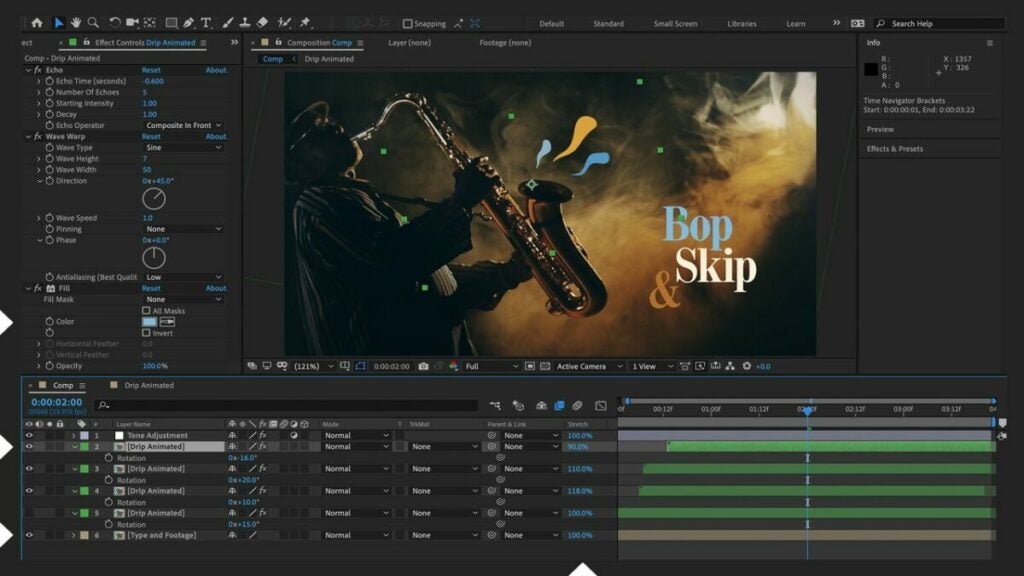
Now it’s time to bring your project to life with animations and effects. Use keyframes to control properties over time. For example, to make an object move across the screen, adjust its position keyframes on the Timeline.
Select the layer you want to animate.
Open the Effects & Presets Panel.
Drag the desired effect onto the layer.
Adjust keyframe values to create dynamic animations.
Popular Effects:
Fade In/Out: Create smooth transitions.
Motion Blur: Add realism to fast-moving objects.
Color Correction: Enhance your footage’s visual appeal.
6. Render Your Project
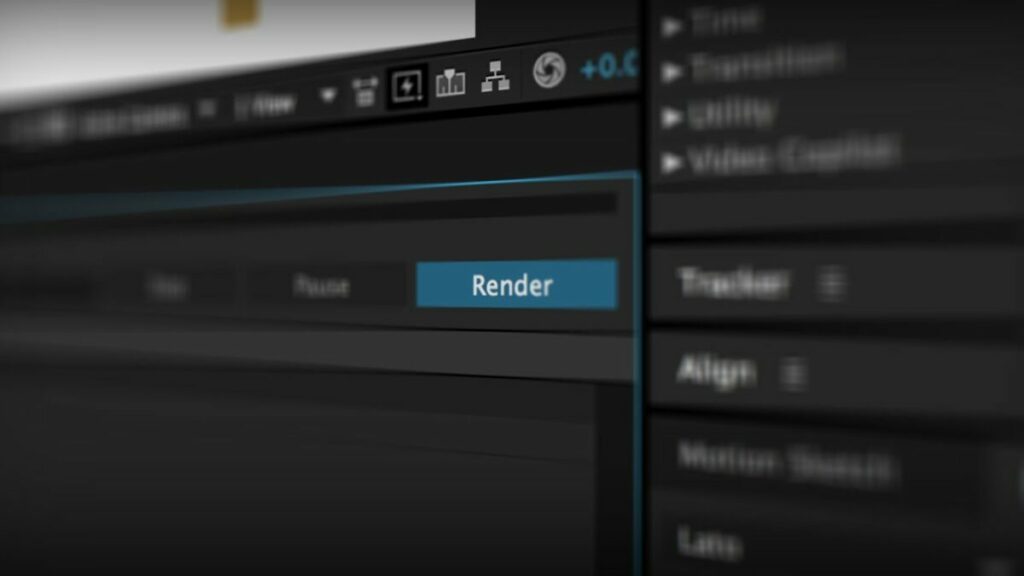
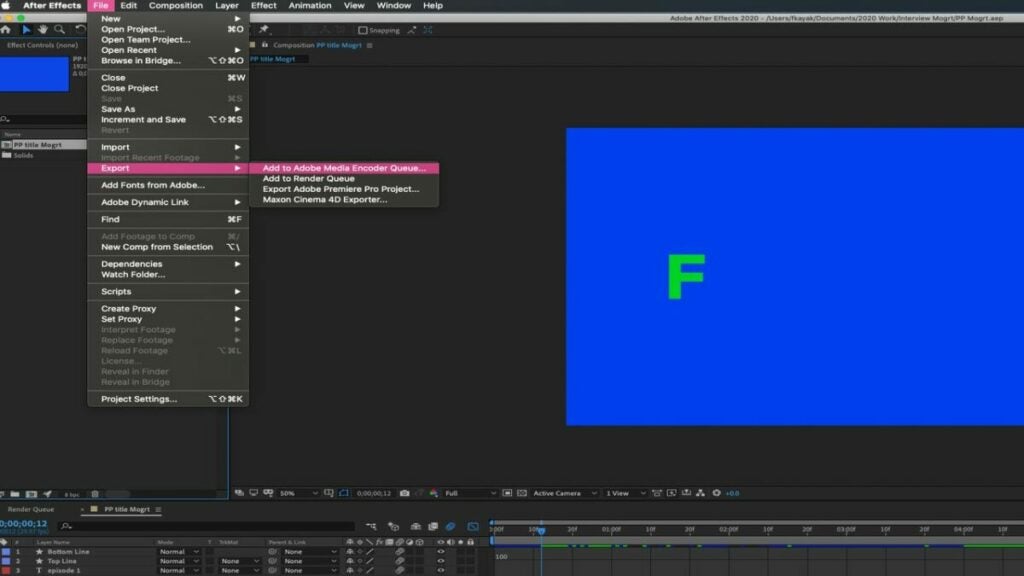
Rendering converts your edited composition into a final video file. Go to Composition > Add to Render Queue. In the Render Queue window, adjust output settings like format and frame rate, then click Render.
Rendering Tips:
Choose H.264 for high-quality, compressed output.
Set frame rate to match your composition settings.
Use the Adobe Media Encoder for more output options.
7. Export Your Project for Distribution
After rendering, export your project for sharing. Again, use the Render Queue to set your output preferences. Ensure the format is compatible with your intended distribution platforms, whether it’s YouTube, social media, or other channels.
Common Export Settings:
Format: H.264 for most online platforms.
Resolution: Match your composition’s resolution.
Bitrate: Adjust according to your quality requirements and file size limitations.
8. Explore Advanced Features
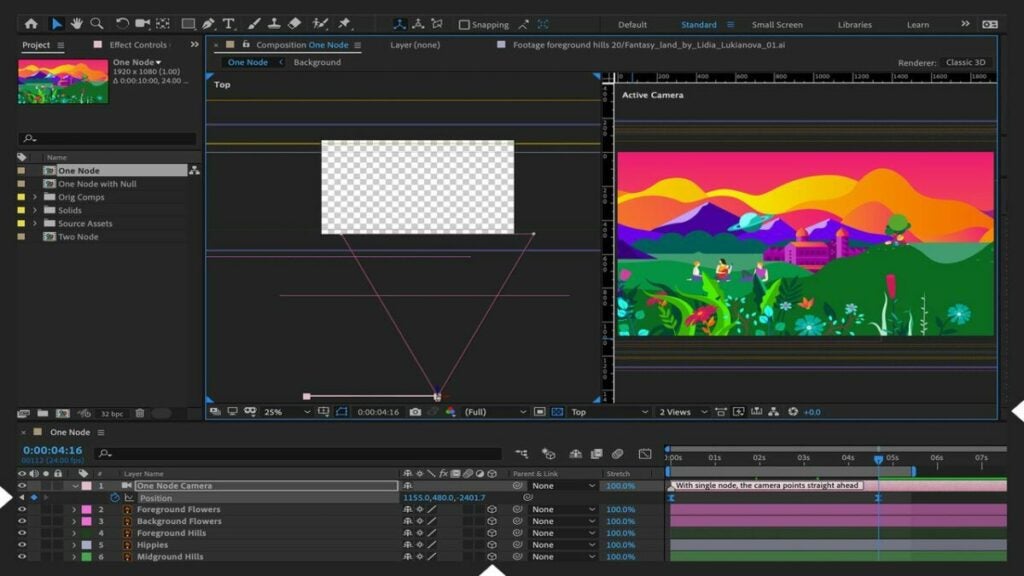
Adobe After Effects offers numerous advanced features. Delve into motion tracking, 3D layers, and expressions to enhance your projects. The Adobe website provides extensive tutorials to help you master these tools.
Advanced Features to Explore:
Motion Tracking: Attach graphics to moving objects in your footage.
3D Layers: Add depth to your compositions.
Expressions: Automate animations with custom scripts.
9. Experiment and Create New Projects
Experimentation is key to mastering After Effects. Create new projects, try different effects, and push the boundaries of your creativity. The more you practice, the more proficient you’ll become.
Project Ideas:
Animated Logo: Enhance your brand’s identity.
Short Clips: Practice transitions and effects.
Visual Effects: Create stunning VFX sequences.
10. Join the Adobe After Effects Community
Engage with the global After Effects community for support and inspiration. Forums, social media groups, and the Adobe Support Community are excellent places to ask questions, share your work, and learn from others.
Online Forums: Participate in discussions on platforms like Reddit.
Social Media Groups: Follow Adobe After Effects pages on Facebook, Instagram, and X for tips and tutorials.
Adobe After Effects is a powerful tool that, with practice, can elevate your video editing and motion graphics projects to new heights. By following these ten steps, you’ll gain a solid foundation to explore and master this versatile software.
Get Started with Adobe After Effects Today!
Adobe After Effects is a game-changer for video editors, motion graphic designers, and VFX artists. Why wait to elevate your creative projects? Start your journey with Adobe After Effects today by taking advantage of Adobe’s free trial offer.
Why Choose Adobe After Effects?
Industry Standard: Trusted by professionals worldwide for its versatility and power.
Comprehensive Toolset: Access an extensive range of tools and features for video editing, motion graphics, and visual effects.
Creative Freedom: Bring your ideas to life with unparalleled precision and creativity.
Click on “Free Trial”: Find the “Free Trial” button prominently displayed on the page and click it.
Download and Install: Follow the on-screen instructions to download and install After Effects on your computer.
Explore and Create: Launch the software, explore its features, and start creating stunning visual content.
Benefits of the Free Trial:
Full Access: Enjoy complete access to all features and tools, just like the paid version.
Hands-On Learning: Experiment with various effects, animations, and compositions without any limitations.
No Commitment: Experience the power of After Effects risk-free before deciding on a subscription.
Don’t miss this opportunity to enhance your video editing and motion graphics skills.Start your free trial of Adobe After Effects today and take the first step towards creating professional-quality projects that captivate and inspire.
Transform Your Creative Vision with Adobe After Effects
Adobe After Effects stands as a pivotal tool for anyone serious about video editing and motion graphics. Its vast array of features and capabilities can seem overwhelming at first, but with dedication and practice, you’ll unlock a world of creative possibilities. From stunning visual effects to seamless animations, After Effects empowers you to bring your most imaginative ideas to life, enhancing the quality and impact of your projects.
Ready to take your video production skills to the next level? There’s no better time to start than now. By leveraging the free trial, you can dive into the software and begin mastering its powerful tools without any initial investment. Embrace the opportunity to learn and grow with Adobe After Effects, and watch as your creative projects transform from basic edits to professional-quality masterpieces. Don’t just create—captivate. Start your journey with Adobe After Effects today.
Adobe Stock has revolutionized the way designers and creatives access high-quality assets. With an expansive library that includes photographs, illustrations, videos, and now, customizable templates, Adobe Stock makes any design project easier and more efficient. This guide will walk you through the updated process of using Adobe Stock templates, highlighting the latest features and best practices to enhance your creative workflow.
Adobe Stock’s template library has been upgraded with new features designed to streamline the design process. Enhanced integration with Adobe Creative Cloud makes accessing and managing templates more seamless across all your devices and applications.
Adobe Stock offers a wide range of templates tailored for Adobe’s suite of products, including Photoshop, InDesign, Illustrator, Premiere Rush, and Premiere Pro. These templates are designed by top professionals and can be seamlessly integrated into your projects via Creative Cloud Libraries, ensuring you always have access to the resources you need.
To begin using Adobe Stock templates, access the Adobe Stock website or the Creative Cloud Libraries directly from your Adobe application. Use the search function to browse thousands of templates based on your project requirements. The intuitive interface makes it easy to filter results by type, style, and application compatibility.
Licensing and Plans
Adobe Stock provides various licensing options to suit different needs:
Standard License: Ideal for most personal and commercial projects.
Extended License: Necessary for merchandise, templates, and unlimited print runs.
Enhanced License: Offers additional rights for high-value projects.
Editorial Use: For newsworthy or public interest content.
Adobe Enterprise: Tailored for large organizations with extensive usage needs.
Subscription plans offer flexible options for accessing Adobe Stock assets. Whether you choose a monthly plan for ongoing access or purchase credits for occasional needs, Adobe Stock ensures you get the best value. Free assets are available, but premium templates might require a purchase.
Initiating a Project Using Templates
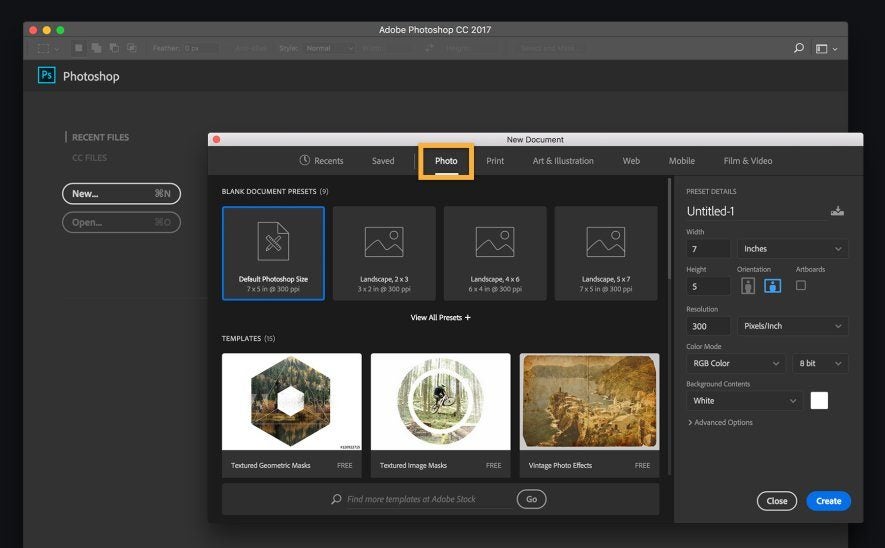
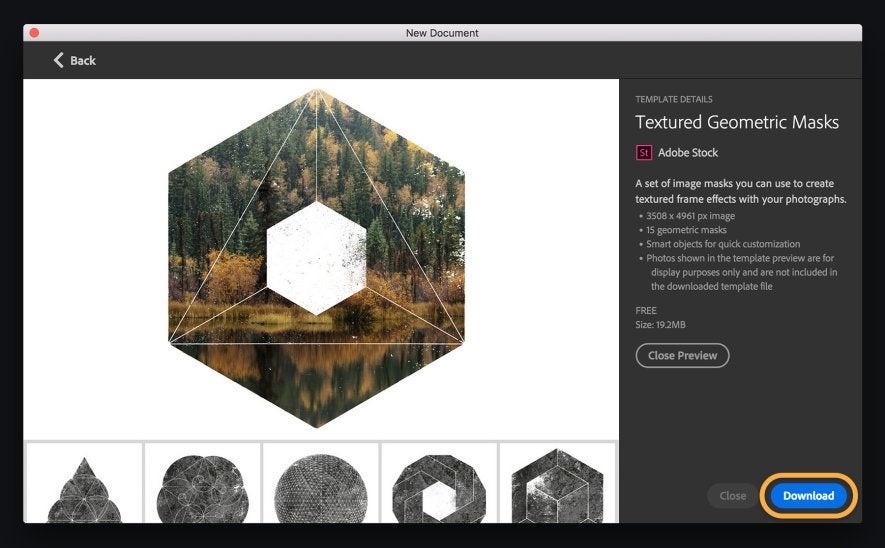
Starting a project with an Adobe Stock template is straightforward. In your Adobe application, go to File > New, then browse Adobe Stock for a template that matches your vision. Once you find the right template, open it and save it to your Creative Cloud Libraries for easy access across all your devices.
How to Use Adobe Stock Templates
Customizing Templates
The true power of Adobe Stock templates lies in their customization capabilities. Each template is built in layers, allowing you to:
Change colors and typefaces to align with your brand
Swap out placeholder images with your own photos
Adjust layout elements to better fit your content
Advanced users can delve deeper, modifying shapes, adding effects, and even combining multiple templates for a unique look.
Integrating Your Own Media
Adding your own photographs and media to an Adobe Stock template is simple. In the Layers panel, create a new layer for your media. Drag and drop your image into the designated area, resize it, and adjust it to fit perfectly within the template’s framework. This ensures your final product is both personalized and professional.
Finalizing and Exporting Your Work
Once you’ve customized your template, save your work regularly to avoid losing progress. Export options include saving as a PDF for print, or other formats suitable for web and social media use. Adobe’s export tools ensure your project maintains its quality across all platforms.
Adobe Stock’s vast library is a treasure trove for any creative professional. Utilize templates for a variety of projects—from social media graphics to promotional videos. Subscribing to Adobe Stock not only saves time but also enhances the quality and efficiency of your work.
Adobe Stock templates are a game-changer for anyone looking to streamline their design process. With a myriad of templates at your disposal, combined with the flexibility to customize them to your liking, Adobe Stock ensures that every project you undertake is both efficient and high-quality. Dive into Adobe Stock today and discover the endless possibilities to elevate your creative projects.
14 years ago, Donkey Kong Country Returns appeared for Wii with spectacular ratings, receiving applause from the public. It was a great game that in 2013 already had a port for 3DS with some extra levels. Now, the “definitive version” for Switch in high definition will combine both games with polished graphics. That should be a good thing, especially for those who missed it at the time… except for the price.
By now, gamers have become accustomed to old games being remastered in an attempt to make money again. For example, Crash Bandicoot or Spyro did it recently… for a reduced price. After all, these are games that have already made a profit and they are trying to give them a second life. However, Nintendo has decided that Donkey Kong Country Returns HD will cost the same as a new game: $60.
And, of course, knowing their pricing policy, it will still cost the same in ten years. This sets a dangerous precedent, given that Luigi’s Mansion 2 has also appeared at the same price and without a low-cost line or price reductions along the way, beyond occasional digital discounts. Nintendo is aware that their fans will buy everything they release, and maybe it’s time to clearly tell them “Metroid Prime 4? Of course, $60. Donkey Kong Country Returns HD? $30 seems too much.”
Riot Games ha anunciado la primera alfa pública de su juego de lucha, 2XKO, anteriormente conocido como Project L, con un pequeño problema
Riot Games has decided to take the route of slow but steady growth. Expanding methodically and very carefully, they’ve been tackling one genre at a time, trying to ensure success in each of their niches. Almost always achieving success and always delivering remarkable games, this strategy has allowed them not only to survive but to grow relentlessly over the years. And it seems that their next game on the horizon is already well established.
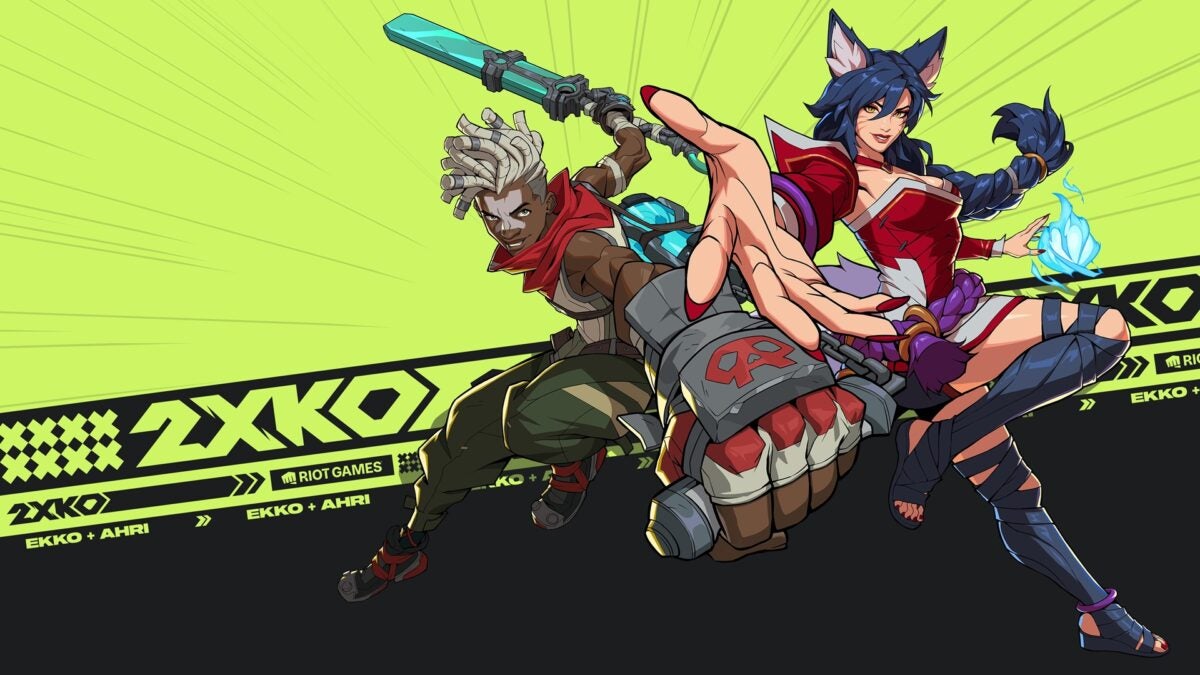
The next genre they’re going to tackle, as is well known, is the fighting-games genre. With a game called 2XKO, previously known by the much more easy-to-pronounce name, Project L, Riot Games promises a 2v2 team fighting game with characters from Runeterra—the League of Legends world.
The good news is, if you’re looking forward to playing the game, you won’t have to wait much longer. 2XKO will be playable for the first time in a public play-test for Xbox Series X, Xbox Series S, PlayStation, and PC starting August 8th, and you can register for it already. The downside is that it’s limited to specific countries. To participate in this public alpha, you’ll need to be from the United States, Canada, United Kingdom, France, Brazil, Japan, or Mexico. If you don’t reside in one of these territories, we’re afraid you won’t be able to participate in the public alpha.
After confirmation that streaming will be not just permitted but encouraged, at least it’ll be possible to enjoy the game using that mode for people outside those seven countries. In that trajectory, Riot wanted to make very clear that this is an alpha. 2XKO is nowhere near being a complete game. All the polish one would expect from a commercial, finished game is not present yet, so it’s to be expected that there are many parts still to be completed, and it must be accepted that this is a conceptual sample, not the final game.
We reserve the best news for last, which is that although not everyone will be able to play this alpha, it seems that there’s finally a date on the horizon when we’ll be able to do it. Riot has confirmed that 2XKO will be released sometime in 2025. Without a more specific timeframe—simply stating that it will arrive sometime during the year—and without specifying whether it’ll be in the form of an open beta, closed beta, or full release, at least one thing is clear: the game is moving towards its final stages of development. Which means that from now on, we should start to hear a lot of news about 2XKO.
No se especifica qué entregas son, pero todo apunta a la primera y Black Flag.
We’ve been hearing countless rumors for quite some time about different remakes related to Assassin’s Creed. Up until now, these had only been “rumors”, but now we can say that these remakes actually exist: the CEO of Ubisoft has confirmed this information.
In a recent publication posted on the French company’s official website, Yves Guillemot, CEO of Ubisoft, commented that “users can be excited about some remakes, which will allow us to revisit some of the video games we have created in the past and modernize them; there are worlds from our old Assassin’s Creed games that are extremely rich.”
From here, Guillemot does not provide any more information, that is, he simply confirms the rumors about remakes of previous installments of the saga. Now, which video games is he referring to?
If we take into account all the rumors that arose surrounding the remakes of Assassin’s Creed, they seem to be focused on two games. On the one hand, there’s Assassin’s Creed 1, the Altair’s adventure, which was released almost two decades ago (which is not that long ago) and which has aged poorly in many respects. On the other hand, there’s the game that has aged much better —Assassin’s Creed 4: Black Flag, the pirate adventure where ships were the main protagonists.
Like we said, Guillemot has not confirmed that these two video games are the ones getting a remake, but he has confirmed that there are remakes of the saga on the way. Taking into account that the remakes of the games were made known thanks to these two installments, the rest is little more than adding two and two. At least we’re really clear about it.
Esta nueva columna desvela cuáles son los títulos más jugados en la portátil.
Steam offers a multitude of information for players around the world, data that is very interesting and useful for understanding trends and how the video game is currently working. Today, Valve has activated a new statistics tab that many will like: which are the most-played video games on Steam Deck.
In this new column, players can see what is being played the most on the handheld, a box that already has its first TOP 10 composed of the following games:
Elden Ring
Stardew Valley
Balatro
Baldur’s Gate 3
Kingdom Hearts HD 1.5+2.5 ReMIX
Fallout 4
Hades 2
Diablo IV
Hades
Grand Theft Auto V
As you can see, the TOP 10 differs quite a bit from what is seen on PC, where there’s more focus on “keyboard and mouse” games (which is logical).
Good morning! We just shipped a new Steam Charts page featuring the top-played games on Steam Deck. This list is updated daily, and you can explore the top 100 games on Deck by week, month, or year – check it out here:https://t.co/JclnxE5LEppic.twitter.com/5bGDaWLR3c
Although it may seem unimportant, this column will end up being a must-view. Valve’s handheld console is gaining followers all over the world every day. More and more people are falling in love with its features, and even more now that the hardware is seeing a great temporary price reduction. We’re trying to make it very clear: buy one.
Diablo Immortal, the smartphone game of the saga, has a new collaboration, and it is a high-flying one that will make many people very happy: World of Warcraft.
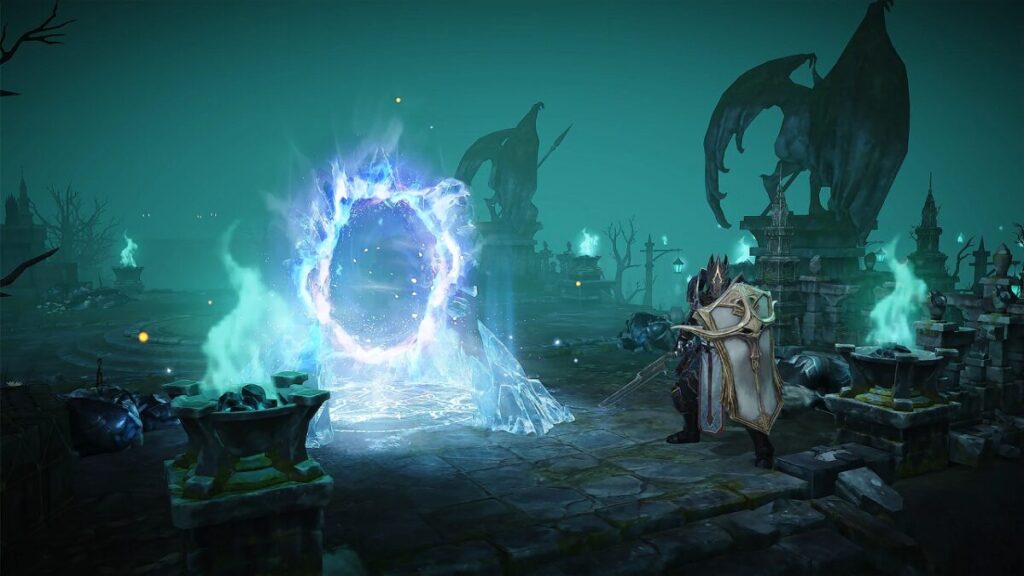
In a post revealed this morning, Blizzard has commented that “in the wild areas of sanctuary, icy gates” of very dubious origin have been seen, so it’s time to “clean them up.” To do this, from July 4th until July 26th, the player can enter these gates to fight the creatures.
“A new power found, the Frozen Throne Frost, will be within your reach as you explore the home of the frozen dead,” Blizzard points out among the novelties. This power works as follows: once 5 monsters are killed, the damage increases by 10% for 10 seconds. Likewise, up to 5 random undead warriors are also raised to fight for you.
To finish, simply by logging in we can earn the Ice Crown frame, while if we complete the event we will get the Frost Agony weapon cosmetic.

.webp)