The best free-to-play racing games

Racing games are a great way to get a rush of speed and adrenaline, and you don’t even have to leave your living room. Relax, turn on your PC, and instantly find yourself behind the wheel of the best race cars on the planet.

The possibilities are endless, from professional racing on Formula 1 tracks to urban drag racing, where you have to burn asphalt to become champion (or die trying). There are many kinds of racing games, but they all have one thing in common: they’re incredibly fun.

coches de fórmula 1

In today’s article, we’re going to look at some of the best free-to-play racing games out there. As incredible as it may seem, you don’t have to spend a lot of money to enjoy some of the best video games on the market. You don’t believe us? Keep reading to find out more!

Do I need to install a program to play these video games?

A number of the games on our list work through Valve’s digital gaming platform, Steam. That means you’ll need to install the client program on your computer and download the game from the platform. If you don’t have Steam on your PC, don’t worry. You can download it securely by clicking below. It’s completely free!

Steam DOWNLOAD
8

And now, without further ado, here’s the list of our favorite free-to-play racing games.

Copa Petrobas de Marcas

Copa Petrobas de Marcas

Unless you’re a fan of Brazilian racing, the name probably won’t ring a bell, but the Copa de Marcas is one of the country’s most famous races. Its official game, Copa Petrobas de Marcas, is a great racing simulator. It’s completely free-to-play and has no annoying microtransactions. You can drive a wide assortment of cars from different manufacturers and race on the best tracks in Brazil (Interlagos, Curtiba and Goiânia).

Copa Petrobas de Marcas is a decent game as far as graphics go, and it’s clear that special care was taken to perfectly recreate the race cars. Its physics engine, which does a pretty good job of imitating drifting on the track, also deserves special mention. Although the game’s rendering engine may seem old, it still amply meets our requirements, especially considering that this game is completely free.

Finally, keep in mind that Copa Petrobas de Marcas isn’t an easy racing simulator, but it’s quite fun and challenging. To crush your rivals, you’ll have to configure your car to the letter and even choose the kind of fuel you want to use. If we had to criticize something about this game, it lacks a multiplayer mode, so you always have to play against its AI. Want to check it out? You can download it quickly and safely by clicking below.

Copa Petrobas de Marcas DOWNLOAD
8

Late City Riders

Late City Riders

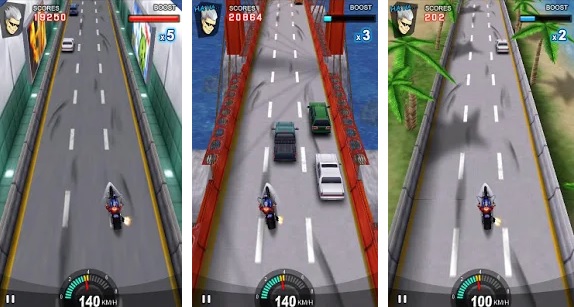
When driving home after a hard day’s work, have you ever fantasized about flooring the gas to reach your destination as soon as possible? If so, Late City Riders is the game for you.  Here, instead of competing against other vehicles, you’ll race against the clock at full speed, trying to finish the course in one piece.

While Late City Riders is no graphical wonder, it’s truly fun. Its courses are wild, full of dangers, and designed to keep your eyes glued to the screen. The slightest blunder or false move will send your poor alter ego flying out of the car! You’ll need lightning-quick reflexes to pass its 20 challenging stages.

Late City Riders is a different choice for racing fans who want a good, free-to-play video game for hours of fun. Click below to download it quickly and securely.

Late City Riders DOWNLOAD
7

Nitro Nation Drag & Drift

Nitro Nation Drag & Drift

Nitro Nation Drag & Drift is a tough racing game where the important thing is not to overtake your opponents on a track, but to finish the course long before they do. To succeed, you have to be familiar with every detail of your car and know exactly when to enter curves. Only the best driver will win.

If you’re one of those people who can’t enjoy a racing game unless it has good graphics, you can breathe easy. Nitro Nation Drag & Drift has stunning visuals and perfectly recreates all of its vehicles. What’s more, all the cars that appear in the game are real, so with a bit of luck, you’ll be able to choose the one you’ve been dreaming about for so long.

As for gameplay, Nitro Nation Drag & Drift features an interesting mix: unlimited customization of its more than 100 cars and a simple driving experience where all that matters is fun. Finally, keep in mind that this game has many playing options and an incredibly fun multiplayer mode to compete with friends all over the world. And it’s completely free! If you want, you can play it on both PCs and Android phones.

  • PC version
Nitro Nation Drag & Drift DOWNLOAD
8
  • Android version
Nitro Nation Drag & Drift (Android) DOWNLOAD
8

Project CARS – Pagani Edition

Project CARS Pagani Edition

Racing game veterans are probably more than familiar with Project CARS, but… is there a completely free version? We’re pleased to inform you that the answer is yes: Pagani Edition offers the best of the original game, and you won’t have to pay a dime for it. The only “drawback,” if you could even call it one, is that all the cars are Pagani models.

Although the game is a few years old (2016), Project CARS – Pagani Edition continues to thrill us with its realistic graphics and breathtaking scenery. You can even drive along the French Riviera! What’s more, it perfectly combines the simulation experience with high-speed driving. As for playing modes, Project CARS – Pagani Edition has two: Quick Race Weekend and Time Trial, which fully immerse you in the best driving scenarios.

As you can see, Project CARS – Pagani Edition is a perfect way to get a “taste” of Project CARS if you’re interested in buying the game but want to try it out first. It’s also a great option if you’re simply looking for a good, free-to-play racing game.  In addition, the game supports the Oculus Rift helmet, so you can literally feel like you’re behind the wheel of its race cars. Interested? Download it for free by clicking below.

Project CARS - Pagani Eedition DOWNLOAD
8

RaceRoom Racing Experience

Raceroom Racing Experience

RaceRoom Racing Experience is a free racing game that you’ll never get tired of playing. Since the developers are constantly improving it, this game always has interesting new features. Even if you have played it before, be sure to download it again to check out its latest updates.

The game has heart-stopping graphics, and unlike similar options, RaceRoom Racing Experience claims it was developed by true motorsport experts. In fact, the game’s controls are easy to learn but hard to master, and only expert drivers will be talented enough to finish the race.

As for features, RaceRoom Racing Experience offers a basic free game that you can improve through the online store. Choose from five vehicles and two free tracks where you can compete. Every once in a while, official championships are organized so you can show off your driving skills. It’s perfect if you want a game that will improve over time.

RaceRoom Racing Experience DOWNLOAD
8

Racing Classics: Drag Race Simulator

Racing Classics Drag Race Simulator

Like Nitro Nation Drag & Drift, Racing Classics: Drag Race Simulator is a racing game where the goal is not to race other cars, but to finish the course as fast as possible. So what makes this game different from the rest? One simple thing: Here, instead of driving the latest models, we are offered a choice of the most iconic race cars of the ’70s and ’80s.

Although Racing Classics: Drag Race Simulator doesn’t have the best graphics of the games on our list (in fact, its shiny cars look a bit funny), it’s truly entertaining. Choose from 16 different cars, an arcade mode, a challenges mode and even a story mode with more than 45 stages to beat.

Racing Classics: Drag Race Simulator is still being developed, but it’s completely free-to-play. And even when the final version arrives, it will remain free. That said, the game has a store where you can improve and customize your vehicle through microtransactions. Want to check it out? Click below to download it.

Racing Classics - Drag Race Simulator DOWNLOAD
7

Speed Dreams

Speed Dreams

Using the popular open-source driving simulator TORCS, Speed Dreams certainly deserves its spot on our list of today’s best free-to-play racing games. This game has everything it needs to become one of your favorites: good graphics, lots of tracks and courses, and obviously, it’s completely free.

If you have TORCS installed on your computer, you are probably wondering if it’s worth it to download Speed Dreams. The answer is definitely yes! It adds many improvements to the basic game, including more tracks and new rivals to defeat.

Speed Dreams is a good racing game that promises hours of fun, and you don’t need an especially powerful computer to play it. Also, those pesky micropayments are nowhere to be found. Click below to install it on your PC. Enjoy!

Speed Dreams DOWNLOAD
7

Top Speed 2: Racing Legends

Top Speed 2: Racing Legends

Top Speed 2: Racing Legends isn’t your old-school racing game. Here, the goal is not to be the first car to cross the finish line or to get the fastest lap time. Instead, you’ll have to defeat your rivals by reaching dizzying speeds and skillfully using your car’s gearshift and nitro engine. Interested?

Even though the game is still in development, Top Speed 2: Racing Legends is completely playable. You’ll have a blast! With three different game modes and a choice of more than 70 cars, this is an essential game for speed addicts. Of course, if you want to customize and improve your vehicle, you’ll have to make use of the game’s micropayment system.

Top Speed 2: Racing Legends is a good option for anyone who’s tired of classic racing but doesn’t want to give up speed. Also, keep in mind that the game will only improve over time. Want to try it?

Top Speed 2: Racing Legends DOWNLOAD
8

VDrift

Vdrift

VDrift is a little treasure for fans of Formula 1 tracks. This open-source racing game offers 45 real tracks where you can drive up to 39 different cars. And it’s all free!

Although VDrift’s graphics may seem a bit dated at first, they are still quite stunning. As it’s a classic racing simulator, it takes a lot of practice to master the game. The controls may seem simple at first, but technique is fundamental, and you need hours of practice to fully master them.

One interesting aspect of VDrift is that besides your keyboard, mouse, or joystick, it supports steering wheels. This makes the game far more challenging but really fun. And since it’s open source, the possibilities are endless! What are you waiting for? Test it today.

VDrift DOWNLOAD
7

Yorg

Yorg

Don’t be misled by its name or simplistic graphics. Yorg is one of the most entertaining racing games you can download on your computer. This open-source game will have you behind the wheel for hours, defeating the computer or your rivals in multiplayer mode.

Like we said, Yorg doesn’t have the most impressive graphics on this list. In fact, its appearance is really dated. Unlike the rest of the games, Yorg features races with a third-person visual perspective, but keep one thing in mind: Yorg isn’t looking to impress you with its graphics, but rather with how fun it is. So get ready for some crazy races, cars crashing and flying through the air, and lots and lots of speed.

Offering a choice of eight cars, Yorg is the perfect game for a few laughs with your friends or to help you unwind after a stressful day at work. Download it now! You won’t regret it.

Yorg DOWNLOAD
7

We hope you liked our selection of free-to-play racing games. Do you have a recommendation that isn’t on our list? Tell us about it!
The ‘Free VPN’ Trap: Dangers, Realities and Safe Paid Alternatives

Using a free VPN may seem like an amazing idea at first. It promises the online anonymity you crave, lets you bypass geo-blocking, and makes you feel like your personal data and searches are always protected. Oh, and it doesn’t cost a dime!

But, as is often the case, there’s no such thing as a free lunch. Nobody offers a free service without getting something in return, and free VPNs are a perfect example of this.

hucha en forma de cerdito

You might be reading this article because you’ve researched the advantages of VPNs and decided to download a free one. But please think twice before trying your luck with a free VPN, because we’re not kidding when they say they’re a potential threat to your computer and data security. Do you find that hard to believe?

Today we’re going to talk about the free VPN scam, and how, after promising you anonymity and access to geo-blocked content, they truly put your privacy at risk. We hope you find it helpful!

Why it’s dangerous to use a free VPN

Free VPNs may seem harmless, and you may have even tried one in the past. You might remember it fondly and wonder why we’re saying they’re so dangerous. Below, we have listed the main pitfalls of free VPNs.

1. They expose your device to hackers and malware

Hacker utilizando un portátil

VPNs (Virtual Private Networks) are mainly used to create safe work environments where you can go online without worrying about your data being intercepted. Free VPNs promise you this, but they actually offer a completely different experience.

A recent security study that analyzed 283 free VPNs revealed that 38% of them were infected with malware. This malware is usually advertising-related, and it infects computers and handheld devices in order to monetize the VPN. Because although it promises to be free, it earns money by installing malware.

Anuncio de Hola

But malware isn’t the only danger lurking behind free VPNs. If you’ve been researching them for some time, you probably remember the Hola scandal. This seemingly innocuous VPN promised anonymous online browsing and unlimited access to geo-blocked services… and it didn’t cost a dime! However, what users didn’t know was that by using the service, they were sharing their bandwidth with third parties and even unwittingly participated in a botnet.

2. They track your online activity

Persona utilizando un ordenador potátil

This might come as a surprise, because most people use VPNs because they want to browse anonymously and prevent their activity from being traced. A recent study found that 72% of free VPNs track all of your online activity and collect your data to sell it to third parties. That way, the VPN can be free and earn money off your data.

If you have a hard time believing this, just read the fine print for most of these VPNs, where they admit to collecting and processing your data for their own and third-party use.

3. They don’t provide reliable access to geo-blocked content

If you were hoping to use a free VPN to access the complete catalogs of platforms like Netflix, we have bad news: you can’t. While this was possible years ago, there is no free VPN today that consistently offers this advantage.

Televisor y dispositivos con Netflix

Tunnelbear, for example, sometimes manages to unblock Netflix, but keep in mind that you can only use 500 MB free per month. Another one, ProtonVPN also lets you access Netflix, but the service is so slow that you can’t even enjoy the content.

4. They slow down your internet connection

A paid VPN’s servers not only match your regular internet connection speed, but sometimes even surpass it. However, the free ones have the opposite effect. Their data-transfer speed is so slow that you can barely browse the internet.

It’s true that some free VPNs are fast enough, but they are the kind that limit the amount of data you can use without paying. Once you exceed that limit, you have to purchase a subscription to keep using the service.

5. They bloat your device with ads

As we mentioned, a free VPN may not ask for money upfront, but it manages to amass a small fortune through the ads it displays on your device. They’ll normally appear as pesky pop-ups every time you go online, or be hidden in your interface to prey on distracted users who accidentally click on them.

Mujer aburrida mirando una pantalla

Besides being extremely annoying, the ads displayed by free VPNs slow down your connection and make browsing the internet a real ordeal. Keep in mind that if you use the VPN on your phone, the ads alone will chew through your data in the blink of an eye.

But that’s not even the worst they can do. Ads displayed by free VPNs are usually linked to malicious websites and end up installing malware on your device. This not only slows down your device, but also puts your privacy and personal data at risk.

6. They can sell your bandwidth and even involve you in criminal activities

This may come as a surprise, but some free VPNs are capable of selling your bandwidth to third parties. At the beginning of this article, we mentioned the Hola case, where the company stole bandwidth from free-version users and sold it to third-party companies through the brand Luminati. The scandal was all over the news, as Luminati was used to carry out a botnet attack on 8chan, and all Hola users and their computers unwittingly participated in it. For this reason, when you use a free VPN, you can never be sure that your device won’t be linked to some unlawful activity online.

Is it worth using a free VPN?

The answer is a categorical NO. The drawbacks and dangers of using a free VPN vastly outweigh the pros, if the latter even exist. In fact, you’re safer browsing online without a free VPN than with one. So if you want to use a VPN, don’t be a cheapskate! It’s worth spending a few bucks a month to reap all the advantages of a private network.

What are some paid alternatives to free VPNs?

Fortunately, there are some excellent, fast and secure VPNs with affordable subscriptions. Below are our favorites:

1. ExpressVPN

Anuncio de ExpressVPN

ExpressVPN is perfect for anyone seeking a balance between speed, security and, of course, good results. Boasting more than 3,000 servers in 160 locations around the globe, it lets you browse anonymously and access all kinds of geo-blocked content. With a single subscription to ExpressVPN, you can connect five devices (computers, phones, tablets, etc.) simultaneously. What’s more, it’s easy to use and versatile, making it the top choice of most experts in the sector.

ExpressVPN DOWNLOAD
9

2. NordVPN

Anuncio de NordVPN

NordVPN can boast of being one of the safest VPNs on the market. With more than 5,500 servers in over 55 locations around the world, it has excellent performance in terms of browsing, downloading and streaming. While most VPNs use 256-bit encryption, NordVPN goes a step further and uses 2048-bit encryption, guaranteeing your anonymity and data security. It’s perfect if you’re looking for a good VPN that fully protects your device.

NordVPN DOWNLOAD
9

3. HotSpot Shield

Anuncio de Hotspot Shield

One of the easiest, most intuitive VPNs on the market, HotSpot Shield is ideal for anyone who wants to surf the internet without complicated menus. You can start to browse rapidly and easily at the click of a button. Among HotSpot Shield’s strengths is the fact that this VPN can encrypt your internet connection if you have to use a public Wi-Fi network, protecting your device and data.

Hotspot Shield DOWNLOAD
8

Before you purchase a paid VPN, be sure to check out our deals at Softonic. Check out our picks for the Best VPNs of 2020 with discounts of up to 80% on subcriptions. 

We hope this article has helped you decide between downloading a free VPN and a paid one. What is your favorite VPN? Tell us about it!

Quick and easy guide to VPNs

In just a few years’ time, people have begun to use VPNs outside of work en masse. Whether it’s to protect user privacy, ensure user anonymity, or access geo-blocked content, VPNs are all the rage, and it’s no wonder!

With the rise of scams and dangers on the internet as well as the arrival of a plethora of attractive platforms that offer series and movie streaming, everyone’s itching to use a VPN. Do you know exactly what they are and what they are used for?

VPNs on a laptop

Forget about the long and complicated technical articles, because today we’re going to take a quick and easy look at what a VPN is and how you can use it.

What is a VPN?

This is the million-dollar question that everyone asks but that very few know how to answer without taking the reader on a merry-go-round. A VPN is, as its name suggests, a Virtual Private Network. Its purpose is to protect all the data coming into and going out of your computer. Don’t worry, we’ll explain this process to you in the easiest and most straightforward way possible.

How do VPNs work?

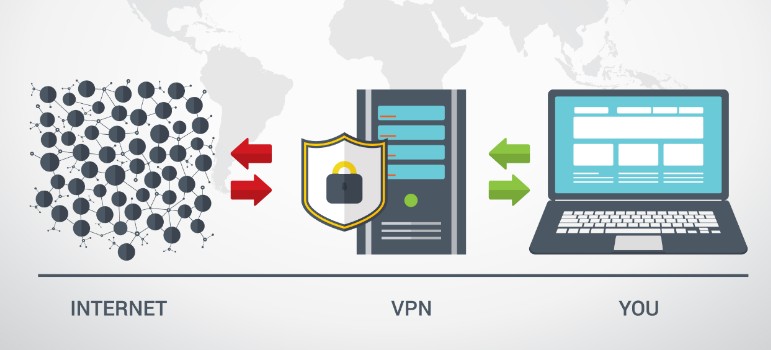
When you connect to browse the internet or, for example, right this instant, while you’re reading this article on Softonic, your computer sends and receives data to show you the requested information. The usual way is simply that your PC sends the data to your internet provider, and they return the requested information back to your computer. When you connect directly to your provider and then to the internet, the data you send is not encrypted, so you share things like your geographical location and your searches over the network. That’s why your searches always appear customized to the language of your region, or you magically see ads on topics you’ve been browsing online for over the past few days.

What happens when you use a VPN? Easy. After accessing your internet provider, the VPN will redirect you to a server located in the part of the world you have chosen, and you will use its IP to run searches and receive information. On top of that, the VPN will encrypt all your searches, so your provider won’t have a record of what you search for online.

If it’s still a little unclear, take this simple example. Imagine that you are going to connect to the internet from your apartment in Barcelona to run a search on picnic tables. To do so, you connect to the internet through your provider and Google will appear by default as Google Spain (because thanks to your IP, it will know where you are). Once you’ve done that, you look for information about a good picnic table and when you don’t like any of them, you do something else. The next day, you go online again and since your connection wasn’t encrypted, Google automatically shows you ads for picnic tables.

What would happen if you used a VPN? The first step would be exactly the same. Your PC would connect to the internet server, but from there it would go to the VPN server in the geographical location of your choice, the US, for instance. This time Google would appear as Google USA because it would see the VPN server’s IP. And all the data that you shared with your browser and the internet from that moment on would be encrypted. That way, when you reconnected to the internet, none of your searches would be recorded by your internet provider.

What’s a VPN good for?

In the beginning, VPNs were mostly used by big firms and always in a work environment. That’s because a VPN creates a secure local network that allows all workers to connect, whether they are at the same location or working from home without the danger of data spills or a hacker taking control of a company computer remotely.

Today, VPNs are still used by companies but also from the homes of internet users like you and me. There is much to be said in their favor, like the fact that:

You can browse safely and completely anonymously

woman using a laptop

One of the main reasons people use VPNs is that they allow you to surf the internet with an extra layer of security. This is because the server chosen encrypts the data, making it harder for third parties to intercept or store it. This is especially useful if you recall that we live in an era where online scams abound. A VPN offers you anonymity in your searches: they can’t be traced. Your privacy and that of your data is respected.

You can access geo-blocked content

Netflix catalog

Have you ever huffed and puffed because Netflix USA has that series you really wanted to see and it’s not in the Spanish catalog? VPN to the rescue. In just a few seconds, problem solved. Simply connect to an American server through the VPN, open Netflix, and you’ll be offered your pick of the US catalog. Since the VPN takes the IP of the server you choose, you can access any service that has been blocked due to your geographic location.

You can use an open Wi-Fi network securely

woman working on a laptop at a cafe

If you are one of those people who connects to the internet using Wi-Fi in places like cafés, libraries, or airports, you know that there’s always a measure of security risk. Any data you share over that Wi-Fi network can be intercepted by a hacker who is also on that network, and believe us when say that it’s not rocket science and more common than you might imagine. If you use a VPN the situation changes dramatically, because it can encrypt all the data you release onto that open network, making it safe from any malicious user.

Are free VPNs safe?

If you’ve started doing some research on VPNs, you’ve probably already noticed that there are free VPNs as well as subscription-based ones. Are both options equally safe? Unfortunately, the answer is no. While free VPNs have the attraction of costing nothing of course, they manage to pay for themselves by putting your data and security at risk.

A recent study found that up to 38% of free VPNs on the market install malware on devices to show you ads that they can monetize. Not only are they annoying, but most of the time they will redirect you to dicey pages where you could put your computer as well as your data in danger.

malware

Another disadvantage of free VPNs is that they sell the data they collect during your sessions online to third parties. That’s how they make the VPN available for free, and even if it works, you may run into the downsides of sharing your data.

Finally, one of the big problems with free VPNs is that they can even take away your bandwidth and sell it to third parties. You don’t have to go very far back to remember the case of the free VPN Hola. It sold the bandwidth of its users, who ended up unknowingly taking part in a botnet attack on 8chan. That’s why using a free VPN will not only eat into your connection speed and privacy, but your computer may end up being an accomplice to illegal activities.

For that reason and many more, it’s always advisable that if you want to use a VPN, you opt for a paid subscription. They only cost a few bucks a month and offer a fast, secure service with an array of advantages.

What are the best VPNs on the market?

After reading this article, you may want to use a VPN either to surf the internet more safely or to be able to access content blocked in your region. There are a number of VPNs on the market, but not all of them are equally fast or able to protect your computer with the same level of reliability. To make your search easier, we’re going to recommend some of our favorites.

1. ExpressVPN

ExpressVPN interface

ExpressVPN is a truly all-purpose VPN. It is not only extremely fast but also capable of protecting your data thanks to its 256-bit encryption system. With over 3,000 servers in more than 160 regions, ExpressVPN is the perfect choice for accessing geo-blocked content, playing games online, or downloading without slowing down your connection speed. On top of that, it works perfectly on both desktops and laptops as well as on mobile phones and tablets.

ExpressVPN DOWNLOAD
9

2. NordVPN

Hotspot Shield

NordVPN is the best choice for any user who wants to use a VPN but is concerned about their data security. It has a 2,048-bit encryption system and some of its servers even have DDoS protection. This ensures that your computer and data never fall into the wrong hands. In figures, NordVPN has over 5,500 servers in more than 55 locations around the globe. This is also another highly versatile VPN, because you can use it on your desktop or laptop as well as on your handheld devices.

NordVPN DOWNLOAD
9

3. Hotspot Shield

Hotspot Shield

Last but not least, we would like to recommend Hotspot Shield. Do you remember when we talked about how open networks can put your computer at risk? With this VPN you can use them in complete safety. Hotspot Shield uses a military-grade AES encryption system that keeps your data secure at all times. On top of that, Hotspot Shield has a really simple and incredibly intuitive interface. Just press a button and you’re connected to the Internet from the server of your choice – it’s that easy!

Hotspot Shield DOWNLOAD
8

If you’re interested in more options, feel free to take a look at our complete list of the best VPNs the market has to offer. This one is really comprehensive, and you can use it to access exclusive discounts of up to 80% off your subscriptions.

We hope that this article helped you learn a bit more about what VPNs are and how they work. Have you ever used one? Let us know how it went!

The best tricks and tips for Facebook Messenger

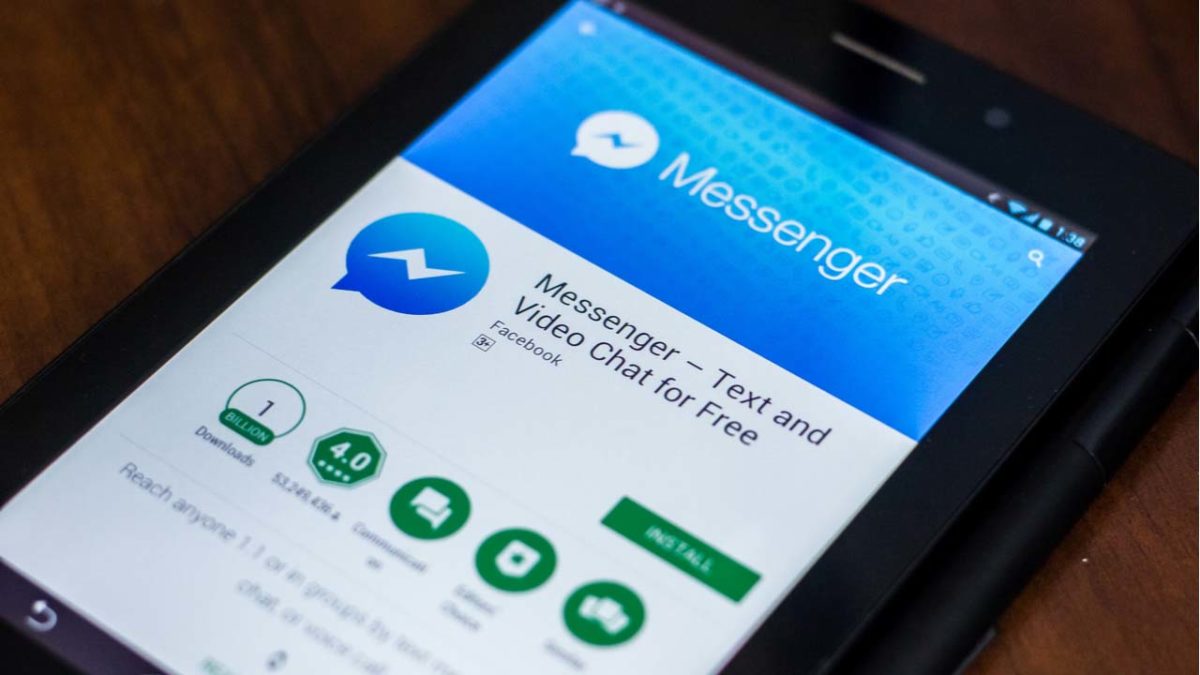
Who could have predicted it? After what has seemed like forever, Facebook’s exclusive messaging service, Facebook Messenger, has finally taken off. Although it’s been on the social media platform from the start, it wasn’t until a few years ago that the app finally earned a place on the phones of millions of people around the world.

That milestone didn’t come easy. First it had to make lots of improvements and go through a necessary transition: letting people use the Messenger app independently of the Facebook app (something many users had been clamoring for).

So if you’ve fallen under its spell to the point where you’re a frequent Facebook Messenger user, check out our top tricks and tips to improve your app experience on Android or iOS.

Messenger iOS DOWNLOAD FREE
8
Facebook for iPad or iPhone

Get a bigger “Like” button

Many of us have a love-hate relationship with the “Like” button. But beyond the controversy that has surrounded this aspect of the social media platform for years, this icon has a hidden feature in Facebook’s messaging service. If you want to send a big thumbs up to a friend, one that will occupy almost a quarter of their display, just tap it, hold it, and the icon will get bigger. Pretty cool, huh?

Change your default emoji

When Emojis arrived a long time ago… it was clear that they were here to stay. They’re all over social media, websites, forums (in fact, that’s where they originally came from), and above all, messaging services. Emojis are especially useful on the latter platforms, and Facebook Messenger is no exception.

If you want to change the default emoji in the app (which is always the “Like” button), follow these two steps. First, tap the “Information” button in the upper right-hand corner of your chat (or the person’s name, depending on how it appears; it all depends on the Messenger version you have installed). Next, tap “Emoji” to select the one you prefer. How easy is that? From now on, instead of the “Like” button, the emoji of your choice will appear on the right.

GIFs galore

We’re big fans of looped animated images, popularly known as GIFs, on social media and messaging platforms. Who would have predicted they would become so popular? They were created almost two decades ago, but they’re gaining more fans by the day… so let’s make the most of them!

To send a GIF, tap the emoji button and select the tab clearly marked “GIFs.” Using the search bar that appears, you can search Facebook’s huge database for the best GIF for your chat at any given moment. See? It’s not that hard.

Facebook DOWNLOAD
9
The Most Important Social Network

Hidden games

Did you know Facebook Messenger has a ton of hidden games you can play by yourself or with one of your friends? These games are also popular on other apps and programs, since they’re an easy way to stay entertained in any situation (and they’re sure to raise a smile).

This isn’t the first time we’ve discussed them on Softonic. Check out this post to find out how to unlock them all. We promise that they’re easy to access!

Create a room

One of Facebook’s latest major additions in terms of messaging has been video chat rooms. Well, they’re not exactly new, but they have become one of Facebook’s most exciting features in these times of confinement because of their potential to connect millions of people around the world through their cameras.

Messenger Rooms are video conferencing rooms where you can connect with other people through links. And that’s the key (quite literally): you need a link to join a group chat, otherwise, we’re sorry to say you won’t be able to access it.

The best thing about video chat rooms is that people can join them whether or not they have a Messenger account. They don’t need to download the app, log into a Facebook account or anything like that. That said, the room creator needs to be signed into Messenger or Facebook, logically.

To create a room on your smartphone, tap the option at the bottom called “People” The first thing you’ll see is “Create a room.” Tap it, followed by the “Try it” button and “Share link.” That’s all there is to it! Now you can share the link with whomever you want to invite into your room for some fun conversation.

Keep in mind that a Messenger Room can be locked or unlocked once a call starts. Also, the room creator can remove any unwanted participants, any participant can leave the room if they feel uncomfortable, and participants can report the room name if they believe it violates Facebook’s community standards. If you have blocked someone on Facebook or Messenger, they won’t be able to join a room you create, and you won’t be able to join theirs if they are logged into their Facebook or Messenger account.

Also, the rooms feature lets you choose from two types of sessions: for anyone with the link (anybody who has the link can join your room, even if they don’t have Facebook or Messenger) and only for Facebook users (only people with a Facebook account can join your room).

Set nicknames

We’ve all had a nickname at some point of our lives, and in fact, many of us probably still do. When we were kids, it was normal for friends to call each other by names that will probably stick with us until the day we die. The Facebook Messenger app remembers nicknames, so if you want to assign your old friend the nickname you called him in grade school, or around the neighborhood, you can.

Just find the “Information” button or tap that person’s name to access the chat options. Then look for the option clearly marked “Nicknames.” It’s a piece of cake. You can change that person’s name to their old nickname. Oh, and you can even assign yourself a nickname!

Search in conversation

Every so often, the person you’re chatting with shares some vital information, the kind that you know you’re going to need in the future. But life gets in the way, you forget to write it down, and you end up kicking yourself, because as your conversation with that person continues, the information gets lost in the chat. If you ever need to recover information from your conversations, there’s a very easy way to do it.

Just go into the chat and tap the “Information” button on the upper right side (or tap the person’s name). Under that field, look for the “Search in Conversation” option. The chat will display a search bar that you can use to find all the information you need. Our advice: make sure your search terms are as specific as possible, avoiding general words. That’s all there is to it.

Facebook Lite DOWNLOAD
8

Enable dark mode

We always say dark mode is the best option for any chat. You’ll not only extend your battery life, but also reduce eyestrain and headaches from too much glare, etc. In short, there are only advantages.

A growing number of apps have night mode as the predetermined setting from the operating system. In other words, if you enable it there, you don’t need to enable it in the app. However, if you have any issues, Messenger has integrated it as an option as well.

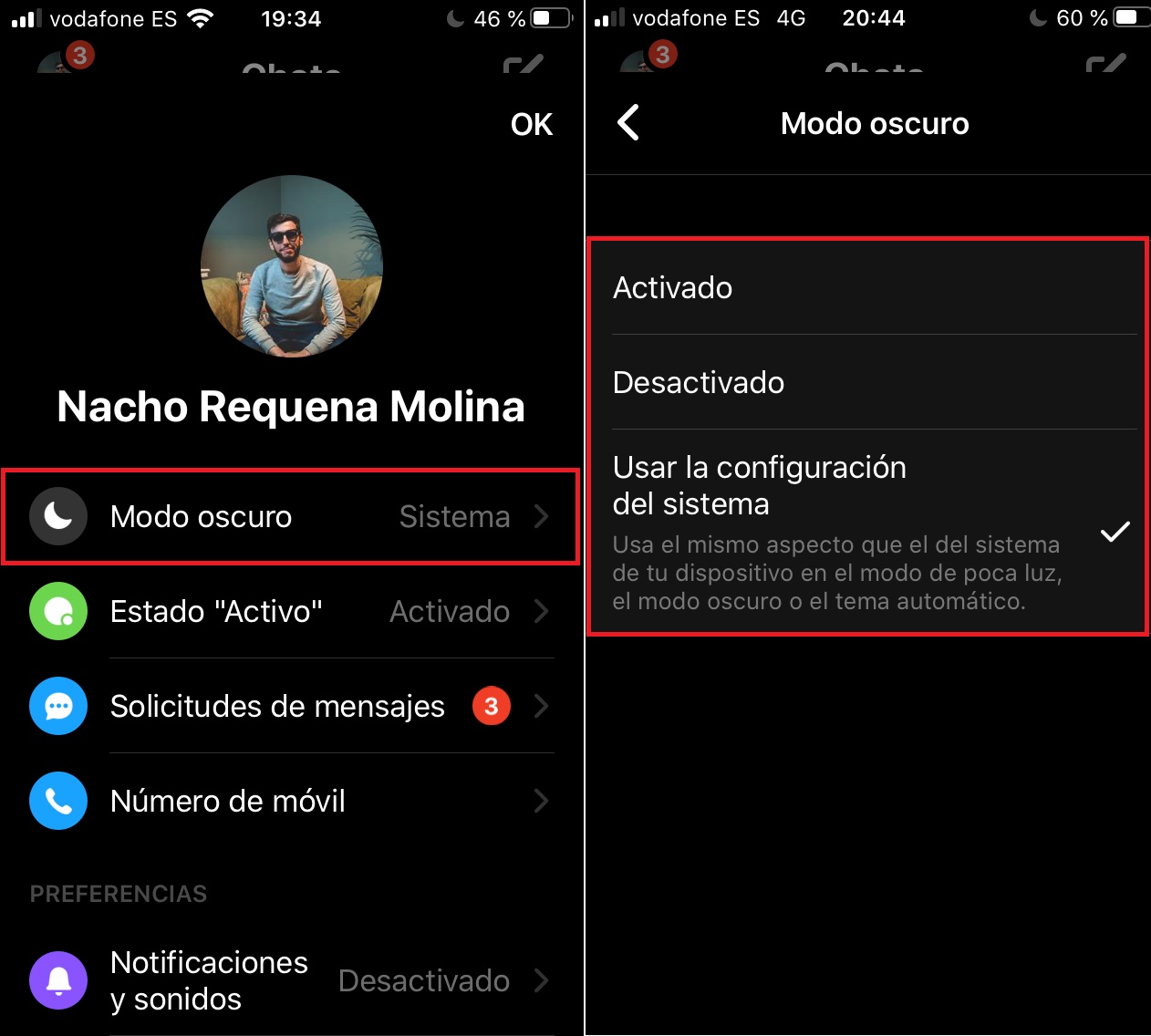
To enable it, just open Messenger and tap your profile photo (upper left side). “Dark Mode” is one of the first options that will appear. Here, you’ll be able to choose from three modes: “Enable,” “Disable” and “Use system setting.” The latter field will appear if you have enabled it from your operating system. But if your firmware doesn’t allow it, just select “Enable.”

Change the color

If for some reason your smartphone doesn’t let you enable night mode with the above options (you get an error message or have some other issue, which can happen), you can always change the color of your chat.

This process is easier than it may seem. Just tap “Information” or the person’s username and then “Color.” Then you can choose your favorite tone, such as black to simulate night mode, or pink to make your chat more eye-popping than ever. The choice is yours.

Partial blocking

In general, when you block someone on a social media platform, that person can no longer contact you. And they can no longer see your content, profile picture, information, etc., either. That’s the usual when you block someone, isn’t it? Well, on Facebook Messenger, it’s a bit different.

This app has an interesting blocking feature, one you might find useful. Facebook Messenger lets you partially block users; in other words, you can make your profile invisible to a person, but they can still contact you. Tap “Information” again and look for the last option on the list, called “Block.” When you open it, you’ll see the two options we mentioned.

The first one is “Block on Messenger.” When you block someone on the messaging app, they’ll only be blocked on Facebook Messenger, not on the social media platform itself. So you will no longer be able to receive calls or messages from this user (and if you unblock them in the future, the good news is that any messages sent while they were blocked won’t be resent). Another thing to keep in mind: you and the blocked person can still view each other’s profiles, exchange messages on posts and communicate through group calls (because in the end, other people are involved).

And the second option is “Block on Facebook.” This is a bit more categorical and definitive, as we mentioned above. If you select this option, you will no longer be friends with that person on the platform. And this user will be blocked on Facebook Messenger too. In short, option one only blocks them on Messenger (not on Facebook), and option two blocks them on both.

Hide your status

One of the most controversial aspects of messaging services is how “nosy” they are. Let us explain. These apps are constantly sharing information about every little thing you do: when you open the app, a green dot appears; it shows how long ago you were active; if you’ve read your messages, etc. But you can get away from prying eyes on Facebook Messenger.

Just tap your profile picture again and look for “Active Status.” In general, it should appear as “On” by default, but you can modify this option by moving the slider to “Off.”

When you turn it “Off,” your friends and contacts will no longer see when you’re online or if you were recently active; in other words, they won’t have any information. In turn, you won’t be able to see whether your friends or contacts are active (the typical law of reciprocity in these apps). By the way, you need to disable that option on Facebook as well. Otherwise, you’ll appear as “Active” on the platform.

See shared media

Have you ever stopped and thought about how many videos, photos and other files your contacts send you? We’re sure the answer is “a lot,” since messaging services are always blowing up our phones.

WhatsApp makes it really easy to go back and view all the files a person has sent us… and Facebook Messenger is no different! Just tap the “Information” icon (username) and go to one of the last options on the list: “Shared Media.” Tap it and you’ll see all the items you have shared to date.

Switch accounts

If you’re a “normal” user, this option probably won’t interest you. However, if you have a business with a separate account or a professional profile, having more than one Facebook account is pretty standard. In these situations, Facebook’s got you covered.

On Messenger, you can switch accounts without having to enter your email and password over and over. Just tap your profile picture (upper left side) and scroll down to the bottom. There you’ll see the “Switch account” option. If you tap on it, “Create new account” and “Add account” will appear. Once you enter your email and password, the account will be saved on Messenger forever, and you only have to tap on it to switch accounts.

Enable secret conversations

Our final trick/tip (or however you want to call it) is perfect for anyone who’s a bit guarded about their personal information: secret conversations. Messenger can enable these types of conversations with any user, to the point where Facebook itself won’t even know your chat exists.

To enable a secret conversation with another user, you don’t need to use any strange settings. Just tap the person’s username (or the “Information” button) and scroll down to “Go to secret conversation.” When you tap it, Messenger will start a new conversation with that person, and everything you type will be absolutely secret.

And that brings us to the end of our review of the best tricks and tips for Facebook’s instant messaging service. We hope these features make your experience on Facebook Messenger faster and easier, because in the end, that’s what counts, isn’t it?

Messenger iOS DOWNLOAD FREE
8
Facebook for iPad or iPhone

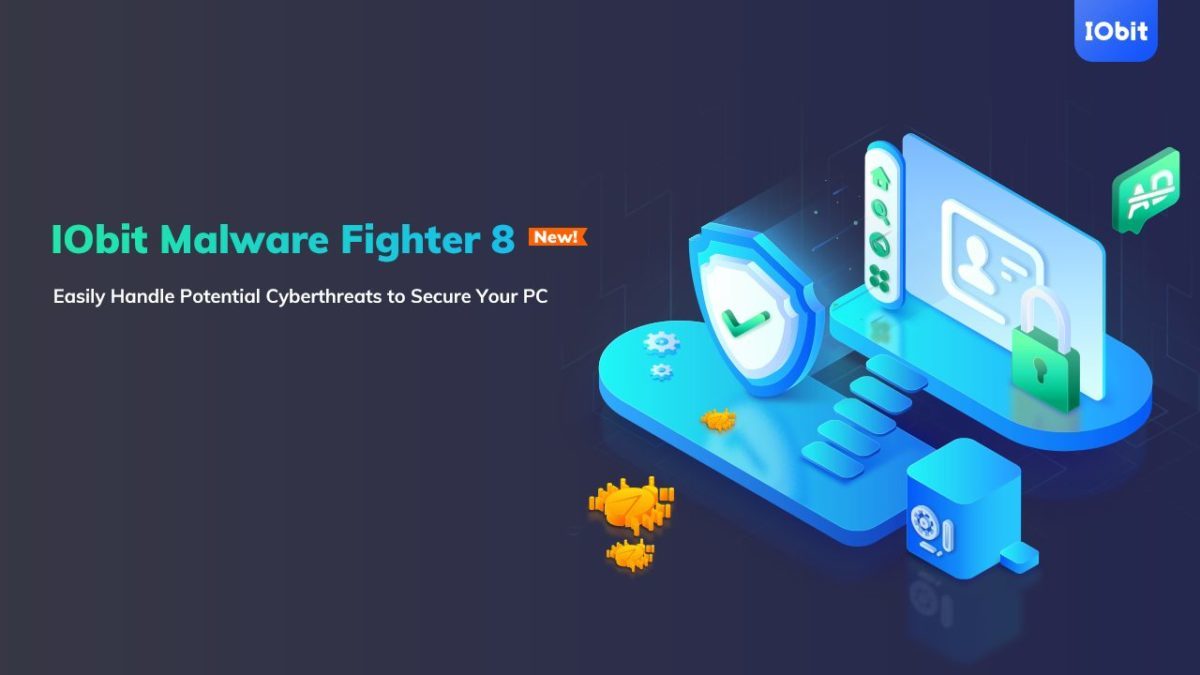
IObit Malware Fighter gets even more impenetrable with version 8 release

Leaving a computer unprotected against malware is like leaving the front door to your house wide open in a dangerous neighborhood. Arming your computer with basic malware protection is more like locking that door and maybe using a home alarm system. Malware protection from major cybersecurity companies, on the other hand, is like placing your home inside a bank vault. That’s exactly the kind of protection IObit delivers in its latest release of its famous Malware Fighter software.

Already a leading name in consumer-level online protection IObit has beefed up several protections in an already robust software package with Malware Fighter 8

Smarter and faster

Understanding that anti-malware software is really only as good as the last bug to hit the internet, IObit has super-charged its malware database by increasing it in size by 100% and making it faster and smarter as well. 

It can now scan your entire PC 50% faster than before. Plus, by using advanced heuristics (basically faster, computerized decision-making processes), the new software release can spot even more threats than before including such as viruses like BackDoor.Lokibot; Ransom.Robbin; Malware.Coronavirus and Ransom.WannaRen.

“IObit Malware Fighter 8 further optimizes threat detection and removal processes for a better user experience,” said Bing Wang, Product Director at IObit. “In the face of the growing number of cyberattacks and identity theft hacks – like the popular coronavirus-themed threats at present – IObit Malware Fighter 8 gives users more comprehensive protection to better deal with various PC security issues.”

Vault-like protection

Our earlier analogy of good anti-malware software acting like a bank vault around your data is particularly true of IObit Malware Fighter 8, thanks to the combination of something the company calls Sensitive Data Protect with its Safe Box feature. This creates even stronger, multi-layer privacy protection to the files you most want to keep safe. As a result, there’s virtually no chance of a hacker getting a hold of your files and holding them ransom for cash. 

Plus, the new release has also beefed up its web-based email protection features so that your inbox stays safe and clean from spam, phishing scams, and other email threats. 

All of this is on top of the software’s already impressive ability to keep your web-based activities away from prying eyes and potentially catastrophic invasions of your privacy by protecting you against spyware, adware, ransomware, Trojans, keyloggers, bots, worms, hijackers, viruses and more. 

An unbeatable deal

Right now, Softonic readers who act fast can sign up to get a copy of IObit Malware Fighter 8 at up to a 25% off discount. If you have a PC running Windows 10, 8/8.1, 7, XP or Vista, simply click the link below to visit the download site to start enjoying worry-free computing.

How to enable dark mode on the most popular messaging apps

Apps are constantly being updated, and that comes as no surprise. They receive all sorts of upgrades and features to respond to the changing times and needs, and one of them is certainly night mode. Anyone who’s even slightly familiar with the world of technology knows that one of biggest trends is having your entire interface in a dark tone instead of bright white. If you want to make this change too, read on to find out how to enable dark mode on the most popular messaging apps.

Why dark mode?

Before we get down to business, let’s quickly go over what dark mode is and what it’s for exactly. First of all, dark mode is simply a style change that makes an app’s entire interface dark instead of light. That’s all, plain and simple. However, it does have “secondary” advantages that we can’t overlook.

The first is that it reduces damage to your eyes. The glare from your white screen affects your eyes quite a bit, causing symptoms like eyestrain, feeling like your eyes are “burning” (because they’re dry), or headaches. Enabling this mode will reduce these harmful effects (they’ll still be there, but to a lesser extent). It also improves visibility in low-light situations (with a black background and white text, it’s easier to see).

The second advantage is extended battery life. Dark mode has been proven to make your battery last a bit longer. We’re not talking about a huge change, but it does get you a few more minutes. That may not sound like a big deal, but if you add up those minutes each week, the number keeps growing. Who knows? After a month you may have gained three or four hours of extra battery life, which is pretty decent.

Dark mode for your operating system

Now that we’ve explained the purpose of dark mode, let’s talk about how to enable it from your operating system. “Hey, wait a minute, I don’t want it for my operating system, but for a specific app,” you might be thinking. Well, unfortunately, many apps don’t include “night mode,” so it has to be enabled in your operating system’s settings (like WhatsApp on iOS, for example).

Starting with Android, Google’s operating system has natively configured night mode in several Android versions, but let’s talk about the latest one, Android 10. It’s easy to activate: tap “Settings,” then “Display,” then “Dark mode.” As we mentioned before, depending on your Android version and the manufacturer’s customization layer, the option could be found elsewhere, but it’s definitely there.

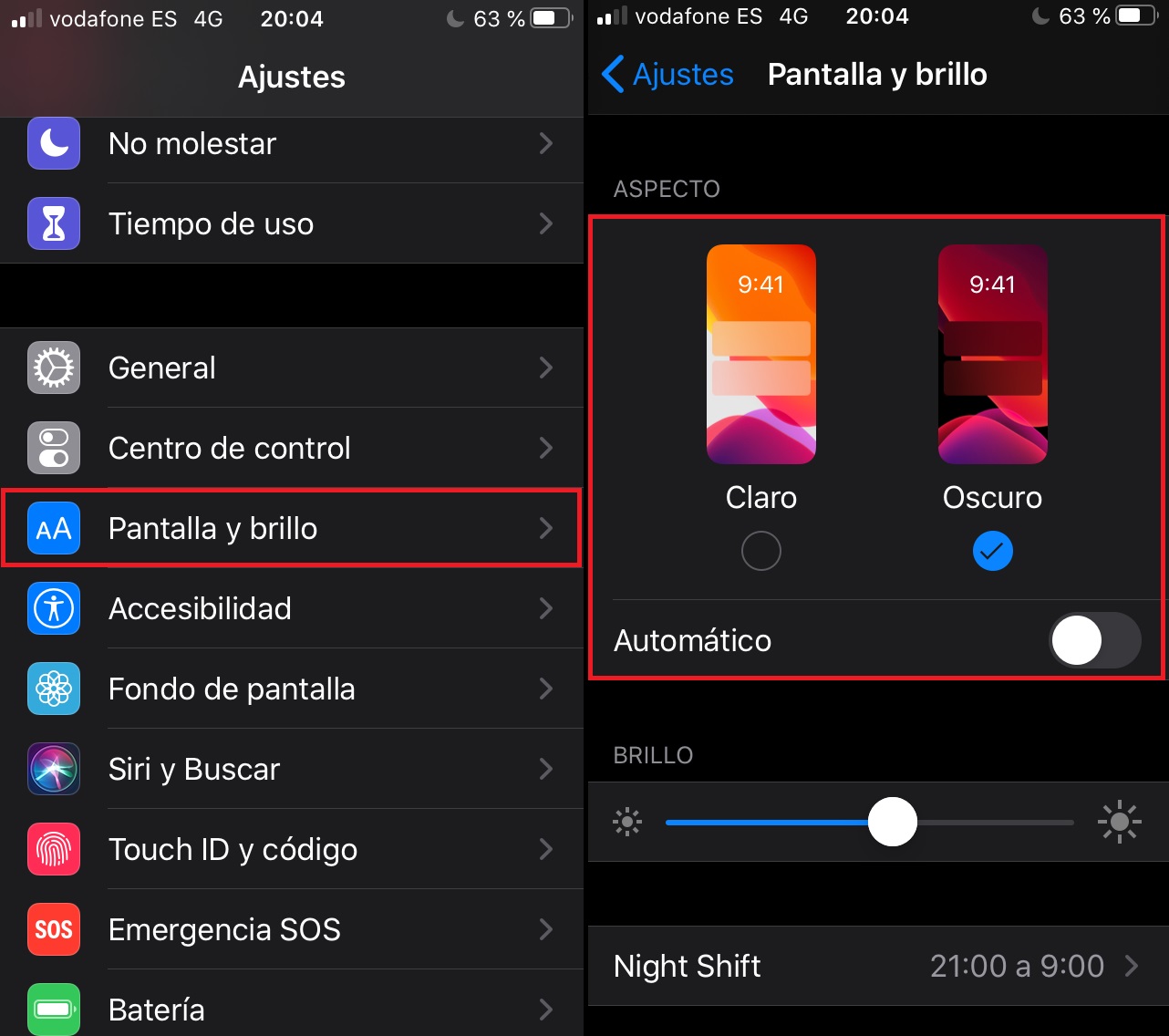
iPhone is easier, because as long as your device is updated with the latest iOS version, night mode will appear under settings. Just tap the “Settings” icon and look for “Display and Brightness.” Then the choice is pretty straightforward: “Light/Dark.” Select “Dark,” save the setting and that’s it! From now on, iOS (and many of your apps) will appear in that dark tone.

WhatsApp

Let’s start with the world’s number-one messaging platform, an app that no smartphone can do without: WhatsApp. This Facebook-owned tool is one of the apps that have taken the longest to gain dark mode. Why? Nobody knows, and while the competition was quick to roll it out, WhatsApp really dragged its feet. But now it’s finally here.

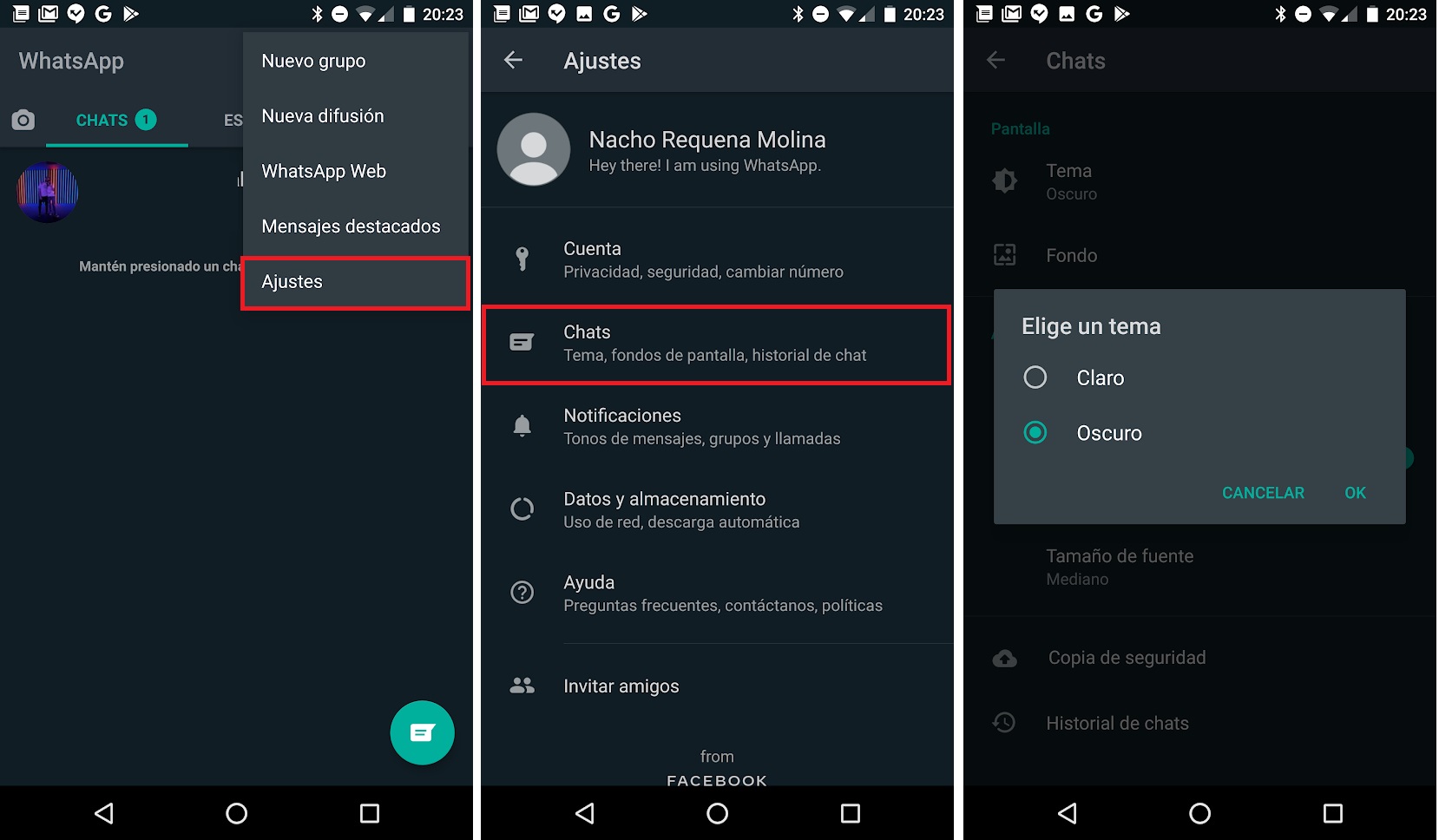
To activate dark mode, just tap “Settings” in the app and look for the “Chats” tab. There, tap “Theme.” A window will pop up with some very straightforward options: “Choose theme: System default, Light or Dark.” Tap “Dark” and “OK,” and watch all the changes appear like magic.

On iPhone, dark mode is activated by default from iOS. So simply follow the steps we described above to enable it from your operating system.

Telegram

Now let’s talk about WhatsApp’s main rival, an app whose popularity just keeps growing: Telegram. This tool has many more functions than WhatsApp, and its ever-increasing number of users should give Facebook’s app reason to worry. This is the case because it understands the market better than anyone, and dark mode is a perfect example of this

In Telegram, this mode has been activated for some time (we could even say it was one of the first to offer it). To enable night mode on Telegram, just tap your profile picture and then “Settings.” Then look for “Chat Settings/Appearance,” a section that lists every detail imaginable, from text size to color. But there’s one setting that leaves no room for doubt: “Auto-Night Mode.” You can also personalize parameters such as brightness or when you would like Auto-Night Mode to be activated. Pretty neat, huh?

Facebook Messenger

Many people think of this messaging service as second-tier, or one that nobody uses anymore. But actually, Facebook Messenger continues to build an online following, especially in the United States. It’s having an increasing impact in Spain, so logically we can’t overlook its dark mode.

As is the case with WhatsApp, dark mode becomes the default setting on Facebook Messenger if we enable it through our operating system. That said, you might get an error message (in fact, it’s pretty normal). If this happens, there’s an alternative way to enable dark mode. All you have to do is open the messaging app and tap on your profile picture. A toggle will appear that leaves no room for doubt: “Dark mode.” Your options will include “Enable,” “Disable” and “Use system configuration” (which refers to your smartphone operating system, but if you get an error message, this probably won’t appear). Select “Enable,” and ta-da: night-mode activation problems solved! Not too hard, is it?

Instagram

“But Instagram isn’t a messaging service!”, you must be thinking. Well, it “didn’t used to be” a messaging service, but now it most certainly is. Facebook’s popular social media platform – let’s not forget that it owns Instagram – has improved its direct messaging feature, which is now a section of the app. In fact, it wasn’t until this year, 2020, that it finally introduced a chat feature for the PC version (now you can chat with your friends directly from your browser, a great feature).

To activate dark mode, you don’t need to change the settings –  just enable the mode through your operating system. But there is a little “trick.” Dark mode only works on iOS 13 and later versions and on Android 10 and later. So if Instagram doesn’t switch to dark mode after you enable it on your operating system, check two things: 1) that your phone’s firmware is updated to the latest version (at least the ones mentioned above) and 2) that your Instagram app is also updated to the latest version. It’s that simple!

.

Twitter

Like Instagram, our Twitter inbox is overflowing with direct messages, and we’re not ashamed to admit that we use this platform to communicate with many friends, acquaintances and work contacts (sometimes we don’t want to bother people on WhatsApp or Telegram and prefer to message them here, since there are no character limits like there were a few years ago).

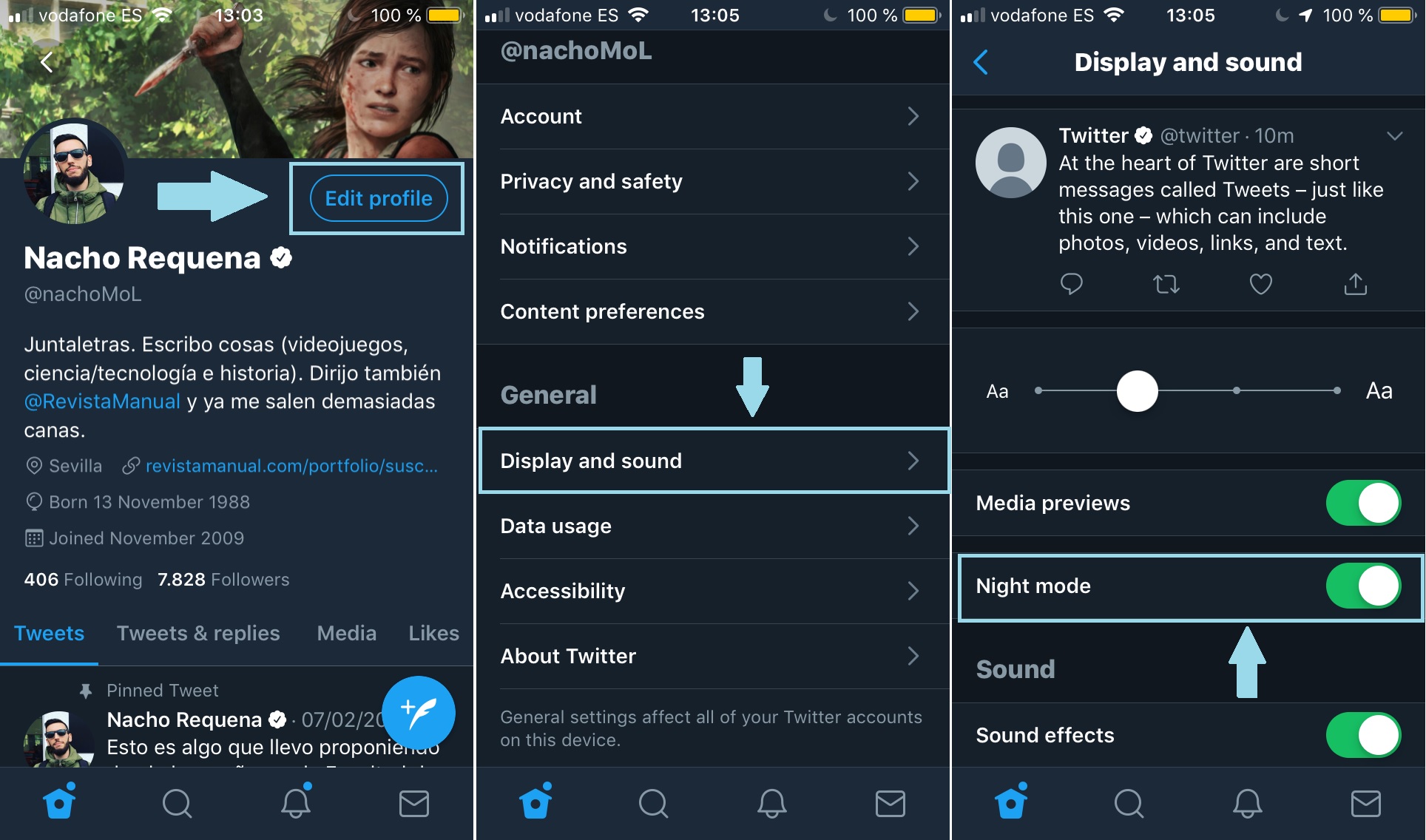
Activating dark mode is pretty simple on both Android and iPhone. First of all, make sure you have the latest version of the Twitter app, or this option won’t appear. Then tap your profile picture and “Settings and privacy,” the section where all the nuts and bolts of Twitter appear. Here, tap “Display and sound” and look for the “Dark mode” toggle.

Twitter’s night mode is the most advanced one we’ve seen on an app – no joke! It not only enables a dark tone, but also includes several subfields to make the most of it. For example, you can activate the basic setting, but also choose whether you want it really dark (Lights Out) or only a bit lighter (Dim). As if that were not enough, you can use device settings. In other words, the app enables “Lights Out” or “Dim” depending on how your operating system and its night mode are configured (you let the smartphone do everything). That’s how advanced this mode is on Twitter.

Skype

It may have lost some importance in recent years, but nobody can overlook Skype as a messenger service. It was the undeniable leader for video calling in its day, and we think it’s still a valid option.

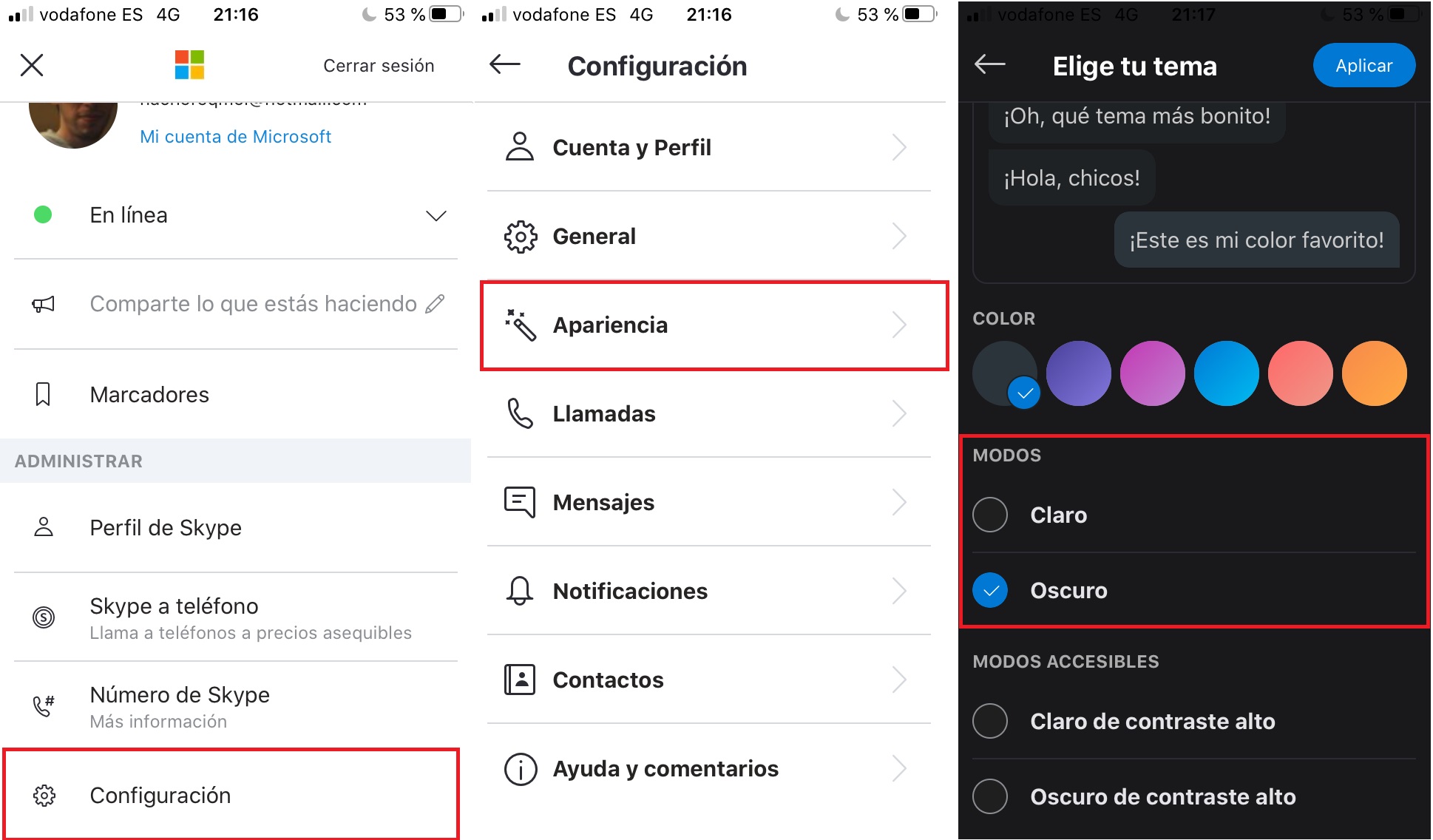
To enable night mode on Skype, be sure to update the program to its latest version. Next, select your profile picture, go to “Settings” at the bottom, and select “Appearance.” Finally, go to “Modes,” where you’ll find three options: “Light,” “Dark,” or “Use system setting.” Again, if your operating system has night mode enabled, it should appear on Skype by default. Otherwise, just tap on “Dark” and ta-da.

Discord

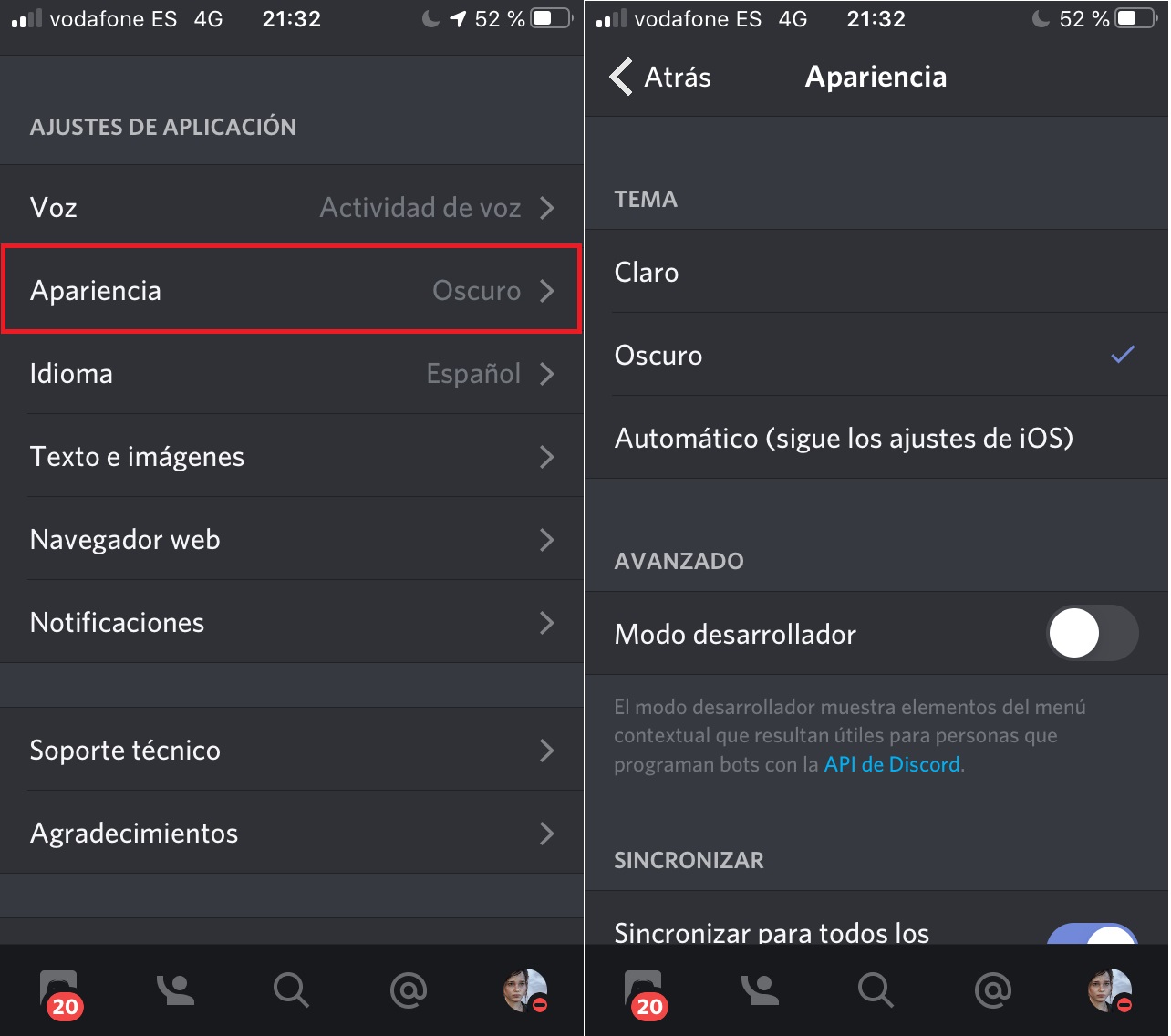
Last but certainly not least is the hottest messaging app on the market today, especially among gamers: Discord. This tool also has dark mode as an option that can be enabled. Simply tap your profile picture and look for the “Appearance” tab. There you’ll see “Theme,” and again, three options: “Light,” “Dark” and “Automatic.” The last setting is for the operating system, so if you have it enabled there, it will appear by default. Otherwise, just select “Dark” and problem solved.

And that’s our tutorial on how to “go dark” on the most popular apps from WhatsApp to Discord, one of the latest platforms to make a splash in the messaging services market. And be sure to check out this mode on the social media platforms we’ve listed with integrated chat services. Remember that developers are working every day to roll out dark mode on most services. If you still don’t have it and want to reduce eyestrain, maybe it’s time to tinker with your operating system, just in case…

Best Zoom tips and tricks (for beginners)

If you’re new to Zoom and want to learn how to use it properly, this is the app for you

Video calls, video conferencing, and group chats have become more significant than ever in recent times. Of all the apps available, Zoom has risen to be the ruler of them all. Step back Skype, we’re not here for you Microsoft Teams, and Google Meet needs to have a quiet word with itself too. No, it is Zoom that has won all our hearts and that’s why today we’re going to unlock all of Zoom’s best features for you.

After today’s guide, you’ll be able to easily impress all your friends and family at your next big Zoom remote meeting, as you’ll be familiar with all the cool little hints and tricks that will make you stand out.

9

Zoom tips

The tips and tricks below will help you to master Zoom meetings in no time at all. If you’ve ever seen somebody do something cool in a Zoom group call and wanted to do it yourself, this is the guide for you.

1. How to change your name in a Zoom meeting

You may be using Zoom for a meeting and want to change your name that’s on display. Configuring this straightforward, so we’ll take you through the steps:

  • Once the meeting is active, select “Participants” in the bottom menu;
  • If you hover over your name, you can click on the “Rename” button on the right”
  • Insert the appropriate name and press “OK.”

2. How to create Zoom breakout rooms

If you’re a host or co-host, you might want to split your Zoom meeting into several breakout rooms. It places participants into separate virtual areas where they can collaborate on different projects. You can establish this feature before or during a meeting.
Of course, you’ll need to enable breakout rooms before you get started. All Zoom members will have the same functionality as the main room, so ensure that you set up the audio and visual qualities before you begin. Creating these virtual areas is as easy as selecting “Breakout Rooms” before or during the meeting and selecting the appropriate options that apply.

3. How to change your background

Let’s all be honest; this is the big one isn’t it. If you don’t already know how to change your virtual background on Zoom, you want us to show you how. Virtual backgrounds are one of Zoom’s greatest features and have been used so well in recent times.

You can have an image or a video as your background and some users have created some wonderful backgrounds, which they then pull out during group calls. Our particular favorite was the friend who created a virtual background of himself walking in and giving the real him a cup of tea. It was mind-boggling to watch.

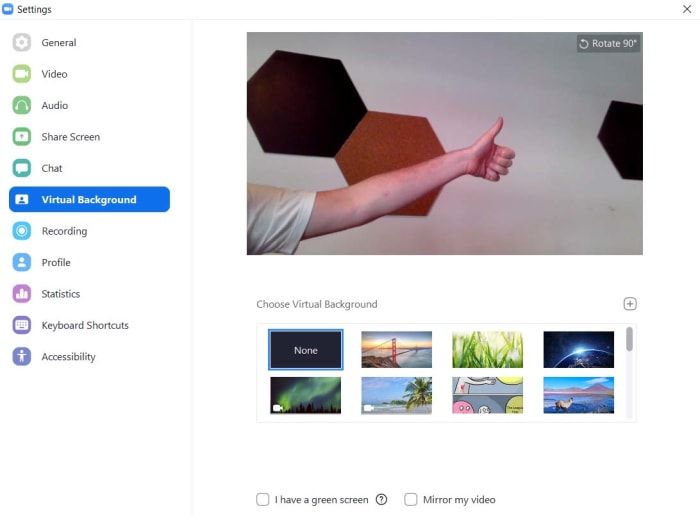
Anyway, this is how to do it. To set a virtual background on Zoom you need to go to Settings, and then to Virtual Background. You can then use one of the ones already loaded onto your version of Zoom or upload files from your device. This last function means that you can basically set anything as a virtual background, all you have to do is come up with an original idea.

4. How to disable the waiting room

The Zoom Waiting Room is a relatively new privacy-related feature on Zoom that is designed to help those in real meetings avoid unexpected interruptions and zoombombing. Let’s be honest, though, if all you’re doing is a little family quiz having to admit every attendee into the call as they’re automatically sent to the Waiting Room is a bit of a pain.

Fortunately, you can disable the Waiting Room feature by opening Zoom and then going to Settings, and then hitting In Meeting (Advanced). You’ll then have to scroll down quite a bit until you come to the Waiting room section. Here you can turn off the Waiting Room altogether or simply have all guest participants to your call have to wait there until you admit them.

6 useful functions on Telegram that WhatsApp will never have

Telegram Messenger is by far WhatsApp’s most threatening rival – and with good reason.

It offers the best and most useful features you could possibly want from a messaging app – features that WhatApp can only dream of having.

Now, we’re not saying “drop WhatsApp and opt for Telegram”, WhatsApp still has plenty of useful features and of course, WhatsApp features like end-to-end encryption, stickers, emojis, group chats, video calls, and swipe to reply are all worth having. We just think it’s important to tell you exactly what Telegram users get from the app, and the differences Telegram features could make to your instant messaging needs.

Remember you can download the Telegram app right here: (iOS | Android)

8

1. Edit your messages

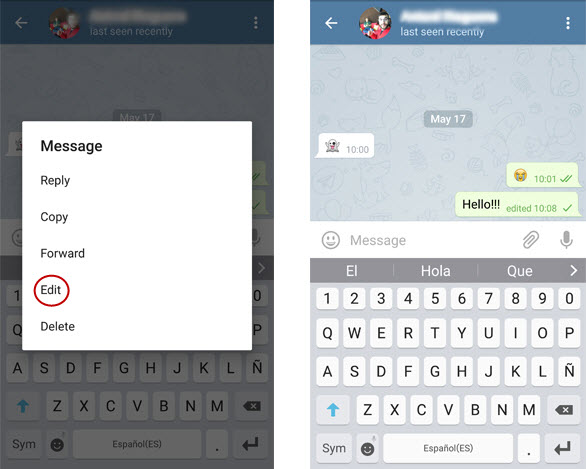
It’s very easy to make mistakes, just as easy as it is to send something you didn’t really mean to say. Well, there’s good news – Telegram allows you to edit your messages, even after you’ve sent them.

To do this, simply press and hold the message you wish to change and select “Edit” from the options that appear. You can rewrite or change as much as you want. Unlike Facebook, there will be no indication that you have in fact edited the message unless of course, the recipient has already read it.

1-edit

2. Send and receive large files

How many times have you wanted to send a video on WhatsApp, only to be told it was “too big” to send? This is because the app has a maximum file sharing size of 100MB.

Telegram on the other hand allows you to send files that are up to 1.5GB in size, so you shouldn’t have any problems.

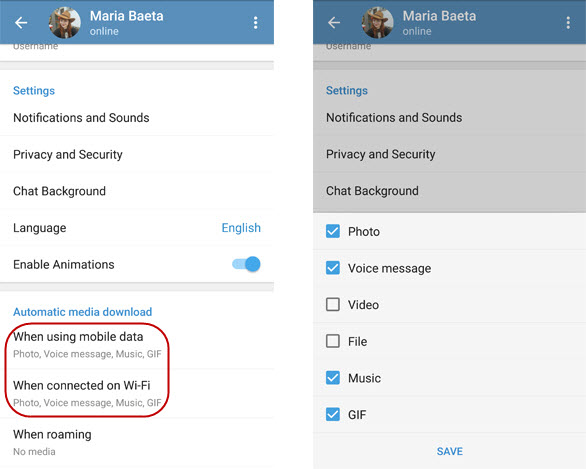
This could however prove problematic as far as your data consumption is concerned, but there is a way to fix it. Go to Options > Automatic media download and adjust the settings to best suit your needs.

2-data

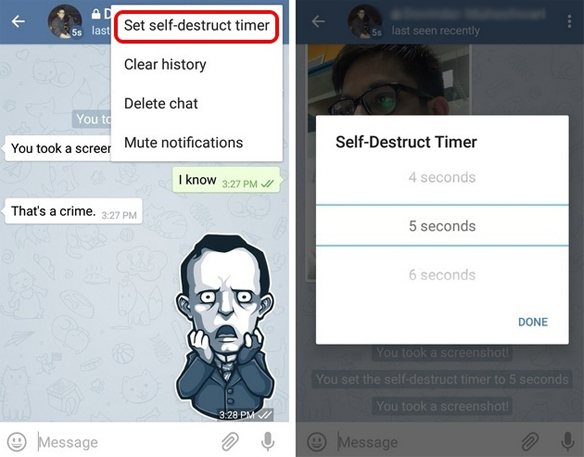
3. Send secret, self-destructing messages

While there is a way to send self-destructing messages via WhatsApp using an external app, it’s actually already one of Telegram’s best features.

To do this, you must create a secret chat. Once inside this chat you can choose the self-destruct timer you want the message to self-destruct from Telegram’s servers once the recipient has read it.

3-selfdestruct

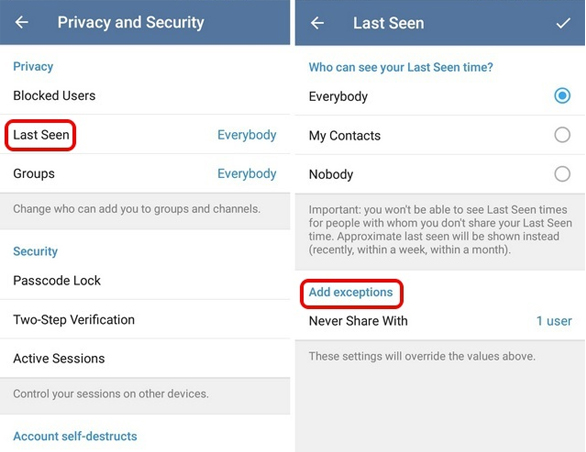
4. “Last seen” as you want it

WhatsApp does allow you to choose whether or not you want people to see when you were last online, however you can’t be selective with the people who see it. With Telegram, you can easily choose who sees the last time you were connected.

To do this, go to Options > Privacy and Security > Last Seen and adjust the “Add exceptions” option accordingly.

4-lastseen

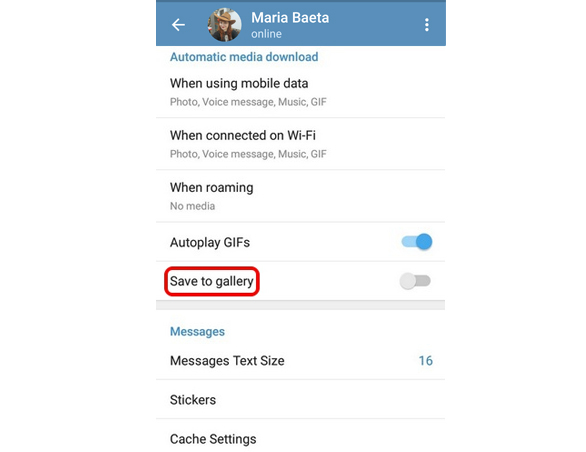
5. No embarrassing photos

Showing your family the pictures from your holiday, and they’ve somehow landed into the album with your WhatsApp photos? Yes, that can be awkward.

Telegram can help you avoid this embarrassment. Simply go to Options > Automatic Media Download > and deactivate the “Save to Gallery” option. This means that the photos you’ve shared on Telegram with only be visible within the app itself.

5-savegallery

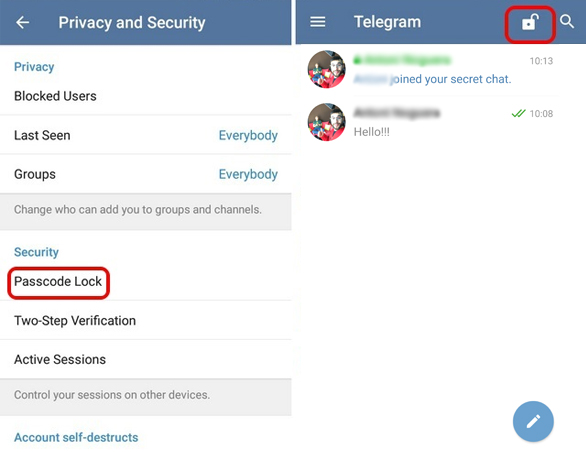
6. Lock your chats

Do you want to prevent a nosy friend or partner from accessing your chats? Well, there is a way you can create a password for individual chats that you wish to remain private. Go to Options > Privacy and Security > Password Lock. Using the padlock icon in the top-right of the screen, you can block certain chats permanently or for a certain amount of time.

6-block

As well as the six features we’ve looked at in greater detail above, other unique features of Telegram include Telegram channels, Telegram bots, and Telegram clients.

So, after learning all this are you more inclined to download Telegram or stay with WhatsApp? 

Facebook Messenger tips and tricks

Do you use Facebook Messenger a lot? These tips and tricks will help you get a lot more out of the Facebook messaging app.

Facebook Messenger has been around for years now and has grown into a truly monumental app. It can do all sorts from shopping to games and is now so much more than a mere messaging app. The thing is though, with so many headline-grabbing features these days, it is easy to miss some of the more nuanced little Facebook Messenger tips that will make it a much better app to use day in and day out.

Today we’re going to go through some of the best less well-known features and tools for Facebook Messenger. Quick and simple tips that will make your life on Messenger much easier. Let’s begin

Facebook Messenger tips

These Facebook Messenger app tips and tricks will all help you get more out of the app and enjoy using it more.

Messenger Lite

Yep, our first Messenger tip actually involves downloading a different app. The Messenger Lite app cuts out all the advanced features fluff so that if you only ever use Messenger to send and receive messages, this is the app for you. Messenger Lite will only take up minimal space on your phone and will need a lot less processing power and system memory to run properly. Downloading Messenger for anybody who only uses the app for its core functions, but it is particularly useful for anybody using an older or less powerful Android smartphone or iPhone. The only thing to remember, however, is that some of the tips we share below might not apply to Messenger Lite.

Messenger Lite Download Now
9

Mute notifications

This little trick allows you to stop annoying notifications breaking up your day all the time. If you’re working, watching a film, reading a book, or simply doing anything that requires concentration, muting notifications on Facebook Messenger is a necessity. This particular tip is targeted at particular contacts, meaning if you have a particular guilty party who messages you all the time, you can silence their pings for a limited amount of time or until you activate them again. To do so hit their name in your contacts list, go to notifications, and hit Mute.

Pin group chats

If like us, you’re on group chats a lot talking to a lot of people at once, you’ll find this little tip very useful indeed. Messenger allows you to pin your group conversations to the top of your inbox so that they’re always there sitting at the top of your messages. To do so all you need to do is find the group chats you’re looking to pin, select it, and then hit the pin icon. You can even assign these pinned conversations special names or give them group photos so they’re even easier to identify.

Share music

With Facebook being such a huge global company, there’s no surprise that it has plenty of collaborative partnerships with other online sites and services. One industry that pairs particularly well with Messenger is the music industry as you’re always looking to share that last track you love with your friends. Step up all the major streaming sites like Spotify, Amazon Music, and Apple Music. Messenger is paired with all of them, meaning when you’re listening to track on any of those networks, all you have to do is hit Share and the option to ping it to your contacts on Messenger will appear.

Block someone

We’ve all wanted to do it at some point, most of us probably have on one network or another. Blocking contacts is almost like a last resort that comes when people are just too annoying, or in some even worse situations, downright abusive. To block a contact on Messenger, go to the People tab and tap on the name of the contact you want to block. From here you’ll see the Block option, which will give you the chance to block just their messages or to enact a complete block across all of Facebook. Be careful with this one though, because people are sensitive creatures at the end of the day, and we should all try to protect the mental health of our fellow internet users.

Create a poll

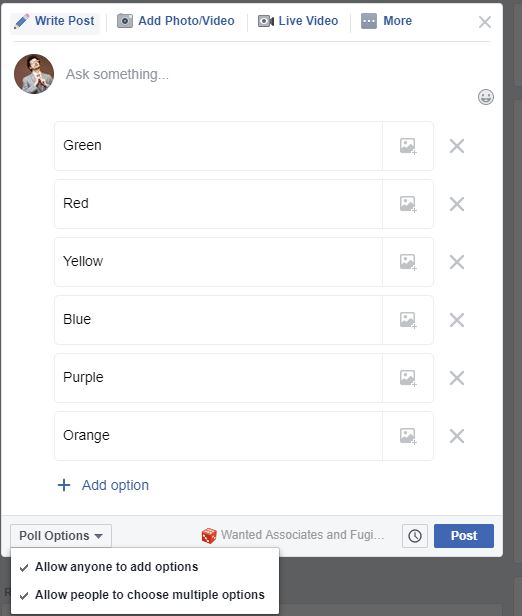
Polls are useful tools for everyone and aren’t just the playthings of political strategists. Asking your Messenger contacts to take part in a quick poll is a quick way to ask for many opinions on a single issue you’re dealing with. Obviously, however, polls are a group only function so to start a poll you need to select the group you want to poll and then hit options button that lies in the bottom left of the screen. From there hit the Polls button, type out your question, and then hit Create Poll.

Take back the messages you sent by mistake

This is another trick born of something that we’ve all done. Whether it be a simple typo or sending a full message to the wrong person, every single one of us has sent a message that we’d like to take back. Fortunately, Facebook understands this need and has built a delete message feature into Messenger. Now, whenever you send a message on Messenger you have 10 minutes to undo sending so that nobody who hasn’t seen it will ever see it. To do this all you need to do is hold your finger down on the message you want to delete and then select Remove for Everyone. You can then rest assured that your message has been wiped. You’ll be left with a short message saying You removed a message but you can then get rid of that too by holding your finger down on that and clicking Remove.

VPN Proxy Master: Safe, Powerful and Free

Download VPN Proxy Master for free for mobile and upgrade to premium to connect up to 5 devices. Surf the net, stream, and download files safely and anonymously.

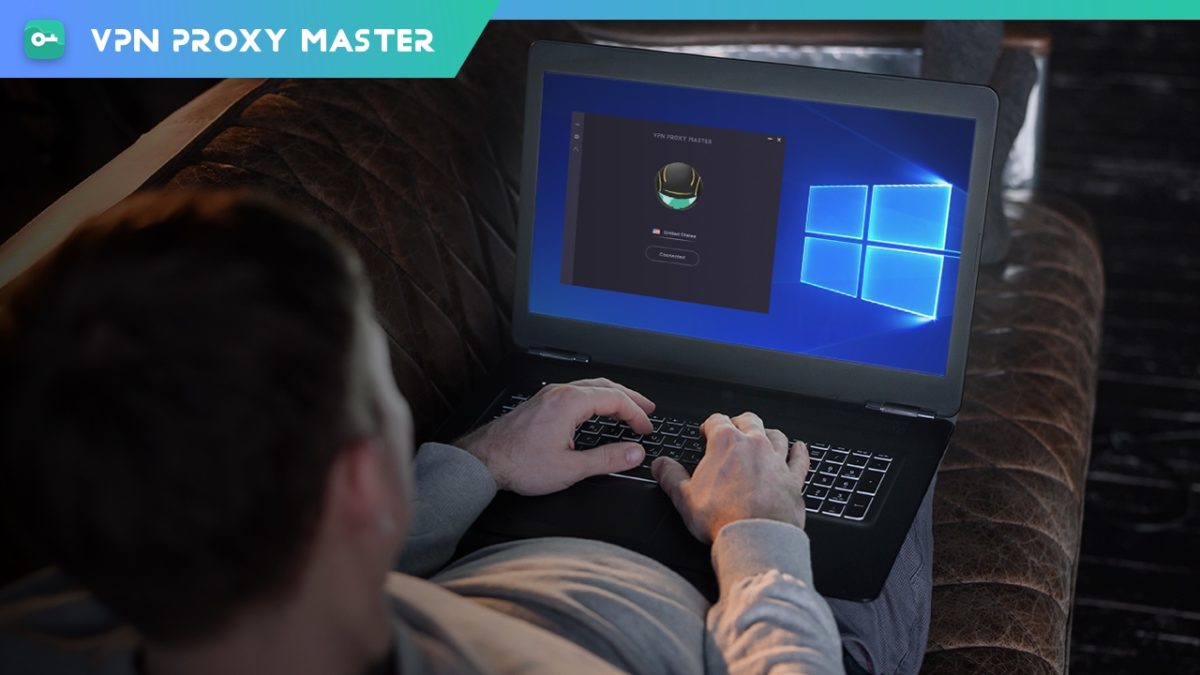
You’ve likely heard about VPNs – virtual private networks that let you tunnel into remote locations to access the internet while protecting your real identity and location. You may even use a VPN on your computer already. But have you thought about protecting your mobile devices as well? If not, VPN Proxy Master can get the job done for you easily, effectively and at no cost.

 What it is

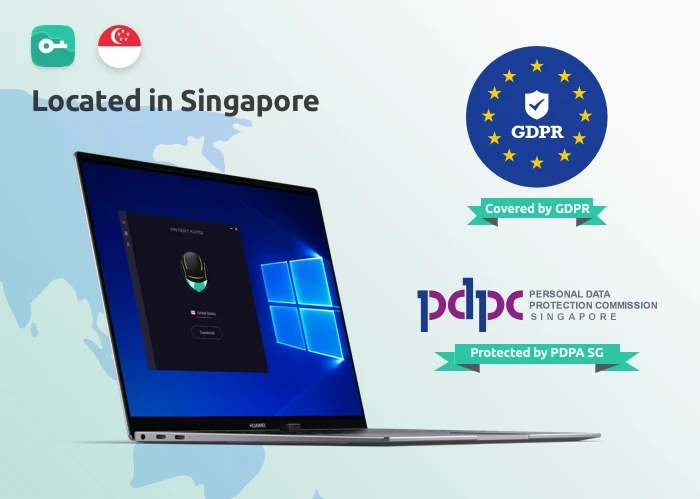
VPN Proxy Master is a VPN service provided by Lemon Clove Pte. Limited in Singapore. As such, all activity that routs through their servers are protected by the EU’s General Data Protection Regulation and Singapore’s own Personal Data Protection Act – both pieces of legislation meant to safeguard the privacy of individuals surfing the internet.

VPN Proxy MasterWhile that should give you some confidence about VPN Proxy Master, you might be more interested in how the software actually works. And we have one answer to that question: simply.

After opening the app on your Android or iOS device, you’re presented with an attractive screen showing a spinning globe. You simply press the “Connect” button and the software will automatically connect you to a VPN server somewhere in the world. To cancel the VPN link, pressing the “Disconnect” button does the trick. 

 Under the hood

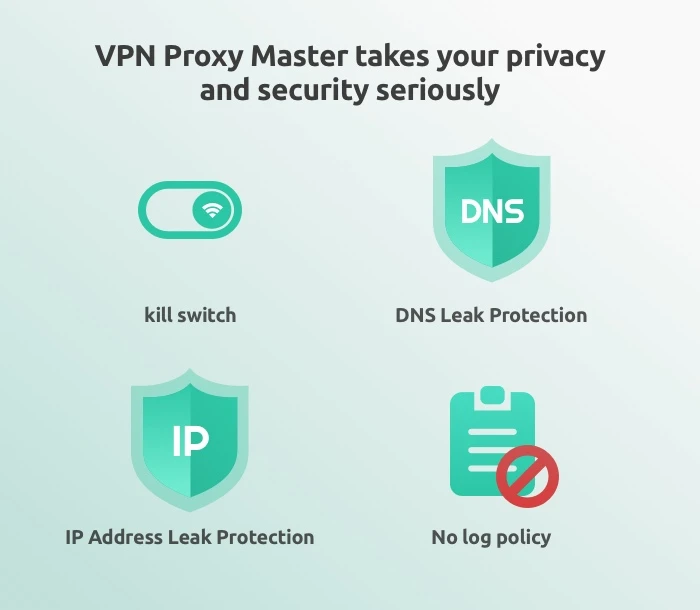
For a free piece of software, VPN Proxy Master delivers quite impressive features. You get: military-grade encryption on all your online activity; DNS leak protection; IP address leak protection; a no-log service; access to servers around the world; and industry best connection protocols that make both your connection to the service and your surfing speeds truly zoom

VPN Proxy MasterWhile most of these features are common in many VPN services, VPN Proxy Master also allows unlimited video streaming from online entertainment providers – including Netflix and Disney+. This is a feature not all VPN services provide, but you’ll have to upgrade to the Premium version to get it (see below). Fortunately, thanks to a Grand Launch Promotion Sale, VPN Proxy Master’s Premium service is now the cheapest of all the major VPN providers

Options

VPN Proxy Master

While VPN Proxy Master shines in covering both iOS and Android devices, the service can also be downloaded to both Mac and PC desktops

Additionally, we certainly recommend that you download one of the free versions of the software to give it a try. But be advised that the mobile apps will be chock full of advertisements that seem to appear after almost every tap you make. All the free versions of all the software also have caps on the amount of data you can protect each day (500 MB) and doesn’t allow you to choose your own servers. 

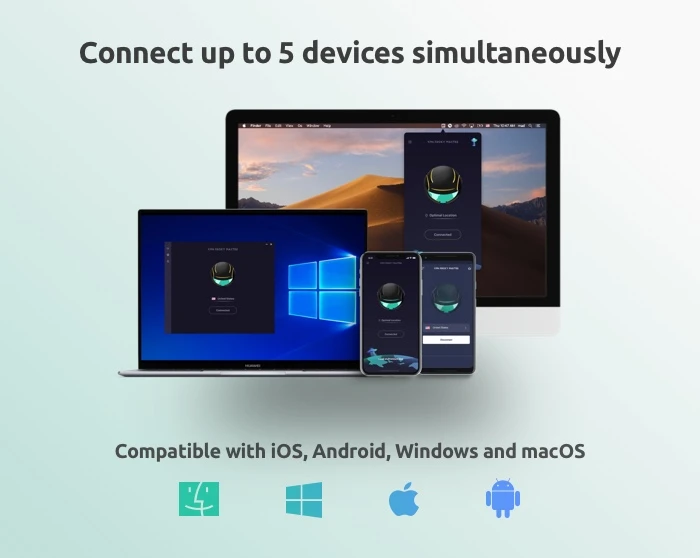
If you like the software, then you can upgrade to the Premium version, which provides unlimited VPN protection; access to 6000 servers in more than 40 locations, special servers for accessing Netflix and Disney+; an internet kill switch that terminates your online connections if the VPN drops for any reason; the ability to connect up to five devices at once; 24/7 online support; surfing speeds that are four times faster than the free version; and a WiFi auto-protect feature that protects you while using public WiFi.

Note: The ability to connect five devices at once is only available with: VPN Proxy Master iOS, VPN Proxy Master macOS, VPN Proxy Master Windows, and VPN Proxy Master Pro Android.

The Premium version of the software is currently available with a 7-day trial for just $0.99 with no contract required, neither commitment: you can cancel anytime.

VPN Proxy Master
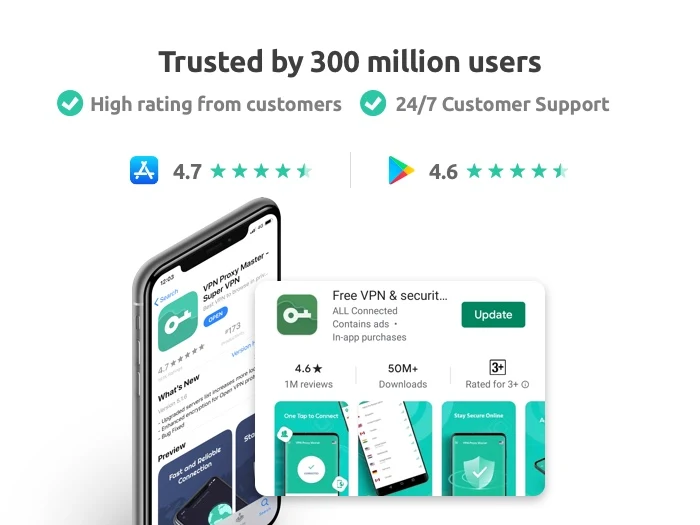
VPN Proxy Master is trusted by 300 million users and has a 4.7/5 Apple App Store rating and 4.6/5 Google Play Store rating, so we’re pretty sure you’ll be satisfied with your download no matter which version you choose.