How to: Create attractive color effects in Photoshop

Yesterday I tested an iPhone app called Color Effects that gives you some cool tools for your photos. I thought that you could probably do the same in Photoshop, so after playing with color palettes and brushes for a while, here I am with a few tricks to create eye-catching color effects in Photoshop. Let’s get started!

Change the color of any object in your photo.

Difficult as it sounds, this color effect is actually very easy. What you need to do is select the object in Quick Mask mode, go back to Normal mode, invert the selection and then play around with the Hue/Saturation controls. You’ll find all the details in this tutorial I wrote a while ago.

Continue reading “How to: Create attractive color effects in Photoshop”

Follow the Royal Wedding online

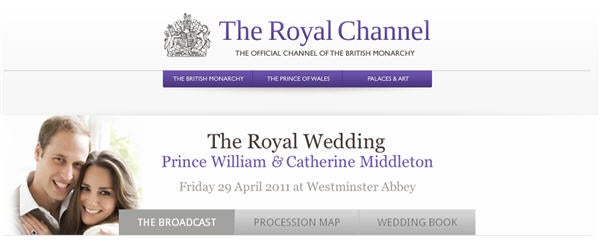
Today is the day. Prince William and Kate Middleton are getting married today at the Westminster Abbey in London, with a potential worldwide audience of more than 2,000 million people. Unfortunately today is a working day for most of us, so we can’t sit in front of the TV all day to watch the wanderings of the Royal couple. If this is your case, don’t worry. There are plenty of online resources to follow all wedding-related news, so that you don’t miss any details!

The first and most obvious source of information is the Royal Wedding Official Website, where you’ll find all the information you need about the service, the procession and the reception, as well as other minor news concerning the wedding’s preparations. Another good source of information is the Prince of Wales Official Website, from which you can download the Royal Wedding Programme (PDF) and the Royal Wedding media briefing (DOC).

But if what you really want to do is see the Royal Wedding with your own eyes, tune in to Royal Channel, the official YouTube channel of the British Monarchy. This channel will broadcast the wedding live, starting at 10 am London time. The channel also includes a special area where you can upload a video with a personal message for William and Kate.

Apart from video streaming, you can also follow the wedding with photos. The British Monarchy Flickr account has been publishing images of the wedding preparations and rehearsals during the last few weeks, including pictures of people who have camped near Buckingham Palace to get the best view of the Royal procession.

A quicker and probably more convenient way to keep up with the wedding is Twitter. You can either follow the official British Royal Family Twitter accounts (@ClarenceHouse and @BritishMonarchy) or join the conversation with people from all over the world by using the #royalwedding or #rw2011 hashtags.

Last, but not least… Facebook! An important event wouldn’t be the same without the corresponding Facebook event, and the Royal Wedding couldn’t be different. Check out the Royal Wedding Facebook event and decide whether you’re planning to attend it or not. Unfortunately this only means you’ll be getting updates from the wedding on your Facebook wall – so don’t expect to have a seat reserved for you in the wedding reception.

Google Docs for Android has arrived!

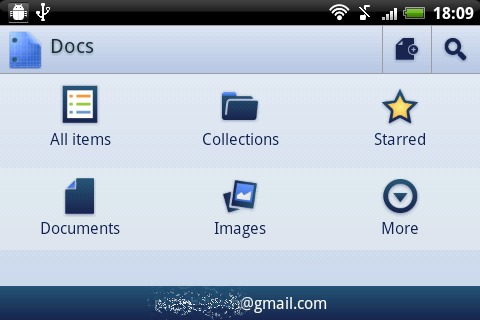
Google Docs – for some, the best Google tool out there – has made it to Android with the release of Google Docs for Android.

As you can see from our enthusiastic review, this app is an all-round winner. In fact, I was so taken with it, I’d be tempted to claim that there’s nothing it can’t do – as long as you stay within the realm of viewing, editing and creating online documents, of course.

What makes Google Docs for Android special is the fact that everything’s just so easy – the search function is near perfect (it even found a word inside a PDF) while editing, even on your tiny little touchscreen, is really straightforward. Even better, it has the beginnings of OCR – take a picture of text with your phone’s camera, and Google Docs for Android will turn it into an editable document! This function currently works best with plain text in English – it’s not ready for handwritten Spanish quite yet, unfortunately.

If you use Google Docs – even occasionally – you really need to download Google Docs for Android now. It takes the basic premise of cloud computing – portability and accessibility – and takes it to a new level, ensuring that your documents are always ready for editing and viewing, no matter where you are.

Well done Google, you’ve done it again!

Chrome 11 released – adds speech input, new icon

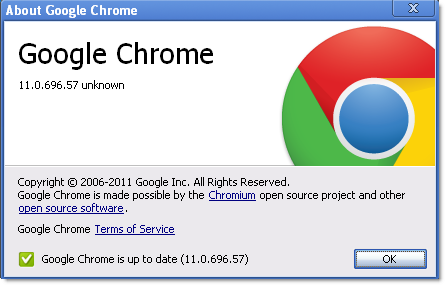
The latest version of Google Chrome is available for download, or for automatic without so much as a by-your-leave update if you’re already using a previous version of the browser. Chrome 11 fixes multiple security issues in WebKit, as well as adding some new features and a cool new icon (well, I like it anyway). Get it now for Windows or Mac.

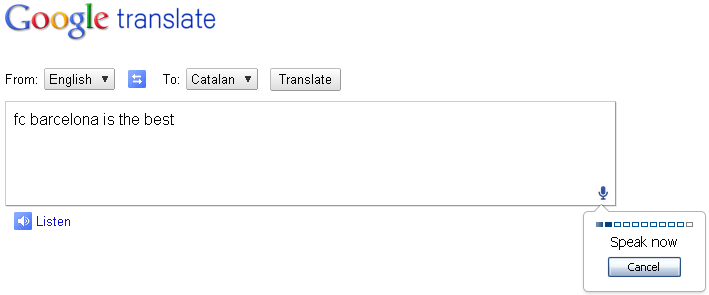
The most interesting addition to Chrome 11 is probably the HTML-powered speech input function that allows you to input text with the power of your vocal chords. The new function doesn’t work in many places yet  but you can give it a go at Google Translate. Using the latest version of Chrome, simply enter the Translate page. If you’re translating from English to another language, you should see a small microphone icon in the bottom right of the text box – click this and speak to start voice input translation. Translation via voice doesn’t yet appear to work for other languages.

Chrome 11 voice translate

If, like me, you’re a big fan of voice search in Android, you can get the same capabilities in Chrome 11 using the free Speechify add-on. Speechify works with Google, Amazon, YouTube and other sites. In general, though, I expect that we’ll see increasingly widespread use of the voice API gradually negating the need for 3rd party add-ons in this area.

Tip: Link to a specific time in YouTube videos

Picture the situation: you’ve just watched a really long YouTube video with a really funny bit right at the end. You’d like to send it to your friends, but don’t want to make them watch the whole thing just for the sake of the final gag. Is there anyway you can share only the last few seconds of that video.

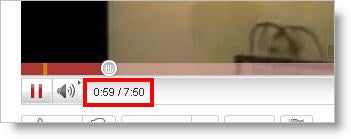
Luckily the answer is yes – and it’s probably easier than you expect. All you need to do is search for the video you want to share on YouTube, and start watching it. As soon as you arrive to the scene you’d like to share, pause the playback.

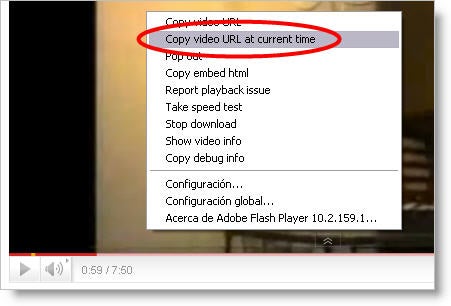
Right click anywhere on the video and select the Copy video URL at current time option in the context menu. This will copy a special URL to your clipboard that makes the video start playing exactly at that time. You can then copy that URL anywhere: email message IM client, Twitter, Facebook and so on.

Some time ago we explained another quick trick to set a specific starting point for YouTube videos, but this one’s definitely much easier. Enjoy!

5 solid script writing tools

Have you ever thought about writing a script for a play or movie? Here are five script writing programs that really are a cut above the rest. There are options available for both PCs and Macs, and also a web based option.

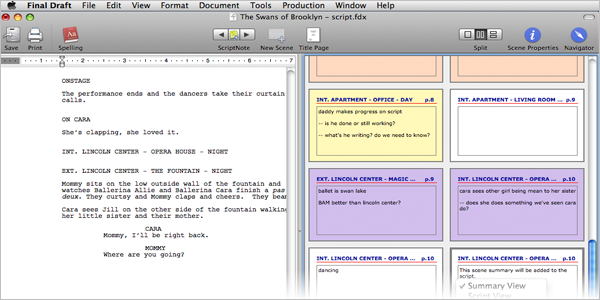
Final Draft: Known as the professional solution for script writers, Final Draft is the definitive script writing option. It’s also the most expensive. What it offers is pretty comprehensive, however. Final Draft automatically formats your script to current industry standard. In addition, it also offers Bookmarks and ScriptNotes that allow you to save specific pages of your script and organize your writing respectively. There are also quite a few ways to view your script. Final Draft is available for both Windows and Mac.

Scrivener: Not exclusively a script writing program, Scrivener is a thoroughly comprehensive tool for writing in all genres. I used Scrivener during last November’s National Novel Writing Month and was quite impressed by the features it offered. As well as short story and full-length novel templates, Scrivener has a script-writing interface, with templates available for screenplays, stage plays and comics. It is available for Mac users, while the first Windows beta was released earlier this year.

Continue reading “5 solid script writing tools”

Skype vs. Facetime

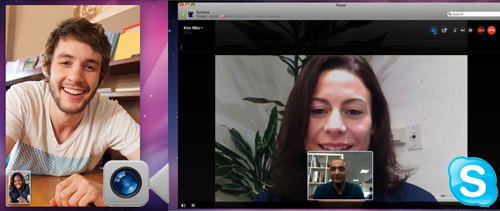
Not so long ago, Skype was the only serious contender for calling friends, family and colleagues over the net. Yet a few years, and an unpopular major update later, Skype has gone down in the estimation of many Mac users. At the same time, Apple released its answer to Skype – Facetime – which is rapidly climbing the download charts as a serious alternative. It’s therefore about time we put Skype and Facetime head-to-head to see which is the king of calling.

Interface

Until the update to version 5, most Mac users were satisfied with the interface of Skype. Since the latest version however, many have found the new large-screen interface intrusive, unintuitive and basically harder to use than previous versions. Some have even gone back to the much slimmer version 2.8. Facetime meanwhile has a very simple interface which instantly detects your iSight camera on startup and makes calling contacts simple. Even better, it automatically detects contacts in your Address Book so you don’t have to mess about adding them. However, it is still very basic compared to Skype at this stage of its development.

Result: Facetime draws with Skype 5 on interface at this stage of development.

Flexibility

Skype can be used on both Mac and Windows and you can call landlines or mobiles anywhere in the world. In terms of flexibility and interoperability between platforms Skype takes some beating. Facetime however is very much locked into everything Apple. Its not even available on Windows, works only on Macs or iPads, you can’t call landlines and the only mobiles you can call are iPhones.

Result: In terms of flexibility, Skype wins hands down.
Continue reading “Skype vs. Facetime”

How to: Cut MP3s

You might want to split an MP3 file for lots of reasons. Maybe you want to break up a podcast into bite-sized pieces, or make separate tracks from a digitized vinyl record or DJ mix. I did this on a Mac, but it works just the same in Windows.

Using the free open source app Audacity, this is really easy. Here’s how to cut your MP3 files:

1: Install Audacity, open it then drag your MP3 file onto the interface. Loading will take a few seconds.

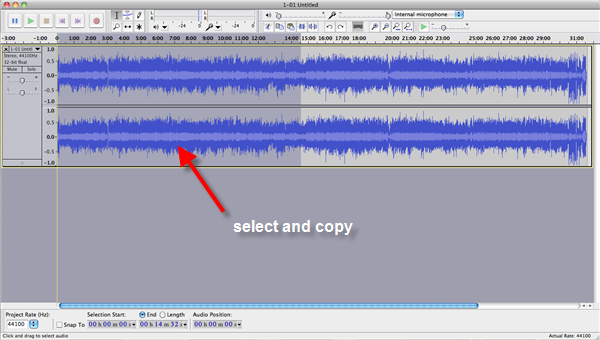
2: I have a podcast loaded up, and want to split it into two parts. Click on the file around where you think your first break will be. Listen, and when you’ve found the right point click the Stop button. Now click on the point where the marker has stopped, and drag back to the start of the track.

Continue reading “How to: Cut MP3s”

How to: Download from YouTube

Whether you want videos or music, downloading from YouTube has become a seriously popular pastime. As the number of people interested in getting media from the video site has risen, so have the number of apps designed to do the job. It’s quite hard to sort the duds from the winners, however.

That’s where Softonic steps in. Keep reading, and we’ll show you the best way to download from YouTube!

Download now TubeMate YouTube Downloader, the best well known YouTube Downloader ever!

Desktop

Free YouTube Download – this app downloads to a small but useful variety of formats (AVI, 3GP, MP4 and FLV) and, best of all, allows batch processing, which is perfect for when there’s more than one video you want to get a hold of.

YouTube Downloader HD – this app does exactly what you would expect it to – it allows you to download YouTube videos in high definition! As YouTube downloaders go, it’s actually also one of the easiest to use.

YouTube Downloader – this is another popular app that stands out because it downloads from a great variety of video websites, not just YouTube. It also includes a converter, so you can go on to use the videos on devices like your PSP and iPhone.

Easy YouTube Video Downloader – this app makes downloading even easier – it’s a Firefox add-on. It actually integrates into the YouTube interface, and as well as supporting a variety of file formats (FLV, 3GP, MP4, MP3), it lets you download HD.

Web Apps

If you like to keep your life in the clouds, you might want to keep your YouTube downloading online. If this sounds like you, you’re in luck, because there are oodles of YouTube download webapps out there – just keep an eye out for the infuriating pop-up ads. Take a look at these:

KeepVid – this webapp is way more discreet than some of its competitors, which is a plus in itself. Apart from that, it offers various format options, including HD where available.

SaveTube – this app is very similar, offering three formats, and working on all internet browsers. It will also let you download MP3 separately.

TuneNabber – this webapp is specifically for downloading MP3 from YouTube videos. You’ll see the “nabbing” progress bar, and when it’s done, click to download. It’s easy!

Music

Lots of people use YouTube to find music that isn’t available anywhere else. Instead of downloading videos and extracting the audio, however, there are several tools that let you download the music directly. Keep it simple!

Free YouTube to MP3 Converter – this is one of the most solid apps around. Although it’s not particularly fast, it is easy to use and lets you choose a variety of quality levels – with higher quality downloads taking longer, obviously.

Fastest Free YouTube Downloader to MP3 Converter – even though the name sucks, this app doesn’t! It’s a quick app for downloading YouTube audio and, best of all, it supports a host of other formats, making it truly multi-functional.

Freez FLV to MP3 Converter – if you like to keep things simple, then this is app for you. Even though it’s low on options, it converts already-downloaded YouTube videos into MP3. It’s fast, efficient and best of all, there’s no loss of sound quality.

Bear in mind though, YouTube only allows downloading when it is explicitly stated. You’ve been warned!

Keep track of family, friends and celebrities on Newsle

Has anyone in your group of family or friends done anything that made the news lately? How about your favorite celebrity? Now you can find out right away with Newsle.

Currently in public beta, Newsle connects with your Facebook page or your LinkedIn profile and searches for published articles about your friends or colleagues. Once found, these articles are compiled for you in a newsfeed on Newsle’s site, complete with pictures where available. You can also track news stories where your own name is referenced. The more you’re mentioned, the higher your Fame Factor rises on the site. If you’re more interested in specific celebrity news on the other hand, Newsle also lets you follow popular public figures, including actors, actresses, politicians, and authors.

Newsle is surprisingly accurate with the data it pulls on each of your search queries, particularly when it comes to people with common names. The site uses a combination of information pulled from publicly available sources about your friends, as well as a natural language selection formula to narrow down its choices. It’s not fool-proof by any means (last time I checked my brother has never played competitive college tennis, for example), but overall, Newsle’s pretty accurate.

There are also talks about developing Newsle for mobile phones in the future, should the public launch of the main site prove to be popular among internet users. To use Newsle you’ll need to either grant the site access to your Facebook profile or your LinkedIn account, which you can do directly on Newsle’s frong page.