WhatsApp for Windows Phone returns after disappearing for 2 weeks

Two weeks ago, WhatsApp was suddenly pulled from the Windows Store. Users were left wondering what prompted the removal of the app. Those who downloaded WhatsApp before it was pulled could still use it, but new users looking to download the app were out of luck.

The Next Web reached out to Facebook for comment and received this reply: “Due to technical issues, we have chosen to un-publish WhatsApp Messenger on the Windows Phone platform.”

In fact, WhatsApp users on Windows Phone were reporting a myriad of issues prior to the app being pulled down. Notifications would take ten to thirty minutes to show up, making instant messaging impossible. The app languished for months without an update.

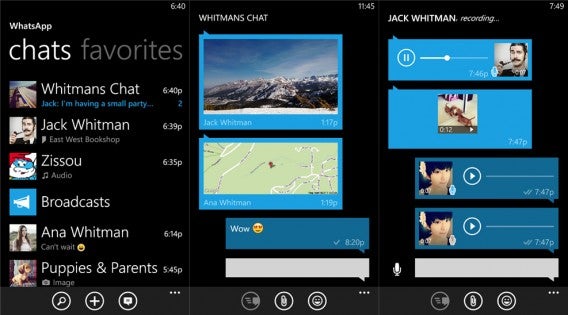
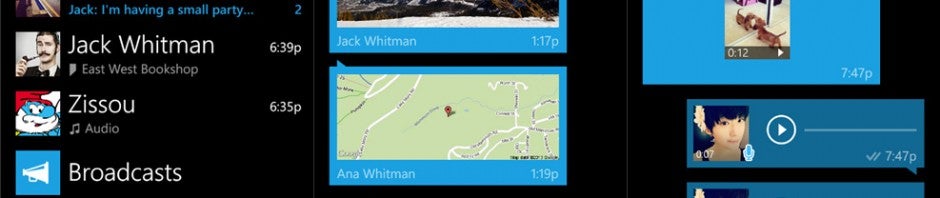
WhatsApp Windows Phone combined

After a joint effort between Microsoft and Facebook, WhatsApp for Windows Phone is now available to download once again. “WhatsApp chose to unpublish their app from the Windows Phone Store after discovering an issue with how notifications are being handled on Windows Phone 8, Update 3,” said a Microsoft spokesperson speaking with Mobile Syrup.

The WhatsApp beta for Windows Phone receives regular updates so hopefully this means Microsoft and Facebook are taking development of the app seriously.

Download WhatsApp for Windows Phone

Source: WP Central | The Next Web

Follow Lewis on Twitter @lewisleong

RELATED STORIES

The best Android games for retro fun

If you love old-style games then you’ll love this new selection for Android. It’s all about retro games that can be played on your smartphone.

Current mobile games are fine, but they’re nothing like the old arcade, computer and console games. If you agree, then you’ll be pleased to know that a ton of those games that you played and replayed in the 80s and 90s are also now available on Android.

Shooters, platforms, adventure…none of the classic genres seem able to resist the lure of the touch format. Smartphones and tablets have welcomed new versions of originals or remakes of the most successful vintage games.The list is long, but today we’re bringing you five great retro games to get started.

Galaga Special Edition Free

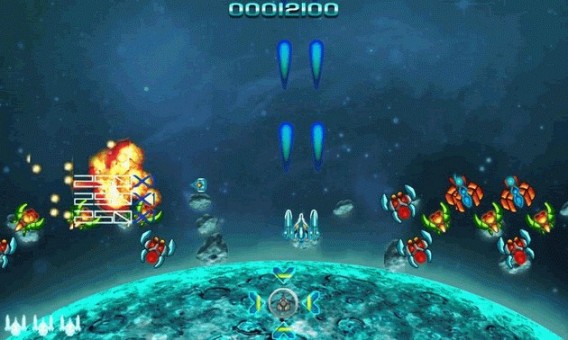
Something from the shooter genre is probably one of the first games you played. One of the most famous in this style of games was Galaga, released in 1981, but now, over 30 years later, can be enjoyed from the comfort of your Android phone.

This special edition of Galaga has the classic 80s gameplay but with improvements to bring it up to speed for today: full-color graphics, some spectacular power-ups and no fewer than 25 levels for you to enjoy the most exciting space wars in the universe.

Download Galaga Special Edition Free

Galaga

Leisure Suit Larry: Reloaded

The Larry series, born in the late 80’s at the hands of Al Lowe, marked a whole generation of graphic adventure lovers. We accompanied Larry Laffer, a 40-something loser who wants to change his life around, and find a foxy lady in the process.

Full of wit and spice, along with its charismatic characters, the first Larry game is such a must-have that there’s now an HD remake supported by Android. In it you’ll experience the same adventures and dialogs from 1987 but with reformulated graphics and an orchestrated score that’s just perfect.

Download Leisure Suite Larry: Reloaded

Leisure Suit Larry: Reloaded

Sonic the Hedgehog

In the 90s, you were either Team Mario or Team Sonic. Unfortunately the famous Nintendo plumber hasn’t reached smartphones yet, but Sega’s famous Hedgehog has, not only with recent Android games, but also with the game that started it all, the legendary Sonic the Hedgehog for Mega Drive.

Unlike other games on this list, with their reformulated graphics, Sonic the Hedgehog has the same pixelated 1990s look. Of course, in addition to the original levels there are also some new features like being able to use more characters (like Tails or Knuckles) or the new time trial mode.

Download Sonic the Hedgehog

Sonic the Hedgehog

Duke Nukem 3D

Duke Nukem is one of the classic first person shooters and a clear inspiration for many games that have come in its wake. Forget about the fiasco surrounding its most recent offering – it now returns to its glorious past with DN3D, a classic from 1996.

Duke Nukem 3D on Android retains the graphics which in the deepest, darkest ’90s seemed wondrous, as well as missions from the original game, creating the effect of having traveled back in time. The advantage is that you can be the Duke anywhere – with great handling and touch controls that make the classic mouse + keyboard combination look truly dated.

Download Duke Nukem 3D

Duke Nukem 3D

Dragon’s Lair

The term “interactive movie” now seems pretty normal, but in 1983 it really was something new and extremely well implemented by the mythical Dragon’s Lair, with its animations from Disney’s Don Bluth.

The game where you played the role of a knight became a landmark release and, after more than 3 decades, it arrives on Android, with a version that’s perfect for touch devices, since the gameplay is based on quick time events.

Download Dragon’s Lair

Dragon's Lair

It’s never too late to enjoy the classics

Clearly, if a game is really good, time won’t taint its charms. Just take a look at the games above  –  they’re “old school” but definitely not “old fashioned”, just like classic films or music.

Did you like this article? Then don’t miss the other installments of Best Android Games to...

… play on public transport

… play with your friends

get involved in a great story

relax

test your reflexes

…play with children

…train your brain

How to sync iOS and OS X Mavericks

It happens to everyone: either you’re moving from PC to Mac, or moving from an old iOS device to a new one. Syncing all your data again can get really annoying. But with Apple’s iCloud, it has become simple.

Let’s take this scenario. We’ve moved from Windows 7 to Mac OS X 10.9.3. We use Gmail as our main email account, but haven’t setup an iCloud email. The biggest problem is transferring our apps from the old iPhone 4s to our new iPhone 5s.

Since we’ve been using iOS, we have our favorite apps and settings already configured. We’ve been syncing our apps with iCloud, but these won’t load into OS X’s iTunes after authorizing. So what’s the solution? Three easy steps:

1. Transfer apps and music

2. Setup iCloud email

3. Sync the new device

Transfer Purchases

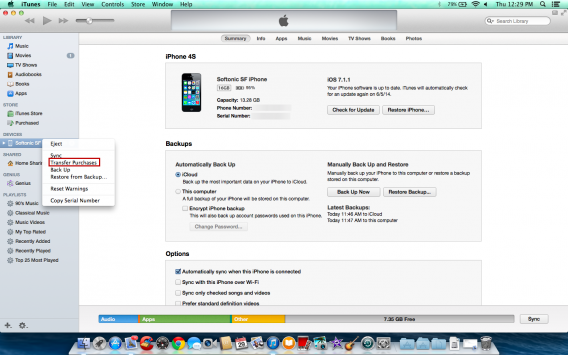
Connecting the old iPhone 4s to iTunes, I’m able to see the device. But this iPhone has been synced with iTunes on Windows, and syncing with the Mac will erase all my apps. The solution is to Transfer Purchases. This will import apps into iTunes so that you don’t have to manually download them over again.

To transfer any purchases from the App Store, hold Control and click the trackpad. A small menu will appear with Transfer Purchases. This will copy your apps into iTunes.

Mac OS X transfer purchases

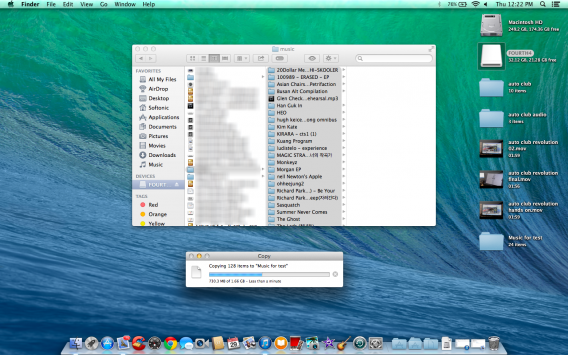
This should also import any purchases from iTunes so that you can sync your music again. If you have music from iTunes, it will be exported to the Music section of iTunes. Unfortunately, if you have music that you’ve downloaded from another source, you can’t export it: you’ll have to manually copy the music from the source to a folder on the Mac.

Mac OS X copy old music

Manually transferring music may take a while depending on how much music isn’t coming from iTunes.

Setting up iCloud mail

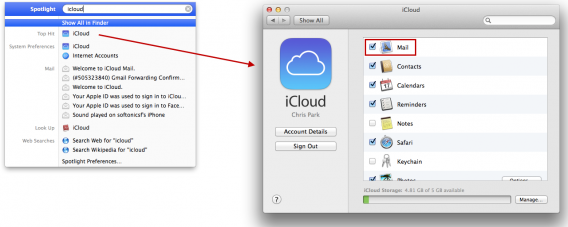
It’s easy to setup Gmail with the OS X Mail app or use Gmail in a browser, but Apple also offers an iCloud email address. If you haven’t set it up, go to Spotlight in the upper right corner. Type iCloud and the first result will be the option you want. Follow the instructions to setup your iCloud email, which you can also access through the web.

Mac OS X iCloud setup

You can forward your Gmail to iCloud, but unless you really need iCloud email, it’s not necessary.

Syncing a new device

Now that we’ve exported our apps and imported non-iTunes music, we can sync the new iPhone 5s to the Mac. With iCloud, you can sync Mail, Contacts, Calendars, Safari, Photos, and Documents & Data.

When you first connect the device, it will ask you for trust permissions on both the Mac and iPhone.

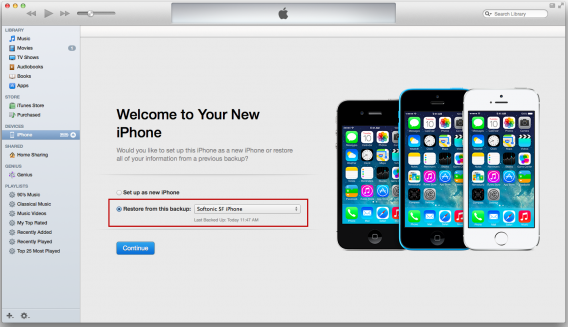
You have two options: you can Set up as new iPhone or Restore from this backup. Since the old iPhone 4s was synced through iCloud and the Mac, the latter is what you want. Click Continue and the iPhone will being restoring.

Mac OS X sync and restore new iPhone with iTunes

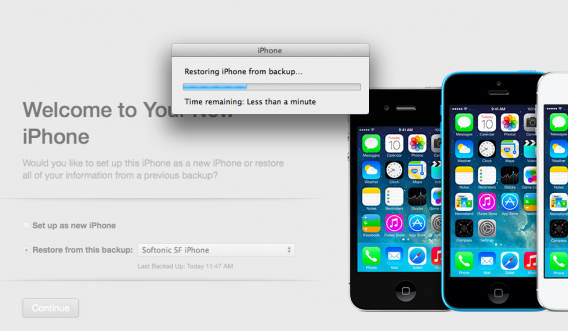
The iPhone will reboot to finish the syncing process, so don’t worry when it does.

Mac OS X restore from iTunes

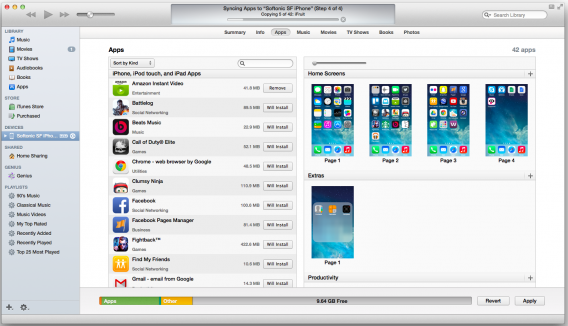
You can see after it reboots that it’s preparing to sync the apps that were on the old iPhone. Resotre time will vary, so be patient. You can see in iTunes that it’s installing your apps.

Mac OS X syncing apps with iOS

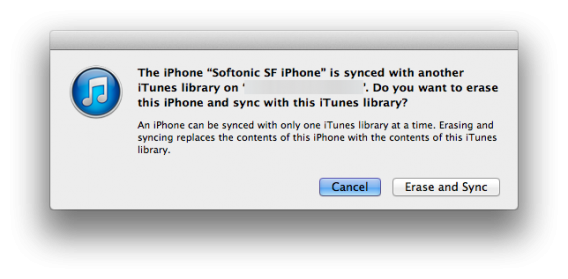
When syncing music, you may find that since your old iPhone was synced to another computer, it will require you to erase and sync the new iPhone with the Mac. This is one of the annoyances of iTunes because you can only be synced with one library at a time. Approve Erase and Sync to get your music back on the iPhone.

Mac OS X sync iTunes music library

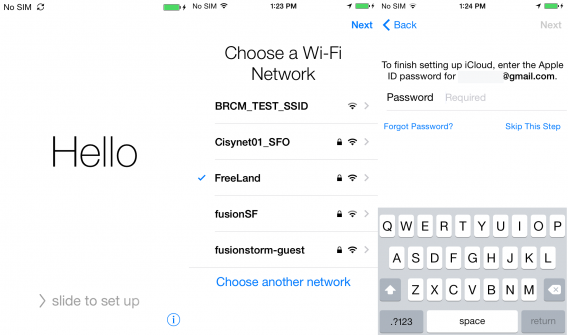
You may have to setup the new iPhone before iTunes will sync your music, but it’s an easy process going through all the steps.

iPhone 5s first setup

Since you sign into iTunes and iCloud, your Mac and iPhone are now connected.

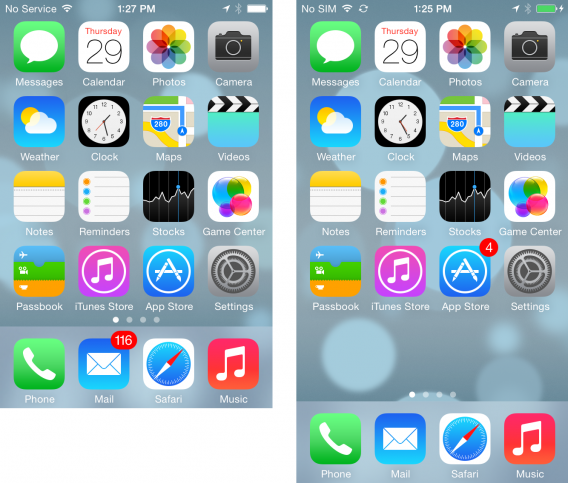
iPhone 4s iPhone 5s sync and restore

Now that you’ve moved from Windows to Mac, notifications will sync on iOS and OS X. Not everything will sync, especially platform-specific apps, but standard ones like Mail will update on both Mac OS X and iOS, letting you know when you have new mail.

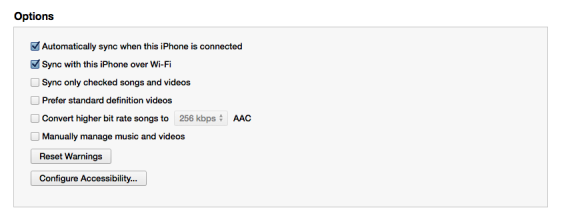
This may be the first time you’ve synced iOS with OS X, but other than syncing non-iTunes music, you probably won’t have to connect directly to OS X anymore by syncing though Wi-Fi when the Mac and iPhone are on the same network. The other requirement is that iTunes has to be open.

iOS sync over Wi-Fi

iCloud will continue to sync on both Mac and iOS, but the same issue will always apply – content from outside of iTunes or the App Store won’t sync on iCloud.

As you can see, moving from Windows to Mac and syncing OS X with iOS isn’t that difficult. All it takes is a little preparation to make sure you have everything ready for transfer.

If you’re moving between PC and Mac, check out this article about formatting a disk to use on both systems.

TrueCrypt encryption software suddenly ends development

The popular open-source disk encryption software, TrueCrypt, has stopped development. A message posted on the software’s site warned users that the app “may contain unfixed security issues.”

Fears of NSA tampering quickly spread throughout the Internet but the reality is nothing so dramatic. A TrueCrypt developer told Reuters that development stopped out of boredom of the project.

Does this mean TrueCrypt users are vulnerable to attack? No, it just means that TrueCrypt will no longer be offering updates for security holes that may or may not be exposed in the future. For now, TrueCrypt users are safe until someone finds a way to exploit it.

Should you keep using TrueCrypt? You can probably get away with it for the time being but you’ll want to use a tool that’s constantly updated with security patches.

Windows users can use BitLocker, a disk encryption feature that’s built into the operating system.

Mac users have a couple of options. For encrypting your Mac’s entire hard drive, you can use FileVault, which is located in the System Preferences. If you just want to create an encrypted volume on your drive, you can do so using the built-in Disk Utility program, located in the Utilities folder.

Source: Reuters

Via: Engadget

Follow Lewis on Twitter @lewisleong

RELATED STORIES

The Softonic Minute: Watch Dogs, Windows 8.1, Battlefield and Skype

Watch Dogs tops the sales charts, Windows 8.1 might be heading to low-cost devices with Bing, Battlefield will get a new game this year, and Skype gets a live translation feature. Check out this week’s hottest software news in The Softonic Minute.

Default player

<!–
By use of this code snippet, I agree to the Brightcove Publisher T and C
found at https://accounts.brightcove.com/en/terms-and-conditions/.
–>

<!–
This script tag will cause the Brightcove Players defined above it to be created as soon
as the line is read by the browser. If you wish to have the player instantiated only after
the rest of the HTML is processed and the page load is complete, remove the line.
–>
brightcove.createExperiences();

Watch Dogs launches with crashes and performance issues

Watch Dogs launched this week to huge sales numbers, but not everything went off without a hitch: crashes and performance issues were among some of the problems that left players frustrated with the game. Continue reading…

Windows 8.1 with Bing coming to low cost devices

Microsoft announced that it’ll be launching a new edition of Windows called Windows 8.1 with Bing. The operating system gives device manufacturers a low cost version of Windows for its cheaper devices. Continue reading…

Battlefield Hardline trailer leaked, shows cops vs robbers (updated)

Electronic Arts has announced Battlefield Hardline, the company’s brand new series coming out this fall. There were few details about the game, until a trailer was leaked showing a huge preview of what to expect. Watch the trailer.

Skype demos live voice translations, coming to Windows 8 this year

Skype is about to become infinitely more useful to international users: Microsoft showed off its live voice translation tool inside Skype. Called Skype Translator, the tool will debut in Windows 8 “before the end of 2014”. Continue reading…

Make sure to check out all of our past Softonic Minutes.

World Cup 2014: How to track, follow and watch every game

A true sports fan doesn’t just watch the game on TV– they need much more information. If you’re a true fan and want to follow everything during this year’s World Cup 2014 in Brazil, we’ll show you the best apps to give you all the info you need.

How have you been preparing for one of the most important events in the last 4 years? You’ve probably already started following your favorite players and the national teams on social networks, or maybe, if you’ve been lucky enough to get tickets, you’ve installed some of the best apps for travelling to Brazil.

The fact is that this World Cup will no longer be just a television event: multitasking with multiple devices has become common practice among all soccer (and sports) fans.

To follow the event, we won’t just be watching the game on TV; we’ll be using smartphones, tablets and computers to see the stats, to read the news and find out which teams got knocked out, to get updates on group standings, and to follow the results of games being played simultaneously.

Let’s have a look at the best apps and websites to follow FIFA World Cup 2014.

The calendar – never miss a game

If you’re “soccer crazy”, you’ll already have the dates and times of the World Cup matches committed to memory. In any case, a reminder is never a bad thing, especially if it’s stylish and easy to use.

One good reminder tool is the Pocket World Cup Schedule, a web page to keep in your browser’s bookmarks so that you can see the 2014 World Cup schedule at any time, especially from mobile devices like smartphones and tablets, where it’s particularly convenient to use without having to install anything.

Pocket World Cup Schedule

Pocket World Cup Schedule seen on mobile browser

Results in real time, when you’re away from the screen

When it comes to applications for following results in real-time, to say there are plenty is an understatement. Seeing as it’s unlikely that we’ll be able to see all the World Cup matches live, we’ll probably have to resort to an app to see how the games are going.

Personally, I prefer to use LiveScore, an app for AndroidiPhone and iPad (it’s also available as a web app), because it gives me a complete overview of the Serie A without forgetting the other leagues.

LiveScore shows you formations on the field, goals by minute, and other important events like cards and substitutions. It also includes live statistics of the matches and other useful functions like a calendar, and team scores in the various groups.
LiveScore

The World Cup section in the LiveScore app

For apps that follow the World Cup exclusively, Sofa 2014 World Cup Live Score is definitely one of the best, available on AndroidiPhone and iPad.

Aside from giving you results in real time, SofaScore integrates other important information about the tournament, everything from goal scorers to a table of matches.
Sofa Score

Sofa Score on the iPhone (left) and Android (right)

News and information about the teams and the tournament

Calendar and results in real-time might not be enough for you. To see all the information about the World Cup from your smartphone, there are many applications available which also include a news section, goal replays, and many more.

The official app from FIFA, available for Android, iPad and iPhone, give you essential information about the World Cup, such as groups, games, and standings, but it stands out for its News section, where you can find in-depth articles and videos.

By browsing the app, for example, I found the video presentation of the national teams in the World Cup which, in addition to being fun, also gave me useful information on the nations taking part in the competition.

FIFA for iOS (left) and FIFA for Android (right)

Another good app is World Cup 2014 Brazil, although its only available for Android. Like the FIFA app, it integrates photos, videos, and news about each World Cup match. It has a section on the history of the tournament with tons of data, and it allows for some customization, letting you modify the app’s tabs.

Also available on Android is LiveSoccer Football World Cup, one of the most elegant app I found. Like World Cup 2014 Brazil and FIFA, it also includes news, photos and videos from FIFA, but it does so with a better design, sending you notifications about your national team.
LiveSoccer World Football Cup

The LiveSoccer Football World Cup app for Android

Detailed statistics for the real tactician

Despite the great apps I’ve already mentioned, the true soccer fan may not be content; they need to analyze matches, understand the reason for changes, and justify their dislike for Balotelli with statistical data in order to provide concrete evidence during debates with friends.

To help figure it out, I asked one of the experts of Italian soccer, one of the few people who makes use of this sort of statistical analysis in his work. Manusia Daniel, an editor at VICE, recommended several sites and applications to me.

To improve your couch coaching, FourFourTwo Football Stats Zone is definitely one of the best web apps and applications for the iPhone and iPad to help you in your new “job”. The app provides real-time data on the game as it happens, allowing you to compare players and analyze their performance in detail.

Stats Zone

The application for iOS FourFourTwo Football Stats Zone

Other applications of interest for analyzing post-match statistics are WhoScored, available only in a web app version, and Squawka, which, as well as having a website, also has an app for iPhone and iPad that will soon be available for Android (before the World Cup, with a little luck).

SquawkaComparative between players on Squawka

The complete fan kit for the World Cup

With these apps, you’ll have the essential app kit to follow the World Cup from your tablet or smartphone. Many of these you’ll use when you can’t follow a game live, and others will be for multitasking while you’re watching the game. Either way, these apps will no doubt be your allies when you’re following the 2014 FIFA World Cup.

Which apps will you use to follow the 2014 World Cup in Brazil?

Follow me on Twitter @ zoltan__v
New Heartbleed attack leaves Android and Wi-Fi routers vulnerable

Long-term effects of the Heartbleed security bug are beginning to show themselves. A newly discovered vulnerability leaves Android and wireless routers open to attack.

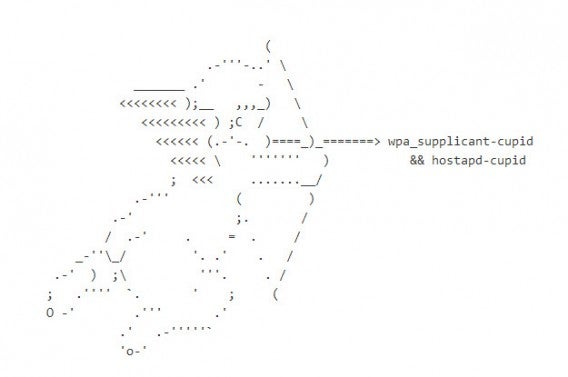
Portuguese security researcher Luis Grangeia discovered the issue, which allows an attacker to pull data from a device’s memory over Wi-Fi. Named “Cupid,” the attack can expose passwords, certificates and private SSL keys.

Cupid Heartbleed

Since the attack requires the use of a compromised wireless router, possible attacks are limited to the range of the router. This means attacks using this method will have much less of a reach than the original Heartbleed bug.

Grangeia says Android devices running version 4.1.1 (a version of “Jellybean”) are vulnerable. Attackers can steal data from Android devices with Wi-Fi enabled by offering up an open access point for devices to connect to.

It’s too early to panic about this type of attack, but you can take steps to prevent it. Make sure your Android device is running the latest operating system, secure your router with a strong password, and make sure its firmware is up to date.

Since Open SSL (the security protocol exploited by Heartbleed) is so widely used, we’ll likely see more attacks like this pop up in the future. For more information about Heartbleed, check out all our articles about it right here.

Source: GitHub | Luis Grangeia (Slideshare)

Via: The Verge

Follow Lewis on Twitter @lewisleong

RELATED STORIES

Google Maps for Android updates with terrain mode, interface tweaks

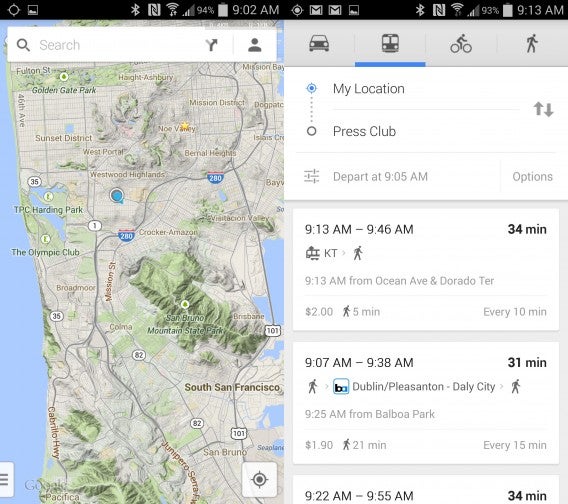
A minor Google Maps update is rolling out today which brings back terrain mode and adds small interface changes. Terrain maps were removed in version 7 of Google Maps for Android for no reason but now they’re back. Hikers and campers will appreciate its return.

Google Maps Android via Android Police

As for the interface tweaks, they are minor changes to make reading information easier. Travel times are now bolded and the transit method (driving, walking, biking, public transportation) are more obvious. Icons for each method will appear next to each card in the navigation selection screen.

Walking times are also new, letting you know exactly how long you’ll be walking when using public transportation.

The update is rolling out to Google Play now. If you don’t want to wait, you can download Google Maps for Android here.

Via: Android Police

Follow Lewis on Twitter @lewisleong

RELATED STORIES

Android smartwatch notifications shown in screenshots

Google’s highly anticipated Android Wear smartwatches will be shown off at Google I/O in June but you see a sneak preview today. Google employees have shared screenshots of some of their favorite notifications from the smartwatch operating system.

From the few screenshots, we can see each notification is represented as a card that can be swiped from left to right. There are tiny dots at the bottom that show how many notifications you can swipe through.

Android Wear notifications combined

We also see third-party devices working with Android Wear. Nest, the internet connected thermostat now owned by Google, displays a notification about smoke at the office.

Apps can also work with Android Wear if a developer incorporates the functionality. We can see a Google Calendar notification as well as a notification from the popular game, Clash of Clans.

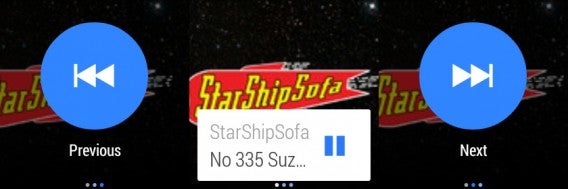
Android Wear music controls

Music controls are big, taking up the whole screen. Album art displays in the background with artist and title scrolling across the bottom. It looks a bit inelegant as its redundant to have music controls on separate screens. Google should allow swipe gestures to control playback instead of relying on virtual buttons.

These screenshots are early prototypes of notifications and are only for square watch faces. Android Wear will also support circular watch faces. We will see more about Android Wear during Google’s developer conference on June 25th.

Source: Android Developers (Google+)

Follow Lewis on Twitter @lewisleong

RELATED STORIES

Sunrise calendar app for Android helps you get things done

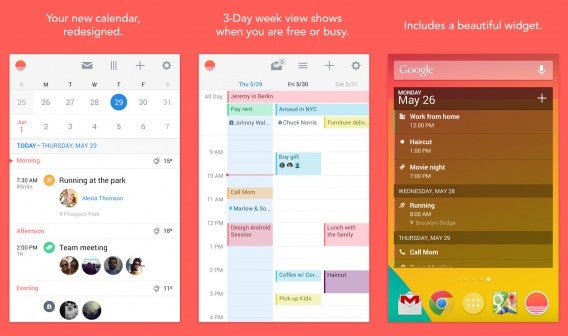
Google Calendar for Android is a decent calendaring app but it lacks some more advanced features. There are some great alternatives like Cal, which offers a slick heads-up display. Now there’s Sunrise, a new calendar app to help you get things done. The app first appeared on iOS but is now available on Android.

Default player


brightcove.createExperiences();

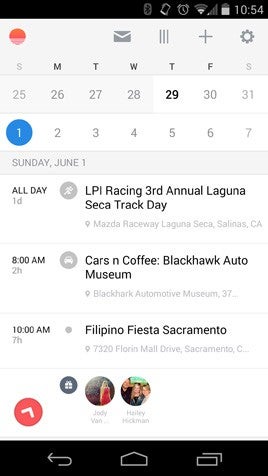
Sunrise is beautifully designed and its interface gets out of the way. Adding events is a pleasure, with quick location search and invitations.

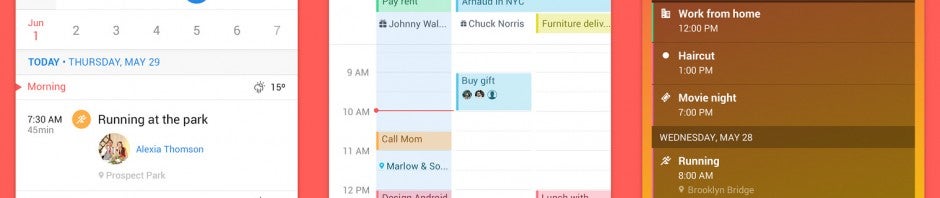
Sunrise Calendar for Android combined

The app also detects keywords in your events and gives it a relevant icon. For example, if you want to remind yourself to call your mom, a phone icon will show up next to the event.

Sunrise side imageWhile icons are cool, I would like Sunrise to add natural language ability. For example, typing “Dinner at Max’s at 8PM” would automatically fill out location and time fields, something Google Now does (but not Google Calendar).
If you have a location in an event, Sunrise offers directions, using any mapping app you have installed on your phone. This means you can use apps like Waze instead of defaulting to Google Maps for directions.

There’s also a slick widget that lets you add and view events quickly. Sunrise also offers a web app so you can manage your calendar from your computer.

Business users will still have to rely on Google Calendar because Sunrise doesn’t support Microsoft Exchange yet. The company promises to add Exchange support this summer. The app also lacks any search functionality, so you’ll be scrolling endlessly trying to find something.

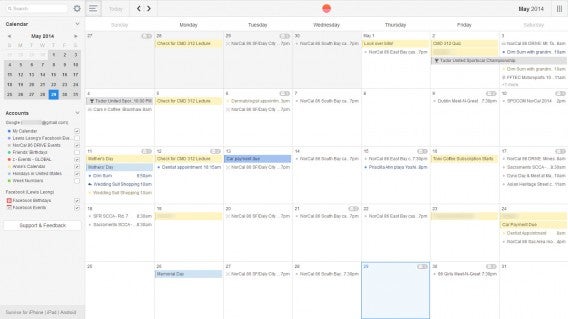
Sunrise web month view

I’ve used both Sunrise and Cal and find that both offer similar experiences. I love the simplicity of Sunrise’s interface and Cal’s heads-up display. Sunrise has a killer agenda display but Cal integrates with Any.do for todos.

If you want a simple, easy to use calendar app for Android, give Sunrise a try. If you need Microsoft Exchange support, give Cal a try.

Download Sunrise Calendar: Android | iOS

Download Cal by Any.do: Android | iOS

Via: The Verge

Follow Lewis on Twitter @lewisleong

RELATED STORIES