Essential apps to customize your iPhone without jailbreaking it

These apps will give you control over your iPhone operating system

Iphone personlization apps

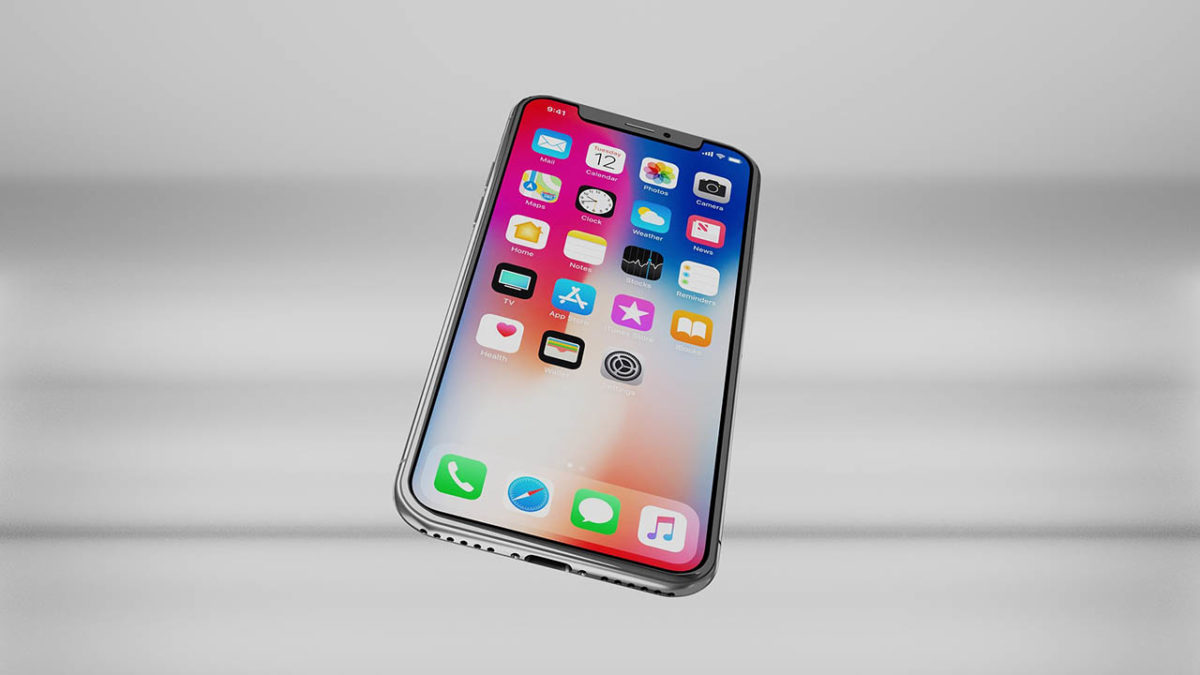
When you open your iPhone or iPad for the first time you can’t help but be impressed. They look amazing and they have a really premium feel in your hand. It’s the same when you turn them on. Everything just works and you can do whatever you need to do smoothly and easily. For some people though, the experience you get straight out of the box just isn’t good enough. Not even on newer iPhone models like the iPhone X, which have the latest version of iOS 13. If you’re one of those people, this guide is for you.

Today we’re going to walk you through all the apps you can download for your iPhone that will give you a unique experience. You won’t need to jailbreak your smartphone neither. These apps are all available on the App Store and offer some great customization options to iPhone users without the need to take any drastic jailbreaking actions or voiding any warranties. Let’s get started.

Pimp Your Screen - Custom Themes & Wallpapers Pimp Your Screen - Custom Themes & Wallpapers Download now
8

Home Screen Maker

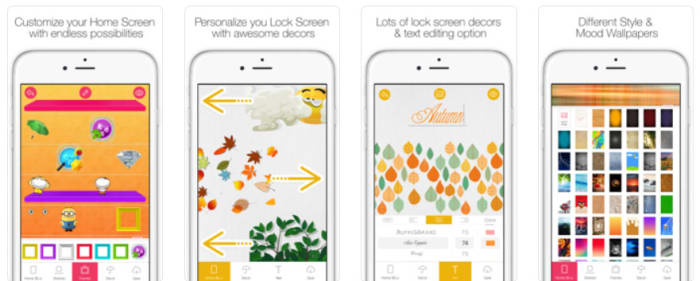
This is another app that allows you to make big changes to how your iPhone looks and feels. Home Screen Maker lets you make custom home screen layouts for your iPhone and gives you an awful lot of control over your home screen. Whereas Pimp Your Screen gives you some fantastic pre-made options, here you get the chance to build your own. What’s also great though, is that Home Screen Maker also offers plenty of ready-made themes too, which you can get via in-app-purchases.

FexyHome - Style your home screen FexyHome Download now
8

Icon Skins Builder

Icon maker on iPhone

This is a great app that offers something a little different to Home Screen Maker. It brings a new element to the idea of putting your apps on shelves as it gives you 3D shelf options and also gives you the chance to put peripheral items on your shelves that will sit next to your app icons. This is a cool idea that has been well executed.

Icon Skin Builder Download now
8

Magic Screen

We have another great home screen customization app here, but Magic Screen brings something extra to the game as it gives you an extensive toolset for customizing your lock screen too. With Magic Screen you can customize text, draw your own shapes and designs using your finger, and even add widgets such as a calendar widget for keeping on top of things without having to unlock your iPhone.

Magic Screen Download now
8

Ringtones for iPhone

ringtones for iphone

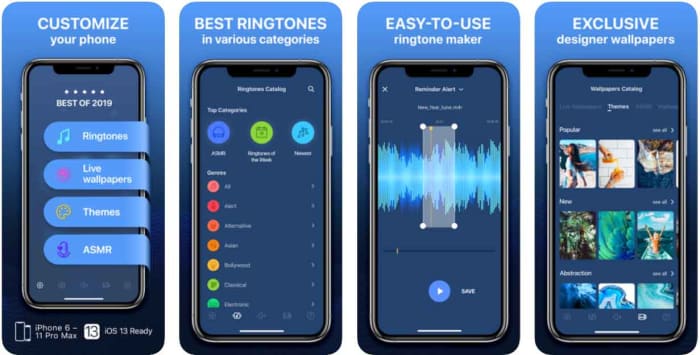
So, now that you’re well versed on customizing how your iPhone looks let’s get into controlling how it sounds. There is no better app for making your own iPhone ringtones and sounds than Ringtones for iPhone. This app has a lot of great features. You can turn any song you have on iTunes into a ringtone and you can even record your voice or a friend’s voice and then convert that into a ringtone too. If you want your iPhone to sound unlike any other iPhone out there, this is the app for you.

Ringtones for iPhone Download now
8

Gboard

Gboard is a fantastic keyboard option for iPhone that gives you the default keyboard Android users get on their phones. It includes cool options like drag typing, which allow you to type words out by dragging your finger across the letters of the word rather than tapping them individually. This offers a whole new element to your Apple iPhone that will make your iOS device feel completely different to other iPhones.

Gboard Download now
8

SwiftKey

SwiftKey for iPhone

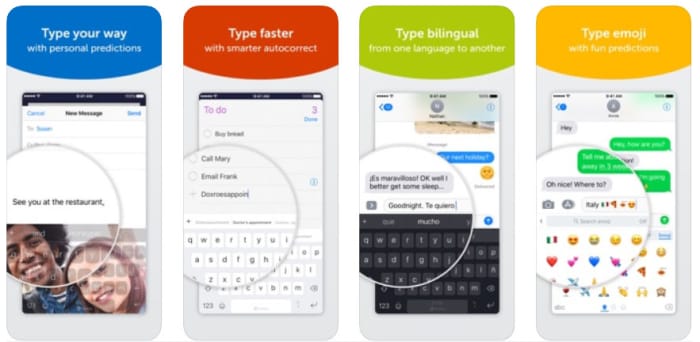
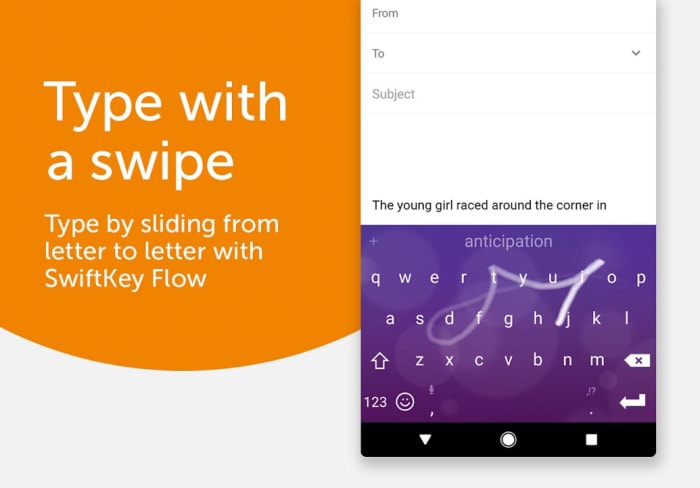
SwiftKey was the original app that introduced drag typing before Google also incorporated it into Gboard. As well as offering this new way of typing, however, SwiftKey also gives you lots of different style options for your keyboard including colors and fonts for the letter keys. As the keyboard actually takes up quite a lot of space on your screen, this offers you an extra element of control over the aesthetics of your device.

Swiftkey Kyboard Download now
9
Wrapping up

So, there we’ve been through quite a lot of different customization options for your iPhone. Unfortunately, Apple doesn’t give you quite as many customization options as you’ll find on Android but there’s still plenty for you to look into. Since iOS 11 there have been more options becoming available like GIF keyboard shortcuts, party keyboards, and a dark mode but the truth remains that Android has many more customization options.
Essential apps to customize Android

These are all the apps you’ll need to personalize your Android smartphone.

Customize your Android

Android is a fantastic mobile operating system that gives you lots of personalization options. Unlike the iPhone, which offers rather limited customization options, Android smartphones give you a very large amount of control over the operating system. So much so, that you can completely distinguish your Android smartphone experience from somebody else’s.

Today, we’re going to walk you through all the best Google Play Store apps that exist to help you do just that. These are all the best apps to customize Android, covering everything from your keyboard to your lock screen. Let’s begin.

How to customize Android OS

SwiftKey

Navbar apps on iPhone

SwiftKey is an excellent keyboard app for both Android and Apple’s iOS. Google’s own Gboard has since developed its own version of SwiftKey’s innovative drag to type function that allows you to drag your finger across the letters of a word rather than hitting them all individually. SwiftKey does, however, give you more pro-level customization options than you find with the Google offering. Furthermore, SwiftKey has a whole host of custom themes you can use for free. With your keyboard taking up so much space on your display, this is a great place to start.

SwiftKey Keyboard Download now
8

KWGT

Another great Android feature that often goes unused due to poor execution is widgets. That is what makes KWGT such an excellent customization app for Android. KWGT gives you the ability to make your own widgets for all sorts of different things. You can create widgets for RSS feeds, weather displays, calendars, schedules, clocks and more. This is a really deep level of customization that goes well beyond merely changing your background or moving your apps from one place to another. This actually changes the capabilities of your Android OS, putting you in control of what it can do at any given moment

8

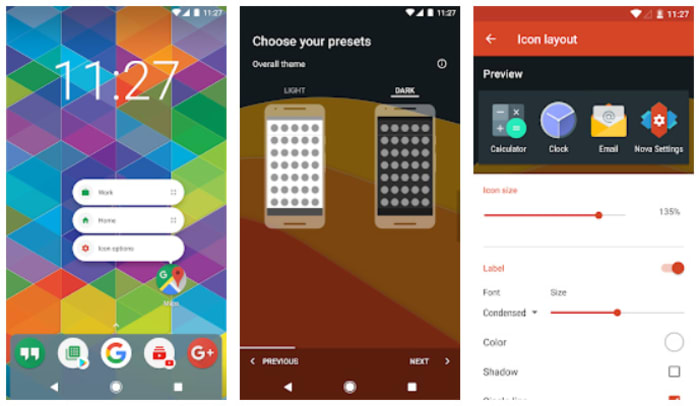
Nova Launcher and other Android Launcher apps

Another way to really get into the nitty gritty of your Android OS is to customize your launcher. Launchers take their names from the fact that they’re where you launch all your apps. That means they’re basically the way you interact with your OS. Everything underneath stays Android but everything else is different with Launchers not only looking different but also offering distinctive features between them.

Nova Launcher will offer you most amount of customization options while the premium Action Launcher, offers a truly innovative experience straight out the box. Check them out now.

Nova Launcher Download now
9

Navbar Apps

Navbar Apps offers another level of Android customization that the iPhone simply can’t match. It allows you to get right into the OS’s core code and make changes to the Android navigation bar. Admittedly, this is only a small tweak but when added to the themes that come with the app the effect can be quite striking. What’s also great about Navbar Apps is that you can use most of the app’s features for free.

Navbar Apps Download now
8

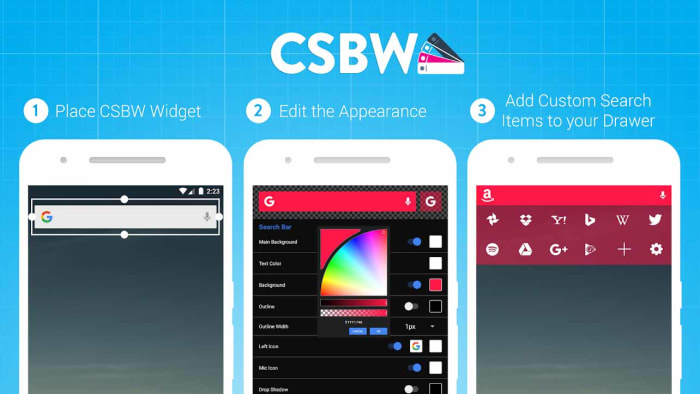
Custom Search Bar

Custom Search Bar Widget

Just because you have an Android phone doesn’t mean you always want to search on Google. We’re bringing this up because it is a Google search bar that normally sits on your home screen. Search doesn’t just have to be about Google though, which is exactly what the Custom Search bar Widget is about. The widget puts a search bar on your home screen that makes it possible to search on almost all search bars and even your installed apps and social media pages. Custom Search Bar is an incredibly useful app and you’ll wonder how you ever lived without it.

Custom Searc Bar Widget CSBW Download now
8

Tapet

On the surface, this might sound like a simple wallpaper app that automatically switches your device wallpaper but Tapet is so much more than that. If you want to have a completely unique Android experience that nobody else anywhere is having, then this is the app for you.

Basically, Tapet uses mathematical functions to automatically generate new wallpapers for you. There are a few base patterns that will be the same on everybody’s app but then after that, it is all about wallpaper generation. You can play around with certain functions and features but when you’re done, Tapet will use your phone’s internal processors to develop new wallpapers meaning nobody anywhere will have the same background as you do. You can also link Tapet to other Live Wallpaper apps for even more customization options.
Tapet Download now
8

DCikonZ

dcikonz on android

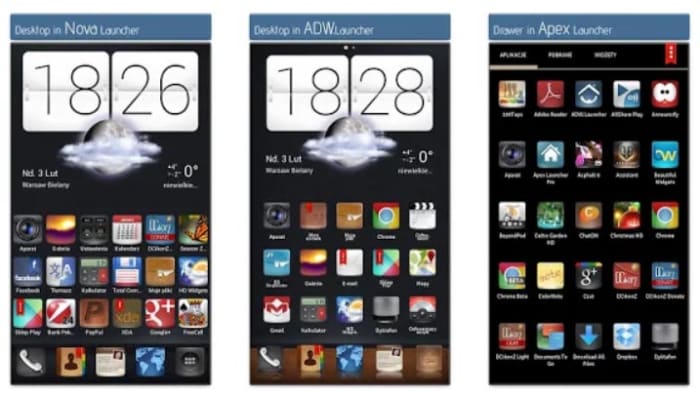
Another way you can customize your Android OS is to change the app icons. You can change them to anything you like but you’re going to need an app that has plenty of icon options for you to choose from. That is where DCikonZ comes in, which has an extensive catalog of well-designed icons that cover many different prominent Android styles. There are other icon packs available too, we just think this one has the most to offer.

The only catch with updating your icons, however, is that you’re going to need a Launcher Android app to be able to do it. You can’t do it with vanilla Android but if you have a program like Nova Launcher installed and running on your device, the process is fairly straightforward.

DCikonZ ADW Apex Nova Go Theme Download now
8

Tasker

The final app we’re featuring today offers the highest level of customization out of all the other apps on our list. The flip of this, however, is that it is also the most difficult app to use too. Tasker allows you to perform a lot of powerful tasks like automating certain functions, creating widgets, customizing your keyboards, and playing around with the system’s navigation tools.

Tasker Download now
9
Wrapping up

Android offers users a lot of customization options and we’ve shown today how pretty much every single element of your Android operating system is available for customization. All that is down to you is how much effort you’re willing to put in. With enough time and patience, you really could create something unique. The other good thing to note, however, is that there are plenty of ready-made customizations available too.

The best apps to customize Windows 10

Make Windows 10 your own with these big hitting Windows customization apps.

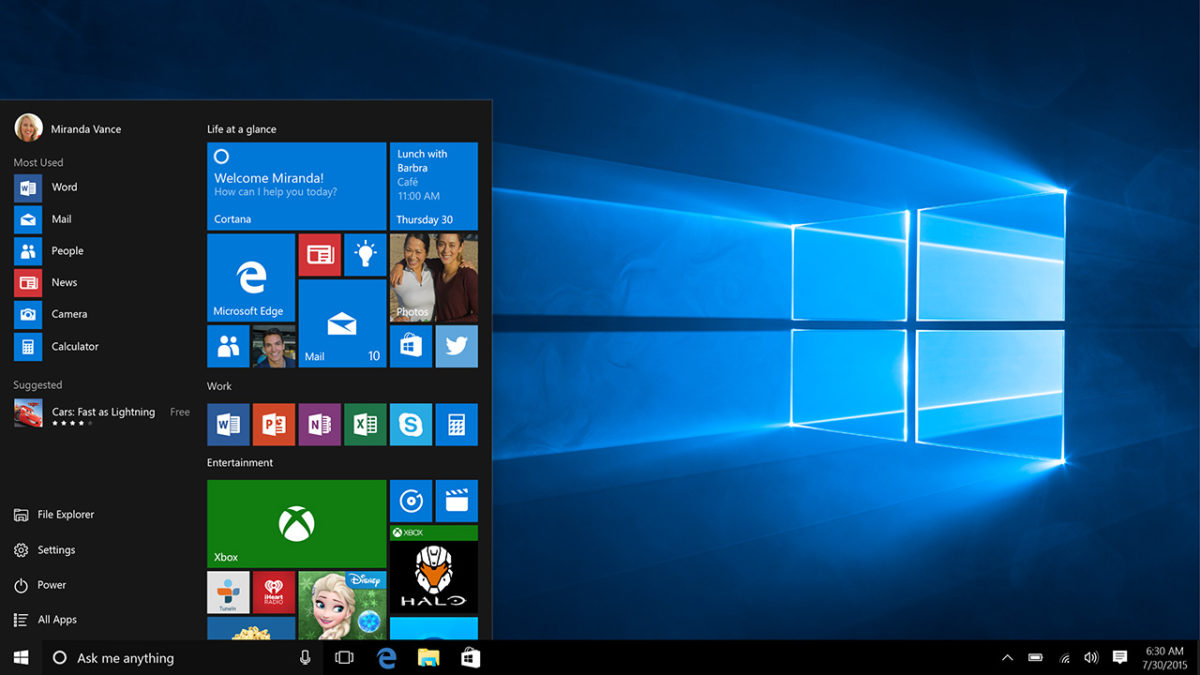
With Windows 10, Microsoft really has created a fantastic operating system for your laptop or desktop PC. It is stable, fast, secure, easy to navigate, looks great, and offers some fantastic customization options straight out the box. If you’re looking to customize your Windows 10 PC and overall Windows experience, there are plenty of things you can do without having to download extra apps or programs.

You can go into the Windows 10 settings app and change your desktop background, change the color scheme for all Windows and backgrounds, edit the lock screen, customize your Start menu, personalize your title bars and taskbar, and set a system-wide theme that will do most of the above for you. Now that’s a lot, but if you’ve already been through all of that and still want more, there is a lot more you can do to personalize your Windows experience. Let’s look at how to customize Windows 10.

The latest and greatest version of Microsoft's operating system.

How to personalize Windows 10

Customizer God

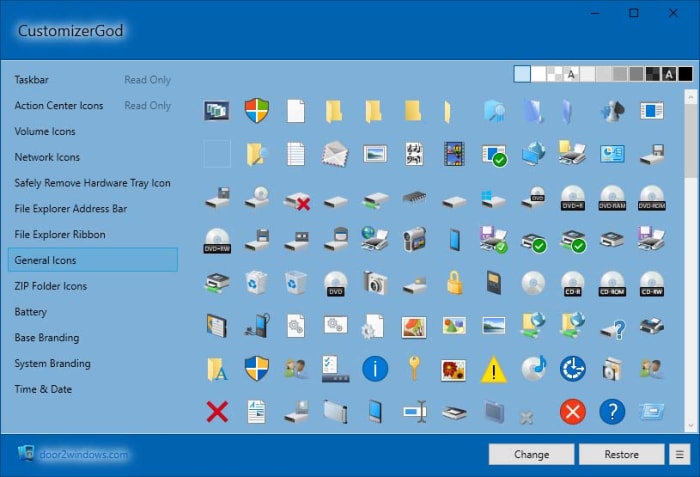
Customizer god

Although Windows 10 is, without doubt, a much more advanced operating system than the likes of Windows 7 and Windows 8, there is still one element of the flagship Microsoft OS that doesn’t seemed to have changed going back years. Those are the icons. We get emoji updates from the likes of WhatsApp and Apple every few months but many of the default Windows icons feel like they haven’t changed since Windows 95 first gave us the Start Menu.

Customizer God addresses this issue brilliantly giving you a LOT of icons to choose from that can help you customize everything from the hallowed Start Menu to seemingly insignificant icons like your laptop’s battery power. What’s great about Customizer God too is that it is relatively easy to use meaning you can personalize everything without having to go through a steep learning curve.

CustomizerGod Download now
8

WinAero Tweaker

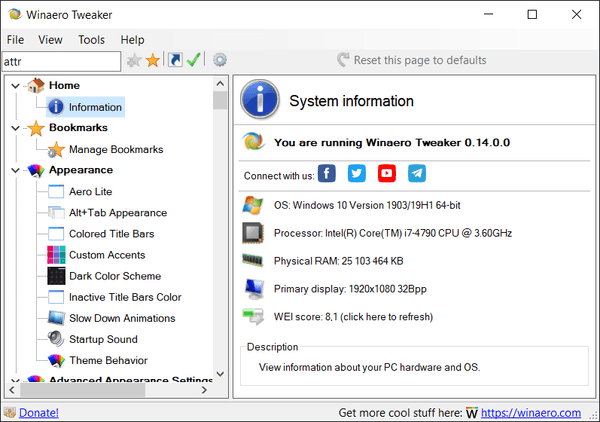
This program offers you many different customization options that go beyond the aesthetics of your operating system. For example, you can make simple changes that will make a big difference, like being able to stop the word Shortcut from automatically being added to new shortcuts you create. Of course, there are plenty of aesthetic changes you can make with WinAero Tweaker too, but overall the program offers a much richer and deeper level of personalization. What’s great is that this program has been around for a long time and is updated regularly.

Winaero Tweaker Download now
8

Ultimate Windows Tweaker

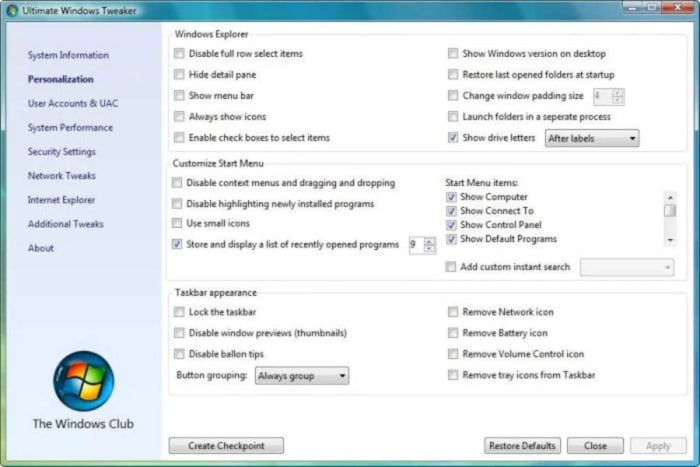
Ultimate Windows Tweaker

As the name suggests, the Ultimate Windows Tweaker allows you to customize a lot of different Windows 10 aspects. It also works with Windows 7 and Windows 8. In fact, it gives you access to well over 200 different tweaks that include tweaking your system’s performance, optimizing security, and completely redoing your taskbar on top of all the regular visual tweaks you’d expect to find.

Ultimate Windows Tweaker Download now
8

Rainmeter

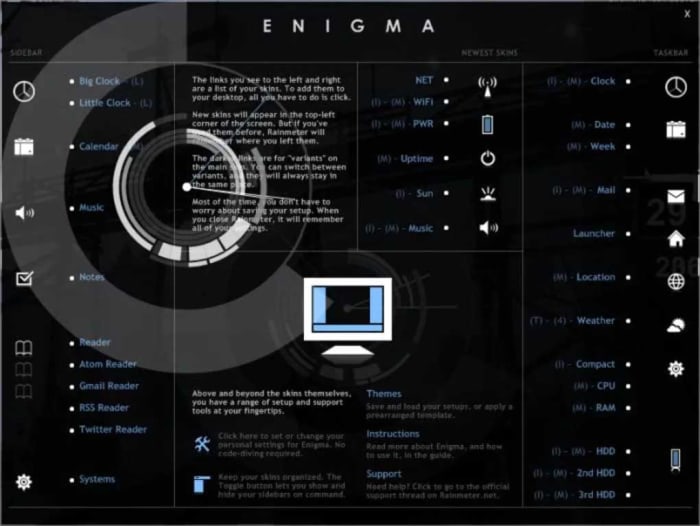
Rainmeter has a bit of steep learning curve but once you get the hang of it, you’ll be able to really go deep with your Windows 10 customization. Through the development of what Rainmeter calls Skins you can make all sorts of different changes, all the way up to completely redesigning your Windows PC desktop. If you have the patience to get into Rainmeter, this is the Windows 10 customization tool you want. This is about so much more than your desktop wallpaper. If you like the sound of it but it all sounds a bit much, then you might be interested to know that the program has beginner skins that you can use out the box.

Rainmeter Download now
9

MyFolders Windows Explorer Extension

MyFolders doesn’t quite have the breadth of options you’ll find with Rainmeter or Ultimate Windows Tweaker, but it focuses on one aspect of customization and does it very well. Basically, it makes Windows 10 much easier to navigate by putting all your system files just a click away. Whenever you right-click you’ll find the MyFolders icon in the menu, which you can then expand to find all your system directories and access basic commands like CopyMove, and Open etc.

MyFolders Download now
6

Fences

Fences Windows 10

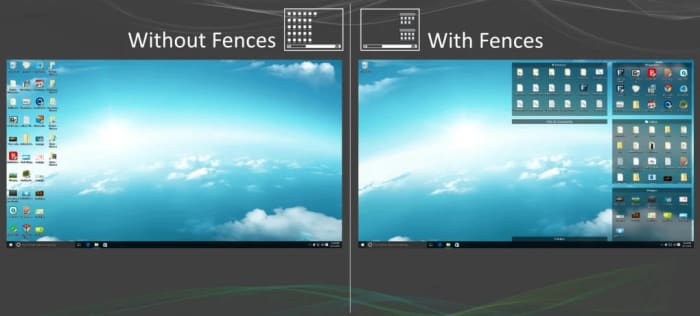
Fences is another great customization app for Windows 10 that does one job well. Fences allows you to create groups of apps on your Windows 10 desktop that you separate from other apps by fencing them off. Basically, you build little fenced gardens that look a little like Android groups and then put all the relevant programs in there that you want to bunch together. If you’ve a lot of apps, you’ll find this very useful indeed.

Fences Download now
8

TileCreator

With Windows Tiles becoming such a prominent part of the operating system from Windows 8 onwards it is no surprise that one of our favorite Windows customization apps will help you personalize your tiles. Obviously, you can already change the size of your tiles but TileCreator brings with it a whole host of other impressive options too. You can get deep into the style of your tile icons, set themes that link them all so it doesn’t look like too much of a mess, and alter the background color that sits behind your customized icons.

Classic Shell

Nostalgia is a hell of a drug and Classic Shell is here for anybody looking for a hit. What Classic Shell does is give your Windows 10 operating system a nice classic feel that’ll take you back to the halcyon days of Windows 7. You’ll also have a nice shell icon where the Start button used to be. It isn’t just about reliving the good times, however, as Classic Shell also allows users to fully customize the whole Windows 10 Start Menu. This means you can stick with the retro Windows 7 feel but add more modern features to it as you’d get with Windows 10.

Classic Shell Download now
8
Wrapping up

There is a lot you can to Windows 10 to make your experience different from everybody else’s. If you’re not happy with the default personalization options, however, you can download any of the programs we’ve gone through today and take full control of the operating system. From major redesigns to individual feature upgrades, all options we’ve outlined today put you in control of Windows 10.

Best Android apps to create avatars

These apps will help you make your own fun avatars to use as your profile image on all your social media and messaging apps

Android avatar apps

We live in a modern world where information and data flow freely. We can post videos online, talk to relatives on the other side of the planet, and communicate quickly and easily with many friends at once in group chats. In such a world, do you really think a mere username or phone number is enough? These days, if you want an online identity that says something about you before you do, you need an avatar.

Today we’re going to walk you through some of the best apps you can download on your Android phone to help you make your own avatar. With a well-designed avatar, you can display your personality without showing off your actual face. As well as being fun to make, avatars can also help keep you safe online. Let’s get started then. These are the best Android avatar maker apps

The best Android apps to make avatars

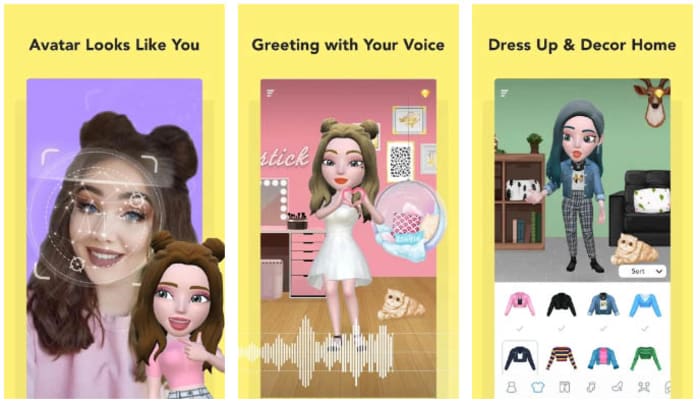
Boomoji

Boomoji for Android

Boomoji could be the best avatar maker app on our list. This app will actually scan your face through a selfie and then build a 3D avatar that looks just like you. So far so good, but Boomoji goes even further by allowing you to then tailor the resulting avatar even further. You can tweak things like hair color, hair style, eye color, skin tone, and more.

Boomoji is so much more than an avatar builder though. Once you’ve built your avatar you can then use the app to film mini animated avatar movies using in-app scenes with your avatar and also your friend’s avatars as the stars. The app also has AR features, which means you can see what your avatar looks like in the real world too. On top of all of that, Boomoji also has a massive collection of animated stickers and emojis and games too, which you play as your avatar.

Boomoji Download now
9

FaceQ

FaceQ is a great little app that you can easily lose hours to. This app is about creating cute, cartoon avatars and it easy to use, even if you can’t draw. You simply choose your gender and then model on various other facial features like eyes, nose, lips, and stuff like hair and eyebrows too. You can also tailor things like clothing and emotions, and you can play around with the background and add text, if you’d like. The other cool thing about FaceQ is that it is free and doesn’t show you ads.

FaceQ Download now
8

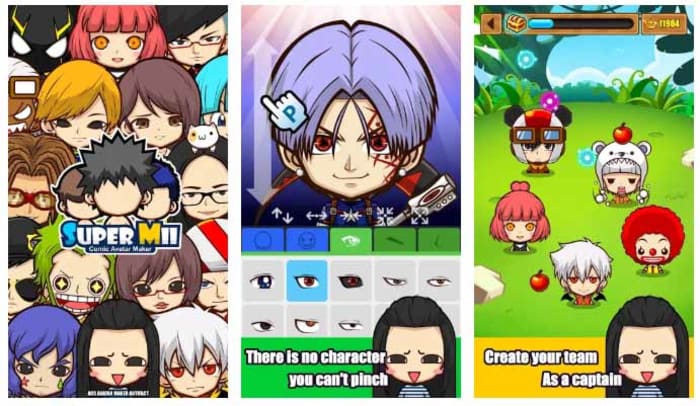
SuperMii

SuperMii

If you’re an anime or comic book fan, then you might want to check out the SuperMii app. SuperMii gives you all the usual avatar customization options but does so in a bright and vibrant anime style. This is definitely one of the edgier avatar creator apps we’re featuring today. As well as designing the facial features, SuperMii also gives you the power to control facial expressions too. There’s also a lot of other cool features here for you to play around with.

SuperMii - Make Comic Stiker Download now
8

Bitmoji

If you want to download one of the most popular Android avatar apps, you should look at Bitmoji. What’s cool about Bitmoji is that it can connect with a lot of apps straight out the box, which means it is very easy to use your avatar across all your online services. You’ll no doubt already be familiar with the Bitmoji avatar style if you use Snapchat. What’s even better is that you can link the app to your Gboard keyboard app, which means you can easily add your avatar to third-party apps, with the simple press of a button on your on-screen keyboard.

Bitmoji Download now
9

Androidify

Androidify

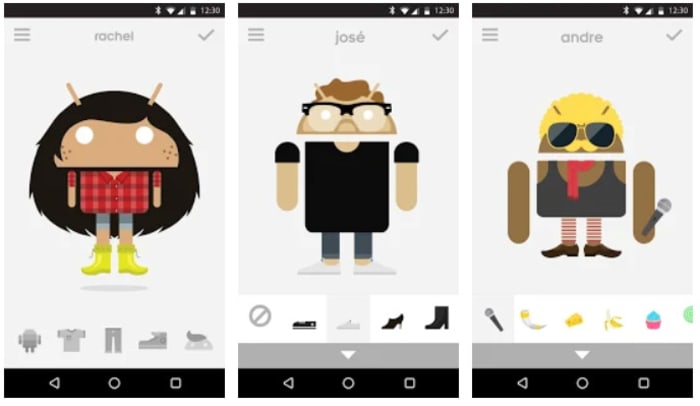
Androidify adds an interesting new aspect to your avatar creation. Basically, Androidify gives you the chance to create an avatar out of the Android logo. You can take the logo from the little green alien looking robot everybody knows and loves, and then really go to town giving it a makeover. Think cameras, smartwatches, hipster outfits, and all manner of weird accessory from smoker’s pipe to rubber duck. What’s even better about this app is that it comes from Google directly, which means it is completely free to use, doesn’t have any in-app purchases, and won’t show you any ads.

Androidify Download now
7

Cartoon Maker

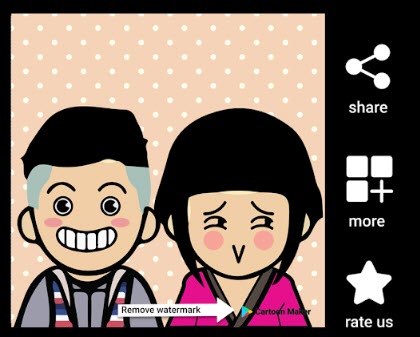
The final app we’re featuring today is Cartoon Maker, which is another app that focuses on creating fun avatars with comic-like features. This is a little similar to what FaceQ offers. If you go with this avatar app, you won’t be trying to recreate something that looks just like you, rather you’ll be picking an app that will help you show off a fun and outgoing side of your personality.

Cartoon Maker - Avatar Creator Download now
8

Wrapping up

You’ve now got some really great options for creating yourself a unique and personalized avatar to use on your online accounts. If you’re a parent who is worried about their children using online social media apps like Facebook and Snapchat or messaging apps like WhatsApp, the apps we’ve outlined above could offer you some peace of mind. Furthermore, as well as offering you a way to allow your children to access the internet, these apps will also give you a fun activity to do with your kids too, as you design their avatar together.

Tips to personalize your Gmail account

These tips and tricks will help you personalize your Gmail account.

Tips to pimp Gmail

Gmail like pretty much all other Google products is open to customization. You can take the default Gmail you get when you first downloaded it and change a lot of things about how the Gmail interface looks and feels. You can even customize the Gmail features. There’s plenty you can do straight away without having to download any extra new features, apps, Chrome extensions, or plugins.

Let’s look today then, at how to customize your new Gmail account and make it completely unique.

How to customize Gmail

Inbox layout

Inbox layout on Gmail

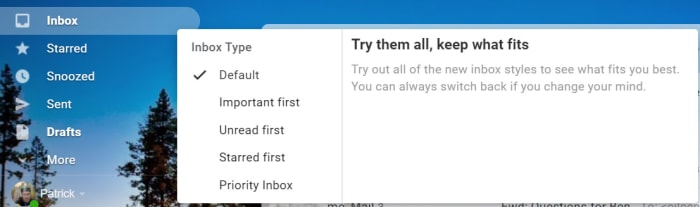
Google gives out some good information on customizing Gmail and the first step it says all users should use is a simple one. You can customize your inbox with a simple click of a button. When in Gmail you can hover your mouse cursor over Inbox and you’ll see an arrow appear that is pointing downwards. Clicking this arrow will open up a menu of all the different types of Inbox configuration Google offers. You can choose between showing DefaultImportant emails firstUnread firstStarred first, and Priority Inbox. Go through each of these and pick which one suits you the best.

This Google Guide will also give you more information about each setting and will also show you how to set up multiple Gmail inboxes.

Make your inbox bigger or smaller

When you download and install Gmail, the default setting is to show 50 email conversations in your inbox. You can actually change how many emails your inbox shows by going to Gmail’s Settings and then searching through the General tab for the Maximum page Show option. Here you’ll be able to set your inbox to display 10, 15, 20, 25, 50, or 100 messages at any one time.

Gmail Themes

Gmail themes

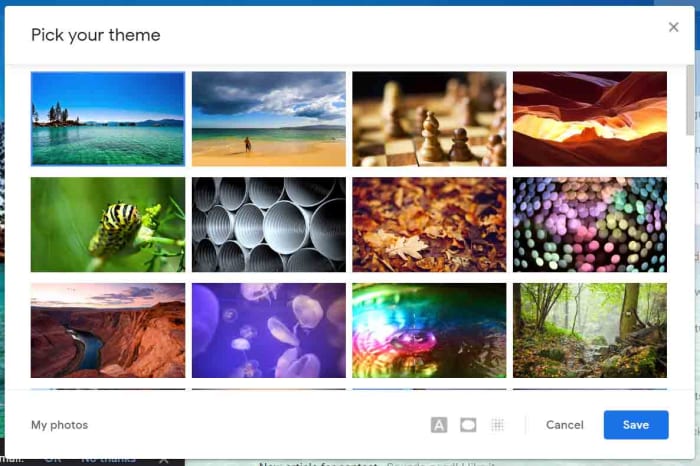
Another fairly simple Gmail customization you can make is to set a theme that will run throughout your desktop inbox. By clicking the Settings gear icon when in Gmail you’ll open a small menu that will include the Themes option. Here you’ll find all sorts of default images that Google has included for you to choose from. Straight off the bat, setting one of these images as your theme will set you apart from 99% of Gmail users who don’t change anything. If you click My photos, however, in the bottom-right corner you’ll be able to select one of your own photos and really be unique.

Hide the sidebar

Did you know that by clicking the hamburger icon (three vertical lines) in

the top-right corner of your Gmail desktop inbox you can hide the sidebar menu? You simply click the icon and the sidebar retreats to the side of the page, only showing the icons for the likes of your InboxSentDrafts etc.

Customize the sidebar

Customize the taskbar

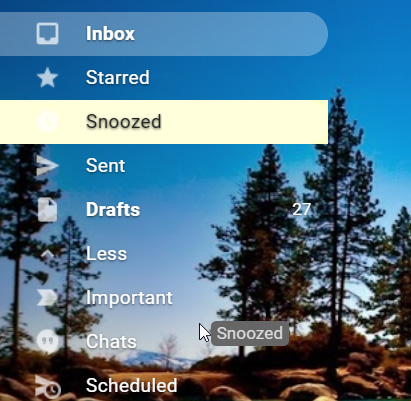
It is also really easy to customize the items in your sidebar. All you have to do is hold down the mouse cursor on a selected item and drag it to the position you want it be on the sidebar. This includes bringing up items that usually sit below the More tab or relegating items that usually sit above it.

Google Hangouts Chat

Another sidebar item you can customize is the Google Hangouts Chat window, which technically sits below the sidebar, but you know what we mean. You can move the Chat window to the right side of the app by going into the Gmail Settings menu and hitting the Advanced option. You’ll then see the Right-side chat option and if you click Enable and Save Changes when you reload Gmail the chat box will display on the right side of the app.

The other thing you can do with the Hangouts Chat window is remove it altogether if you never use it. To do this go into the Settings menu again, but this time hit the Chat option. Select the Chat off option, Save Changes, and then when you reset Gmail the Chat window will no longer be there.

Hangouts Chat Download now
6

Make Gmail look like Outlook

Preview Pane on Gmail

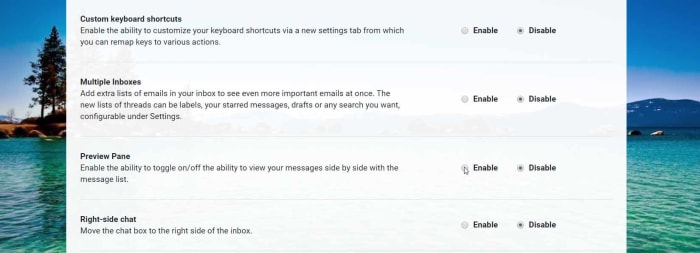
The default Gmail inbox has a list of the emails you’ve received complete with the title of who sent it, the subject line, and a little text from the body of the message. You can, however, change this so that your inbox looks a lot more like the inbox Outlook users see when they open their email client. You do this by activating the Preview Pane, which squeezes up the email labels described above and puts an email preview pane in the space this creates. You can then use this to see a preview of an email without having to open it.

To activate this, go to Settings, then Advanced, and then select Enable next to the Preview Pane option. You then save your changes and restart Gmail. If it doesn’t automatically launch with the preview pane enabled, click the preview pane toggle button, which you’ll find at the top of your inbox.

Customize your inbox Tabs

Gmail’s Inbox Tabs, which allow you to set up catch-all mini inboxes inside your inbox have proved a very useful innovation indeed. By automatically segmenting your email, Tabs make it much easier for you to deal with the important emails and ignore the annoying ones. You can actually go a little further with Tabs, however, and choose which ones you want to show in your inbox and which ones you don’t. Altogether you can choose from PrimarySocialPromotionsUpdates, and Forums. The only one you have to show is Primary.

Wrapping up

So, there you have a lot of ways to make some massive changes to your Gmail inbox. If you work through all of them, you’ll have a brand-new inbox experience that is totally unique. Also, by adjusting the features you think matter most to you, you’ll be able to tailor your inbox to your specific needs and really get the most out of Gmail.

Telegram: The best groups and channels in English

Check out or guide for finding new Telegram groups and then all our favorite Telegram Channels for you to join.

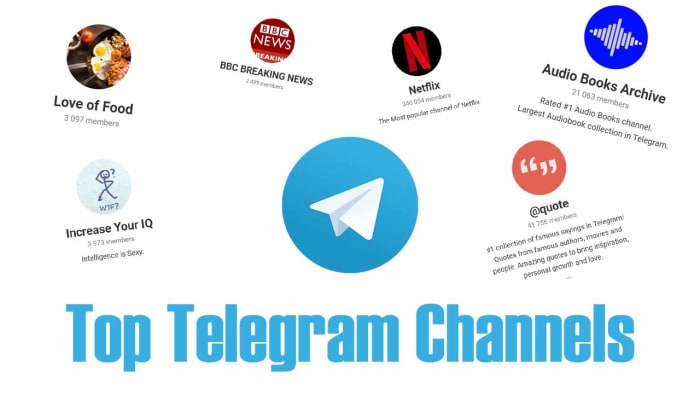
Top Telegram Channels

Telegram channels are fantastic tools for broadcasting information to lots of people at once. You can set up a new channel and then add an unlimited number of subscribers, with people also able to join your your channel via an invite link known as a channel link. This sets them apart from WhatsApp Broadcast messages, which need to be built up using personal contacts by the user looking to broadcast the information. You can also start public or private channels and other channels are manned by Telegram bots that post automatically.

With Telegram channels being such useful tools for sharing information to lots of people at once, it follows that they’re also great places to receive high-quality information too. There are lots of public channels out there sharing all sorts of information like news, sports, upcoming movies you need to see, motivational talks, cryptocurrency information, and pretty much anything else you could think of. Today, we’re going to walk you through some of the best Telegram Channels you should join.

8

How to Find Telegram Channels

First off, let’s show you various ways to find Telegram Channels on your own. The easiest way to do so is to search for Telegram Channels in the Telegram app. Telegram has a very useful search bar that not only allows you to search through your messages but also through available channels too. This is the easiest way to look for Telegram Channels, but it isn’t the best and you’d do better to search elsewhere, if the Telegram search bar doesn’t find what you’re looking for. The main thing to remember when searching for channels using the Telegram search bar is to be specific with your search terms.

Another great way to find Telegram Channels is searching on social media. Places like Reddit offer lots of discussion on the best Telegram Channels, which means there are plenty of forums and pages like r/TelegramChannels where you’ll find plenty of interesting Telegram Channels that have been posted by other users.

The Reddit channel for Telegram channels

Finally, there are sites out there like TelegramChannels.me that are dedicated to listing and categorizing all the different Telegram Channels you can join. On top of these sites there are also editorial sites like Softonic that will offer their top picks of Telegram Channels, like we’re doing today with this article. Let’s crack on then and get into the best Telegram Channels.

Reddit: The Official App Download Free ►
8

List of Telegram Channels

Wallpapers Central

Telegram Wallpaper channel

Like we started off by saying, there are Telegram Channels for everything, so we thought we’d start with something to catch you off guard. This channel isn’t about news or information or anything like that. This Telegram Channel shares new backgrounds and wallpapers that you can then save and use on your own mobile Android or iOS device. Simple and effective.

Love of Food

Nothing has taken the internet by storm quite so much in recent years as food porn. Is there anything more satisfying than images and videos of incredible dishes. All the best food these days comes with oozing, melting cheese and is probably better to look at than it is to actually eat. That is what this Telegram Channel serves up, food you eat with your eyes.

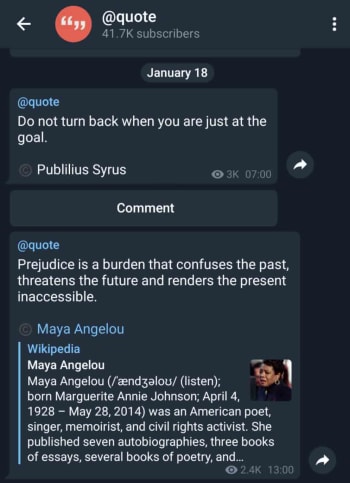
Quote

quotes on Telegram

This very simple Telegram will send you regular famous quotes from global luminaries and celebrities. Some of these will be funny and some will be inspirational. Others though, will be neither and then every now and then you’ll get the odd song lyric thrown in too.

Magazines & NewsPapers in PDF

This channel does exactly what its title suggests. It updates regularly and gives you PDF versions of many different newspapers from all around the world. What’s also great about Telegram Channels is that you can also search back through posts that were made to the channel before you joined. This means you can access all the newspapers and magazines that have ever been added to this channel no matter when you join.

You can search through posts in Telegram Channels by clicking the ellipsis menu icon in the top-right corner of the channel.

Netflix

Netflix on Telegram

The Netflix Telegram Channel is a pretty standard corporate affair that sends out information from the company’s marketing department. It is useful, however, if you have a Netflix subscription, for learning about upcoming programs and movies that are about to land on the streaming platform.


BBC Breaking

The BBC Breaking News Telegram channel will share with you all news that the BBC adds to its rss news feed. This means it is a quick, simple and effective way to keep yourself up to date with all the breaking news that is going on around the world.

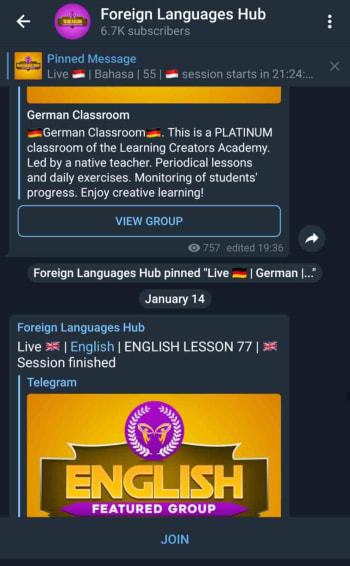
Telegram Worldwide Language Hub

learn languages on Telegram

This channel acts like a central conduit for all language learners and language learner groups that are currently active on Telegram. If you’re a student of any language, join this channel and put yourself in contact with like minded students and teachers who will be able to help you along on your language learning journey.


Audio Books Archive

As we already mentioned, you can search back through channel posts that were made before you entered the channel. This means Telegram Channels can also be effective libraries containing archives of information that have been built up over time. This channel is exactly this. It is the biggest archive of audio books you’ll find on Telegram.

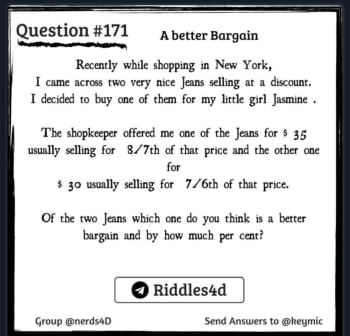
Increase Your IQ

Great riddles and puzzles

The Increase Your IQ Telegram Channel is here to bring you regular riddles that will give your brain a decent work out. These don’t come through every day, which means you can have this channel set up for push notifications and you won’t be bothered too much. What you’ll get is the occasional message including a tough riddle that will get you thinking outside the box.

This lady’s cat

This Telegram channel has been created by a lady who thinks her cat is cute and that everyone should know it. Yep, the A pic of my cat everyday forever has been posting pictures and videos of this lady’s cats for years. The channel isn’t as active as it used to be, but then you can search back through all the old posts to see this lady’s in all its glory.

How to download, install and configure Discord

These 10 Discord tips and tricks will help you get more out of the messaging platform.

Discord has established itself as one of the most effective communication platforms on the web. Discord is now up there with Reddit, Twitch, and other social media platforms and chat apps like Facebook and Skype. If you’ve a big group of people, Discord is infinitely more useful than a WhatsApp group chat as it allows you compartmentalise chatrooms and discussions, so that everybody doesn’t get blown away by a few chatty group members. Discord started its life as a server for gamers but there is now a much broader Discord community with many different types of Discord user, precisely because of all the cool features it offers them.

Let’s look at these features in greater detail then. If you’re new to Discord or if you simply want to learn more about it, read on. These are the best tips and tricks to help you get more out of Discord.

Discord tricks and tips

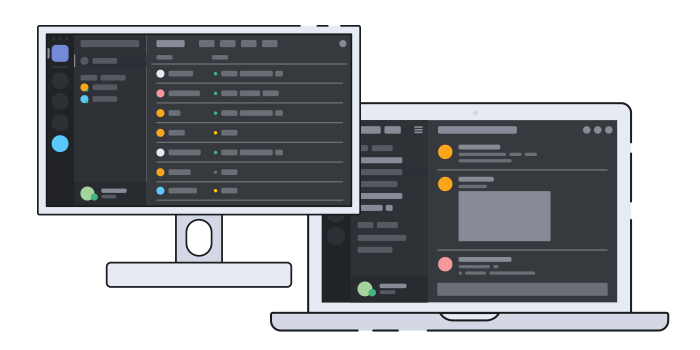
Download the desktop app

Discord Desktop app

If you’re using Discord more than once a week, then you should download the app, which offers much more functionality and specialized features than you’ll find on the Discord website. Furthermore, with the app you’ll cut down on any lag issues as you won’t be going through the website, which also functions as a gaming client.

8

Discord hotkeys

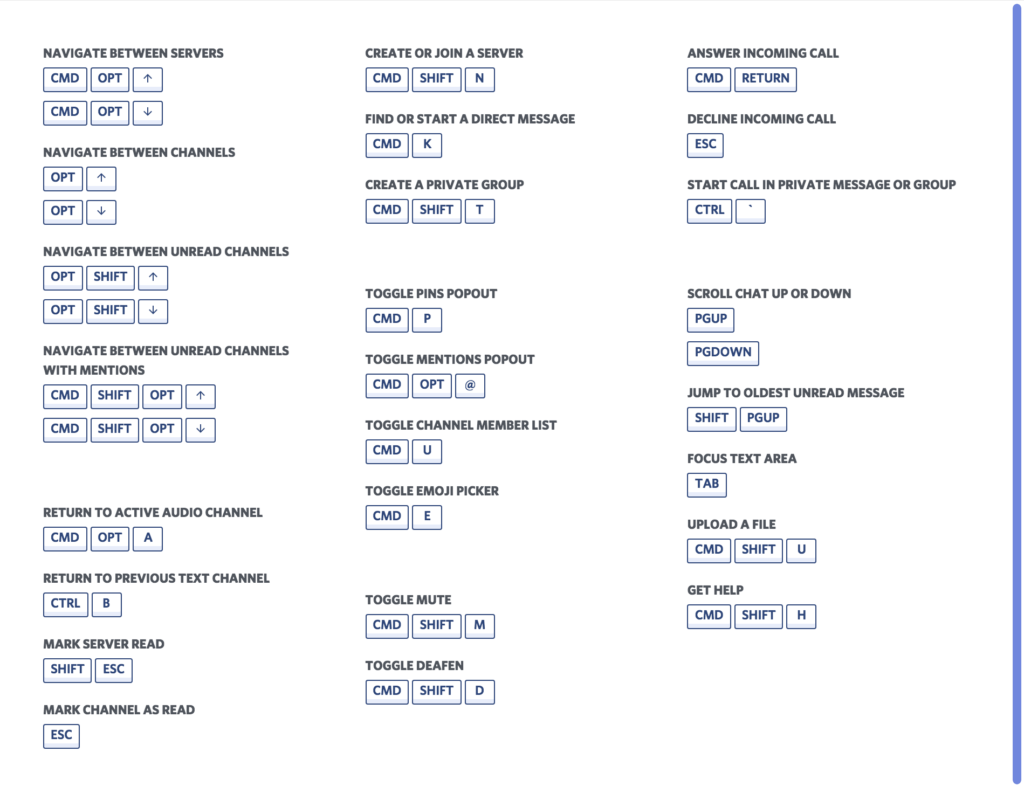
When you have downloaded and installed the Discord app on your Windows PC you should then learn the Discord keyboard shortcuts and hotkeys. This will make it much easier for you to perform various tasks. When you have the hotkeys memorized you won’t need to go searching through various menus looking for a certain function. You can find a full list of the hotkeys here and check out some of the most popular options below.

discord hotkeys

Discord Keybinds

As well as a number of defined hotkeys, Discord also allows you to set your own Keybinds that will perform certain actions. To set these up you need to go to User Settings, then Keybinds, and then once you’re there hit Record Keybind to define your key combination and resulting action.

You can set Keybinds for Activating Overlay Chat, Pushing to Talk (Normal), Pushing to Talk (Priority), Toggling Mute, Toggling Deafen, Toggling VAD, Toggling Streamer Mode, Toggling Overlay, and Toggling Overlay Lock.

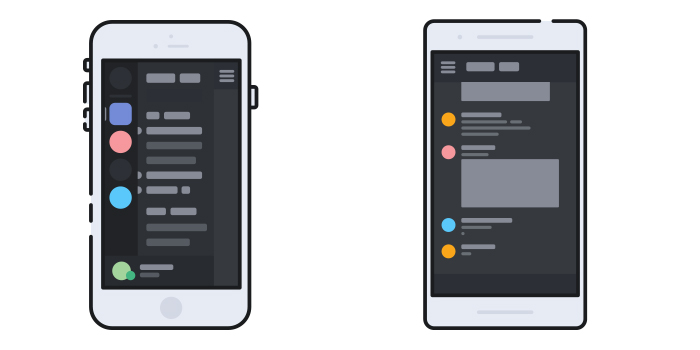
Download the Discord mobile app

The Discord mobile apps

You can download Discord for Apple iPhones and Android smartphones (Android and iOS). It is good to have your Discord messages coming into a separate device when you’re gaming, so that you’re not constantly being interrupted by notifications. On top of that, you’ll also be able to take your Discord channels, chats, and servers with you wherever you go.

Discord (Mobile) Download Discord
8

Discord notifications

It is very easy to find yourself a member of lots of different Discord servers. If this is the case for you, there is a good chance your Discord notifications have started to get away from you. One of the great things about Discord though, is that it gives you an excellent level of control over the notifications it will ping your way.

To take control of your Discord notifications go to User Settings and then hit Notifications. Here you’ll find all sorts of control options including muting servers and channels.

Embrace the bots

Discord bots

Discord bots are actually really useful. Unlike Twitter bots, which seem designed to annoy, harass, and generally disrupt genuine public interaction; Discord bots are much more like features and plugins that will enhance your Discord experience. Bots can help you find the right channels to tune into and others will even perform tasks for you like playing music etc. There are lots of Discord bots out there and lots of discussion going on about them and what they do. Do a little digging and you’ll soon find the bots you’re looking for.

Format your text

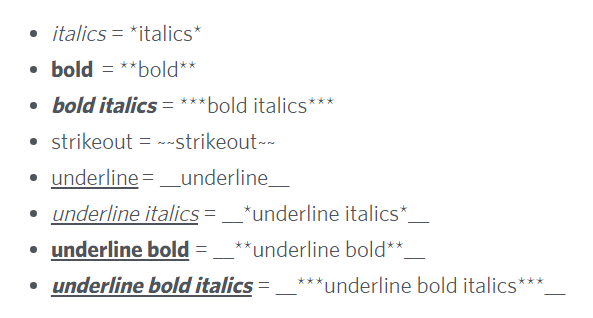
At the heart of Discord sits a messaging app. Strip away all the cool features, bells, and whistles and you’ll find a neat way to talk to your friends online. Text chat is Discord’s bread and butter and you can take your Discord text messaging game to the next level by learning a few codes to format your text. By adding various symbol combinations before and after your words you’ll tell Discord to format your text accordingly with commands like BoldBold ItalicUnderline, strikethrough, and many more. Not every message needs to be written in plain text. You’ll find a picture of some of the text formatting codes below and a full list here.

discord fonts

Chat Commands

As well as formatting your text input to Discord Chat, you can also send Discord Chat Commands that will tell the app to perform certain actions in the text box. These include actions like /shrug, which will tell Discord to type ¯\_(ツ)_/¯ in the chat box, which is way better than any emoji. Other actions include /tenor <query> and /giphy <query> to search for and add GIFs to the chat. You can find a full list of all available chat commands here at the Discord Wiki.

Change your nickname

One chat command that deserves a special mention is /nick <new nickname>, which will change your nickname to whatever name you like on whichever server you’re on at the time. One thing to note, however, is that this command will only work, if the server has granted Change Nickname permissions.

Server Folders

Discord Servers Folders

Discord introduced Server Folders midway through 2019. They provide a simple function that many users had been asking for pretty much since Discord first launched. Basically, Server Folders allow you to organize all your servers into manageable groups. If you’re a member of a lot of groups, then this will make your Discord account a lot easier to manage. All you need to do to create a Server Folder is drag a server over another server and release. This will create a folder containing those two servers. You can then add and remove further servers using the same method.

Wrapping up

So, there you have 10 hot tips and tricks that will help you take control of Discord and get more from the service. Discord is quickly establishing itself as one of the most feature rich messaging apps out there. It isn’t as popular as like the likes of WhatsApp and Facebook Messenger, but it does offer many more tools than you’ll find on those apps. We hope today, we’ve given you a good idea about how to take advantage of some of the most useful Discord features.

How to know if somebody has blocked you on Facebook, WhatsApp, and Instagram

This is how to find out if somebody has blocked you on Facebook, WhatsApp, and Instagram

Have I been blocked on social media

Do you want to know? That’s the question you should be asking yourself now. You’re here because you want to find out who has blocked you on either Facebook, Instagram, or WhatsApp. Maybe you think they’ve blocked you on all three. We’re going to show you how to find out, which means this is your last chance to ask yourself. Do you really want to know?

Have you taken a second? You want to go on. OK, let’s do this then. Let’s go through how to find out if somebody has blocked you on social media. We won’t be able to get them to unblock you, but at least you’ll know what’s going on.

How to know who blocked me on Instagram

Have I been blocked on Instagram?

If you get blocked on Instagram, you won’t receive any notification telling you it has happened. All that will happen is that the person will disappear from your feed and you won’t see any new posts from them. Now of course, this could just be a case of them not posting anything, but if your suspicions have been raised and you think the person may have blocked, you’ll be glad to know that there are a few ways you can find out.

Instagram Download Now ►
7

The first thing you need to do on iOS iPhones or Android devices is search for the account on the Instagram app. Then, if you can’t find the person’s profile page, then there is a good chance you’ve been blocked. If, however, you find that the account is set to public, but you can’t see their profile picture, post count, following or follower count, and it says No Posts Yet, you have definitely blocked.

If you’re using a Windows PC or Mac, you need to type www.instagram.com/… and add the account name you think might have blocked you after the dash. If the page says, Sorry, this page isn’t available then again, it looks like you’ve been blocked. They might have deleted their account but chances are they’ve blocked you.

You can confirm that you’ve been blocked by looking for an Instagram account you know the person follows and looking through their posts. If you see that they’ve commented on any of the posts, then you know you’ve been blocked.

How to find out who blocked me on Facebook

Like on Instagram, to find a Facebook user who has blocked you you’re going to have to do a little digging. The first thing you need to do is search for the friend who you think has blocked you using the Facebook Search bar at the top of the page or app. You then want to click the People tab to remove stuff like pages and groups from your search results. If you can’t see the person’s profile image or account in the results, there is a good chance you’ve been blocked.

7

When you’re not friends with somebody on Facebook you can see some of their profile in your search results. If a person has blocked you, however, they won’t turn up in your search results at all.

If you’ve done all that and you still think you’ve been blocked, you can confirm your suspicions by going to a mutual Facebook friend’s account and searching through their friends list. If you find them, you haven’t been blocked. If you can’t, you’ve either been blocked or they’ve deactivated their whole account, which, you know, might not actually be you fault alone.

The other way to try and confirm you’ve been blocked is to search out any past communications between you both. When you find them; whether they be birthday greetings, direct messages, or whatever, you won’t be able to see their profile picture, if you’ve been blocked.

As you’re probably guessing, none of these methods can tell you definitively 100% whether you’ve been blocked or not. They can give you a very good idea, but nothing certain. To know for certain there is only one foolproof method, but it might actually be worse than being blocked. The only way to know for certain if somebody has blocked you on Facebook, is to ask them.

How to find out who blocked me on WhatsApp

Have I been blocked on WhatsApp?

Much like with Facebook and Instagram, WhatsApp doesn’t have an official way to discover who has blocked you. Not to worry though, as with a little digging you can get a very good idea of whether you’ve been blocked or not.

WhatsApp Messenger Download Now ►
8

The first thing you can do to see if you’ve been blocked by a contact on WhatsApp is search out their profile and open it. What you’re looking for here is their profile picture. If you know that you used to be able to see their profile picture but now you can’t, there is a very high chance that they’ve blocked you on WhatsApp. Of course, there is a chance that they’ve simply deleted their profile picture.

The other thing you can do is send some messages to the contact and then keep an eye on the message ticks. If the messages stay with only one tick for a long period of time, then there is a very high chance you’ve been blocked. If your had two grey ticks, they’d simply be ignoring them, but one tick means the messages aren’t even getting to their phone,  so you’ve probably been blocked. You could confirm this by asking a mutual friend to send them a message and seeing how many ticks their messages get.

Wrapping up

So, there you have guides for finding out who has blocked you on Facebook, WhatsApp, and Instagram. The only certain way to do so is to ask the person and see what they say. If you’re not up to task, however, the methods we’ve outlined above will give you a pretty good idea. The important thing to remember though, is that no matter how important you think this is, you will be able to get over it, if the person has actually blocked you. There’s always a way back and there will always be another chance for a brighter tomorrow. No matter what your investigations find, you’ve got this, friend.

How to record your calls: Skype, Hangouts and WhatsApp

Here is our guide for recording audio and video calls on Skype, Hangouts, and WhatsApp

How to record video calls skype whatsapp hangouts

Recording conversations that take place over voice or video calls is no longer the reserve of spy movies and dodgy cops. Now, anybody can do it and it is easier than ever. Think about it, pretty much all types of long-distance conversation are easier than ever so it makes sense that recording them would be too. Just think, thanks to Skype, WhatsApp, Google Hangouts, and other programs too, you can now video call friends, family, and colleagues all over the world for free.

Now there could be many reasons why you want to record your calls. You could be interviewing somebody for a podcast or need a record of certain important information. As we always say here at Softonic, we’re not concerned about the why. We’re here to help you with the how. Without further ado then, let’s get started on how to record video calls on WhatsApp on Apple and Android devices, and Hangouts and Skype on a Windows PC or Mac.

How to record video calls on Skype

Skype has a call recording function built into the app as standard. This means that recording your Skype calls is as simple as pressing a couple of buttons. There is no need to install any third-party apps.


The Skype video call function only works for Skype-to-Skype calls. The other thing you need to consider is that, in the interests of privacy, all participants in a call will be notified that somebody is recording the call, as soon as they hit record. The recording will then be posted in the call chat box once the call ends or the recording function is switched off. You can record Skype calls for up to 24 hours, with longer calls being broken up into multiple files, and all recordings will be saved to the cloud meaning you don’t need to worry about local storage space on your device. Once the call has been posted to the calls chat box, you’ll have 30 days to download the recording.

This is how to record audio and video calls on Skype

1 – During your Skype call hit the ellipsis (three vertical dots) menu icon to open the Options menu.

2 – On Skype for desktop you’ll see a button labelled Start recording. Hit this to begin recording your call. If you’re using Skype on a mobile device, look for the button with a circular record icon next to the words Start recording. Pressing this will begin the recording.

How to record video calls on Google Hangouts

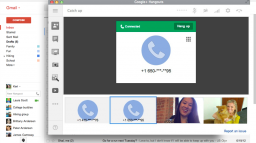
google hangouts calling

Google Hangouts also has a built-in call recording function, which means you won’t need to install any third-party apps or programs to record calls. The problem, however, is that the function is only available for certain types of G Suite subscriptions. This means it is only available for G Suite Enterprise and G Suite Education users. If this applies to you, follow our instructions below. If it doesn’t, scroll down to the instructions we’ll give on recording WhatsApp calls and calls from other video call apps where we’ll tell you how to record calls using a third-party screen recording app.

Hangouts Download now
6

This is how to record calls on Google Hangouts

1 – Start or join a video call either by clicking the meeting link or going to Hangouts and hitting the VIDEO CALL option.

2 – Once all members of the meeting have joined the call, click the ellipsis menu icon in the bottom-right corner of the screen to open the options menu.

3 – Hit the Record meeting option at the top of the menu and wait for your recording to start. To finish the recording hit the ellipsis menu icon again and then press Stop recording.

NB – Like with Skype, all members of the call will receive a notification telling them the call is being recorded. The call will then be saved on the Google Drive of the meeting admin in a folder called Meet Recordings. The admin will also receive an email containing a download link.

How to record WhatsApp video calls

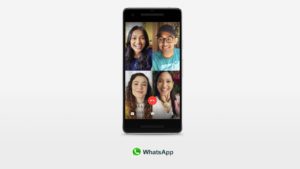
Whatsapp group video calls 4 people

To record a video call on WhatsApp you’re going to need to download a third-party video call recorder app that will record everything happening on your device’s screen. If you have an iPhone running iOS 11 then your phone already has a screen recording feature. If not, then you need to download a screen recording app and we recommend Go Record: Screen Recorder as an excellent option. If you are using WhatsApp on an Android phone, we recommend you download and install ADV Screen Recorder.

It is worth noting that once you have either of the apps we’ve listed or are using an iPhone running iOS 11 or above, you can follow the instructions below to record calls on any video call apps you have on your mobile device.

WhatsApp Messenger Download Now ►
8
Go Record: Screen Recorder for iPhone Download now
7
ADV Screen Recorder for Android Download now
8

This is how to record calls on WhatsApp

1 – Open your screen recorder app or feature.

2 – Minimize the app and then open WhatsApp too.

3 – Start your video call with your selected contact/contacts.

4 – Open up your screen recording app and hit the record button.

5 – Go back to your call and have your conversation as you normally would. You can end the recording any time by going back to your app and terminating the record function.

NB – This method for recording calls is a little more discreet than the two official methods outlined above for Skype and Hangouts. There are no automatic notifications sent here so it could be a good idea to let everybody who is involved in the call know that you’re recording the conversation. The other thing to consider with this method is that your recording will be saved in among all the other recordings you make with your screen recording app. This means it would be a good idea to immediately rename your call recording so that it doesn’t get lost in all the other video files.

How to stop Facebook from spying on you

This how to stop Facebook tracking your online behavior.

It is possibly the worst kept secret in tech that Facebook is spying on you. Mark Zuckerberg is keen to know absolutely everything about you, he is prepared to go to some pretty shameful lengths do so like tracking people’s smartphones who don’t even have the Facebook app, and then when he gets your personal data he’s not exactly careful with what he does with it or who he shares it with. Everybody remembers the Cambridge Analytica scandal. Yep, this is all known and this probably why you want to stop Facebook tracking you and collecting your private data.

That is why we’re here today. It is possible to stop Facebook spying on you and by the end of this article you’ll know how to do it. Let’s get started.

How and why Facebook tracks your data

Facebook makes more money, the more information it knows about you. The more accurate the data, the higher price they can charge advertisers to access it. That is why Facebook doesn’t just track people who actually use Facebook. Sure, Facebook is very good at tracking Facebook users by their Facebook accounts, likes and sharesFacebook cookies, and then also tracks users across other apps it owns like Instagram and WhatsApp.

Money
This is what it is all about

Facebook goes further than this though, giving third-party websites what it calls a Facebook Pixel, which allows the site owners to analyze the effectiveness of their ad campaigns. Facebook of course, uses this data too meaning it has data on anybody visiting any sites with a Facebook Pixel. This all means it is difficult to stop Facebook tracking your data, but, importantly, it can be done.

How to block Facebook tracking your data

Opt out of ads

Your web behavior follows you around wherever you go. Advertisers want to get their hands on this so that they can show you relevant ads for products that your behavior tells them you want or need. This is the basic formula that pays for the modern internet as we know it today. You can opt out of this ad tracking relationship, however, by using certain online tools that are different depending on where you are around the world. Doing so will put up a block to the tracking that Facebook carries out. You’ll still get Facebook ads, they just won’t be target ads based on you data.

opt out of ads to stop Facebook tracking you

If you’re in Europe, you can opt out of advertising based on your web behavior by going to the European Interactive Digital Advertising Alliance homepage. If you’re in the USA, you can opt out by heading over to the Digital Advertising Alliance. The name of the organization Canada is the same as it is the USA; click here to go to the Canadian Digital Advertising Alliance.

As we’ve just mentioned, however, this underpins the whole of the modern internet so don’t expect this process to be easy. Stick with it though, and you will get it done.

Browser plugins

Your browser is Facebook’s main tool for tracking your online behavior. This means you can set up your browser to be your first line of defense. You can use third-party plugins to add certain protections that will block tracking protocols.

Limiting scripts

One such protocol that you can limit to better protect your privacy is the scripts. Scripts can alert advertising trackers to your presence whenever you log on to a website. This means if you block a website’s scripts, you can prevent the advertising trackers from knowing you’re there.
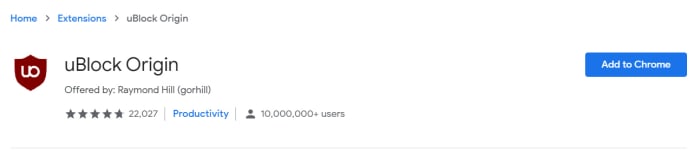
uBlock Origin

An excellent free plugin you can install on ChromeFirefoxOpera, and Safari for free is uBlock Origin, which gives you the option to block scripts across all sites and then white list sites you can trust. Another fantastic little plugin you can use is Privacy Badger, which is very easy to use. If you’re reading here about advertising trackers and scripts and thinking you’re out of your league, then this is the plugin for you. Privacy Badger makes it very easy for you to control which scripts track what. It is important you get this right because many basic web functions rely on scripts so blocking the wrong ones could be like shutting off the internet.

Automatic cookie deletion

Another type of plugin you can download will address a problem you probably know more about. Cookies are much more well known than website scripts. Cookies remember the choices and actions you make on certain websites and Facebook can then read these to get an understanding of your online behavior.

If you’re a Firefox or Microsoft Edge user, you can set your browser to automatically delete your third-party cookies every time you close your web browser. You can find a guide on how to do this for both browsers here. If you’re a Chrome user, however, there is no such option. Fortunately, though, there is a browser plugin you can download for Chrome, imaginatively called Cookie AutoDelete that will do the trick. Install it and set it up on your Chrome browser to fight back against Facebook.

Dedicated privacy-protecting browser

Another great option for making it much more difficult for social networks like Facebook to track your online activity is to use a browser that is dedicated to protecting your privacy. This will mean ditching Google Chrome, as Google is perhaps the only other company on the planet that is as good as Facebook is at tracking your data. In this regard, we strongly recommend the Brave browser, which is committed to protecting your privacy.

Brave does not collect any user data, unlike Chrome, and comes ready-made to block third-party and advertising cookies. This means you don’t have to worry about which security plugins or addons to install as all the functions are already a part of the Brave browser. Brave is actually trying to readjust the modern internet model that we described earlier and push web developers to rely less on advertising by offering something called Brave rewards instead. If this mission is successful, you won’t need to block Facebook tracking as it won’t be such a lucrative business anymore. What’s even better about Brave is that it is based on the opensource Chromium code that built Google Chrome meaning it also works with your Chrome browser plugins too.