Windows 11 receives new IT update improvements

If you’re an Insider enrolled in the special Microsoft developers program, you’ll have a sneak preview of the new IT updates in Windows 11. What it entails is disabling update notifications across several devices on the same network. They’re aiming it specifically at the education and executive sectors where these alerts can become distracting.

Where massive companies have IT departments, these agents usually control what is and isn’t installed on the server’s computers. In the education industry, it means students lose focus when Windows 11 tells them there’s a new update and they need to restart the PCs. The same applies to the workplace when every employee contacts their managers to ask if they should release the update.

With the new function, the IT department can now disable these update notifications on Windows 11. They will be blissfully unaware that their computers need to restart, while the admin team can schedule it for after hours. It’s definitely a massive benefit in many fields, especially when you can’t afford distractions.

However, there may be some downsides. If the IT department isn’t on top of their game, they may miss out on vital updates. Insiders are currently testing how effective this new feature is before it rolls out to everyone else. Microsoft has been keen on the feedback so that they know what to address before the official release.

Fortunately, if things go wrong, there is a way to uninstall updates on Windows 11. Hopefully, that won’t be necessary, but it’s good to know that it’s available. We’ll keep you updated if we hear any further news. For insiders, you can find the function here:

Computer configuration > Administrative Templates > Windows Components > Windows Update > Manage end user experience > Display options for update notifications

How to Set Up a Windows 11 Device Offline

Currently, the only way to complete the Windows 11 setup is to be connected to the internet. Microsoft requires an active internet connection to facilitate processes like downloading critical updates and fresh features before starting the new OS up. This can become a bit of an issue in some cases, particularly if you don’t have a stable internet connection or if you only want to use a local account on your Windows 11 device.

So how do you bypass this new mechanism and set up your Windows 11 device offline? Before we get into the how-to, let’s discuss why Microsoft needs you to have an active connection.

Why You Need an Active Internet Connection 

The way Microsoft tells it, you need an active internet connection so that your device receives critical updates and can download and use various features integral to the setup process. To further complicate the situation, Windows 11 Home Edition relies on a Microsoft Account to set a new device up to completion on its first use.

As mentioned above, however, this strict reliance on an active internet connection isn’t always feasible. Firstly, you may only need the features of a local account, or you might not have immediate access to a reliable internet connection. Another reason this is problematic is that your device might be missing the necessary WiFi drivers to connect to the internet. 

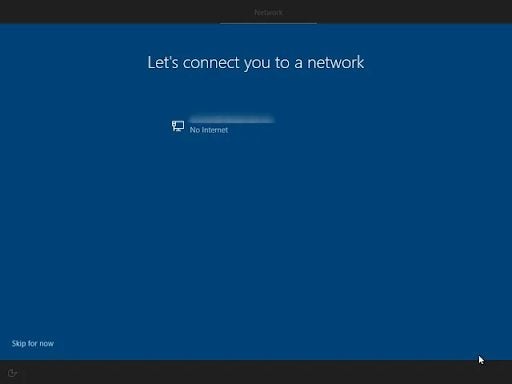
While setting up Windows 10, if you didn’t have access to the internet, you could simply click ‘I don’t have internet,’ and you’d be able to create a local account. Curiously enough, if you have a Windows 11 Pro subscription, you can use the ‘I don’t have internet option’ and set up a local account, but this option isn’t available to Windows 11 Home users. So then, how do you get past the pesky ‘Let’s connect you to a network’ screen?

How to Set Up Windows 11 Without Connecting to the Internet

Luckily, there are three ways to complete the Windows 11 setup procedure without connecting to the internet. We’ll take you through them all below, and when we’re done, you can decide which is the easiest and most effective for you.

  1. Method 1: Use Task Manager to End Network Connection Flow Process
    How to Set Up a Windows 11 Device Offline

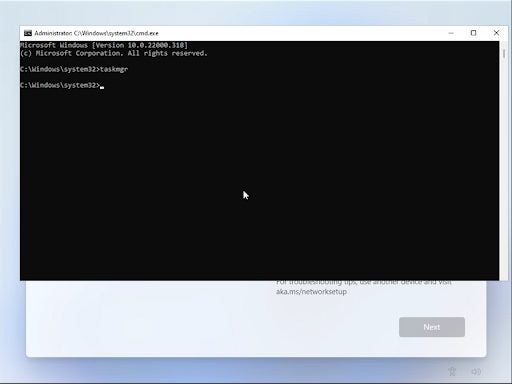
    Using the task manager, this method lets you bypass the ‘Let’s connect you to a network’ screen. You’ll undoubtedly already have Windows 11 installed, so you can just launch the Task Manager and kill the process using Command Prompt. Here’s how:

    Step 1:

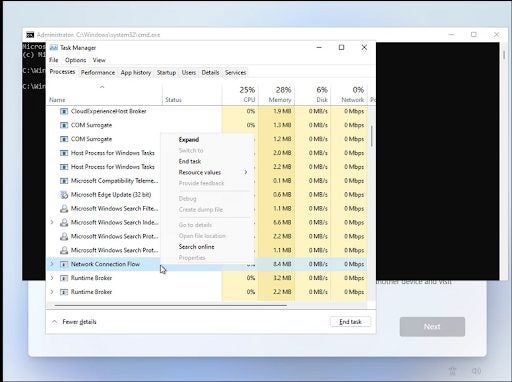
    From the ‘Let’s connect you to a network’ screen, hit Shift + F10. This will launch the Command Prompt utility. When you see the Command Prompt window, type taskmgr and press enter. This will launch Task Manager. 

    Step 2:

    Click ‘More Details’ and open Task Manager in full view mode. 

    Step 3:

    Locate ‘Network Connection Flow’ in the ‘Processes’ tab, and click the ‘End Task’ button. Wait a short while for the process to terminate and then exit the Task Manager. 

    Step 4:

    Head back to the Command Prompt dialogue box, type in ‘Exit,’ and press Enter.

  2. Method 2: Use the Command Prompt to Kill Network Connection Flow Directly
    How to Set Up a Windows 11 Device Offline

    This method will be useful to you if you cannot use Task Manager to end the Network Connection Flow. 

    Step 1:

    From the ‘Let’s connect you to a network’ screen, hit Shift + F10 to enter the Command Prompt utility. 

    Step 2: 

    Type the following string into the dialogue box and execute it by hitting Enter: taskkill /F /M oobenetworkconnectionflow.exe 

    Step 3: 

    Once the command has been executed, you’re free to close the Command Prompt window and continue with the setup.

  3. Method 3: Use Alt + F4 to Skip the Let’s Connect You to a Network Screen
    How to Set Up a Windows 11 Device Offline

    This method isn’t a surefire fix, but it has helped a few users get past the pesky screen. When you see the ‘Let’s connect you to a network’ screen, hit Alt + F4 to close the window. You can also use this key combination to end any program not behaving as it should.

Setting up Windows 11 easily

You no longer have to be an IT boffin to use commands and the Command Prompt utility. In cases like this, knowing a little about forcing Windows 11 into submission can be incredibly useful. The best thing about all three of these methods is that they’re delightfully simple, and once they’re executed, you can carry on with the Windows 11 setup as you usually would.

You are then free to use Windows 11 on a local account until you connect to a network and download all the necessary files, at which time you can start using Windows 11 as Microsoft Intended.
Twitter permits Tweet warnings for sensitive content

Twitter has long been the social media playground for users who love to share anything and everything. It’s what sets it apart from its Meta rivals, Facebook and Instagram. However, it now includes the functionality to warn the audience that your content contains sensitive images.

This feature slowly rolled out for a while, with nude and other explicit content blurred. It offered the Twitter audience a chance to choose if they want to see what’s hidden under the veil. While this option is still available, you can now add a warning label showcasing what you’re sharing without them seeing the image or video.

Unfortunately, the same doesn’t apply to text. So, if you decide to tell your naughty crowd what you’re up to or you share spoilers from the latest TV show, people will still see it. It will be frustrating for those who see others share Wordle daily words or the recent F1 race. 

Still, it’s easier to turn your eyes away from a text than an obscene image that becomes engraved in your memory. If you see it’s about a specific topic, you can quickly scroll up. Once you see some exposed body parts, it will live with you for a long time to come.

While this may be alright for some people, it’s not good for others, especially children. The filter is a welcome addition to the platform, especially after the list of issues that Twitter has been having. Here’s hoping they apply a similar function to text in the future.

To easily perform this action on Twitter, all you need to do is tap the Flag icon after you’ve already edited and placed the content in the Tweet. It will then let you select the warning appropriate for your image or video.

Poppy Playtime may be headed outside

Playtime Toy Co. is an iconic location in the gaming sphere. The abandoned toy factory that features the setting of Poppy Playtime may even be more iconic than Grove Street in Grand Theft Auto San Andreas. ‘Grove street. Home. At least it was before….’ You know the rest. Unused models might suggest that the Indie horror sensation is headed outdoors in a future chapter. 

Poppy Playtime is a well-known indie horror puzzle game developed by MOB Games. The game takes place inside the Playtime Co. toy factory, where players must solve puzzles and find clues to unlock the secret of why everyone who worked at the facility disappeared. All this while running from the iconic oversized homicidal stuffed toy Huggy Wuggy. The game bears certain similarities in gameplay and environment to Five Nights at Freddy’s.

When exploring beyond the boundaries of Poppy Playtime’s map, YouTuber Shesez discovered that the exterior of the Playtime Co. facility is fully modeled and rendered, despite serving no initial purpose in the game. The facility’s entrance was found to be modeled to the same level of detail and intricacy as the inside. Even more damning, several exterior features like domes and windows are modeled to the same standard. 

This incredible attention to detail suggests that the exterior of the building may have been meant to be visible at some point during the game. However, it’s also possible that the creators of Poppy Playtime had initially planned for players to enter the facility from the outside. The most tantalizing theory, of course, is that at some point in its future, Poppy Playtime will feature gameplay outside of the iconic facility.

While the official trailer for chapter two of Poppy Playtime, titled Fly in a Web, has already dropped and looks to take place within the facility once more, there is still hope that future chapters might see the player venture out into the great unknown currently taken up by an expansive white haze.

You can now search WhatsApp messages on contact info pages

Popular messaging app WhatsApp has started rolling out a new search message shortcut feature for WhatsApp Beta for Android. Additionally, they’re testing out other upcoming features like message reactions and call links. Take note that the search message shortcut doesn’t always work, though.

WhatsApp continues to improve its user-friendliness and ease of use with the help of WhatsApp Beta. While this messaging app may be behind with some functions compared to its competitors, it still ensures that all new features work correctly before being publicly released.

The new search message shortcut on WhatsApp Beta for Android allows users to search for specific keywords while on the info page of their personal contacts and groups. This greatly saves time as you don’t need to scour different conversations. The feature is available to certain beta testers only, but it doesn’t always appear so you’ll have to wait for another update to fix it.

Other cool upcoming features are also being tested right now. One is the long-awaited message reaction, which other messaging apps already have. With it, you can react directly to a message using one of the six default emojis available. Another feature is the ability to send call links so users can quickly join a call. Then there’s a new shortcut to quickly manage your privacy settings for status updates.

WhatsApp’s interface is getting more streamlined, which is great news considering that the app has more than 2 billion active users right now. Not only do you get new functionalities for the messaging side, but voice and video calls are also being improved. The interface design for voice calls has even been revamped.

Latest Elden Ring Patch 1.02.1 fixes issues on PlayStation 5 and PC

The much-awaited game, Elden Ring from FromSoftware, was released on Friday, and since the release, players have flooded the servers to give the game a try. As is normal after a first release, some bugs and issues were picked up on PS5 and PC. FromSoftware just released a patch to address some of these issues.

This latest patch follows one released a few days ago, patch 1.02. In comparison, this latest patch is a minor one but addresses a few bugs and issues that PC players especially would be thankful for.

On PC, patch 1.02.1 fixes start-up issues, improves mouse operations and reduces the number of files needed when entering a new area in the game. On PS5, this patch fixes the bug that caused the game to close unexpectedly.

Here are the full patch notes for this latest patch for Elden Ring. As we mentioned, this is a minor patch that just addresses a few specific issues.

PC

  • Start-up issues related to Easy-Anti-Cheat (EAC) have been improved.
  • Mouse operation improved.
  • Reduced the number of files needed to load whenever the player enters a new area.

PS5

  • Fixed a bug that caused multiple unexpected game closures.

This patch will automatically download through Steam and on PS5 if you have the setting enabled. Alternatively, the patch is also available for manual download. 

Elden Ring is now available globally on PC, PlayStation 4, PlayStation 5, Xbox Series X/S, and Xbox One. If you haven’t looked into the game yet, you’re missing out. If you enjoy open-world games with a great storyline that also allows multiplayer co-op, take a look at this high adventure. You can also check our guide on the Top 5 ways to survive Elden Ring: Prepare to Die to give you a good start.

You can now send text chats in Clubhouse’s live rooms

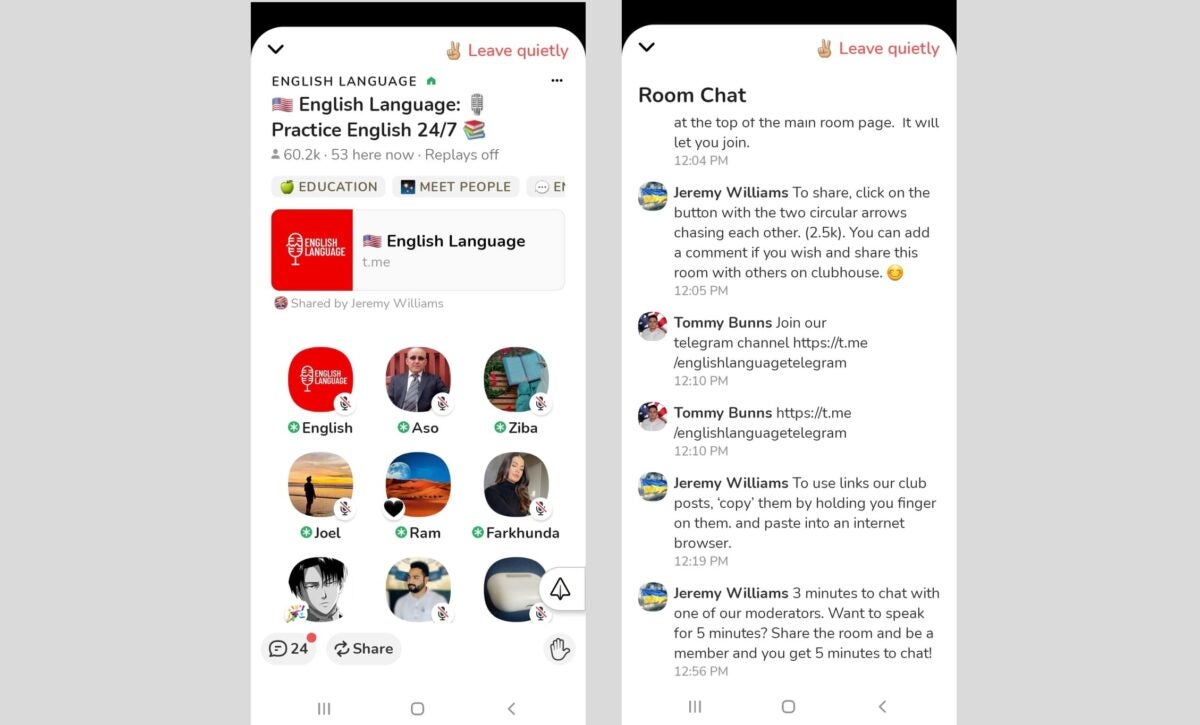
Clubhouse, the popular audio-chat app, has now added the option of having an in-room chat in its live rooms. This new feature lets you send text messages and emojis in the chat textbox of a live room if the creator enabled it before hosting. Text chats can also be deleted and moderated and will remain archived for Replays.

As a social audio app, Clubhouse originally focused on an audio-only experience with its phone call podcast-style rooms. However, it’s now aiming to be accessible to more people—especially to those who want to participate in live rooms but don’t want to speak via voice chat. 

Back in 2021, a feature called Backchannel was released for Clubhouse, making direct messaging finally possible on the app. Now, it’s also possible to type and send texts while these calls are happening live. This in-room chat feature works similarly to the live stream chat functions from other apps. 

Users can delete their messages during or after the room closes. Messages that violate the app’s guidelines can be reported by both users and moderators. Lastly, users can catch up on the messages sent after a call ends—although they can’t send anything to the chat anymore. However, you can only use this feature if the creator of the room enabled it in the first place. 

It’s enabled if there’s a chat icon at the bottom left of the screen, next to the Share and Clip icons. It will also have a red dot to indicate unread messages. Simply tap this icon or swipe right to access it. This new feature is available on both Clubhouse iOS and Clubhouse Android’s latest versions.

Security warning issued for VPNFilter Sandworm malware, Cyclops Blink

In 2018, the UK National Cyber Security Centre (NCSC) discovered a new malware called VPNFilter that attacked network devices. It discovered that Sandworm was behind it, a hacking group that they believe is linked somehow to the Russian military. Well, it seems like they’ve upgraded the framework and a new version called Cyclops Blink is going viral, so to speak.

The NCSC issued an alert two days ago with full details on the new malware. It appears as if Cyclops blink has actually been active since 2019 and they’ve only recently been able to identify it. We don’t believe it’s a coincidence that the upgrade began shortly after the NCSC exposed VPNFilter to the public and protective measures appeared.

The initial deployment of the new Sandworm malware appears to be on WatchGuard devices. However, the NCSC warns that the framework could start infecting other system architecture. There’s a complete analysis report on Cyclops Blink you can read that will give you a proper overview if cybersecurity is your forte.

The scary part is that it deploys as part of a firmware update. That means the malware will remain on your PC even if you reboot it or try to replace your operating system. In essence, it’s similar to the MoonBounce malware that infects the UEFI firmware. Cyclops Blink can break through most firewalls in this way and may even bypass your antivirus protocols.

If you do end up with this Sandworm malware on your network, it doesn’t mean you are the primary victim they’re after. It infection spreads quickly to other systems, which means your device may be an indirect consequence of the initial attack. Let’s hope Windows 11 and the new Firefox and Chrome version 100 browsers are ready for it should it spread further.

Reddit introduces new Discover tab to find Communities

Welcome to the modern age, Reddit! Where the platform used to just be a hive for various comments and threads, it seems to be moving towards organizing content properly. You can now find a new Discover tab on Android and iOS apps to help you see more communities and topics.

In effect, you’ll notice a compass at the bottom that shows you various communities and threads across different topics. You can scroll with your finger on the screen to move from one to the other. It’s similar to Instagram’s explore feature, and it means you can now see new content with a flick of your finger.

Are you worried if the r/all section is still there? Don’t stress. The Reddit owners say that it’s going nowhere, and you can still see all threads in one section if you wish. The new Discover tab only places a focus point on topics that you enjoy. In our opinion, this function is much better than what the app had before.

Your subscriptions will also still be in one place, but it does benefit from the Discover tab. If you love subscribing to gaming threads, you’ll start seeing more gaming topics and communities in the new feed. There are plenty of visuals to show you what they’re about and will probably attract your attention.

If you’re using platforms from third-party Reddit portals like BaconReader or Apollo, you won’t see the Discovery feature. It doesn’t look like there are any plans for an updated API as yet, but who knows? It may be such a great demand, the developers may put something in place.

PlayStation App lets you share screen captures from PS5

Showing content from the PlayStation 4 was nothing short of a nightmare. You could only send screenshots to Twitter or videos to YouTube. Both the PS4 and PS5 let you copy media over to your PC via a USB drive, but that’s such a nuisance. Well, Sony has advised you can now share your captures from your PS5 to your PlayStation App.

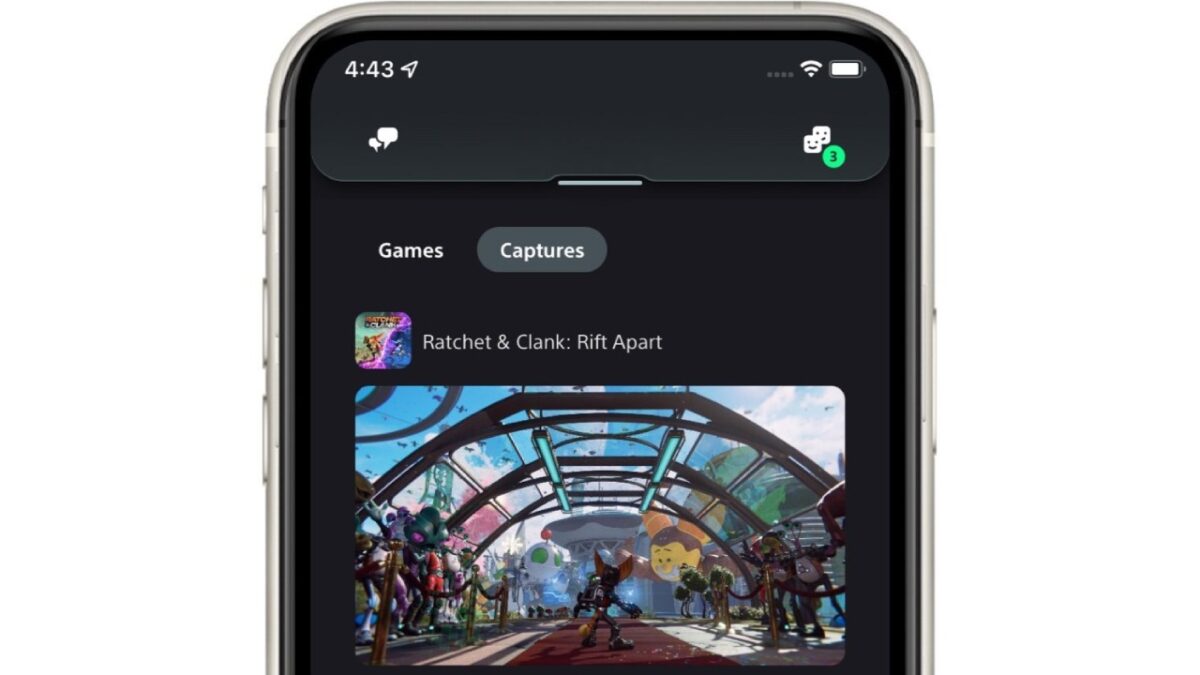
Basically, it works as an automatic upload function. When you enable the feature on your PlayStation 5, your screenshots and videos will sync with your PS app. You can then send them where you wish, to social media or some other method.

However, there are a few restrictions. You won’t be able to send 4K content, and the media will only remain on the app and servers for 14 days. The application will then remove them based on the timestamp. Don’t worry; the captures will remain on your PS5, so you can try uploading them again if you need to. 

Another limitation is that the videos can’t longer than three minutes. You will have some control over what you share, though. If you don’t want to enable the auto uploading, you can choose what to send with the create menu or button. At least there’s some creative control, if not much. You’ll have to do most of the editing on your PS5.

It isn’t the first time we’re hearing about this feature. Canada and Japan have tested it back in October, but the PlayStation App is now officially rolling it out to selective countries. It appears that South American companies will be next in line, so we’re hoping to see some shared content from gamers there soon.