Crossloop – free remote troubleshooting for Mac

crossloop-logoWhen it comes to troubleshooting friend’s and relatives computers from afar, one of the best remote access applications I’ve ever used is CrossLoop. When I switched to Mac, however, I had to dump it but I’m pleased to see the developers have finally launched a Mac version.

The great thing is that the Mac version supports access of both Windows and Macs so you can help out people on both platforms. In addition, Crossloop now serves as an online marketplace, where you can connect not only to friends, but to online experts who, for an hourly fee, will help you with technical issue.

The key to CrossLoop’s appeal is its simplicity. After installing CrossLoop, you are prompted whether you want to create an account although this is optional. Afterwards you are presented with small panel with two tabs. Select the ‘Join’ tab if you would like to connect and control a friend’s Mac. Select the ‘Host’ tab if you would like someone to access to your Mac i.e. to receive technical help.

CrossLoop 1

This host tab contains an important 12-digit access code that your friend will need to enter to connect to your PC. Obviously, the only requirement is that the other person has CrossLoop installed too to initiate a session. Once done, you’re ready to go. A separate window opens on your desktop with your friend’s desktop and you can tinker with it to your heart’s content.

Obviously, the main concern with such desktop sharing applications is speed and security. As regards speed, you can choose whether to share in low or high quality, the former being faster and recommended for slow internet connections. It’s great that CrossLoop now offers this choice because there’s nothing worse than trying to share over a slow connection.

As far as security is concerned, the developer maintains that all sent information is highly encrypted with a 128-bit algorithm using the randomly generated 12-digit access code mentioned earlier. There’s no need to worry about anyone accessing your PC without permission either – a pop-up requesting permission from you alerts you before any information is exchanged. Most recently, CrossLoop has introduced file sending plus an online marketplace of experts which enables you to find professional Mac specialists who can help with your problems with fees ranging from around$50 an hour.

The only minor drawback of CrossLoop is that it doesn’t support multiple connections, although for most people seeking technical help, this is probably neither desirable or practical either. The bottom line is that CrossLoop really is an excellent application for what it offers i.e. simple and effective remote connections. The fact that it is free only adds to its appeal considering similar programs such as Copilot charge anything up to $5 for just 24 hours of use.


Today’s downloads for Windows, Mac and Mobile

Become a surgeon on your iPhoneiPhone: What’s the point of spending years of your life training to be a doctor when it’s so easy to practice medicine illegally in backstreets? In Amateur Surgeon Lite you play the role of Alan Probe, a pizza delivery guy who stumbles into the world of backstreet medicine. Your task is to perform surgery on a variety of patients using whatever tools you have to hand, including pizza cutters, salad tongs and staplers. Hilarious fun!

Leopard Cache Cleaner logoMac: Just because Macs are normally virus free doesn’t mean you never have to scan yours. Leopard Cache Cleaner (now updated to version 4.0.24) is a solid application to scan and clean your Mac of alls sorts of unwanted files. You’ll easily remove cache, language localization files and other unnecessary data in just a few easy clicks.

Download Envisioneer ExpressWindows: Decorating your house is not always as easy as it seems, but luckily Envisioneer Express (updated to version 5.0) can lend you a hand. This free interior design app lets you create a detailed floor plan of any room or a complete flat and decorate it with lots of detail, in both 2D and 3D rendering.

Timewaster: TimeWarp


Fans of rhythm games will love Timewarp, a browser game that will really challenge your abilities. It works like Guitar Hero, you have to tap rhythms that are moving towards you. There are a number of keyboard configurations – I prefer the left hand ASDF setup. The twist with TimeWarp is that the better you do, the faster it goes, and the harder it gets. See if your fingers can keep up!

Requires the wonderful Unity plug-in .

How to: Recover a lost CD-ROM drive icon in Windows

Last week I wrote a post explaining how to create a First Aid USB kit for computers, and boru left a comment on it asking for help about a very specific issue: he wanted to recover the CD-ROM drive icon that had disappeared from ‘My PC’. While this has never happened to me, I was curious to see if there was any solution to this situation and after a short period of googleing, browsing and reading, I came up with three possible ways to retrieve missing CD-ROM drive icons in Windows:

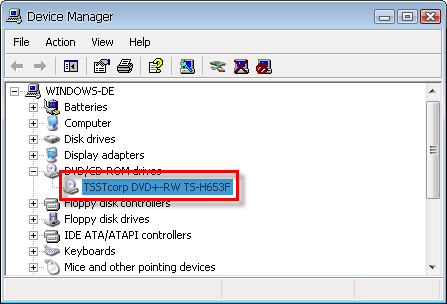
1. Maybe your CD drive is physically disconnected from the system. Don’t worry, you don’t need to open the computer just to check. Right click on the ‘My PC‘ icon and select Properties. Then click on the Hardware tab and press the Device Manager button. Find the CD/DVD ROM drives item in the list and click on the + sign beside it. At least one entry should appear below it. If nothing shows up, it’s time to open the computer and check that the drive is connected.

How to: recover a missing CD-ROM drive icon in Windows

2. You may need to update the drivers. Visit your computer’s official website and look for any download area in it, or simply use Google. Also, if your computer is still under guarantee, try calling Customer Support.

3. If the guarantee period of your computer has already expired, you can also try Microsoft Support. A quick search on their website gave some results regarding missing CD-ROM drives, or drives that are not recognized by Windows or by specific applications. This one, for example, helps you fix the problem automatically with a step-by-step wizard, and also explains an alternative Registry tweak in case you want to try to fix it by yourself.

Nokia Ovi Store – not such a disaster after all?

Ovi Store isn’t a complete flop

Nokia launched its new mobile app store yesterday, Ovi Store, to howls of derision from users. The general hoo-hah centred around the speed of the service, which in the eyes of many, made the launch a total disaster. Yes, it was very, very slow for a while, but that’s par for the course given the amount of hype the app store had received before. It’s worth bearing in mind also that the worldwide release actually took place ahead of schedule. The hole-picking has continued in the first 24-hours of Ovi Store’s life – not enough content, no trial versions, flawed category system, users can only give programs ratings of between one and three stars, etc. True, these glitches and oversights  give Ovi Store a less-than polished feel, but is it really all that bad?

Ever the optimist, I wouldn’t regard the Ovi Store as an unmitigated disaster and managed to find some things about it that I actually quite like. For instance, it’s a lot more open than the walled iPhone App Store. You can get download links sent directly to your phone from any computer, send to a friend, or install it directly on the device. Once downloaded you can launch the app immediately without leaving the browser (of course iPhone users wouldn’t understand the concept of running multiple apps simultaneously). The fact that Ovi Store supports operator billing with many networks means buying apps is much less hassle than with an iTunes account. The user interface isn’t as bad as many people are making out. I like the fact that screenshots are displayed for all programs and the ‘related programs’ section is useful too.

Let’s not forget that Ovi Store has only been going for a day, so we shouldn’t condemn it to death just yet, especially when it shows signs of promise. Given time, glitches will be ironed out and big-name mobile developers like Google and Yahoo! will come on board. In terms of being a disaster, I think the Ovi Store is more like falling off a lilo than the sinking of the Titanic.

First look at Microsoft Vine: disappointing

Microsoft VineWhen I first heard about Microsoft Vine a month ago I must say I was pretty surprised. Vine was described as “an instant messaging tool to stay in touch during times of crisis, when standard communications are either broken or not working properly”. That description, together with the fact that the program was released as closed beta – which, you know, always contributes to the hype – caught my attention immediately.


Today I received my invitation to test Microsoft Vine and the truth is I’m a bit disappointed. Maybe it’s because I’m lucky to live in an area where earthquakes, floods, tornadoes and other natural disasters are only seen on TV, or simply because I expected something else after waiting for the invitation for a whole month. The thing is I didn’t find Microsoft Vine that useful at all.Microsoft Vine

This is Vine’s main interface, which shows up after installing the program and finishing the correspondent system reboot. Microsoft Vine works with your Live ID account, so if you don’t have any yet you’ll need to create one (not right in the middle of a crisis, hopefully).

After that, the desktop client shows up featuring an interactive world map where you can mark the places you care about. The map can be zoomed in to a quite high level of detail, and also switched from plain drawing to satellite imagery and viceversa.

The two other tabs on the program’s main interface lead you to your personal data (Vitals) and your contact list (People). Regarding the first one, you can fill in a form with some personal information (name and address) plus all the possible ways to reach you (e-mail, phone, mobile). These data can be printed on a PDF emergency card which you can crop and put in your wallet or handbag, so that you always have your important information at hand.

The second tab, People,  is where your contact list is stored. The list can be organized in several different groups, which eases the task of sending alerts to several people at the same time. You can also see the message history for each contact.


Microsoft Vine

Generally speaking, Microsoft Vine serves an honorable purpose: helping people to communicate in real time when disaster strikes and there’s nothing else available. It lets you send reports and receive alerts via its desktop client, by e-mail or text messages. It also displays news regarding the places you care about.

But I’m not sure about the real effectiveness of this tool, or whether it would be a useful way to communicate in middle of a crisis. I just can’t picture someone taking the time of starting their computer, logging into the system and starting Vine, while everyone else is simply running for their lives. In a way it reminds me of that hilarious scene in The IT Crowd where Moss, unable to remember the new emergency number, uses e-mail to report a fire: funny to see, but totally senseless.

Is Apple losing its cool?

Critics of Apple fanatics have said that there’s nothing special about Apple, and it’s unfair for Microsoft to be labeled an uncool big corporation, when Apple is just a big corporation too.

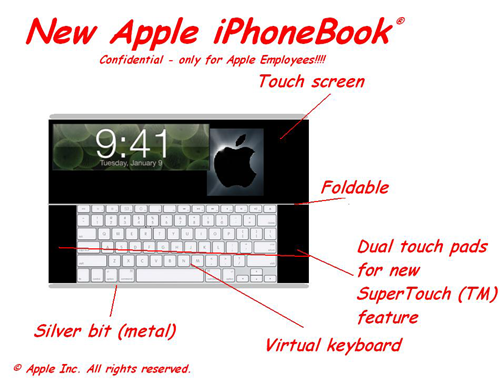

Nevertheless, Apple products do have that special something that makes them likable. In the case of OSX, that special something is just being smooth and fast and working properly.  The iPhone effect on the mobile industry has been incredible. It’s incredible any company could jump into a developed market and revolutionise it just like that, and it’s incredible no established mobile manufacturer had made something that worked that well before.

There is something cool about Apple, and as a corporation they seem to get a lot more right than many. It’s a surprise, then, that the iPhone App Store seems to be getting stuck in controversies.

First was the Babyshaker app, that was bizarrely approved even though it was obviously offensive. Then Apple failed to approve applications for really odd reasons. The Nine Inch Nails app, that would allow users to link to an album with potentially offensive lyrics was banned, despite that material being easily available through iTunes (it was later accepted).

Now we have Eucalyptus, a reader that uses an online library of out of copyright literature. It was rejected on the grounds that you could read Kama Sutra of Vatsyayana – an English translation from the 1800s! The developer wisely pointed out this library is freely available on the internet, and you’ll only find that book if you expressly search for it, as you would using Apple’s own Safari. Apple have now accepted the application – but they must have people in their approval system with very strict ideas about objectionable material.

It all seems very un-Apple, and tarnishes their image as “the cool corporation”. Arbitrary bureaucratic absurdity is the thing of governments and faceless corporations – why are Apple doing it? Perhaps these strange decisions are just wrinkles in the system that will be ironed out. There are so many apps being submitted, maybe its not so bad to make the odd mistake.

What to expect from Snow Leopard

osx-logoAlthough Apple haven’t given an official release date, Mac OS X 10.6 Snow Leopard is widely expected to be unveiled this summer. As Jon wrote a few weeks ago, Apple’s Worldwide Developers Conference takes place in early June where the unveiling will almost certainly take place. However, this doesn’t mean it will necessarily be released in stores at the same time and Apple may well wait until after the summer to launch it.

So what can we expect? The first thing Mac users should be aware of is that there’s nothing eye-popping in Snow Leopard that’s going to have you scrambling to upgrade. The focus of OS X 10.6 is simply to improve overall efficiency and reduce it’s footprint. However, there are a few interesting new features that will certainly interest some users. Here are some of the most notable:

Slimmer QuickTime Player

Maybe inspired by the success of VLC Player, “QuickTime X” will feature a simplified GUI with a greater focus on codec support

Cocoa Based Finder

Finder is expected to include a glossy new Cocoa Desktop Window and Contextual Menu

Safari Beta 4 Default Browser

In an unusual (and some might say slightly desperate move) Apple will include a beta version of Safari 4 with Snow Leopard presumably in a bid to give it a leg-up against Firefox.

Microsoft Exchange Server Support

A smart business move that will surely attract more corporate users. Mac users will now be able to connect to Microsoft Exchange 2007 servers via Mail, Address Book, and iCal

Faster Installation Time

May not be of much interest to single users but network administrators installing Snow Leopard on multiple machines can expect to install it in around 15 minutes compared to around an hour for Leopard. Testmac.net completed an install in an incredible 13 minutes.

More Stacks Control

Stacks will be improved to allow users to drill-down the contents of sub-folder

In view of all these relatively minor revelations and for the expected cost of around $130, it’s unlikely Mac users will be flocking to upgrade. However, if you’re finding your Mac is operating increasingly slowly, then for speed alone it might be worth the upgrade. Those that have tested Snow Leopard confirm that its the under the hood improvements that you’ll really notice when trying Snow Leopard. Testmac.net reports:

Snow Leopard is fast. Very fast. Like, surprisingly fast. From boot times to general application usage, Snow Leopard was noticeably quicker than Leopard when using the same system. Apple and 3rd party applications alike, they all launched faster and performed smoother. I’m sure this can be attributed to the new 64-bit architecture, but its amazing how much of a difference it really is.

In addition, its also fair to say that developers will find much to be happy about about in Snow Leopard. The integration of Grand Central, OpenCL and a 64 bit kernel will finally allow them to take full advantage of the dual processing power of Intel Macs and produce some stunning applications.

So there you have it, we’ve already got a pretty good fully formed picture of what Snow Leopard will look like. Now the only question that remains is when will Apple run out of cat names for their operating systems?

Create and share custom feed bundles in Google Reader

Create and share custom feed bundles in Google ReaderSometimes a mixture of small things is better that focusing on just one topic. I guess this is the idea that guided Google Reader developers when they decided to implement a new utility in my favorite RSS feed manager. It’s called bundles and lets you share custom bundles of random feeds with your friends in just a few clicks.
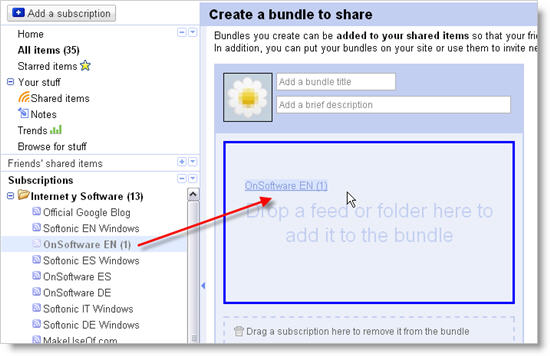
All you have to do is enter your Google Reader account and click on the ‘Browse for stuff’ link on the left column. You’ll be taken to a page where you can search for new feeds and get a few pre-packaged bundles. Click on the ‘Create a bundle’ button and you’ll be able to build a custom bundle in seconds, simply by dragging and dropping feeds – or even complete folders – on the editor’s interface. When your bundle is ready, you can add it to your Shared items page, share it by email or publish it on your personal website or blog.

Create and share custom feed bundles in Google Reader

Custom bundles are a great way to organize your favorite blogs in packs, create thematic collections of similar blogs or even help a friend who has just started to use Google Reader and needs some help to start building their own collection of RSS feeds.