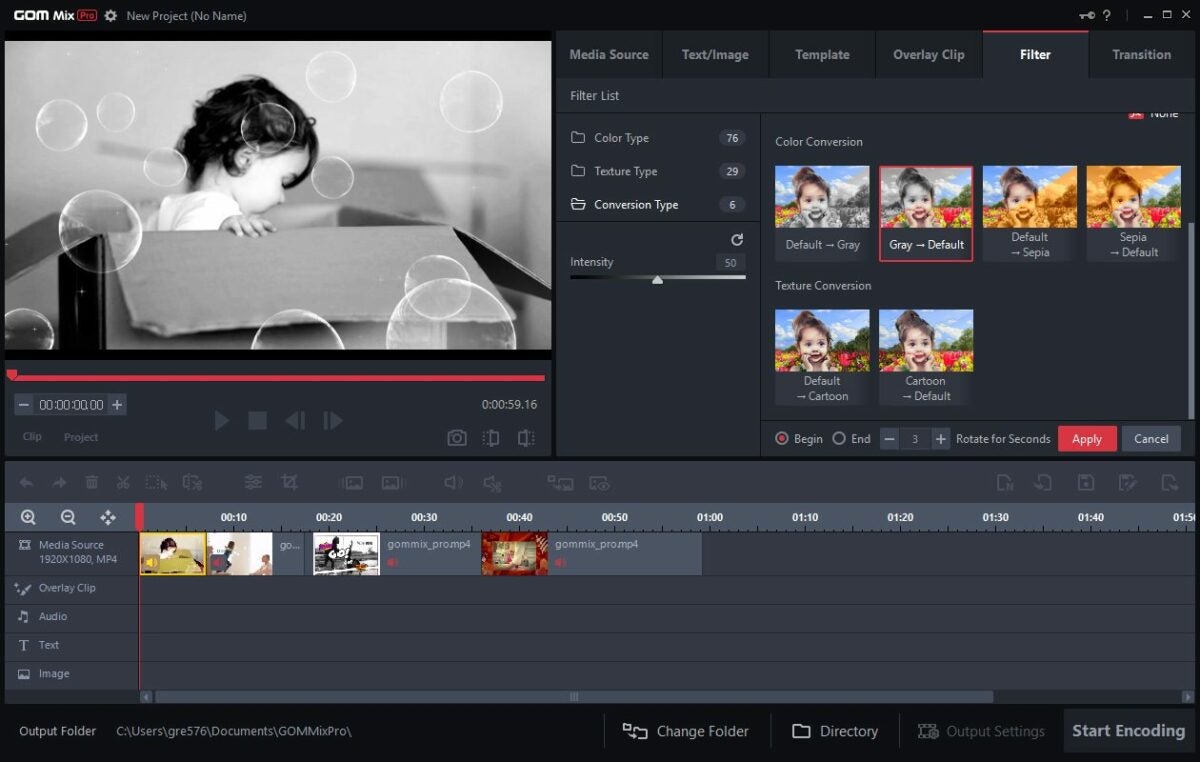
Video editing isn’t one of the easiest skills to learn, and most software platforms don’t make it any easier. Most editors use complex programs that are expensive and require intensive technical knowledge. With GOM Mix Pro, even a beginner can create beautiful, professional videos quickly and in various formats. Aspiring content creators can take advantage of the discounted Youtuber Pack for a 70% discount.
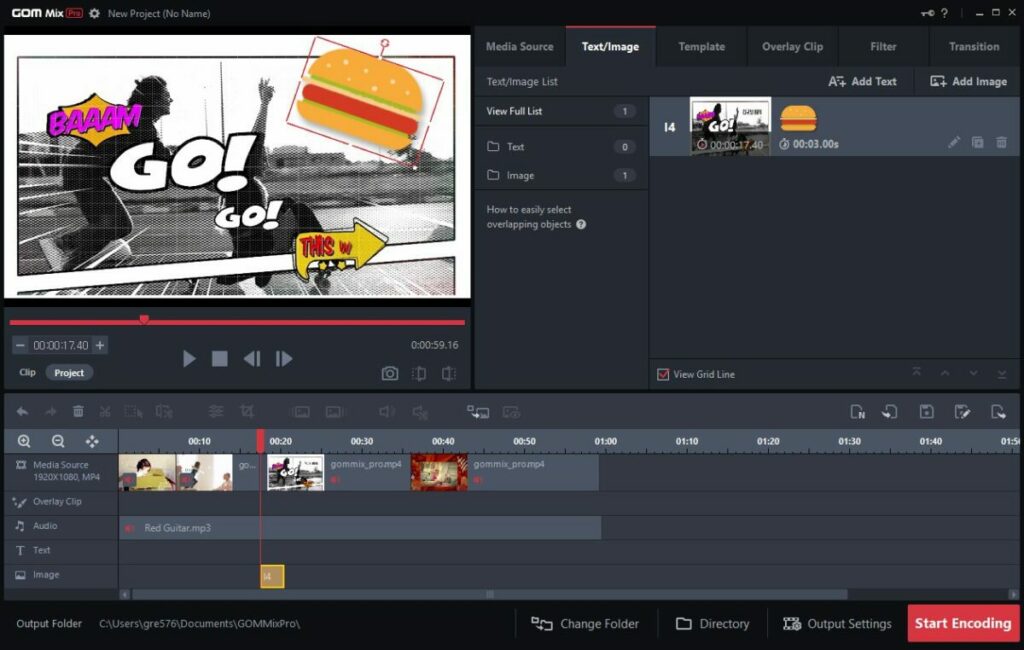
GOM Mix Pro is a video editor and player that allows you to create high-quality videos. You can use the editor to easily combine clips and files, add images or text, and enhance the video with effects.
The free version gives users access to several editing features, including effects, overlays, and filters. However, there is also a paid version that comes with several additional benefits.
User-Friendly Interface and Excellent Features
The software includes several excellent features in both the free and paid versions. Some of its key ones include:
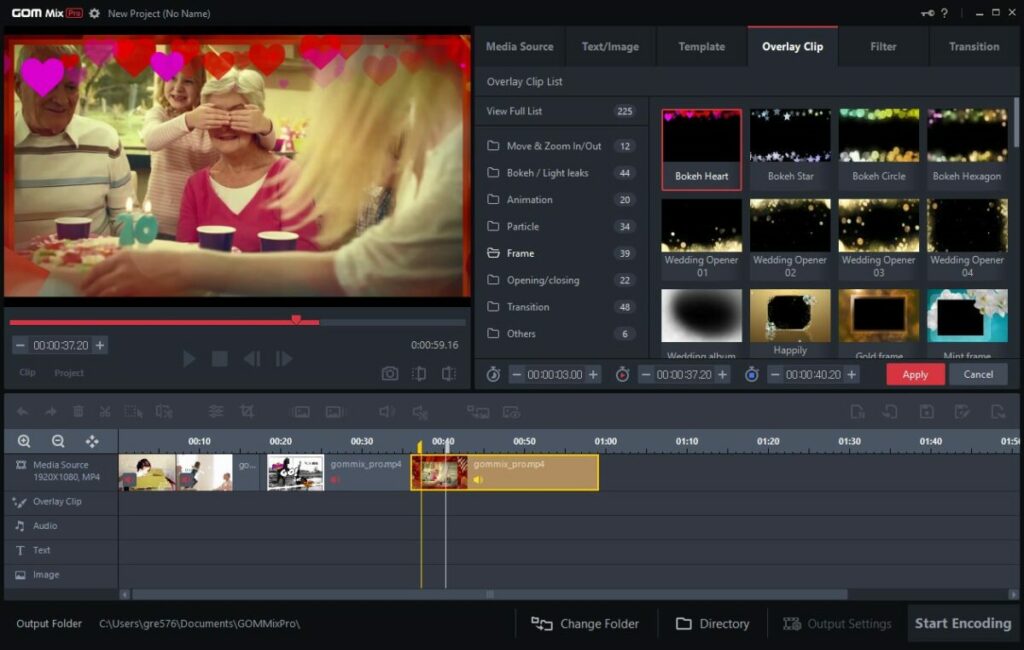
A wide variety of overlay clips.
Image transitions and frame effects.
Access to video editing sources.
Regular and continuous software updates.
Over 100 filters to enhance your videos.
Supports five audio formats and over 30 video formats.
Available in 10 different languages, including English, Spanish, Russian, Korean, Japanese, German, Turkish, Vietnamese, and Czech.
It also has many standard editing features, including trim, crop, split, text, and image formatting. The software also has six layouts: media source, audio, text, visual effects, and image.
Described as a video editor for all, it’s the highly user-friendly interface that makes this software perfect for beginners and experts. The video editing software allows anyone to create high-quality, professional videos using straightforward editing features and included effects.
Videos for Any Platform
To begin, simply drag and drop your files into the program and use any of the preset options to get started. Once you’re done, export your video to any of the available formats.
Since it supports over 30 video formats, you’ll be able to create videos for almost any platform. Popular ones include:
Mpeg
Mp4
Avi
Mov
Mkv
Flv
If you’re an influencer or online creator, you can upload your videos directly to social media platforms such as Facebook and YouTube. You can also save your creations directly to Google Drive.
GOM Mix Pro Vs. Other Paid Products
GOM Mix Pro’s paid software expands on the available features:
No limits on encoding time.
Watermark is removed from videos.
All content is made available.
Most similar video editing software cost between $20 per video to $100 per year or more. Some may require additional payments for filters, effects, or access to additional clips and features. GOM Mix Pro offers the same features as several top video editing software platforms, and throughout August there’s a special offer available.
Even at its original price, GOM Mix Pro is one of the best easy-to-use video editing software platforms available today. With its many excellent, professional features, GOM Mix Pro is a perfect option for any video editor and designer on a budget.
Aspiring content creators and YouTubers can get the YouTuber pack which is also available on discount. The package gives users access to GOM Mix Pro, GOM Cam, and GOM Player Plus. The complete bundle is everything you need to become a successful YouTuber.
What really sets GOM Mix Pro apart from other video editing software is the combination of features, easy-to-use interface, and cost. It’s an affordable, winning combo and the YouTuber package makes GOM Mix Pro an absolute must-have for both professional and beginner video editors and content creators.
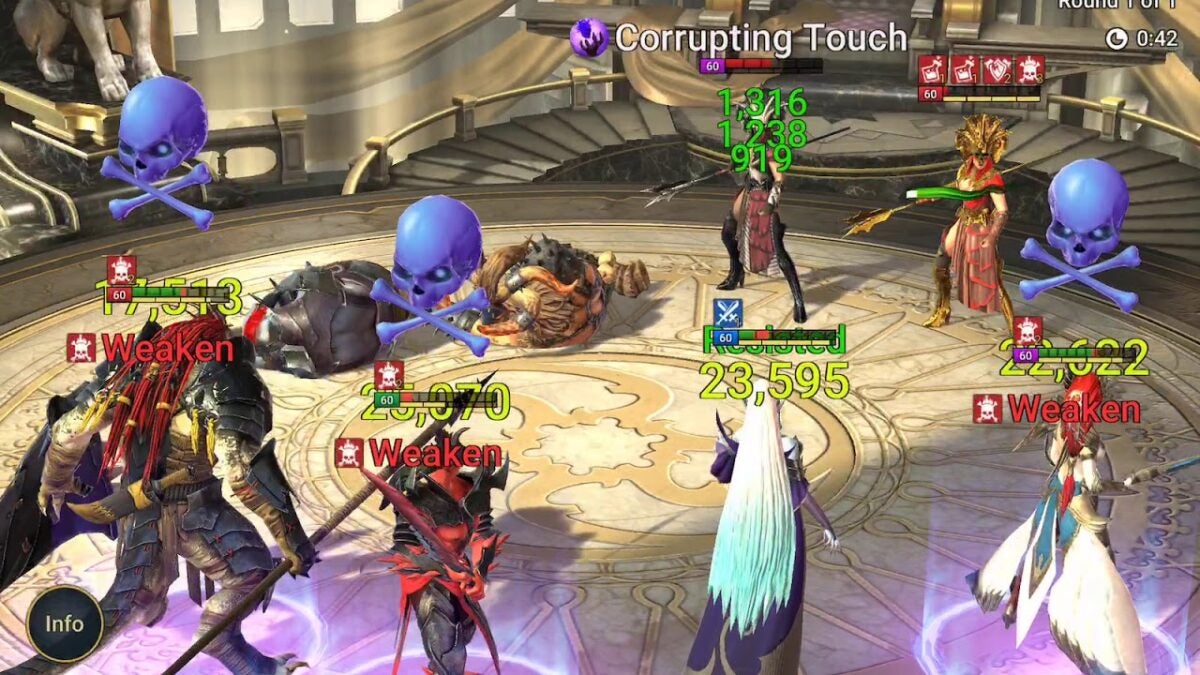
While Raid: Shadow Legends is one of the top role-playing games of our time, there are plenty of game mechanics that can be challenging to master. Plarium truly created a masterpiece, but you’ll need to learn how to join clans and play to the best of your ability.
Here’s the good part: if you reach level 10 within 24 hours, you’ll receive $5 in gift cards. What for? It’s all up to you! Amazon, Spotify, Netflix, whatever gets you going (Promotion valid only for the US territory).
For now, let’s show you how to play Raid: Shadow Legends with our handy 5 tips.
Invest in your hero
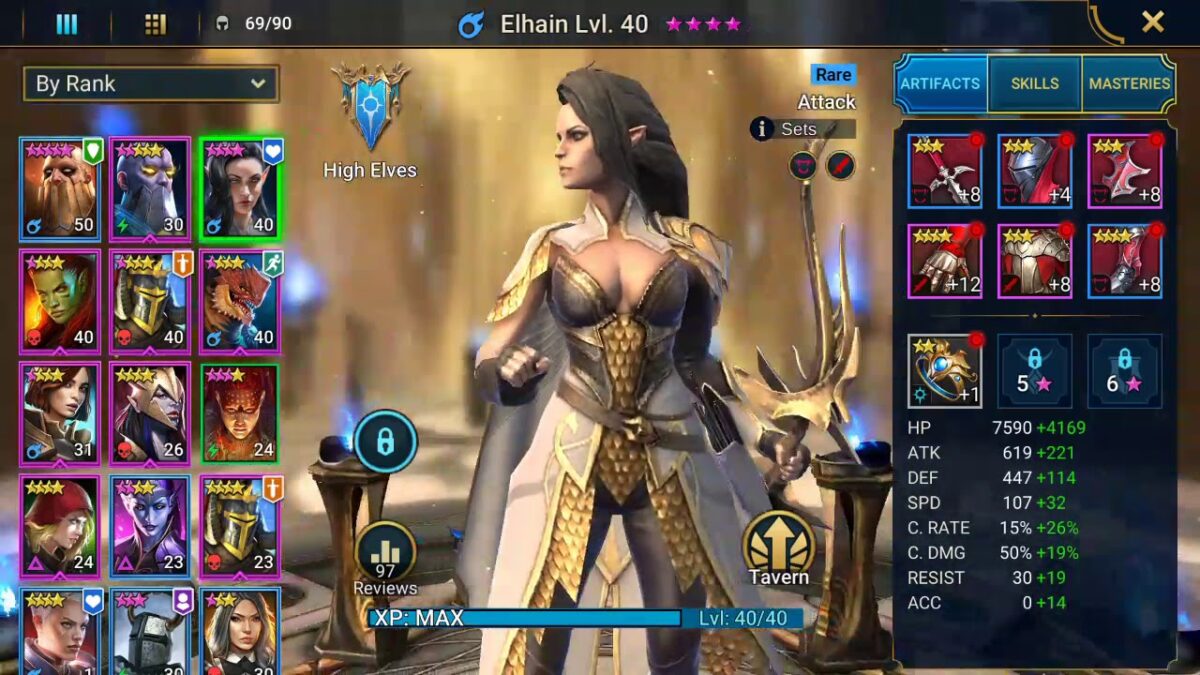
At the start of Raid: Shadow Legends, you’ll want to focus on progressing through the ranks as quickly as possible. You’ll gain valuable experience points that way, which you’ll need to advance your hero through infamous battles with all kinds of creatures.
You’ll need to choose which hero you want to invest as much of your time as possible in, ranking him up to five stars at first. You should use Double XP and grinding, which we’ll explain in the next tip.
Check out the Campaigns
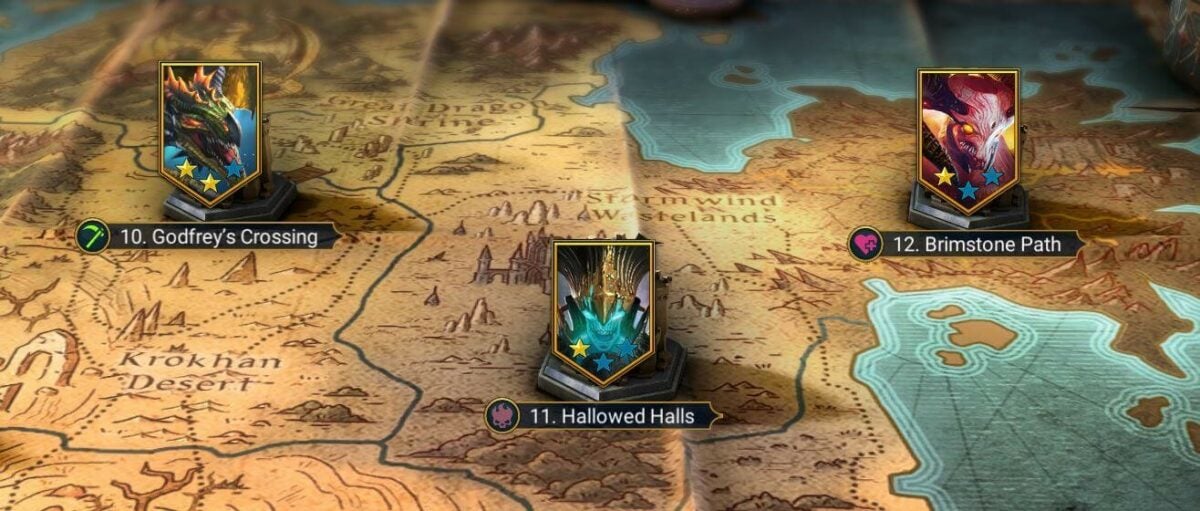
Whilst it’s true that dungeons in Raid: Shadow Legends will give better rewards, the campaigns will make it easier to upgrade heroes of all kinds, though most of them will be used as fodder.
Also, you get to immerse yourself in the story, which is an essential part of the game’s experience. Once you have a stronger team, start hitting those dungeons and making the spider regret he left his net.
Complete your daily chores, missions, and quests
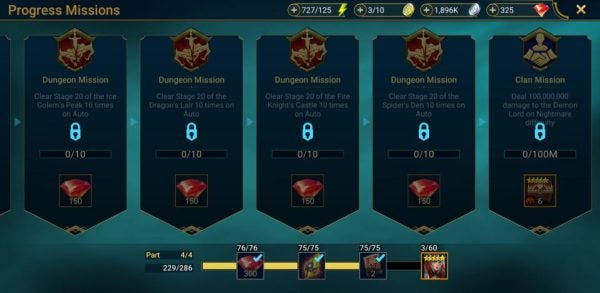
When it comes to shining above the rest in Raid: Shadow Legends, we can’t emphasize this tip enough. It doesn’t take long to do the dailies, and the rewards are well worth your time. Even if you don’t have much time to devote to the game each day, diving in to do your dailies is essential.
In the long run, the weekly and monthly rewards amount to some serious business, and you’ll definitely need those to advance in the game. Progress missions and quests are also highly significant, so don’t miss out on them.
Use your shards and books wisely
Books help heroes unlock their skills, but are difficult to come by. Whenever you get an epic or even a legendary book, give them to the heroes that are genuinely worth it.
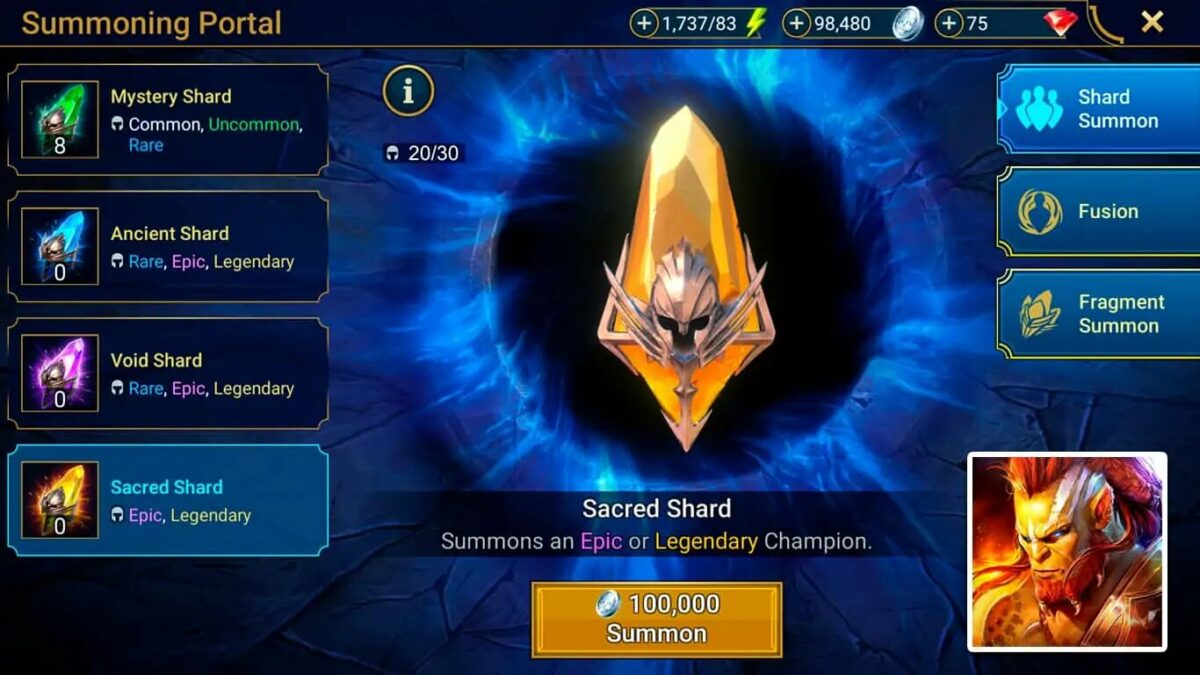
To receive those heroes, retain your shards for double summoning chances and shards tournaments. You’ll need any advantage you can get with 500 heroes waiting to devour you alive. Literally.
Raid the arena, dungeons and fight clan boss
After you’ve built yourself a killer team, it’s time to leave your mark in the arena. Aside from having fun in PvP battles, the arena will give you awesome daily rewards. The same goes for the clan boss; fighting him will grant you lucrative rewards and artifacts.
In order to do all that, you’ll first have to make a name for yourself in the dungeons, where you will get the gear needed to build a ruthless team.
Become a Shadow Legend!
While the above tips for Raid: Shadow Legends will help you on your way to becoming a real legend among online gamers, you’ll want to join a clan as quickly as possible. There are treasures and rewards shared with all members, as long as you participate. You should also use the sparring pit to train your heroes while you rest.
A last piece of advice is to invest in the gem mine so you can earn quickly. You should also focus on masteries so that you can unlock your hero’s full potential. And now, we leave it up to you!
Huluis a popular streaming service through which you can watch movies and shows, live sports, and TV. Now, Hulu + Live TV will cover the delayed 2020 Summer Olympics in Tokyo, Japan, from Friday, July 23 to Sunday, August 8.
Major networks like NBC, the Olympics Channel, USA, CNBC, and the Golf Channel will screen the games in English, and Telemundo and Universo in Spanish. But Hulu + Live TV will feature a unique and exciting blend of live coverage, clips, highlights, replays, and on-demand content.
All-in-all they’re offering an outstanding personalized Olympics experience for Hulu subscribers.
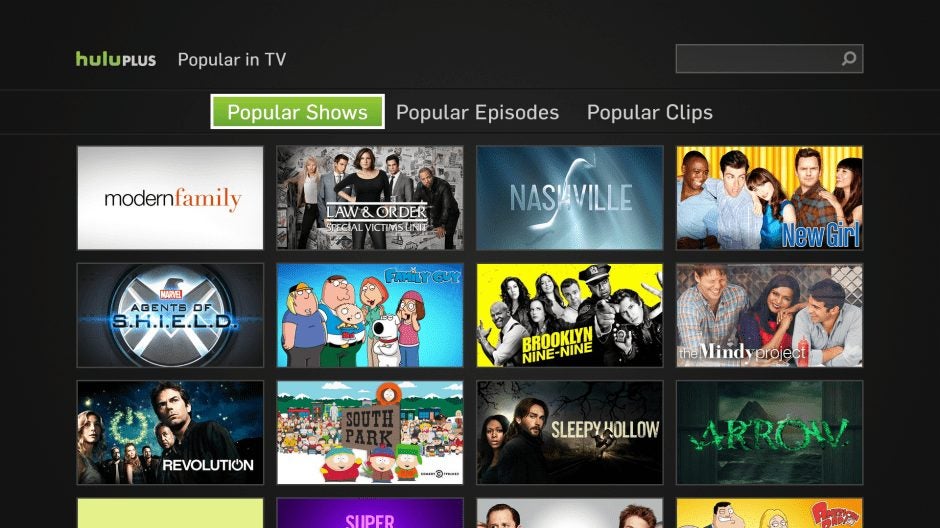
Cable subscriptions have become less popular. Instead, people are going for online video streaming like Hulu as their preferred choice for home viewing. Hulu has an enormous content library and a simple interface, so it’s easy to use.
You can get Hulu for a monthly subscription at an affordable price. In fact, instead of increasing its prices, Hulu’s plans have become cheaper. There are different tiers in subscriptions to customize your viewing.
To set up Hulu and Live TV, follow these 3 steps:
Log in or create an account
Log in with your credentials if you are already prescribed or create a new account. Current Hulu subscribers can switch to Live TV.
Set up your preferred device
Set up Live TV supported devices like Apple, Android, Fire TV, Chromecast, LG TV, PC and MAC browsers, Roku, Playstation, Samsung TV, X-box, vizio and more.
Find supported channels
To locate local live TV channel availability carrying live coverage of the Olympics and other sports, enter your postcode.
Why the 2020 Olympics if They’re Held in 2021?
The 2020 Olympic Games were postponed because of the worldwide effects of the Covid pandemic, so they will only be held this year, in 2021. Instead of changing the name, the Olympics will retain all the original 2020 branding, including the athletes’ clothing and medals, souvenirs, signage, and TV graphics.
So in every way, they will still be the 2020 Olympics, despite being held in 2021! There are other differences to the norm, including that there will be no spectators, so people will be watching TV or streaming services like Hulu.
The First Summer Olympics on Hulu + Live TV
The 2018 PyeongChang Winter Olympics aired on Hulu + Live TV, but the 2020 games are the first Summer Olympics to do so. Don’t miss it. The games will feature all the most popular sports like gymnastics, track and field events, soccer, golf, basketball, swimming, and volleyball for you to enjoy.
There are also new Olympic sports like karate, skateboarding, surfing, and sport climbing to watch.
Will You See Complete Olympics Coverage?
The opening ceremony starts on Friday, July 23 at 8pm in Tokyo. Since Tokyo is 13 hours ahead of the US EST, NBC will air live coverage at 7am EST and 4am PST. It will be re-broadcast at 7:30pm EST and 4:30pm PST on NBC.
You can see the opening ceremony as well as detailed coverage of the individual events to follow on Hulu + Live TV.
A Glance at the Tokyo Olympics Program
Here’s a quick look at the program:
PRIME TIME: Live coverage of high priority events
LATE NIGHT: Continuing live coverage
EARLY FRINGE: Catch-Up/ Best-Of 24/7 coverage
Continual coverage of select events
Olympic coverage after the markets close
Full coverage of Golf competition
Extensive Spanish Language Coverage
CEREMONIES: Full Replay of Opening and Closing Ceremonies
FULL EVENT REPLAY: Replays of long-form competition events (English and Spanish versions)
CLIPS: A total of 80 clips a day in English and Spanish. Highlights from competitions, key events, viral videos, additional athlete profiles, Olympic features, medal ceremonies, etc.
It’s going to be a blast!
While there are stringent guidelines for coverage of the Tokyo Olympic Games, we’re all looking forward to seeing the event. The rules are so strict that every creative asset has to be submitted through the NBC Olympic Portal to be reviewed for approval by NBC and the IOC (International Olympic Committee).
So what we’re saying is, appreciate every effort made to bring this to your viewing pleasure! Look out for Hulu + Live TV’s excellent coverage of the Games.
Cruella, Disney’s acclaimed live-action film, will be available on August 27 on the Disney+ streaming platform. All subscribers to this service could enjoy discovering the origins of one of the most memorable yet mysterious villains from the creators of Mickey Mouse: Cruella de Vil. And although we all remember her gruesome plan to make a fur coat out of 101 Dalmatian puppies, little has been known about the life of this villain with iconic two-tone hair… until now.
Starring the great Emma Stone, Cruella is a movie that breaks with the beloved animated film, immersing us in a world of envy, narcissism, revenge and fashion that will keep us glued to the screen.
In the wake of Maleficent and the acclaimed teen trilogy Descendants, Disney has yet again decided to reveal an unknown facet of one of its most beloved villains. In Cruella, we’ll discover the origins of this terrifying character by following the adventures of Estella, an orphan in 1970s London who dreams of making a name for herself in the world of fashion. Her talent will be discovered by Baroness Von Hellman (Emma Thompson), the city’s most important designer, who won’t hesitate to hire her to work in her studio. But behind her glamorous facade, diamonds and expensive clothes, the Baroness hides many secrets and evil plans that will mold the young Estella into the Cruella we all know.
The devil wears Dalmatian
A cross between a villain and a heroine, Cruella takes us on a roller coaster of emotions where envy, revenge and edgyfashion will be the stars. Set to a soundtrack full of ’70s classics (The Rolling Stones, Queen, The Clash, etc.), the film invites us on a thrilling journey in which the clash between Emma Stone and Emma Thompson will transform the charming, intelligent anti-heroine into a malevolent being who is difficult to redeem. As the movie progresses, its humor and innocent comedy scenes will turn dark, pleasantly surprising all who decide to accompany Cruella on her descent into damnation.
A feast for the eyes
Fueled by fashion and design, it comes as no surprise that Cruella’s visuals are among its most applauded aspects. The film does a spectacular job of recreating London of the mid ’70s, where the rise of punk style is palpable in every scene in the film. With glamorous costumes, impossible hairstyles and impeccable makeup, it will portray not only the turbulent world of fashion but also the transformation of our protagonist from a mischievous orphan into a treacherous villain.
Get Disney+ for the best price
Still haven’t subscribed to Disney+? Take advantage of Cruella’s release and get a juicy discount by choosing the annual plan. With it, you’ll have full access to Disney, Marvel, Star Wars, National Geographic, and Star for only 89.90 euros a year, which is 16% cheaper than the monthly plan (8.99 euros a month). In other words, you’ll get two months for free to enjoy the best series and movies of all time. What are you waiting for? Try it today!
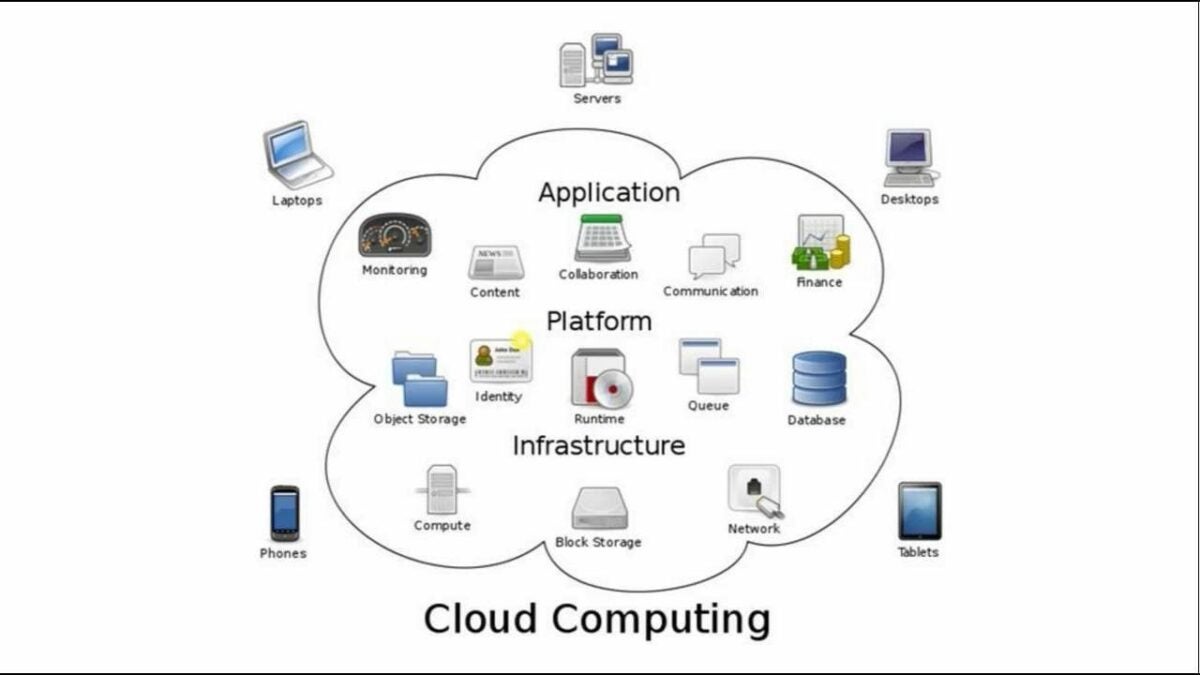
Windows 365 Cloudis a new Microsoft offering that puts your PC in the cloud. Its best feature is that you can roam all your settings from your Physical PC to your Cloud PC. These include your apps, desktop, browser history, favorites, wallpapers, and content.
You can then access them at any time on any of your devices, including your phone or tablet, whether they are Mac, Linux, iPad, or Android. So you get the power of the cloud combined with the simplicity and ease of use of your PC. Windows 365 Cloud is a hybrid computing model that will allow users all the capabilities of their PC with the power of the cloud.
It’s not aimed mainly at personal use but at the new world of remote work that arrived in the pandemic era. It will be available from August 2, 2021.
Streaming Data to Other Platforms
The Cloud PC allows users to stream all their information from the cloud to any of their devices on any other platform including Mac, Linux, iPad, or Android. You can switch from one device to the other and pick up where you left off on your Cloud PC.
Pre-Provisioning Windows 365 Cloud PC
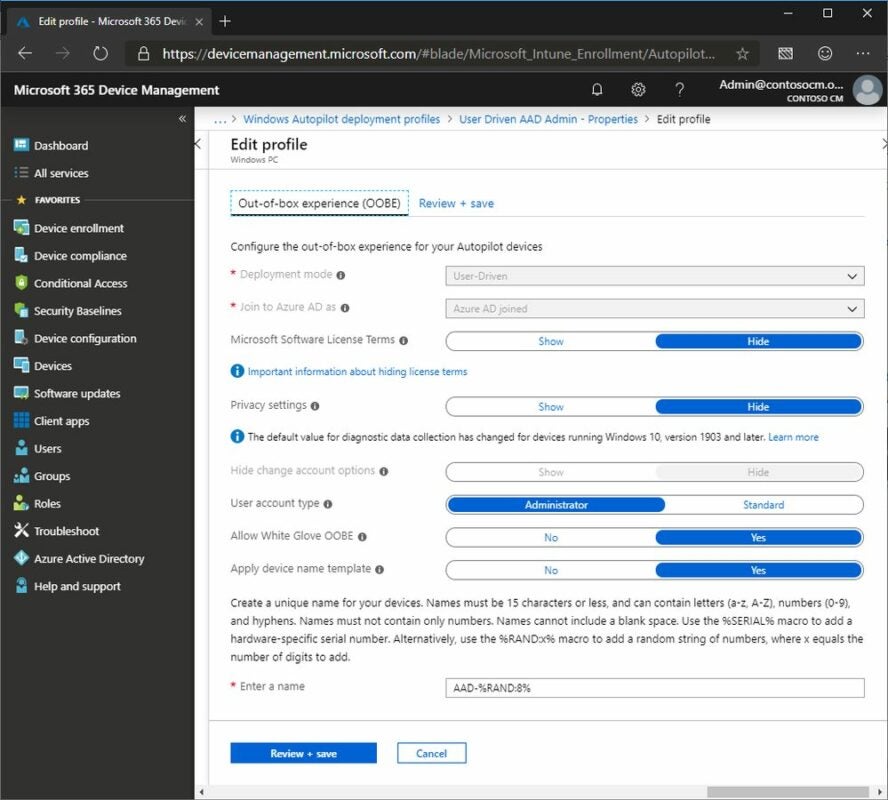
Windows Autopilot white glove pre-provisioning allows organizations to provision new devices easily. This takes them from the initial factory configuration to a state in which they are ready for productive use.
The MEM Intune Portal
The Windows Cloud PC workloads are integrated with MEM Intune, which is part of the MEM portal itself. Windows 365 is part of the MEM Intune Portal. It can be managed with Endpoint Manager and can do the following:
– Provision virtual machines (VMs)
– Change the size of VMs
– Check the performance of VMs
– Change user settings
– Arrange network connections
– Deploy Operating System (OS) Images
– Deploy Apps
– Deploy Security and Defender policies
What it Will Mean to IT Professionals and Admins
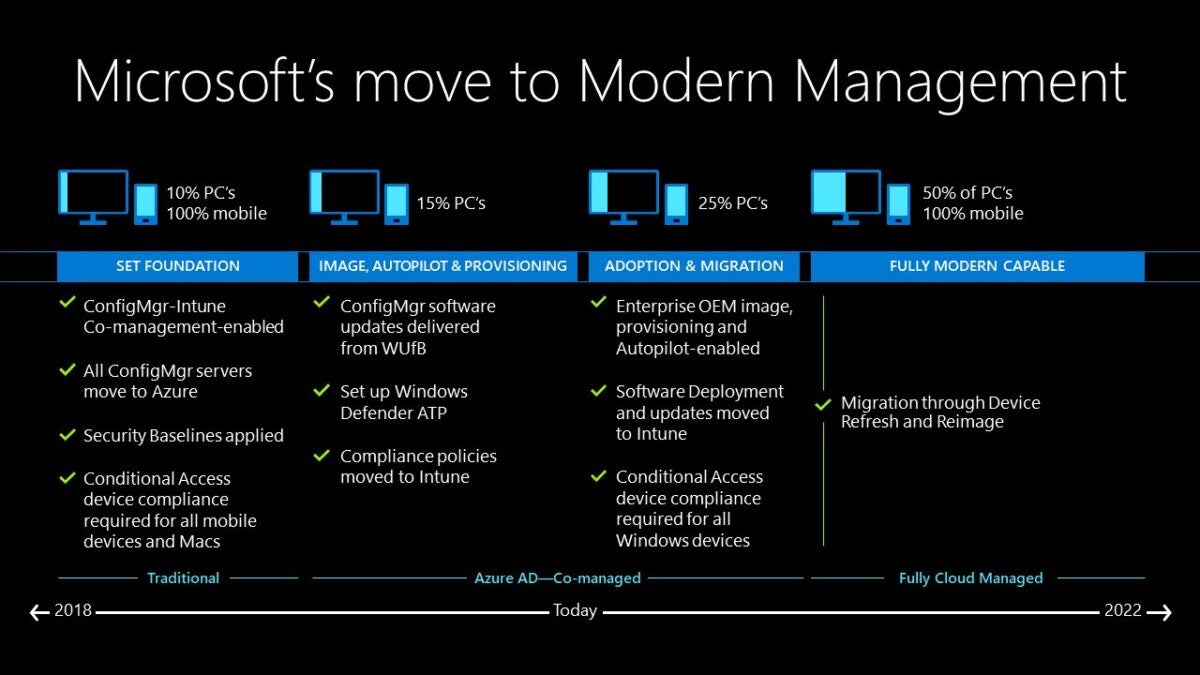
IT professionals will find it easy to configure Cloud PCs with tools they know well, like Microsoft Endpoint Manager. They will be able to make sure their companies have an environment that is more flexible and secure and allows their employees greater ease of use from wherever they are on any of their devices. Freelancers or contractors who come into an organization can also be managed without logistical or security problems.
IT Admins will be able to manage updates and deployment of new software easily. They’ll use Windows 10 or 11 to upscale their PCs when necessary. They can set up user groups by departments like IT, Insurance, and Tax and assign Cloud PCs with high computing abilities where needed.
Is Windows 365 Cloud Secure?
Windows 365 is built based on Zero Trust Architecture. Information is stored in the cloud. Disks running on the Cloud PC are all encrypted, as is the network traffic data. Stored data is encrypted at rest. For secure logins, you can use Multifactor Authentication (MFA). You can use conditional access With Microsoft Endpoint Manager and MFA as an additional security layer.
Will There be Application Compatibility?
Microsoft guarantees that there will be application compatibility with App Assure, a service that helps customers with over 150 users troubleshoot issues they might run into with applications at no cost. It will also support business apps, including Microsoft Dynamics 365.
What Windows 365 Cloud Will Do For You
Windows 365 Cloud PC will deliver a tailor-made PC experience in the cloud. That can be accessed from any device. This will give workers and organizations much more flexibility as well as ease of working. It introduces a new way to experience Windows 10 or 11 when it’s available.
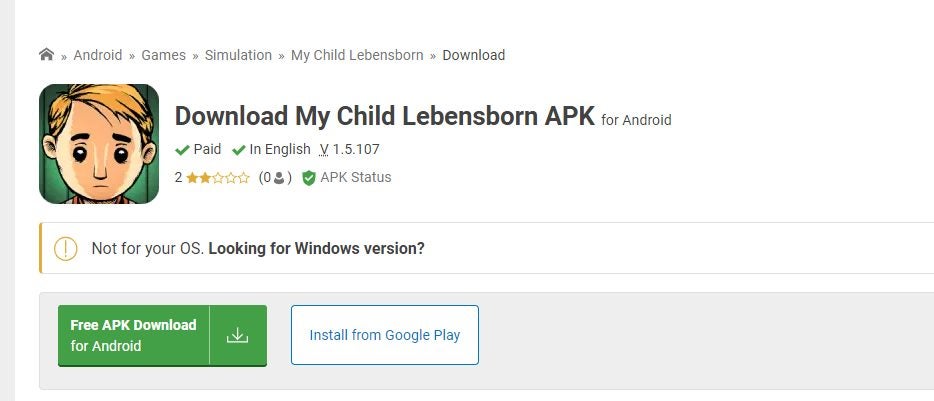
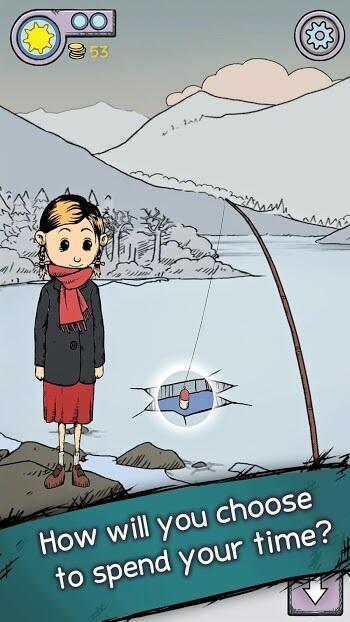
If you’ve ever wanted to adopt a child who was traumatized by the events of World War II, you can download My Child Lebensborn APK on your Android for that chance. The simulation game is easy to play, as you’ll talk to and interact with the character while caring for him.
Please note that there are some disturbing story arcs that aren’t for the faint of heart. However, we really enjoyed the role we played and the emotions that went along with it.
Download My Child Lebensborn
Firstly, you’ll want to head to our review page and download the My Child Lebensborn APK. If you’re doing so from your phone, your device will ask you to confirm the download. You may also need to access unknown sources.
If you’re downloading from Windows, you’ll need an Android emulator like Bluestacks to play it. The apk download file will appear on the bottom of your browser and usually saves in your Download folder by default.
Install the game
As soon as you’ve downloaded My Child Lebensborn APK, you can install it on your device. For Android phones, you can simply install the file you saved. You’ll find the icon appear on your home screen, but you can move it to a folder or new location. It might as you to grant some permissions.
For Windows, you can head into your emulator and browse for the apk file. Once you double-click on it, it will install and place an icon in your games section of the platform. You can access the game from there at any time.
Select New Game
When you open the My Child Lebensborn APK file, the game will start. There are a few options available to you on the main screen. These include Chapter, New Game, Options, and Quit.
Since it’s the first time you’re playing this game, you’ll need to select New Game. You can check out the options first if you want to change come settings, but New Game will start My Child Lebensborn’s story.
Choose Chapter
If you’ve already started the game and needed to leave for some reason, you can come back to where you last were with the Chapter section. You won’t lose any progress, and you can take your time looking after your adopted child.
There may come an occasion when you want to go back to a previous scene. You can browse the available chapters in the collection via this menu option at any time, giving you some replayability.
Interact with the character
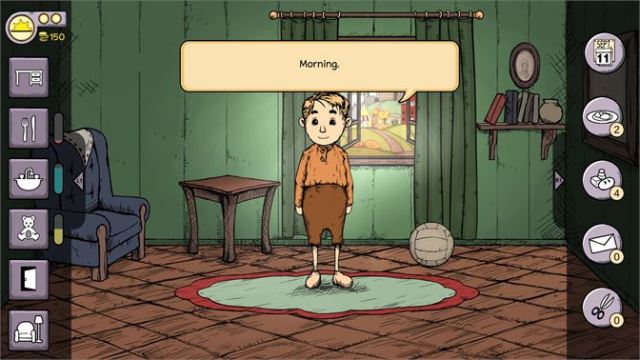
The primary goal of My Child Lebensborn APK is for you to care for the young person in your home. You can engage in discussions with him or her and learn about their past, or you can teach them new things. You’ll have several options when it comes to the dialogue, which will affect how they respond to you.
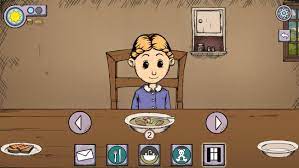
You’ll also need to provide some care interactions with them like in The Sims 4. There are icons for messages, cleaning, eating, playtime, and when it’s time to go sleep. There are many activities you can do with them, but we’ll leave that for you to discover.
A touching tale to tease your heart
WWII had a massive impact on people worldwide, but it also left some trauma behind for generations that followed. My Child Lebensborn APK brings such a tale to your phone, where you’ll not only teach but also learn.
Do you have it in your heart to explore the mysteries of the child’s life while looking after him or her?
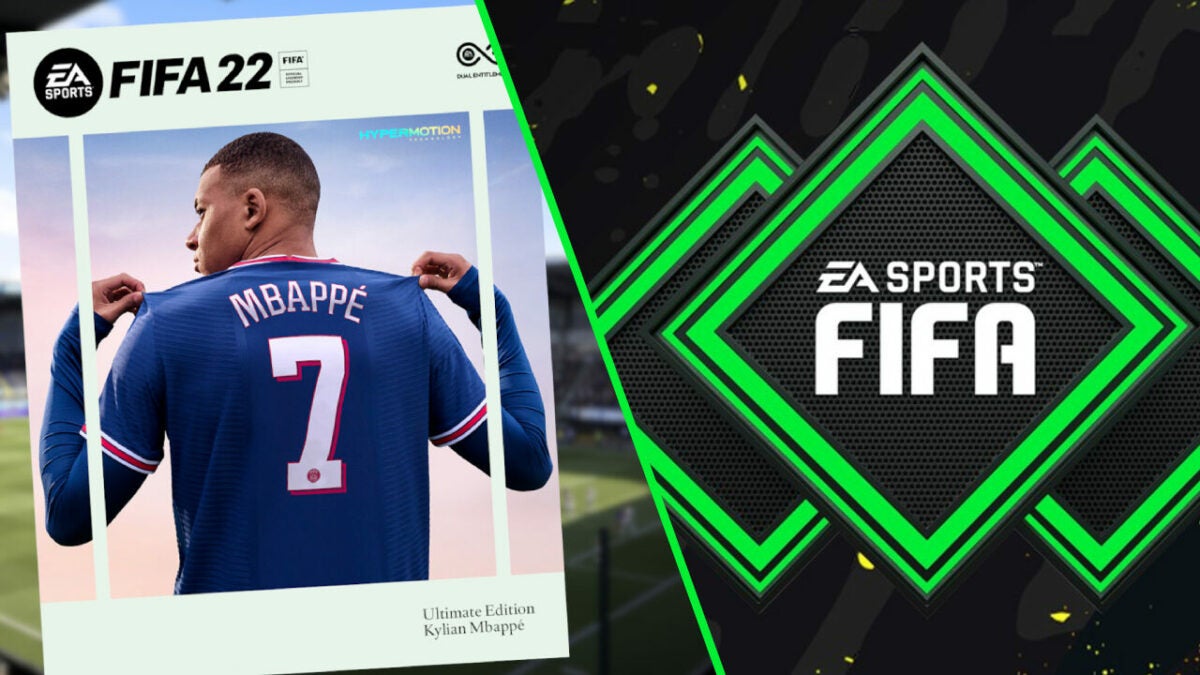
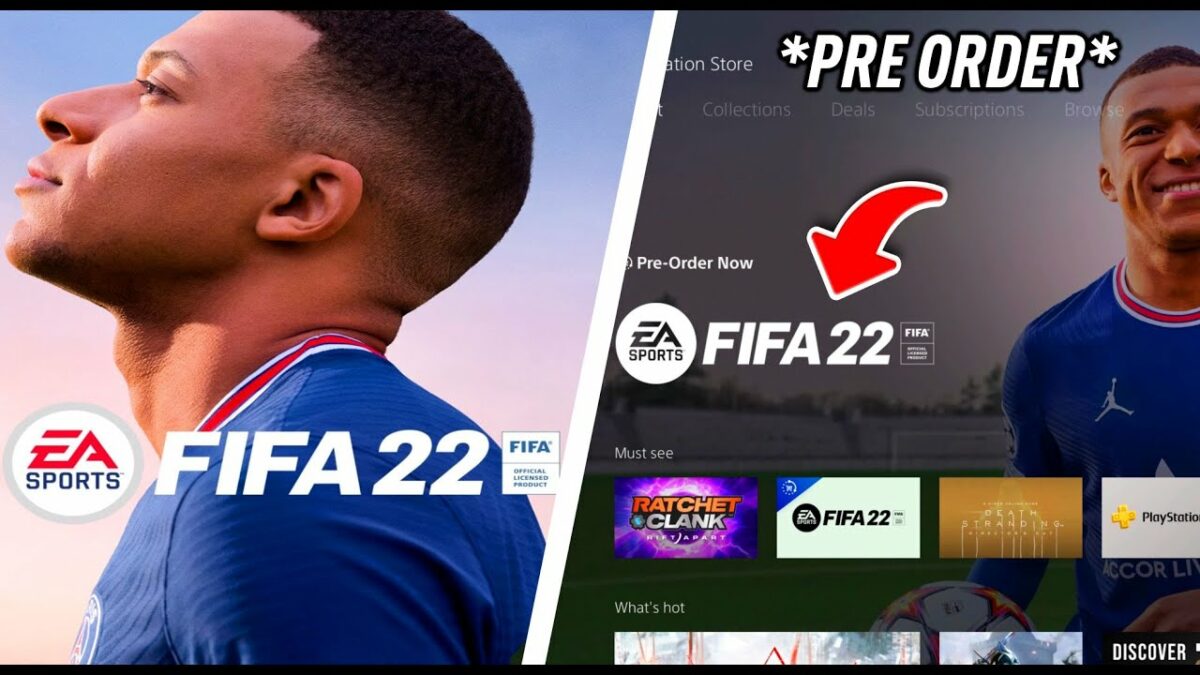
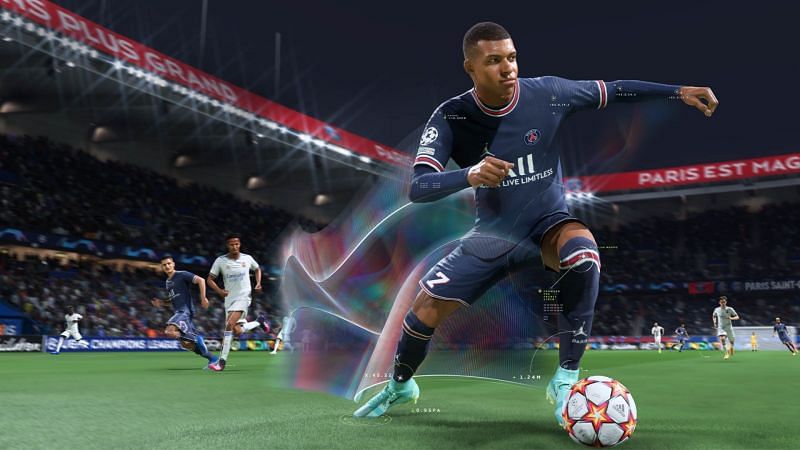
It’s expected that FIFA 22 will launch on October 2, 2021, and PS5 and Xbox Series X gamers can enjoy the next-generation graphics and gameplay that they’ve anticipated. While PC players will have to contend with similar visual quality as before, soccer fans worldwide can’t wait to test it out. EA is presenting a new career mode, which has a few adjustments from the previous title.
In this quick guide, we’ll show you how to play FIFA 22 sooner than the release date and discuss what new features will be available.
Pre-order FIFA 22
As of September 30, 2021, you’ll be able to download and receive FIFA 22 before the launch date. However, it’s only if you pre-order the Champions or Ultimate Edition. The pre-order window is from July 11 until October 2.
To place your pre-order, open the store page for your device and search for FIFA 22. If you’re wanting it on console, you’ll need to check the PS5 and Xbox Series X stores for when it’s available. Once on the correct page, you need to select which edition you want and click on “Pre-order”, “Buy”, or “Add to cart.”
EA Play membership
If you’re a member of EA Play or Origin, you’ll be able to download FIFA 22 on September 30, 2021, and play it ahead of the launch date. It’s a special treat to loyal members, giving you privileges over those who have not joined as yet. It may be worth considering the subscription if you love EA games.
To benefit from this method, all you need to do is download the EA Play client and sign up for the membership. When the appropriate date arrives, you’ll see FIFA 22 available for download. You can then play to your heart’s content while other gamers wait for the official launch.
New FIFA 22 Gameplay and Features
Most of the new features revolve around career mode, while we’re sure you’ll see updated elements for the others. You’ll be able to perform more customizations than before, giving you more control as a club manager.
There have been plenty of leaks, but these are the confirmed features.
Create a Club
While you’ve been able to create clubs in some form before, you can now do so in career mode from scratch. There’ll be deeper customizations, giving you full control over your team. You see new kits, stadiums, crests, and more that you can add to your players and group.
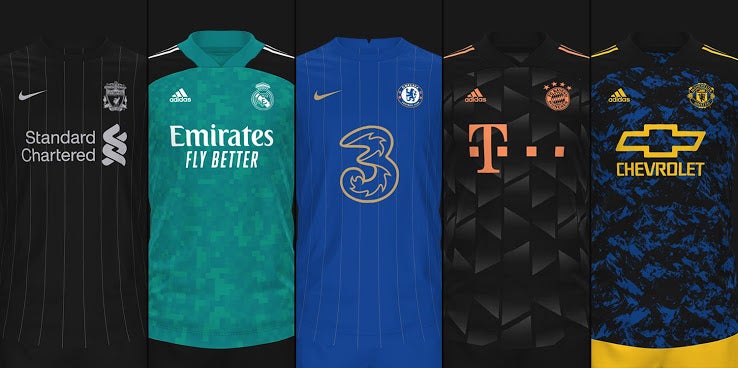
Custom kits
One of the newest features is the ability to create your own custom kit for your team in FIFA 22. You’ll be able to pimp the clothes as you wish, making them stand out from other clubs. You can also use templates from other teams and adjust them with new imagery or colors.
Make a stadium
One aspect many FIFA gamers have asked for is to develop stadiums for their teams. EA has listed, and the ability to create a stadium is coming to FIFA 22. When you play at home, you’ll compete against the opponent in the base you built, adding some excitement to the title.
Score the latest FIFA game
FIFA 22 has many players excited, even though it’s another annual release of a franchise that doesn’t appear to be dying anytime soon. As the top brand of soccer games, it’s great to see the developer and publisher bring something new to the table.
If you want a taste of it before the launch or access to new features, you’ll need to pre-order it via the methods shown. Good luck, and may the best team win!
Adobe Illustrator is especially useful for creating high-quality vector images. Vector images are computer-generated and consist of points, lines, and curves based on mathematical equations. These image files are very flexible and can easily be resized without a loss in resolution.
It’s usually used as part of a larger design workflow. It allows designers to create single design elements and even complete compositions. Let’s take a closer look at what Adobe Illustrator is and how it works.
Guide on How to Use Illustrator for Beginners
Let’s take a look at some of the basics of how to use Illustrator.
Create and save a new document
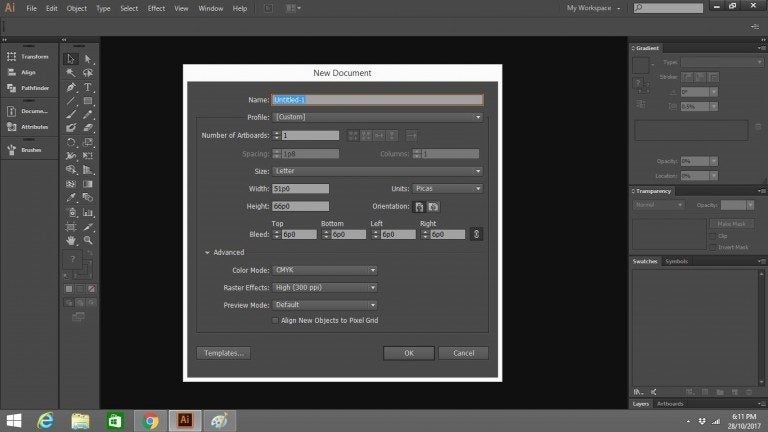
To start working in Illustrator, you will have to create a new document. To do so, open the program. The Work tab should open automatically. Select it if it doesn’t. Then click the Create new button. A new window will appear and ask what it is you want to create. Select the one you want (for instance, Web or Print), then choose a preset, and click Create.
Once you have created your document, you should save it. In the upper left-hand corner, go to the File menu and in it choose Save as. Name your file and decide where you want to save it (e.g. Desktop or Documents). Then go to Format and select the format you want to save it in. Save, and your document is ready for you to work on.
The Workspace and Tools
To use Adobe Illustrator to its best advantage, you need to know your way around.
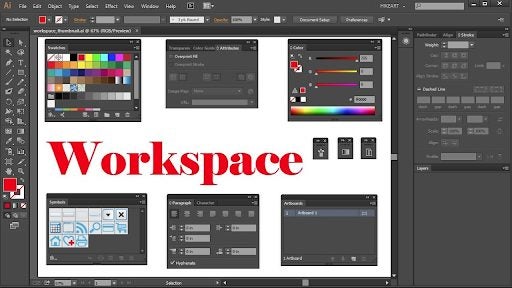
Firstly, become familiar with the workspace to locate what you need to create your graphics. It would help if you also got to know the essential tools and what they’re used for. The Illustrator workspace is similar to those of other graphics programs like Photoshop. It’s a rectangular area containing all the tools you need and the space in which to create your graphics.
You’ll use the Tools panel on the left the most because it contains all the tools you’ll need for whatever task you’re undertaking. There are a lot of tools, but you don’t have to learn them all at once.
To configure the tool you’re using, go to the Control Panel at the top of the rectangle. The Panel Docking Area on the right holds color swatches, layers and other palettes, gradient settings and stroke options. Experimenting with all of these will help you become familiar with them. You’ll develop your own preferences as you become comfortable with the tools.
Creating Basic shapes
Most designs you’ll want to create in Adobe Illustrator will require that you start with basic shapes. The most useful tool for doing this is the Pen tool, which will allow you to draw a variety of lines, triangles, curves and squares.
These shapes can then be combined in different ways and built up to create a drawing that can be the basis of an icon or a logo, for instance.
The shapes can then be filled with color, from Illustrator’s extensive colour range using the Eyedropper, another valuable and popular tool. It allows you to pick up a color of your choice and drop it into a shape.
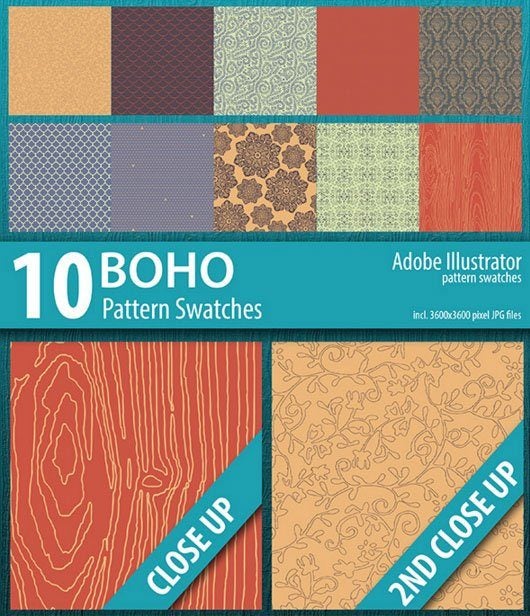
Illustrator also has a Swatch library. It offers an amazing range of patterns and textiles and stunning gradients and palettes of different skin colours. To find them, go to the Swatchespanel and into its drop-down menu. Choose Open Swatch Library and be amazed at the selection.
The Shape builder tool and the Pathfinder option can help you manipulate your shapes to draw your desired design. You can unite, exclude, divide and intersect your shapes to create your graphics or drawings The Appearance panel will allow you to add different effects to make your graphics really exciting. You’ll find it in the Window menu at the top of your screen.
Experimenting with the different tools in the Tools panel will help you learn many interesting ways to use them.
Creating a Logo in Illustrator
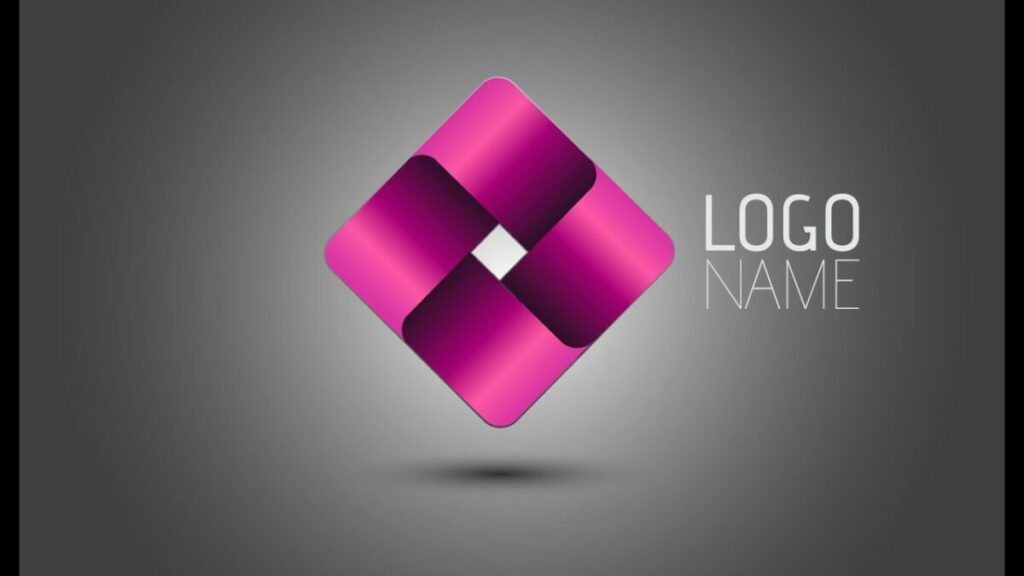
Illustrator is often used to create quality logos that can be resized and used in various other forms of branding such as letterheads, email footers, etc.
When creating a new logo, you’ll first have to set up your document before even starting with the design work. Once in Illustrator, click on ‘Create New,’ then choose the size preset for your project. You can use any recommended ones for your logo, but we prefer using ‘Letter.’ Click on the blue ‘Create’ button to get started.
Illustrator has different workspaces depending on what you need. To create a logo, we will be using the painting workspace. Click on ‘Workspaces’ in the upper right-hand corner of your screen, then choose ‘Painting.’
First off, start with the basic shape of your logo. You can use circles, squares, rectangles, and many other shapes. To draw the basic shape of your logo, click and hold the ‘Ellipse’ tool to see the shapes available. Once you’ve chosen a shape, click and drag with your mouse on the document to draw the shape.
Now you can start adding more elements to your logo. To add a color to your shape, click on the ‘Selection’ tool in your toolbox and then choose the color from the color swatches on the right side of your screen. You can also add more lines or shapes to give your logo some details.
However, remember that when you add a new image, you’ll have to create a new layer by clicking on the + icon in the layers menu. Working in layers will let you change one element without affecting the rest, which is very useful, especially in more complex designs.
Now that you have the basics of your logo, you can finally add the text. Click on the ‘Text’ tool in your toolbox. Then click on your document where you want to start adding the text and type. Once you’ve typed your text, you can change the font and size and move it if your placement isn’t correct.
Effects and 3D in Illustrator
Using effects can sometimes completely transform your image or design. Adobe Illustrator has many different effects to choose from. To use these different effects on your images is quite simple. Let’s take a look at 3D effects in Illustrator.
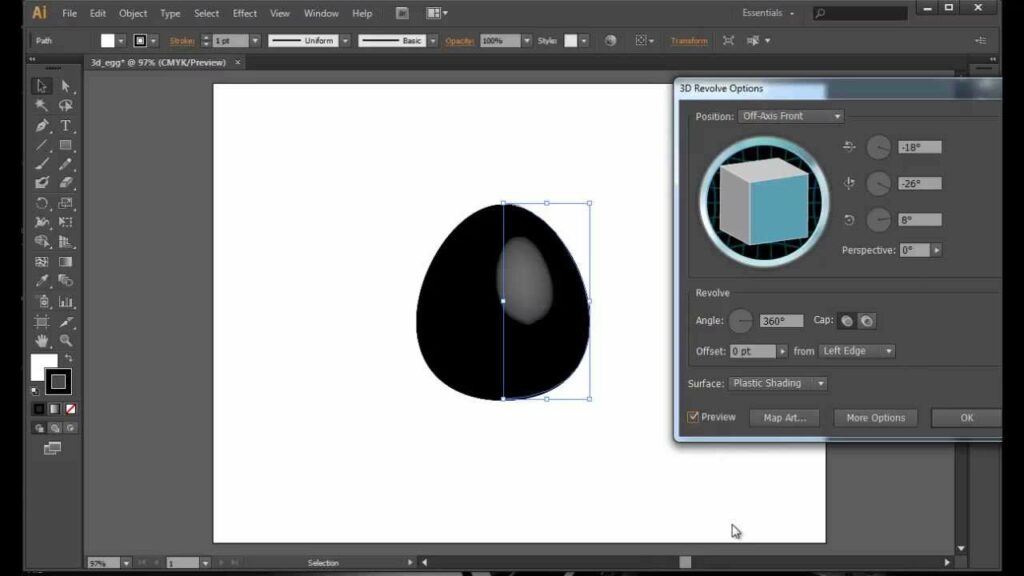
Select the object in your image that you want to apply the effect to. Click on the ‘Effect’ tab in your menu. You will see many different options appear in the drop-down list. Click on ‘3D Classic’ and then choose ‘Extrude and Bevel.’ Now you can change the settings of your extrusion and beveling to get the desired look you’re after.
Practice Makes Perfect
There is a lot of information on using Illustrator on Adobe sites and others on the Internet. There are manuals that go into precise detail on all the program’s numerous features to guide you as your skills grow after you have mastered the basics.
You can also find videos that go into detail on different aspects of the program. There are forums where you can connect with experts and ask questions. Experienced users have written blogs and shared their history of learning the program, which is complex and can seem difficult to master at first.
There are add-ons for Adobe Illustrator that can enhance your work. Have a look at Envato Market, which provides many styles, textures, patterns, and brushes you can use.
Saving Your Vector Art
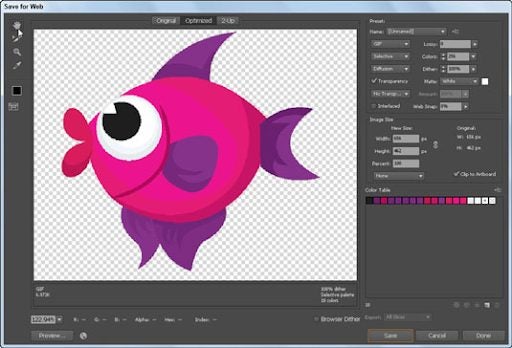
You can create the best graphics in the world, but if you don’t save them properly, you’ll limit access to them. If you’re saving your work as a gif, jpg or png, you should also learn how to Save for Web. It’s a fundamental thing to remember to do with your vector graphics or artworks. It’s easy. Go to File > Save for Web, select your file type and save.
Illustrator Tips and Tricks
Let’s take a look at some Illustrator tips and tricks. You can also check out our guide on how to remove a background.
How to Find PMS Color in Illustrator
Open the file you want to know the PMS color from. Using the direct selection tool click on the part of the image where you want to identify the color. With the image selected, click on the color panel to the right of your screen. A window will pop out showing you the PMS color.
How to Get Pantone Colors in Illustrator
Open the file you want to get the Pantone color from. Select the colored area in the image that you need. Now click on the ‘Window’ tab in the top menu of Illustrator. This will open a drop-down list. Here you need to click on ‘Color and Swatches.’ This will open a new panel that will show the Pantone reference for the color you selected.
How to Use Typography in Illustrator
To add special typography characters to your designs in Illustrator, click on ‘Window’ in your top menu. In the drop-down list, choose ‘Type’ and then select ‘Glyph.’ Scroll through the available options until you find the symbol you want. Click on it to select it, and then double-click to insert it into your design. Adobe Illustrator will place the symbol where your flashing cursor icon is.
How to Use Font Effects in Illustrator
There are many different font effects that you can use in your design on Illustrator. To add a font effect, select the font in your design. Now, click on ‘Effects’ in the top menu. A drop-down menu will appear, showing all the available effects for your text. Choose the one that suits your design needs and add the effect to your text.
How to Use Pathfinder in Illustrator
To use the Pathfinder tools, you need to have two images overlapping. You can find the Pathfinder panel by clicking on ‘Windows’ and then selecting ‘Pathfinder.’ With the Pathfinder panel open, select your two images that are overlapping, and choose which function you want to apply. There will be options like uniting the two shapes, removing the front, just keeping the intersection, excluding the intersection, and more.
How to Use the Ruler in Illustrator
To view the rulers in Illustrator, click on ‘View’ in the top menu. A drop-down list with options will appear. From this list, select ‘Rulers’ then ‘Show Rulers’. Now you will see the rulers appear on your design, and you can use them for more precise sizing.
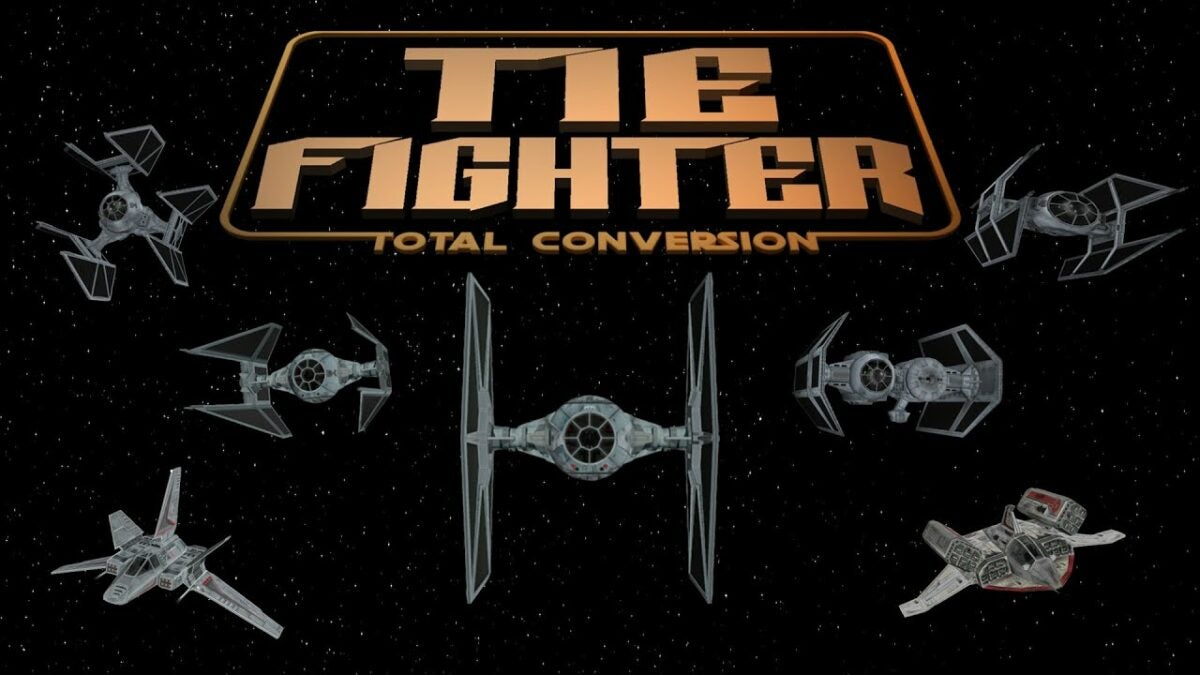
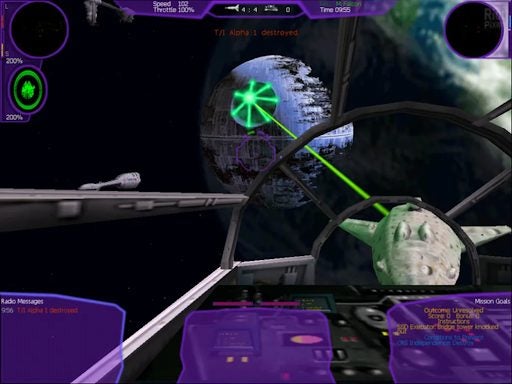
Ever since AngelTFTC created the mod for Star Wars: X-Wing Alliance Upgrade, fans of the series have been wondering how to install Tie Fighter: Total Conversion to the game. It’s not a patch you can play on its own, and you’ll need to have several things in place before you can play the remodeled TFTC game from 1994.
In this short guide, we’ll show you which steps to follow.
Install STAR WARS – X-Wing Alliance
Before you can gain access to TFTC, you’ll need to install the base game. Star Wars: X-Wing Alliance serves as the base for all the missions, weapons, and fleet around which the other patches revolve. Once you have a copy of the title, simply complete the installation wizard and take note of the location where the folder is saved.
Install X-Wing Alliance Upgrade
Next up, you’ll need the Star Wars: X-Wing Alliance Upgrade utility patch. What this upgrade does is upgrade the graphics and gameplay to a more modern appearance. However, there are some precautions you should take before installing this patch so that it doesn’t mess with the original files.
First, make a copy of the Star Wars: X-Wing Alliance game folder you installed in the previous step. Don’t place it in a Windows or Program Files folder, as it may mess with the patch. Once you have a location, install the upgrade patch to the new folder you copied.
You’ll need to start the game from the new location if you want to test if the upgrade patch worked.
Install Tie Fighter: Total Conversion
Finally, it’s time to install the Tie Fighter: Total Conversion patch. You should download both the base file and any updates that follow after that. You’ll need to begin by installing the main patch first and selecting all the options that apply.
When you work through the installation wizard, ensure that you select the folder you copied with the upgraded graphics and gameplay. Once completed, you’ll also need to install any of the latest patches; otherwise, the game will pick up errors when you try to run it. As soon as you see the installation is complete, you’ll have TFTC added to Star Wars: X-Wing Alliance Upgrade.
Activate the new mod
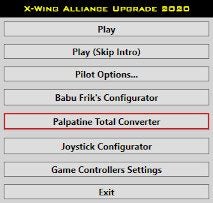
While you may have Tie Fighter: Total Conversion installed now, there are still a few things you need to do before you can play it. When you start Star Wars: X-Wing Alliance Upgrade, you need to select ‘Palpatine Total Converter’, which will let you access the new mod. You’ll notice that you can switch to the dark side by activating any new mods you may have.
You have the choice between the classic and reimagined versions. Once saved, you can close the program and run the executable file again. The main menu will now look like TFTC instead of the original game. You can now play the new mod with advanced settings.
If you want to change between the classic and reimagined versions, you can head back to the Palpatine Total Converter. In the same way, you can select “Restore to the Light Side” if you want to play the original Star Wars: X-Wing Alliance.
Welcome to the dark side
As you can see, installing Tie Fighter: Total Conversion can be lengthy if you don’t have any of the prerequisite games or patches. Still, it’s worth going through all the trouble to play the original missions from 1994 and get some of that nostalgia rumbling through your tummy.
Remember to follow each of these steps correctly, or you’ll run into errors. If you make a mistake, delete the copy folder you created and start again.
Marvel is back on Disney+ as of July 9th with Black Widow, the new MCU film in which we’ll catch up with Natasha Romanoff (Scarlett Johansson), the dangerous former Russian spy who has become one of the most important members of the Avengers. But… who introduced her to the world of espionage? What happened to her before she was an Avenger? What events from her past are still unknown to us? Black Widow will answer these and many other questions when you watch it at a theater near you or through Premier Access on Disney’s streaming platform. Because in fact, you can enjoy this blockbuster from the comfort of your home. Want to know how?
In today’s article, we’re going to explain how you can watchBlack Widowon Disney+. The process is really easy. You just need an active subscription to the streaming platform, a device compatible with this service and a valid method of payment. If you haven’t subscribed yet, click here to create your account. Then simply follow the steps below, and you’ll be able to watch Black Widow whenever you want. It’s so easy!
First, go to Disney+’s official website and log into your account. Keep in mind that in order to watch Black Widow, you’ll need to sign up for the platform first.
Order Premier Access for Black Widow
Once you’re in Disney+, find the film Black Widow by using the search engine, or click here to open the information page. Then click the “Watch now” button on the left side of your screen. This will open a new window where you can enter your credit card number to order Premier Access (€21.99) and watch the movie.
Enjoy Black Widow as many times as you want
After making your payment, you’ll be able to watch Black Widow on any Disney+ compatible device as many times as you want. Remember that you can access the platform from your computer, Smart TV, console, or mobile device by downloading one of its free apps.
By ordering Premier Access, Disney+ subscribers can use the platform to watch its newest releases and movies still in theaters. With a single payment of €21.99, you can not only access the film you want but also watch it as many times as you wish on any device compatible with this service.
Follow the adventures of Black Widow on Disney+
Feel like watching more? With your Disney+ subscription, you can check out all the films and series in the Marvel Cinema Universe (MCU). Don’t miss Black Widow’s appearances in Iron Man 2, Captain America: The Winter Soldier, and the complete Avengers franchise!