Microsoft releases Internet Explorer 8 Beta 2

Some more enhancements to Internet Explorer 8 BetaMicrosoft today gave us a further glimpse of how it aims to shoot down Firefox with the release of Internet Explorer 8 Beta 2. As we revealed when we looked at the first beta release, it seems Microsoft is getting its waning browser back on track, adding some neat functionality and ramping up standards support.

Beta 2 includes even more functionality as well as some interesting performance enhancement. According to the IE Team blog, the developers have been careful to look at both lab and real world performance. And so, instead of just focusing on how long it takes the browser to collect and render a web page, it’s been optimised to help people get tasks done more quickly. A good example of this seems to be the new Web Slices feature, which allows you to bookmark a single part or section of a web sit, tracking only the particular content that you’re interested in.

Beta 2 introduces other new functionality, such as the enhanced Find, which now has results highlighted. There’s also the system called InPrivate browsing, also dubbed ‘porn mode’, which lets you browse sites (i.e. your bank account) without IE storing any data such as URLs, cookies, temporary Internet files, etc. Another neat addition is the ‘Reopen last browsing session’ option, which is something Firefox users have enjoyed for a while now.

6 tricks for a faster MacBook

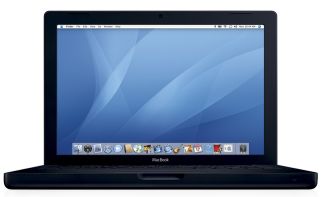
MacBookWhat are the best ways to get your MacBook to run faster? You could always buy extra RAM, but that means spending a few extra bucks and can be a bit hazardous if you don’t know how to do it right. There are the obvious tricks of stopping important processes in your Activity Monitor, cleaning the trash and removing unnecessary applications, but those will probably not result in noticeable changes.

GeekMalaya came up with six much more effective ways of improving the performance of your MacBook. You can start out by cleaning up your desktop and placing files where they should be. The more files you have on your desktop, the more things your system has to index and create a thumbnail, wasting time at start up.

Just as we explained a few weeks back, you can also remove start up applications that you do not need. See what programs are opened when you launch your Mac and keep the ones that are only essential.

Disabling the Dashboard is also very effective, albeit obviously not something you want to do if you use widgets often. To disable it, open Terminal and type in:

defaults write com.apple.dashboard mcx-disabled -boolean YES

Then reboot your MacBook or type in the following in your Terminal:

killall Dock

Another sensible thing to do is kill all the system preferences that you don’t use. It could be Bluetooth, Modem, Wifi or any other process that shows up in your menu bar.

If you have an Intel MacBook, reboot it and press CMD + Option + P + R until you hear the startup sound three times. This is known as”zapping the PRAM”.

For MacBook Pro and Air owners you can clear the Power Management Unit. Turn off your Mac, remove the power adapter and battery, press and hold the power button 5 seconds, release, then reconnect the power sources and restart your Mac. This will kill all ‘non-volatile’ RAM.

Another very effective trick that was not mentioned is to kill Spotlight, which can slow down your Mac with its continuous indexing of items. Check out our tip to know how to do this.

Try out a few of these tricks, or better still all of them, and you should see a notable increase in the speed of your MacBook.

Today’s downloads for Windows, Mac and Mobile

Download FlyPaperWindows: Say you’d like to create a Flash presentation with your photos but you don’t know anything about Flash. Your best option is then downloading FlyPaper 1.0.1.2, with which you’ll be able to design your own Flash presentations featuring photos, videos, background music and transition effects… and much easier than working with Flash!

ConversationMac: Conversation is a lesser known yet good alternative chat client. With a colorful and rounded interface, Conversation 2.14 is a great choice for first time users. It includes the typical emoticons, customizable user page and lets you share files with other users. If you have a little more knowledge you’ll also find XDCC and MP3 support.

Replicate the iPhone audio player on your Pocket PCPocket PC: One of the main problems in my life at the moment is that I keep seeing more and more people on the street listening to their iPod Touch or iPhone. That in itself is not the problem, of course. The problem is I don’t have one. Luckily though, I stumbled across S2P, which allows you to replicate the iPhone/iPod Touch audio player on your Pocket PC.

Is Adium now officially the best IM client for Mac?

Adium iconIf you were to ask me to name one good reason to ditch MSN Messenger it wouldn’t be too difficult to come up with an answer. Adium. Time and time again, the open source chat client has proved to be the friendliest, more feature complete and flexible IM client for Mac. It looks good too and is heavily customizable. And did I fail to mention that the Adium developers very frequently deliver updates of the app?

The latest version, 1.3, comes with a number of significant improvements which should end up convincing you. The Contact Inspector, where all your contacts are stored, including those from your Apple Address Book, is fitted with a newly designed interface. Because Adium is a multi-protocol client, you could quickly drown in the endless lists of contacts. Luckily, there is now a search field in the contact list, making it easier to find contacts. Just press CMD+F to activate it. What you often get too is the same contacts but repeated in different networks. Their profiles are now shown in a uniformed way and you can easily expand them in the contact list to see their contents.

Facebook Chat, as expected, can now be used with Adium. Note though that logging into it will log you out of your Facebook account. MobileMe is also now handled by Adium.

In terms of user experience, you’ll now be able to see a ‘typing’ message when contacts are typing without a chat window open. Adium will also now let you drag and drop urls from your browser and tracks from your iTunes to send as file transfers.

There is now support for a number of AppleScripts relating to contact management, such as re-ordering, blocking or deleting.

These are but the most impressive of the new features, but a whole lot more have been added, not including all the bugs that have been fixed. Give it a try and see for yourself why I say it’s the best IM client for Mac.

8 improvements that should be in iTunes 8

What should be included in iTunes 8?It looks like Apple will launch iTunes 8 on September 9, if we’re to believe Digg founder Kevin Rose’s comments in the latest episode of The Week in Tech. Rose claims that the latest version of Apple’s media player-cum-advertising hoarding will be a major update to iTunes 7. So we can expect to see lots of new features and functionality plus some refinements to the interface (or possibly even a complete overhaul). But what can the new iTunes deliver that the current, already pretty bloated, version can’t? Here’s my wishlist of eight improvements I would like from iTunes 8, in no particular order of preference. I’d also be interested to hear what other people think about where Apple should be taking its flagship software product.

1. Advanced statistic tracking

At the moment, you can access statistics about stuff you listen to on iTunes, but I’d like this functionality ramped up a bit to include more detailed information. For instance, it could show you the most popular tracks or artists you’ve been listening during a particular month, or the genre with the highest average track rating.

2. Community features

One of the things I love about social music sites like Last.fm is the way they help you broaden your musical horizons. Not only do you get recommendations of similar artists and the ‘people who listened to this also listen to…’ feature but you can view a huge amount of data about what your friends and other users are listening to. A move away from Apple’s more crude ‘Buy this one too’ approach would be welcomed.

3. Skinning

Personally I’m tired of the iTunes interface. Granted it’s still a classic look but I’ve just got sick of the sight of it. Please can we have a slightly more modern design Apple? More importantly can we have a way to add our own skins and customisations á la Winamp.

4. Web application

One feature that I really, really want (but probably won’t get) is a web-based version of iTunes. It doesn’t need to be particularly advanced, just a clean and easy-to-use app that lets me access my library from any web browser.

5. AVI support

Come on Apple, let’s finally have some support for playing AVI files. Oh, and MP4 while you’re at it. If the other major media player developers can do it, I’m sure it’s not too difficult a job.

6. Podcast improvements

I’ve become pretty much permanently attached to the podcast section of the iTunes store of late. However, I still find the process of navigating this content a little cumbersome. The podcast management features in iTunes 7 are also pretty lame, so these will need addressing as well.

7. Tagging

Something which Apple should of introduced ages ago is an intuitive system for tagging your music. Granted, it is possible to add keywords to tracks at the moment, but it’s such a convoluted process that it’s not worth bothering with. Tags should be included in iTunes 8 to give you more control over your library.

8. iTunes Lite

Of course, adding all of these features to an already grossly overweight app is likely to drain even more processor power than the current version of iTunes. Apple is at risk of losing long-time users to more slimline players such as Winamp or KMPlayer. So why doesn’t it release a completely stripped-down, ‘Lite’ version of the application to satisfy those of us who are fedup with all the bloat?

5 ways to customize your cursor on Mac

Unlike on PC, most people don’t customize settings on Mac. The default settings work with little problem. Now with multi-touch gestures, there is even less of a reason to change settings in Keyboard & Mouse under System Preferences. But if you haven’t updated your Mac operating system or are still using an older model, you may not be able to take advantage of these features.

If you’re looking to add some cursor customization, here are five different utilities that you can install and use.

SteerMouseSteerMouse: This driver for both USB and Bluetooth mice lets you customize all aspect of the device, from the wheel to the clicks and movements. You’ll be able to set cursor speed and acceleration and have it placed at a particular location when certain windows are opened up. SteerMouse also lets you customize cursor actions depending on the application.

Mouse Locator Mouse Locator: With Macs upgrading with bigger and higher resolution screens, it’s becoming easier to lose track of where the cursor is on your screen. With Mouse Locator, you have an indicator on the screen that will instantly call out to you to show you where your mouse is on the screen. It’s a simple utility with one purpose, but can be indispensable if you’re working with a lot of apps open at once.

iCursoriCursor: Visual effects might really be your thing. In this case, you’ll probably like iCursor. This program allows you to choose from 20 different effects to accompany your cursor activity. These go from sparks to fire, bubbles, a shower of stars and more. The effects are well designed yet you might want to turn them off after a while, as they tend wear you out a little.

wraparoundWraparound: This ingenious little program literally lets you wrap your cursor around multiple screens, as the name obviously suggest.Those of you who work with multiple monitors will know the pain of dragging the cursor on large spaces. With Wraparound, all you need to do is approach it to one side of your screen to switch to that one. A real lifesaver.

onmidazzleOmniDazzle: Similar to iCursor, this little plugin adds effects to your mouse movements. It can be both entertaining and practical as it’s also an original way to highlight movements and actions with your cursor. You can easily change colors and sizes of elements according to what needs to be revelaled on your screen.

If you’re running an older version of Mac OS, it may be time to update or upgrade. The features found in later versions of OS, including the newly revealed OS X Yosemite can probably replace the need for these customizations.

How to: apply a selective sepia effect to your photos

An easy way to make your photos look more attractive is applying a sepia effect to them. But they could even look better if that sepia filter was applied only to certain areas in the image. Here’s an easy tutorial on how to apply a selective sepia effect to your photos in just a few steps and make them even more appealing.

Apply a selective sepia effect to your photos

Continue reading “How to: apply a selective sepia effect to your photos”

Video: Make your own Icy Tower characters

Icy Tower provides a great way to waste time during a lunch break or a rainy day. While the gameplay never gets boring, you tend to get sick of the sight of Harold the Homeboy after around the 1,000th attempt at cracking the game. A while back I explained how to create your own Icy Tower character, but seeing as some of you still seem to be having trouble building your new hero I thought I’d do a quick screencast to walk you through the process.

insertvideo(“outtest15″,”1019″, null , null, true,”false”,url+”images/watermark_final.png”);

Create your own app launcher

Create your own app launcherApp launchers are quite popular among computer users and I can understand why: they save you a few keystrokes and/or mouse clicks every time you run a program or open a folder – and if you’re anything like me, that means loads of keystrokes and mouse clicks by the end of the day.
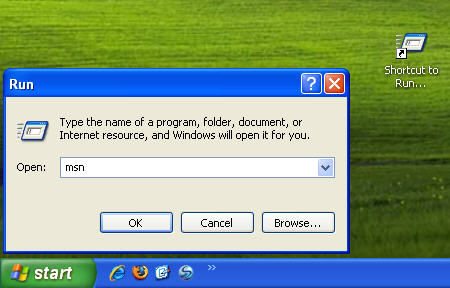

But for those of you who prefer not to install extra programs as long as you can avoid it, I’ve got great news: you can replicate the same functionality of a standard launcher, but using the system’s own resources. In other words, we’re going to build a DIY app launcher using Windows Run command and program shortcuts.

The trick works as follows: create a new folder and fill it with shortcuts, one for each program you want to include in your custom launcher, and give it a proper name. I’d advise to use short, meaningful names which are quick to type and easy to remember. Then copy all those shortcuts to the C:\WINDOWS\system32 folder. Make sure they’re copied to the root folder, not to any subfolder. Once you do that, your launcher is ready.

Create your own app launcher

Open the Run command in the Start menu and write the name of any of the shorcuts you just created: Windows will promptly open whatever app or folder it links to. To make things even easier, you can create a shortcut to the Run command by simply dragging and dropping its icon on the desktop. Another option is creating a new toolbar in the taskbar by right clicking on it, selecting Toolbars > New toolbar and browsing to your shortcut folder. You can use it as an extra Quick launch bar and place anywhere on the desktop.

Things I hate about software

Things I hate about softwareAfter more than seven years working as software reviewer, I can honestly say I’ve seen it all: from virtually perfect applications to programs you would throw out of the window without remorse. And during all these years I’ve come to realize there are certain characteristics, typically featured throughout many applications, which I find especially annoying. Yes, I admit it: there are things I hate about software, even if it’s precisely the software business that helps me pay off my mortgage! Things like:

  • Running every time Windows launches. This is a classic. If I want a program to run when I start Windows, I can decide that by myself. And I need to test the program at least for a while before I make up my mind. Not all programs are that essential!
  • Adding itself to the Quick Launch bar. Sorry, but I’m very picky about my Quick Launch bar. Only very specific programs I use on a daily basis enter here. Any app that tries to alter that rule automatically goes to the Trash.
  • Placing extra shortcuts on the desktop. I like minimalist desktops, with as few icons as possible. I don’t need shortcuts to the programmer’s website, the user manual and other apps created by the same programmer. Isn’t the executable file enough?
  • Not having a proper uninstall tool. Dear programmer: if you’re smart enough to code a complete computer application, why do you find it that hard to create the uninstaller? Is it a trick to make us keep your software forever?
  • Asking why you want to uninstall it. Just as I don’t like websites to collect my personal data, I don’t want to be asked why I uninstall certain software apps. It simply feels weird, as if I had to give explanations to my mom (and yes, I’m too old for that too).
  • Opening the web browser. This is something I just don’t understand. If I run a program, I want to use the program. I don’t need to visit the developer’s website, or watch a tutorial, or read the FAQ. Again, I can do that by myself when I need it.
  • Changing the browser’s settings. There’s nothing worse than a software app that adds a toolbar to your browser, replaces your current home page or changes your default search engine. All these should be directly prosecuted by law!