ASCII art and pictures: programs, generators and tips

ascii_google.png Web geeks got all excited recently thanks to the discovery of a Google Easter egg – if you search for the term ‘ascii art‘, the Google logo turns into an example of what you’re searching for – cool, eh?

Even if you have heard about this particular Google gift, you might not have been absolutely sure what it referred to. ASCII art is a type of graphic art that involves making pictures and designs from ASCII character coding, in other words, making art using the characters on your keyboard. You’ll probably have seen it around the web before, but what you might not have realized is that it is entirely within your reach!

Whether you are creatively challenged or an artistic maestro, there is a method for you. If you fall into the first group, you can skip the hard bit and download yourself a nice little generator that will do much of the work. Ascgen, for example, is a tool that allows you to upload any image and produce an ASCII version within seconds. You can then edit the image until you are totally happy with it, and voila – you have your first ACSII masterpiece!

softonicascii.png

Textaizer is not strictly an ASCII program, but it does give you results that are very similar to one and, more importantly, it is very modifiable. This program also allows you to upload your images, but you have the added advantage of being able to specify the text you want to use to make the image. This means, for example, that you could use your name to create an ACSII image of yourself – very cool!

If you are the more creative type, you won’t need a program at all. In its most raw form, ASCII just requires a computer, keyboard and a text editor (such as Windows NotePad or something more advanced such as these) – not exactly what you would call complex. Many experienced ASCII artists suggest that the best way is just to begin experimenting, but it takes a while to master. If you feel that you’d like a little guidance on the road to ASCII fame, there are a wealth of online tutorials to help you on your way. Check them out here, here and here.


Friday Timewaster: Rockitty

In space, no one can hear you meow. Rockitty is a fantastic and bizarre space puzzle-action game. You control Rockitty, who rockets off in the direction you point her. She bounces off most surfaces, only coming to a stop where there is sticky glue. You have to collect fish, avoid burning lava, score points and find the rocket ship to finish each level. The gameplay it pretty unusual, but only take a few seconds to get to grips with, and the in-game instructions are a great help. You’ll be bouncing Rockitty of asteroids, Space Cows and through milky ways with ease in no time. Play here!

How To: Broadcast your own video channel on TVUPlayer

Wayne's WorldThings have come a long way since the days of Wayne’s World and now anyone can broadcast their own TV channel. In fact, I think it’s one of the truly great things about the internet than anyone can now broadcast their own content to the world absolutely free. I decided to set one up using TVUPlayer because a) It’s the best P2P TV streaming app out there in my opinion, b) The player (but not the broadcaster yet unfortunately) works on Mac and c) It has the best English language support of all the P2P TV apps out there with a thriving forum of users.
Here is how you do it. I recommend you do all of this in Internet Explorer because TVUBroadcast doesn’t work as well in Firefox for some reason.

1) Download and install TVUPlayer for Windows or Mac.

2) Sign-up for a TVUPlayer account

3) Click here to create a new channel

4) Download and install TVUBroadcast. Only Windows and Linux are available but a Mac version will be available soon. Note that on Windows, you’ll need Windows Media Encoder 9 or above to use TVUBroadcast in your browser. You should be prompted to install it automatically, but if you’re not, install it first.

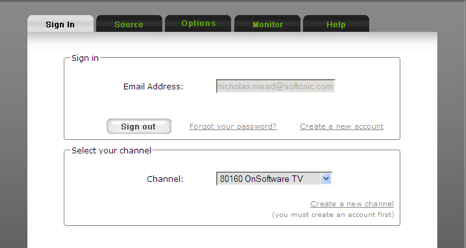
5) TVUBroadcast will then open automatically in your default browser and you’ll be promoted to Sign-in to your account.

TVUBroadcast

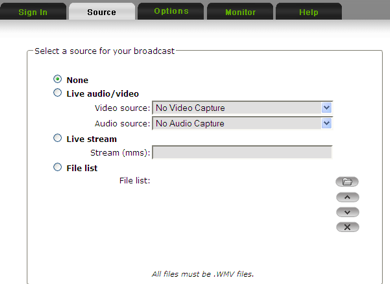
6) Go the “Source” tab at the top of your screen. You’ve now got three options to broadcast your media:

TVUBroadcast 2

  • You can capture it from a video device attached to your computer (such as a webcam or video camera)
  • You can capture it from a live internet video stream
  • You can upload a recording you prepared earlier but this must be in WMV format. This uploading process doesn’t work in Firefox either. You’ll just get an annoying “File error: wmv does not exist” message if you try. You should also ensure that the Bitrate of the file is as low as possible for successful broadcasting. For most broadband connections, anything below 500Mbps should work. Anything over that will probably stream very poorly.

I chose the third option by using a sample WMV file. Simply browse to the file you want to broadcast. Continue reading “How To: Broadcast your own video channel on TVUPlayer”

Google Docs now translates into 42 languages

Languages are a source of culture and knowledge, but can also set up unwanted barriers between people. Google is well aware of this issue, and that’s why they’ve been offering online translation services for a while now – one of the best ones I’ve tried so far, even if it’s only an automatic translation. With such a great translating technology already at hand,  implementing it with other Google tools was only a matter of time.

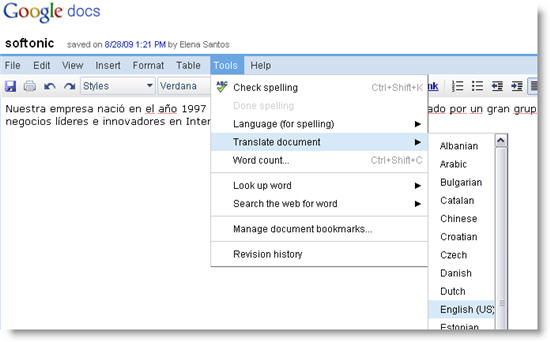
Today Google has added translation capabilities to Google Docs. Using it is too easy: after writing your text, go to Tools > Translate document and pick the target language. There are 42 languages to choose from – namely all the language supported by Google translating technology.

Google Docs now translates into 42 languages

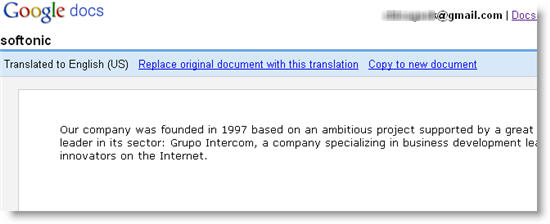
Google Docs will automatically detect the source language and offer the selected translation in a new tab. You can then choose between replacing the original document with the translation or saving it as a new file. In either case, the page’s design and layout is preserved, so the final document will look the same.

Google Docs now translates into 42 languages

Five alternatives to Spotify

Spotify, the application that lets you stream almost any music you can think of, free, is obviously a pretty popular application. I don’t like it! It doesn’t have everything I own, so won’t replace my hard drive collection, the advertisements aren’t targeted and are pretty horrible. Worse, no matter how much stuff I listen to the front page always has music I will hate on it. Spotify just doesn’t get me, and doesn’t seem to be trying. Sorry for being rude, but that strikes me as a bit web 1.0.

Here are some alternative ways to get aural satisfaction from the internet:

The daddy of social music sites, and despite being sold to an evil corporation it’s still pretty cool. Last.fm has a large user community, recommendations based on your listening history and concert listings. It records your iTunes activity, and builds a profile of your tastes, and you can listen to Last.fm radio stations based on genre, similar artists or the stations of other users. There’s  less control than Spotify, but you will hear new music you might like.

Similar in some respects to Last.fm, in that you can listen to generated radio stations based on genre. You can also build and save playlists. Deezer‘s interface is really intuitive, and not a million miles away from iTunes, so you’ll feel right at home. It even has an equalizer! They have a good sized library, but Spotify seems bigger.

This is very different. The Hype Machine collects music that is being blogged about. You can play all the music in their site, and if you have an account and “love” tracks, you can build a playlist of music and artists you like. It’s fantastic for hearing brand new music, and keeping up with what’s hot! It features Last.fm synchronization too, so you can scrobble all the cool new tracks you’re listening to.

This internet jukebox lets you search and listen to music, using YouTube.com and imeem as its library. With a songza account you can build a playlist, but other than that it’s pretty basic. As it uses YouTube as a source, the library is huge, although the quality varies a lot.

Similar to Last.fm, imeem has lots of social features, like twittering tracks you like, and sharing and creating playlists. Personally I think Last.fm is a nicer site, but it’s probably just a matter of personal taste!

This barely scratches the surface of web based listening. What are you favorites?

Don’t upgrade to Snow Leopard until you’ve read this

Snow Leopard BoxTomorrow is the day Mac users have been anticipating for the best part of this year – the release of OS X 10.6 Snow Leopard by Apple. At $29, the speed improvements and subtle enhancements it will bring are a snip. However be warned – it seems the Leopard will come with a bite and there will inevitably be some nasty incompatibility surprises in store in terms of software and possibly even hardware.

Engadget and Wired have been two of the first sites to give Snow Leopard a test and have discovered quite a few problems along the way. Here are some of the most important things to be aware of before you upgrade:

  • Don’t expect a visual revolution. If you’re expecting an entirely new looking Operating System to Leopard then don’t bother. Most of the enhancements in Snow Leopard are under the hood.
  • PowerPC Macs are not supported. As Wired point out:

If you own an older Mac powered by a PowerPC chip (rather than Intel), then you’re out of luck: Snow Leopard won’t run on your machine. The requirements are as follows: You must own an Intel Mac equipped with at least 1GB of memory, and the install requires at least 5GB of free hard drive space for the install. And of course, you’ll need a DVD drive to be able to read the disc and run the installation. (MacBook Air owners: We hope you have an external optical drive.) Not sure what kind of processor you own? Click on the Apple icon in the upper-left corner and select “About This Mac.” If the word “PowerPC” comes up in the “Processor” field, then you can not run this upgrade. If it says “Intel,” you’re fine.

  • Don’t be in a hurry. You’ll need 45 minutes to an hour to complete the installation (so make sure your battery is fully charged if you intend doing it unplugged)
  • iMacs will struggle the most. Engadget report:

We didn’t have any problems with the more pristine MacBook Pros in our fleet, but one of our production machines is a cranky older iMac that’s been in constant use for over two years without a system rebuild, and when it restarted the desktop pictures were all set to the defaults, the System Preferences app wouldn’t launch from the Apple Menu, our MobileMe sync states were a little confused and Spotlight began reindexing all the external drives. Fixing these problems didn’t take much, but if your machine is already acting up don’t expect everything to go perfectly.

  • Hard drive space gains will vary. Apple promises you will get around 7GB of hard drive space back after installing Snow Leopard but it seems the reality could be a lot lower (only 3.5GB in the case of Wired) or a lot higher (up to 20GB in the case of Engadget!)
  • Make sure you’ve got all your printers handy. Snow Leopard only installs drivers for those printers that you’ve used in the past.
  • Get rid of your tweaks and hacks. If you’ve hacked or tweaked Leopard significantly, then expect a lot of ironing-out to do when you’ve upgraded.
  • QuickTime Pro will be replaced by QuickTime X. If you performed a Standard Upgrade and got QuickTime Pro, it will be replaced by the new version QuickTime X for which there are no preferences meaning you can’t view videos on a second monitor, choose a default full screen setting or export to as many formats anymore. You can however apparently re-install Pro from the Snow Leopard disc or the “Utilities” folder.
  • InputManager plugins won’t work. This includes many extensions for Safari and applications such as 1Password won’t work under Snow Leopard.
  • Growl alerts may not work properly. Although this will surely be remedied by the developers very shortly.
  • WiFi and Spotlight may act erratically. Depending on the model you use. Engadget reports:

On a 17-inch unibody we were putting through the paces, the WiFi inexplicably has gone out and we have yet to get it working again. On a 15-inch, older generation MacBook Pro (3,1), Spotlight will only fetch search results in the dropdown – — results in a Finder window come up empty.

As both tests found, most applications will work fine on Snow Leopard and those that don’t will rapidly be updated to do so. As a general rule, if an application is older than 3 years, then there’s a good chance you’ll experience some problems with it but for most people, that will be a minority of their apps. Such teething problems are to be expected with a new OS install and are nothing to be unduly concerned about.

Let us know any further bugs or problems you’ve found after upgrading!

Tips to browse the Web more safely

Tips to browse the Web more safelyAccording to this list recently published by McAfee, Jessica Biel is the most dangerous celebrity on the Web. No, that doesn’t mean she’s going to come out of the screen and strangle you to death with the mouse cable; it means that if you look for information, photos, wallpapers, videos or any other material related to her on the Internet, chances are you’ll end up in a potentially harmful website that can put your system in danger.

After three years, the McAfee list of riskiest celebrities online has almost become a tradition but I’m not sure about its usefulness. What’s the point of scaring people away from searching for stuff about their idols? To me, it looks more like a marketing trick to sell more security-related software apps – while the top celebrity surely gets a boost in Google searches. In any case, whatever the final purpose of this list is, the truth is that according to McAfee,

…fans searching for ‘Jessica Biel’ or ‘Jessica Biel downloads’, ‘Jessica Biel wallpaper’, ‘Jessica Biel screen savers’, ‘Jessica Biel photos’ and ‘Jessica Biel videos’ have a one in five chance of landing at a Web site that’s tested positive for online threats.

So you’d better be prepared. Protecting your computer when browsing the Web is easier than it seems. Just follow these simple tips and you won’t have any problems – no matter which celebrity you’re searching for:

  • The first and most important rule: use common sense. Don’t trust those banners that promise you a fantastic car because you happen to be visitor #1,000,000.
  • Celebrity material is a good bait. Be careful when searching for goodies related to your idols and don’t forget to analyze all files with an antivirus before opening them.
  • Use a firewall to protect your system. A free, easy solution like ZoneAlarm, Jetico or PC Tools Firewall will do.
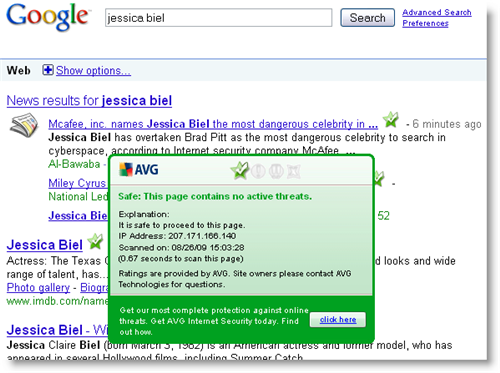
  • Use an antivirus with web filtering capabilities against online threats, like AVG Antivirus. It’ll make your Web browsing safer.

Tips to browse the Web more safely

Play Sega Genesis games on your iPhone

As a lad, I remember the Sega Genesis being the pinnacle of home computer entertainment systems. My television was rarely used for actually watching TV and every main present at Christmas was cartridge-shaped. It shows how far we’ve come (or how old I am) that I can now play Genesis/Mega Drive games on my phone for just a few bucks. Of course, the experience isn’t quite the same as the old days, and the iPhone touchscreen isn’t always conducive to intuitive console-style gameplay. However, if you’re looking for a cheap thrill that will take you back to the glory days of the early Nineties then get these Sega classics on your iPhone now. Load up iTunes and click the links to the App Store pages.

Play Mega Drive Games on your iPhone

Duke Nukem – The original king of action returns for more mindless mutant-mashing mayhem

Sonic The Hedgehog – The speedy critter’s original and best adventure remade for the iPhone

Golden Axe – Relive your dragon-riding, dwarf-slashing childhood years

Ms. Pacman – Essentially Pacman with a bow on his head, but man was Ms. Pacman hot

Streets of Rage – Clean up the streets in this brutal side-scrolling beat-em-up from the old day

Columns– The second best falling-bricks game ever

Doom – OK, it’s not that scary now but at the time you couldn’t play it with the lights out

Bomberman – Explosive arcade fun on your iPhone

Worms – The slimy mercenaries return in this, one of the best games available for iPhone

Flashback – Make out like you’re James Bond in this stylish mystery adventure game

Today’s downloads for Windows, Mac and Mobile

Download Live Movie MakerWindows: Creating a media presentation with your favorite videos and photos is easier than you think with Microsoft’s Live Movie Maker. This simple yet awesome video editing tool lets you create a video in no time, including background music, transitions, animations and visual effects to spice up your images. No tech skills required!

The Discovery Channel on your iPhoneiPhone: If you’re a fan of the Discovery Channel then be sure to install this app on your iPhone. The Discovery Channel application allows you to enjoy lots of content from the popular science and nature channel for free. The video clips are organized into categories, available by clicking the icons at the bottom of the interface.

Quake Live logoMac: The venerable Quake may be getting old, but ID have polished up the old engine and released it as an in-browser free online first person shooter. Quake Live is a beta version, and although extremely popular, there are always plenty of games to join. You have to register with a valid email address, but it’s pretty painless and once you’re in, a tutorial sets you up with all you need to know.

Make fantastic wallpapers using Google Maps

Google Maps is incredibly useful, but it’s also got some fantastic aerial images of our planet. With a little effort you can grab these images and make great, high quality wallpapers or even print them. Here’s how to do that! You can do it in Windows or OSX, and you’ll need Firefox with the Screengrab! extension installed.

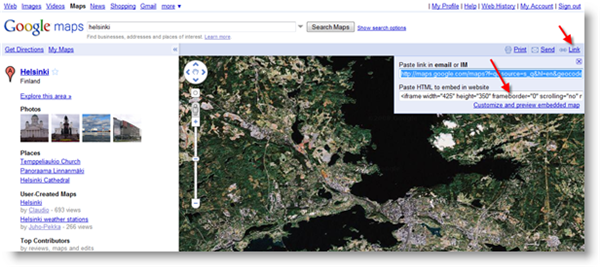
First, go to Google Maps and find the image you want. It’s best if you find it manually, and once you have, click Satellite, and turn of the labels, so your map is clean. Then click Link and copy the HTML code as below.

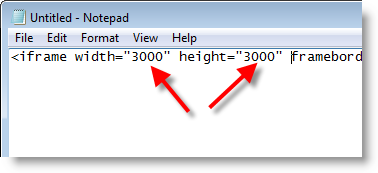
Now, open your text editor, like Notepad, and paste in the HTML. All you have to do is change the width and height values in the code – something much bigger than your screen, like 3000 x 3000 pixels – and then save it as “filename.html” .

Now, find this saved HTML file and drag it into Firefox. You should see the map open now! To save the entire image, click the Screengrab! icon, choose save and the ‘complete page/frame’ option. Make sure to save the file somewhere you’ll remember. I chose suck a big size as the image is saved with navigation arrows in the top right corner, and saving a larger area than you need means you can edit this out.

Now you’ll have a huge high quality image, that you can trim using any image editor and set as your wallpaper.

[Via: OnSoftware DE]