Want to make or share a great video?

These days our newsfeeds are all videos videos videos. No matter the social network, a scroll down will show video after video automatically playing as we pass them by. I’m not saying these videos are a bad thing, I watch a fair few of them. The problem is being able to make the amazing videos like, it seems, everybody else can. I want to look good on social media too you know.

In the end, I thought I’d best do something about this so I looked into some of the best tools available for turning my recordings into videos and maybe even movies. I’ve put together a list of video editing programs that are suitable for video editors of any level.

If, like me, you’re videos just don’t seem up to scratch when compared against the ones you see on social media or if you’ve been making great videos for years doesn’t matter. If you want to make videos this list will have something for you.

 HitFilm Express
Want to make or share a great video?
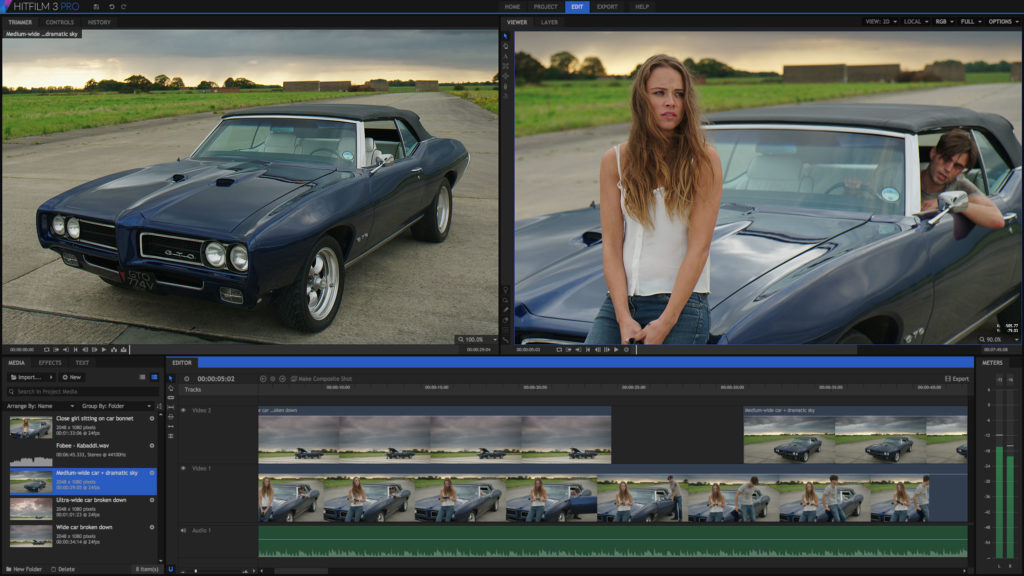
HitFilm has a lot of tutorials to get you started on your filmmaking career

HitFilm Express is perfect for anybody who is new to the game. It has plenty of great features you can access for free but will also give you tutorials on how to use all of them. Getting into video editing can seem like a mountain to climb so these tutorials showing you how to do things like applying filters, transitions, cutting and fading are a great resource. I really learned a lot using HitFilm Express and if I’m honest I’ve never needed more features than the free version has.

Get HitFilm Express here

VSDC

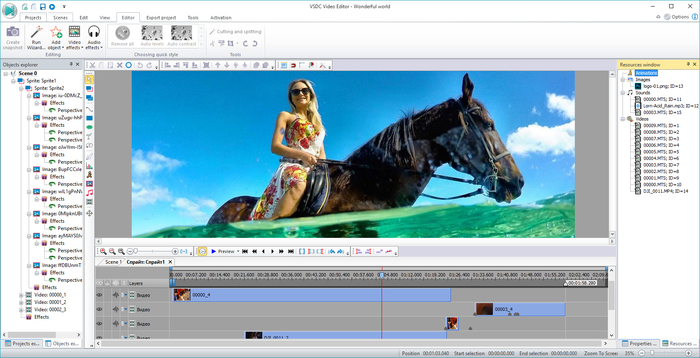
Now if you’re already quite far up that mountain I’ve just been talking about it might be worth your while giving VSDC a go. VSDC is free and offers the advanced features that you usually find behind paywalls or subscriptions. It offers great visualization processes, which will enable you to see your ideas as you’re laying them down. The only thing with VSDC is that it has a pretty steep learning curve. You’re either going to need to lots of patience or a fairly high level of expertise to get much out of this fully featured video editing suite.

Get VSDC here

Lightworks

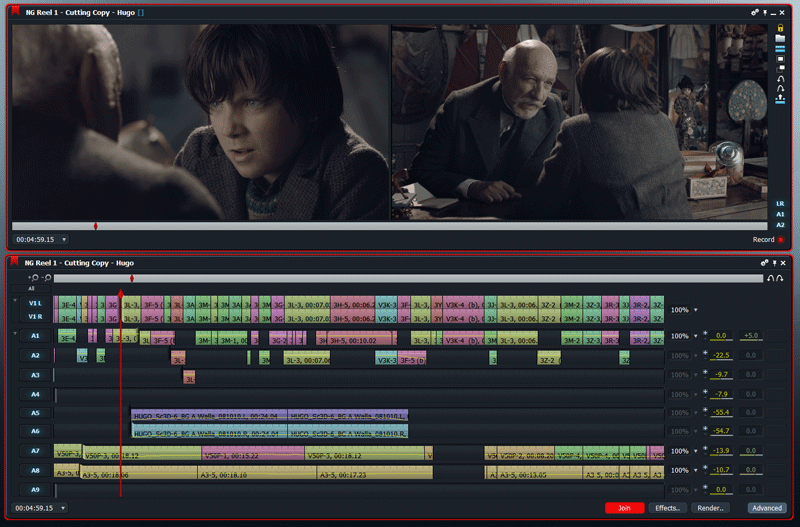
Want to make or share a great video? - Lightworks
Lightworks has been used to edit Hollywood Blockbusters

Everybody from a rookie YouTuber to a Hollywood veteran can get something from Lightworks. Despite the fact that it has been used to edit Hollywood blockbusters like Shutter Island and Mission Impossible newcomers should not be put off. Lightworks is quick and flexible and easy to pick up. It is also compatible with other programs like Adobe After Effects, Boris and Sapphire. It also offers support for 3D editing.

Get Lightworks here

Magix Movie Edit Pro

Magix Movie Edit Pro is one for the professionals among you. The latest version offers improved image stabilization, motion tracking and tilting. Magix is a fully featured video editing suite that can work with 360-degree camera footage and offers 4K support.

Get Magix Movie Edit Pro here

GoPro Quik

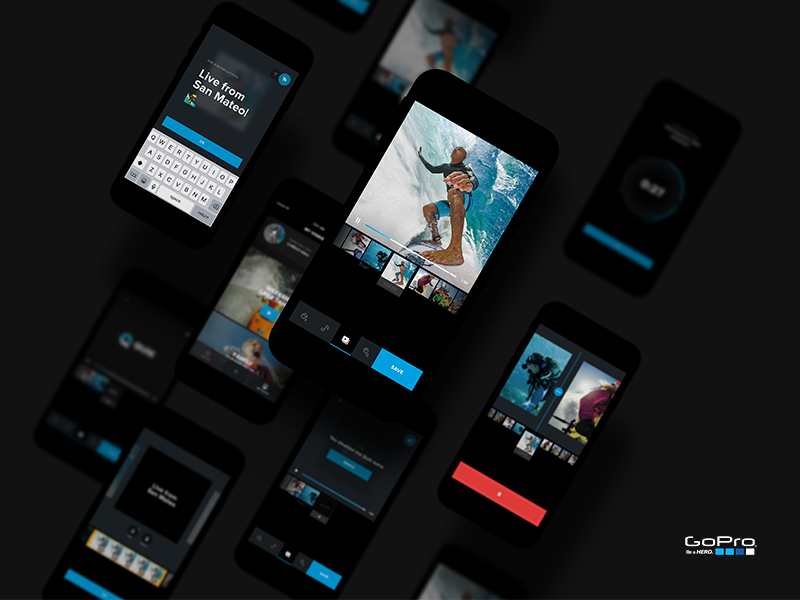
Want to make or share a great video? - GoPro Quik
With GoPro Quik you can make impressive looking videos very quickly

GoPro Quik has been designed to make it easy for you to take your recordings and quickly turn them into cool and shareable videos. It has plenty of video templates for you to try out and allows you to add music in the background. The collection of music available is small but it gives you the option to use music from your personal collection, which is pretty cool.


Get GoPro Quik here

Most People Don’t Know About These Cool Android Features

Everyday my smartphone blows my mind. Apart from pub quizzes, which they’ve taken the soul out of my Android phone has made every facet of my existence easier. That being said, Android phones are so good and can do so much that there are loads of boss features that I don’t use because I don’t even know they exist.

I decided to do a little digging and I’ve found some great little features that hardly anybody knows about. Let’s have a look at them now.

Save Offline Maps

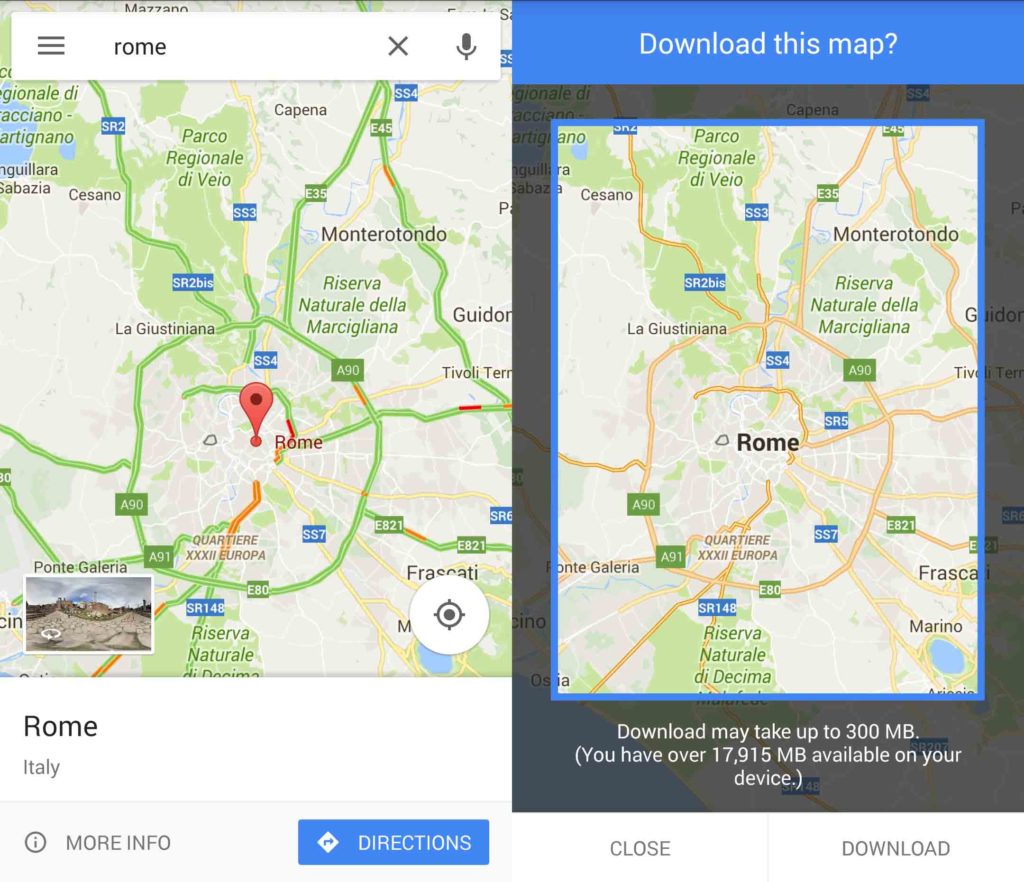
Most People Don't Know About These Cool Android Features Download Maps
Never get lost again. Wel, maybe…

Perfect for anybody going on holiday or who has a low data plan with his or her cell provider this feature could be a literal lifesaver someday.

All you have to do is search for a place in Google Maps and then when Maps has found it you’ll see a More Info button at the bottom. Once you’ve selected this you’ll see a Download button, which when pressed will present you a square covering an area on the map. Everything inside this square will be downloaded, in full detail, and you make it is as large or as small as you like.

You can access your phone from somebody else’s phone!

If you’ve forgotten your phone you can still access all of your phone’s data from your friend’s Android phone. This is especially useful for anybody who needs a phone number that only they have when they’ve left their phone at home.

All you have to is log in to your friend’s phone as a guest user and you’re away.

Make your battery last about 30% longer

Android Marshmallow has a brand new and very easy to use Battery saver mode. Activating it is as easy as clicking a switch and once you have your phone will go into a deep sleep mode when it isn’t in use and background app activity will be reduced.

To activate all you have to do is go to Settings, select Battery and then activate it. After that Hey Presto, you might just get home with a bit of life left in your phone.

If you’ve lost your phone you can just Google it

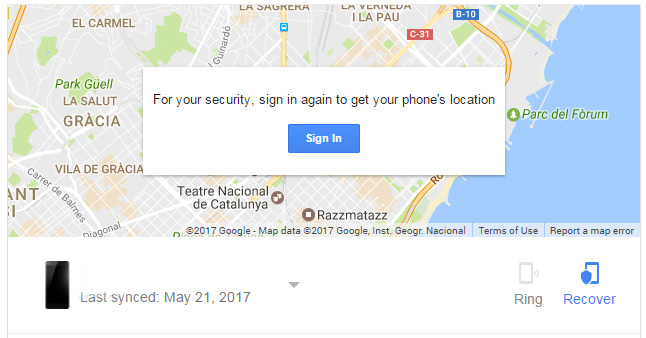
Most People Don't Know About These Cool Android Features Find My Phone
Simply Google ‘find my phone’ and the search engine will find it for you. Simples!

It really is that simple. All you have to do is head over here and if you’re device isn’t already registered get it setup. Then all you have to do is Google ‘find my phone’ and Google will try to locate it for you. You’ll be able to make the phone beep so you’ll be able to find it easier and if you can’t find it you’ll be able to lock it to protect your data.

This world we live in!

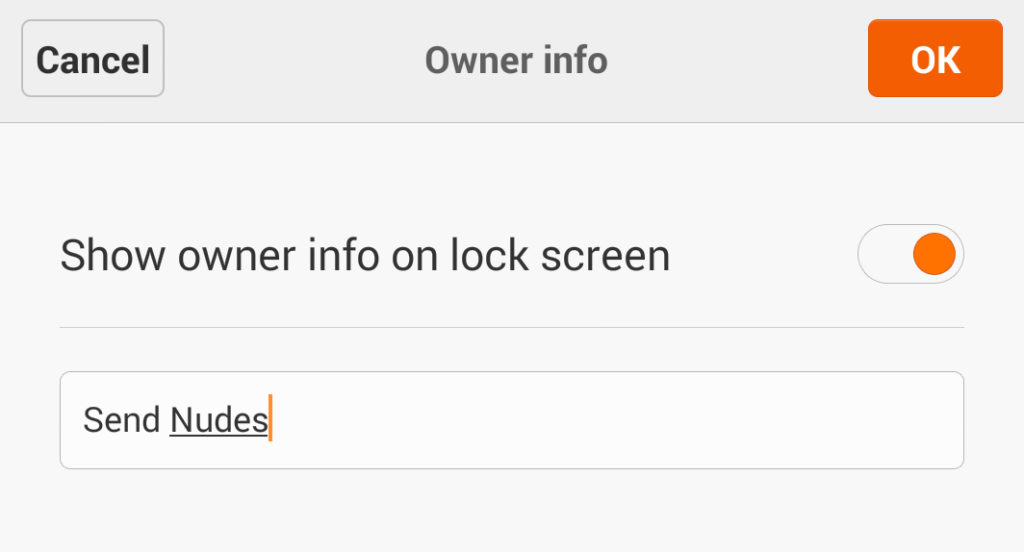
You can put Owner Info on your lock screen in case something bad happens…

Most People Don't Know About These Cool Android Features Owner Info
This vital information could be the difference between life and death

If you lose your phone or, God forbid, something bad should happen to you a little bit of information on your phone screen could go a long way. Whether just some information about where to send the lost phone or emergency information for first responders this little snippet could make a big difference.

You’ll find the setting in the Lock Screen or Security menu of your phone’s settings.

So they are our Top 5 hidden Android features. Let us know, which is your favorite below and if we’ve missed one you love let us know in the comments. If you’d like to see more stuff like this like it on Facebook.

How to view the personal information Twitter has gathered on you

When using social media apps and platforms, it is well known that everything you do is vigilantly tracked by each company involved in your activities. Twitter is no exception to this rule and leverages the promise of free service to harvest all the data users are willing to share.

Twitter Download

While it is unfortunate that everything you do on Twitter is monitored, at least the platform offers a chance to view the personal information that has been collected so far. Not only can you view a readout of your data, but you can also download a copy for your offline records.

  1. Finding your collected data on the mobile app

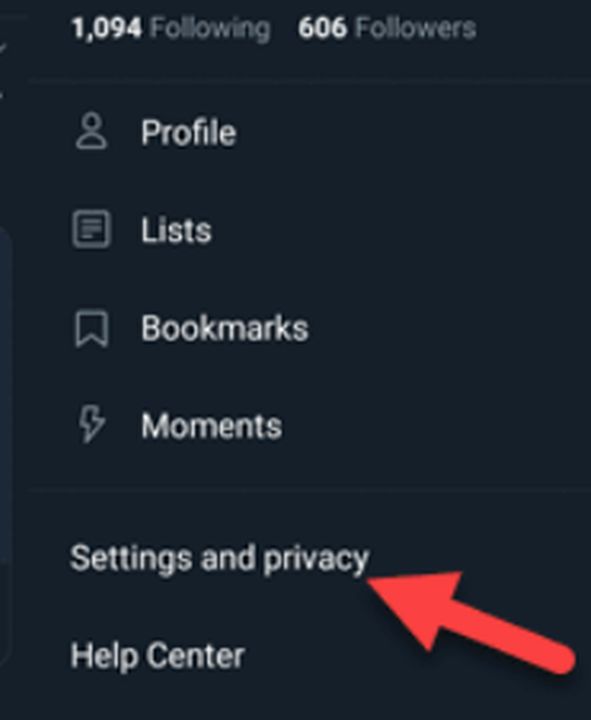
    The settings and privacy tab leads to your personal data

    The method for accessing your data is slightly different depending on the device you are using. For mobile devices, head to the settings menu, and select the privacy and safety tab. Near the bottom of this tab is the data and personalization options. Tapping this option provides another menu. From this list, select privacy settings, and tap the button labeled see your Twitter data to view your profile.

    The profile features multiple tabs to choose from. Click on the your data tab to view a record of what Twitter has collected since you created your account. This includes the browsers, apps, and devices that are all associated with your profile. Each time you log in to Twitter, it tracks the exact methods you used. This tab also tracks your tweet activity, which users are muted or blocked, your targeted topics of interest, and which external apps have access to your account. Finally, you can also view the information Twitter shares with its advertising partners.

  2. Finding your collected data on the desktop interface

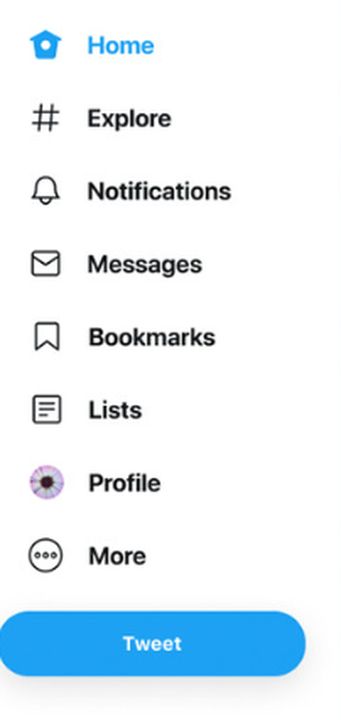
    Find the settings under the more button on the sidebar

    The process of accessing the personal information Twitter has stored on you is much simpler on desktop. Ensure you are logged in, and click the more button on the main homepage. On this page, click on settings and privacy. From there, click on the button labeled your Twitter data to open a new page. If you have not entered your password in a long time, you will be asked to do so to verify your identity. Upon accessing the page, you will see the same personal information readouts as on your mobile device.

    Note that some of the advertising information will be different from the mobile readout. This has to do with your browser cookie configuration and what you have previously searched on each device. You can tell what topics you have searched for on each device by observing the unique list of interests that is logged on your machine.

  3. Downloading a copy of the personal information Twitter collects

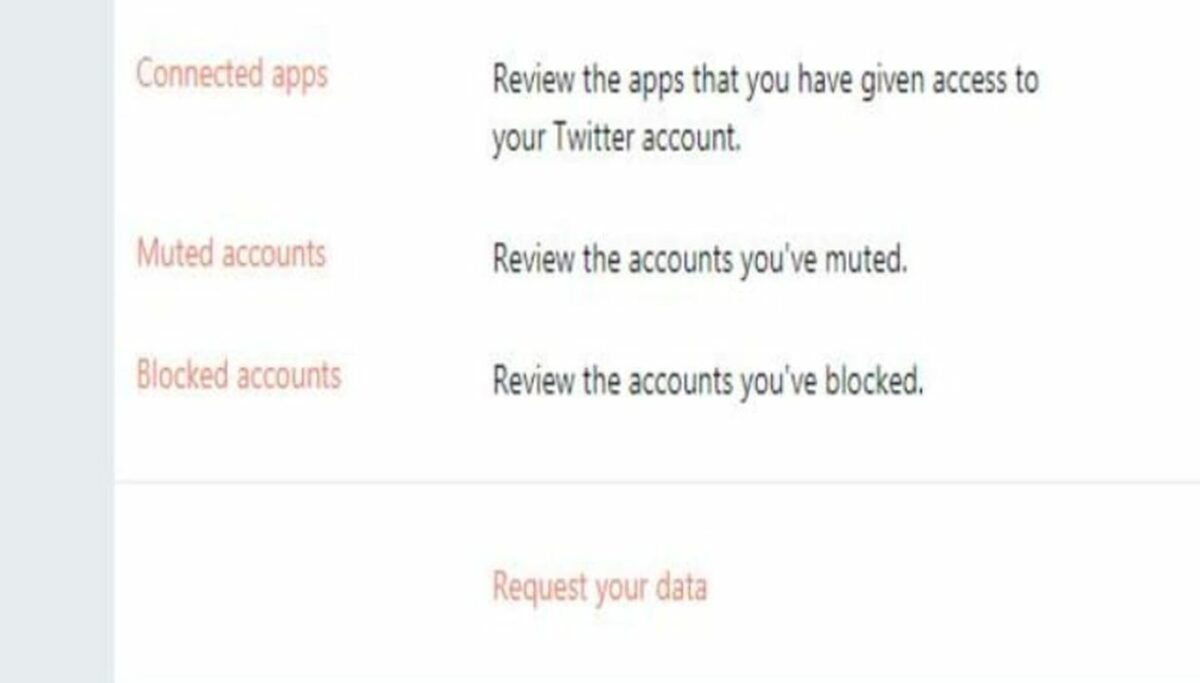
    Request your data through email with just one click

    The best way to keep track of what Twitter knows about you is to keep extensive records on your devices. You can have a report emailed to you and download it from there. To do this, scroll all the way down to the bottom of the your Twitter data page on mobile or desktop. Here, you will find the request your data link. Clicking this will start the automated process of emailing your report.

    After a few hours, the report will arrive at the email address associated with your Twitter account. Check your spam folder if you do not see it in your inbox. In addition to all the information listed in this article, you also get a log of every tweet you have ever published. This list is far easier to navigate than the frontend Twitter platform, especially when you go searching for tweets from several years ago or older.

Safeguarding your data

Now that you have firsthand knowledge of the sheer volume of personal information social media platforms collect, you will understand why protecting your privacy is paramount. An effective way to prevent tech companies from harvesting your data is through the use of a VPN service such as Hamachi. While you cannot stop Twitter and other apps from collecting data when you directly use their services, a virtual private network will prevent these platforms from tracking you as you browse unrelated corners of the internet.

This Floating Power Plant Could Power Over 30,000 Homes

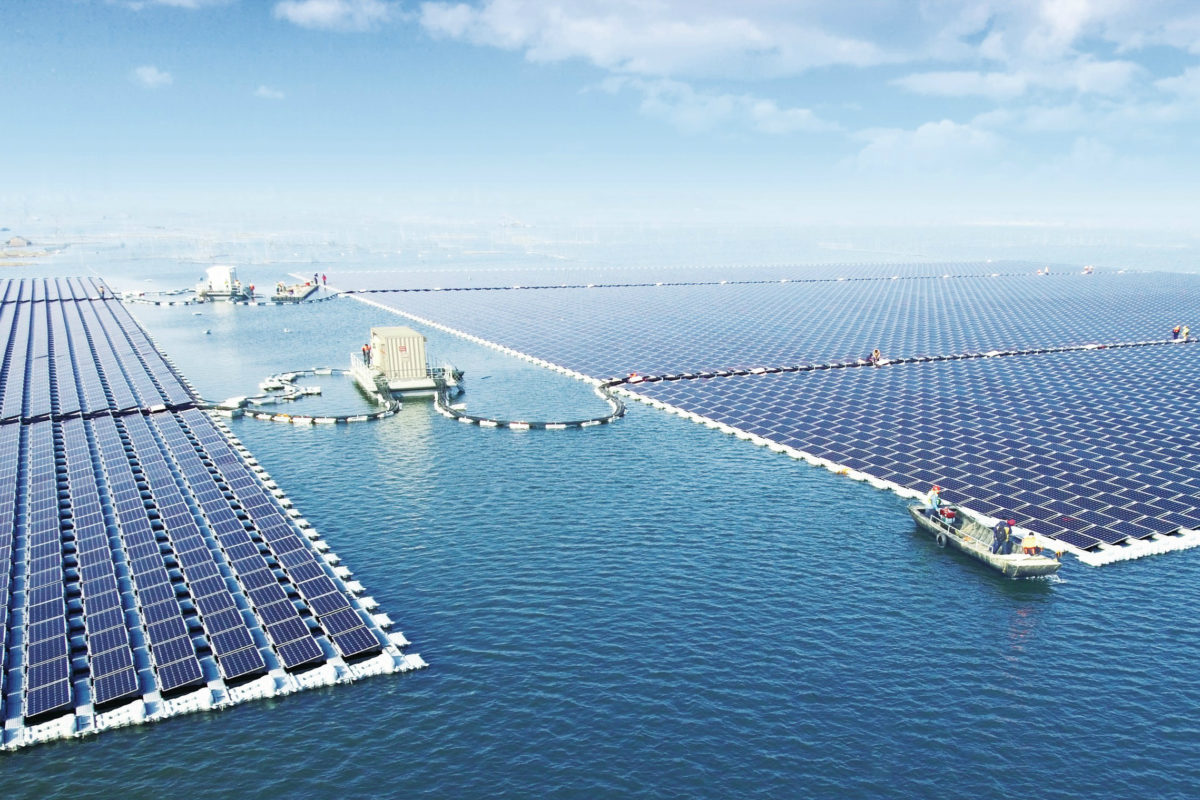
China has taken another step towards its stated goal of being the world’s leader in renewable energy production by announcing the completion of the world’s largest floating solar power plant. Although China has long been one of the world’s biggest polluters through its incessant burning of dirty coal to power its factories, this project truly gives us hope for the future.

Floating solar power plants address a number of issues that are raised when trying to collect energy from solar rays. For a start, floating solar plants don’t take up space that could be used for other purposes. On top of this, the panels can slow the rate that water evaporates and another great benefit is the fact that the cooler temperatures on the surface of the water can help cool the solar panels. It might sound counter-intuitive but when solar powers are over-heated, their efficiency suffers.

This Floating Power Plant Could Power Over 30,000 Homes
Future innovation could see crops being grown on floating solar power plants

The truly great thing about China’s new power station, which is located in the city of Huainan in the Anhui province, is that it is floating on top of an old Coal Mine that has been filled in with water. If ever you were looking for a symbol of renewable energy triumphing over fossilized fuel, this is it.

The plant is a 40- megawatt facility, which means that when working at full capacity it’ll be able to provide power to about 32,000 homes. It isn’t the first floating solar power plant with countries like Japan, South Korea, UK, US and India boasting their own but it is by far the largest.

Although the world is still getting warmer, the price of solar energy has been dropping for years now. With prices dropping and ingenious ideas ,like floating solar plants, cropping up all the time we may just be able to get ourselves out of this very manmade crisis.


Via: Digital Trends

You’ll Love These 2 New Facebook Live Features

If you’ve been using Facebook Live recently you’ll be happy to now that Facebook are rolling out a couple of new features for the broadcasting service. Both features will improve the user experience of both viewers and streamers so let us have a look at them both now:

Live With

Live With will allow broadcasters to invite one of the viewers to join in the broadcast. This means that 2 users will be able to broadcast from the same location and the show can be presented in both landscape and portrait mode. As well as users broadcasting from the same location this feature opens up a whole raft of possibilities and is quite an exciting development. Don’t worry if you’re a little shy, though, as all invited users will have the option to ignore the invitation.

Live Chat with Friends

The other brand new feature for Facebook Live is Live Chat with Friends. This feature allows users to have a private conversation during a live stream rather than just leaving comments. Users can invite new new viewers to begin watching or they can initiate a chat with people who are already watching. On top of that users will be able to continue the conversation on Facebook messenger once the broadcast has finished.

These features will be getting tested over the next few months so don’t hold your breath just yet. Just know that they are coming and they’ll be here soon.

This Hip Little Printer will make your Photos Dance

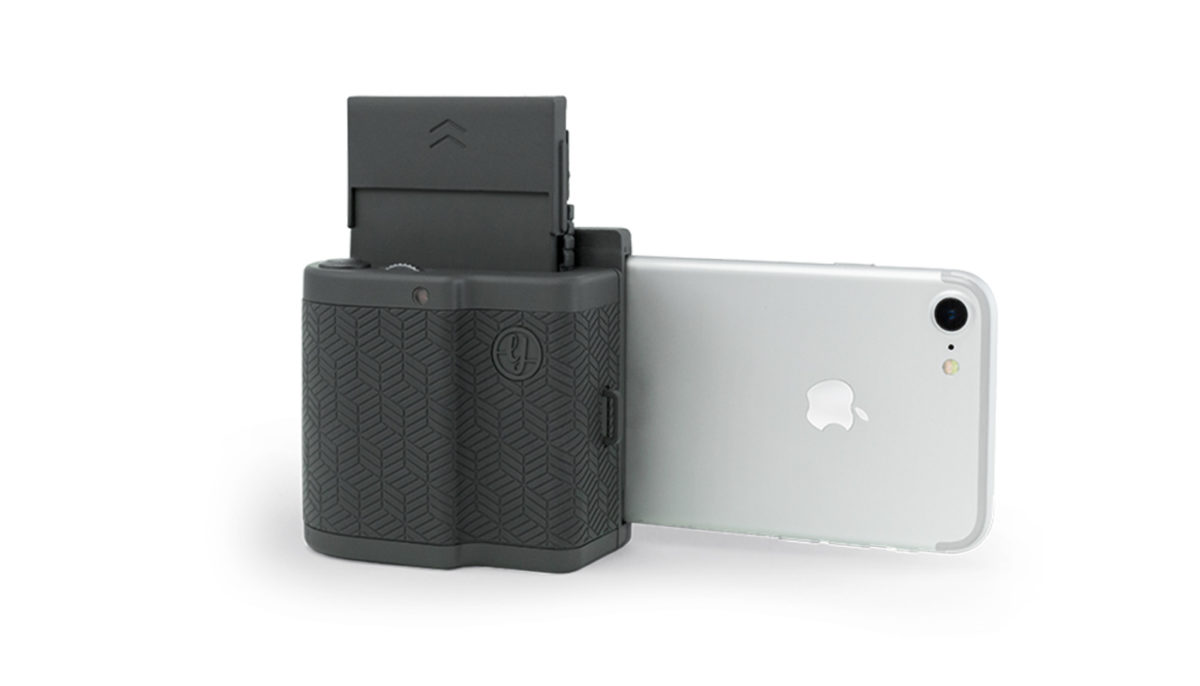
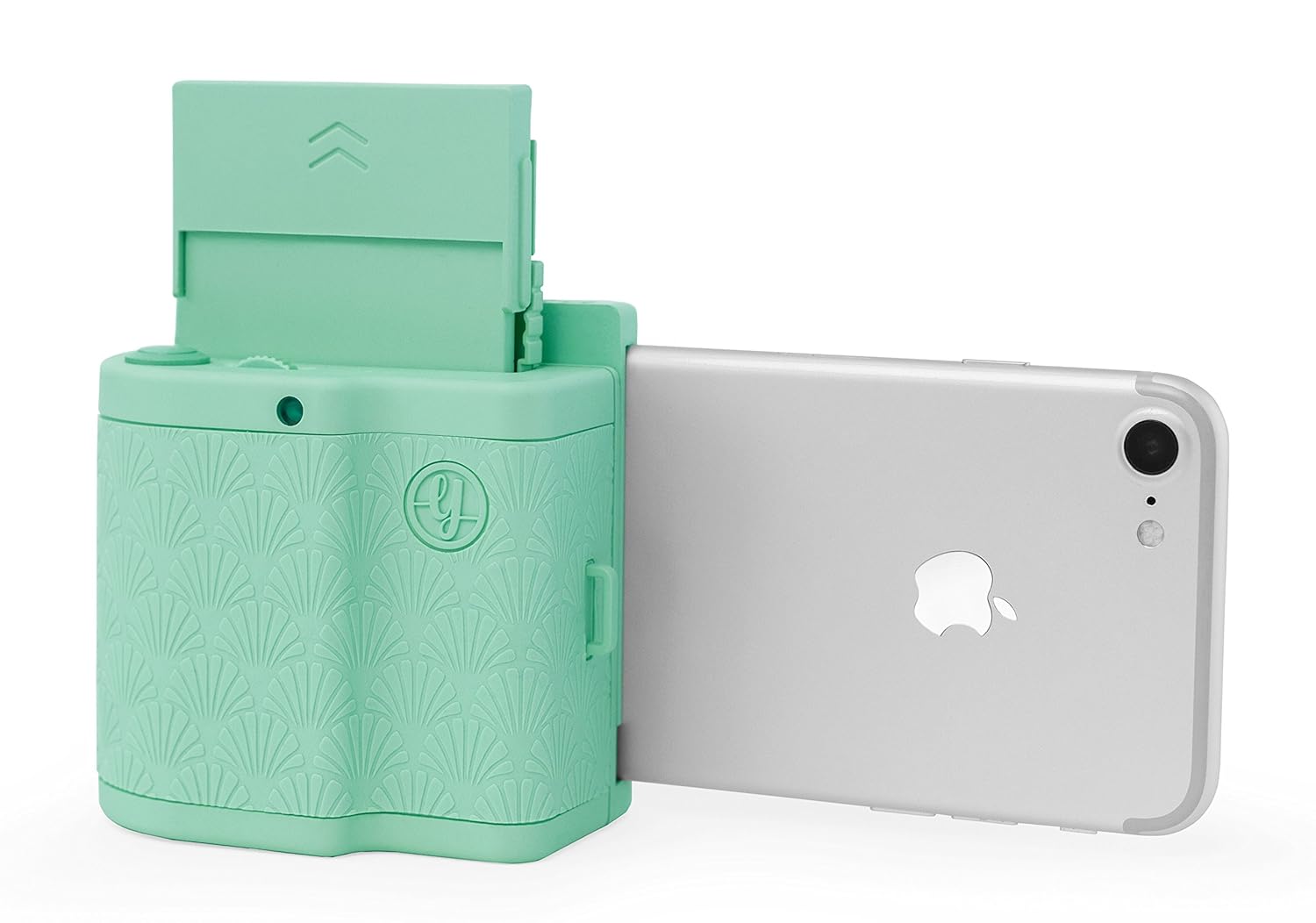
Prynt is young Tech startup that offers a mobile printer you can attach to your mobile phone. The original was actually a bit bulky, meaning you wouldn’t really take it everywhere you went, but their newest model has shrunk about half the size and offers another cool new feature.

The Prynt Pocket, Prynt’s newest printer, gives you the chance to attach live videos to the photos that you print so that, when you view them through the Prynt app, they will come to life just like photographs do in Harry Potter.

via GIPHY

How cool this new feature is cannot be understated. The desire to print off physical versions of your digital photos has never really gone away. To add something extra to these prints is an exciting way to bring new life to a traditional concept that refuses to die in the modern world.

The Prynt Pocket sells for $149.99 and you can also pick up 40 sheets of Prynt sticker paper for around $20. This means Prynt photos much cheaper than Polaroids, which will set you back about $20 for only 6 prints. The added AR functionality, as well as the new smaller form factor will make the Prynt Pocket an attractive option for anybody looking to actually get their hands on the photos they’ve taken.

Image quality still leaves a little to be desired on the Prynt Pocket but this is something that still isn’t guaranteed on Polaroids either. In fact Polaroids have spawned an entire industry of filter makers trying to recreate the effect of Polaroid film on digital photos.

It remains to be seen whether Prynt will be able to carve out such an iconic place in the marketplace as Polaroid has. With photos coming in cheap and easy, however, and cool extra functionality added to normally static photographs they’re definitely moving in the right direction.


Via: techcrunch

These 5 Excel Tips and Tricks Will Save you Time

Microsoft Excel can seem like your best friend or worst enemy at times. It has so much to offer the regular user but at times Excel’s features can seem like they’re hiding behind an impregnable wall made of white bricks.

With this in mind and to help anybody who uses Excel regularly, we’ve put together our 5 favorite time saving tips. These handy tips will give you a bit more control over your spreadsheeting and will save you some time in the process. Once you’ve gone through these tips make sure you check out our other Excel tricks at the bottom of the page.

 Excel Power User’s Favorite Tips

F4 to Repeat Processes

A great way to save time in Microsoft Excel is to use the F4 key to Repeat Processes. This can be used for repeating all sorts of different processes like changing the font of a selected amount of text or deleting the same amount of data again.

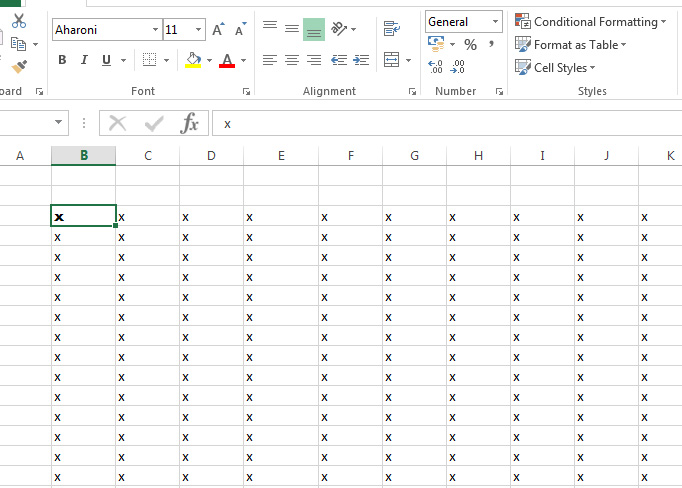
These 5 Excel Tips and Tricks Will Save you Time excel tip 1
Here I select 1 cell and change the font to Aharoni

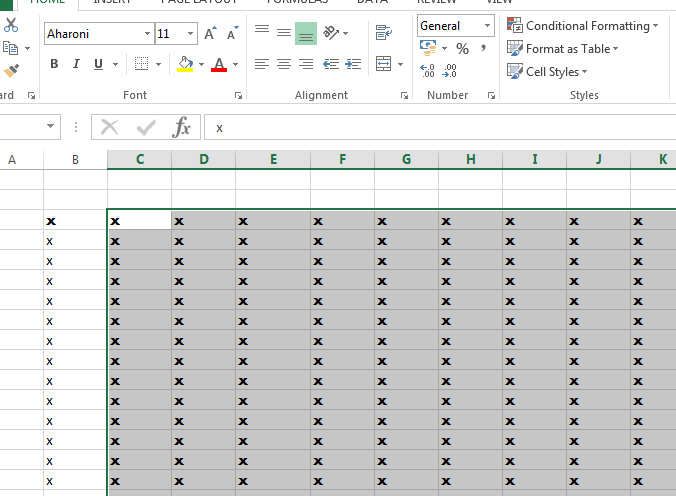
These 5 Excel Tips and Tricks Will Save you Time excel tip 2
After selecting a number of other cells and pressing F4, the font in all of those cells is then changed to Aharoni also

Make Charts Fit to cells

Adding charts to your spreadsheets is a great way to visualise the date your collecting. If you want to to make them more professional, however, by by aligning them to the ceells of the spreadsheet you can end up wasting precious time. To avoid this, simply hold the Alt key whilst adjusting the size of your chart and it will automatically fit the nearest cells around it.

Duplicate a formula exactly

A common trick on Excel is to drag the corner of a cell containg a formula and have the formula recreated in the corresponding cells but with updated cell references. If, however, you’d like to copy the exact formula all you have to do is go to the cell directly below the one containing the formula and press Ctrl and ‘.

Insert the Time and Date

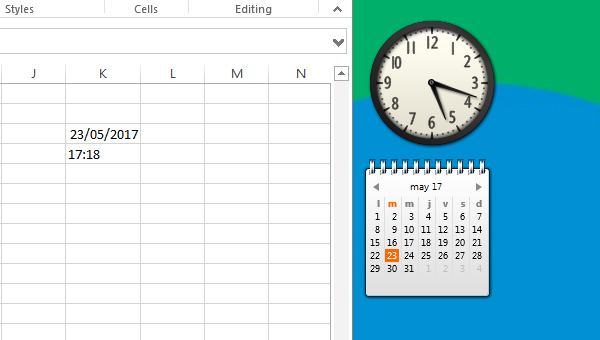
It isn’t hard to think of a time when you might need to add the time and date to a spreadsheet that you’re working on. To add the current system date to your spreadsheet all you have to do is press Ctrl and ;. Then if you’d like to add the current system time simply press Ctrl and Shift and ;.

These 5 Excel Tips and Tricks Will Save you Time excel tip 3
The quickest and easiest way to add the current time and date to your spreadsheets

Edit Cells Using F2

If you’ve already lots of data to your spreadsheet and you need to edit it you might not have time to click on each cell you need to edit and then move your hand from the mouse to the keyboard to begin editing. If you want to begin editing of any cell you’ve selected using the arrow keys on the keyboard you only have to press F2. You won’t believe how much time this will will save you.

There you have it then. 5 simple tips that’ll help you save time whilst using Microsoft Excel. If you want more Microsoft Excel tips make sure you check some of the these other great Softonic articles.

If You Value Your Privacy Change These Twitter Settings Now

If you’re a Twitter user you’ll have no doubt seen that they’ve recently updated their privacy policy. The updated privacy policy is designed to better connect you to the types of content you want to see. Now this is fine if you don’t mind your data being shared with advertisers but if you’re not too comfortable with huge corporations sharing your personal information with each other you’d better read on.

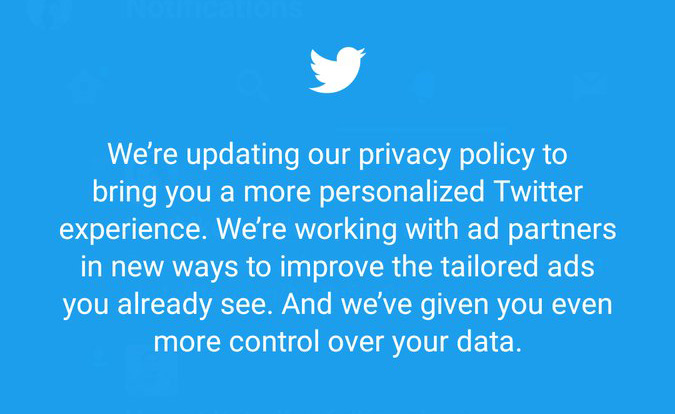
Twitter Privacy Policy Update

The changes will take effect on June 18th and you’ll automatically be opted in so you’ll have to take proactive action to stop your data being shared. Read on…

There are 3 Big Changes taking place:

The 1st Big Change is that your web data will be stored for longer. At the moment your data is stored for 10 days but come June 18th Twitter will store all the information it collects using cookies for 30 days.

The 2nd Big Change is that Twitter is going to start ramping up how it shares your data:

“We’ve updated how we share non-personal, aggregated and device-level data, including through some select partnership agreements that allow the data to be linked to your name, email, or other personal information — but only when you give your consent to those partners.”

The 3rd Big Change is that Twitter no longer supports Do Not Track. Due to what Twitter calls an industry-standard approach it will no longer enable you to prevent advertisers from tracking your browsing history.

What can you do about it?

If You Value Your Privacy Change These Twitter Settings Now
It might be worth checking both the app and the webpage Twitter settings

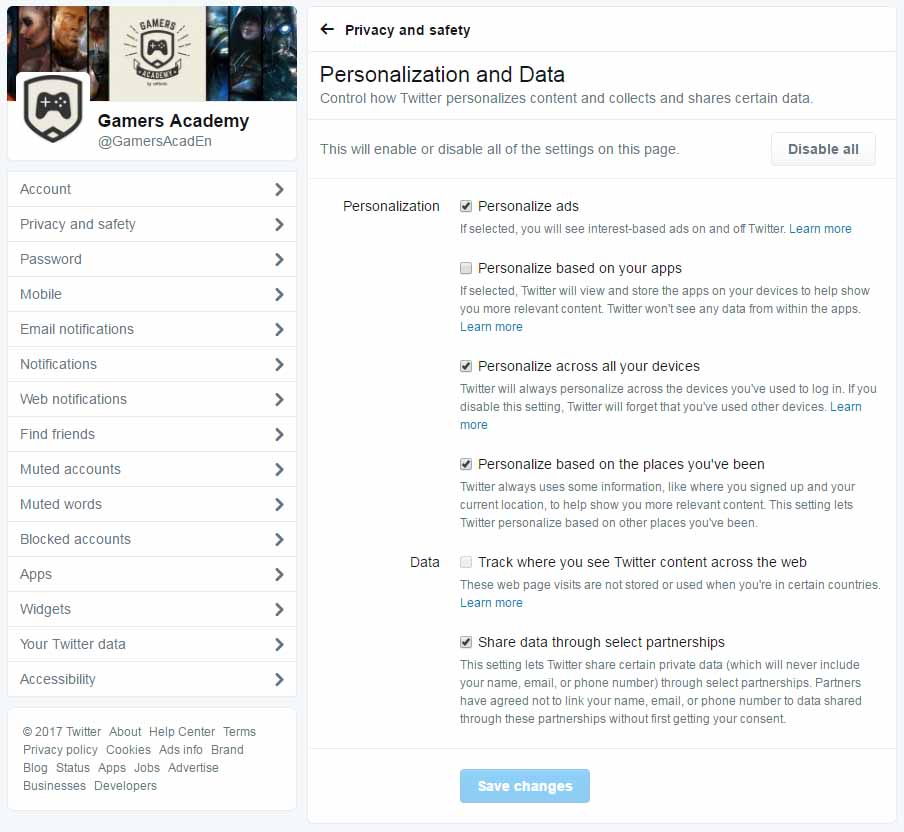
Fortunately, Twitter are giving users greater control over their privacy settings so you’ll be able to opt out of all these changes if you wish. To do so, using either the app or Twitter website you’ll want to go to Settings and Privacy then click Privacy and safety and go to the Personalization and data menu. Here you’ll be able to disable or enable all of the personalization settings or simply disable those you like whilst leaving others enabled.


Via – cnet