iTunes 11 finally out after one month delay

itunes 11 iconApple originally expected to release iTunes 11 at the end of October but pushed it back to some vague time in November. Today, Apple took the wraps off of iTunes 11, which is a dramatic update to Apple’s media player. The entire interface has been re-designed to better utilize space as well as improving features throughout the program. This is probably the most dramatic change of the iTunes interface, ever.

So what’s changed? Read on to find out. Continue reading “iTunes 11 finally out after one month delay”

How to make free calls with Viber on your PC or Mac

Viber is one of the most popular ways to call friends for free from a smartphone. The app allows you to chat for nothing to any of your friends who have installed Viber on their Android, iPhone, BlackBerry, Windows Phone or Symbian device.

Unlike Skype, there is no PC version of Viber (not yet, anyway), so – theoretically – you can only use the service if you have a smartphone. But in actual fact, with a simple hack you can run Viber on a PC or Mac to make free calls to anyone who is using Viber.

It’s all done using the free BlueStacks software, which allows you to run Android apps on a PC. You can run Viber through BlueStacks, coupling it with a contacts app to make free calls from your computer to your friends and family. Be sure to check which of your buddies have Viber on their phones already – and if they haven’t got it yet, urge them to install it.

What you’ll need to run Viber on your computer:

  • A Windows or Mac computer
  • BlueStacks App Player. Available to download for free for Windows or Mac
  • A cellphone (any type will do, as long as you can receive SMS)
  • Headphones with built-in mic OR standard headphones and an external mic

How to make a call with Viber on your PC

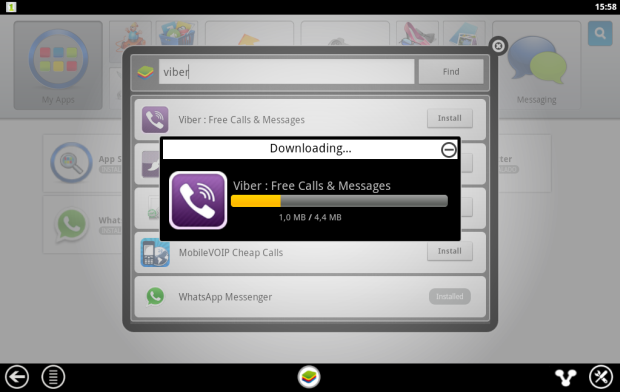
1. Start by downloading and installing BlueStacks App Player on your PC or Mac. Once the software is up and running you need to head for the ‘App Search’ option and perform a search for “Viber”. Once you’ve found it, click on the ‘Install’ button to download and install Viber in BlueStacks.

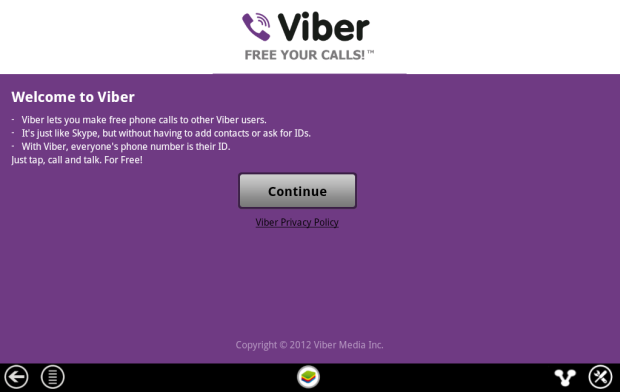
2. Run Viber by clicking on its icon in the main BlueStacks interface. You’ll be shown a welcome screen. Just click ‘Continue’ here.

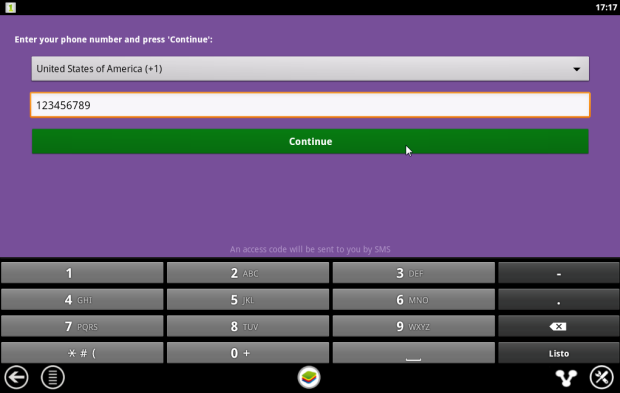
3. At the next screen, you’ll be prompted to enter your phone number. Tap in your regular cellphone number here and hit ‘Continue’.

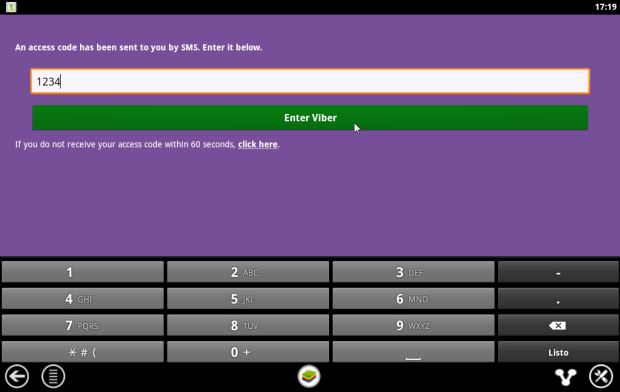
4. You’ll now be sent an access code to your phone via SMS, which you should enter in the box provided. At least, that’s the theory. We never received a message with the code, and if this happens to you, ‘click here’ link in the message that appears under the code entry. You will receive an automated phone call to your cell and a voice will out the code you need. When you have the access code, enter it and click ‘Continue’.

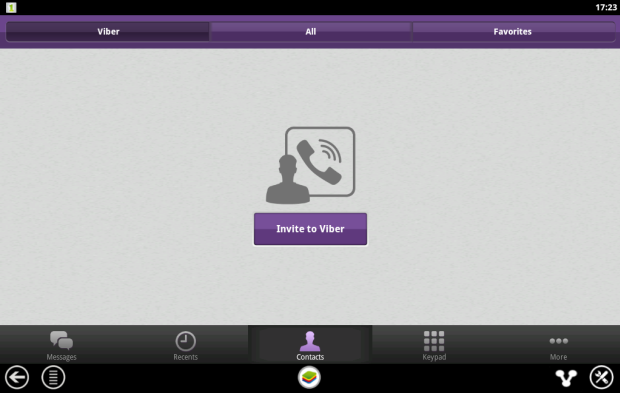
5. Viber should now be activated and you’ll see the following screen. You’ll notice that no contacts will appear in the list. Since BlueStacks doesn’t have a native contacts application, we need to rectify this by installing a contacts app. Quit out of Viber for now by clicking the BlueStacks icon at the bottom of the interface. This will take you back to the home screen of BlueStacks.

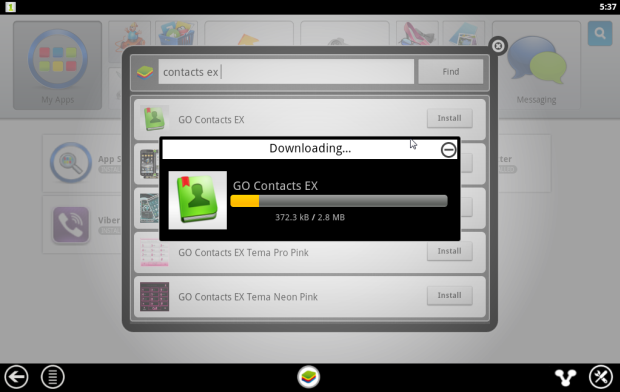
6. From the home screen, click on the ‘App Search’ option and perform a search for an app called ‘GO Contacts EX’. Once you’ve found it click on ‘Install’ to download and install it.

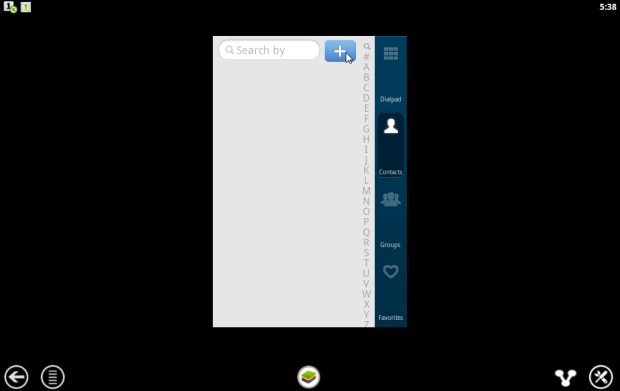
7. Once installed, open the GO Contacts EX app by clicking its icon on the home screen. You’ll be presented with the following screen of blank contacts. Let’s start adding some contacts for people you know who are using Viber. Click on the ‘+’ icon to start.

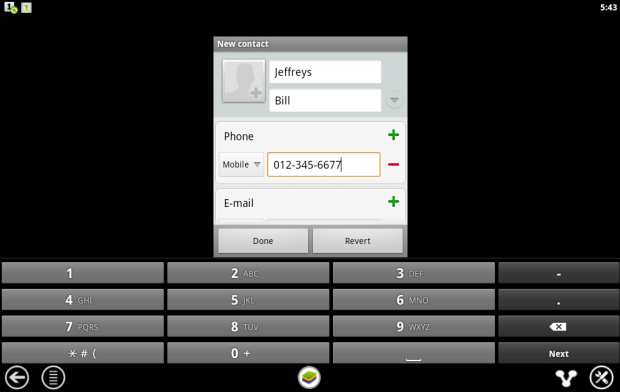
8. Add a contact by entering their name and mobile number in the boxes provided. These are the only two fields you need to worry about to use Viber on your PC, so you can leave the other contact information blank.

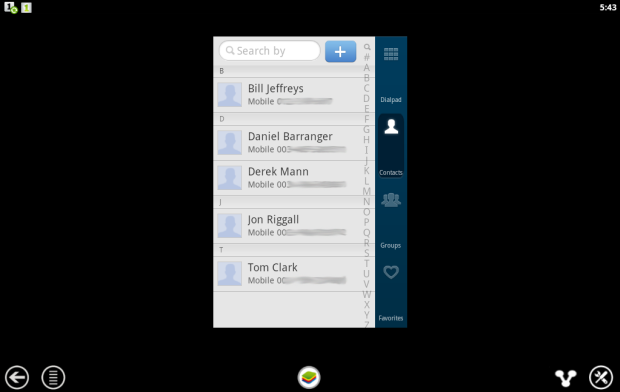
9. Keep adding contacts using this same method, until you have built up a list of anyone you might want to talk to on Viber. All the contacts will be displayed in the main GO Contacts EX menu.

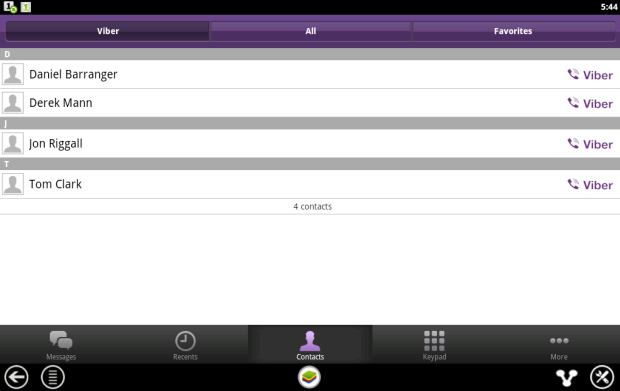
10. Go back to Viber by quitting out of GO Contacts EX (press the BlueStacks icon at the bottom to do this), and clicking the Viber icon from the home screen. Any contacts you’ve added who are registered with Viber will now appear in the app’s Contacts tab. To make a call to a contact just click on their name.

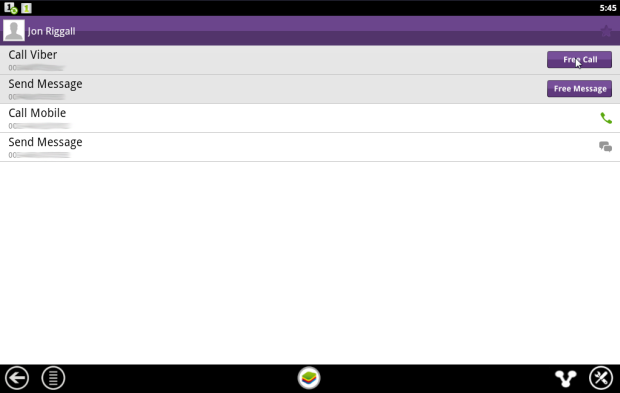
11. The contact’s information will now be displayed. There are options to make a free call or send a free message. To place a call to this person, just click on the ‘Free Call’ button. Make sure you are wearing headphones with a built-in microphone (the ones that came with your phone, for example) or you could use a stand-alone mic and standard headphones.

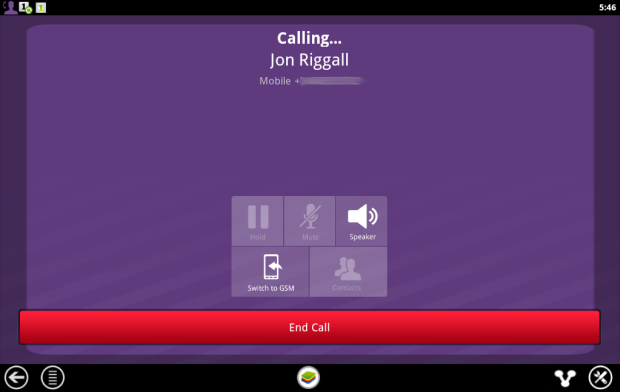
12. Your call will be made and you should hear the dial tone. When the person picks up just start talking! You can now chat for as long as you like for free from your computer. Pretty good, eh?

While using BlueStacks is possible, Viber released Viber for Windows and now officially supports making calls through desktop.

Adblock Plus finally comes to Android – but it’s a buggy mess

adblock plus iconAdblock Plus made itself famous by being a fantastic browser extension that helped users block annoying ads. It was easy to download, install, and use. Unfortunately, that’s not the case with Adblock Plus’ new Android app. After spending months in beta, Adblock Plus finally reached gold today but perhaps its developer pulled the trigger too quickly.

Looking at its features, Adblock Plus does have plenty of desirable features. It doesn’t require root, it works on older Android devices, and has a simple interface. Yet for every positive quality, Adblock Plus provides a caveat. Let’s see what those caveats are. Continue reading “Adblock Plus finally comes to Android – but it’s a buggy mess”

10 WhatsApp features you might have missed

When it comes to messaging, Whatsapp is by far the most popular messenger around. Over a billion people use it regularly. It’s free, fast, personal, and receives tons of updates and new features.

WhatsApp DOWNLOAD

With all the latest features that have appeared over the years, we don’t blame you if you haven’t used them yet. Here are some cool features you might have missed when using WhatsApp!

Sending conversation history

One of the Whatsapp features you might have missed is sending the entire conversation history to another person. This means you can send all your messages without selecting them individually.

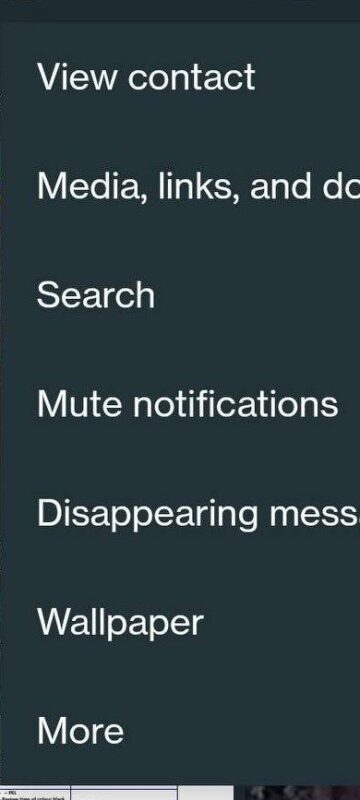
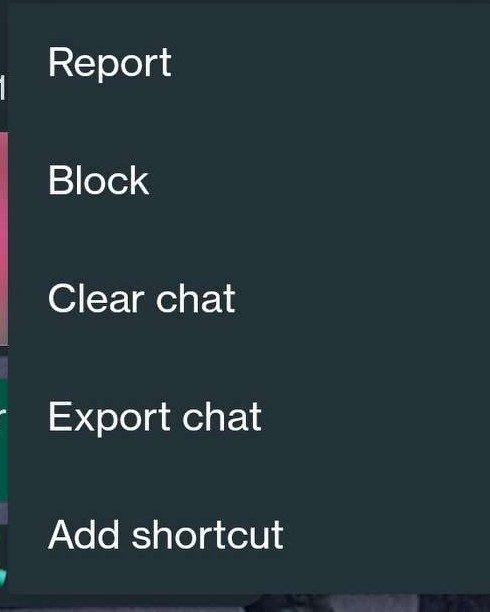
To do this, head over to any chat you want to share. Tap on the three dots on the top right of the screen and click more. After that, click on export chat. Once you do that, you’ll be given the option to send the chat with or without media. Pick your option and share the chat using any of your sharing methods.

10 WhatsApp features you might have missed

Change your chat wallpaper

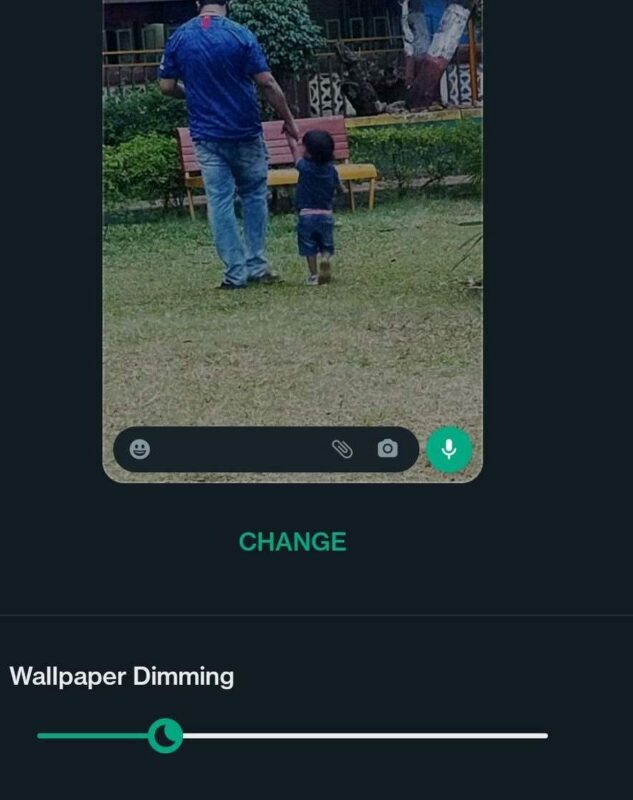
If you are among the users who have used WhatsApp on their phones, you might have already noticed that there is a feature called “Chat Wallpaper.” It is a feature that allows you to change the background image of your chats. This can be done by going to a chat and clicking on the three dots in the top right corner. Then click on ‘wallpaper’ and set the wallpaper you want.

10 WhatsApp features you might have missed

Save all photos that you receive

If you are a WhatsApp user, you might have noticed an option in your settings that lets you save all the photos you receive. Click on settings and then click storage and data. When in there, choose the options you want under media auto-download.

10 WhatsApp features you might have missed

Backup your Whatsapp conversations

Tap on “Settings” from the top-left corner of the screen and choose chats. Under chats, scroll down and click on chat backup. This menu will display all your previous backups. You can set the frequency of your backups and select which account you want the chats backed up to.

10 WhatsApp features you might have missed

Press enter to send WhatsApp messages

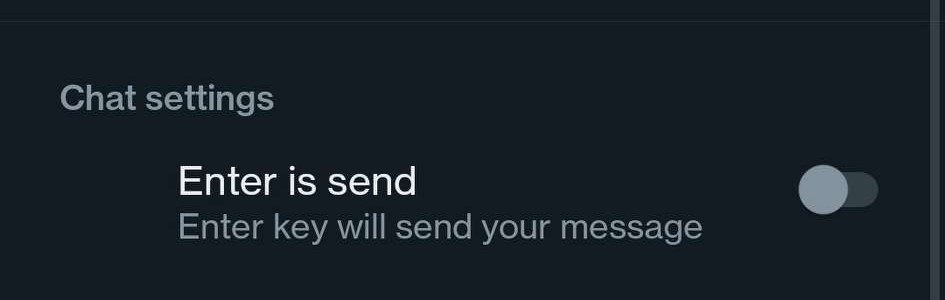
If you are a WhatsApp user, you must be aware of the feature that lets you press enter to send a message. This feature allows users to send messages without tapping the send button. This feature makes it easier for people who have stubby fingers and can’t manage to tap the send button. For this, you must enable the ‘enter is send’ option under chat settings.

10 WhatsApp features you might have missed

Create shortcuts to conversations

One of the Whatsapp features you might have missed is the ability to create shortcuts to conversations. This lets you access conversations quickly.

Click on a chat and press the three dots in the top right corner. Then click on more, and after that, click on add shortcut. This will allow you to add a shortcut to your phone’s home screen.

10 WhatsApp features you might have missed

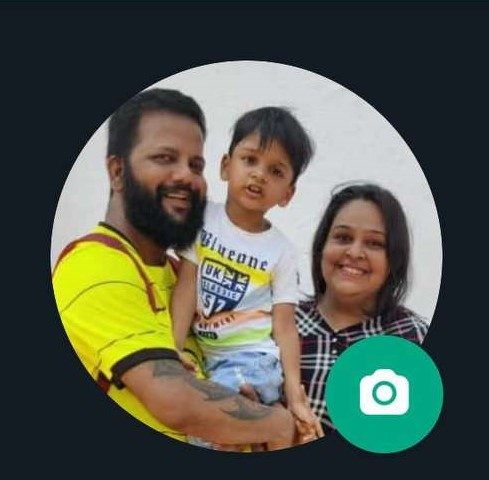
Choose your WhatsApp profile picture

To change your profile picture, go to Settings and click on your profile picture at the top of the page. Once there, click the camera icon to select your profile picture by clicking a picture or choosing one from your gallery. You can also delete your profile picture by clicking the bin icon.

10 WhatsApp features you might have missed

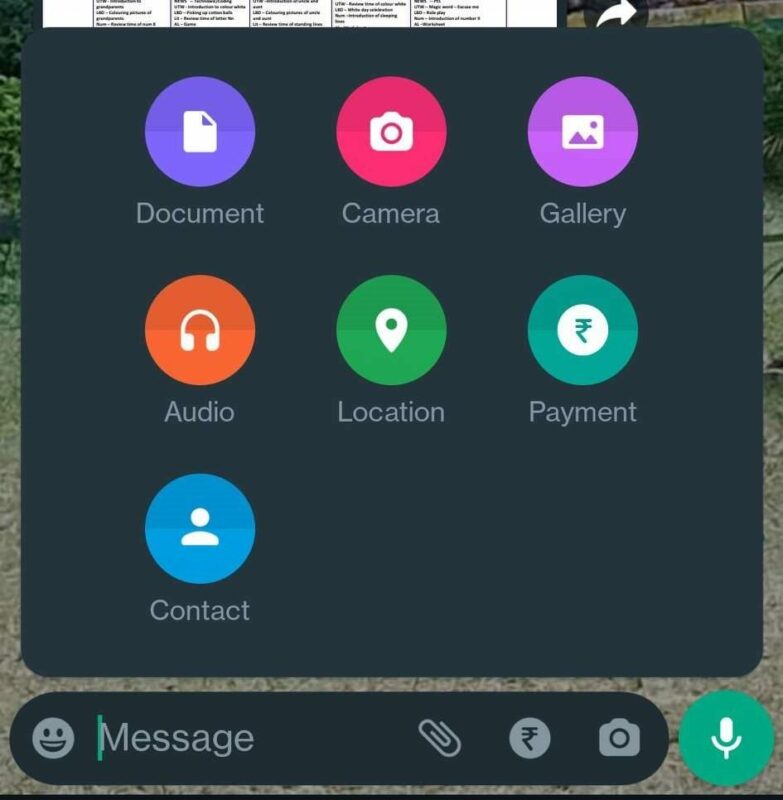
Send files, documents, and videos apart from texts

It’s one of the WhatsApp features that you might have missed. You can send more than a text message with WhatsApp. You can now send a document, audio files, your location, a payment, or contact details of someone else to any chat. All you need to do is tap on the paper clip icon at the bottom of any chat.

10 WhatsApp features you might have missed

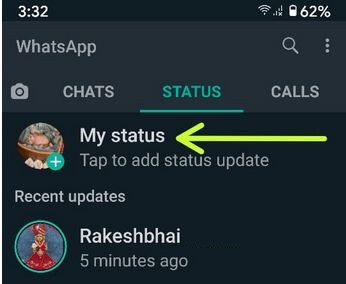
Change your WhatsApp status

Do you know that you can change your status on WhatsApp? Yes, it is true. Click on the three lines at the top of your screen and then click on settings. Then click on your name at the top of the screen and select the pen icon next to the about section. Choose your status accordingly.

10 WhatsApp features you might have missed

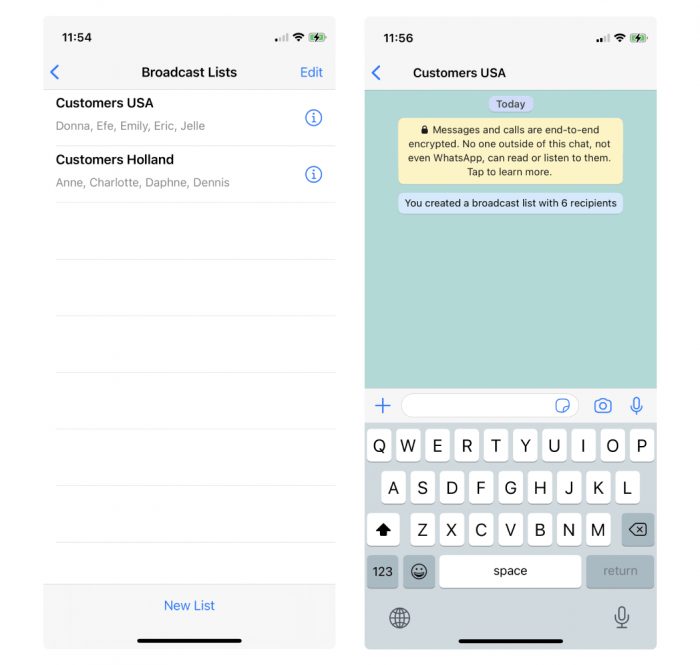
Broadcast messages to multiple contacts

If you love chatting with friends, family, and business associates on WhatsApp, you might have missed one of the most valuable features: broadcast messages. This allows users to send out a single message to multiple contacts simultaneously.

All you need to do is click the three dots on the top of the screen. From there, click on new broadcast. Select the contacts you want to add, and then click on the tick at the bottom of the screen. You can then type out a message or paste a message you would like to broadcast.

The benefit of broadcast messages is that they allow you to communicate with more than one person at once – which is hard to do through other instant messaging methods.

10 WhatsApp features you might have missed

Another false viral rumor hits Facebook

Facebook is proving to be an excellent tool for spreading rumors, scams and hoaxes. Some are malicious, playing on our emotions to get clicks to websites, or even to trying to trick people into giving away their security passwords. The last year has introduced something different: the well meaning but misinformed repost.

In September and October we reported on two privacy rumors surrounding privacy and the Timeline, and now a new rumor is spreading regarding ‘new Facebook guidelines’ and copyright.

The rumor is untrue and misinformed, yet again.

Continue reading “Another false viral rumor hits Facebook”

Enhance gameplay by installing mods for Euro Truck Simulator 2

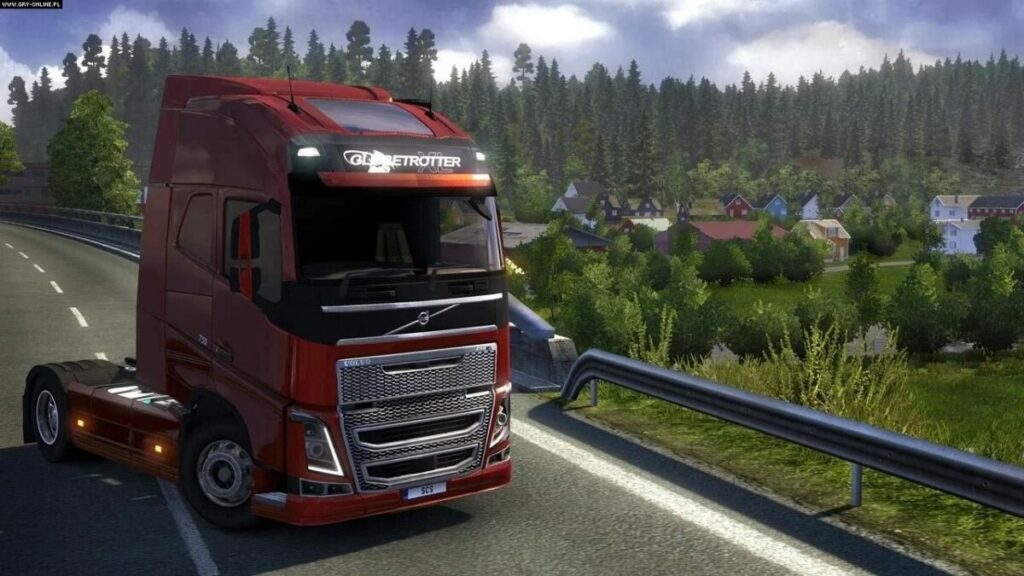
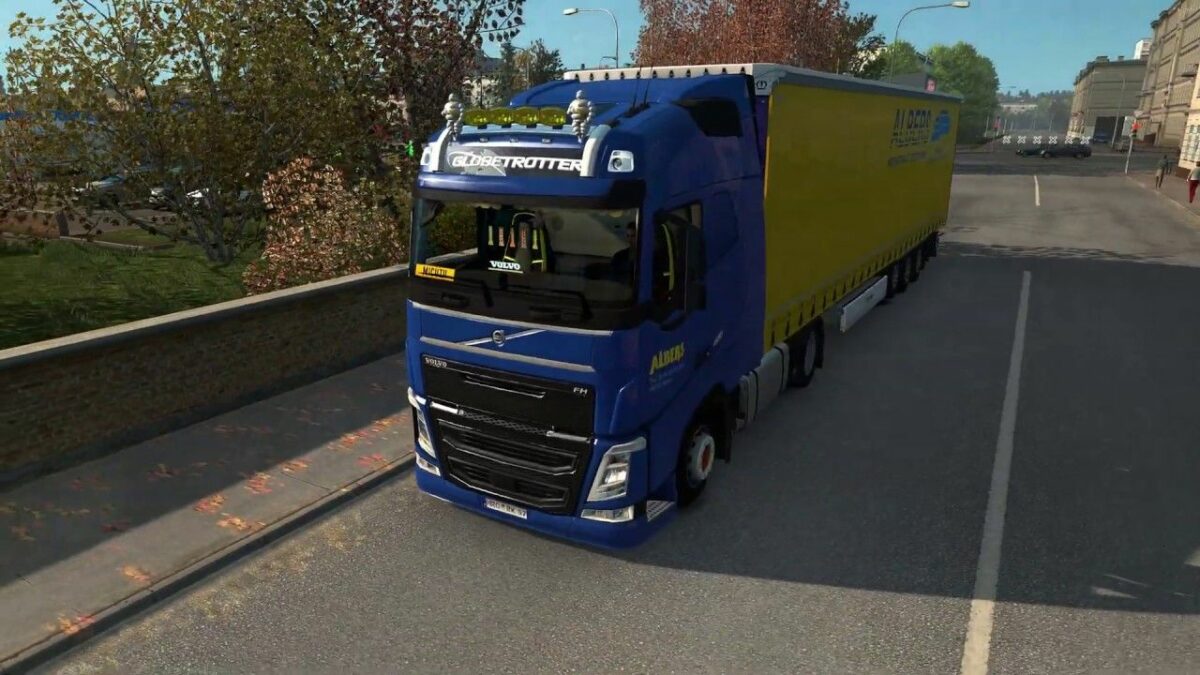
Euro Truck Simulator 2 initially launched in 2012, but there have been plenty of DLC packs since then. What started in the UK has eventually stretched into France, Germany, Poland, and so many other European countries. ETS2 is so well loved by the gaming community that many developers have made mods to improve some game mechanics and add items.

Euro Truck Simulator 2 DOWNLOAD

If you’re like me, you’ve probably never modded a game in your life, as you prefer the original version. However, you may have stumbled upon a mod that looks quite interesting. If it’s your first time, here’s a details guide on how to install mods for Euro Truck Simulator 2 and where you can find them.

What do Euro Truck Simulator 2 mods do to the game?

Like most mods, the ones for ETS2 change the way you play the game or add items not available in the original version. For instance, you’ll find new trucks and vehicle customization parts, or perhaps some skins. Others add local radio stations when you enter a new city or country. There are also improvement mods that upgrade visuals, sound, or movements for more realism.

Where to locate and download mods?

There are a few locations where you can find Euro Truck Simulator 2 mods. The official method that works the best is via the Steam Workshop, which we’ll explain in the step-by-step guide below. 

There are also websites that collect ETS2 mods that you can download and install, such as https://ets2.lt. Softonic also has a few mods you can try out:

How to mod the ultimate trucking game, Euro Truck Simulator 2

Once you’ve found the mod you like, here are the steps to install mods for Euro Truck Simulator 2.

  1. Open ETS2 and Manage Profile

    How to install mods on Euro Truck Simulator 2

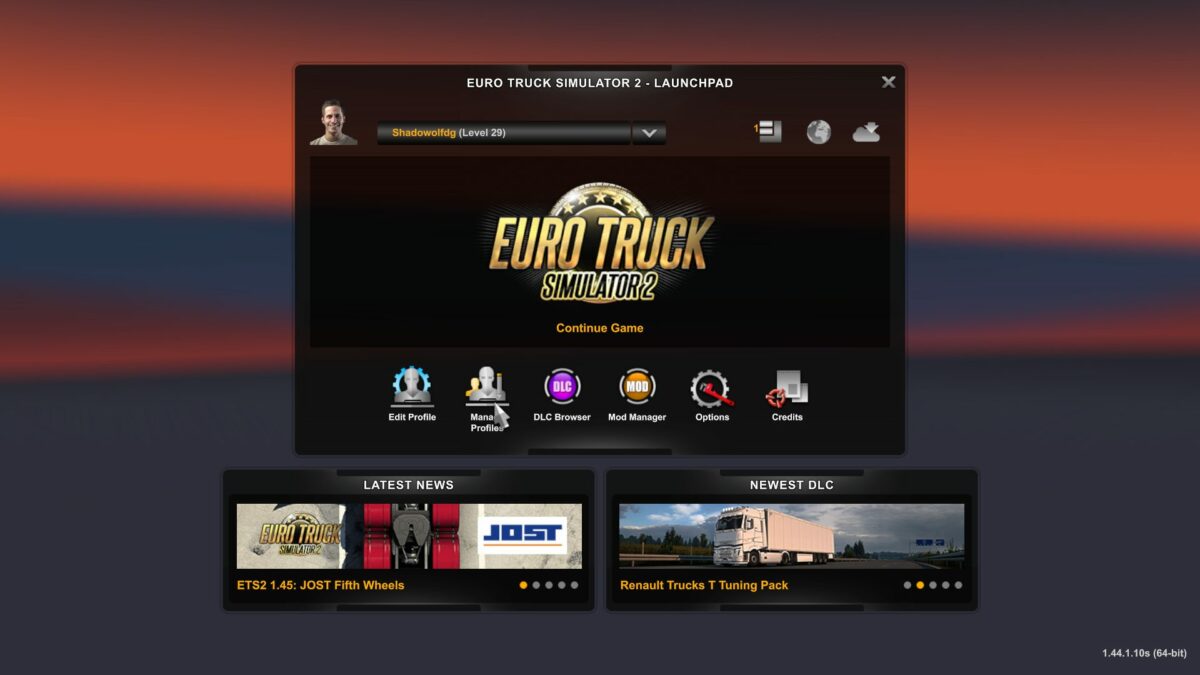
    The first step you’ll need to take is opening Euro Truck Simulator 2 from your Steam platform. Wait for the game to load, and then look at the options underneath your profile. You’ll see Edit Profile and Manage Profile. You’ll need to click on the second one.

  2. Open the Mod Manager

    How to install mods on Euro Truck Simulator 2

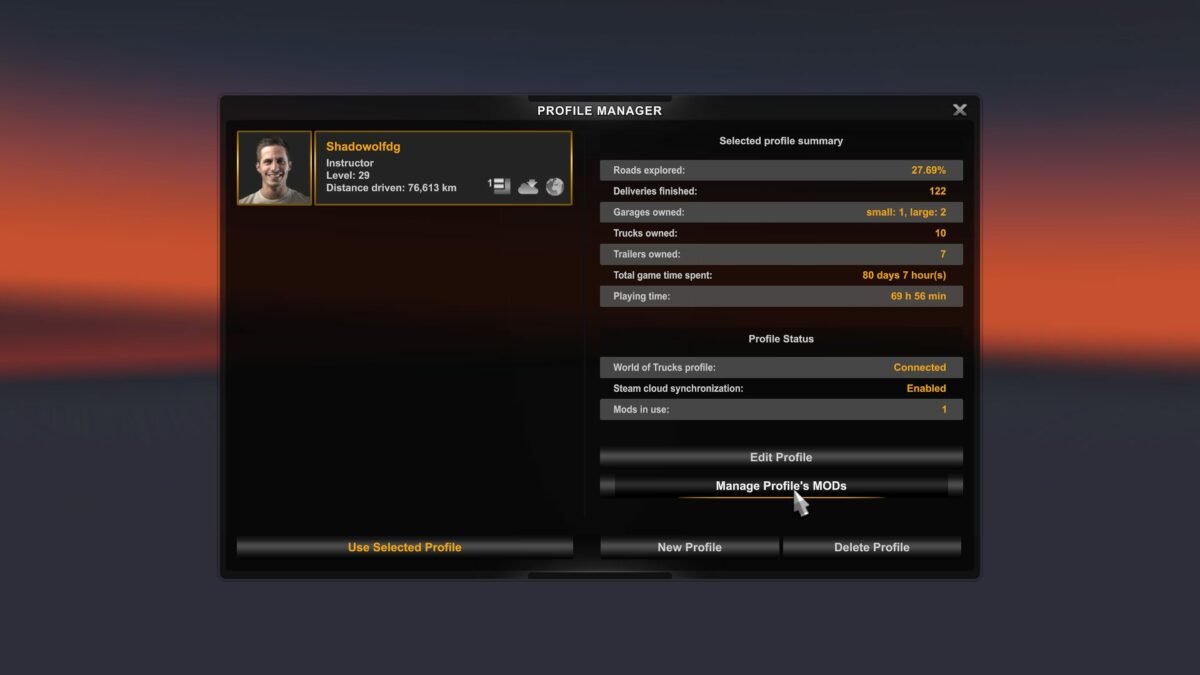
    With your profile open, you’ll see a few buttons on the side. The one you’ll aim for is Manage Profile’s MODS. Just above that, you can actually see if you have any mods available at the moment.

  3. Click on Steam Workshop

    How to install mods on Euro Truck Simulator 2

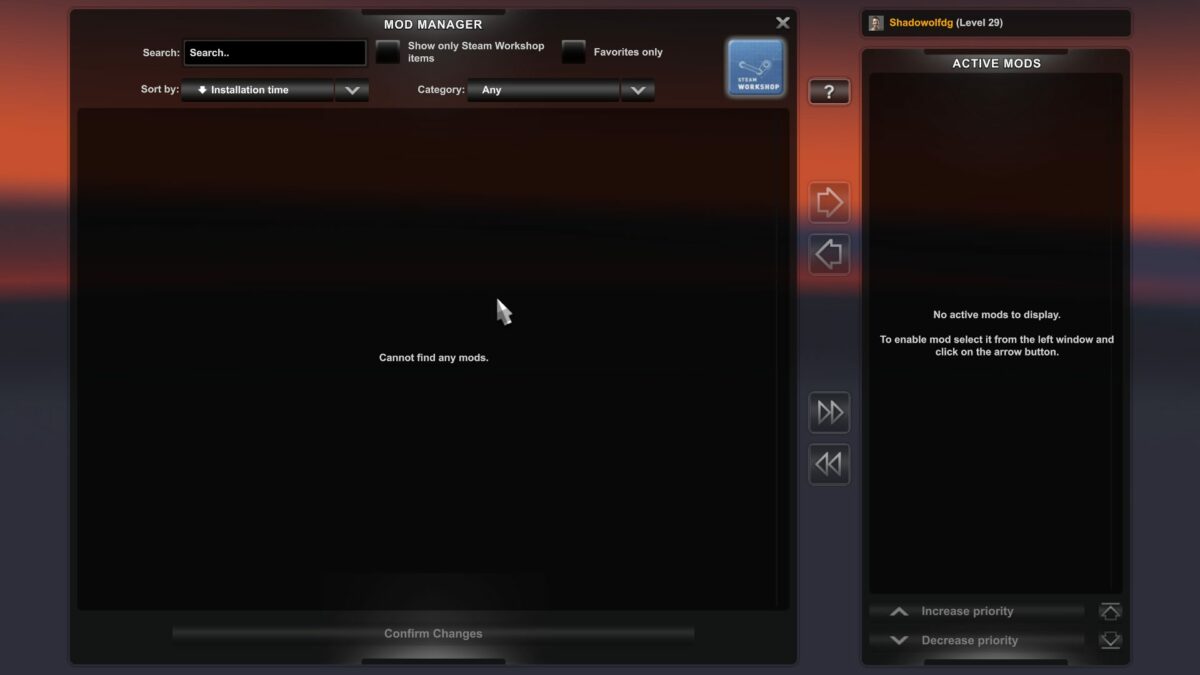
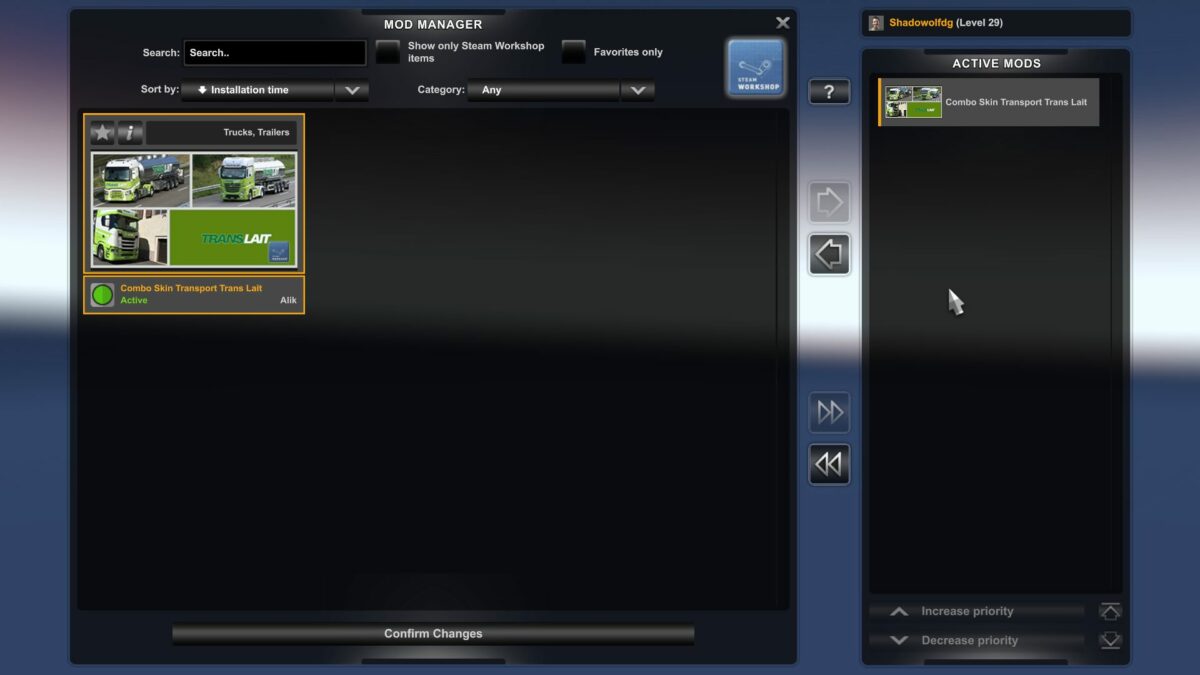
    You’ve now entered the Euro Truck Simulator 2 mod manager. If this is your first time installing a mod, this space should be empty. Take a look at the top right corner of the screen. You’ll see a Steam Workshop logo. Click on it to head directly to the ETS2 mod store.

  4. Subscribe to a mod

    How to install mods on Euro Truck Simulator 2

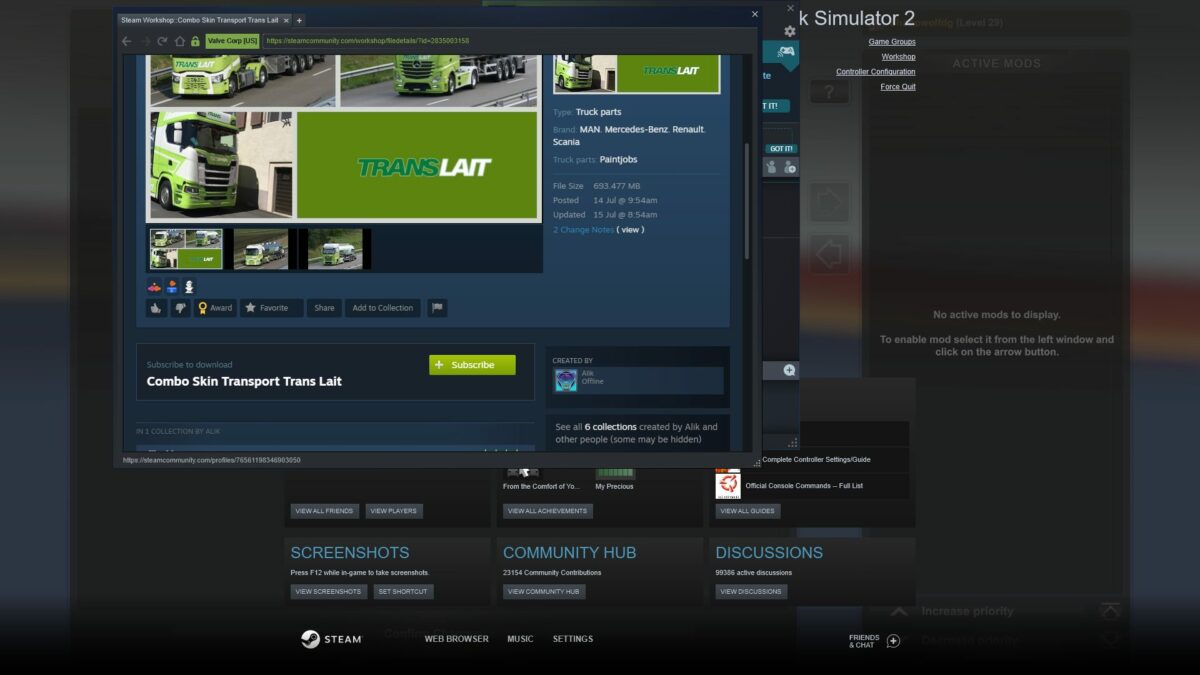
    You’ve landed on the haven for Euro Truck Simulator 3 mods. You’ll see various categories, such as popular or hottest, as well as a few select skins and vehicles. These are recommended mods that work well with ETS2. When you’ve found the one you like, simply click on the Subscribe button. A message will appear telling you the mod has been added.

  5. Activate and confirm changes

    How to install mods on Euro Truck Simulator 2

    When you’re done adding all the ETS2 mods you want, head back to the Mod Manager. You’ll need to select them in the window on the left, then click on the arrow in the center. Once done, click on Confirm Changes at the bottom. You can now play with your new mods. If you ever want to remove them, head back to the Mod Manager and deactivate them.

Alternative way to install mods on Euro Truck Simulator 2

The above way is the recommended method for installing mods for Euro Truck Simulator 2. However, you may come across mods not available on the Steam Workshop that you like, such as those mentioned from Softonic. The steps to follow are completely different, and you’ll need to know how to extract files and find folders.

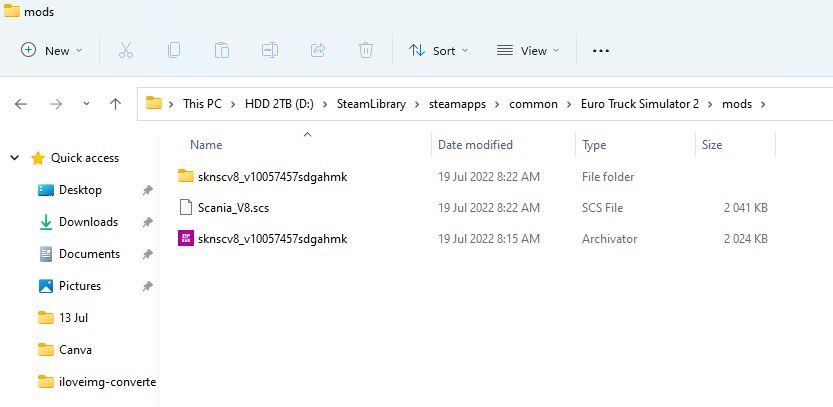
  • Go into Steam, right-click on the game, select Properties, head to Local Files, and click on the file location.
  • Create a mod folder if there isn’t one present.
  • Move the downloaded zip mod folder to your ETS2 mod folder.
  • Extract files to the new mod folder
How to install mods on Euro Truck Simulator 2

Enabling or activating the downloaded mods

You can now open Euro Truck Simulator 2 and head to the Mod Manager as explained in the steps earlier. If you did it right, you’ll see the new downloaded mod available for you to activate. Feel free to select it and enable it.

Why is my ETS2 mod not working?

There may be a chance that the Euro Truck Simulator 2 mod you downloaded and installed isn’t showing. That means the mod isn’t compatible with the latest version of ETS2, or the mod file is faulty. That’s why I prefer the Steam Workshop method, but it’s still worth a try. All that will happen is you’ll delete the mod file that doesn’t work.

Can you play ETS2 with mods online?

Yes, the developer of Euro Truck Simulator 2 permits using mods even in the online mode. Of course, it needs to be compatible with the online version so that it doesn’t cause any issues with the server or network. Some mods are primarily designed for the multiplayer version, especially if you join a convoy or virtual trucking company (VTC).

How to install mods on Euro Truck Simulator 2

Be sure you check the mod manuals

Some ETS2 mods are trickier to install than the ways mentioned above. Sometimes, you’ll find a mod manual you can read within the downloaded folder or on the Steam Workshop. It will guide you in any additional steps you need to take for the mod to work properly. It might even contain details for connecting to a VTC server, which is essential for logging trucking jobs.

How to resize disk space in VirtualBox

VirtualBox is an excellent free solution if you need to run Windows on your Mac. However, one common problem is that over time, you run out of disk space. If you receive the “Low Disk Space” warning in Windows, your only option is to either delete files and applications or resize the amount of hard drive space you allow Windows to use on your Mac.

Fortunately, you can resize the disk space in VirtualBox, although it is a bit tricky. Here’s how to resize a Windows hard drive in VirtualBox on your Mac.

Continue reading “How to resize disk space in VirtualBox”

Mobile app of the week: HERE Maps

Nokia has got into the iOS maps game with the launch of its HERE Maps app this week. Nokia hopes to capitalize on the removal of Google Maps from iOS 6 and the lukewarm reception to its replacement, Apple Maps.
HERE Maps for iOS includes some of the innovative features of the HERE web app, which was released earlier this month. Features such as the ability to ‘collect’ places of interest and store them in folders in the cloud, public transport information and location sharing. It also features a handy function to download portions of a map for viewing offline. This is great if you’re in an area without coverage, or if you just want to spare your data plan.

It’s an interesting alternative to Apple Maps, though I’m not convinced that HERE Maps is an adequate replacement at this stage, and much development still needs to be done. Read our full review to find out what we thought.

Continue reading “Mobile app of the week: HERE Maps”

Win a Hotspot Shield subscription for a year

We have 50 one-year subscriptions for the excellent VPN software Hotspot Shield Elite to give away. This is the ad-free version, which works on Windows and Mac.

For the chance to win, simply leave a comment below before November 29 2012, remembering to use a functioning email address. We will pick 50 winners at random, and notify them by Novermber 30th 2012.

Hotspot Shield is the most popular VPN download on Softonic, and with good reason. It’s a really easy way to access websites that are blocked in your region, and to do so safely and privately.

Hotspot Shield Elite creates a Virtual Private Network (a secure connection, usually abbreviated to VPN), that protects yuot IP address, allowing anonymous browsing. All you have to do is log in with a personal code to start

Continue reading “Win a Hotspot Shield subscription for a year”

Best apps to keep up with Black Friday deals

black friday iconBlack Friday is right around the corner and news of each retailer’s deals have leaked out. There are lots of deals from several different retailers so keeping track of them can be a headache. If you don’t do your research before heading out to the shops on Friday, you’ll miss out on your deals, whether they’re online or in retail stores.

But as with most problems these days, there’s an app for that, or in this case, many app. Whether you’ve got an iOS device, Android, or Windows 8 computer, we’ve got you covered.

Here’s some of the best apps to help you plan out your Black Friday. Continue reading “Best apps to keep up with Black Friday deals”