Which Project Management Tool is Right for You?

Whether working as part of a team or as lone wolf if you want a job doing well you’re going to have to manage what needs to be done properly. Where do you start though? There are a lot of great project management tools out there so how do you know which one is best for you.

To help, we’ve put together a handy infographic that runs you through the pros and cons of the best of them. We hope you like it.

Which Project Management Tool is Best for You

You can download all of the apps we’ve looked at by clicking the links below:

Slack

Trello

Basecamp

Asana

How to spot links you should NOT click under any circumstances

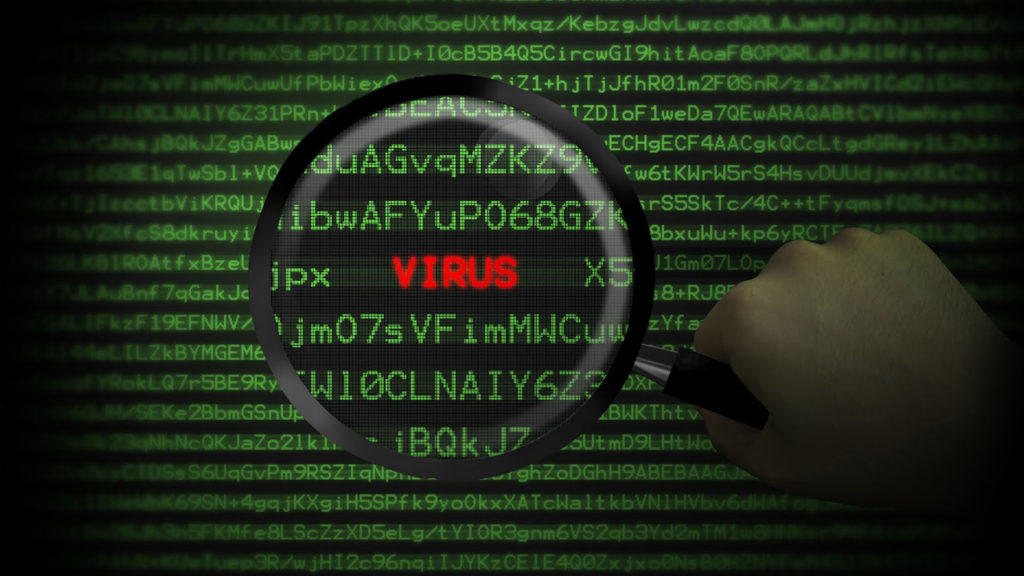
Links are the perfect bait to lure us to malware. It’s extremely difficult to resist the temptation to click on a link, right? Is there a way to spot fraudulent links? In fact, we’ve got a few little tricks. Alone, they aren’t foolproof but together, they could help you avoid a bad situation.

Fraudulent links usually appear in two different contexts: in an email or a social network conversation (for example, Facebook Messenger). So, the first step to spotting a deceptive link is to answer this question: do you know the person or entity who sent you the message?

If the link has been sent by an unknown person, all you have to do is click on his/her account and investigate a bit. You can even search for the name on Google, just in case.

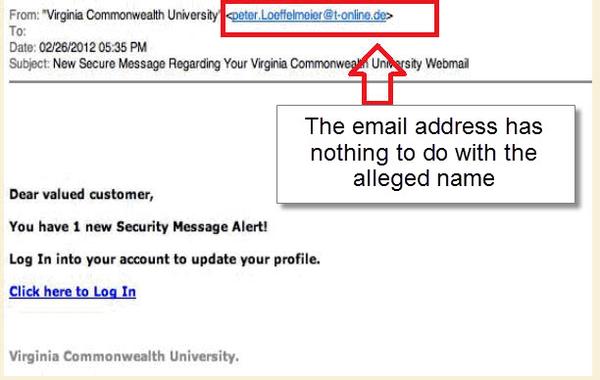
In the case of email, look at the message’s full header to see the address of the person or entity who sent you the message. If the address is suspicious, you can delete the message immediately.

How to spot links you should NOT click under any circumstances

What happens if you know the person who sent the message, but you notice something is off? Keep in mind that if a friend has been hacked, his/her computer could be sending these deceptive links without anybody’s knowledge.

The solution for both email and messaging is simple: ask the other person if he/she sent you the link. You’re not in a rush, are you?

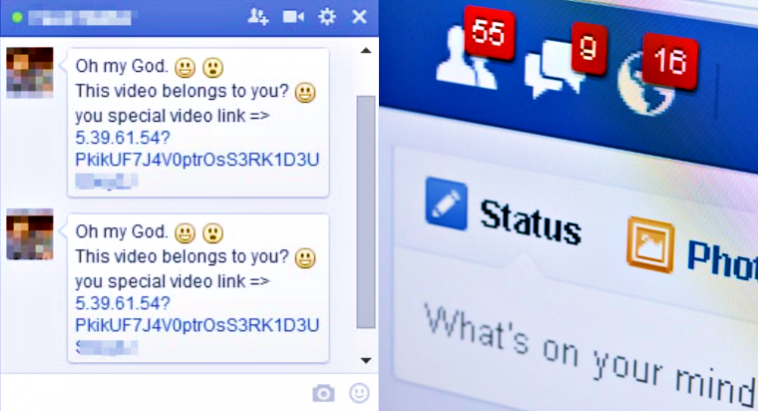
Here’s an example of a trap.

How to spot links you should NOT click under any circumstances

But sometimes, fraudulent emails or messages will use personal data to trick you. There’s no black magic behind it: the wrongdoers involved simply have found some of the information that the internet is crawling with.

It’s easy to find out if these emails or messages have hidden traps. Do they ask you to give out information like your bank account, or password…? Ah-ha! No reputable company will ever ask you for information like that.

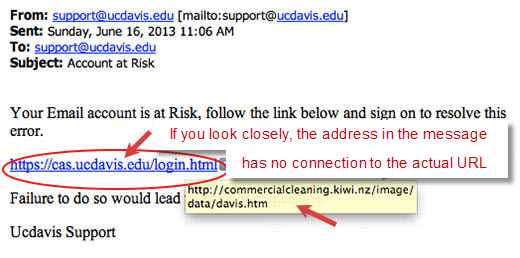
If you want more evidence, hover your cursor over the link in question without clicking on it. Does a suspicious URL appear at the bottom of your navigation pane? Then it’s better you don’t risk it.

How to spot links you should NOT click under any circumstances

Is the URL shortened? Use the page CheckShortURL. Paste the address in it and it will give you a preview of the page hidden behind it.

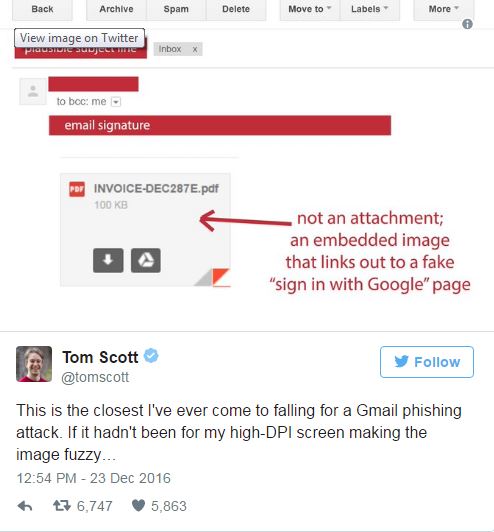
Before we finish, let’s review the related topic of attachments, since sometimes viruses are hidden in them. For starters, sometimes they involve the easy trap of hiding an image with an embedded malicious link via a fake attachment.

How to spot links you should NOT click under any circumstances

Be careful with Office documents that end in “m.” They’re files that usually contain malware. Same with JavaScript files (.js).

What are your tricks for avoiding fraudulent links?

You don’t need Expensive Equipment to take Breathtaking Photos

Come on admit it. You’ve at least one project that you’re putting off because you haven’t got the right equipment to do it properly. What is It for you? For me, I’ve been putting of getting back into running because I need me some new Nikes to run in. Celebrity photographer Philippe Echaroux, however, does not hold this attitude.

Although Echaroux normally works with high-end photography equipment and snaps some of the most famous people on the planet he recently took up a challenge to show people that you don’t need expensive equipment to do a job well. So what was the name of this challenge? It was the Big Mac Portrait Challenge.

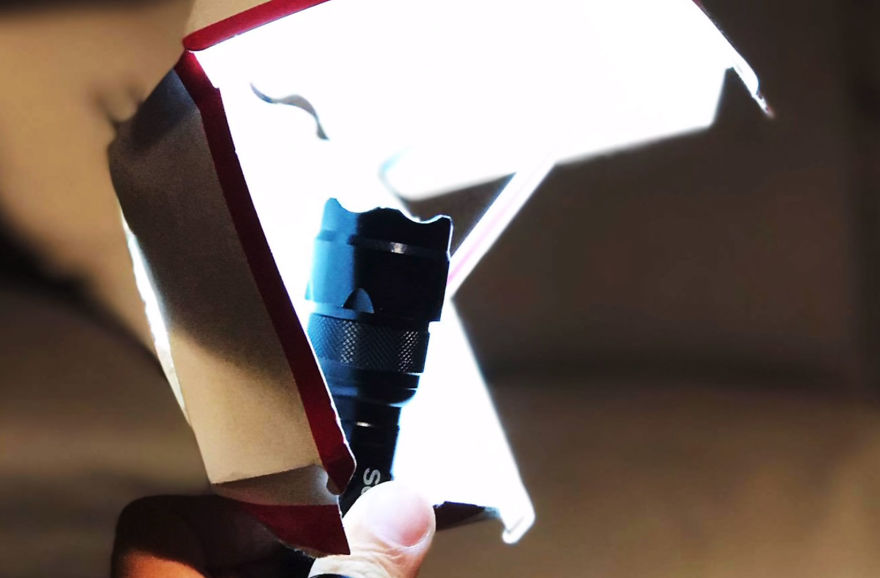
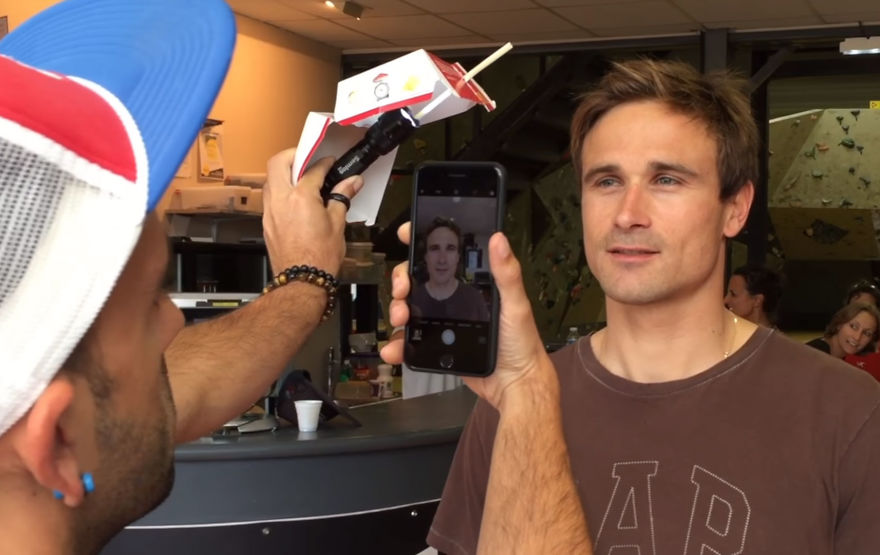
Believe it or not Phillipe Echaroux took it upon himself to take some portrait photos using only a used Big Mac box, a torch, a straw and an iPhone. The results will blow you away.

Via: Bored Panda – Echaroux used a Lighting rig made out of a used Big Mac box to take some amazing portraits. YOU can do the same.
Via: Bored Panda
Via: Bored Panda
Via: Bored Panda
Via: Bored Panda
Via: Bored Panda
Via: Bored Panda

I’m really impressed with the great results Echaroux has been able to achieve using such basic tools. I’m definitely going to try this method out and you should too. The real message is that rather than looking for reasons not to do something we should spend our time trying to come up with solutions to the problems that are standing in our way.

Great job Echaroux, I suppose now I’ll go dig out my old sneakers and get running again rather than waiting until I can buy myself a shiny new pair.

If you want to download any of the retouching programs mentioned in the video above, you can get them via the links below.

VSCO Cam (iOS)

Photoshop Fix (iOS)

Lightroom


Via: Bored Panda

All about Creeper, the first virus in history

“I’m the Creeper: catch me if you can.” This message, which sounds like it came straight out of a Victorian nursery rhyme, is what was displayed by Creeper, the first virus in history, programmed in 1971. Today, we’ll tell you all about it!

Creeper was created by Bob Thomas, a developer at BBN Technologies, which was on the cutting-edge of the emerging tech industry. Thomas programmed Creeper to test if a program could be created to move between computers. In other words, his idea wasn’t to damage PCs, and in fact, only years later was Creeper considered a virus, since this concept wasn’t applied to computers until the 80s.

5453961413_2b06e9ac91_z

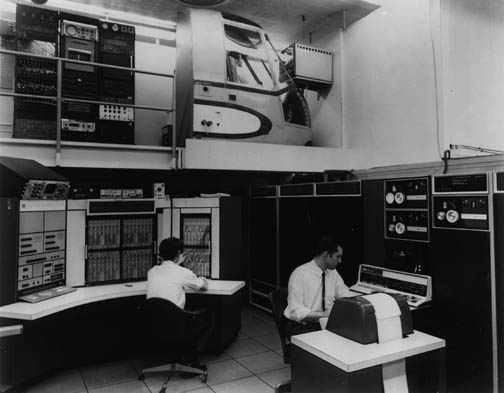
Computers in the 70s were somewhat bigger than today’s…

But, did Creeper achieve what it set out to do?

Creeper was spread through ARPANET (one of the first computer networks, used by the U.S. Department of Defense) and copied in the system, where it displayed the message I wrote at the beginning of this article. Once displayed, it started to print a file, but then stopped and switched to another PC, undergoing the same process.

Even though it infected a computer when it first appeared, the effects didn’t last long: by jumping to the next PC, it disappeared from the previous one, and so on.

Today, this might seem like a failure, but in 1971, Bob Thomas’ experiment received lots of attention, since the feat of getting a program to jump between PCs had never been achieved without human intervention. His success was the creation of a program that ran quickly from PC to PC… and was the reason behind creating the first antivirus program!

Reaper: Creeper’s enemy

After Creeper, came Reaper (the perfect tool to cut off a creeper). Created in 1973, this program removed the Creeper “virus” from the system, so it can be considered the first “antivirus program.”

Once again, even though this is more of a modern concept, we can call it an antivirus, since it performs the same functions that an antivirus does today.

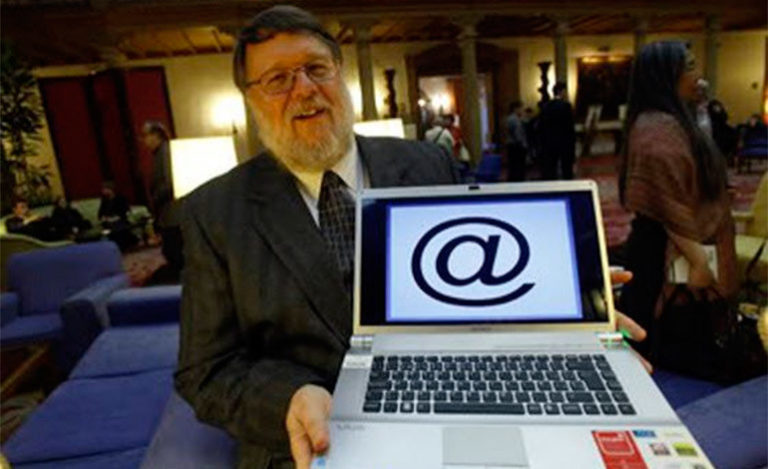
What we don’t know for certain is who programmed Reaper. Some say it was Bob Thomas himself, who decided to control his “creature.” Others think that its creator was Ray Tomlinson, a developer who years later would create email.

ray-tomlinson-768x469

We owe Ray Tomlinson a lot!

Although these two theories are the most plausible, my personal favorite is another: that Reaper was created by several members of ARPANET as an experiment. This group of experts wanted to see if the system was resilient enough to withstand nuclear war and continue providing a communications network. The fact that it involved a high-level military experiment would justify keeping the creators’ names a closely guarded secret.

The legacy of Creeper and Reaper

Although Creeper didn’t fulfill 100% of its goal and Reaper was a very simple performing antivirus, both mark milestones in computer history.

In 1973, the same year that Reaper was created, the author and screenwriter Michael Crichton was the first to apply the “virus” concept to the tech field. He did this in the movie Westworldwhere humanoid robots in an amusement park behave like they shouldn’t. Yes, the recent HBO series is based on this legendary movie.

1280x720-i4X-1024x576

Yul Brynner, Westworld’s most famous robot

But we have to go to 1974, when Rabbit was created, to talk about PC viruses like this. Rabbit was a program that reproduced non-stop, making copies of itself on a single computer until blocking its system, reducing its performance and eventually wiping it out. Yup, here we see bad intentions starting to emerge.

first-apple-virus-message

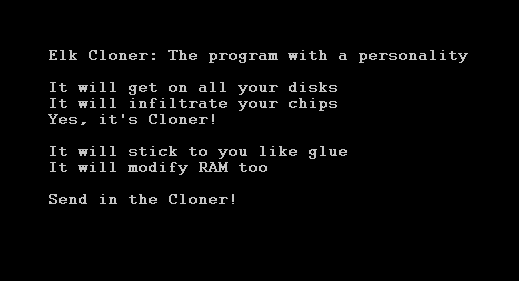
At that time, viruses were called “programs with personality”

A few years later, in 1981, Elk Cloner was created, a virus that affected Apple II (yeah, Apple wasn’t very secure in the past). And in 1986, we said hello to Brain, the first large-scale virus, which affected 20,000 PCs (this time, IBMs), a huge number at the time.

This is when the concept of a computer virus started to be used if you’re interested, we’ll talk about that history another day.

Sources used for the writing of this article: Techspot, Wikipedia (1, 2, 3), Xataka, Furkangul.

Here’s how others can spy on you if you type while talking on Skype or WhatsApp

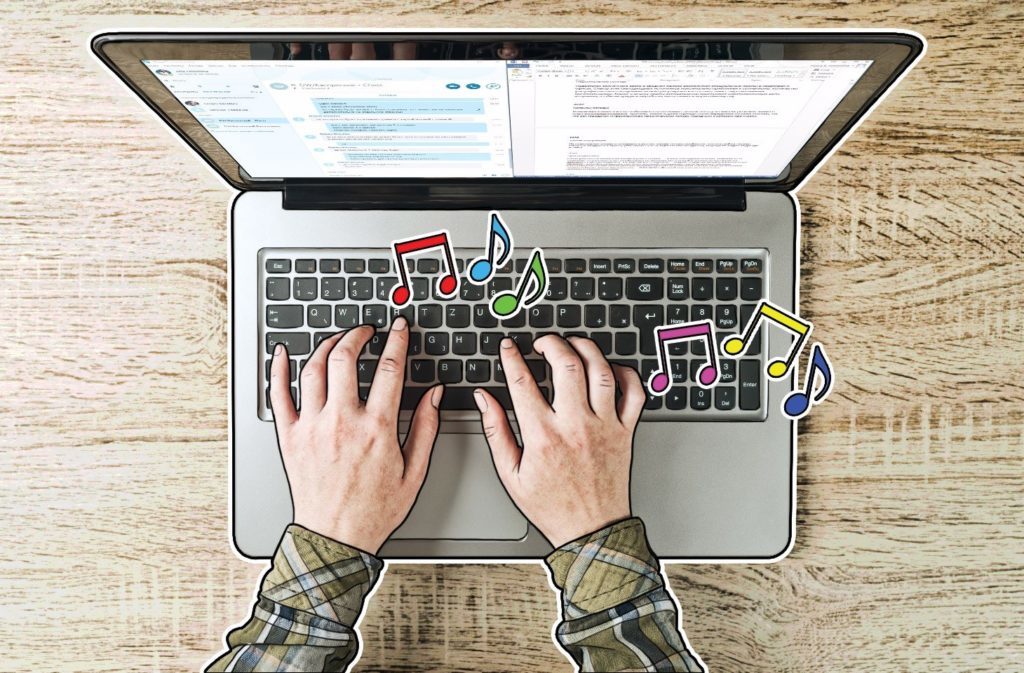
It’s possible to spy on users who type while they make voice or video calls using apps like Skype, WhatsApp, Hangouts or Viber. At least that’s what a group of researchers told us at Black Hat USA 2017, an event that is dedicated to security and hacking.

“Many of us talk on Skype, Hangouts, WhatsApp, or Viber while using the computer for something else,” explained Kaspersky during their conference summary. “You already know it’s not very polite, but it can be dangerous as well. Click, click, click…the sound of typing on a physical computer keyboard is rather recognizable. Your conversation partner knows you may be chatting or doing something else while conversing.”

skype-and-type-featured-1-1024x673

It turns out that machine-learning software can gradually recognize the specific keys you’re pressing. Almost every keyboard has a specific sound for each key, which means that if somebody records you typing, over time he/she can find out what you’ve pressed and consequently know what you’ve written.

“At the Black Hat hacking conference in Las Vegas, we saw a presentation on how to make it happen. According to the researchers, even after the sound has undergone conversions during online transmission, the recordings of key clicks retain sufficient information to feed to a machine-learning system and get back the five most probable key presses.”

Machine-learning software can fine tune this even further if it knows the keyboard layout and the language the victim has used.

“The experts claim that this technology might be used even to steal passwords, although that sounds a bit far-fetched,” says Kaspersky. “Passwords are too short and do not consist of real words most of the time. At least, we hope they don’t.”

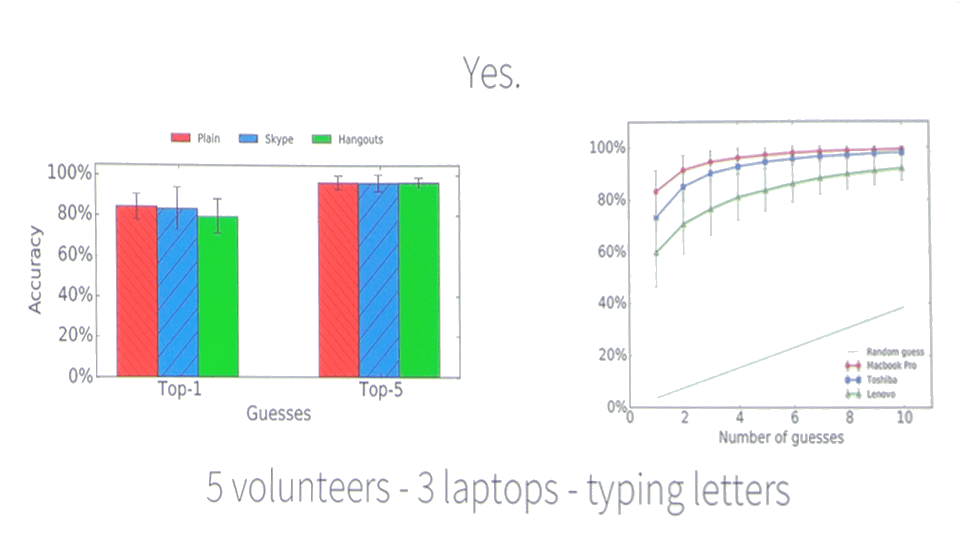
During the investigation, researchers took five volunteers and had them type on 3 different laptops. They recorded their typing with the audio (under three variations: plain recording, Skype recording and Hangouts recording) and then tried to figure out what they had written.

The software researchers used for the test correctly determined the five possible keys the volunteer had pressed at each moment 90% of the time, across all three methods of recording. It correctly determined the exact key that had been pressed between 70-80% of the time, depending on the type of recording.

skype-and-type-2add

In this way, researchers concluded that we should be careful when typing while on a call. If somebody manages to intercept our conversation, record our typing and use the right software, our privacy could be ruined.

Of course, this situation isn’t exactly commonplace. At the presentation, researchers used scaremongering to get the public’s attention. That’s why I’m sticking to Kaspersky’s more moderate conclusions:

“The threat of ‘input interception’ over Skype does not look too serious, but it’s worth knowing about, especially if you sometimes deal with confidential information.

Here Kaspersky says that it’s possible that this type of thing could occur with people who work with private information; they could be spied on with the method of recording their typing and later figuring out the keys they pressed.

“And let’s face it, typing during conversations is not very courteous; hence, avoiding that kind of multitasking will both protect your privacy and show respect for your conversation partner. However, if you find yourself in a middle of an especially long and tiresome conference call, observe the golden rule: Anyone who is not speaking should mute his or her microphone until it’s time to talk.

Source: Kaspersky’s blog

This is what the Earth looked like Millions of Years Ago

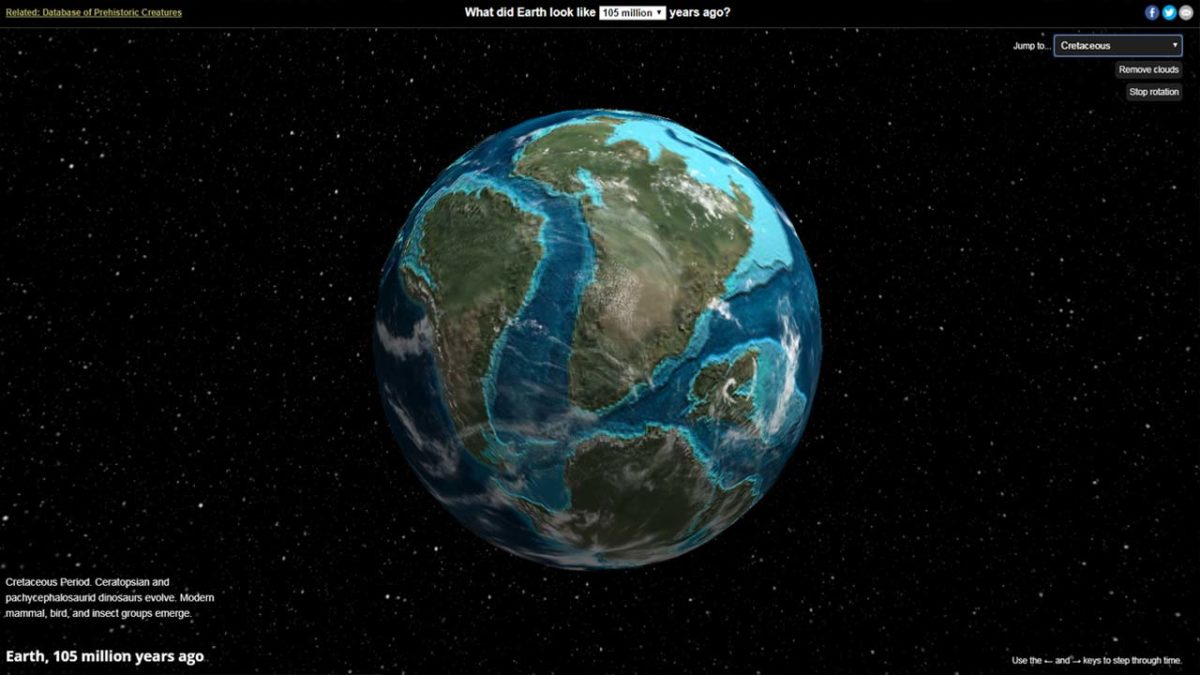
Have you ever looked at the world and thought that the continents look like pieces from a jigsaw puzzle? Have you ever thought that maybe they What did the earth look likeused to be one huge landmass that have separated over time? Well if you have, or if you simply have an interest in the history of our planet, you’ll love dinosaurpictures.org’s Ancient Earths.

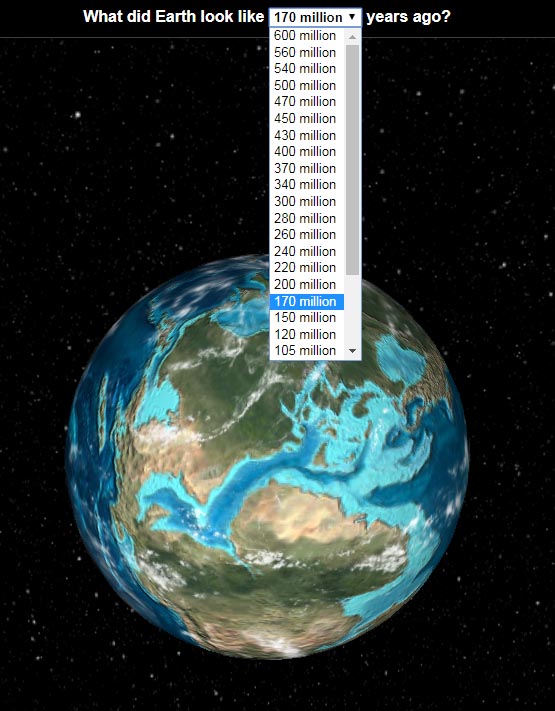
Dinosaurpictures.org offers a rudimentary Google Earth that lets you spin the world around and discover all its secrets. What sets it apart, however, is the ability to view the earth at different times over the last 600 million years. Want to see what the earth looked like when the Dinosaurs were wiped out? All you What did the earth look like infohave to do is select 65 million years ago in the drop down menu and you’ll be able to do just that.

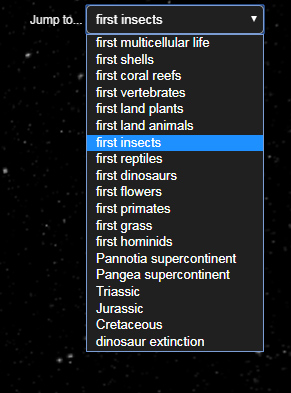
As well as giving you a digital representation of what the planet looked like way back when, dinosaurpictures is also a valuable tool for visualizing how life has evolved on earth over the last 600 million years. Each time frame has information about the type of life that was around back then and there is also a second drop down What did the earth look like jump tomenu that allows you to select a timeframe based on what types of life there were. You can jump to the time of the first dinosaurs for example or even all the way back to the first multicellular life.

The site itself might look a bit basic but there is plenty of fascinating information to be found at disnosaurpictures and definitely a school project or two.


Manage WhatsApp Easier with Pinned Chats

WhatsApp is the world’s second most popular messaging service and is used by over 1 billion people. Now you’re not going to be messaging all of them but chances are you’ll currently have a LOT of active chats on your WhatsApp. With this in mind, WhatsApp have introduced a new feature that allows you to pin your most important chats so that they’re easier to find.

How to Pin a Chat on WhatsApp

Fortunately, the process isn’t too complicated but we’ll walk you through it to make your life as easy as possible.

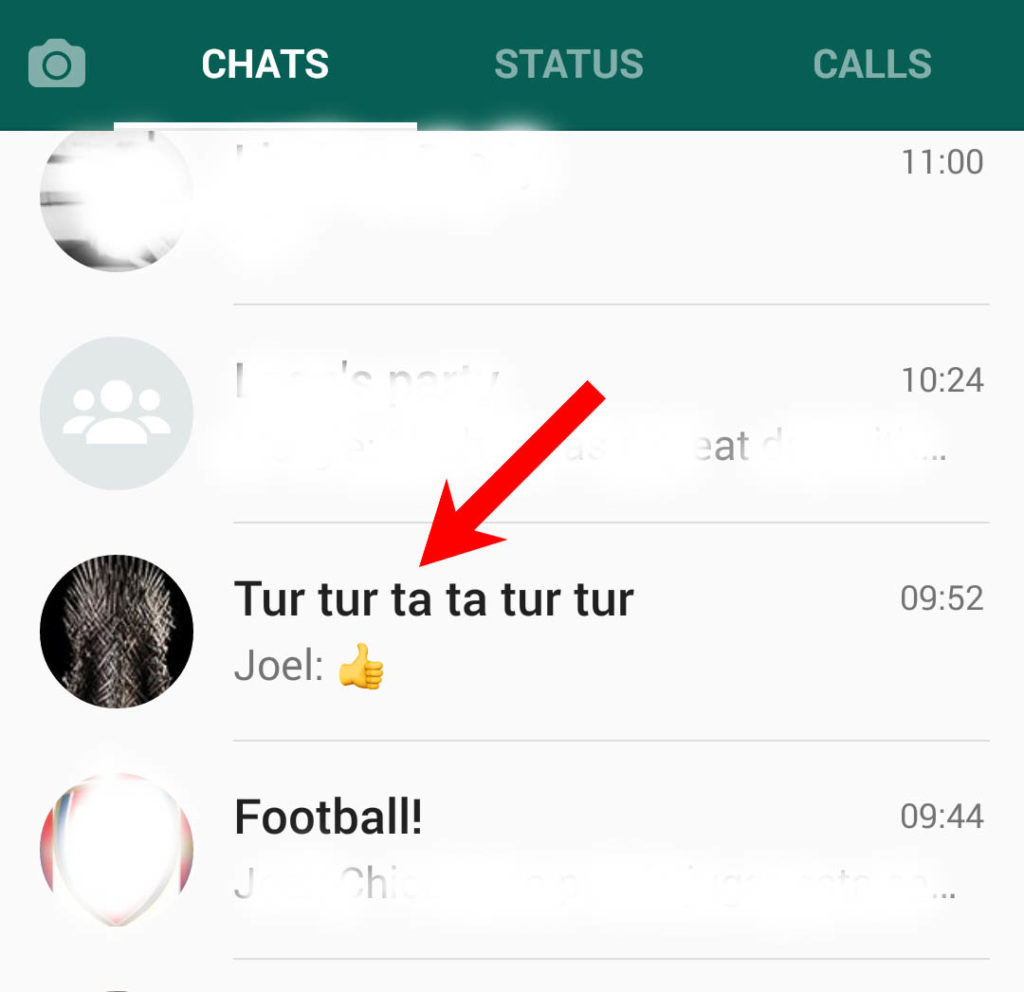
1. Find the chat that you want to pin to the top of your WhatsApp

Select chat to pin

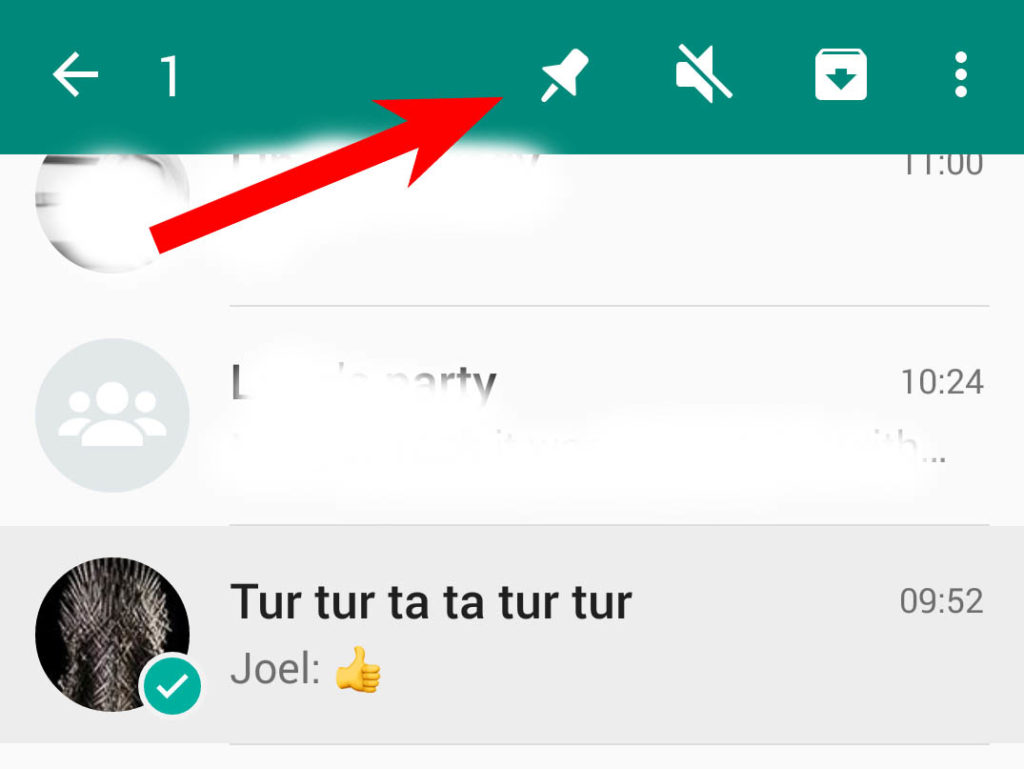
2. Long press the message to highlight it

3. At the top of the screen you’ll see a new pin logo. Press it.

Pin Icon

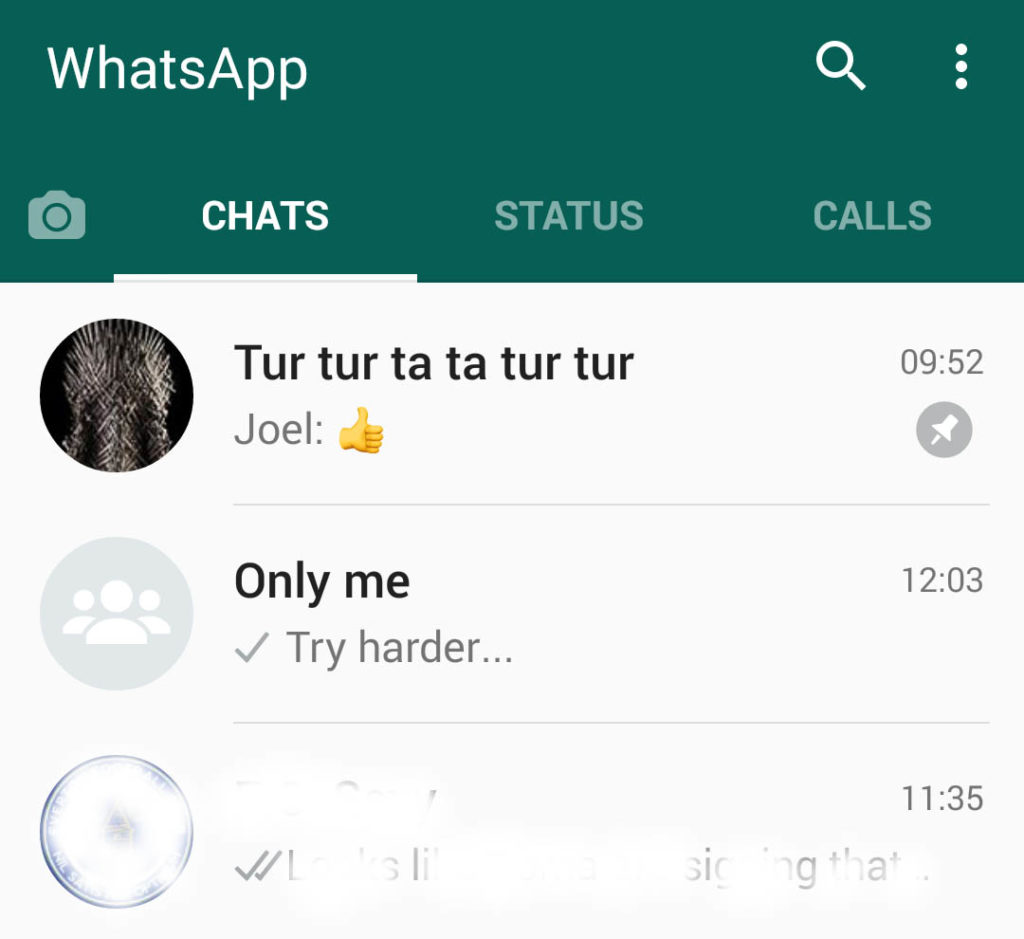
4. The message is now pinned to the top of your chats tab (It’ll now have the pin icon to show it is pinned)

Pinned

It is worth noting here that whenever you pin a message it will go to the top of the chats tab. This means that any messages you pinned before it will be pushed down below it. If you want a particular message to remain at the top of your chats tab you’ll have to re-pin it every time you pin another message.

This feature is especially useful if you use it to pin a group that only contains you to the top of your tab. Follow the instructions in the video below to see
how to create a WhatsApp group with yourself.

How to start a WhatsApp group with Yourself by softonic-en


Related Links

WhatsApp Improves its Voice Message Feature

WhatsApp Payments is now here

WhatsApp: check out all the updates coming to Android

How to Send ALL Types of File on WhatsApp

This is how you Delete WhatsApp Messages Forever


6 easy tricks to free up space on Gmail

How many new emails do you receive every day through your Gmail account? I don’t know about you, but I get dozens and although I try to keep my inbox up-to-date my trash folder always builds up and my free gets eaten up. That’s why I’ve rolled up my sleeves to put together some useful tricks to free up space on Gmail without having to go email-by-email.

Try one of these tricks, several or all. Take this advice and you’ll notice a difference and watch your inbox return to good health.

1. Always keep your trash folder empty

Trash and Spam folders are where messages we don’t need end up. Though emails sent there are eventually deleted, they remain in holding for 30 days, which means that there’s always unwanted email taking up space.

trash

Don’t let trash build up in these folders, take action: for both Trash and Spam, at the top of the inbox, there’s an option called “Delete all messages now.” Click on it and free up space within seconds.

I recommend that you do this every few days, so you don’t give Gmail time to fill up again with unnecessary email.

vaciar-768x122

2. An easy way to look for old or large emails

Gmail has different commands that you can enter into the search bar to find certain messages. I especially recommend these commands:

older:2014/01/01

This command shows all emails before January 1, 2014. Change the date as you wish (keep in mind that it follows the American format: Year/Month/Day) to bring up emails from that date and earlier.

larger:5m

This command looks for emails that take up more than 5 megabytes. Change 5m for any size you want (the “m” means “megabytes,” the “k” kilobytes). Since emails that take up space have attachments, you’ll quickly find emails with them using this command.

Alternatively, you can use the command size:5m, which does the same thing. If you’re looking for smaller attachments you can use smaller:5m, which will find attachments less than 5 megabytes, or any amount you enter.

filename:mp3

With this command, you’ll find emails with attachments of the indicated file type. In the example, we’ve put MP3, but you can enter any file type: zip, docx, rar, mov, jpg…

comando

3. Combine the previous commands

You can combine several commands to create more specific searches. For example, if you make the search older:2008/06/30 size:5m filename:doc, Gmail will show you all the files before June 30, 2008 that have Word attachments greater than 5m.

In my case, using commands that included my university days, Gmail found many files of very old schoolwork that I could easily delete to free up space.

coamandos-2-768x88

4. Delete similar messages in one go

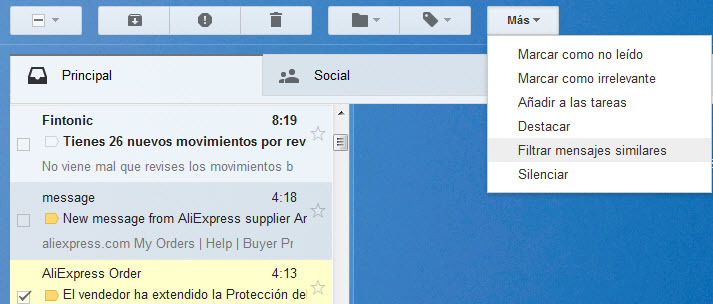
Another way to quickly free up space is to filter messages similar to one you want to delete. For example, if you usually get newsletters from a travel site, select the last one you received and under the “More” button, click on the option “Filter similar messages.”

This shows all the messages from this sender. Select them all and you’ll delete them in one go.
similares

5. Let “Find Big Mail” give you a hand

If at some point you get tired of so much searching, you can always ask for help from third party services. One service that does its job well is Find Big Email. What this site does is scan your Gmail and send you a report about everything stored on it.

Also, this web app will label your inbox to sort out the largest emails that it thinks you could delete to free up space. Basically, it does what you could do manually, but much faster.

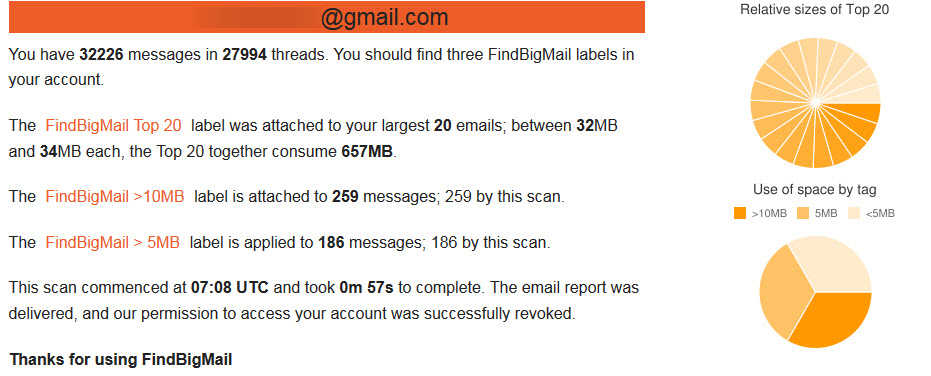
This is how my report for my personal account looked like after a scan:
findbigmail

As you can see, My Top 20 largest emails already take up 657MB.

To access your Gmail account, Find Big Mail asks you for permission, but rest assured that they don’t store your password and that this permission only applies at the time it’s scanning your inbox. As soon as the process is finished, it’s over.

6. Extreme trick: switch from IMAP to POP3

Your Gmail account is configured as IMAP by default, i.e. your email is synchronized between devices and data is stored on the cloud. However, if you want, you can download all emails from your Gmail account to your PC and free up all the space they take up. To do this, you have to change your account to POP3.

A POP3 account works like a mail client (for example, Outlook), making emails that you receive only appear on the device they’re sent to.

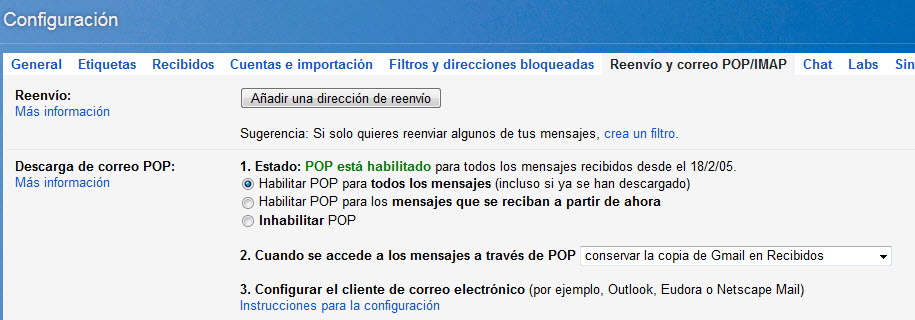
To make this change, go to the Settings menu in Gmail (the gear) and click on “Forwarding and POP/IMAP email> Download POP email” and check the box “Enable POP for all messages.” You can also change other aspects of these settings, such as stopping Gmail from saving a copy of these files (if you want to free up space, go for it).
pop

Keep in mind that the only copy of these emails will be stored on the computer where you’re downloading them. So, now it’s your PC that will see free space go down. That being said, only use this trick if you’re sure that you’ll use Gmail on one specific computer.

Honestly, in 2017, I don’t recommend this option, especially when considering that by using the tricks above, you shouldn’t have issues with space on Gmail. In any case, it’s worth pointing out that the option exists.

Liked these tricks? Then enjoy a secret trick re: Gmail. We’ll tell you about it in this video.  How to have infinite Gmail addresses… by softonic-es

Sources used for the writing of this article: Gizmodo, How to geek, Computer hoy

Facebook’s mobile site gets a makeover: say goodbye to blue bars, and more

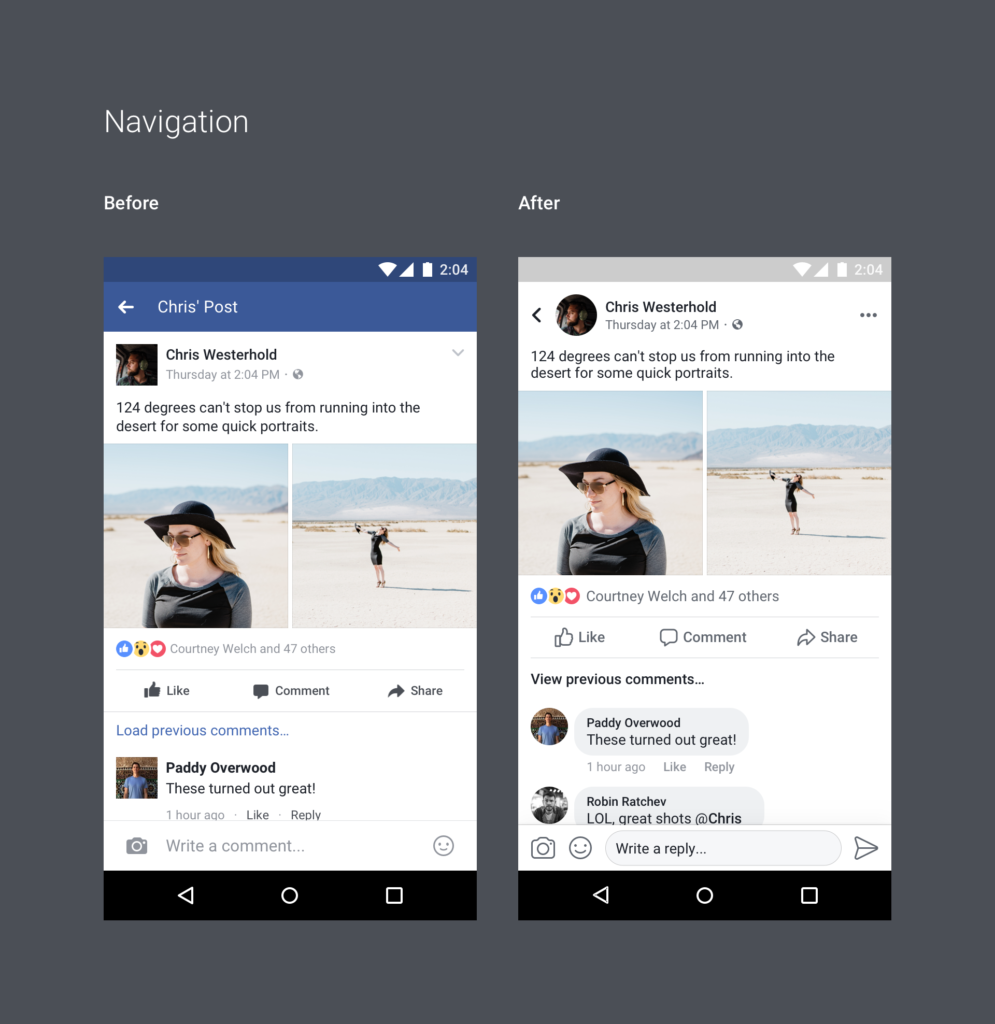
Facebook has updated its mobile app. Specifically, its main interface has been redesigned for a cleaner and clearer look. Broadly speaking, you can say goodbye to Facebook’s iconic blue bars and squares.

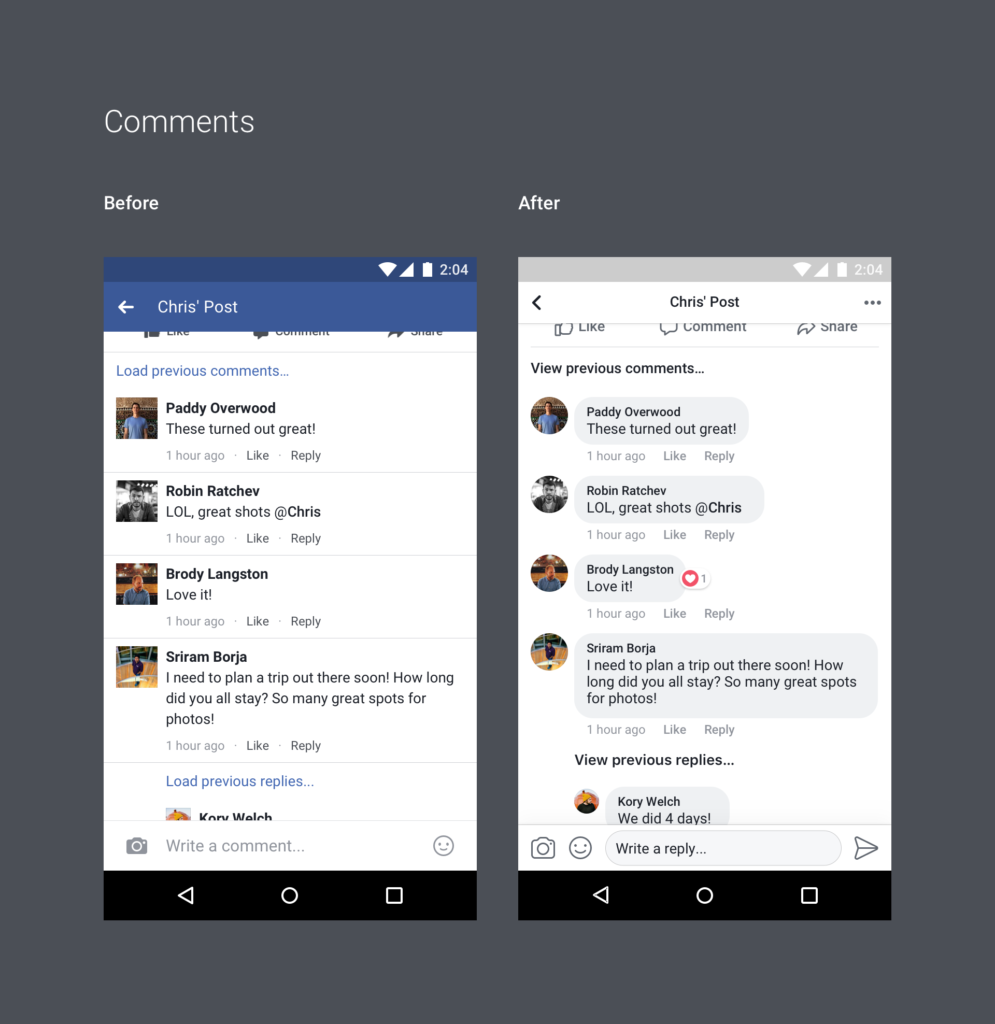
In addition, comments have also changed and now look like conversation messages, just like on Facebook Messenger. Each comment is found within its own gray bubble so it’s easier to see who has said what.

The “Like,” “Comment” and “Share” icons now have a more streamlined look. Also, they’ve been made larger so it’s easier to “get it right” when clicking them.

Since a picture is worth a thousand words, here you’ve got a before and after shot:

1-pzPdxt8EiRfeJ8tfSlgLqA-995x1024

1-wVbXLamvms92BPrapEBigw-995x1024

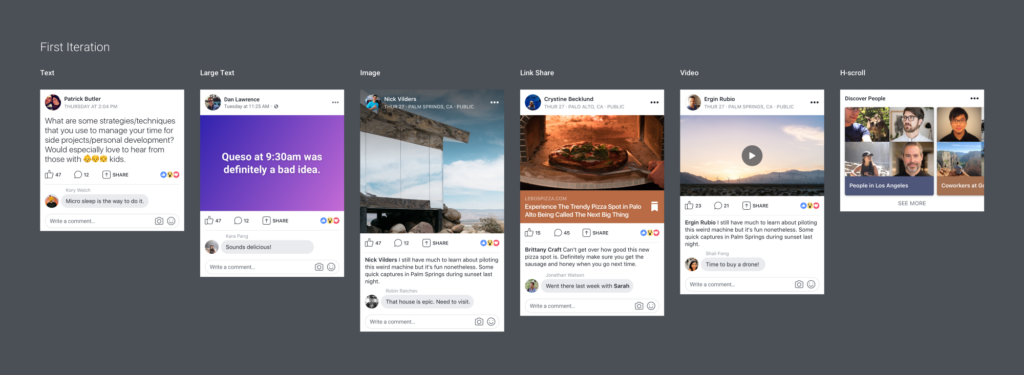
On their Medium blog Facebook said, “We did not want to just ‘fiddle at the edges,’” As well as including other minor details the social media giant pointed out that, “We wanted to make something that billions of people use every day less frustrating.”

More specifically, Facebook made all these changes by asking these questions:

“How might we improve News Feed to be easier to read and distinguish key areas of content?”
“How might we make the content itself more engaging and immersive?”
“How might we make it easier to leave feedback?”

1-Kkl2bNRuk02FZ7tMipTEw-1024x375

Facebook has made it clear that nothing is ever “done” regarding its products. It is a constantly evolving process and its team is always looking for areas of improvement.

If your Facebook feed looks the same as always, remember that this is a gradual update. It’ll be implemented in your country/region in a matter of time.

On vacation? This variant of WannaCry could attack you

It seems that the ransomware WannaCry, which put our security at risk in May and was long considered dead, is still showing signs of life: experts have detected that it has a new victim, especially vulnerable during vacation season. A variation of the virus has reached hotel wi-fi.

Remnants of WannaCry have now started to take shape in a new attack called GAMEFISH that affects customers connecting to hotel wi-fi. This attack works in the same way as the original, taking advantage of how vulnerable some outdated computer systems are.

Ransomware works like this: hackers send infected emails to the email addresses of leading hotel groups in Europe. They pose as tourists looking for a room at the last minute and send an attachment that apparently is a reservation form for that hotel.

In reality, the attachment, innocently named Hotel_Reservation_Form.doc, is a malicious attachment that infects PCs that aren’t updated. If the receptionist opens the file on a not-so-new computer, it becomes infected, as well as other PCs on the same network. Since the virus spreads via wi-fi, this could mean it infects many hotel guests’ computers.

How can something like this be avoided? Tip # 1 is always the same: UPDATE. Make sure your PC has the latest version of Windows, as there’s no better defense against viruses.

Besides this basic advice, we’ll leave you with this useful video about 6 more tricks to keep ransomware at bay.

Source: Computer Hoy