The five best security apps for your smartphone and tablet

On this week’s five apps, we bring you the best tools to keep your phone secure. From locking down your Wi-Fi and passwords to locating and eliminating viruses, with this week’s selection installed your device will be as safe as houses.

CM Security (Android) is our first pick, a comprehensive security app from the makers of Clean Master. This little package includes one of the best antiviruses in the industry as well as offering a host of other functions like erasing your browsing history and defending you while using public Wi-Fi.

We all know that strong, regularly changed passwords are key to online security – but that doesn’t stop most of us using only a handful of easily remembered codes across all of our digital profiles. This is where LastPass (iOS|Android|Mac|Windows Phone|Windows) comes in, a password manager that organizes all of your passwords and alters them frequently and automatically in-app.

If you want a dedicated antivirus and malware program, then 360 Security – Antivirus Boost (Android) is a safe bet. Free and simple to use, this app improves your devices performance, removes malware, and solves other common security problems – including the ability to remotely lock your phone.

Want to stay private when connected to Wi-Fi? Then you need Secure Wireless (Android). This intelligent VPN detects dangerous activity on networks and protects you from them. This ensures that no one can access your device, whatever Wi-Fi network you are connected to.

Sometimes it’s those things you don’t want – but want to make sure no one else can ever find – that can cause the biggest worries. Secure Wipe (Android) is a mobile tool that ensures anything you erase is gone for good. It does this by overwriting deleted files and images to make sure nothing of the original left.

That’s it for this week. With Fallout 4 out on the 10th we are dedicating the next show to five apps that will help you survive the/an apocalypse.  Let us know in the comments if you have any survival apps that might help, and I’ll see you next time.

Related Stories

The top three horror games on PC

Five haunting Halloween party apps

Windows 10: The 45 most useful keyboard shortcuts

Follow me on Twitter: @DoFuss

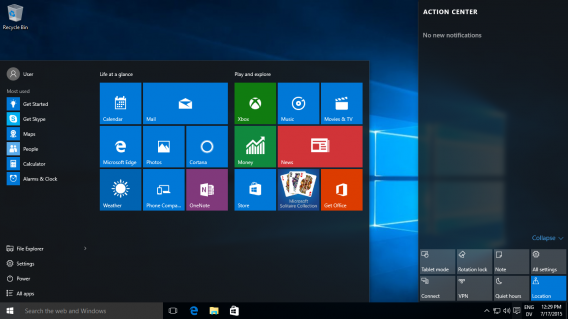
Windows 10 will launch their first big update in November: Threshold 2

Microsoft will launch Windows 10’s first big update at the start of November. The Windows 10 Fall Update has been codenamed Threshold 2, and is expected to be released on the first week of November. It will include many of the improvements that we’ve seen in the Windows Insider program builds.

The update will also include improvements or features that were supposed to be included at launch of Windows 10, but were delayed for various reasons.

Windows 10 Fall Update will be the default version once it’s released. Any Windows 10 device bought after November will have this version and the previous versions will disappear forever.

The update will arrive both as a digital Service Pack, and in a CD format, like in old times. How do you get this update onto your machine? Nothing. The update will be downloaded automatically.

What else will be in the update? Cortana will have better local integration (you will, for example, be able to ask Cortana to book you a taxi). Skype will also be better integrated, the Edge web browser will be optimized, etc… Expect only tiny refinements, not something revolutionary – for now.

Windows 10 emotionally blackmails you not to use Google Chrome

Edge is the browser that has replaced Internet Explorer in Windows 10, and although everyone seems to agree that it is much better than the now-extinct IE, many users still prefer to stick to the tried, tested and approved Chrome or Firefox. But Microsoft has devised a sinister plan to convince you not to abandon their browser.

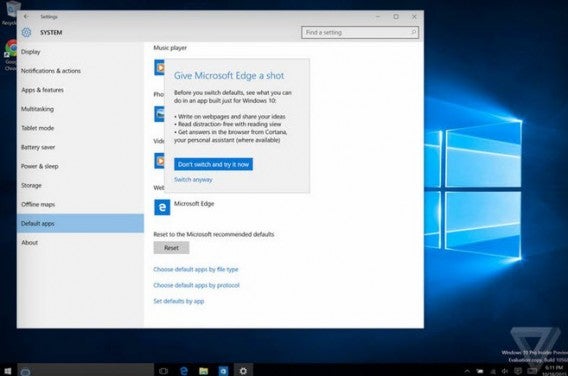
In the latest Windows 10 preview (build 10568) that has been leaked (via The Verge), when a user tries to change the default browser from Edge to another browser (in this case, Chrome), a window pops up with the emotional plea “Give Microsoft Edge a shot.”

Not content with just that, Edge continues by reminding you just how much better they are now, with many new features that they think you’d like: writing on pages, integration with Cortana, and a reader layout view.

If Edge’s unique features aren’t enough to persuade you, you´ll still have to overcome one more obstacle to make Chrome or Firefox your default browser – A huge blue button that says “Don’t switch, and try it now”. The only way for you to say “No!” is by clicking on the, much less obvious, “switch anyway” line of text that doesn’t appear like a clickable button at all.

It is obvious that many users will (reluctantly) jump through all of Microsoft’s hoops to change their default browser, but more than one person, we’ve been told, will be sticking with Edge for now just because they can’t be bothered about which browser they use, or because Microsoft’s sob story has convinced them to believe in Edge – for now.

What do you think of Microsoft’s strategy to compel us stay on Edge, is it too aggressive?

Click here if you want to learn about the 45 most useful keyboard shortcuts on Windows 10.

No money for Netflix? It is time for Butter, the legal version of Popcorn Time

Netflix and similar services are great for movie fans and TV addicts alike – but, if you do not want to pay for your shows, there are ways of watching them on the Internet for free… and legally! Introducing Butter, a project from the creators of the legendary Popcorn Time, an app for watching torrent files without downloading them.

You can relax though, while the legality of Popcorn Time was questionable (since it infringed on intellectual property laws), the same cannot be said of Butter, which will offer free streaming video.

Butter, which is currently under development, will have the same aesthetics and functionality as Popcorn Time. The difference is that copyrighted videos will have their authors’ consent to be distributed free of charge on the service.

This said, it appears that Butter will be better suited to offer videos by new creators and independent artists, who are more interested in having their shows and movies seen than in making money from of them.

Keep in mind that, although mortally wounded, – it has been banned multiple times – Popcorn Time still exists. This is because its developer believes that there is nothing wrong with distributing content owned by third parties. He explains this by saying that, in his country, copyright and intellectual property laws are barely recognized.

Does Butter seem like a good idea to you? Will you use it, or stick to other apps?

Your iPhone 5 or iPhone 6 consumes your mobile data without your knowledge: we how to solve the problem

Apple has been sued for eating up data bandwidth on your iPhone without your permission, and without notifying you of doing so. The controversy began when several users discovered an iOS 9 function – Wi-Fi Assist – was running on their iPhone 5 and 6 models.

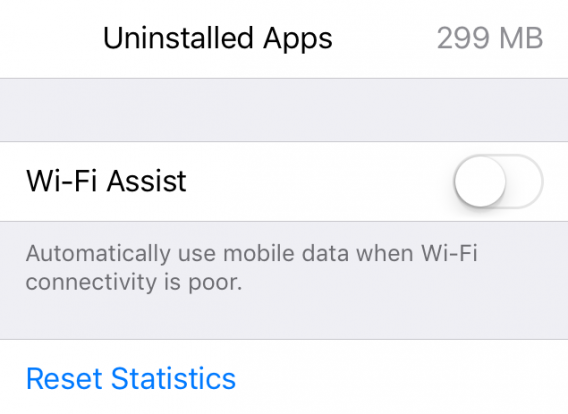
In theory, this function was created to help you in case a problem arises with your connection. The issue is that it’s activated by default, without your knowing it. The result: Wi-Fi Assist never stops consuming your bandwidth.

The plaintiffs (William Scott Phillips and Suzanna Schmidt Phillips) are demanding $5 million from Apple as part of a class action law suit. It happened to both of them with their iPhone 5. It’s not known exactly how much data Wi-Fi Assist uses. Apple has included a tutorial on its website about how to disable this function, but neither announced this, nor disabled it by default.

So little space...

In order to disable the function, you just have to go to Settings, and from there to Cellular/Mobile Data – depending on your location. Finally scroll ALL the way down, you’ll see the option for Wi-Fi Assist. Don’t see it? That means you have an iPhone 4S, an iPad 2, or a first-generation iPad mini. This function is unavailable for those devices, so you’re safe.

Source: TechRadar

4 tips to improve your Halloween party with tech

Halloween is just around the corner, so you should have your party plans all set out. But if you are unprepared there is no need to be scared, because there is still time to turn your happy home into a demonic dormitory to chill trick or treaters that are unfortunate enough to come through the door.

There are of course hundreds of traditional ways to make October 31 look utterly dismal. But even if you are fully stocked with artificial cobwebs and plastic zombies from last year, our high-tech suggestion can still add some interactivity to your All Hallows Eve.

Use your phone to add some creep to your undead costume

This could be the most diabolical use of a device I have seen. Using two tablets or phones, along with an app like Skype (iOS|Android) it is possible to easily add some completely disgusting wounds to a classic undead costume – though you may have to put in a little more time than I had in the office.

It’s wonderfully simple. All you have to do is get an old shirt and cut a hole large enough for the devices screen in the front and back – plus a tiny space for the camera lens. Now, decorate around the hole with something suitably bloody then Duct Tape or stitch the devices inside the shirt with the screen facing out.

The final step is to connect the two devices though the video chat app and you have an instant, convincing, gaping gap through your torso.

It’s an amazing effect, but be careful of your phone

Your tablet can make haunting portraits

Tablet owners do not have to limit their technology’s use to their costume – they can also give their walls a chilling make over. Lifting straight from all of those old horror movies, haunted houses, and even the Harry Potter films, framing your tablet and hanging it on the wall lets you bring pictures to life.

One way to do this is to record a short of you being still for a while, then just get up move around and head out of shot. Set this to repeat, and you have a strange living picture.

If you want to add a bit more spookiness though, there are lots of scary digital make-up apps to make you truly terrifying. My personal favorites are Demon Cam (iOS) and HauntedBooth (Android), both of which allow you to create short videos of yourself transformed into something horrific.

Fancy adding some authenticity to your props

But perhaps traditional horror isn’t for you, and you prefer to use Halloween to dress up as your favorite comic, game, or movie character. Well once again you can use your devices to add a little authenticity to your costume.

This one does require some effort, but think of all the props that include some form of screen. So, if you are making an accessory for your costume – be it the motion tracker from Aliens (iOS|Android) or a Pip Boy from Fallout – including a slot to slip in your device can really complete the look.

It may take a little more work – between making the prop and finding an appropriate video or app to mimic the desired screen effect – but the results can be amazing.

Tired of bobbing for apples?

Peeling grapes, blindfolding people, and trying to convince them that they are touching eyes is fun for a while – but these days there are more ways to freak-out your friends.

Horror game fans will know the basic list – from the Lovecraftian horror of Amnesia (Windows) to the futuristic xenomorph terrors of Alien Isolation (Windows) – but most of these are best played alone with the lights out. For a party, you want Sisters (Android), a game that lets you immerse your guests in a digital nightmare.

Using Google Cardboard and a pair of headphones this affordable virtual reality experience will completely surround the unfortunate player.

While you look on, your victim will feel like they are sat in a living-room. Everything seems fine until the lights suddenly go out. When the electricity returns, they will notice things have changed – such as the dolls from the mantelpiece having moved – and that is when a sense of dread will begin. A sense of dread, and lots of screaming.

Blending the traditions of blindfolding games and storytelling, Sisters allows one poor sap to sit experiencing the game, while everyone else looks on and giggles at just how silly they look.

What do you think of our Halloween tips, did you find them helpful? If not, let us know your ideas in the comments!

Related Stories

The top three horror games on PC

Cybernetic horrors from the deep – SOMA review

Five haunting Halloween party apps

Follow me on Twitter: @DoFuss

The top three horror games on PC

This week on Click-Swipe-Play we have three fantastic horror games for you and your friends to freak-out with this Halloween. Our editors’ choices span all the way back to 1992, so get ready to wander down a creepy memory lane that is surrounded on all sides by squeaky swings, children’s screams, and clowns.

I got to pick first, and I settled on the modern classic Outlast (Windows). Playing the role of an investigative journalist, this game is enough to put you off hospitals for life as you delve into the twisted past of a mental care home. Unfortunately, the dilapidated building is not deserted, leaving you to battle its tortured inmates armed only with a camera. Which is all good fun until someone loses a finger.

Dani got the second choice, and he went for 2005’s F.E.A.R (Windows). While this shooter places a focus on action, this in no way waters down its terrifying scares as you fight your way past both people and evil spirits. Making you both the hunter and hunted, F.E.A.R expertly manages its constant switching back-and-forth between action and horror with surprising ease – so that, even in the fiercest gun battle, you may find yourself looking over your shoulder.

Finally, Maria took us all the way back to 1992’s Alone in the Dark (Windows|Mac). One of survival horrors grandfathers, this game had you searching a mention to find the truth behind the murder of Jeremy Hartwook. Arcane, Eldritch horrors await you in this classic of the genre, as you freely explore a mansion, vanquishing its Lovecraftian inhabitants along the way. It may look dated, but its story is as unnerving today as it was when it first released.

That’s it for this weeks show, remember to like or dislike this video to let us know what you thought, and we will be back with another three reviews next week.

Related Stories

The top three gaming assassins

Cybernetic horrors from the deep – SOMA review

Can you keep your sanity in this terrifying horror game? – Amnesia review

Follow me on Twitter: @DoFuss

Windows 10: The 45 most useful keyboard shortcuts

Now that you have a good understanding of Windows 10, how about learning the keyboard shortcuts to make using your computer much faster?

The good thing about Windows 10 shortcuts is that they are very simple: most of them consist of the Windows key + one other key. Moreover, this second key is often easily related back to the action in question – making them really easy to remember.

Don’t believe me? Read the following list and you will see how easy it is! To help, we have divided the shortcuts according to use or function.

Windows Snap

Windows key + Arrow key (up, down, left, or right)

Virtual desktops

Windows key + CTRL + D creates a new virtual desktop

Windows key + CTRL + F4 closes a virtual desktop

Windows key + CTRL + Arrow key switches between virtual desktops

Windows key + SHIFT + Arrow key moves the current window from one screen to another

Windows key + TAB scans through all your virtual desktops using the task view

Cortana

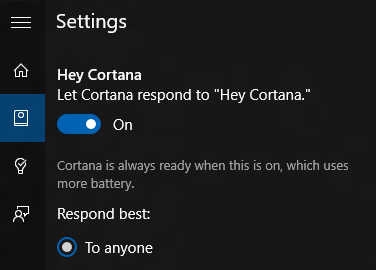
Windows key + C activates Cortana’s voice recognition

Windows key + S activates Cortana for text searches

Cortana settings

View

Windows key + P switches between view modes

Windows key + “+” (plus) zooms in

Windows key + “-“ (minus) zooms out

Images, video, and multimedia

Windows key + “Print Screen” takes a screenshot and saves it in the Images folder

Windows key + G activates Game DVR, the screen capture utility

Windows key + Alt + G starts recording with Game DVR

Windows key + Alt + R stops recording with Game DVR

Settings and system

Windows key + I opens the system settings

Windows key + A opens the activity center

Windows key + X opens the advanced options menu

Ctrl + Shift + Esc opens the Task Manager

Windows key + U opens the Ease of Access Center (Universal Access to help you remember)

Windows key + R executes a command

Windows key + Space bar changes the language and the keyboard

Command prompt controls

Shift + Right highlights the text to the right of the cursor

Shift + Left highlights the text to the left of the cursor

Ctrl + Shift + Right or Left arrow highlights blocks of text

Ctrl + A selects all text in the command prompt (just like regular text Windows)

Ctrl + C copies the selected text to the clipboard (just like regular text Windows)

Ctrl + V pastes the text in the clipboard to the command prompt (just like regular text Windows)

Advanced controls, only for more proficient users!

Shift + Del deletes a file directly, without putting it in the Recycle Bin

Windows key + Shift + Any Numeric Key opens a new instance of an app and docks it to the position you determine for it in the taskbar

Windows key + Control + Shift + Any Numeric Key repeats the previous command but with Administrator permissions

Up to here, all of the commands are new. But some survived the Window 10 upgrade. If by any chance you do not recall them, here is a quick refresh:

Windows 8.1

Various commands that are old acquaintances of ours

Windows key + D shows the desktop

Windows key + Home minimizes all windows except the active one

Windows key + L locks your PC

Ctrl + Shift + M maximizes all minimized windows (useful after Win + D)

Windows key + E opens Windows Explorer

Alt + Up arrow goes up one level in Windows Explorer

Alt + Down arrow goes down one level in Windows Explorer

Alt + Right arrow goes to the next folder in Windows Explorer

Alt + Tab switches from one window to the next

Alt + F4 closes the active window

Windows key + Shift + Left or Right arrow moves a window to another screen (if you have one)

Windows key + “,” (comma key) closes apps temporarily to show you the desktop

Windows key + T shows a small view of the windows in the taskbar

Windows key + Any Number Key opens the window docked in the taskbar in the position that you determine

Was this guide helpful for you? I so, share it. Or, did we forget a command? In which case, let us know in the comments.

Related Stories

What’s inside the Windows 10 insider preview?

Everything you need to know about Windows 10

Windows 10: The 45 most useful keyboard shortcuts

10 tips for customizing Windows 10

What’s new in Office 2016 for Windows

Five haunting Halloween party apps

If you have a Halloween party planned, or are just looking for ways to spook up your All Hallow’s Eve alone at home, then we are here to help with five frighteningly good, ghoulish apps.

Demon Cam (iOS) is a digital makeup app that can turn you into the son or daughter of Satan. Just film yourself, locate your eyes and mouth, then within seconds you will find yourself possessed by darkness. Android users can try HauntedBooth or ZombieBooth 2 for a similar effect.

Audio a frequently overlooked element of a creepy Halloween party, but Halloween Song (Android) could offer you a solution. Add spooky sound effects and music to every conversational lull to keep your guests suitably on edge.

If you would rather have some solo scares, then Dark Meadow: The Pact (iOS|Android) is a must. In this spooky action role-playing game, you must walk lonely corridors and battle demons to uncover the terrifying truth. This horrifying, and free, game is easy to recommend.

If you don’t feel that you are all alone in your neighborhood, then you need Ghost Communicator (iOS|Android) to let you chat to your spirit guests. Warning: may not actually be capable of letting you commune with the dead.

Finally, what would Halloween be without some scary stories and Wikia: Creepy Pasta (Android) gives you access to thousands. These ghoulish tales are collected from around the internet – including the terrifying Slenderman. Enough to keep you up all night.

That is for our list of harrowing Halloween apps, next week we will be back with five security apps to help you feel safe again. See you then.

Related Stories

The top three gaming assassins

Nevermind the biofeedbacks – Nevermind horror game review

Windows 10 new features build – 10565

Follow me on Twitter: @DoFuss

Starred messages in WhatsApp: your friends can no longer claim that they forgot something

WhatsApp has launched a new function: starred messages. With this, you can bookmark any message in a conversation so all the participants in the chat can see it at any time. Here’s an end to excuses like “are you sure you said that?”. WhatsApp is now a witness to the fact that you did indeed say that!

How do starred messages work?

Currently, this WhatsApp option is only available in the latest iOS update (you can download it here); Android is expected to get it shortly.

To bookmark, just long press the message and a menu will pop up with different options, including a star. When you click on the star, the message will be starred – simple.

Starred messages appear in a new menu: tap on the sender or group name on the top of the screen (in this example we would tap on the name “Maria”). This will show you different options, including Starred Messages. This new option is a panel where all starred messages appear.

Perfect for forgetful people

Starred messages are ideal for bookmarking those legendary phrases that you often loose on WhatsApp. You can also bookmark photos with this feature. Although, frankly, I think the most useful role will be bookmarking messages that you refuse to repeat again and again. How often have you been asked like 20 times in different groups, with a dozen friends, when and where you are meeting for lunch? You don’t need to constantly repeat the same thing. Just tell your friends to check out the starred messages once in a while.

Want more tips and tutorials on WhatsApp? Click here.