Microsoft announces it’s disabling macros to protect Office apps from malware attacks

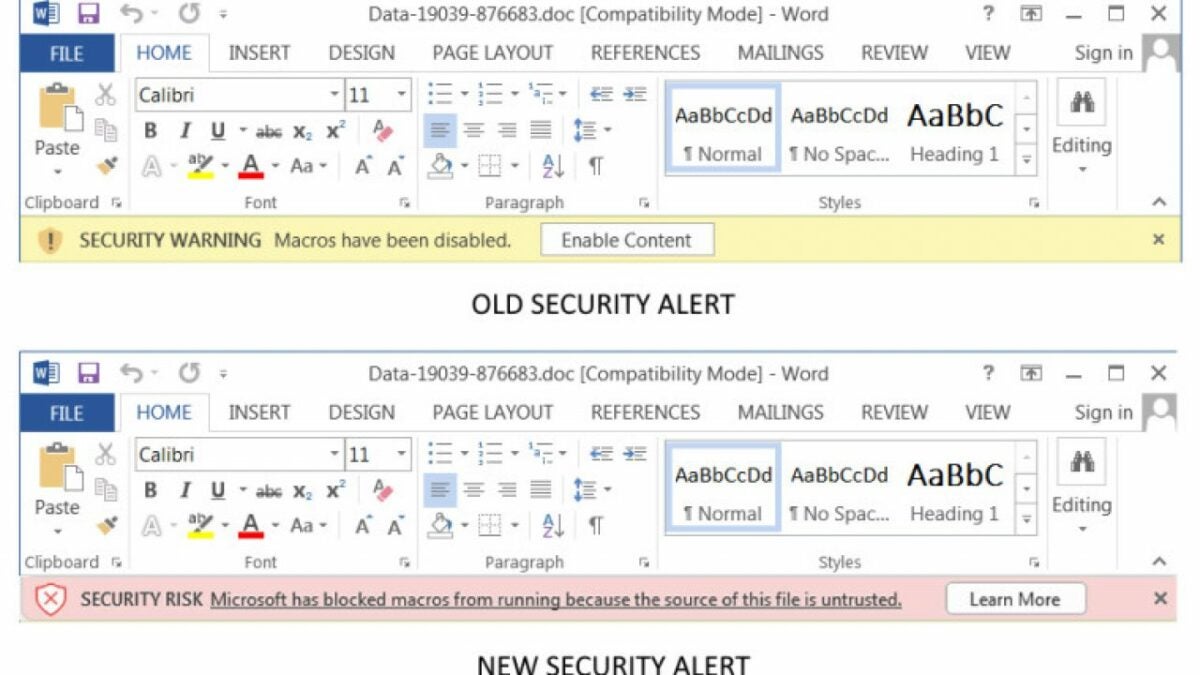
Microsoft announced steps to eliminate malware attacks across their Office productivity suite on Monday, February 7th. To this end, whenever a user opens an attachment or downloads a file from the internet, these files will be analyzed for macros. The files will then be classified as ‘untrusted’ by the entire Office productivity suite. Furthermore, a banner will be displayed altering the user to Microsoft blocking macros from running because of their untrusted file source. 

This news comes within a month from Microsoft’s announcement that it was disabling macros in Excel 4.0. This was also done to limit security threats to unsuspecting users as Excel 4.0 (XLM) macros had become synonymous with malware distribution. 

However, this feature does not give you less access to your computer or files on it. The user still has full control over their system and the information they expose it to; the new feature simply makes Office’s default setting one that protects the user’s system.

Should users wish to unblock macros for downloaded files, the process is easily executed in a few simple steps:

  • Right-click the desired downloaded file
  • Select ‘Properties’ from the menu
  • Click on the ‘General’ tab
  • Tick the ‘Unblock’ checkbox

The new changes are expected to take effect on Microsoft 365 from April 2022. Microsoft is also expected to backport the updates to Office 2021, Office LTSC, Office 2019, Office 2016, and Office 2013 at a future date yet to be announced. 

If you would like to learn how to unleash the full potential of Microsoft’s Office productivity suite, read our full guide to Microsoft Excel and our article on using Excel formulas in 3 simple steps. Mathematics has never been easier. 

How to Recover Microsoft Office After a System Restore in 2 Easy Steps

System Restore is a valuable feature and has helped many users out of a problematic situation when something will not uninstall, but it can also remove software loaded after the System restore snapshot was taken, such as Microsoft Office. Fortunately, System Restore will not affect any of your data.

If you find that your Office apps are not working correctly after the System Restore, or you know you have lost some software updates, you will need to reinstall Microsoft Office. This is not difficult and can be achieved quickly using a couple of steps.

  1. Go to your Microsoft Account

    How to Recover Microsoft Office After a System Restore

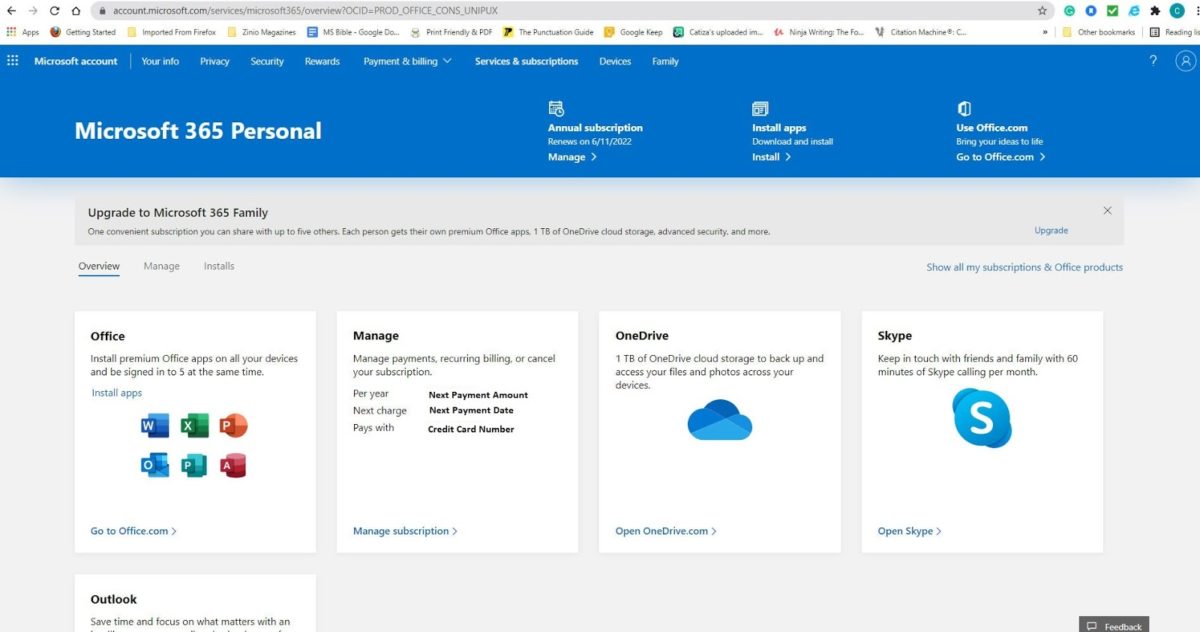
    Go to your Microsoft Account and sign in. When this screen comes up, click on Install Apps.

  2. Reinstall Your Apps

    How to Recover Microsoft Office After a System Restore

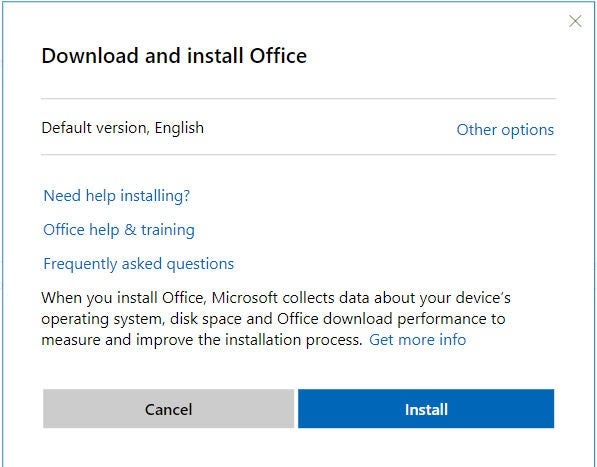
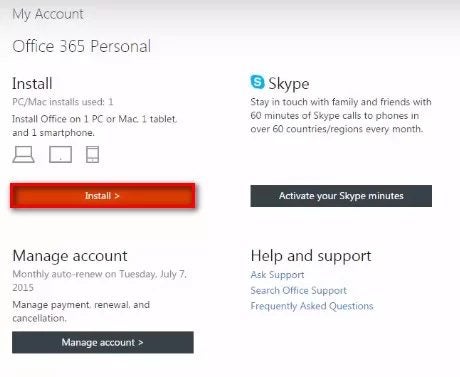
    Click on the Install button, and the software will be installed on your device, including all the updates that may have been rolled back when your System Restore was done.

Restoring your Office environment

System Restore is a useful tool, especially if you are unable to uninstall a problematic application or have some other error. Reinstalling all your legal software is not difficult, merely time-consuming.

A Restore point is automatically created when you do a Windows Update, install a new device driver, or a new application. If you are about to install software that you are unsure about, create a manual System Restore so you can easily roll it out if need be.

How to Renew Microsoft Office In 4 Steps

Do you want to keep your Microsoft Office programs up-to-date without having to worry about making new purchases and installations every time a new version is released? That is why Microsoft Office introduced Office 365, which is an annual subscription service. For as long as your subscription is active on your Windows or Mac computer, you will always have the latest version without paying more for it. 

This is useful when you use your office programs regularly. It is good to know how to renew your subscription to continue getting the benefits that come with an active subscription. Let’s look at the steps you need to take to renew your Microsoft Office.

  1. Choose Your Subscription

    How to Renew Microsoft Office

    Go to Office.com and head to the ‘Renew’ page. Next, you need to choose your subscription. The options are to renew and pay once-off for the following year. The second option is to renew and pay a monthly fee for the next year.

  2. Checkout Your Order

    How to Renew Microsoft Office

    Review and double-check your order, and once you are sure that everything is correct, you can proceed to checkout. Once you choose to proceed to checkout, you will be asked to sign in with your Microsoft Account.

  3. Renew Your Order

    How to Renew Microsoft Office

    On the final page, check all of your details, including the payment details. If you need to change your payment details, click on the ‘Change’ button to make amendments. If everything is correct, you can proceed by clicking on ‘Renew Subscription.’

  4. Manage Subscription

    How to Renew Microsoft Office

    Once you’ve renewed your subscription, the payment will be processed, and your account will be extended for the period chosen. Your account will be set up for recurring billing by default. If you do not wish for your account to automatically renew (and the payment to be taken), you can turn off recurring billing from the ‘Manage Subscription’ screen.

Renew Your Microsoft Office to Continue Working Undisturbed

By renewing your Microsoft Office subscription, you ensure that you have the latest version of Office, along with support and many other valuable features, without interruption.

How to Upgrade Microsoft Office In 4 Steps

Let’s suppose you download Microsoft Office on Windows and Mac and you would like to upgrade. You’ll unlock new features not available in the free version, but you’ll need to pay the subscription first.

In that case, there are a few ways you can go about upgrading your Microsoft Office to the newest version and enjoy all the benefits of using the latest versions of Word, Excel, Powerpoint, and other programs.

  1. Go to the Microsoft Account Page

    How to Upgrade Microsoft Office

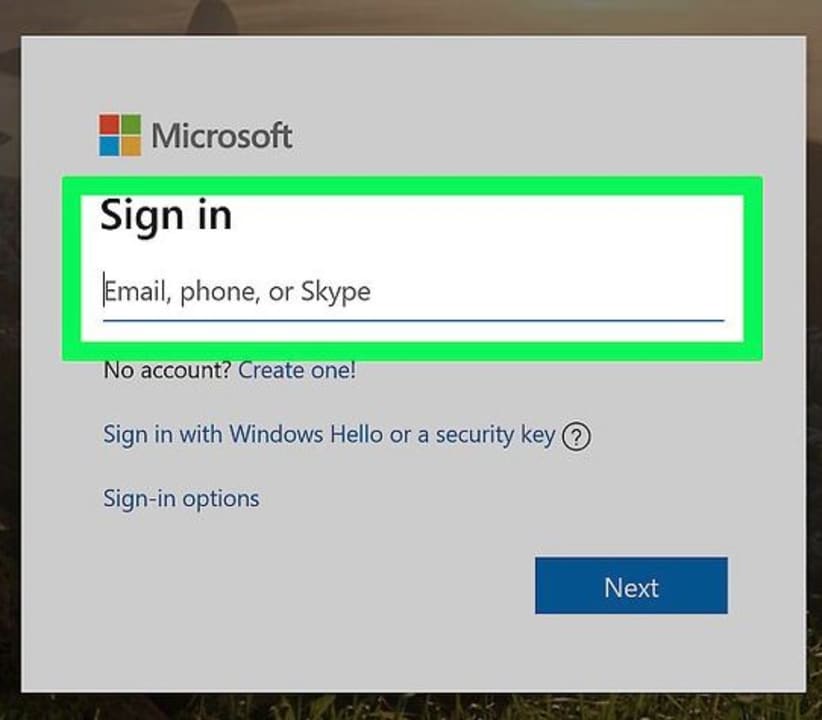
    First, you will need to navigate to the Microsoft Account page. You will need to use your Microsoft Account details to sign in.

    – Enter your email address, and click on next. You will need to use a Microsoft email address such as Outlook, Live, or Hotmail.

    – Enter your password, and click on next.

  2. Click on ‘Service and Subscriptions’

    How to Upgrade Microsoft Office

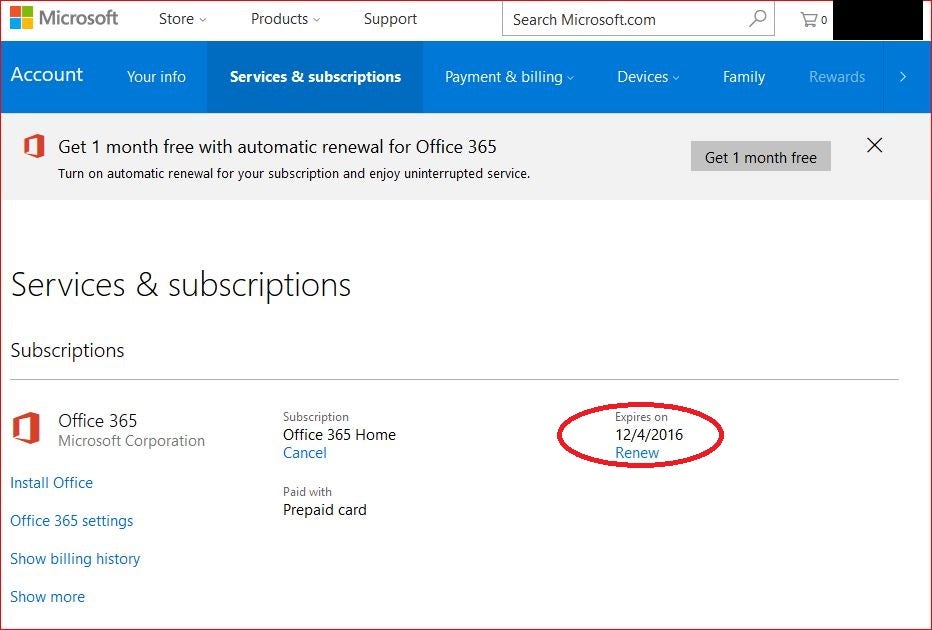
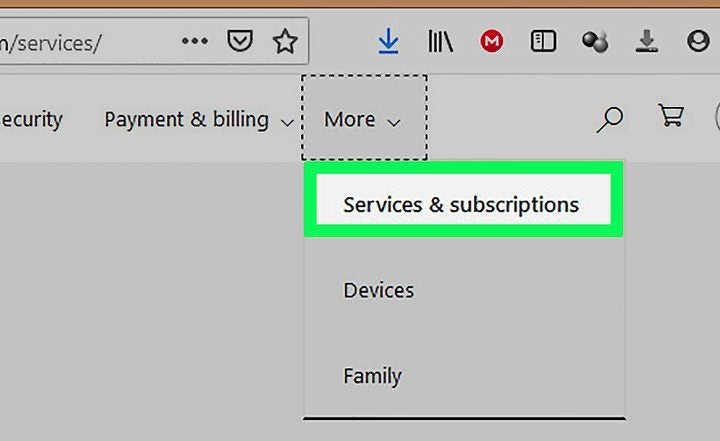
    Click on the ‘More’ tab to open a drop-down list with further options in the top ribbon menu. In the drop-down list, choose ‘Service and Subscriptions’. This should show you your current version of Office.

  3. Download Newest Office

    How to Upgrade Microsoft Office

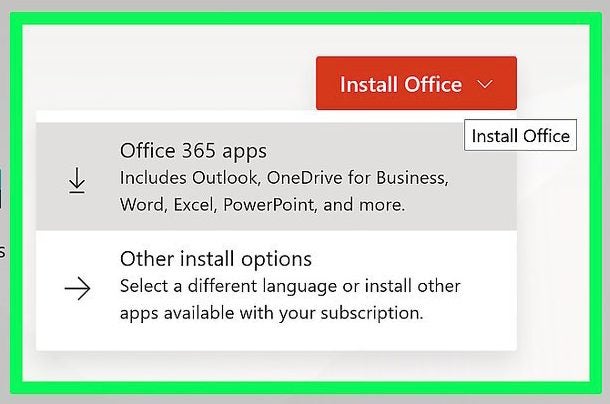
    If a newer version is available, you will see a message notifying you of the latest version. Next, you can click on ‘Install Office’ to download the newest version on your Mac or Windows computer.
  4. Install Newest Office

    How to Upgrade Microsoft Office

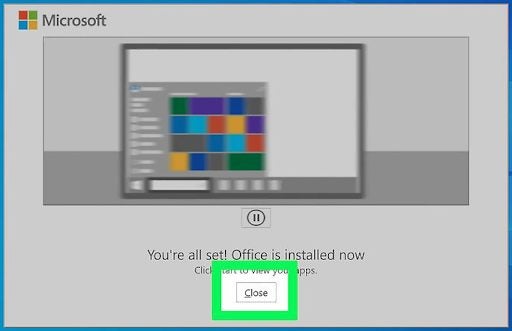
    Once the download has completed, you can run the installation file and follow the on-screen instructions from the installation wizard. This newest version will override the older one that was already on your computer. You will now have the latest Microsoft Office installed on your computer.
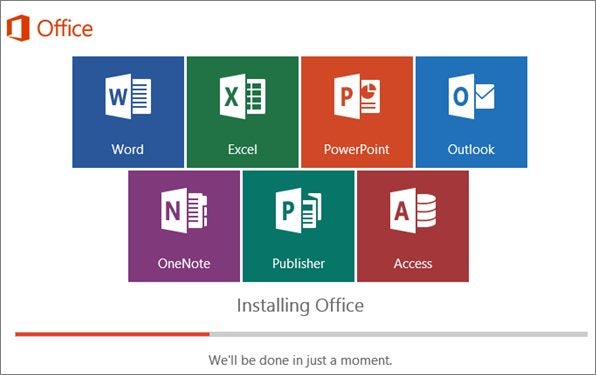
Upgrading as Easy as One, Two, Three

Microsoft Office has made the process of upgrading your program as easy as possible. With a few simple clicks, you can have the latest version of Office installed on your device. Why not try upgrading your Microsoft Office now?

Microsoft Office Tutorials for Beginners with 3 Top Tips

Microsoft Office might offer several packages, like Word, Excel, and PowerPoint, but there are some tips you can apply across the board. Many of them have similar functions, and it will be good for beginners to know how to use them.

We know these have saved us loads of time, so we’re happy to share some of our Microsoft Office tutorials with you.

  1. Create and save documents

    Microsoft Office Tutorials for Beginners

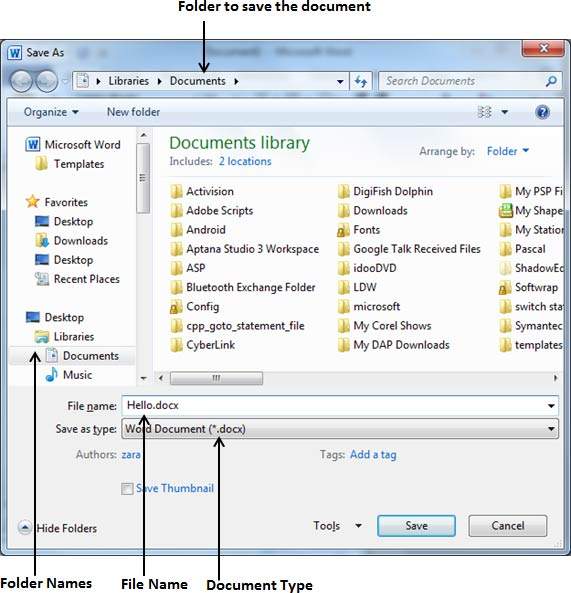
    No matter which Microsoft Office application you’re using, creating and saving documents has the same process across all of them. To create one, simply open the app, choose a template, and say “New”. Remember, you can click on File > Save As, or the Save icon, so that you don’t lose any of your precious information.

  2. Share and collaborate

    Microsoft Office Tutorials for Beginners

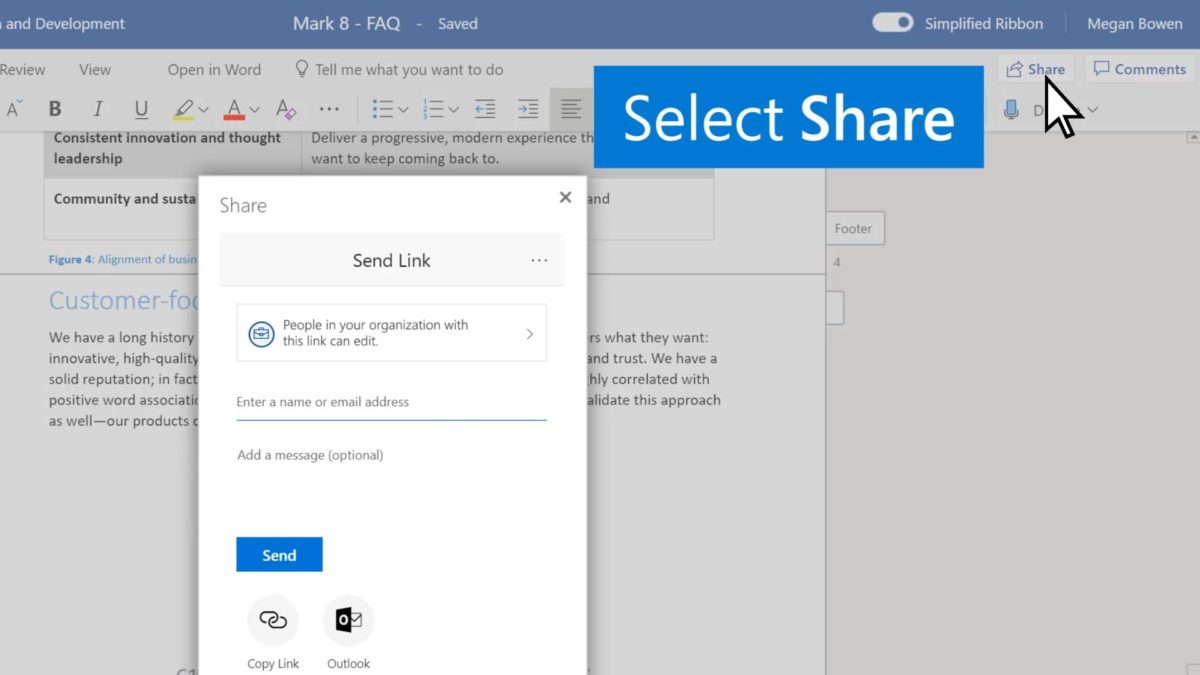
    You can share any of your documents with your team members, letting them work on them with you. All you have to do is click on Share, then Link Settings. You’ll need to adjust how many permissions they have, whether it’s editing, commenting, or just viewing. Don’t forget to share the link with them.

  3. Work remotely

    Microsoft Office Tutorials for Beginners

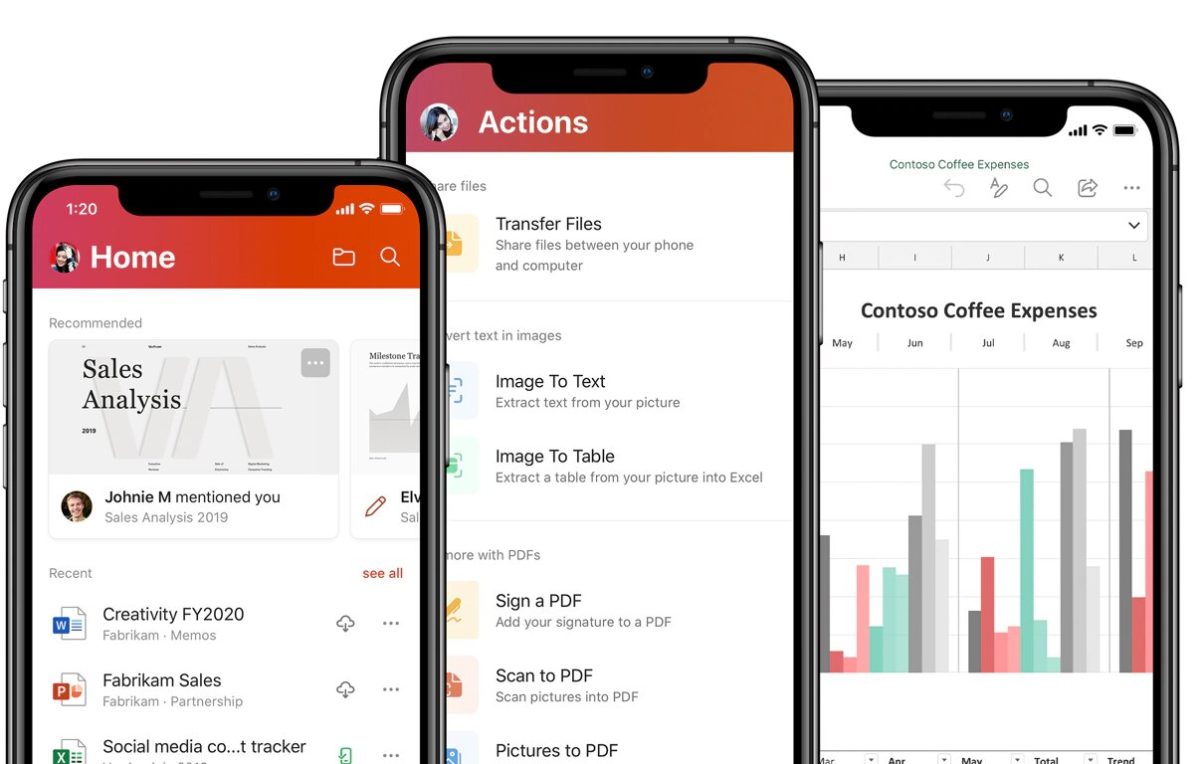
    Finally, you can access and work on your documents no matter where you are or which platform you use. You can sign in to your account from a mobile phone if you need to make any changes. All you need is your account details and the Microsoft Office app on your device to get going.

Become the elite

Now that you’ve learned the basics, don’t be afraid to try more advanced techniques. There’s so much you can do with Microsoft Office apps, and you shouldn’t feel limited by your lack of knowledge. Play around with settings and create something amazing.

How to Find Your Microsoft Office Product Key

Your Microsoft Office Product Key is a series of 25 letters and numbers that must be entered when software is activated on your devices. This Key certifies that the software is an original copy and has not been pirated from another source. If your PC or laptop came with Office pre-installed on it, then before following this entire procedure, search the case at the back or the sides to find the sticker that contains the Key.

In the Microsoft world, if you have Office 365, you will not have a Product Key as your ownership of the software is managed online through the Microsoft website. Losing the Product Key means that you cannot activate and use your Microsoft Office products, so you must find the Key. Fortunately, uncovering your Key is a straightforward procedure.

  1. Go to the Microsoft Website

    How to Find Your Microsoft Office Product Key

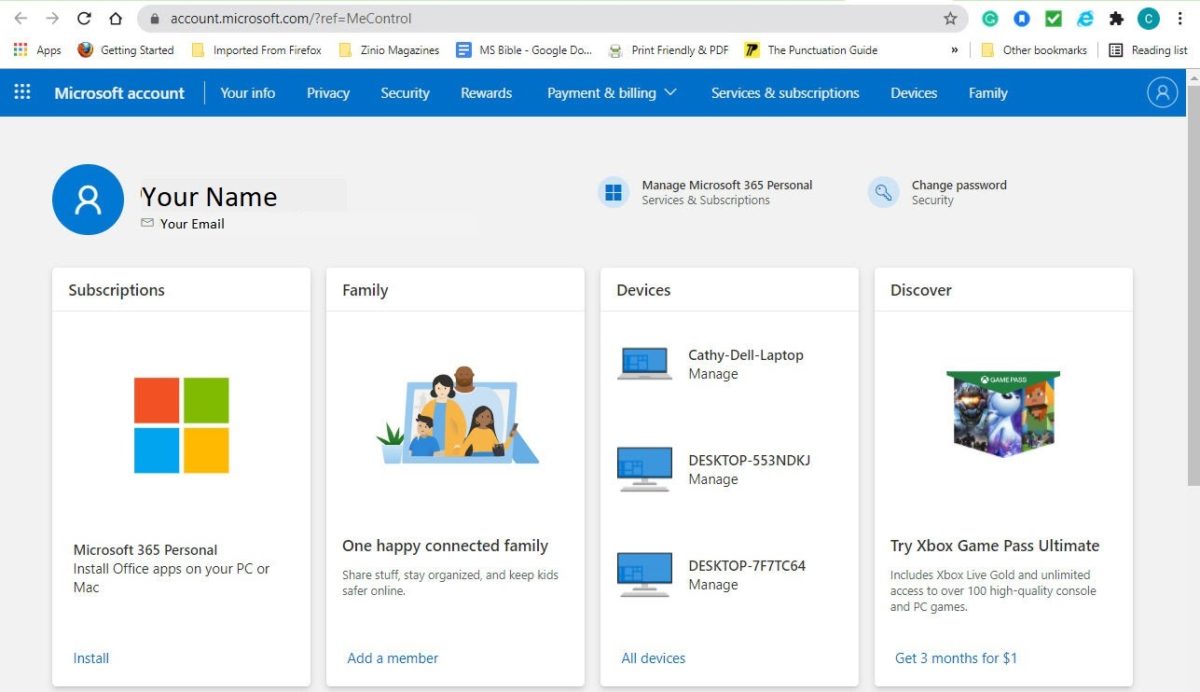
    Go to the Microsoft website and sign in to your account by clicking on the figure in the top right-hand corner of the screen.

  2. Go to Services and Subscriptions

    How to Find Your Microsoft Office Product Key

    Click on Services and Subscriptions in the blue menu at the top of the screen.

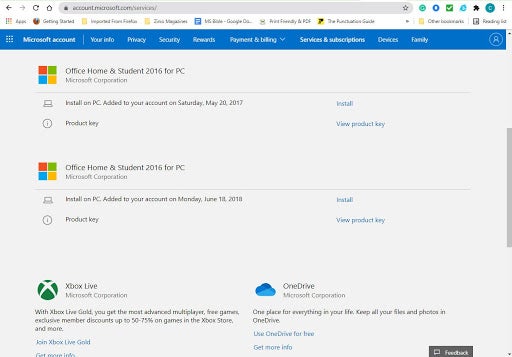
  3. Scroll to find the Key

    How to Find Your Microsoft Office Product Key

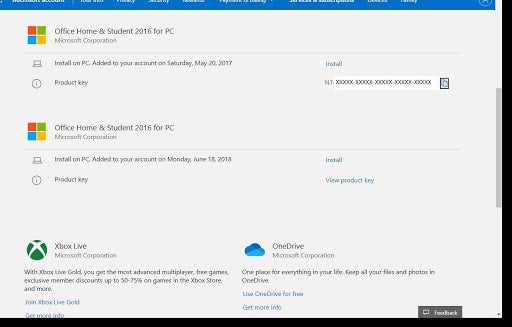
    Scroll down the screen until you find the Product Key that you need. Once you find the line you are looking for, click on View Product Key.

  4. Copy the Key to transfer to your new installation

    How to Find Your Microsoft Office Product Key

    When you click on View Product Key, the 25 character key will be revealed. Clicking on the small icon to the right of the Product Key will copy the Key to the clipboard so you can quickly transfer it to your new installation.

Don’t lose your key

There are several software options that you can use that will find your Product Key by searching the registry of your machine. This will hold true for any old Microsoft Office installation. From Microsoft Office 2013, Microsoft changed how the product key was stored in the registry, and they only kept the last five digits.  

This means that any key finder program you use will not find the entire Key, and if it returns 25 characters, the first 20 digits are likely to be a generic code. 

The last five digits may give you enough data to search through your old emails to see if you can find the original Microsoft email containing the full product key.

If all of this fails, your only option is to do a full factory reset (providing you have the necessary software recovery partition) or purchase a new copy of Microsoft Office.

Transfer Your Microsoft Office License

Microsoft Office 365 and Office 2016 licenses are associated with the client’s email account and not the hardware. They can be moved easily. But transferring an Office 2010 or 2013 license is more complicated. 

You’ll need your 25-character Product Key and an installation disk or file that matches it. Not all Microsoft Office licenses can be transferred

  1. Can You Transfer Your License?

    Transfer Your Microsoft Office License

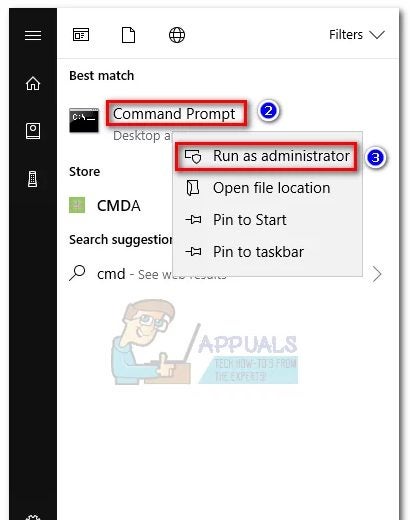
    In Office 2010 or 2013 Start menu, right-click Command Prompt and Run as Administrator. In the Office installation folder, type cd + *Office location path* and Enter. Type cscript ospp.vbs /dstatus in the elevated Command Prompt and Enter. Go to License Name and Description. If it has the text Retail or FPP, there’s still a chance to transfer it.

  2. How Many Installations Are Allowed?

    Transfer Your Microsoft Office License

    You might be allowed to install an Office 2010 license on another computer without transferring the license. From Office 2013, you’re only allowed one concurrent installation. You’ll be able to transfer a Retail license from one computer to another. You cannot move the other types of licenses.

  3. Transfer an Office 2010 or 2013 License

    Transfer Your Microsoft Office License

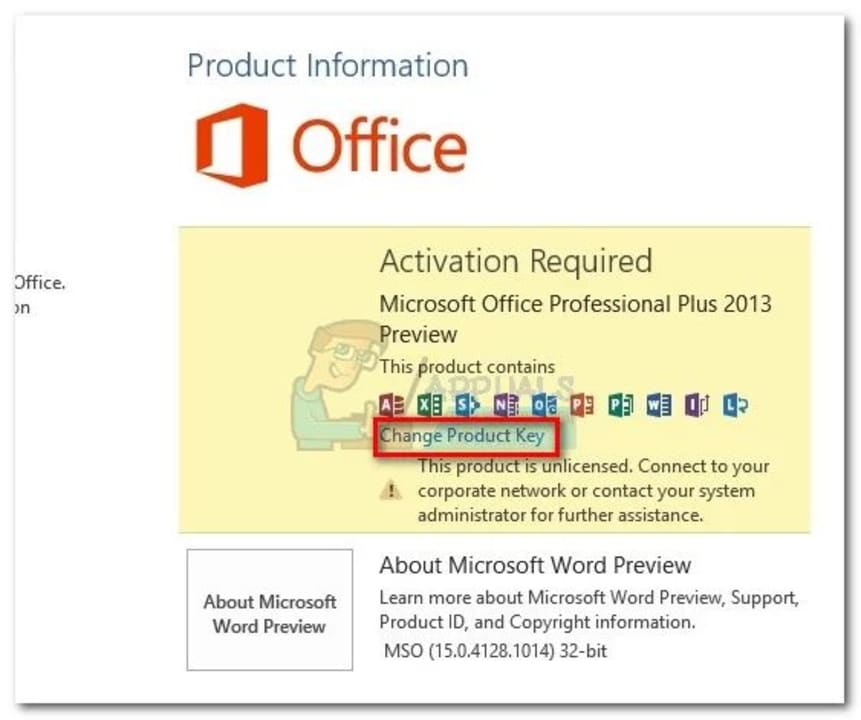
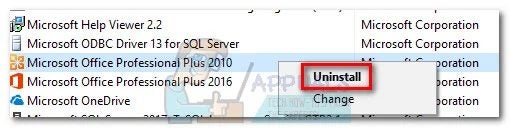
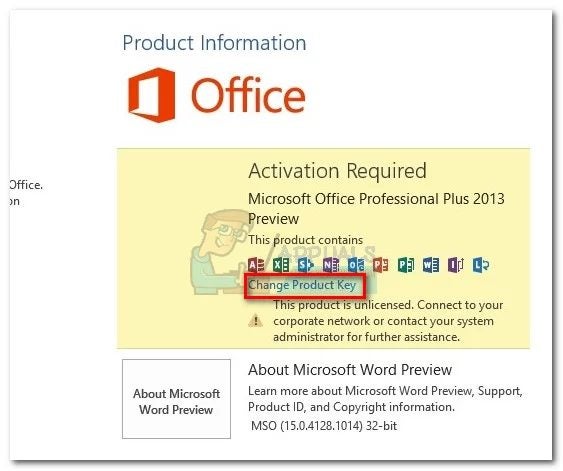
    Uninstall Office from your current computer using Programs and Features. Make sure your new computer doesn’t have a free trial copy of Office on it. If so, uninstall it. Install Office using a CD or installation file. Once it’s installed, open any program from the Office suite. Go to File > Account. Click Activate Product (Change Product Key) and type in your Product Key.

  4. Transfer an Office 365 / Office 2016 license

    Transfer Your Microsoft Office License

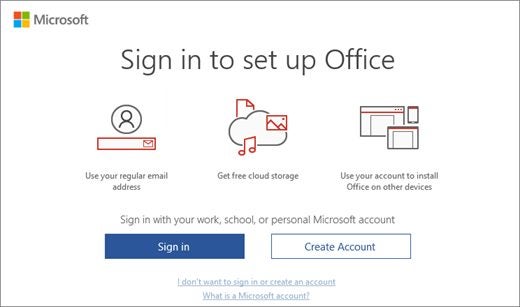
    Deactivate and uninstall the license on your old computer. On the new computer, click the install button under My account. You’ll see a setup.exe file download. When it’s done, follow the prompts to install Office. When it’s installed, you’ll be asked to sign in with your Microsoft account.

Some Licenses Can be Moved Easily

You can now move some Microsoft Office licenses from one computer to another. You don’t need to stress anymore by changing it from your desktop to your laptop, or vice versa.

How to Update Microsoft Office in 4 Quick Clicks

Updating your Microsoft Office is very important, and while you may rather click the ‘Remind Me Later’ box, it is not a wise thing to do. Software updates are critical for many reasons, but the main ones are to repair software loopholes that unscrupulous people may use to hack your machine, fix software bugs, or provide new features that you may find helpful.

The best way to ensure that your Microsoft Office is kept up to date is to have it updated every time your Windows updates are carried out. This will make it a painless exercise. To set this up, follow these few simple steps that will ensure your software is always kept current.

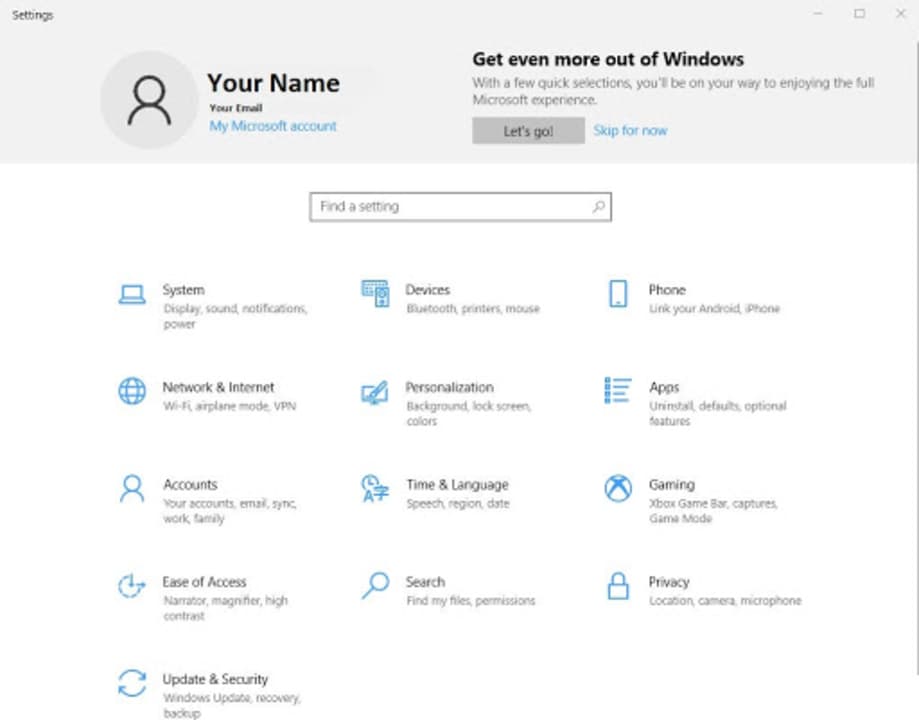
  1. Go to your Settings

    How to Update Microsoft Office

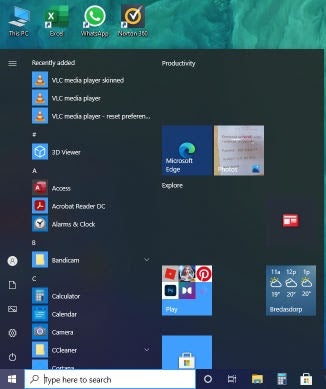
    Click on the Windows Icon in the bottom left-hand corner of your screen, then click on the Settings.

  2. Select Update & Security

    How to Update Microsoft Office

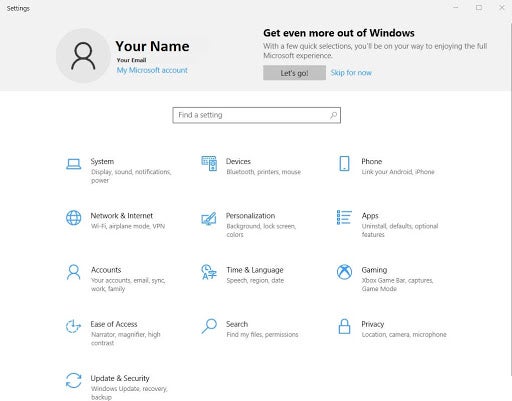
    Once your Settings Menu comes up, look for the Update & Security icon and click.

  3. Select Advanced Options

    How to Update Microsoft Office

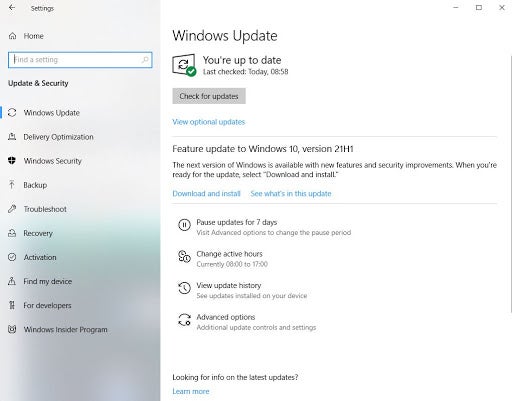
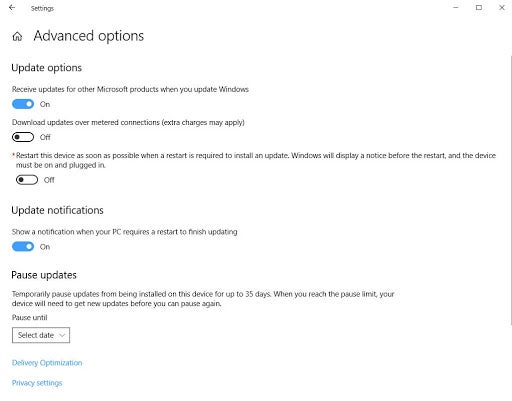
    The first screen that pops up is for your Windows Updates. To instruct the software to update your other Microsoft products, you must go to Advanced Options.

  4. Turn On to Receive Updates

    How to Update Microsoft Office

    If the slider for ‘Receive Updates for other Microsoft products when you update Windows’ is turned off, click on the slider to turn it on. 

Always remain updated

These simple steps will ensure that your Microsoft products are always kept up to date. As we have said, it is not good practice to allow your software to fall behind as it can expose your computing environment to unnecessary risks.  

By using the options given by Microsoft, you need never think about the updates for your Microsoft products again. You will always be using the latest software.

How to Install Microsoft Office on Mac

Microsoft Office is one of the giants when it comes to functional word processing, spreadsheet, and presentation programs, with their bundles remaining popular. Their bundles usually include Word, Excel, and Powerpoint. Other programs are included in more specialized bundles. 

On Mac, you can use iWork, but it has far fewer features than Office. So if you need more functionality, the Office may be a good solution for you. In this article, we will be looking at how to install Microsoft Office on your Mac computer.

  1. Download Microsoft Office

    How to Install Microsoft Office on Mac

    The first step is to download Microsoft Office for your Mac. You can download it from any reputable site or even the Microsoft website. Make sure to use reputable sites when downloading anything from the internet to ensure that you and your computer remain safe and secure.

  2. Complete the Steps from the Install Wizard

    How to Install Microsoft Office on Mac

    Once the download has been completed, run the install file by double-clicking on it. This will activate the install wizard, which will guide you through the installation. Follow all the on-screen instructions from the Install Wizard to install your Microsoft Office to your Mac. Once the installation has finished, you will see a message notifying you that the installation is complete.

  3. Activate Microsoft Office

    How to Install Microsoft Office on Mac

    Now you can run Office by double-clicking on any of the programs you want to use. The first time that you run Microsoft Office, you will have to activate it. A screen will come up to guide you through the process of activating your Office, and you can just follow the instructions and click on ‘Finish’ once done.

Have Fun With Office on Mac

It is a simple process to install Microsoft Office on your Mac. With just a few simple clicks, you can have Office up and running on your computer, ready to be used. Why not try installing Microsoft Office on your Mac now?

How to Get Microsoft Office for Free 4 Different Ways

Microsoft Office is a bundle of software programs for word processing, spreadsheets, presentations, and more. They have different bundles available geared to different users and support Windows, Mac, and mobile devices. 

However, the premium version of Microsoft Office does come with a hefty price tag and subscription. No wonder people have wondered how to get Office for free.

  1. Use Office.com

    How to Get Microsoft Office for Free 4 Different Ways

    Microsoft offers the basics of their programs for free on their official site. Unfortunately, this is not the full-featured version of the programs, but if you only need the basics, this will be enough for you. Another consideration with this option is that you will have to be online and have an active internet connection to use the programs and work on your documents.

  2. Microsoft Apps

    How to Get Microsoft Office for Free 4 Different Ways

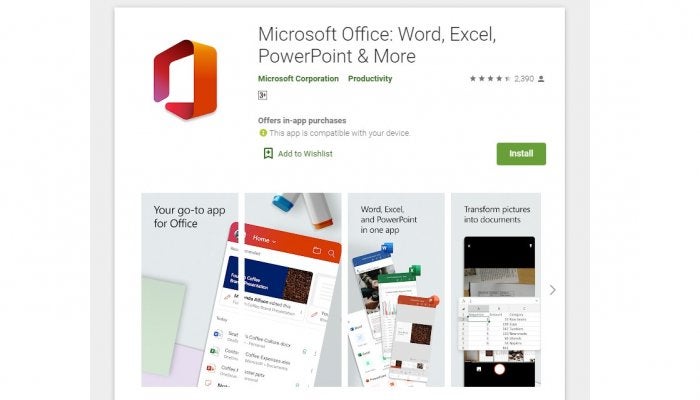
    Microsoft Office has also released app versions of their programs for free on the app store. Similar to the versions on Office.com, these are not full of the features you would find on the premium paid-for version. However, if you just need the programs for essential Word, Excel and Powerpoint, using the mobile version is sufficient and free.

  3. Enrol in Office 365 Education

    How to Get Microsoft Office for Free 4 Different Ways

    Students and educators can access a few of the Office programs for free by signing in with a valid school email address. The programs included with this offer are Word, Excel, Powerpoint and One Note. This enables students to use the full versions of these programs to enhance and improve their education.

  4. Make Use of the Trial Version

    How to Get Microsoft Office for Free 4 Different Ways

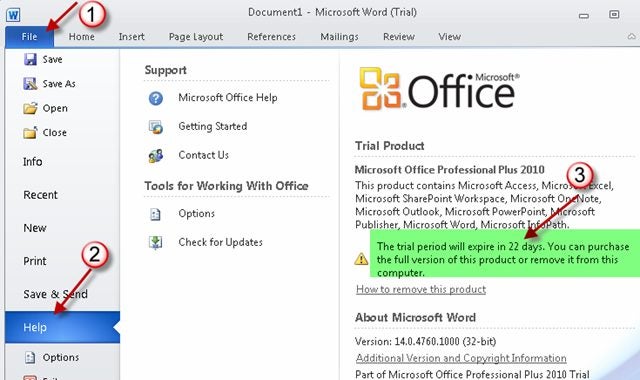
    Microsoft Office offers a one-month trial to all users to use the full versions of the programs for one month before committing to a subscription. So, if you only need all the features for a single project or a few projects that can be completed within a month, then this might be a worthwhile option for you.

Use Microsoft Office for Free

As you can see, there are a few different ways that you can use Microsoft Office for free. These all come with their considerations, such as the internet connection needed or not having all the features, but give them a try and see which one works best for you.