How to Use Internet Download Manager to Make Money

You’ve probably already figured out that Internet Download Manager offers so much in the way of efficiency when getting files from the web, but did you know that it could also make you money? Check out how this powerful tool can pay you just for recommending it to friends and family!

How Affiliate Marketing Works

Wait, before delving into the details, it’s a good idea to understand how affiliate marketing programs work. In a nutshell, a company will pay someone a commission, or percentage of a sale, when that person helps the company make the sale.

So, for example, you could be an affiliate of a web page, and they will give you a special link to put on your website or to pass along to friends. If someone visits this special link and becomes a paid subscriber of this specific web page, the site knows that you are the person specifically responsible for the new business. As a result, you get paid each time someone signs up through your link.

Internet Download Manager’s Affiliate Program

So, how does Internet Download Manager’s affiliate program work? First, you can join the program for free. You then receive a special link that you use when linking the through the free tools Internet Download Manager provides, such as banners and images that you can place on your website. When someone makes a purchase that is tracked back to your special link, you receive 20% of the sale. That’s it!

The best part is that, when using your code, the person doesn’t have to make a purchase right away. Instead, he or she can download a free trial, give it a whirl, and if he or she chooses to buy Internet Download Manager after a month, you still receive the 20% commission.

How to Effectively Use Affiliate Marketing

In order to use affiliate marketing effectively, you’ll need a space on the Internet where you can place your special link. This could be your own website or websites, but even if you don’t have a website, you can still earn money.

For example, you could advertise your link via social media and encourage your friends and followers to click the link to check out Internet Download Manager. Likewise, with permission, you could include your link in your signature on message boards and forums. Basically, any online space where you can place your link is prime real estate to start getting paid.

In fact, if you wanted to take things out of the digital realm and into the physical, you could create a QR code for your link and then have it printed onto business cards that you could hand out. Basically, the sky is the limit as long as you can discuss all of the benefits of purchasing Internet Download Manager and get people to visit your special link.

How Often Do Affiliates Get Paid?

Like many affiliate programs, Internet Download Manager issues payments once a month via check.

If you love Internet Download Manager, don’t forget to check out Free Download Manager!

Next: Don’t Push That Button: Understanding Internet Cons

5 Internet Download Manager Tips and Tricks

If you want to become an Internet Download Manager (also known as IDM) power user, there are some easy, fast, and effective tips to speed up downloads and maximize Internet Download Manager’s utility functions. Check out these 5 awesome ways to get the most out of Internet Download Manager.

Change Your Default Settings

This trick will increase download speed by quite a bit. First, open Internet Download Manager and click on the Downloads tab, then select Options. Then follow these simple steps:

  • In the Configuration window, select Connection.
  • Once the Connection tab opens, change Connection Type/Speed to LAN 10Mbs and the BPS field to 10000000 (that’s seven zeros).
  • Also, change the maximum connections to 16 instead of the default of eight.

Add a Download Link Manually

If downloading using a specific browser is too slow, you can add a file to Internet Download Manager manually. Open the program and click on the Add URL button. Now, simply copy and paste the required link into the field and you’ll be downloading much faster in most cases.

Automate and Schedule Downloads

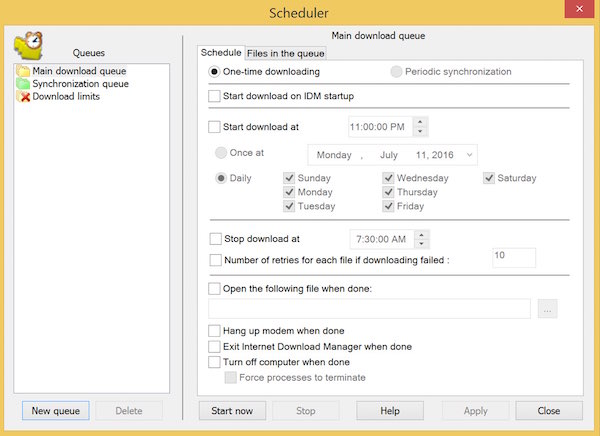
Often, when you have a batch of files to download at the same time, it slows down Internet Download Manager’s speed because there is only so much bandwidth available at once. By creating a scheduled queue of files, you can speed up the download time for all. Be sure to set the counter at the top of the new queue window to download one item at a time.

  1. In the Categories field, click on Queues, then “Create New Queue”, and give it a name.
  2. Next, right-click on the files you want add them to the new queue.

Your files will sequentially download one at a time, freeing up processing power.

Internet Download Manager - Scheduler

Download All Website Content Fast

The Grabber function is an easy way to download all website content quickly.

Click on the Grabber tab on the far right of the main screen. Next, name your project, enter in the site for downloading, and select a template. The templates, each of which may be manually customized, include various bundles of page elements to download.

The next screen lets you select how deep into the site you want to harvest items and whether to consider items such as parent directories and pop-up windows as well as whether to execute any JavaScripts.

The final screen lists the elements based on your criteria and lets you manually deselect any that you do not want to download.

Change Registry Settings

Changing the registry connection settings is another way to boost download speeds. Please note, however, that editing registry entries should be done carefully and only after making a backup copy of the registry to be altered. Failure to take this step can lead to serious problems in your operating system.

To edit the required registry setting in Windows, click on the Start button and then on the Run/Search field. Type ‘regedit’ and hit enter.

You’ll need to hunt through the registry listings to find this entry:

HKEY_CURRENT_USER > Software > DownloadManager

Next, follow these steps:

  1. In the right-hand window, find Connection Speed and double-click.
  2. Change the Setting Base to Decimal and the value to 100.
  3. Click OK.
  4. Close out of the registry editor.

You’ll need to restart your computer for the changes to take effect.

Conclusion

There you have it: 5 simple tips and tricks to help you get even more speed and performance out of Internet Download Manager. Eager to learn more? Take a peek at our guide to Internet Download Manager’s tabs capability.


Understanding the Tabs in Internet Download Manager

Now that you’ve downloaded Internet Download Manager, it’s time to get the most out of the software by understanding its various tabs and how they can make your experience fast, easy, and fun. Check out these tab descriptions to get off and running now:

General Tab

Like most pieces of software, the General tab in Internet Download Manager is used to view and make changes to various utility functions. Here, you can choose to integrate Internet Download Manager into a selection of browsers, and you can also change options to determine when and how Internet Download Manager starts.

Note that you can also use the Keys section to select various hotkeys to force or stop a download. This customizable feature is great when you want to quickly take action!

File Types Tab

In the File tab, you can select which file types you want Internet Download Manager to access and which ones you want it to avoid downloading.

The advantage here is that, in addition to blocking certain file types, you can also avoid access to sketchy sites that may harm your computer or device with malicious software.

Connection Tab

On the Connection tab, you can select your Internet speed and select the number of connections you want to have open at one time.

Setting a higher number of connections may increase speed, but it also pulls more heavily on the server that you’re using to download. In some cases, this can lead to the server slowing your connection as a precautionary measure.

Another benefit of the Connection tab is that provides you with the ability to set specific parameters for connections with certain websites. Using this tab, you can set quotas to avoid running afoul of your ISP’s restrictions on data flow.

Save To Tab

When investigating the Save To tab, you’ll have the opportunity to tell Internet Download Manager where it should save files to by default.

You can use this option to save on storage space in certain directories of your choosing.

Downloads Tab

The Downloads tab first lets you choose whether or not you’d like to see the download progress bar. You can also choose to use a dedicated antivirus program to check each file you download using the options in this tab.

When using this tab, you’ll get the most out of it by ensuring that you have updated your dedicated antivirus software to its latest iteration.

Proxy Tab

If you want to use a proxy while downloading, the Proxy tab allows you to enter in your information. You can also type in a specific address when Internet Download Manager won’t use a proxy.

Using a proxy is very beneficial when you want to mask your location’s identity and make it harder for identity thieves to steal you information.

Site Logins Tab

If you’re downloading using a site that requires a username and password, you can enter that information in the Site Logins tab.

In setting this information, you can quickly and easily access sites to which you have subscriptions or executive access to by allowing Internet Download Manager to take care of form information for you.

Dialup Tab

In the Dialup Tab, you can enter login information for your ISP, even if you’re using dialup.

This is helpful when you need to use a specific connection, including dialup, when accessing the Internet as a whole or specific websites.

Sounds Tab

Finally, the Sounds tab lets you set different notification sounds for different events that occur when using Internet Download Manager.

In setting your own notification sounds, you have the chance to start and stop downloads, check on status updates, and generally get to know what is going on with you files.

Don’t forget to check out Malwarebytes Anti-Malware to keep your computer safe against malicious downloads!

Check out this VIDEO to know how tomanage and speed up all of your browser downloads.

Next: 5 Internet Download Manager Tips and Tricks