Avast Small Office Protection: Keeping Your Business Safe

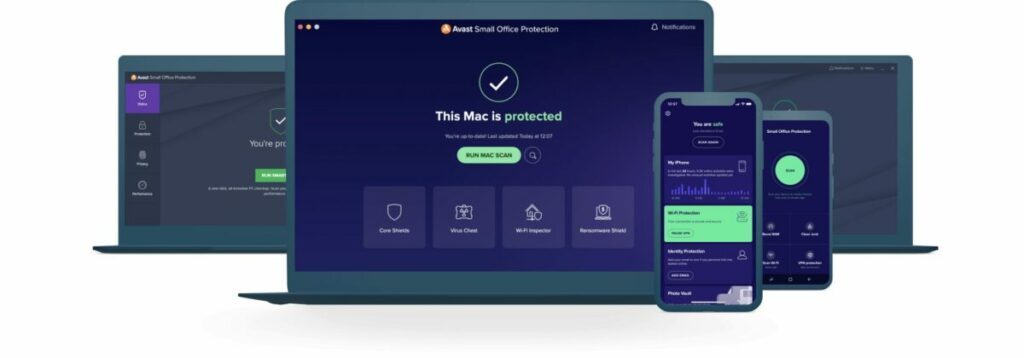
Small businesses are increasingly attacked as hackers look for easy targets and quick scores. Many smaller offices or new start-ups have to pinch every penny, and cybersecurity often falls by the wayside. Unfortunately, that leaves them open to malware, ransomware, phishing, and other digital attacks. To address this growing trend, Avast presents Small Office Protection, a robust and affordable security solution designed specifically for small businesses.

This next-gen, lightweight solution is ideal for start-ups, entrepreneurs, remote workers, and home offices. Let’s look at what makes Avast Small Office Protection such a useful, robust tool for a small business owner.

-30%
Until end of October. -20% as of November 1st, 2021

From: Avast Small Office Protection

$97.99 $139.99

Made For Small Businesses

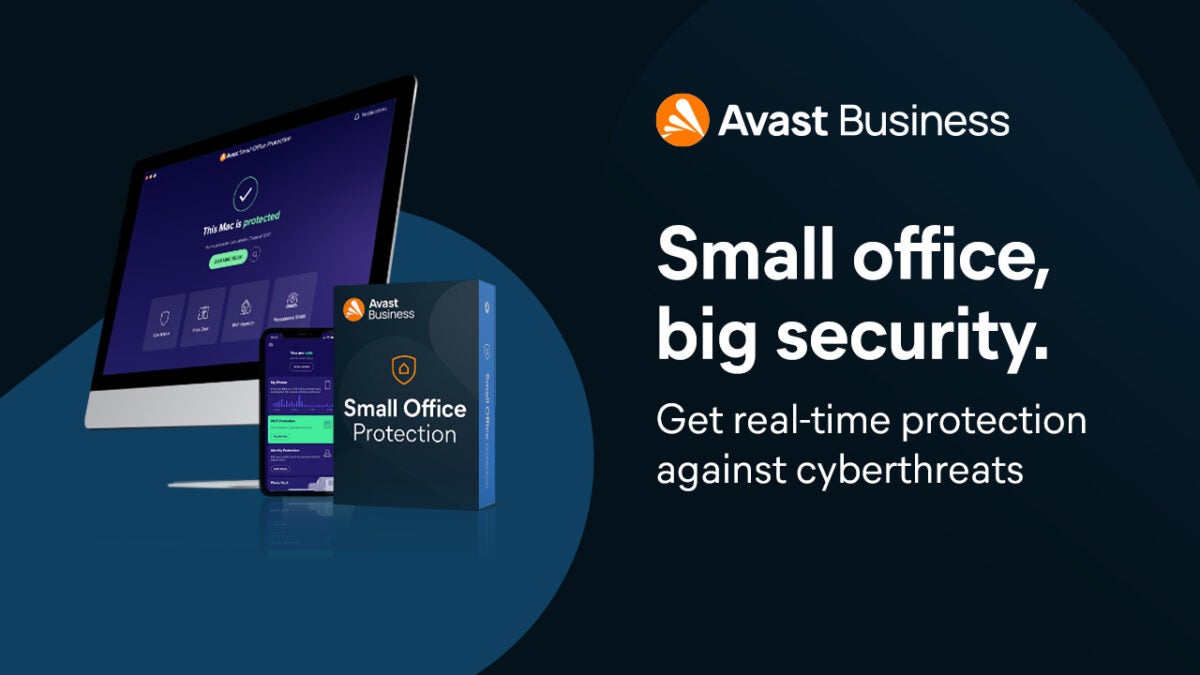
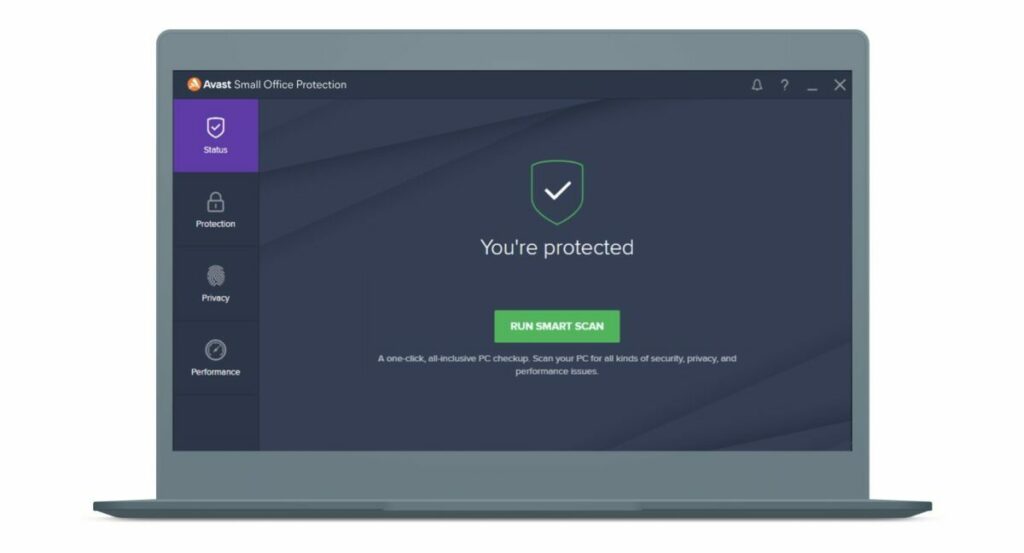
Avast Small Office Protection is designed to be affordable but powerful, perfect for small businesses and at-home offices. You can protect up to 10 devices without needing extensive technical knowledge or expensive add-ons. It’s a one-stop, real-time security solution for start-ups, entrepreneurs, home offices, and small companies.

The system includes various features, like:

  • Ransomware Shield.
  • Remote Access Shield.
  • Next-Gen Antivirus.
  • Web Shield.
  • Email Shield.
  • File Shield.
  • Wi-Fi Inspector.
  • Real-Site Phishing Checker and Net.
  • Advanced Firewall.
  • Sensitive Data Protection.
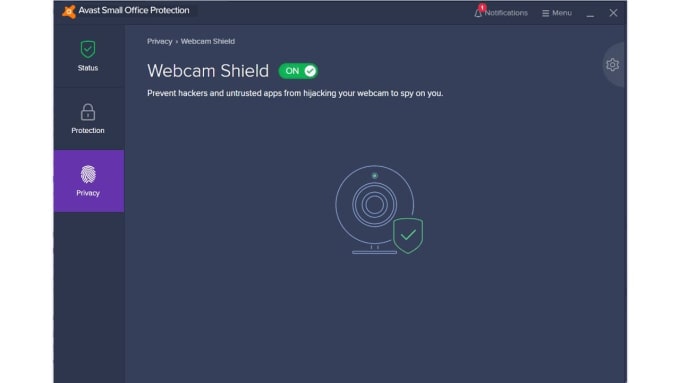
  • Webcam Shield.
  • Data Shredded.
  • Software Updated.
Avast Small Office Protection

The Benefits of Avast Small Office Protection

There are many benefits to having Avast Small Office Protection, but we will highlight the top advantages below.

Protection From Various Cyber Threats

Avast Small Office Protection can protect your business from various cybersecurity threats, including:

  • Hackers.
  • Ransomware.
  • Malware.
  • Digital extortion.
  • Data leaks.

The statistics indicate that hackers prefer to target vulnerable small businesses, with around 46% of companies being targeted by ransomware or other cyber threats. With Avast Small Office Protection, you can rest assured that your data, clients, and employees will be safe. The system also creates automated backups so that you can restore your data at any time.

Easy To Use And Install

If you’re not an IT guru, don’t worry! Avast Small Office Protection is designed to be easy to use, regardless of your skills or experience. The software guides you through the quick installation, and once it’s up and running, that’s it. There’s no need for additional configuration or management to stay protected. The software was designed to protect your devices automatically while allowing you to focus on running your business.

Multi-OS Support

Many individuals are now working from home, exposing small businesses to several security threats. According to the statistics, remote workers have resulted in data breaches in over 20% of companies, with many using their personal devices. Consequently, it’s nearly impossible to control which devices your employees will use. Luckily, Avast Small Office Protection works on a multitude of devices and operating systems, including:

  • Windows devices and desktops.
  • macOS laptops and iOS mobile devices.
  • Android devices.

Excellent Performance

Avast Small Office Protection is an extremely lightweight solution. Consequently, it has a very small impact on day-to-day operations, ensuring that your performance isn’t affected.

Increased Wi-Fi Privacy

Public wi-fi networks have always posed a security risk to our personal devices. However, now that many people are working remotely, the risk of exposure due to an unsecured network is significantly higher than before.

Avast Small Office Protection keeps all data protected, particularly when you’re using a public network to access the internet. It protects banking information and passwords and can even prevent unauthorized data downloads.
Top Solution for your Business

Small businesses are considered vulnerable and are frequently targeted by hackers and cybercriminals. It’s critical to have a robust security solution to protect your data and clients, and Avast Small Office Protection is the ideal software to achieve that goal. Not only is it affordable, but it’s also extremely powerful. For small business owners and entrepreneurs, Small Office Protection is an absolute must.

-30%
Until end of October. -20% as of November 1st, 2021

From: Avast Small Office Protection

$97.99 $139.99
How to use Windows 11 – tips & tricks

Well, Windows 11 is finally upon us. For those of you who already have Windows 10, some of you may have already received your free upgrade packed full of features. Others might have needed to update their BIOS to enable TPM in the UEFI settings.

Either way, you have some new tools to play with, plus there’s the fact that the new Windows 11 environment is compatible with Android apps. In this quick guide, we’ll show you a few tips and tricks you can try.

  1. How To Take A Screenshot On Windows 11

    The function to take a screenshot on your Windows desktop hasn’t fallen away. As a matter of fact, there are six ways you can do it now, with some of them still the same as the previous operating system. You can use any of these methods depending on which function you need the most:

    – PrtSc Key: Sends a screenshot of the entire screen to your clipboard for later pasting, which is the easiest way to take a PrintScreen on Windows 11

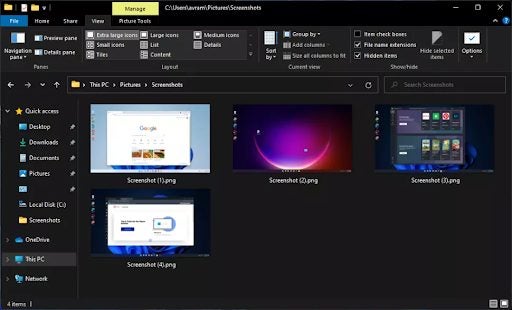
    – Windows Key + PrtSc Key: Save the screen as a file

    – ALT + PrtSc: Only takes a screenshot of the active window

    – Windows Key + Shift + S: You snip a small section of the screen for copying

    – Snip & Sketch Delay: Use the Snip & Sketch utility to create a delayed screenshot of a few seconds

    – CTRL + ALT + PrtScr: This function allows you to capture scrolling on a web page, but only if you have an app like PicPick installed.

  2. How To Split Screen On Windows 11

    Another neat feature of Windows 11 is that it has MT built into the operating system. If your version doesn’t have it, you and download Microsoft Teams and install it, and it will function the same way. Here’s how you can use Microsoft Teams on Windows 11: Open MT and sign into your account Select the Chat icon on your desktop to start communicating in your teams You’ll see notifications appear when someone sends you a message Click on the notification icon when you want to reply to anyone You can also select Meet or Chat to talk to someone new or start a meeting

    Windows 11 has two ways in which you can split your screen. The first method involved pressing the Windows key and the “I” button to access your Settings. Look for the System option, and open Multitasking. You’ll see you can enable various functions to assist you in optimizing your screens.

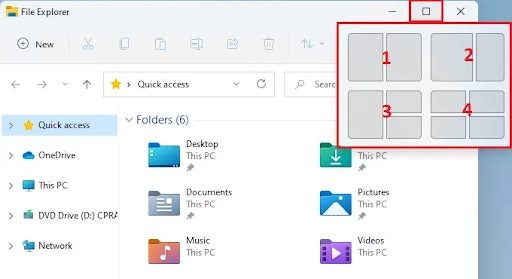
    There’s also a new feature with Windows 11 called Snap Layouts. When you hover your mouse over the maximize square icon at the top of a window, you’ll see various layouts appear. You can then split your screen up to four ways with various designs. You can use the same method to return to one screen.

  3. How To Defrag Windows 11

    Another neat feature of Windows 11 is that it has MT built into the operating system. If your version doesn’t have it, you and download Microsoft Teams and install it, and it will function the same way. Here’s how you can use Microsoft Teams on Windows 11: Open MT and sign into your account Select the Chat icon on your desktop to start communicating in your teams You’ll see notifications appear when someone sends you a message Click on the notification icon when you want to reply to anyone You can also select Meet or Chat to talk to someone new or start a meeting

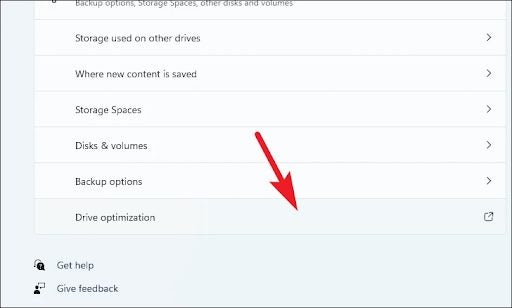
    If you’re having performance issues on Windows 11, try defragging your storage disks. Your data is sometimes scattered all over your hard drive, which causes lag when trying to run programs or files. Defragmentation, or defragging, puts them together in a way that makes them easier and quicker to access.

    To defrag Windows 11, follow these steps:

    – Head into the Settings section of Windows 11

    – Open the System tab as explained before

    – Go to the Storage section

    – Open “Advanced storage settings”

    – You can click on Analyze to see how much fragmentation there is

    • Next, select Optimize to defrag Windows 11
  4. How to use Microsoft Teams on Windows 11

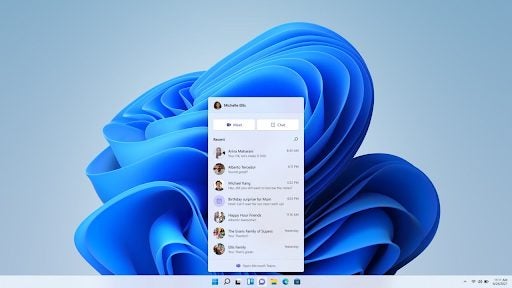
    Another neat feature of Windows 11 is that it has MT built into the operating system. If your version doesn’t have it, you and download Microsoft Teams and install it, and it will function the same way. Here’s how you can use Microsoft Teams on Windows 11: Open MT and sign into your account Select the Chat icon on your desktop to start communicating in your teams You’ll see notifications appear when someone sends you a message Click on the notification icon when you want to reply to anyone You can also select Meet or Chat to talk to someone new or start a meeting

    Another neat feature of Windows 11 is that it has MT built into the operating system. If your version doesn’t have it, you and download Microsoft Teams and install it, and it will function the same way. 

    Here’s how you can use Microsoft Teams on Windows 11:

    – Open MT and sign into your account

    – Select the Chat icon on your desktop to start communicating in your teams

    – You’ll see notifications appear when someone sends you a message

    – Click on the notification icon when you want to reply to anyone

    You can also select Meet or Chat to talk to someone new or start a meeting

  5. How to use Windows 11 Media Creation tool

    You might want to create an image of Windows 11 in case something goes wrong with your operating system. It’s also helpful if the software won’t install to your PC, and you need an alternative installation method. Using the Media Creation tool, you can save the installation file to a USB:

    – On the official Windows 11 page where you download the installation file, head lower down to “Create Windows 11 Installation Media”

    – After the download is done, open the file

    – A new window appears that asks which media you’d like to use for the disc image, choose the USB option

    – Once you make a selection, your PC will ask you to select the USB  drive where you want to burn the image

    – The devices must be connected for your Windows to pick them up. If it doesn’t, you need to insert the appropriate device and then refresh the list

    – When done, the Media Creation tool will create the image for you, and then display the path where it’s located

    – You can head to the location and either place it on your USB drive

    – Make sure to verify the file to see that it works

  6. How to use Windows 11 Disc Image

    If you want to create a disc image of Windows 11 on a DVD instead of an image, you’ll follow the same process using the Media Creation tool. When it asks how you want to create the data, you’ll choose the DVD option.

    The Disc Image tool will appear, asking you which device you would like to use to burn the image. As with the USB process, you can then locate the file on your PC to place on your disc.

The new Windows 11

As you can see, there are many things you can do with the new Windows 11 operating system. We’re sure we’ll see many more functions appear over the next few years, so we’ll keep you updated every step of the way.

If you have any specific questions, please leave a comment, and we’ll try to address them as soon as possible. For now, enjoy your Windows 11 upgrade and have fun!