Battery life is one of the most important features of Android devices. The better the device’s battery usage, the longer it is possible to use the device without having to charge it.
Battery and power usage depends on several factors. The battery that is included in the device plays a key role, but so do other factors, for example: installed applications, screen brightness, or use. Playing Android games on full brightness drains battery faster than listening to Spotify in the background.

A simple change in the Settings may improve battery significantly on Android. Lowering brightness, for example, improves battery significantly.
There is another feature that Android users may activate to improve battery life on their devices: data saving.
Did you know that some apps use more data than others?
The purpose of Data Saving on Android
Data saving, also called data saver by some manufacturers, restricts mobile background data use on Android. Applications may act in the background when they run on Android; this is desired in some cases. Mail and messaging apps may check for new messages, and music apps may continue to play music.
Google separates mobile data from Wi-Fi data.
Background data activity costs power on the other hand, and may not be desirable for all applications. Good news is that it is relatively easy to resolve.
Android includes options to enable data saver in the preferences. Once activated, apps can’t use mobile background data anymore, unless allowed by the user. Power use drops as a consequence, so that the device may be used for longer periods without charging.
The feature blocks mobile data access only. When the device is connected to a wireless hotspot, background data continues to be used by apps.
Enable Data Saver on Android
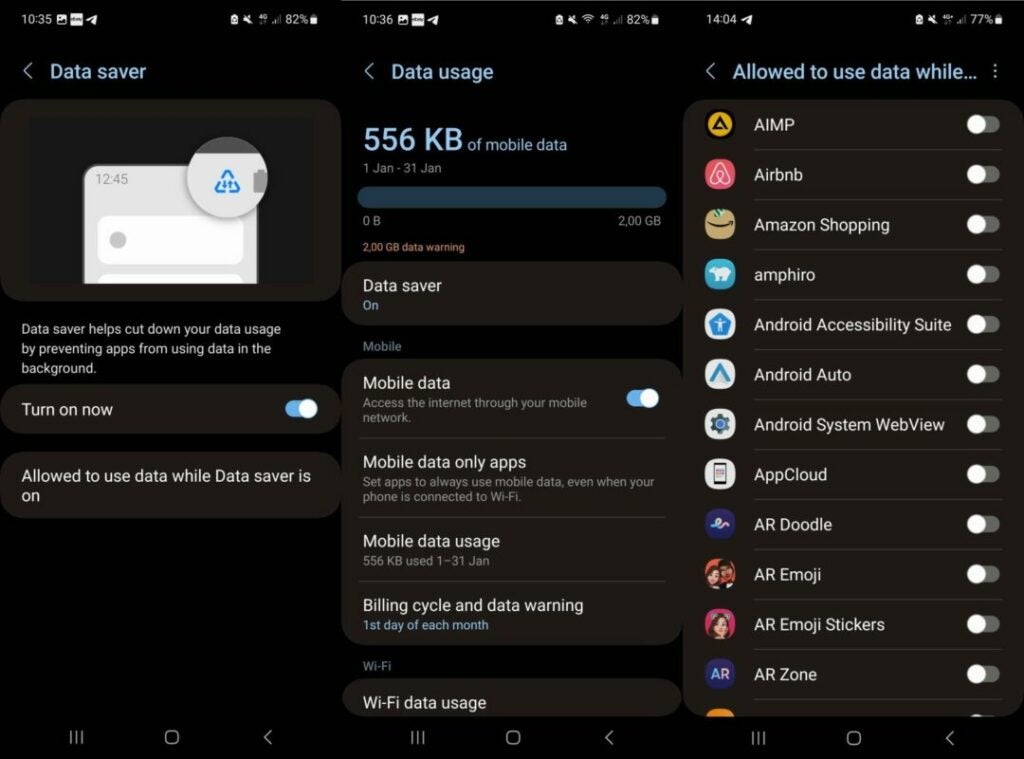
Background data saving is not enabled by default. All Android devices support the feature and it is easy to activate.
- Open the Settings on the Android device.
- The next step depends on the manufacturer:
- On Samsung devices, select Connections > Data usage.
- On stock Android devices, like those made by Google, select Network and Internet > Data Saver.
- Activate Data Saver so that it is set to the On state.
Setting the feature to on prevents Android apps from using data while in the background. While that is desirable for most apps, some apps may not function properly without background data access.
Android includes an option to exclude those apps from the restriction. Here is how that is done:
- Go back to the Data Saver preference in Settings.
- On Samsung devices, select “Allowed to use data while Data saver is on”.
- On Google Pixel and other stock Android devices, select “Unrestricted data”.
The list of installed apps is displayed on the next page. Select the apps that may use background data.
Note that you may come back to the setting at any time to add more apps to the list of exclusions or remove them again.
Enabling data saver on Android devices may improve battery life, but it also may have an effect on bandwidth usage. Android devices with data plans benefit from this setting as well, as it reduces data usages while using mobile data.
