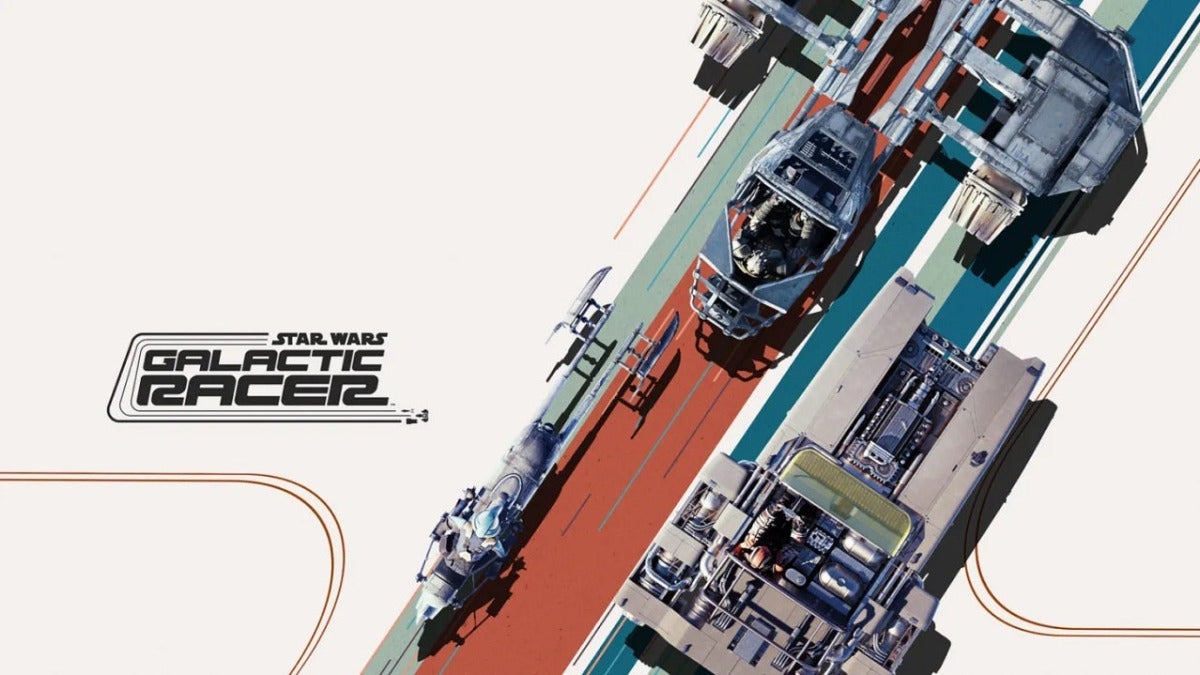
It was a surprise when they contacted me a couple of weeks ago on behalf of the communications team handling the launch of Star Wars: Galactic Racer, since I was used to Electronic Arts handling Lucasfilm games.
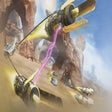
But this time, the pod-racing game has been developed by Fuse Games, and the bar was extremely high.
After playing for two very intense weeks, where my inner child once again felt like a pod pilot, like when I was 8 years old and played Star Wars: Episode I Racer on the Nintendo 64, I can say that this is a game that makes up for two decades without games in the genre.
What a blast.
A deceptively deep game
Star Wars: Galactic Racer is set at some point after the events of Return of the Jedi, probably around the time of The Force Awakens, but before the First Order appears and starts sowing chaos.
The thing is that Galactic Racer isn’t really concerned with being part of a broader Star Wars story or with establishing connections between moments in the canon, which is fine, since not every Star Wars game has to focus on Luke Skywalker and company.
Instead, you play as a new character, Shade, who, thanks to a ruse, ends up in a major galactic racing league with the goal of defeating the reigning champion. That champion is Kestar Bool, an arrogant villain who is part of a powerful and wealthy alien family that brutally invaded and took control of Shade’s planet years ago.
So Shade is eager to defeat him and help force him out of the league before he can take control.
To defeat Kestar Bool, Shade will have to take part in many galactic races.
And this is where Galactic Racer really stands out, since, regardless of what you’re driving, the game feels very fast and runs perfectly.
It didn’t matter whether I got on a speeder bike, a landspeeder, a skimmer, or even a podracer; all of them tore through the game’s different racetracks at dizzying speeds.
Going through a cave or trying to take a small shortcut at those speeds is really difficult, and it doesn’t take much to crash and burn.
I think I stopped blinking for long stretches while racing across planets like Tatooine and Ando Prime.
Also, each of the different types of space-racing vehicles in Galactic Racer feels completely different to drive.
Let’s break it down.
Each vehicle is a different kind of fun
Landspeeders love to drift, but they take time to reach top speed.
Meanwhile, skimmers use their movable fins to take tight turns and never lose speed.
Speeder bikes offer incredible bursts of speed and acceleration, but in return they offer little protection against aggressive pilots trying to knock you off the track.
And then there are the podracers, which move faster than anything else in the game and feel like they’re about to explode if you look at them the wrong way.
I really enjoyed learning to master each type of vehicle, although in the end I wound up preferring the classic landspeeder over the rest of the vehicles (I’m the same way with Mario Kart too, for the record).
Another thing you’ll have to master is how boost works in Galactic Racer.
You have a basic turbo button that uses up a meter.
But there’s also the Ramjet, a kind of super-acceleration that you can activate and that’s even faster, although, if it’s not used properly, it will make your vehicle, literally, explode.
By the way, you can win a race if you cross the finish line just as you explode.
Managing these two boosts while you drift around the tracks and dodge hazards like acid and lava, as well as handling different abilities like shields, can be quite a challenge.
Driving in this game feels really good, and even more fun is when you manage to smash another pilot into a wall and watch them burst apart in slow motion.
Star Wars: Galactic Racer | Reviews
10 – VGC
10 – Giant Bomb
9 – XGN
9 – Metro
9 – DayOne
9 – TechRadar
9 – GameSpot
9 – Press Start
9 – Noisy Pixel
9 – Shacknews
9 – Push Square
9 – TheSixthAxis
8.5 – Game Informer
8 – IGN
8 – CGM
8 – Slant
8 – GamesRadar
MC: 88
OC: 88 pic.twitter.com/50mcclvqt6
— Shinobi602 (@shinobi602) October 2, 2026
Conclusions: it’s the pod-racing game we deserved since 1999
Aside from the main single-player mode, there’s a lot in Star Wars: Galactic Racer.
There are around a dozen “Scenarios” that work as mini-seasons in which you play as a different character (one of the NPC pilots from the main story) and unlock permanent upgrades and cosmetic items to use in the campaign (which doesn’t end after the final credits).
There’s also a huge list of arcade races that include time trials and other events on all the game’s circuits and planets.
These even come with friends leaderboards so you can try to beat your friend’s best time on the Boonta Eve Classic pod-racing circuit that appears in the legendary 1999 game, Episode I Racer.
I’d say that, if you like Star Wars, you have to buy Star Wars: Galactic Racer and, if you like racing games, even more so, regardless of whether you like Star Wars.
It’s a game that feels like a breath of fresh air in a genre that’s in a rough spot.