How to test the security of an Android application

Before we jump right into how to test the security of your Android applications, it’s important to understand the overall nature of this popular operating system. That information will help to emphasize the importance of testing your apps before you release them into the wild.

Once you have a better understanding of how the Android OS system works, you’ll be able to perform the appropriate security testing for your device. We’ll also list some tools that can assist you.

Understanding the Android OS

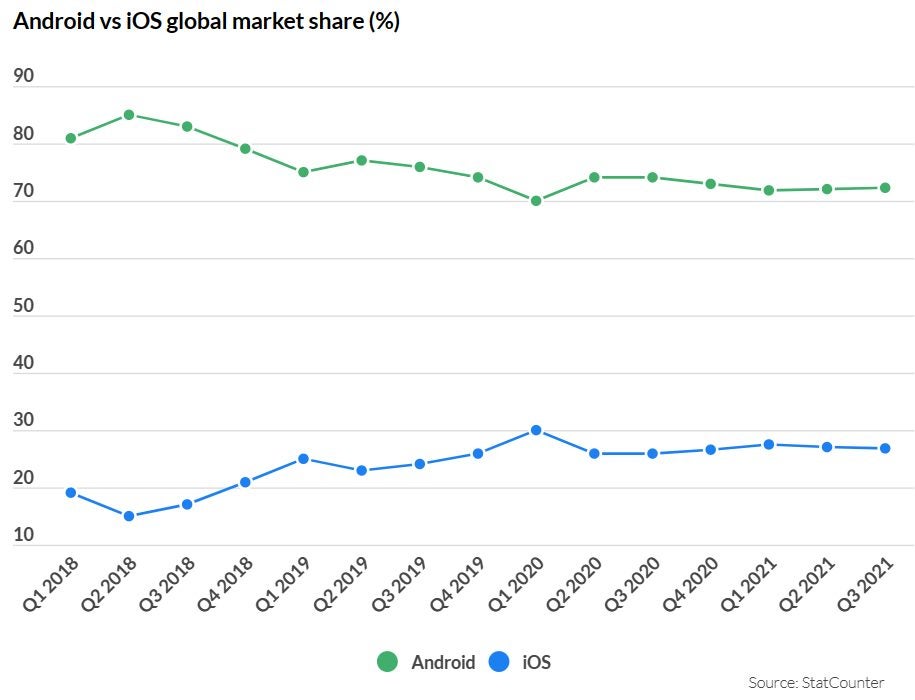
Android is an open-source operating system that was launched in 2007. It’s by far the most popular mobile operating system on the planet: As of January 2022, it enjoyed around 75% market share with approximately 2.8 billion active users. It’s present on a variety of devices in addition to cell phones. It’s in your office on Chromebooks, in your home, powering your smart TV, and even accompanies you on your day-to-day in the form of wearables.

Of course, with such a huge user base, it’s a no-brainer that businesses ensure they’ve got a presence in your pocket, in your lounge, and on your wrist by having their own apps. Unfortunately, it makes Android apps a huge target for cybercriminals. If they’re able to exploit vulnerabilities in your app, there are huge commercial, reputational, and even legal risks to your organization and your users. They’re all good reasons to read on and learn more about security testing your Android applications before you launch them.
How to test the security of an Android application

Android sandbox

By default, Android apps run in a sandbox environment. That simply means they’re unable to access any resources on a user’s device without getting explicit permission.

When a user downloads an app, it displays messages on the device’s screen requesting authorization to access things like the camera, microphone, and contacts to maximize its functionality.

Unfortunately, the sandbox isn’t guaranteed to prevent every threat. Sometimes, malicious components within an app can go undetected during the installation process, only to become active later and cause serious problems. That’s why you have to protect yourself and your end-users by carrying out penetration testing before rolling out your Android app.

Common threats

The following are four of the most common threats to the Android operating system. This is by no means an exhaustive list. It’s merely a quick look at some of the major vulnerabilities on the OS, and how to prevent them. 

Binary Protection 

If you allow your app to run on a rooted or jailbroken device, any kind of malicious code can run on it. At the very least, you should build jailbreak or root detection into your app.

Insufficient Transport Layer Protection

To ensure all sensitive data exchanged between the client and server is encrypted, it’s essential that your app has well-defined confidentiality and integrity rules.

Insufficient authorization/authentication

Make sure your app carries out sufficient authorization using policy-based config files instead of hard-coded checks.

Information leakage

Use threat models to ensure that data isn’t accidentally leaked through things like URL and keyboard press logging.

How to test the security of an Android application

Penetration testing

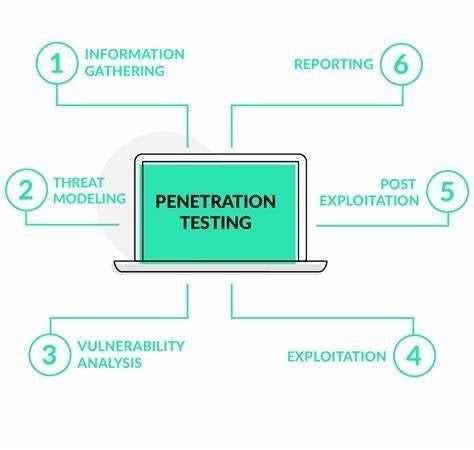
Penetration testing, or pen-testing, is the process of verifying the integrity of your Android apps. It lets you identify the vulnerabilities within them and indicates the severity of each one.

Carry on reading to learn what tools you need, how to prepare, and what steps to take.

Tools

There are lots of tools you need for testing the various aspects of your Android app’s security. If you wish, you can download and run them individually (manual testing), or you can download an app that contains all you need, which will carry out all relevant tests automatically.

If you want to go down the manual route, you should look out for apps that test things like misconfigurations (e.g. QARK – Quick Android Review Kit), and MITM (man in the middle) vulnerabilities (e.g. Mitproxy).

Either way, you need programs that you can use for a variety of tests, including pen-testing, mobile testing, ROM modding, and more. To save time without sacrificing reliability, programs such as App-Use, Android Debug Bridge (ADB), and Mobile Security Framework (MobSF) contain all the tools you need.

You’ll also need an Android phone emulator (Android SDK). This is essential for simulating your Android phone on your computer screen. You use it to see how your evolving app behaves without risking your real phone and data.

If you’re security testing Android apps on behalf of a third party, you’ll also require a web application proxy (WAP). This allows you to get authentication to work with apps on a company’s private network.

Finally, You should set up a virtual machine (VM) so you can test your app for multiple platforms in one place. This will help you ensure that your app will work securely on diverse variations of the Android OS on other kinds of devices.

Preparation 

Before you start testing, ensure your computer has at least 1GB of RAM (so the Virtual Machine doesn’t lag during your testing), and download the Android SDK and your testing tools of choice.

Vulnerability assessment

Once you’re ready to start the testing process, the first thing to do is check the current security state of your Android app.

This will produce a laundry list of vulnerabilities that needs to be addressed later when you put together your security strategy.

Security Testing

Running the pen-test will give you more detailed information as to the severity of each vulnerability detected in your earlier assessment.

It’s essential that you can strike the right balance in your app between server and client security, and usability. We recommend testing your app on each iteration to ensure you’ve got that balance right.

Mitigation

Your Android emulator is your best friend when it comes to resolving any vulnerabilities. Investigate and test them by activating the exploits, making yourself the ‘victim’. It’ll help you understand from a user’s perspective what happens during an active attack. 

We’ve already given you some pointers about the most common threats associated with Android apps, and here we’ll summarize the three core aspects of tightening up security.

  • Identification: If you overlook this vulnerability, it can allow a malicious app to present itself as an approved one. it leads to the user inadvertently allowing the malware to run on their device, believing it’s the original app they’ve approved
  • Authorization: to provide full functionality, your app may require access to two other components on the user’s device. For example, an app that allows you to upload photographs will need access to the camera. During the installation process, your app should obtain explicit permission from the user to access other apps or information stored within them 
  • Authentication: As well as securing your app server-side, make sure you don’t leave the door open at the client end. The most secure way to secure your app client-side is by enabling biometric authentication. Depending on the hardware your app’s running on, the user can use iris-scanning or fingerprint authentication to open apps on their device and to authorize transactions and changes
How to test the security of an Android application

Ensure the Android app is secure

The main takeaway here is that by constantly testing the security of your Android app during its development, you’re creating a secure, stress-free environment for everyone.

Ultimately, securing your app to the max produces a win-win situation. Not only do you protect your own server and systems, but you also make it as easy as possible for your users to remain secure while using your app.


6 easy and free ways to be safe online

So, you’ve bought yourself a lifetime subscription to the latest top-of-the-range, cover-everything cybersecurity suite. Awesome. Now you can just click and download to your heart’s content without worrying about a thing, right? Wrong.

You may have the greatest security software known to humanity, but you still have to do your bit. There’s always the human element, and it’s usually the weakest link when it comes to online security.

A list of the best security software deserves its own article. There are lots of easy things you can do to protect yourself from online security threats. Armed with a little technical knowledge and some good habits, there’s every chance you’ll avoid serious issues. Want to find out how easy it is to keep yourself safe online? Read on.

1. Email

Some of us are inundated with emails on a daily basis, while others have a far lighter flow. Either way, it only takes one well-crafted fake email to cause considerable damage. 

Let’s take a look at the threats that can drop into your inbox, and how to spot the danger before it’s too late.

5 easy and free ways to be safe online

Check the sender

Look closely at the email address. The logo may be very convincing, and the sender’s address may only be one character different from the official one they’re pretending to be. 

For example, take a quick look at these:

no-reply@amazon.com
no-reply@amazoan.com 

Get my point? You can also help protect yourself from email scams by asking yourself the following questions:

  • Do I regularly receive emails from them?
  • Have I recently interacted with them via their website or made a purchase?

If you’ve answered “No” to one or both of these questions, why would they suddenly send you an email now? These are all indicators that the unsolicited email you’ve received isn’t what it appears to be.

Beware of links

When you receive links embedded in an email, there are two things you can do. Firstly, hover your mouse over the link (without clicking) until a small caption box appears. The caption will show the address of the page that the link leads to. Look carefully at the address, and if you have the slightest doubt, don’t click on it.

Secondly, you can open your browser, go to the homepage of the supposed sender of the email, and navigate directly to the page that the link in the email claims to be leading to. It’s a straightforward way of avoiding the hazard of potentially dangerous links.

Question attachments

A malicious email attachment could be harboring all kinds of malware: viruses, Trojans, spyware, and ransomware are just a few of them. Before you open one, there are a few things you can check – without needing great technical knowledge. Here are a few of them.

  • What’s the file extension? Sometimes, malicious attachments have unusual ones.
  • Are you expecting an attachment from the person or company that appears to have sent the email? You can always call them to check.
  • Look at the filename. If it’s got a strange name or consists of a garbled string of digits and characters, delete the email.

2. Free file downloads

When you download from peer-to-peer (P2P) networks, you’re relying completely on your security software. P2P downloading used to be extremely popular for free downloads of music, movies, and software – mainly because people tend to like free stuff. Unfortunately, due to the nature of P2P, there’s always a considerable risk that something you download could have malware bundled with it.

Nowadays, subscriptions for services such as Amazon Prime, Spotify, and Netflix are so accessible and offer such excellent value for money that it doesn’t make sense to risk infection from P2P downloads.

5 easy and free ways to be safe online 2

3. Good browser habits

Here are our top five tips for browsing the internet safely. Some of them may take an extra few moments of your time, but it’s nothing compared to the consequences of falling victim to cybercriminals.

  1. Use two-factor authorization whenever possible
  2. Keep an eye on the URL in your browser address bar – even on your search homepage
  3. Use a VPN, especially when browsing via public networks
  4. Use a unique, complex password for each of your logins
  5. Don’t use passwords that include personal information that could be guessed
5 easy and free ways to be safe online

4. Biometric security

These days, we do far more on our portable devices than ever before. It’s convenient to be able to do things like pay our bills and transfer money while you’re out for a coffee. But what happens if you lose your device?

Having to unlock your device biometrically adds an almost infallible layer of security to your phone, tablet, or PC. It’s highly unlikely that someone finding your phone will be able to imitate your iris pattern or fingerprint in order to access your device.

Additionally, an increasing number of apps give you an option for biometric login. However, there are still plenty of programs that don’t give you that option. Apps with biometric security are more common on cell phone apps than desktop PCs. That’s why it’s a great idea to enable biometric login (for example, Windows Hello) on your tablet or desktop device (if it has it).

The best policy is to place biometric protection on your device and all apps that make it available. If unauthorized individuals can’t unlock your device, they can’t get online using your identity.

5 easy and free ways to be safe online

5. Fake Technical Support

Do you remember how at the beginning of this guide I said that the weakest link in online security is the human element? Well, guess what? Cybercriminals know that too.

They call and try to convince you they‘re from one of the major firms like Microsoft, Google, or Apple. They say that their system has detected a vulnerability on your PC, and they need to access it remotely to apply the fix. Don’t fall for it. Genuine companies don’t make unsolicited calls offering help.

5 easy and free ways to be safe online

6. Mobile security

Until now, I’ve described risks and solutions in broad terms. All that advice is applicable to whatever kind of device you’re using. However, due to their nature and popularity, there are some risks that are more prevalent on cell phones. Let’s dive into four of the biggest mobile risks to your mobile internet safety. 

Sideloading APKs

Although this advice is just as applicable to iOS, I’m going to focus on Android devices and apps. That’s because being the most widely-used mobile operating system, it’s a bigger target for digital ne’er-do-wells.

A couple of quick definitions:

  • Sideloading: When an Android app is installed from somewhere other than Google Play Store. 
  • APK: (Android Package): An Android app that’s been ‘repackaged’ and made accessible from outside of Play Store.

When you create APKs, they can be downloaded from outside of Google Play Store. The main problem lies in the fact that they can very easily be bundled with malware. Google checks the security of every app before it enters the Store, but if you download one from anywhere else, you don’t get that level of security. You could end up installing malware on your cell. Unless you’re an app developer, it’s best to keep away from APKs and stick to the Play Store for your apps.

Image result for Android Apk Icons

Mobile Payments

These days, cell phones are the electronic equivalent of a Swiss Army knife. We use them for everything possible. Have you ever heard the expression “There’s an app for that”? There probably is.

Most cells are equipped with NFC (near field communication), which can be used for making contactless in-store payments

The vast majority of people find it extremely convenient to wave their phone over a pay point. Rummaging around in your purse or your pants to retrieve your credit card is so twentieth-century! Why go to all that trouble when you can just grab your phone from your pocket and make a payment in a heartbeat? You guessed it: Security.

The technology in your bank card’s little gold chip is the same tech that enables your cell phone to charge wirelessly and transfer data via NFC. You may not have realized it, but it’s safer to make contactless payments with your card than with your phone. The reason is your phone’s increased connectivity.

Everyone knows that as soon as you connect a device to the internet, it’s at risk. That means when you wirelessly transfer your payment details from your cell to the in-store payment terminal, someone could hack into your connection and steal your information. The reason is that a chipped bank card doesn’t have an independent internet connection, it only becomes active when you hold it close to the scanner for payment. Furthermore, the frequency it works on is different from that of a cell phone’s internet connection.

Image result for contactless payment

Lost and found

What do you do when you lose your bank or credit card? You call the issuer to report it missing and they cancel it immediately. If someone finds your card they can, of course, try to use it for contactless payments – they may get lucky and find it before it’s canceled. The key thing is that all they can learn about you from your card is your name.

Imagine you haven’t followed my tips, and you lose your unsecured cell phone. Someone could get unfettered access to all your personal information, contacts, passwords, and anything else you’ve got saved in unsecured apps.

A close up of a wood surface

Description automatically generated with low confidence

Social media

The sheer portability of a cell phone lends itself perfectly to frequent and convenient interactions on your social media accounts. The thing is, it’s easy to get carried away and “over-share”.

You should be cautious about what information you share, when you share it, and where you are when you share it. If you post detailed contact information on your profile, you could be setting yourself up as a target for scammers – think back to those bogus tech support calls I mentioned earlier.

Displaying your address on your profile means that as soon as you post that you’re enjoying a wonderful holiday in foreign climes, you’ve created an equally wonderful opportunity for burglars who know you’re not going to be home for a while.

Much is made of how social media companies use the data they gather from subscribers, but it’s your choice if you hand over totally unrestricted access to everyone online.

Image result for burgler

It’s not what you do, it’s how you do it

Look, we know we’re living in a “mobile-first” world, but there’s a lot to be said for the good old desktop when it comes to online security. I’m not trying to make you give up your mobile device (heaven forbid), but the comparison table below contains some points to ponder.

DesktopCell
PeripheralsEasy to hover the mouse over a suspicious link to check its validity.No mouse.
NetworksUsually used in a specific location on a known, secure network.Frequently used on public networks which can be less secure.
Lost and foundYou can’t mislay a desktop.Constantly on the move in public places.
Device AuthenticationAuthentication is required on your cell to prove that you’re the one logging into a site on your desktop.On-device authentication can be useless if your phone’s already fallen into the wrong hands.
Image result for old desktop computer

Be vigilant and remain safe online

Staying safe online requires a combination of great security software and human awareness. It’s the same as your home security system. It’s only effective if you set it upright, use it correctly and follow basic security protocols yourself: the best system in the world won’t work if you leave the front door open.

We’re realistic enough to understand that in the constant battle between internet users and cybercriminals, there’s never guaranteed safety. What we can guarantee though, is that if you research and invest in a top internet security suite, follow our tips, and keep your wits about you, you can minimize the risks and enjoy your online activities in relative safety.