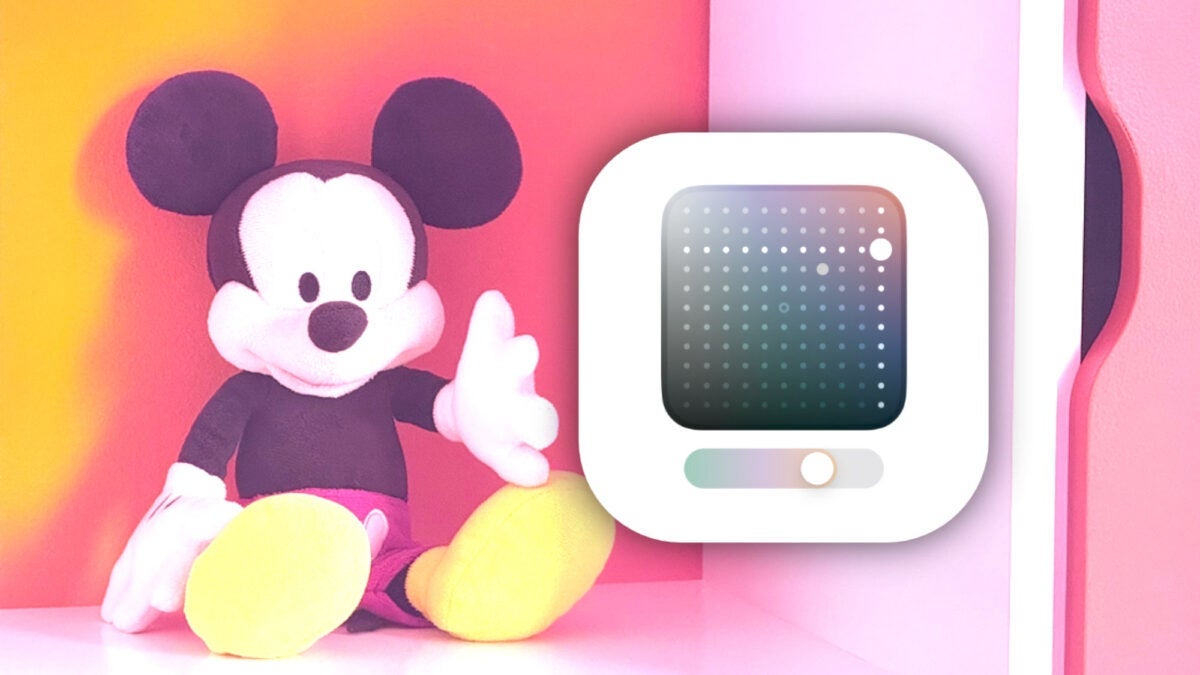
The Photographic Styles of the iPhone 16 offer us an extremely capable and at the same time flexible way to adjust our photos to give them a personal touch. With the ability to modify colors and tone in different parts of an image, these styles allow us a level of customization that rivals ProRAW options, though with much more intuitive control. What are Photographic Styles and how to use them to edit our photos? When we choose a photographic style, it is saved and applied to all the photos we take, giving us consistency in our images. The available styles include […]
The iPhone 16’s photographic styles offer an extremely capable and flexible way to adjust our photos to give them a personal touch. By modifying colors and tone in different parts of an image, these styles allow us to customize that rivals ProRAW options but with much more intuitive control.
What are Photographic Styles and how to use them to edit our photos
When we choose a photographic style, it is saved and applied to all the photos we take, giving us consistency in our images. The available styles include options such as Cool Rose, Rose Gold, Gold, Amber, Natural, Luminous, and several more, each with its own character and nuances.
The best part is that, even if we select a style before taking the photo, we can change or adjust it after the shot directly from the Photos app. How? By following these simple steps:
- Open the Photos app on our iPhone 16.
- Select an image that we have taken with a photographic style.
- Press the Edit button, which appears as three sliders.
- In the editing toolbar, press Styles.
- Slide through the styles to see a preview of each one on the photo.
- When finished, tap Done.
It is worth noting that we can adjust each of the styles more precisely. To do this, simply select it and move your finger over the dotted square to modify the tone and color. We can also use the slider to adjust the intensity of the style application.
As we make the fine adjustments, we will see the exact values of tone, color, and intensity at the top of the screen. If we want to reset the image to its original state, we simply click the arrow to undo the changes. From here, we can repeat the process to achieve the adjustment we need and, overall, give each of our photos the look we desire.

Author: David Bernal Raspall
{
"de-DE": "Architekt | Gründer von hanaringo.com | Trainer für Apple-Technologien | Autor bei Softonic und iDoo_tech, zuvor bei Applesfera",
"en-US": "Architect | Founder of hanaringo.com | Apple Technologies Trainer | Writer at Softonic and iDoo_tech, formerly at Applesfera",
"es-ES": "Arquitecto | Creador de hanaringo.com | Formador en tecnologías Apple | Redactor en Softonic y iDoo_tech y anteriormente en Applesfera",
"fr-FR": "Architecte | Créateur de hanaringo.com | Formateur en technologies Apple | Rédacteur chez Softonic et iDoo_tech, précédemment chez Applesfera",
"it-IT": "Architetto | Fondatore di hanaringo.com | Formatore in tecnologie Apple | Scrittore per Softonic e iDoo_tech, precedentemente su Applesfera",
"ja-JP": "建築家 | hanaringo.comの創設者 | アップル技術のトレーナー | SoftonicおよびiDoo_techのライター、以前はApplesferaで",
"nl-NL": "Architect | Oprichter van hanaringo.com | Trainer in Apple-technologieën | Schrijver bij Softonic en iDoo_tech, voorheen bij Applesfera",
"pl-PL": "Architekt | Założyciel hanaringo.com | Trener technologii Apple | Pisarz w Softonic i iDoo_tech, wcześniej w Applesfera",
"pt-BR": "Arquiteto | Fundador do hanaringo.com | Instrutor em tecnologias Apple | Escritor na Softonic e iDoo_tech, anteriormente na Applesfera",
"social": {
"email": "races_provost0x@icloud.com",
"facebook": "",
"twitter": "https://twitter.com/david_br8",
"linkedin": "https://www.linkedin.com/in/davidbernalraspall/"
}
}
View all posts by David Bernal Raspall