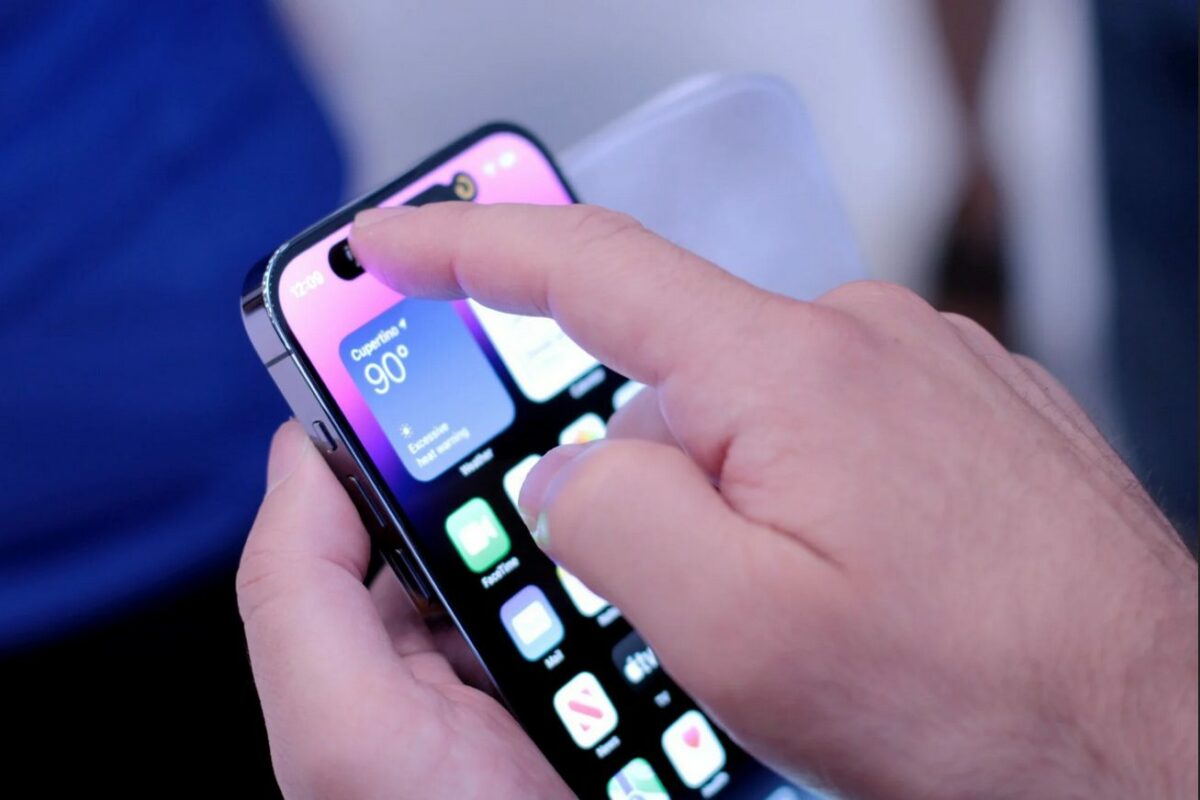
Are you looking for easy ways to record your iPhone screen? Whether you want to test the functionality of a web page for a work project, save a clip of a game you’re playing or teach your friends or family how to use an app, you’ve come to the right place. Simply use one of these three easy methods and start sharing your iPhone videos online.
iPhone Screen Capture
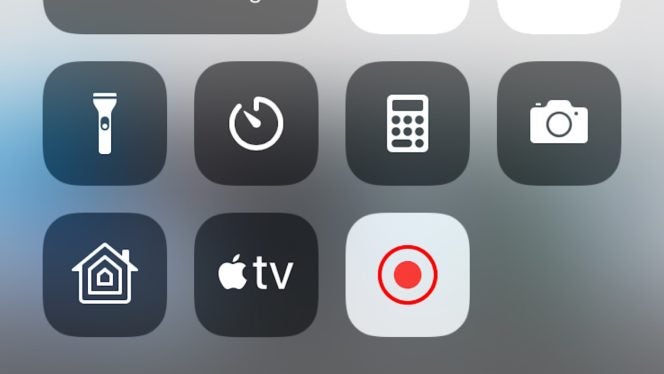
This is the simplest and easiest way to record your iPhone screen and the best part is that it’s available since the iPhone 11. To do so, simply follow these easy steps:
- Enter Settings- In your phone settings, scroll down until you reach the “Control Center”. Once there, click on “Customize Controls”.
- Customize Control Center- On this page, you can choose which additional controls you can add to your Control Center. Scroll down in the “More Controls” category until you reach the “Screen Recording” tab. Next to it, a green button with a plus sign symbol appears.
- Add the Record button- Tap the plus sign symbol, and “Screen Recording” will move up into your “Include” category. Now, swipe up from the bottom of your screen and your Control Center will pop up with buttons to toggle Wi-Fi, control volume, and your screen brightness.
- Record your screen- The button to start recording your screen looks like a target symbol. Tap it once, you’ll see a three-second countdown, and you’ll know the screen recording has started because the symbol will turn red.
- Save your recording-When you’re finished screen recording, press the same button and it will stop. You’ll see a banner pop up to let you know where your recording has been saved to, and most times it is in your photos. You’re all finished!
QuickTime Screen Recording

If you own a Mac, you can easily record your iPhone’s screen by using the QuickTime app. This will result in a higher quality recording and wiping out that annoying red recording indicator from the iPhone Screen Capture. Saving a clip of your mobile phone with QuickTime is very easy, just follow these steps:
- Plug your iPhone to your Mac computer using a lightning cable
- Open the QuickTime app and then click on “File” followed by “New Movie Recording”.
- Click the arrow next to the record button and select your iPhone from the drop down menu.
- Now simply press the red record button to save a clip of your iPhone’s screen.
Recording your iPhone with a Camera

Last, but not least, you can record your iPhone’s screen by using a camera. While this method can be a bit tricky and expensive (it requires a good camera to record a video with usable quality), it’s also very easy and straightforward. Simply make sure to set your camera on a tripod and use your iPhone in a dark room to eliminate any screen reflection and color issues from your recording.
