Cybercrime Explained: Top Security Tips from MacKeeper Experts

We’ve all been there. Every cybercrime news story we hear about laments the fate of big corporations whose data has been leaked. All of this seems a world away from affecting us – it’s not our data that’s hacked. We think we’re immune until it happens to us. Technology is fast-moving, but hackers are too, and they are especially fast in developing news ways to collect your personal data. 

INTERPOL reports that in just 2 months, from February to March 2020, there was an approximate 600% increase in malicious domain registrations. These registrations, plus phishing scams and malware or ransomware, were the top 3 pandemic-inflicted cyberthreats in 2020. Hackers are no longer the mysterious guys in black hoodies we see depicted in the movies. They are an invisible but constantly present threat to your safety and security, even in your own home.  
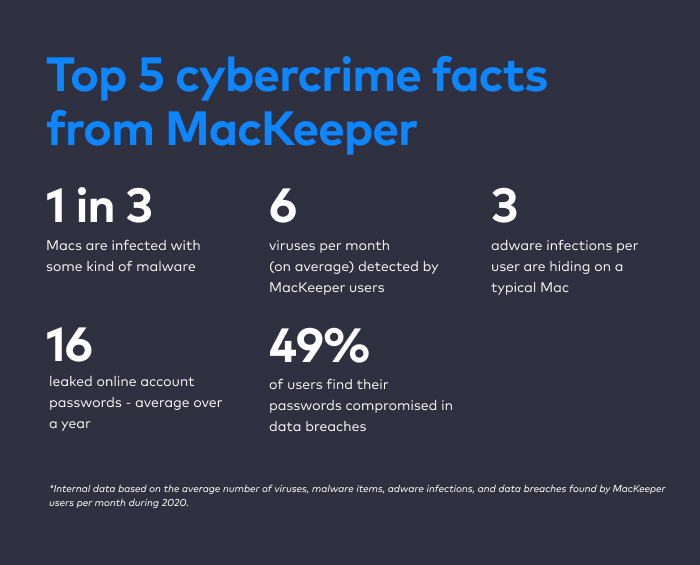
The numbers you see above are the result of a thorough analysis of scans performed by MacKeeper users. MacKeeper is one of the most comprehensive security and cleaning utilities for Mac. You can download it to scan your own Mac and see which security and privacy items need to be fixed. In the meantime, MacKeeper experts have shared some key recommendations on how to steer clear of cyberthreats.

Use a strong password

While it’s totally obvious to many users, it’s ridiculous how many more ignore simple password rules. They often use easy combinations such as 123456, qwerty, or password which takes hackers less than a second to crack. Remember, a good password is never easy to crack; a strong one should combine lowercase and uppercase letters, as well as numbers and symbols, like “!Y0U_NeveR_GuesS@”. 

Check for data breaches

However, any password can potentially be leaked in a data breach. Hackers may then use them to log in to your personal accounts once they have access to the leaked password database. What’s more, data thieves can use your login data months, or even years, after it’s been made publicly available. But you can take action: your best option is to check right now which, if any, of your passwords may have been leaked. You can download MacKeeper to check your email for any breaches and see which passwords may have been exposed (so you know which ones to change). 

Pay attention to updating your apps

The latest app versions come with the latest security fixes. So, if your browser has a worldwide security breach, it’s best to update it ASAP and leave no chance for hackers to exploit this vulnerability. Usually, apps from the App Store will update automatically, whereas for other third-party apps you’ll need to manually track updates. To make sure you don’t miss an important one, it’s best to download MacKeeper – it automatically finds updates for your favorite apps and helps you keep them all up-to-date in a single click. 

Browse only secure websites

Fake websites are flourishing with one goal in mind: for hackers to collect your personal data. Be it your name, address, email or credit card details, fraud is rampant online, so pay attention to the status of a website, as a lot of users neglect to do this. Look at the type of connection in the address bar; the protocol used by the webpage must be HTTPS – not HTTP, which doesn’t provide encryption. If it’s HTTP, it’s better to stay away. 

Use a real-time antivirus 

This is to protect your downloads. As you know, despite being internally secure, Macs are still vulnerable when connected to the Internet. When you install a good security software, it can automatically scan the files you download and detect any potential threats. If you want to know if a downloaded file is safe to open, download MacKeeper – it blocks adware infections and malware in real time.
Be careful with public Wi-Fi

Unfortunately, free hotspots do not provide enough privacy to ensure your security. The main danger is that anyone, from an accomplished hacker to the average user, can access the same network as you. The most important thing to remember is that all public, unencrypted, or open networks are just that – open, public and unencrypted. Anyone can access the data you transmit, including your payment data. So, if you still want to make a purchase through public Wi-Fi, you must use a Virtual Private Network (VPN).

Use a secure VPN connection

VPNs work like an invisible wall between you and the internet provider, encrypting your connection so it’s unclear to intruders where you’re browsing or what data you’re transferring. Without a VPN, all your traffic, including your billing info, may be intercepted. Also, VPNs change your virtual location so that your real one remains unknown. If you need a good VPN, you can download MacKeeper, as it comes with a built-in VPN client that uses top-notch encryption algorithms (such as  AES-256) which would take hackers billions of years to breach.

The Key Takeaway

Cybercriminals have less chances of tapping into your private data if you simply ensure basic security measures. Download MacKeeper to stop hackers in their tracks, safeguard your private data, protect your Mac from threats 24/7, and even optimize its speed.

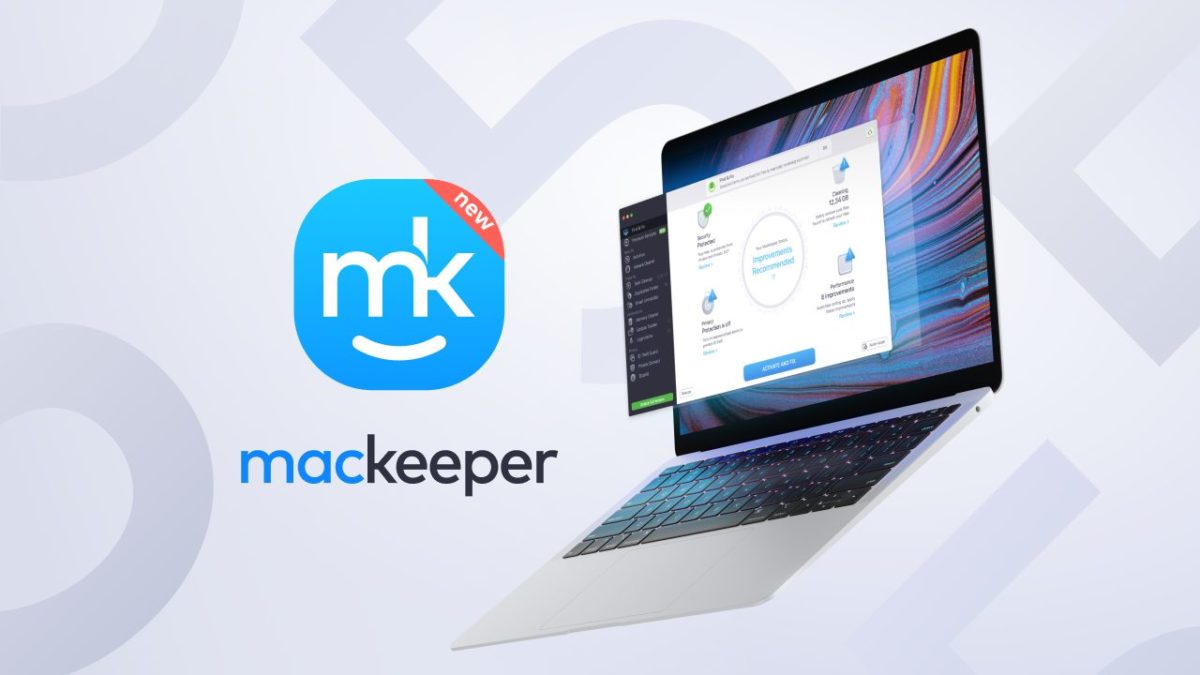
All-New Mackeeper 5: Your Top Mac Cleaning and Security Solution

If you’re a regular reader of Softonic, then you know that we’ve frequently suggested that you install a virtual private network (VPN) on your computer; use some kind of privacy software to further protect your identity and keep you from being tracked; and speed up your machine with optimization software. Fortunately, MacKeeper makes it possible to do all of that and more in one easy-to-use, attractive software package – and in its latest release, it’s stronger than ever. Plus, as a Softonic reader, you can now download it and scan your Mac completely free of charge.

Chances are good that you’ve seen ads for MacKeeper before but in case you’re unfamiliar with the software, which is trusted by 2.3 million users, it employs a two-pronged approach for improving and securing your Mac usage.

Cleaning & Optimization

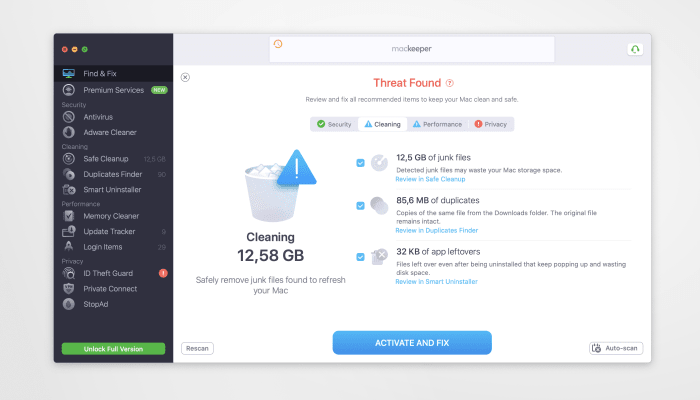
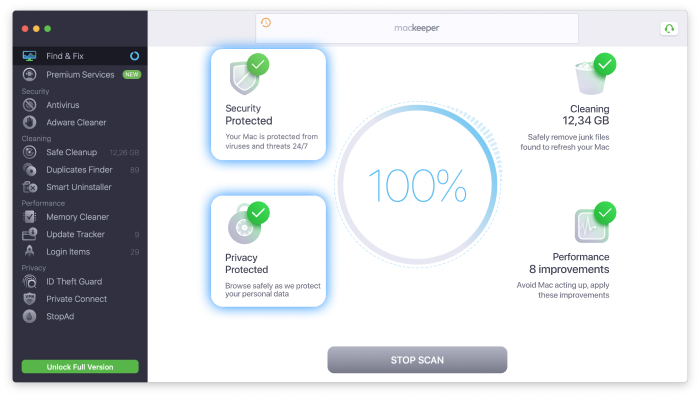
As all computer users know, performance tends to slow down over time. That’s because system resources are often tangled up in old data and bits of programs that are no longer used. Through MacKeeper’s Find & Fix dashboard, the software lets you click a few buttons to instantly find and delete the junk files cluttering your computer including logs, caches, duplicate files, app leftovers and more. Find & Fix further allows you to scan for and fix other problem areas on your computer that might be affecting its performance.

In version 5 of the software, MacKeeper has refreshed its Find & Fix tool, letting you gain even  easier and more visual control over the files you want to manage. It’s so effective that on average, every MacKeeper customer frees up 5.3 GB of storage space after using the utility.

MacKeeper also provides a Safe Cleanup function that lets you clear out unnecessary logs, caches, and more and also completely empty the trash with a single click. On top of that you get a Duplicate Finder that identifies and removes redundant files on your computer that can hog storage space. There’s even an Update Tracker, so that you always have the most recent – and most secure – version of your apps, and it offers an easy interface that you can use to manage your start-up items and delete unneeded ones to speed up your initial boot time.

Privacy & Security

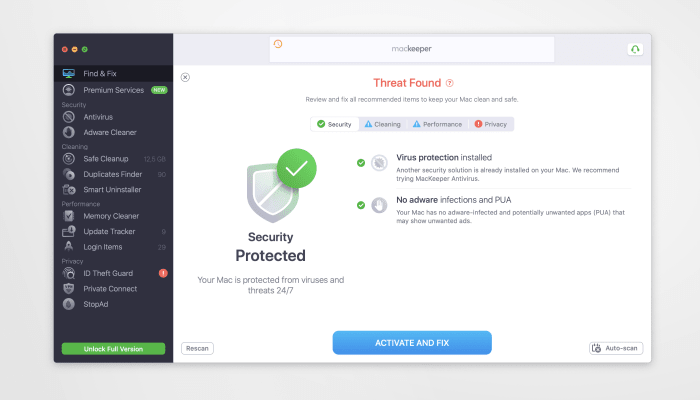
The second major function of MacKeeper 5 is its ability to keep your computer free from malware and your privacy safe from prying hacks – a critical function considering that ⅓ of all Macs scanned by the software are infected with some kind of virus or malware.

By incorporating a VPN, every time you activate MacKeeper, you are able to tunnel into one of over 60 locations that hide your true IP address from anyone seeking to locate you. This VPN protection extends to all WiFi networks you connect to – whether in your home, at the airport, or anywhere you may find yourself when you’re out and about. Version 5 of the software now includes the fastest VPN functionality to date.

The software also employs industry leading antivirus protection that places your computer behind a shield, blocking malware attacks of all kind.

New in version 5, this malware protection will operate in real time, plus a background scanner will survey your entire computer every day, show you ways to keep your machine clean, running its best, and alert you to anything that looks suspicious. The software also incorporates ID Theft Guard, which alerts you whenever your online data may have been exposed to hackers, and a function called StopAd that blocks annoying browser ads to speed up and declutter your surfing experience.


Start Scanning Your Mac Now

With all it can do, it would be reasonable to think that MacKeeper might be tough to get started with. But the good news is that it’s super simple! All you need to do is:

  • Click the link below to download the software for free
  • Run a one-click scan of your machine
  • Decide which of the recommended actions you’d like to take to get your computer in tip-top shape
  • Set up which notifications you’d like to receive in order to keep everything running smoothly.

It really is that easy!

Maintain and clean your Mac with MacKeeper

mackeeperlogo.pngThere are hundreds of cleaning tools available for Mac but MacKeeper is one of the best I’ve ever tried. Effective, super-slick and ultra easy to use, MacKeeper is a new cleaning and maintenance tool that’s saved me over 20GB of hard drive space that was being wasted by various files. It differs from some cleaners in that as well as offline cleaning, it also offers online help courtesy of a subscription only Geek on Demand service. MacKeeper’s interface is clear and simple with all of the available features listed down the left hand side and details of each in the middle of the screen. I like the way that each time you open it, you have an instant overview of when your last maintenance task was, total disk space saved by MacKeeper etc:

mackeeper2.png

You know a cleaning tool is good when it saves you over 20GB of hard drive space. That’s exactly what MacKeeper did for me. To see if it can do the same for you, go to One-Click Scan and MacKeeper will begin to scan your system for files that are duplicated, cached and taking up space in other ways. The scan can take a while and you’ll notice a small clock-face next to each feature showing you how much time is left before the task is complete. The time it takes to scan is one of the few drawbacks of MacKeeper but at least you know it’s doing a proper job. Continue reading “Maintain and clean your Mac with MacKeeper”